How to Manage and Export Activity Events

Learn how to create, edit, filter, and export activity events in the Concordia Management System.

By Liya Wang

This guide explains how to create, edit, filter, and export activity events within the management system. By following these steps, you can ensure the school's event calendar is accurate, up-to-date, and accessible to the community.

This process is designed for activity coordinators and administrative staff who manage scheduling and extracurricular programs. It should be used whenever a new event needs to be added to the calendar or an existing event requires updates.

Navigating to Events
1
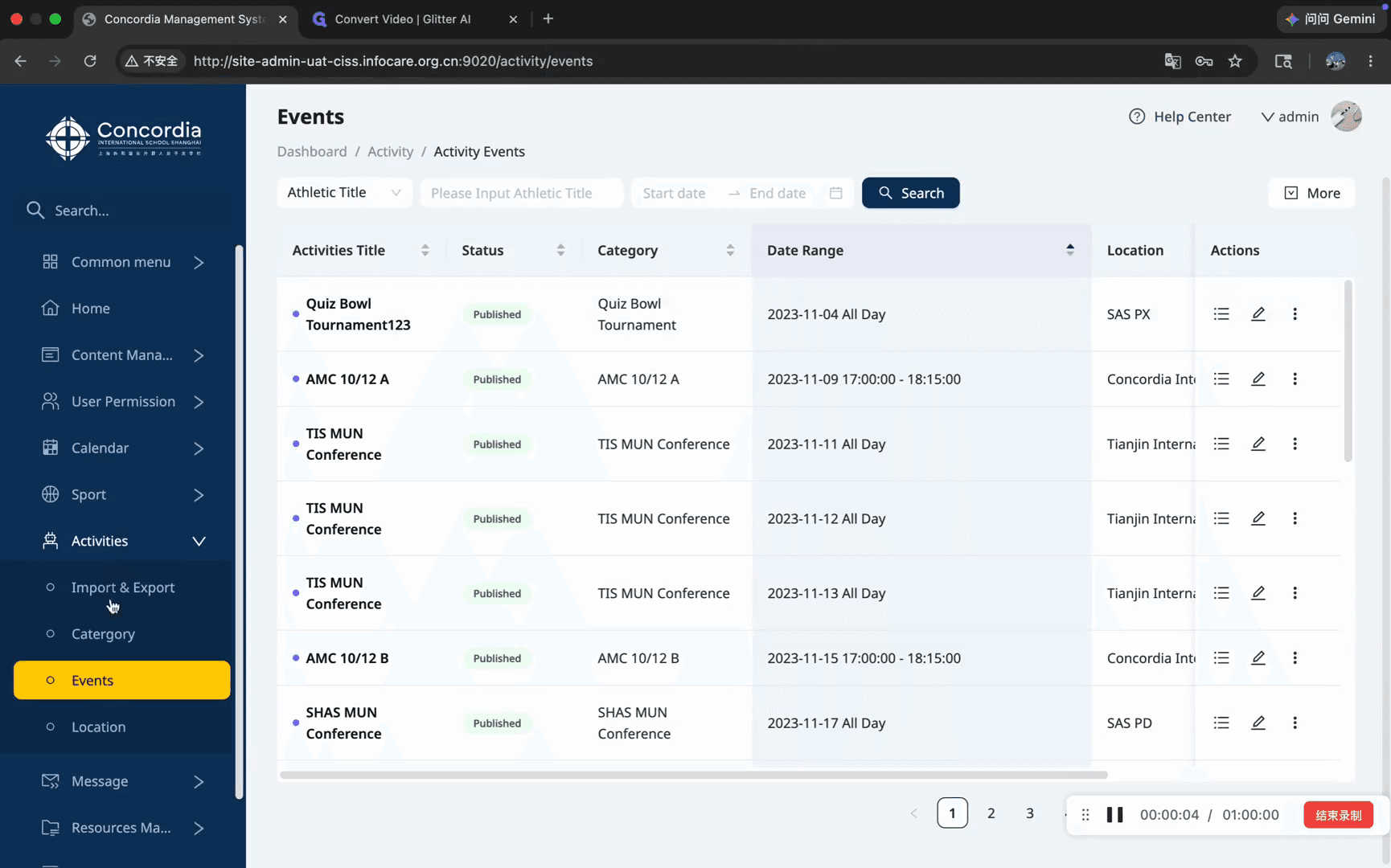
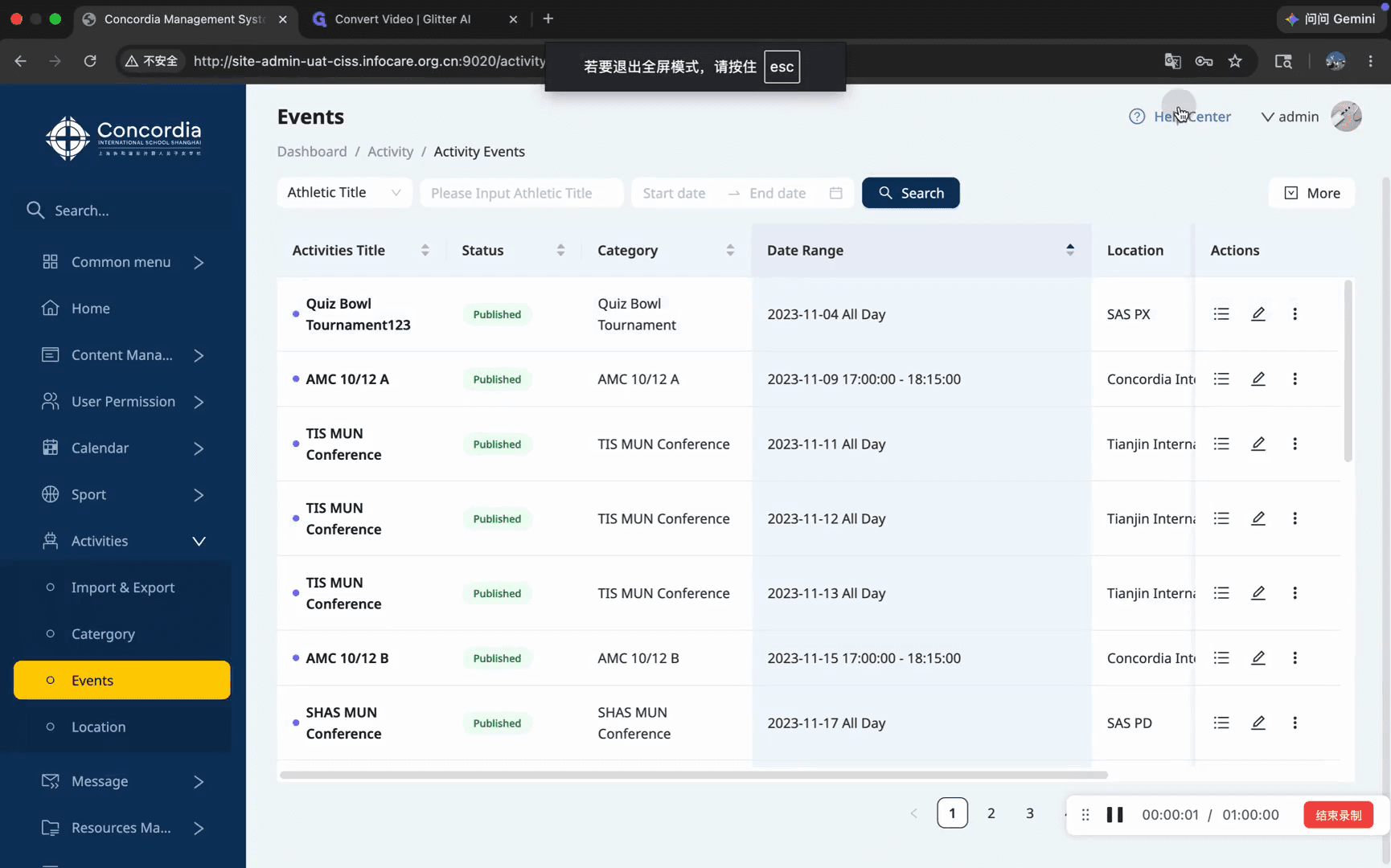
In the left sidebar navigation, click Activities to expand the menu.
Step #1: In the left sidebar navigation, click Activities to expand the menu.
2
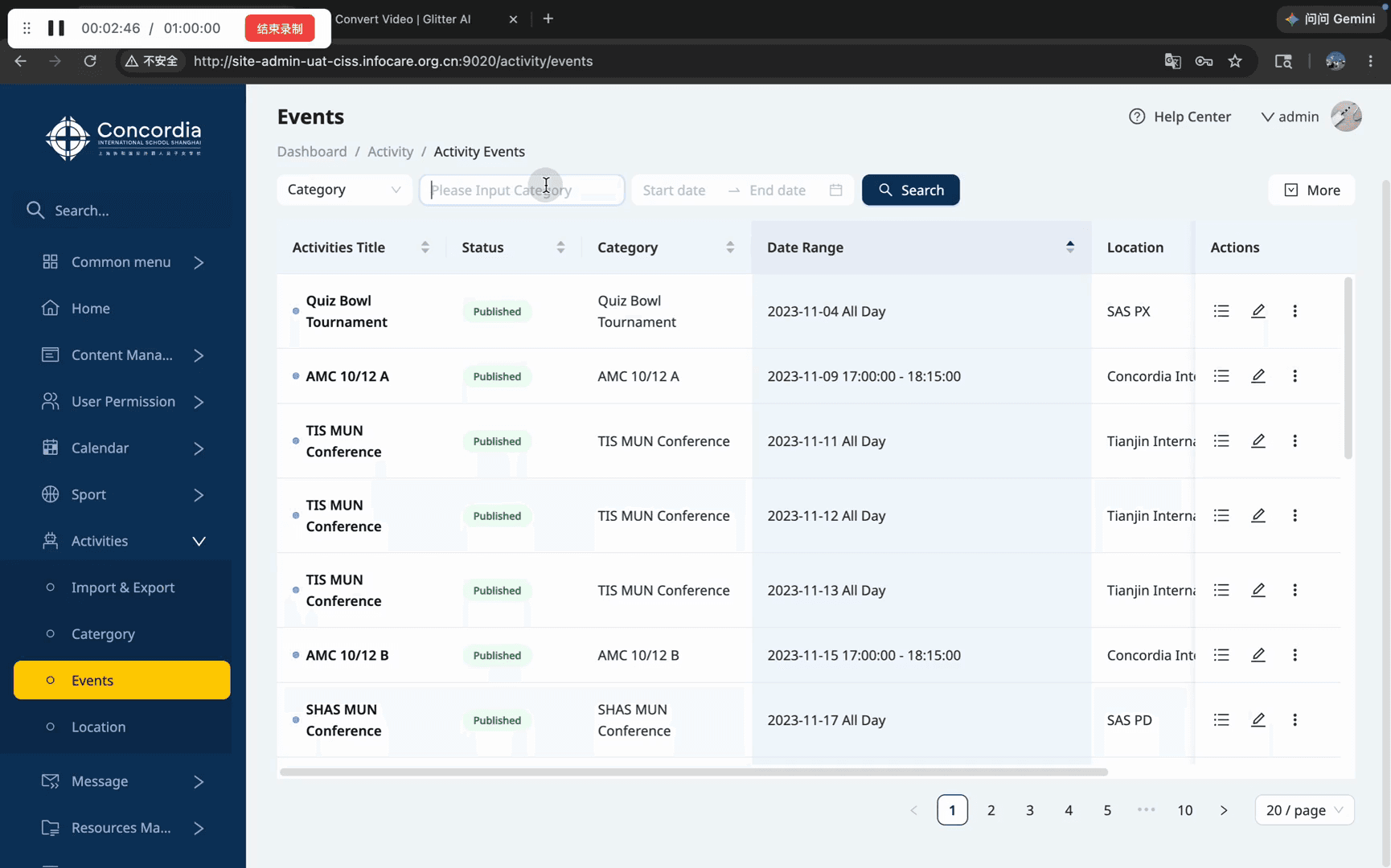
Select Events to open the Activity Events dashboard.
Step #2: Select Events to open the Activity Events dashboard.

Creating a New Event

3
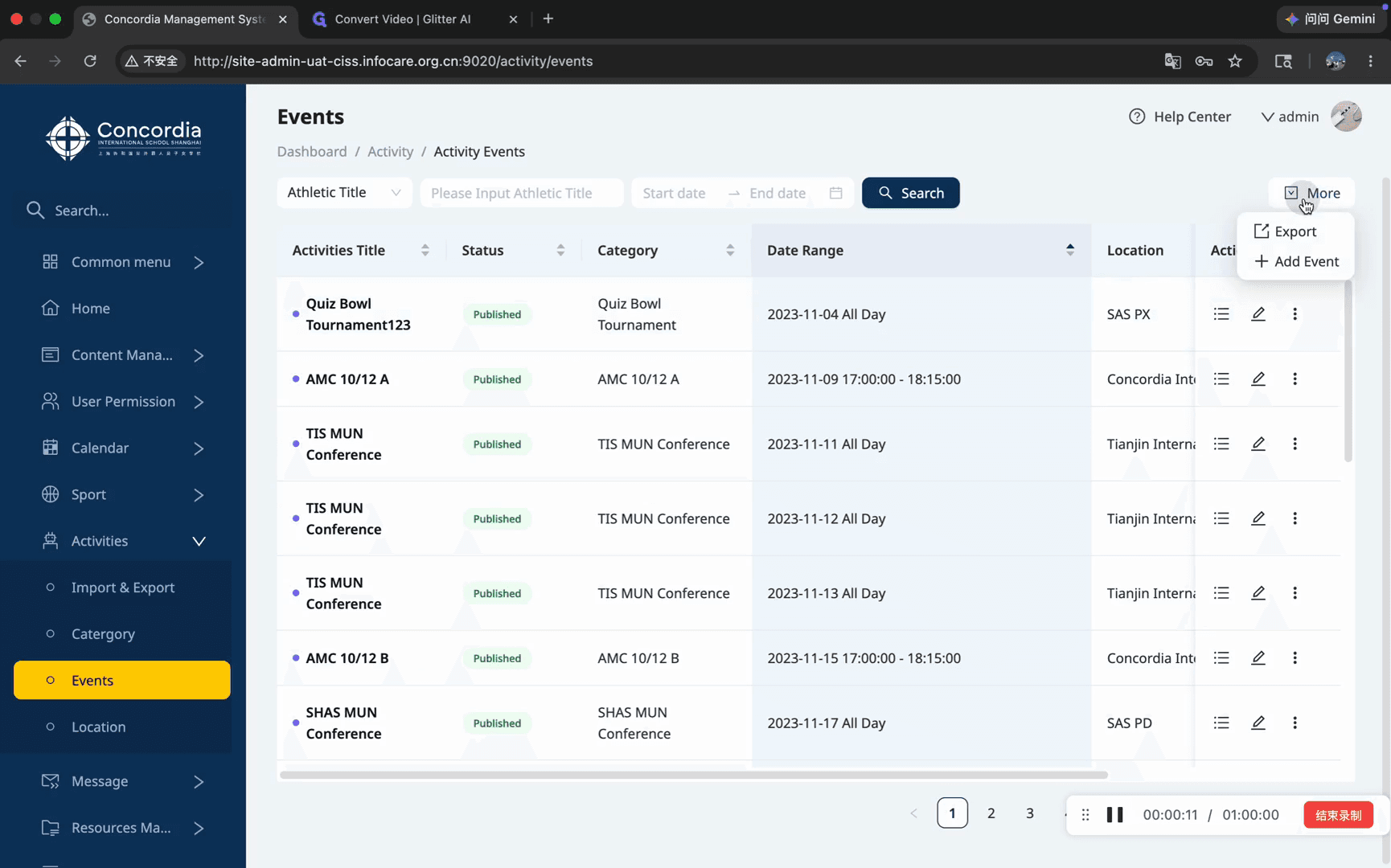
In the top right corner of the dashboard, click More and select Add Event.
Step #3: In the top right corner of the dashboard, click More and select Add Event.
4
Type the name of your event in the Event Title field.
5
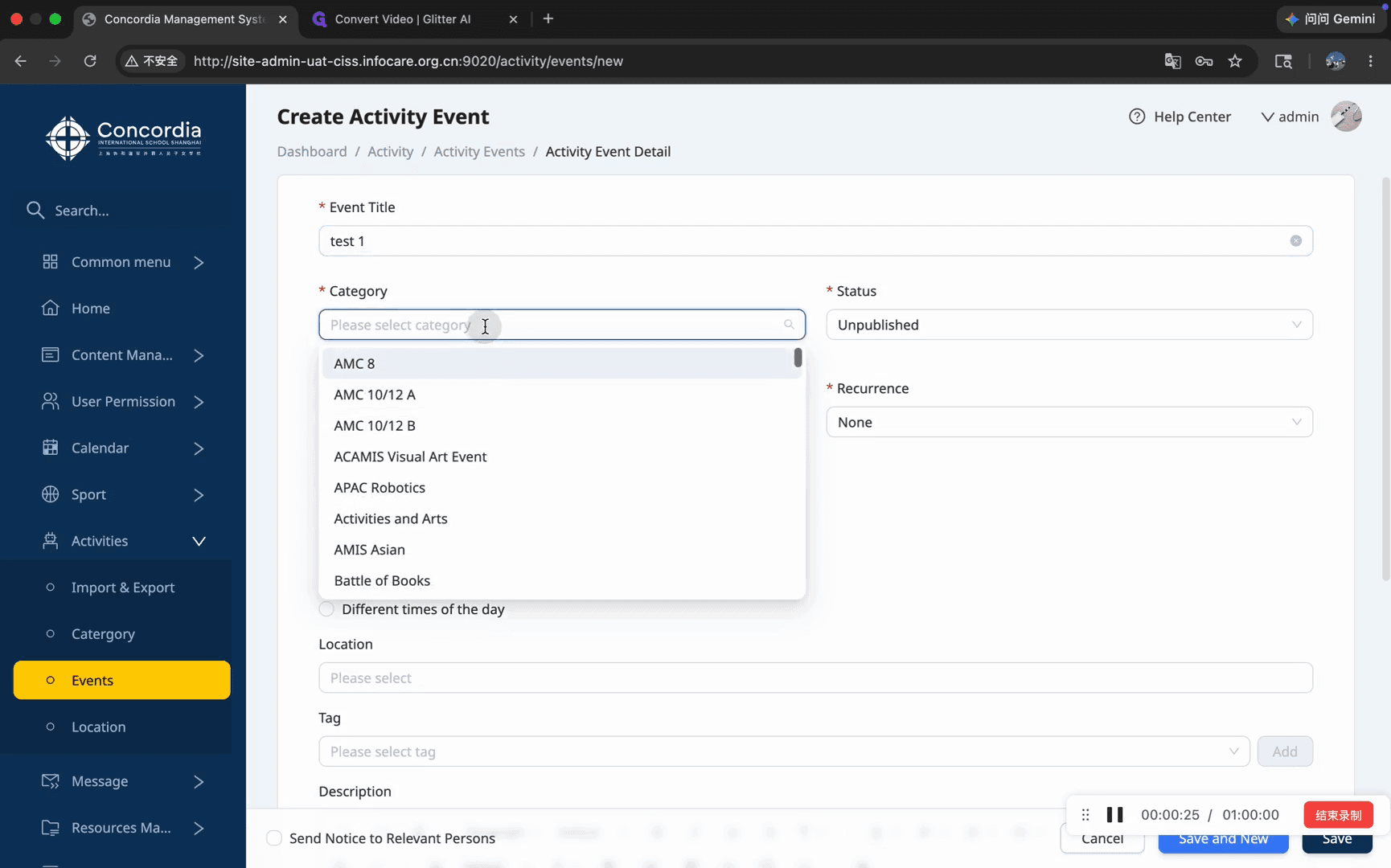
Click the Category dropdown and select the appropriate classification for the event.
Step #5: Click the Category dropdown and select the appropriate classification for the event.
6
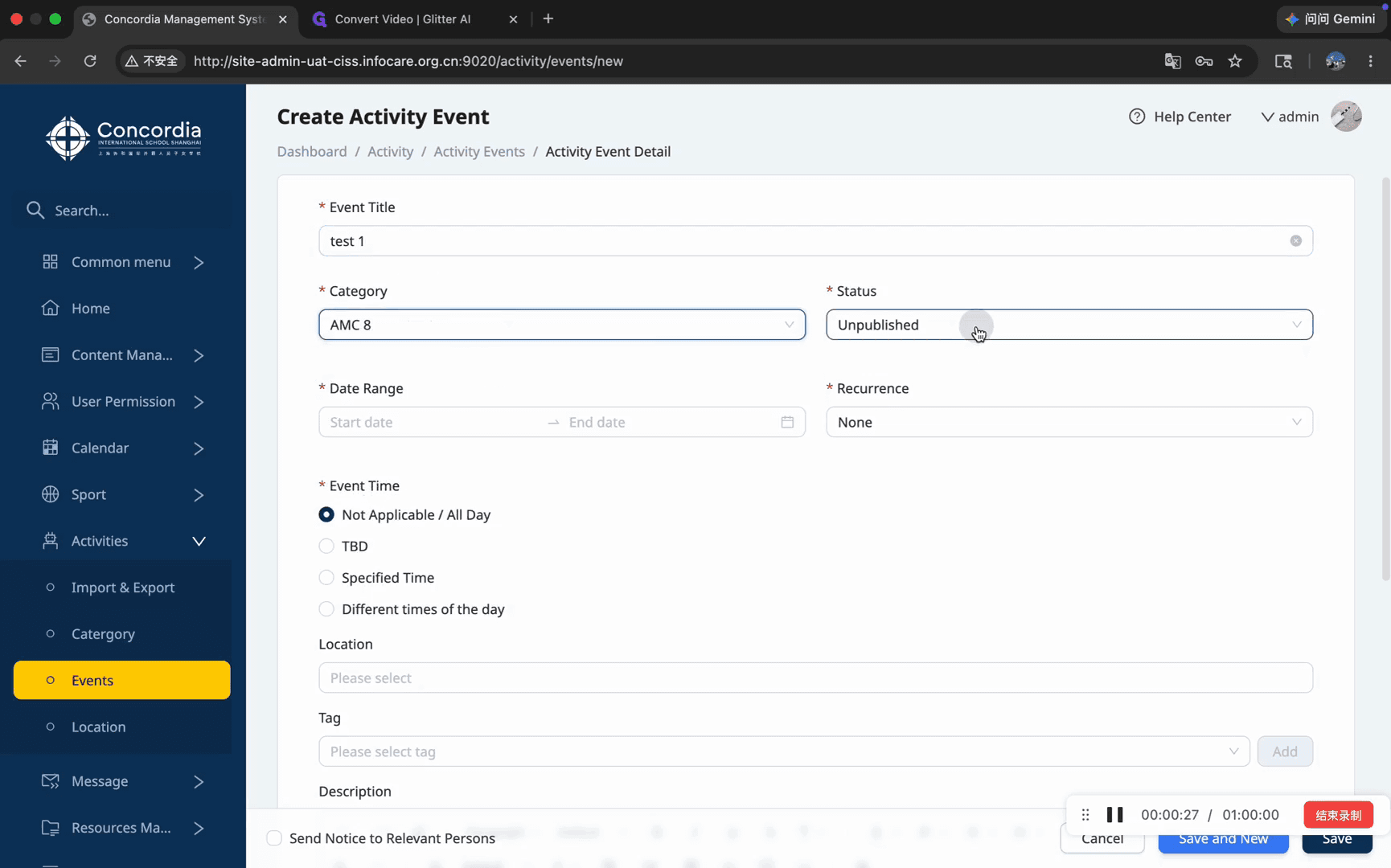
Set the publication state using the Status dropdown menu.
Step #6: Set the publication state using the Status dropdown menu.
7
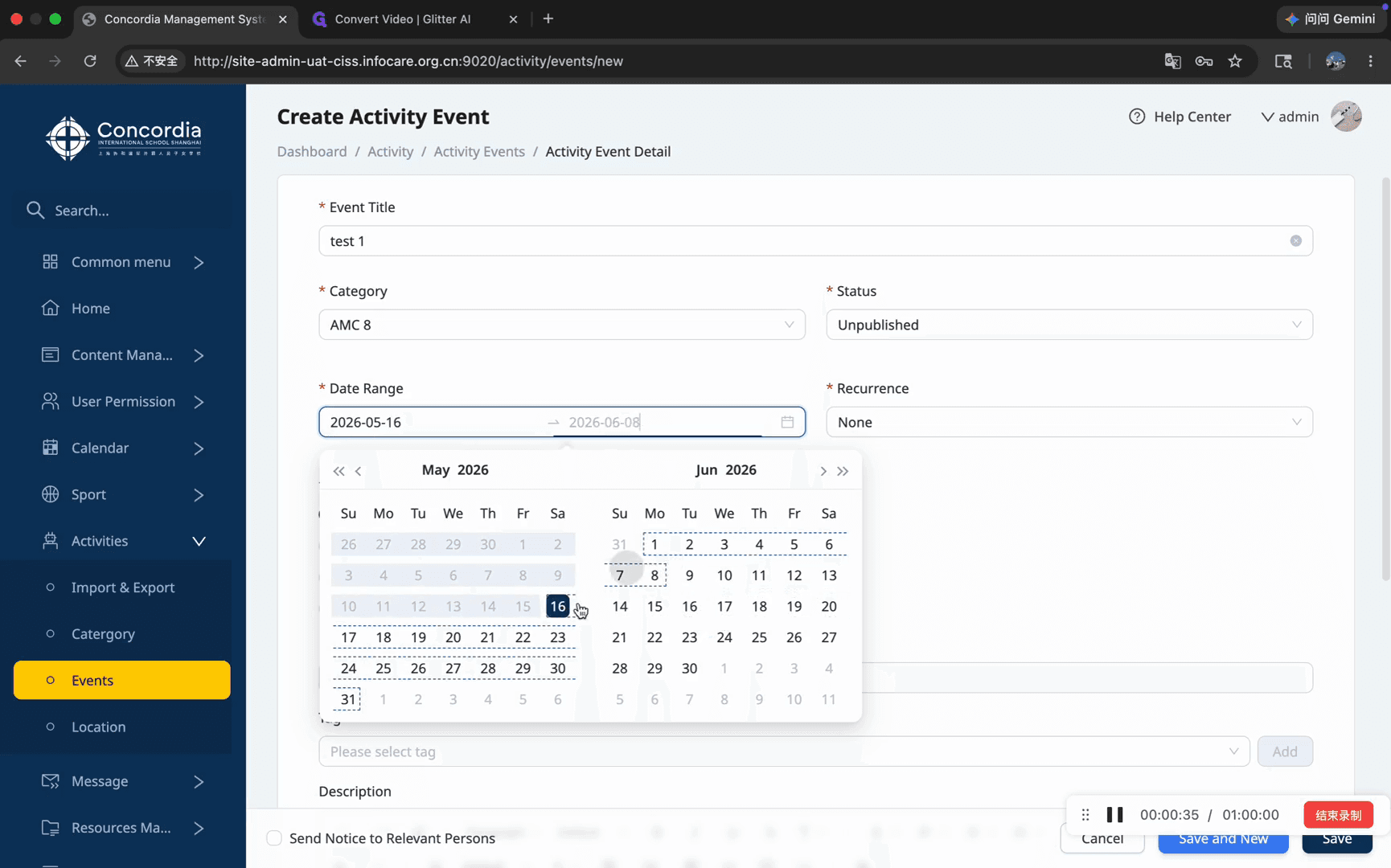
Click the Date Range fields to open the calendar and select your start and end dates.
Step #7: Click the Date Range fields to open the calendar and select your start and end dates.
8
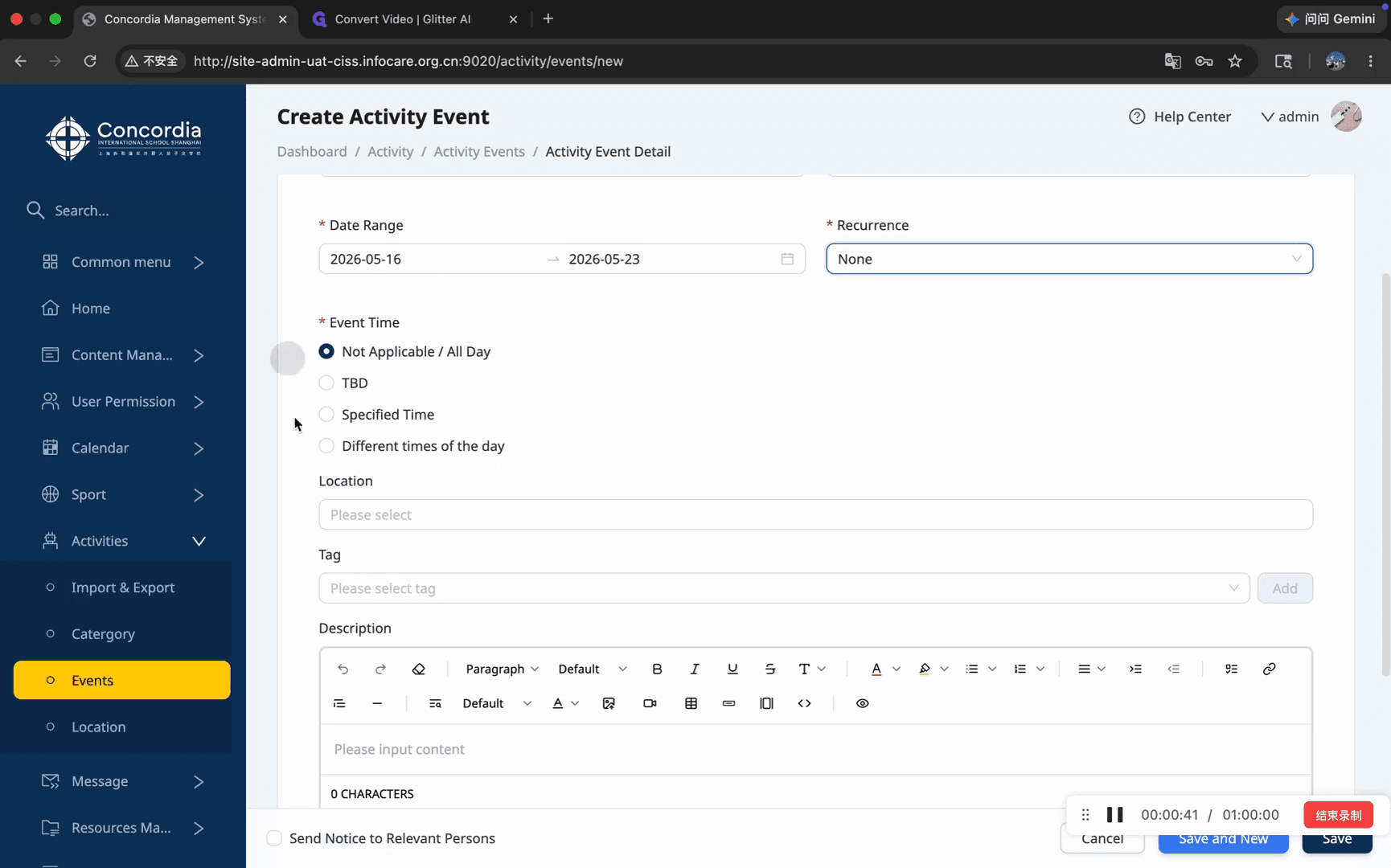
Specify the exact event time, or select the TBD radio button if the schedule is undecided.
Step #8: Specify the exact event time, or select the TBD radio button if the schedule is undecided.
9
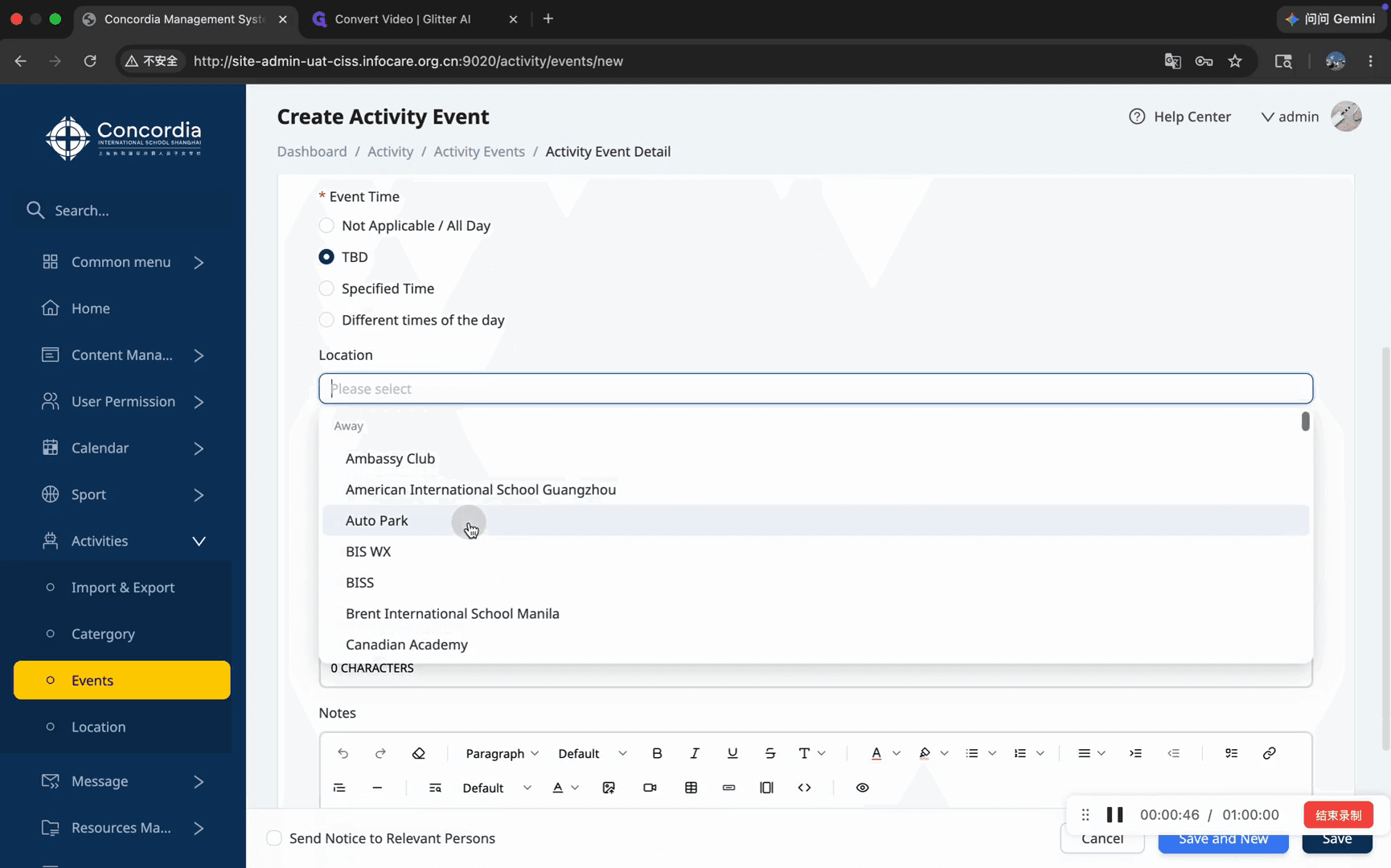
Open the Location dropdown and choose the venue, such as Auto Park.
Step #9: Open the Location dropdown and choose the venue, such as Auto Park.
10
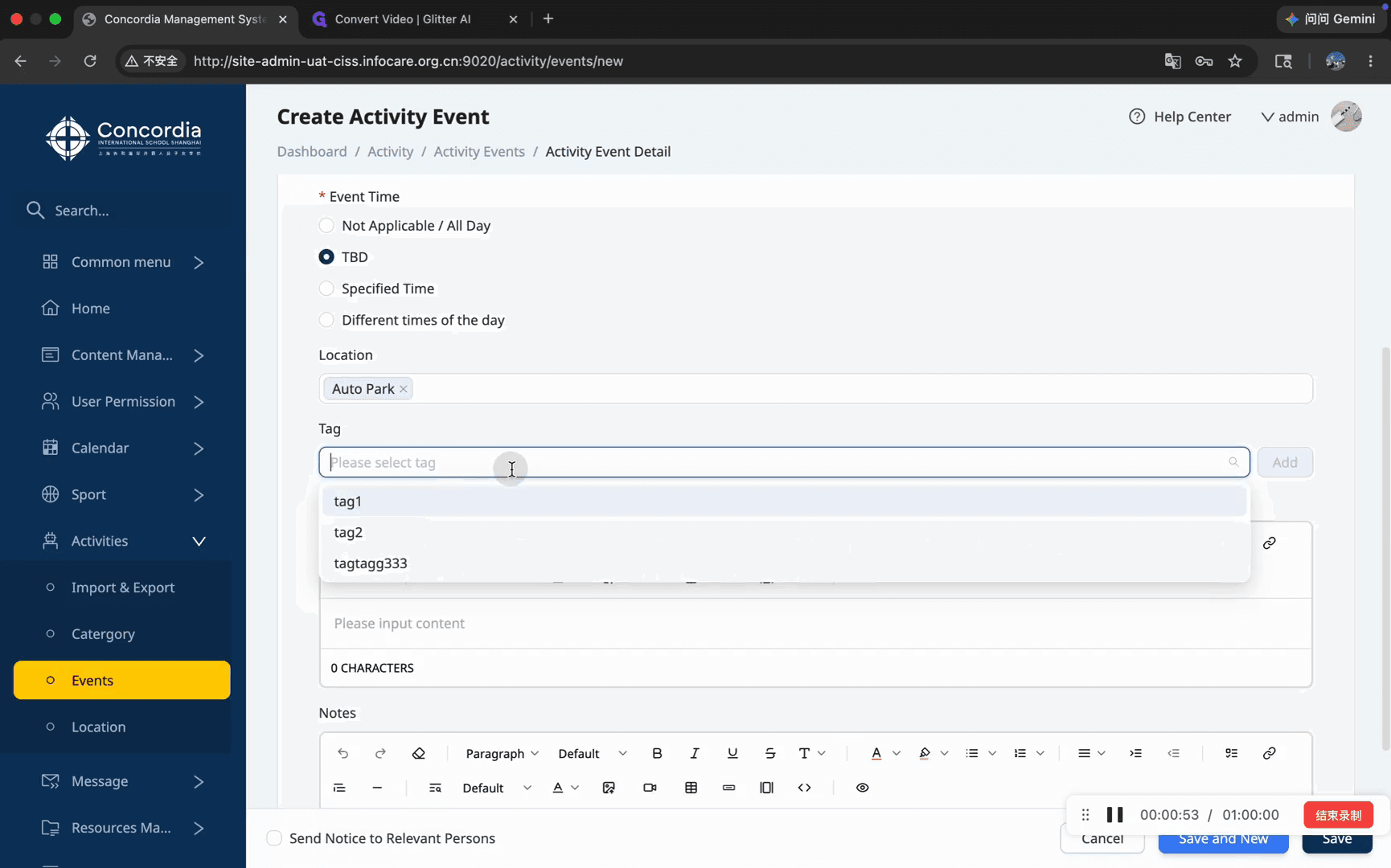
Select any relevant categories from the Please select tag dropdown.
Step #10: Select any relevant categories from the Please select tag dropdown.
11
Enter a comprehensive summary in the Description rich text editor.
12
Add any internal administrative remarks in the Notes section.
13
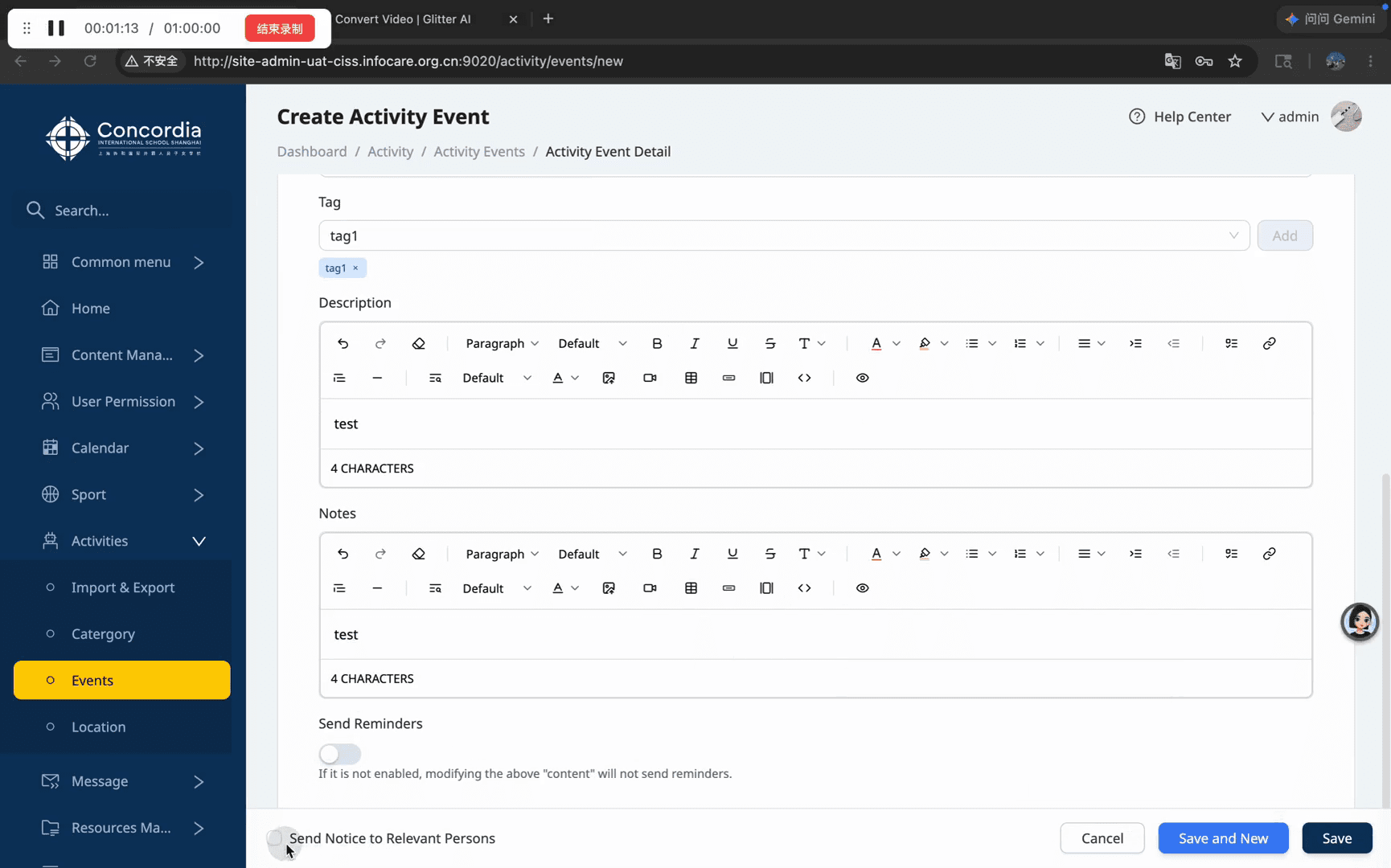
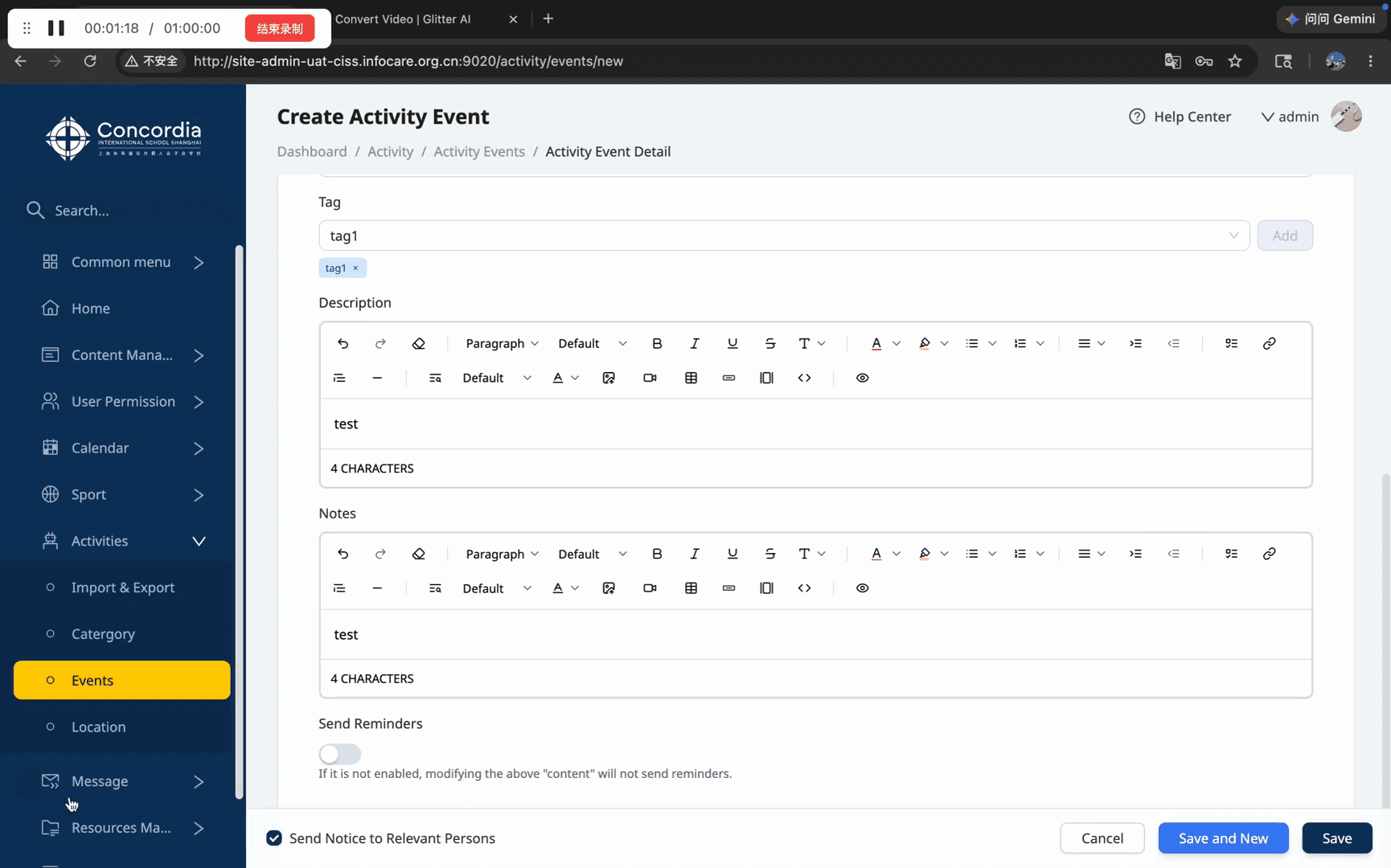
Check the Send Notice to Relevant Persons box to automatically notify associated individuals.
Step #13: Check the Send Notice to Relevant Persons box to automatically notify associated individuals.
14
Click Save in the bottom-right corner to publish the event.
Step #14: Click Save in the bottom-right corner to publish the event.

Editing an Existing Event

15
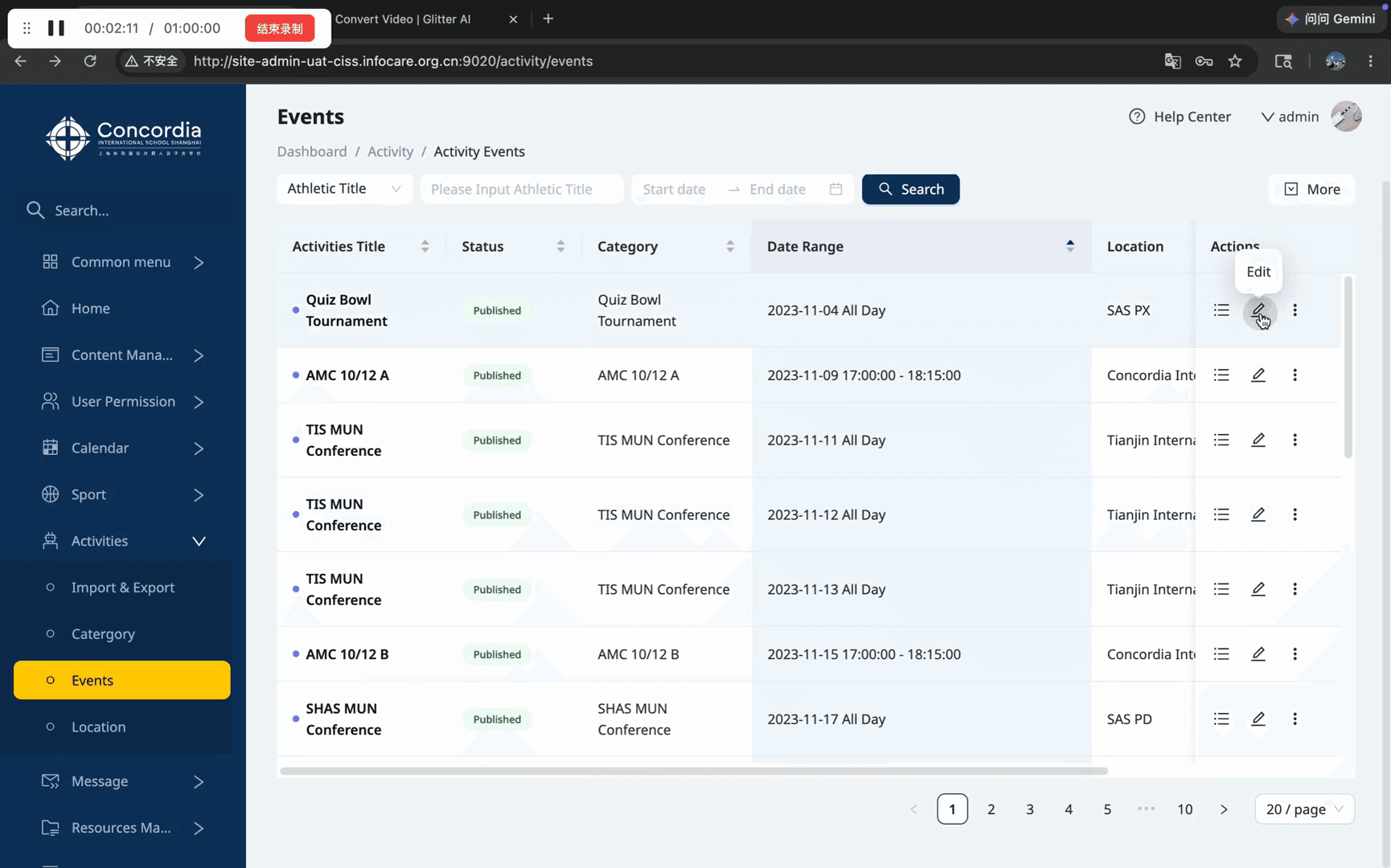
Locate the event in the table and click the Edit pencil icon in the Actions column.
Step #15: Locate the event in the table and click the Edit pencil icon in the Actions column.
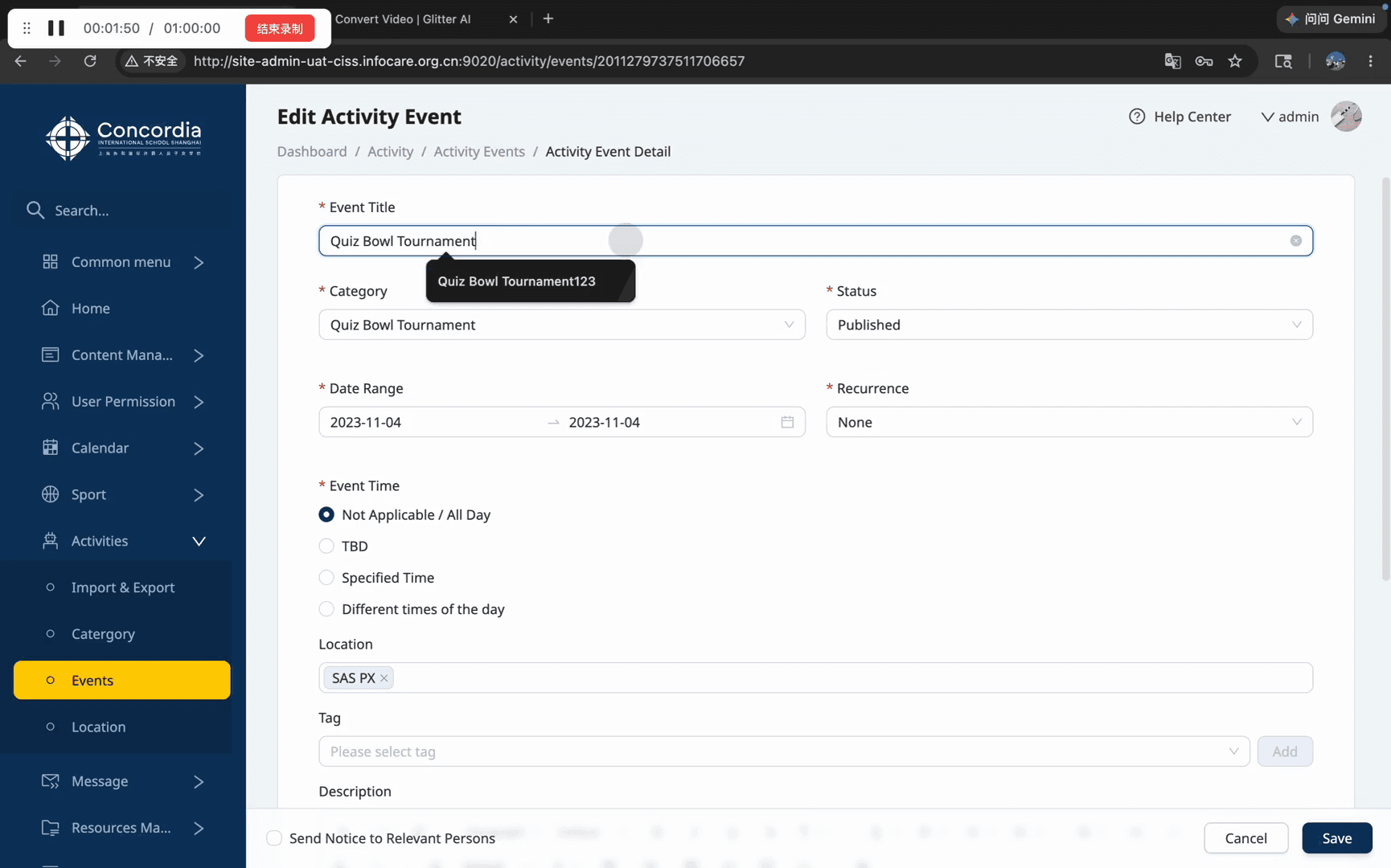
16
Modify the necessary fields, such as correcting the Event Title.
17
Click the Save button to apply your updates.
Step #17: Click the Save button to apply your updates.

Managing and Locating Events

As your calendar grows, you can use several methods to locate and manage specific events.

Method

When to use

How it works

Where to find it

Date Filtering

Finding events within a specific timeframe.

Narrows the list to a selected start and end date.

Top filter bar above the table.

Sorting

Grouping similar events together.

Organizes the table alphabetically by column.

Clickable column headers (e.g., Category).

Pagination

Browsing large volumes of events.

Navigates through pages of results.

Numbered links at the bottom center.

18
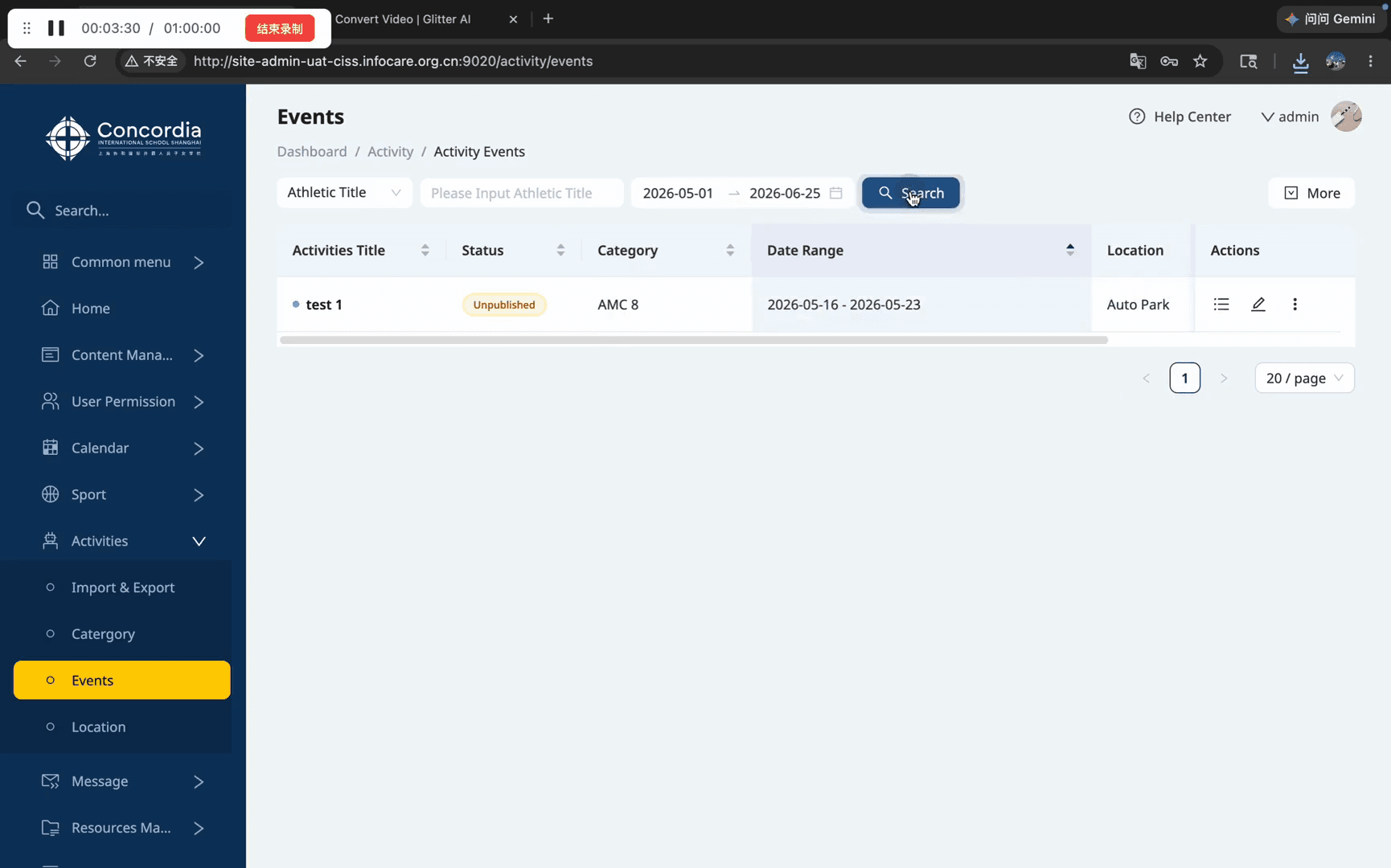
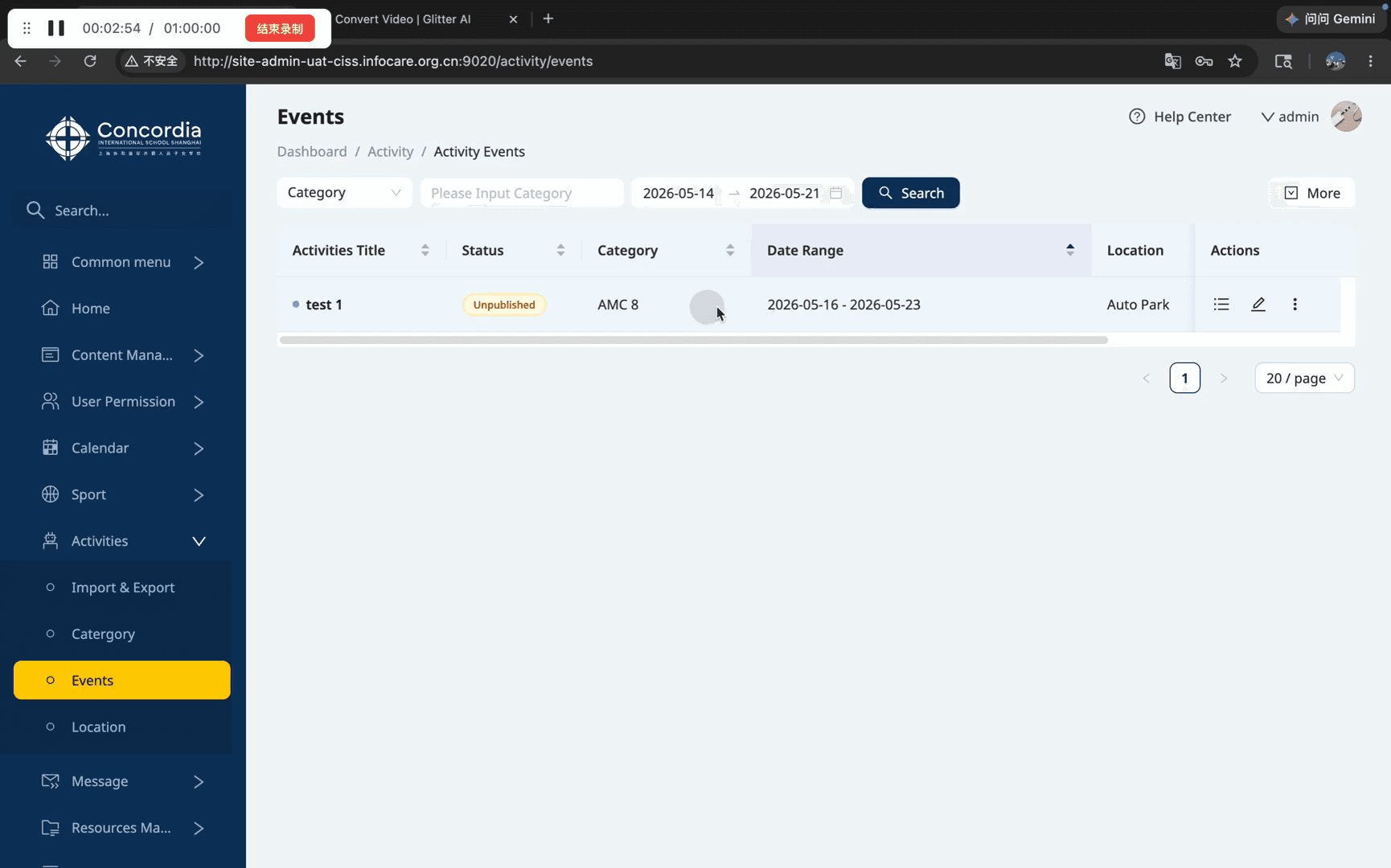
To filter by date, click the Start date and End date fields to select a range from the calendar.
Step #18: To filter by date, click the Start date and End date fields to select a range from the calendar.
19
Click the blue Search button to apply the filters to the table.
Step #19: Click the blue Search button to apply the filters to the table.
20
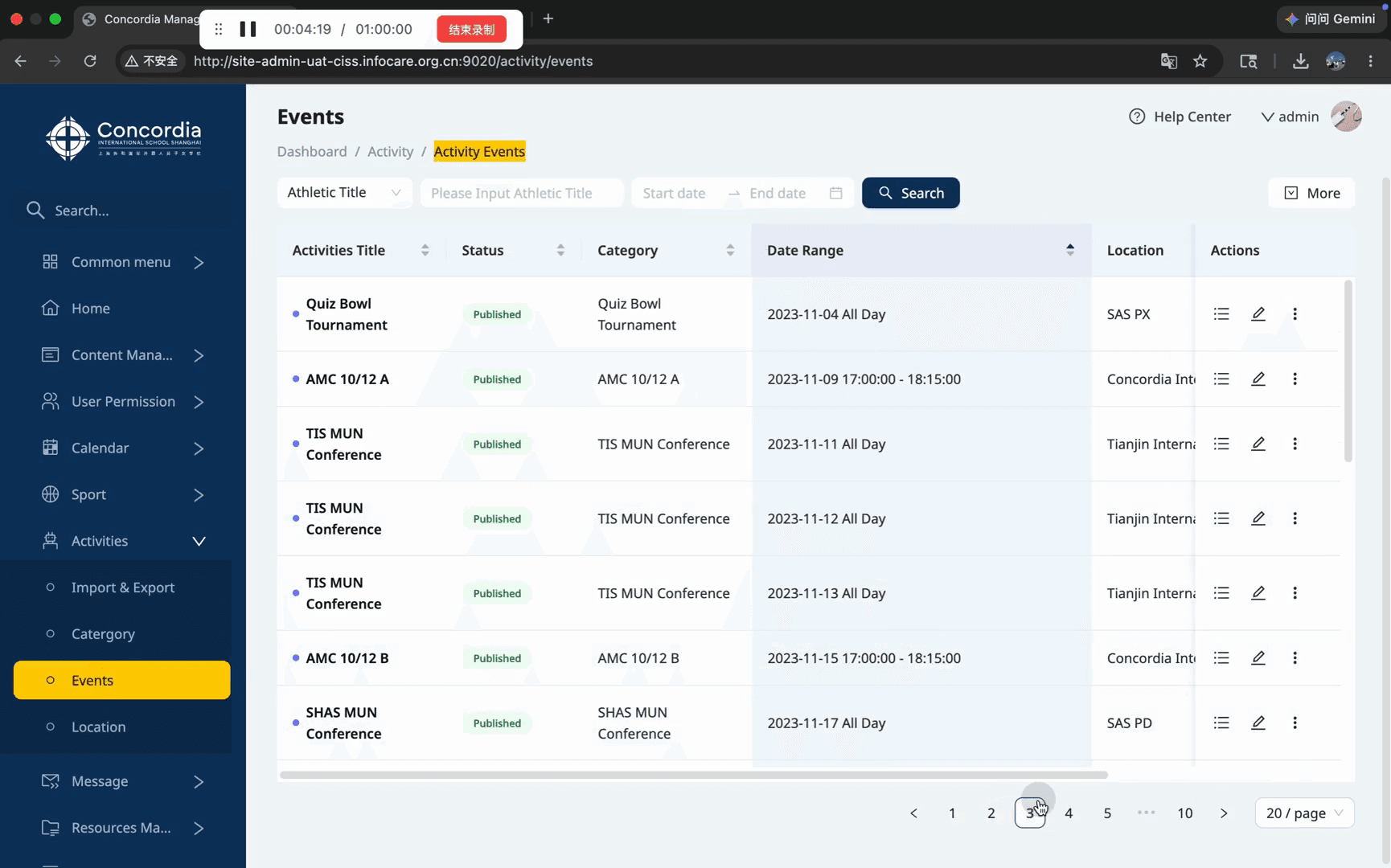
To browse additional records, click the page numbers at the bottom of the table to advance.
Step #20: To browse additional records, click the page numbers at the bottom of the table to advance.
21
To view a read-only summary of an event without editing it, click the Details list icon in the Actions column.
Step #21: To view a read-only summary of an event without editing it, click the Details list icon in the Actions column.

Exporting the Event List

22
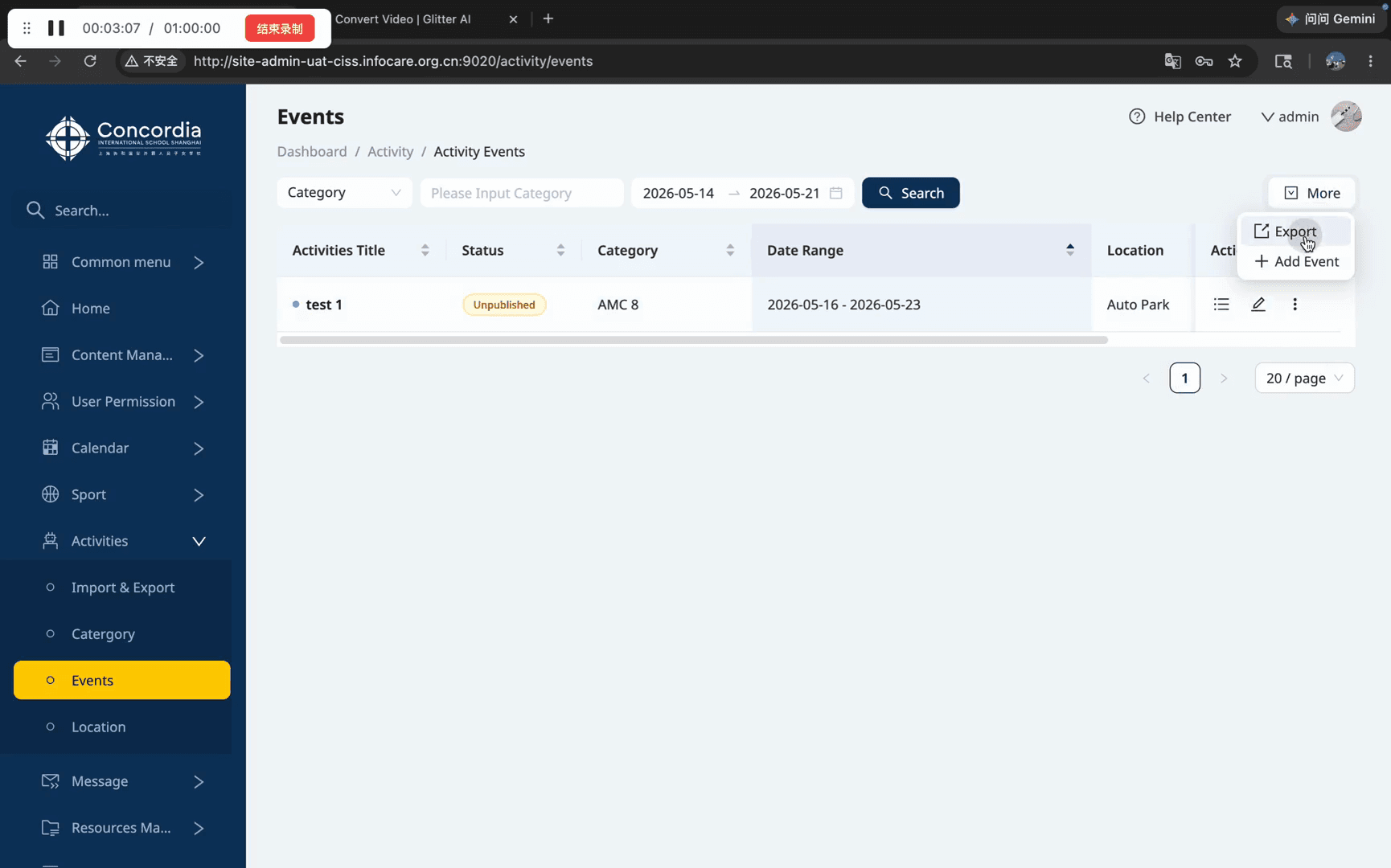
Click the More button in the top right corner and select Export.
Step #22: Click the More button in the top right corner and select Export.
23
Open the downloaded activity-events.xlsx file from your browser's download manager.
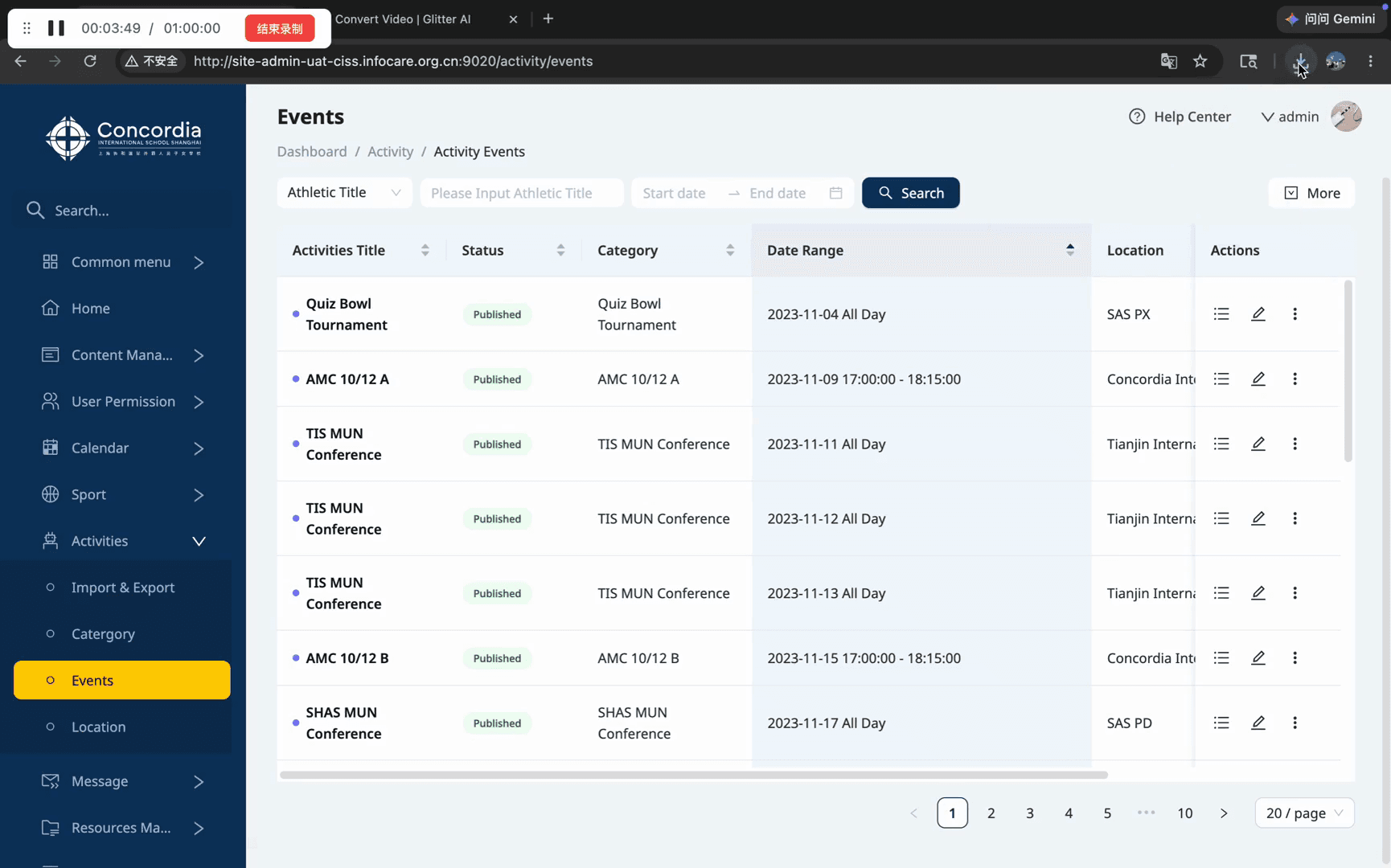
Step #23: Open the downloaded activity-events.xlsx file from your browser's download manager.

FAQ

Q: What should I do if an event's exact schedule isn't finalized yet?

A: You can select the "TBD" radio button under the Event Time section. This acts as a placeholder until the final times are confirmed.

Q: What format does the event export use?

A: The system exports your event list as an .xlsx (Excel) spreadsheet, which can be opened in Microsoft Excel, Google Sheets, or Apple Numbers.

How to Manage and Export Activity Events