Icon

Manage Interaction Queues in Genesys Cloud

Learn how to activate queues, manage interaction types, and control your on-queue status for 9-8-8 shifts in Genesys Cloud.

By 9-8-8 Education

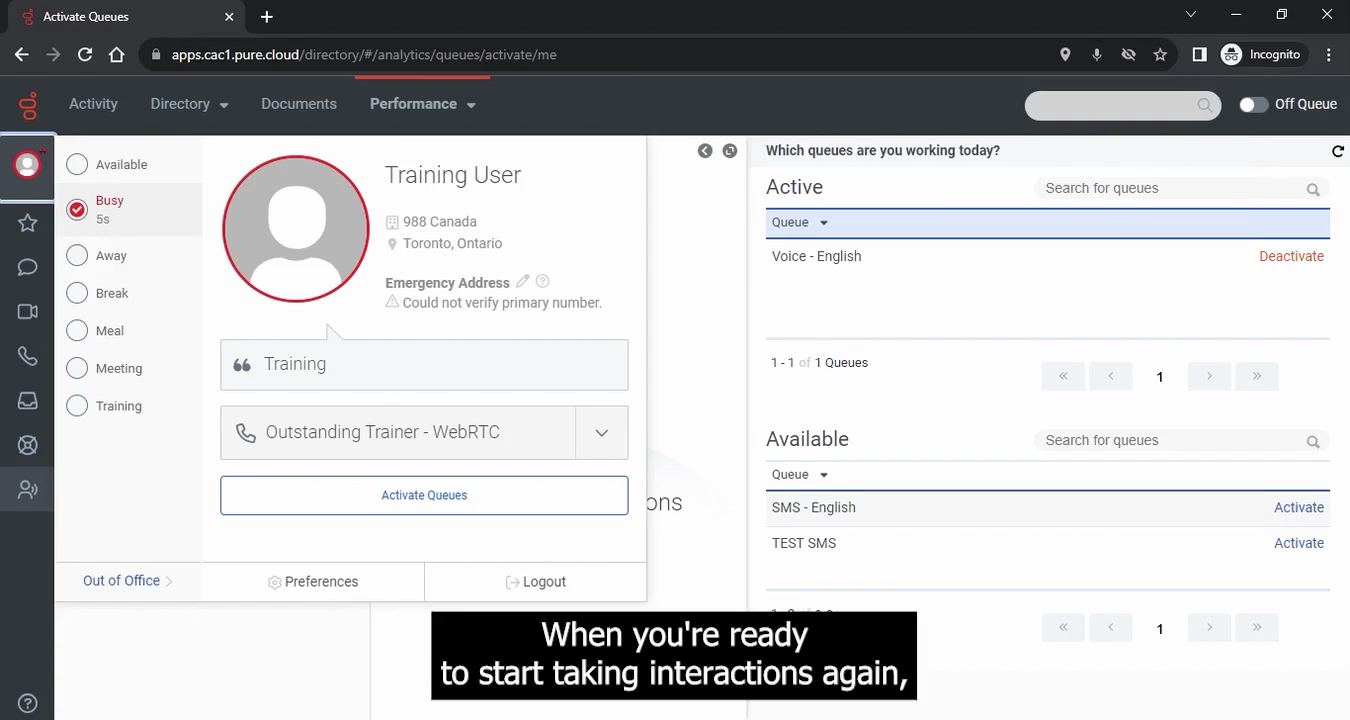
During 9-8-8 shifts, you can handle various interaction types depending on your permissions: English calls, English texts, French calls, and French texts. You control the specific interactions you receive by managing your active queues in Genesys Cloud.

Manage Your Queues

First, specify the types of interactions you will handle during your current shift.
1
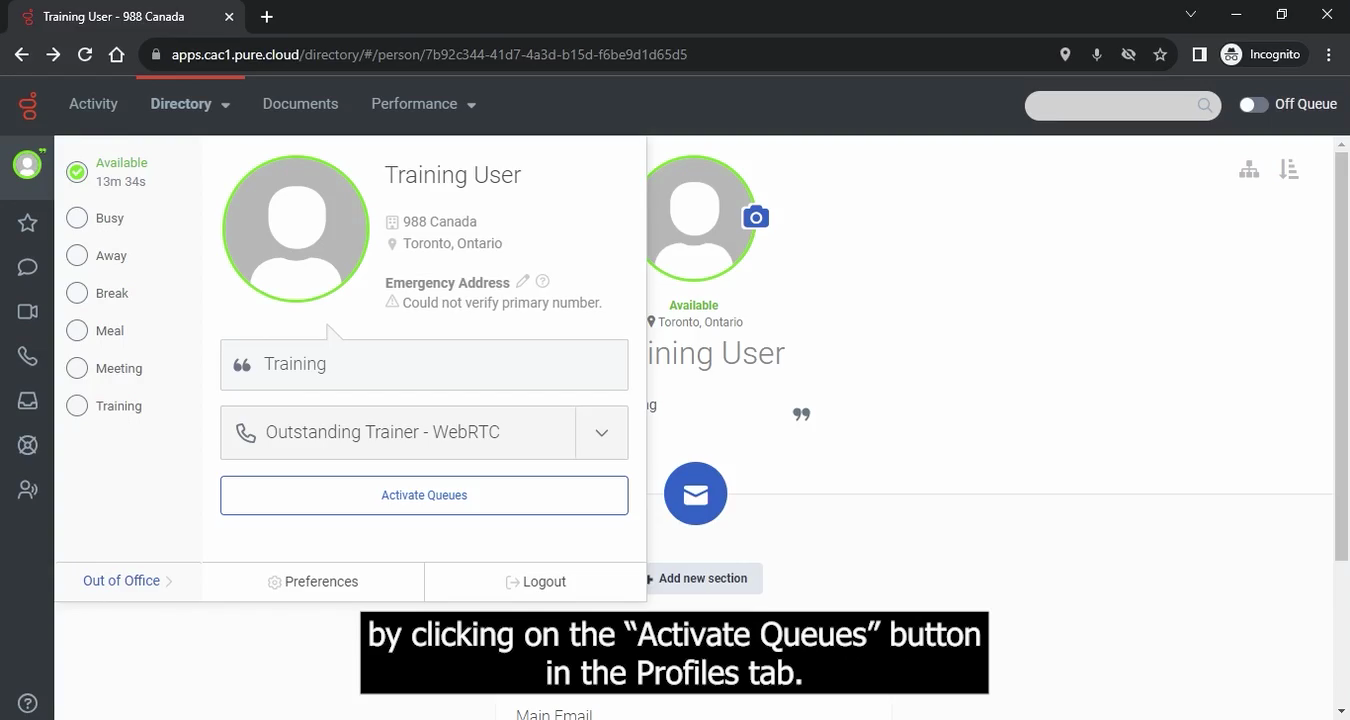
From the Profiles tab, click Activate Queues.
Step #1: From the Profiles tab, click Activate Queues.

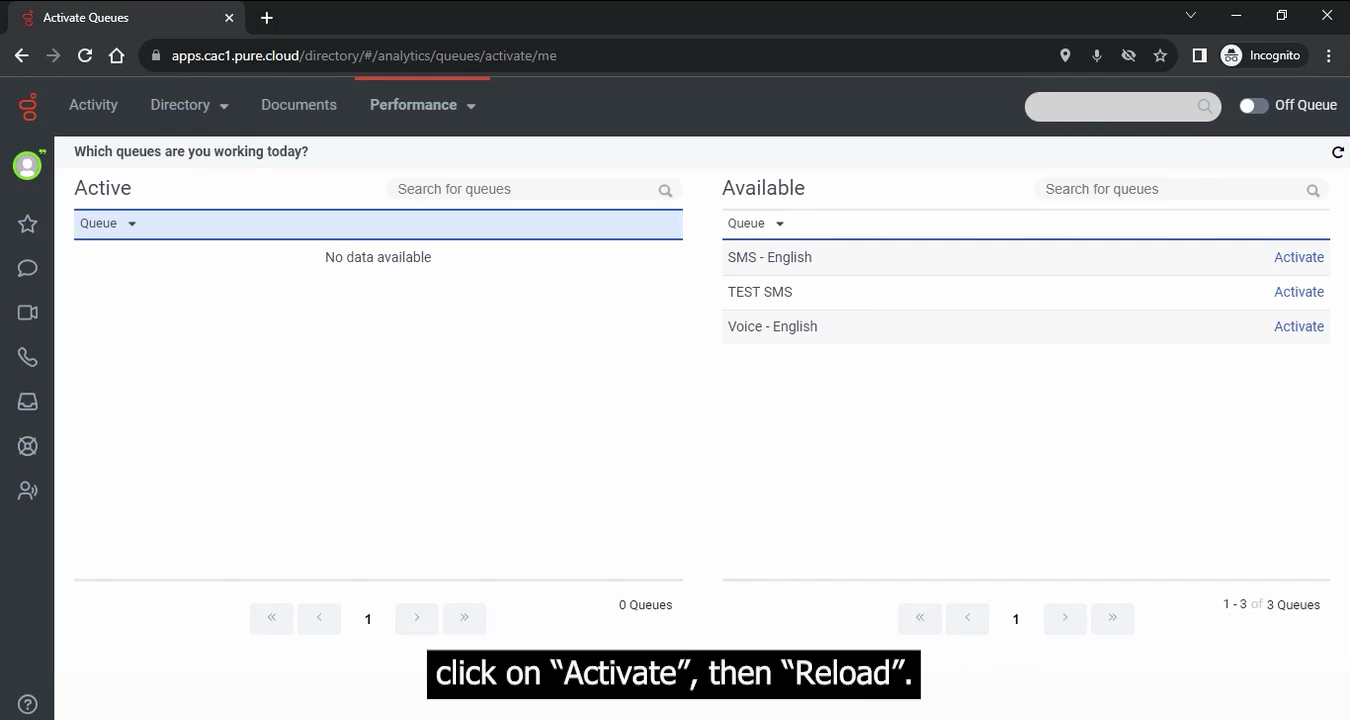
The Available list displays the queues you have permission to handle (e.g., Voice and SMS for English or French).
2
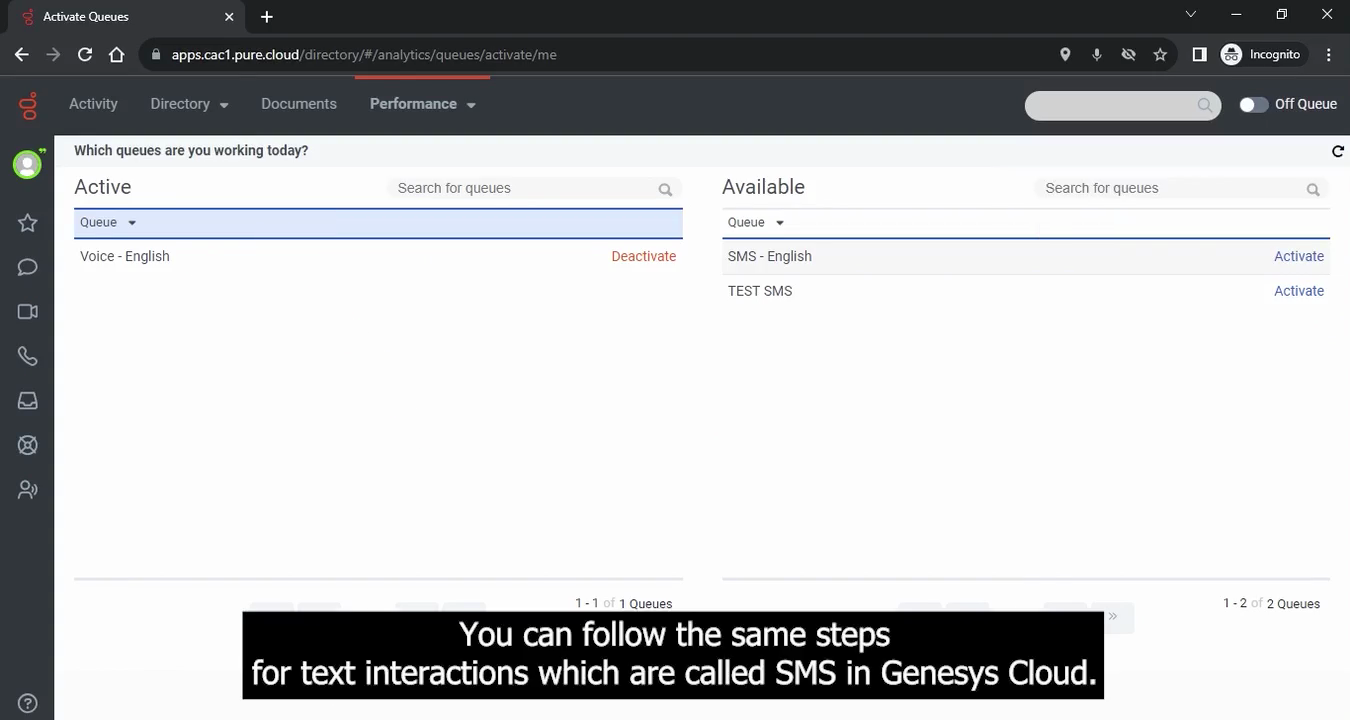
Click Activate next to a voice queue, then click Reload to update your active list.
Step #2: Click Activate next to a voice queue, then click Reload to update your active list.
3
Click Activate next to an SMS queue, then click Reload to start receiving text interactions.
Step #3: Click Activate next to an SMS queue, then click Reload to start receiving text interactions.

Deactivate Queues

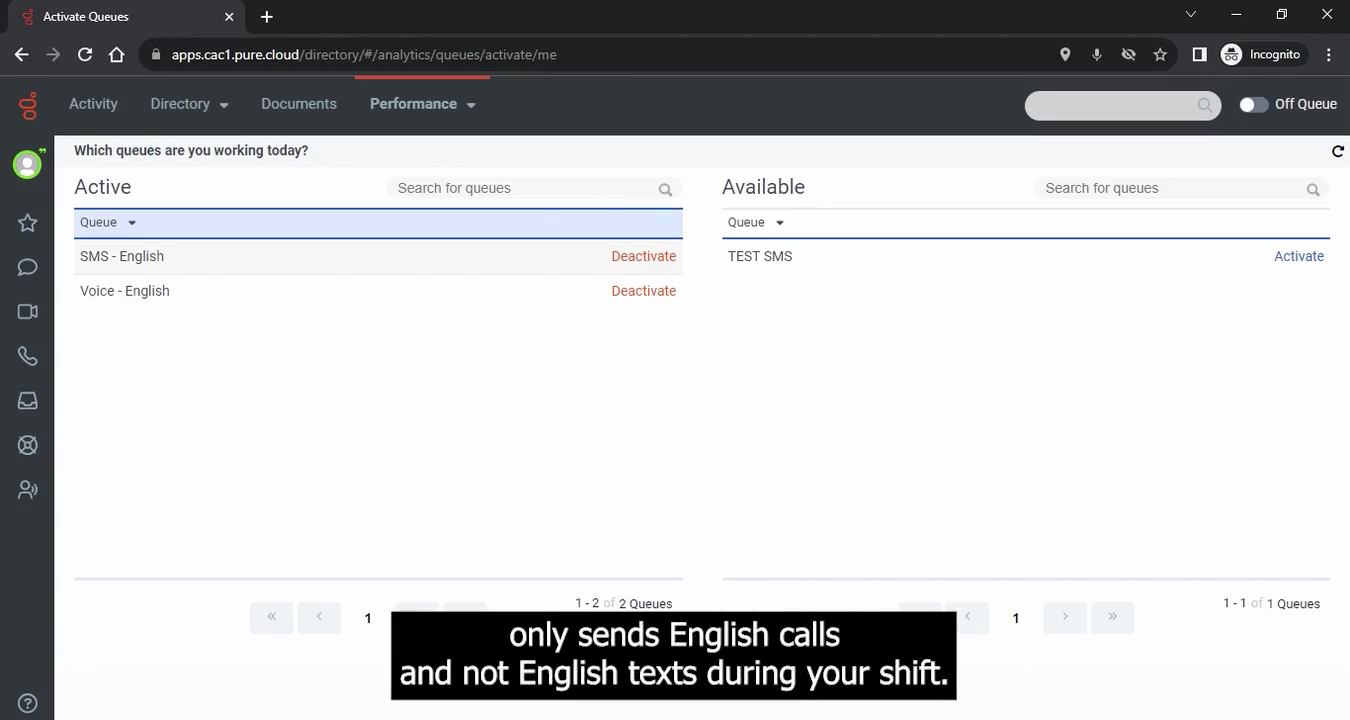
If you need to limit the types of interactions you receive (for example, taking only calls and no texts), you can remove an interaction type from your active list.
4
Click Deactivate next to an active queue, then click Reload.
Step #4: Click Deactivate next to an active queue, then click Reload.

Go "On Queue" to Receive Interactions

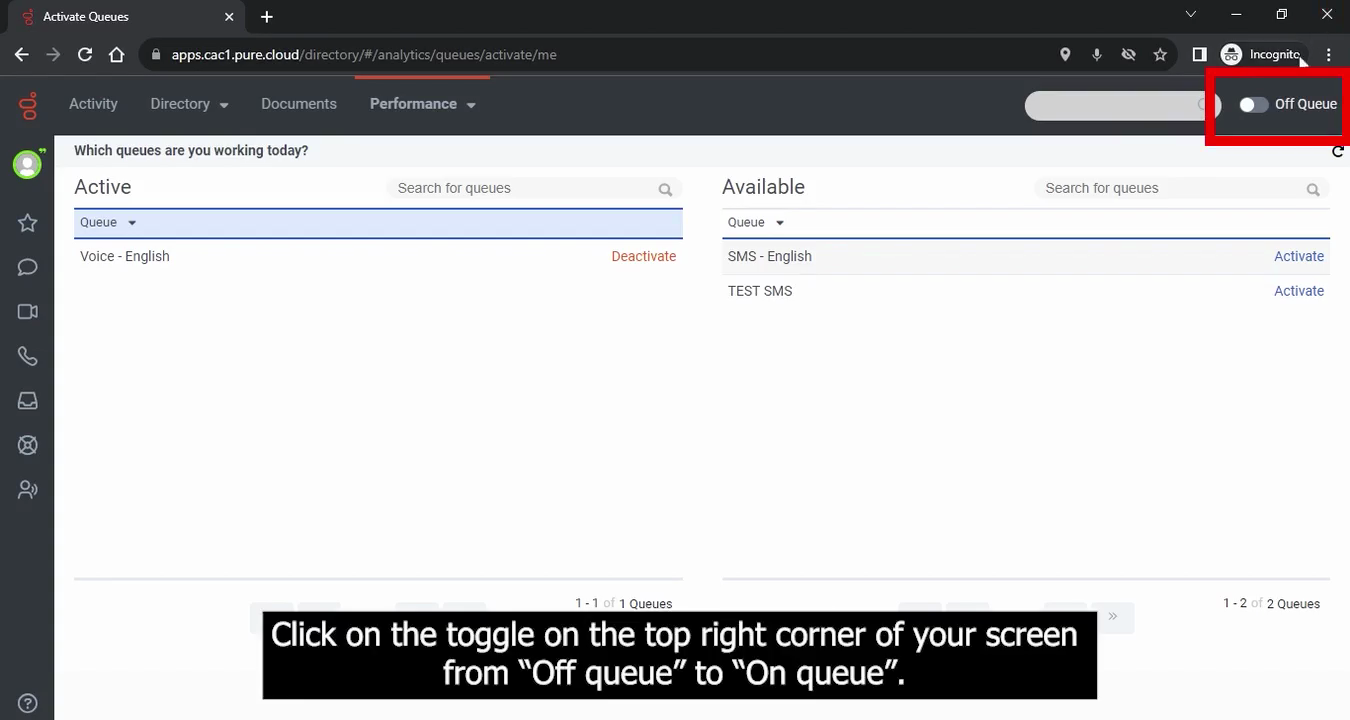
Once your queues are configured, you must change your status to allow the system to route interactions to you.
5
Toggle the switch in the top right corner from Off Queue to On Queue.
Step #5: Toggle the switch in the top right corner from Off Queue to On Queue.

Your profile will be outlined in light blue, and interactions will automatically begin routing to you.

Important Notes on Status and Queueing
6
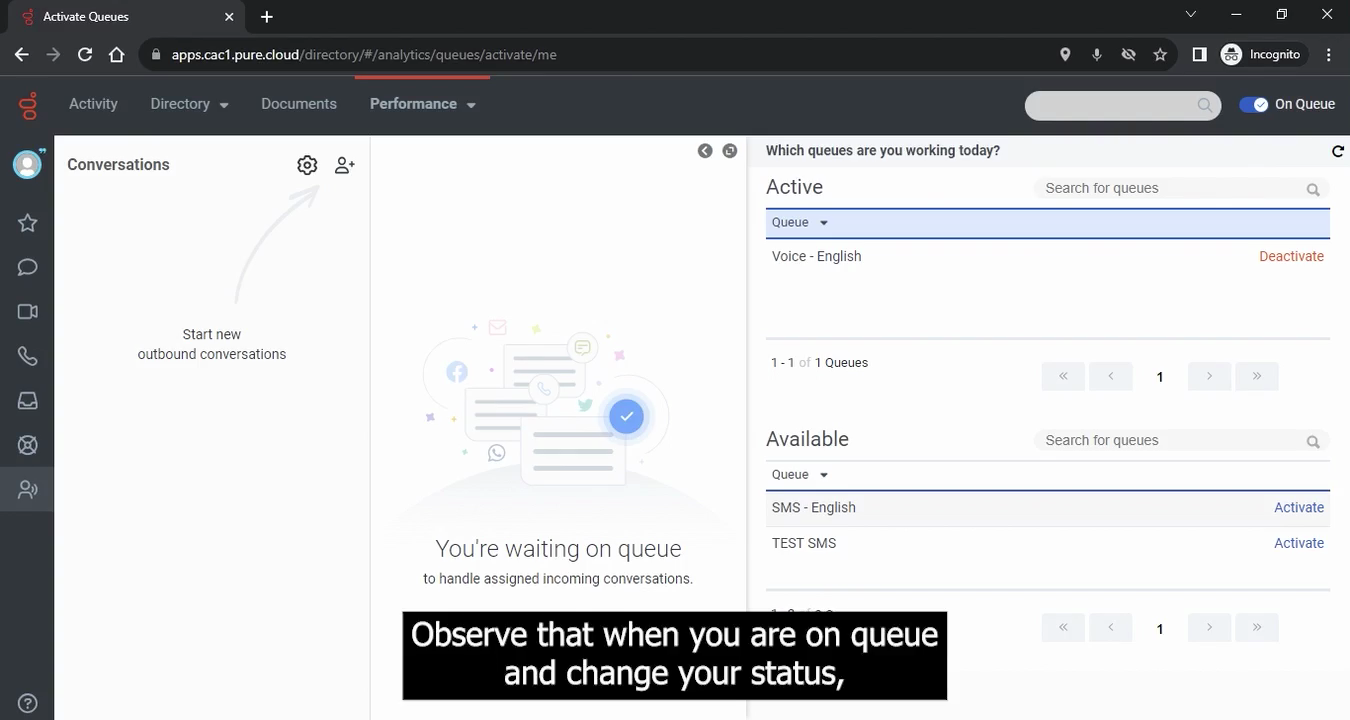
Change your status to a different state, such as Busy, if you are temporarily unavailable.
Step #6: Change your status to a different state, such as Busy, if you are temporarily unavailable.
7
Click the toggle to switch back to On Queue when you are ready to receive interactions again.
Step #7: Click the toggle to switch back to On Queue when you are ready to receive interactions again.