Managing Documents in the Legal Watch Dashboard
Learn how to monitor compliance requirements, filter documents, and use bulk actions in the Legal Watch dashboard.
This guide explains how to monitor legal changes and manage compliance requirements within the Legal Watch dashboard. By following these steps, you can efficiently review, filter, and process your legal documents individually or in bulk.
This guide is designed for compliance officers, legal analysts, and system administrators who process and evaluate regulatory documents as part of their daily workflow.
The Legal Watch dashboard provides a global overview of your platform's compliance requirements. At the top of the dashboard, you can quickly review four metric cards:
Total documents: The overall volume of documents in the system.
To process documents: Documents awaiting your review.
Kept documents: Documents reviewed and retained.
Discarded documents: Documents reviewed and dismissed.
Filtering Documents
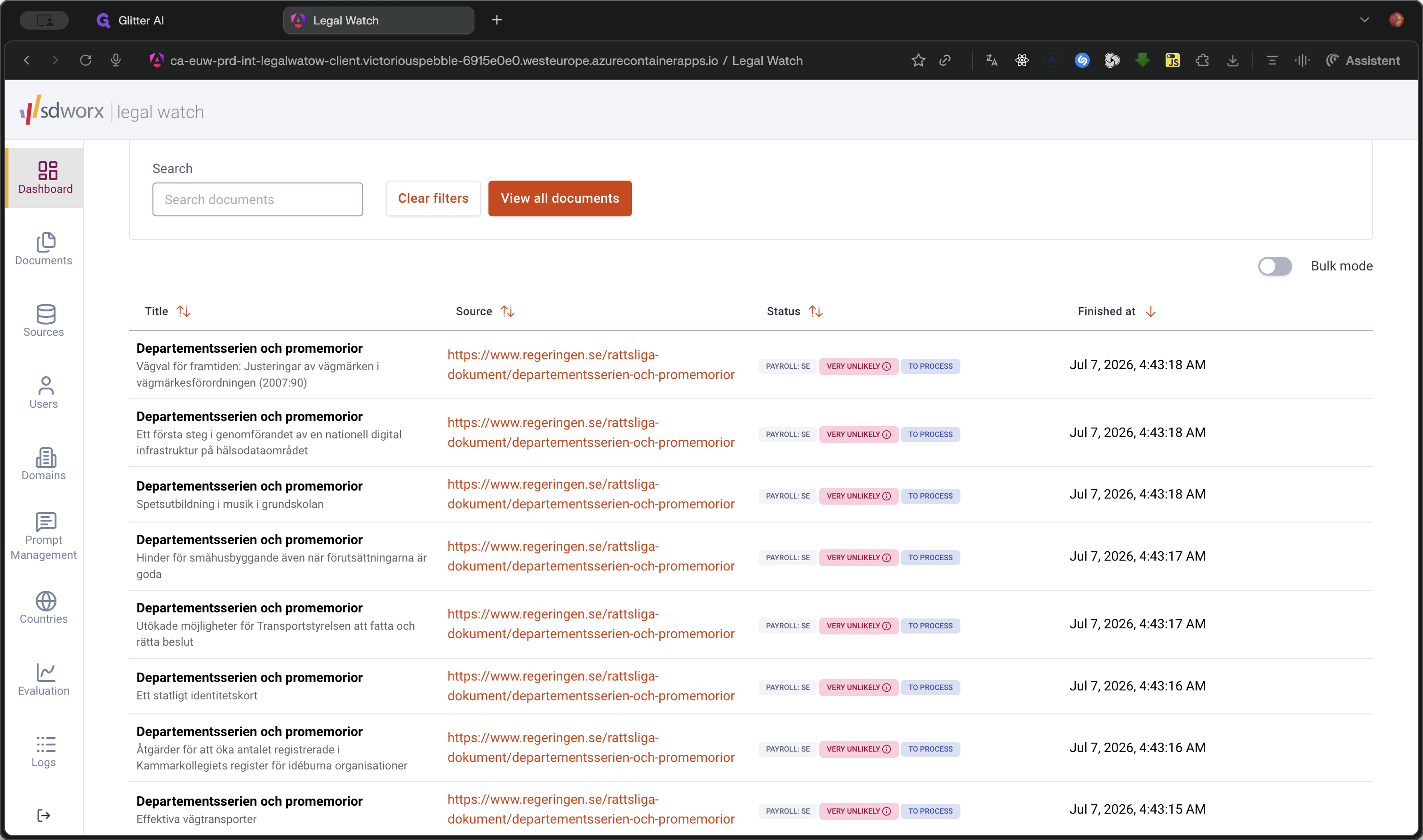
Use the filter section located below the metric cards to quickly locate specific documents you need to process.
Processing Documents in Bulk
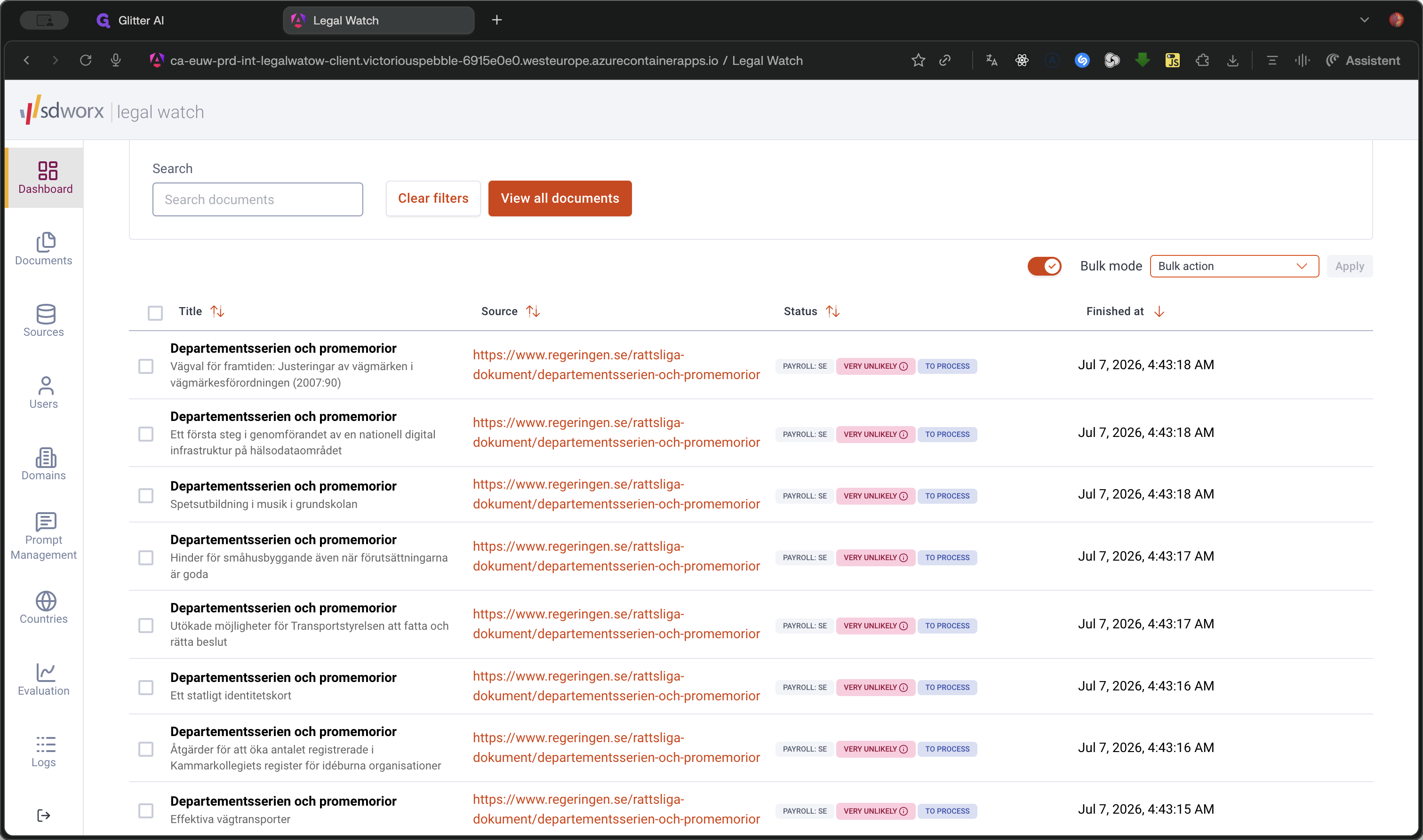
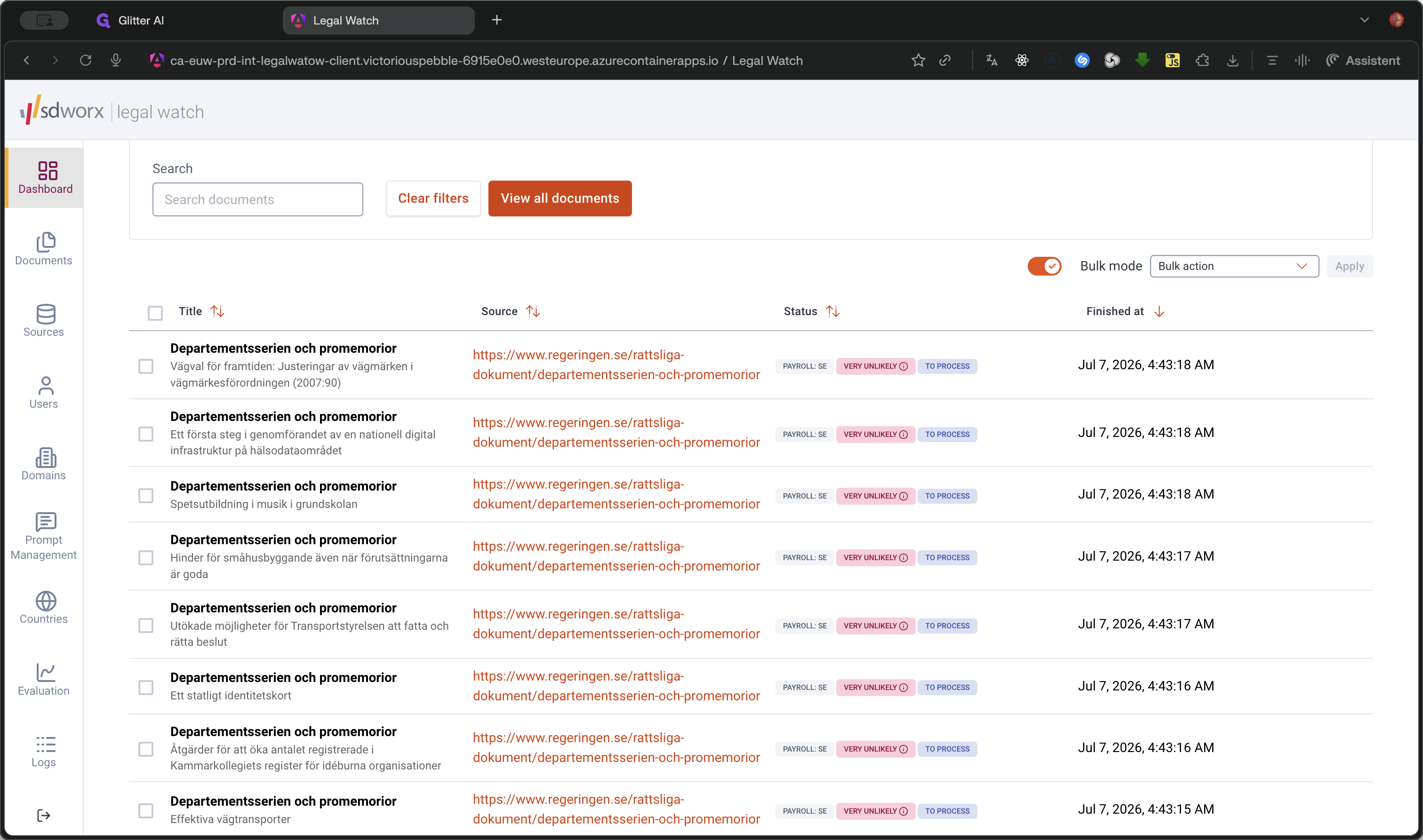
If you need to manage multiple documents simultaneously, use the bulk action feature to keep or discard selections efficiently.
Q: Why are some of my documents missing from the dashboard?
A: Documents that fall below the configured minimum score for their specific source are filtered out of the dashboard view. However, you can still find and view them on the main documents page.
Q: How do I process multiple documents at once?
A: Enable Bulk mode using the toggle above the document table, select the checkboxes for the desired documents, and apply a bulk action to either keep or discard them.
Term | Definition |
|---|---|
Bulk mode | A feature that allows you to select multiple documents and apply a single action, such as keeping or discarding them. |
Minimum score | A customizable threshold set per document source that dictates whether a document is relevant enough to appear on the dashboard. |