Manage Outlook App Pins in Windows 11
Learn how to unpin and pin the Outlook application to your Start menu and taskbar in Windows 11 using the search interface.
This guide shows you how to manage the Outlook application's visibility on your Windows 11 desktop by pinning and unpinning it from the Start menu and taskbar. Completing this ensures you have quick access to Outlook or a decluttered workspace, depending on your preferences.
This guide applies to any Windows 11 user looking to customize their Start menu and taskbar shortcuts. It is useful when setting up a new computer or organizing an existing workspace.
To customize your desktop experience, you can manage where Outlook is pinned using the Windows search menu.
Accessing the Outlook App Options
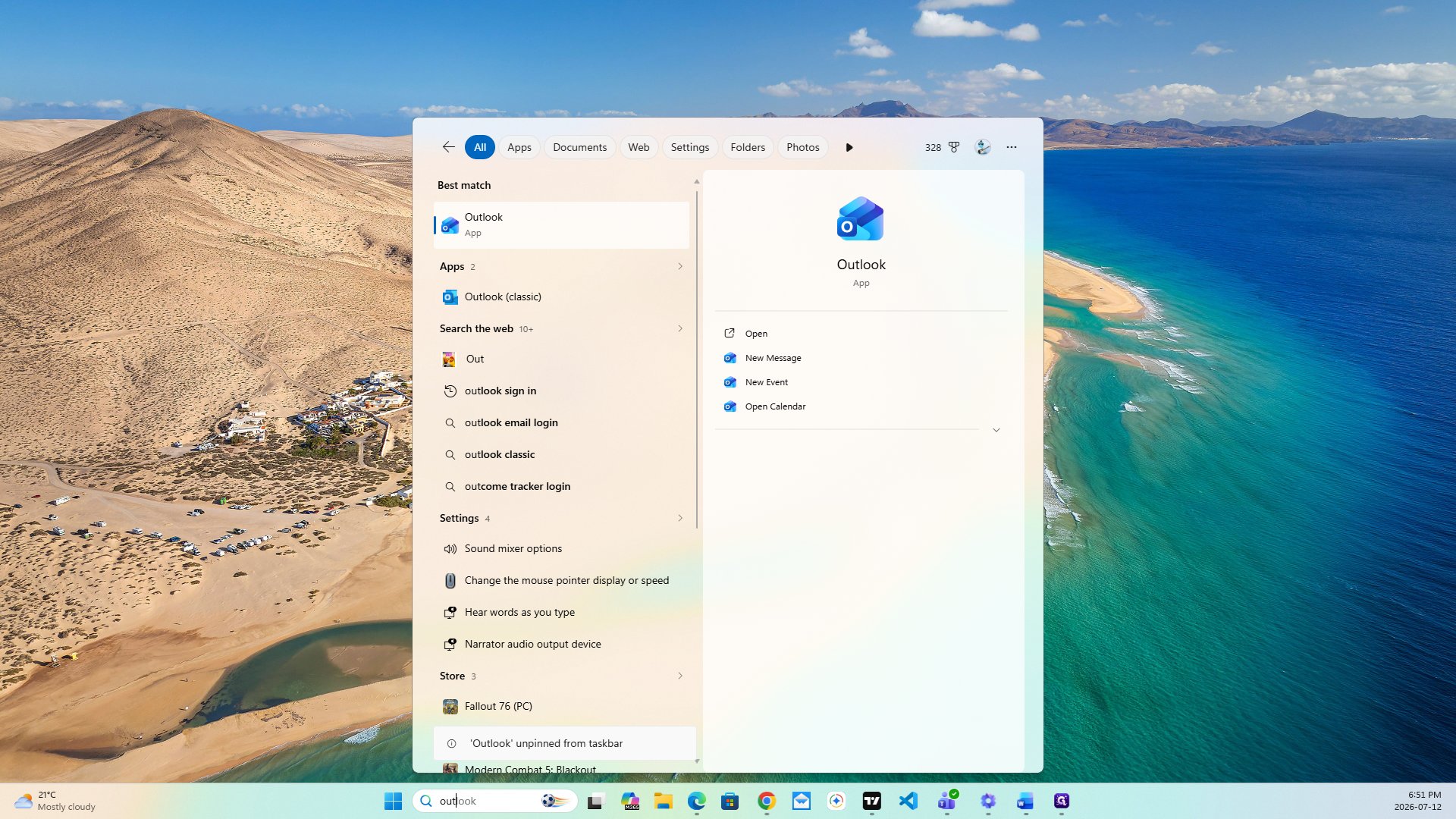
First, locate the Outlook application using the Windows search bar.
Unpinning Outlook from Start or Taskbar
If Outlook is currently pinned and you want to remove it, follow these steps.
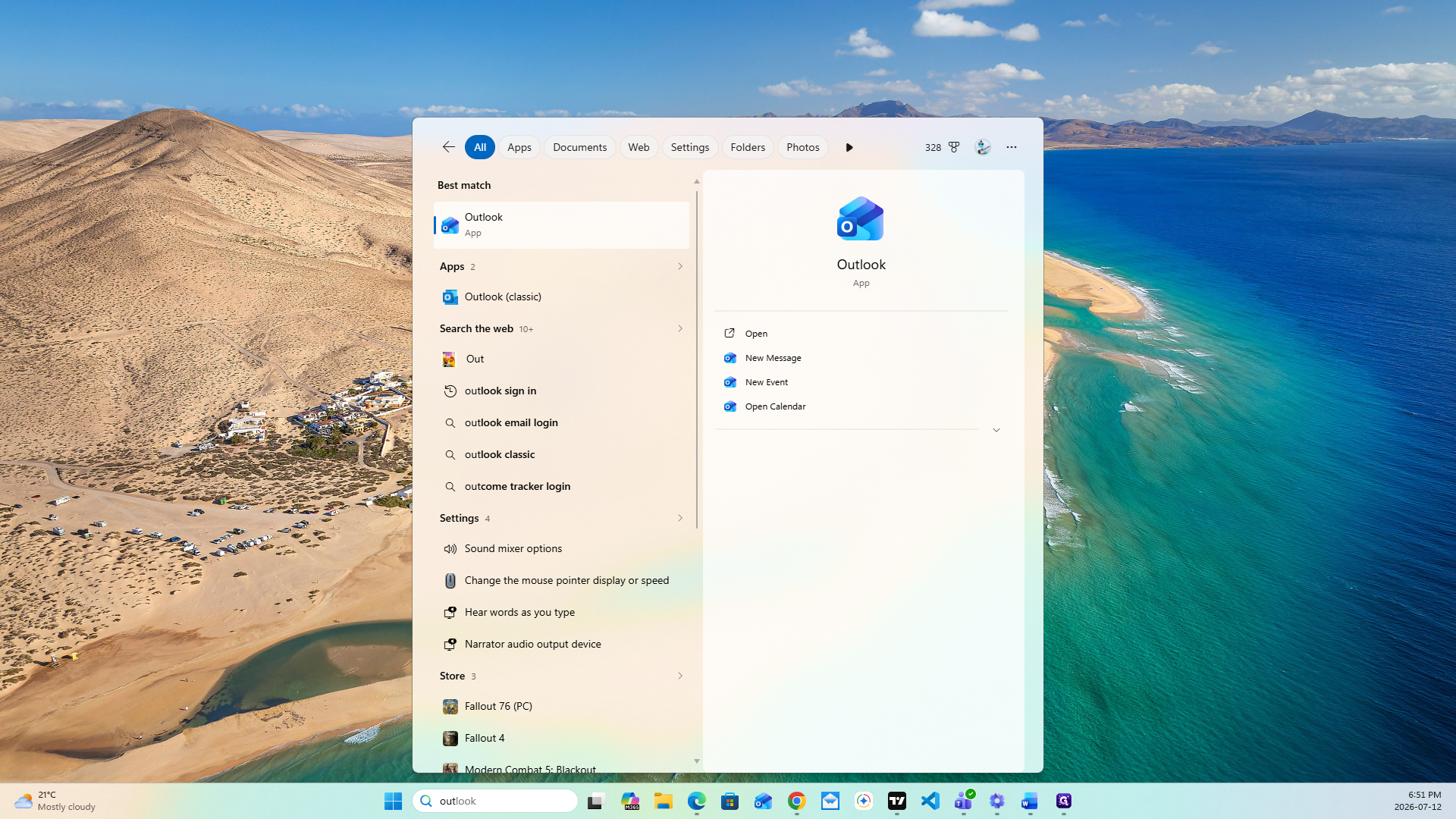
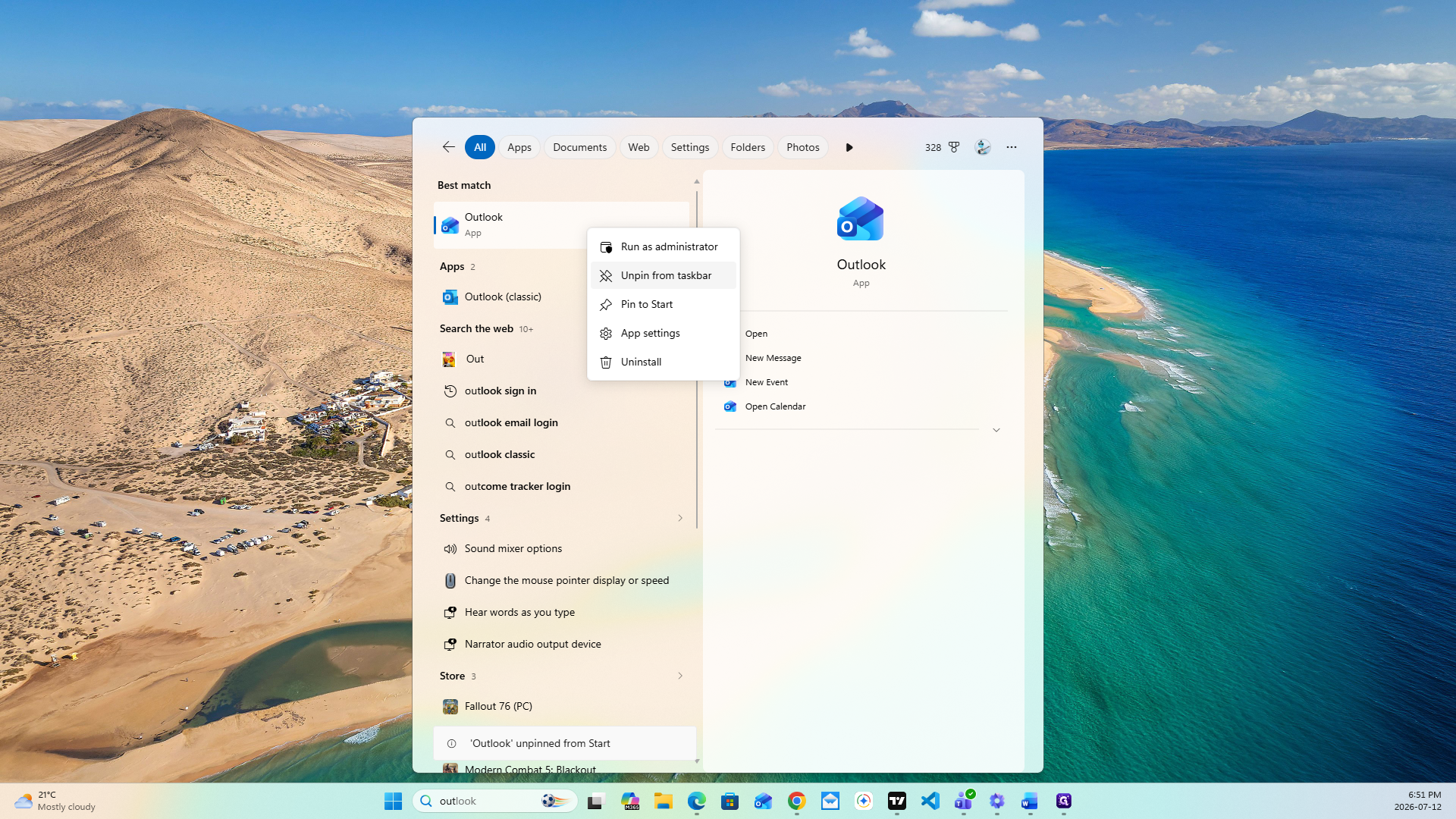
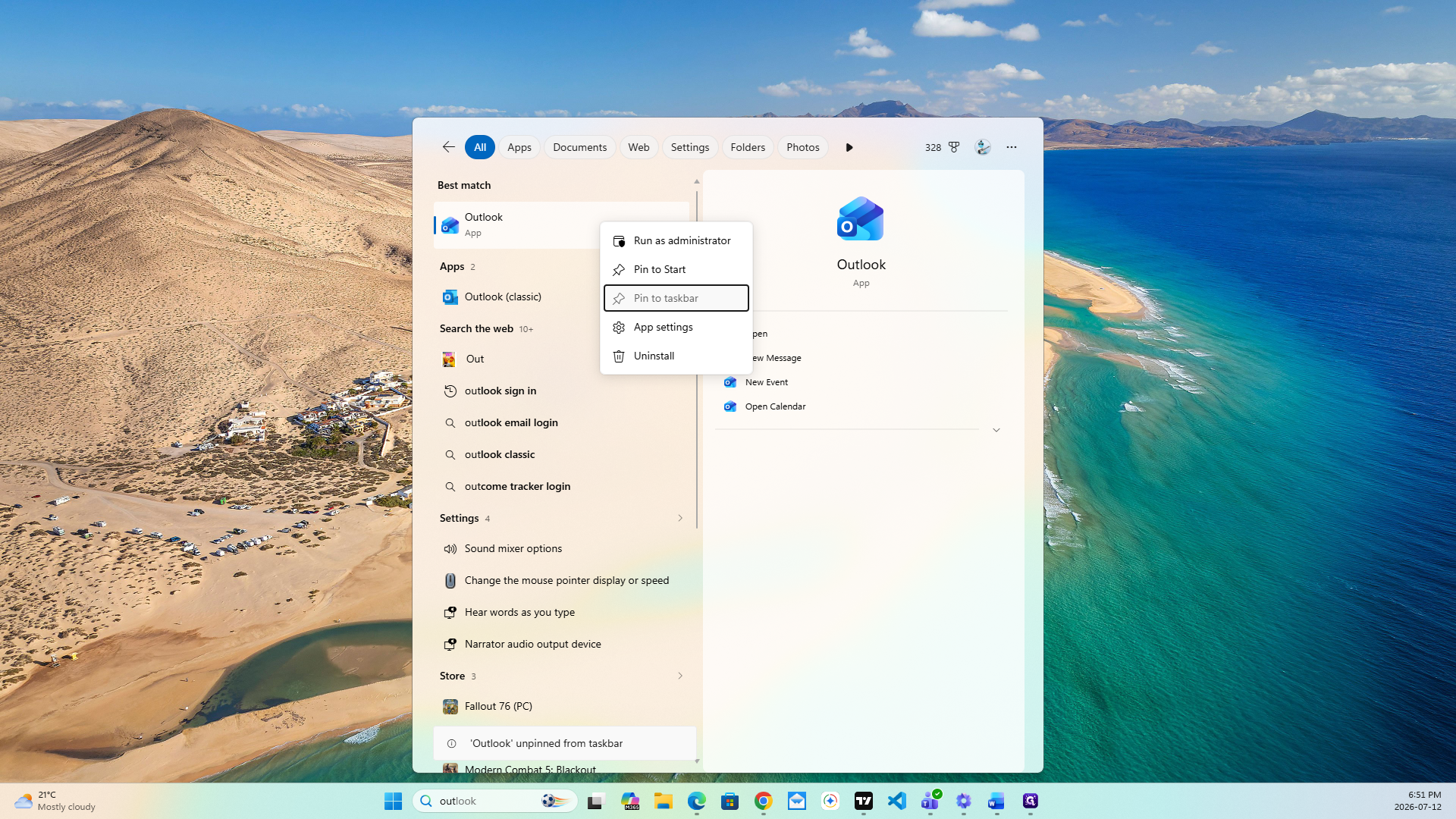
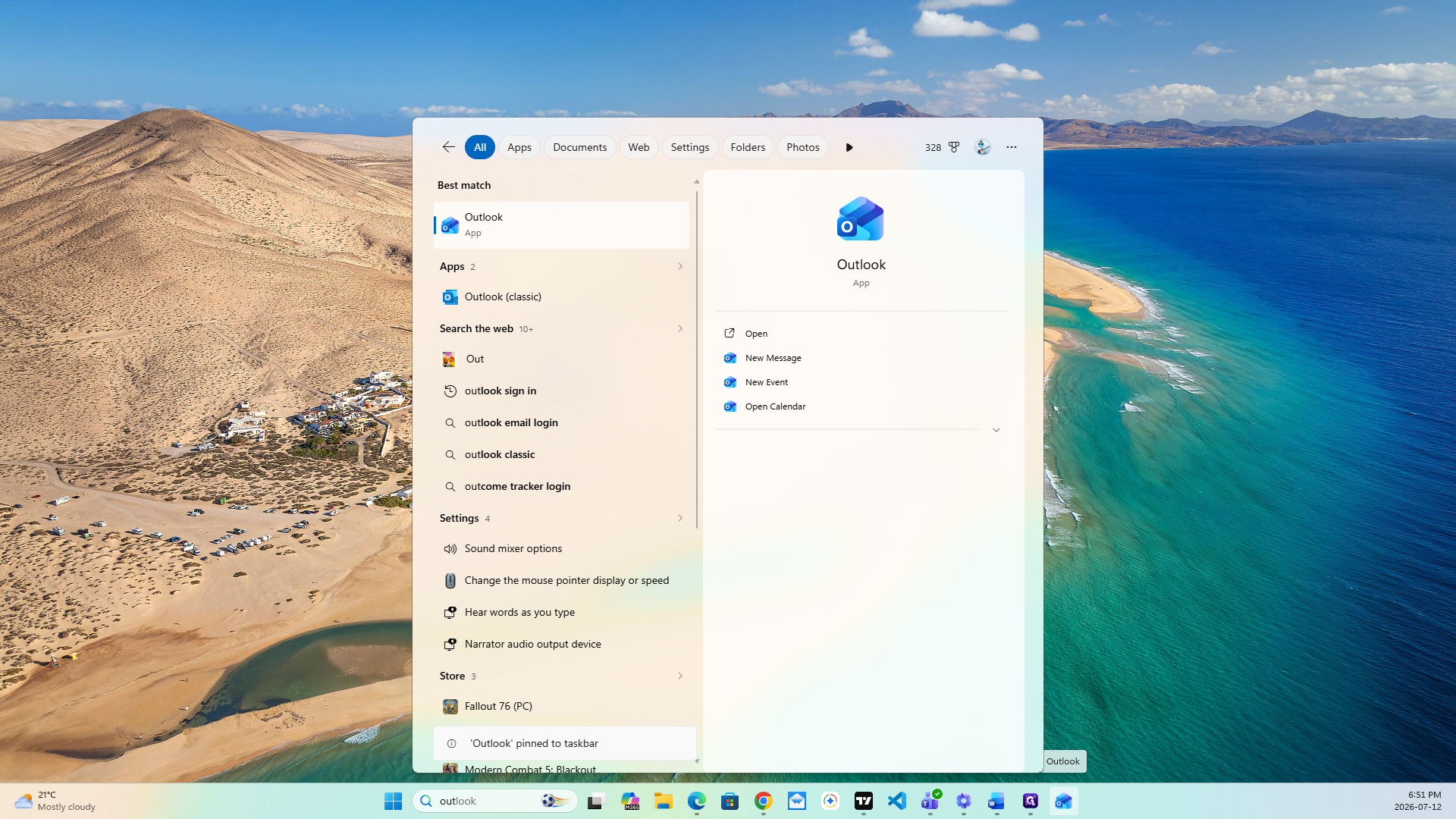
Pinning Outlook to the Taskbar
To keep Outlook easily accessible on your taskbar, you can pin it directly from the search results.