
Manage Per-App Audio in Windows 11 Volume Mixer
Learn how to use the Windows 11 Volume mixer to adjust volume levels and assign specific microphones and speakers for individual applications.
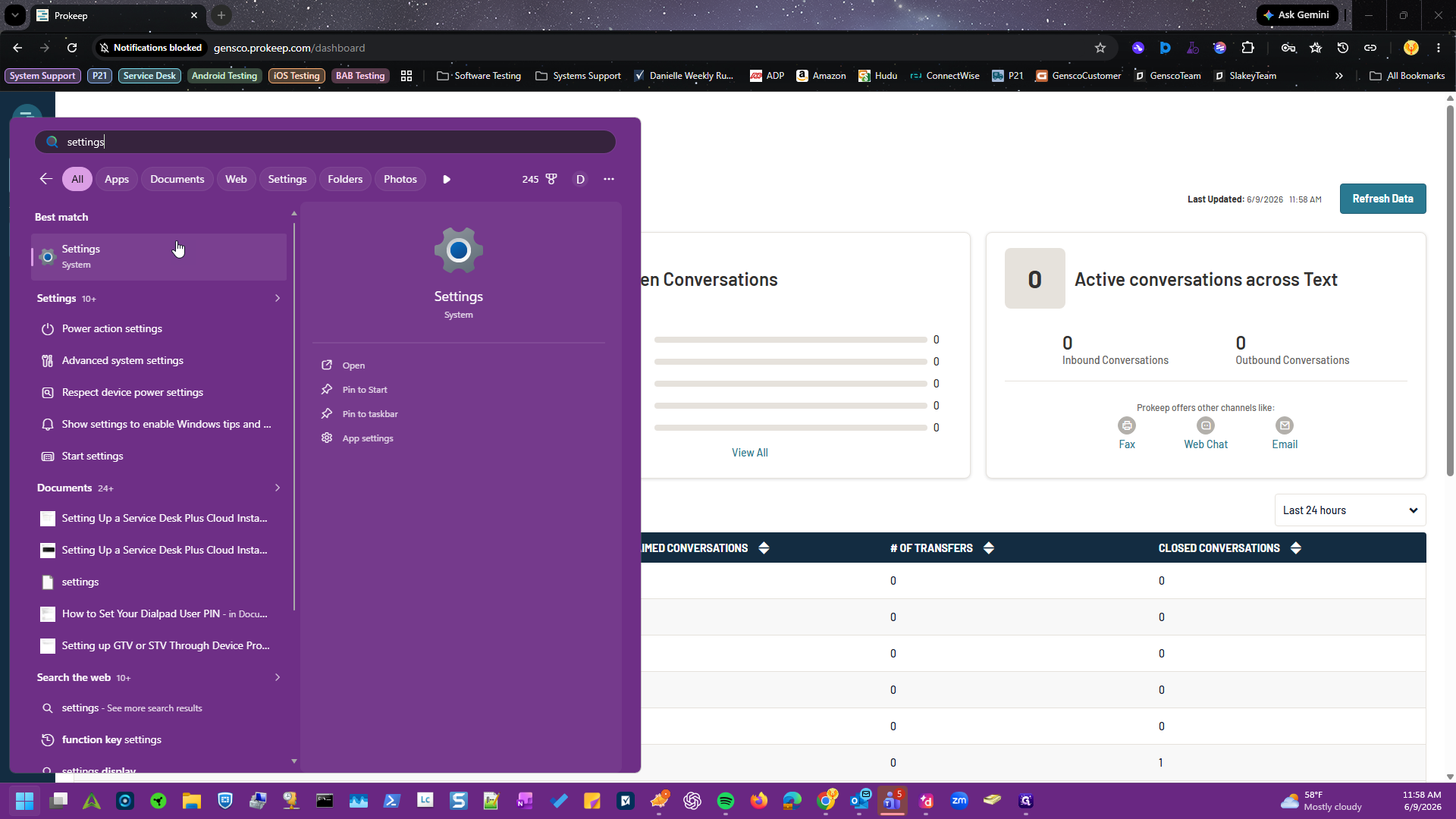
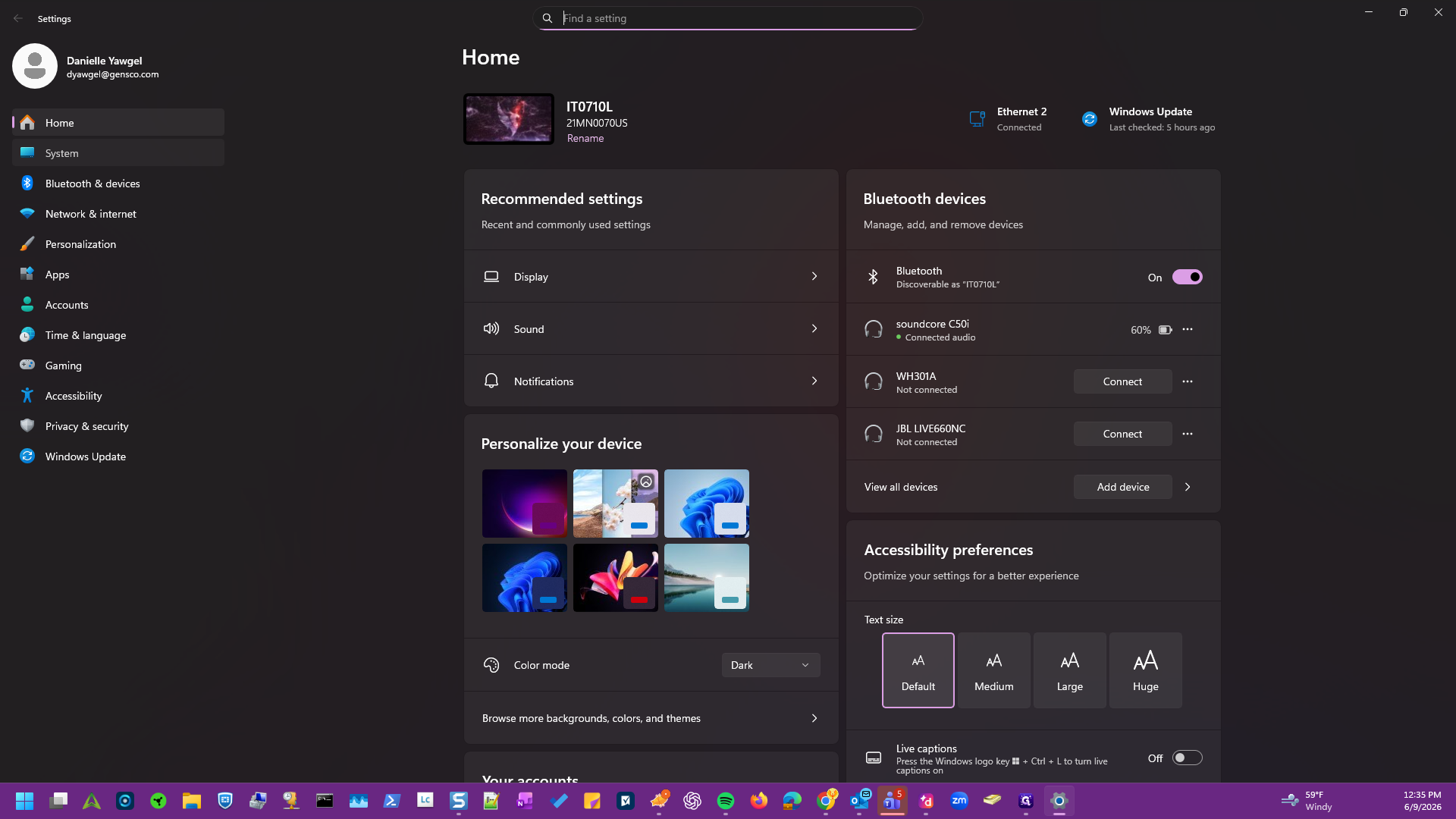
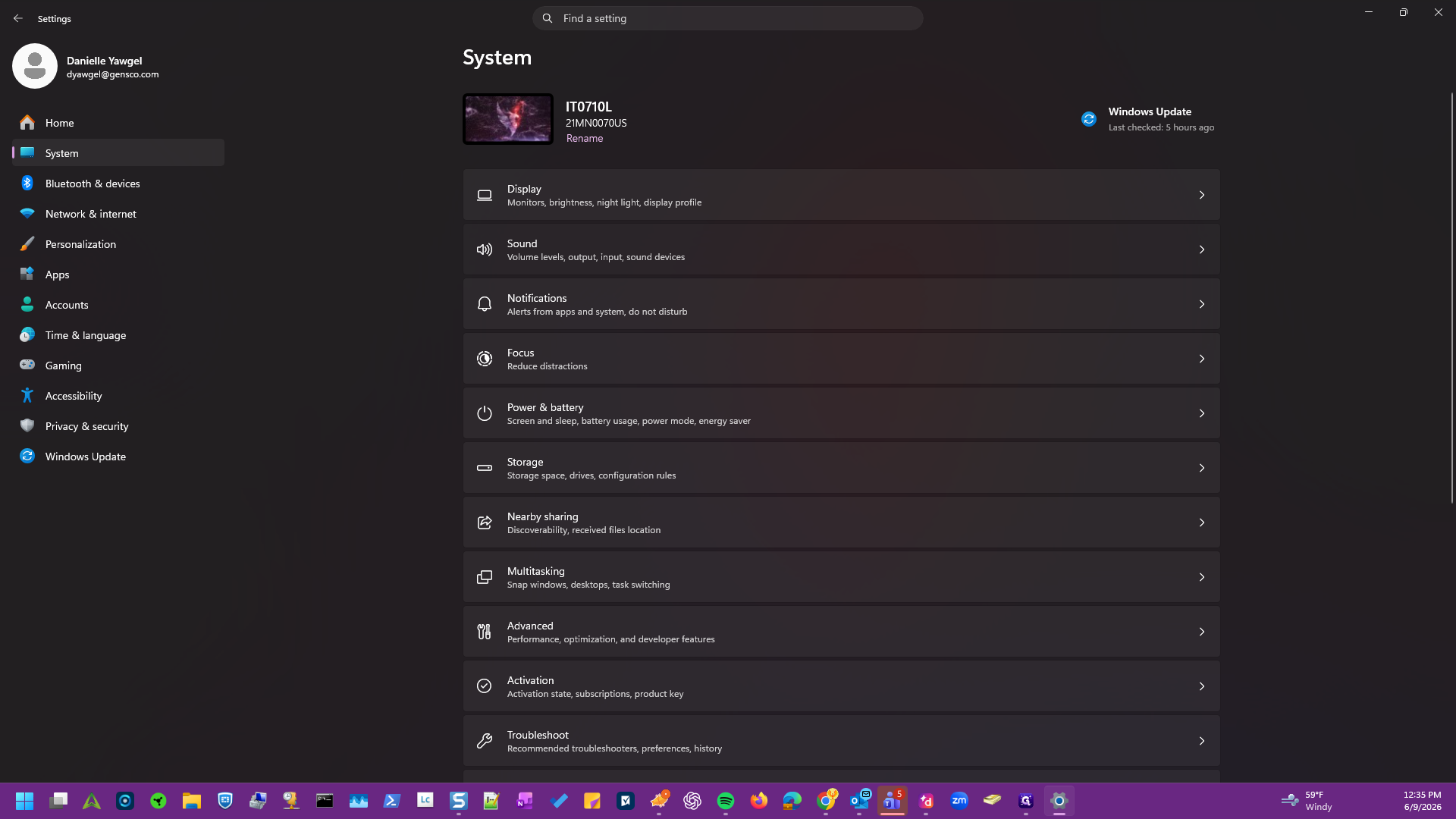
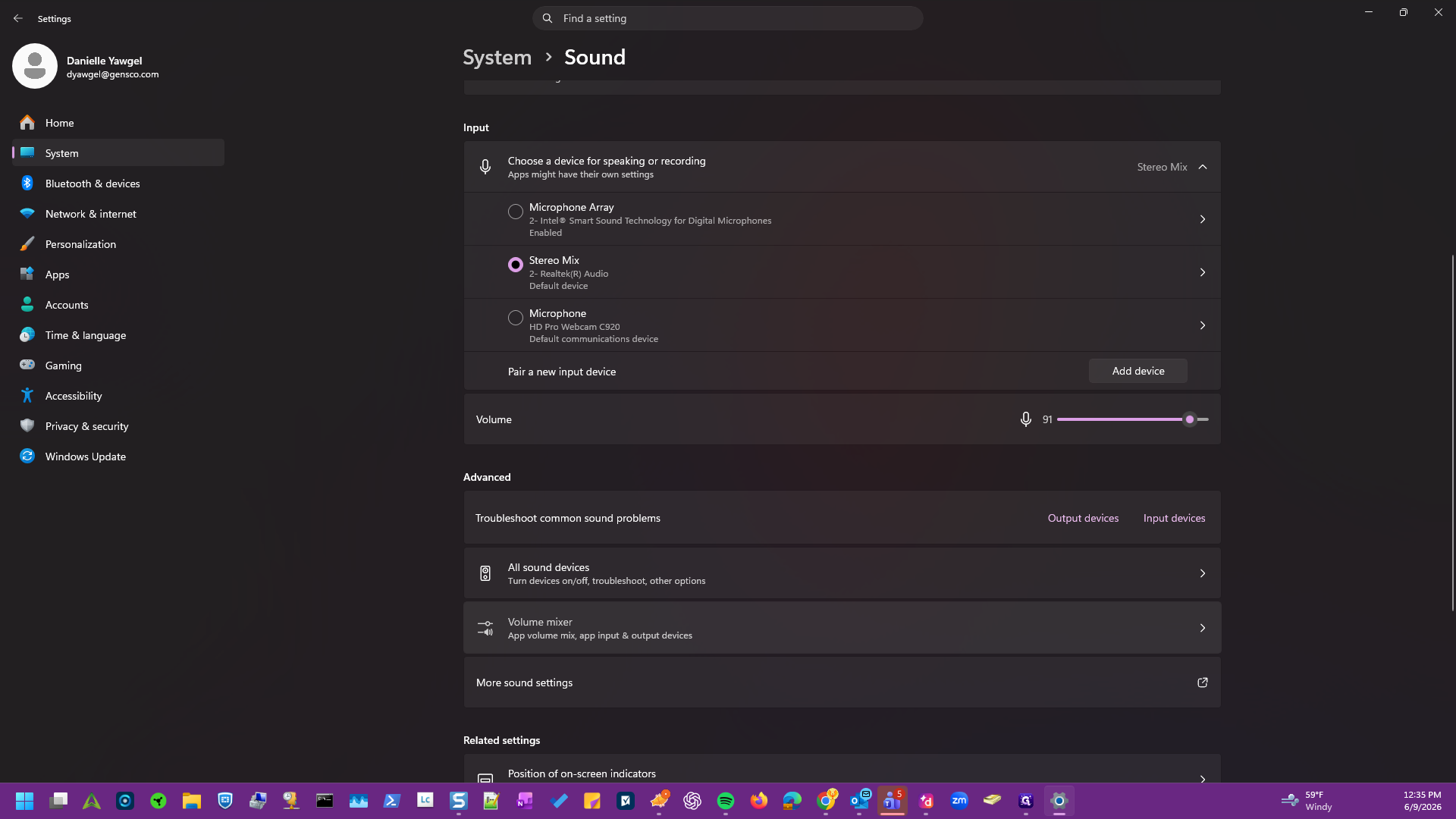
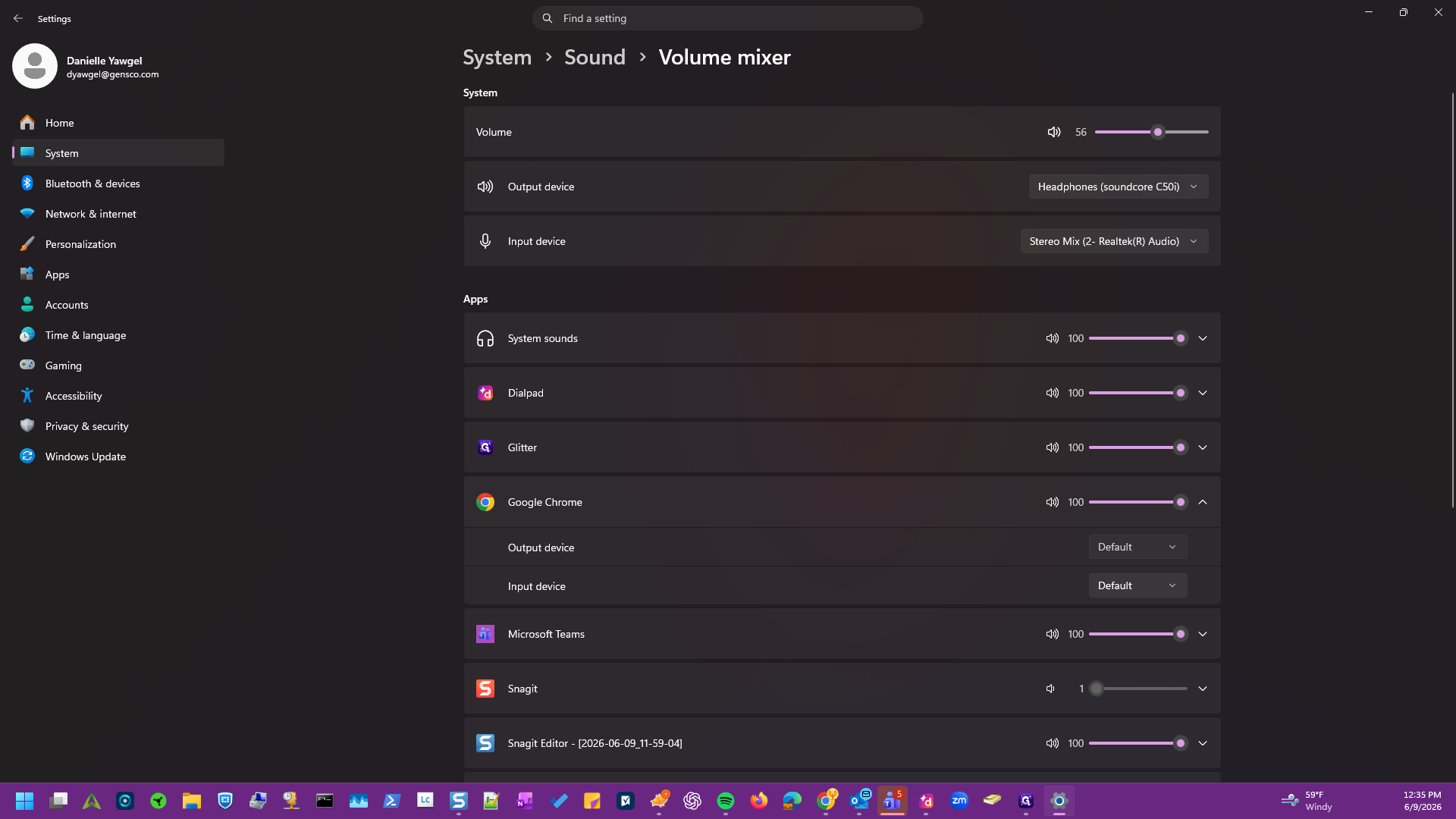
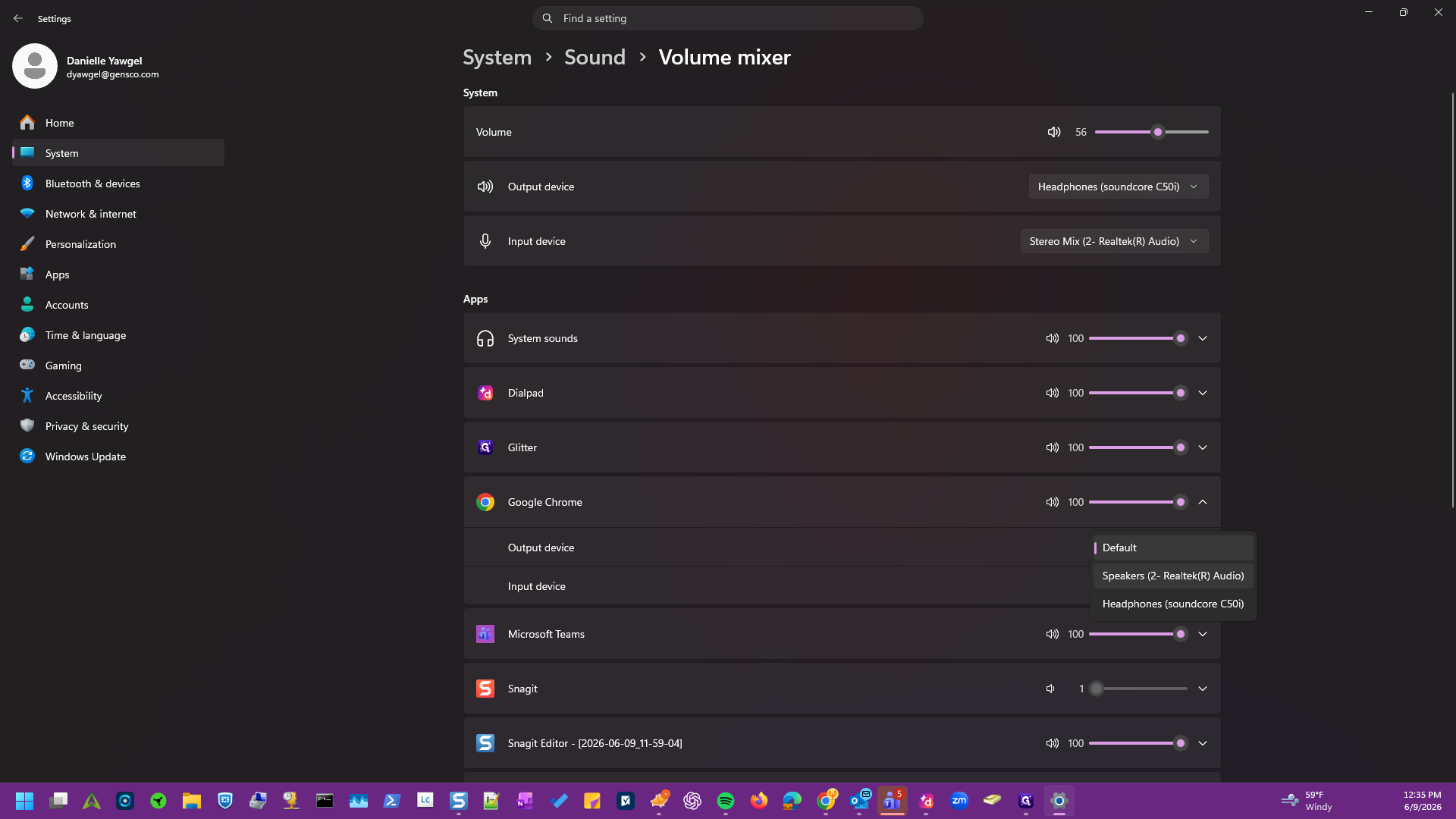
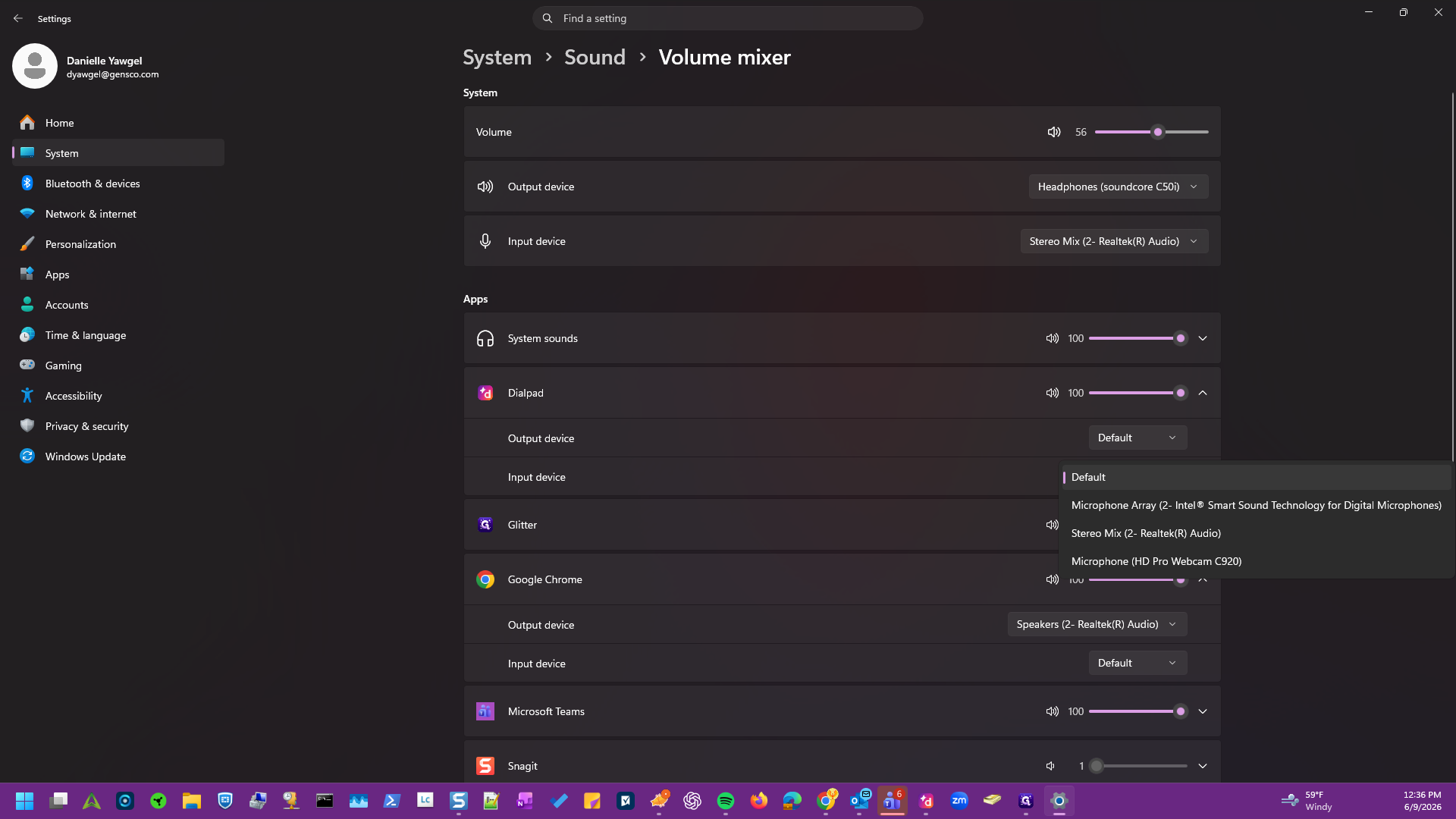
This guide explains how to assign specific audio input and output devices for individual applications in Windows 11. Customizing your volume mixer allows you to control exactly where each program's audio plays and which microphone it uses.
This guide applies to any Windows 11 user looking to manage their per-app audio routing. It is especially useful for the need of distinct audio setups for different applications, such as routing a call to a headset while keeping music on desktop speakers.
Term | Definition |
|---|---|
Volume mixer | A system settings menu in Windows 11 that allows users to adjust audio levels and routing on a per-application basis. |
Output device | The hardware component, such as speakers or headphones, where the system sends audio signals to be heard. |
Input device | The hardware component, such as a microphone, that captures audio and sends it into the system or application. |