Icon

Managing and Resolving Service Cases in Creatio CRM

Learn how to manage service requests, access customer profiles, and leverage the AI case resolution agent to efficiently resolve support tickets in Creatio CRM.

By Dominic Gossa

This guide walks you through managing service requests and efficiently communicating with customers in Creatio CRM. By following these steps, you will learn how to navigate the agent inbox, review account details, and leverage the AI assistant to summarize and resolve cases quickly.

This guide is designed for support agents and customer service representatives. It is best used during daily ticketing workflows when processing inbound requests, updating statuses, or escalating complex issues.

Accessing the Agent Queue
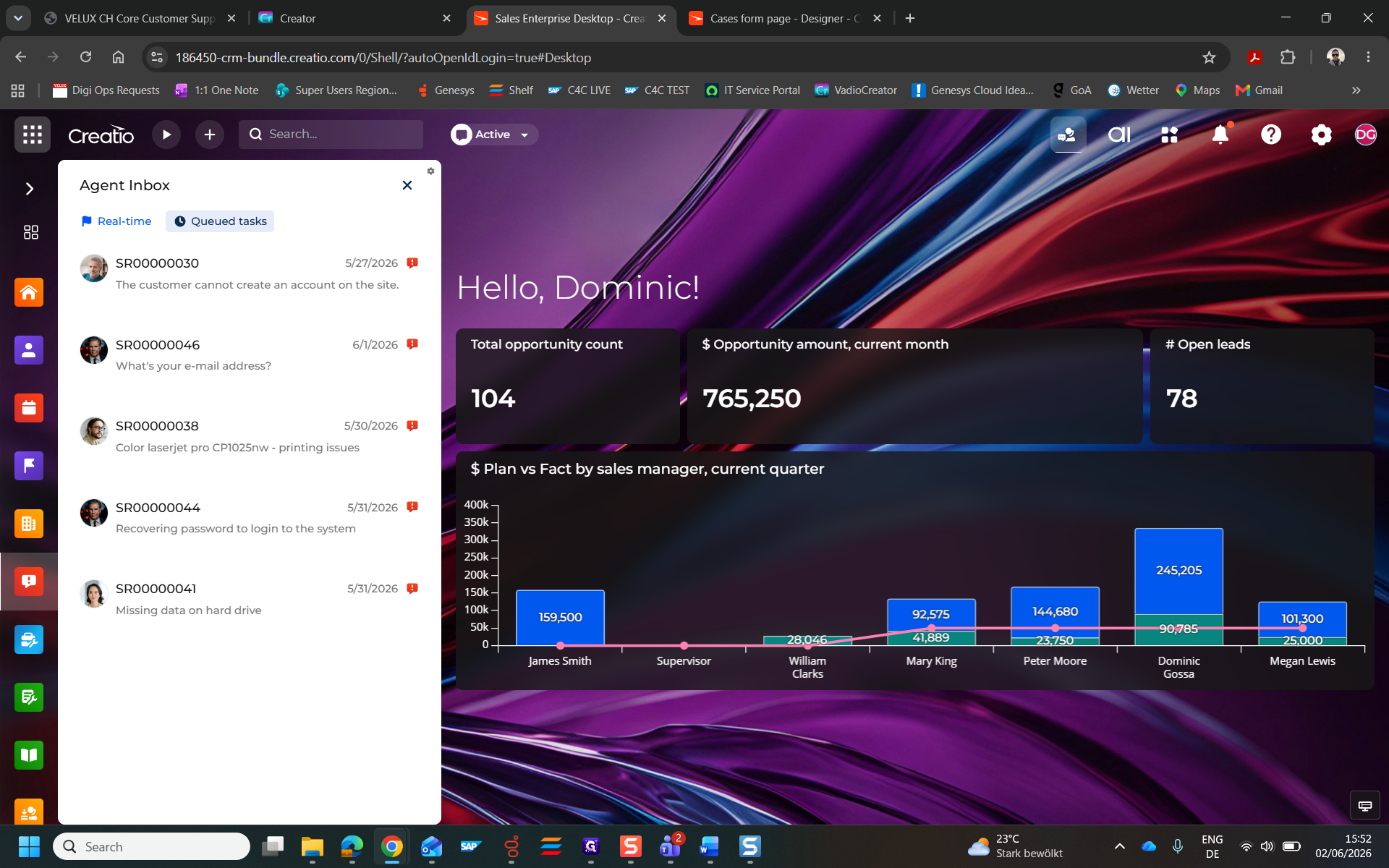
1
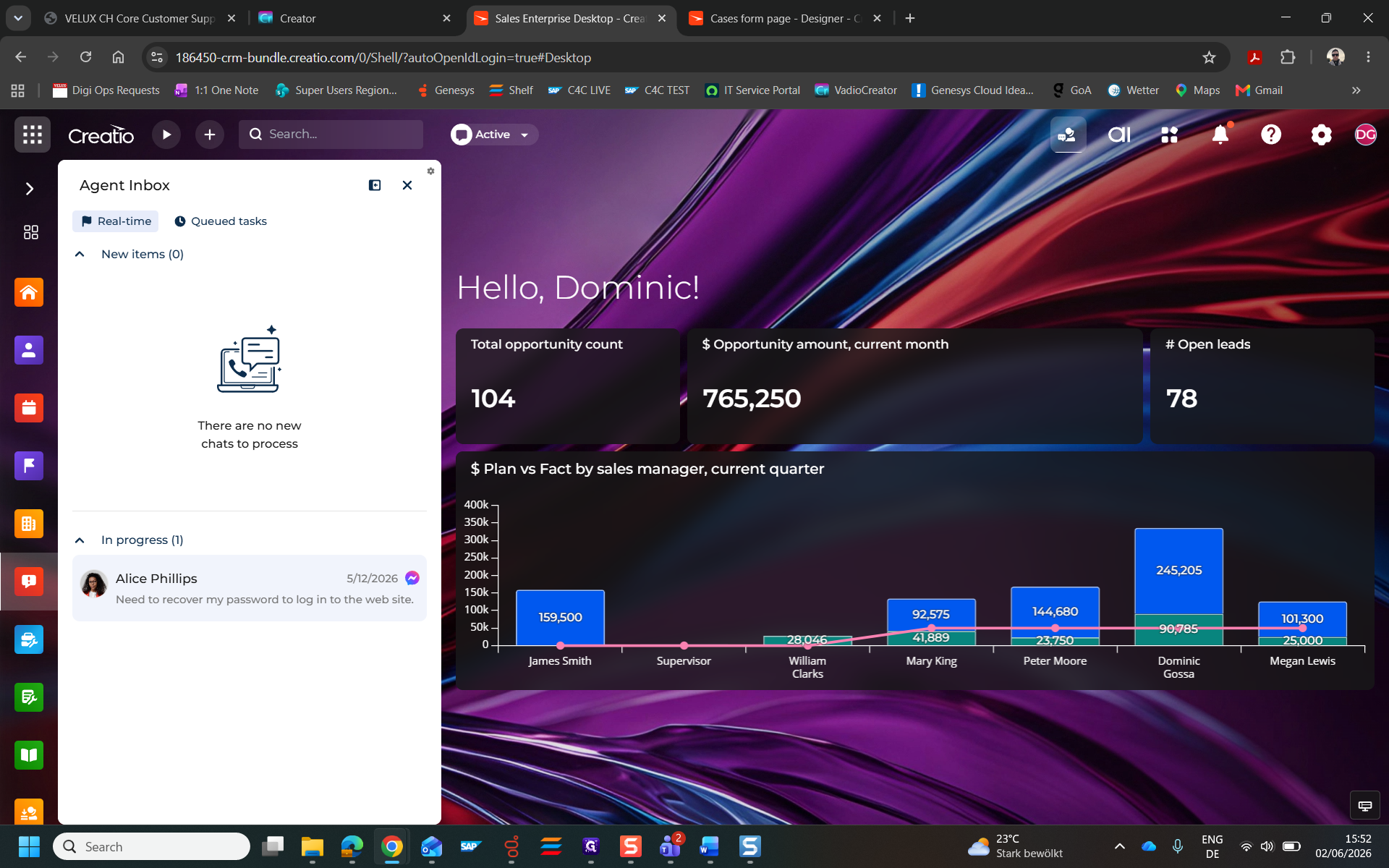
Click on Real-time in the Agent Inbox sidebar to view incoming service requests.
Step #1: Click on Real-time in the Agent Inbox sidebar to view incoming service requests.
2
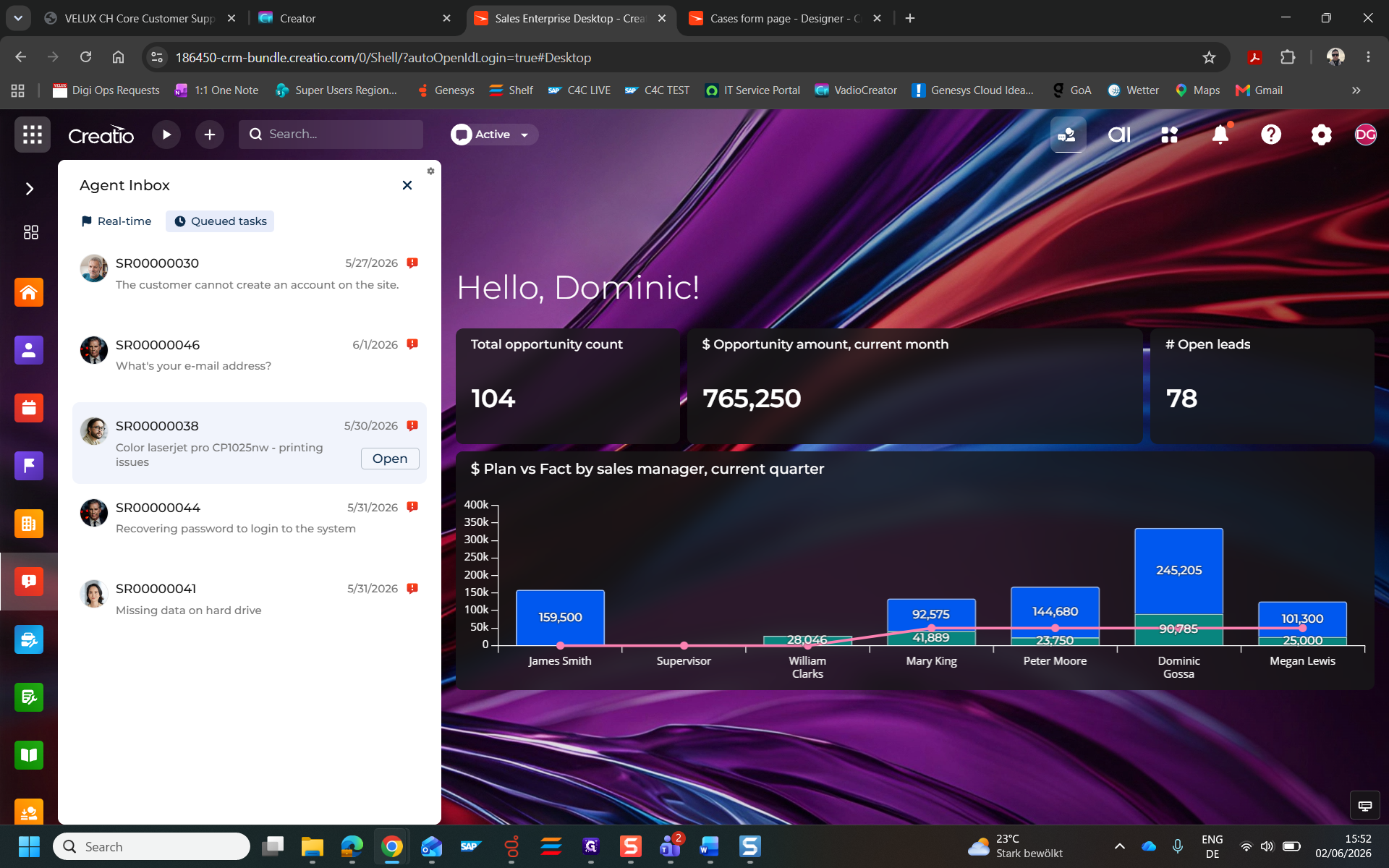
Click a specific incoming message request to select it.
Step #2: Click a specific incoming message request to select it.
3
Click Open to launch the full service request (SR) case record.
Step #3: Click Open to launch the full service request (SR) case record.

Navigating Case Details

4
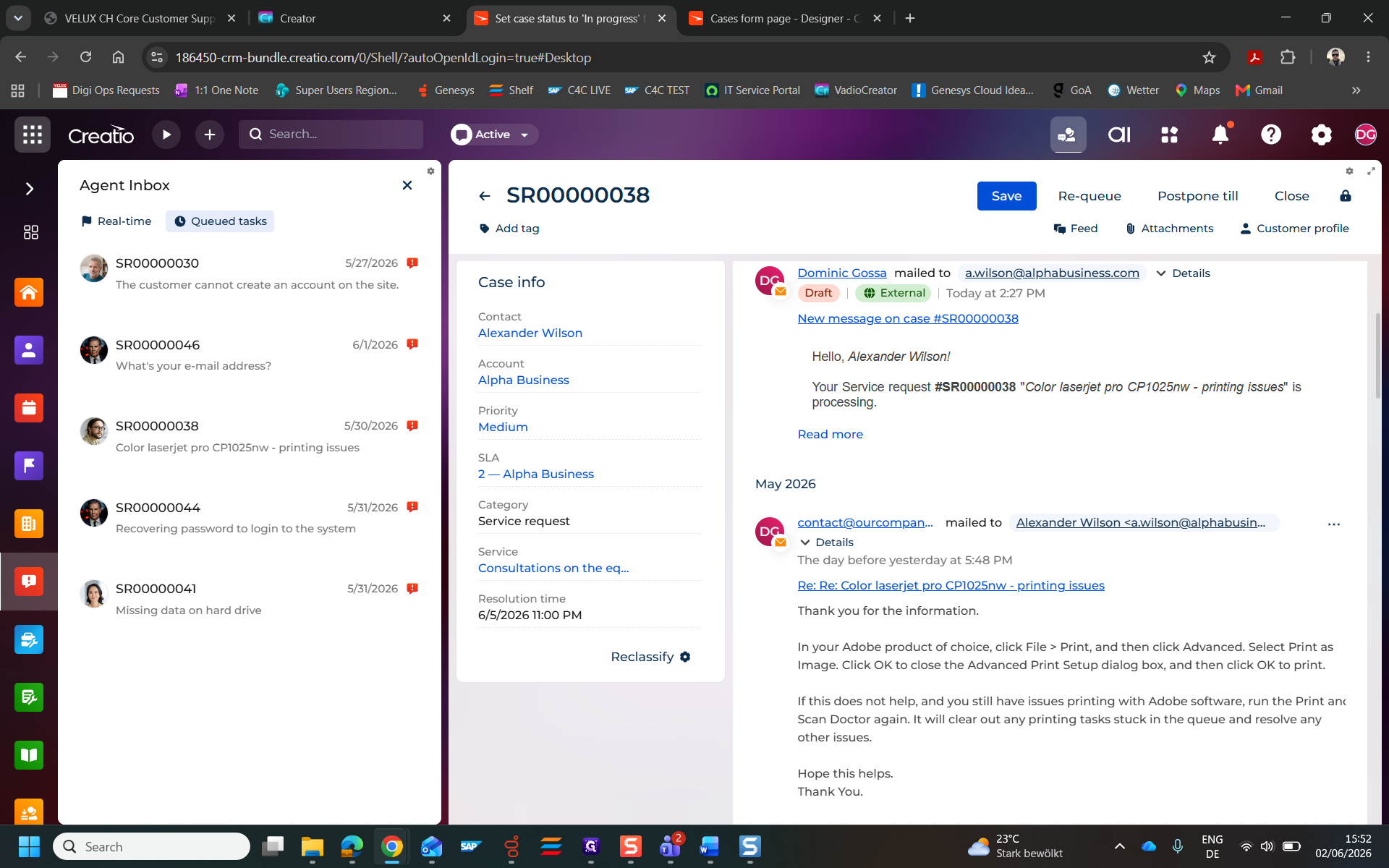
Click Details within the case info panel to review the case categorization and reclassify it if needed.
Step #4: Click Details within the case info panel to review the case categorization and reclassify it if needed.
5
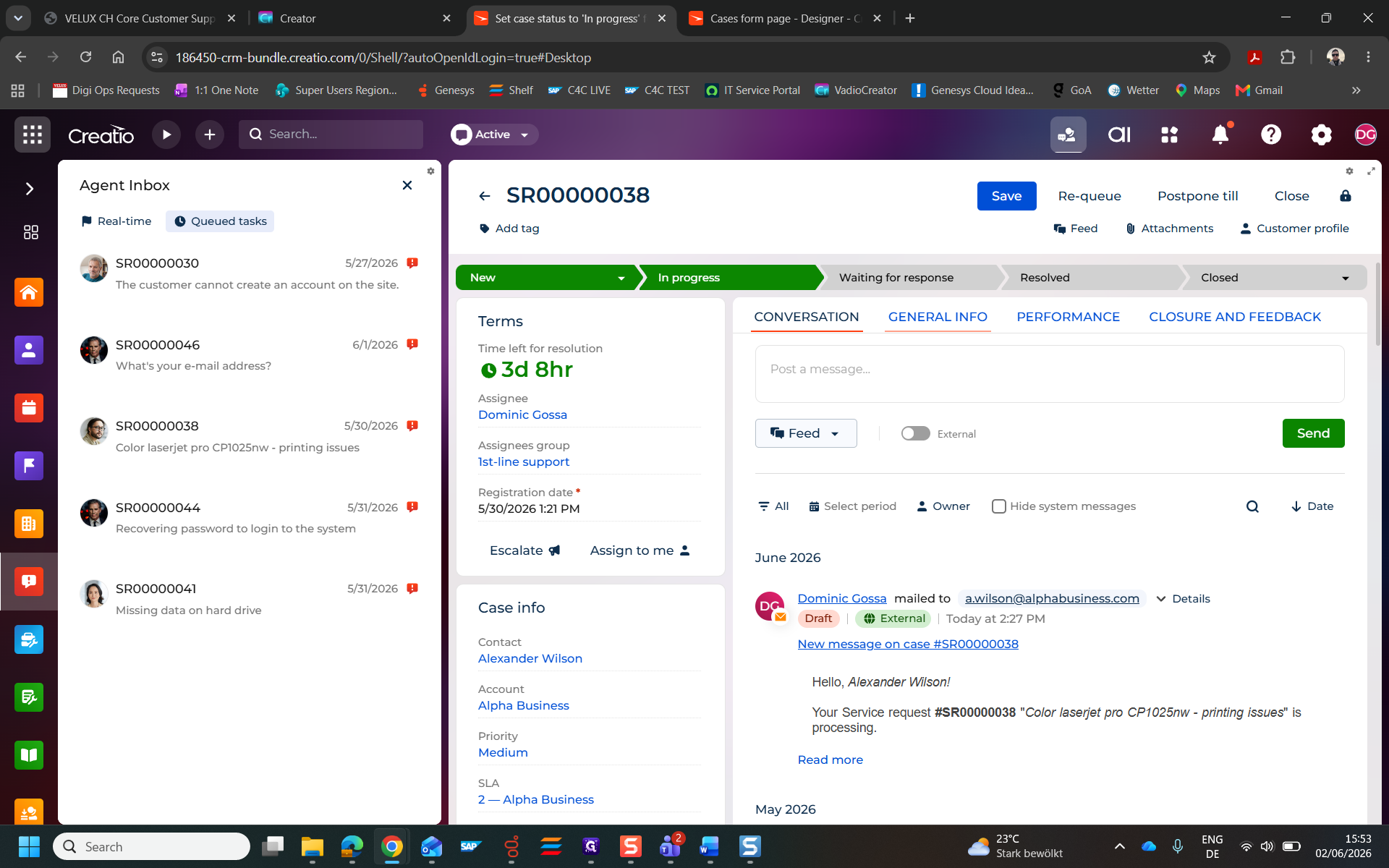
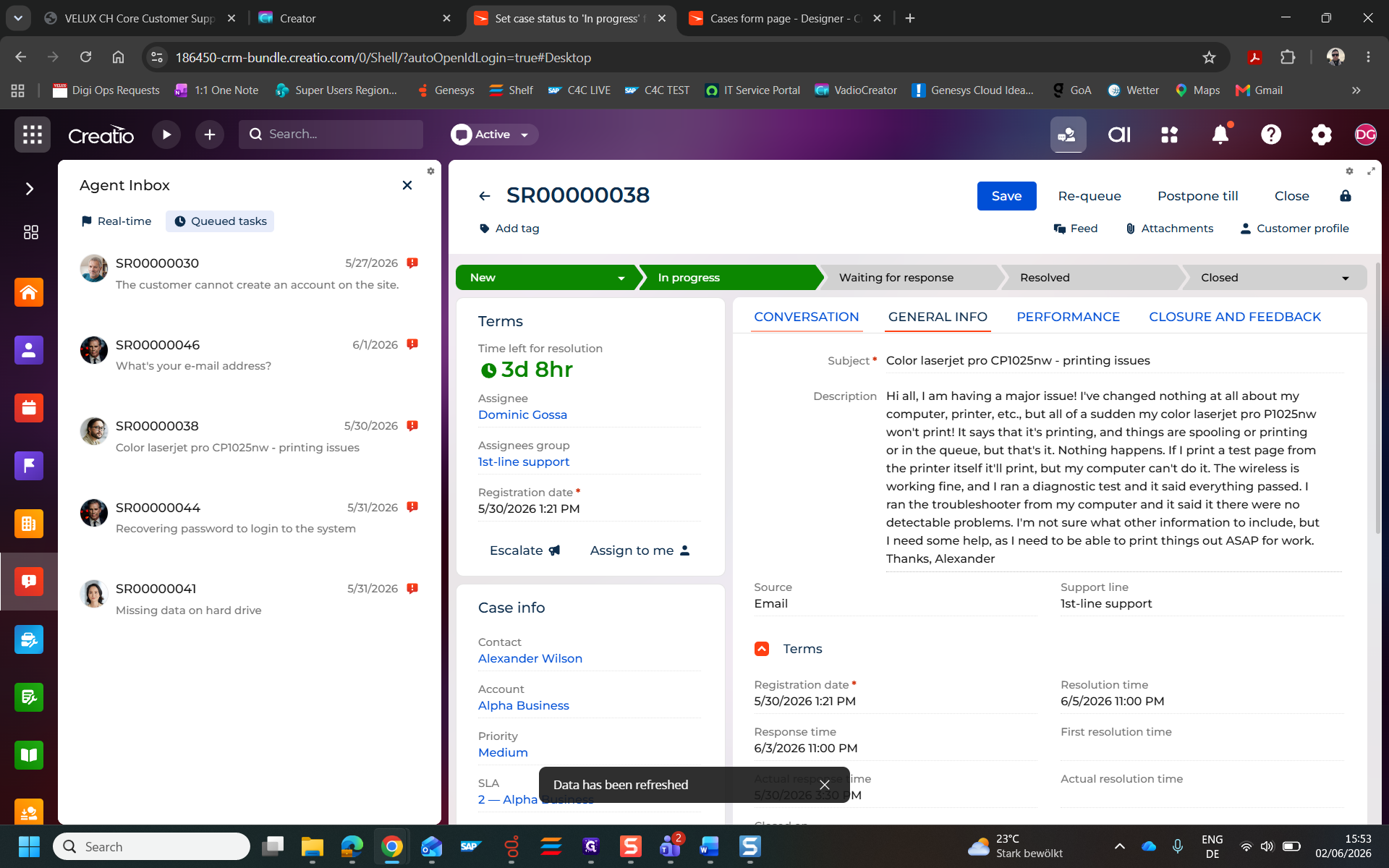
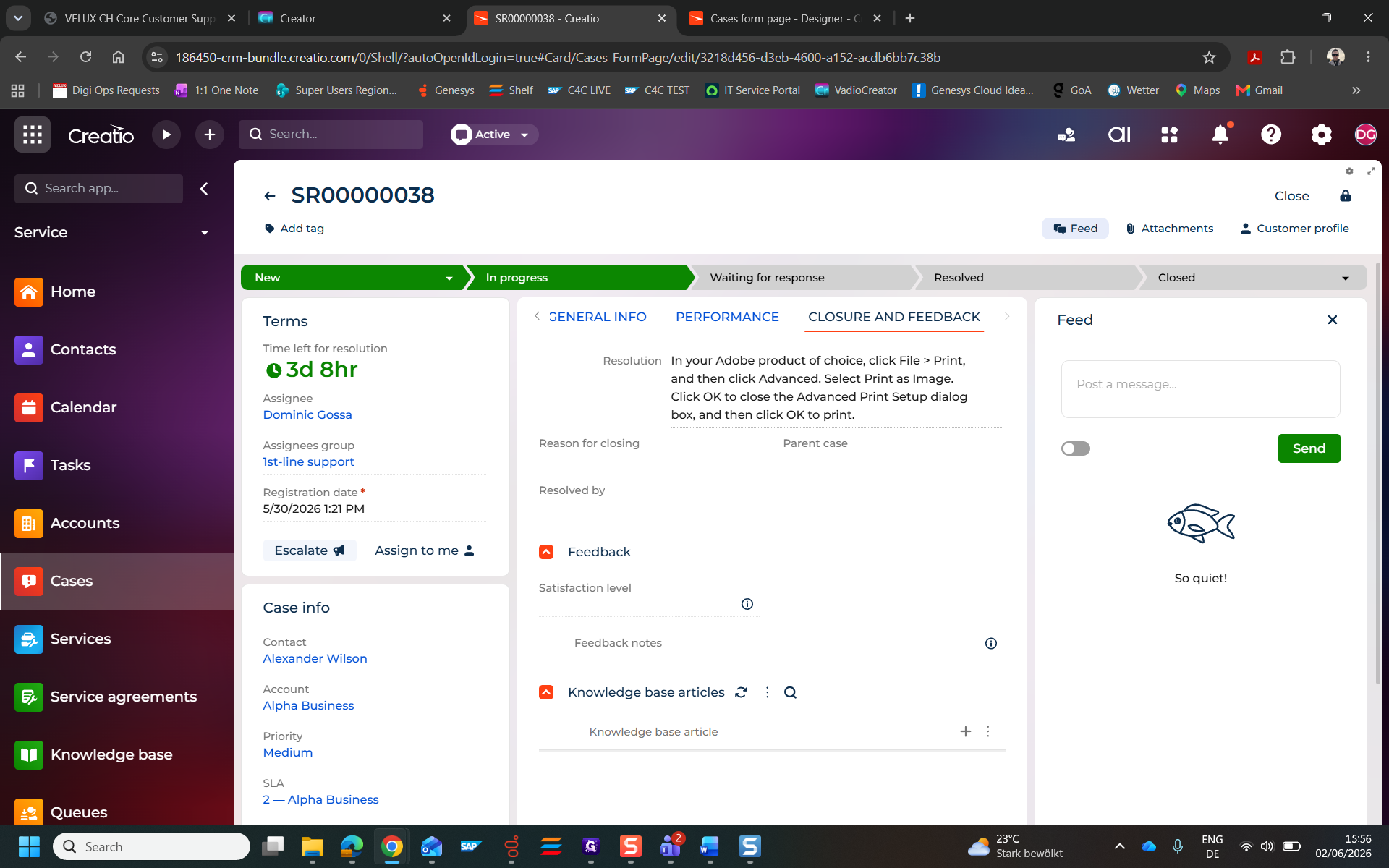
Click GENERAL INFO to view core case attributes, assignments, and relevant tags.
Step #5: Click GENERAL INFO to view core case attributes, assignments, and relevant tags.
6
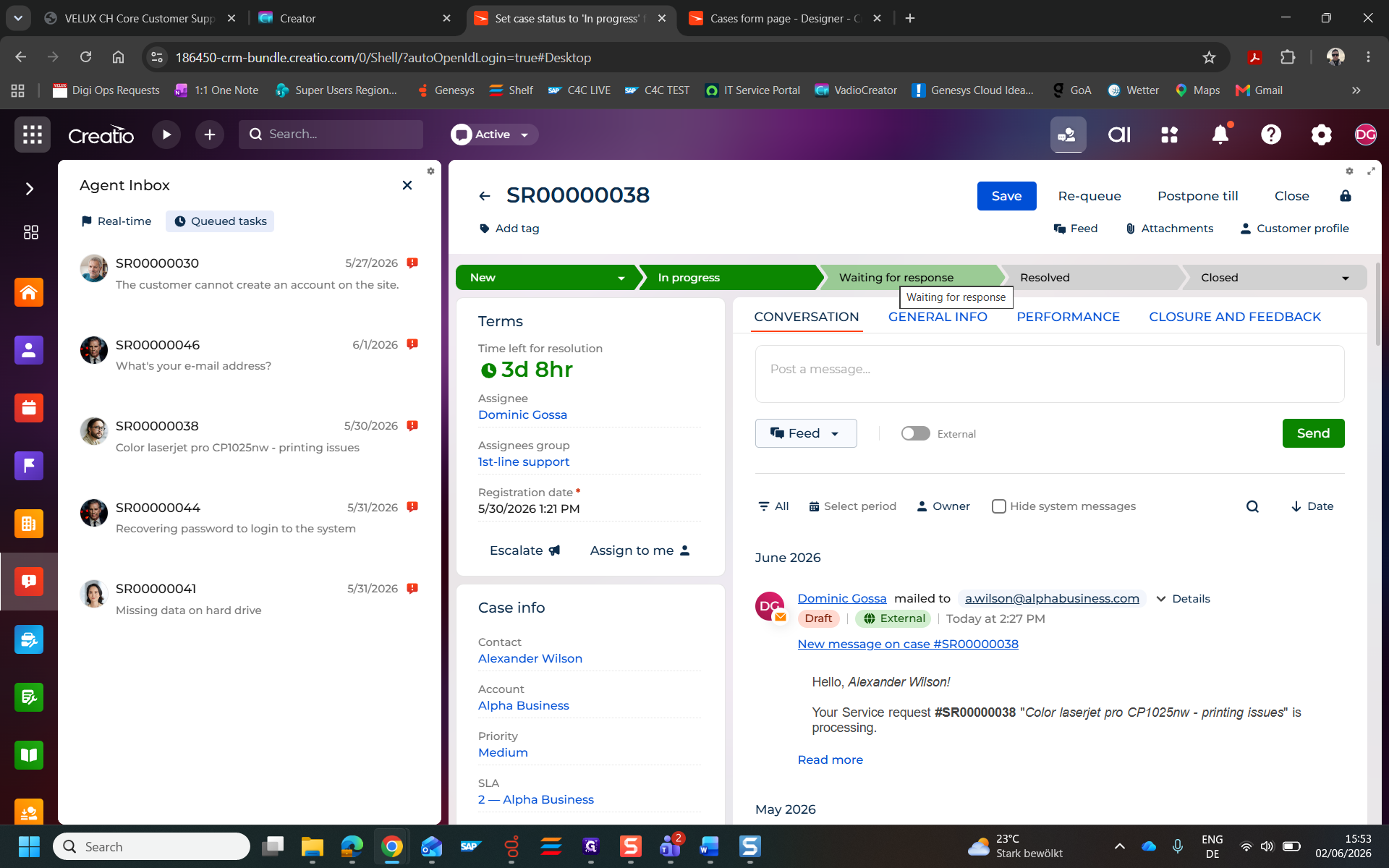
Click CONVERSATION to review the ongoing thread of emails, chats, and internal notes.
Step #6: Click CONVERSATION to review the ongoing thread of emails, chats, and internal notes.
7
Click Waiting for response on the progress bar to update the case status once you have replied to the customer.
Step #7: Click Waiting for response on the progress bar to update the case status once you have replied to the customer.

Reviewing Account & Customer Information

When troubleshooting, you may need to verify customer entitlements or check past interactions.
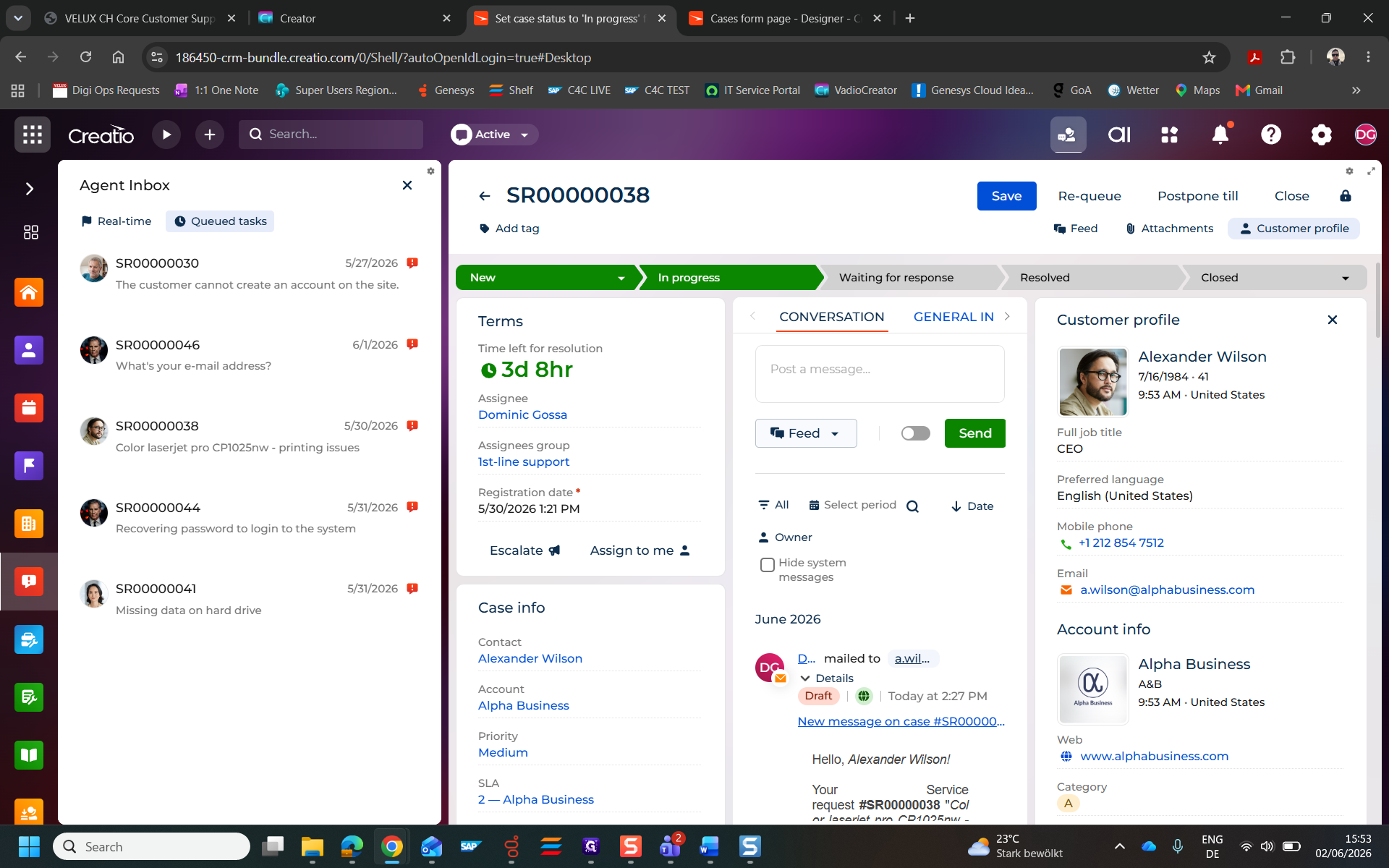
8
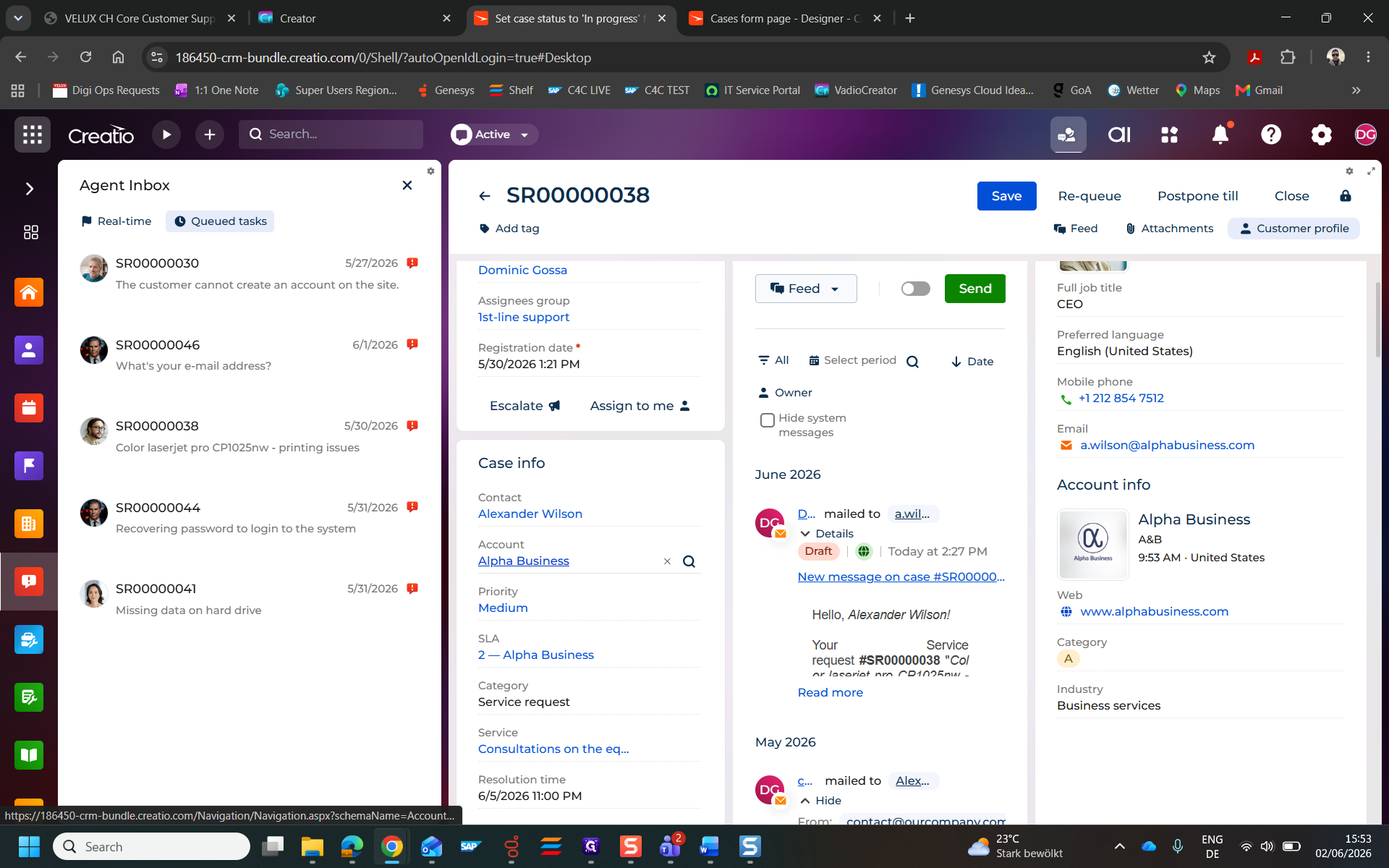
Click the customer's name (e.g., Alexander Wilson) to view their contact profile.
Step #8: Click the customer's name (e.g., Alexander Wilson) to view their contact profile.
9
Click the associated business name (e.g., Alpha Business) to open the full account record.
Step #9: Click the associated business name (e.g., Alpha Business) to open the full account record.

From the Account record, you can explore various aspects of the customer's relationship using the tabbed navigation:

Account Tab

Purpose

SALES

View MQL/SQL leads, pipeline stages, and active opportunities.

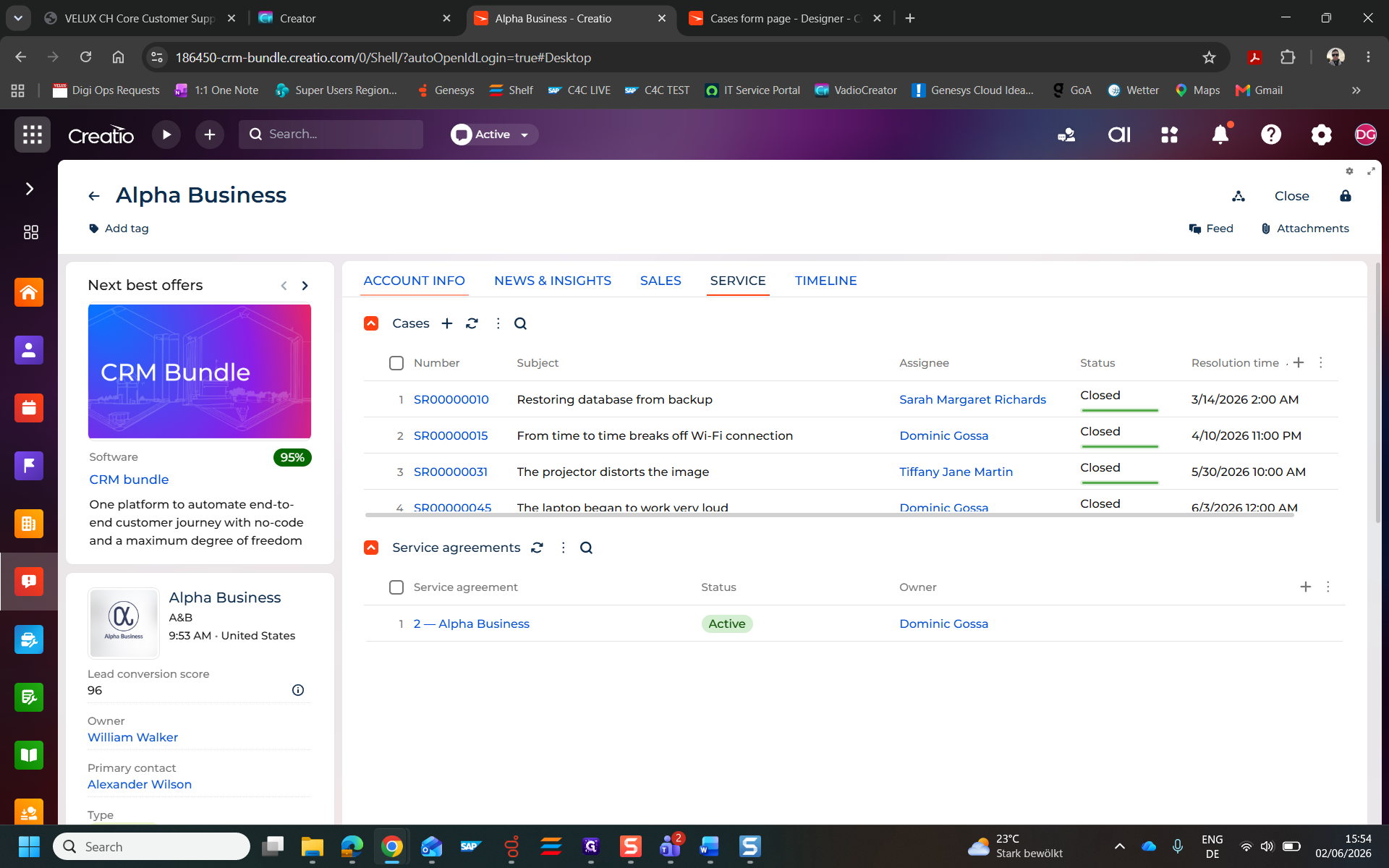
SERVICE

Check active service agreements and historical support cases.

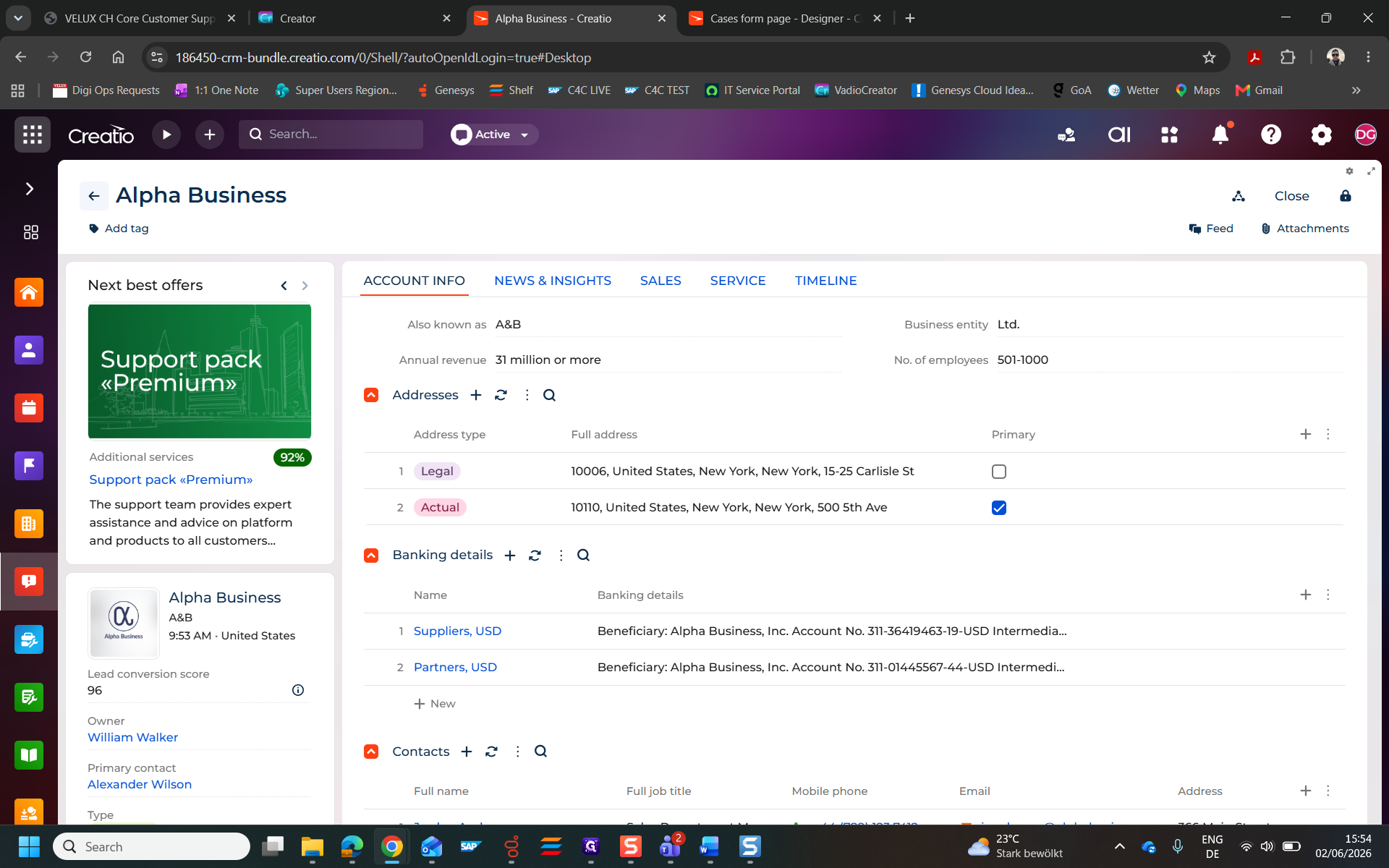
ACCOUNT INFO

Access company firmographics, billing, and banking details.

10
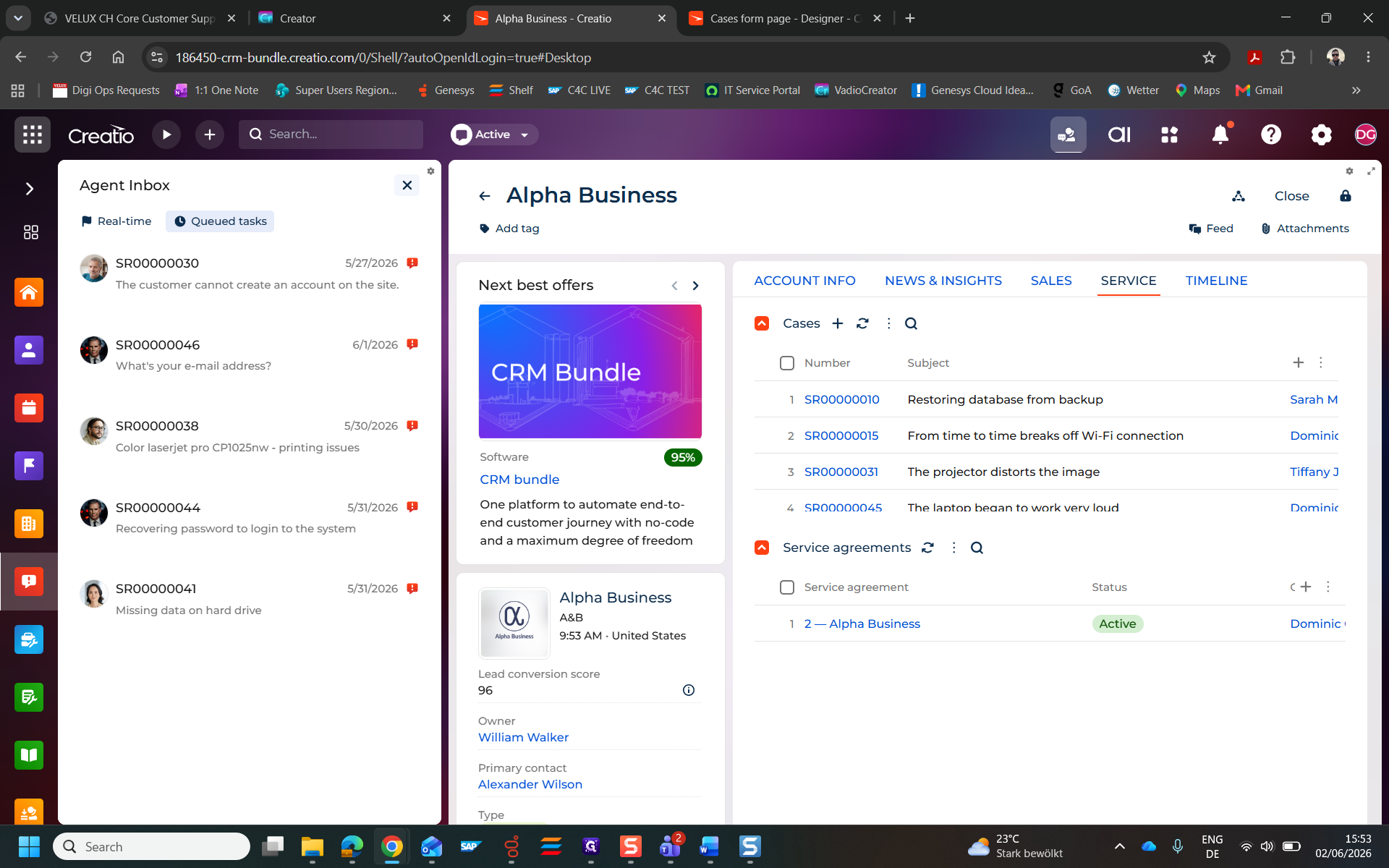
Click the SALES tab to check on recent lead progression or opportunities.
Step #10: Click the SALES tab to check on recent lead progression or opportunities.
11
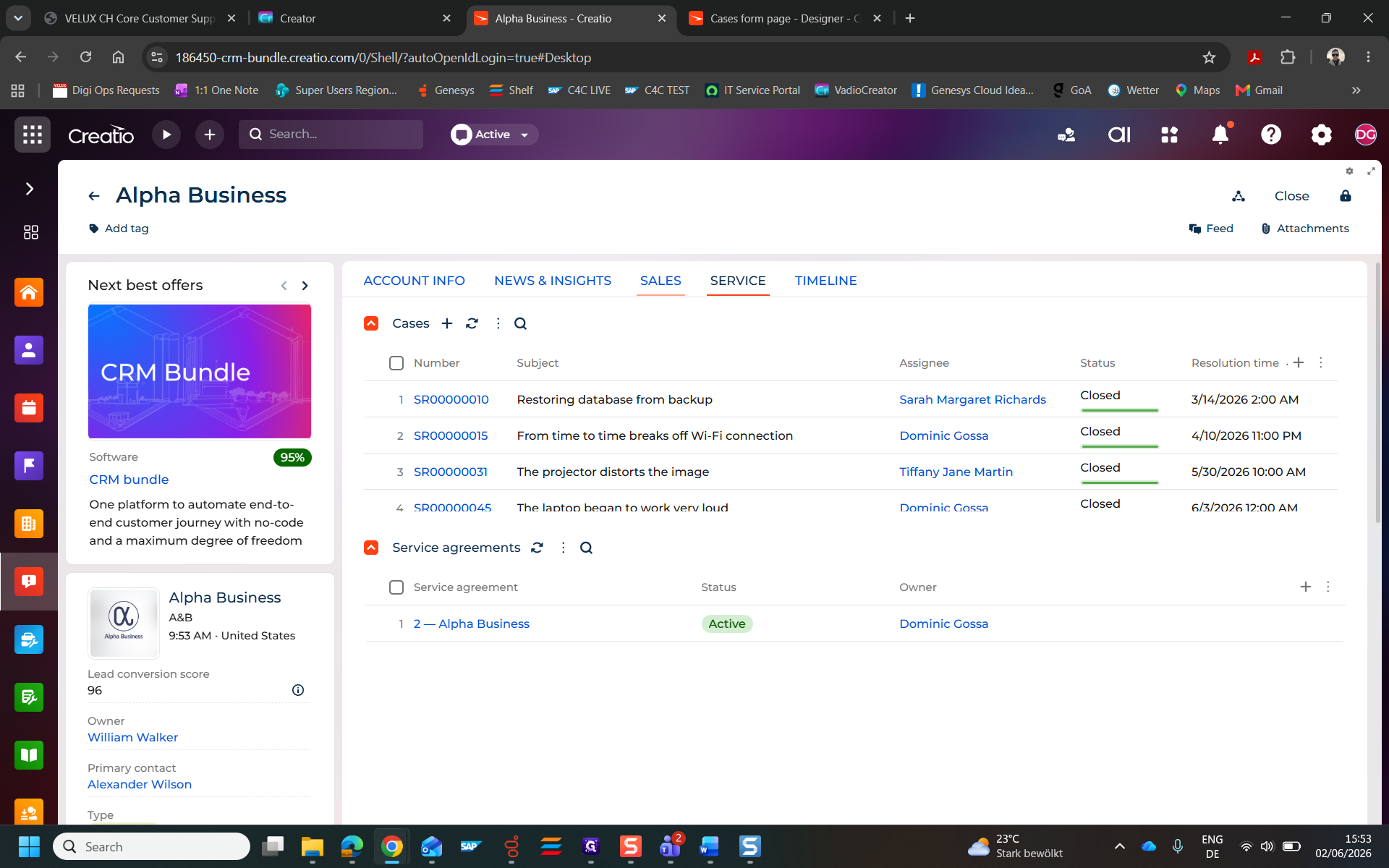
Click the SERVICE tab to review active service agreements.
Step #11: Click the SERVICE tab to review active service agreements.
12
Click ACCOUNT INFO to verify banking details or primary contact information.
Step #12: Click ACCOUNT INFO to verify banking details or primary contact information.
13
Click the back arrow (e.g., ← Alpha Business) to return to your active service request.
Step #13: Click the back arrow (e.g., ← Alpha Business) to return to your active service request.

Replying and Escalating

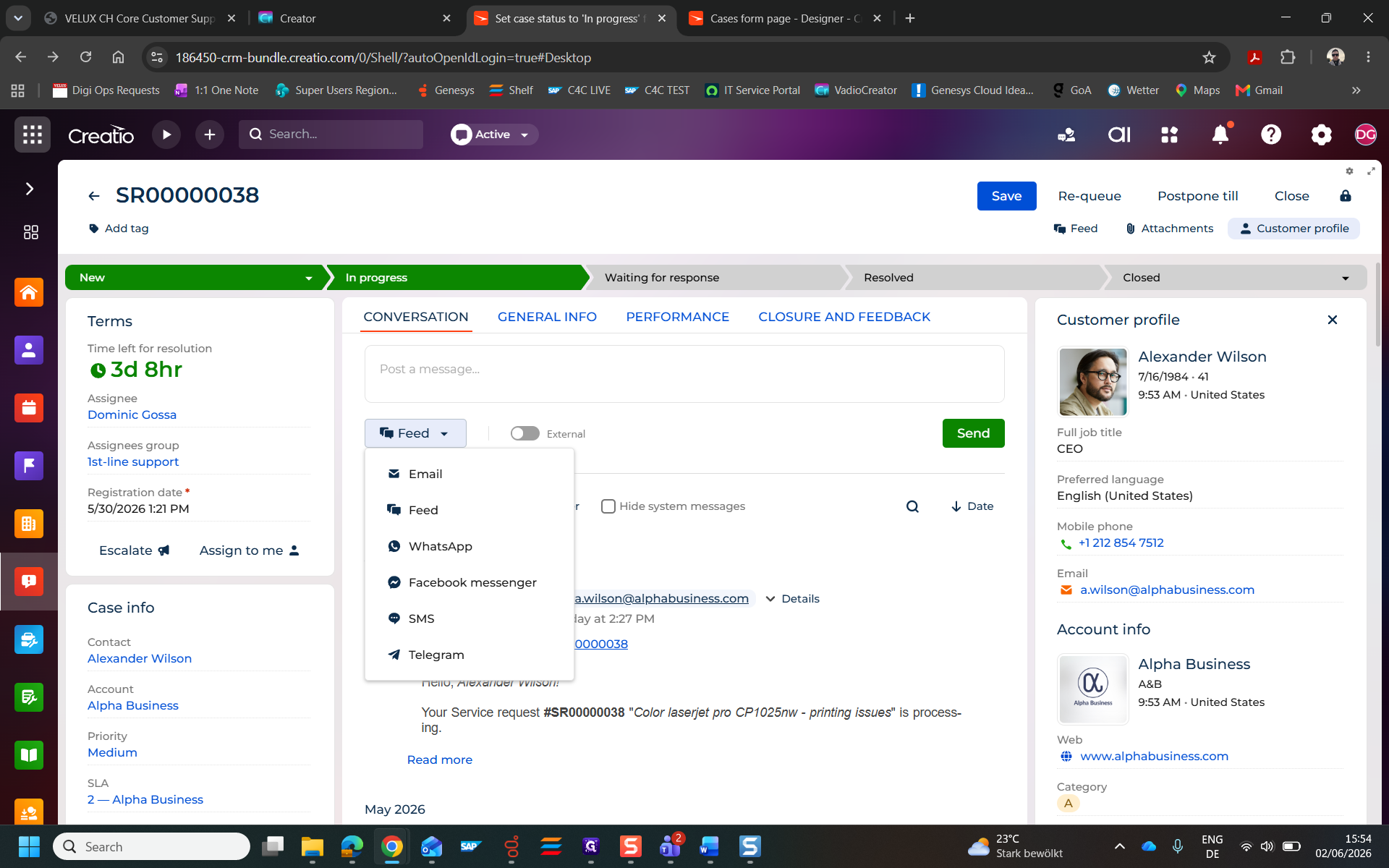
14
Click the communication channel dropdown menu to select your reply format (e.g., Email, WhatsApp, SMS).
Step #14: Click the communication channel dropdown menu to select your reply format (e.g., Email, WhatsApp, SMS).
15
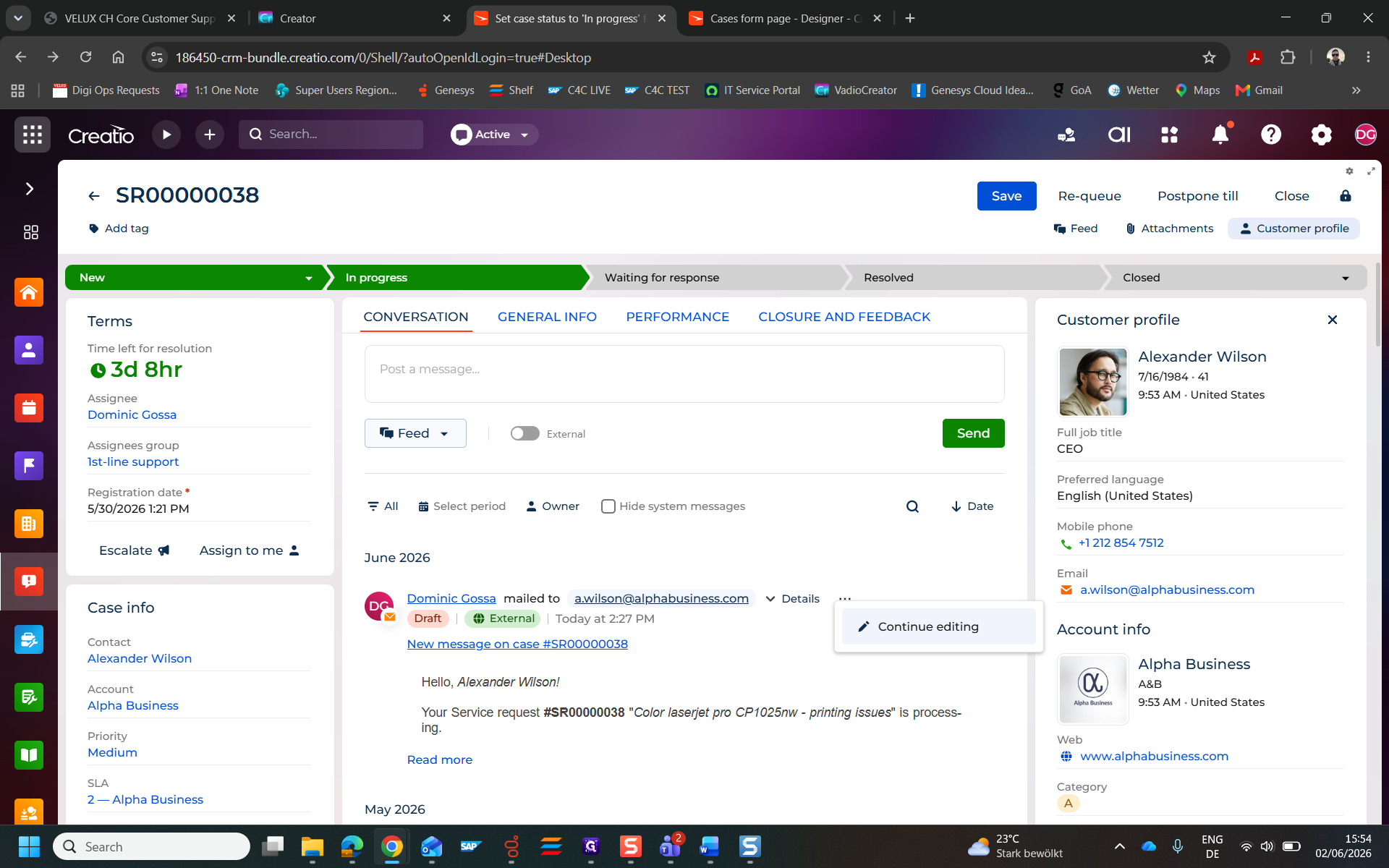
Click Continue editing to resume drafting a previously saved response in the feed.
Step #15: Click Continue editing to resume drafting a previously saved response in the feed.
16
Click Escalate if the issue requires intervention from a higher-tier support line.
Step #16: Click Escalate if the issue requires intervention from a higher-tier support line.
17
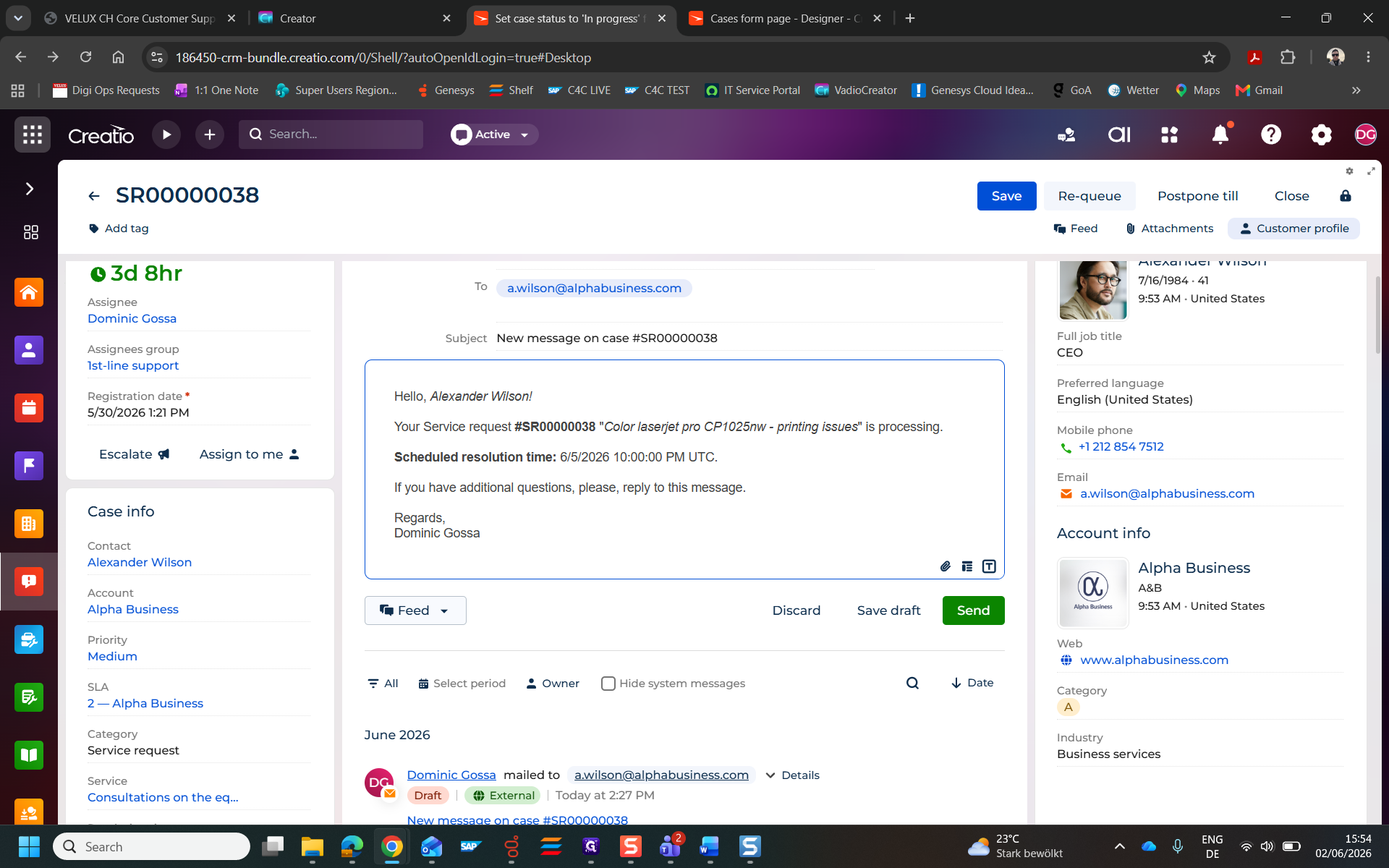
Click Re-queue if the ticket needs to be placed back into the unassigned pool.
Step #17: Click Re-queue if the ticket needs to be placed back into the unassigned pool.

Using the AI Case Resolution Assistant
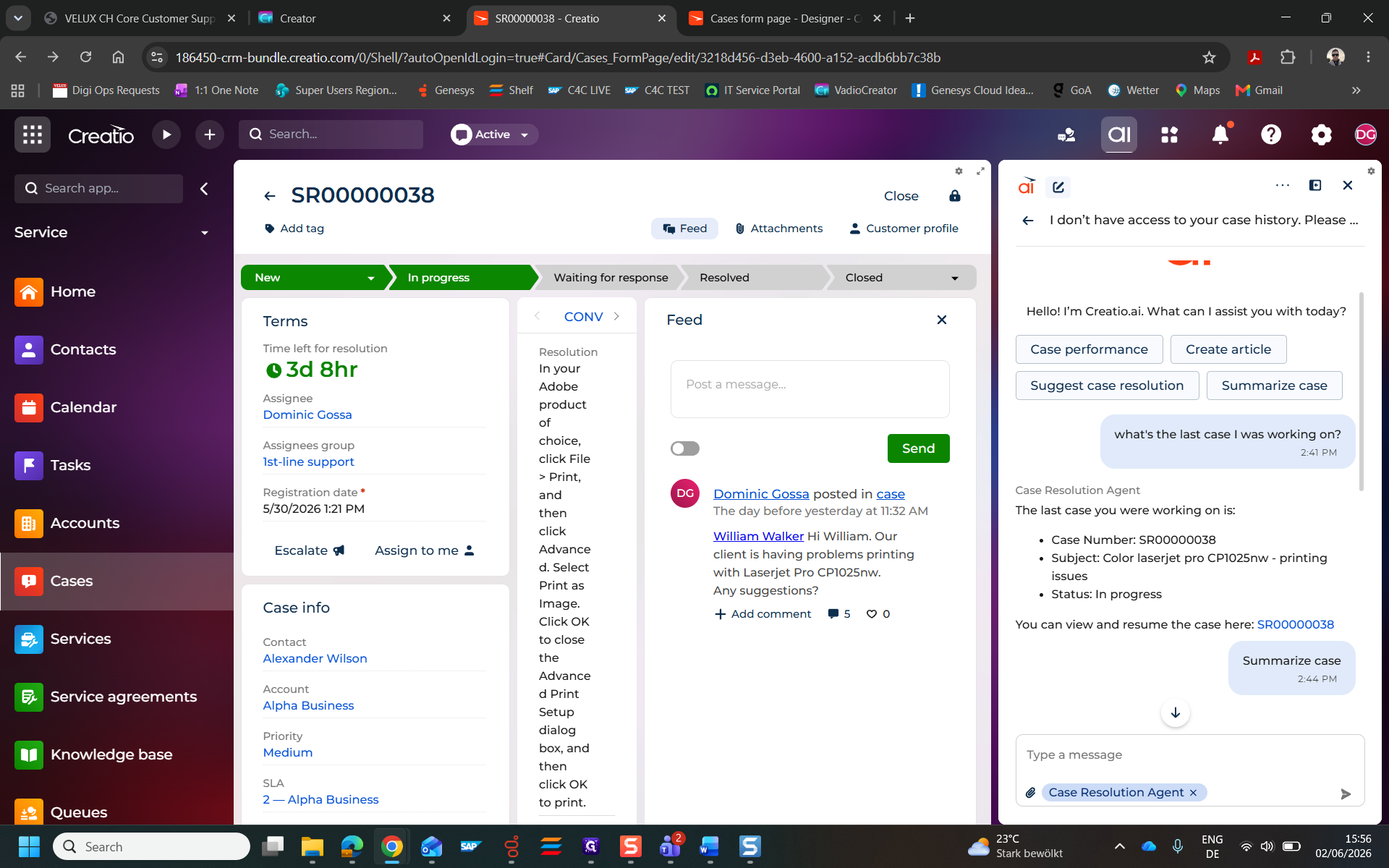
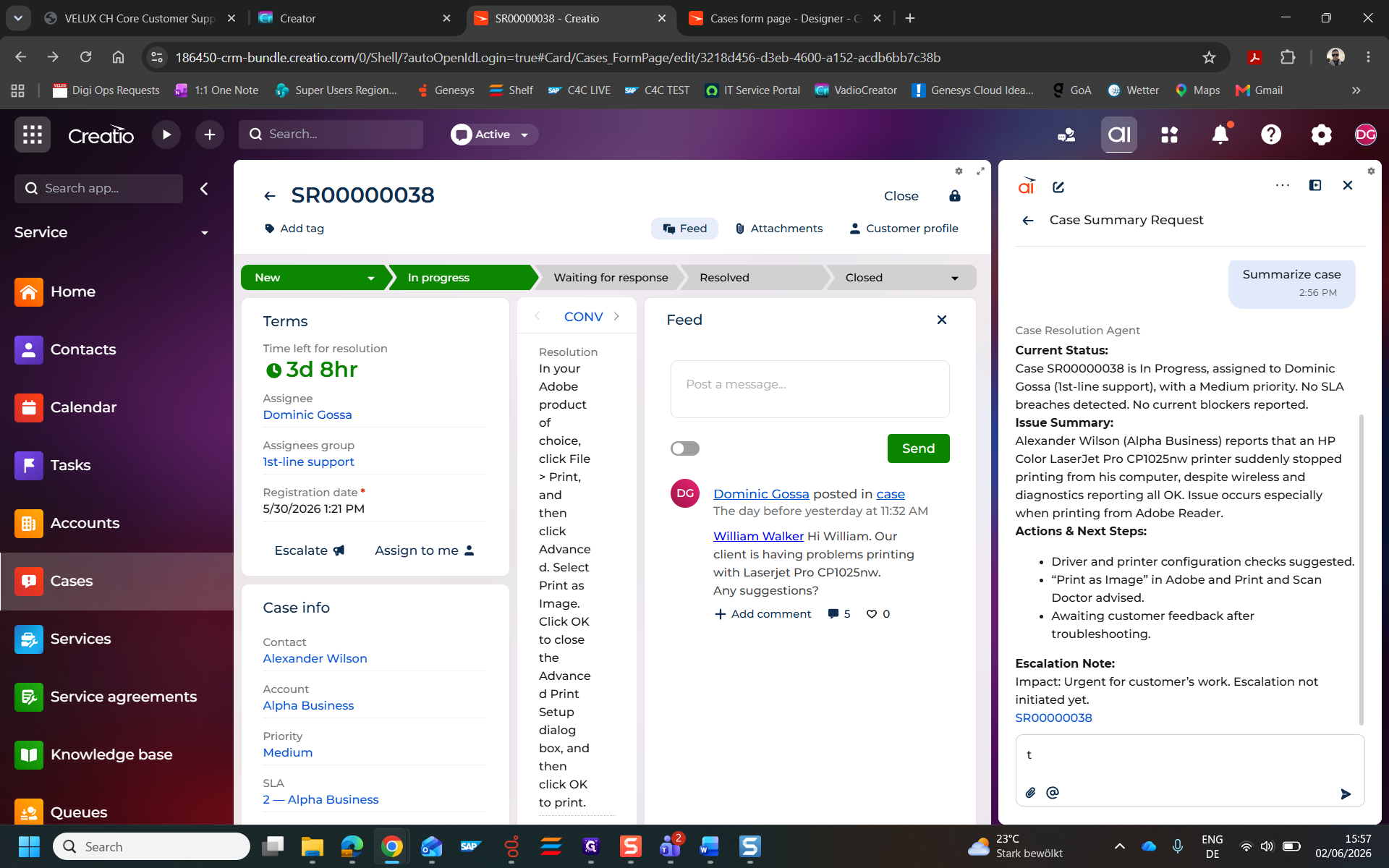
18
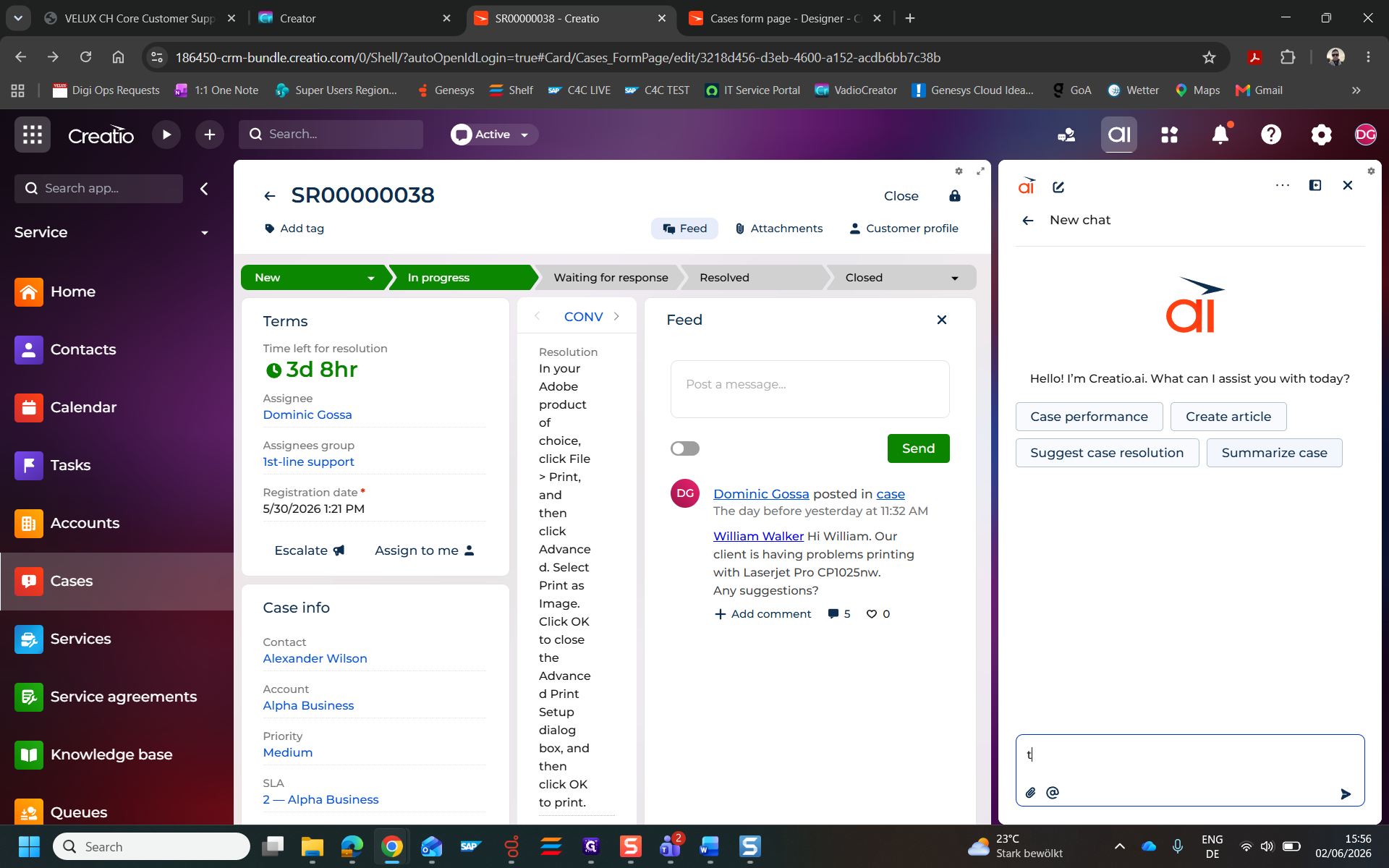
Click the Case Resolution Agent text input field in the right-hand AI panel.
Step #18: Click the Case Resolution Agent text input field in the right-hand AI panel.
19
Click Summarize case to have the AI instantly parse the thread and generate an issue summary.
Step #19: Click Summarize case to have the AI instantly parse the thread and generate an issue summary.
20
Review the AI-generated context, assessing the customer's stated impact and the recommended troubleshooting steps.
Step #20: Review the AI-generated context, assessing the customer's stated impact and the recommended troubleshooting steps.

Q: Can I change the case status directly from the top menu?

A: Yes, you can click on the stages in the progress bar (such as "Waiting for response") to instantly update the case status.

Q: How do I find the customer's active service agreements?

A: Click on the customer's account name from the case details view, then navigate to the Service tab to view their service agreements and past cases.

Q: What does the Case Resolution Agent do?

A: The Case Resolution Agent is an AI assistant that can summarize long email threads, extract the core issue and business impact, and suggest troubleshooting steps.

Q: Can I pause working on a draft response?

A: Yes, draft messages are saved automatically. You can return to the Conversation tab and click "Continue editing" on the feed item to finish your response later.

Term

Definition

Agent Inbox

A centralized queue where support agents receive and manage incoming chats, emails, and requests in real-time.

Service Request (SR)

A formal tracking record (ticket) created to handle a customer's inquiry or issue.

Re-queue

The action of returning a claimed ticket back to the general support pool for another agent to pick up.

Escalate

The process of transferring a complex case to a higher-tier support team or manager for specialized resolution.

MQL/SQL

Marketing Qualified Lead / Sales Qualified Lead; statuses used in the Sales tab to track a prospect's readiness to buy.

Managing and Resolving Service Cases in Creatio CRM