
How to Manage the Sales Pipeline in Guestbook 2.0
Learn how to manage your sales pipeline in Guestbook 2.0, from tracking leads and assigning follow-up tasks to drafting proposals and generating invoices.
This guide explains how to manage the end-to-end client pipeline in Guestbook 2.0, from adding a new lead and scheduling follow-up tasks to drafting proposals and generating fee schedules for signed projects. The goal is to standardize opportunity tracking and ensure seamless handoffs between sales, negotiation, and onboarding.
This applies to sales representatives, project managers, and account executives using Guestbook 2.0. Use this workflow whenever you interact with a new prospective client, draft a Statement of Work (SOW), or finalize a signed contract for billing.
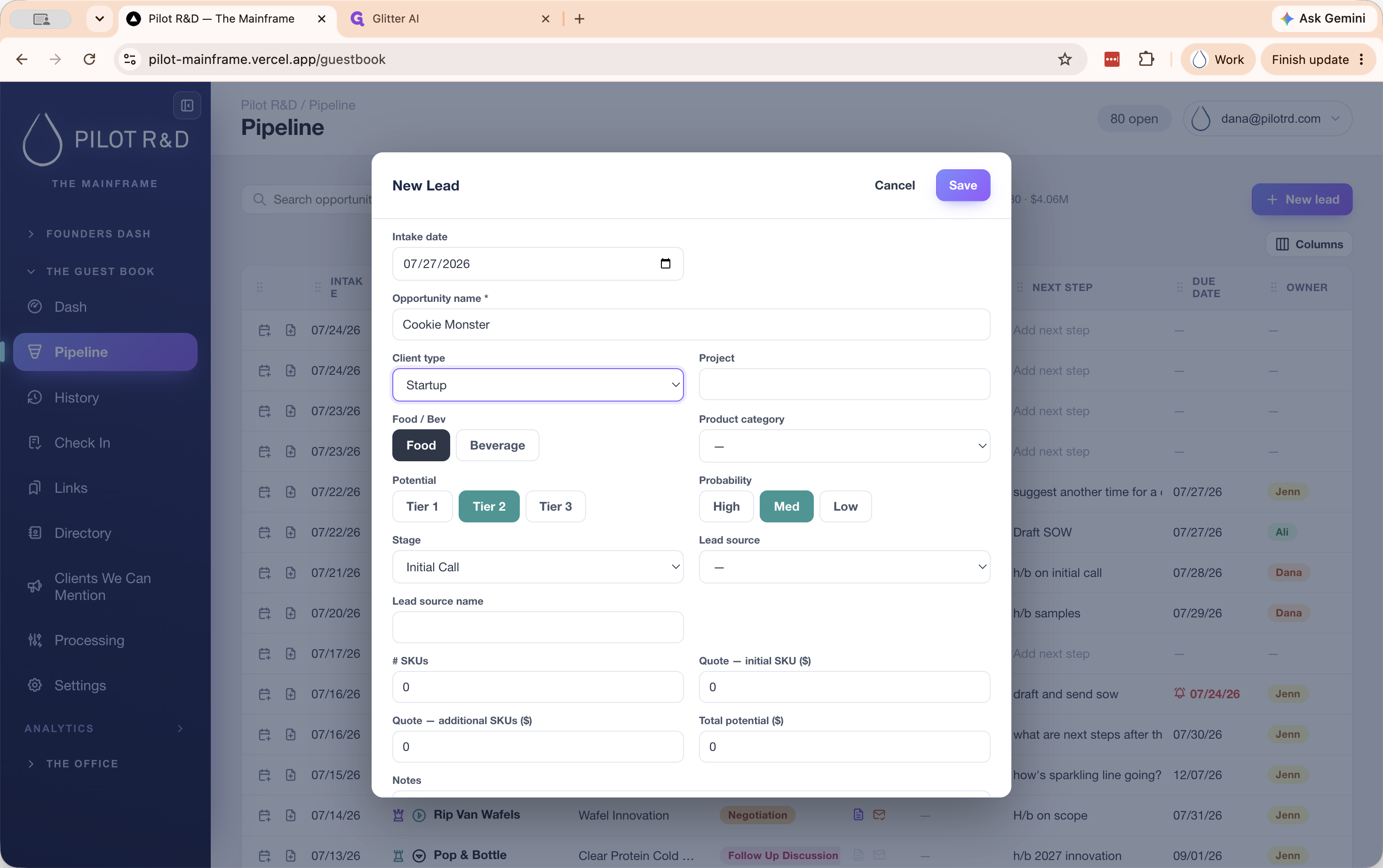
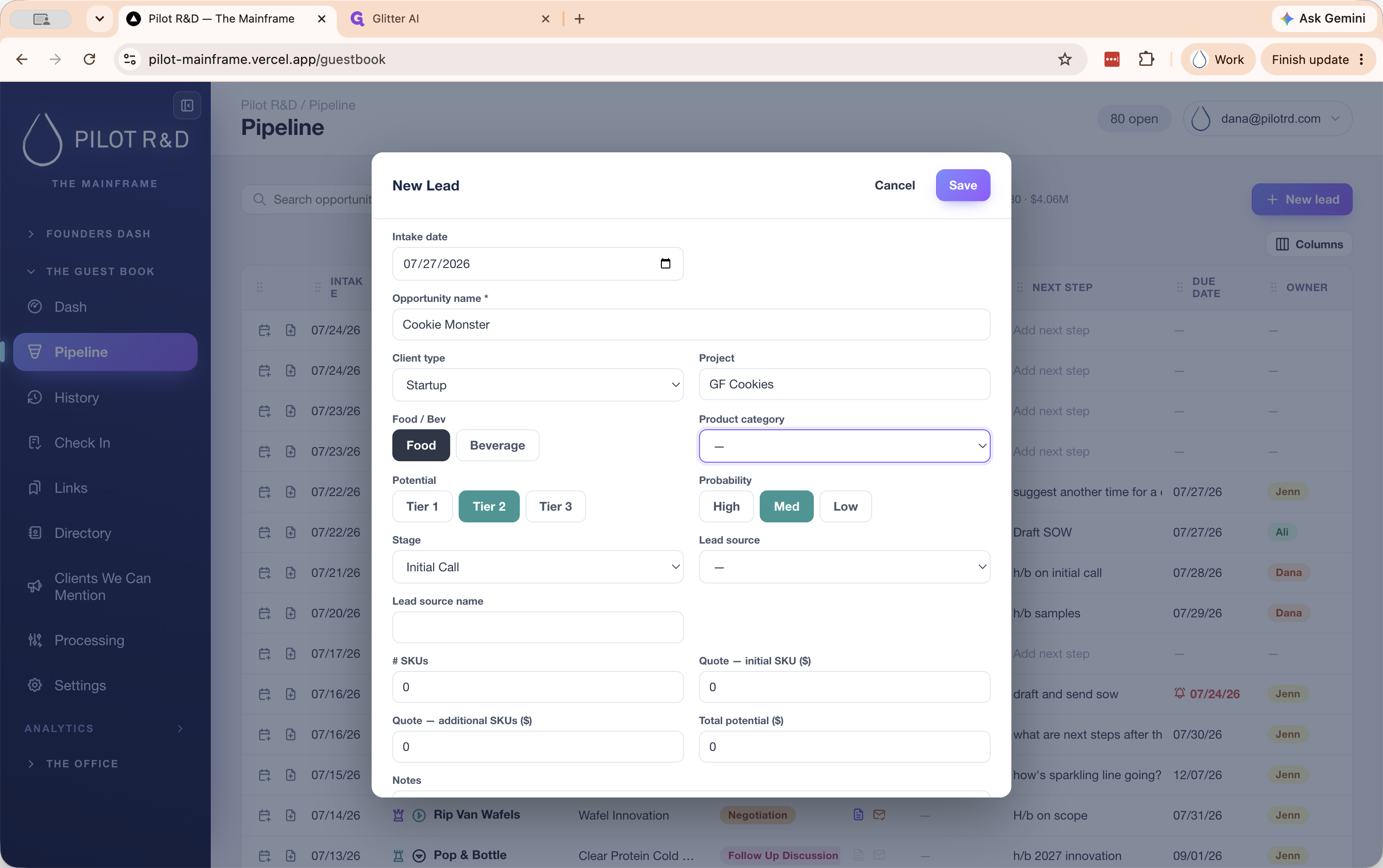
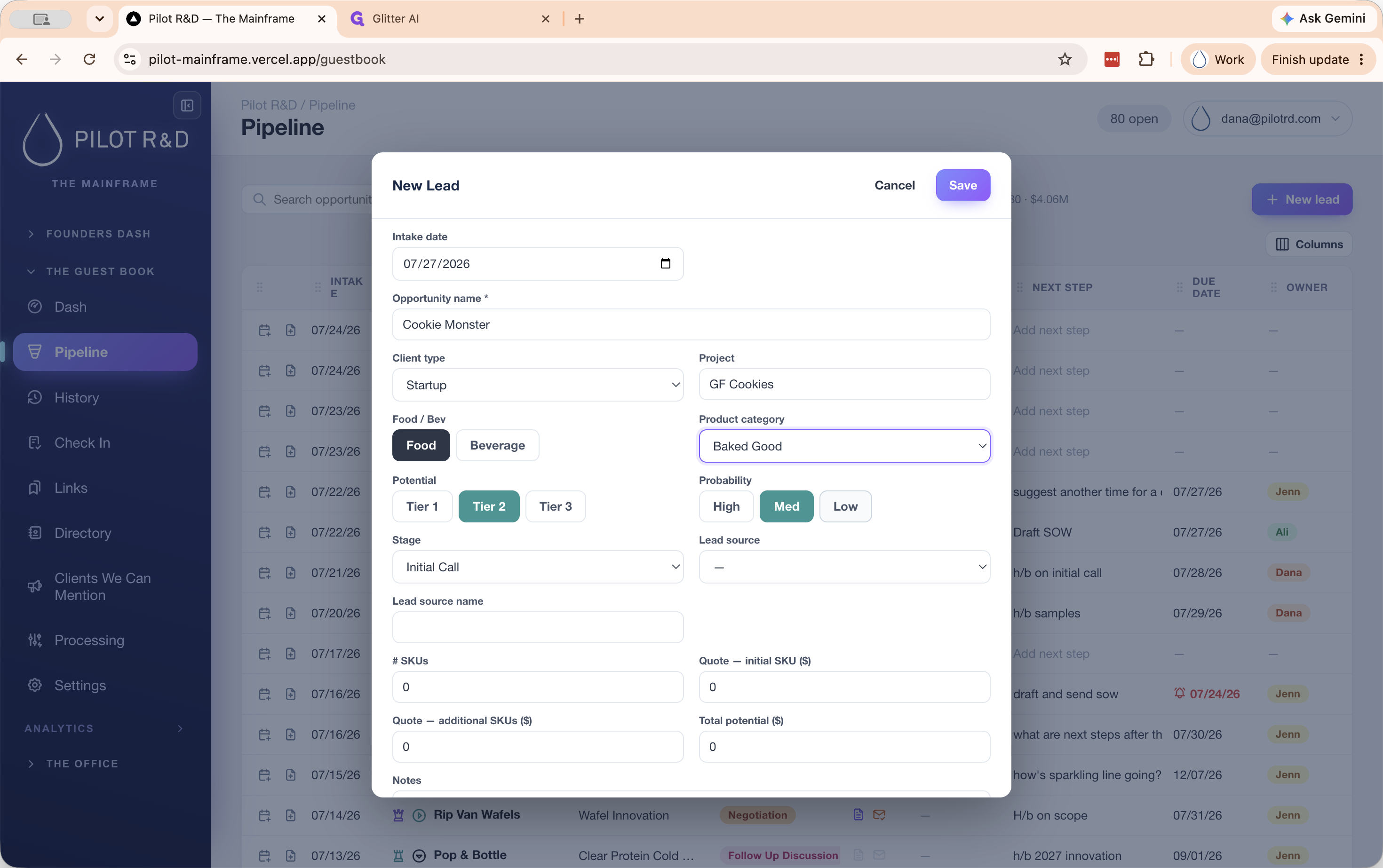
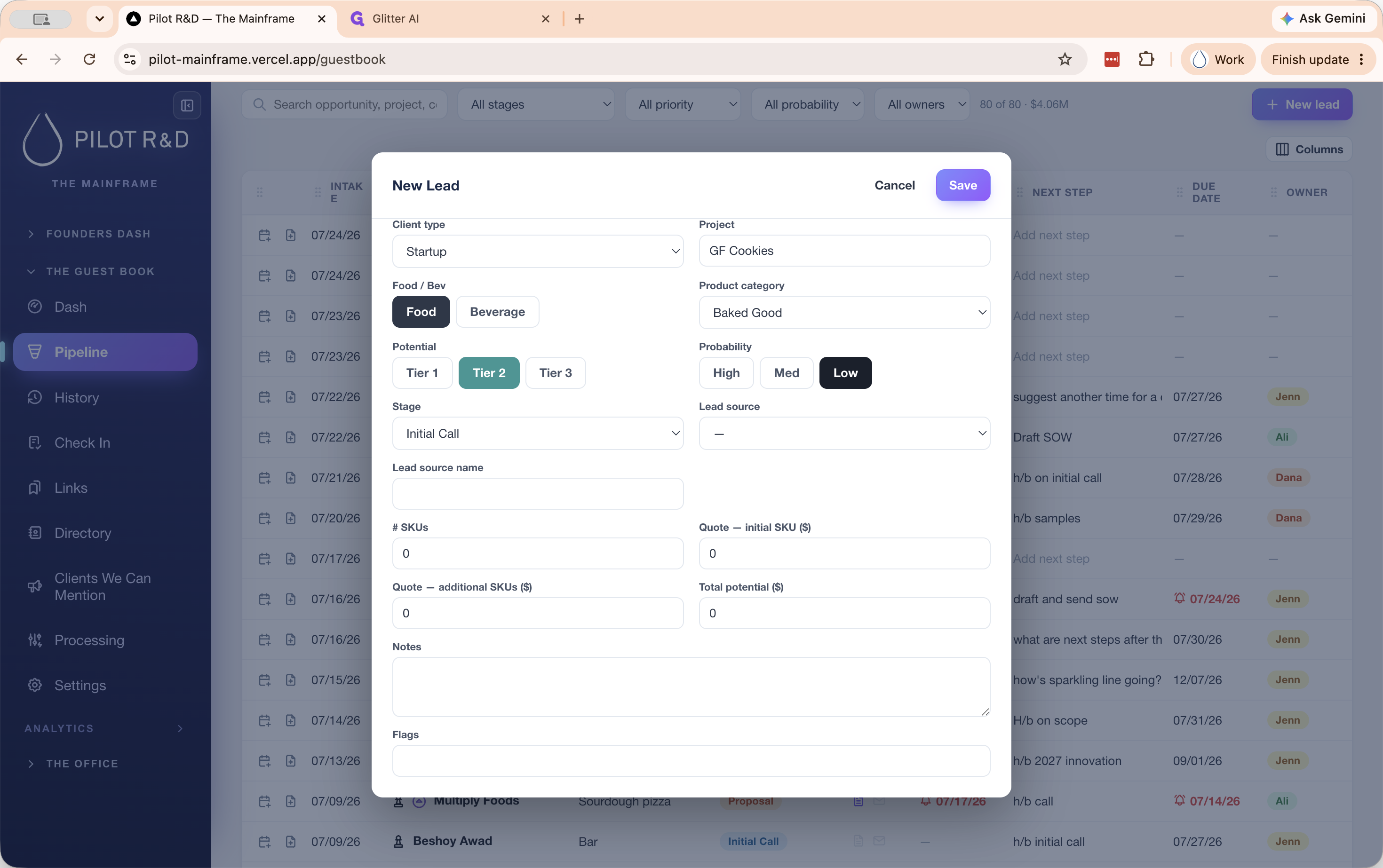
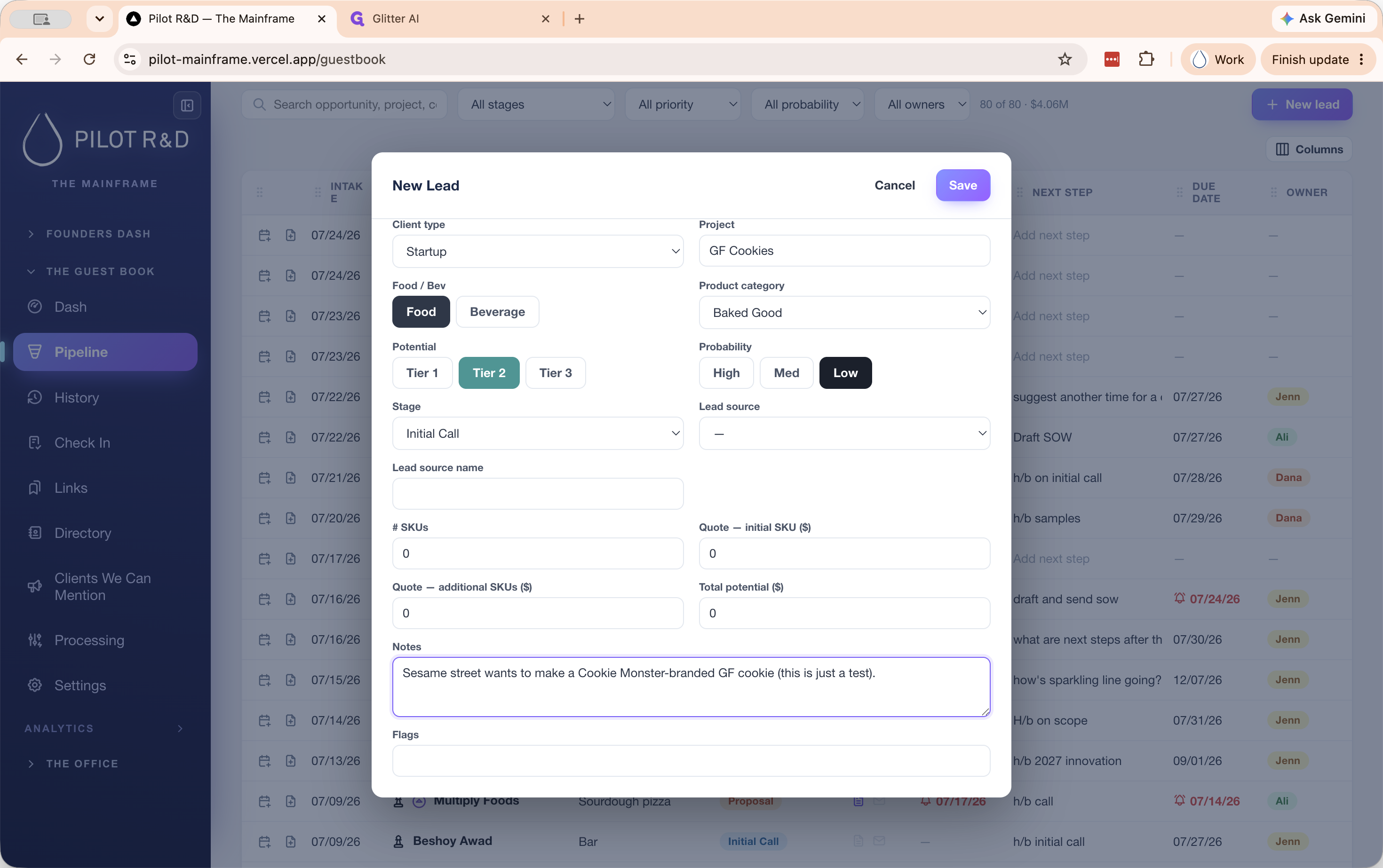
Adding a New Lead
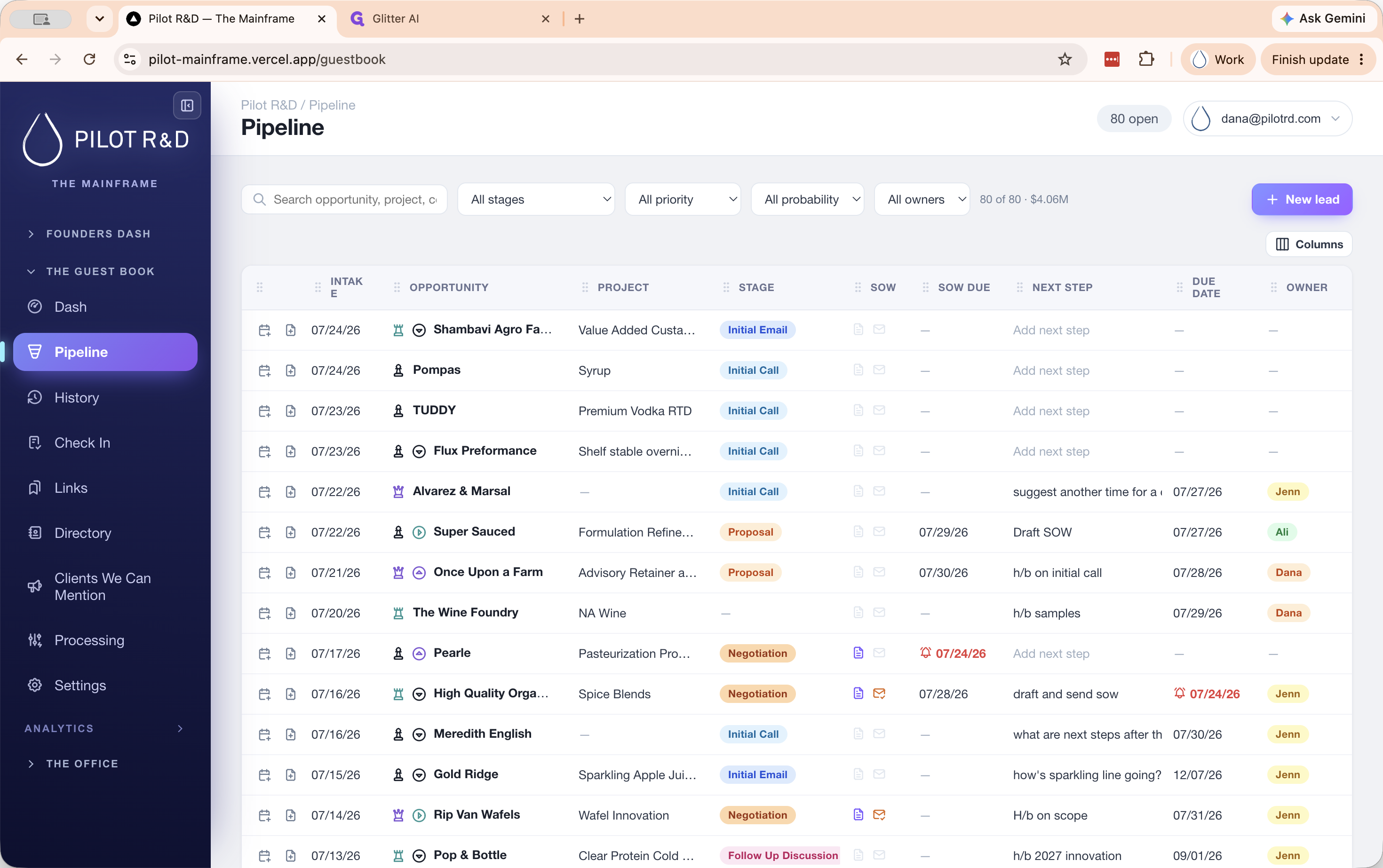
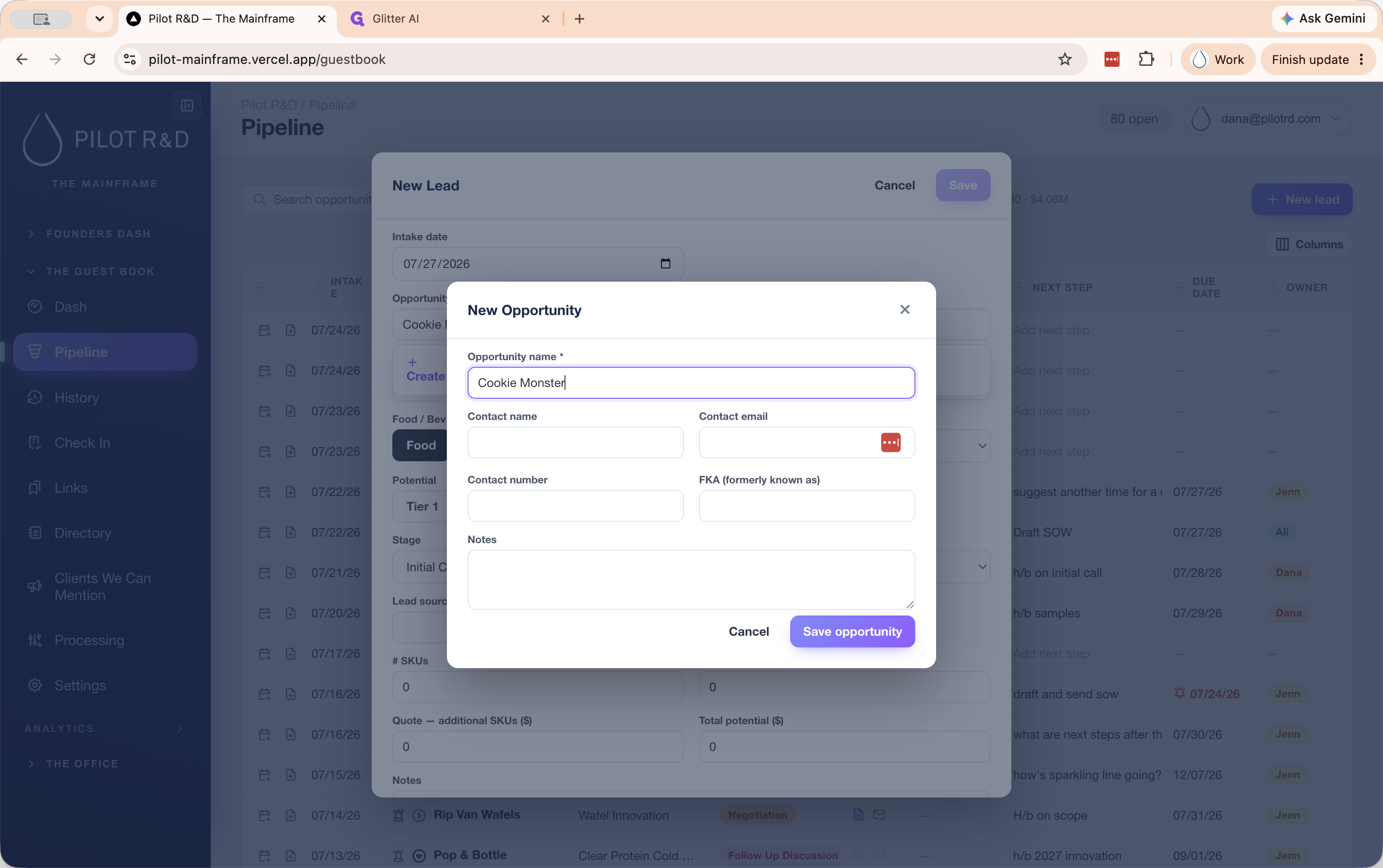
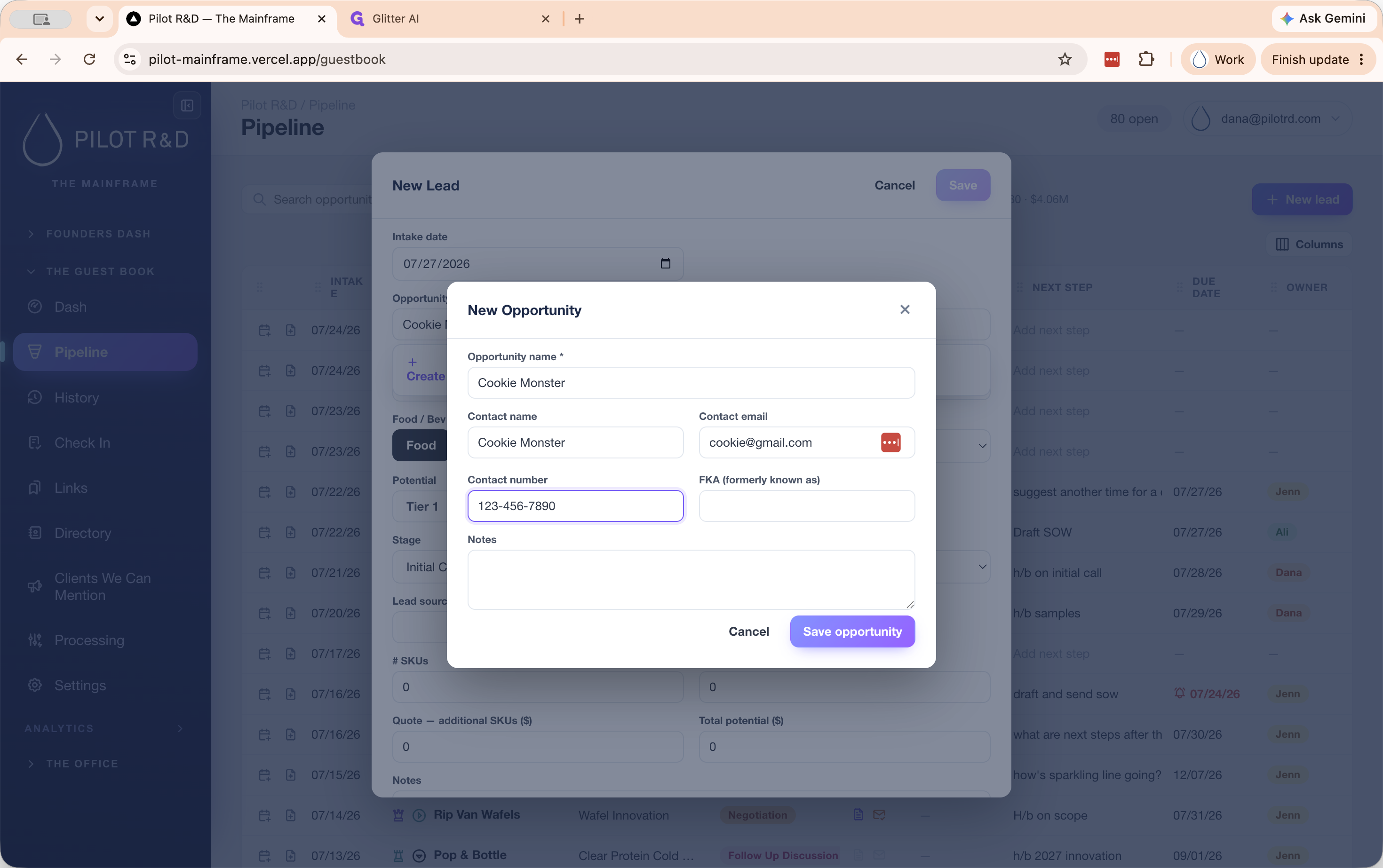
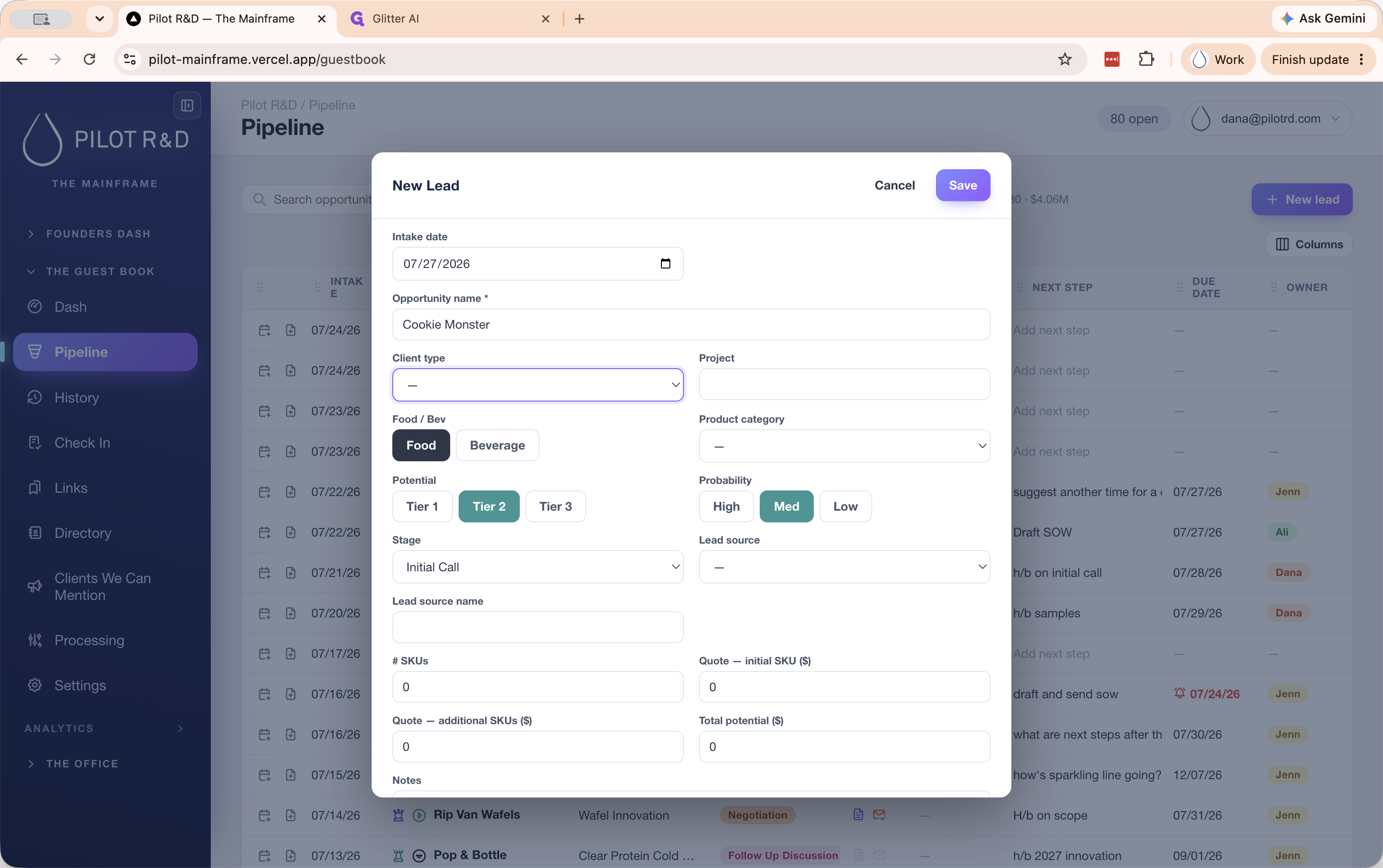
![Step #2: Type the opportunity name in the search bar. If it does not exist, click Create "[Lead Name]".](https://di8mn0rali2ic.cloudfront.net/uploads/f61f5a4b-d3ca-4e4d-ac33-b39772f05ee0/fe945837-0776-4f89-9472-2e3e340960fb.png)
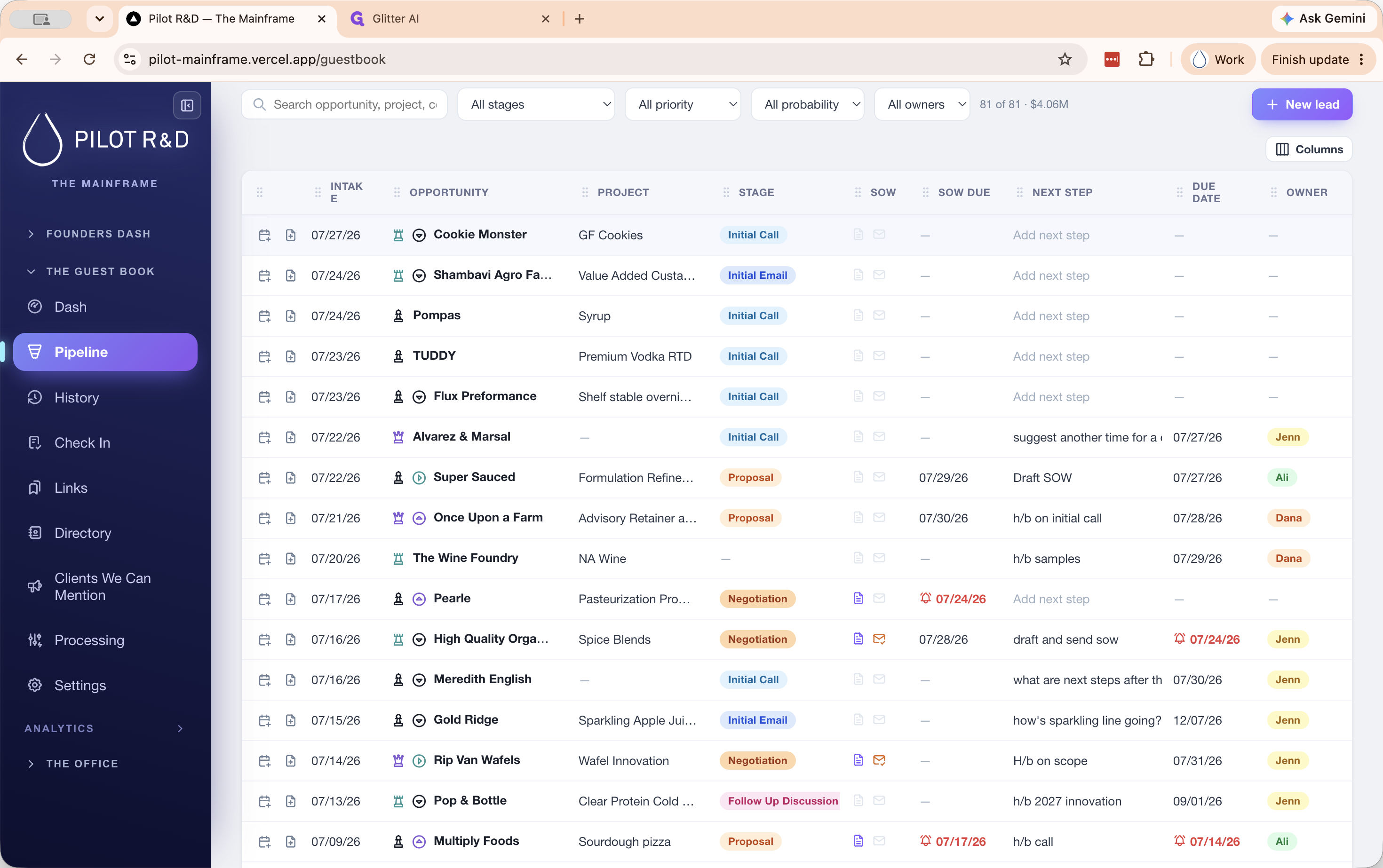
Managing Follow-Up Tasks
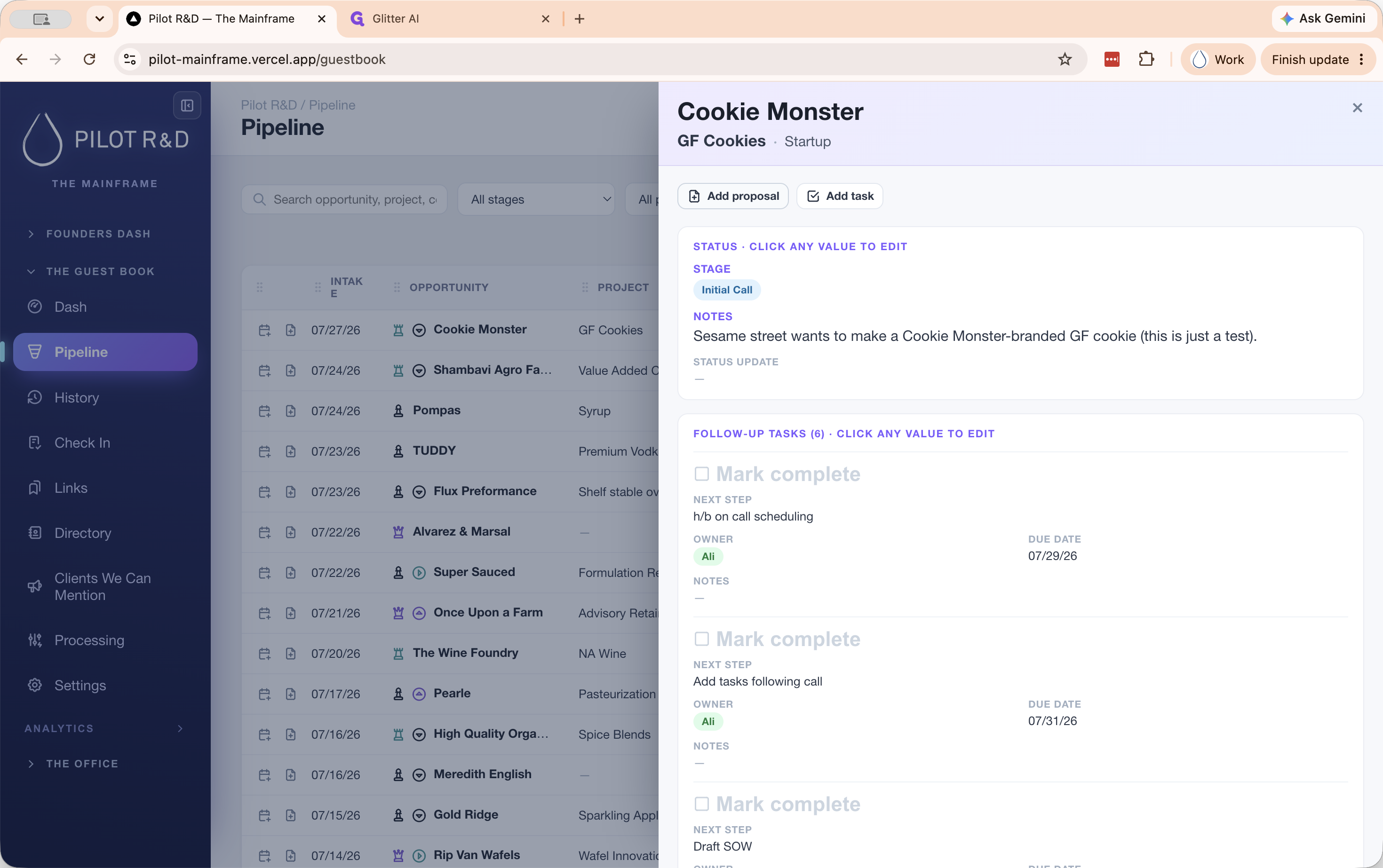
Guestbook 2.0 allows you to track and assign follow-up tasks directly from the lead's detail panel.
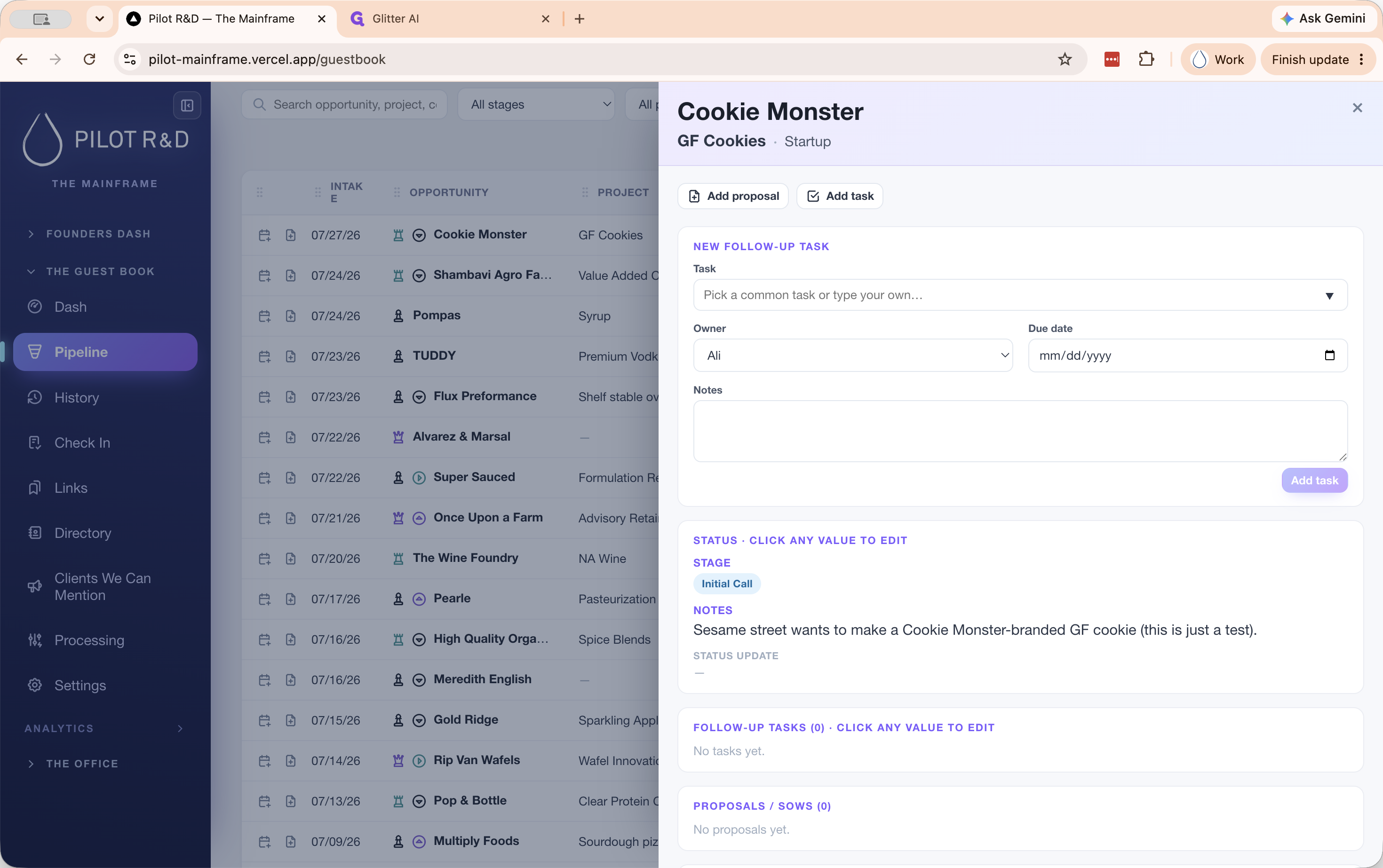
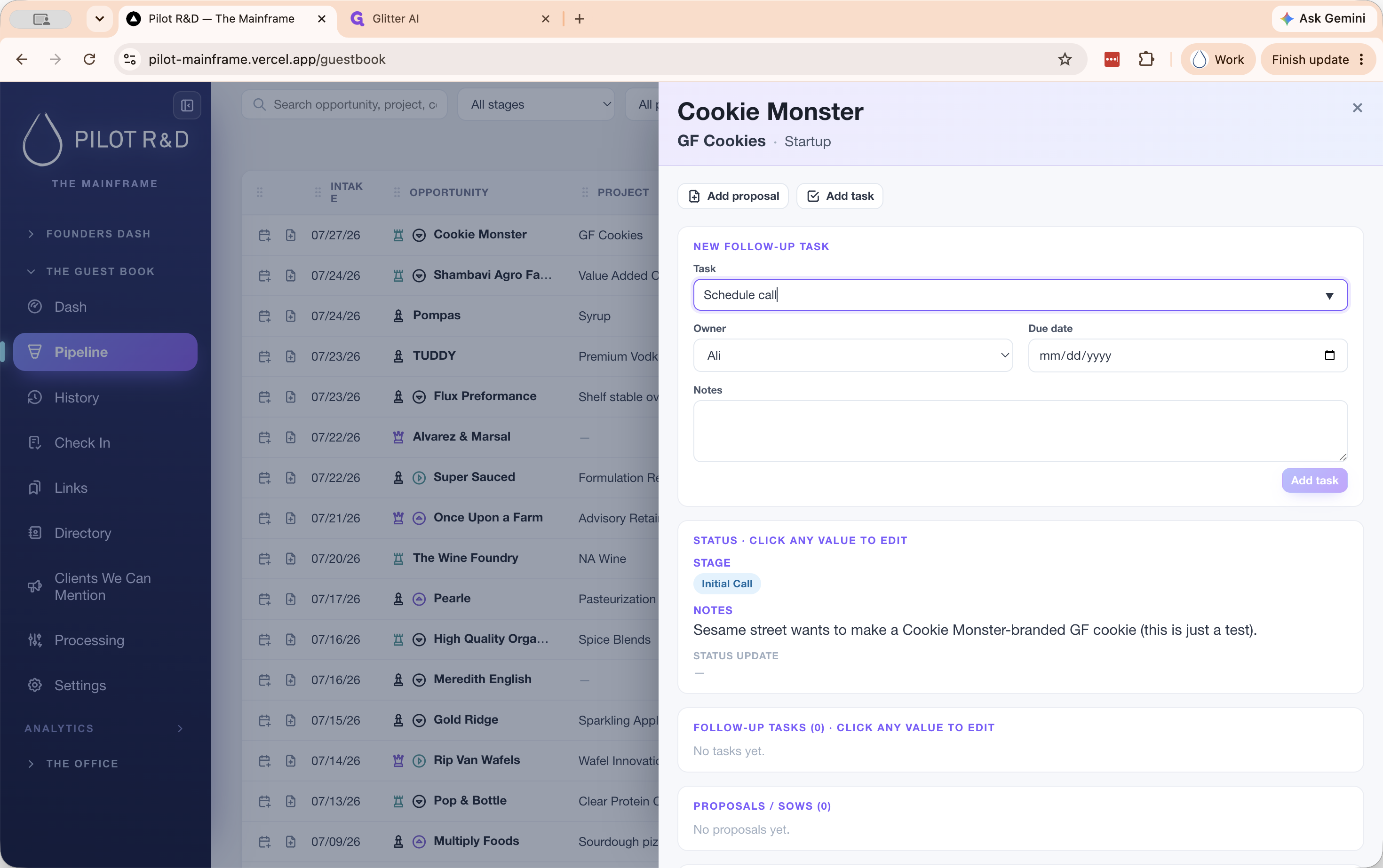
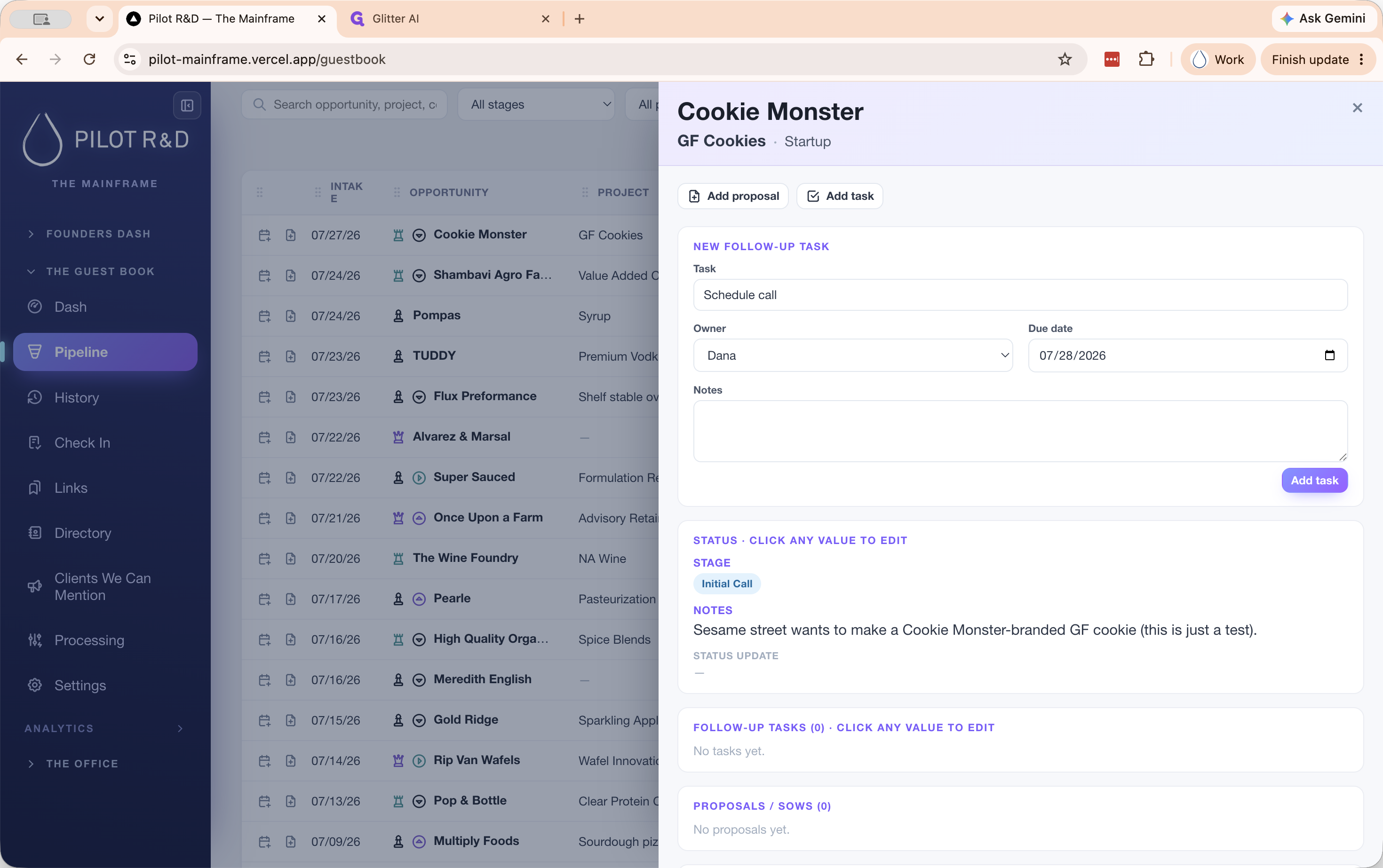
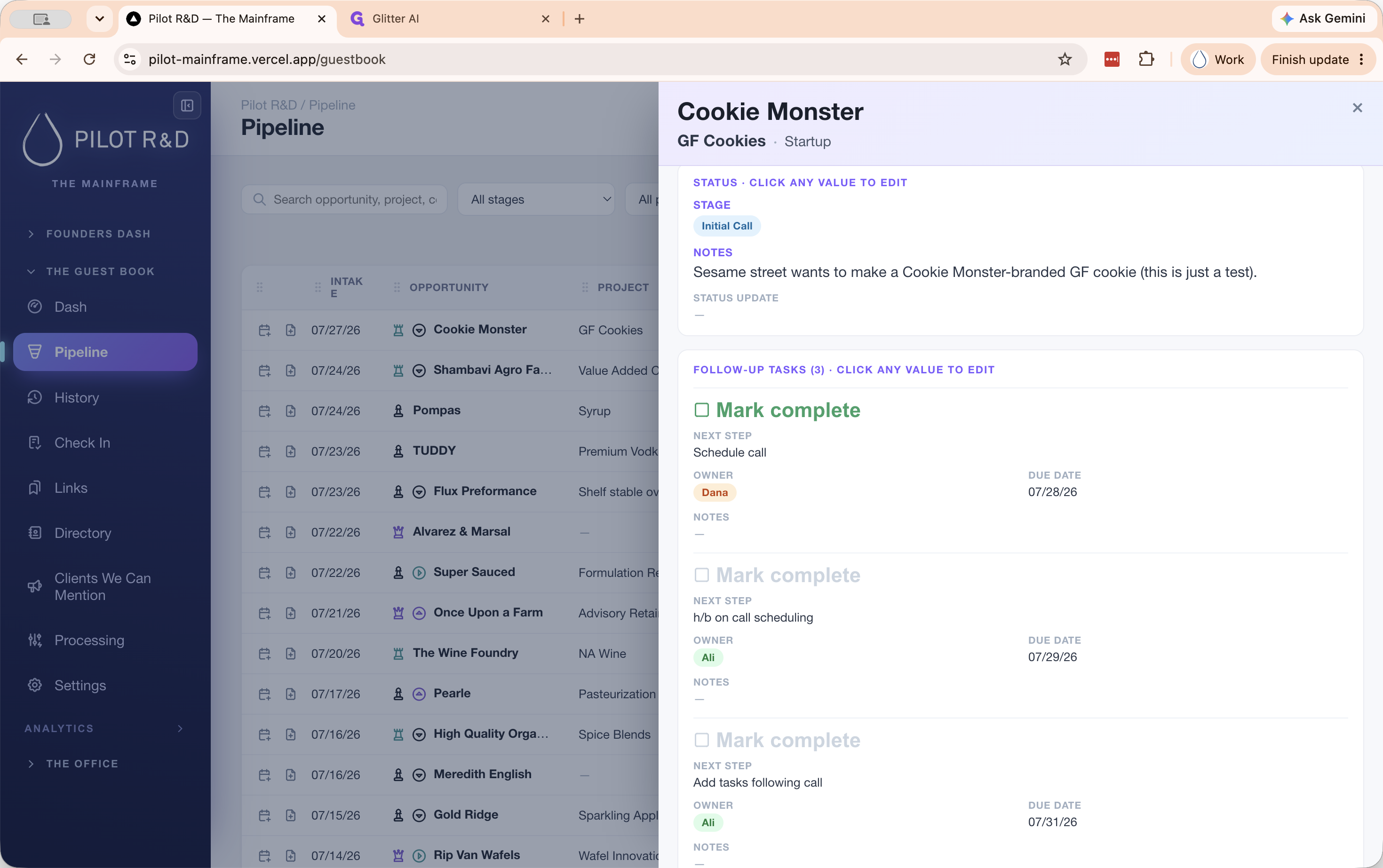
Drafting and Sending Proposals (SOW)
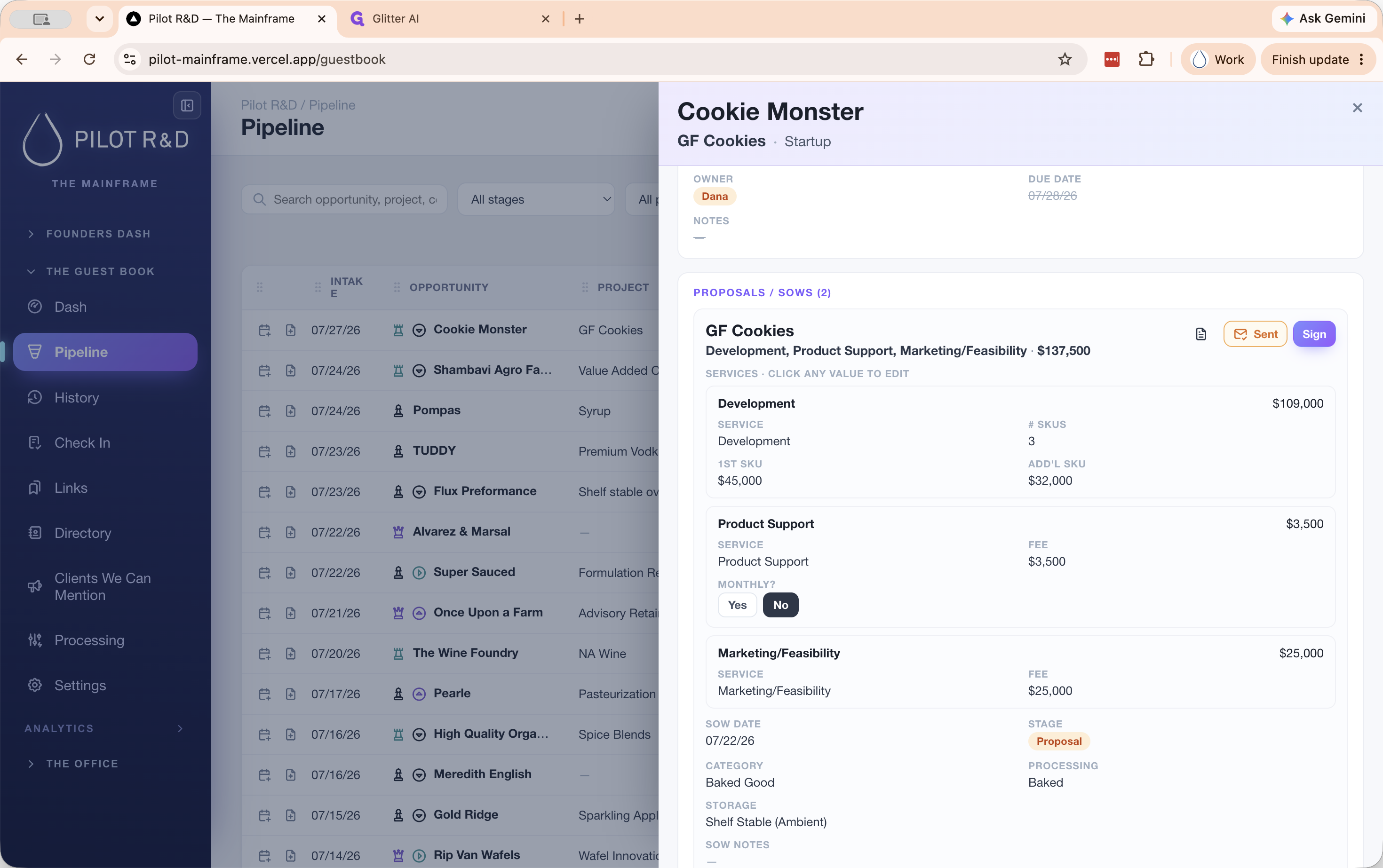
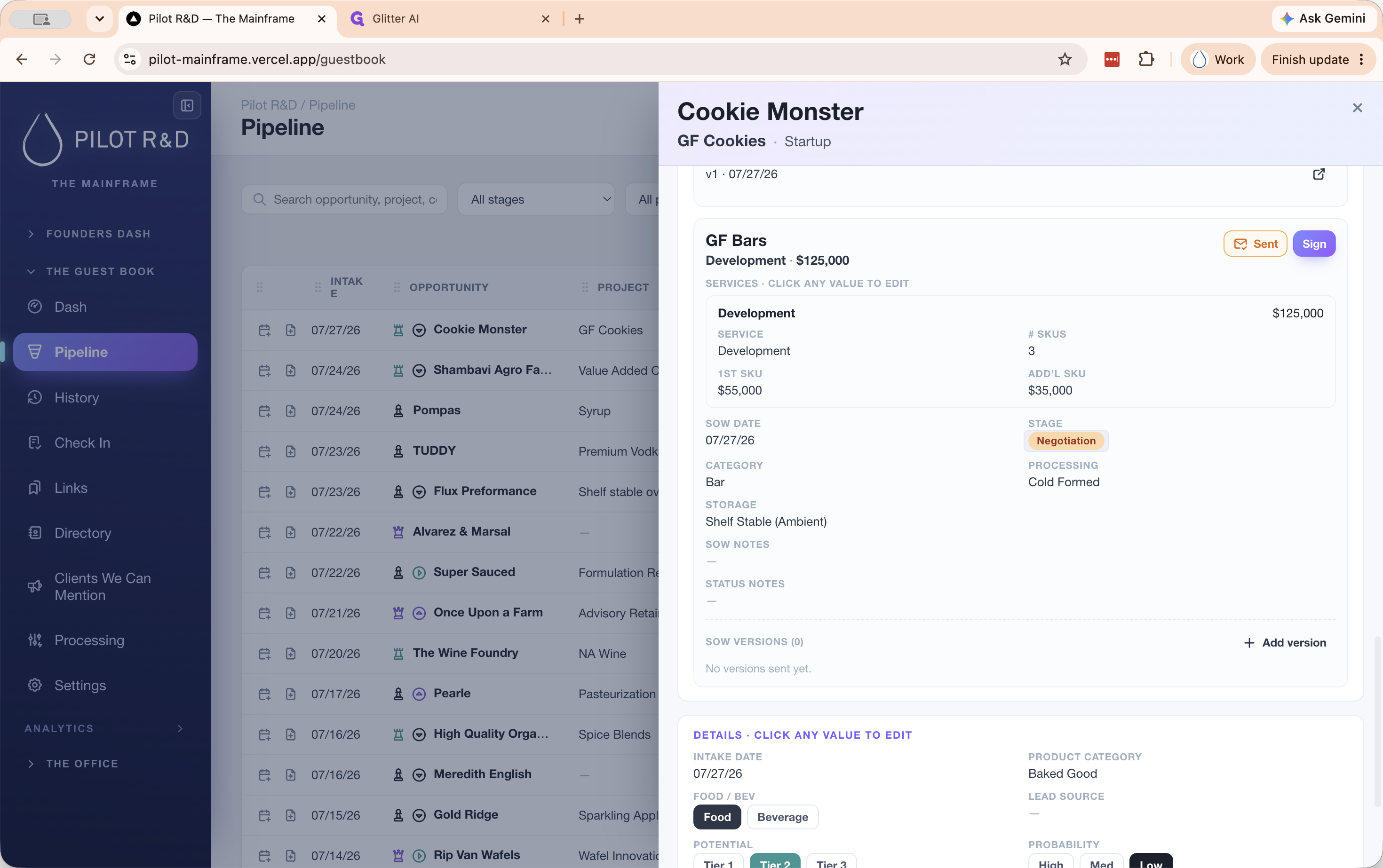
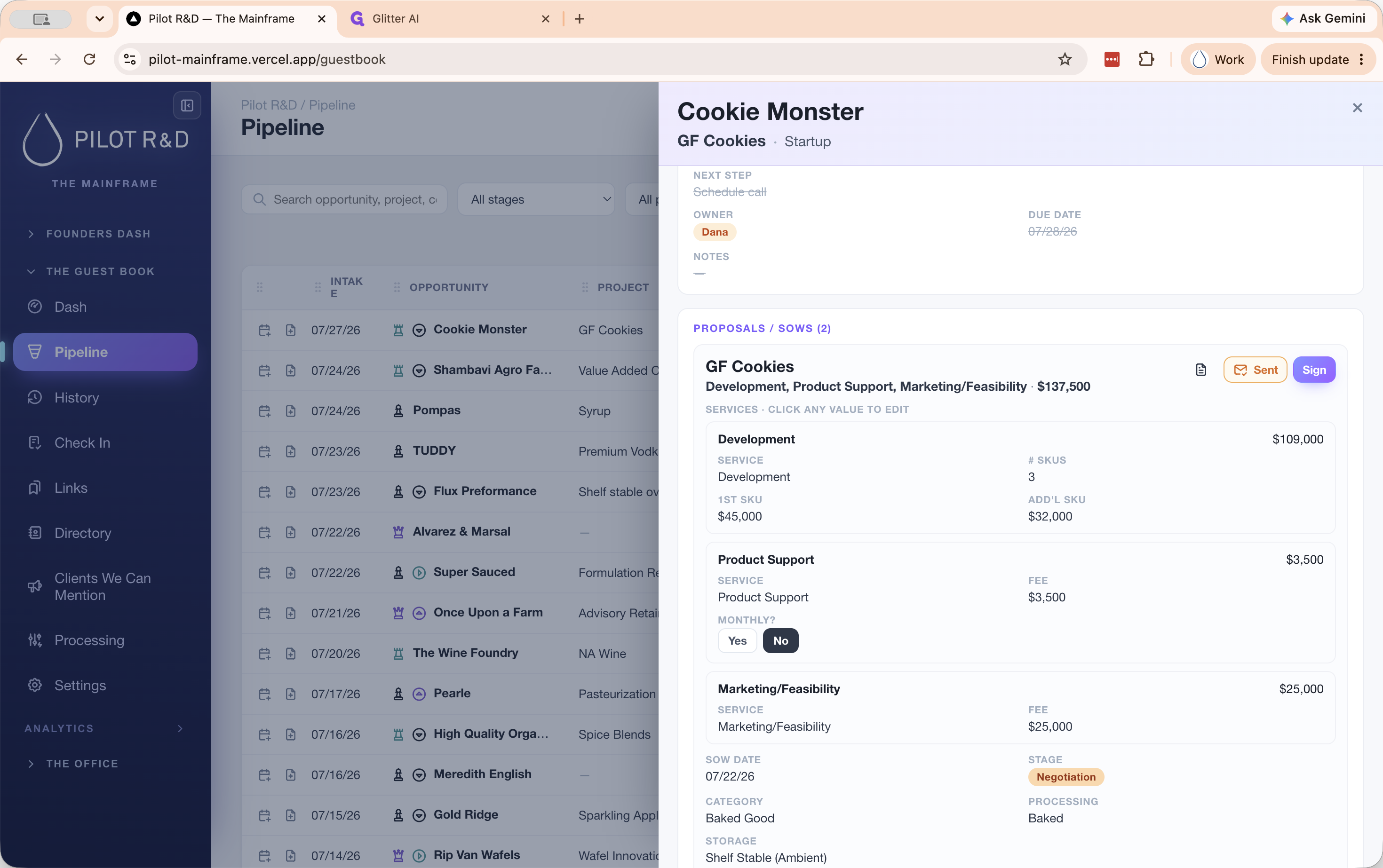
When a client is ready for a proposal, you can build out a Statement of Work (SOW) estimating costs for various service types.
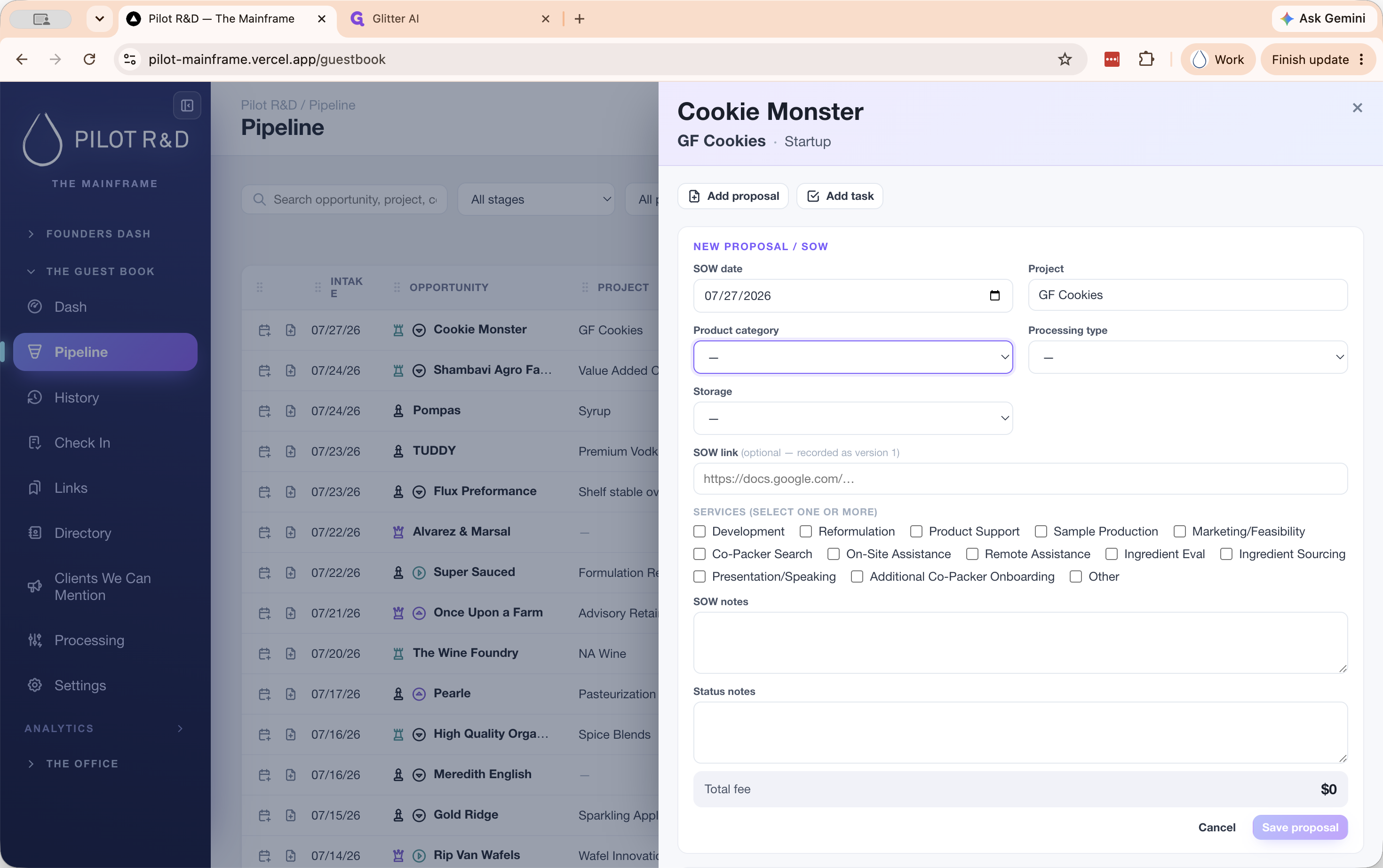
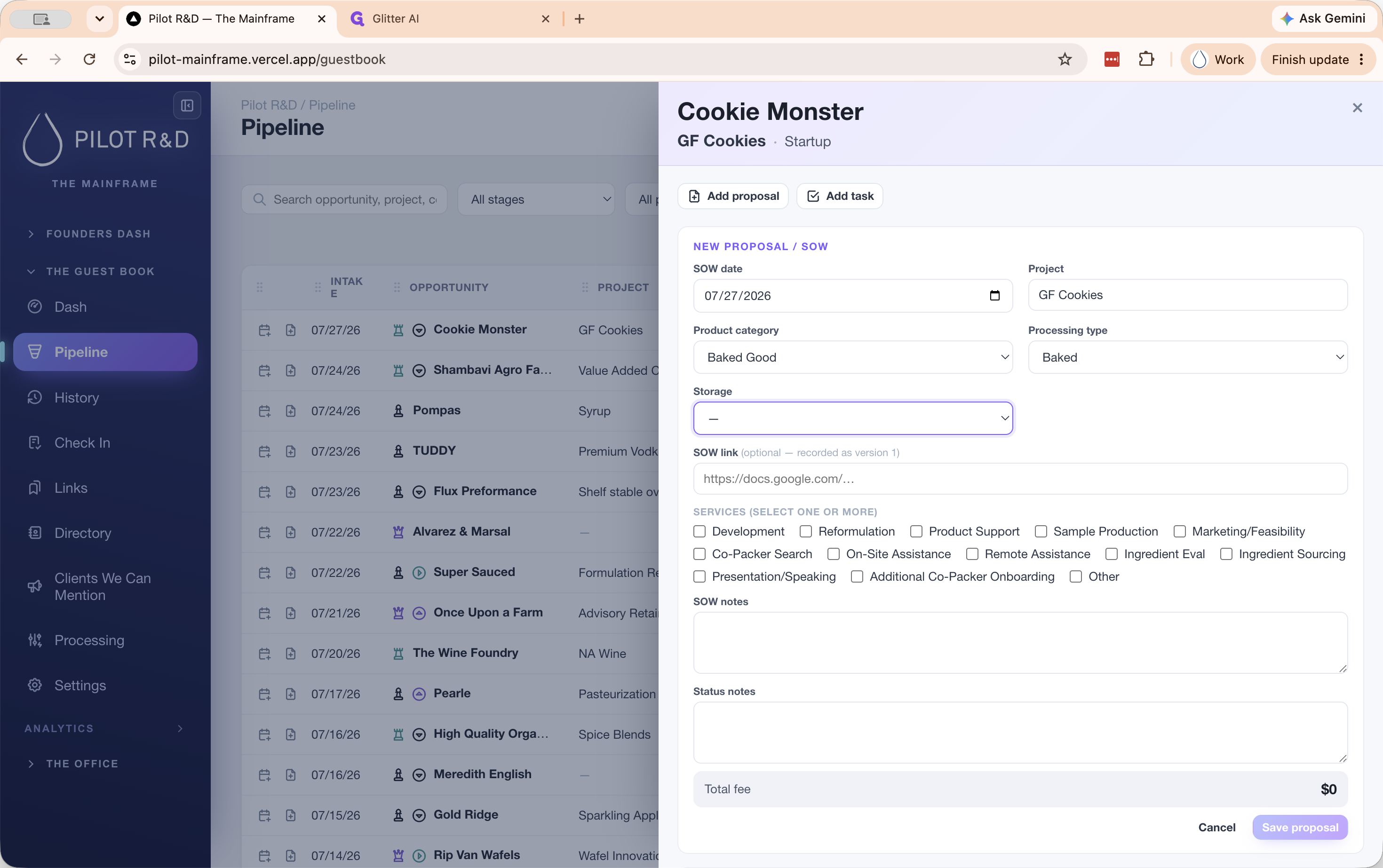
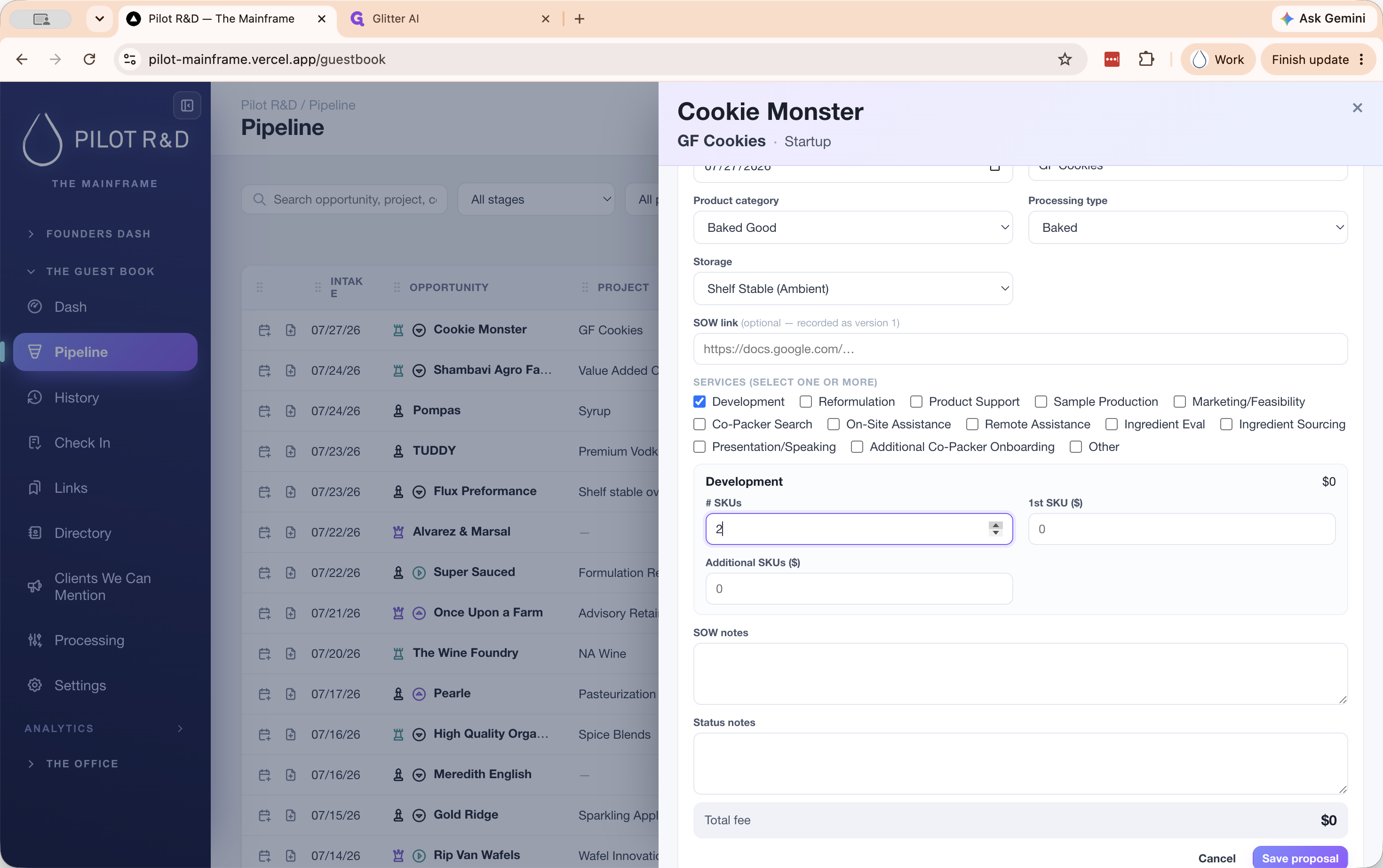
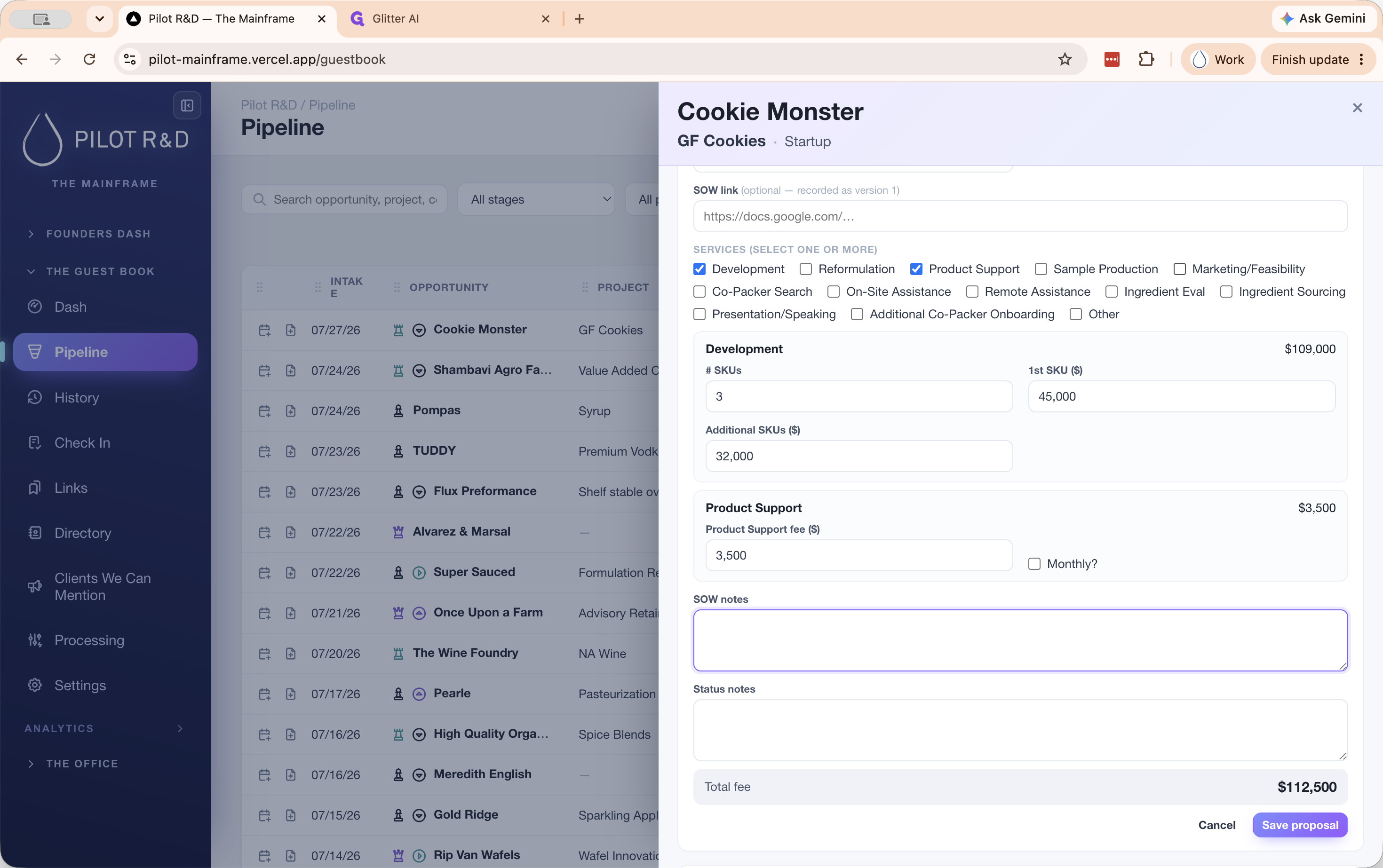
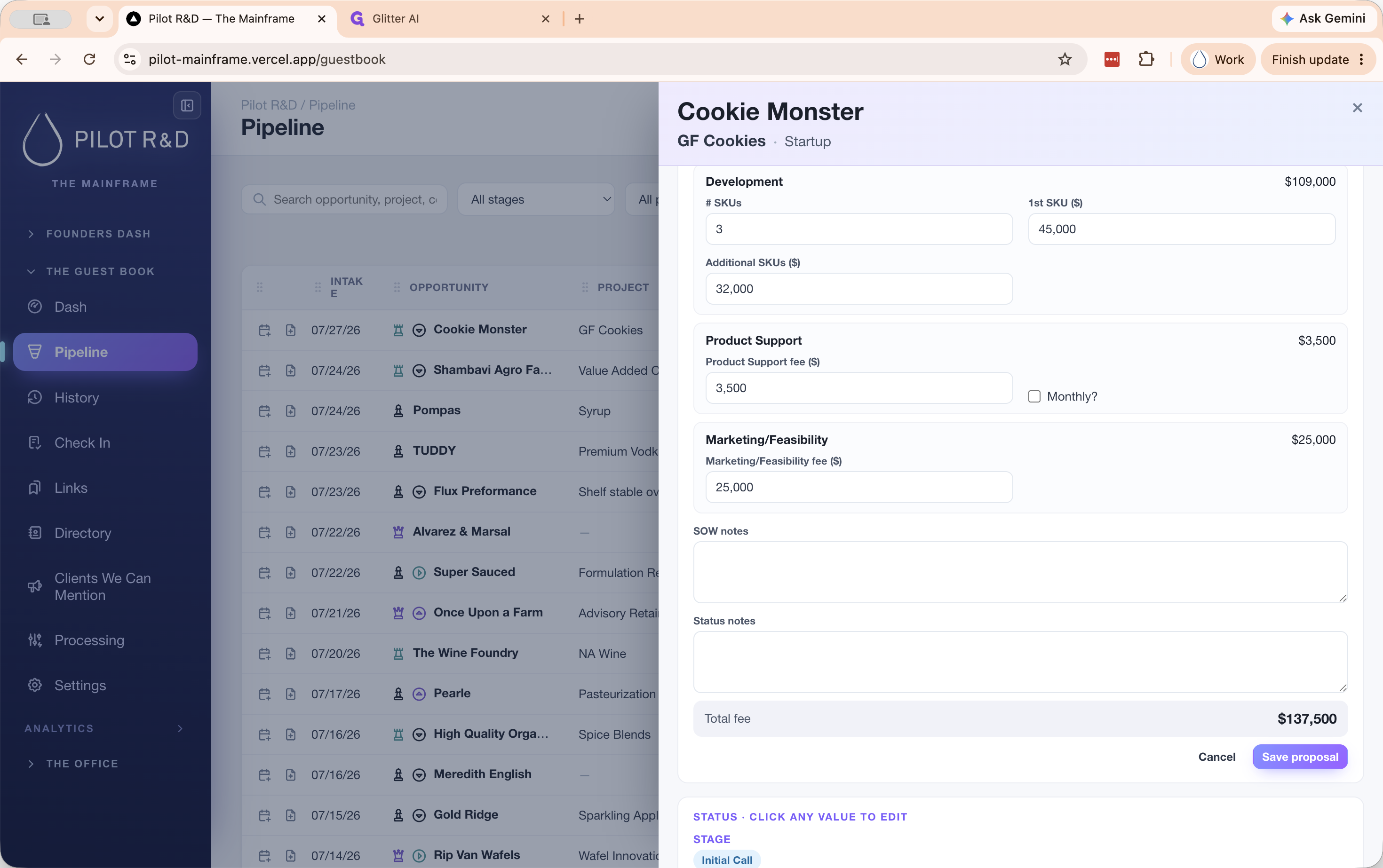
Depending on the scope of work, configure the applicable services:
Service | Configuration |
|---|---|
Development | Enter the total number of SKUs, the flat cost for the first SKU, and the cost for each additional SKU. |
Product Support | Check the box, enter the support fee, and specify if it is a monthly retainer (and for how many months). |
Marketing / Feasibility | Check the box and enter the estimated flat fee amount. |
Closing the Opportunity and Billing
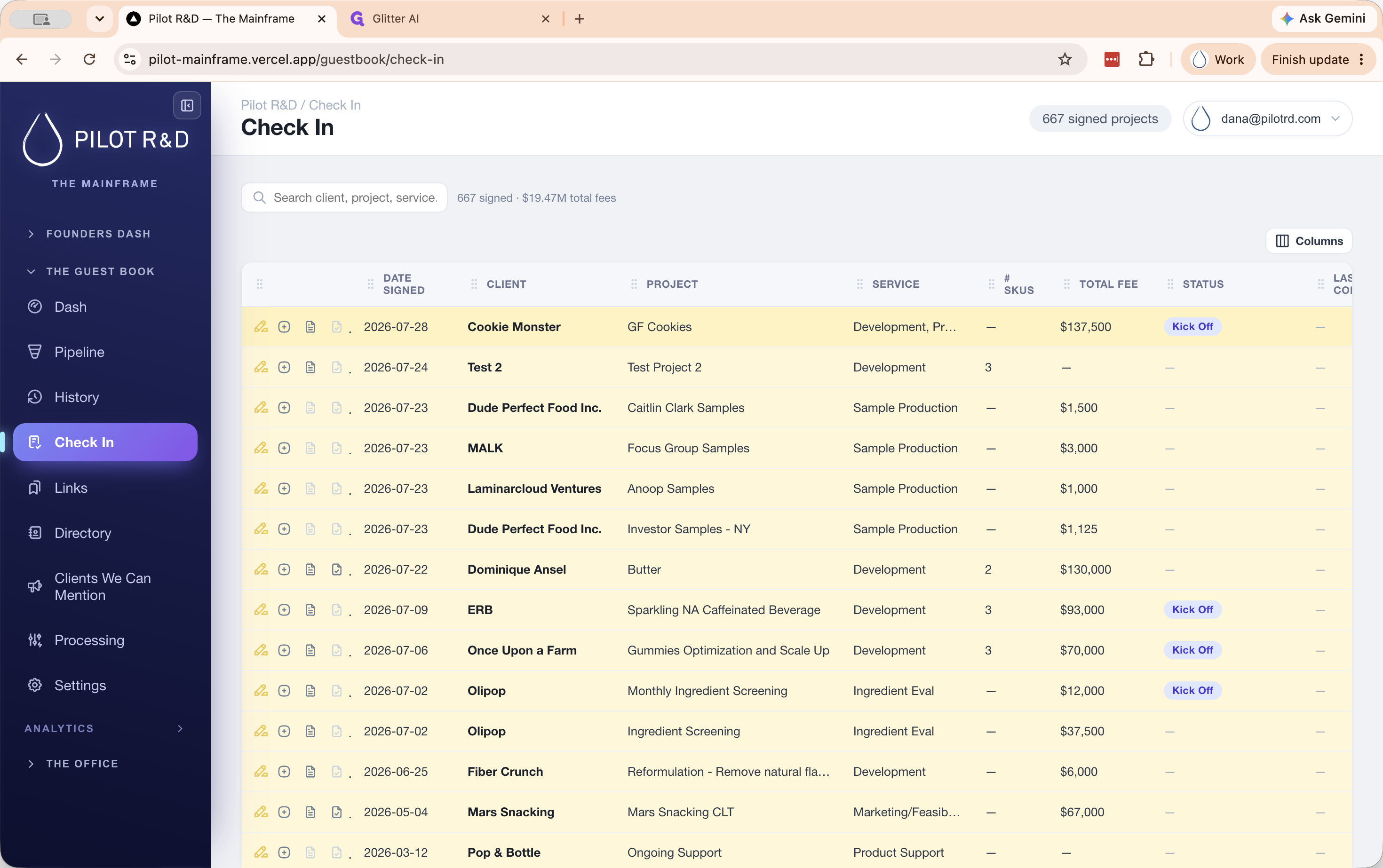
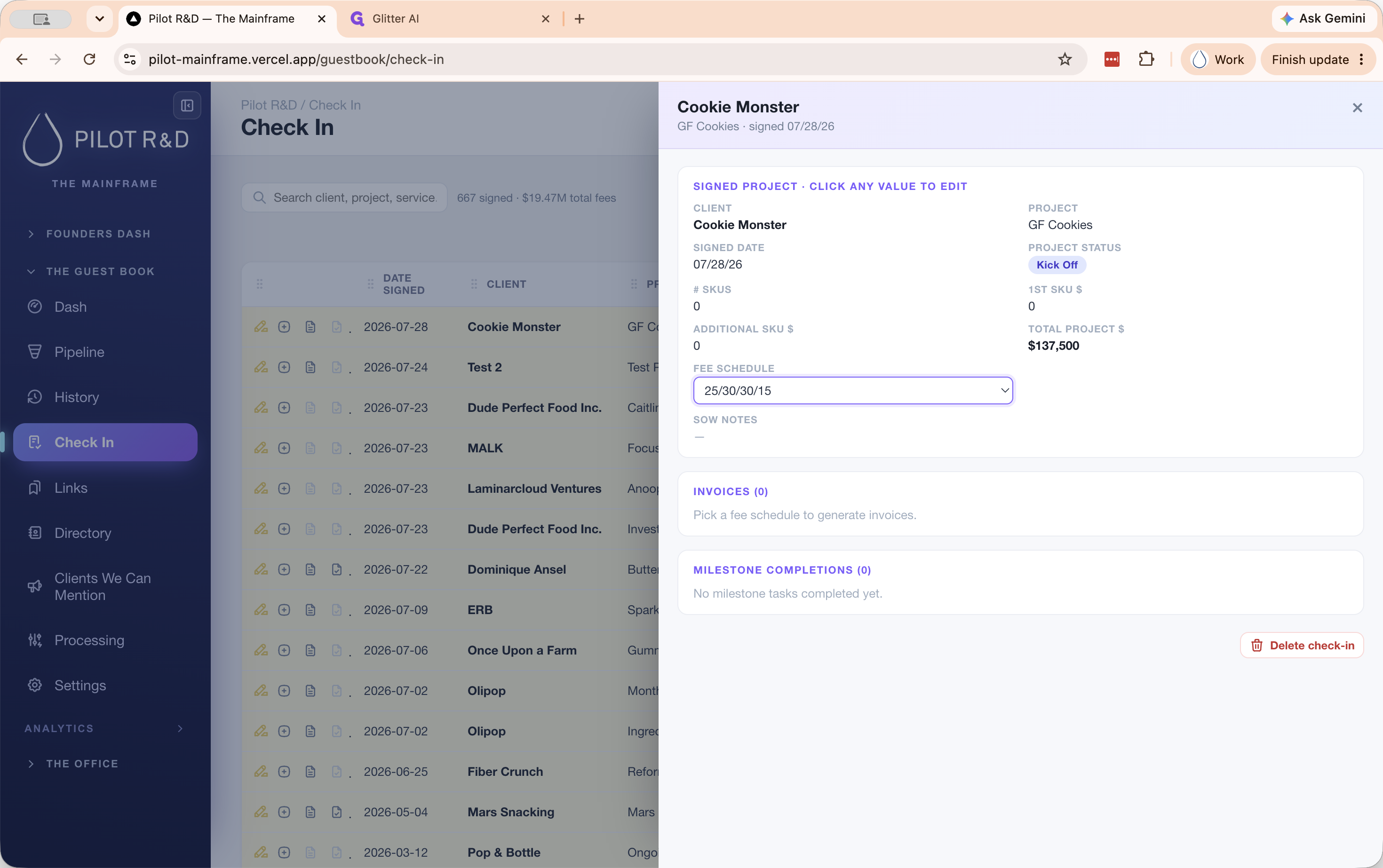
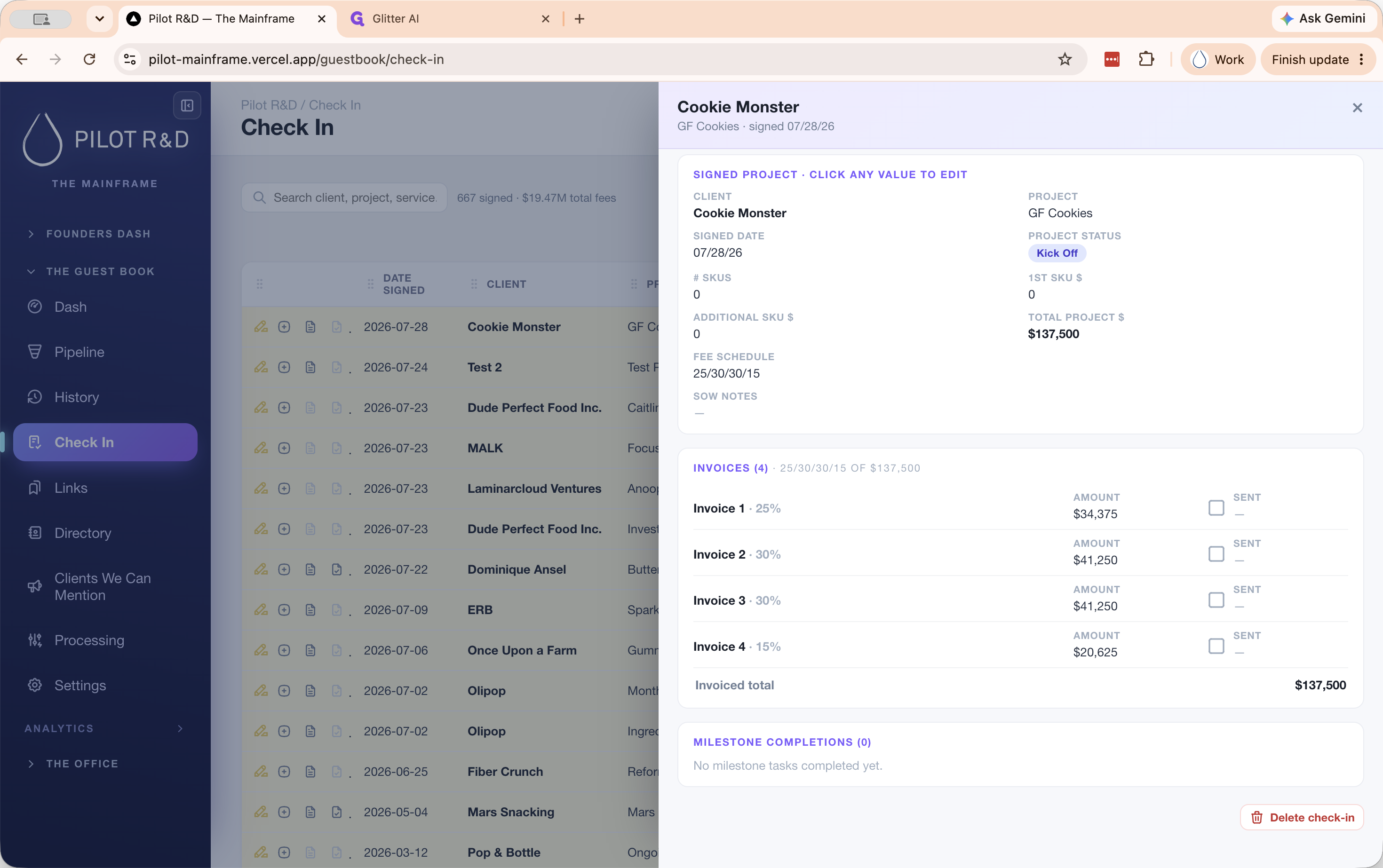
Once the client reviews the proposal, you will finalize the deal by marking it closed won (signed) or closed lost.
Q: Can I add tasks without opening the full lead details panel?
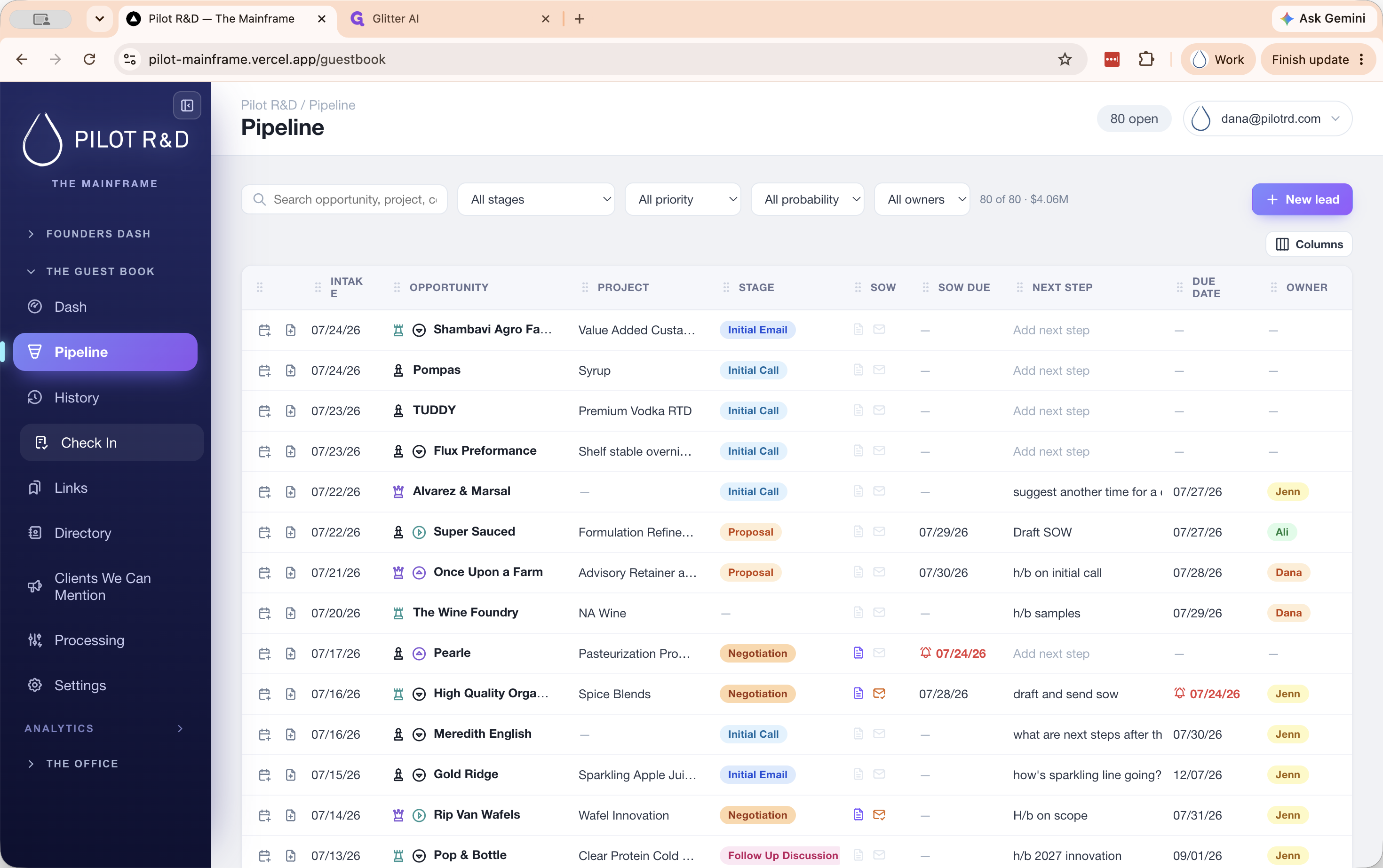
A: Yes, you can use the inline task shortcut directly from the main pipeline view to quickly add follow-ups.
Q: How do I handle a lead that wants multiple distinct deliverables?
A: You can click "Add proposal" multiple times on a single lead to generate separate Statements of Work. Each proposal can be sent, negotiated, and signed independently.
Q: Does sending an SOW update the pipeline stage automatically?
A: Yes, clicking the "Sent" button on a proposal card automatically advances the lead's stage to Negotiation.
Q: Where do leads go after they are closed or signed?
A: Signed projects move to the Check-In view for invoicing and milestone tracking. Both Closed Won and Closed Lost leads are permanently logged in the History view.
Term | Definition |
|---|---|
SOW | Statement of Work, a formal document detailing the project scope, deliverables, and costs. |
SKU | Stock Keeping Unit, a distinct item, recipe, or product variant being developed. |
Check-In | The dashboard view used to track signed projects, manage fee schedules, and monitor milestone completions. |