
How to Manage Employee Permissions in Amazon Seller Central
Learn how to invite a service provider partner and configure their user permissions in Amazon Seller Central to grant them proper access.
This guide shows you how to invite an employee and configure their user permissions in Amazon Seller Central. Completing this ensures your partners have the precise access needed to manage your account efficiently without compromising sensitive information.
This process is for Amazon Seller Central account owners or administrators. You will use this workflow when onboarding a new agency, partner, or service provider that requires access to manage aspects of your seller account.
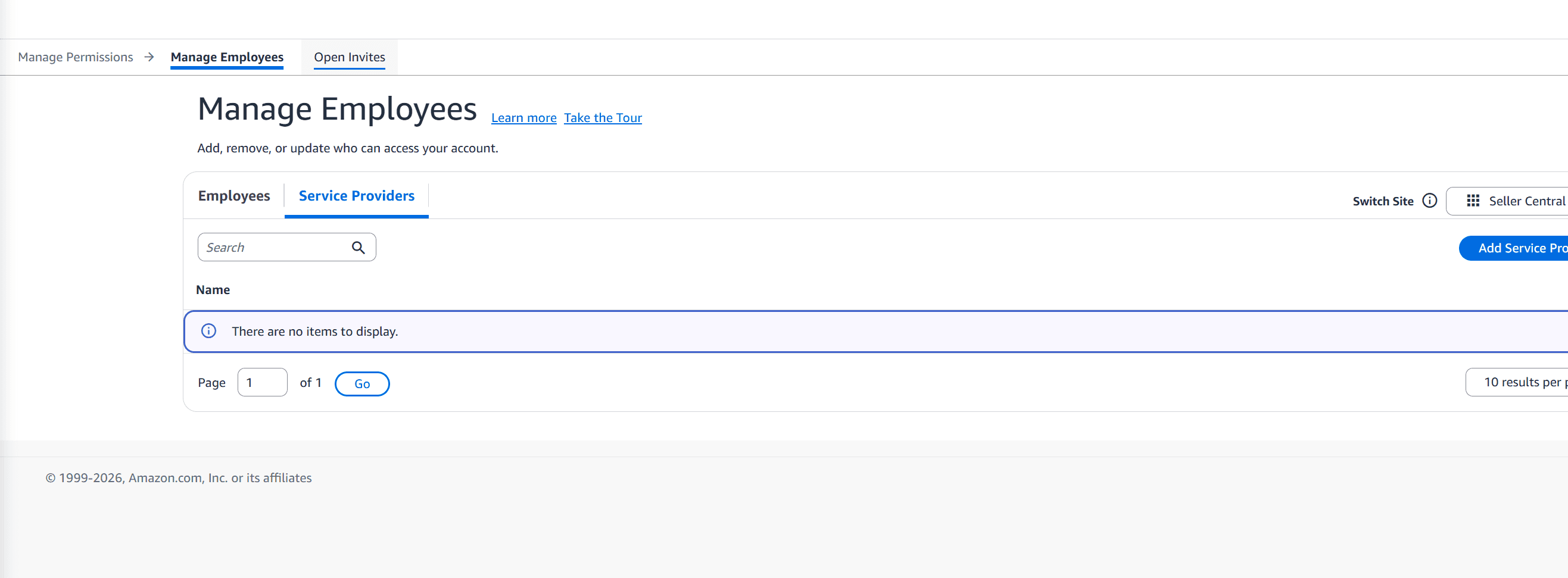
To grant a service provider access to your Amazon Seller Central account, you will first invite them, wait for them to accept, and then configure their specific user permissions.
1. Invite the Employee
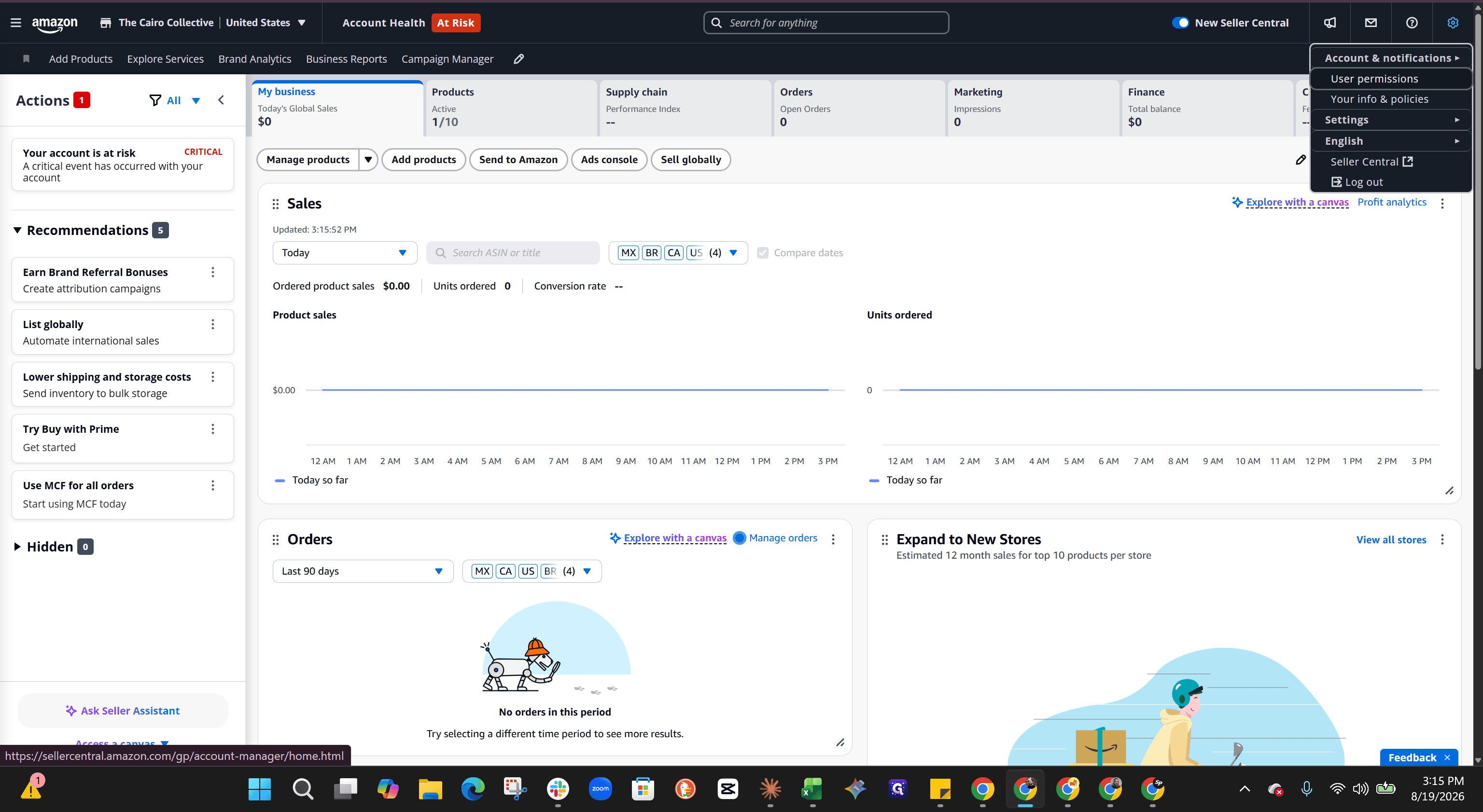
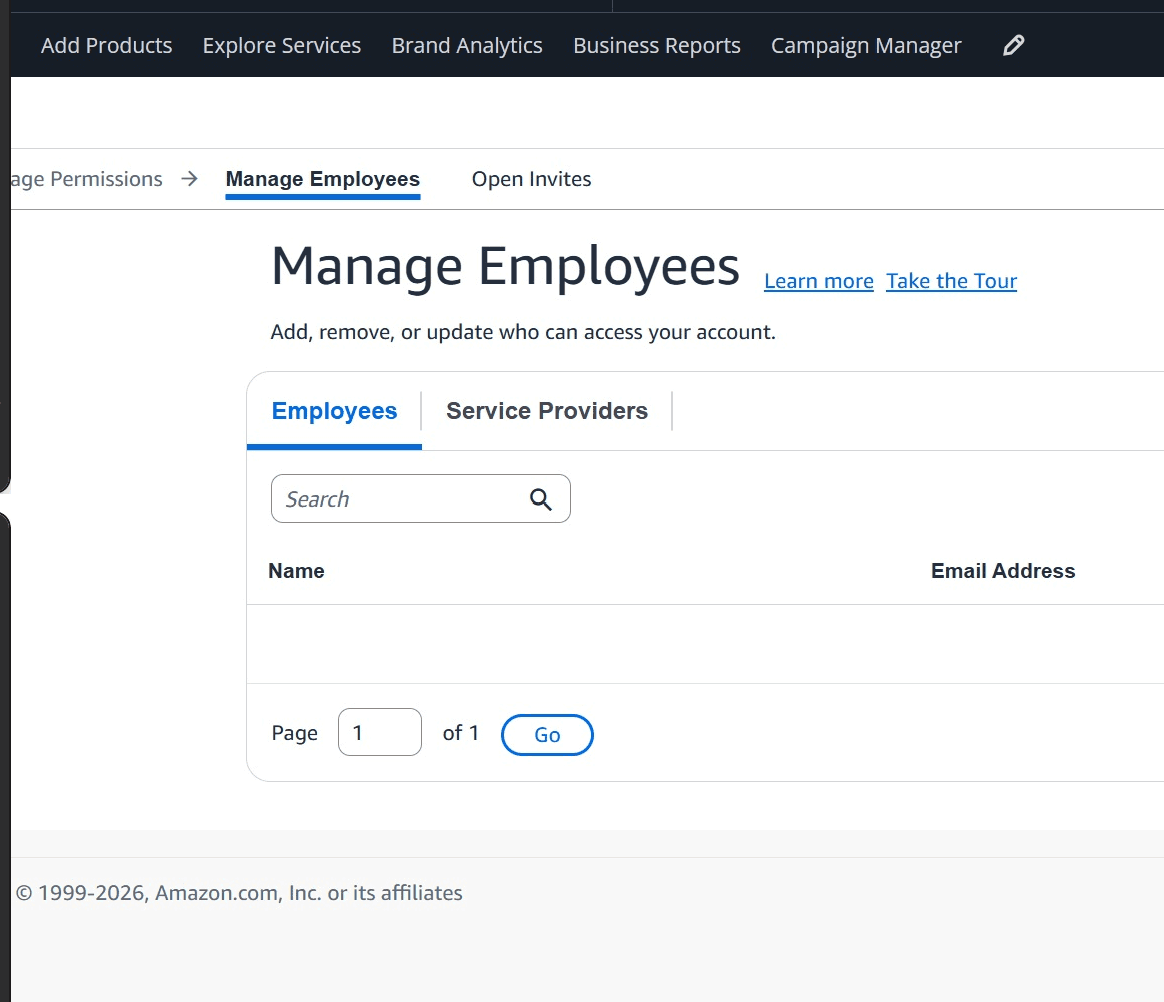
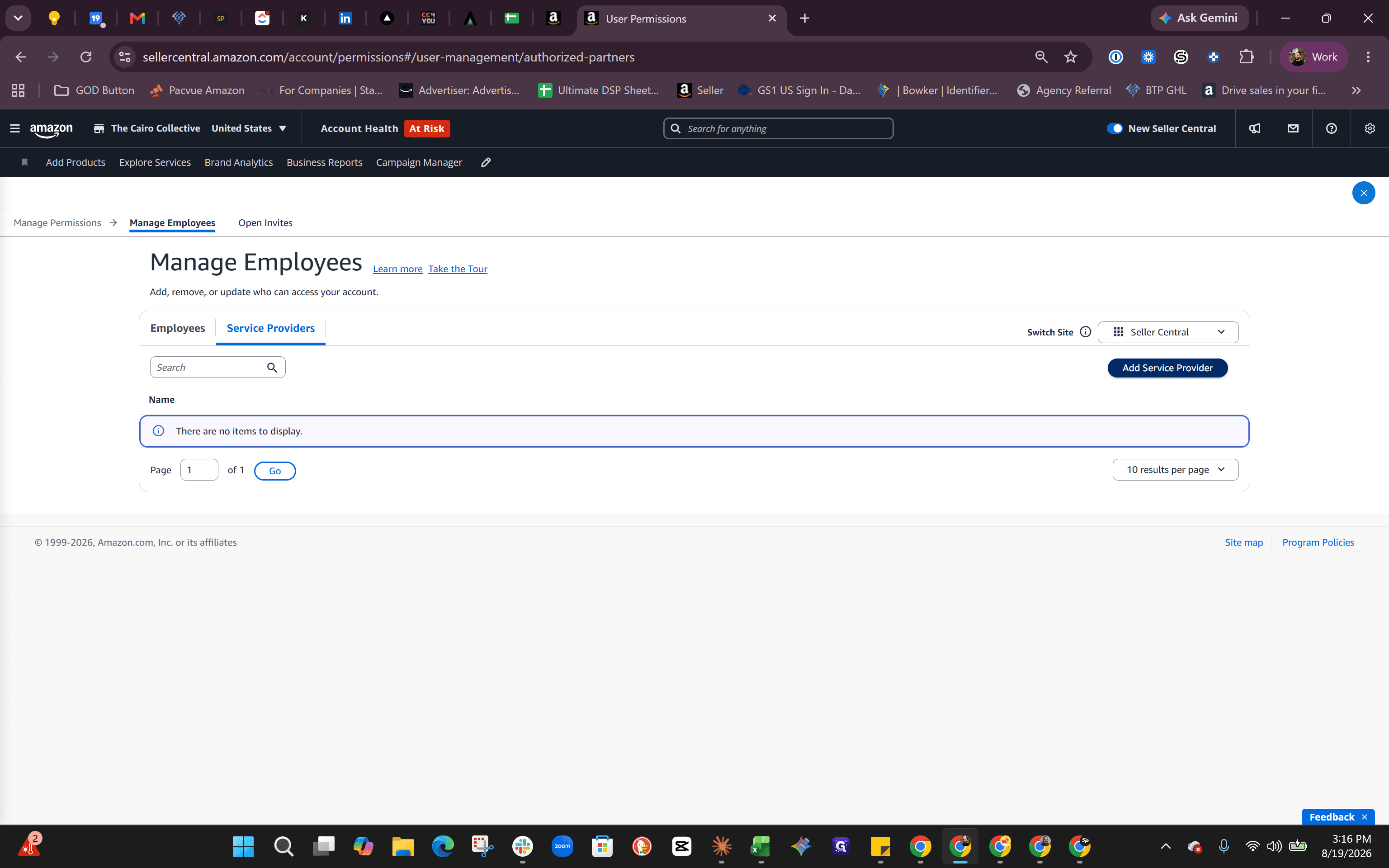
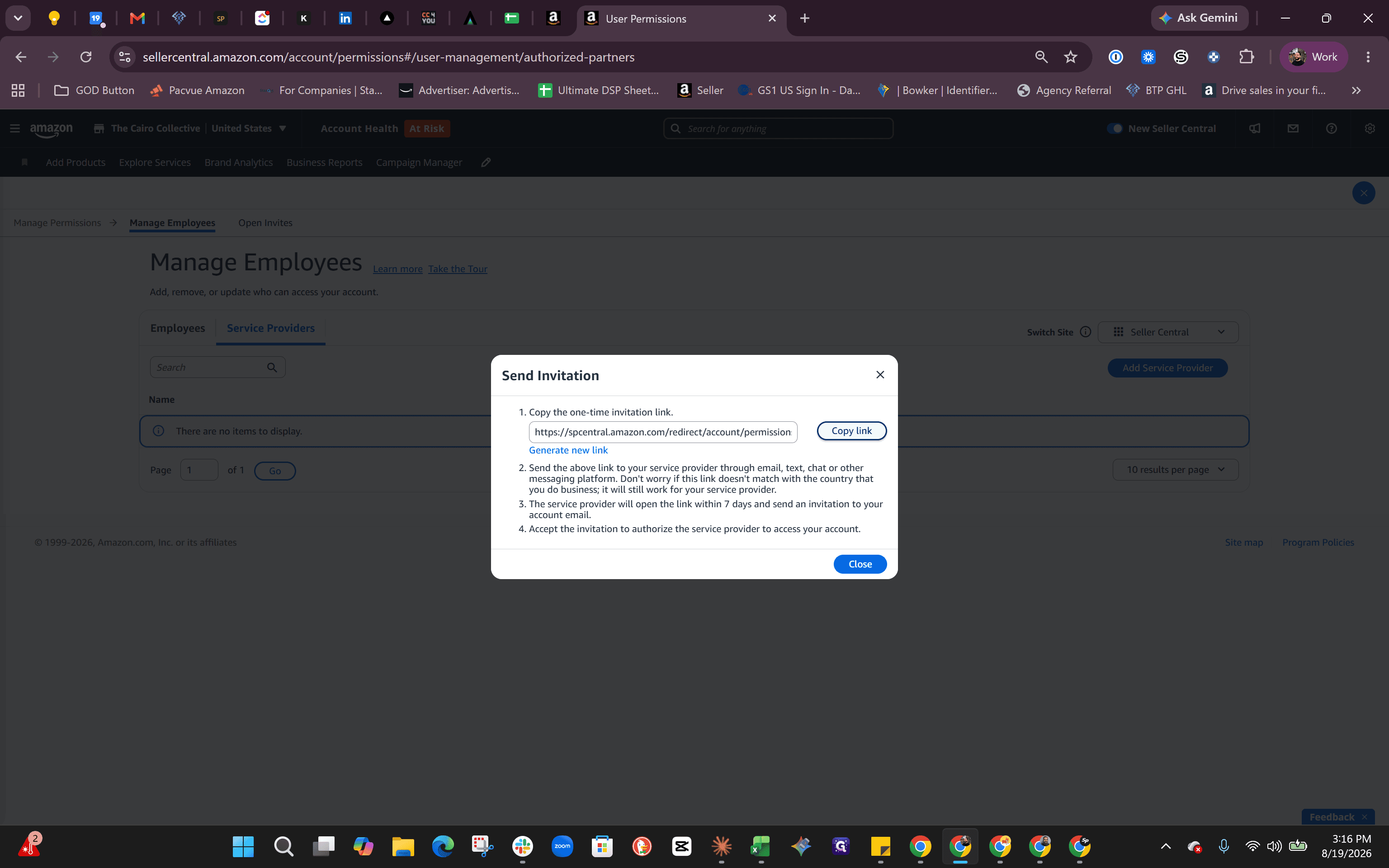
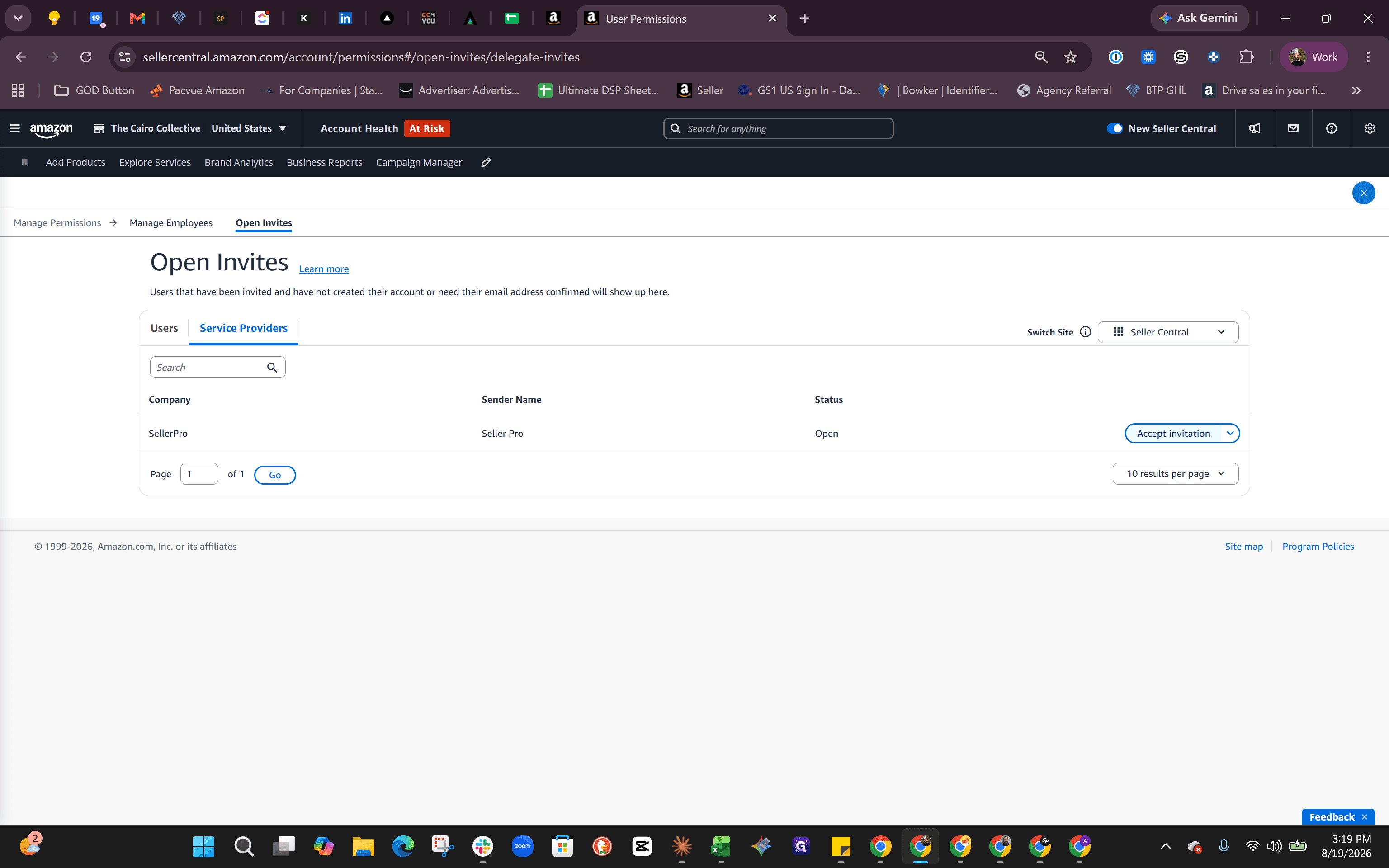
2. Accept the Provider's Request
Once the service provider accepts your invitation link:
3. Configure User Permissions
After accepting the invitation, you will be taken to the permissions page.
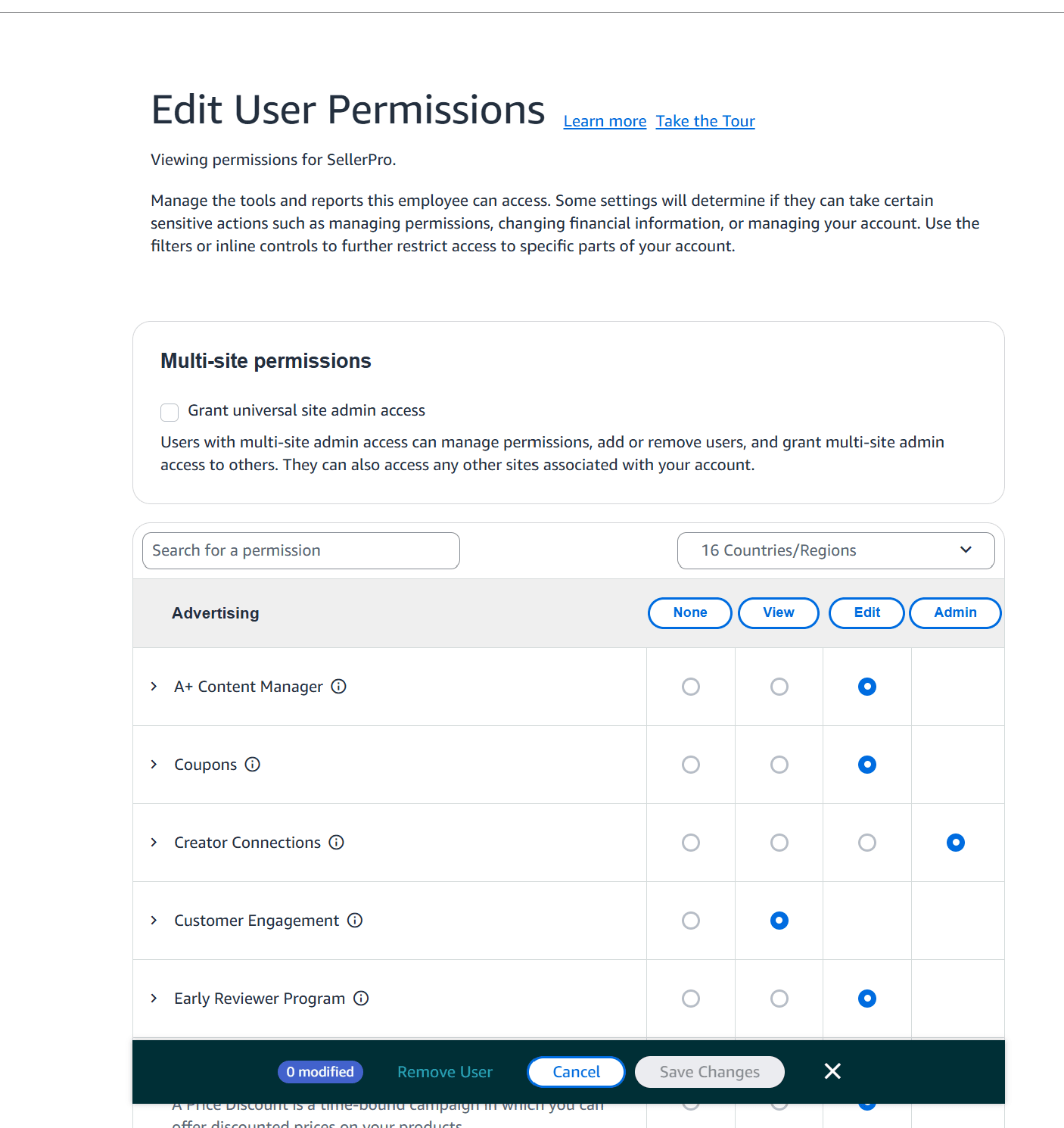
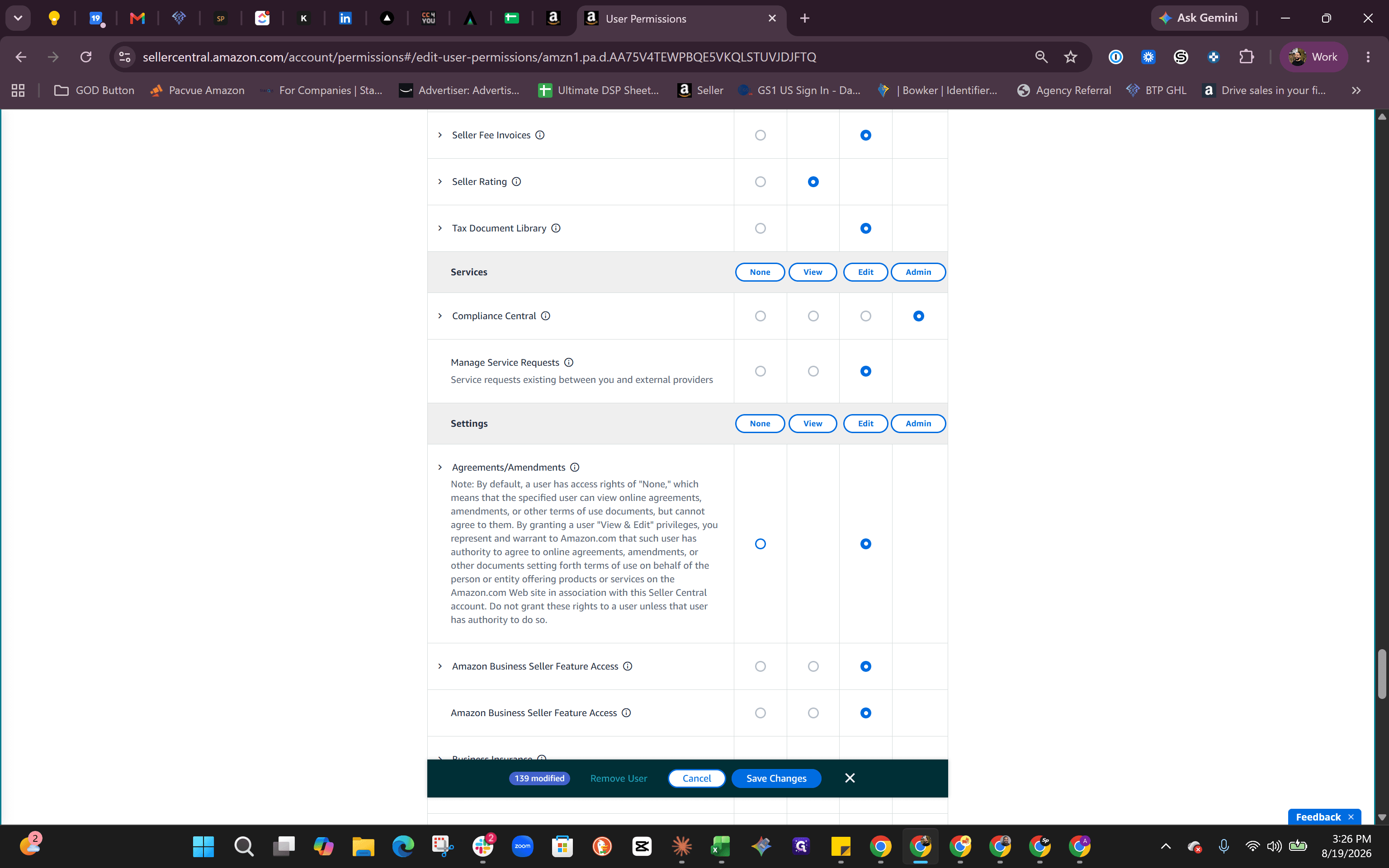
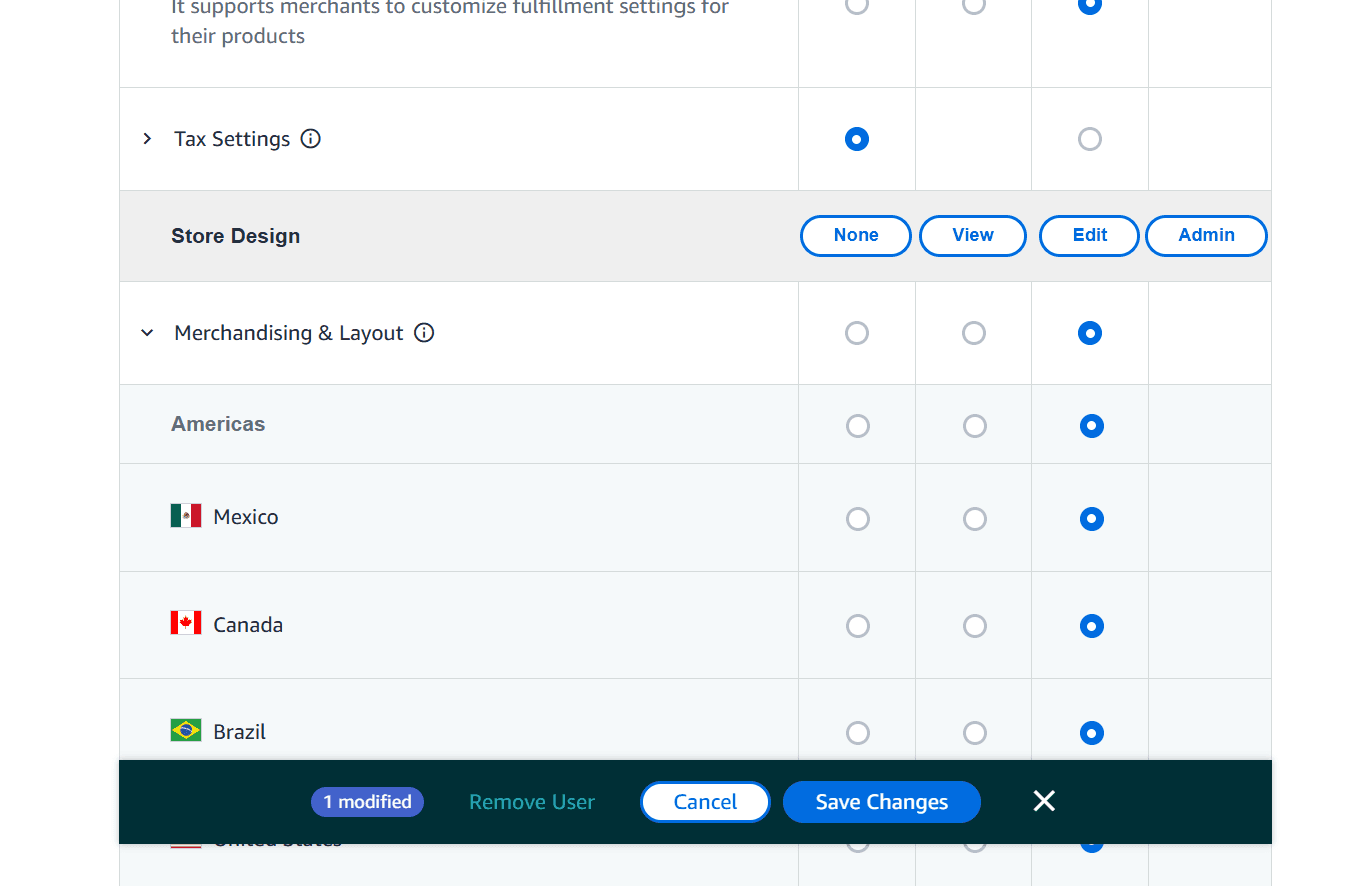
There are several specific permissions you should restrict: Easily find each by using Ctrl + F to search for each permission.
Agreements and Addendums
Global Account Settings Dashboard
Manage Your Services
Manage Authorized Partners
Business Insurance
Tax Settings
Amazon Lending Loan Registration
Flexible Customer Financing
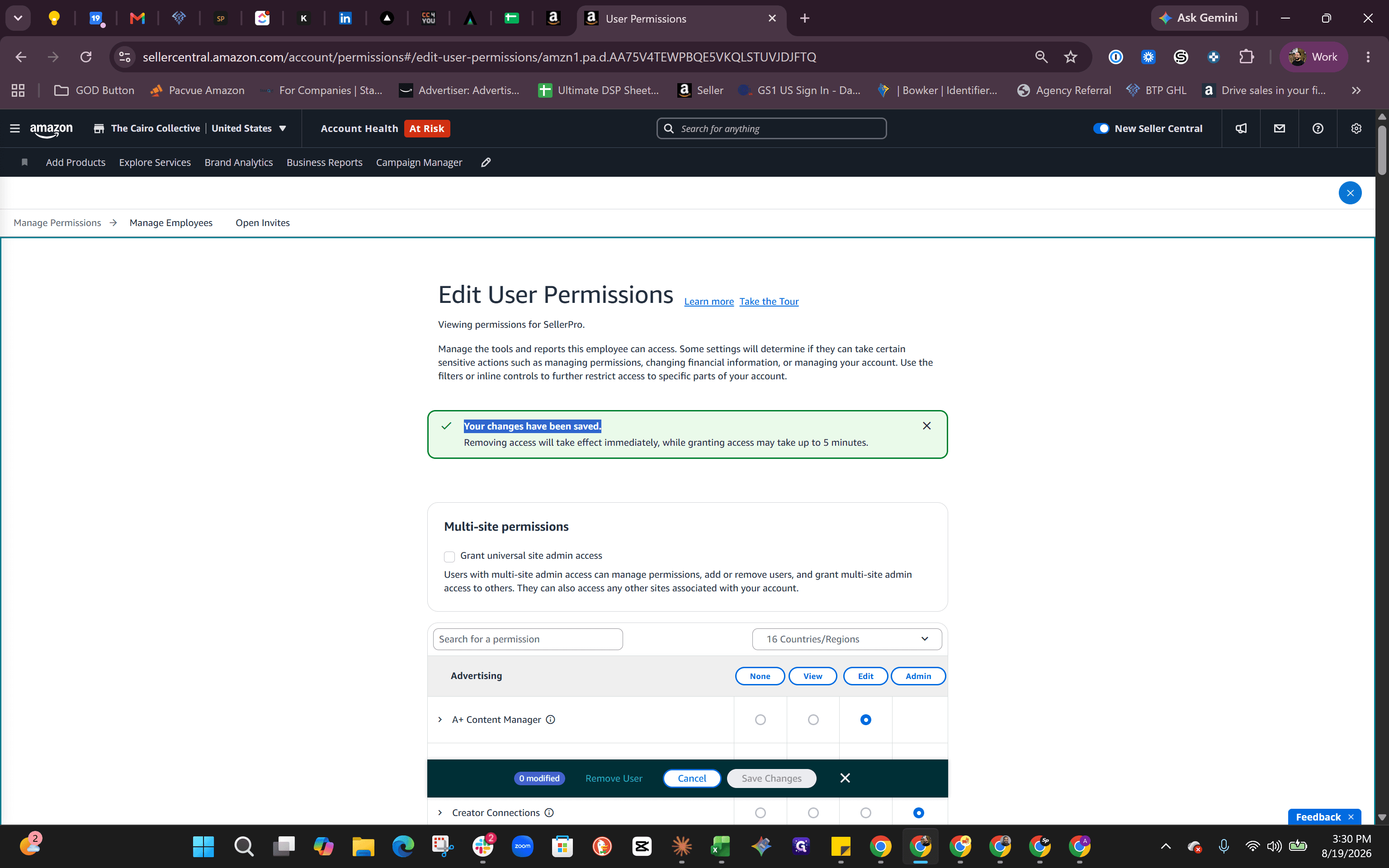
Q: Should I check the "Grant Universal Site Admin Access" box?
A: No, this is unnecessary unless you specifically want the service provider to be able to add or remove other users on your account.
Q: Which permissions should remain restricted when adding a service provider?
A: You should set permissions to "None" for Agreements and Addendums, Manage Authorized Partners, Global Account Settings Dashboard, Manage Your Services, Business Insurance, Tax Settings, Amazon Lending Loan Registration, and Flexible Customer Financing. You can easily find these by using Ctrl + F to search for each permission.