
Managing Tasks in the Government Smart Admin System
Learn how to navigate the dashboard, manage projects, assign work, and track task progress in the Government Smart Admin System.
This guide explains how to navigate the tasks dashboard, create new projects and tasks, and update task progress within the Government Smart Admin System. By following these steps, you will be able to efficiently track workloads, assign responsibilities, and maintain accurate project statuses across your organization.
This guide applies to project managers, administrative staff, and any team members responsible for assigning or completing tasks within the Government Smart Admin System. It should be used during daily operations to monitor project status, assign new work, and log task progress.
Viewing the Tasks Dashboard
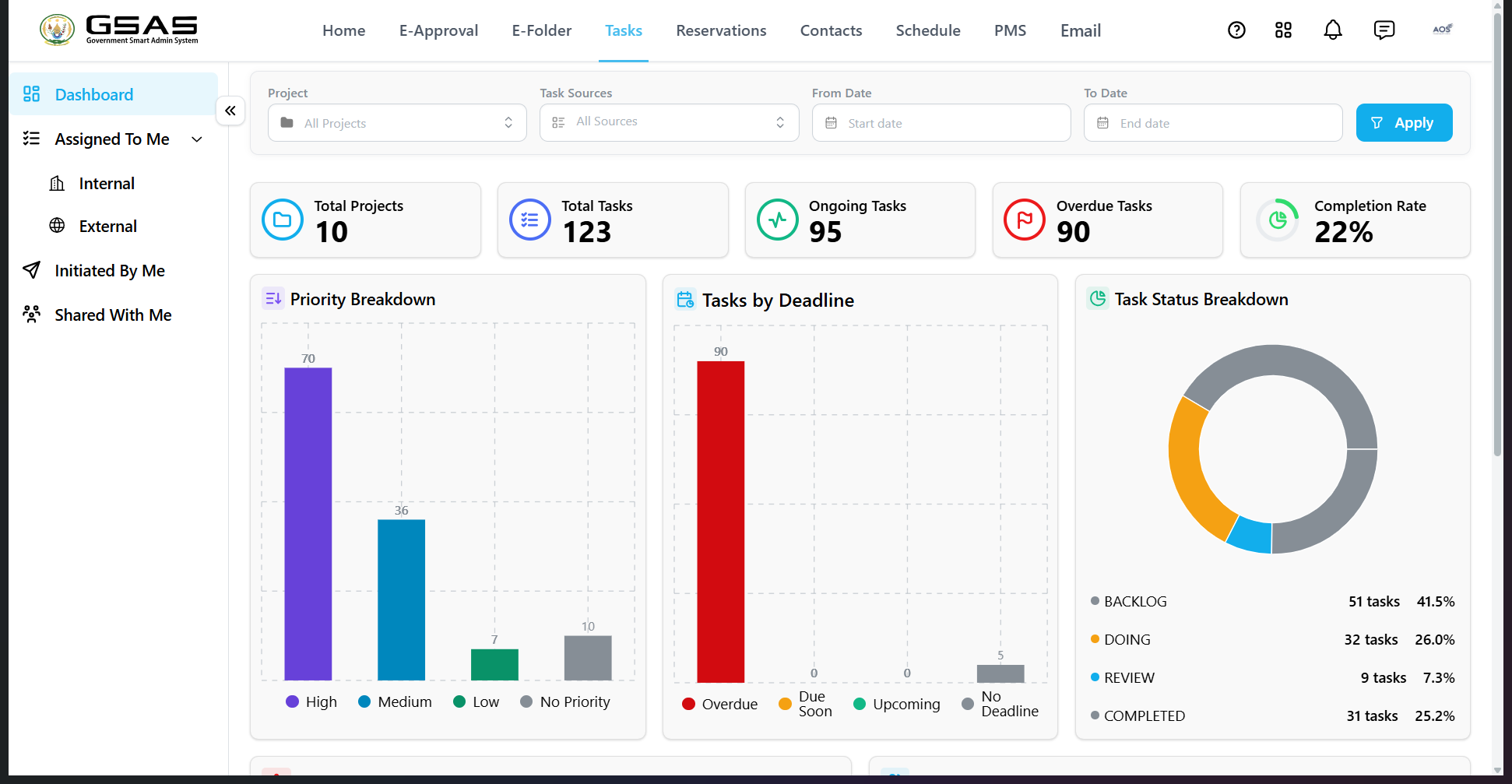
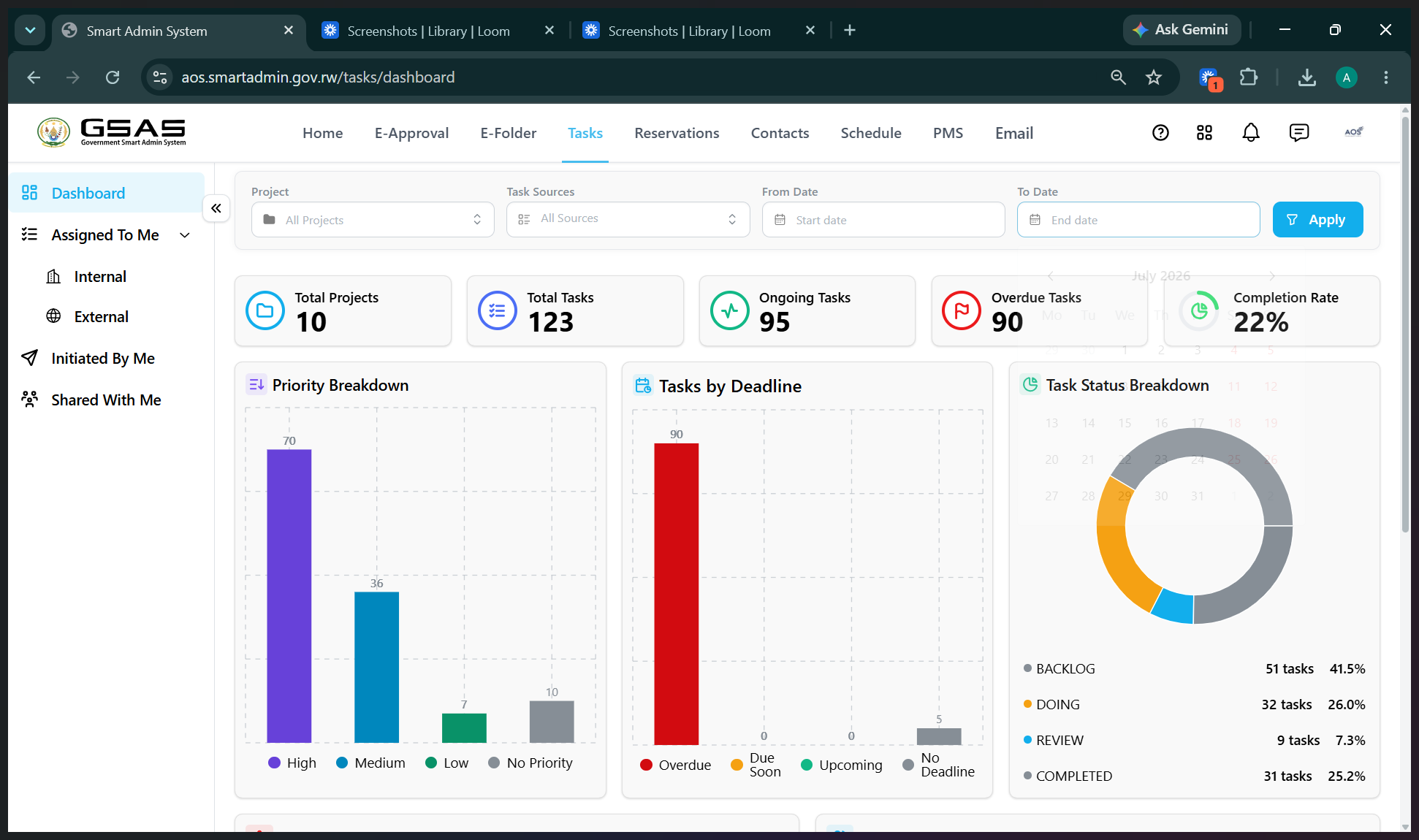
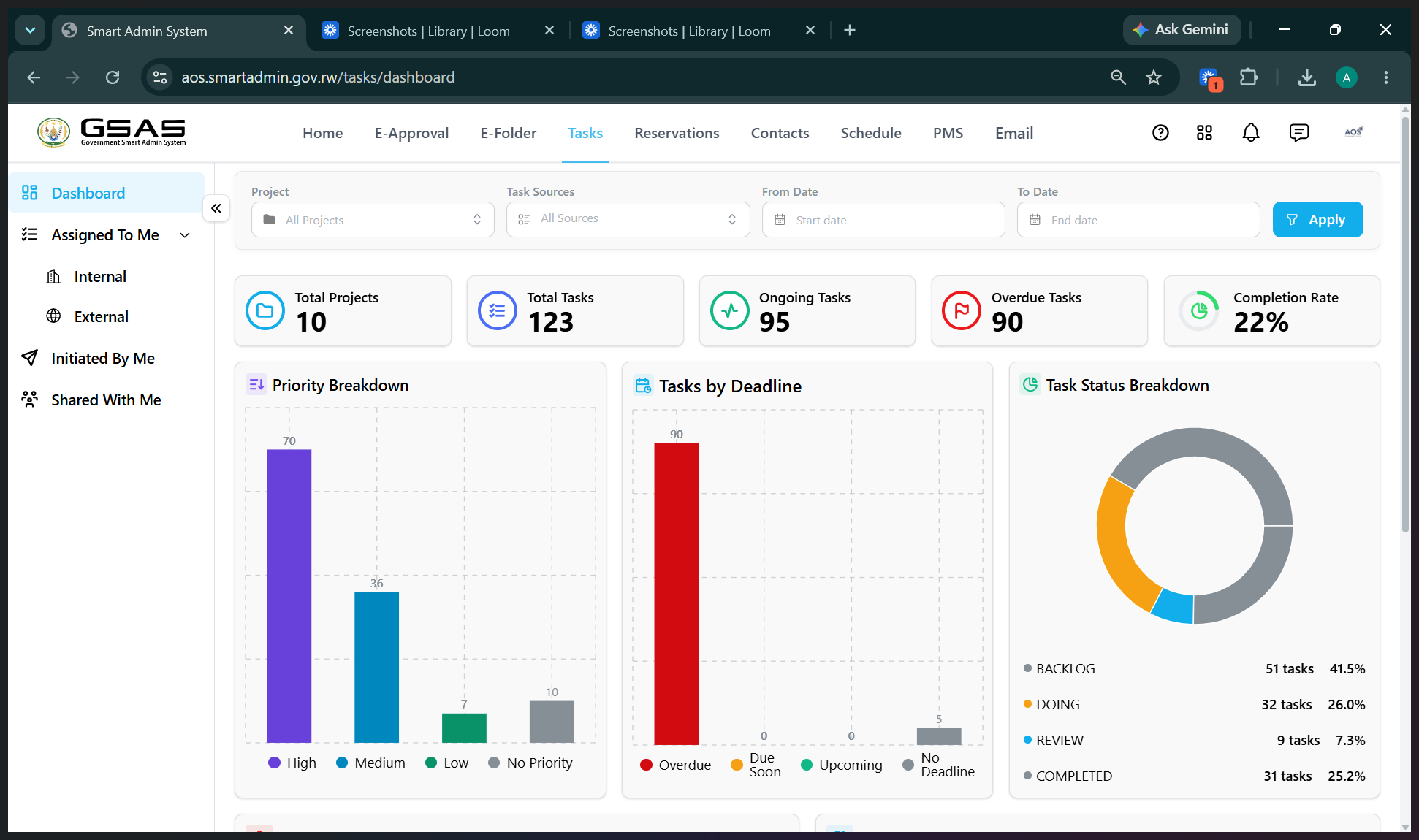
The dashboard provides a summary of total projects, ongoing tasks, overdue tasks, team workload, and overall completion rates.
To filter your dashboard view:
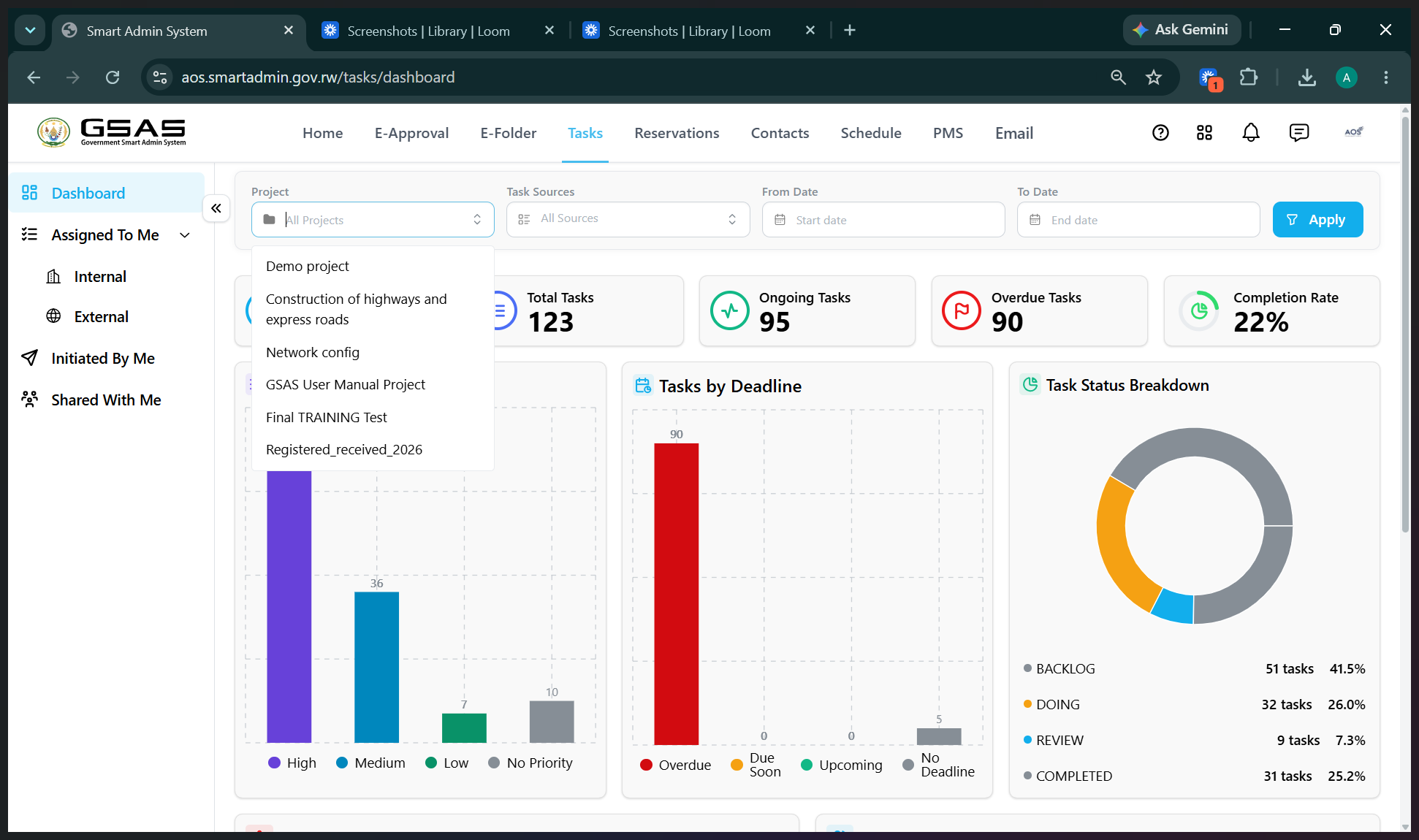
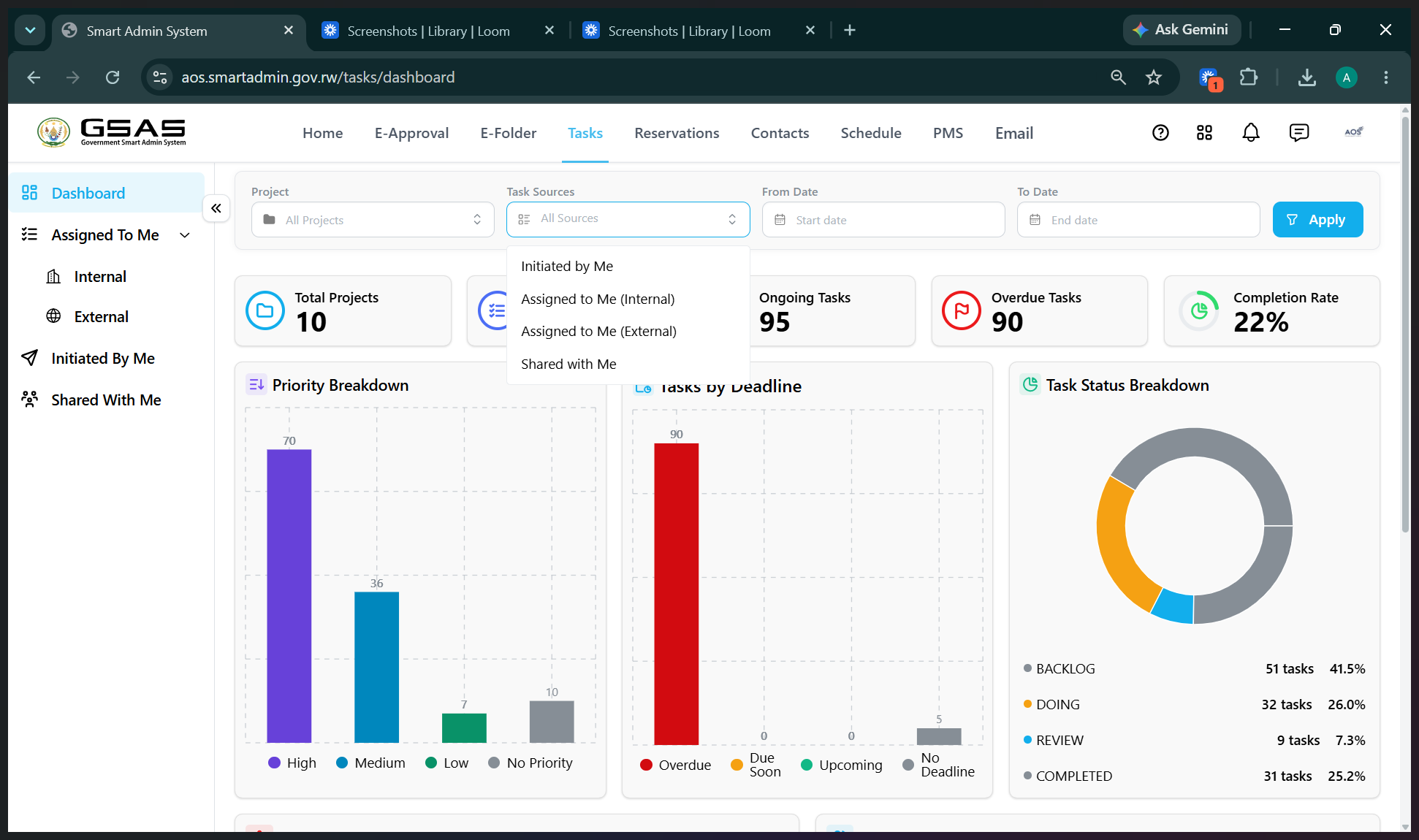
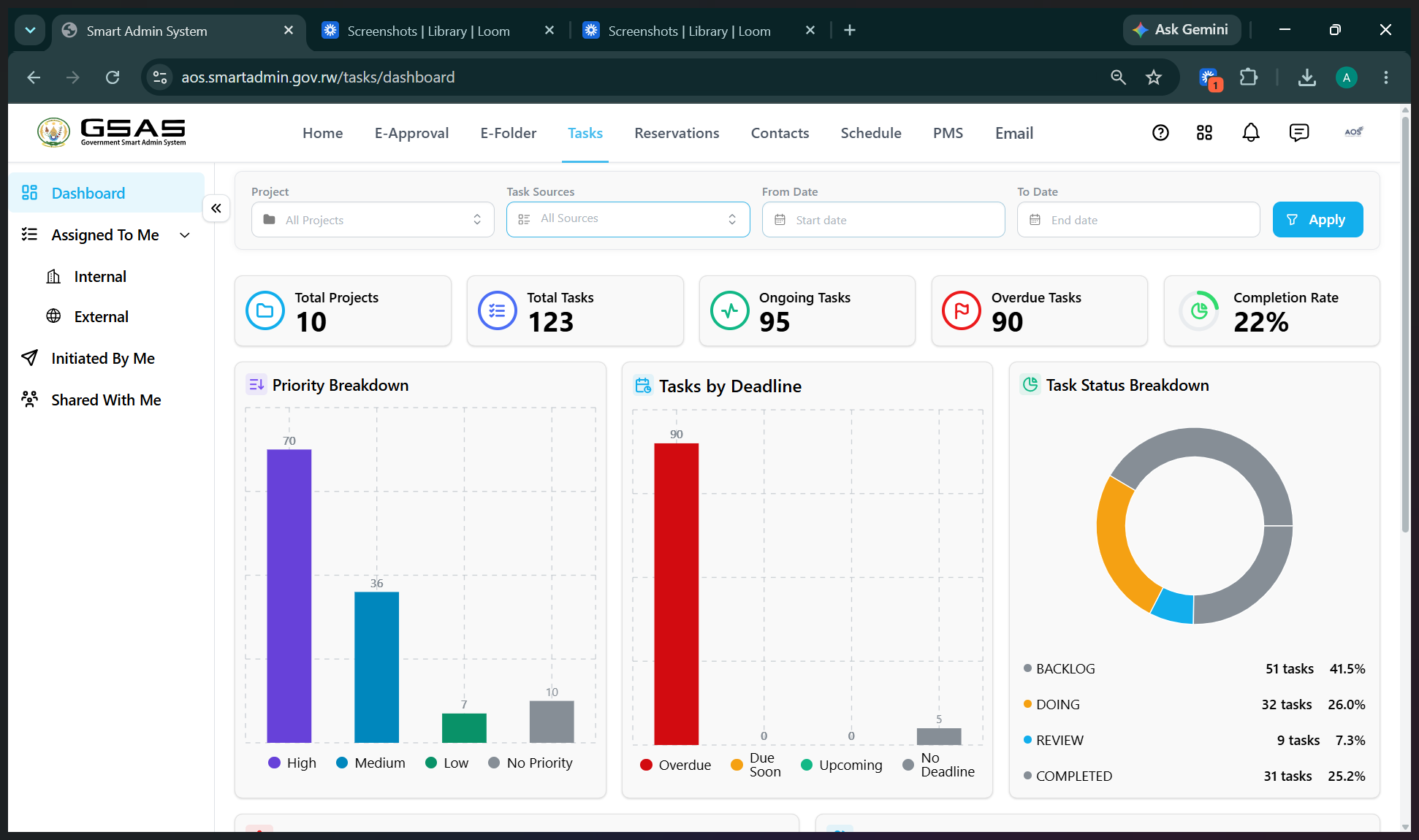
Managing Assigned Tasks
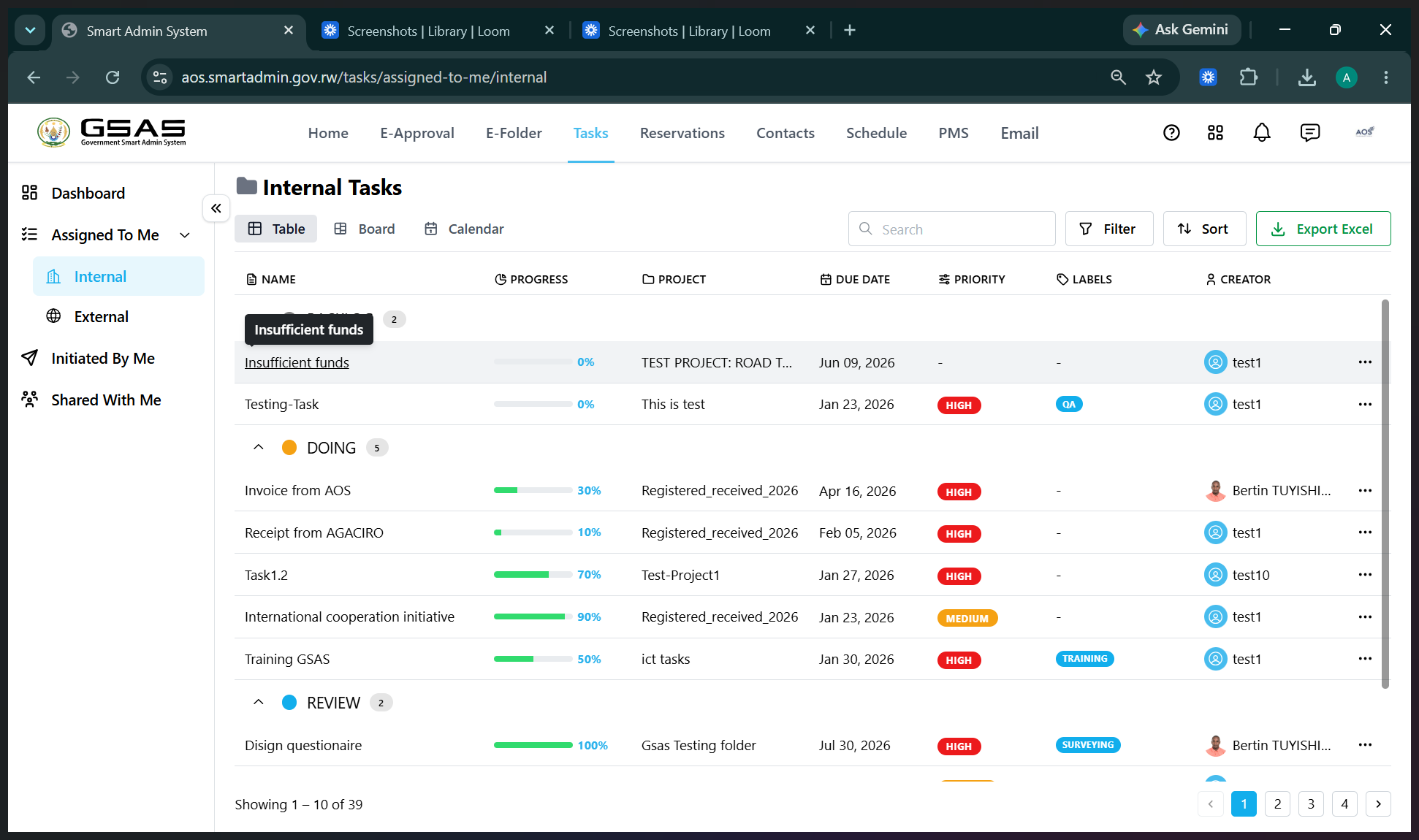
Tasks assigned to you are categorized by their origin.
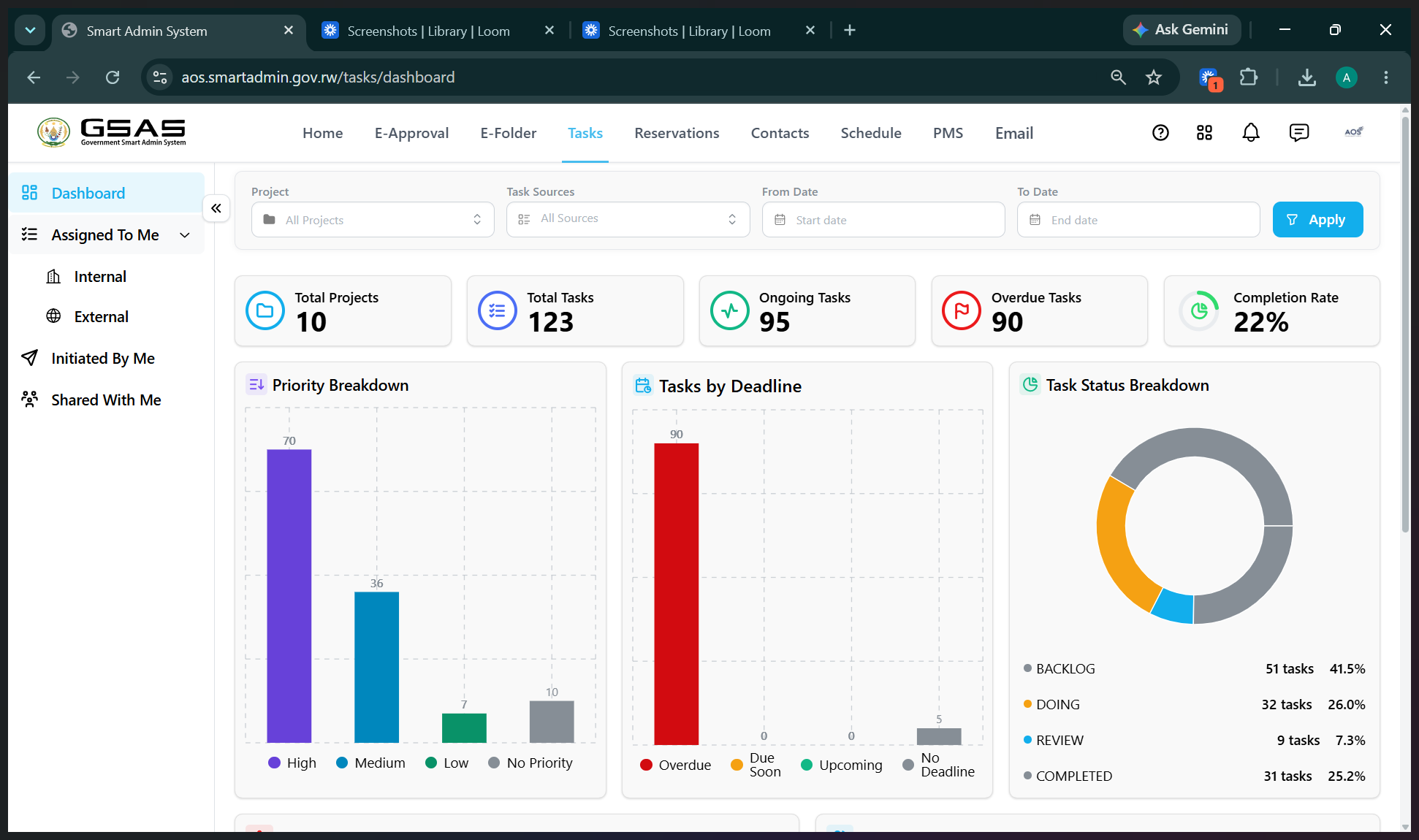
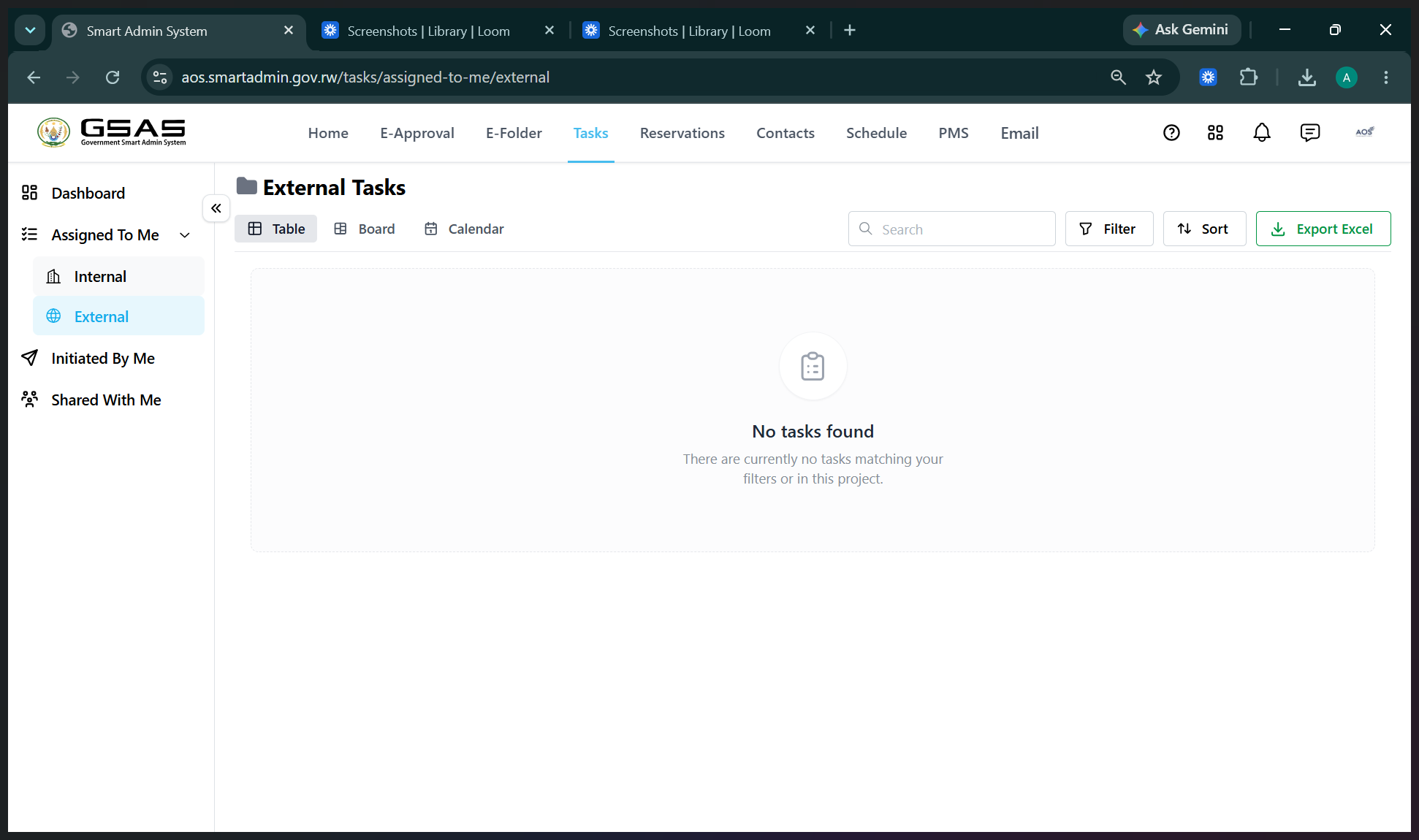
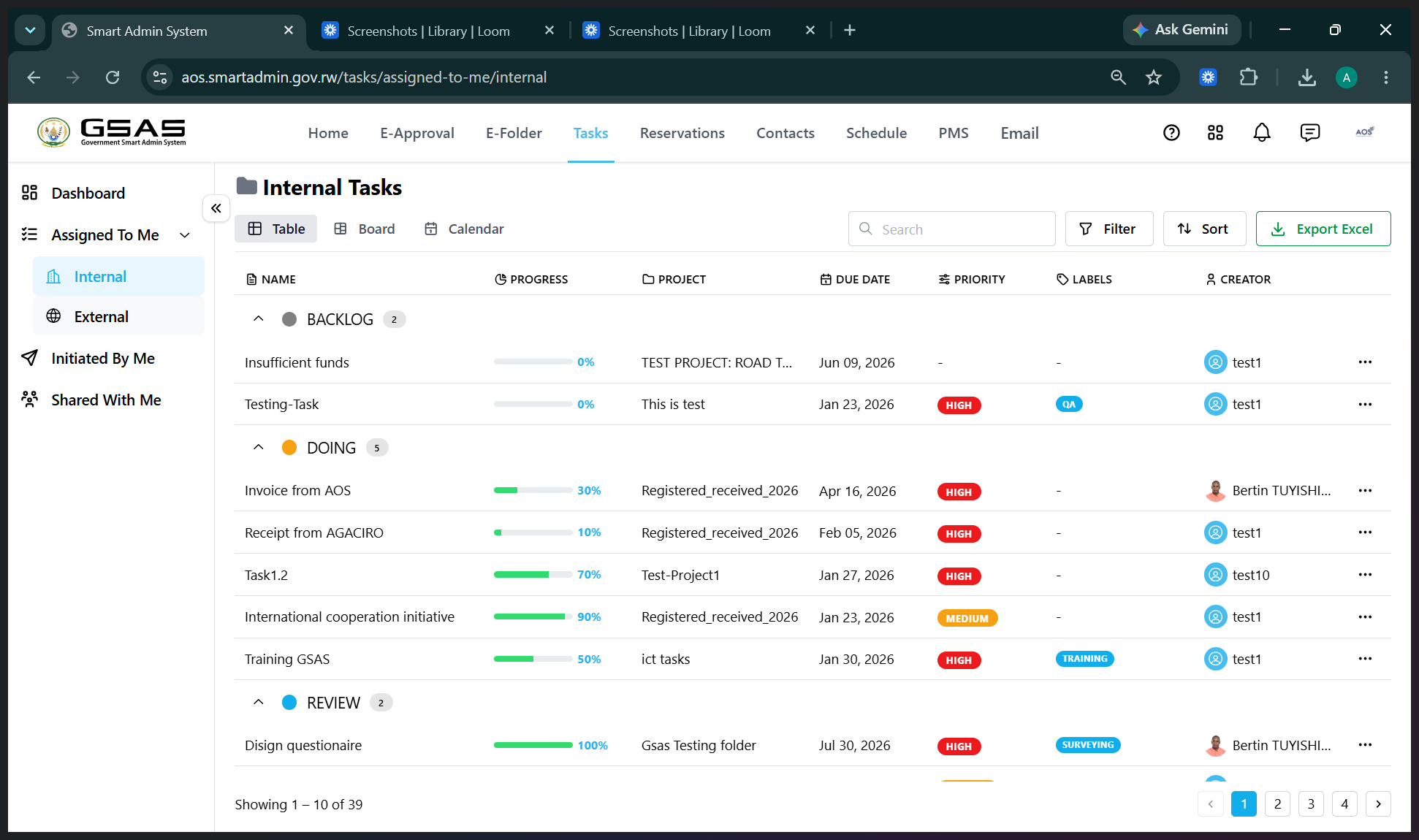
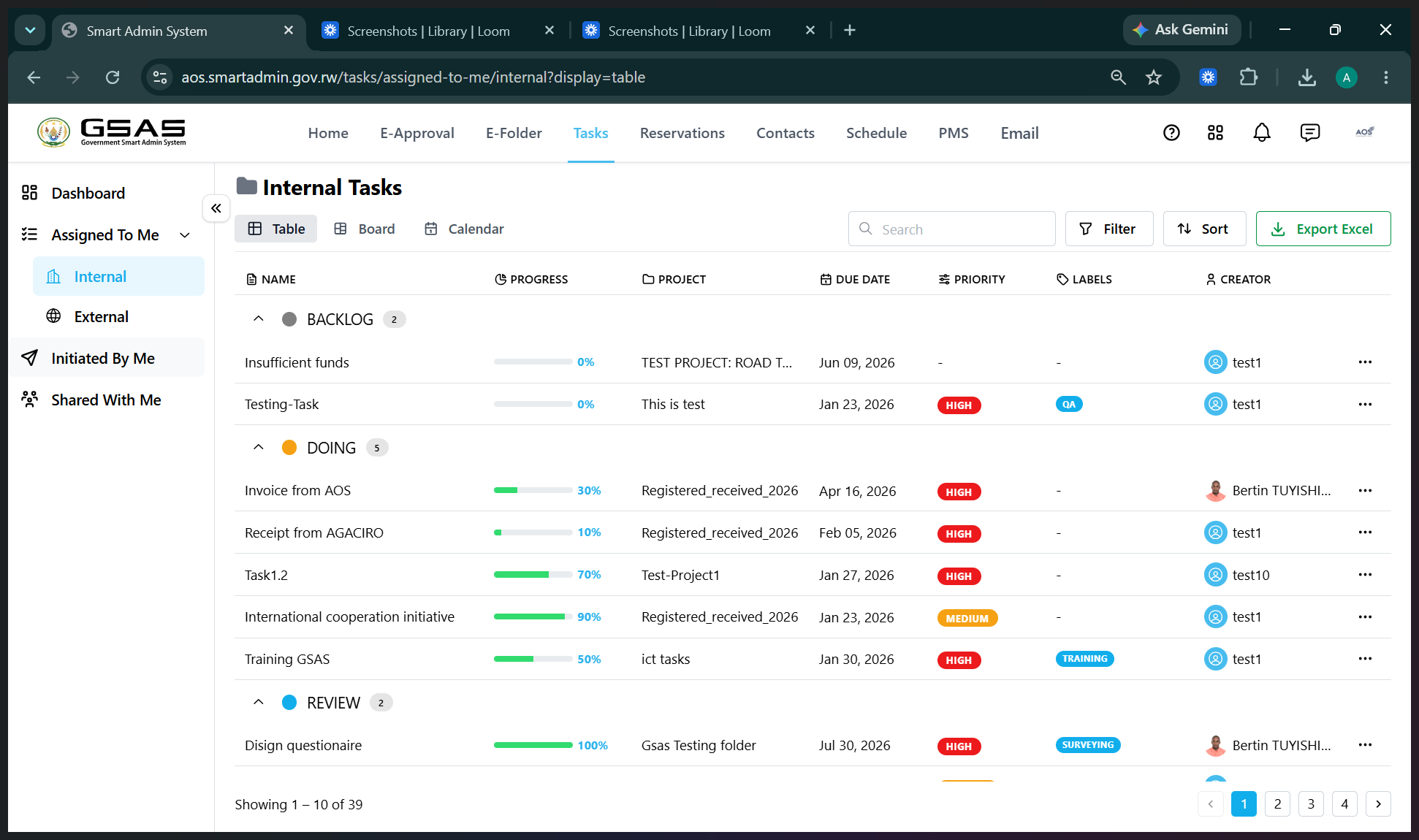
Both internal and external task pages offer multiple ways to visualize your workload:
View Mode | Description |
|---|---|
Table View | Displays tasks in a detailed list format with sortable columns for status, priority, and dates. |
Board View | Organizes tasks in a Kanban-style layout (e.g., Backlog, Doing, Review) for visual stage tracking. |
Calendar View | Maps tasks onto a calendar based on their start and due dates for timeline planning. |
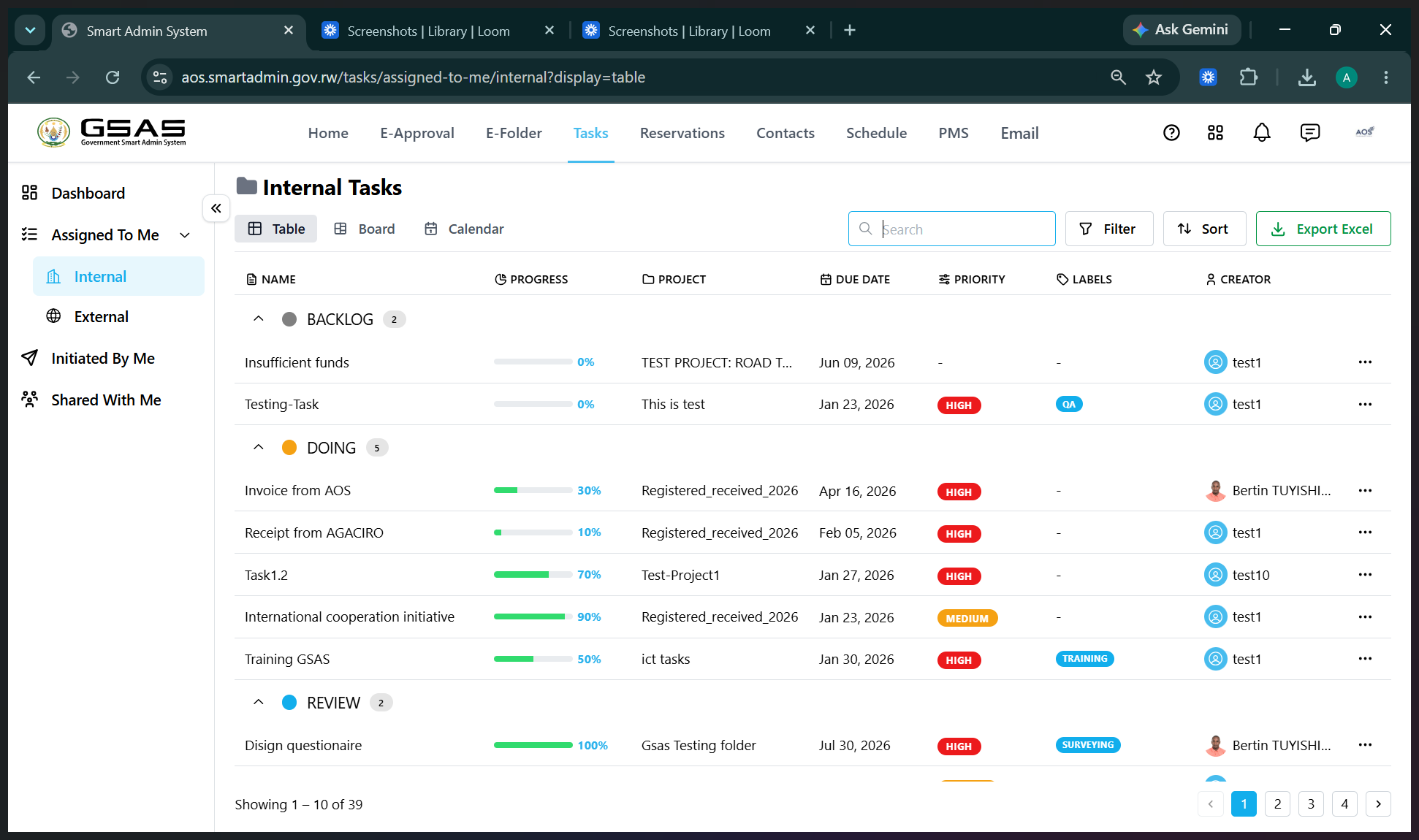
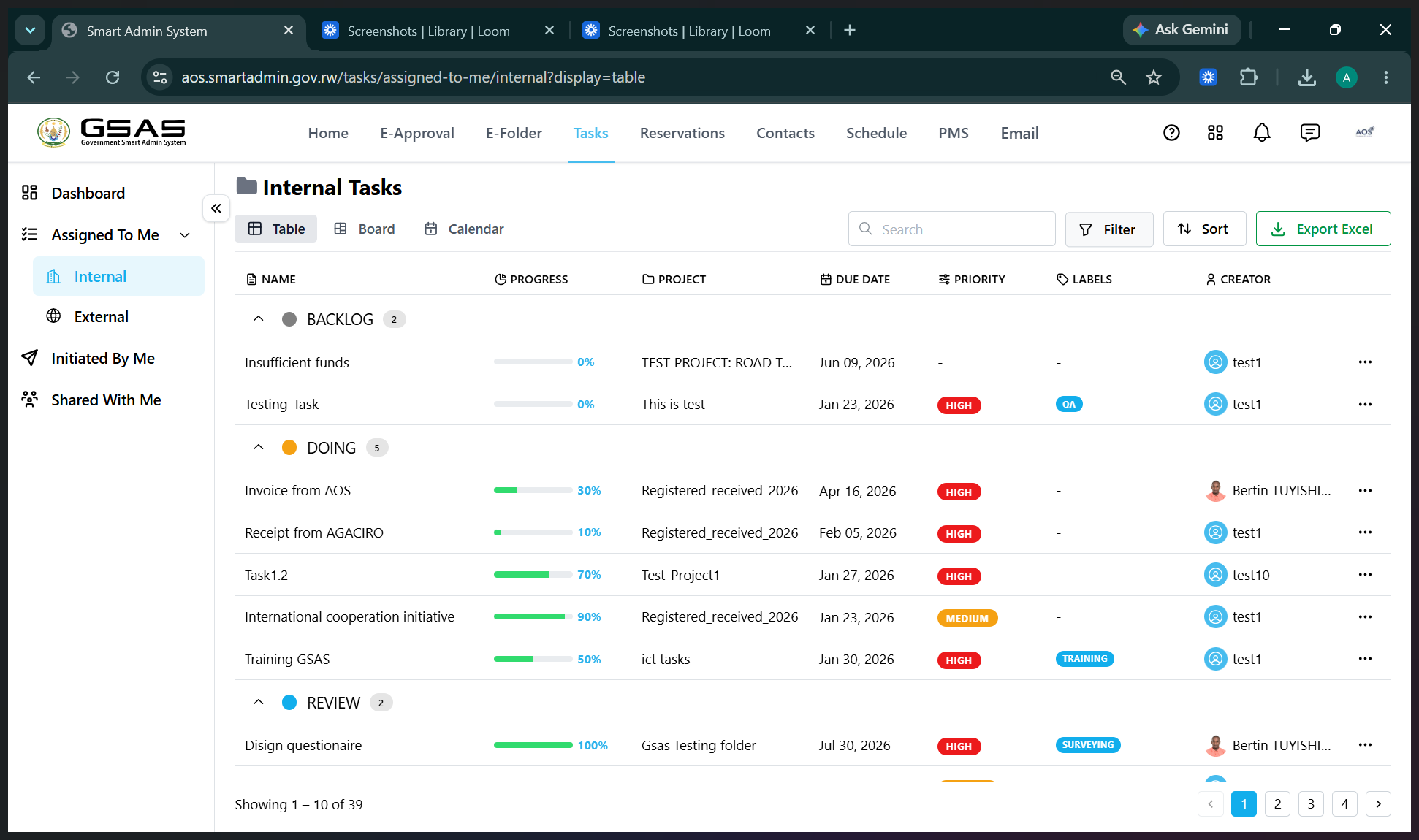
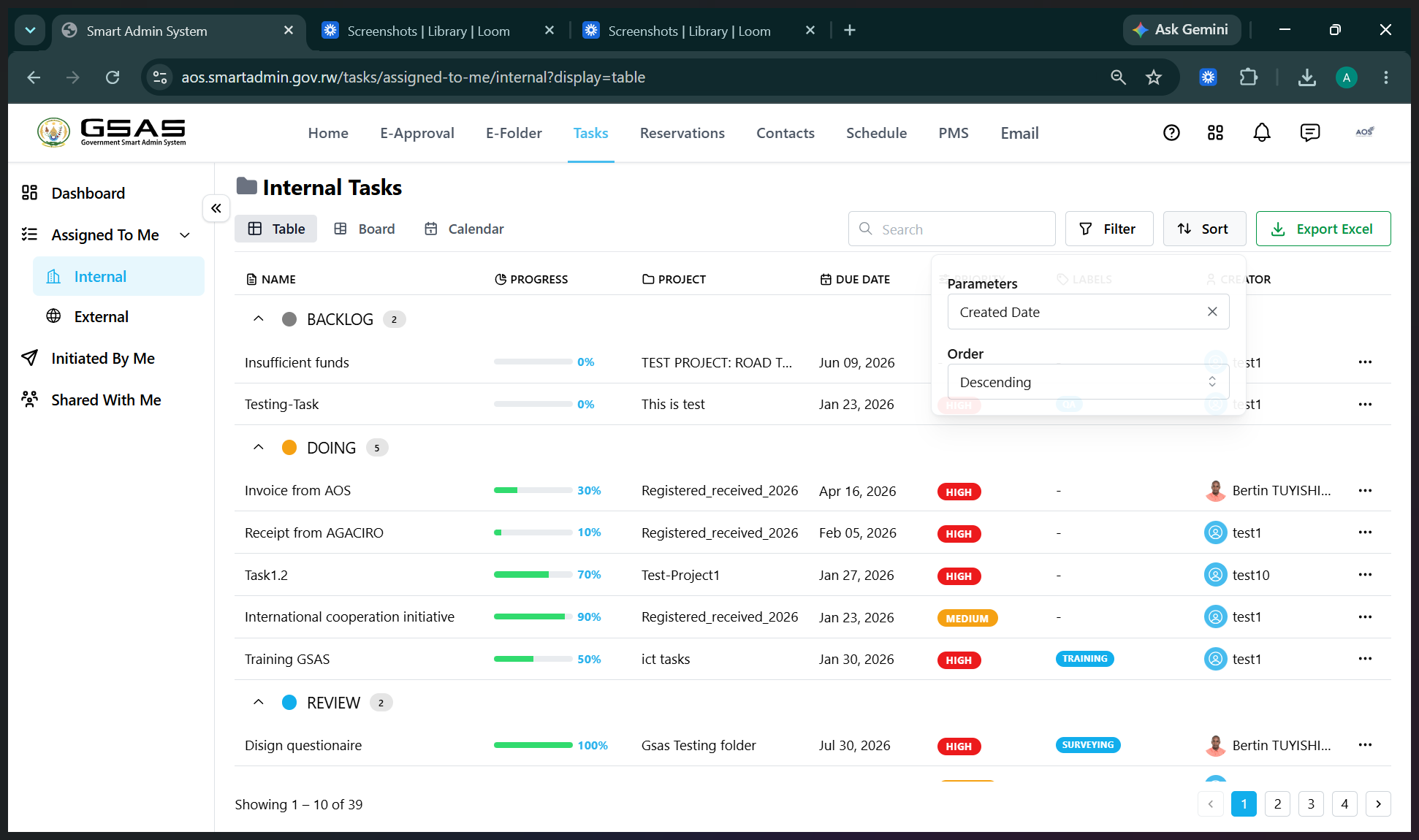
You can easily search, filter, and sort tasks within these views:
Initiating Projects and Tasks
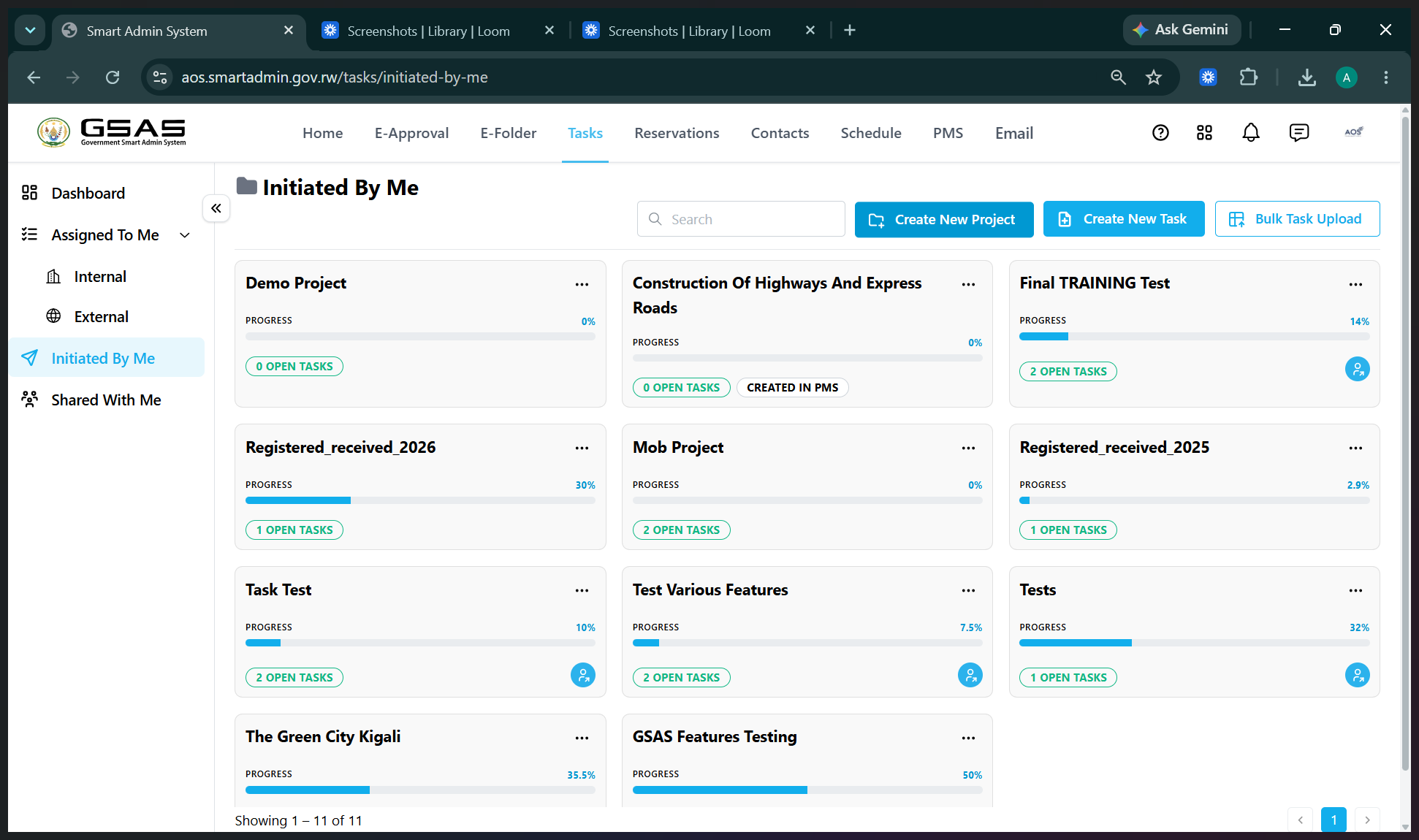
Tasks cannot be created independently; they must reside within a task project.
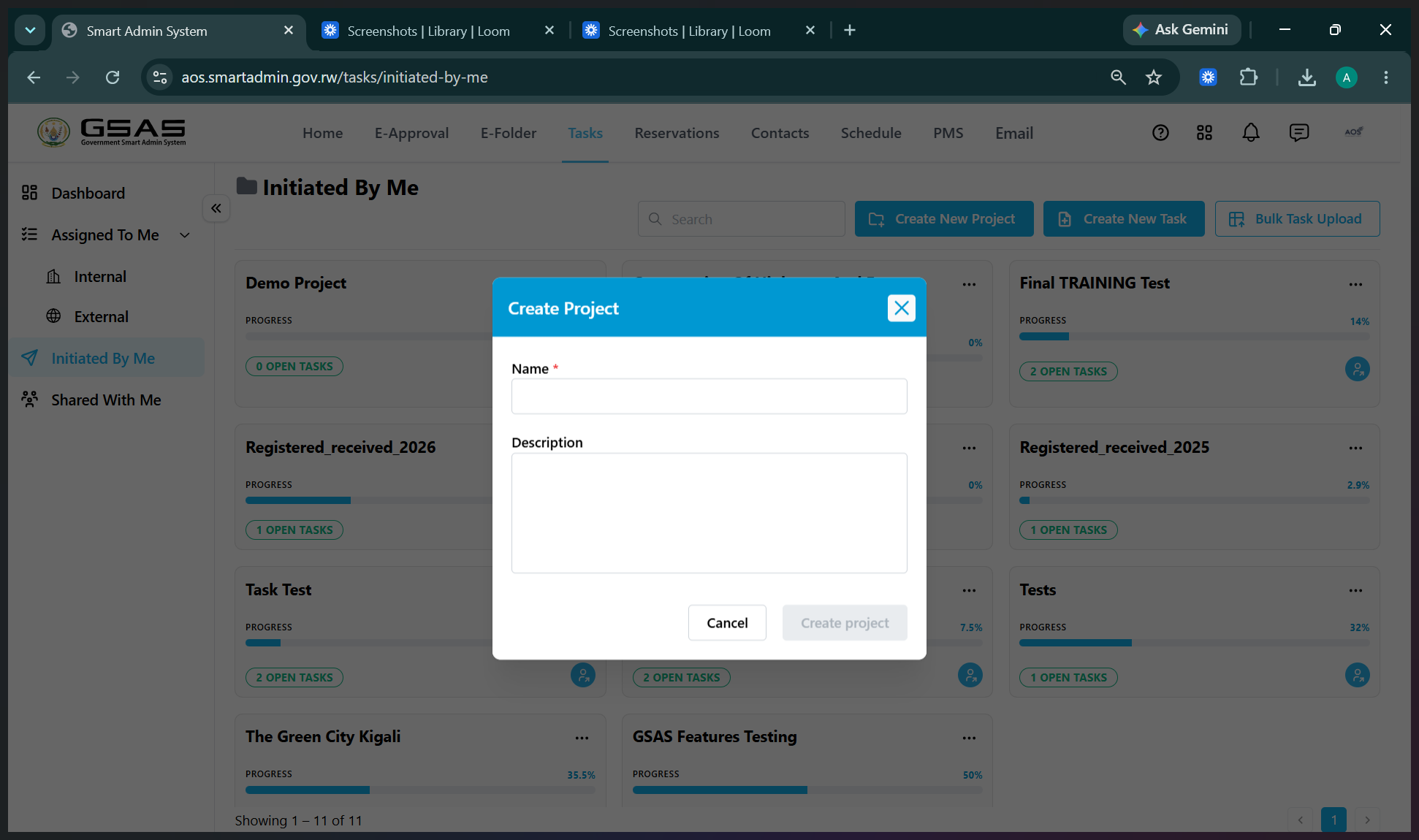
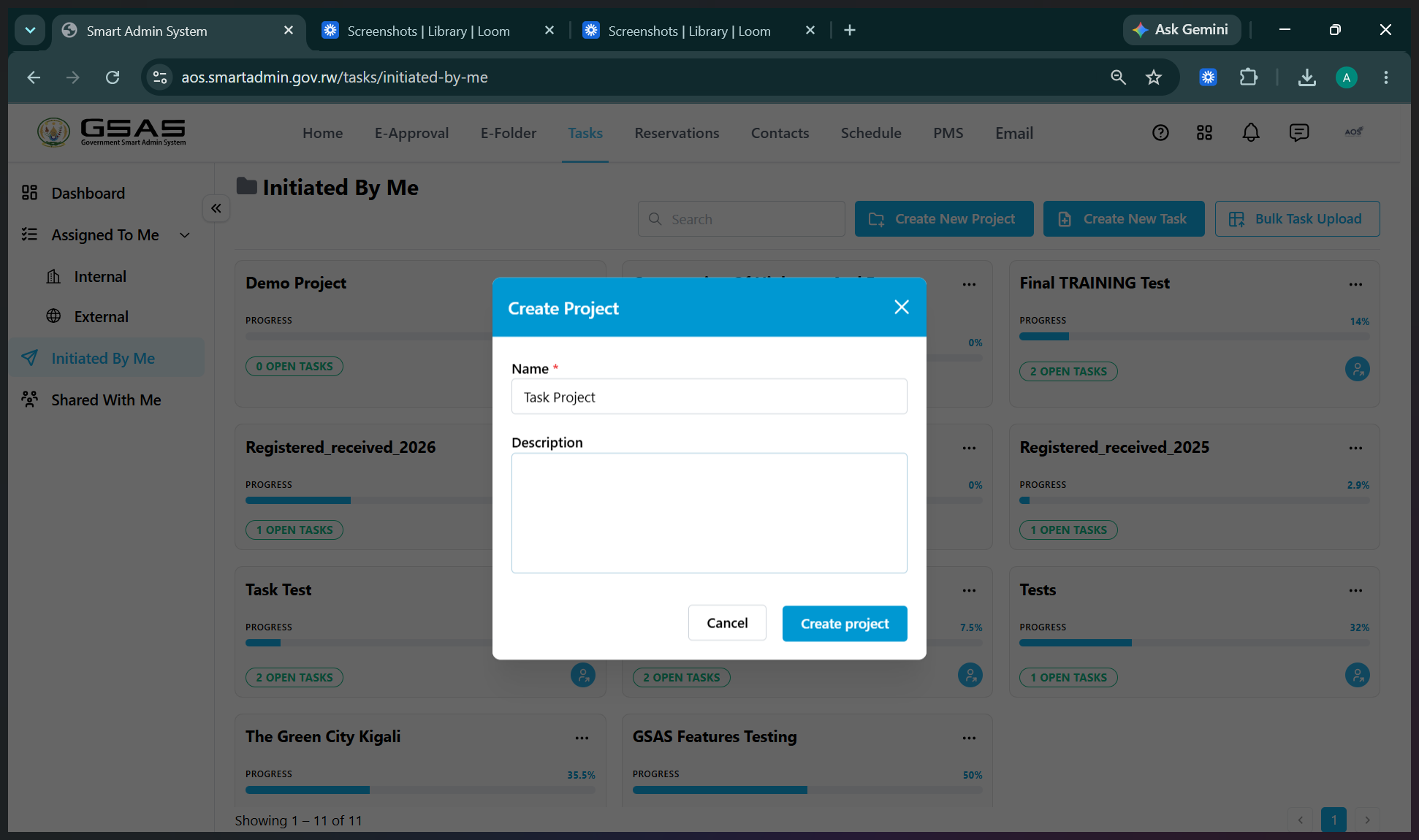
Creating a New Project
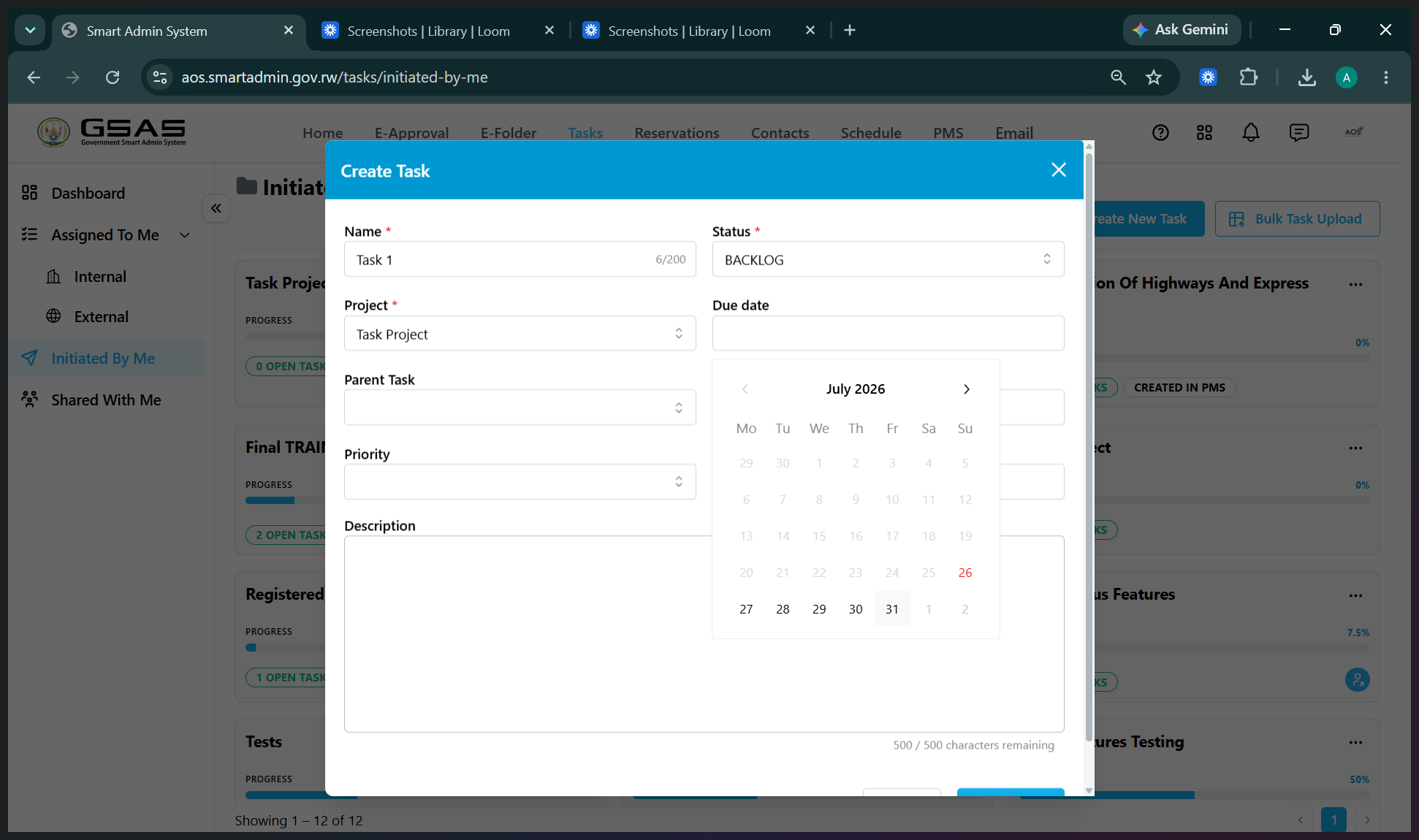
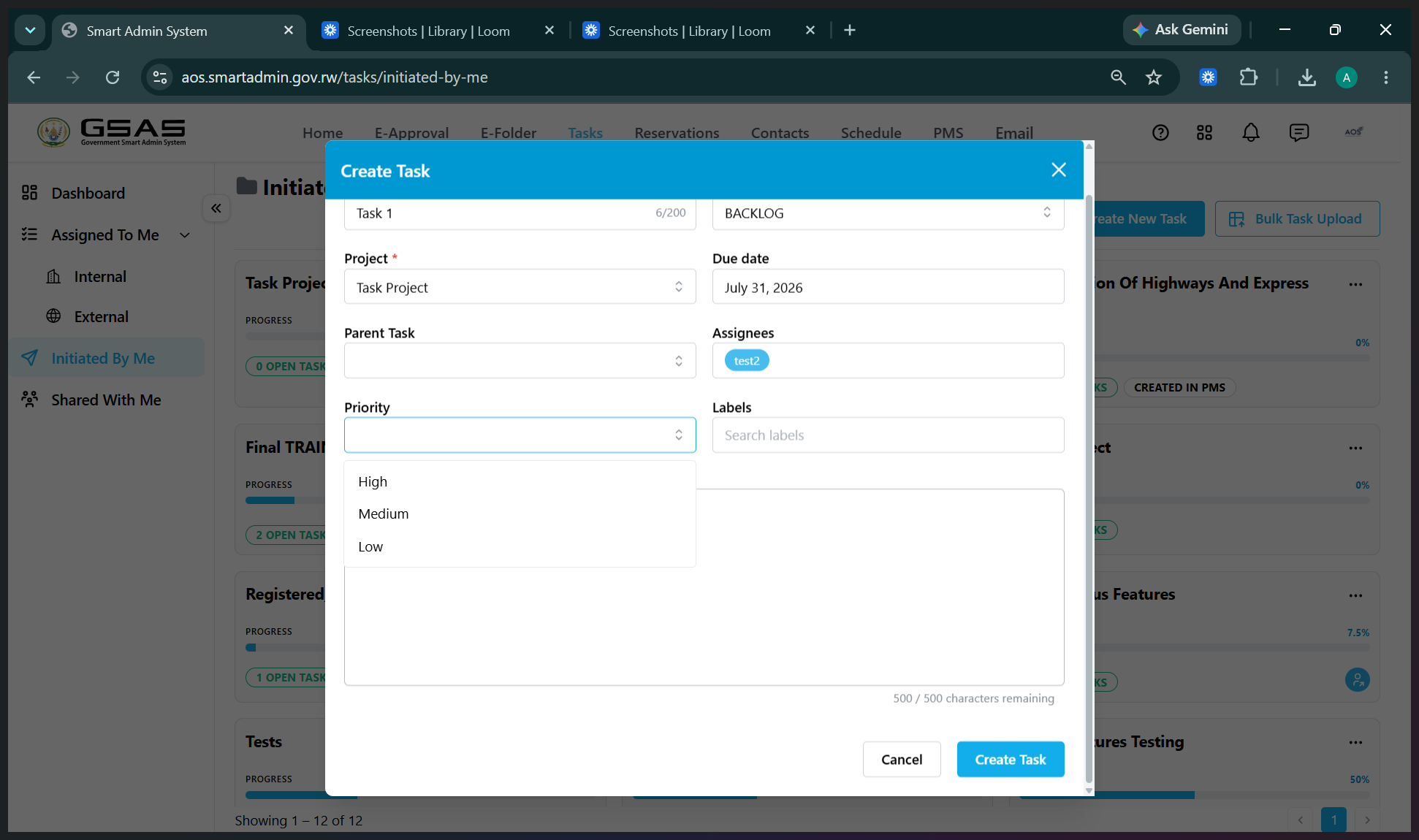
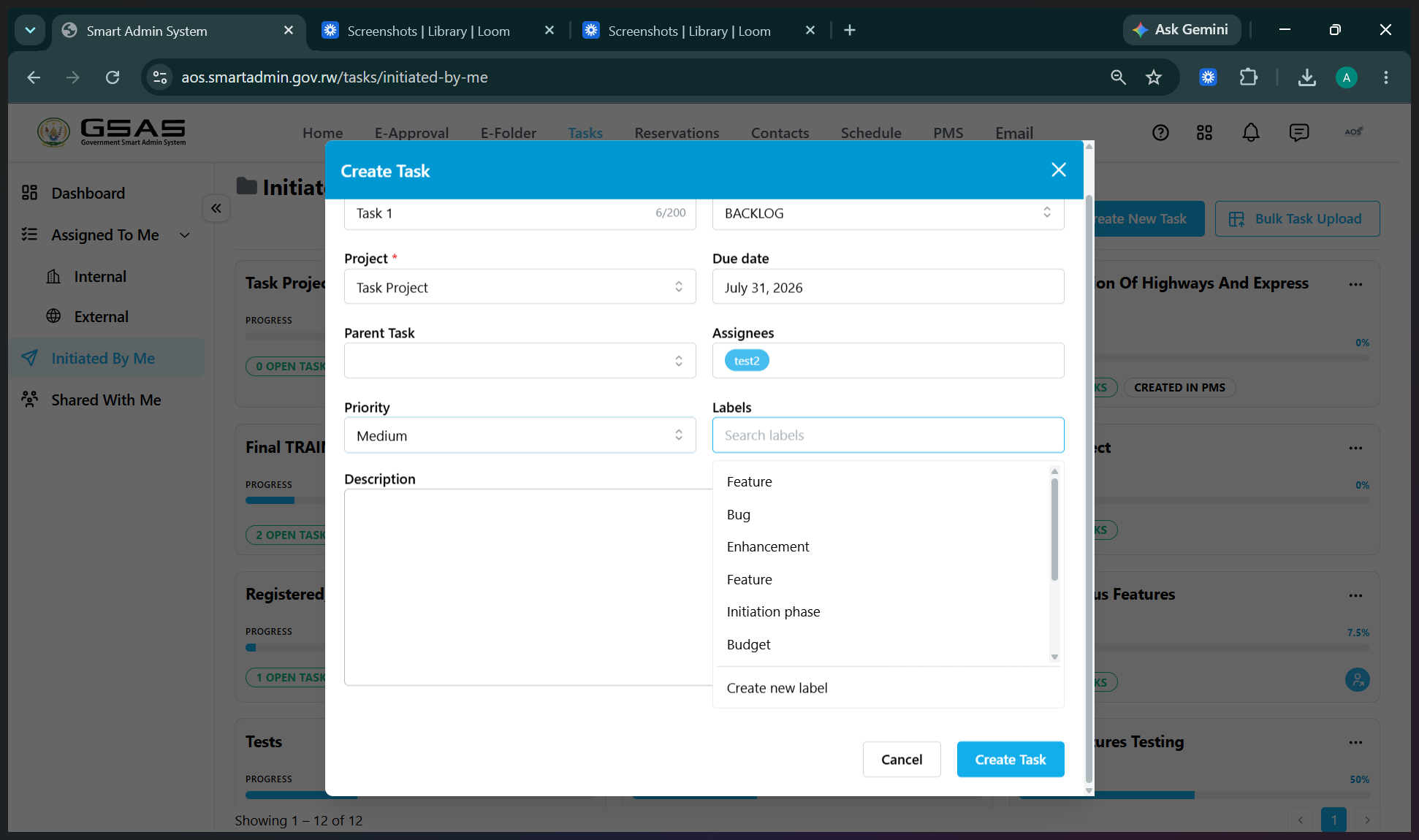
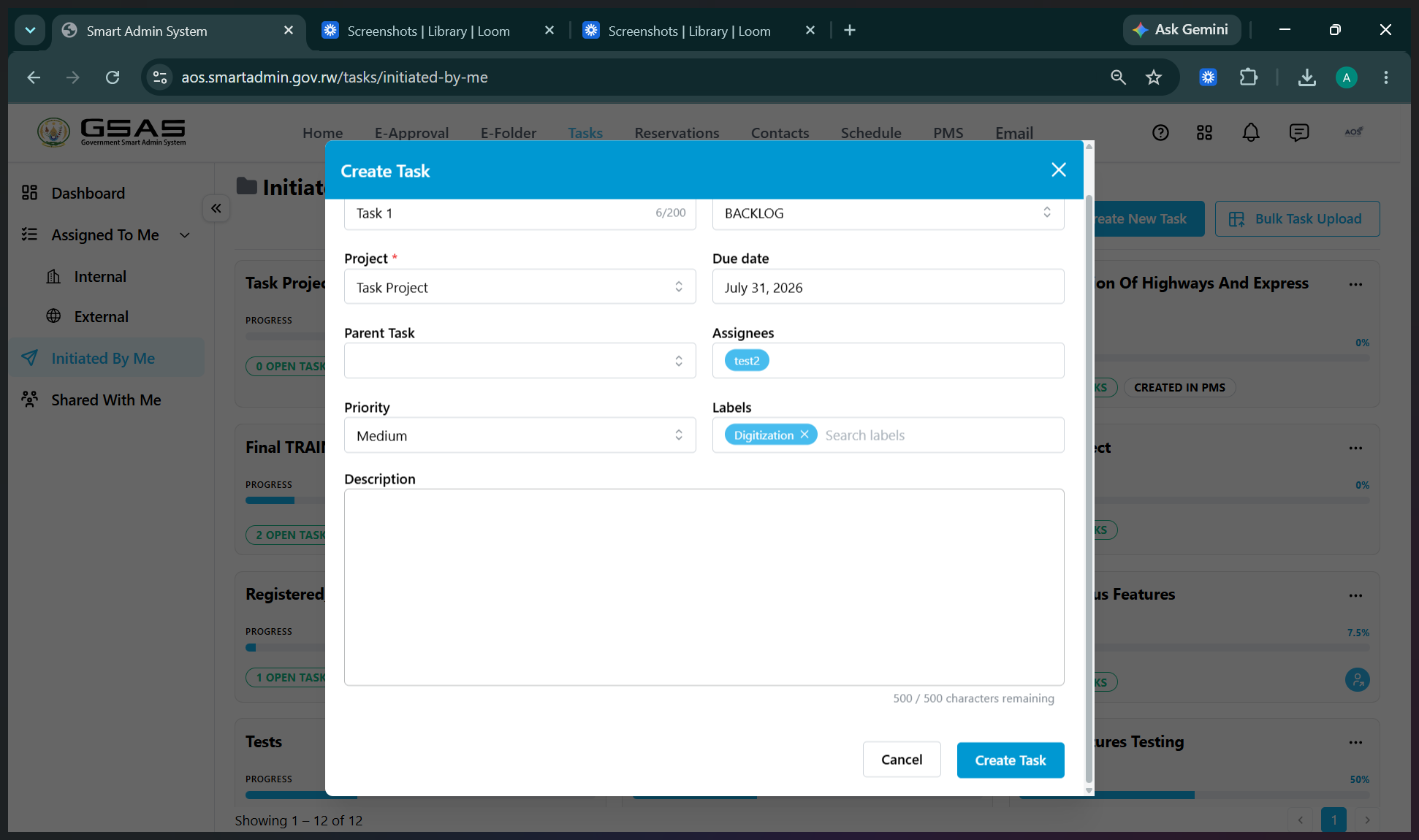
Creating a New Task
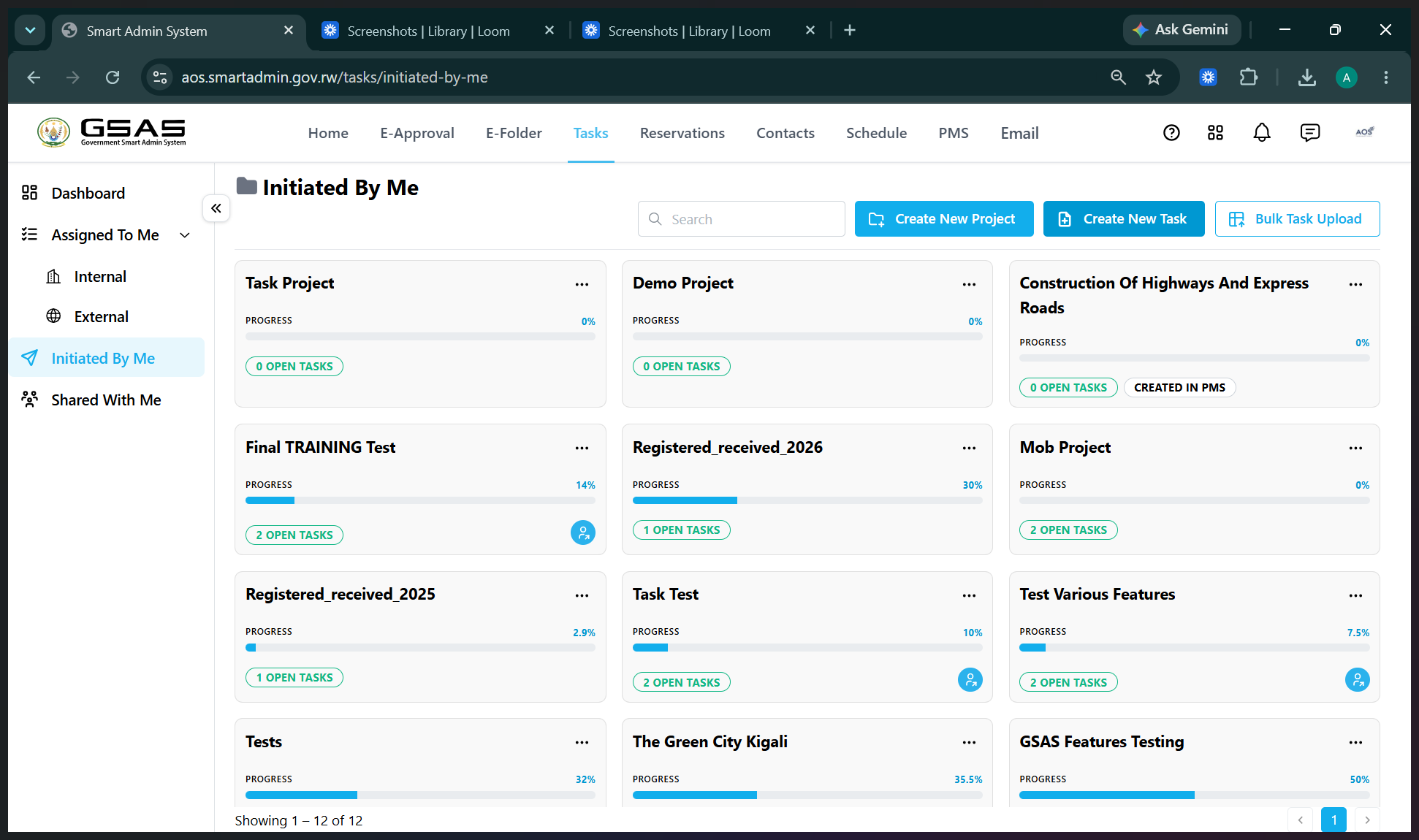
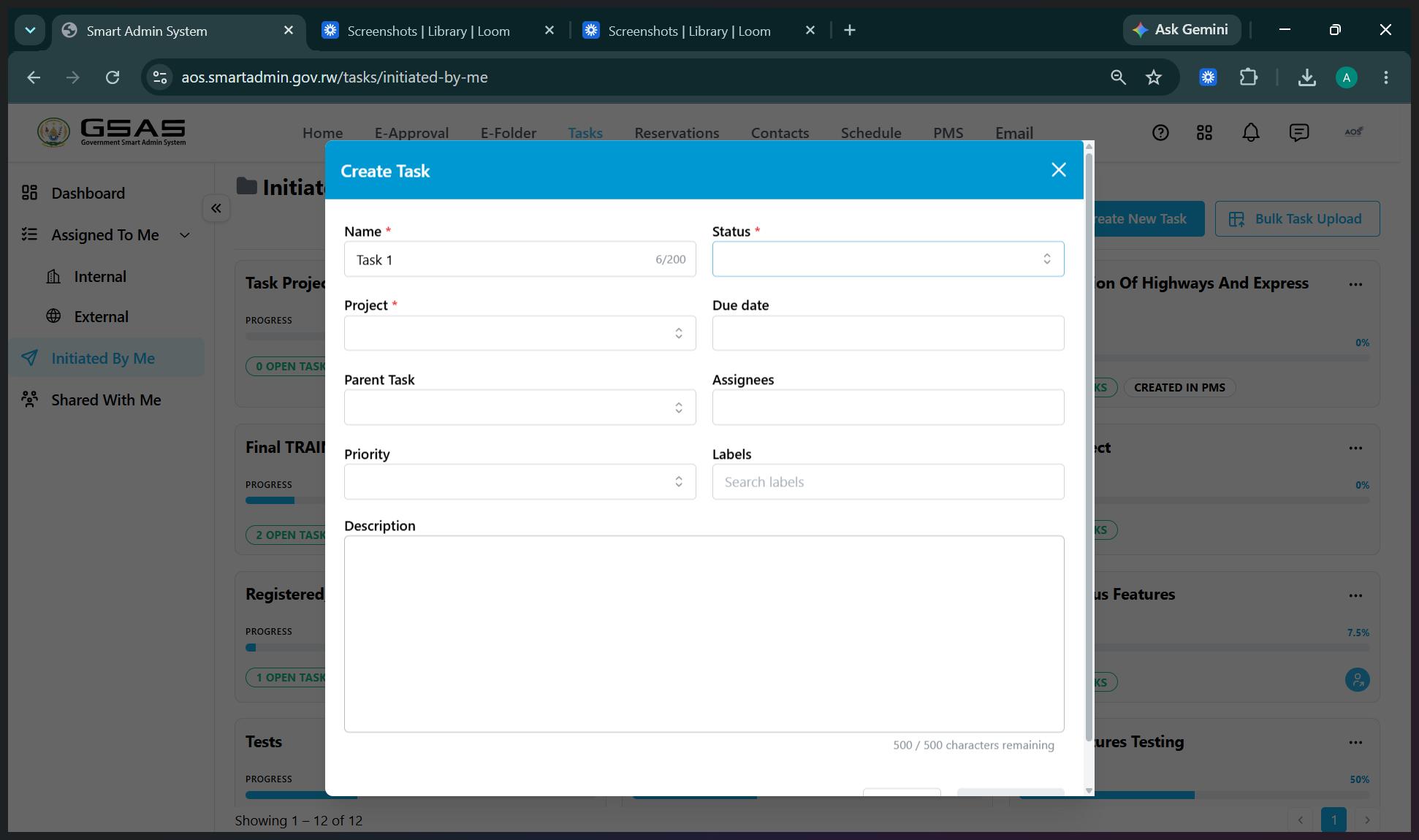
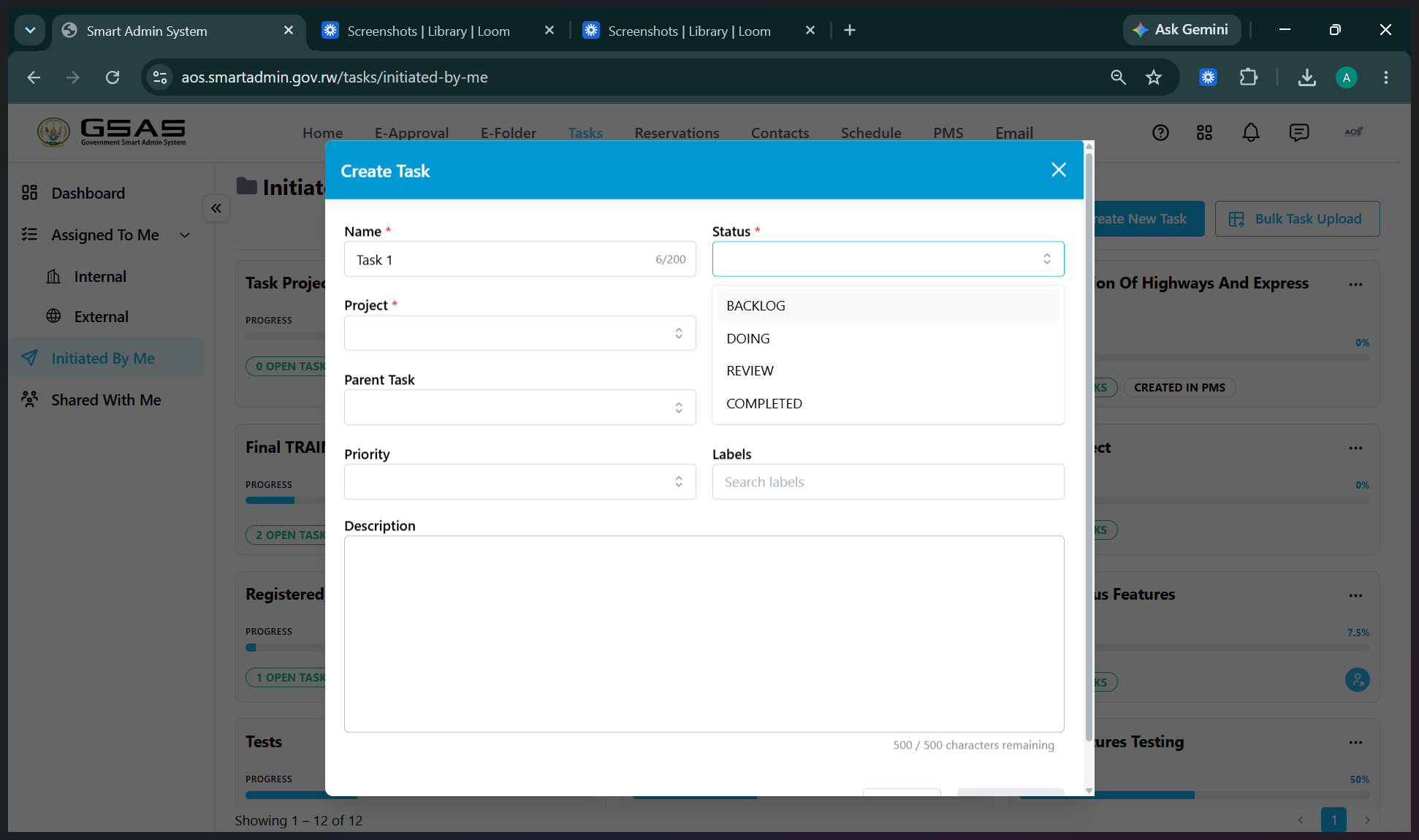
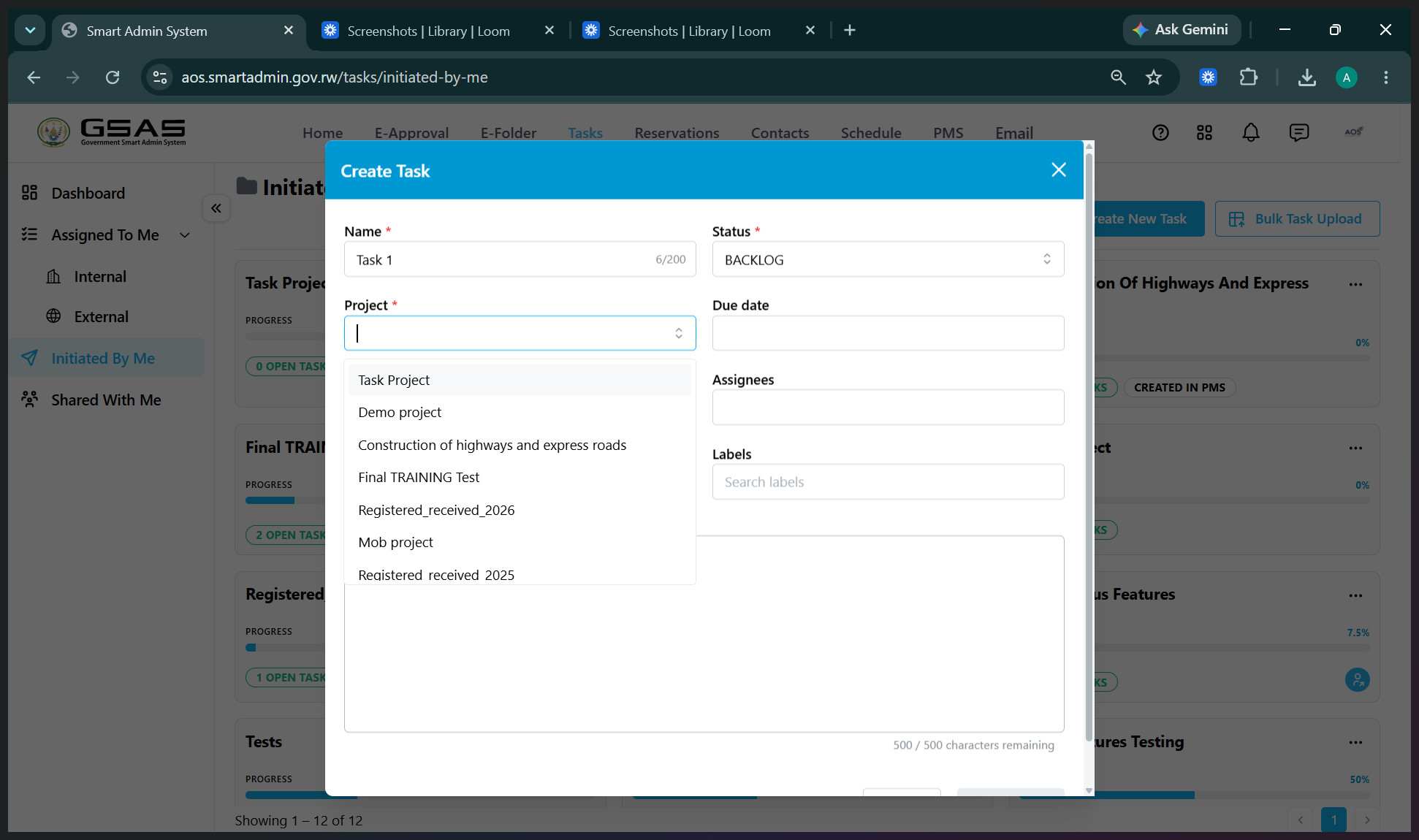
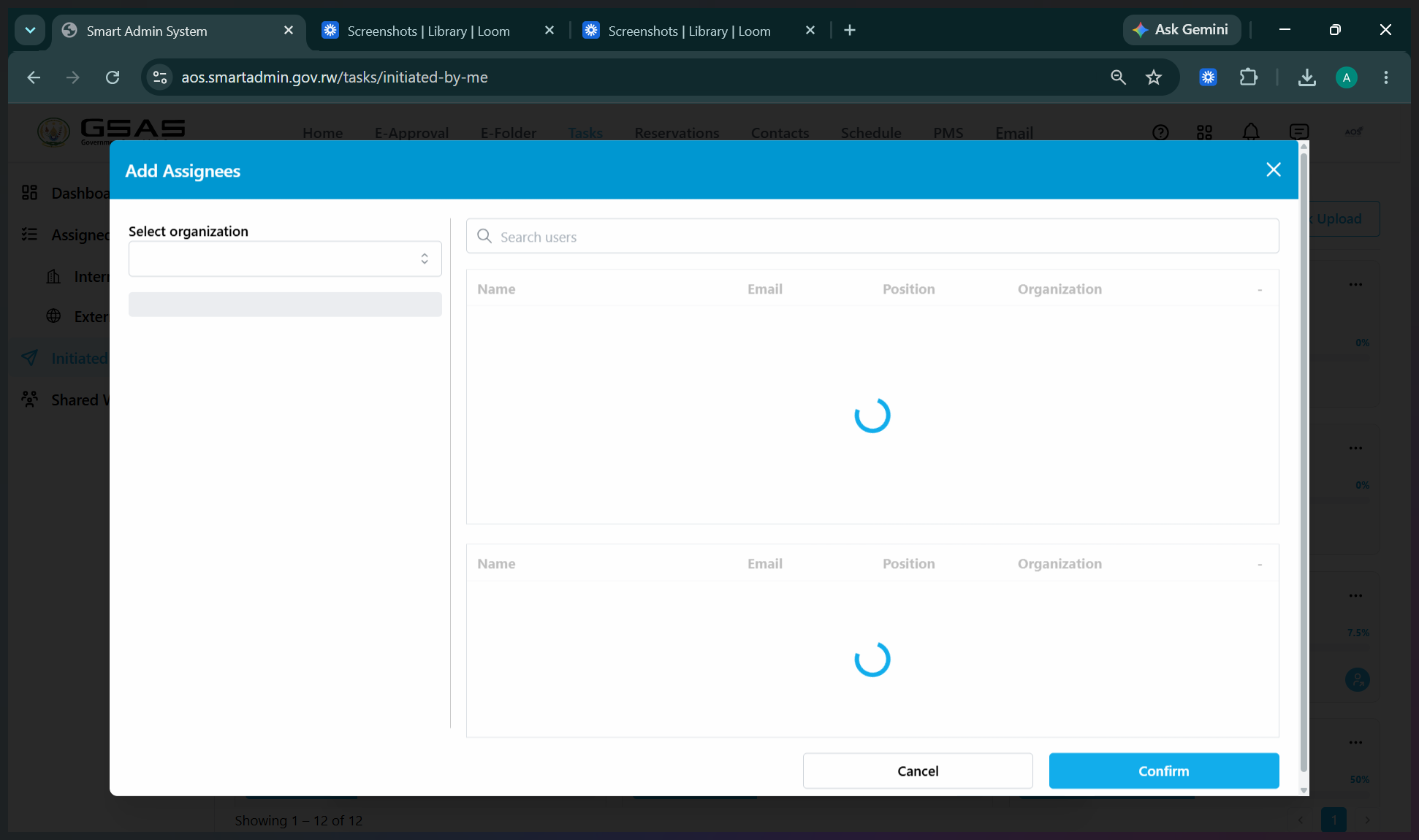
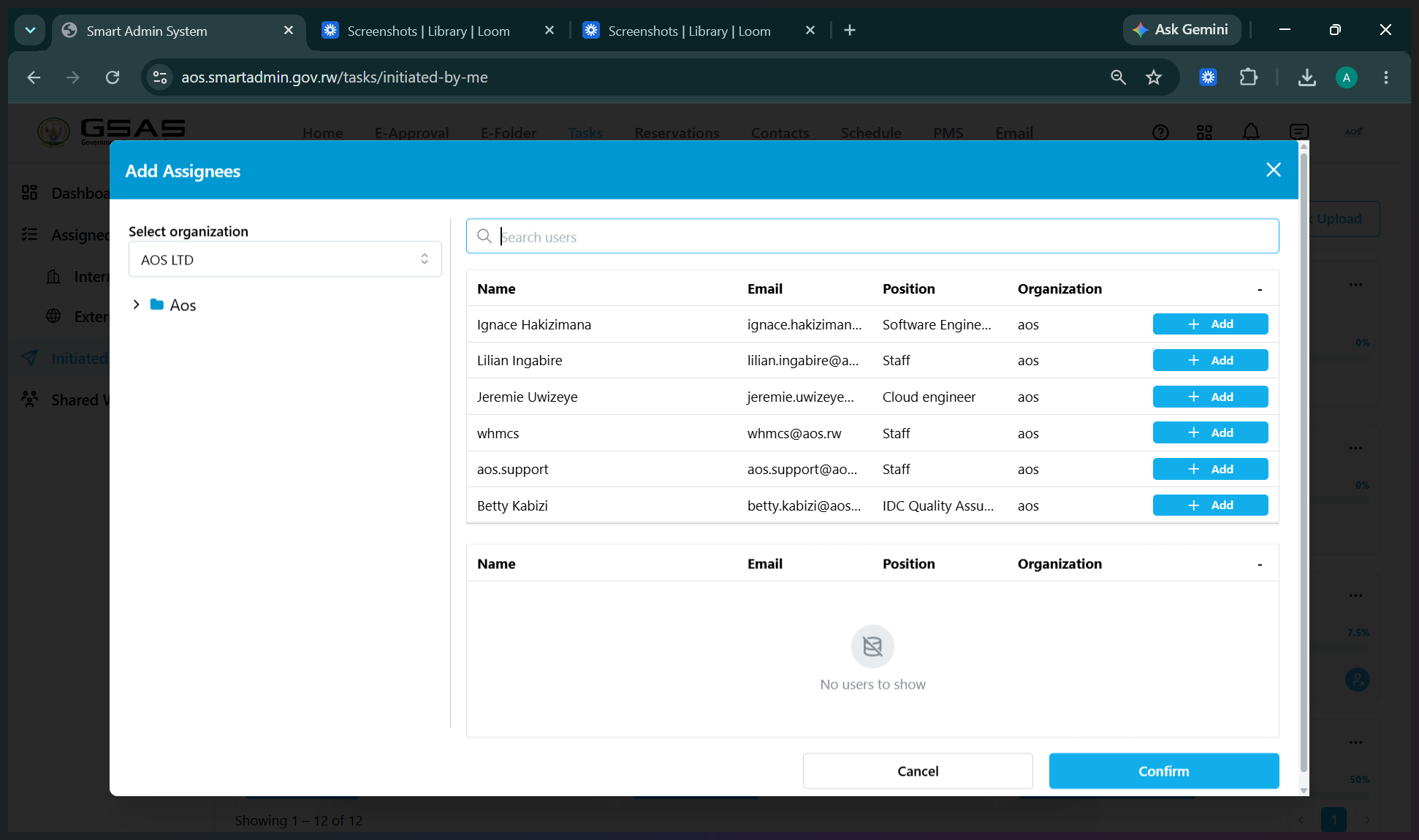
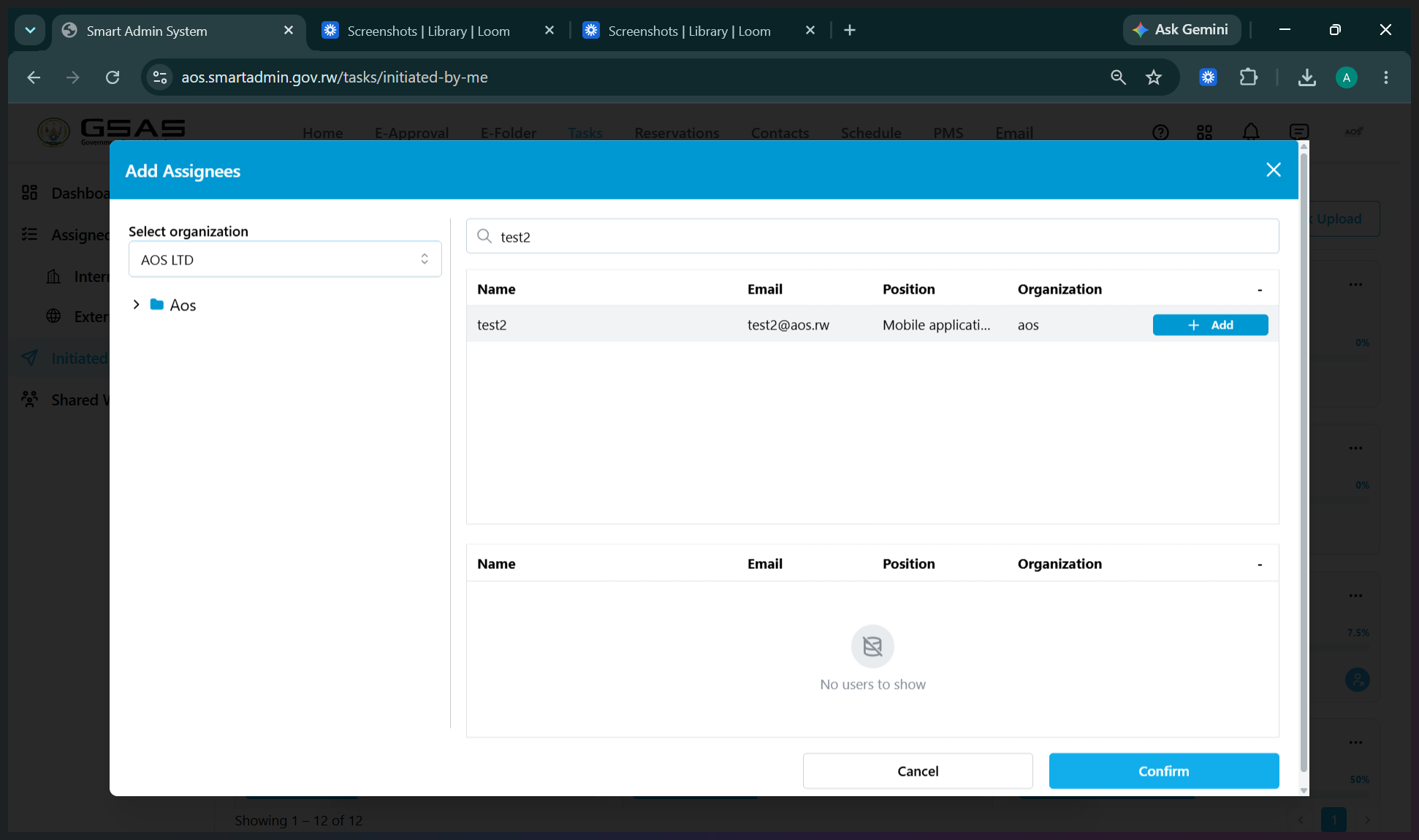
To assign the task to specific personnel:
To further categorize your task:
Updating Task Progress
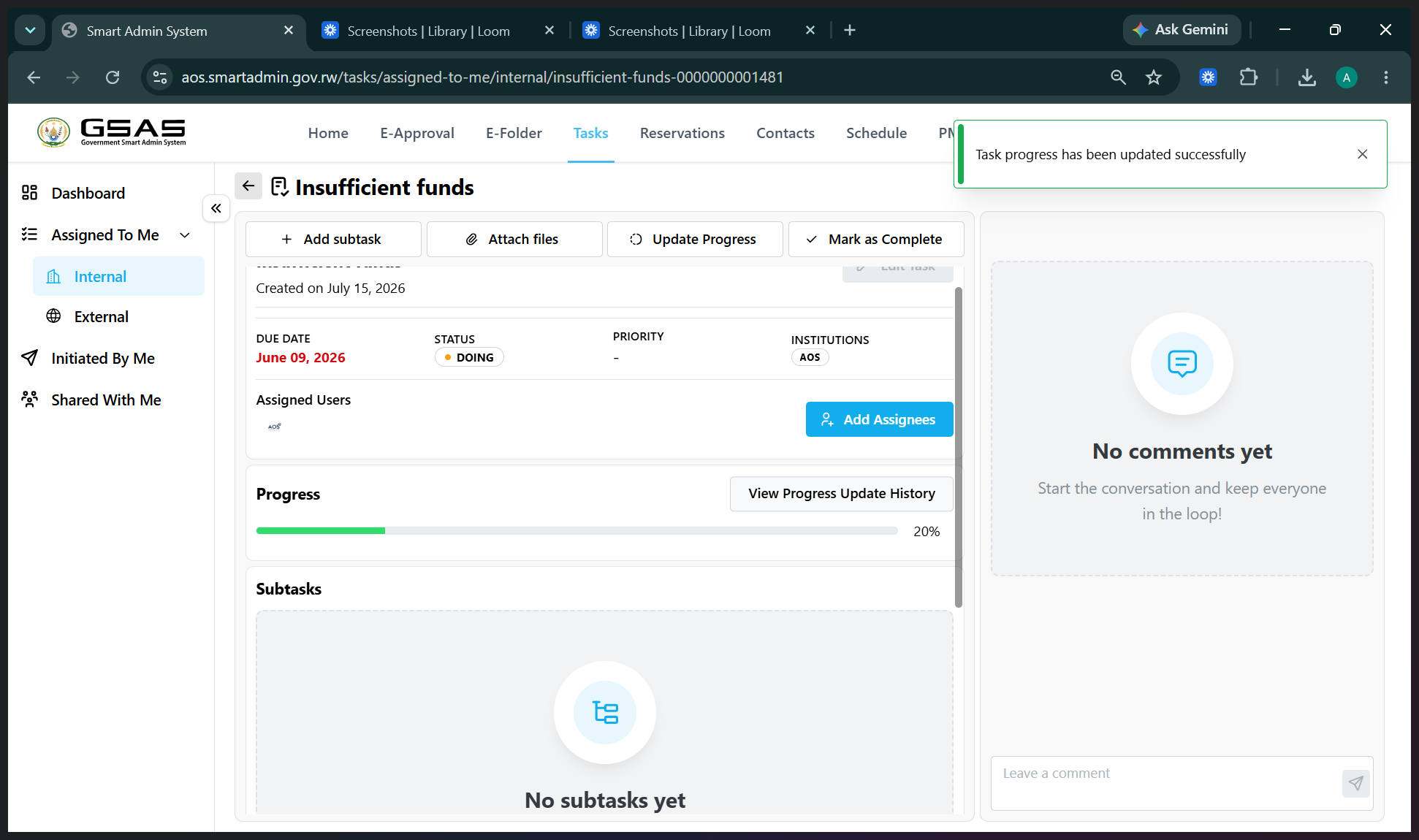
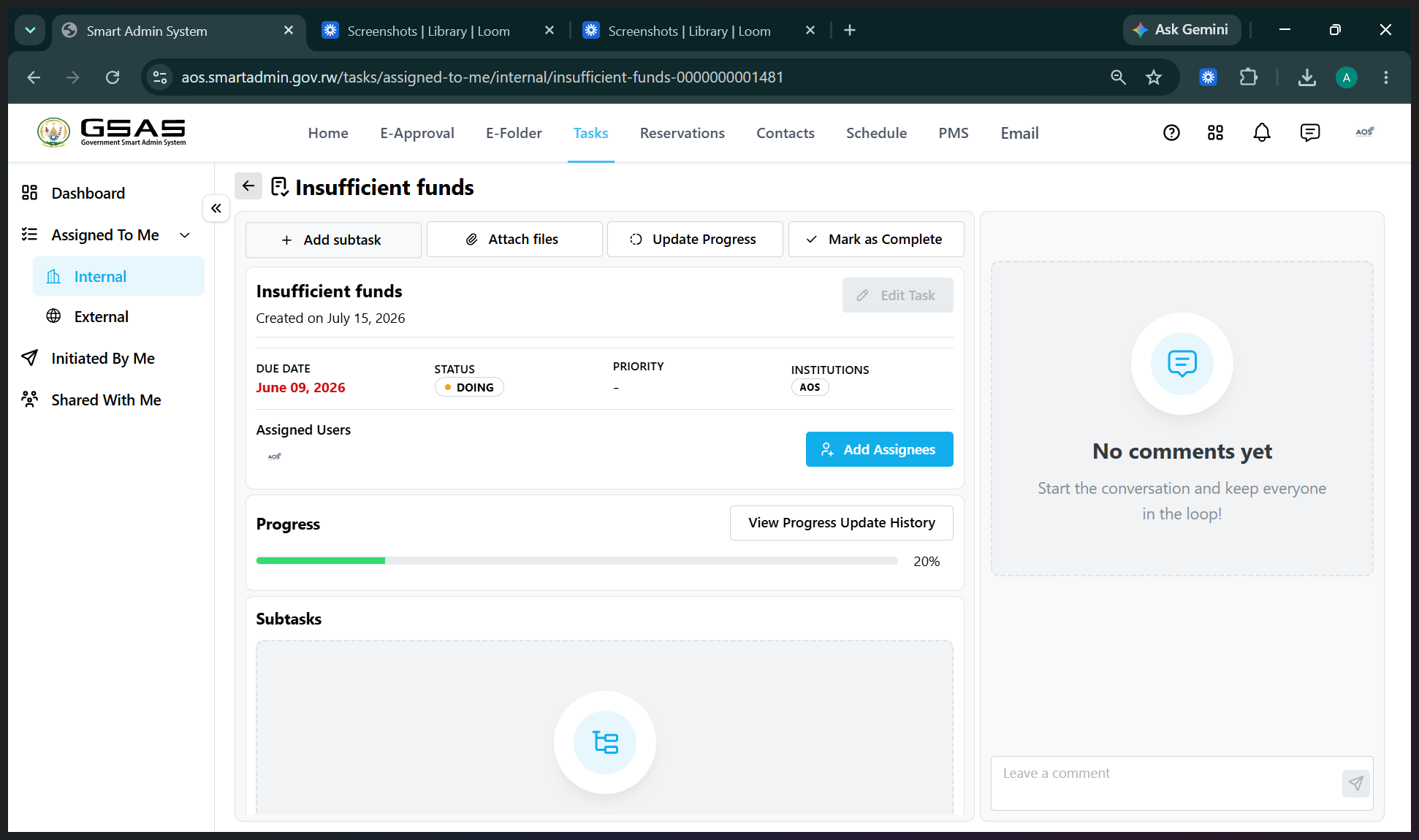
When assigned a task, users can easily log their progress and upload supporting files directly on the task page.
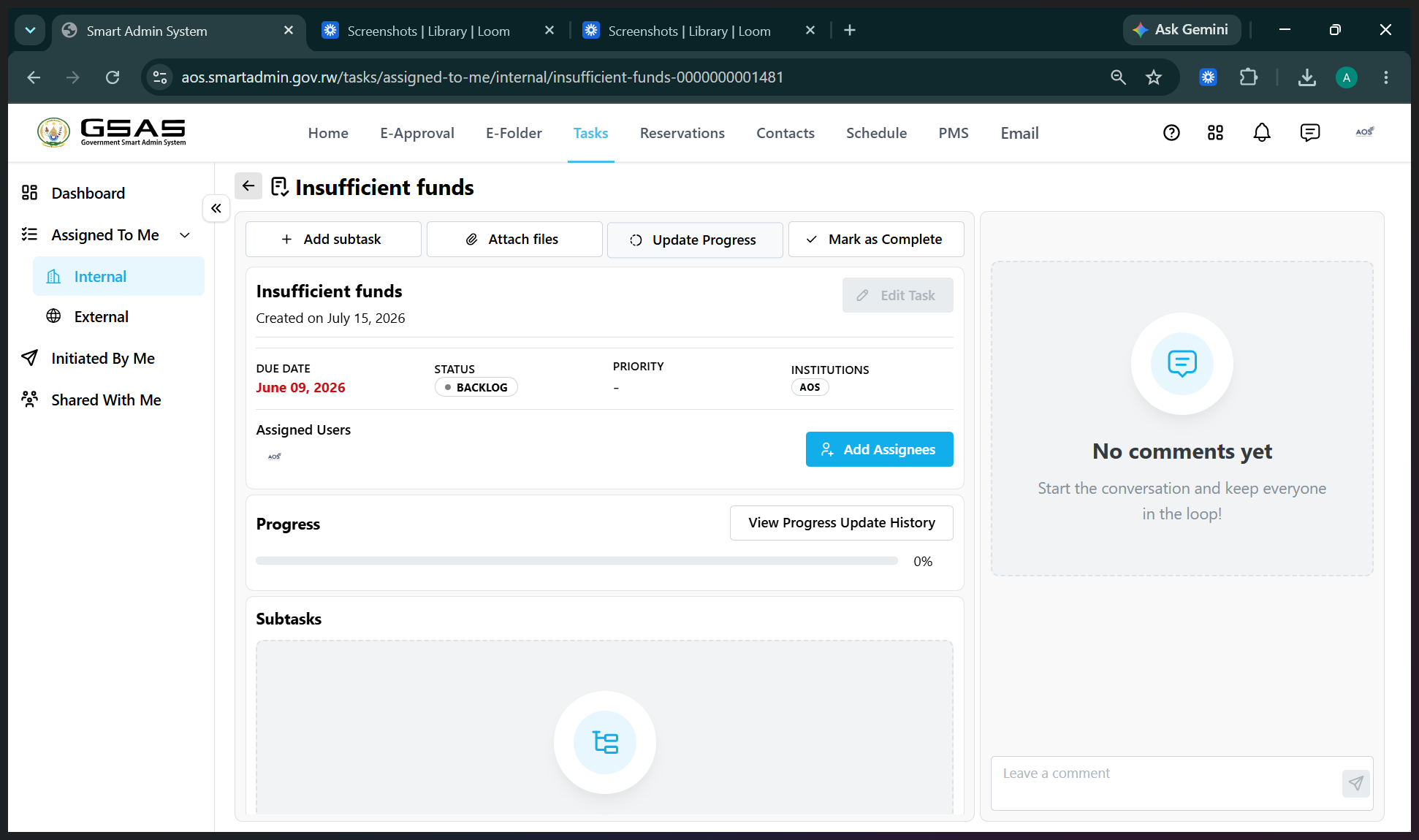
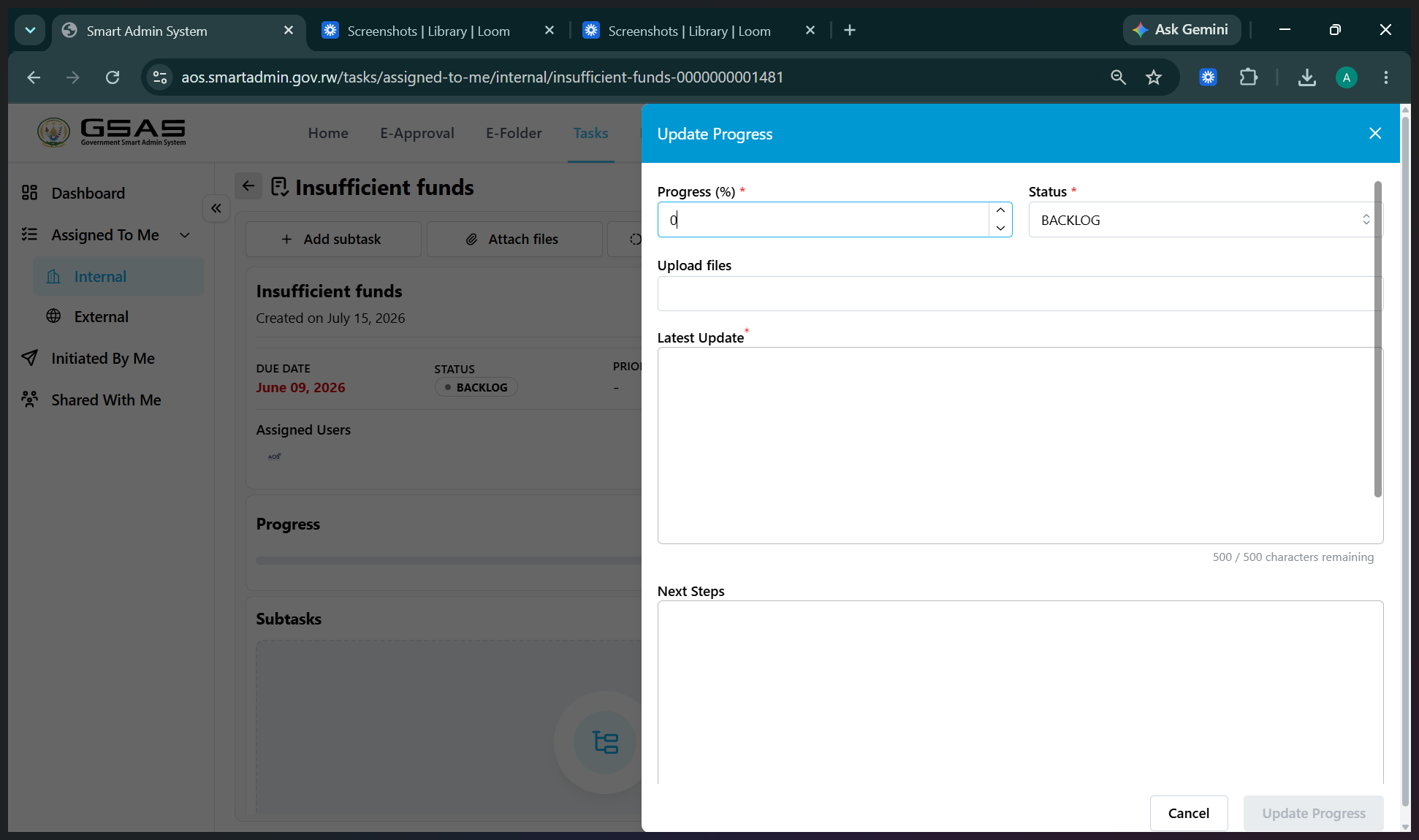
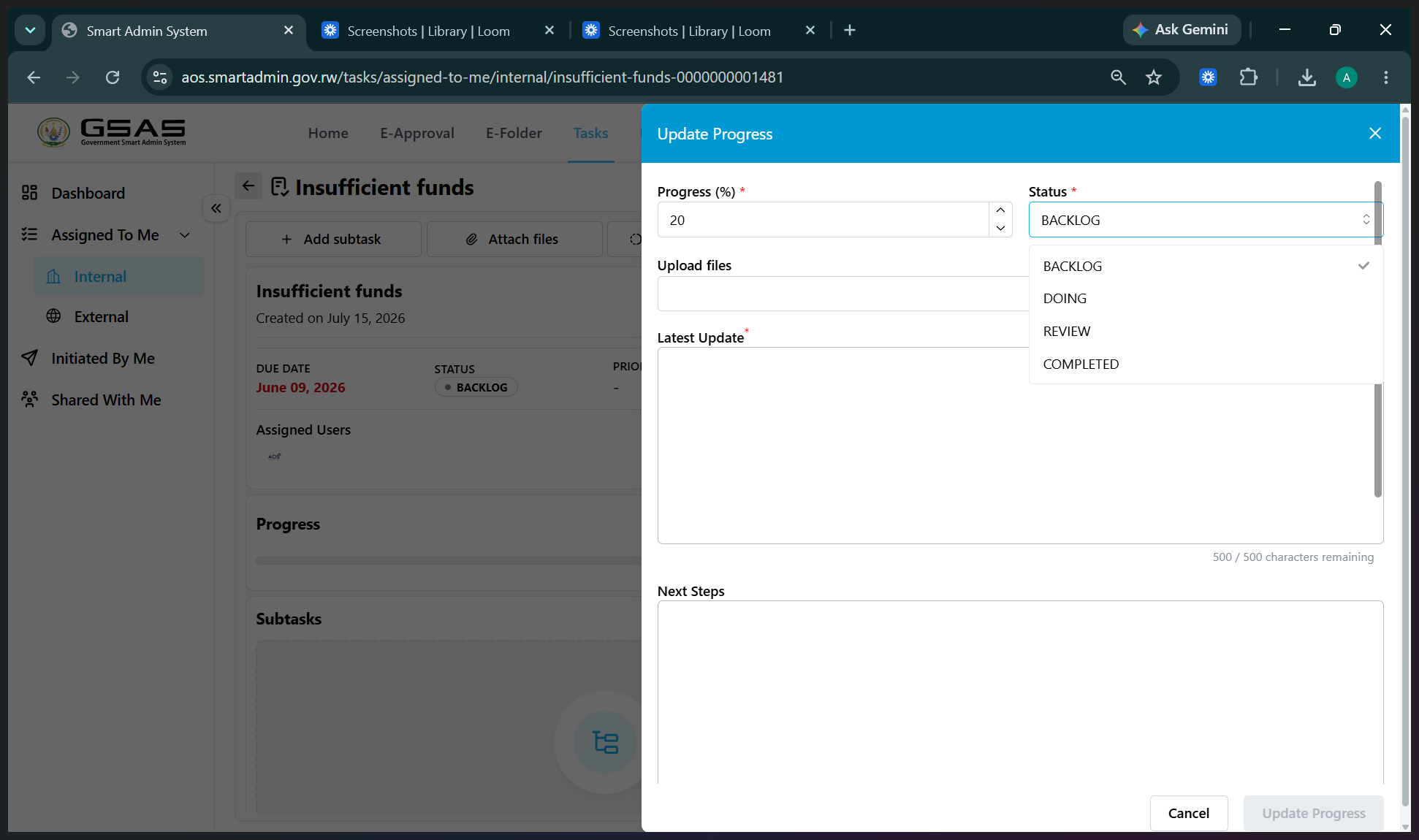
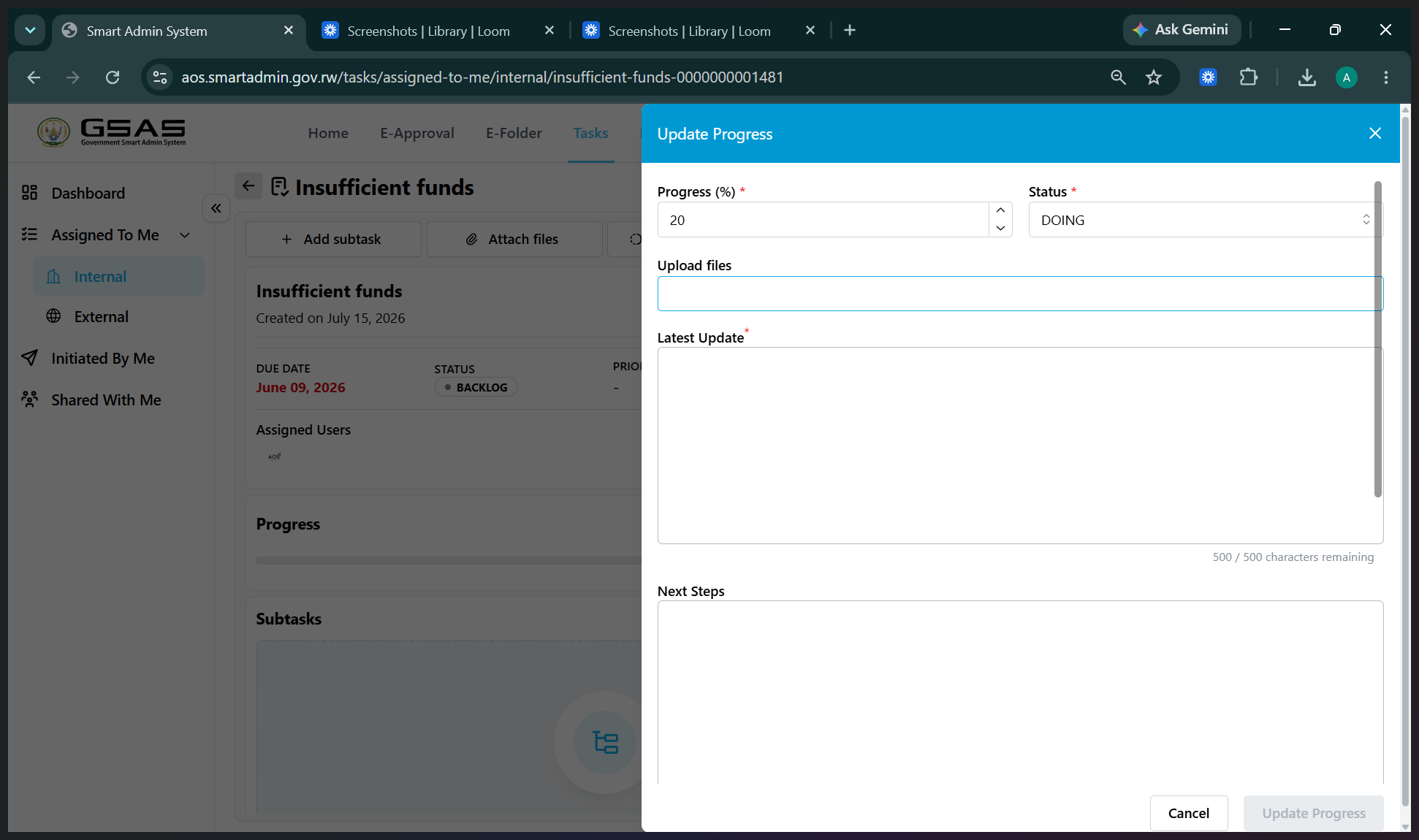
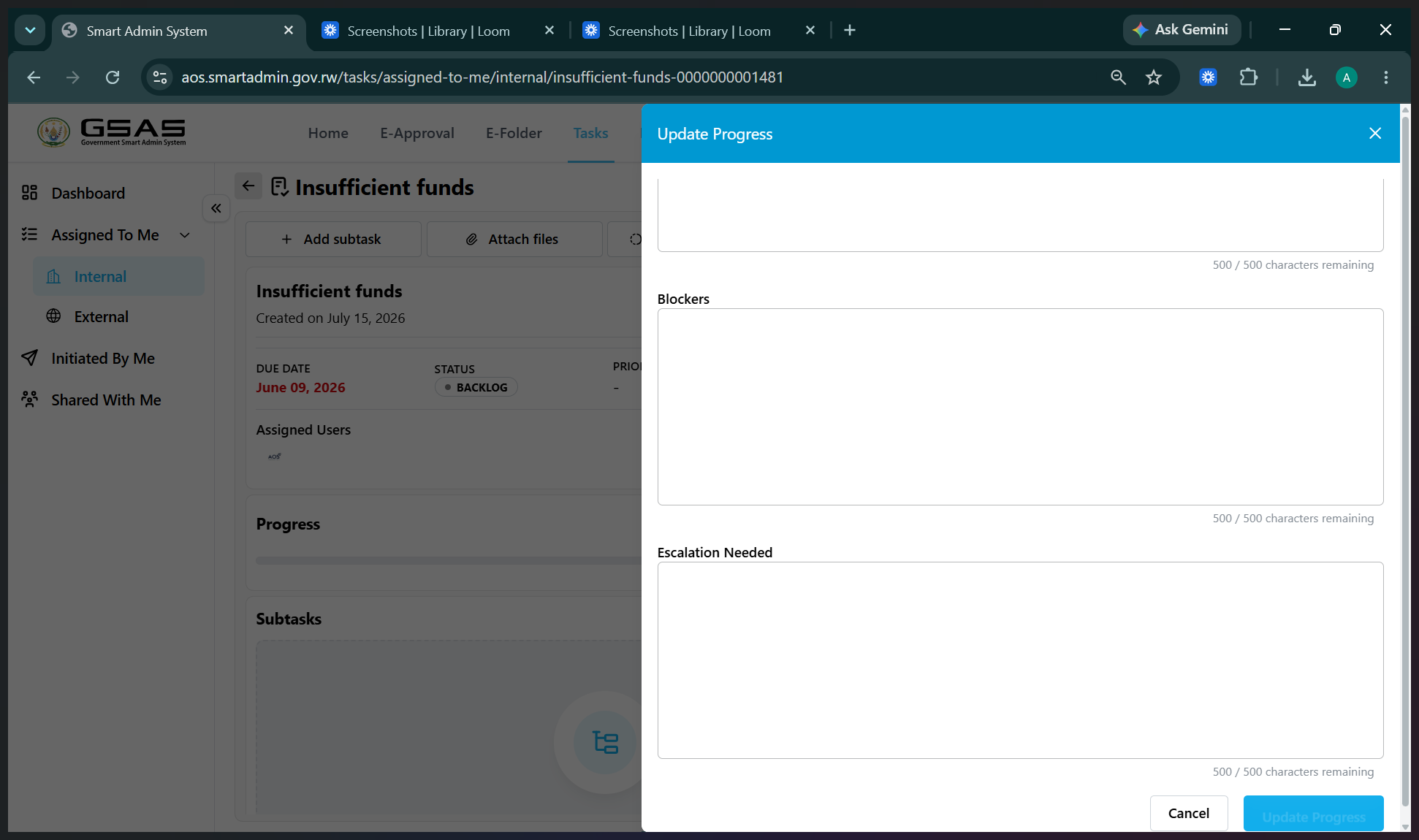
To review past updates or break down work:
Q: Can I create a standalone task without a project?
A: No, tasks cannot be created as standalone items. You must create a new task within an existing project or create a brand-new project first.
Q: What is the difference between Internal and External tasks?
A: Internal tasks are assigned to you by people operating within your institution. External tasks are assigned to you by individuals outside of your institution.
Q: Which fields are required when creating a new task?
A: Only the task name, status, and project fields are mandatory. All other fields, such as due date, assignees, priority, and labels, are optional.
Q: How are users notified when assigned a new task?
A: The task assignee automatically receives an email notification alerting them that they have been assigned a task.
Term | Definition |
|---|---|
Internal Task | A task assigned to a user by someone within their own institution. |
External Task | A task assigned to a user by someone operating outside of their institution. |
Parent Task | A primary overarching task that encompasses one or more smaller, nested subtasks. |
Subtask | A smaller, dependent task that rolls up into a parent task. |