How to Review and Manage Unacknowledged Orders
Learn the daily best practice for reviewing unacknowledged orders, managing shipping holds, and ensuring timely production optimization.
Reviewing your unacknowledged orders should be a top priority every morning. Taking 10 to 30 minutes at the start of your day to address holds, fix dates, and acknowledge ready orders ensures that customers get their products on time and helps the optimization team maintain a regular production schedule.
Accessing Unacknowledged Orders
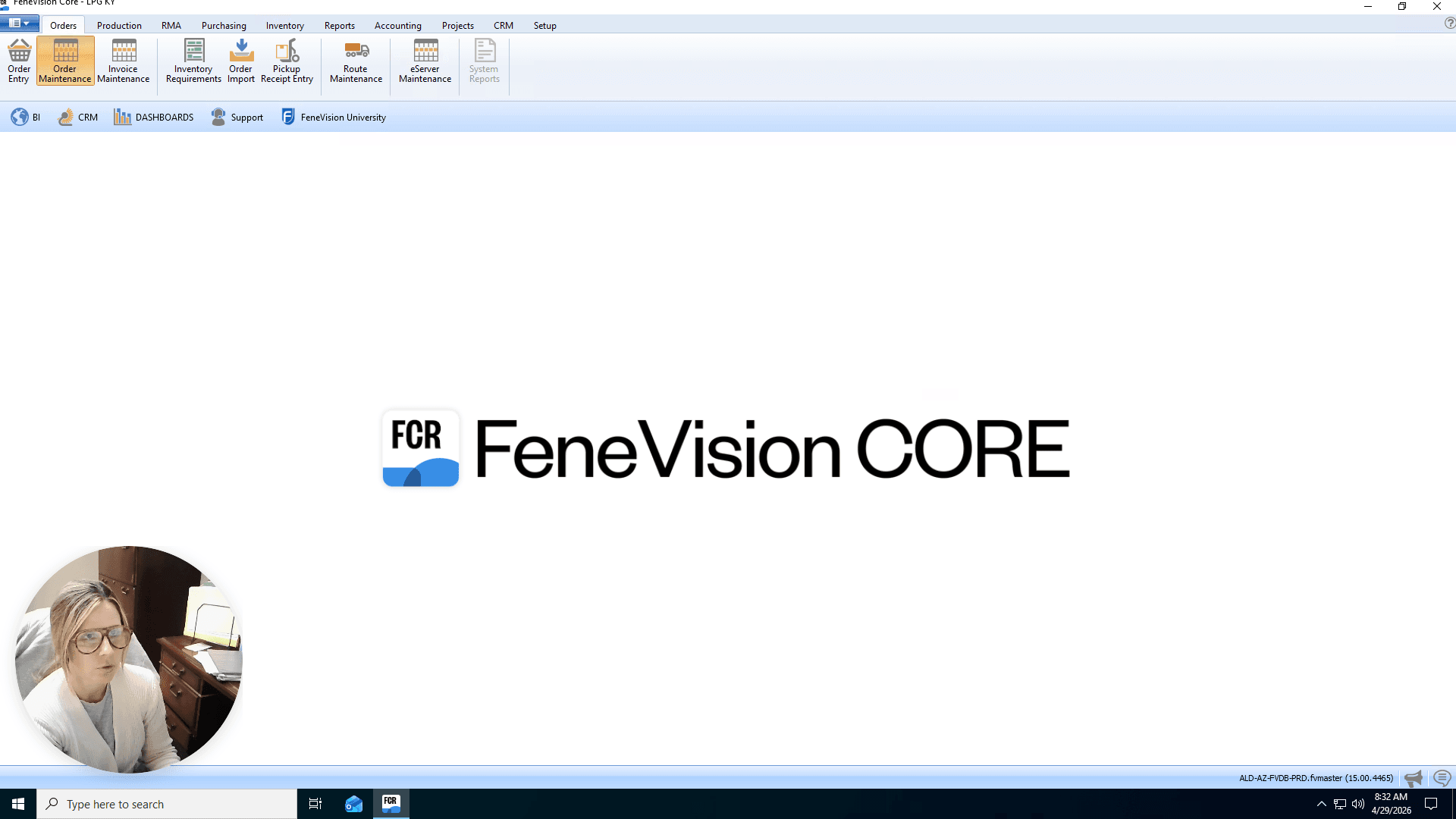
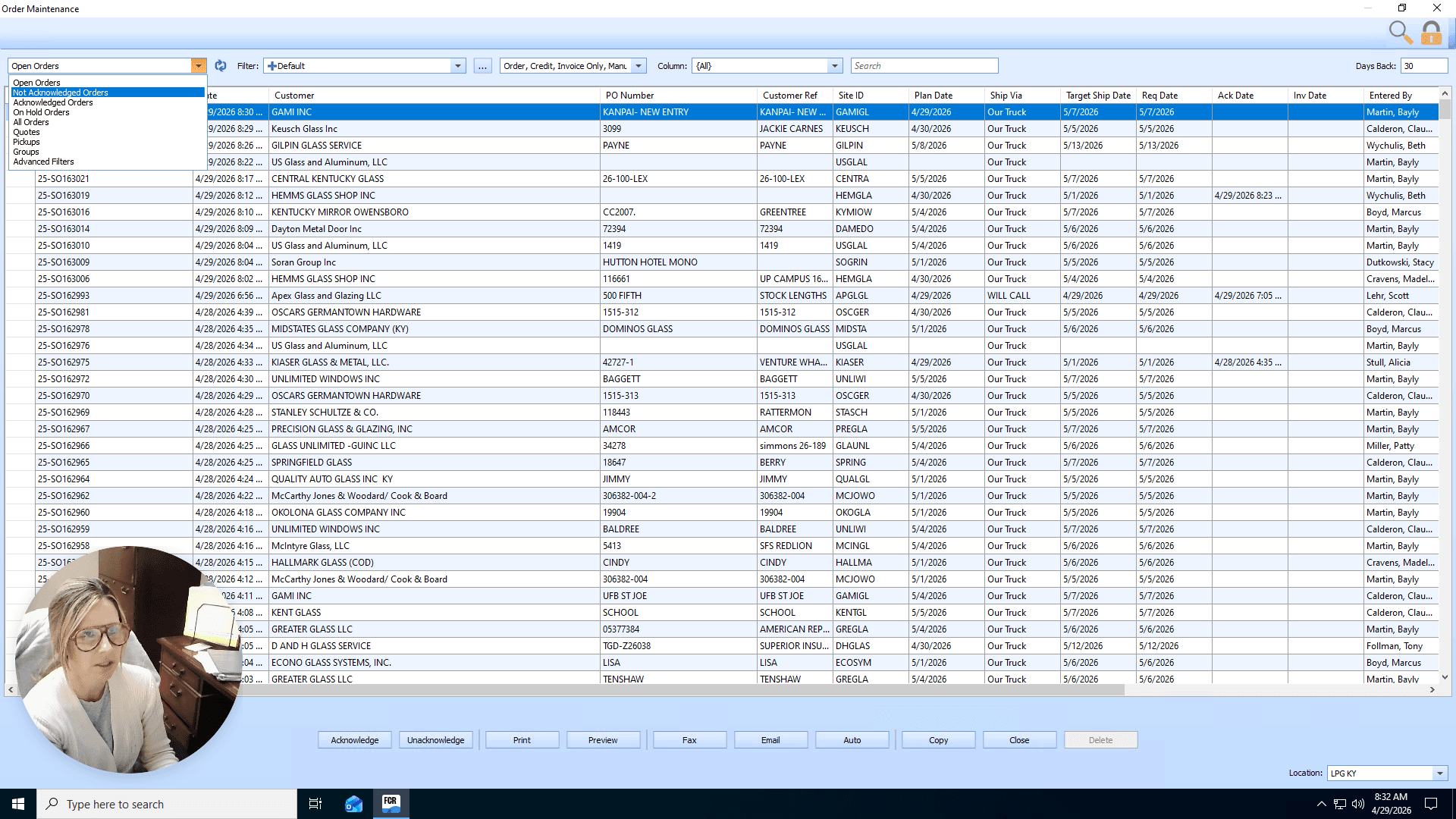
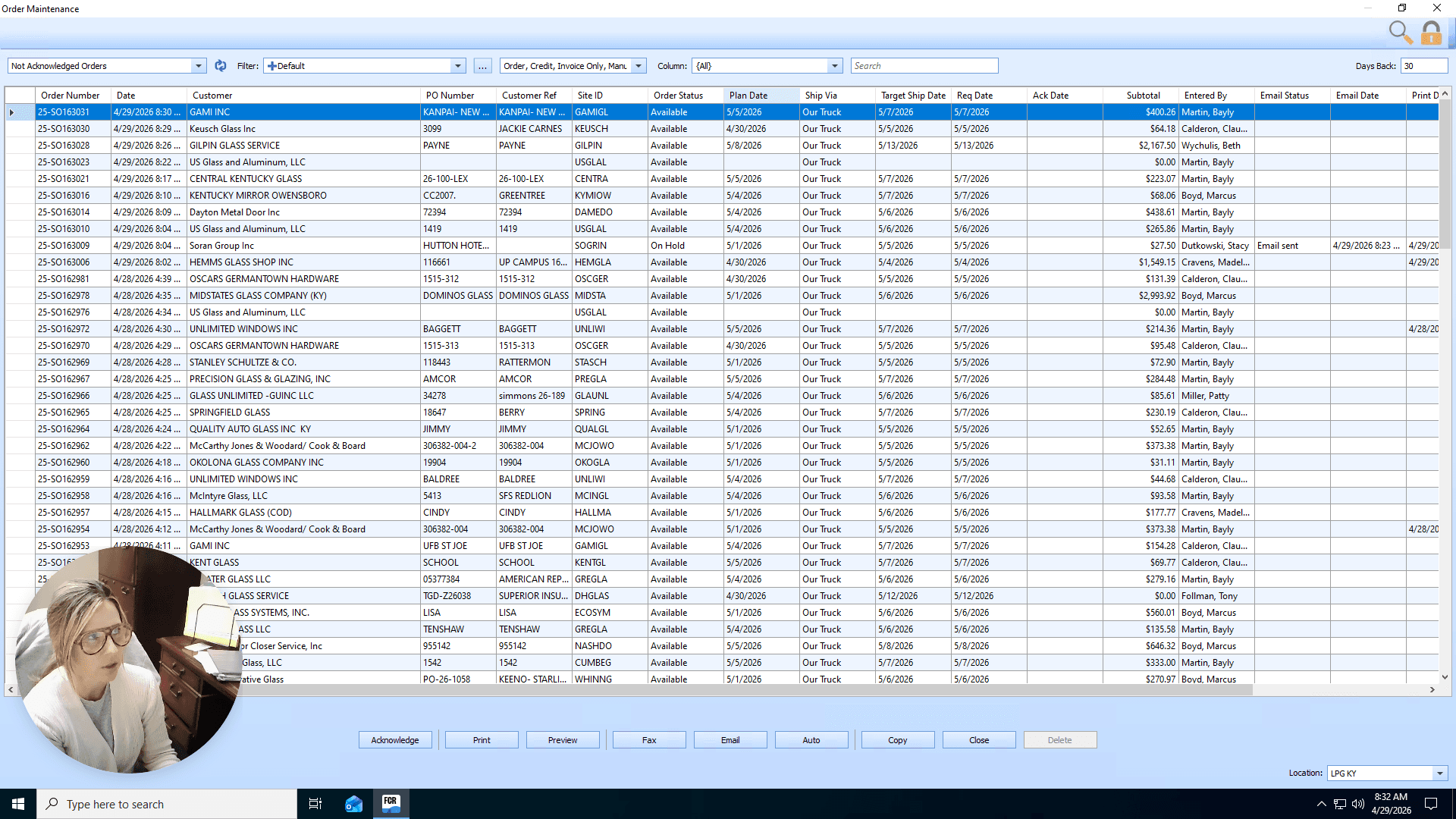
Sorting by the planned date brings the oldest, past-due orders to the top of the list so you can address them first.
Reviewing and Updating Problem Orders
Look for orders that have past planned dates or are explicitly marked "On Hold."
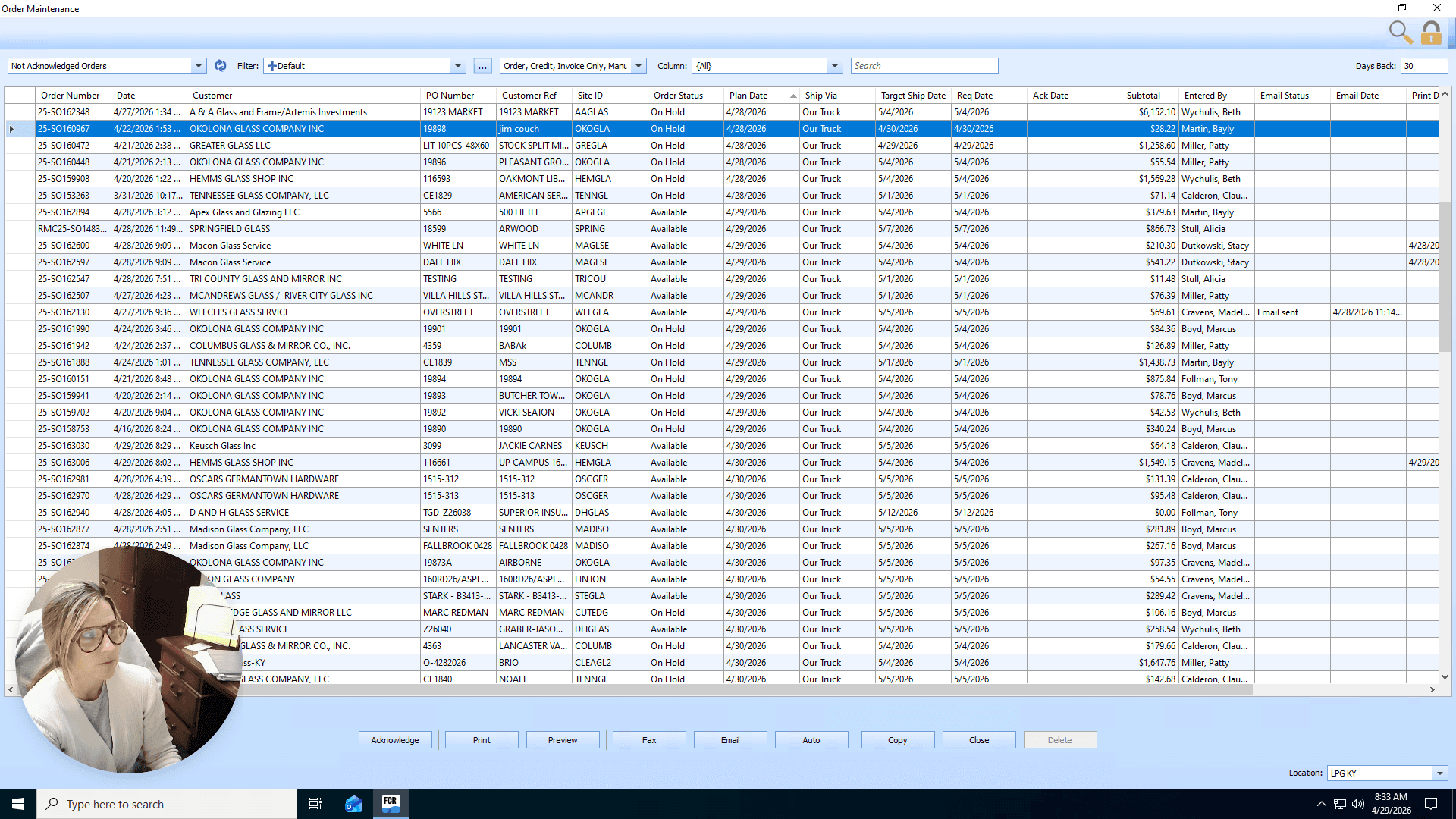
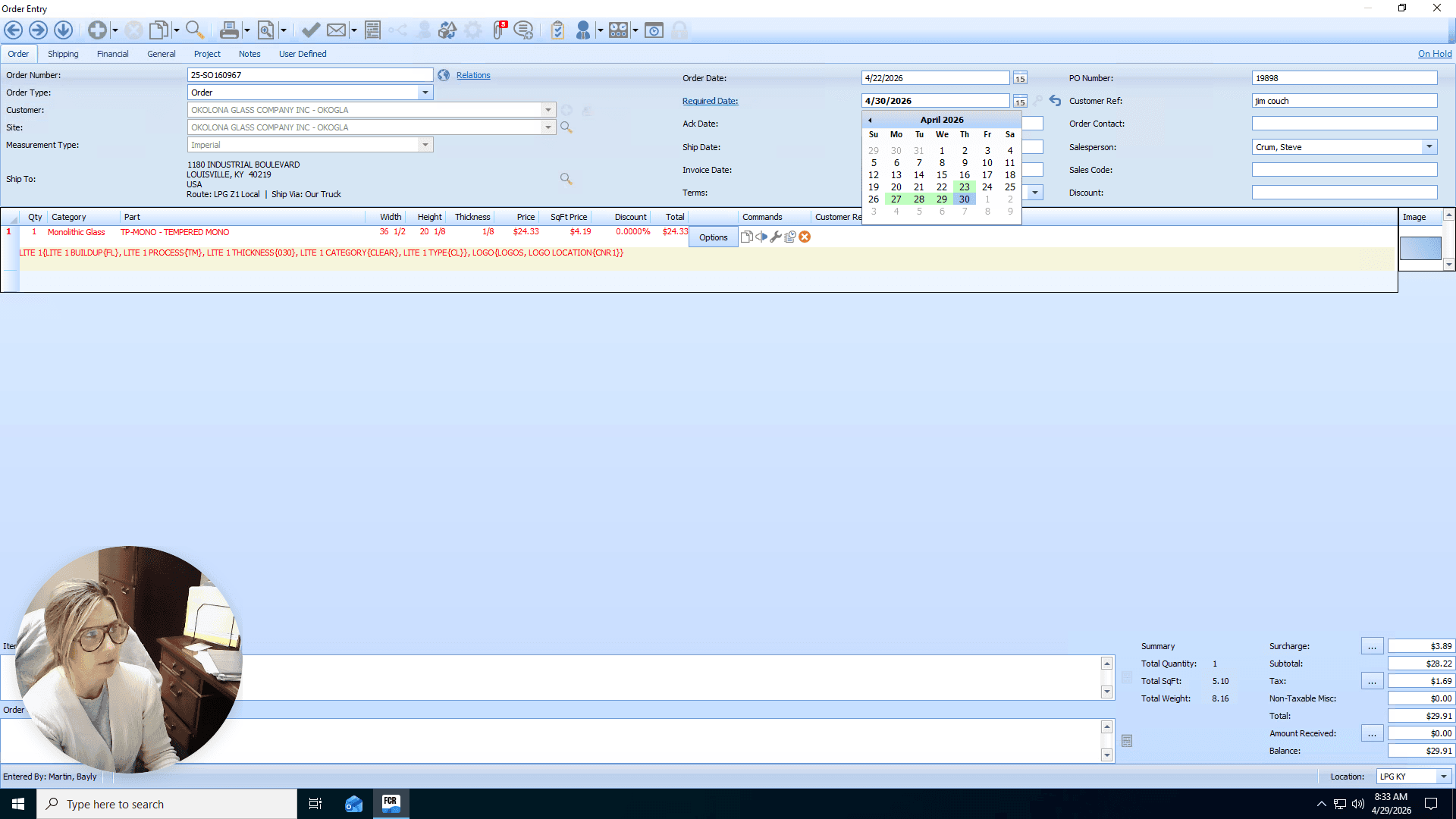
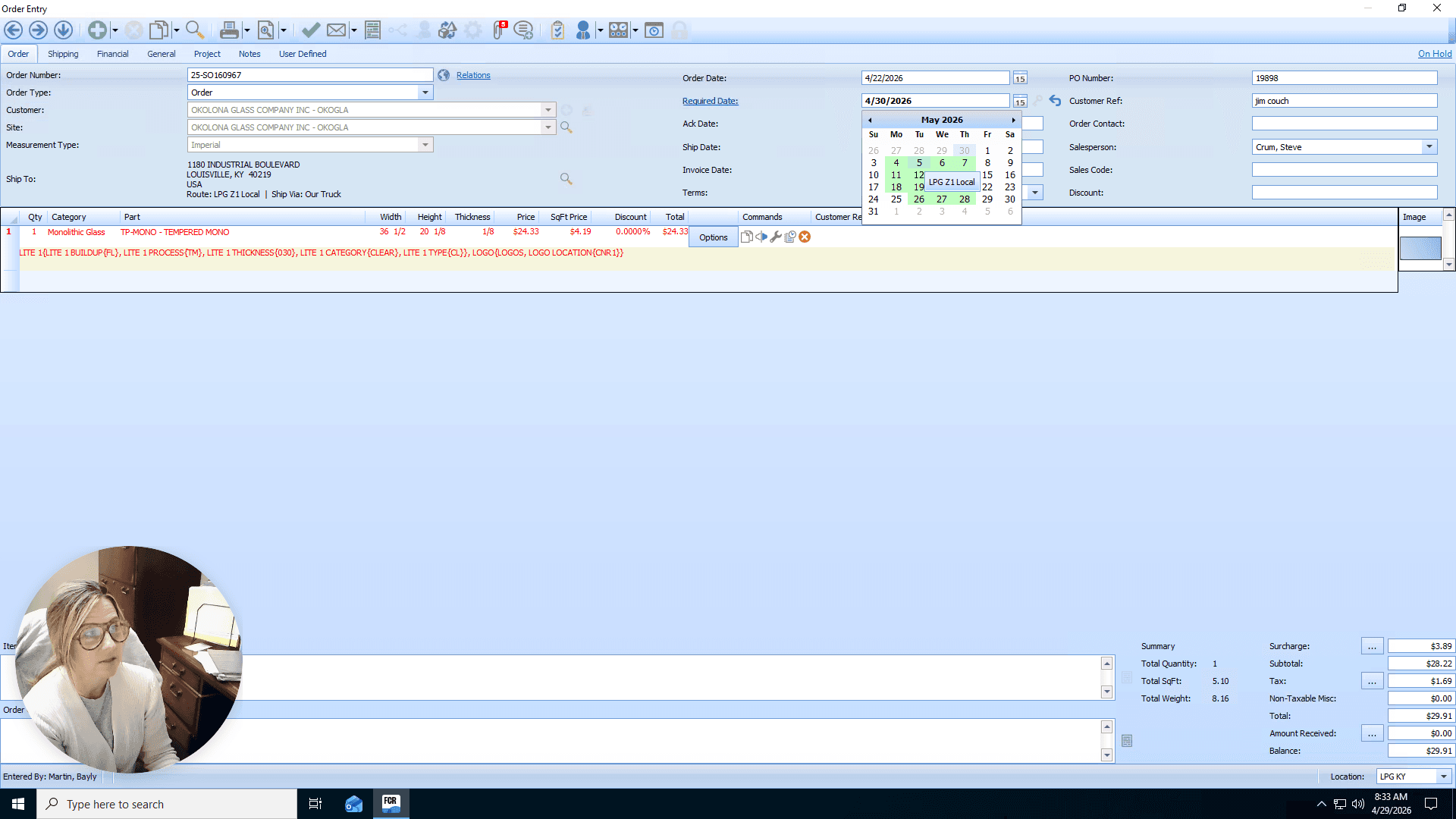
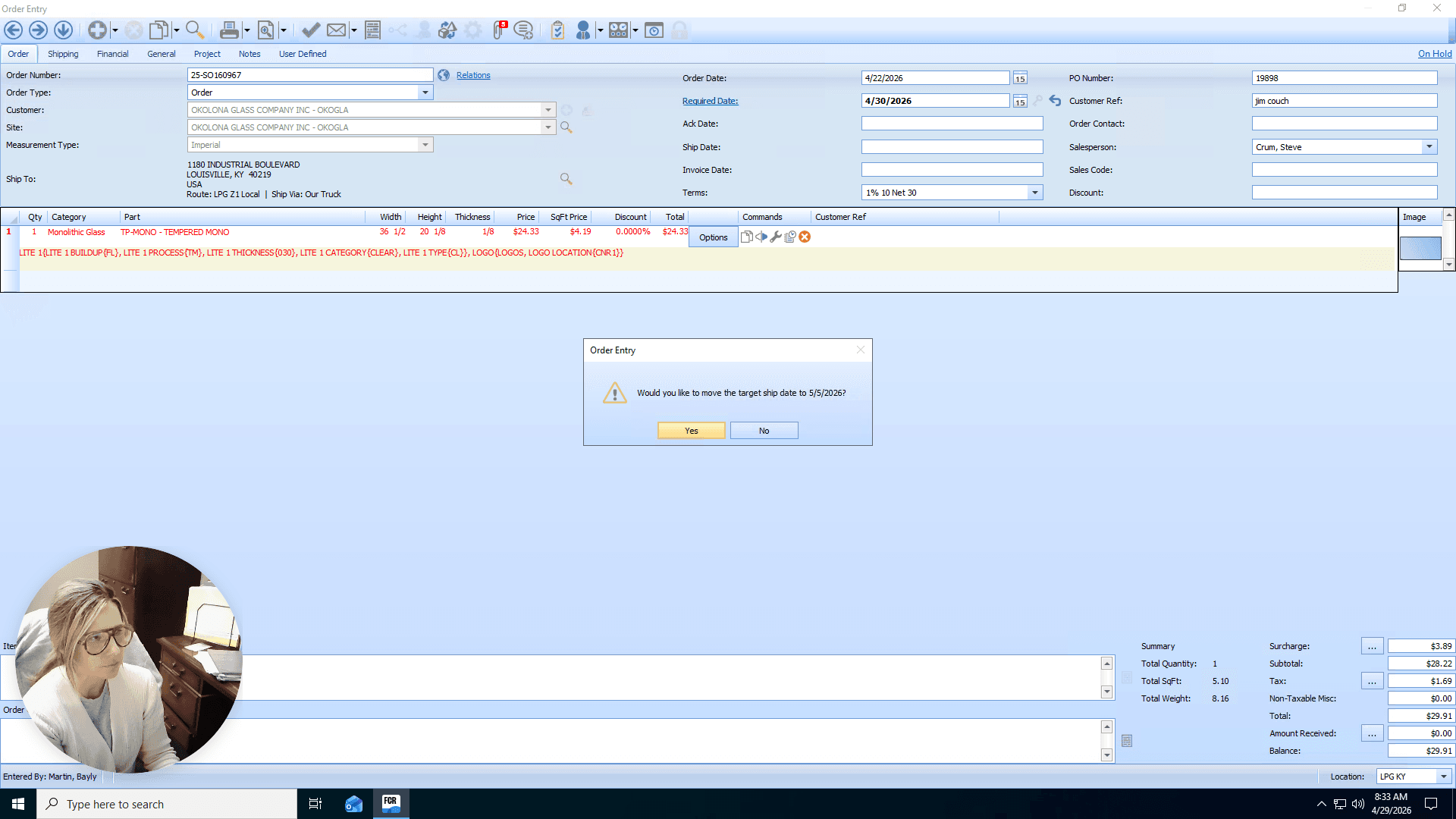
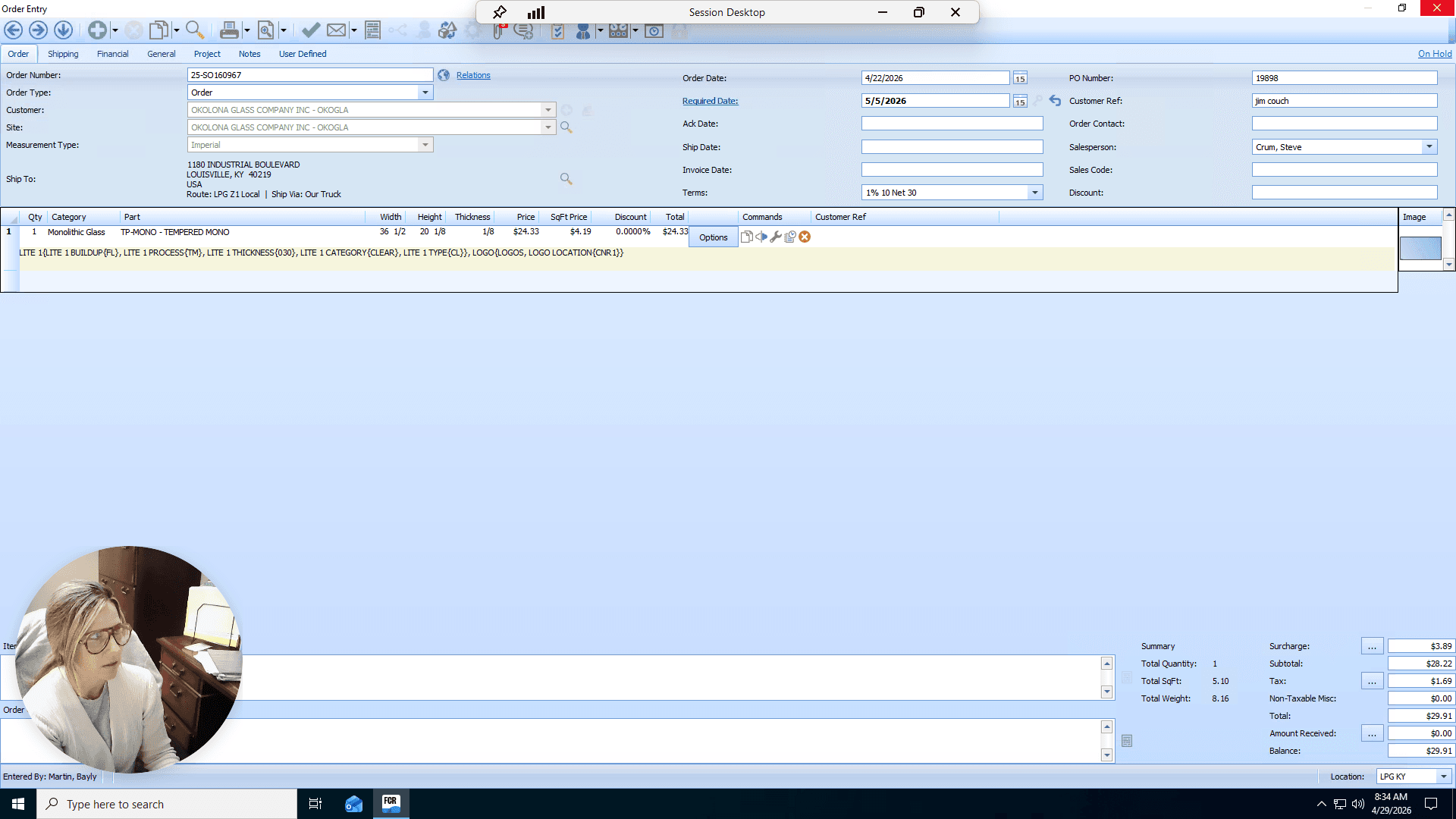
Investigate why the order is delayed. Common issues include past-due customer accounts or duplicate PO numbers. If an order has been delayed and cannot make its original target ship date, you must push the date out to set realistic expectations.
Acknowledging Orders and Cleaning Up
Once you have verified an order is accurate, holds are cleared, and the dates are achievable, you can push it through.
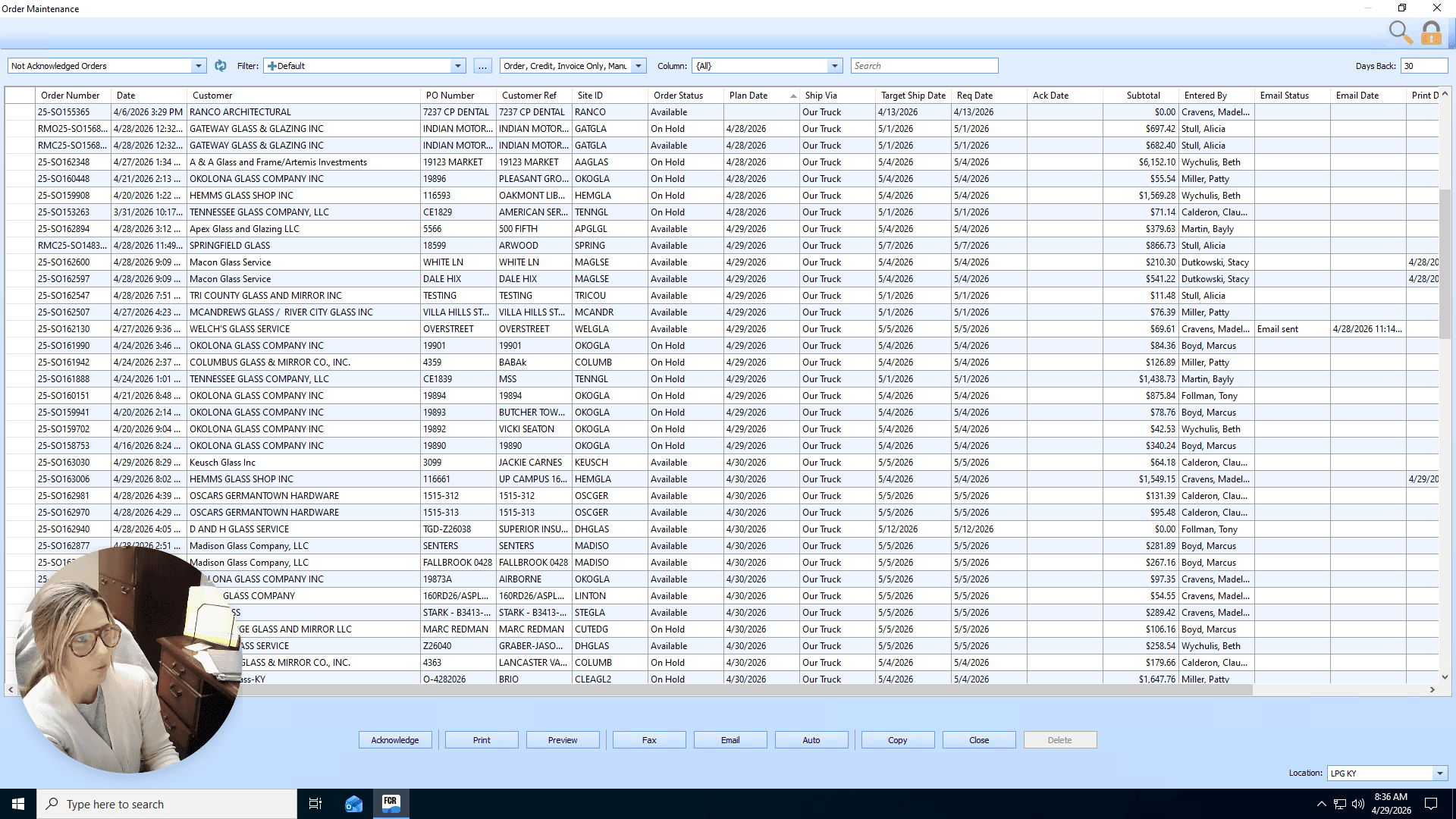
Acknowledging the order removes it from your list and sends the acknowledgment to the customer.
Check this list periodically throughout the day to ensure a smooth flow of orders to the optimization team.