
How to Manage the 'Waiting Further Information' Pipeline
Learn how to sanitize the referral pipeline by checking for missing information, sending chasers, and ensuring client data matches across Zoho CRM and WriteUpp.
This guide outlines how to manage clients in the "Waiting further information" stage of the pipeline. The goal is to ensure clients don't stall in the pipeline by proactively requesting missing referral details, correcting data errors, and discharging inactive clients.
This applies to administrative staff managing client intake. You will use this process to routinely sanitize the pipeline and prevent bottlenecks before scheduling appointments.
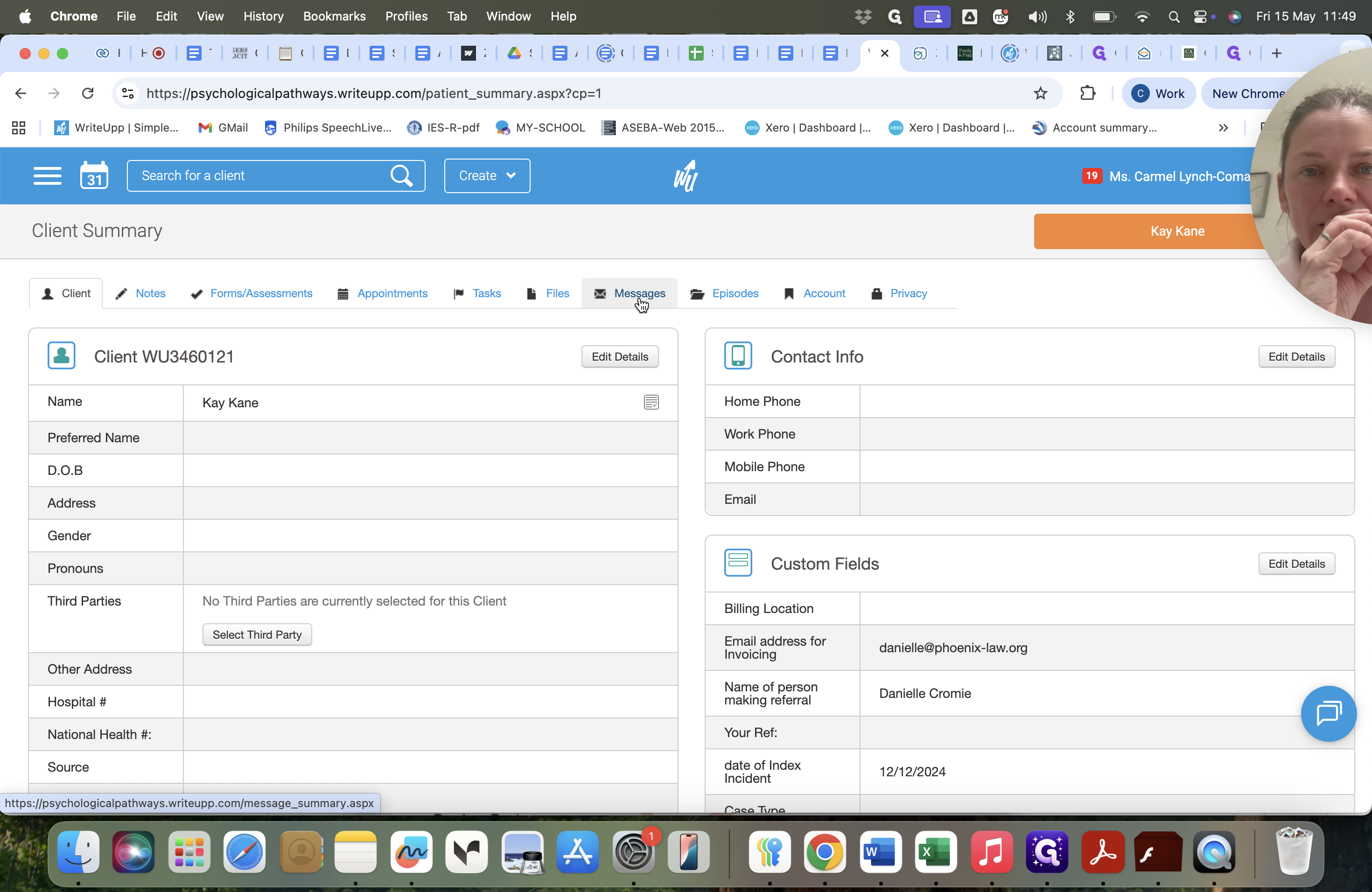
Reviewing the Pipeline and Client History
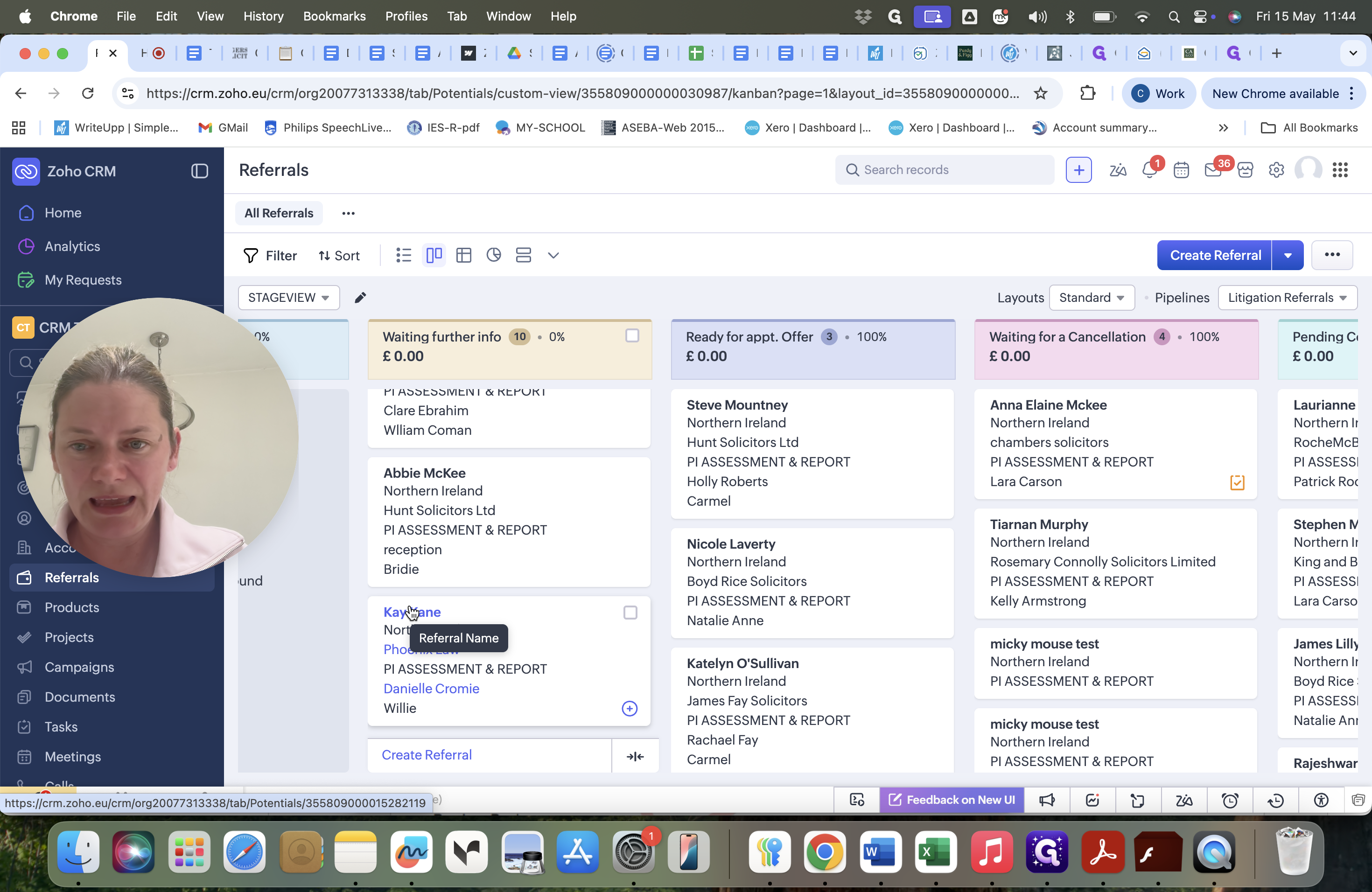
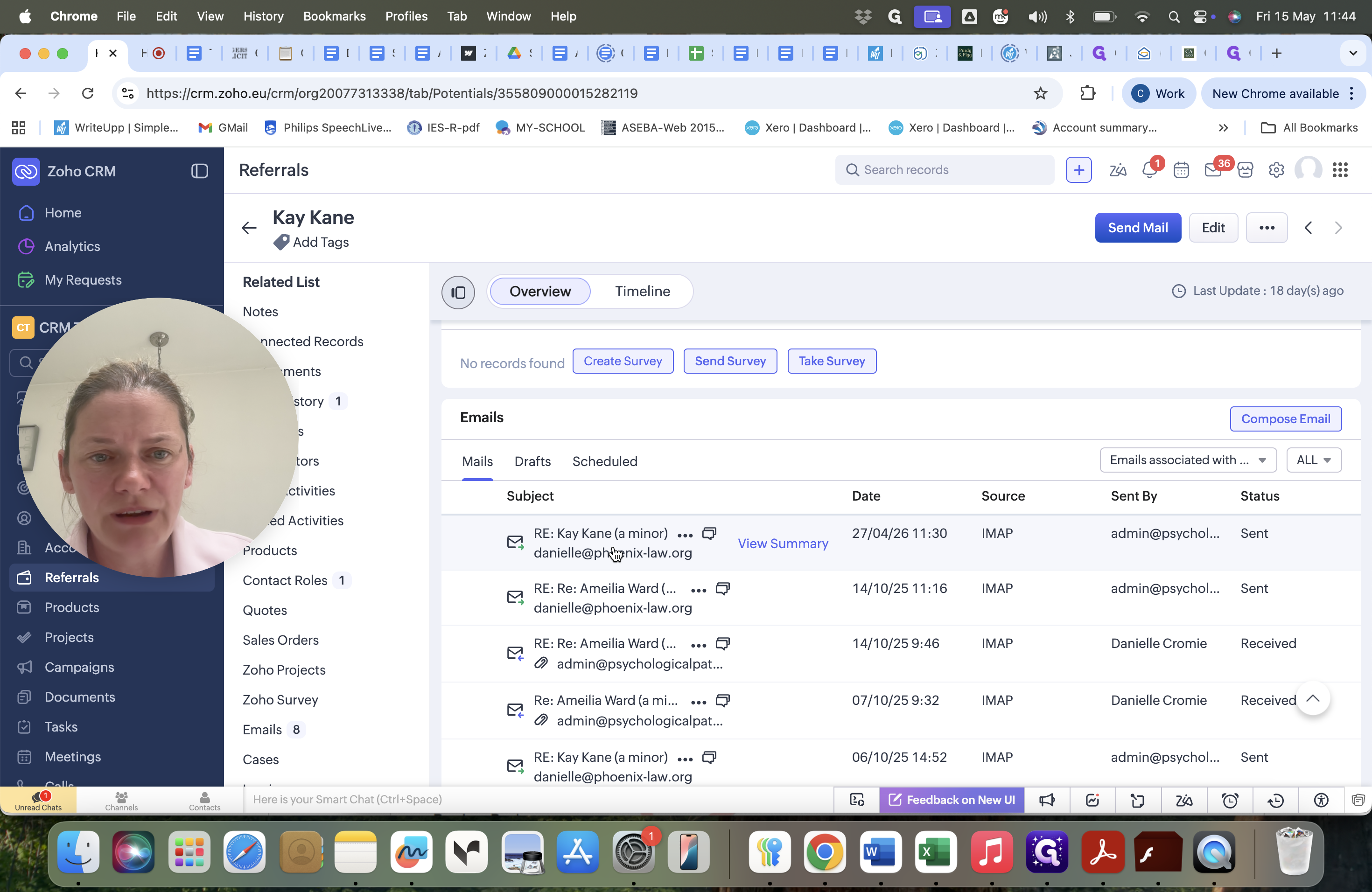
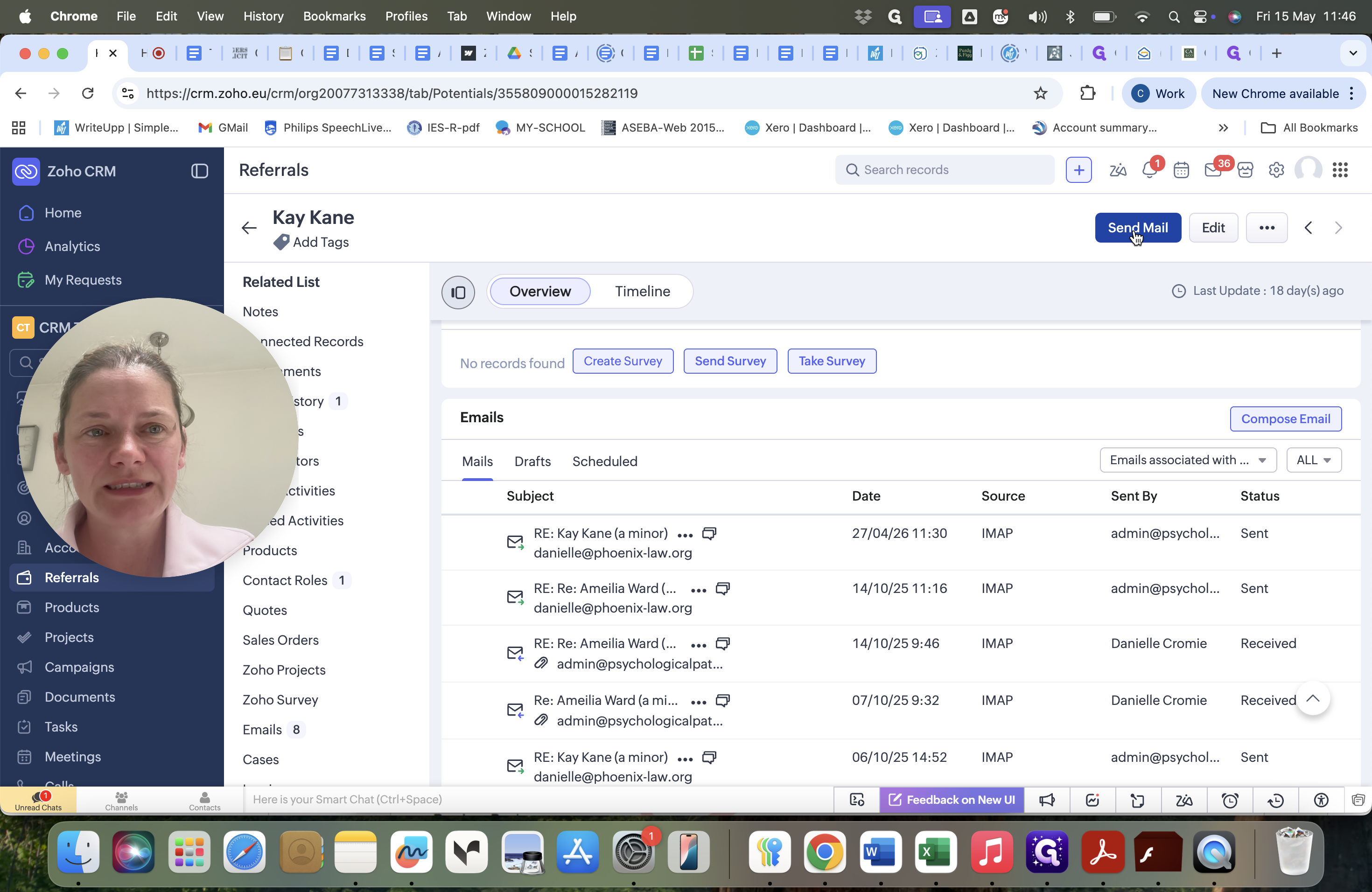
Before sending any communication, verify whether an information request was already sent to the solicitor.
Sending Chaser Emails
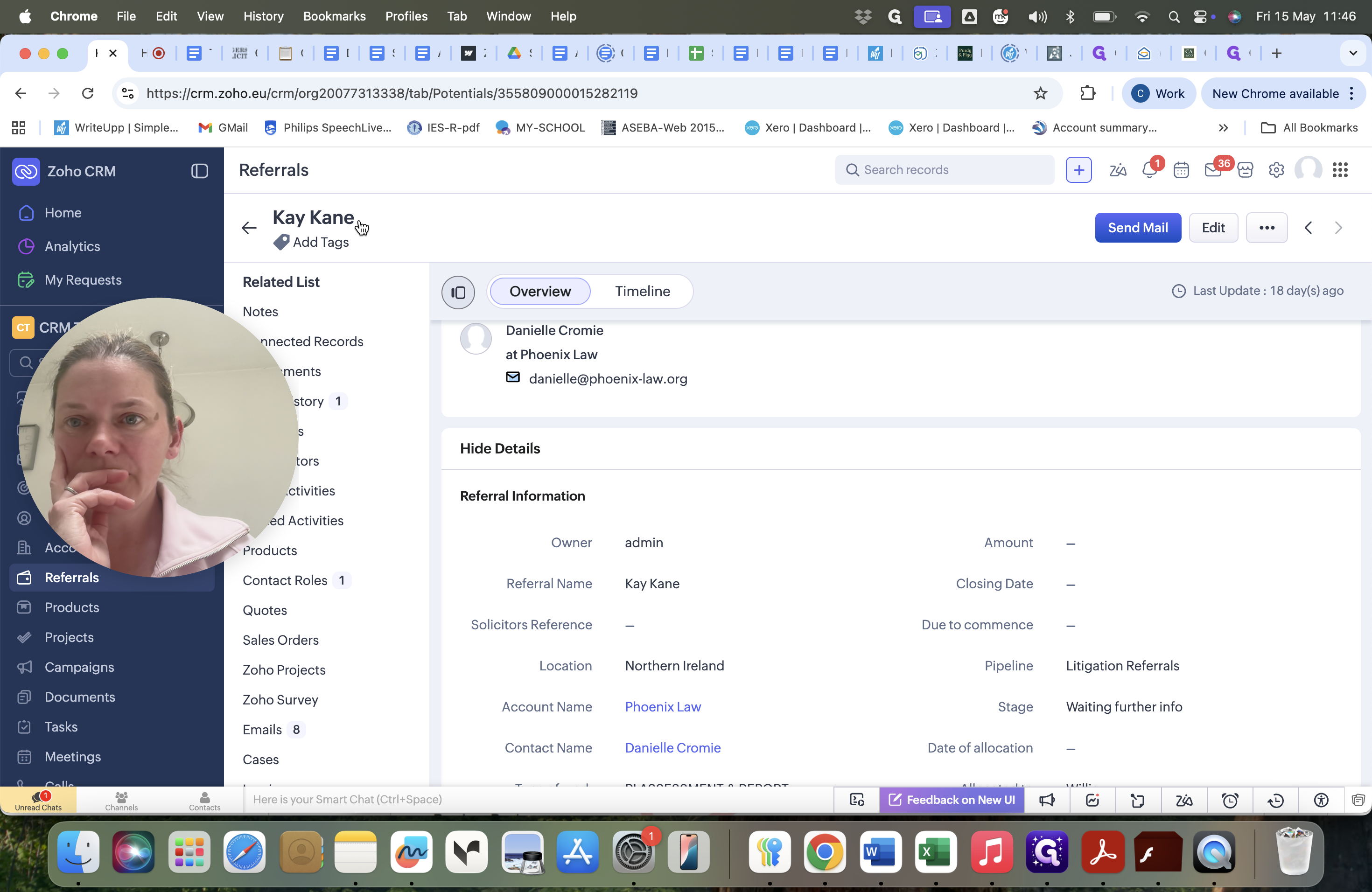
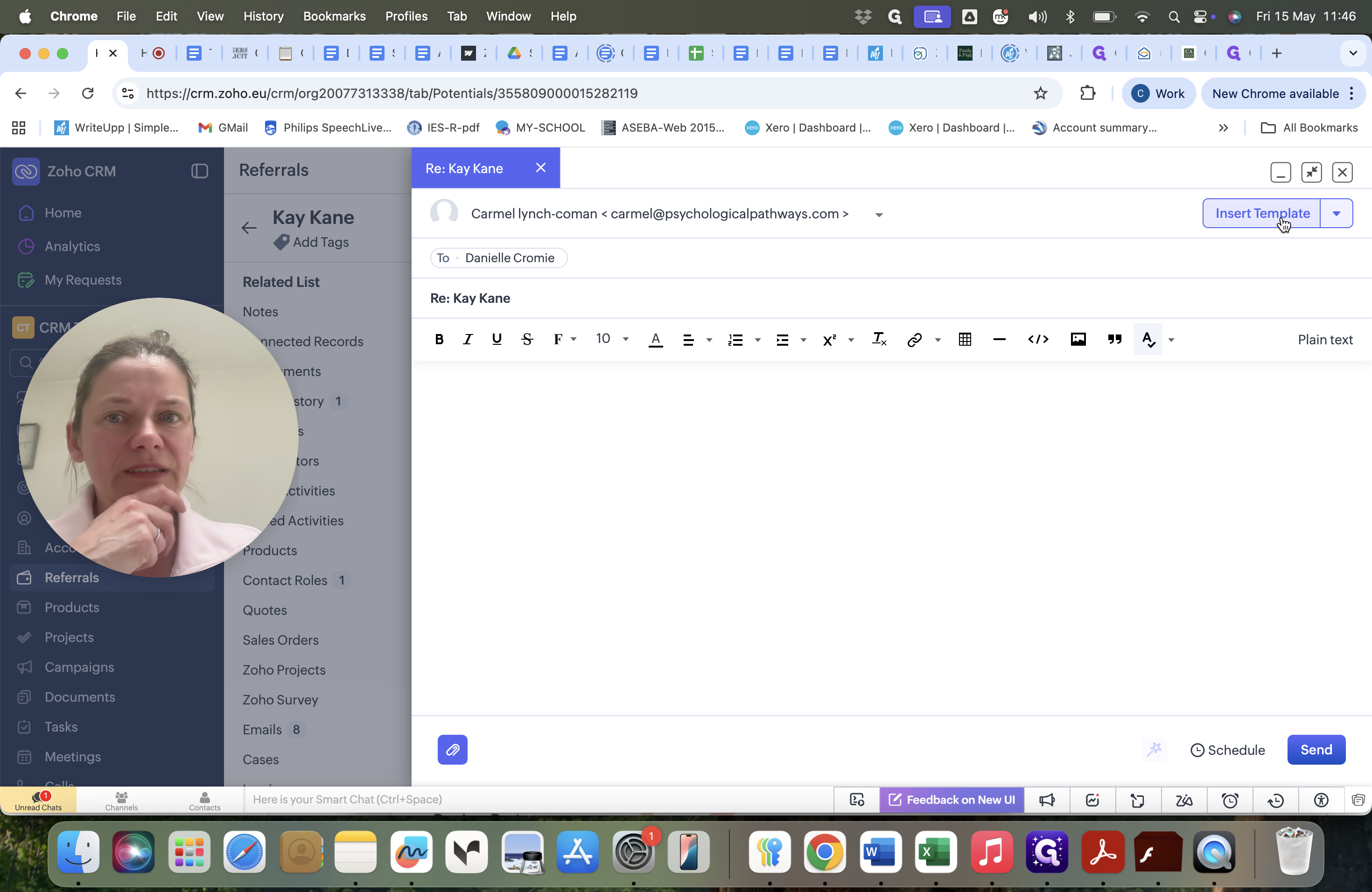
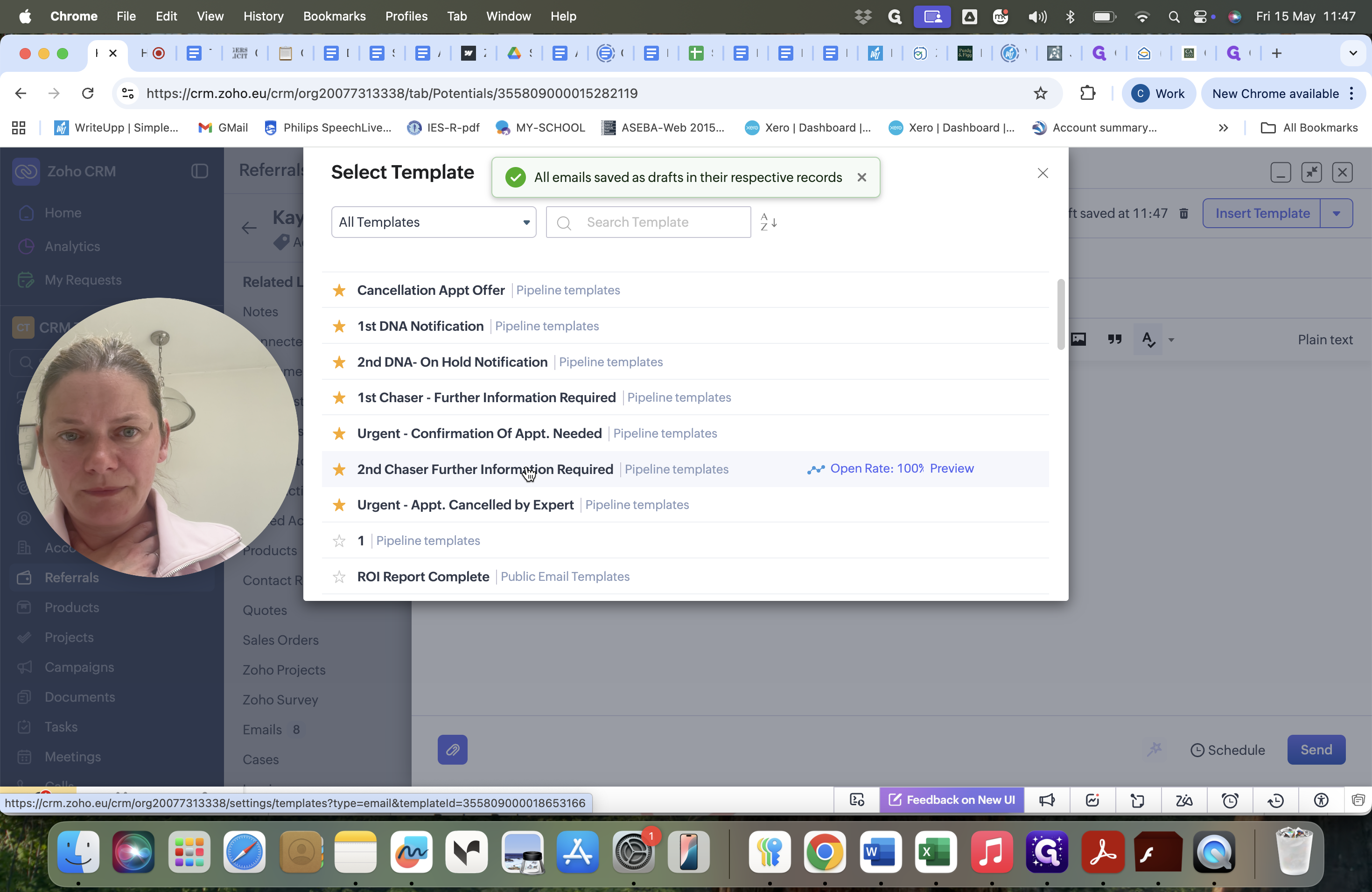
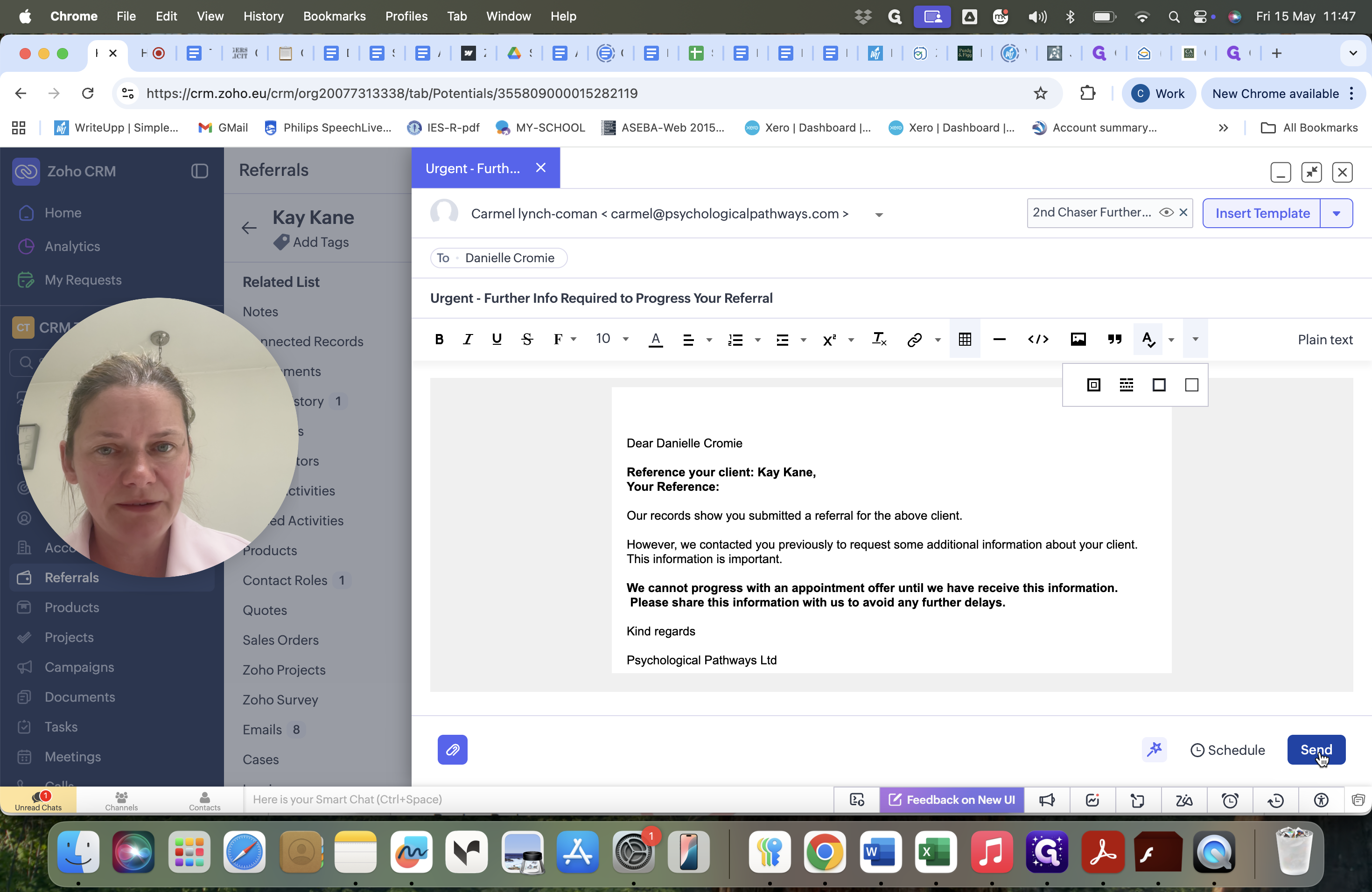
Based on the client's history, use a template to request the missing information from the solicitor.
Scenario | Action | Template to Use |
|---|---|---|
No request for information has been sent yet. | Send an initial request. | 1st Chaser |
A request was sent previously but no response received. | Send a follow-up request. | 2nd Chaser |
Discharging Inactive Clients
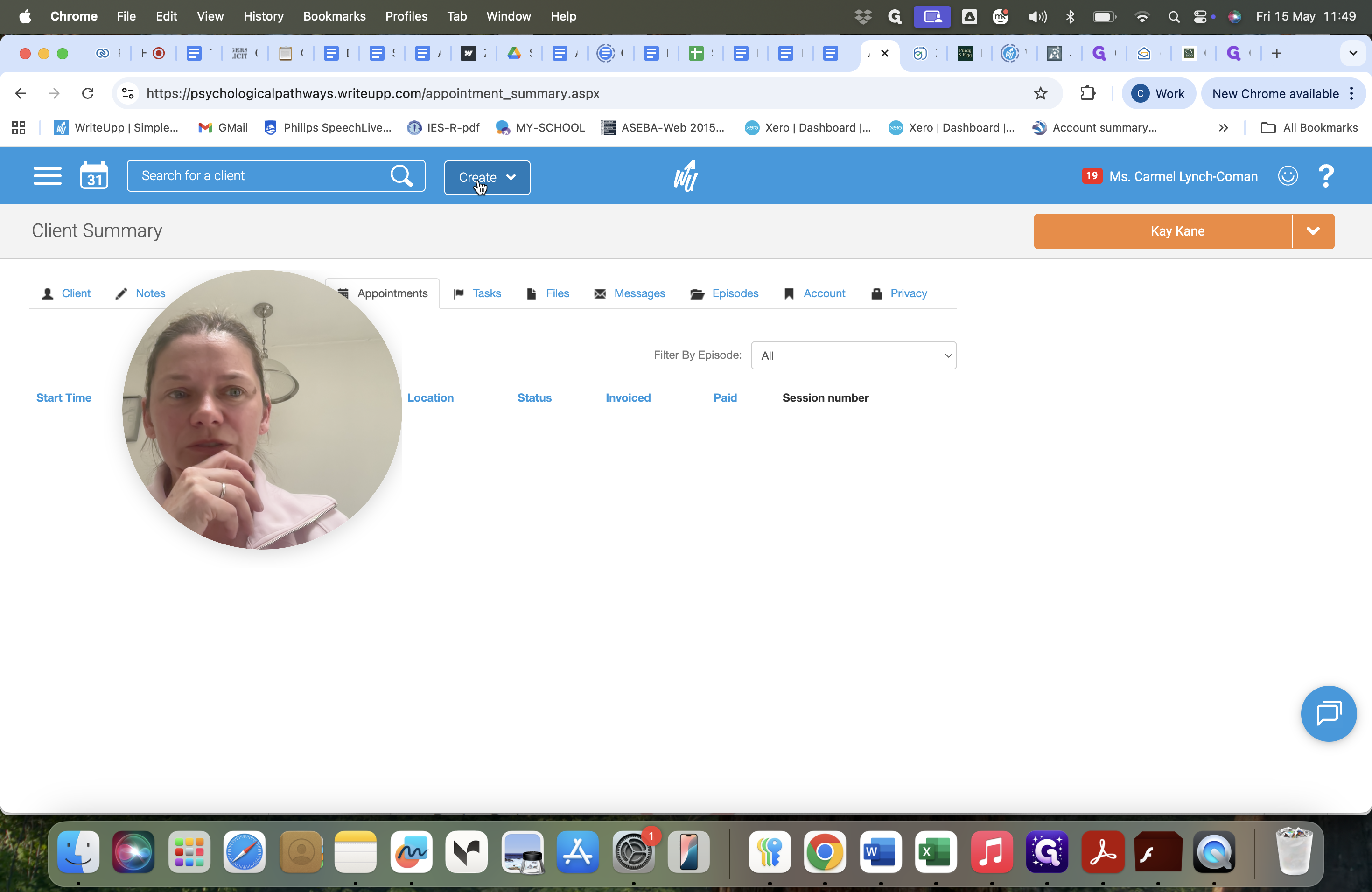
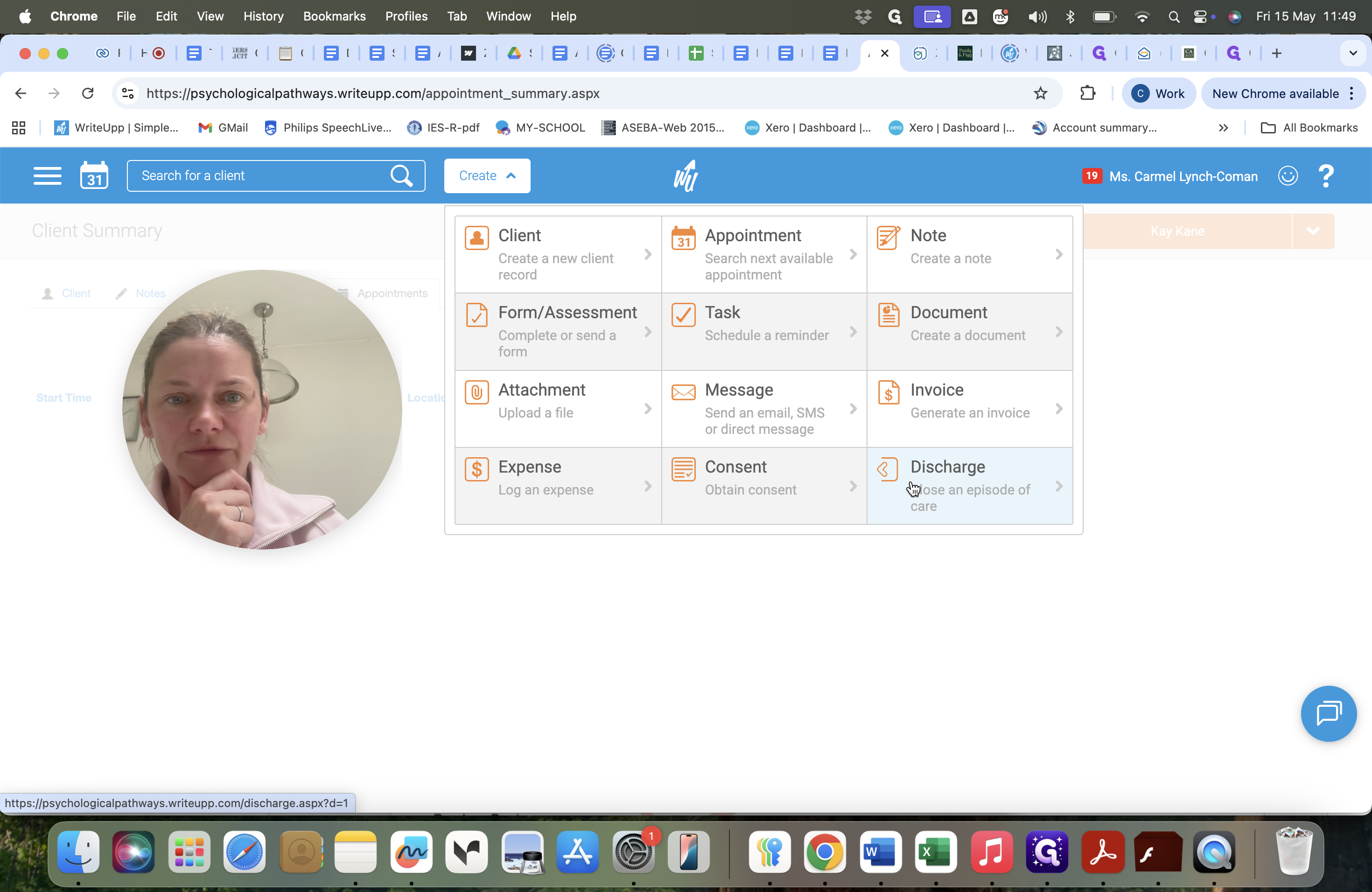
If the solicitor replies that they have found an expert elsewhere or no longer need the appointment, you must close the case in both systems. First, move the client to Closed Lost in Zoho CRM. Then, discharge them in WriteUpp.
Setting Follow-Up Reminders or Escalations
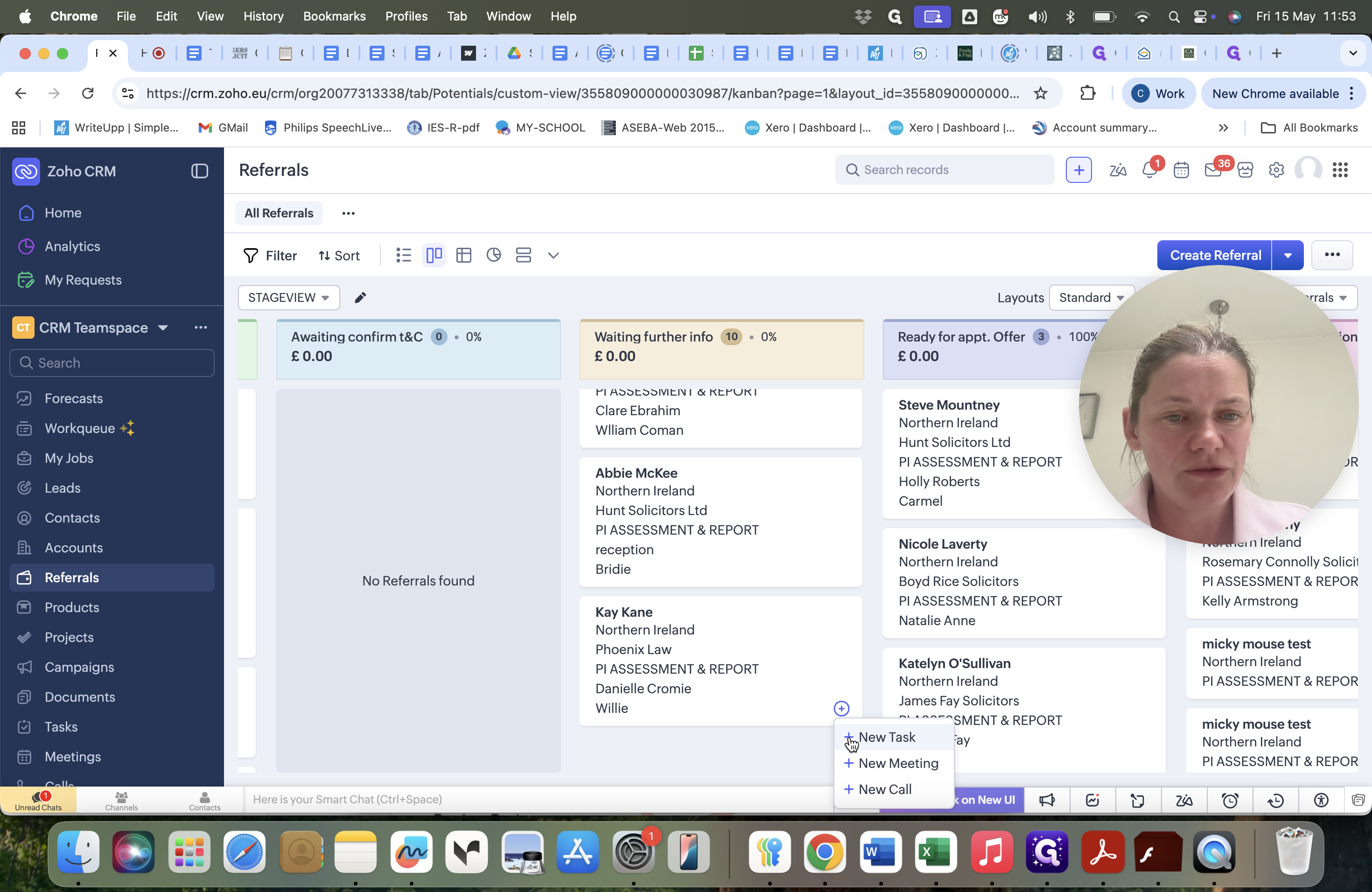
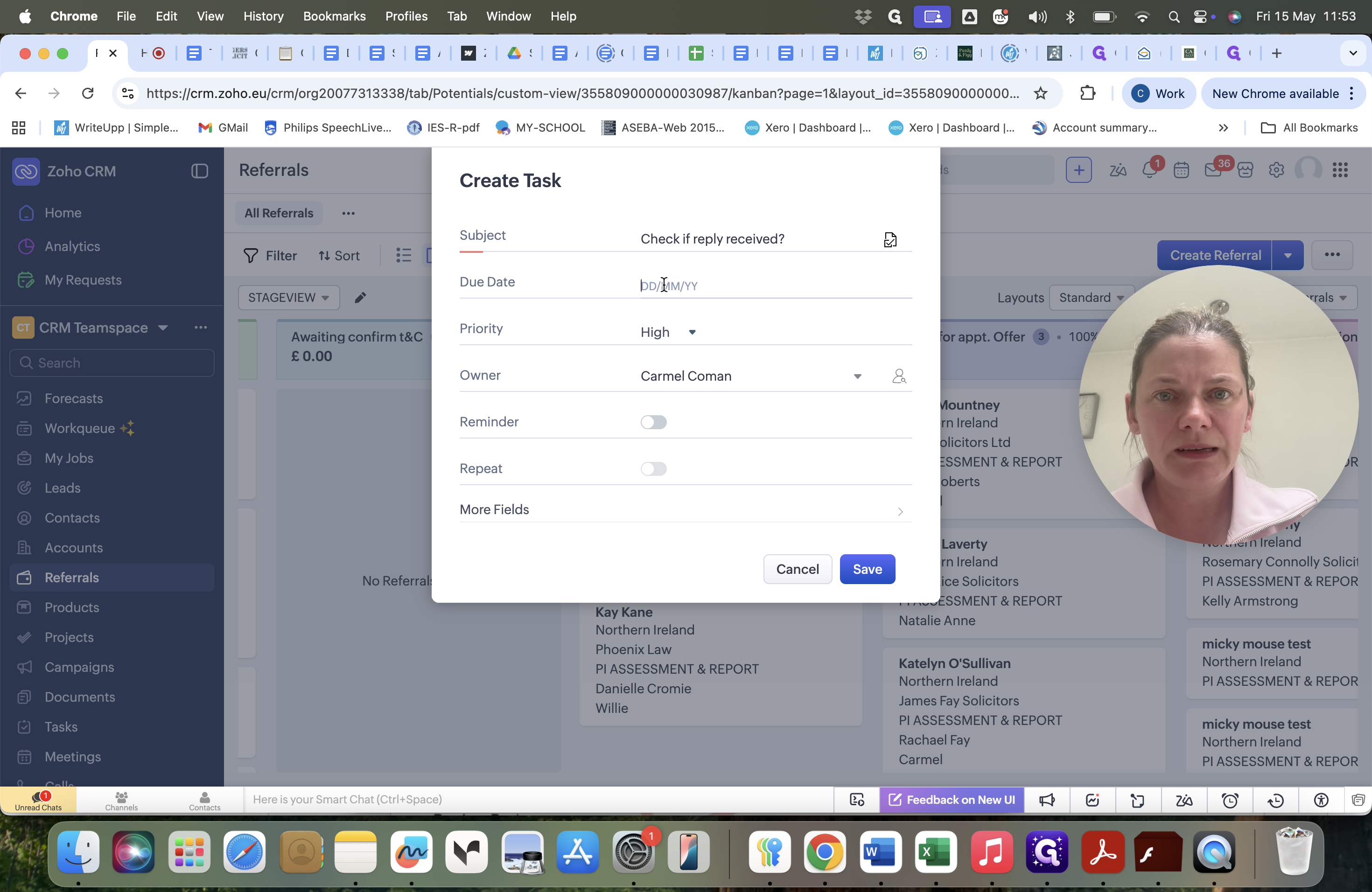
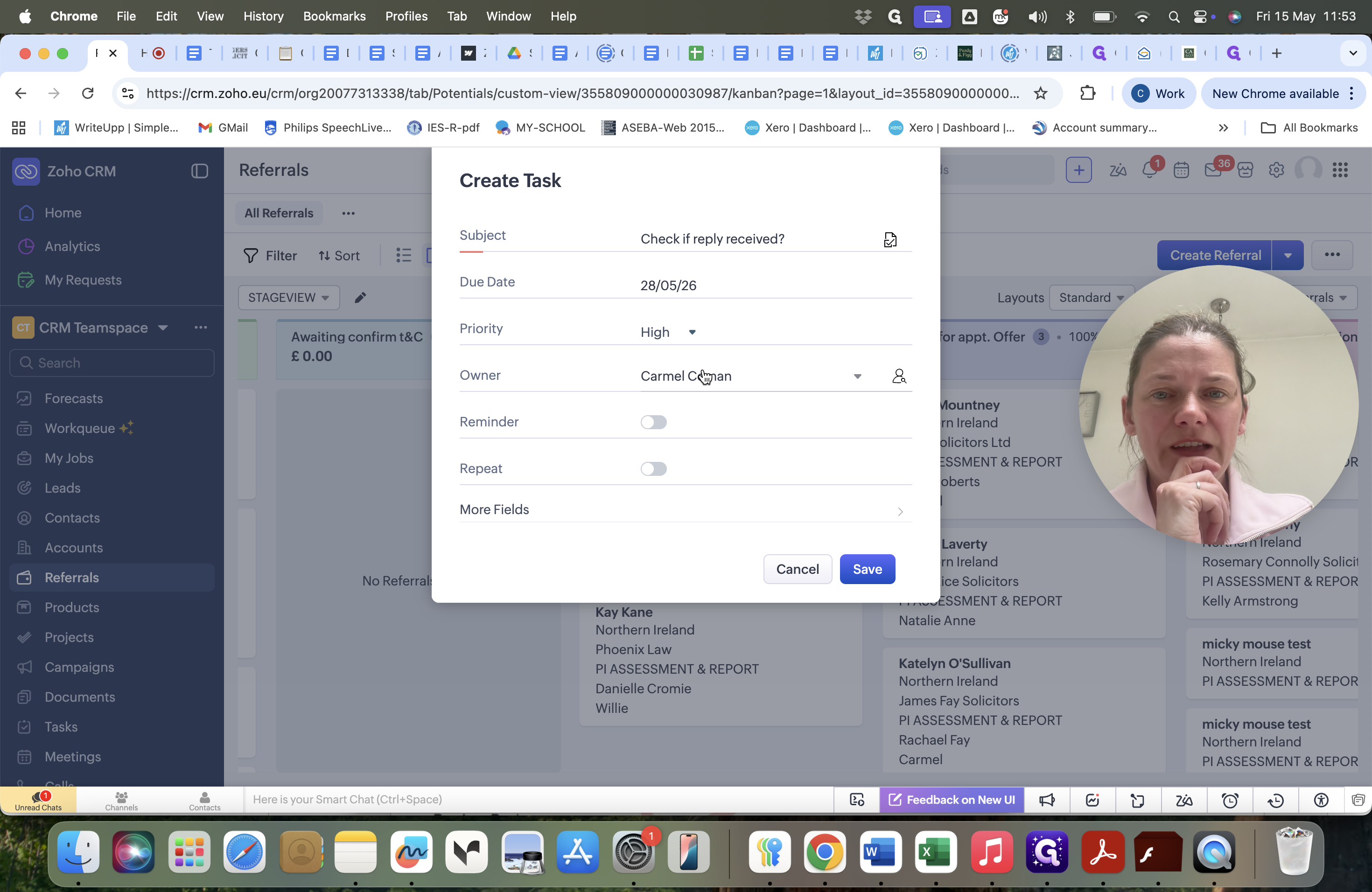
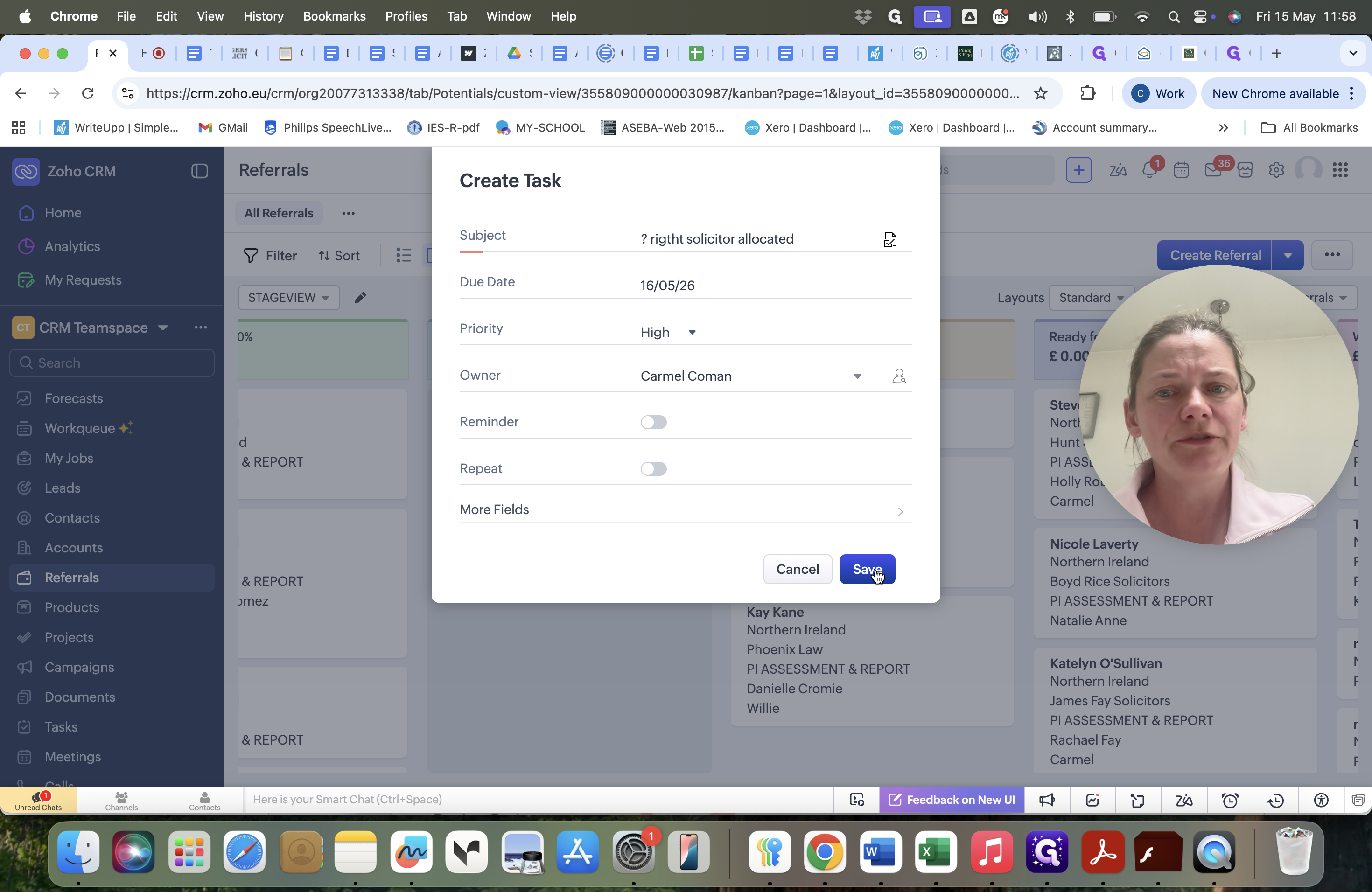
Whenever you send a chaser email, set a task to remind yourself to check for a reply in two weeks. You can also use tasks to alert a manager if you suspect the wrong solicitor or expert was allocated to a client.
FAQ
Q: How do I know if the referral is for an initial report or an addendum?
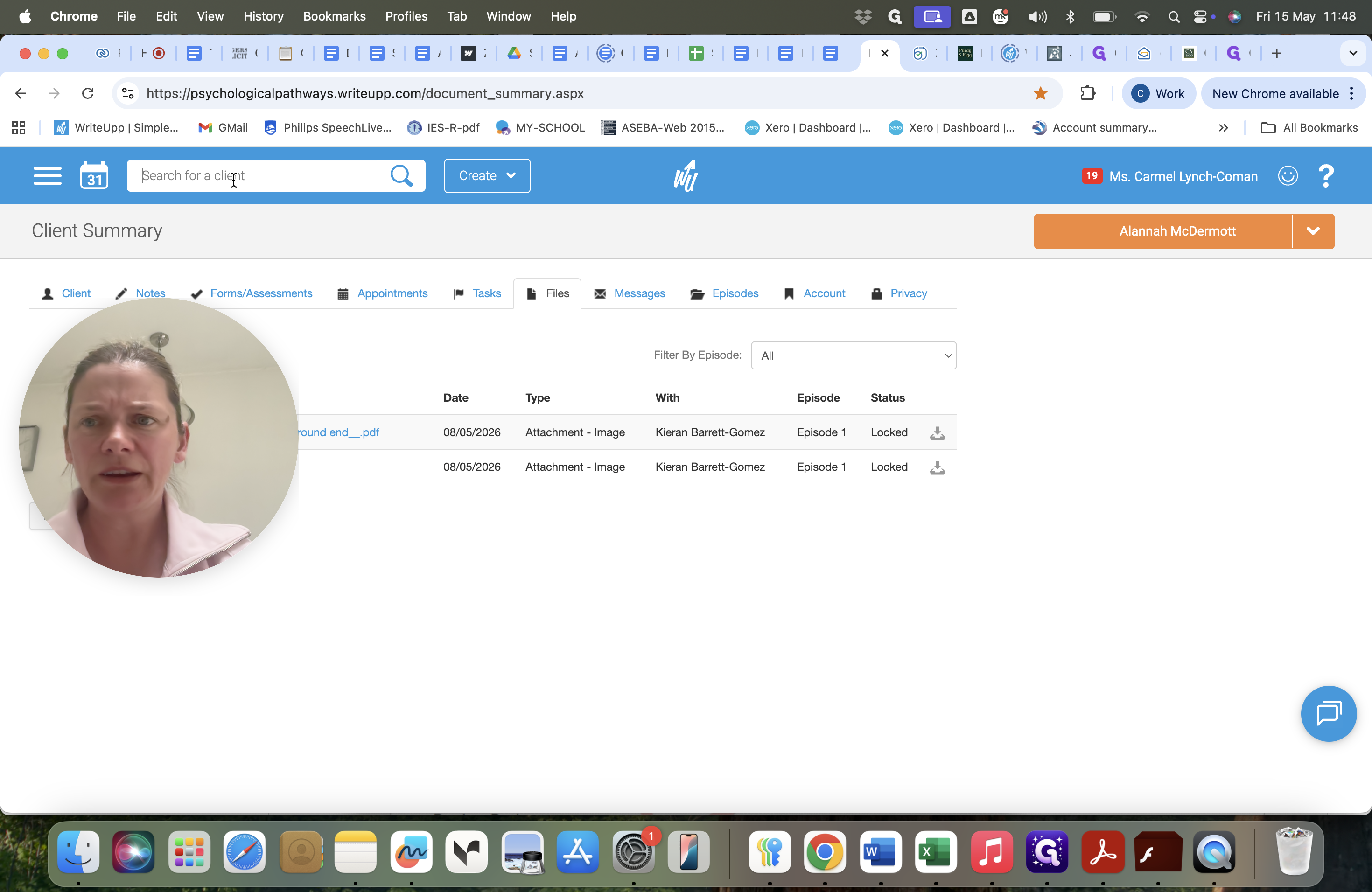
A: Check the Files tab in WriteUpp. If a clinical psychology report is already on file, the referral is likely an addendum. Alternatively, check the uploaded referral emails to see if they specifically state "request for an addendum".
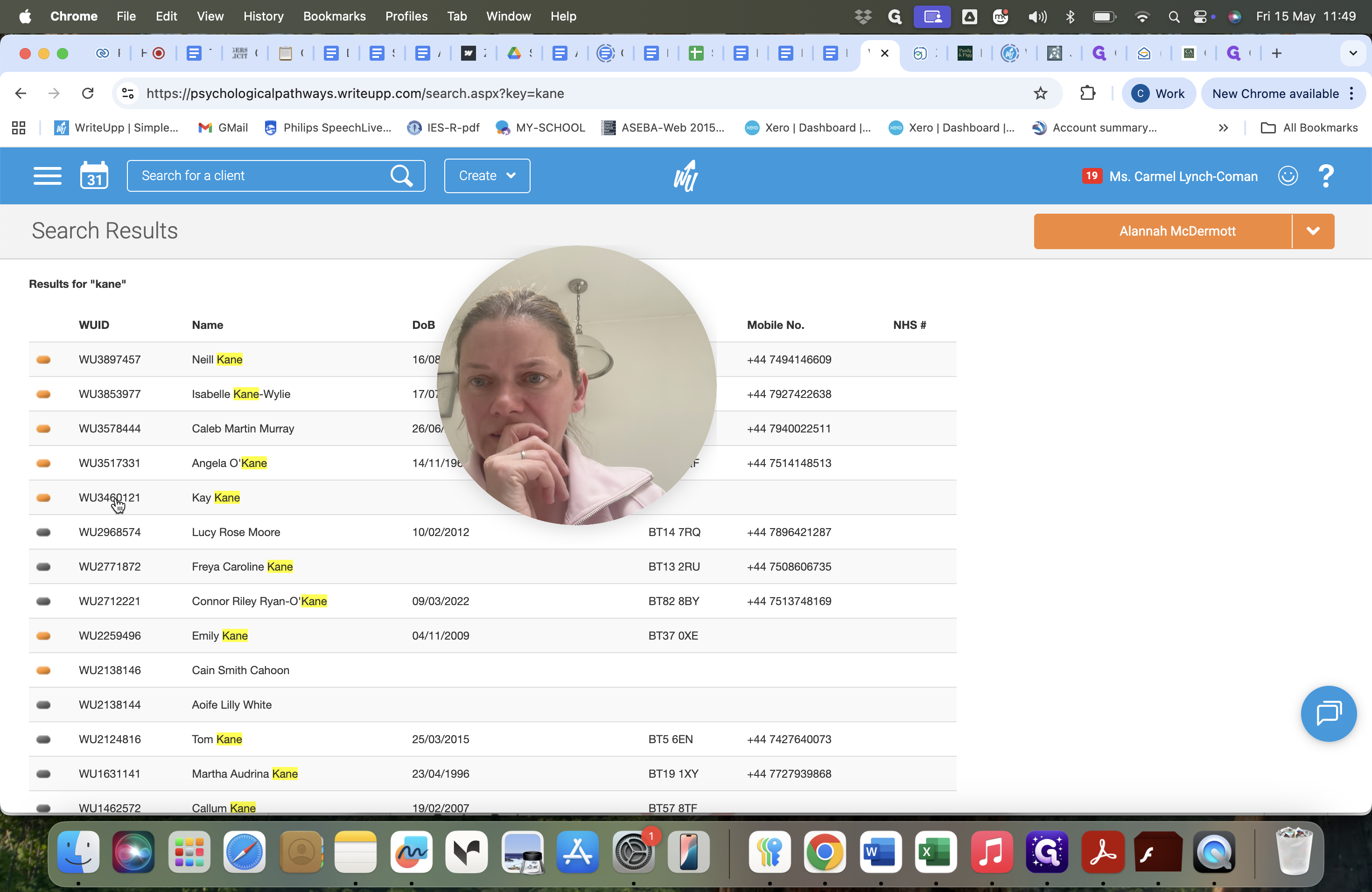
Q: What should I do if the solicitor on the Zoho CRM record doesn't match the one in WriteUpp?
A: Cross-check the "Account Name" in Zoho CRM against the third party listed in WriteUpp. If there is a discrepancy and you are unsure which is correct, create a new task in Zoho CRM, assign it to your manager, and ask them to verify the correct solicitor.