Managing Enquiry Stage on PL
Learn how to clean up your litigation referrals pipeline in Zoho CRM, log follow-ups with solicitors, send email templates, and manage stalled inquiries.
This guide explains how to clean up and manage stages within the Zoho CRM pipeline to ensure client referrals progress smoothly. Maintaining an accurate pipeline helps identify bottlenecks, ensures clients are seen promptly, and keeps the team aligned on next steps.
This process is designed for administrative staff responsible for quality-assuring client referrals and communicating with solicitors. You will use these steps primarily when dealing with inquiries that have stalled or are awaiting further information.
Navigating to Litigation Referrals
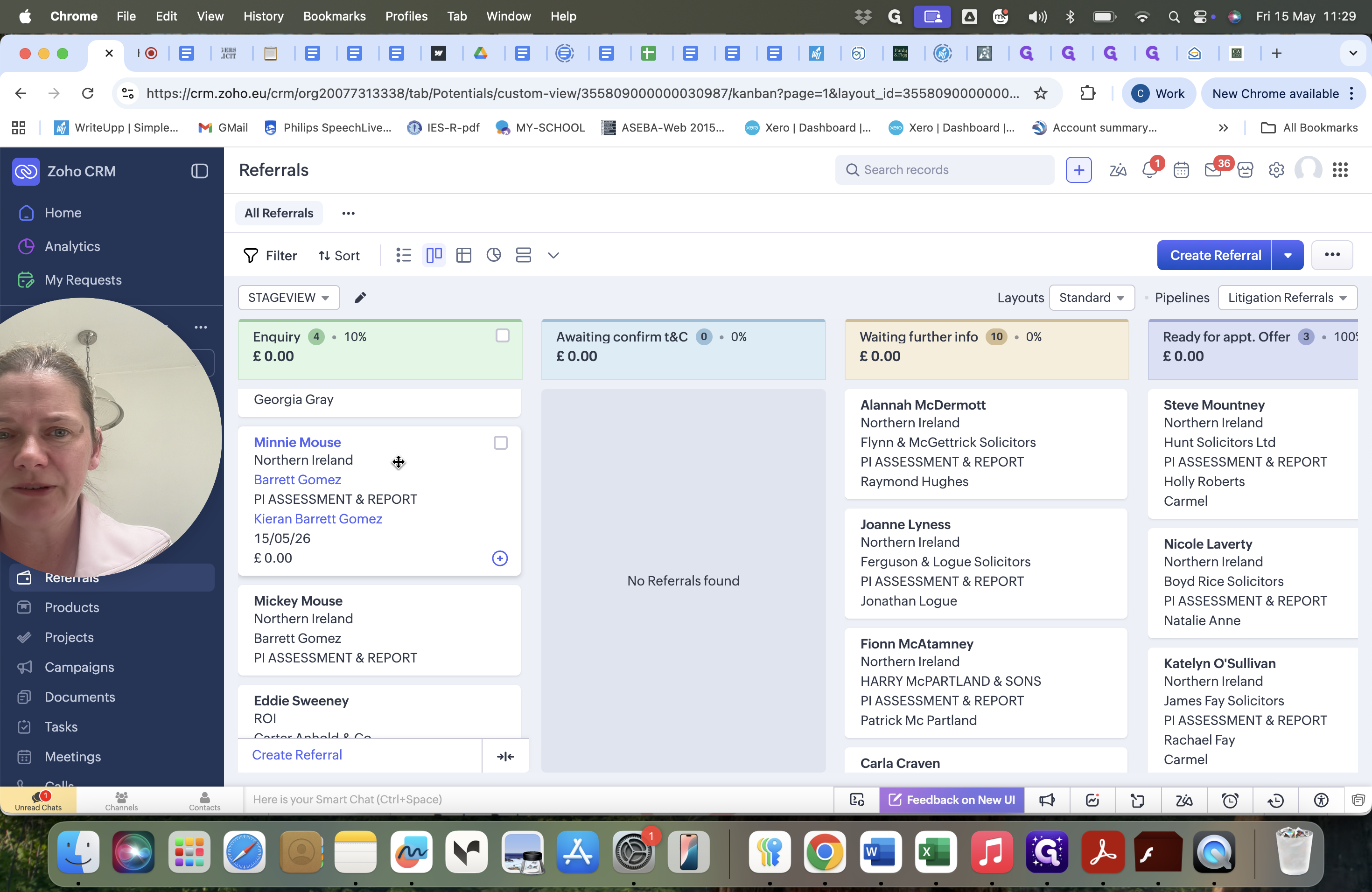
The Litigation Referrals view provides a broad overview of where each client sits in the process, from initial inquiry to final invoice.
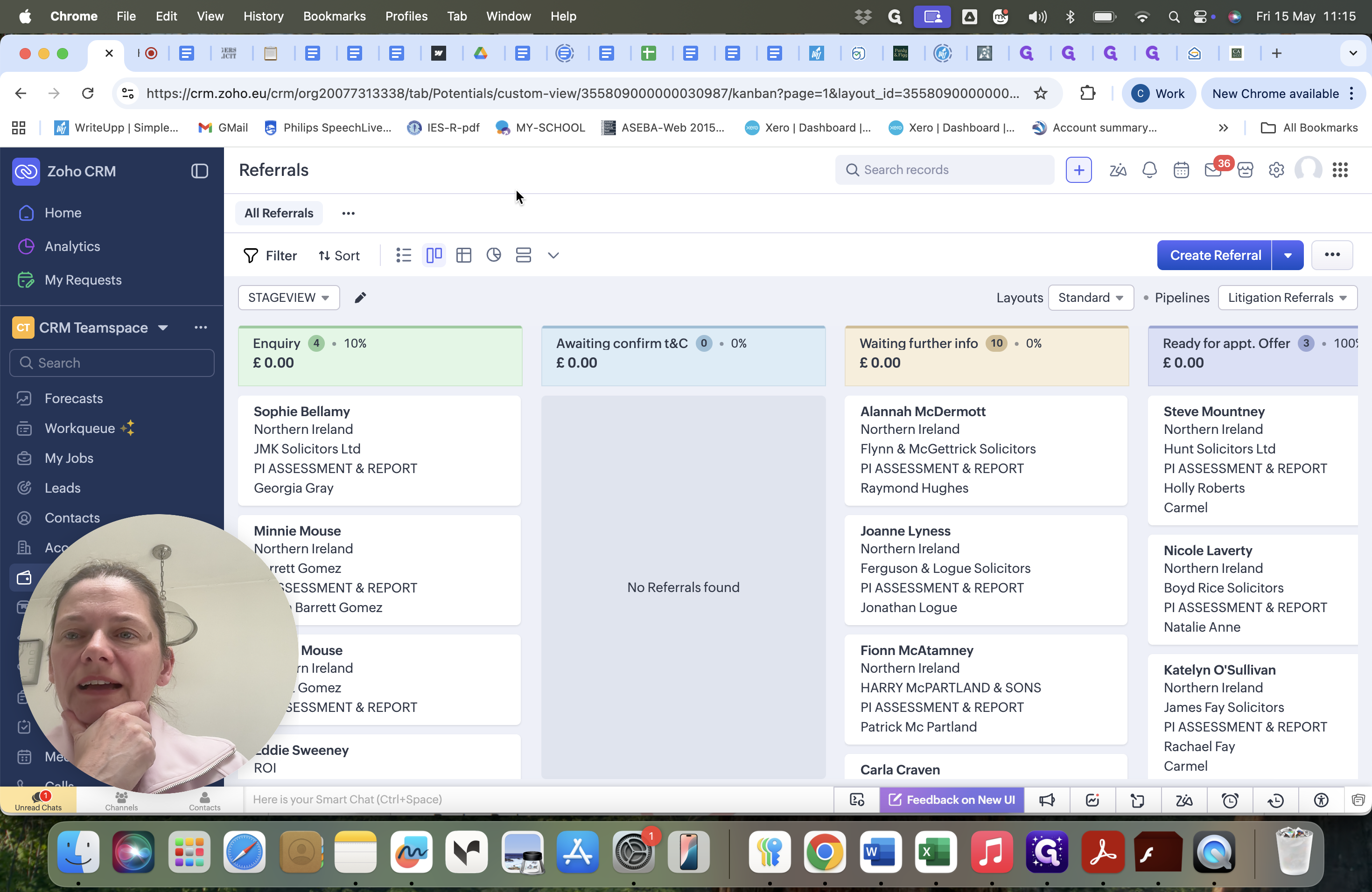
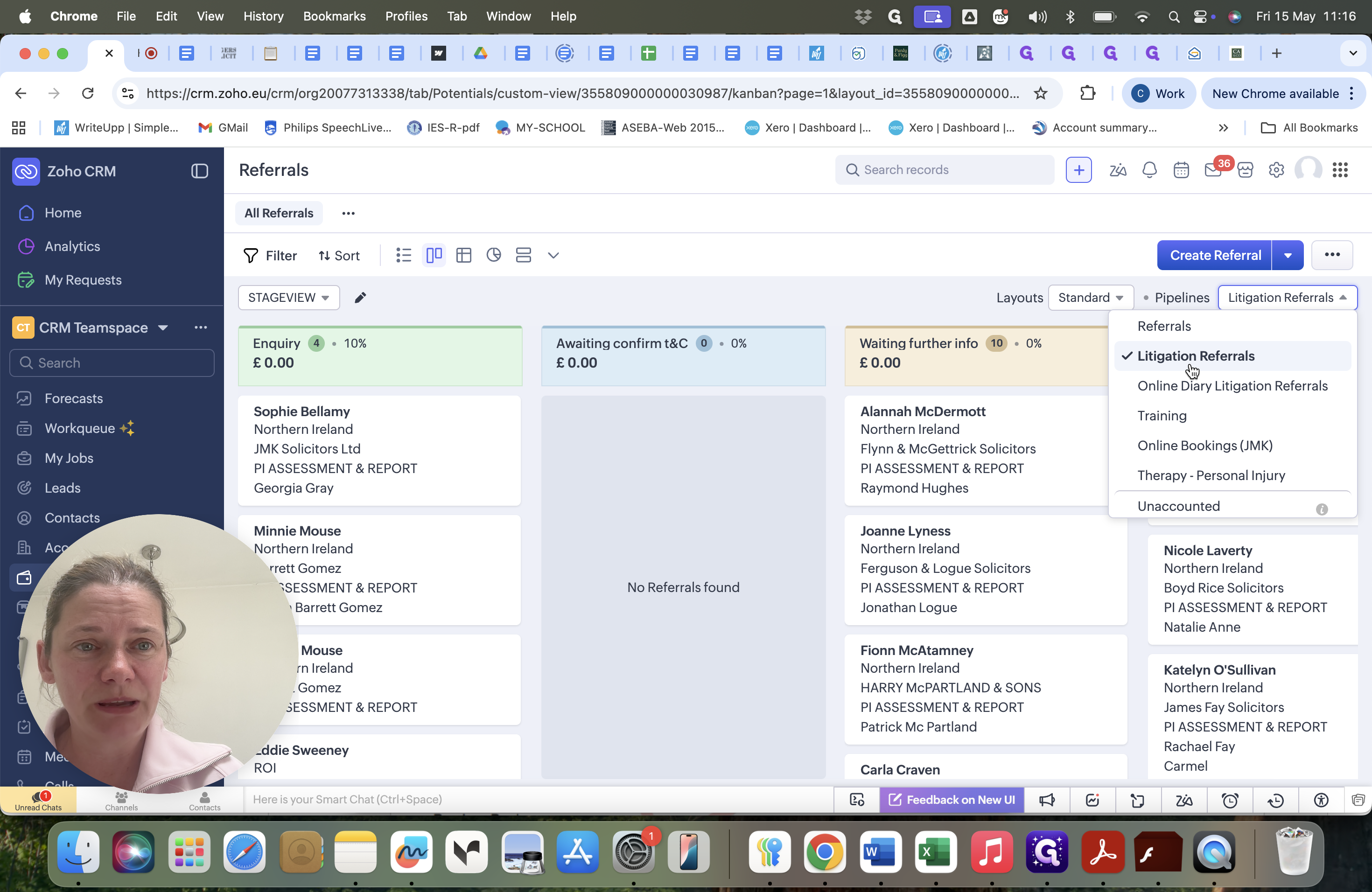
Following Up on Enquiries
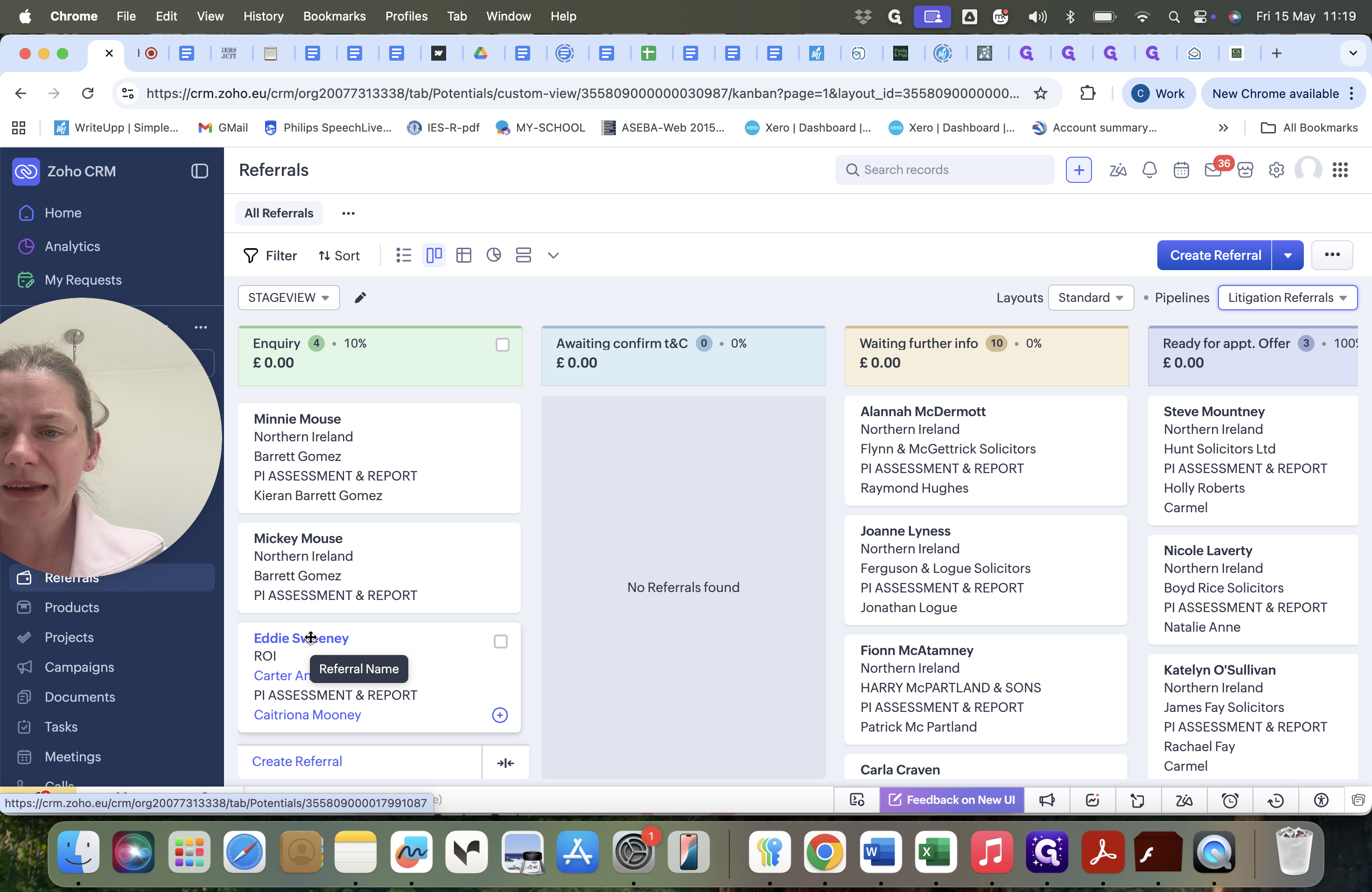
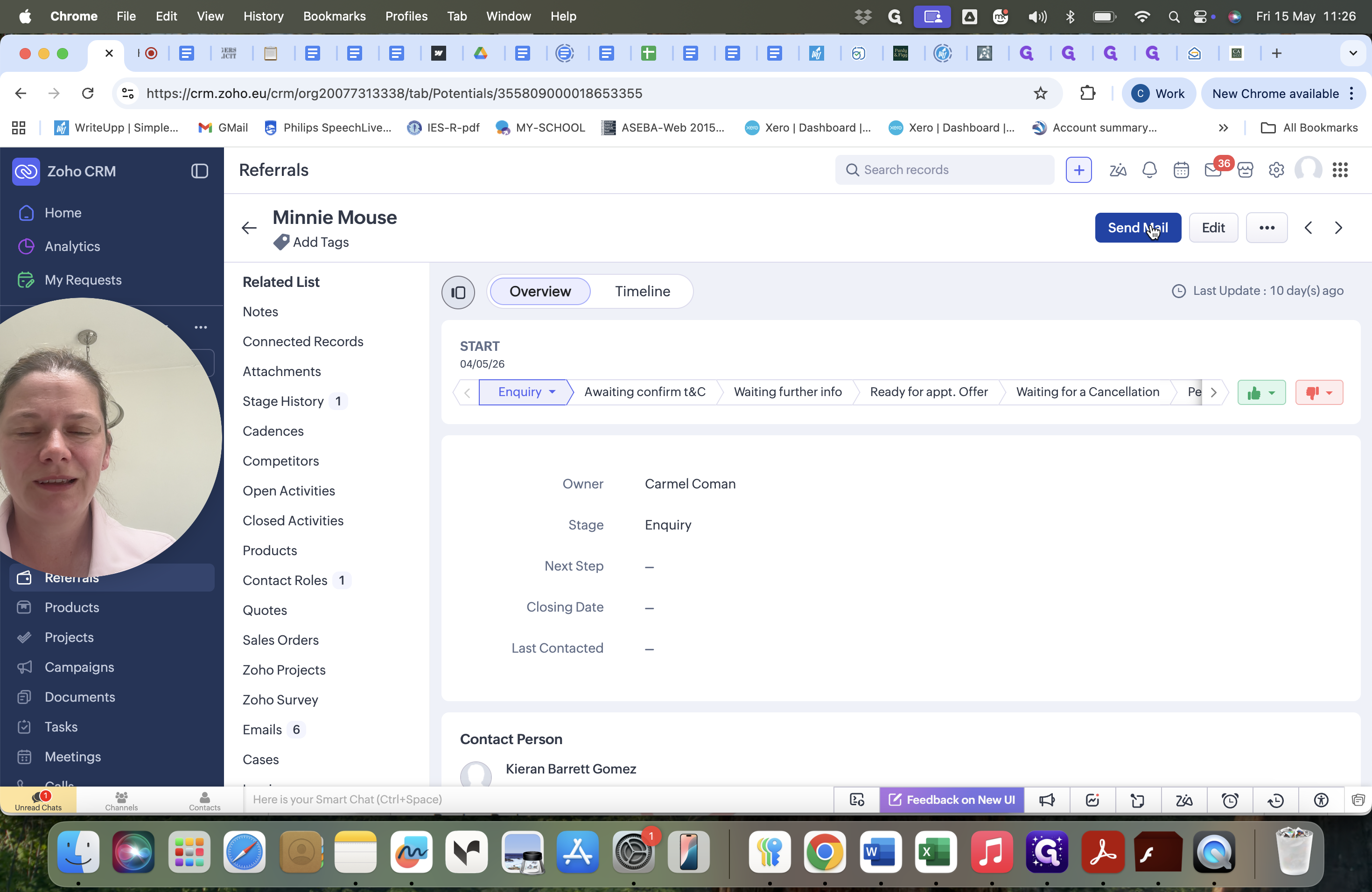
Clients often sit in the "Enquiry" or "Waiting further information" stages when there is uncertainty about whether the solicitor wishes to proceed. You must follow up to determine the next steps.
Method | When to use | How it works | Where to find it |
|---|---|---|---|
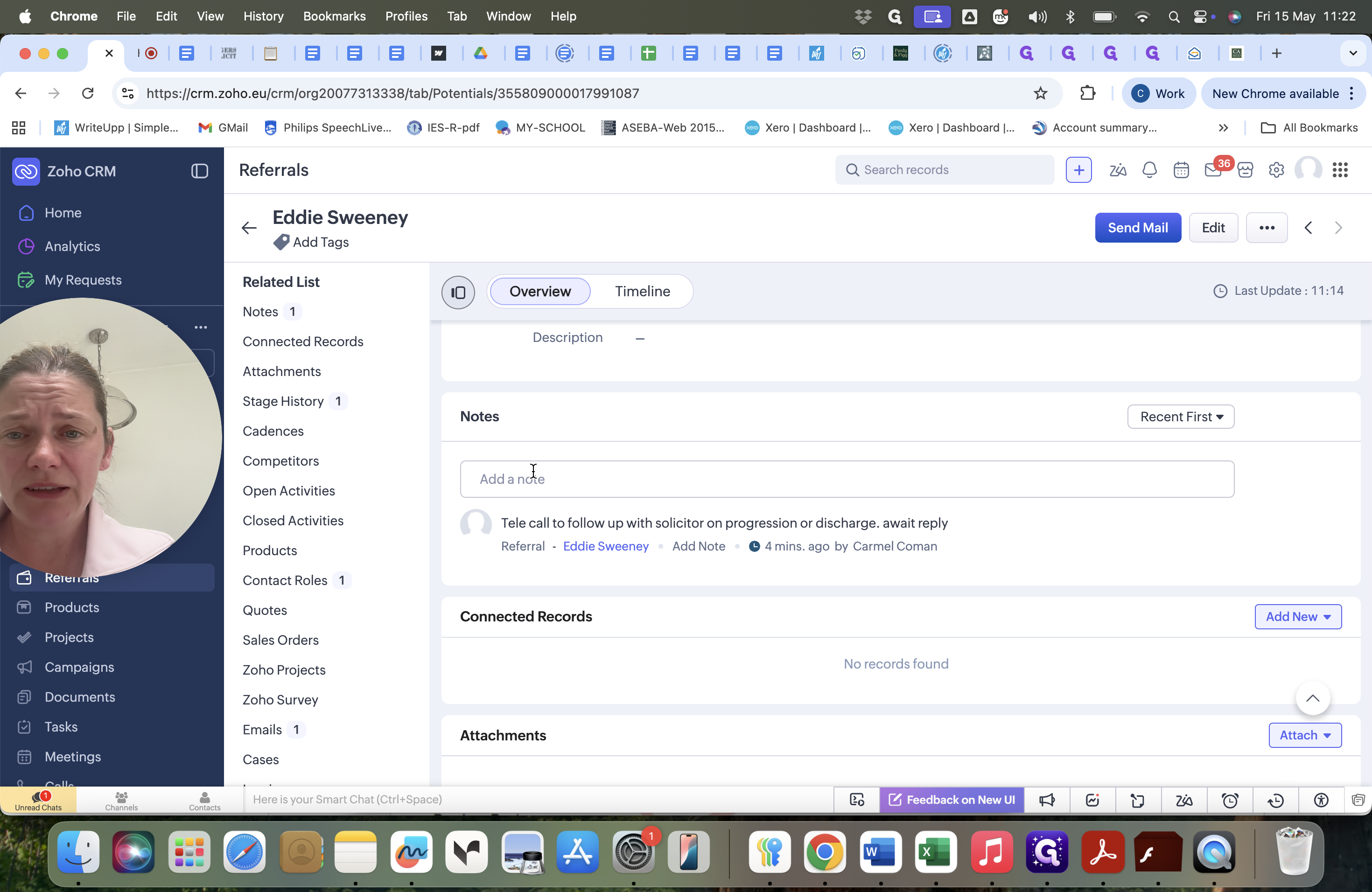
Phone Call | Quick clarifications or checking if a solicitor still needs the appointment. | You call the solicitor directly and manually record a summary of the conversation. | Use the Notes section on the client record. |
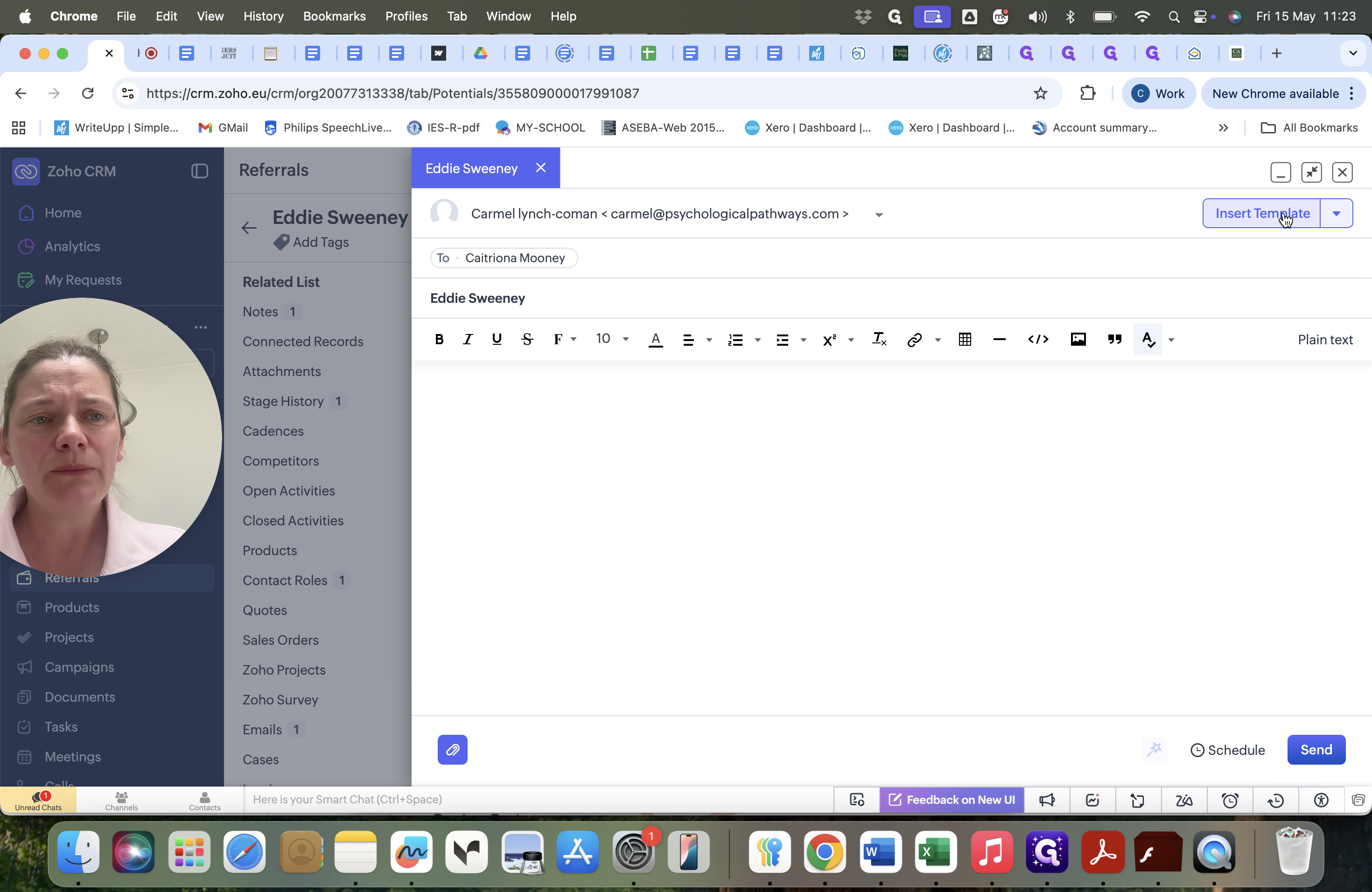
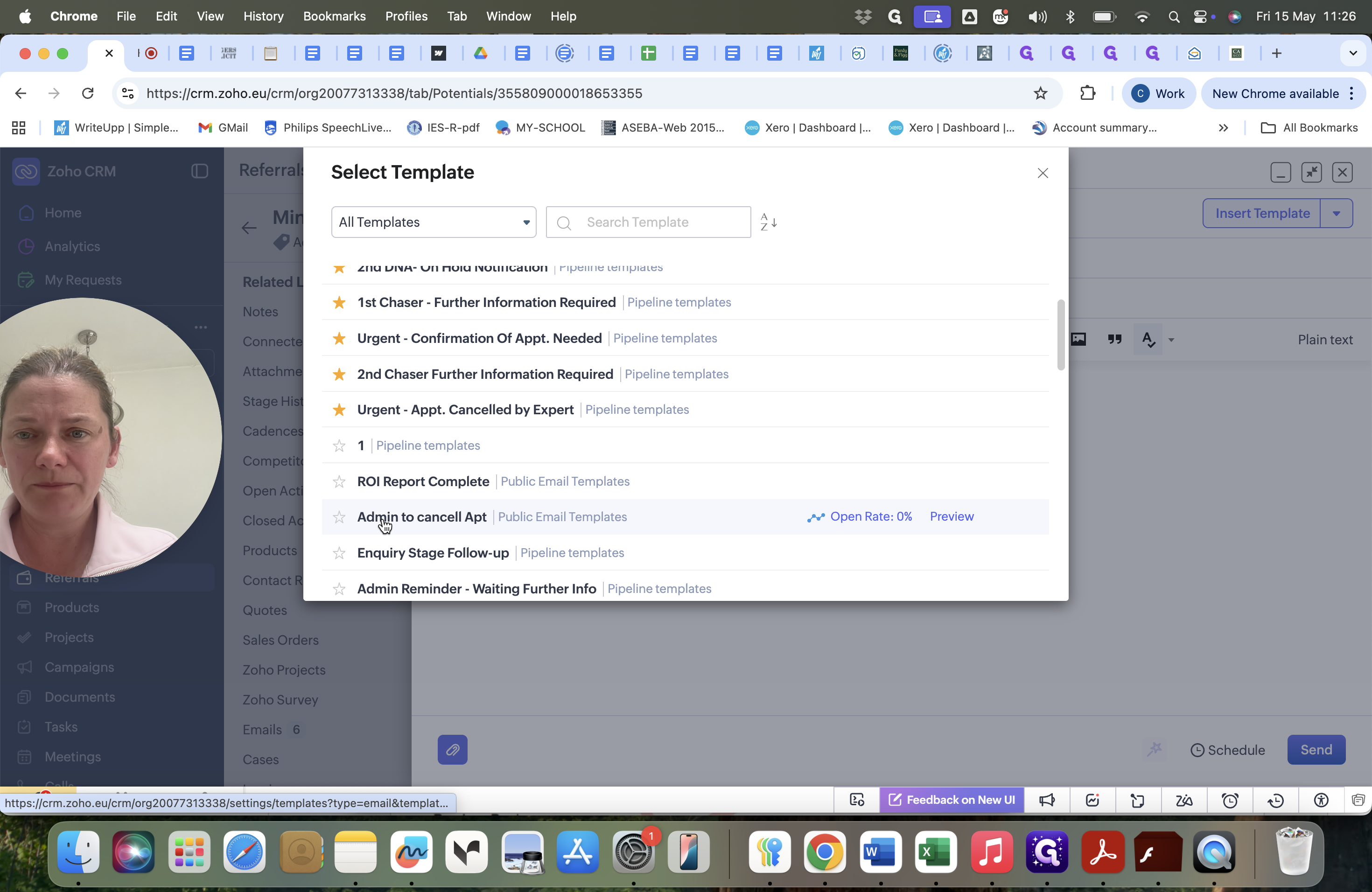
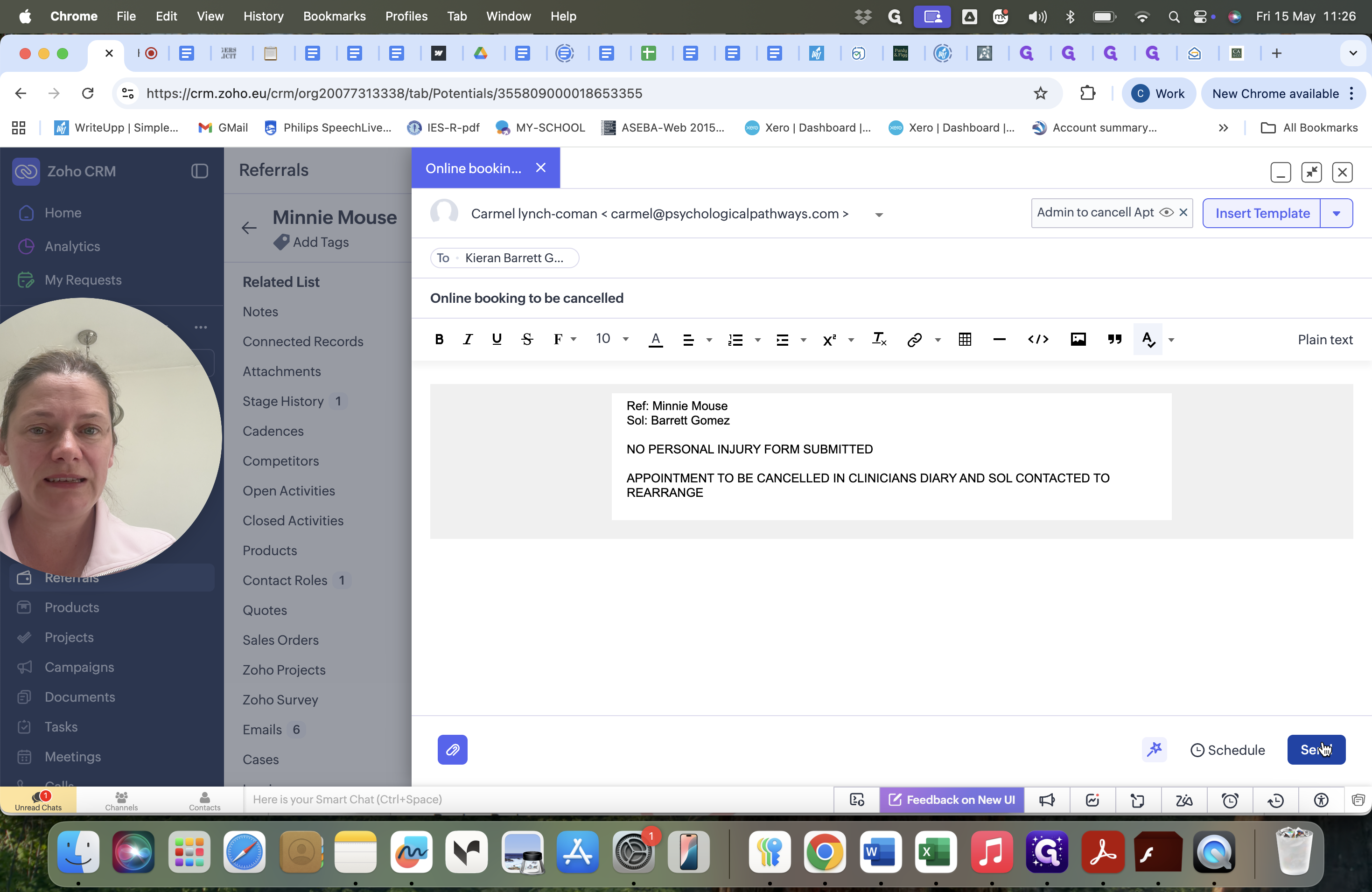
Email Template | Official, standardized follow-ups for paper trails. | You select a pre-written template that auto-populates client and solicitor details. | Use the Send Mail button and Insert Template option. |
Logging a Phone Call
Sending a Follow-up Email
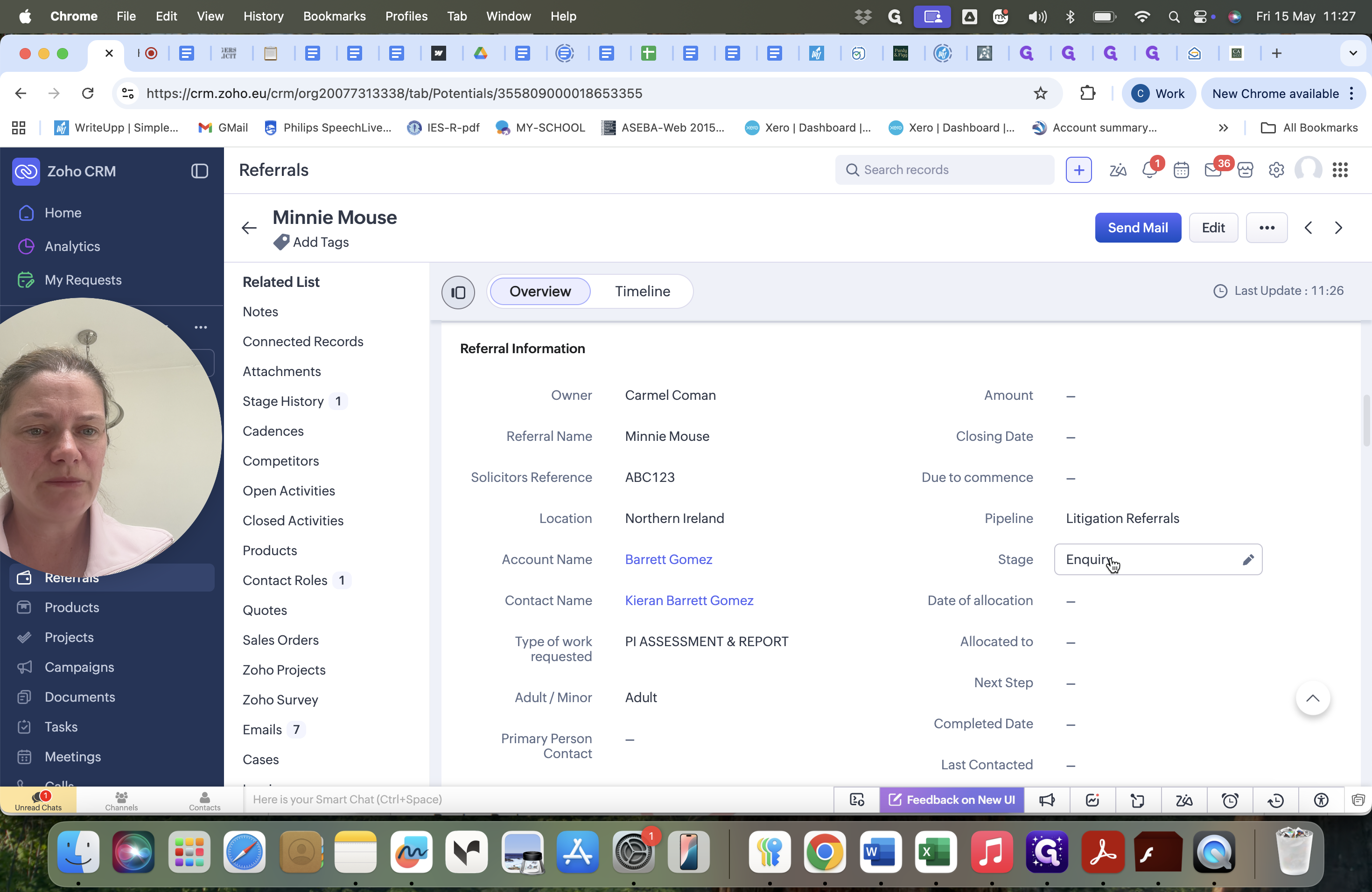
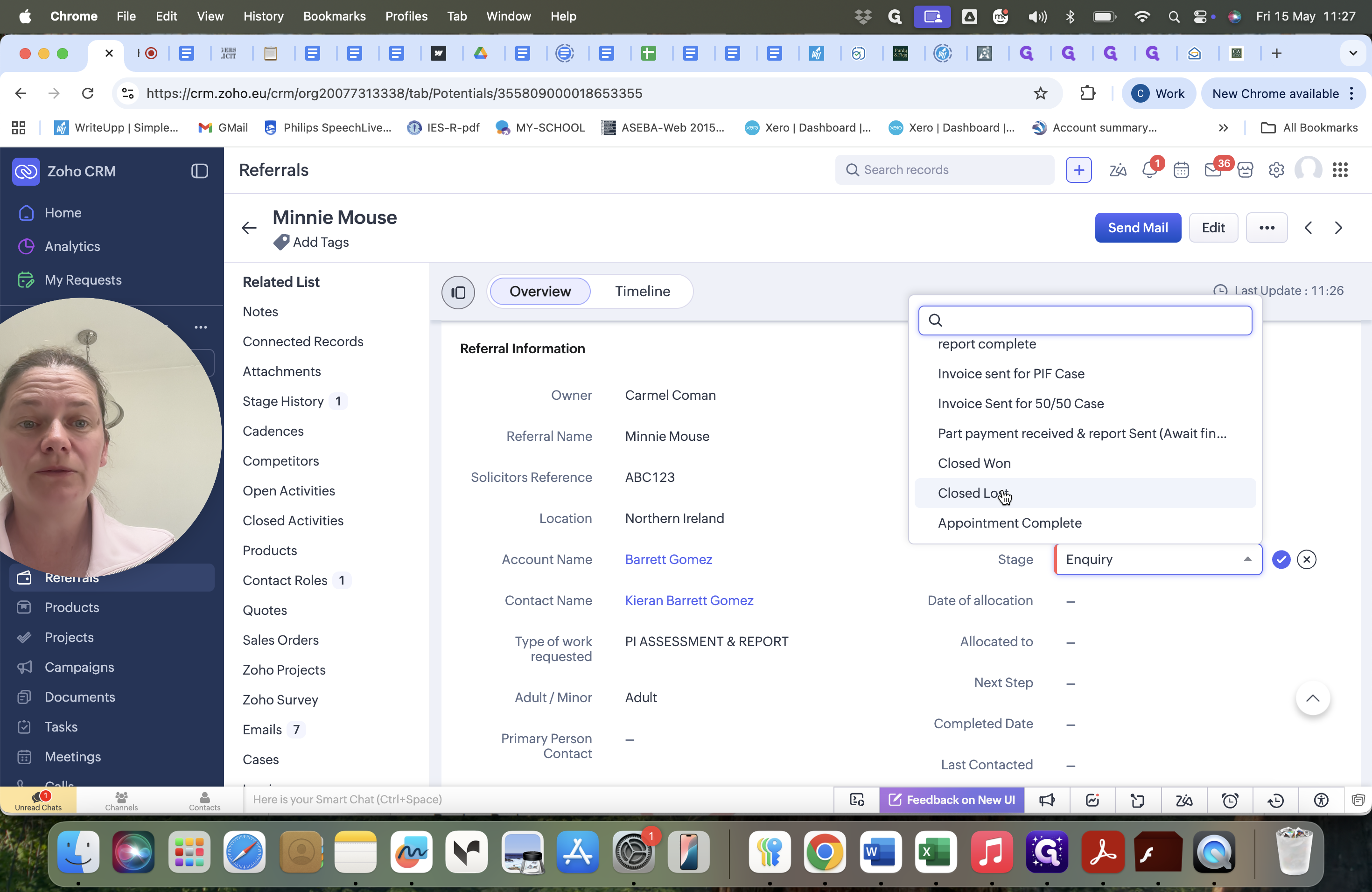
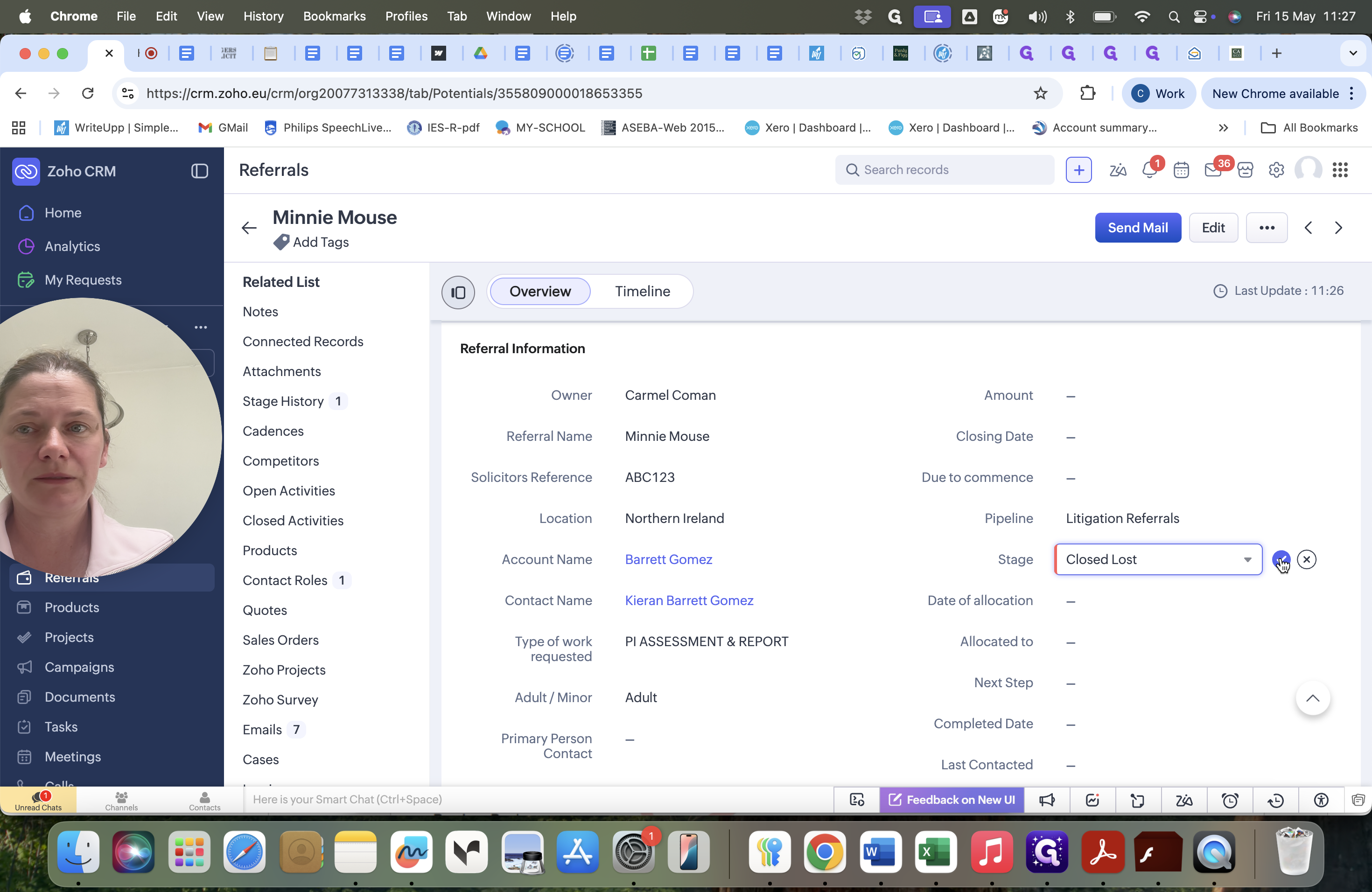
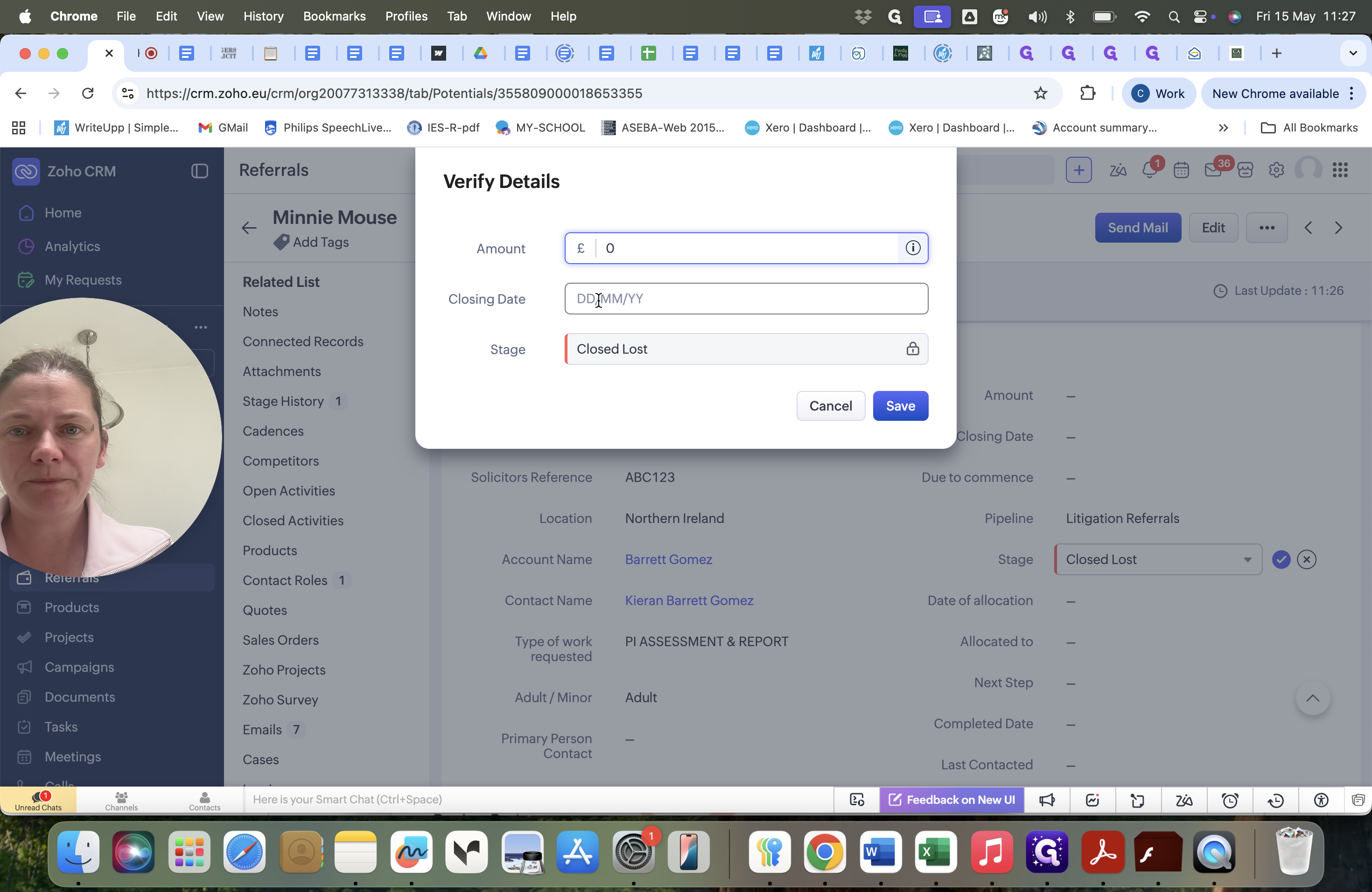
Closing Stale Referrals
If a solicitor confirms they no longer need the appointment, the referral must be discharged so it stops clogging up the active pipeline.
Drag and Drop Pipeline Management
For simple stage updates without entering the full client record, you can move cards directly on the Kanban board.
FAQ
Q: How do I know when a solicitor has replied to an email follow-up?
A: Incoming replies from solicitors are automatically routed into a specific task folder (e.g., "Ursula General"). You can check this folder periodically to review responses and update the pipeline accordingly.
Glossary
Term | Definition |
|---|---|
CRM | Client Relationship Manager, the system used to track solicitors, practices, and individual clients. |
Litigation Referrals | A specific pipeline view tracking the progression of client referrals from inquiry to final invoice. |
Closed Lost | The pipeline stage used when an appointment is no longer needed and the referral is discharged. |