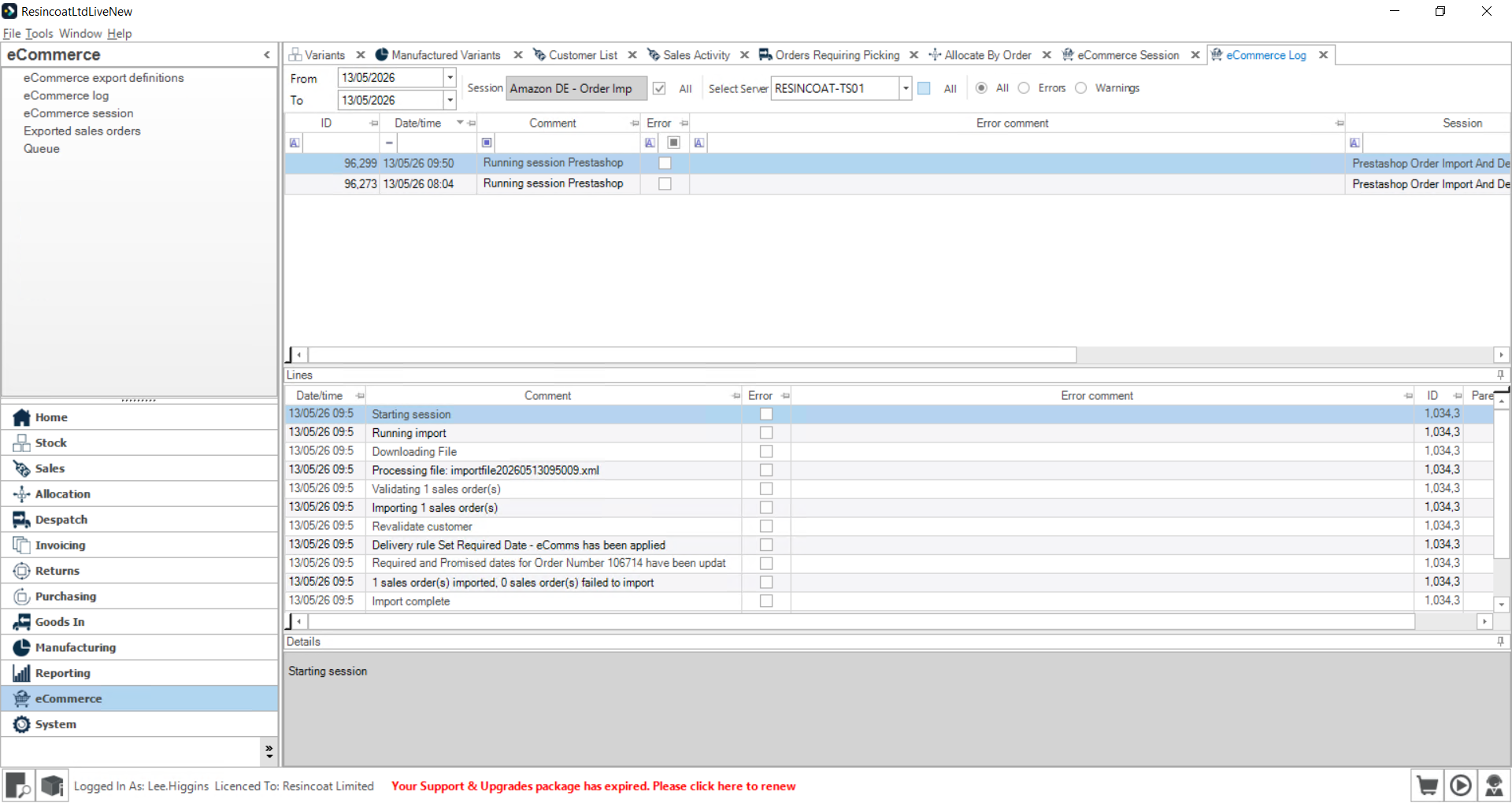
How to Manually Run eCommerce Sync Sessions
Learn how to manually trigger eCommerce integration tasks and review session logs to confirm successful data synchronization.
By Lee Higgins
This guide details how to manually run an eCommerce integration task and verify its execution via system logs. Manually forcing an import or export ensures immediate data synchronization outside of standard automation schedules.
This workflow is intended for system administrators and eCommerce managers troubleshooting sync issues or pushing urgent updates between the management application and external platforms like Prestashop, WooCommerce, eBay, or Amazon.
Trigger a manual session
1
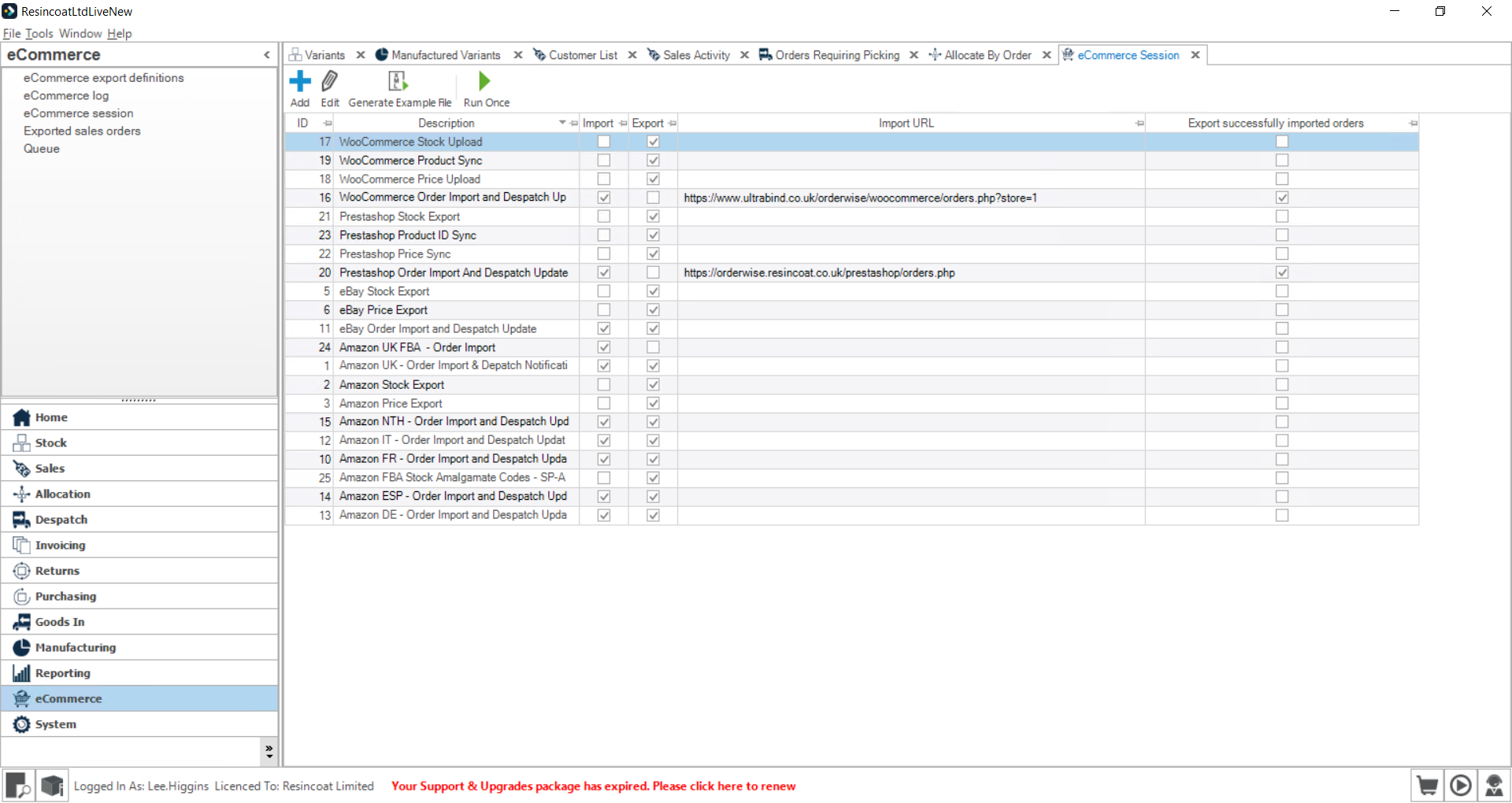
Open the eCommerce module from the main navigation menu.
2
Locate and select the Prestashop Order Import And Despatch Update row (or your specific target integration) in the data grid.
3
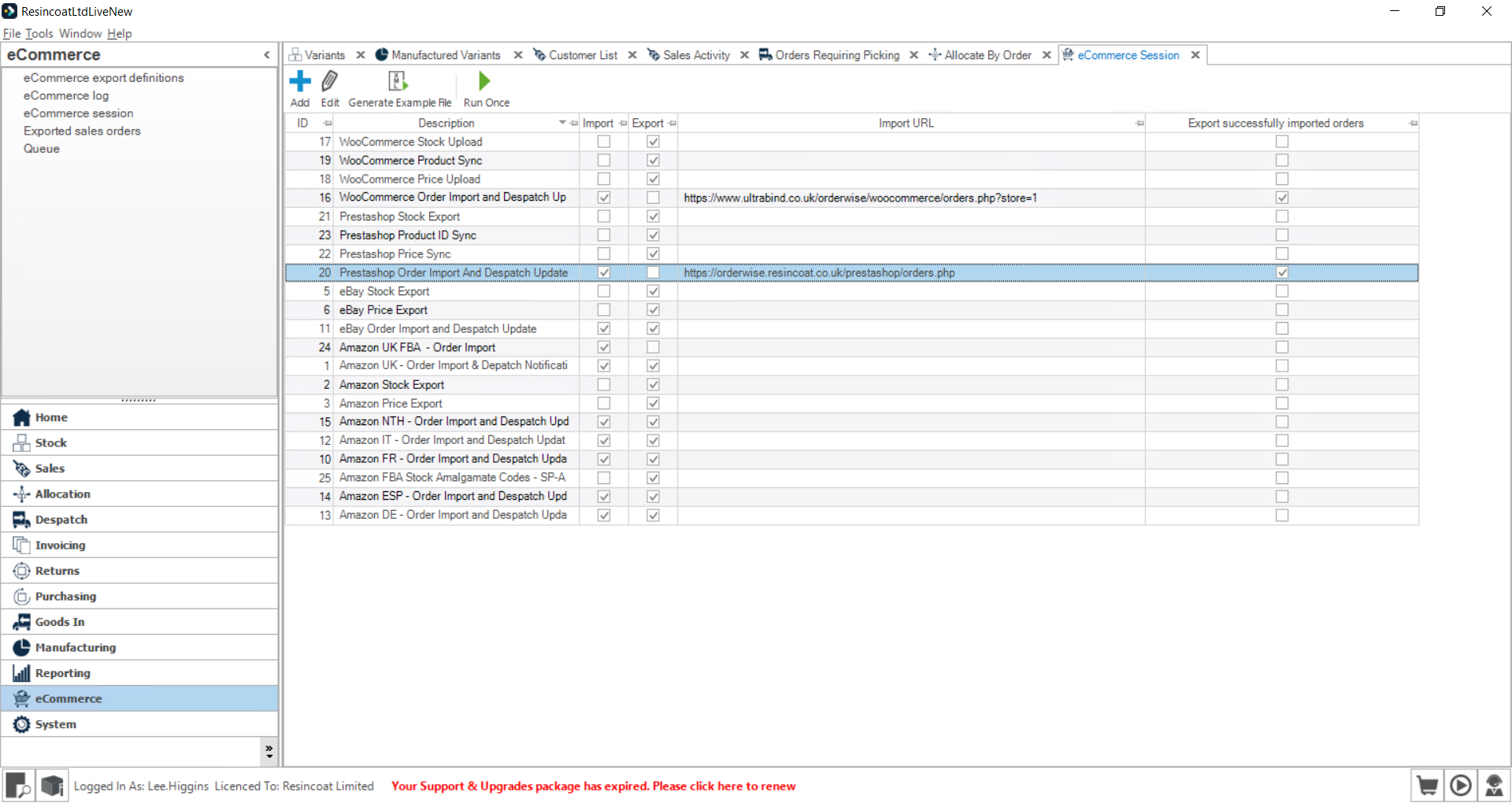
Click Run Once to manually execute the selected task.
Review execution logs
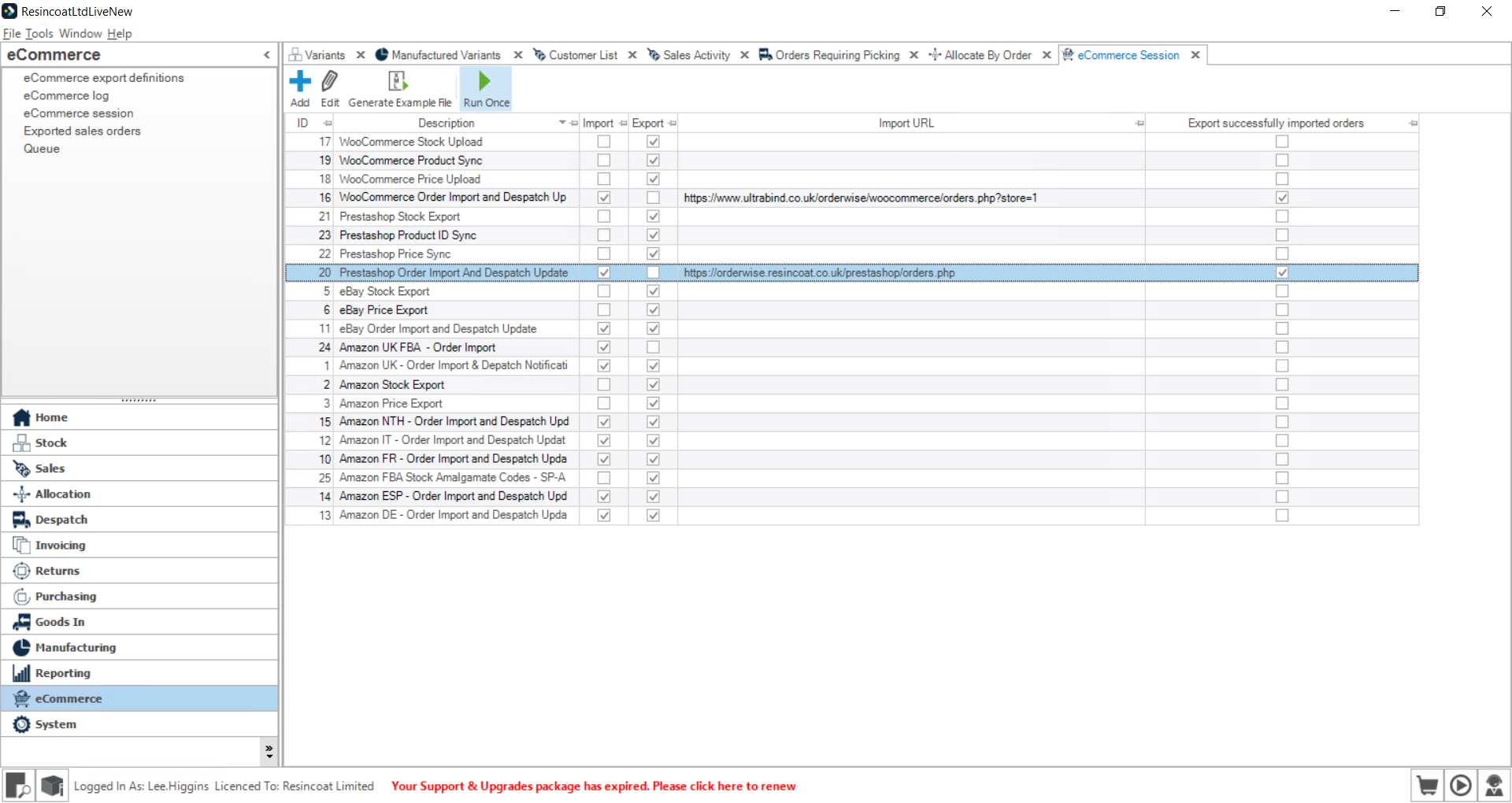
Once the task has been initiated, use the eCommerce log to confirm it processed correctly.
4
Click eCommerce log to access the execution history.
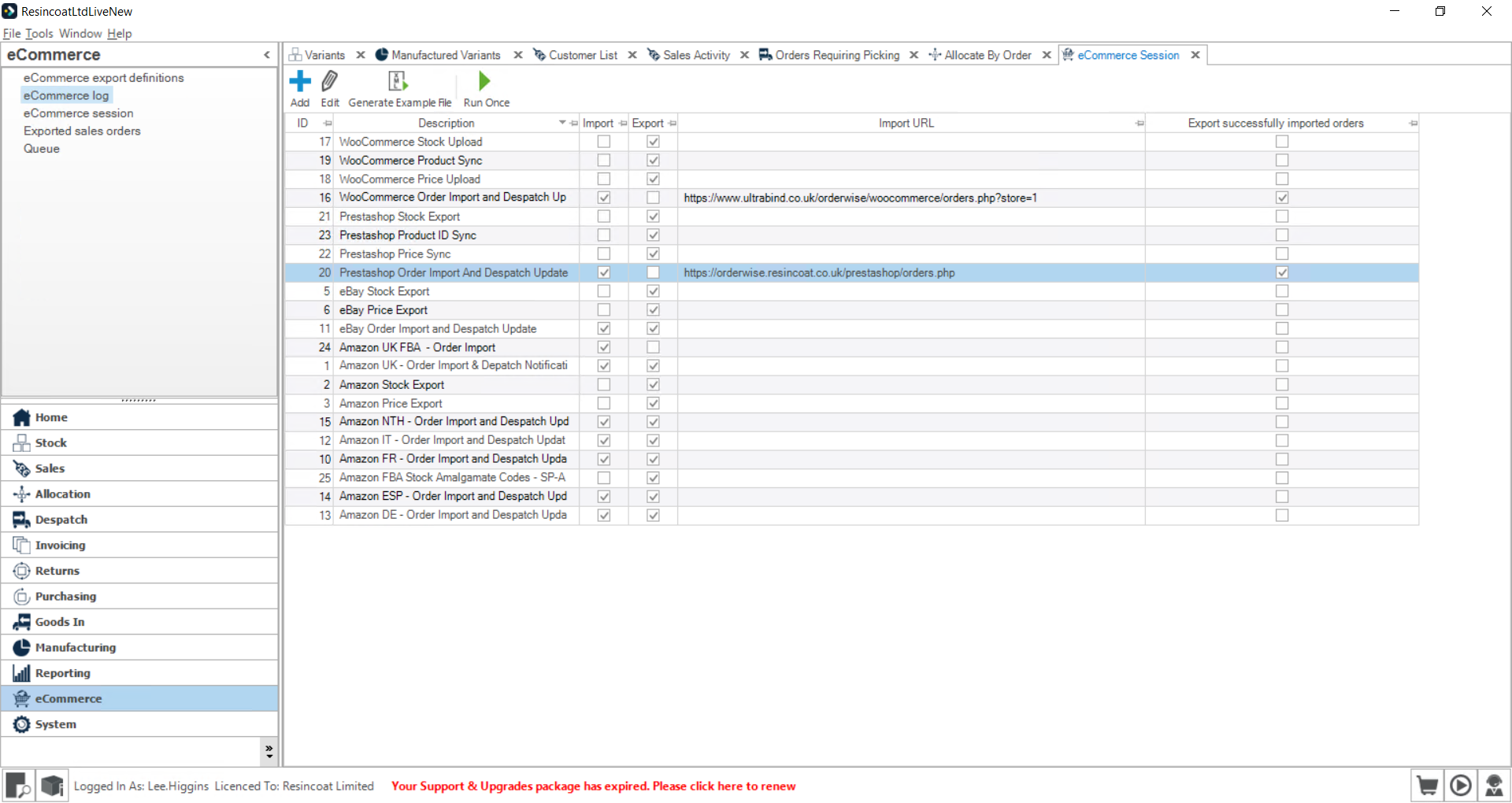
5
Switch to the eCommerce Log tab within your workspace area.
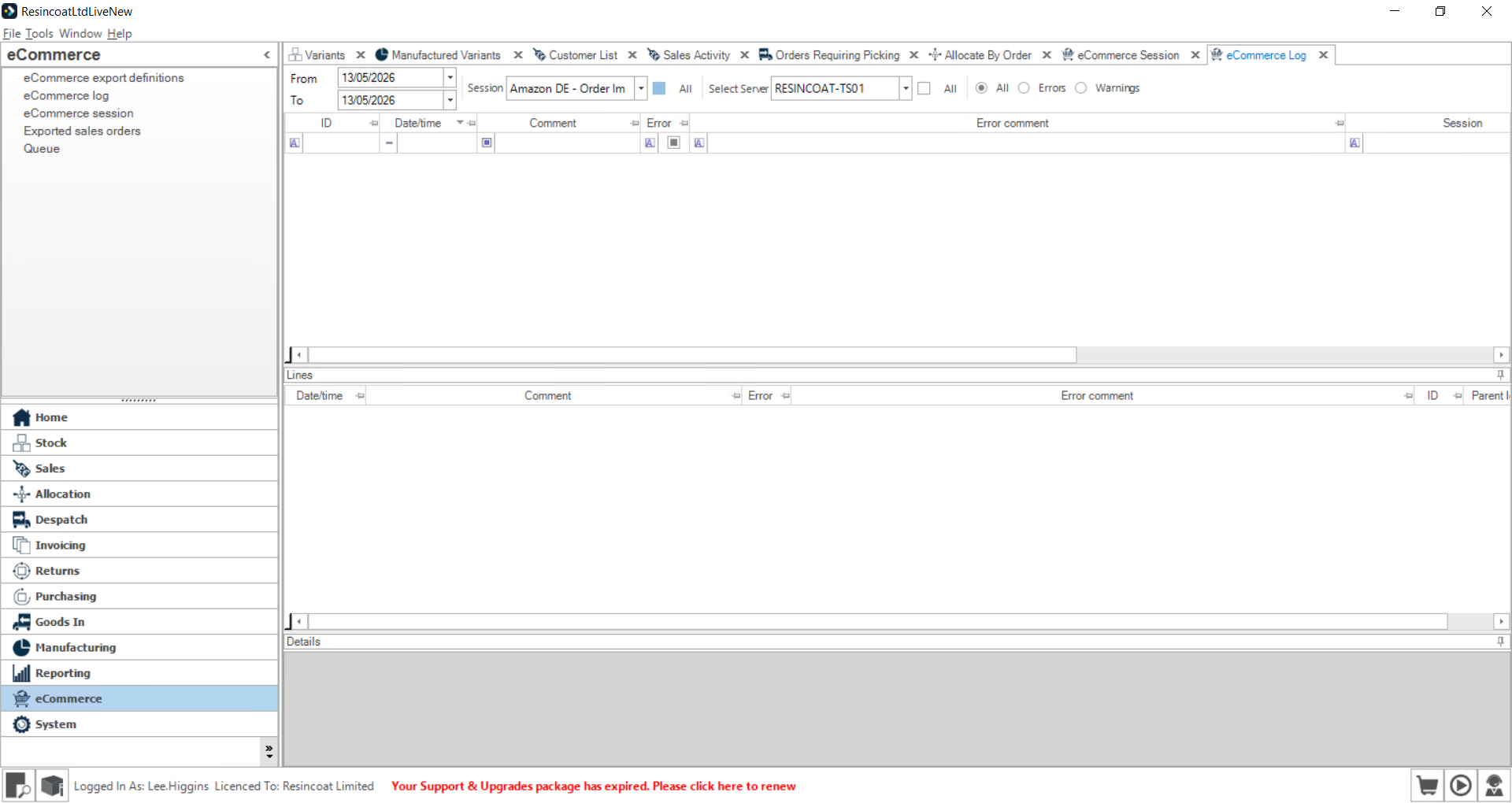
6
Select an entry in the lower details panel, such as Starting session, to review granular status updates for the import task.