
How to Manually Schedule an Appointment in GoHighLevel
Learn how to manually schedule a client consultation, define custom meeting times, and confirm appointments using the GoHighLevel calendar.
This guide explains how to manually schedule a client consultation in GoHighLevel. Follow these steps to book an appointment and define custom meeting dates and times on behalf of a contact.
This process is ideal for sales representatives and account managers. Use this workflow when a client has agreed to a specific meeting time outside of a self-serve scheduling link and you need to manually log the appointment in your calendar.
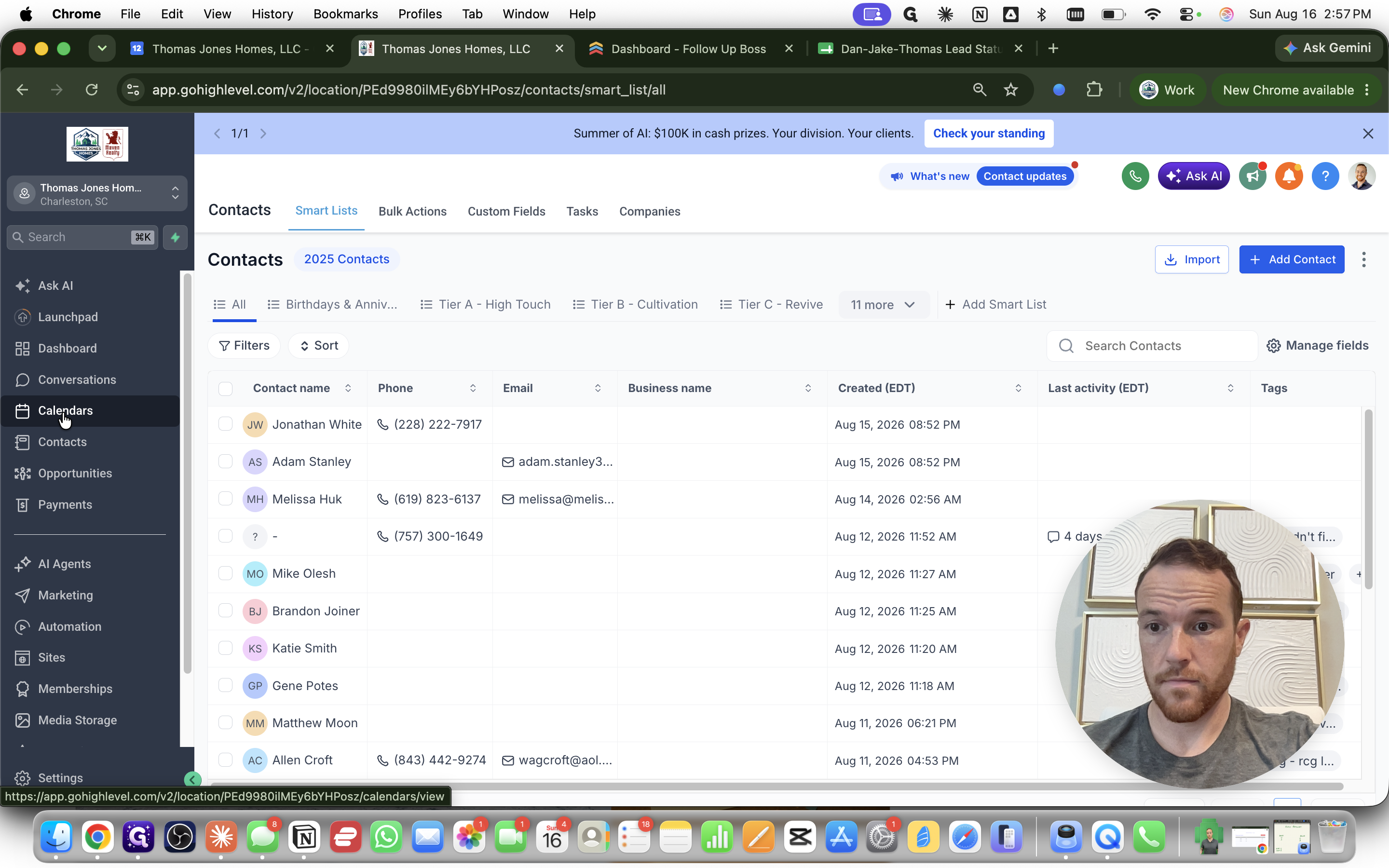
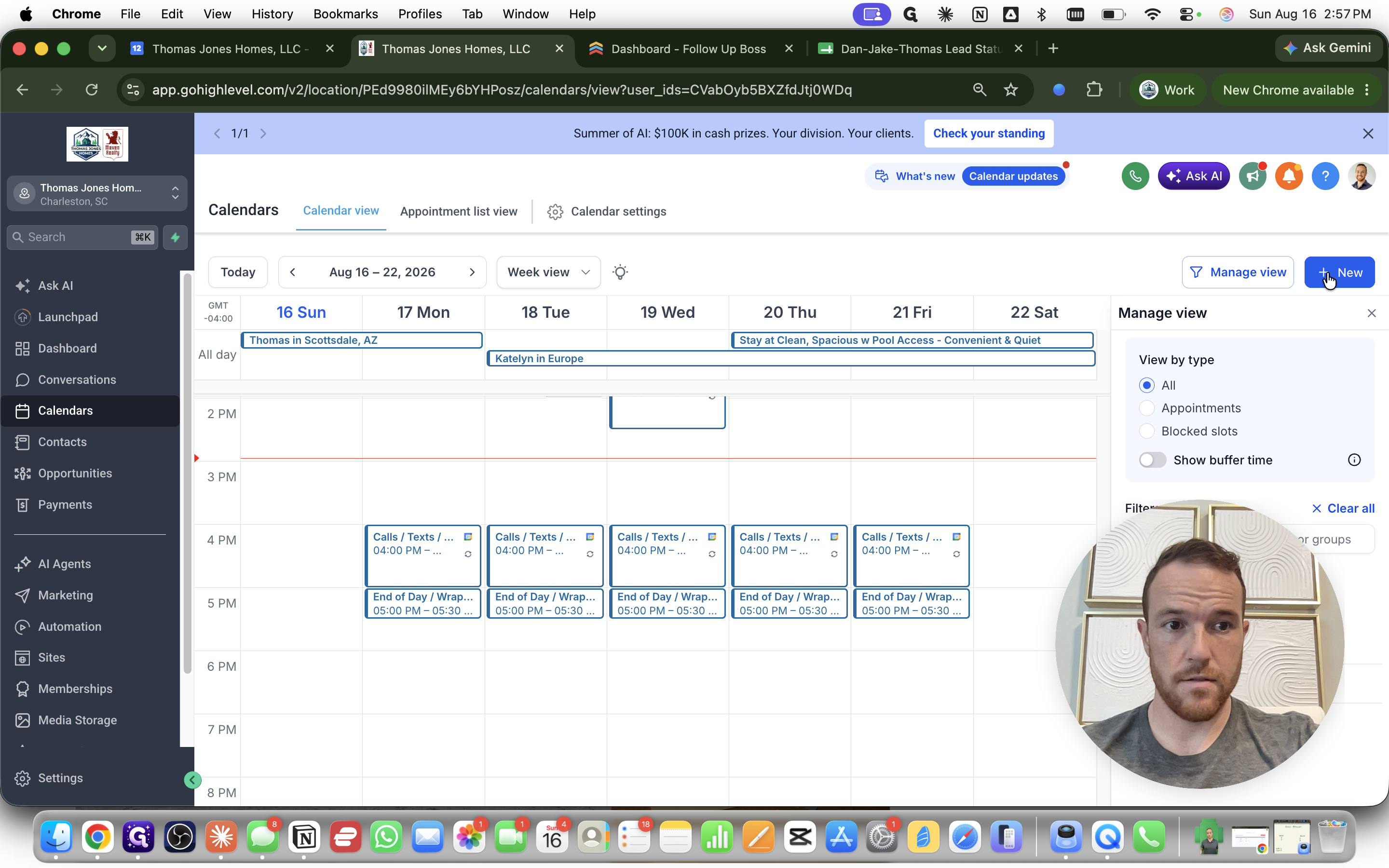
Navigate to your calendar dashboard to begin creating a new appointment.
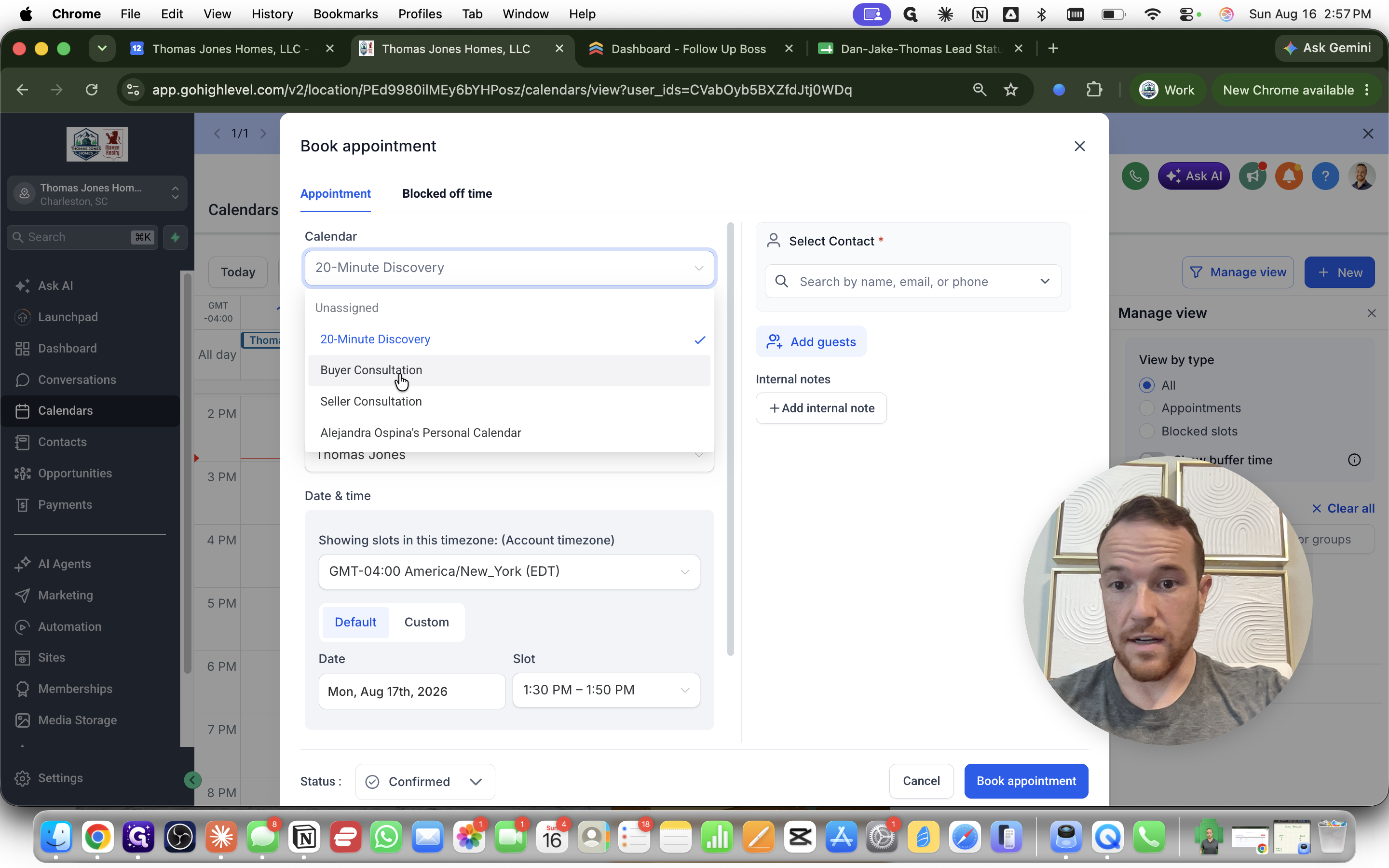
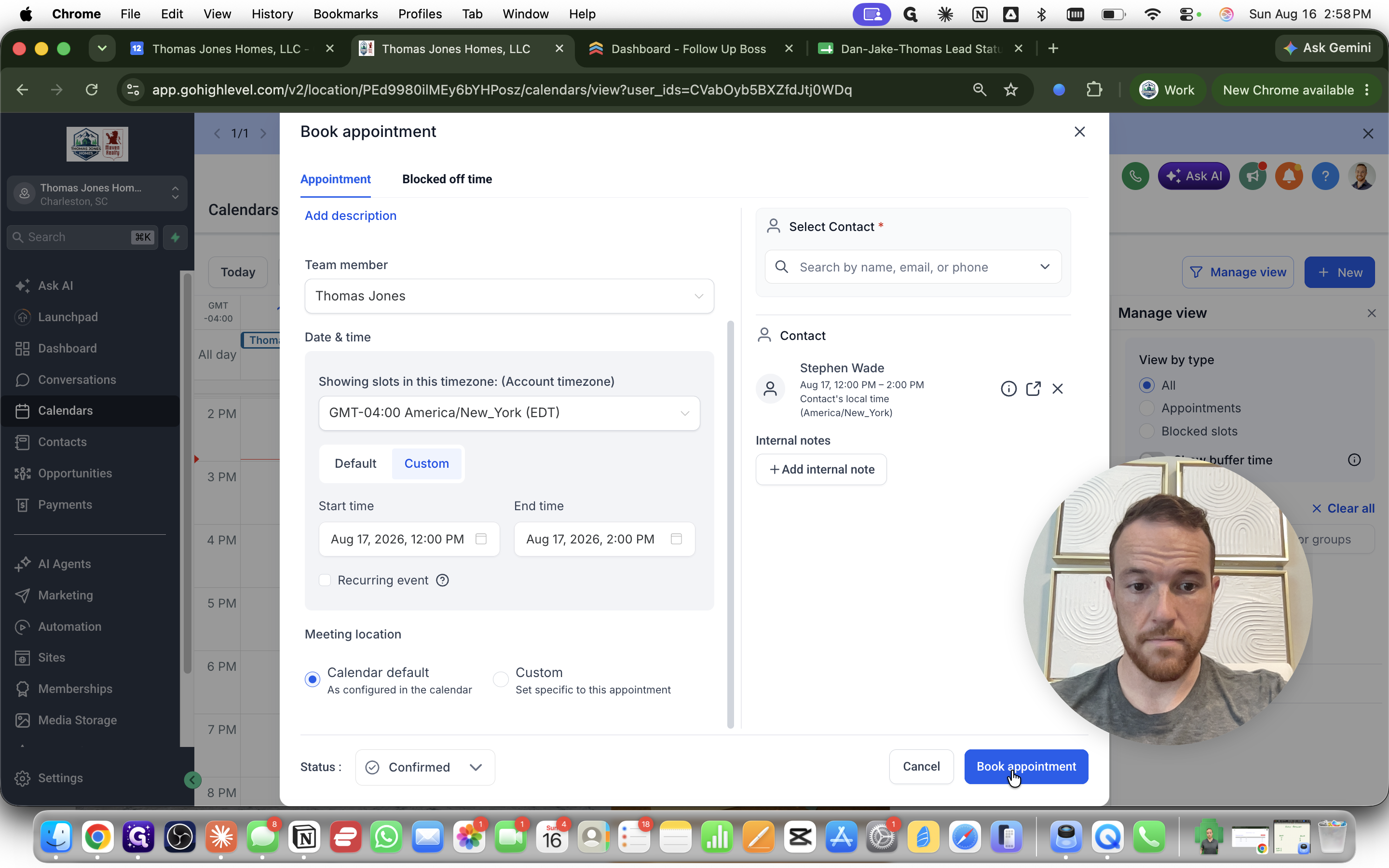
Next, associate the appointment with an existing contact in your CRM.
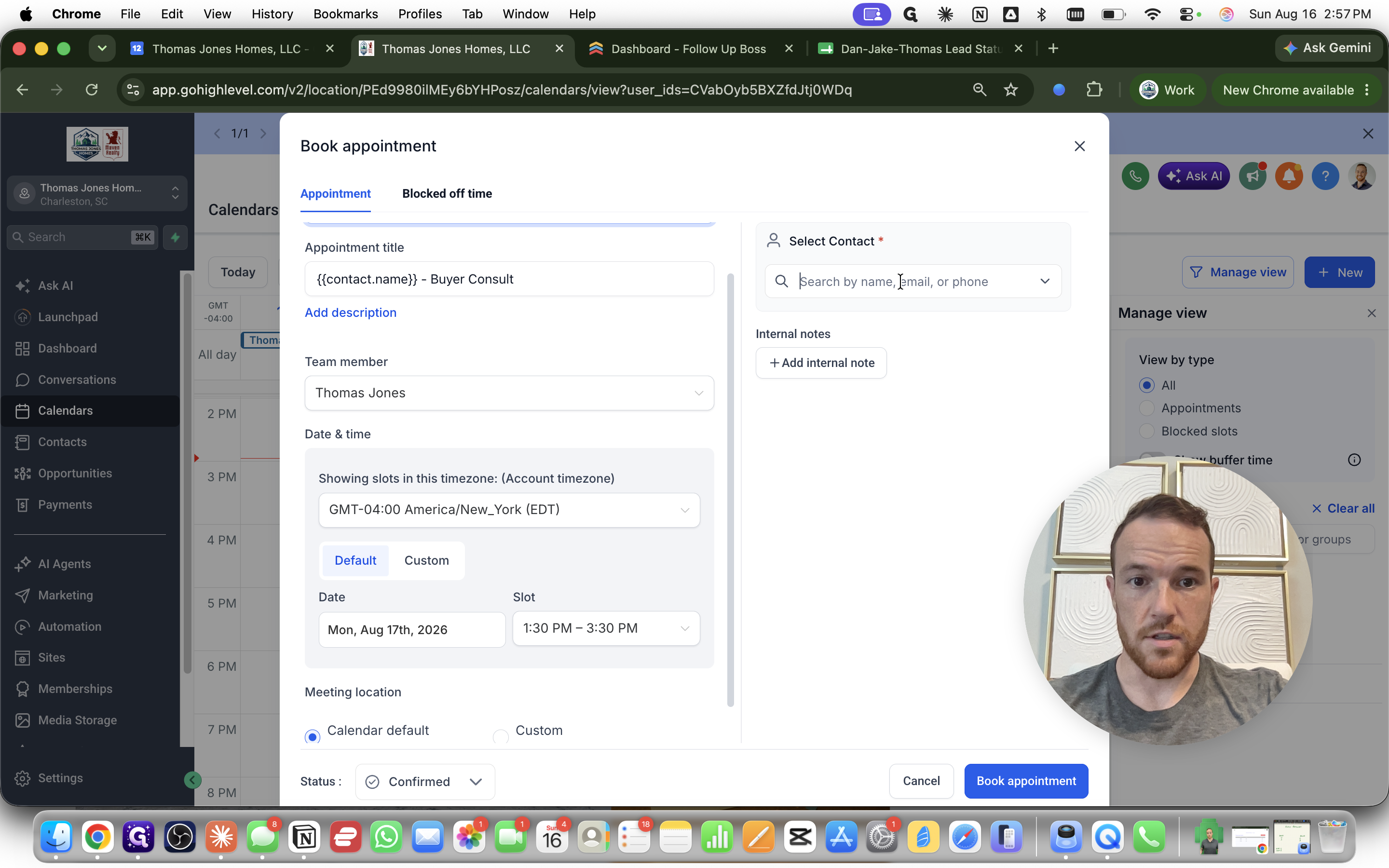
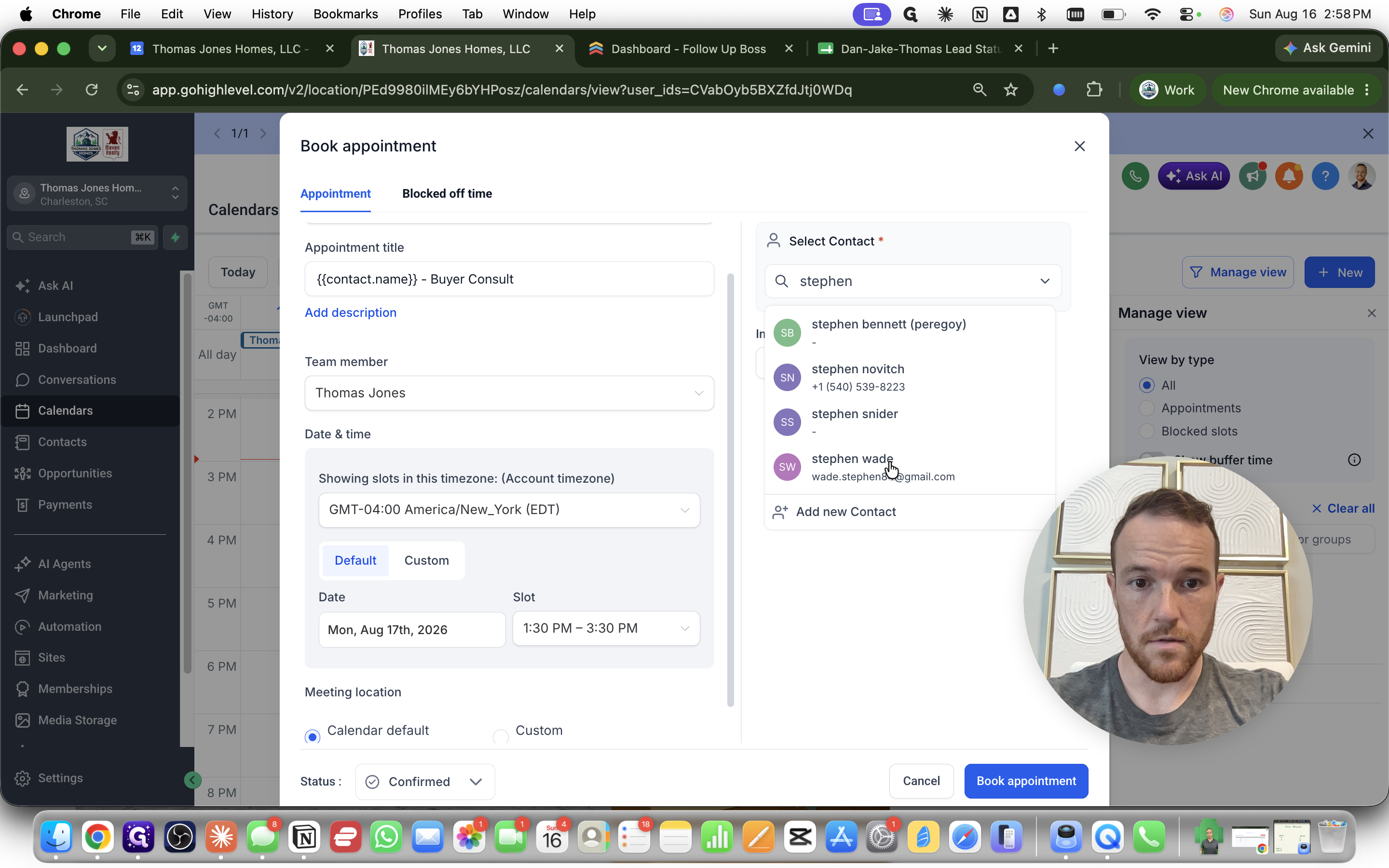
Setting the Date and Time
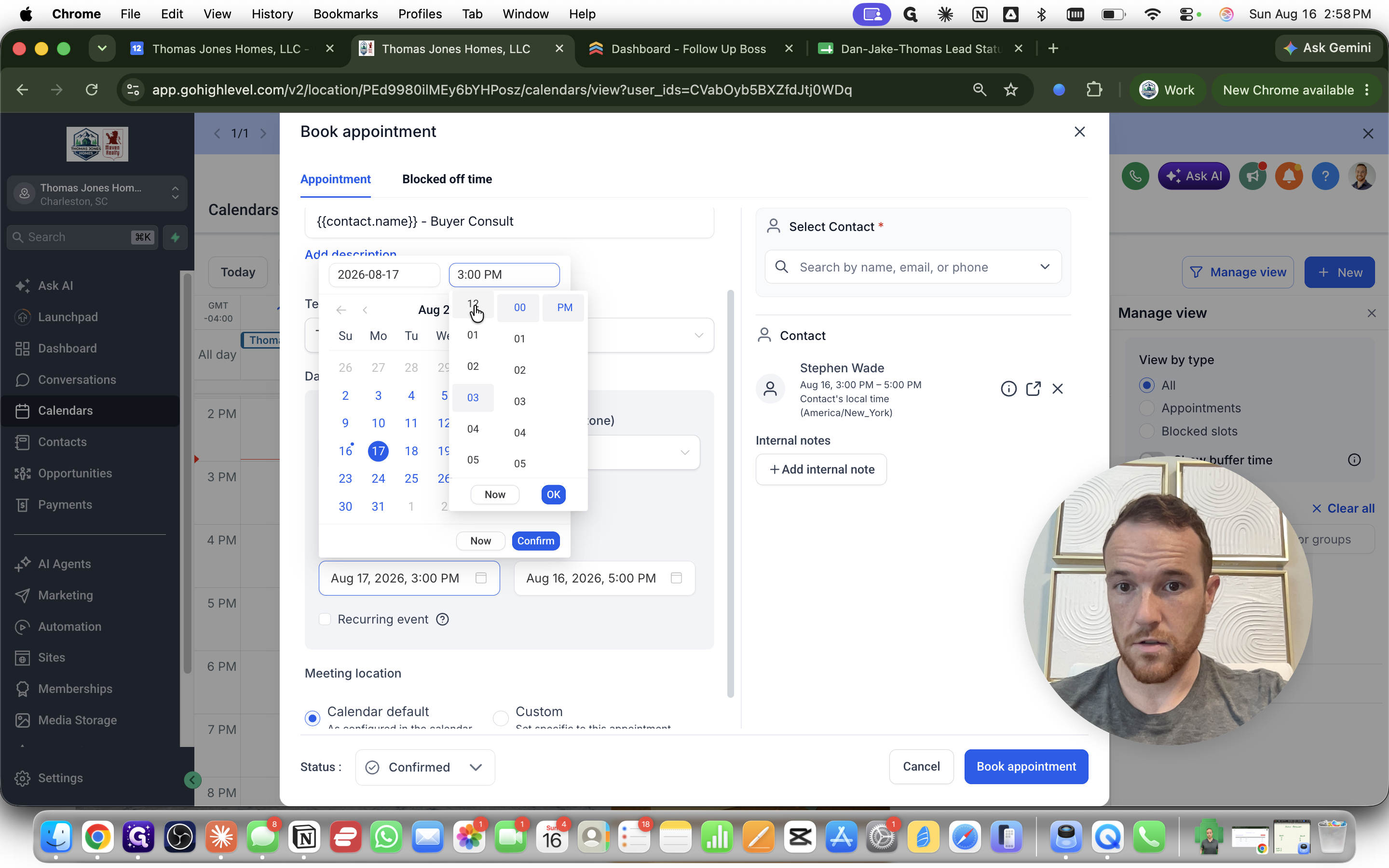
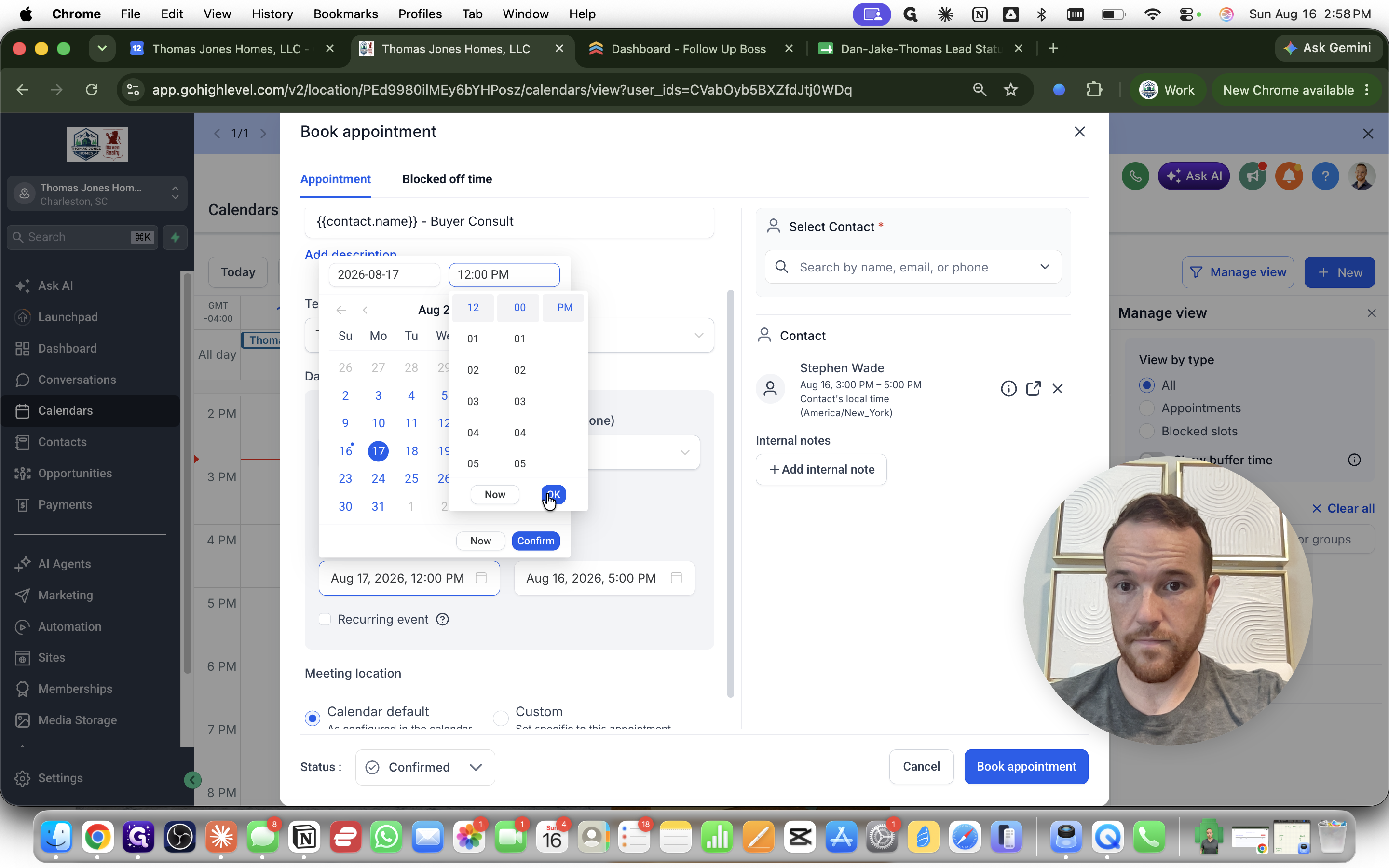
By default, the calendar attempts to slot the appointment into the standard availability. If the desired time doesn't align with the default slots, use a custom time.
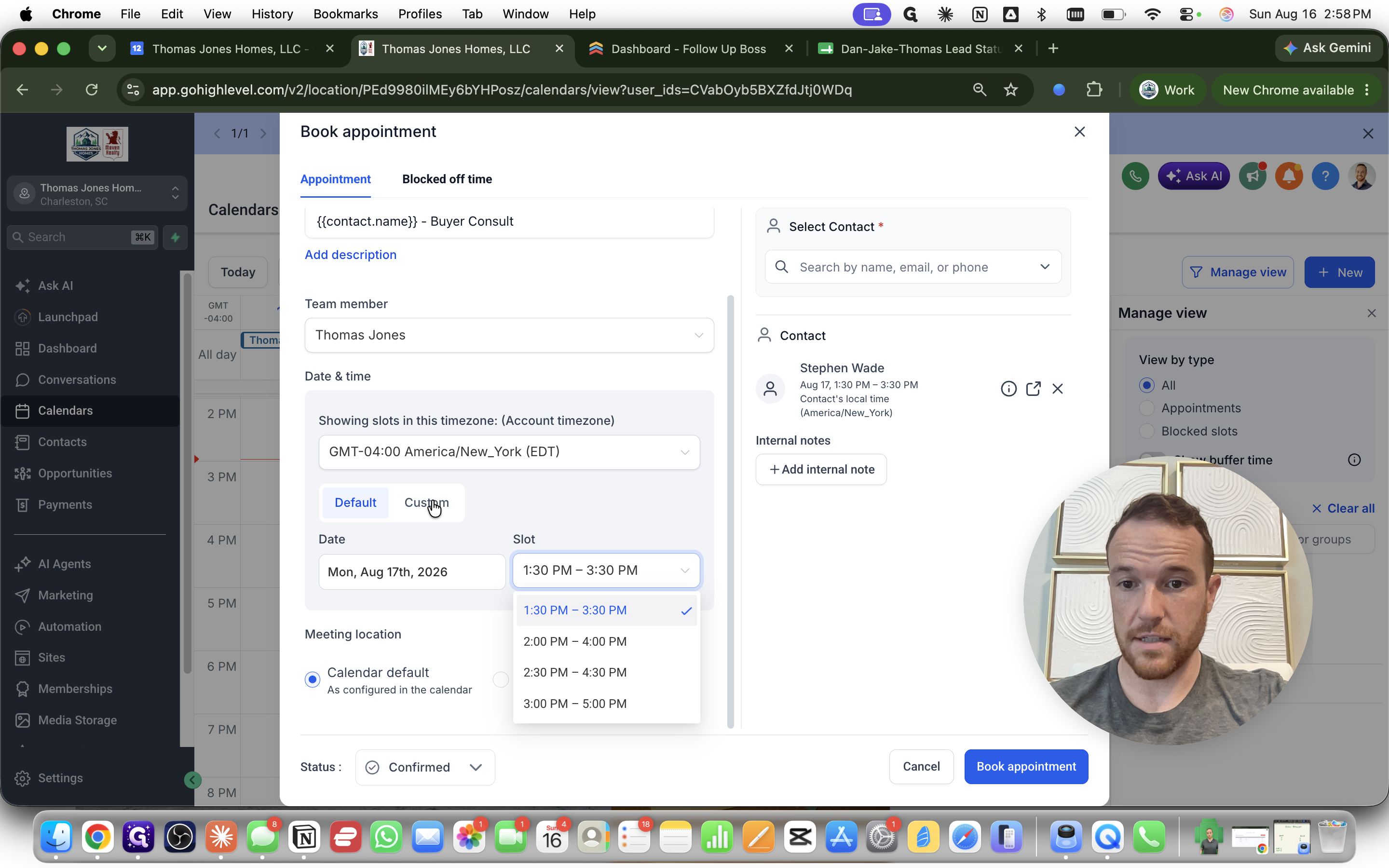
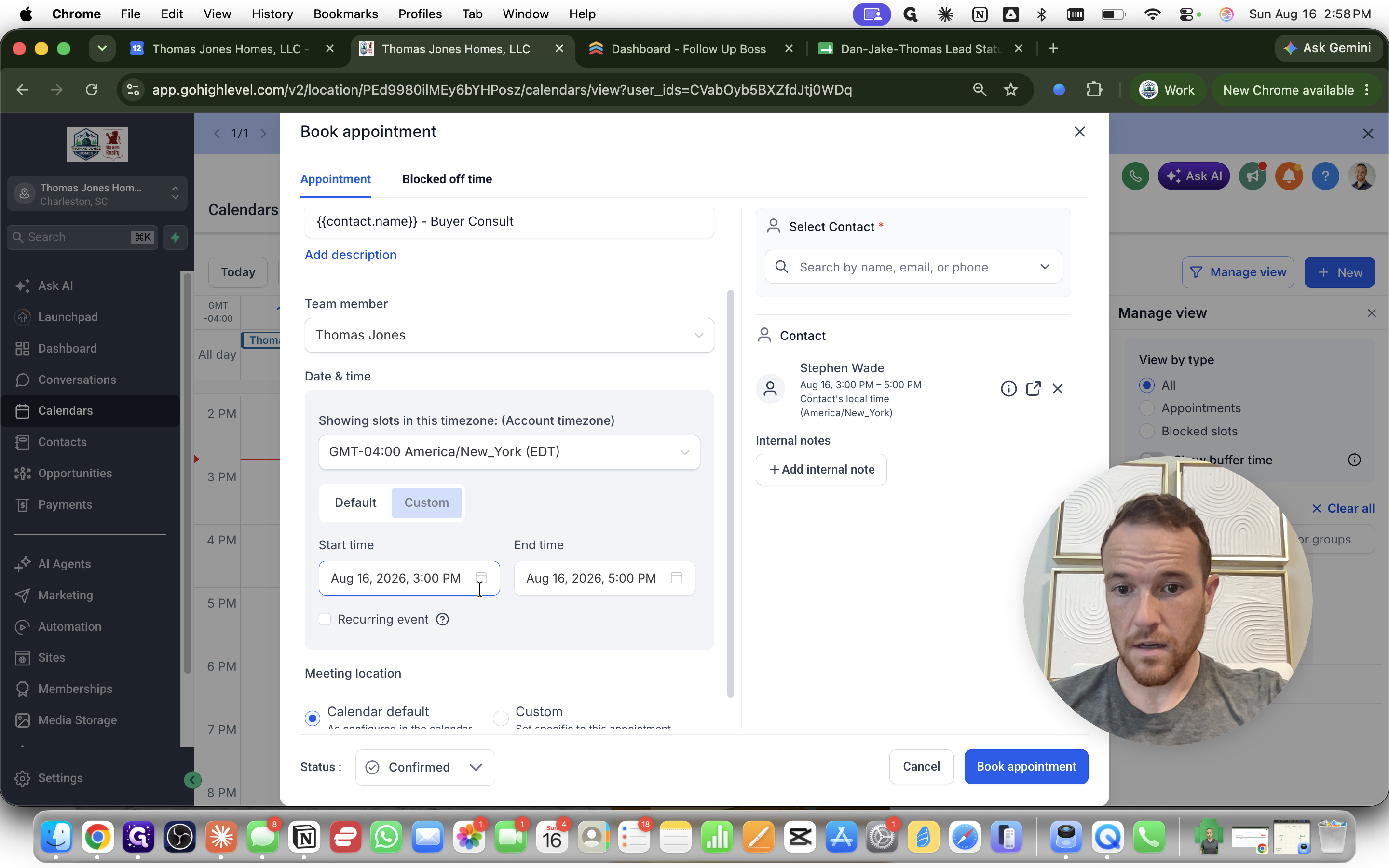
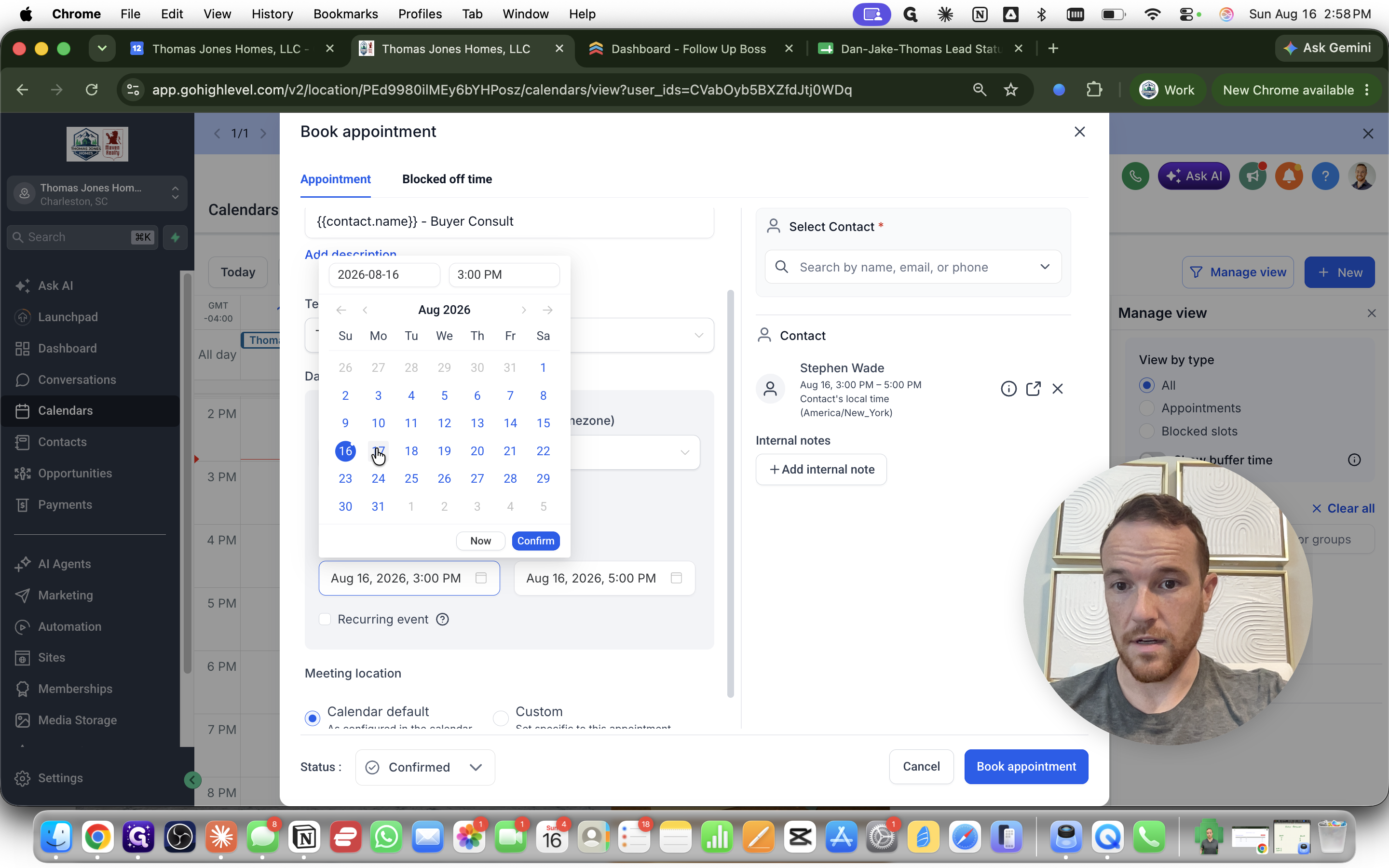
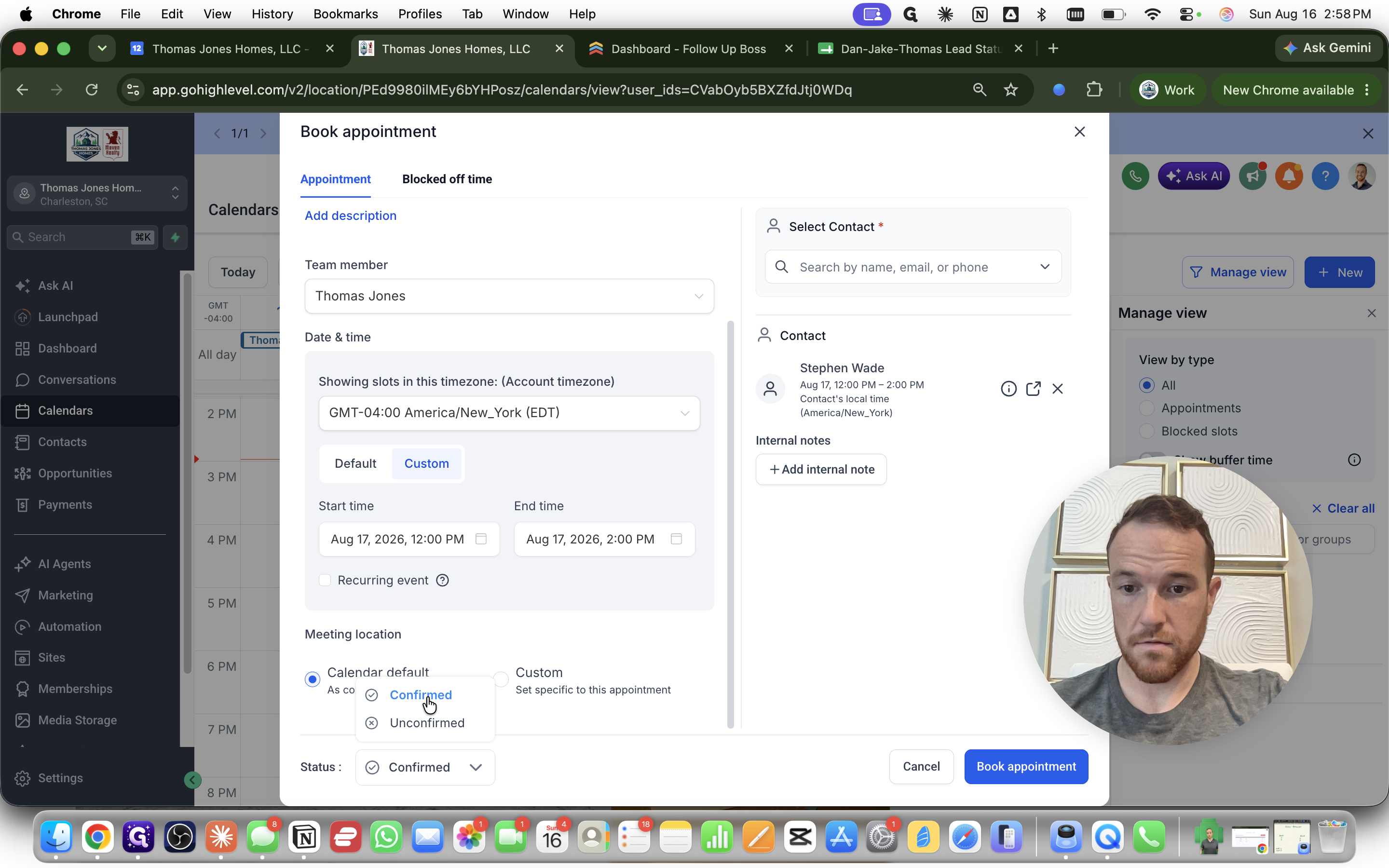
Finalizing the Appointment
Q: What if the default time slot does not work for my client?
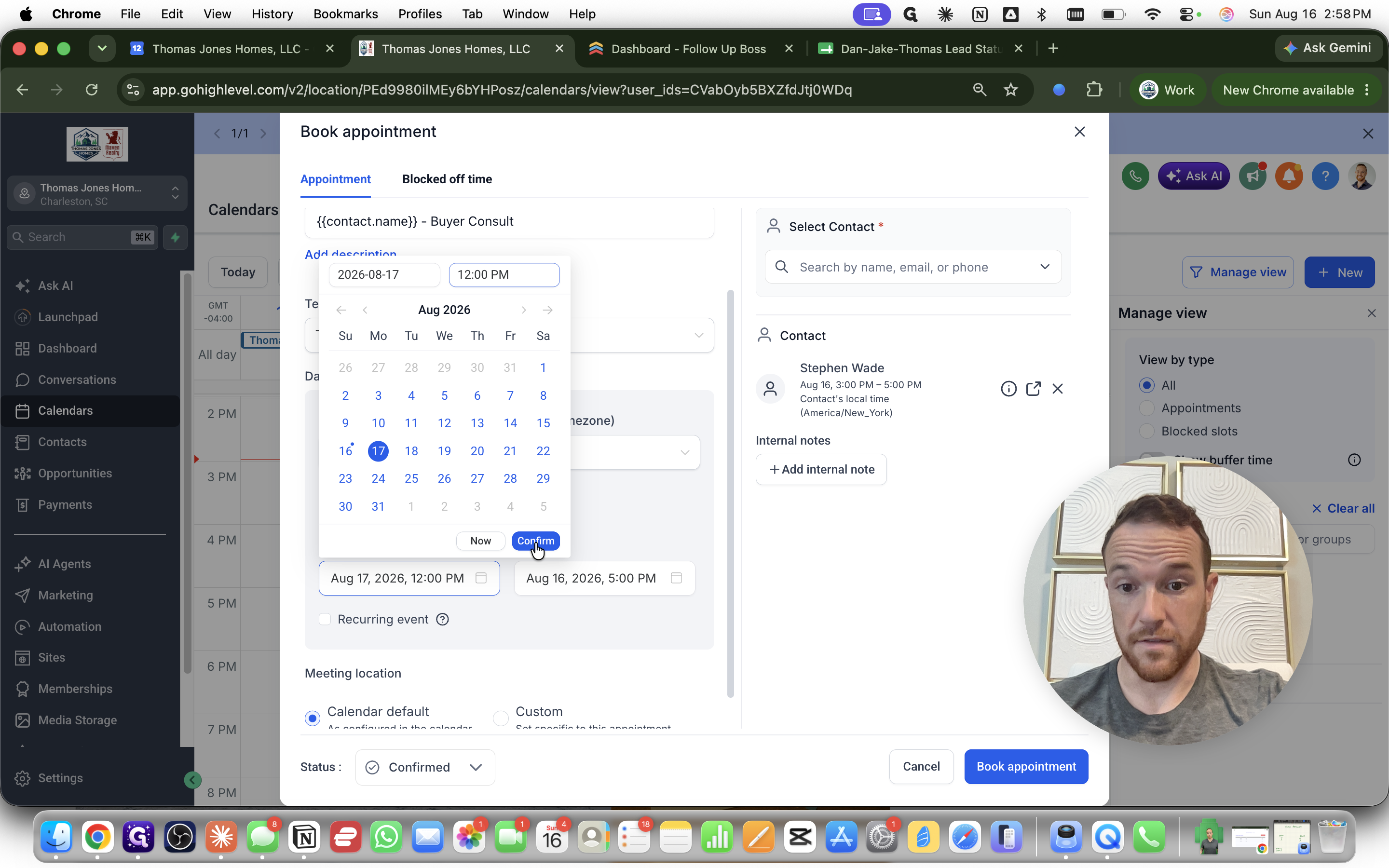
A: You can switch to the Custom tab in the scheduling modal to manually select any specific start date and time.
Q: Do I need to manually set the meeting end time?
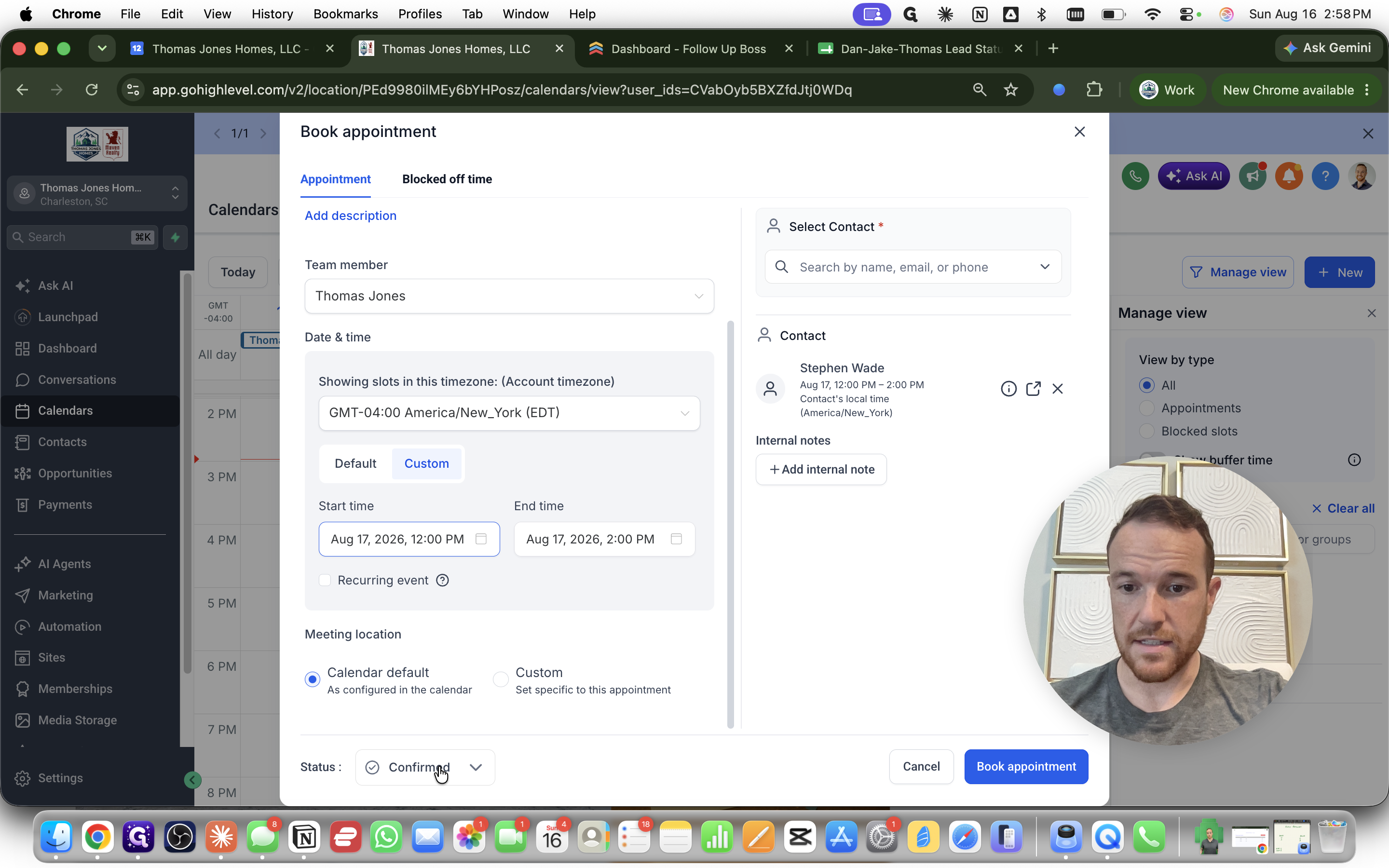
A: No. Once you confirm the custom start time, the end time automatically populates based on the duration settings configured for that calendar type.
Q: Why should I change the appointment status to "Confirmed"?
A: If you have already finalized the details directly with the client (via text, email, or phone), marking it as Confirmed bypasses any pending unconfirmed statuses and secures the time block immediately.
Term | Definition |
|---|---|
Buyer Consultation | A specific calendar type configured in the CRM, typically used to schedule initial discovery or purchasing discussions with leads. |
Custom Scheduling | An option in the appointment modal that allows users to override predefined availability slots and select an exact date and time. |