
How to Map Accounting Software via CSV Import
Learn how to import a CSV of GL codes to map your chart of accounts and create custom expense fields for seamless accounting integration.
This guide explains how to map your chart of accounts by importing general ledger (GL) codes via a CSV template. Completing this ensures your transactions are correctly categorized and mapped, even if your specific accounting software is not natively integrated.
This applies to Finance and Accounting teams responsible for configuring and maintaining expense tracking integrations during the platform's initial setup.
Check for Native Integrations
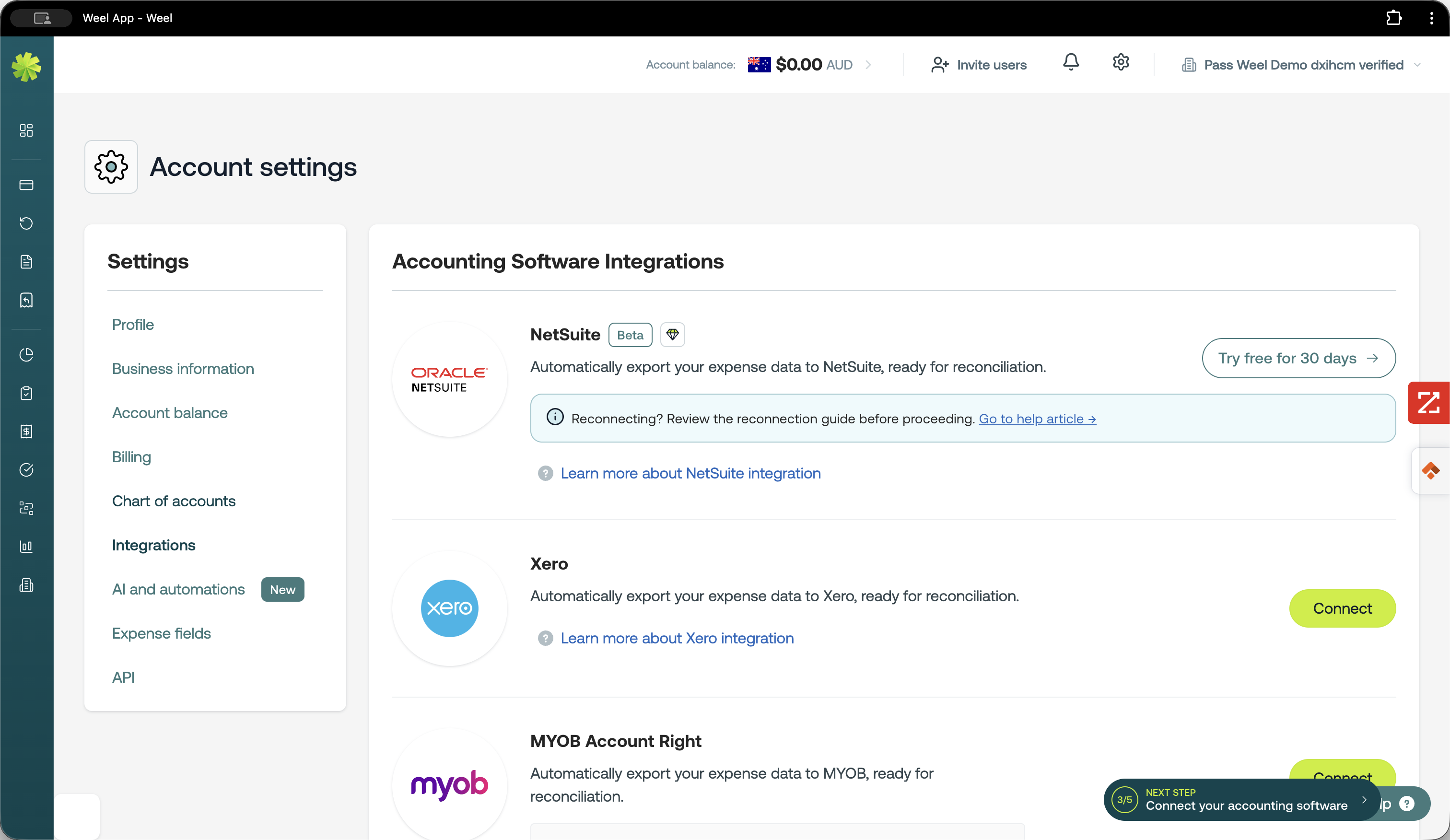
First, verify whether your financial accounting software is already natively integrated with the platform.
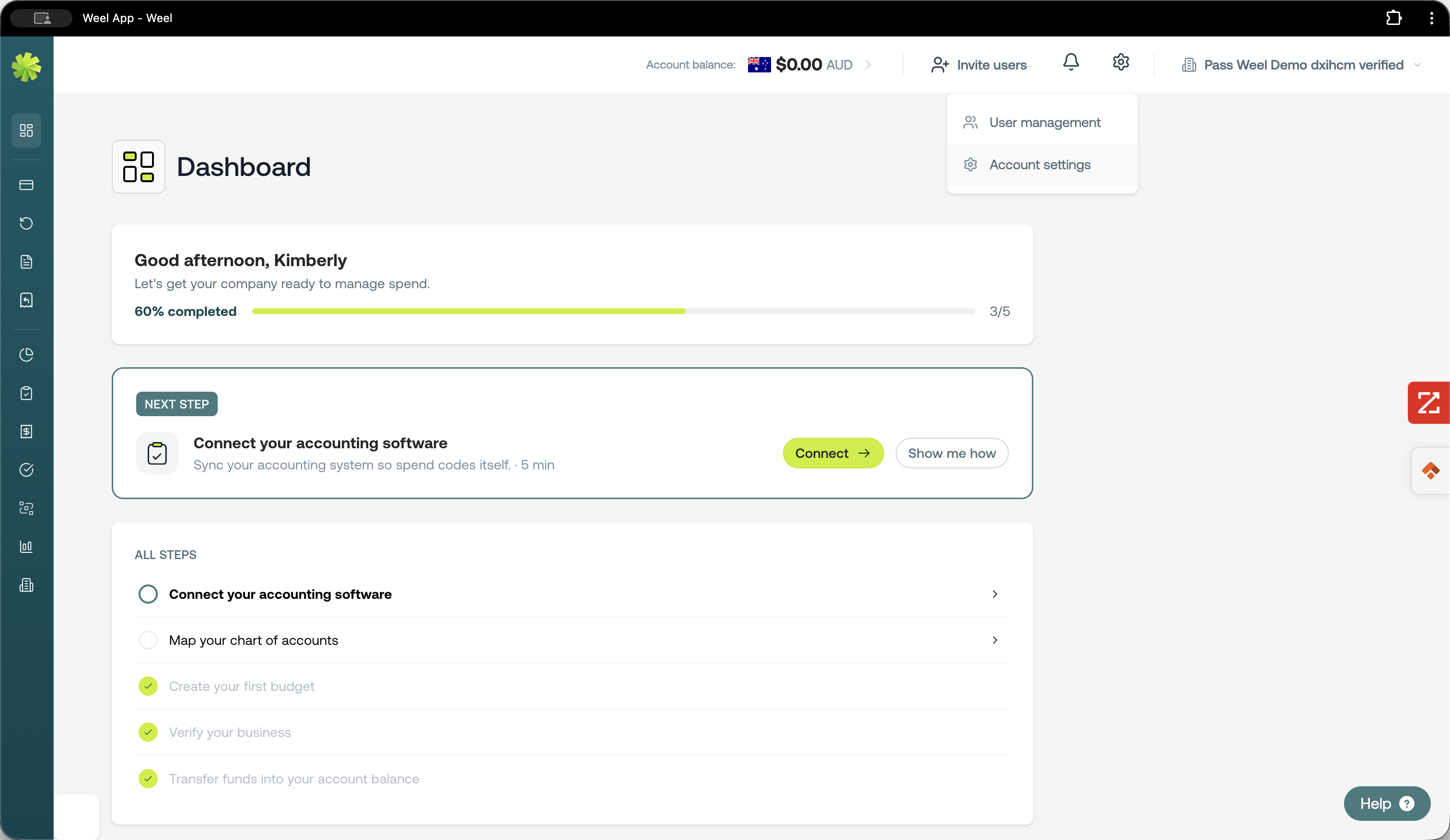
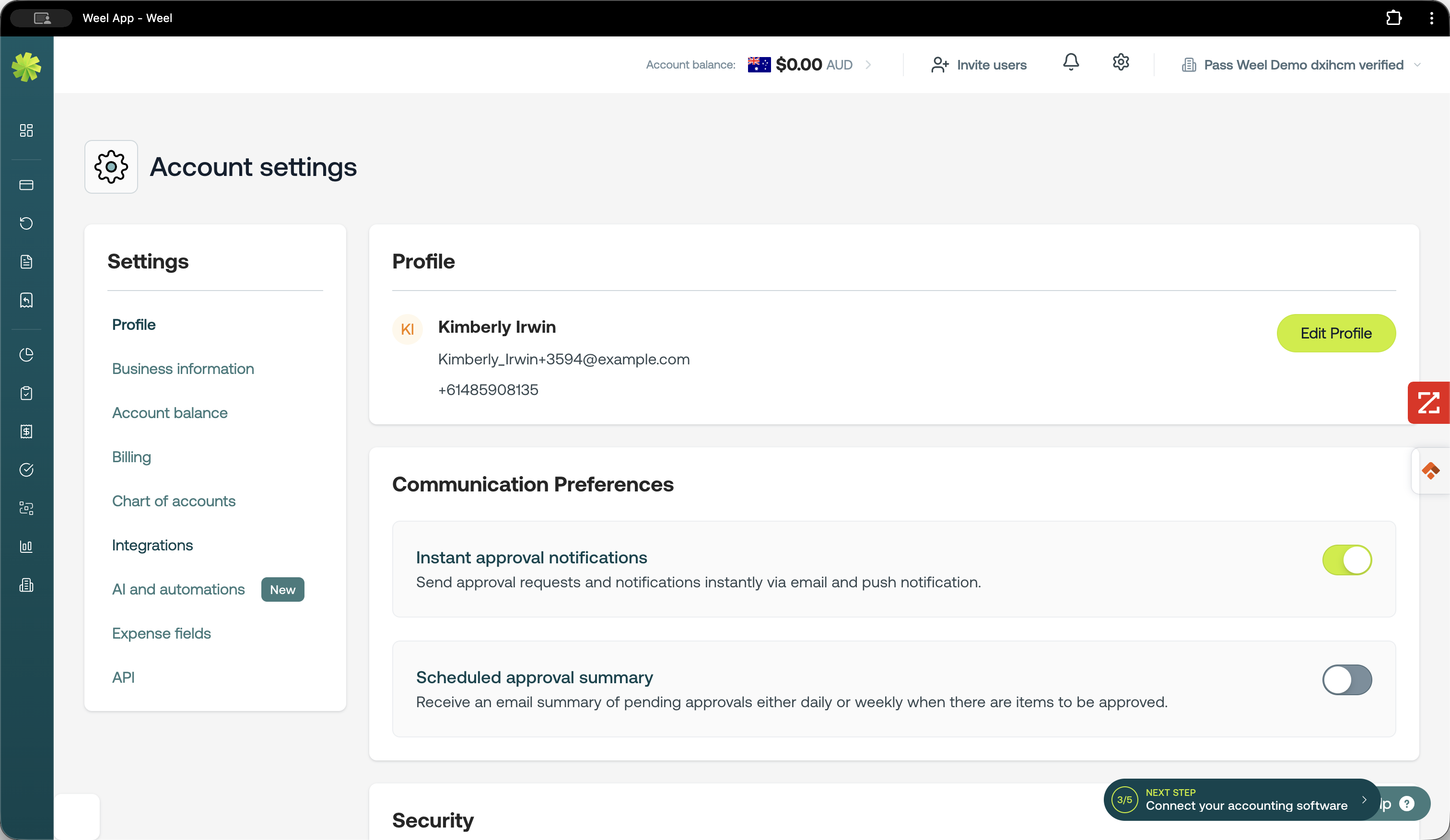
Import Your Chart of Accounts via CSV
If your software is not natively listed, you can manually map your general ledger (GL) codes by exporting them from your accounting software and uploading them using a CSV template.
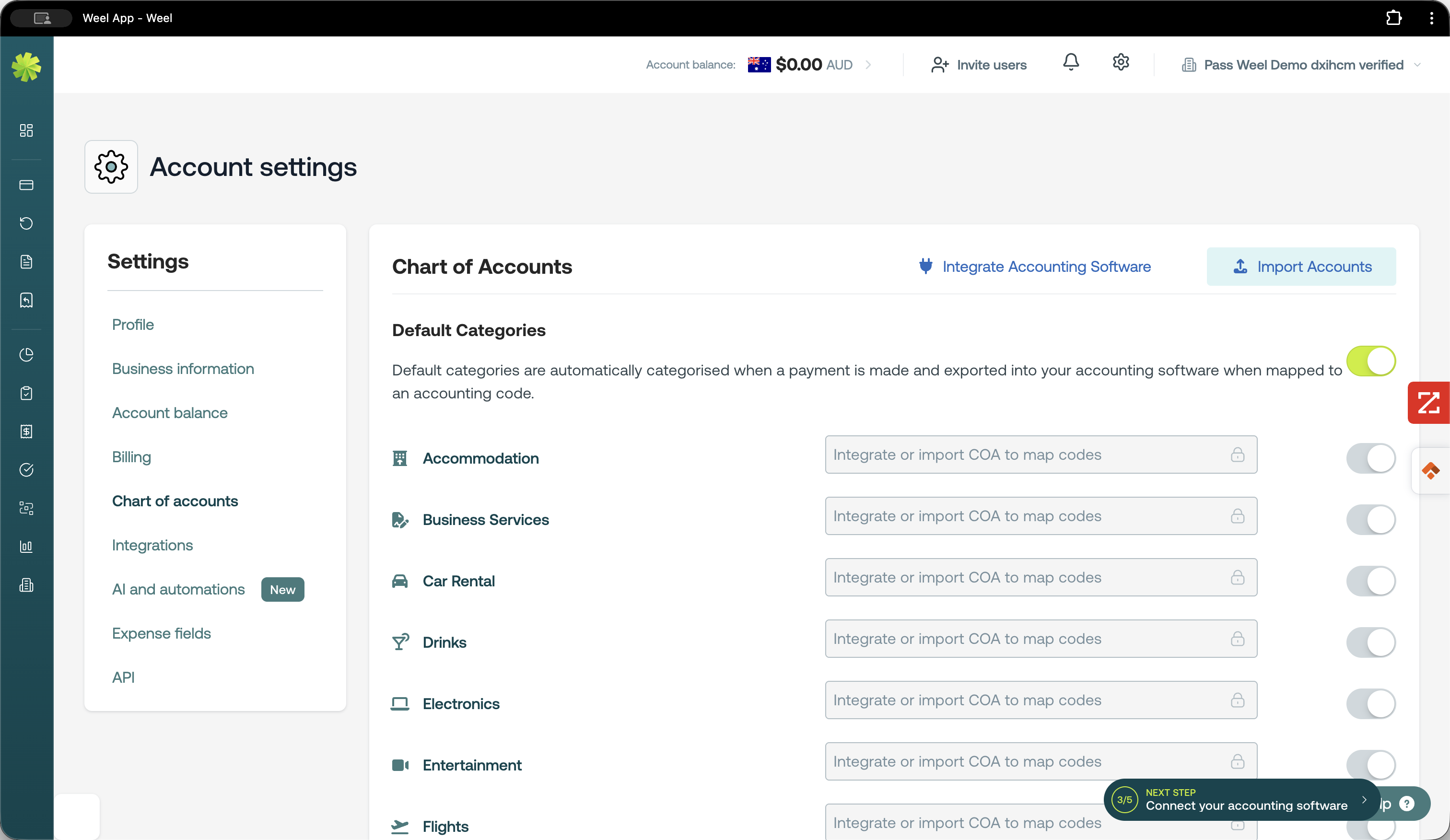
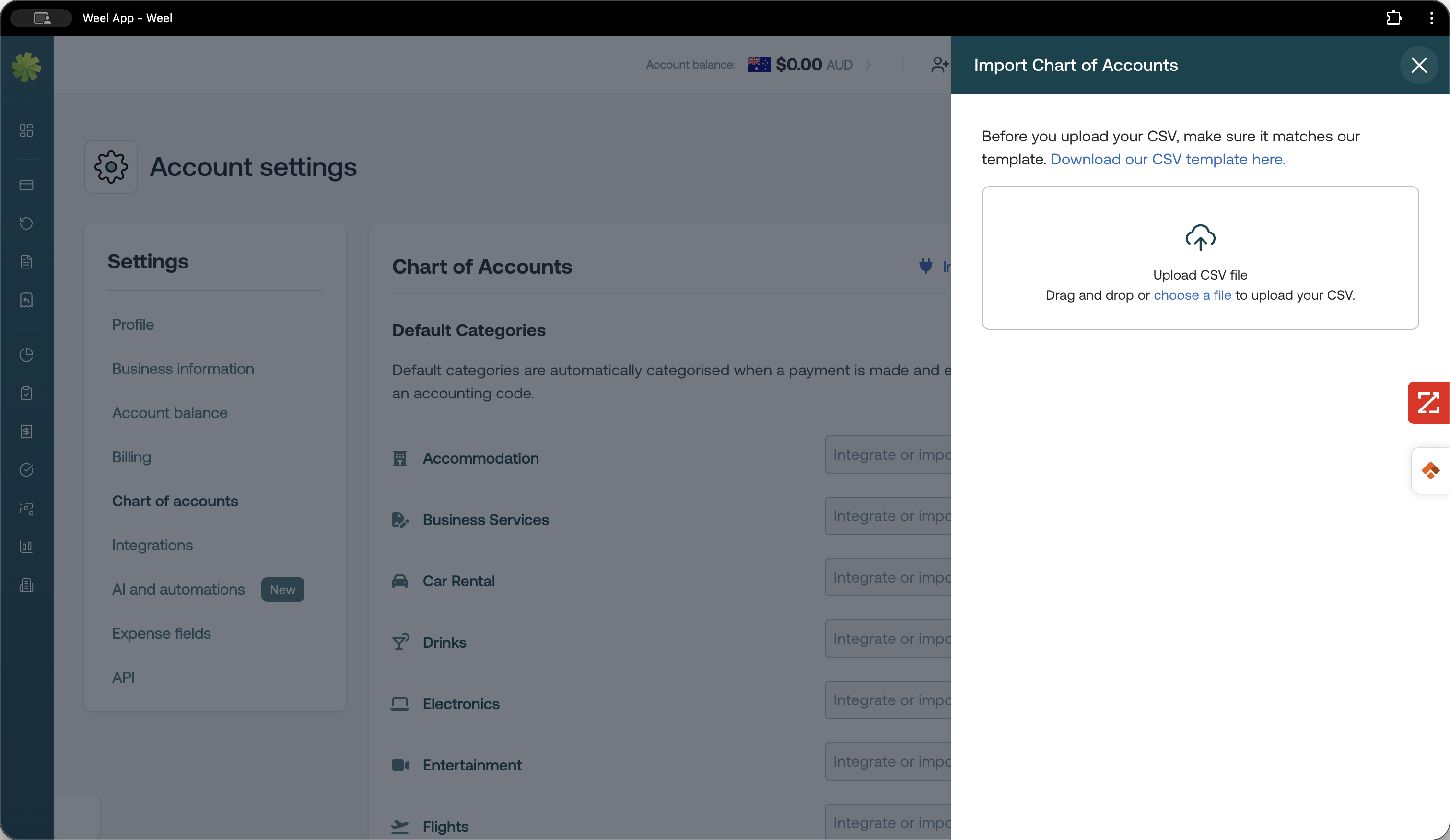
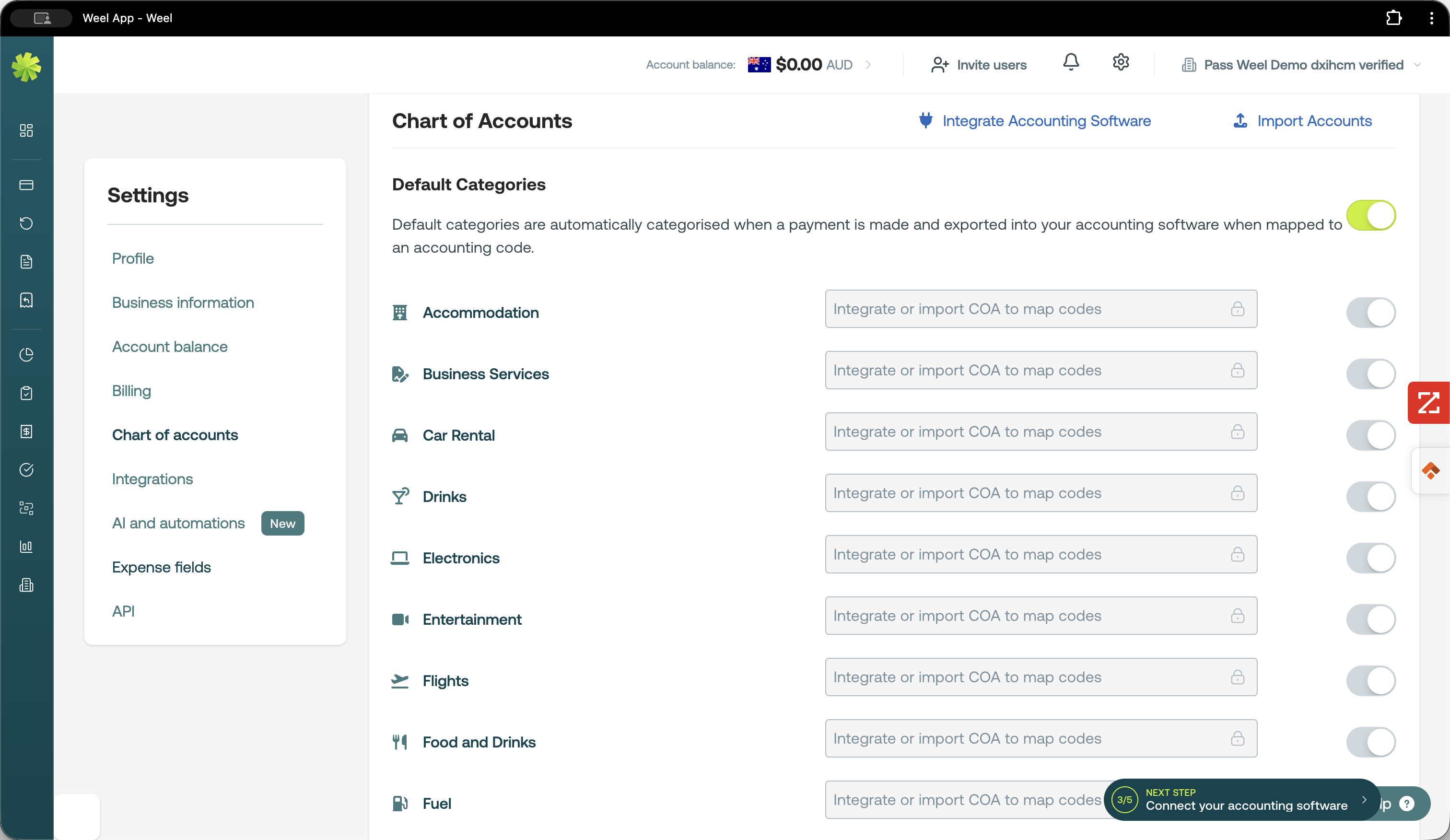
Once the import is complete, you can select from the newly uploaded list to map your spending categories directly to your preferred GL codes.
Create Custom Expense Fields
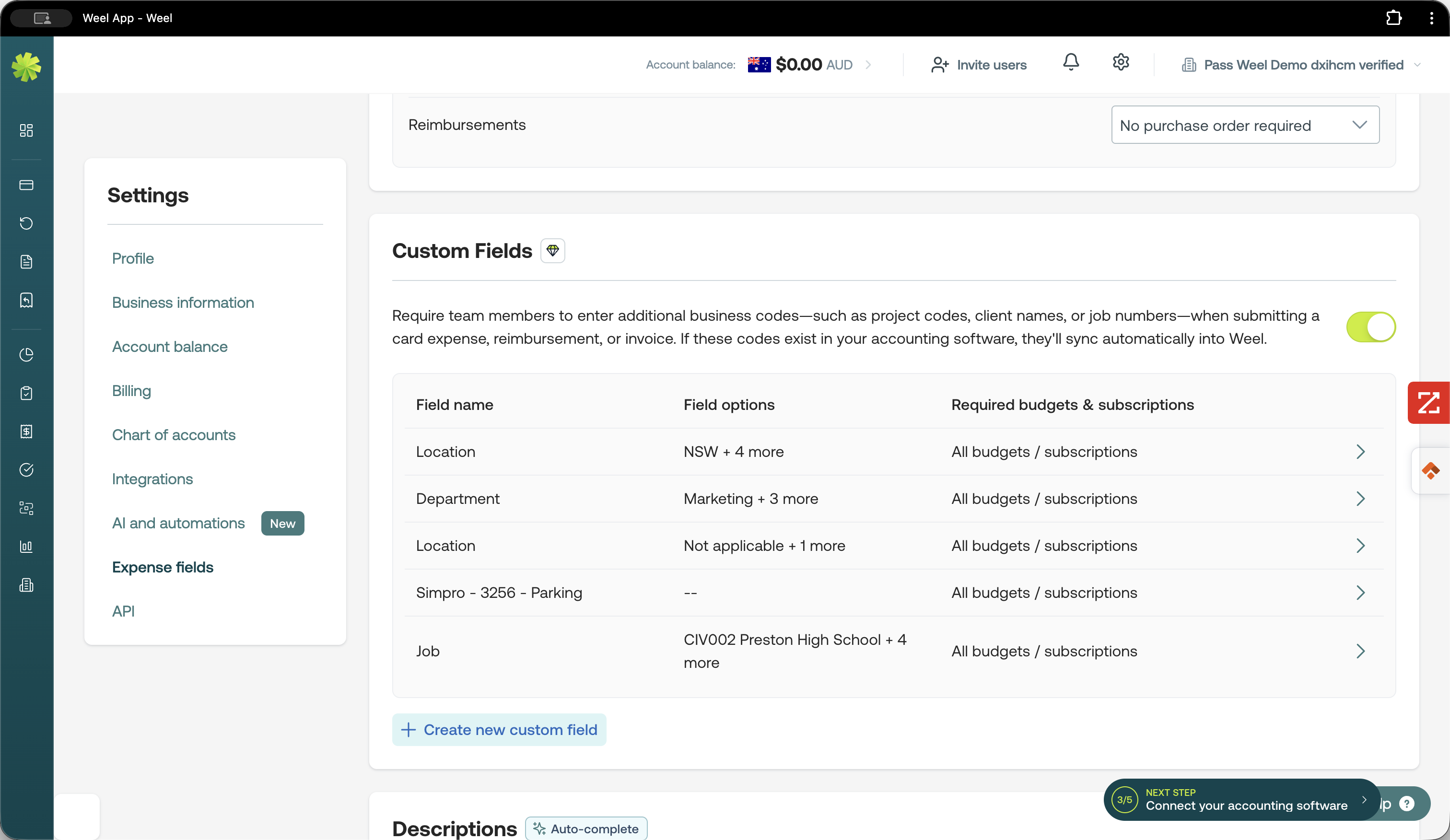
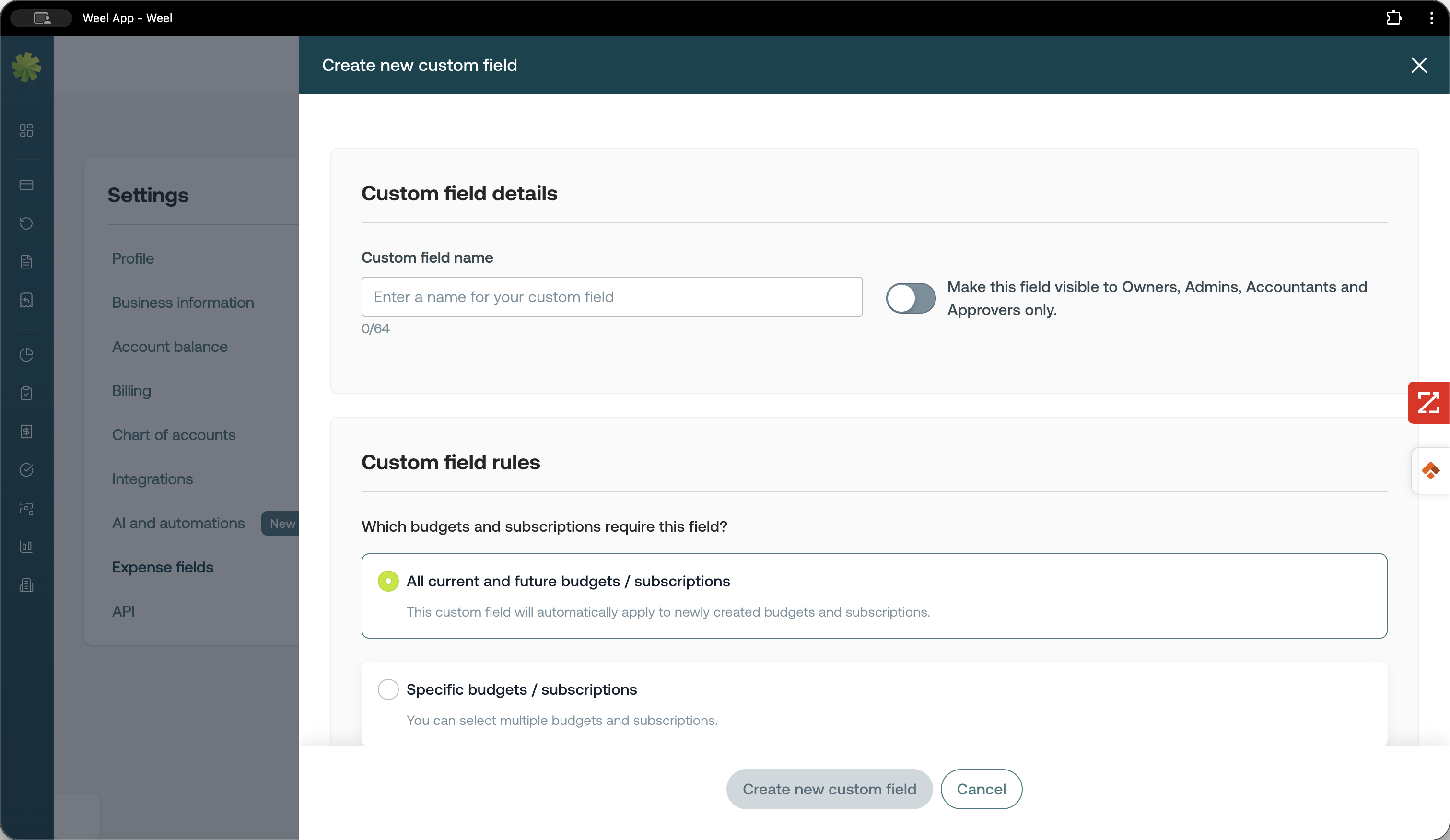
You can also map extra tracking tags such as job codes or location codes by creating custom expense fields.
Q: What format should I use to import my general ledger codes?
A: You should download the provided CSV template from the import modal and ensure your accounting software's GL code export matches its format before uploading.
Q: Can I track extra details like job codes or location codes?
A: Yes, you can capture extra tags by setting up custom expense fields and specifying the different tracking options you require.
Term | Definition |
|---|---|
GL Codes | General Ledger codes used to categorize financial transactions within an accounting system. |
Chart of Accounts | A comprehensive list of every financial account established by an organization to record transactions. |