
How to Map Customer Territories and Plan Routes
Learn how to use the Territory Enquiry feature to map out customer locations, filter your territory results, and plan travel routes efficiently.
This guide explains how to use the Territory Enquiry feature to map out customer locations and effectively plan travel routes. By visualising your territory, you can optimize your time and streamline your field sales operations.
This workflow is designed for field sales representatives and territory managers who need to visualize customer distribution and plan efficient travel routes for site visits.
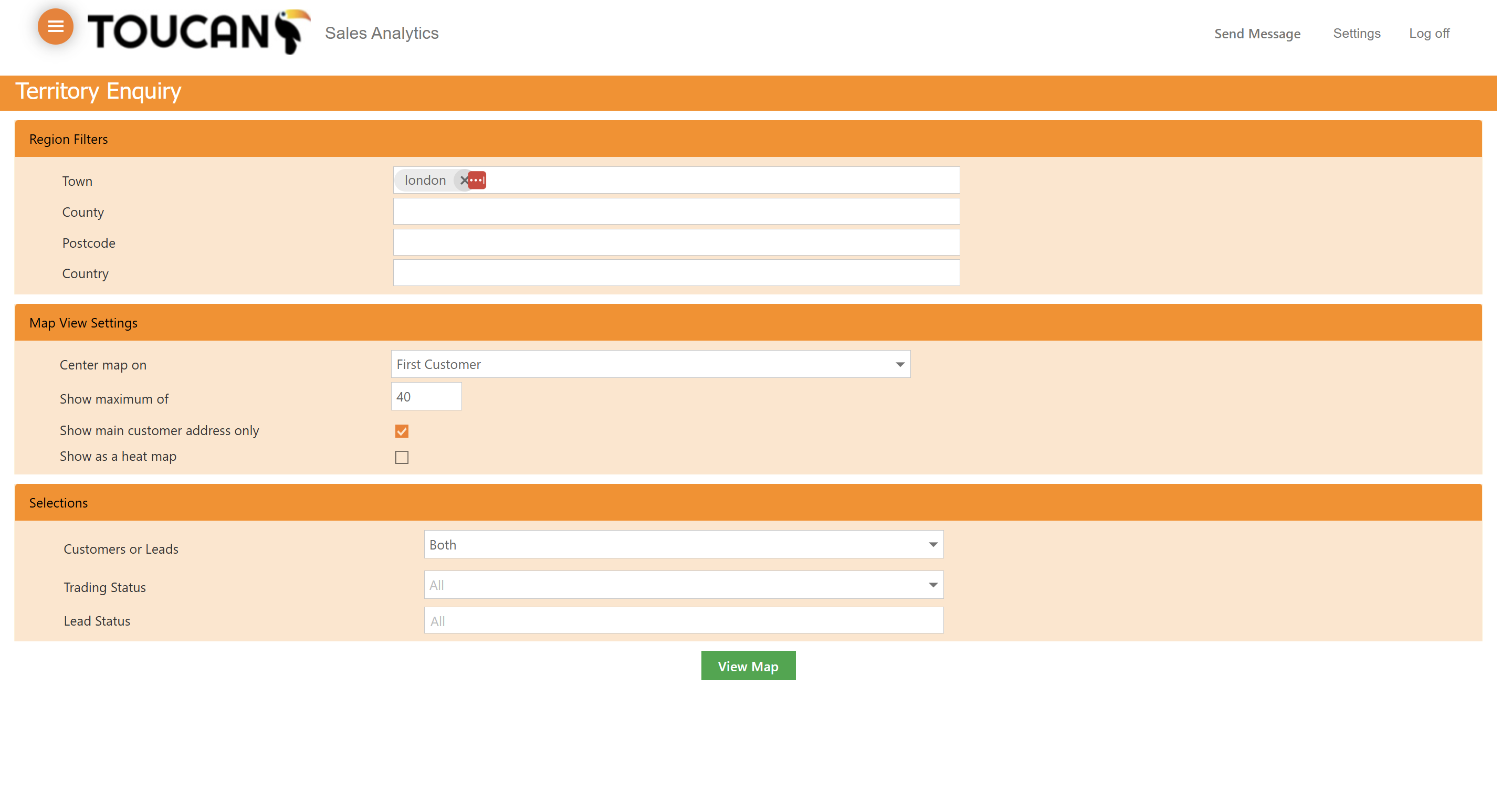
Before generating the map, you can adjust various configuration options to narrow down your results:
Setting | Description |
|---|---|
Center map on | Sets the default focal point of the generated map (e.g., First Customer). |
Max customers | Limits the total number of customer pins shown on the map at one time. |
Address type | Determines which locations are plotted (e.g., main customer address only). |
Account type | Filters the results to include specific types of accounts, such as customers, leads, or both. |
Heat map | Toggles a visual layer representing customer density rather than individual pins. |
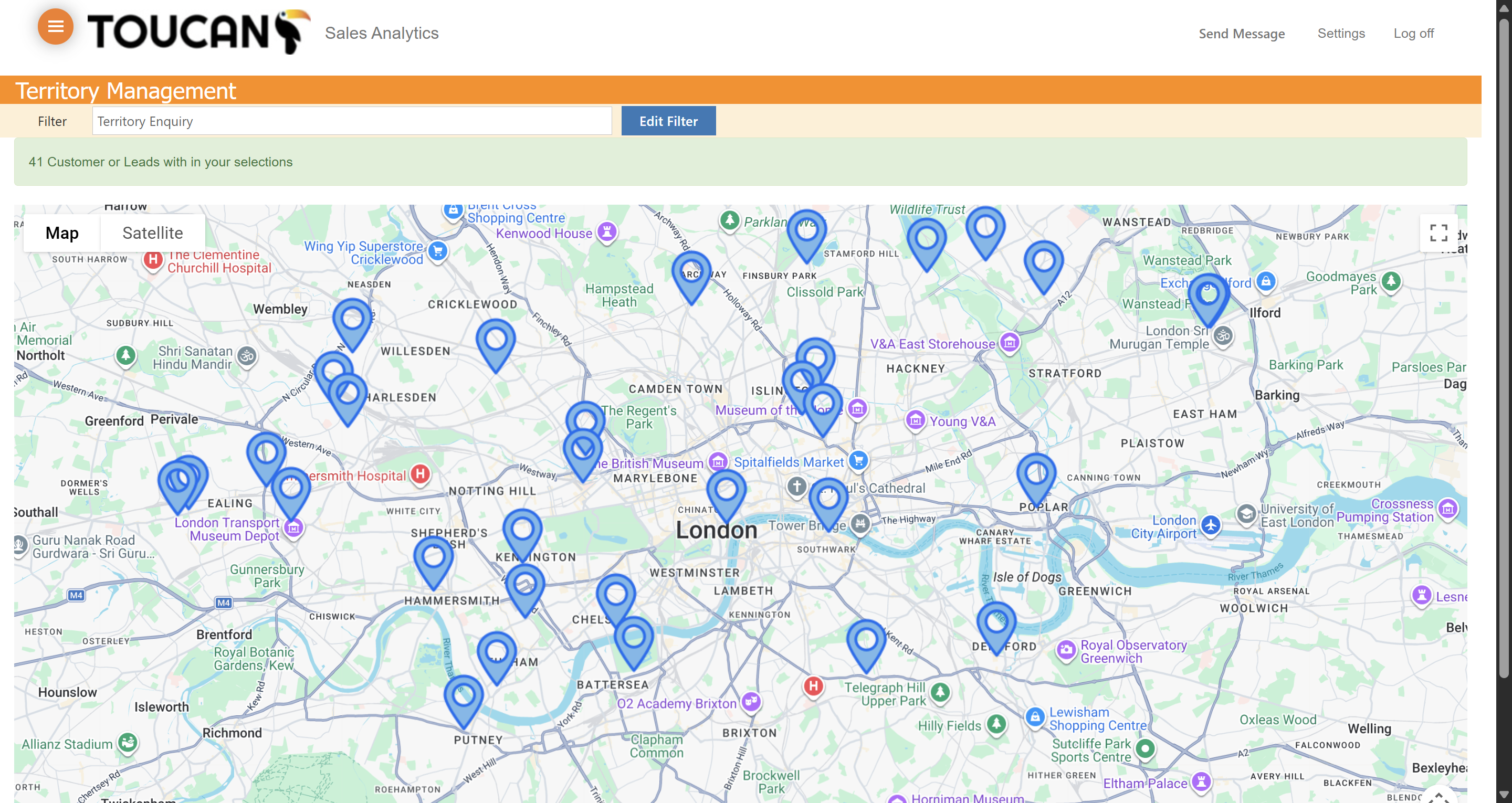
Once the map generates, it will display a pin for every customer and lead within your selected territory.
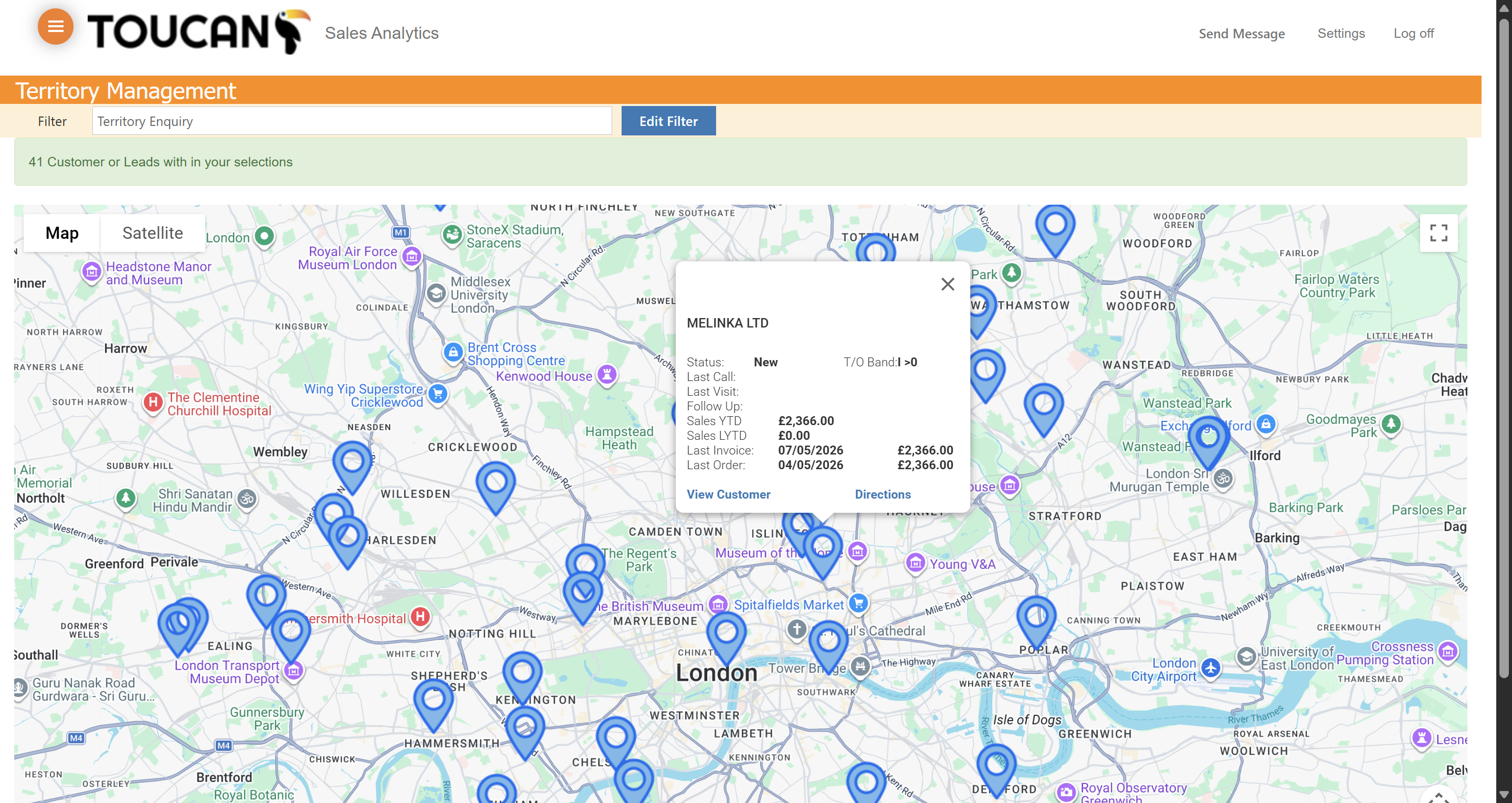
A pop-up card will appear, showing important account metrics such as the customer's status, last call and visit dates, scheduled follow-ups, year-to-date sales figures, and recent invoice details. From this card, you can either click to view the customer's full profile or generate travel directions.
Q: What details are available when I click on a customer pin?
A: The map pop-up displays the customer's status, last call, last visit, follow-up date, sales year-to-date, last year's sales, last invoice, and last order.
Q: Can I view both customers and leads on the map?
A: Yes, the territory filters allow you to select specific account types, including displaying both customers and leads simultaneously.
Q: How do I plan a route to a customer's location?
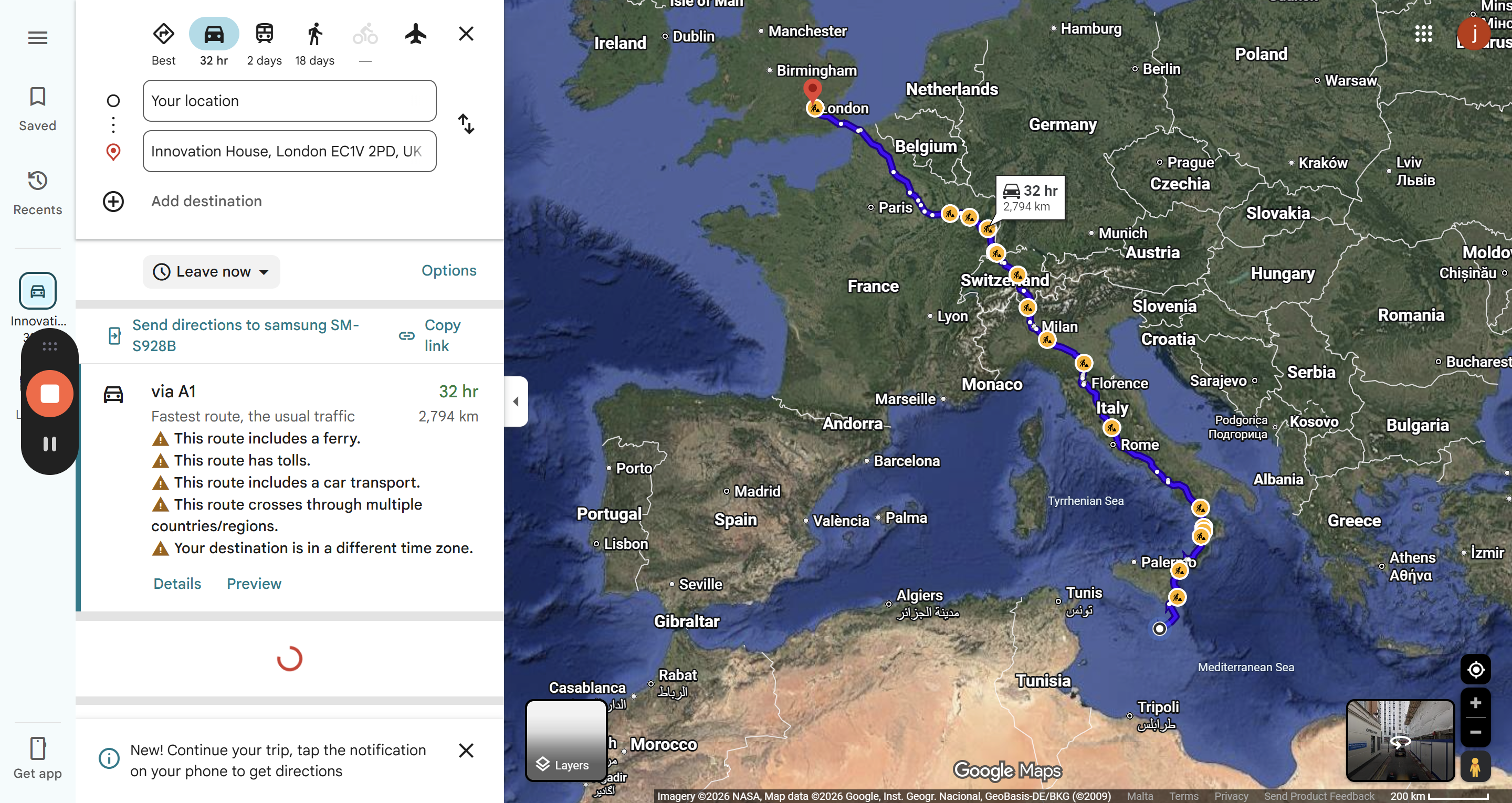
A: Click the customer pin on the map, then click Directions in the pop-up card. This will automatically open Google Maps to help you plan the route from your starting location.