
How to Move In a Tenant in AppFolio Property Manager
Learn how to execute a tenant move-in workflow in AppFolio, including setting up lease details, calculating prorated charges, and sending a portal invitation.
This guide covers how to execute a complete tenant move-in process in AppFolio. Completing these steps ensures the tenant's lease profile, recurring financial charges, and online portal access are properly established.
This workflow is used by leasing agents and property managers who need to onboard an approved applicant and transition a vacant unit into an occupied status.
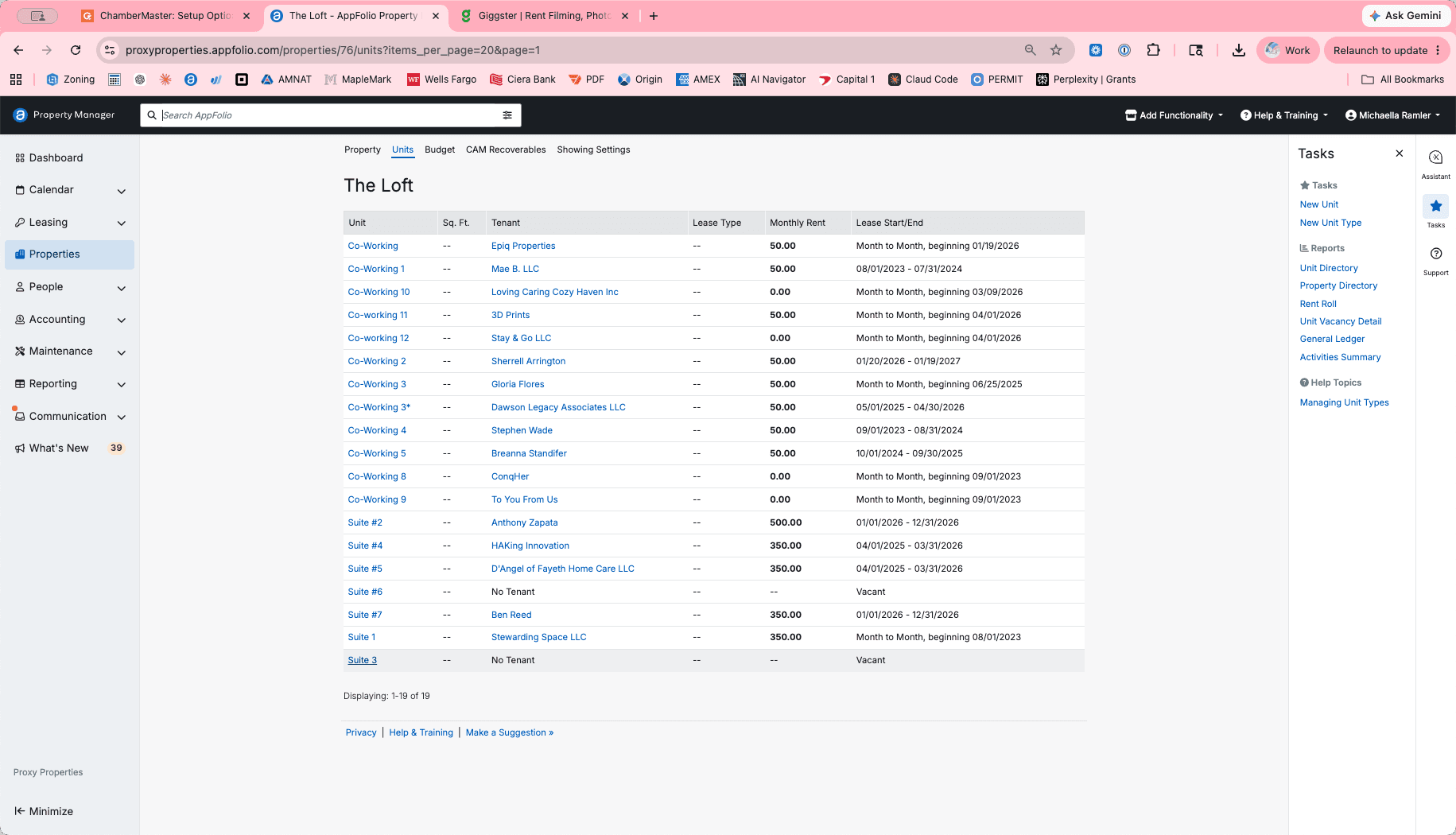
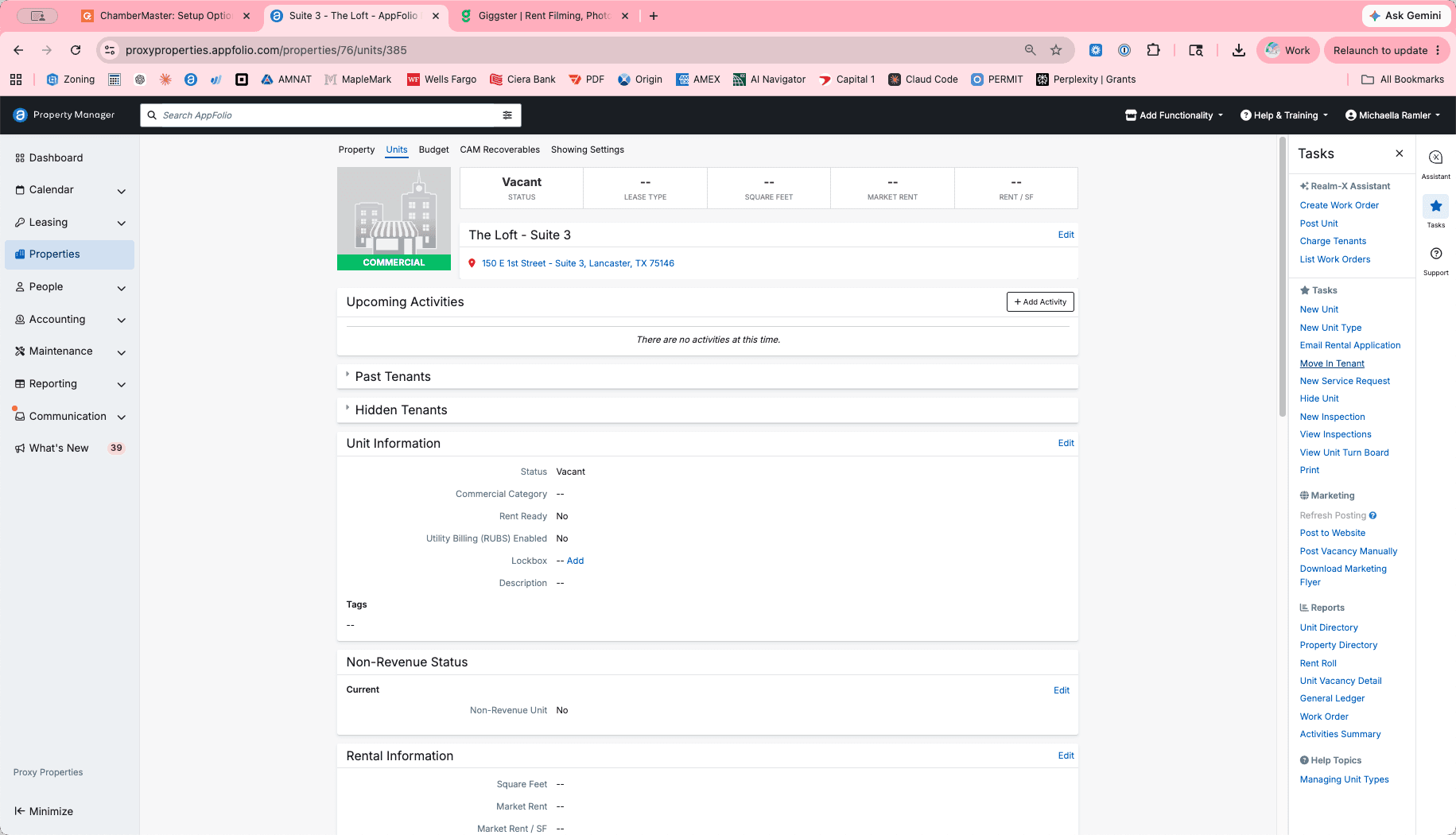
Start the Move-In Workflow
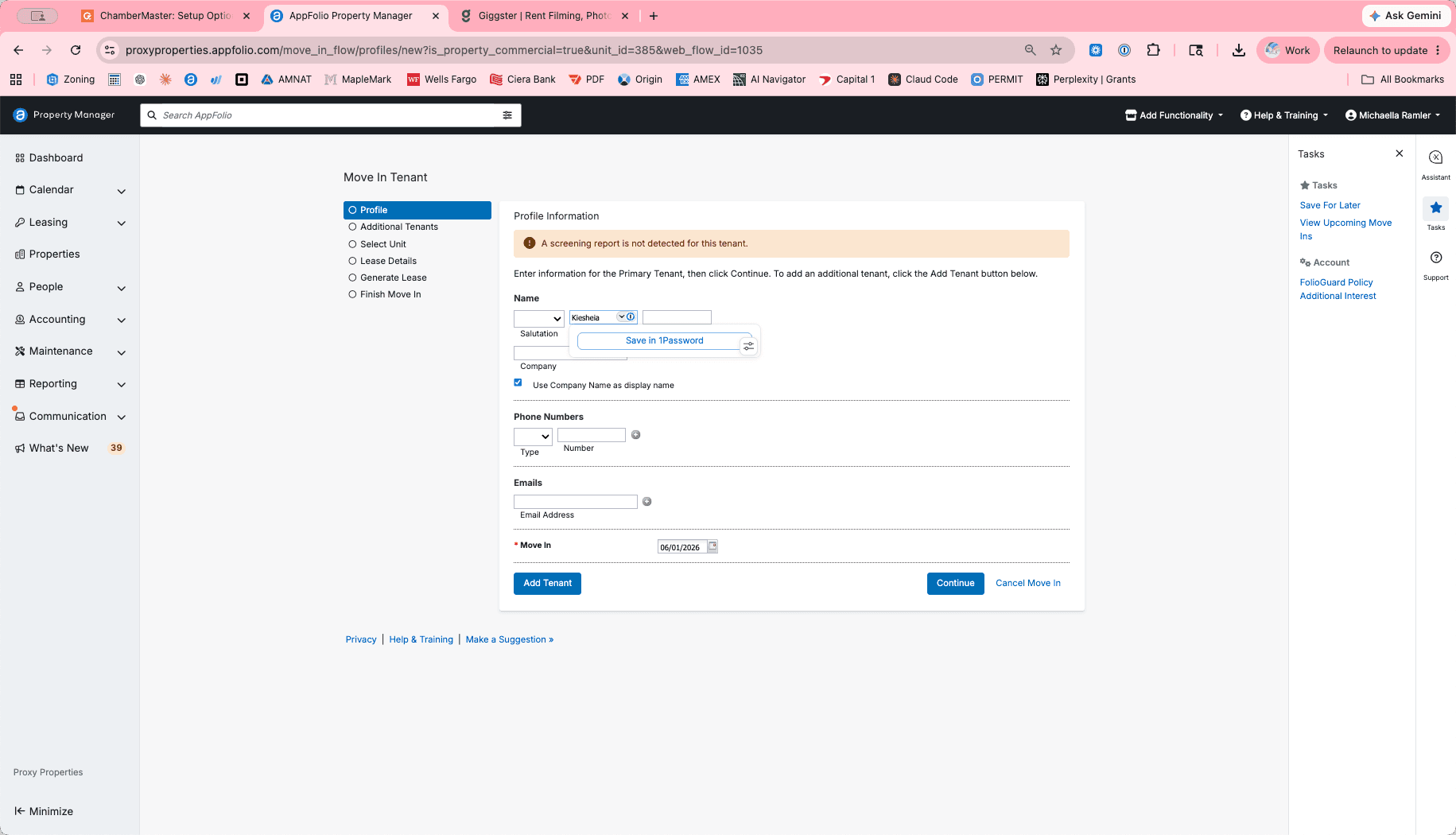
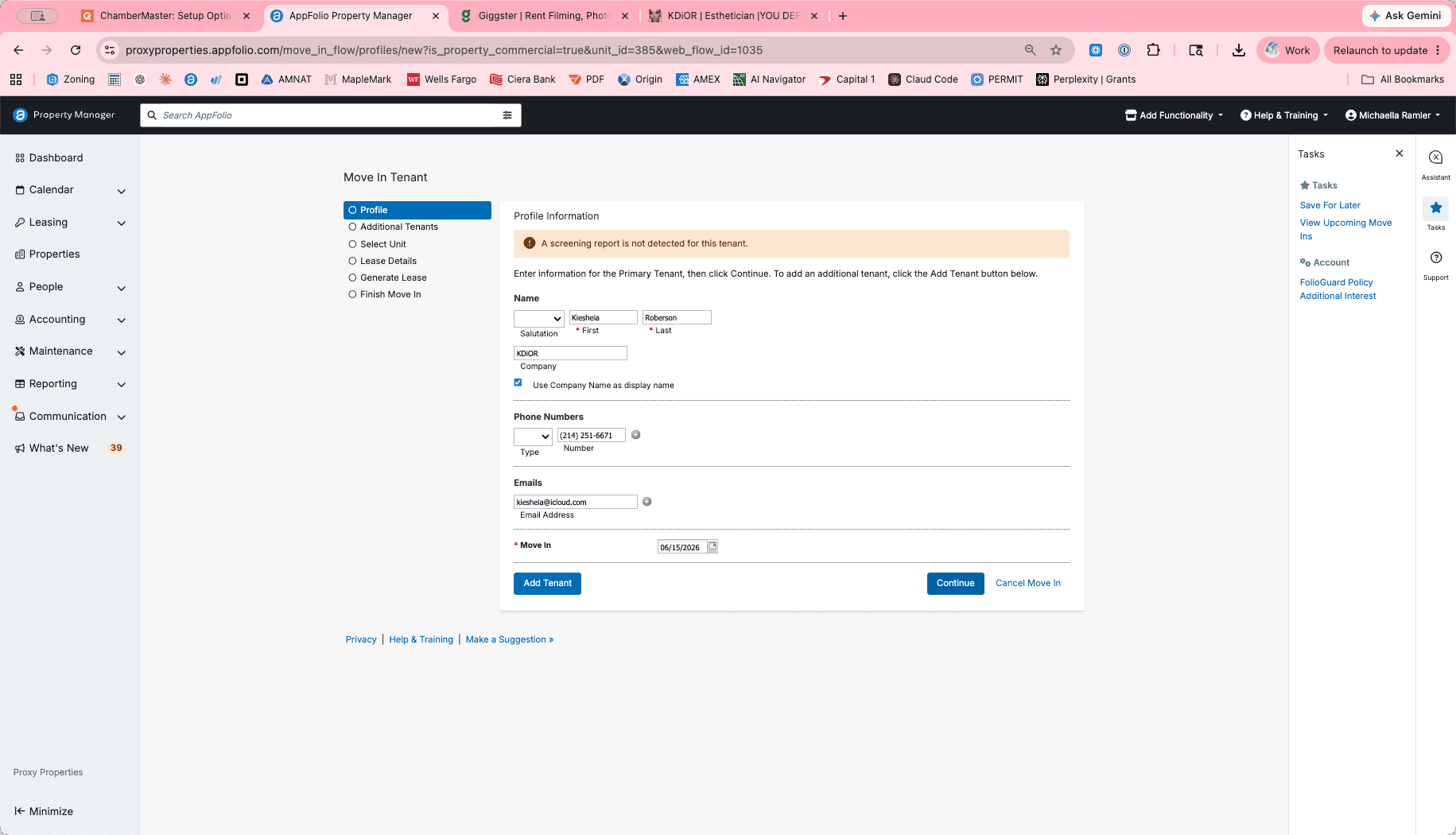
Enter Tenant Contact Details
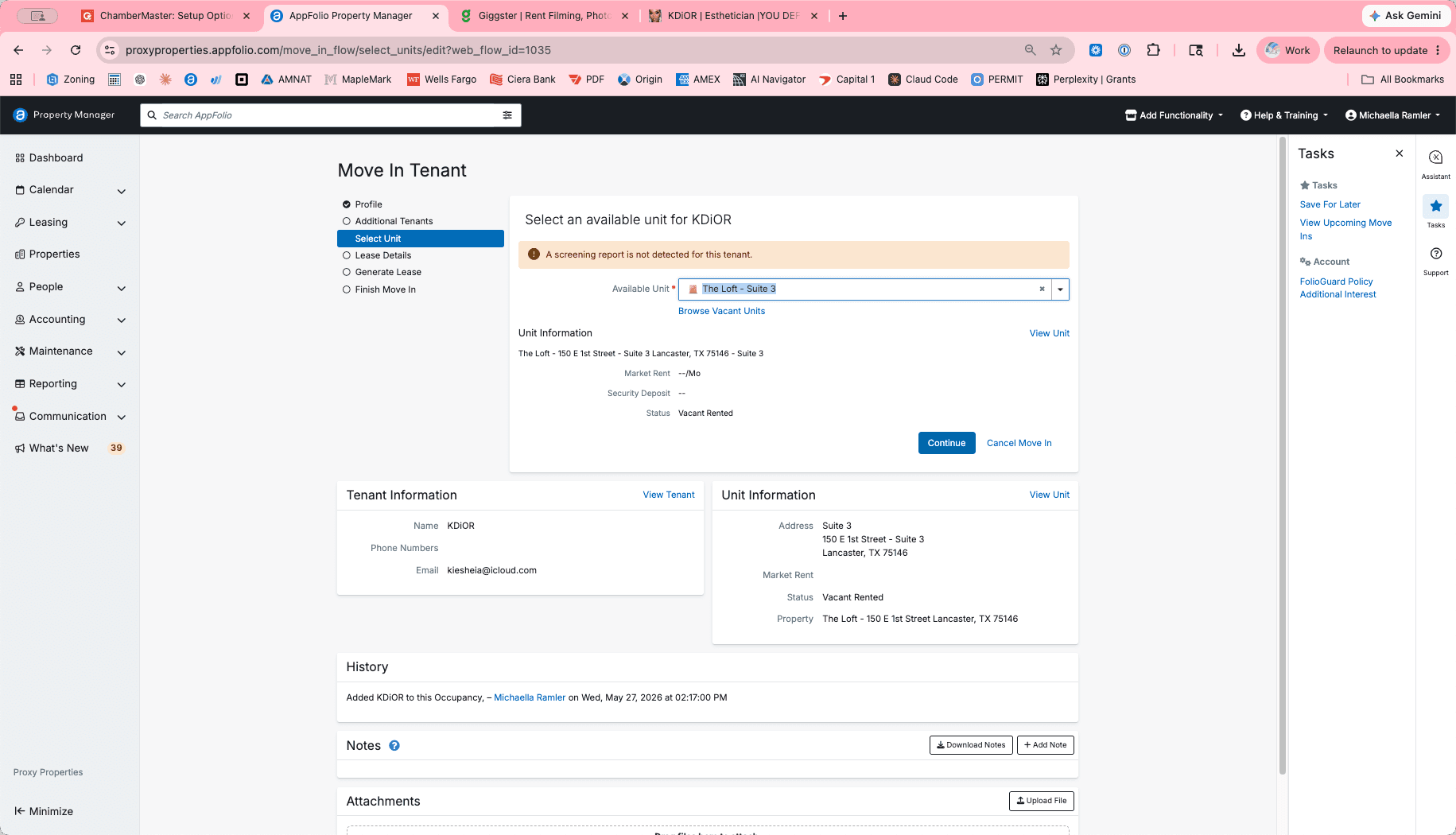
Configure Lease Dates and Charges
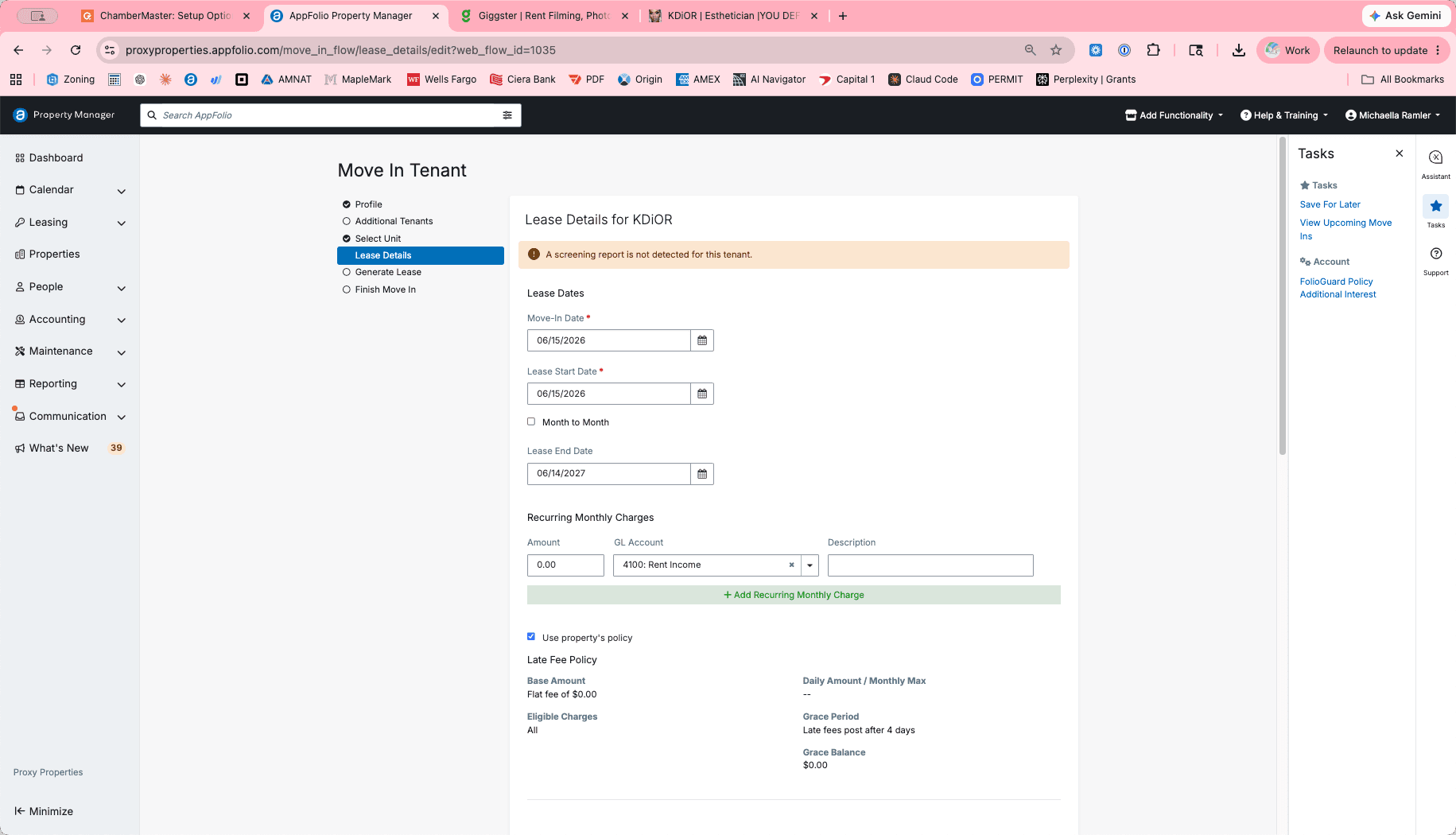
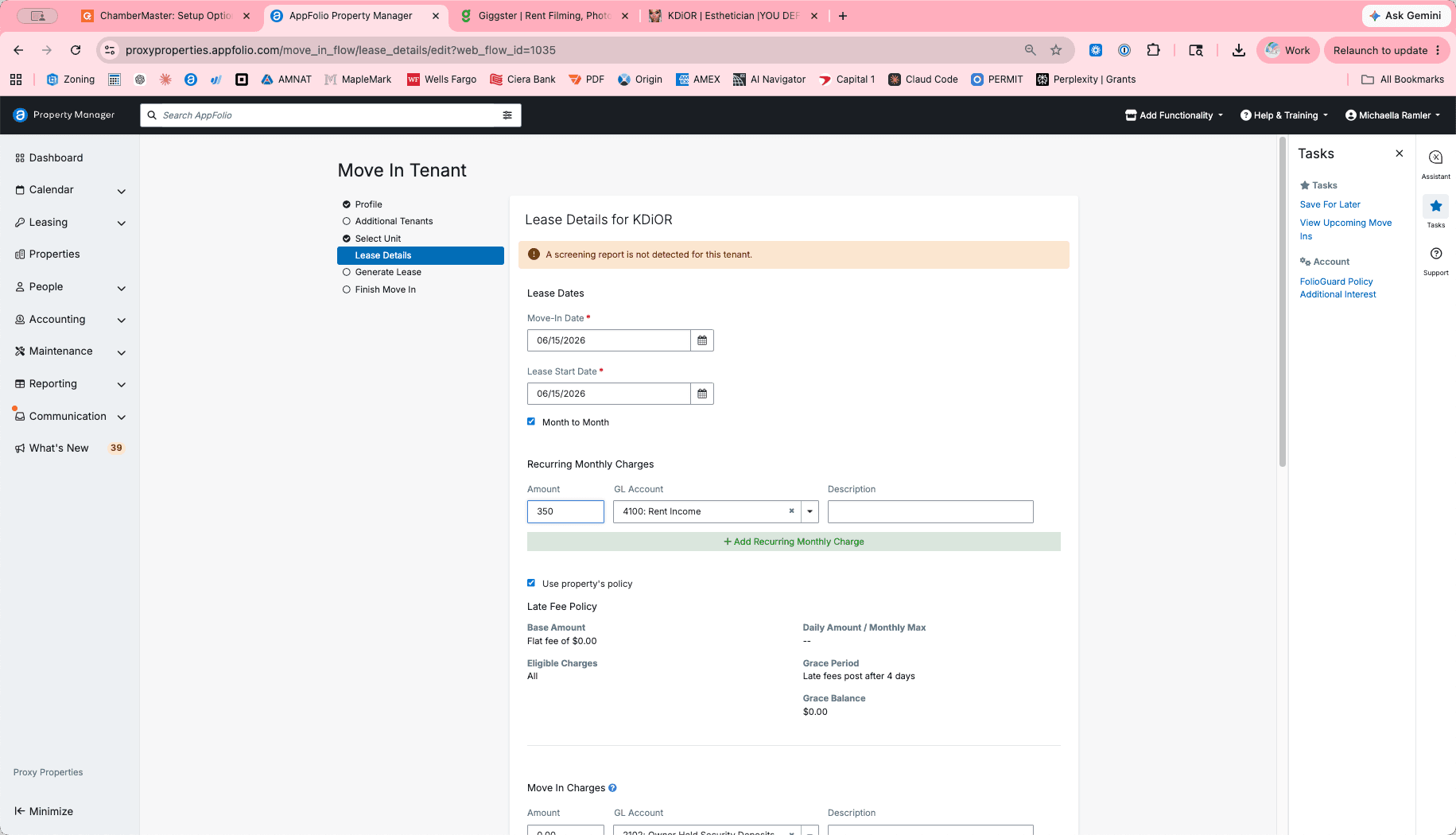
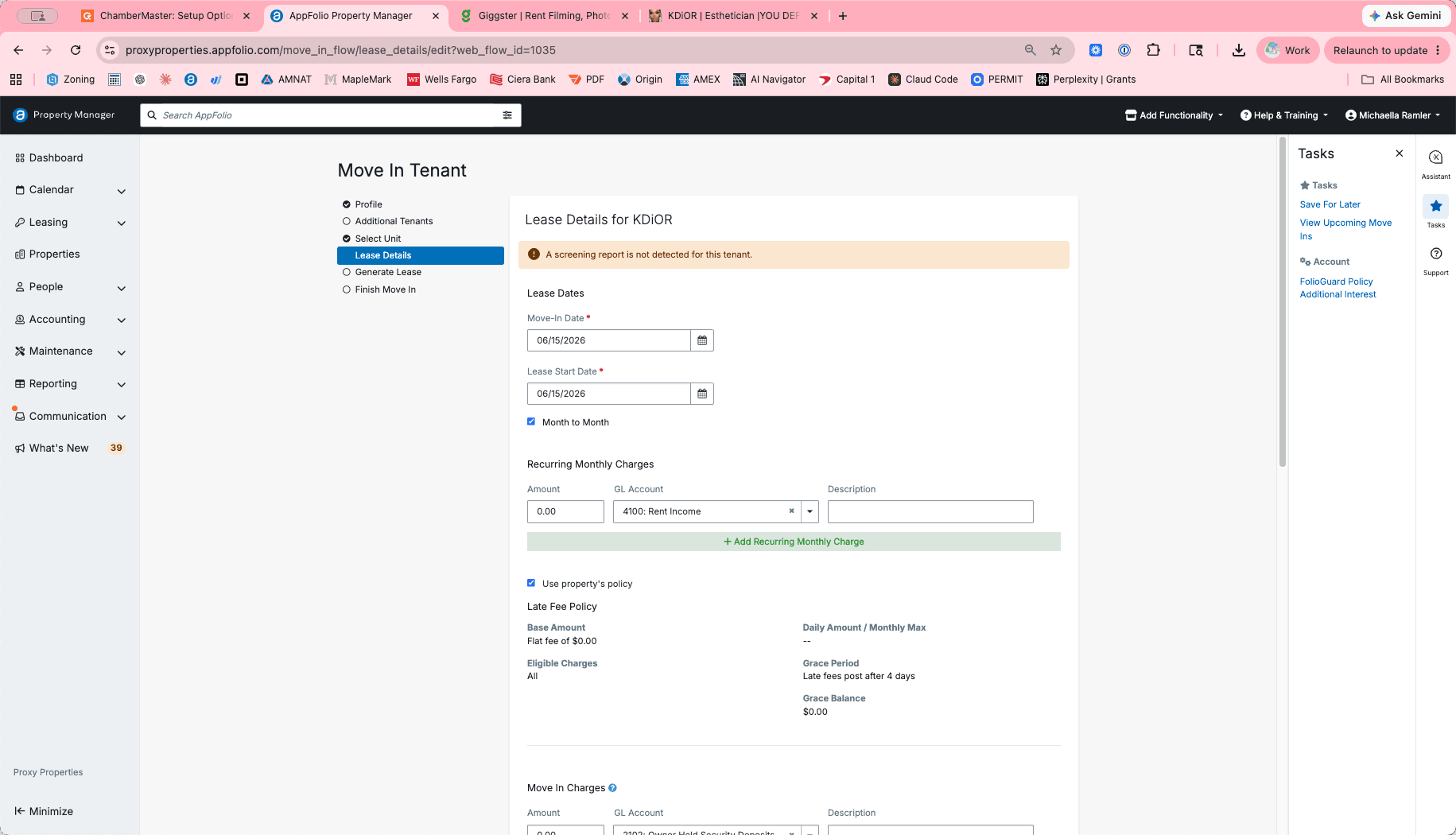
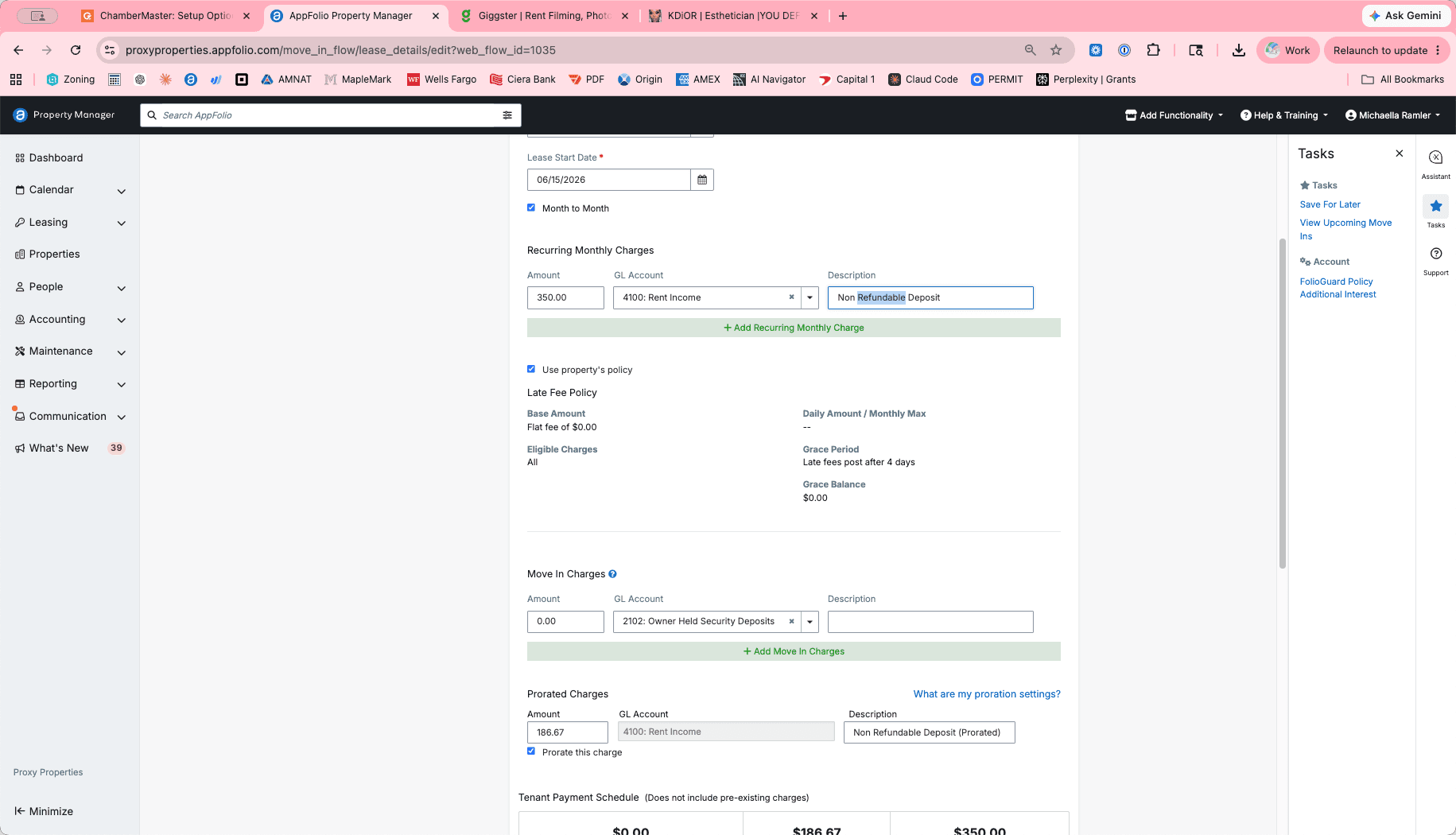
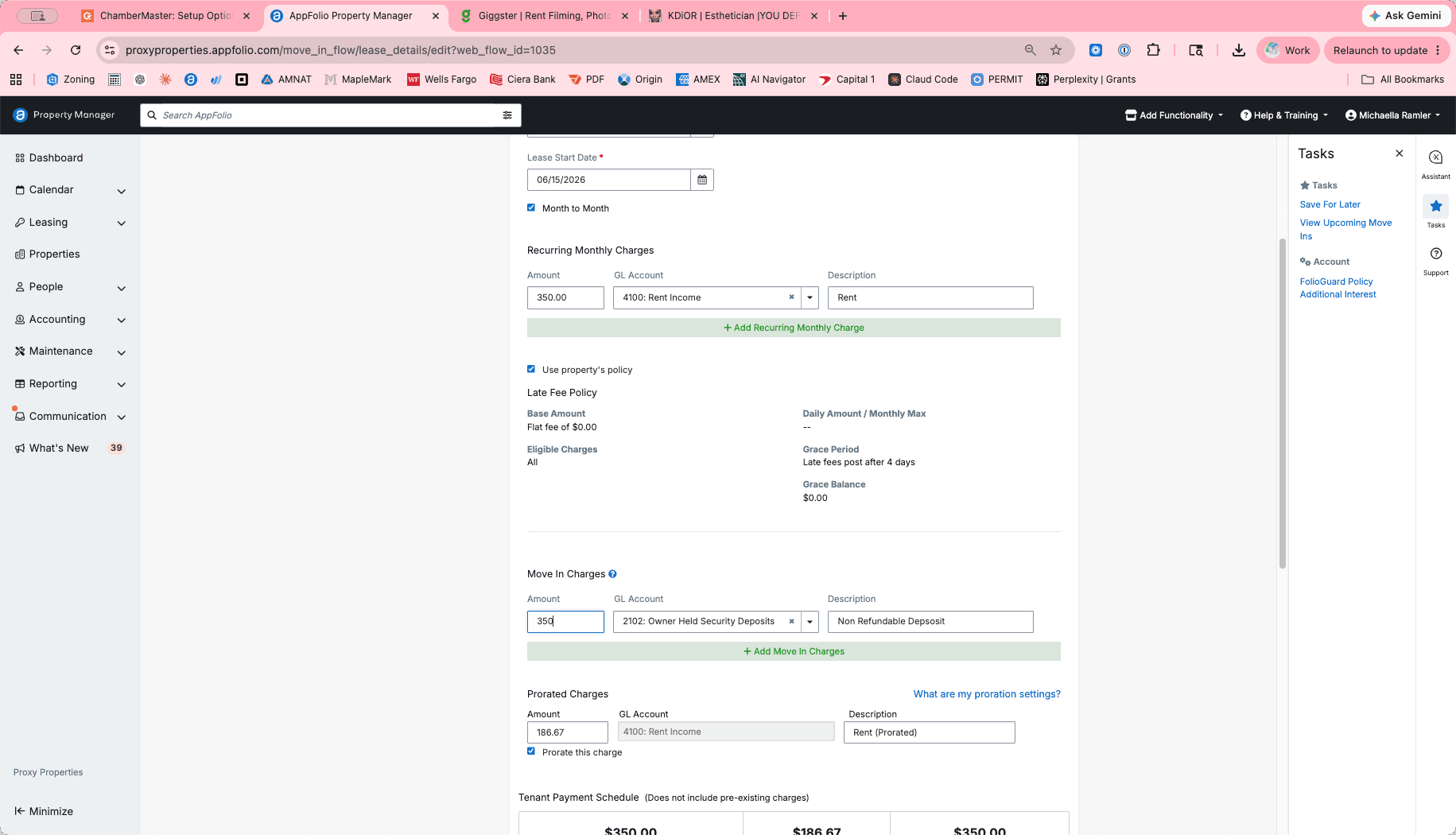
Calculate Prorated Rent
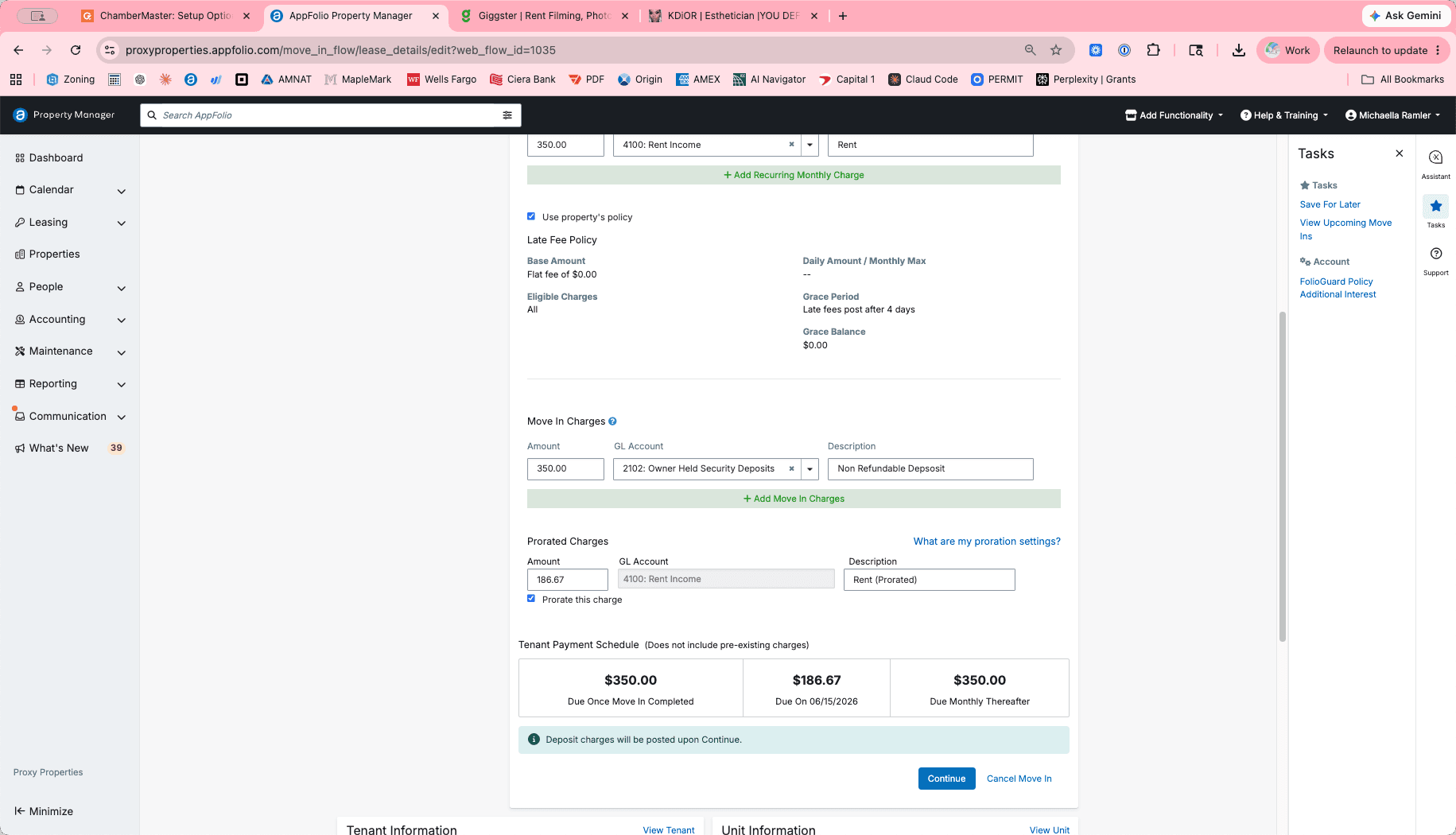
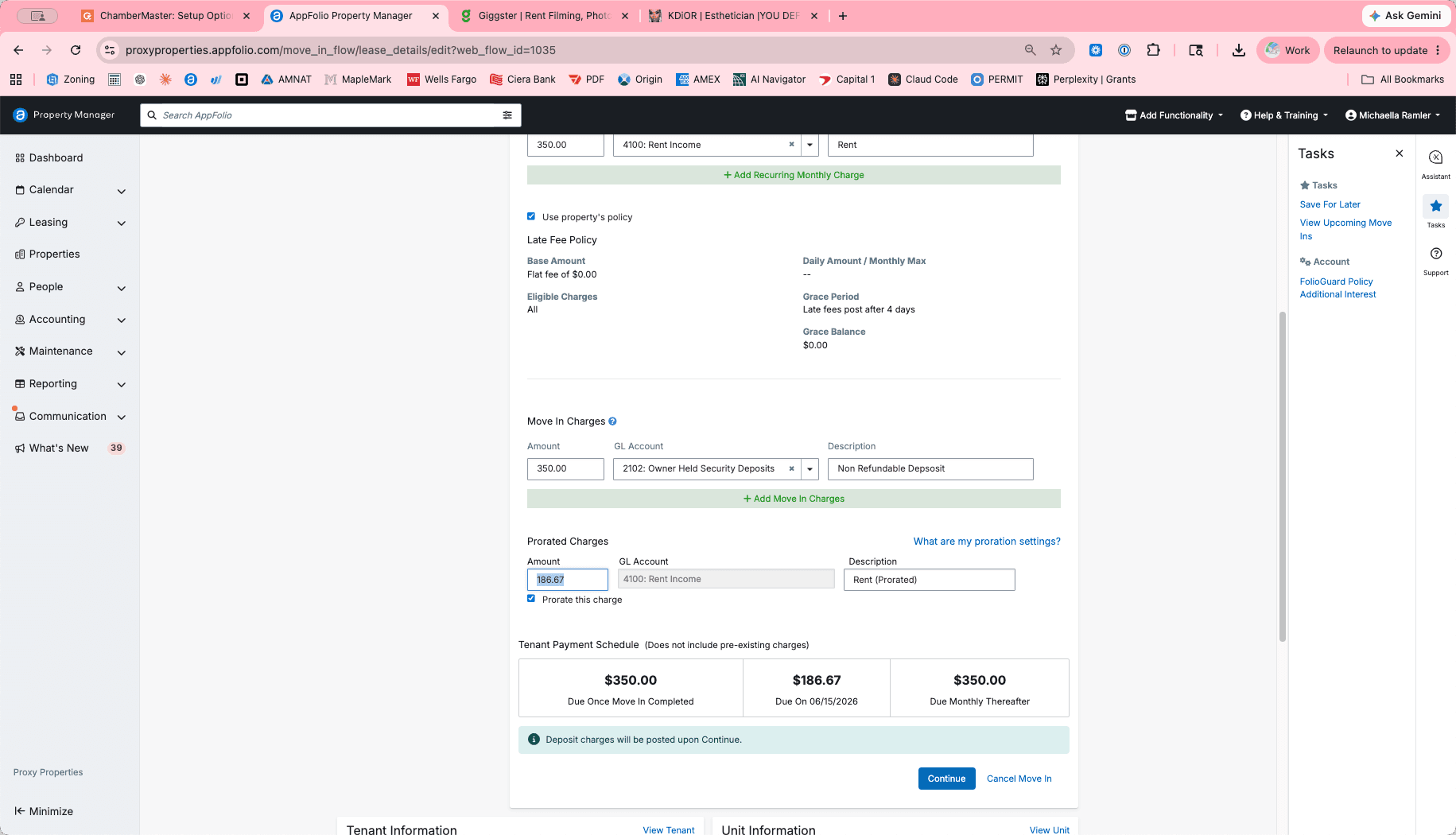
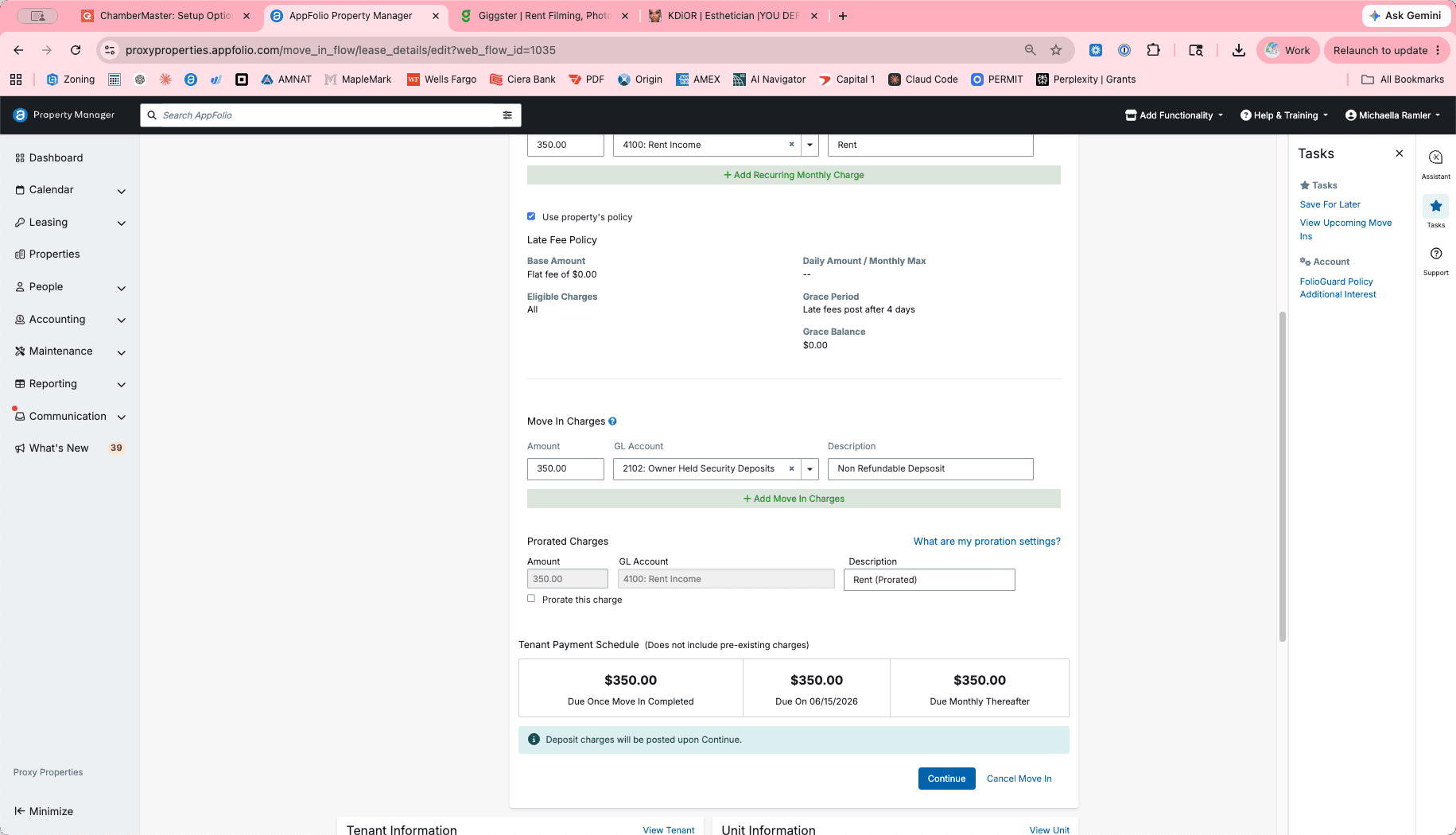
Finalize the Move-In
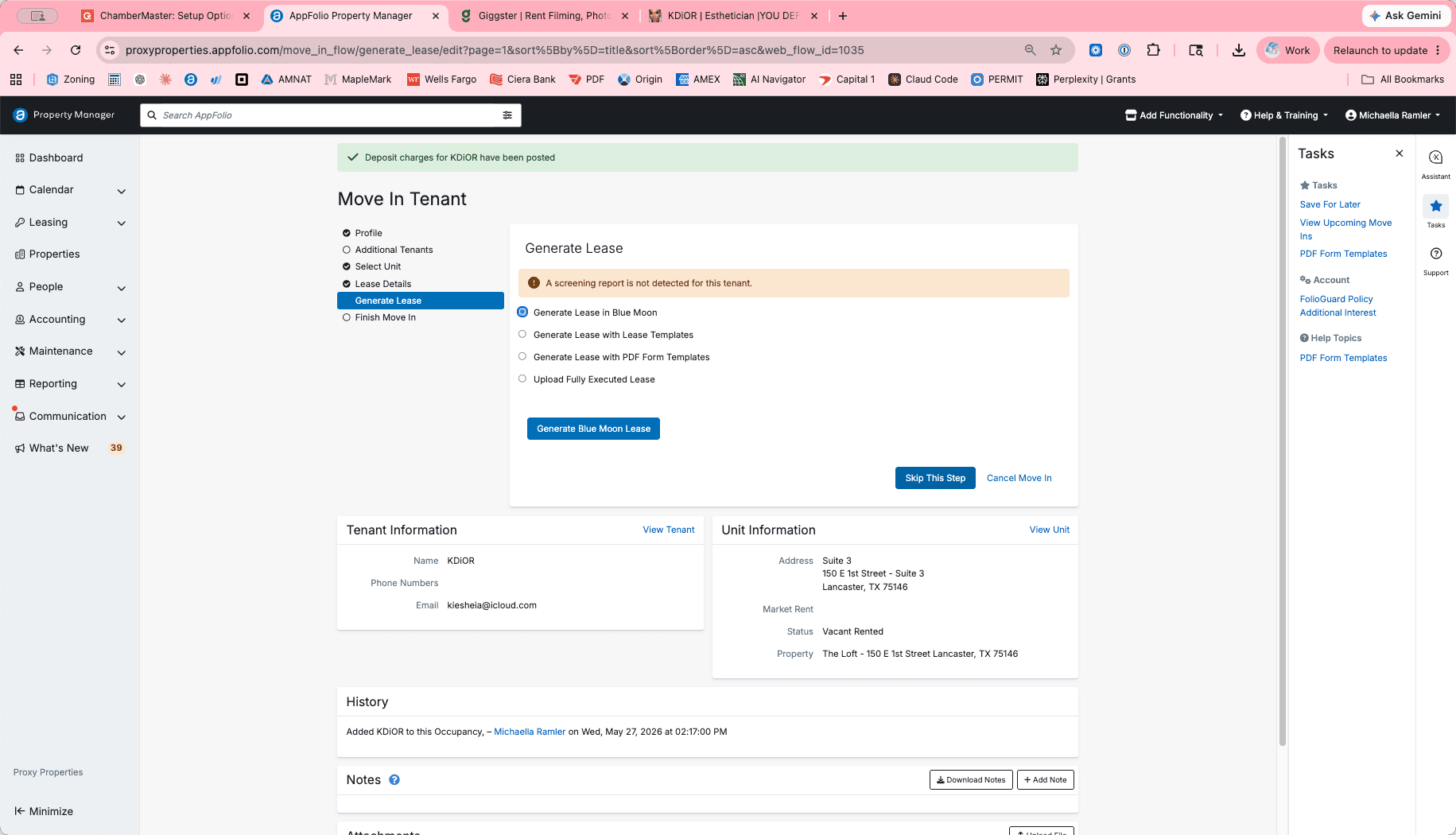
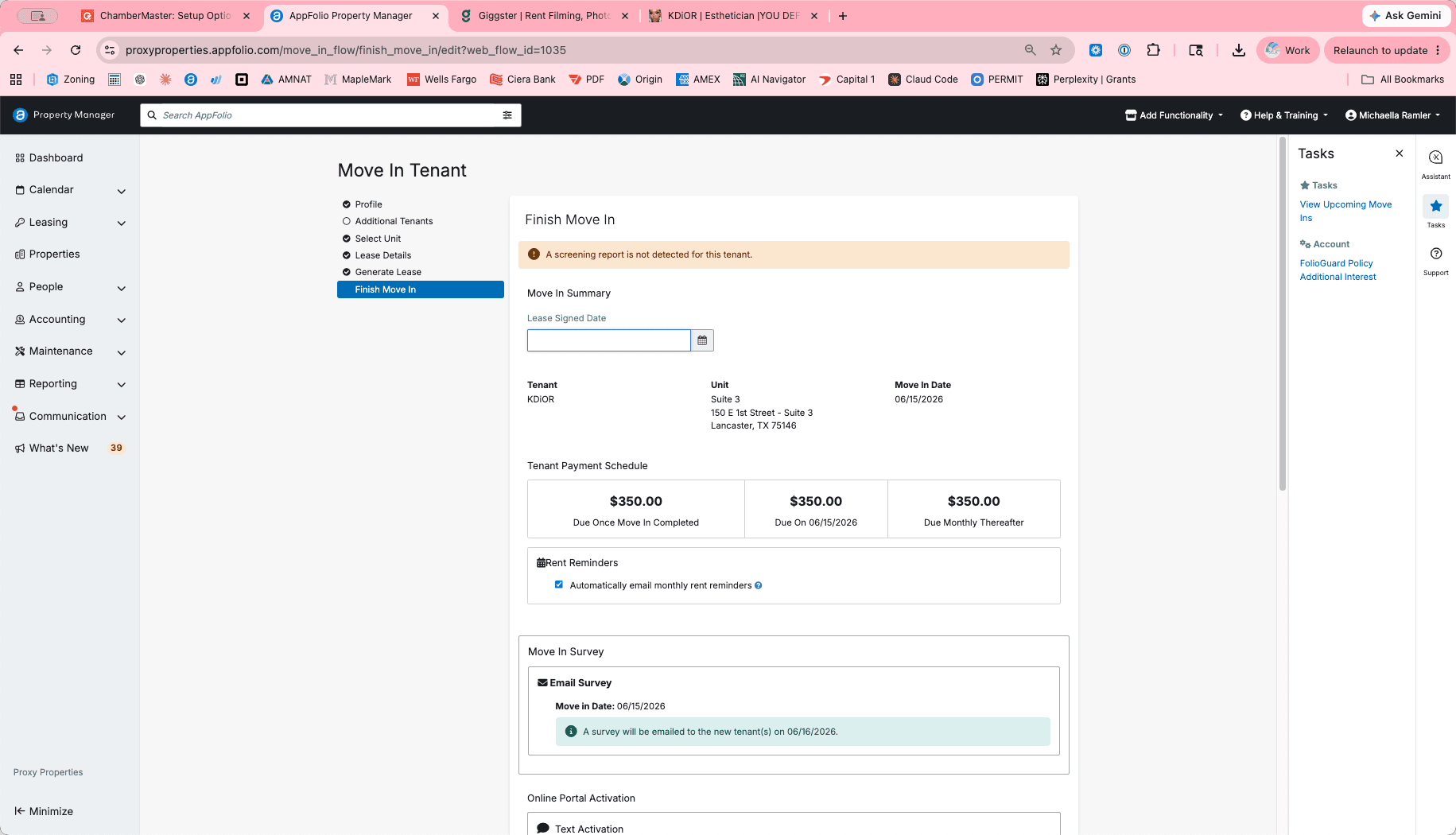
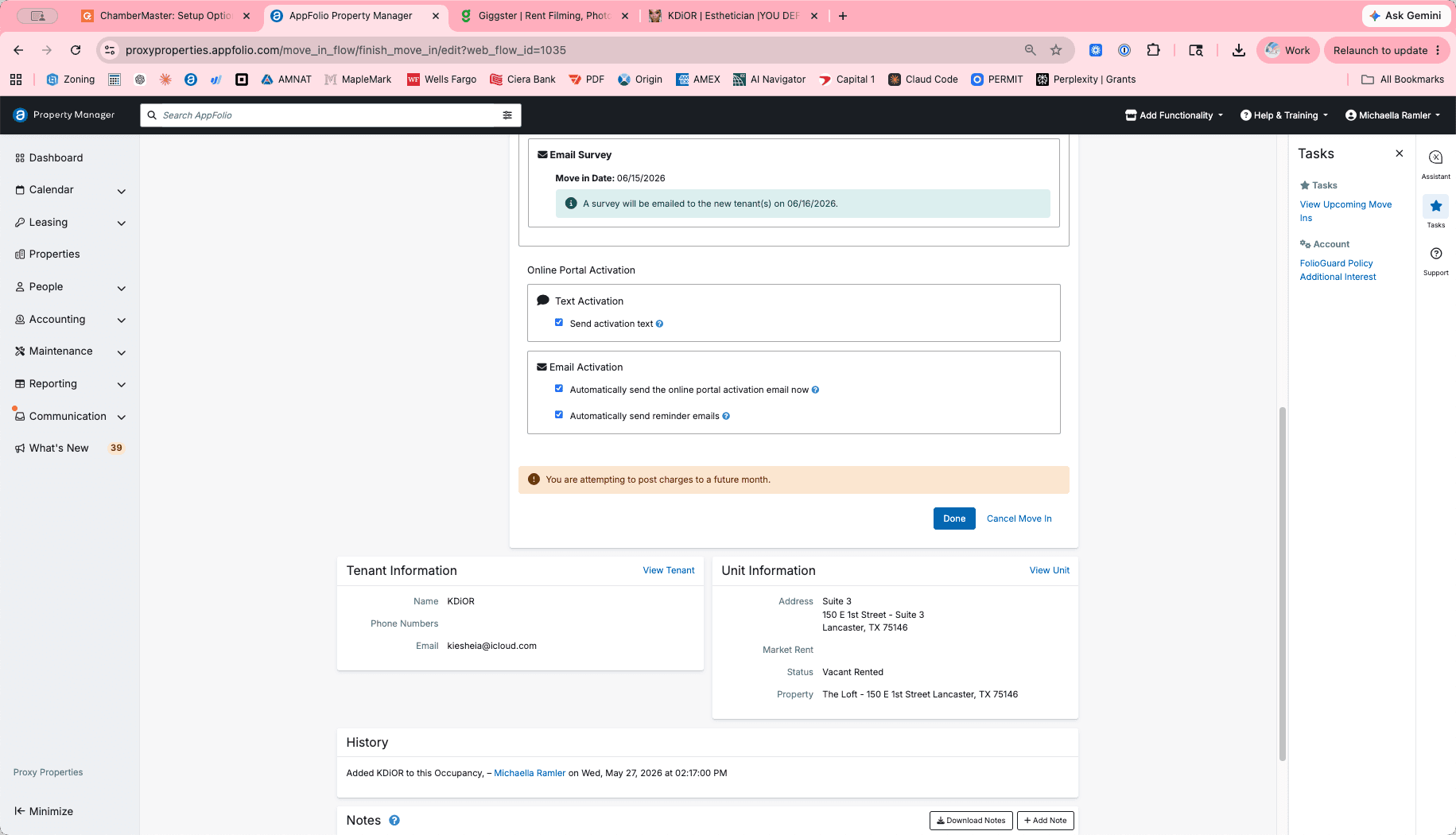
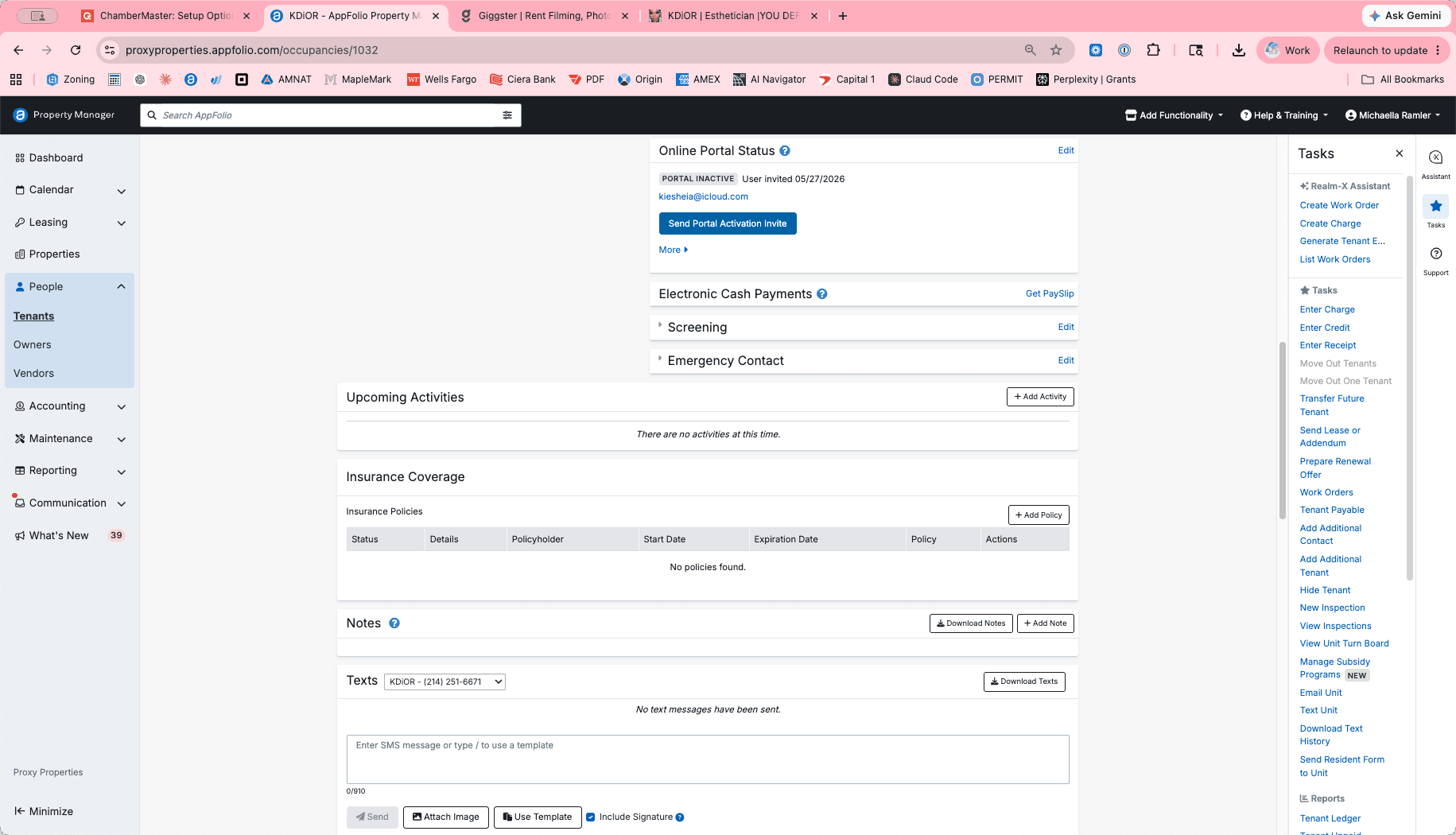
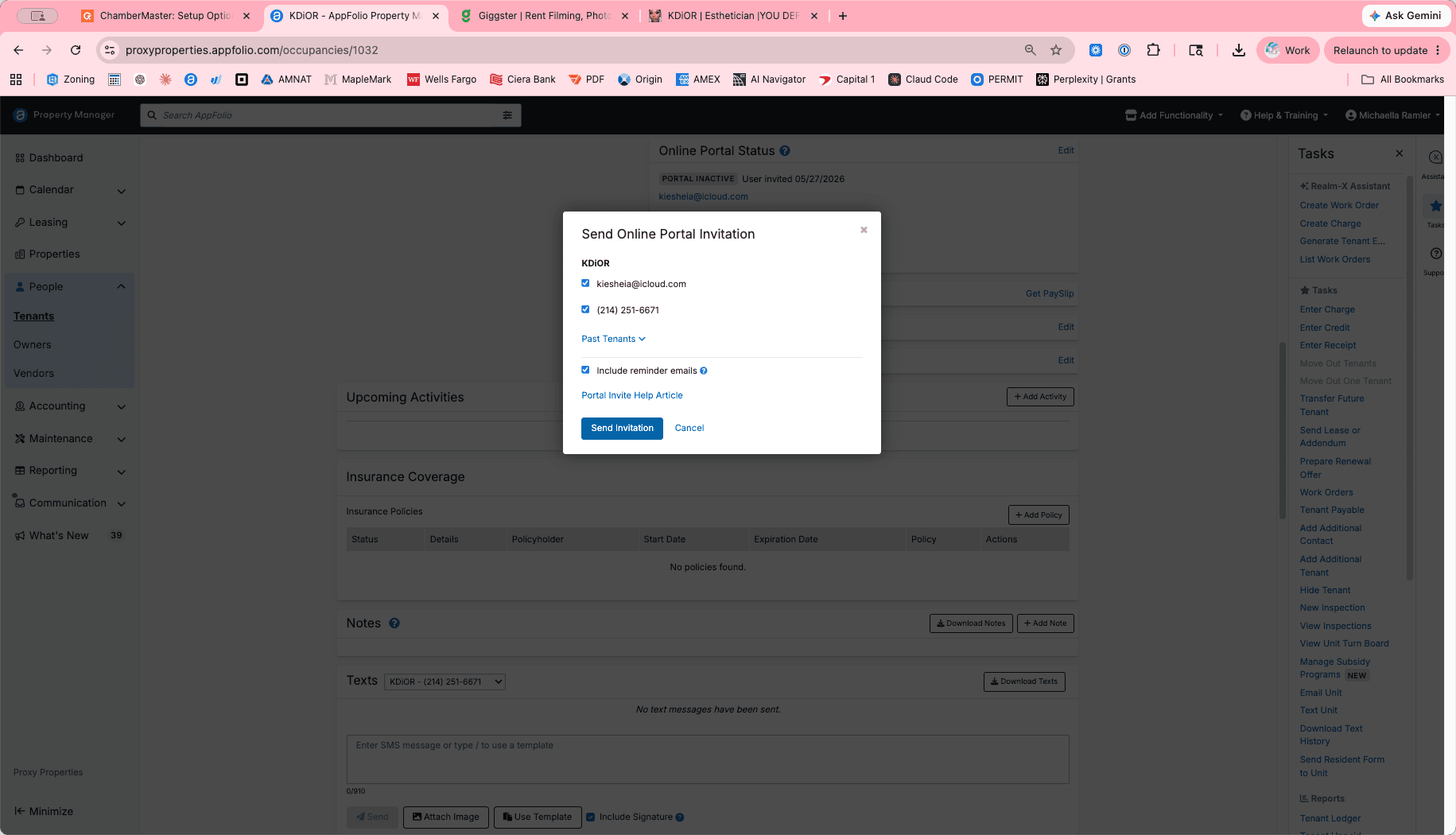
Invite Tenant to the Online Portal
Q: What if I don't have a screening report on file in AppFolio?
A: You can still proceed with the move-in. The system will display a warning noting the missing report, but you can bypass it by clicking "Continue" if the applicant was screened using an external service.
Q: Does AppFolio automatically calculate prorated rent?
A: Yes. Once you select the "Prorate this charge" checkbox, the system references the lease dates and monthly rent to suggest a prorated amount. You can review or manually adjust this amount if needed.
Q: Can I set up recurring charges besides rent during the move-in process?
A: Yes. Use the "Add Recurring Monthly Charge" button on the Lease Details screen to include items like pet rent, parking fees, or non-refundable deposits.
Term | Definition |
|---|---|
General Ledger (GL) Account | An accounting record used to categorize financial transactions like rent income, security deposits, or fee revenue. |
Prorated Charge | A partially calculated charge applied when a tenant occupies a unit for only a portion of the billing cycle (e.g., mid-month move-ins). |
Tenant Portal | An online interface where tenants can securely pay rent, submit maintenance requests, and review their lease documents. |