
Navigate Odoo and Use Internal Chatter
Learn how to navigate the Odoo home dashboard, search for apps, communicate with teammates using Chatter, and customize your profile preferences.
Learn how to navigate the Odoo dashboard, search for apps instantly, send internal team communications through the Chatter panel, and configure your layout preferences.
This guide applies to new and existing team members using Odoo to manage day-to-day operations and internal collaboration.
Navigating the Dashboard
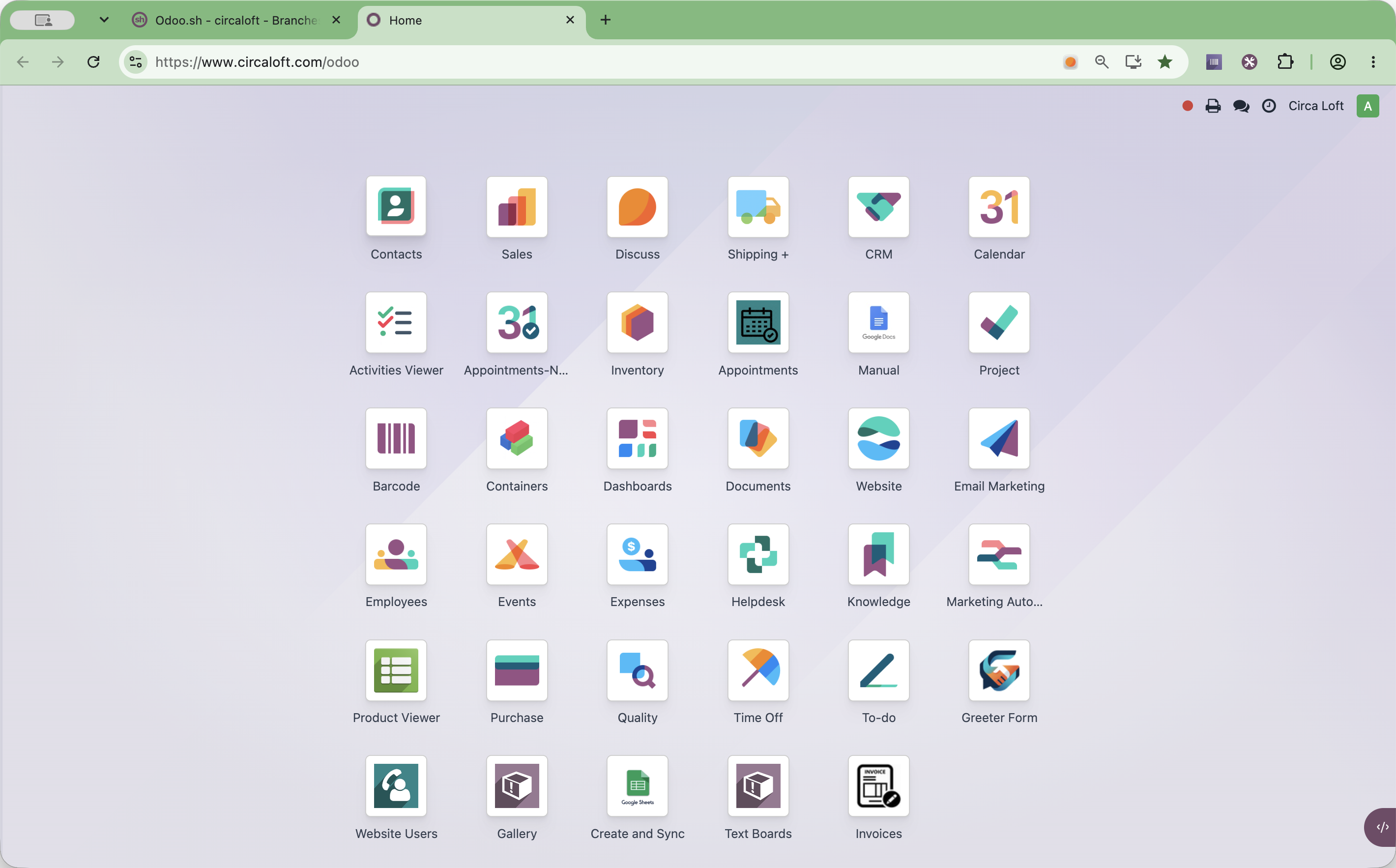
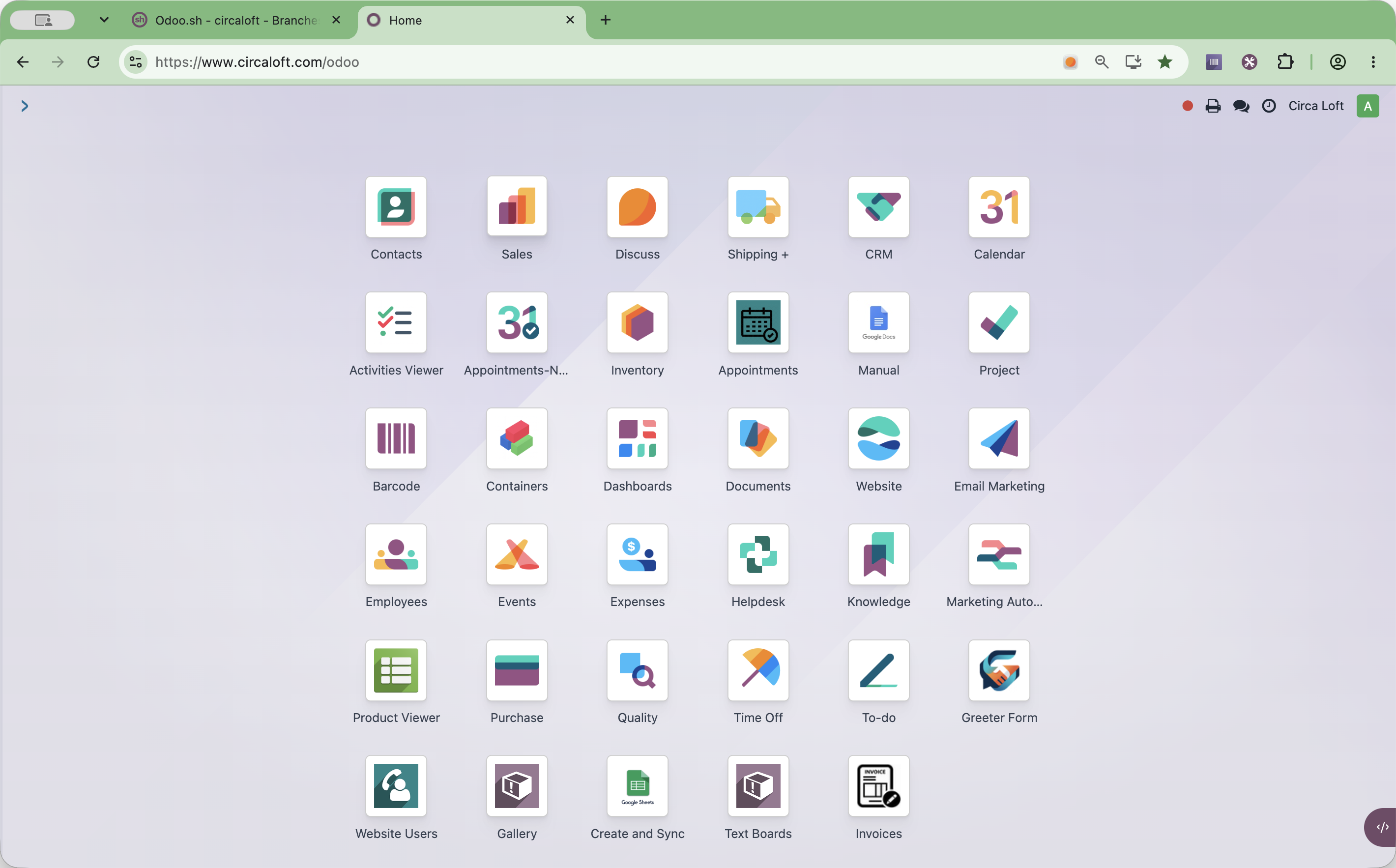
When you log in to Odoo, you arrive at the home page displaying all installed applications. You can rearrange icons to match your workflow or jump to apps quickly using search shortcuts.
Rearranging App Icons
To keep frequent tools accessible, drag and drop app icons into your preferred order.
Using Quick Search
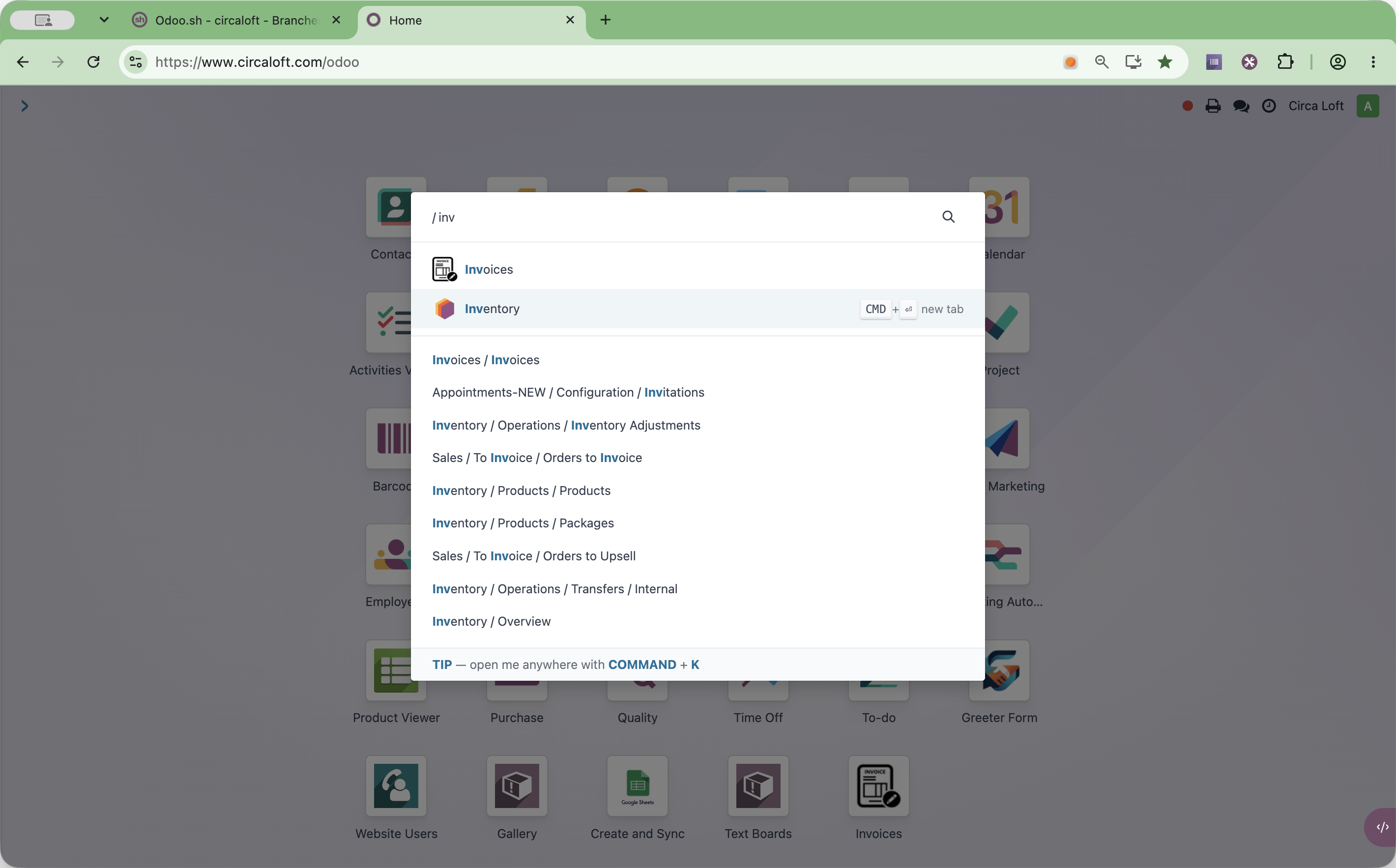
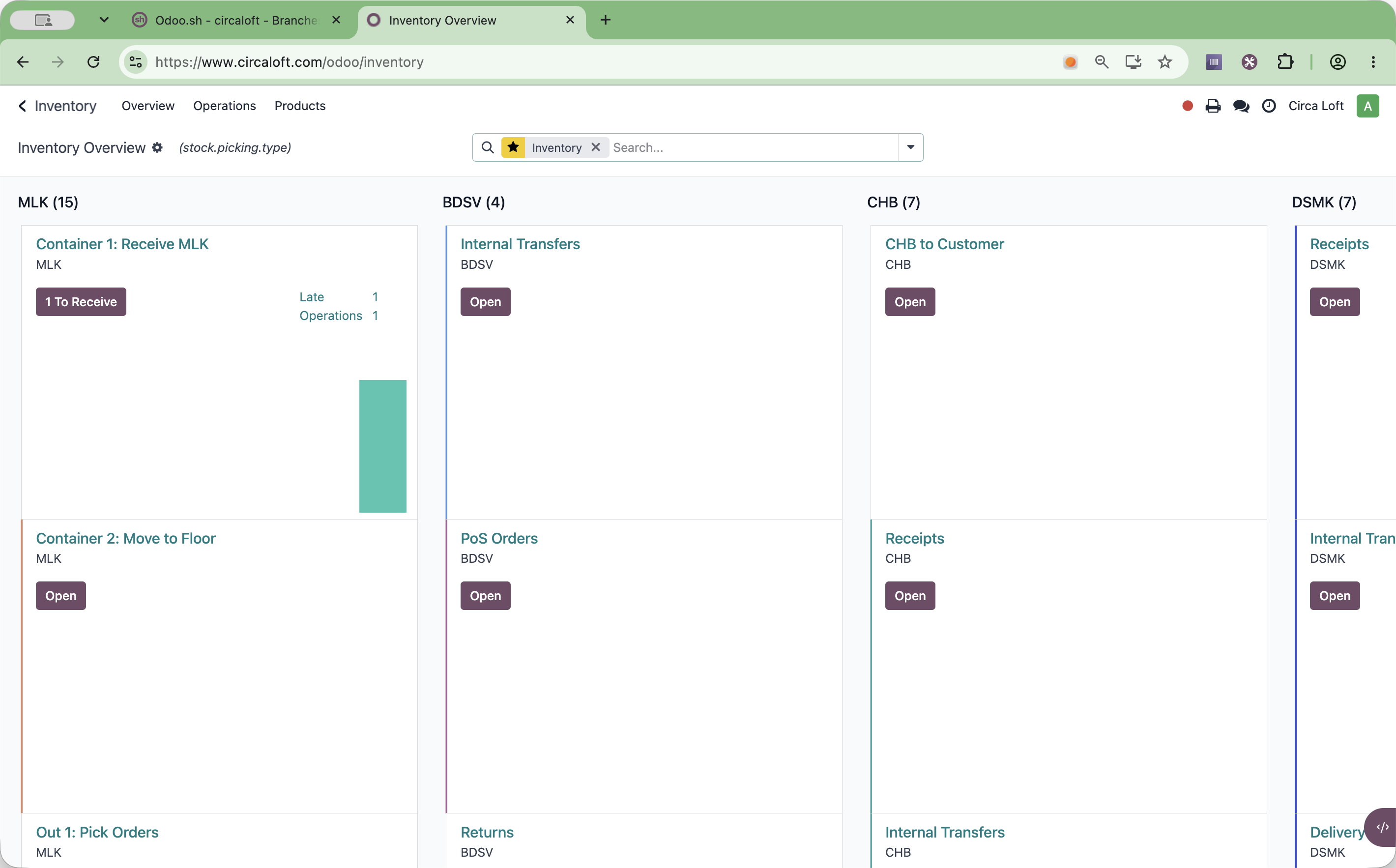
You do not need to hunt for icons manually. From anywhere on the main dashboard, start typing the name of the app to trigger the search overlay automatically without pressing shortcut modifiers.
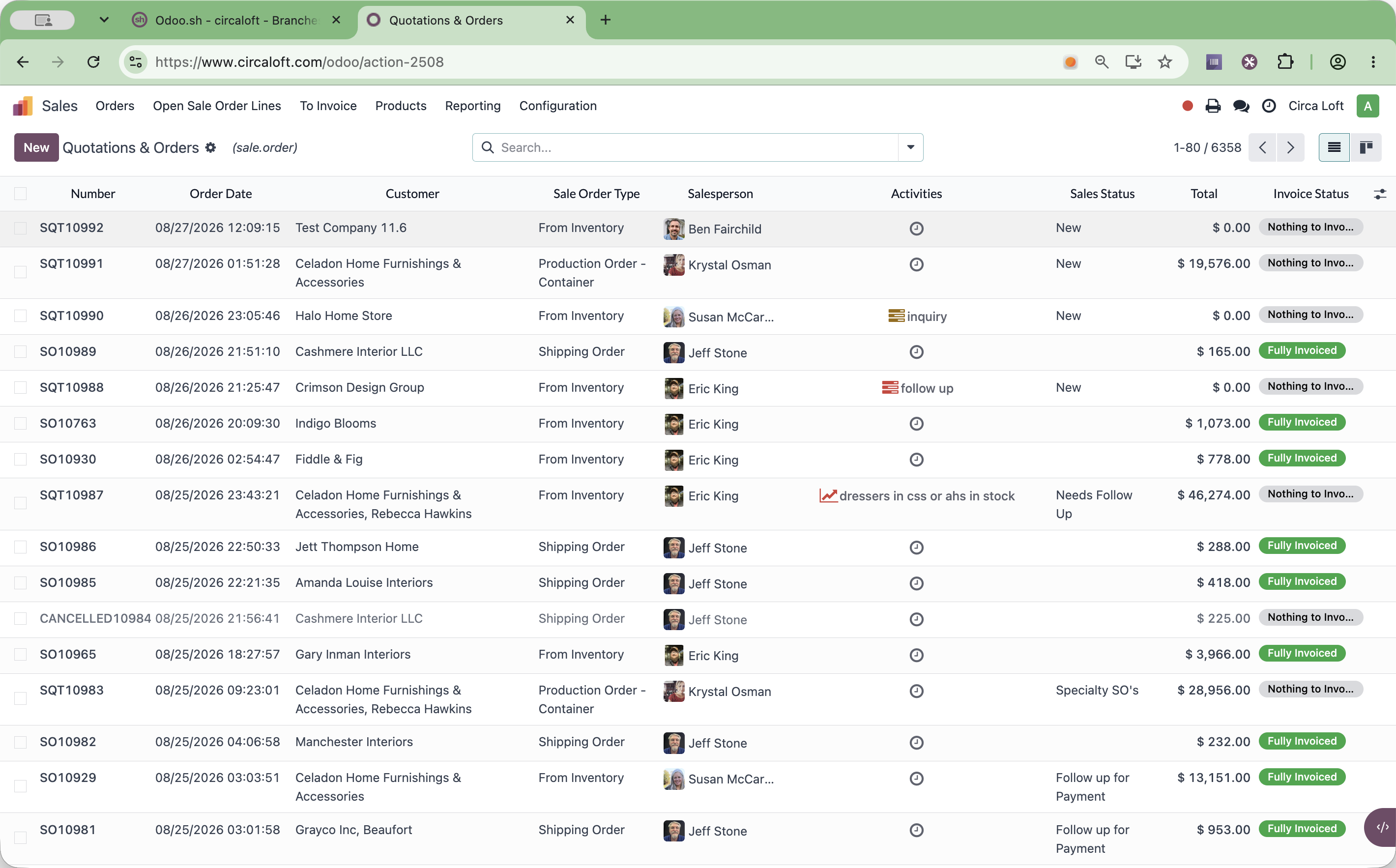
Using Chatter for Internal Communication
The Chatter panel lets team members leave notes and coordinate on specific records without exposing internal discussions to customers.
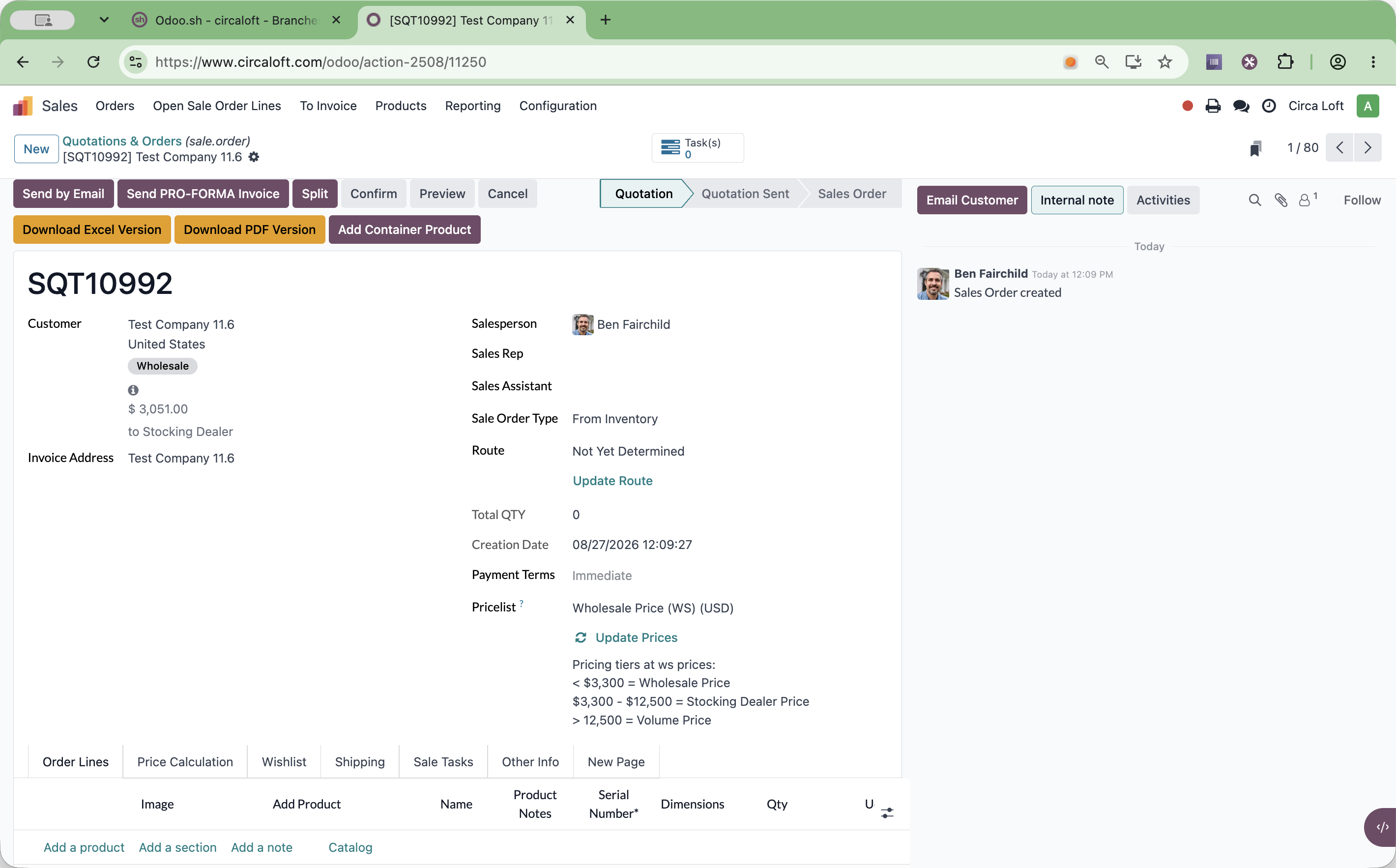
@ to mention a teammate and select their name from the autocomplete list.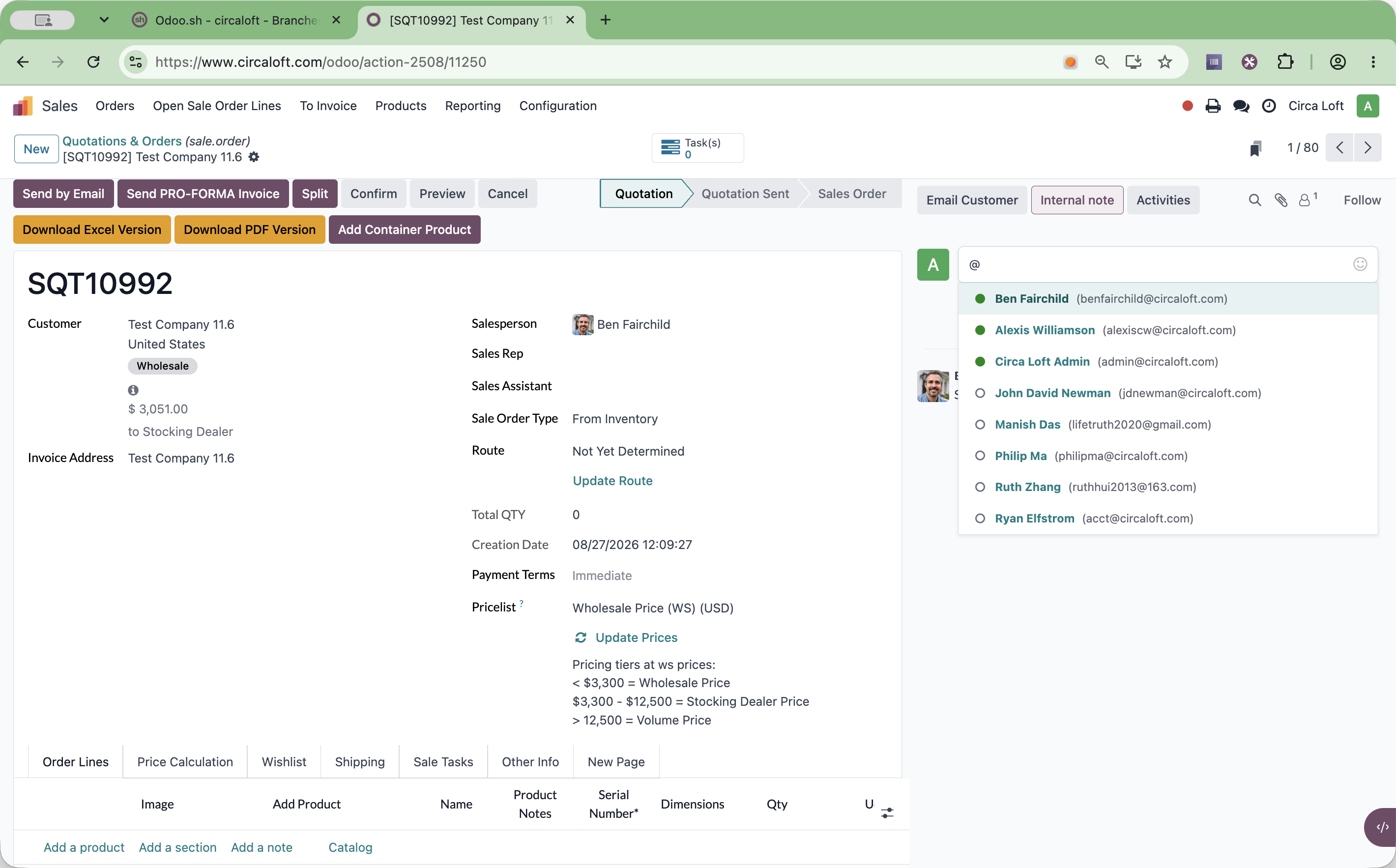
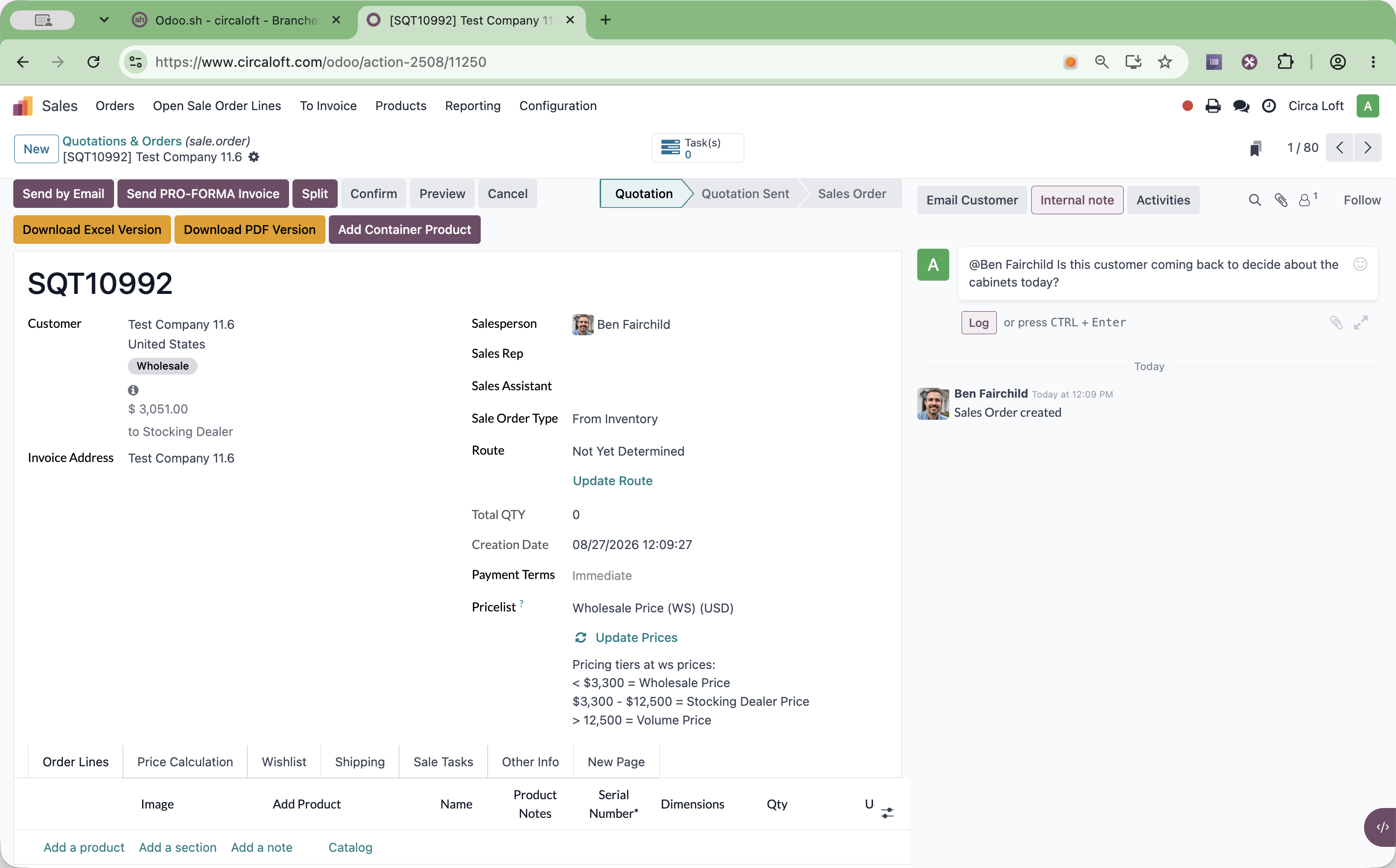
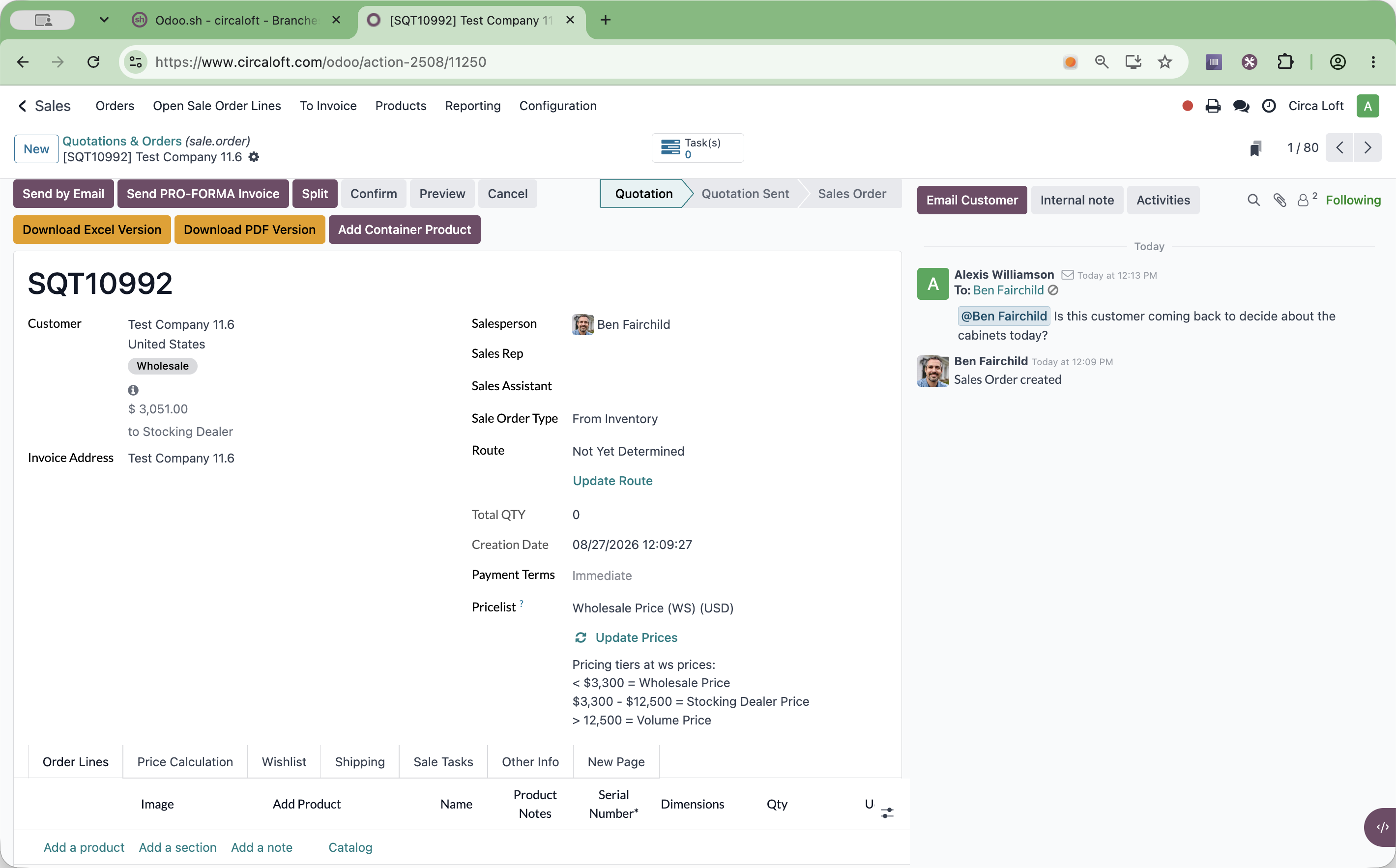
Viewing Notifications and Opening Form Views
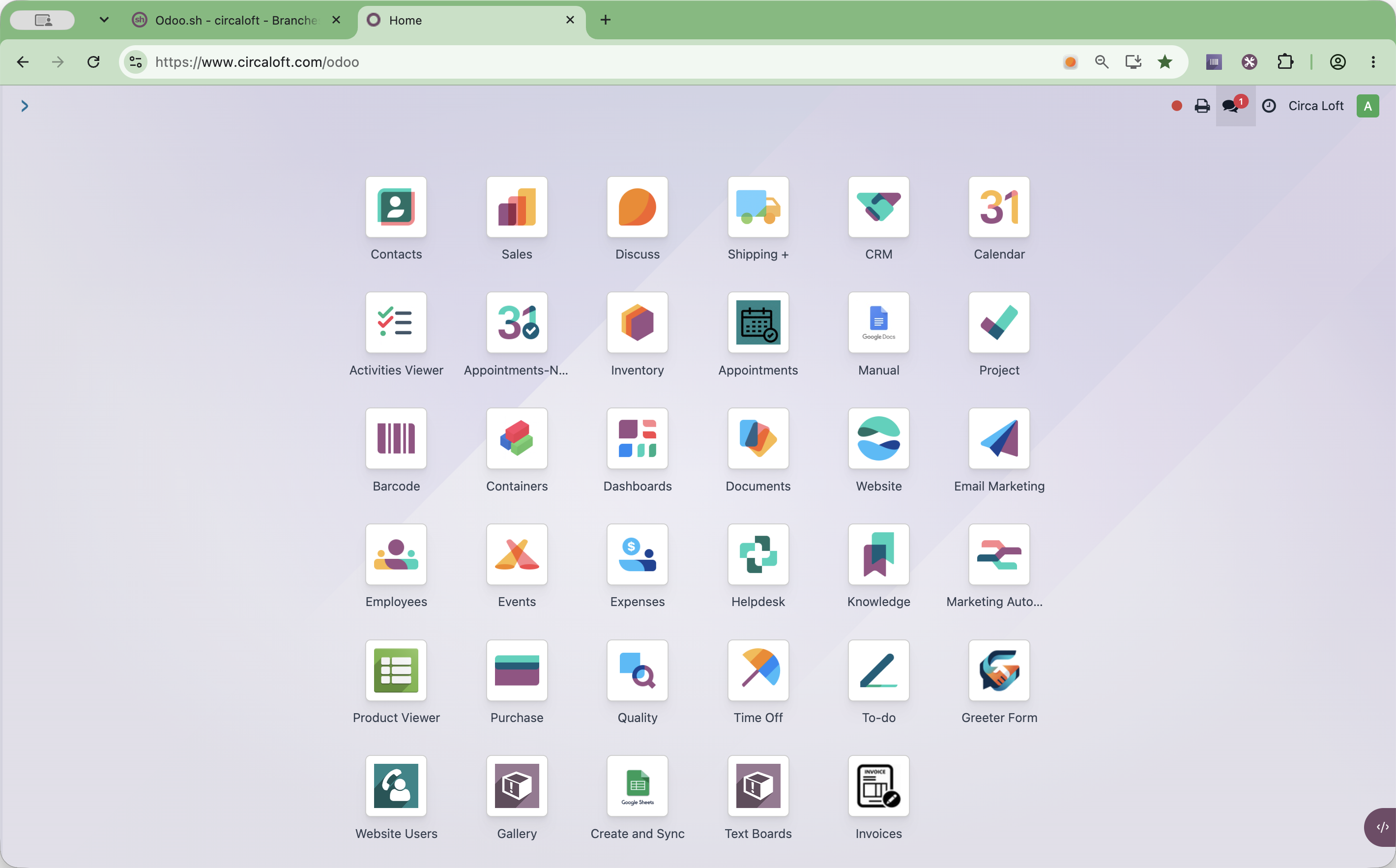
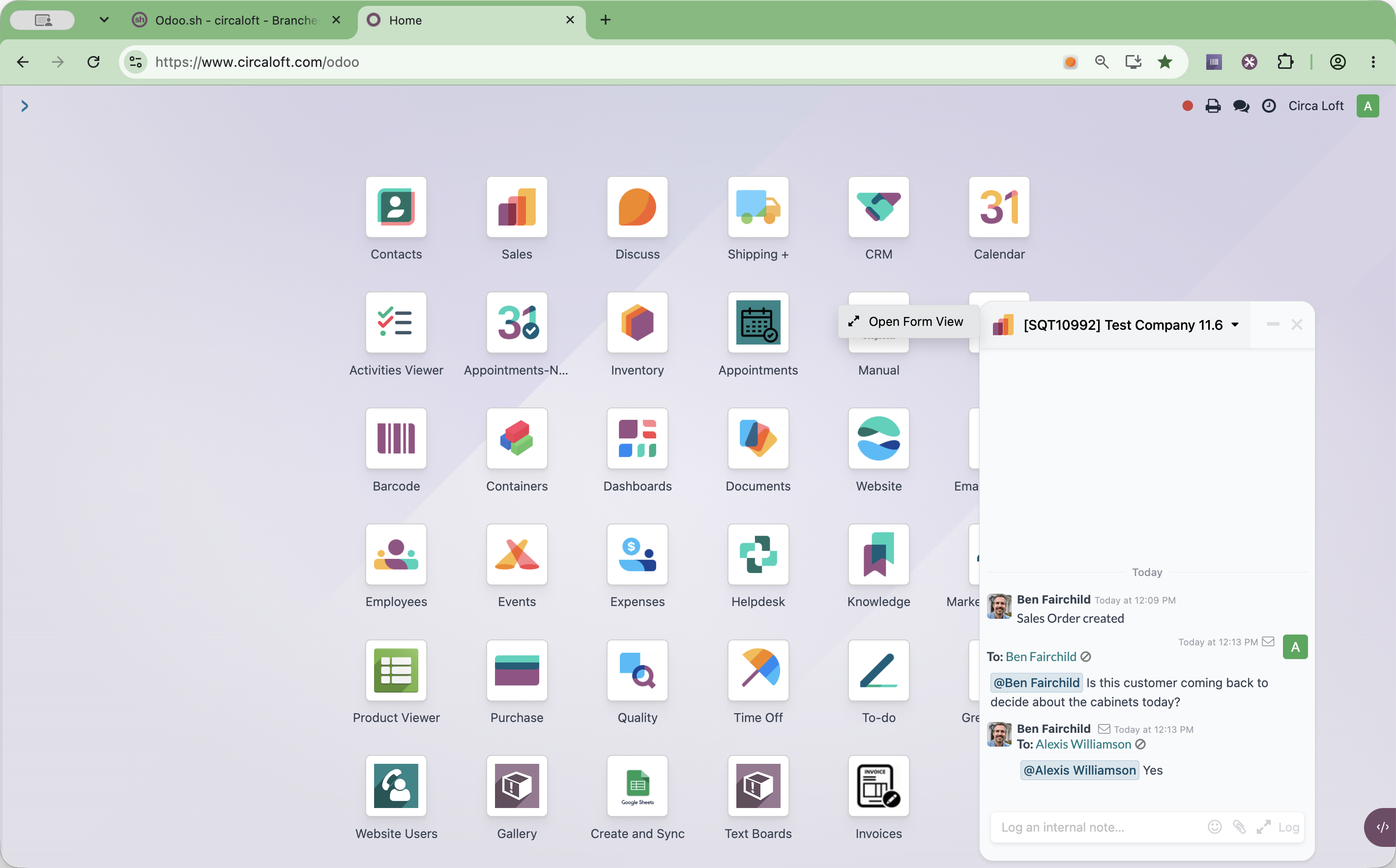
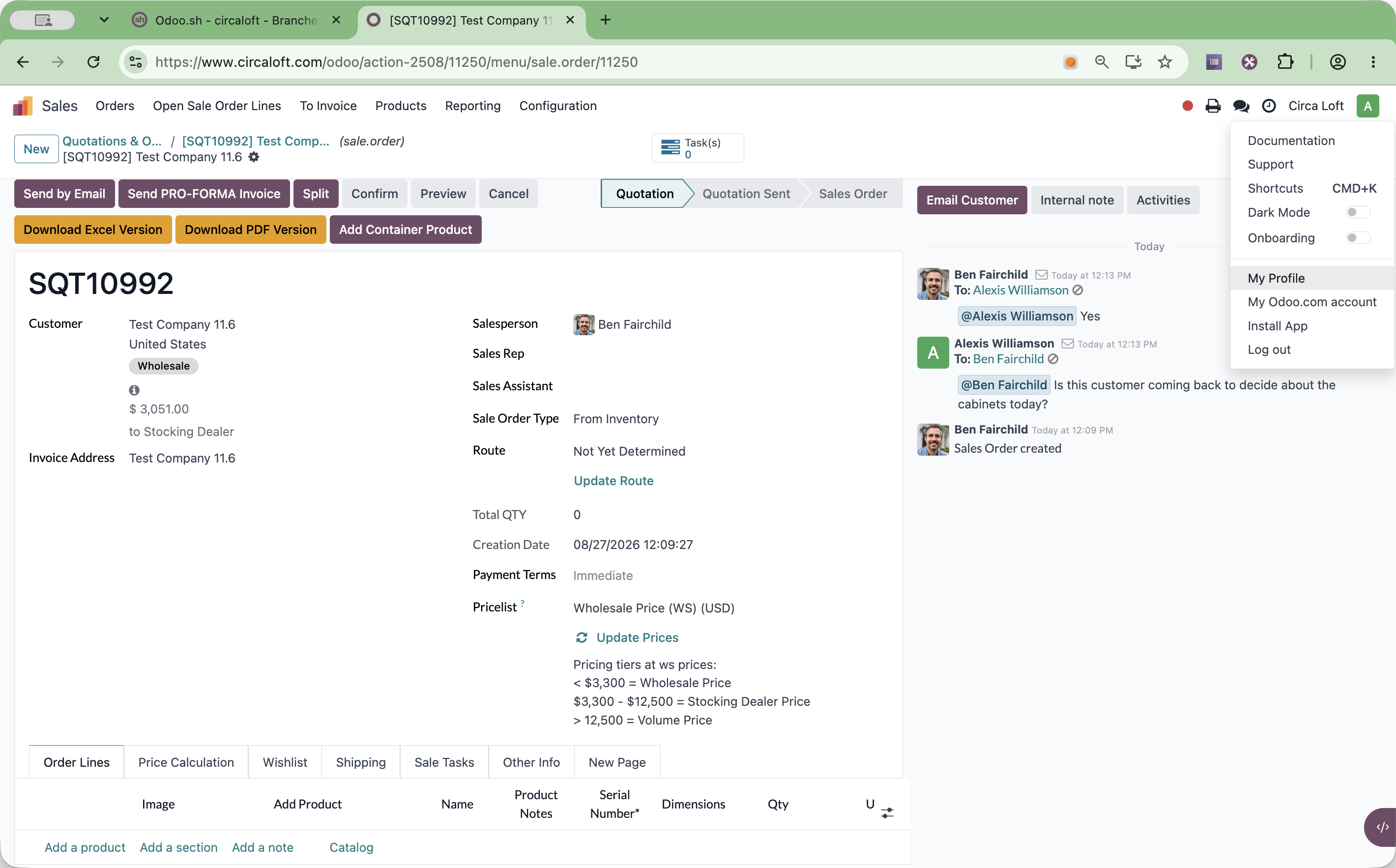
When a colleague replies to an internal note or mentions you, a notification appears in the top navigation bar.
![Step #11: Click the notification preview for [ SQT10992 ] Test Company 11.6.](https://di8mn0rali2ic.cloudfront.net/uploads/1a289e38-4977-4eee-997b-faab94a3cb8f/68dd98c8-5f62-486b-9da5-3094b0f6b76f.png)
Customizing Chatter Position
You can set whether the Chatter feed displays alongside your forms or docked at the bottom.
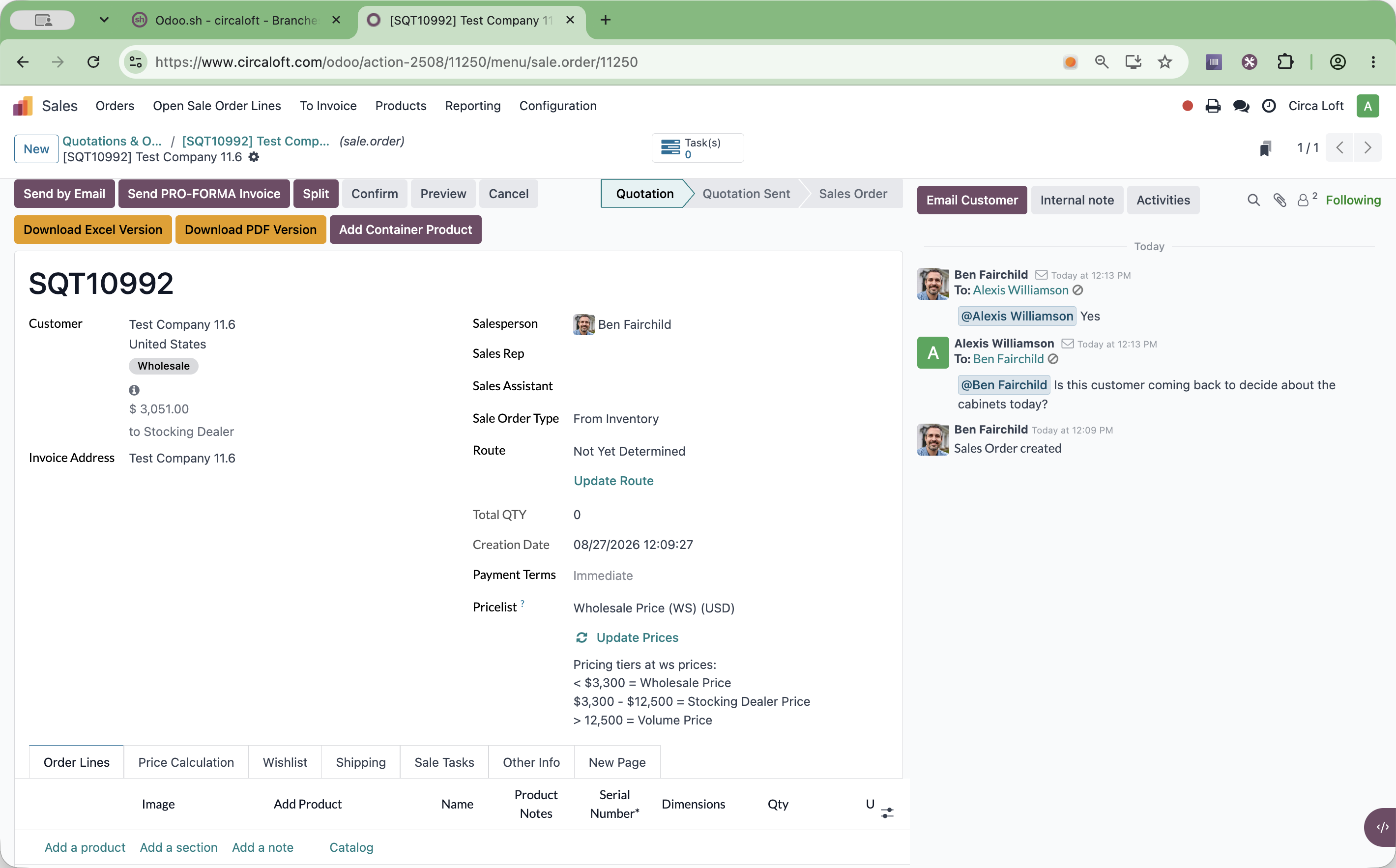
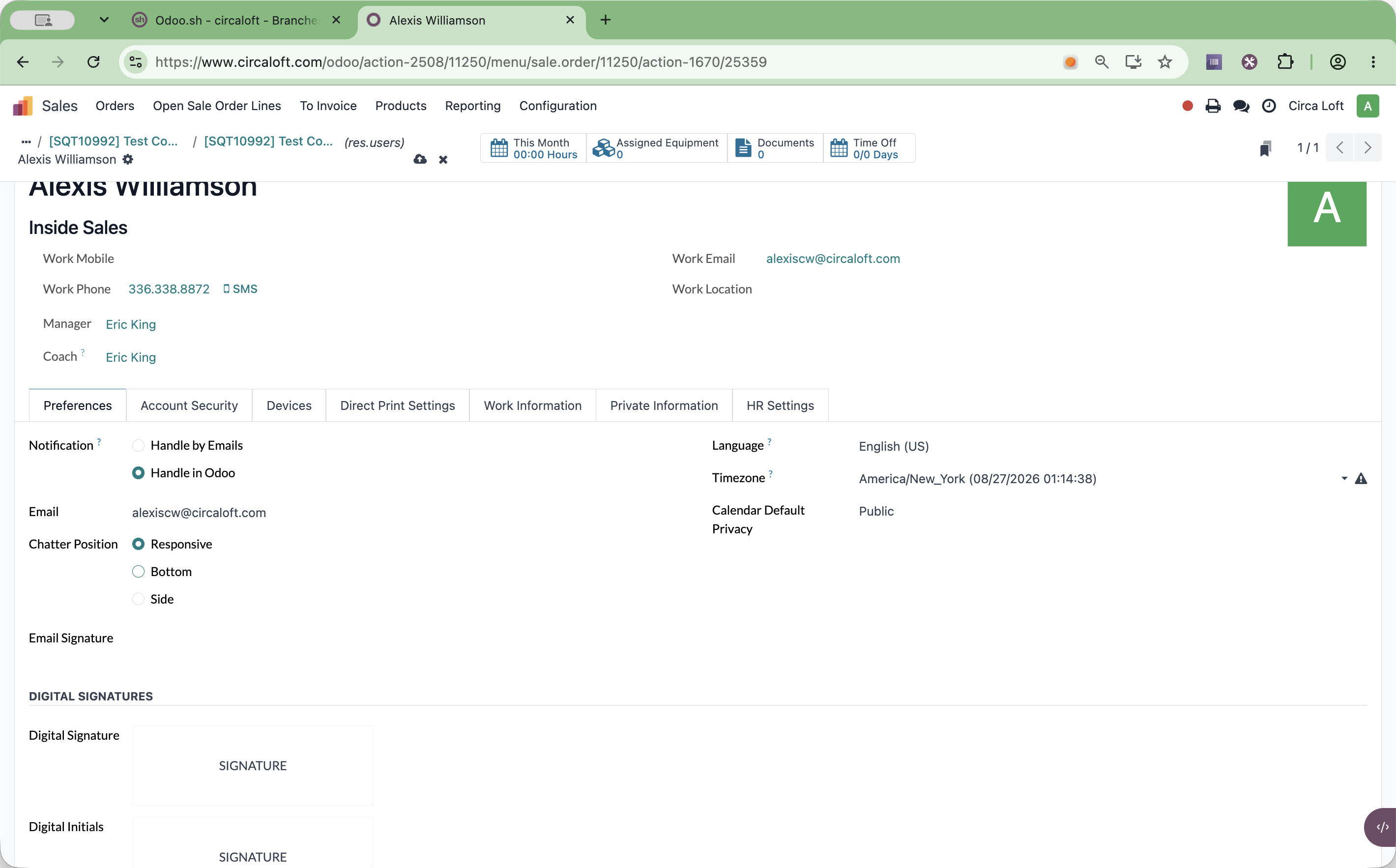
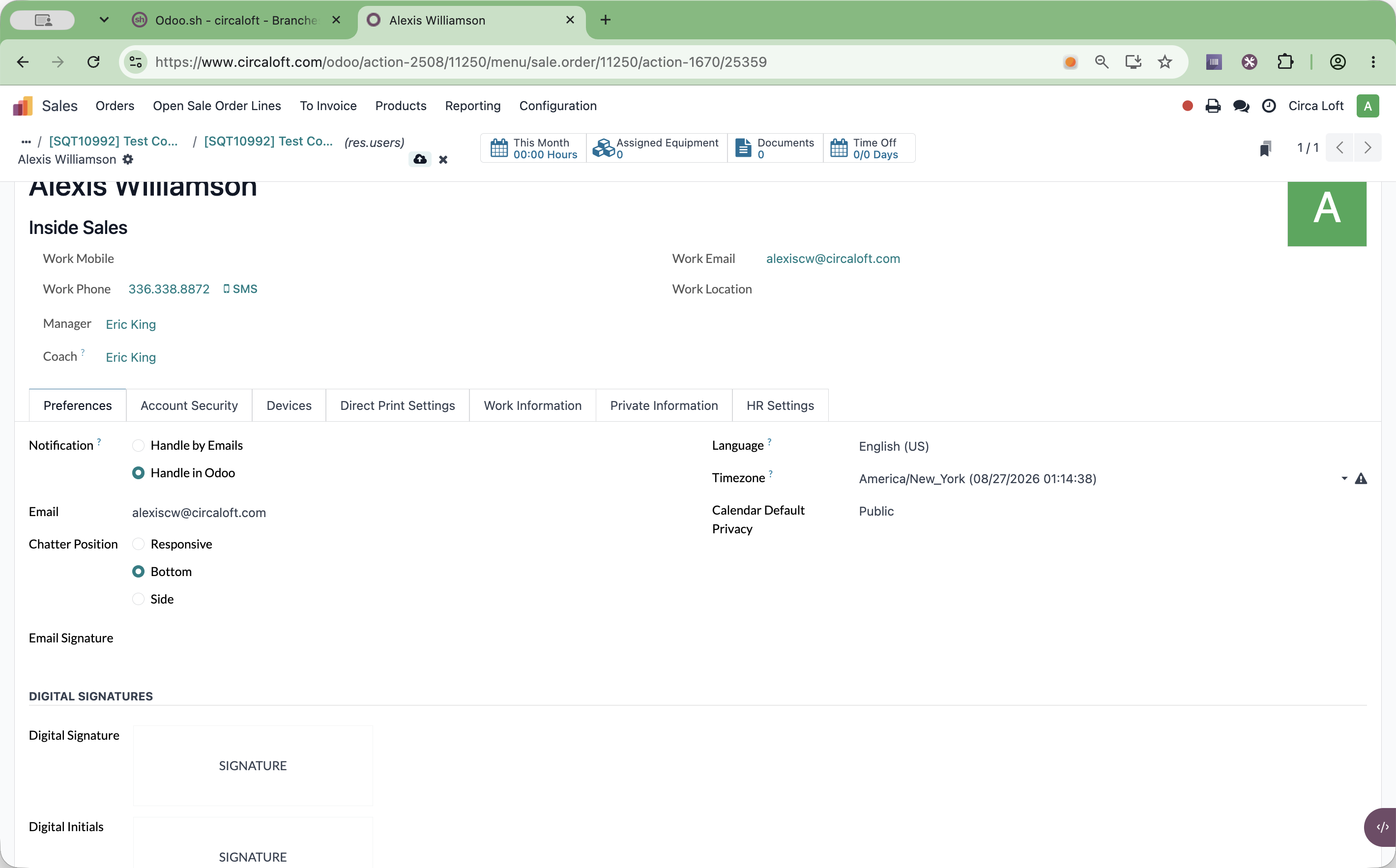
![Step #17: Click [ SQT10992 ] in the breadcrumb bar to return to the record and verify the new layout.](https://di8mn0rali2ic.cloudfront.net/uploads/1a289e38-4977-4eee-997b-faab94a3cb8f/566e6249-5dd1-4dbf-9f8d-48db52dfb228.png)
Q: Can customers see internal notes logged in the Chatter?
A: No. Messages logged as internal notes are strictly internal to your organization and cannot be viewed by customers, even when they log in to review or pay for their sales order.
Q: What does the Responsive Chatter Position setting do?
A: The Responsive setting adjusts the position of the Chatter dynamically based on your display width, showing it on the side for wide monitors and moving it to the bottom for narrower screens.
Q: How do I open an app without finding its icon on the dashboard?
A: Start typing the name of the app directly on the home screen. Odoo automatically initiates a search filter so you can press Enter or click the result to open it immediately.
Term | Definition |
|---|---|
Chatter | The communication and activity feed panel attached to Odoo records for logging notes, sending messages, and tracking changes. |
Internal Note | A private communication logged on a record that is visible only to internal team members and hidden from customers. |
Discuss | Odoo's built-in messaging module used for direct messaging, channel conversations, and notification management. |