
Order Mailing Supplies and Custom Shipping Labels
Learn how to order mailing supplies, stamps, and request custom shipping labels using the Atlantis Inventory Software.
This guide walks through how to place orders for standard mailing supplies, such as boxes and stamps, and how to request custom shipping labels in the Atlantis Inventory Software. Completing this process correctly ensures you have the necessary supplies to manage your outgoing mail and utilize the city's shipping infrastructure efficiently.
This workflow applies to any staff or administrative personnel responsible for managing departmental mailings or shipping packages. Use this process whenever you need to replenish your stock of physical mailing supplies or require a generated label for outbound shipping.
Sign In and Access the Catalog
Here is the link to the City wide mailing inventory login
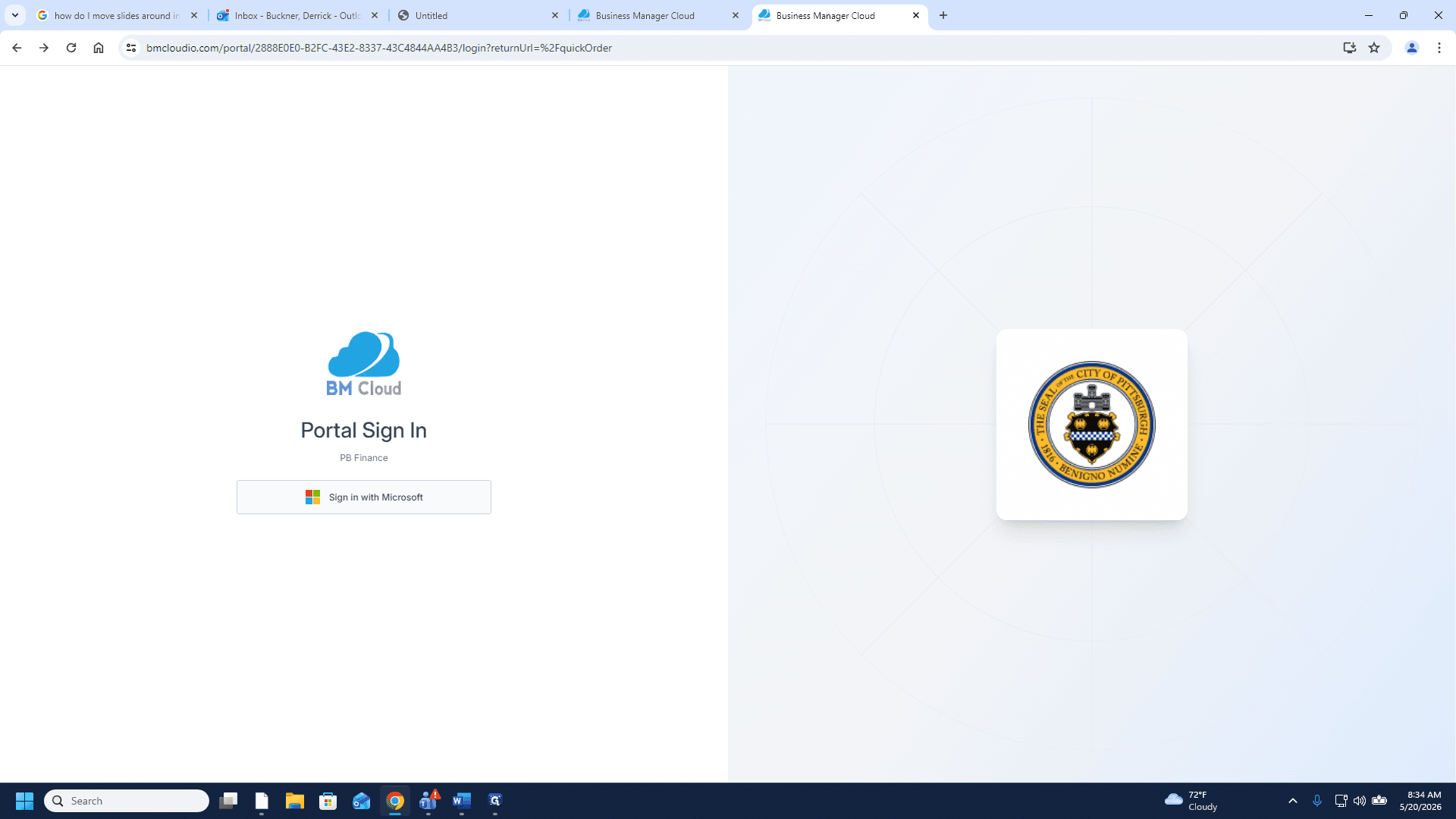
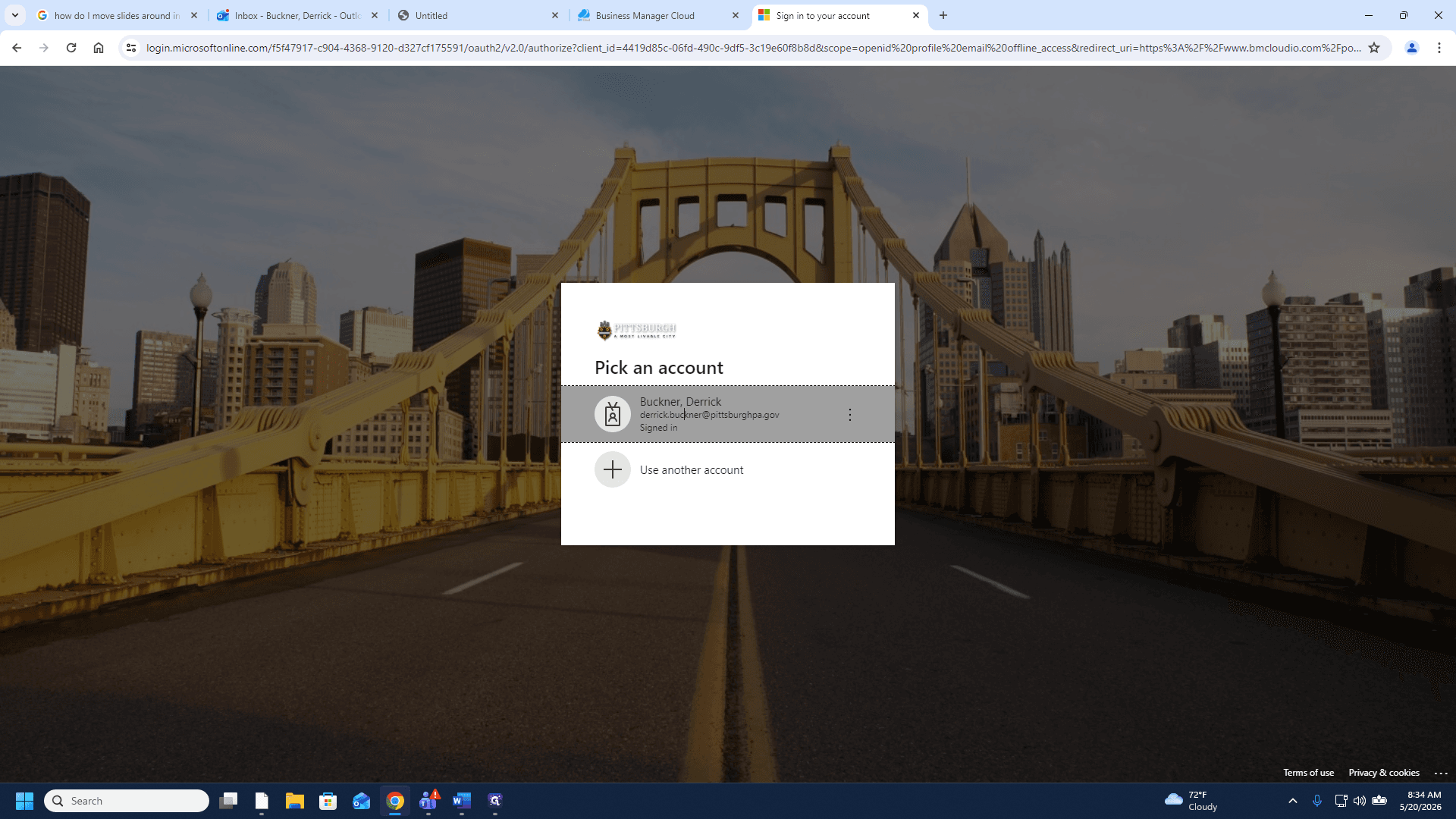
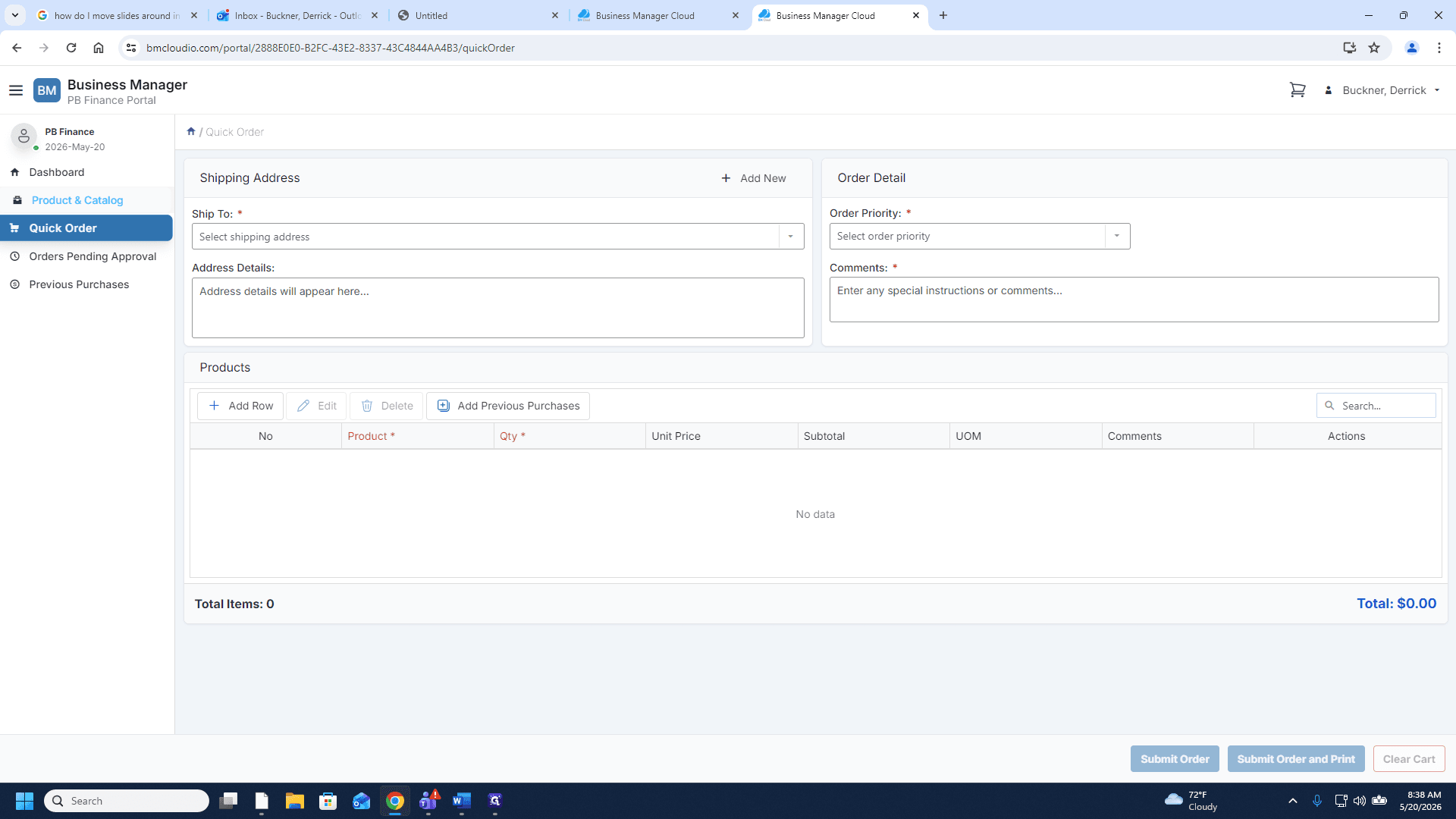
Order Standard Mailing Supplies
When ordering physical items, you can search for or browse through categories to build your cart.
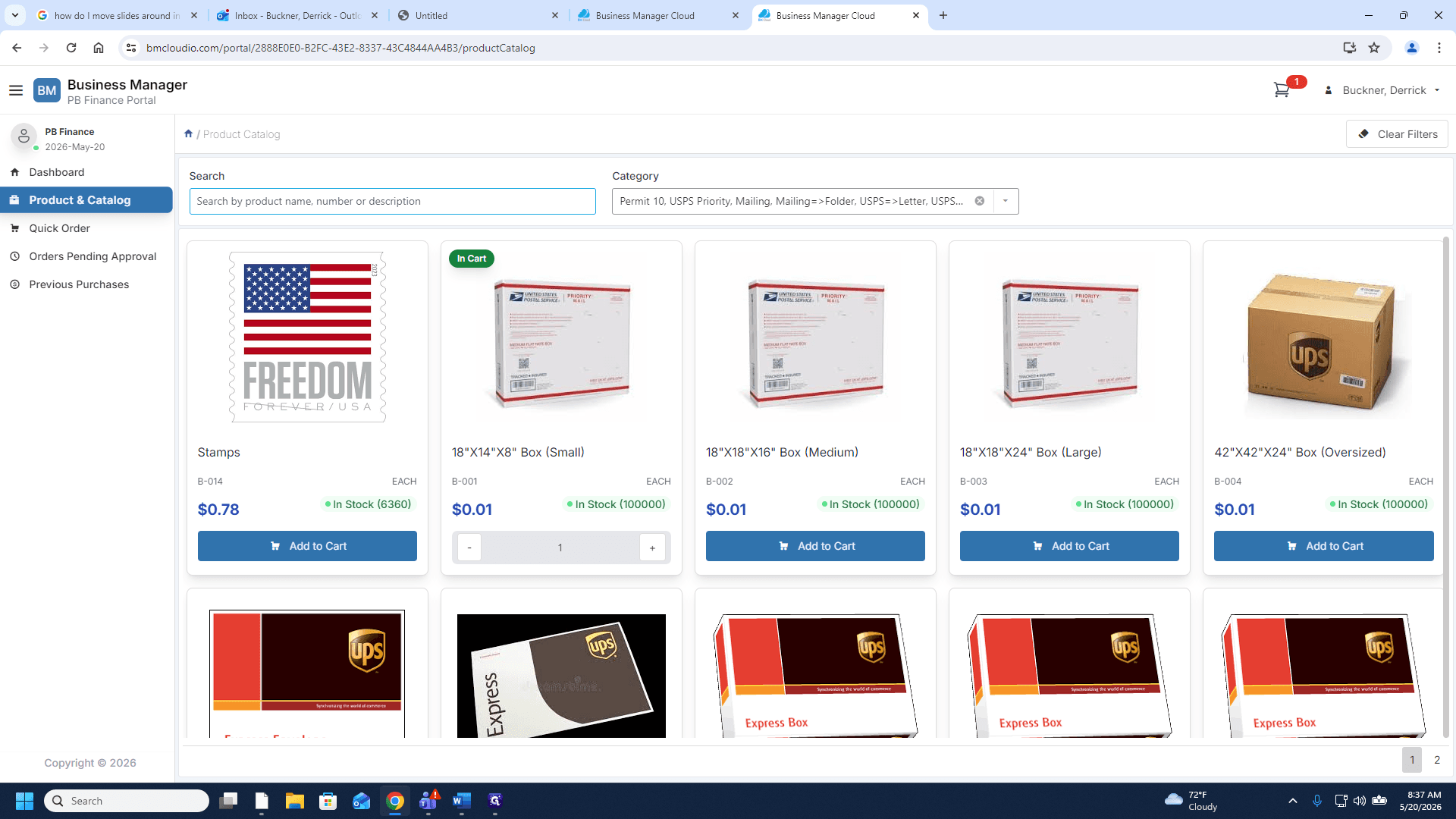
stamps into the search bar to locate postage.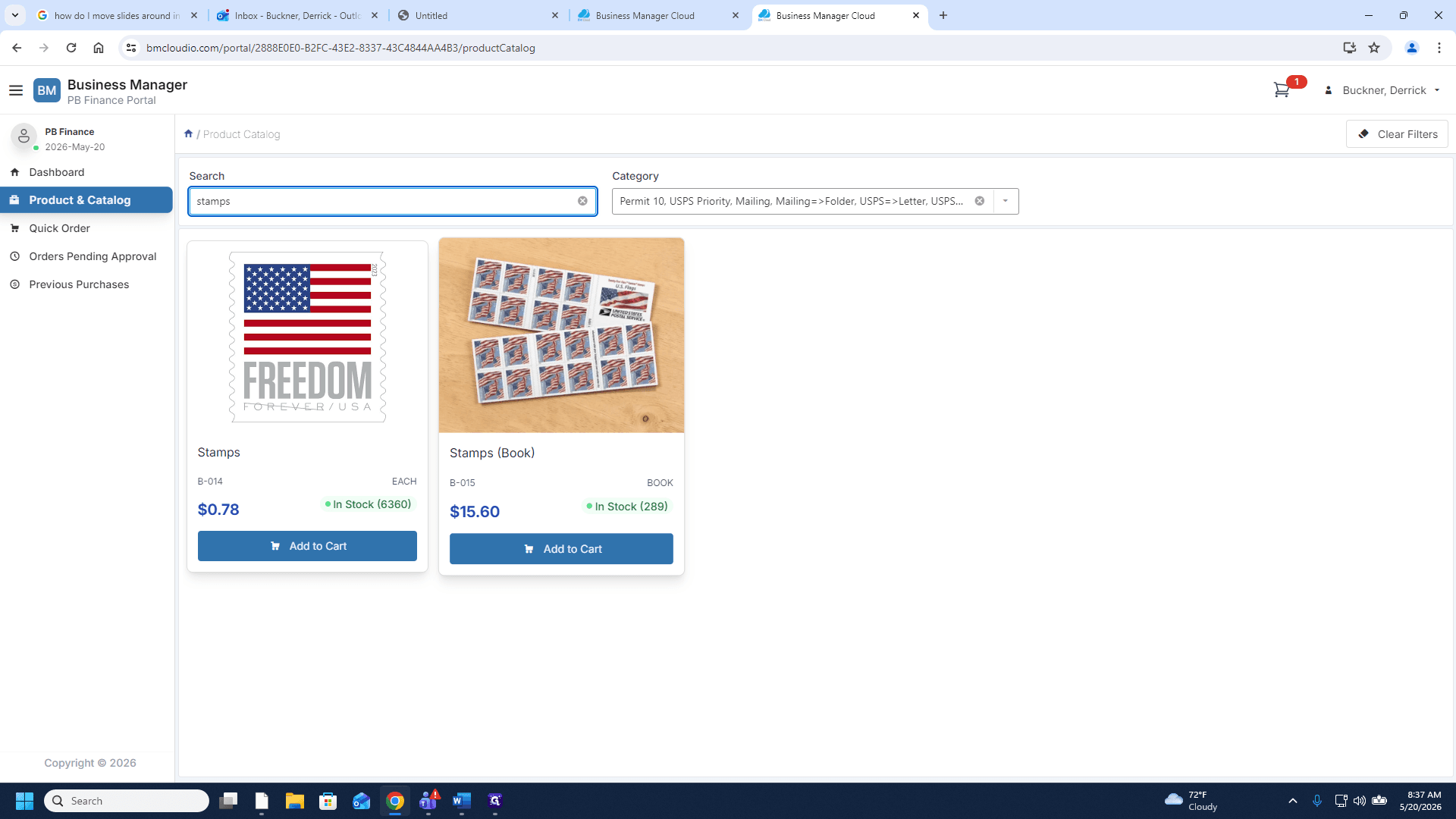
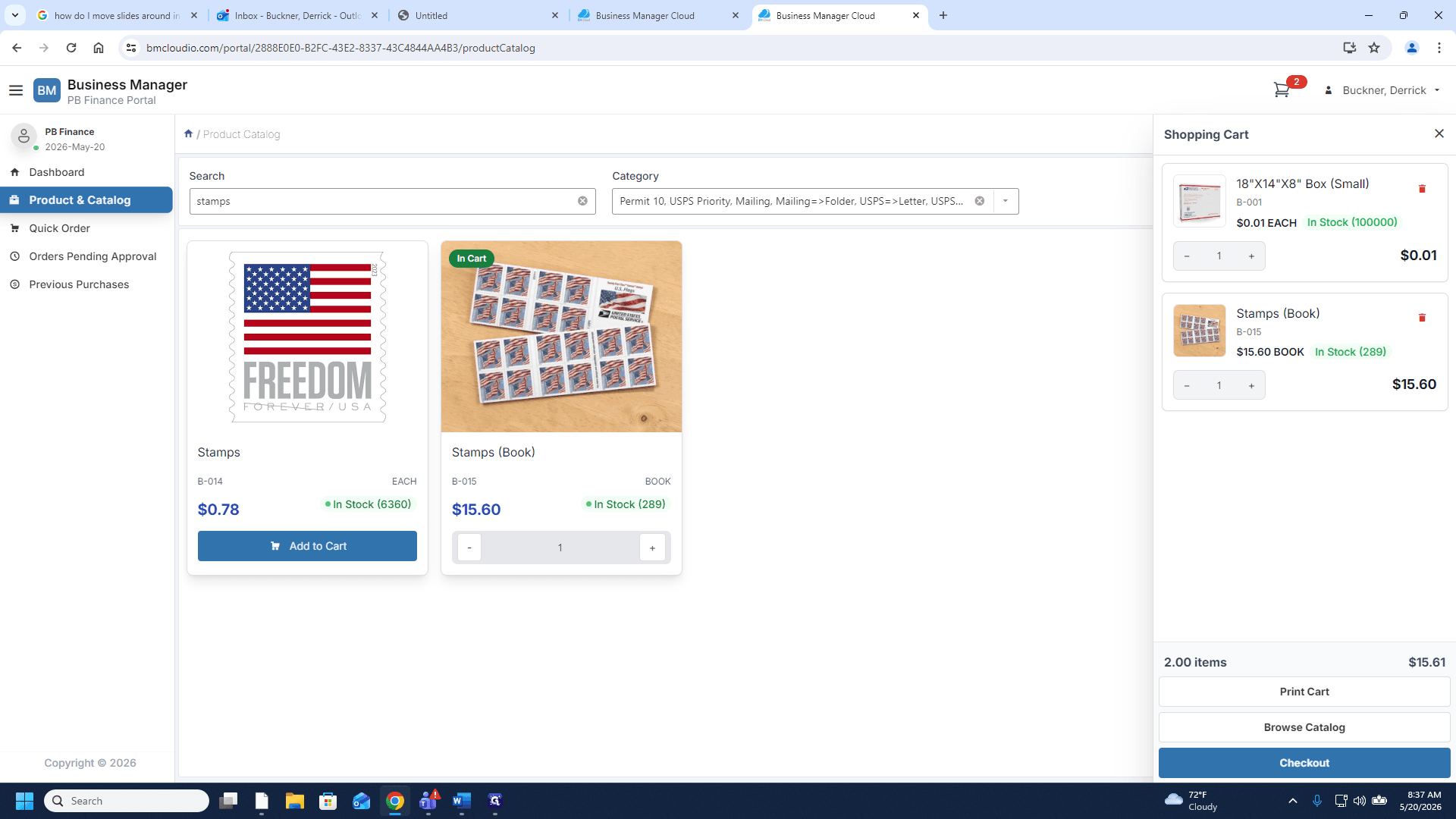
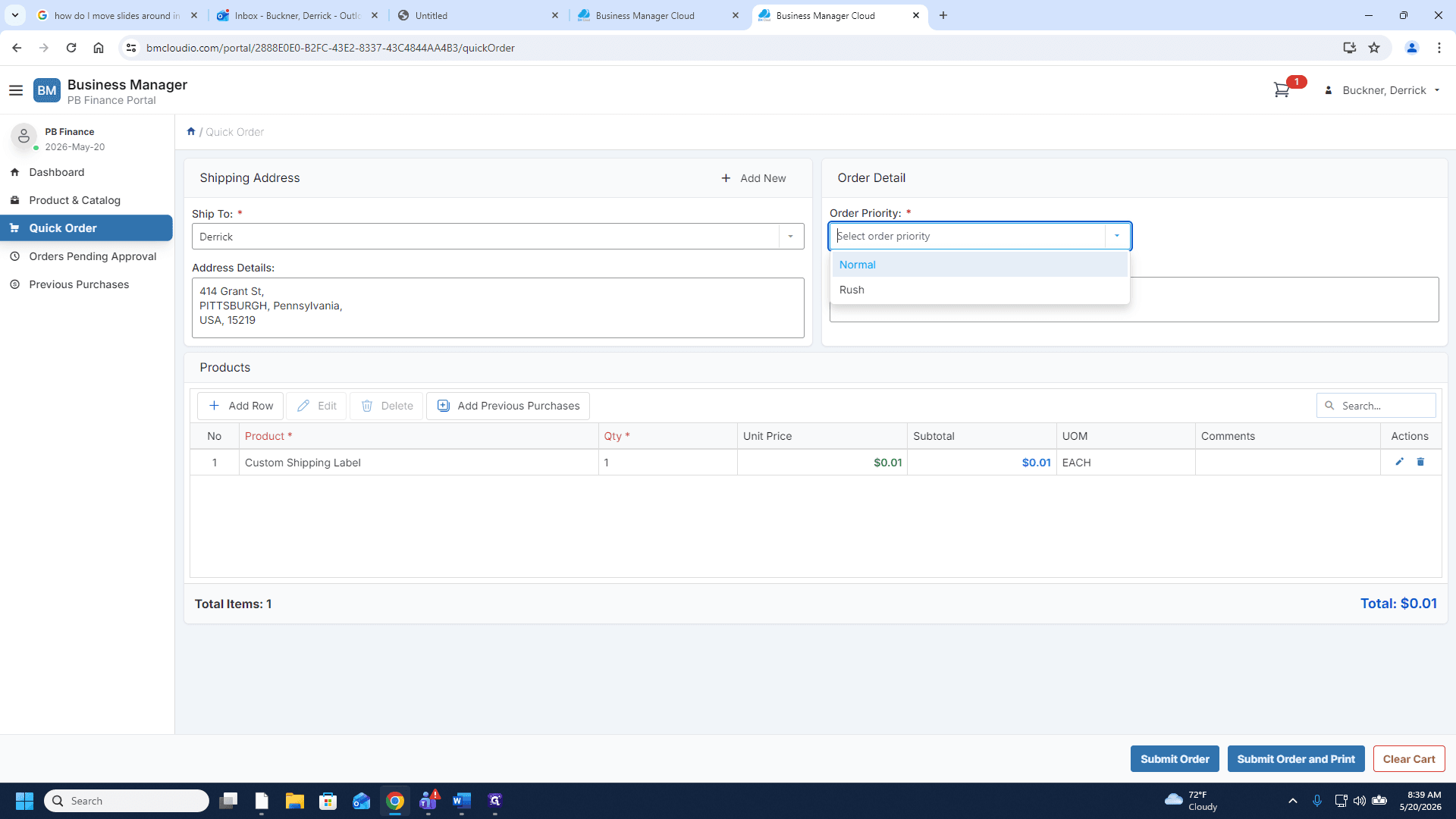
Priority Level | When to use |
|---|---|
Normal | The default selection for standard supply replenishment and outbound shipping. |
Rush | Only select this if you need the package sent or shipped that exact same day. |
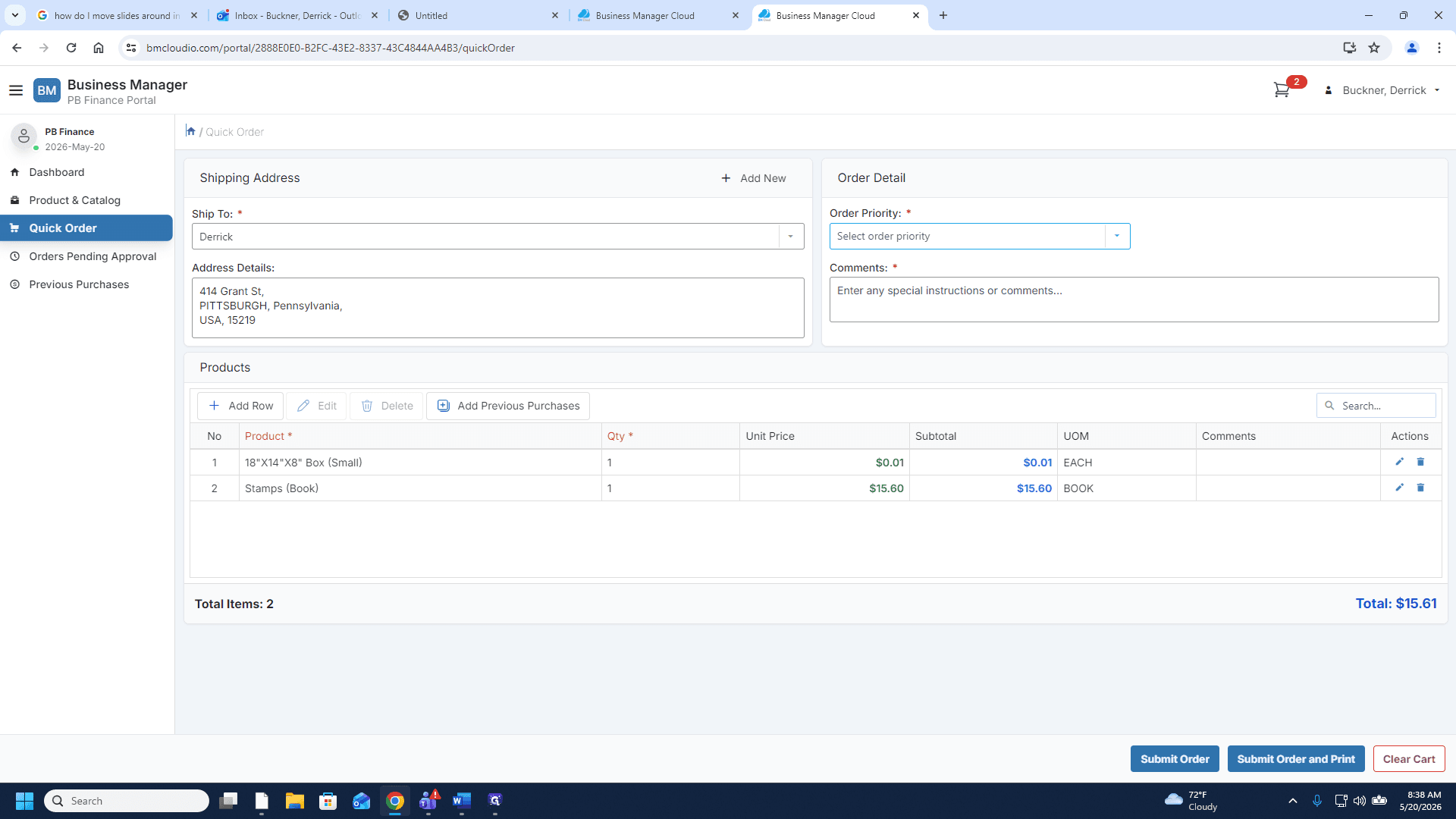
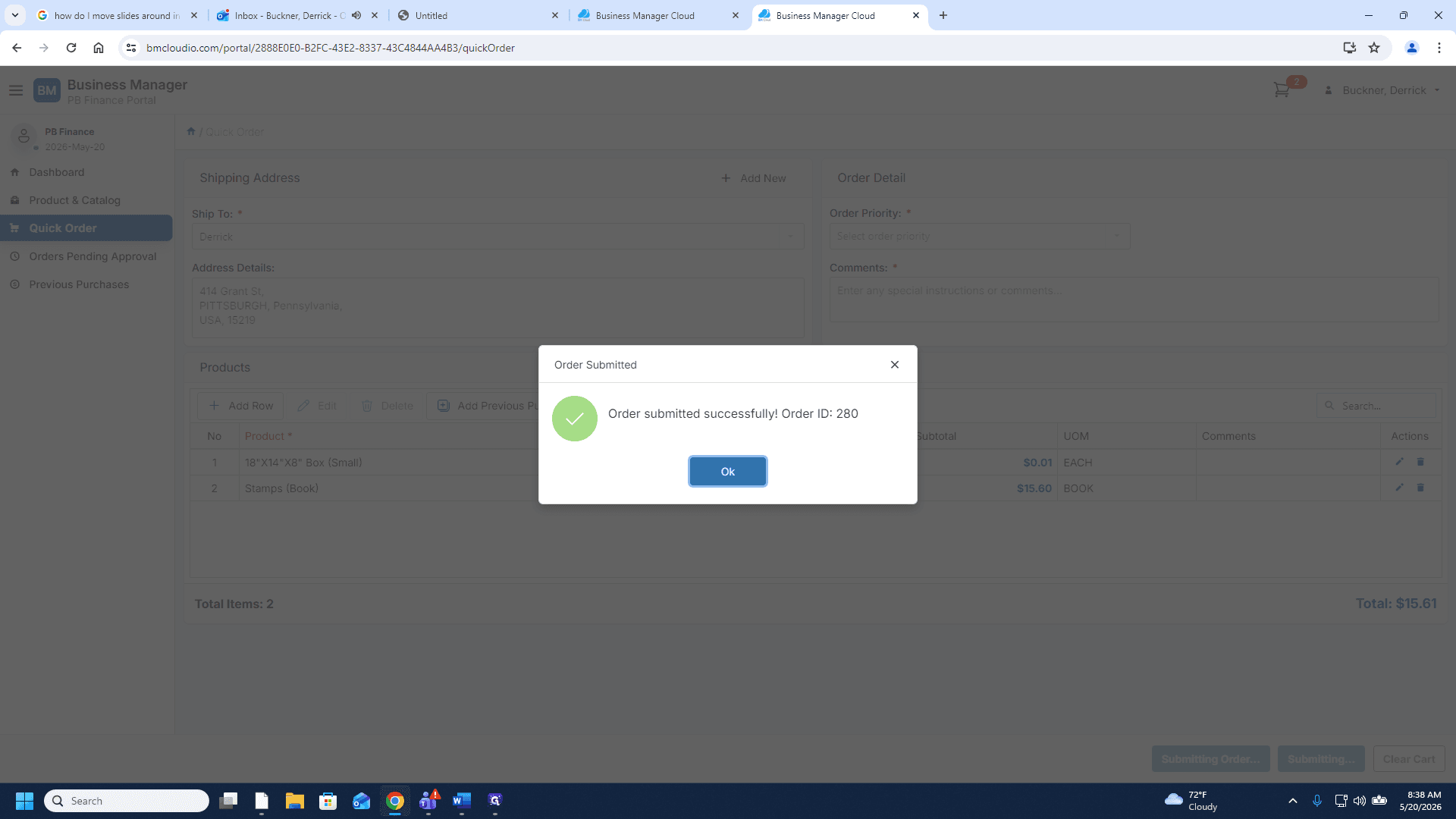
Request Custom Shipping Labels
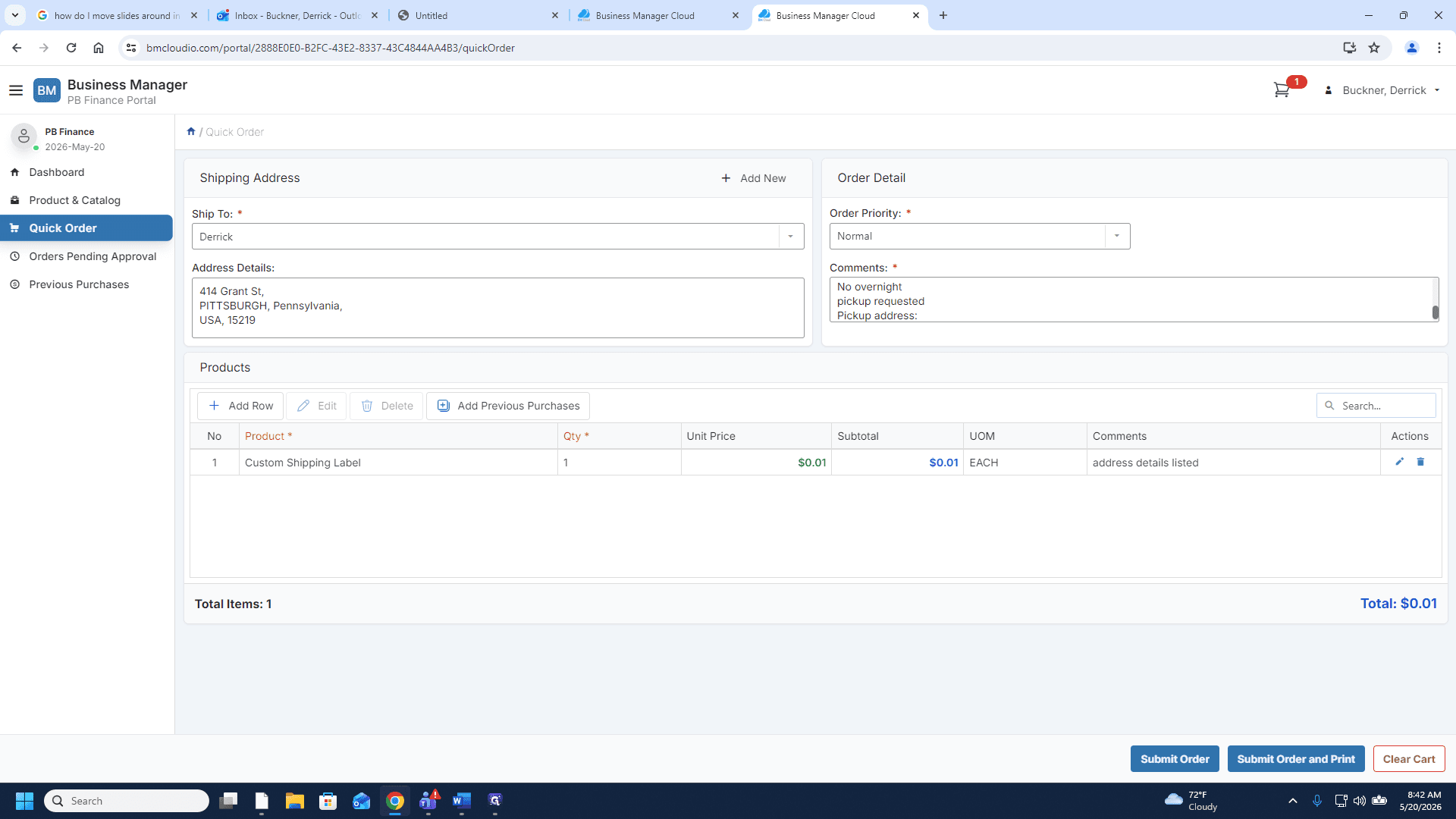
If you need a shipping label created for an outbound package, you must submit a separate order with specific package details.
custom into the product search bar.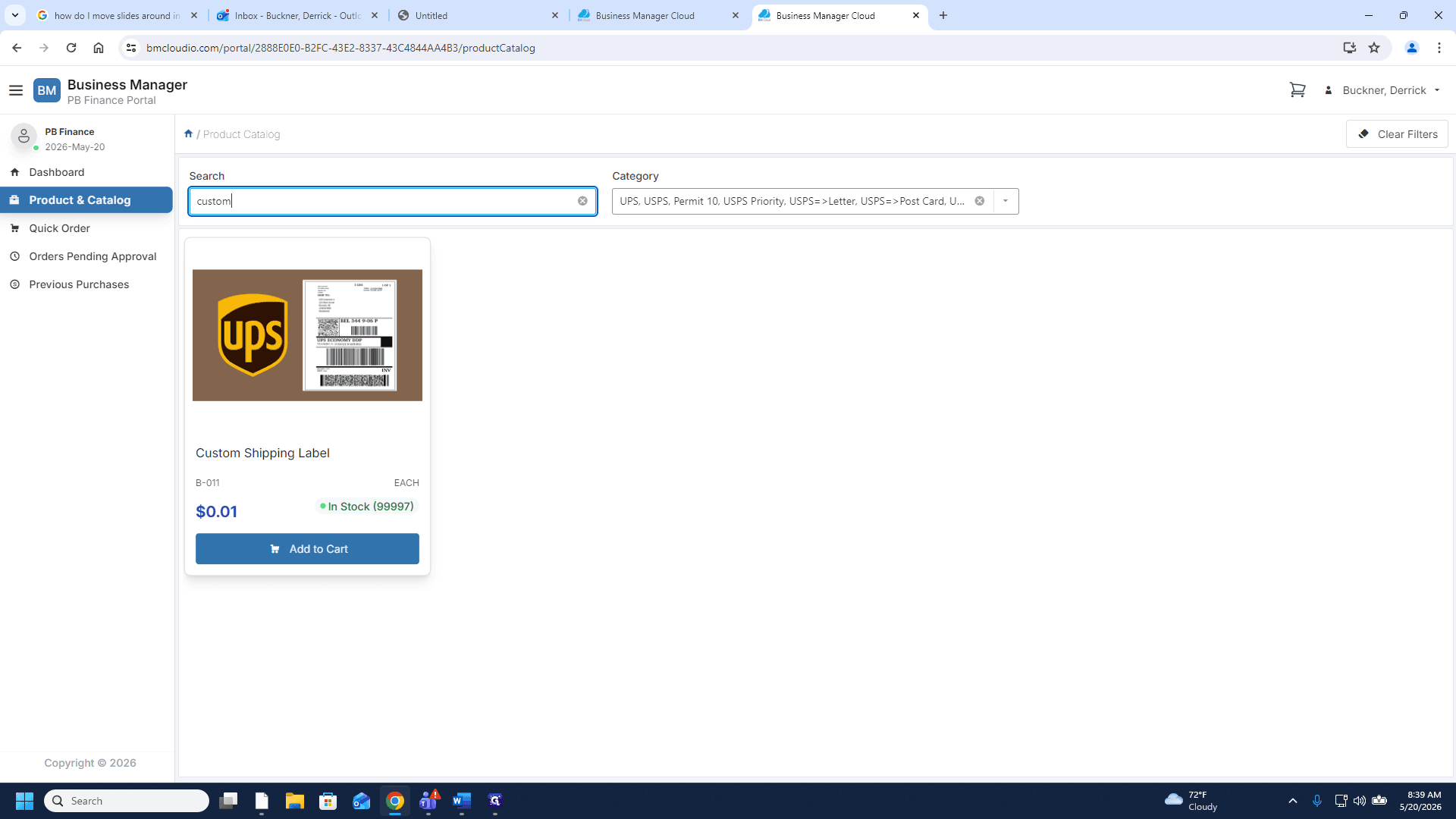
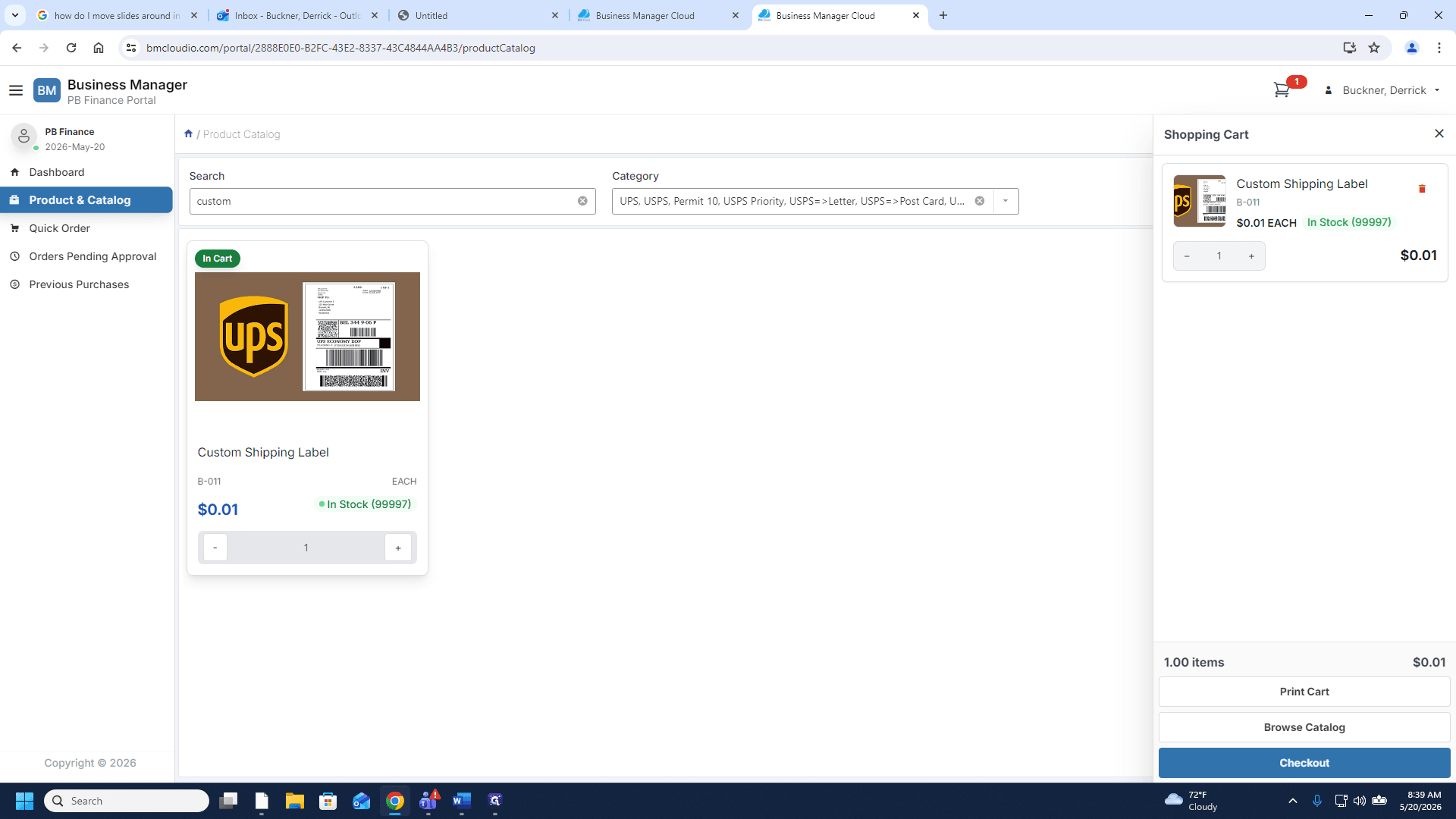
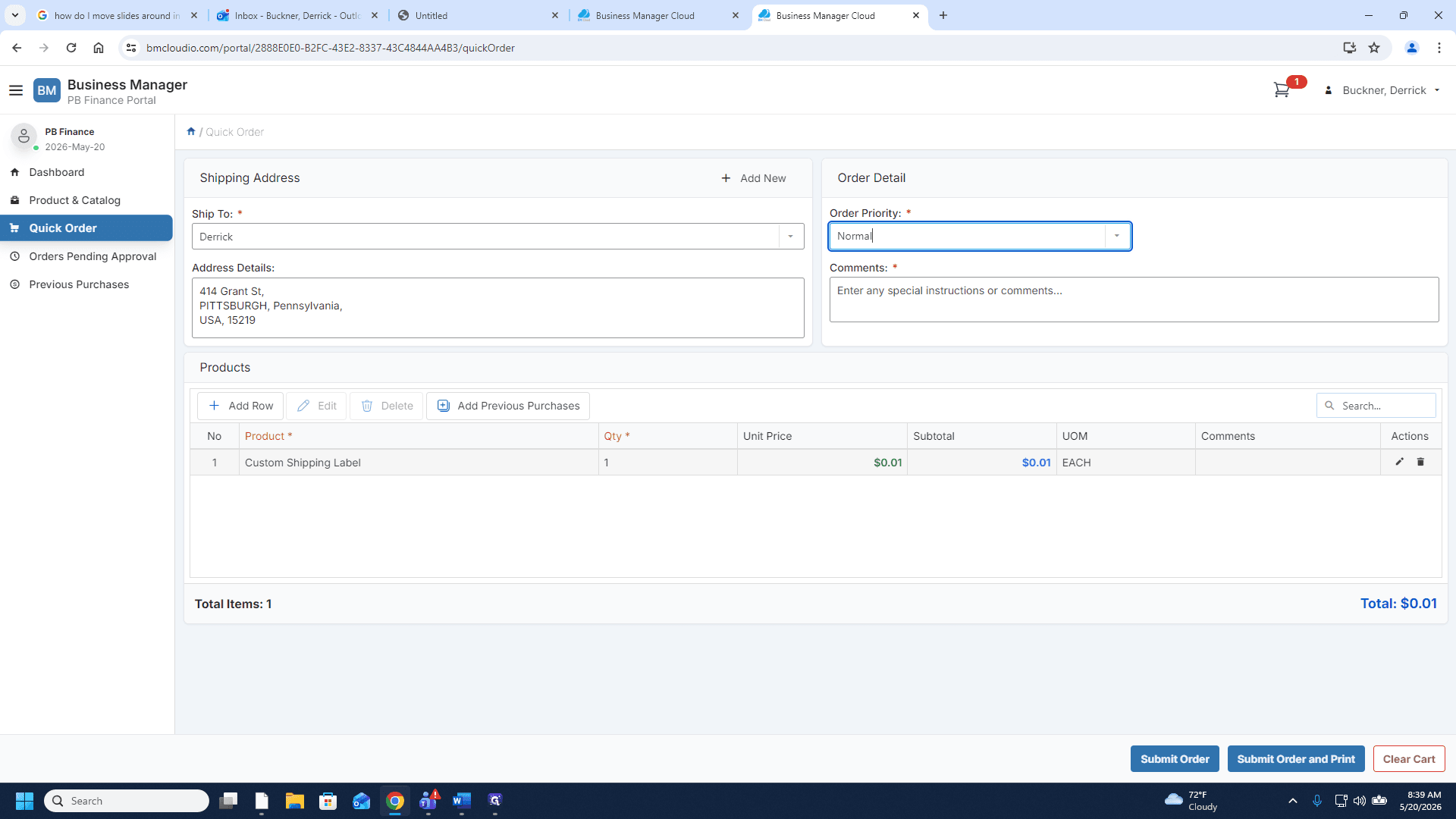
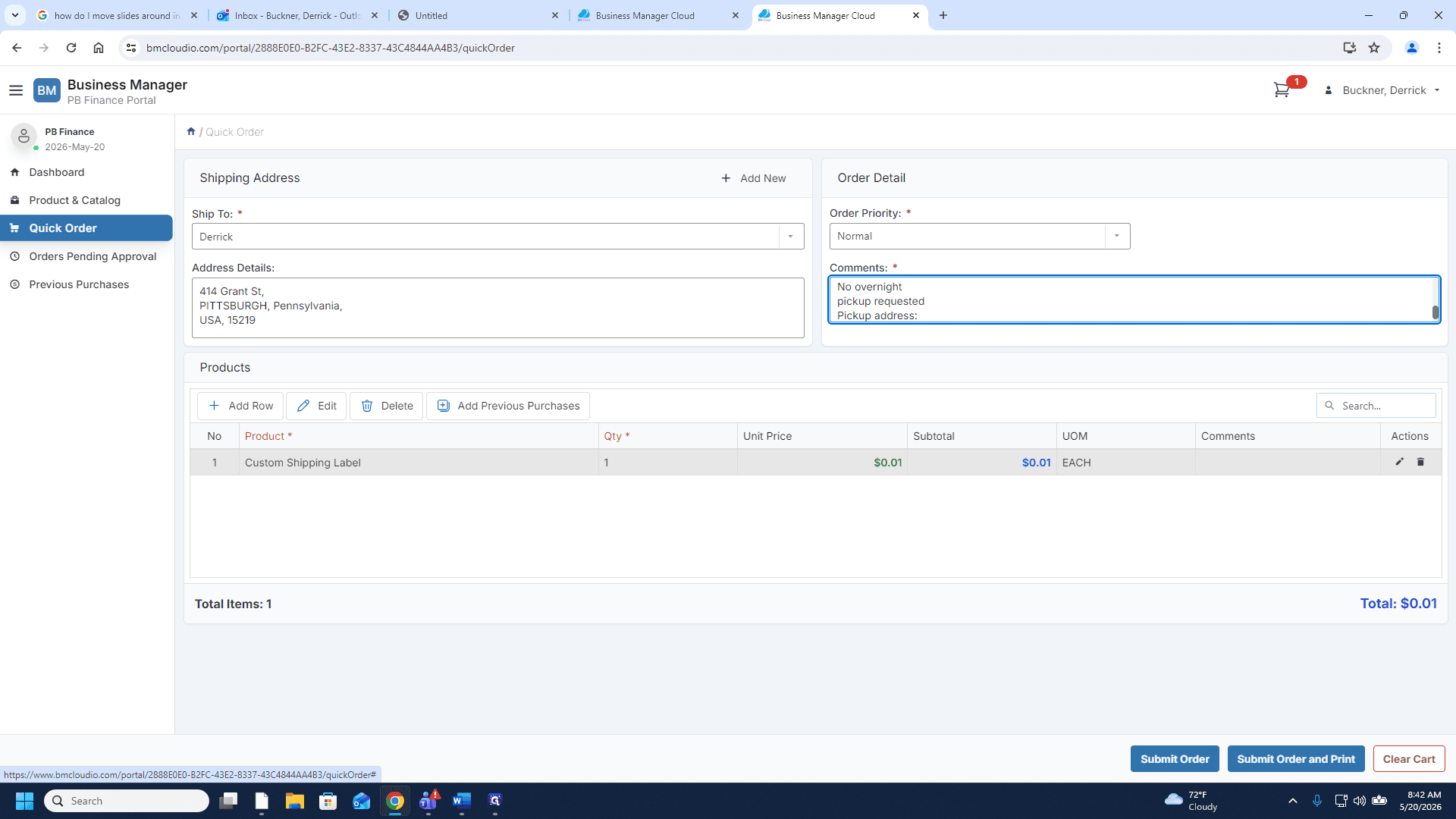
Be sure to include all of the following information in the comments:
Recipient details: Name and destination address.
Package dimensions: Height, width, and length.
Package weight: Estimated total weight.
Hazmat: Whether the package contains lithium-ion batteries.
Speed: Whether the package requires overnight shipping (reserved for emergencies).
Logistics: Whether you will drop off the package or if you need to schedule a pickup. If scheduling a pickup, provide your pickup address.
FAQ
Q: When should I choose the "Rush" order priority?
A: Only choose "Rush" if your package must be shipped out the exact same day. Otherwise, use "Normal."
Q: What information is required to order a custom shipping label?
A: You must provide the recipient's name, destination address, package dimensions, estimated weight, lithium-ion battery presence, and logistics (drop-off vs. pickup address) in the order comments.