Icon

How to Order Transparency Codes and Upload to OPR

Learn how to order labels for enrolled Amazon Transparency products and upload the required spreadsheet to the Operational Performance Review (OPR) system.

By SellerPro Amazon Agency

This guide explains how to order Transparency codes for enrolled products and submit them to the Operational Performance Review (OPR). Completing this task ensures your product labels are properly logged, accurate, and approved for Amazon fulfillment.

This workflow applies to Amazon sellers, brand managers, and fulfillment coordinators handling Transparency enrollments. Use these steps right after initially enrolling a product into the Transparency program.

To move your enrolled products into the Operational Performance Review (OPR) phase, you first need to generate your Transparency codes and then fill out the OPR template.

Ordering Transparency Codes
1
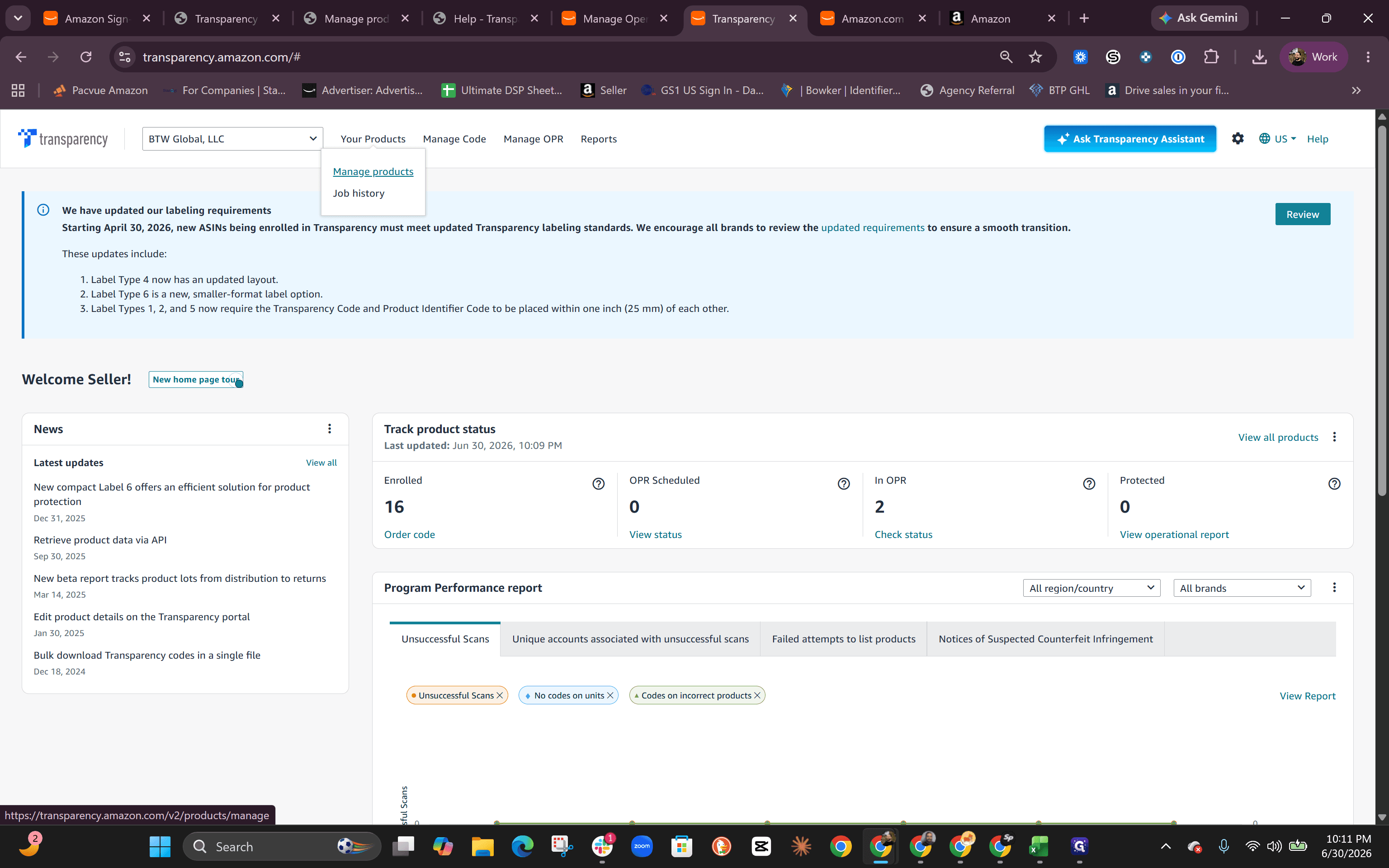
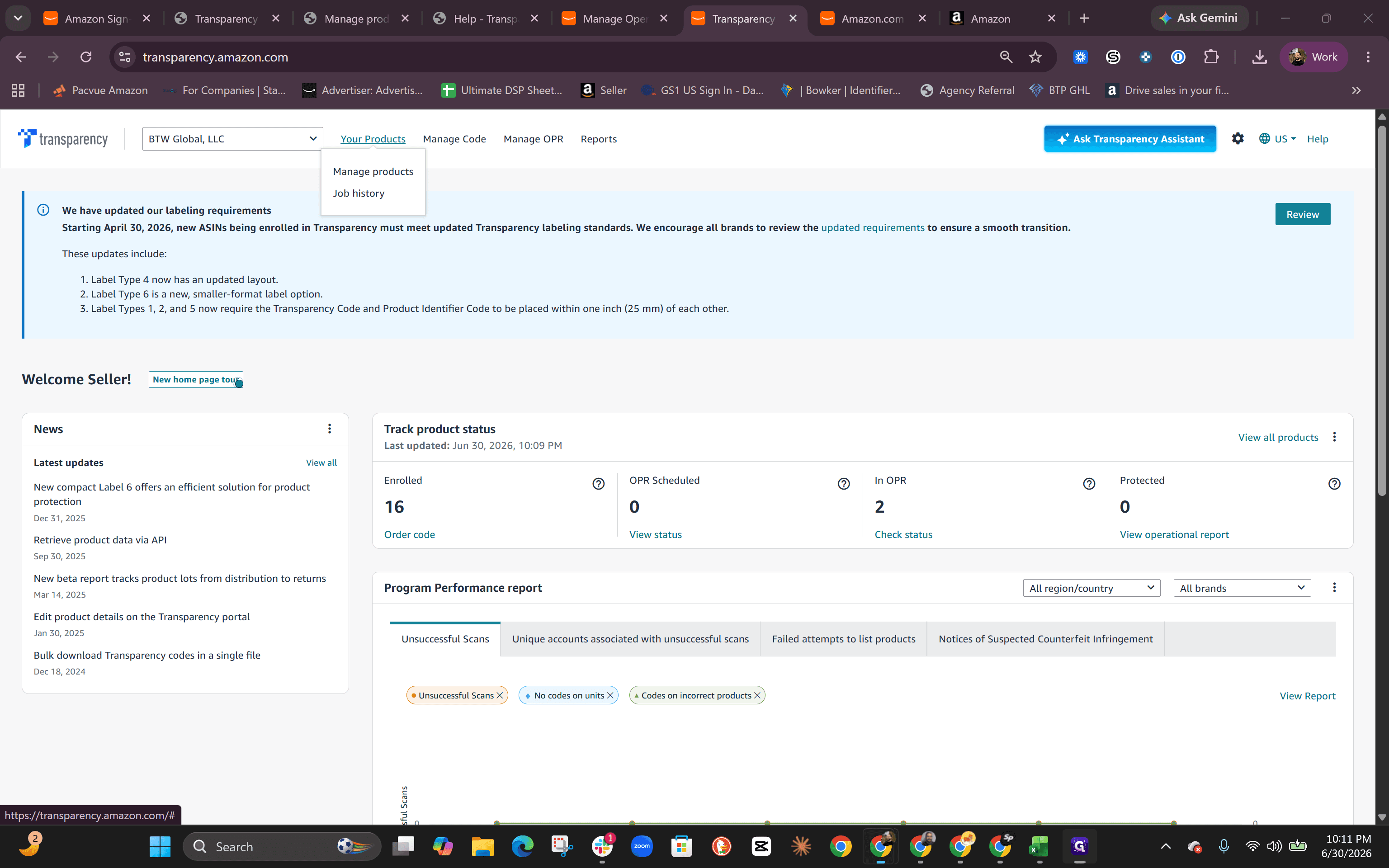
Click Your Products in the main navigation.
Step #1: Click Your Products in the main navigation.
2
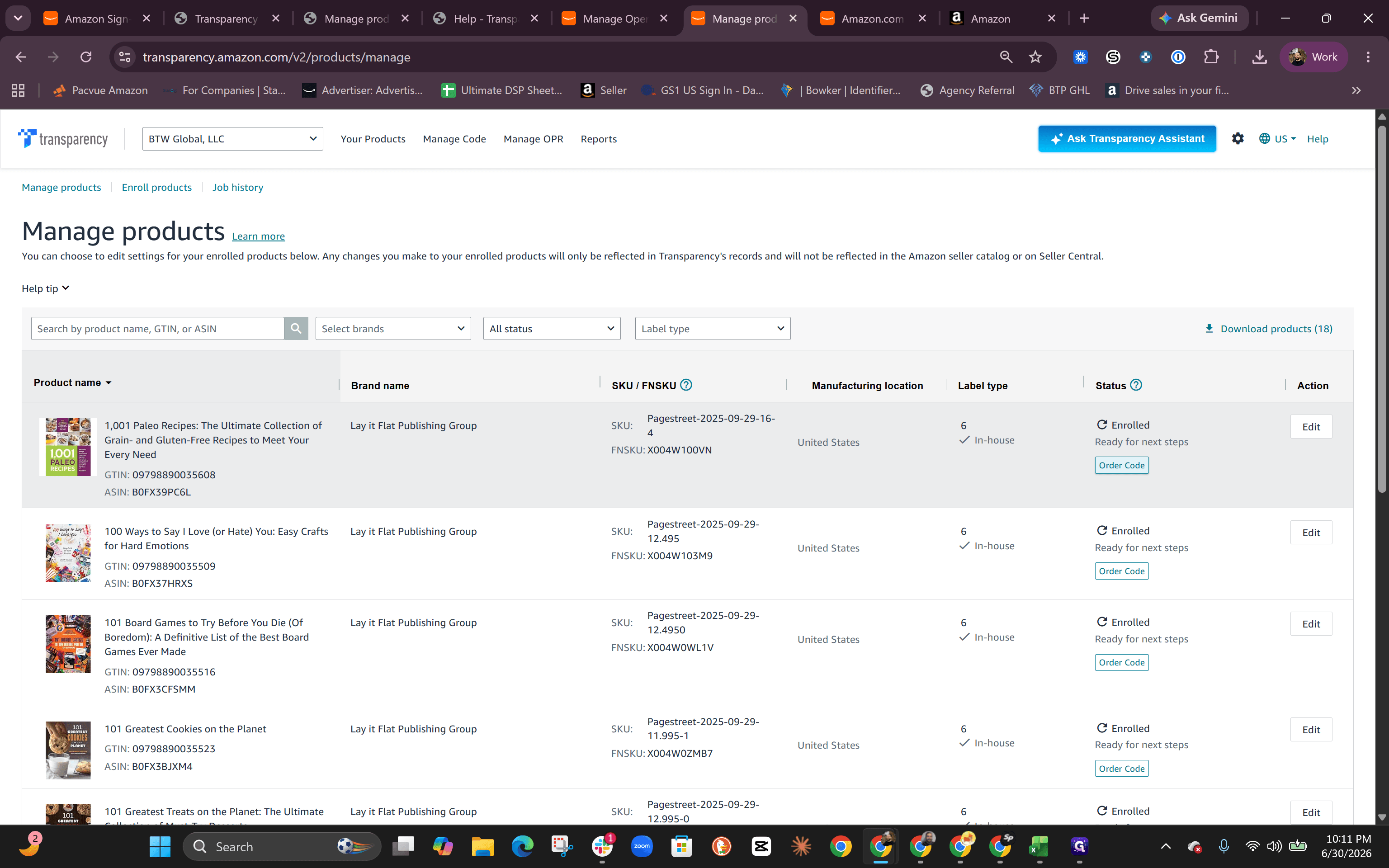
Select Manage products from the dropdown menu.
Step #2: Select Manage products from the dropdown menu.
3
Locate the product you want to work on and click Order Code.
Step #3: Locate the product you want to work on and click Order Code.
4
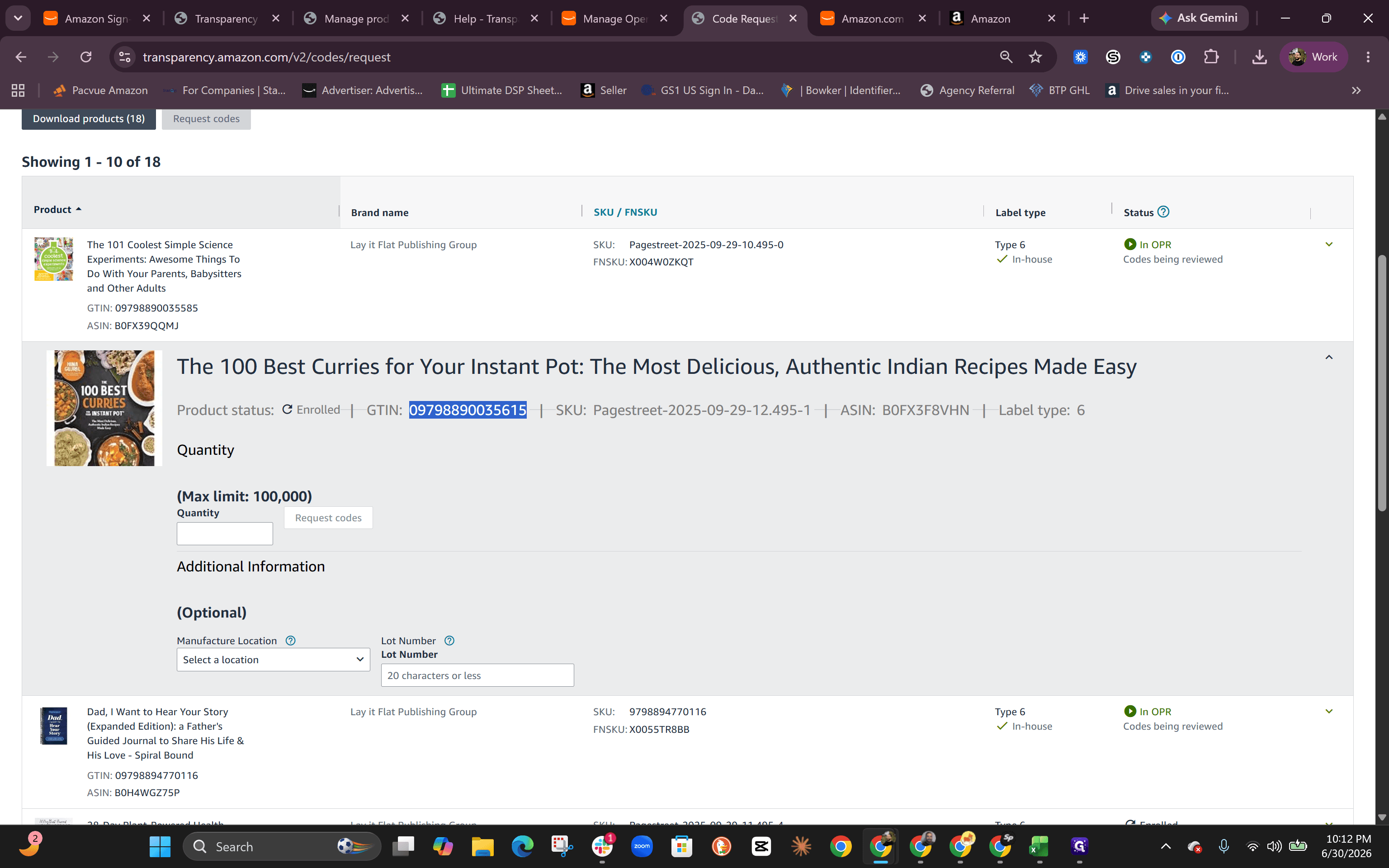
Highlight and copy the product's GTIN number to use later.
Step #4: Highlight and copy the product's GTIN number to use later.
5
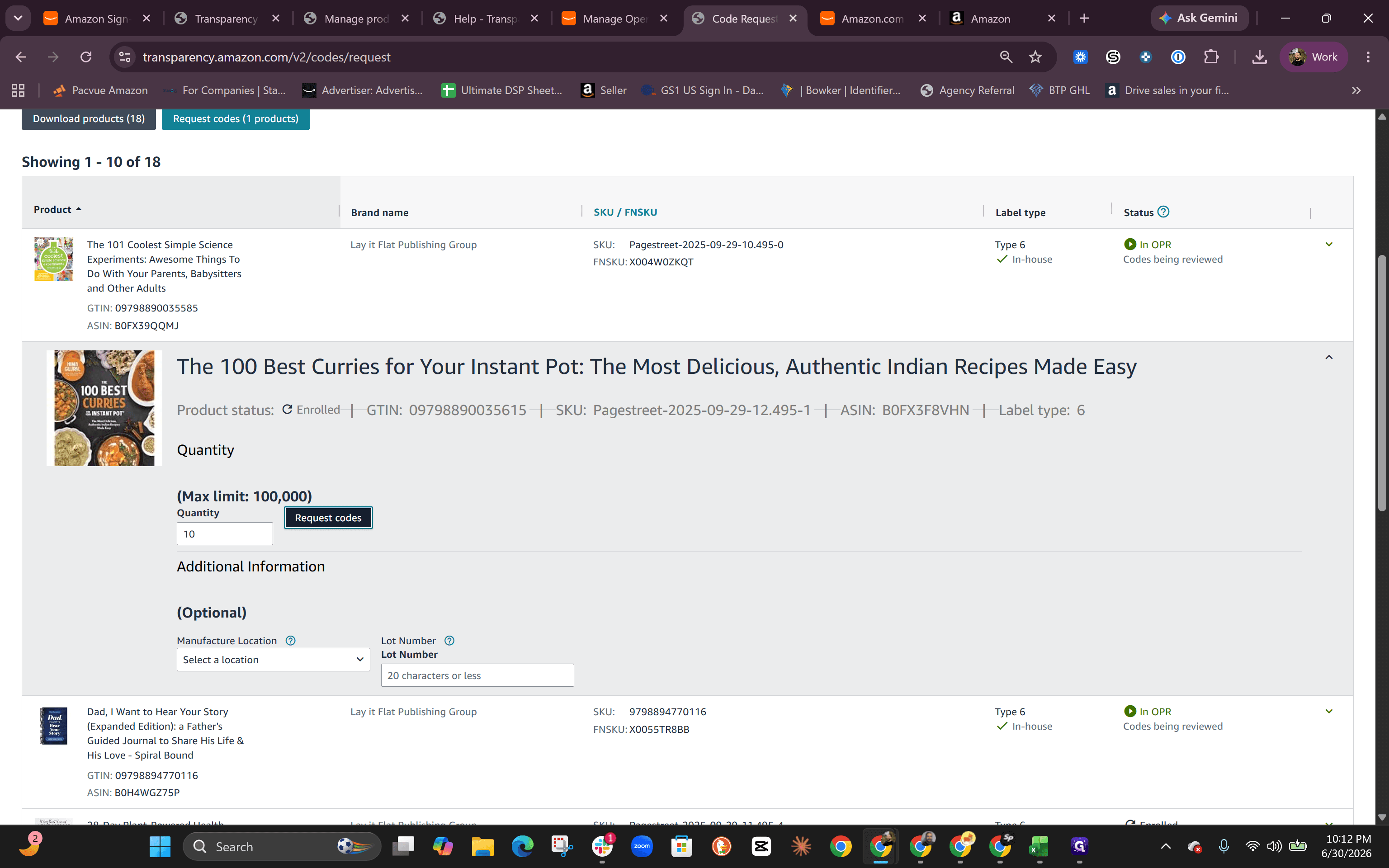
Type the desired quantity of codes to generate in the quantity field.
6
Click Request codes.
Step #6: Click Request codes.
7
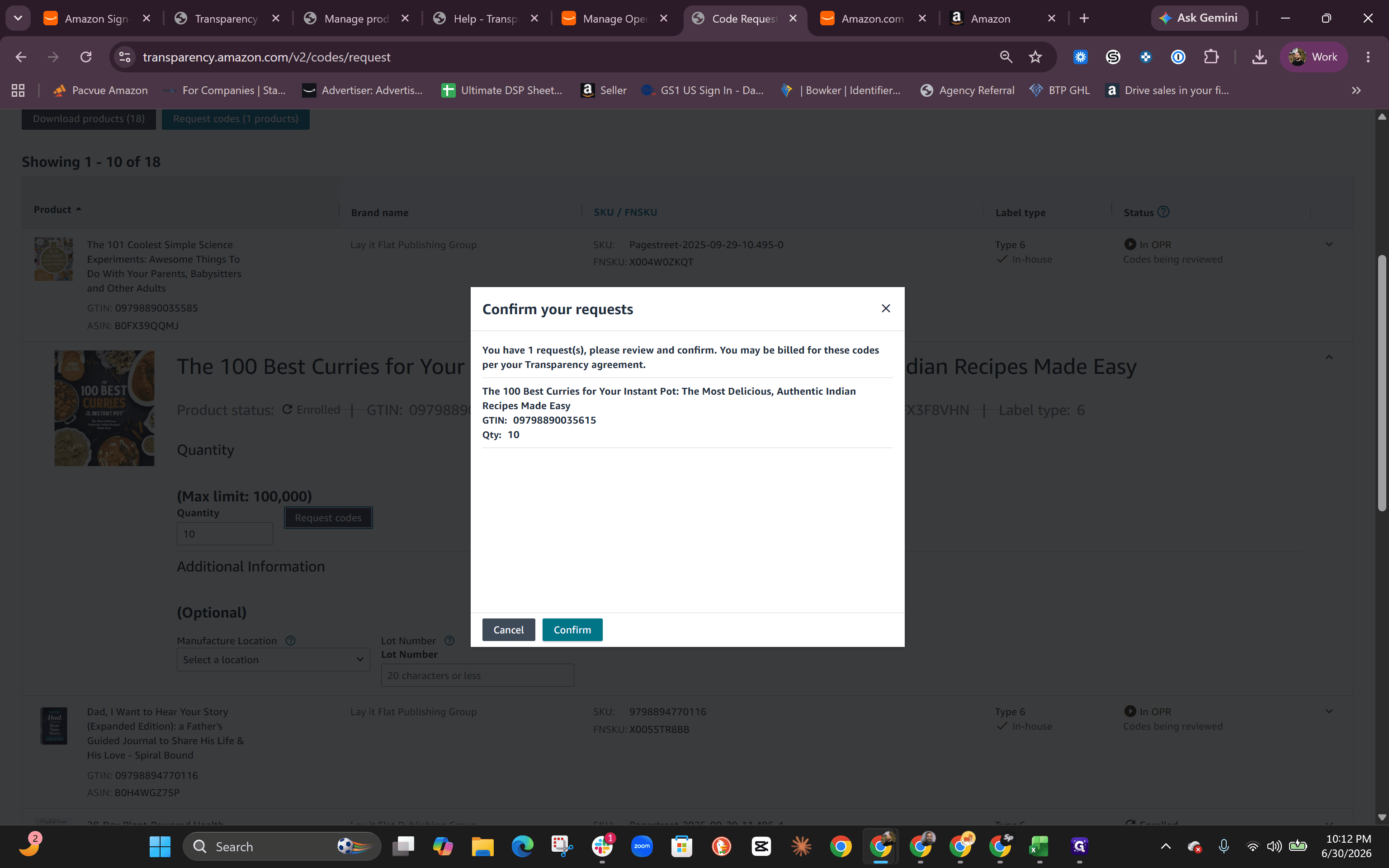
Click Confirm to verify your request details.
Step #7: Click Confirm to verify your request details.
8
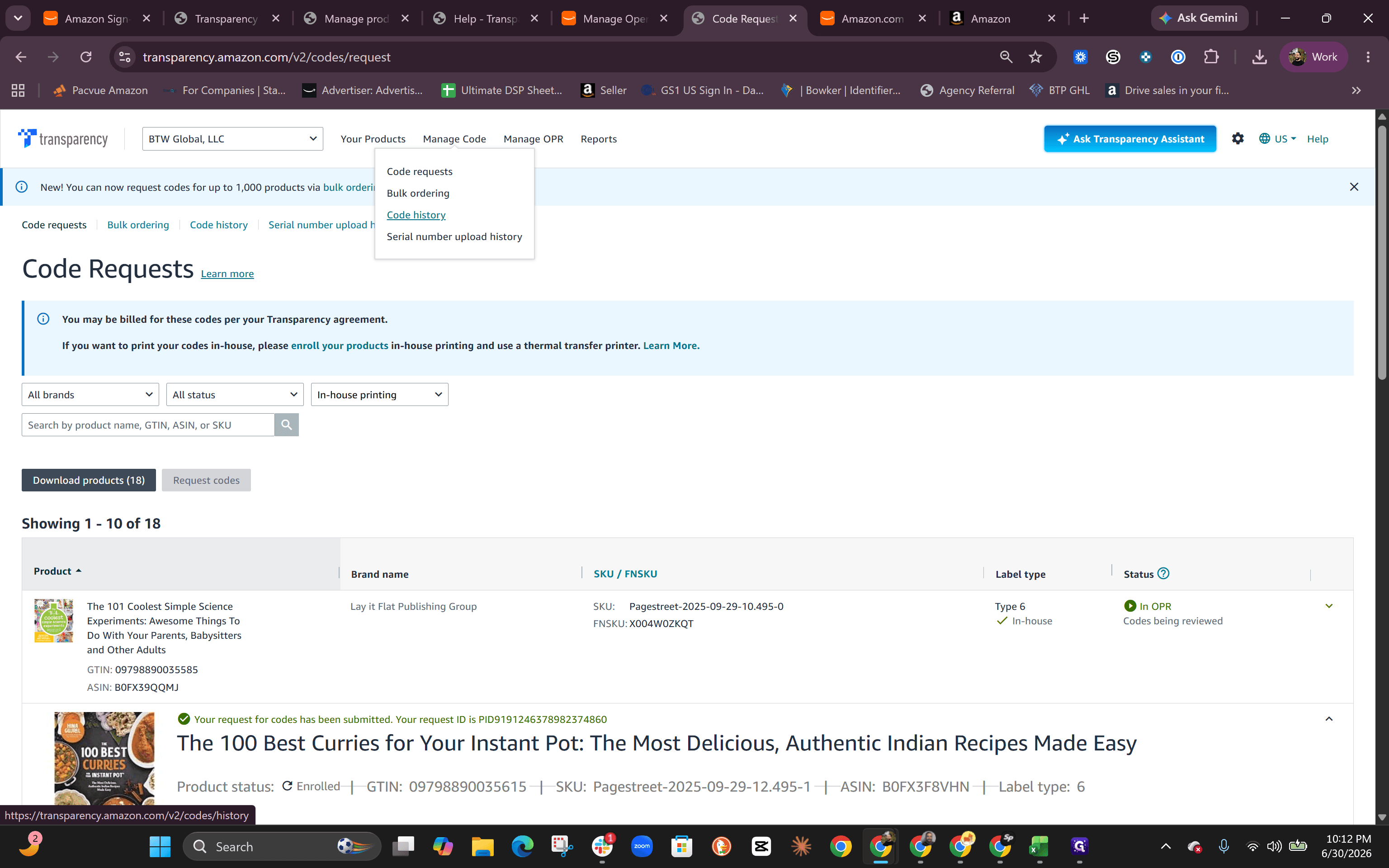
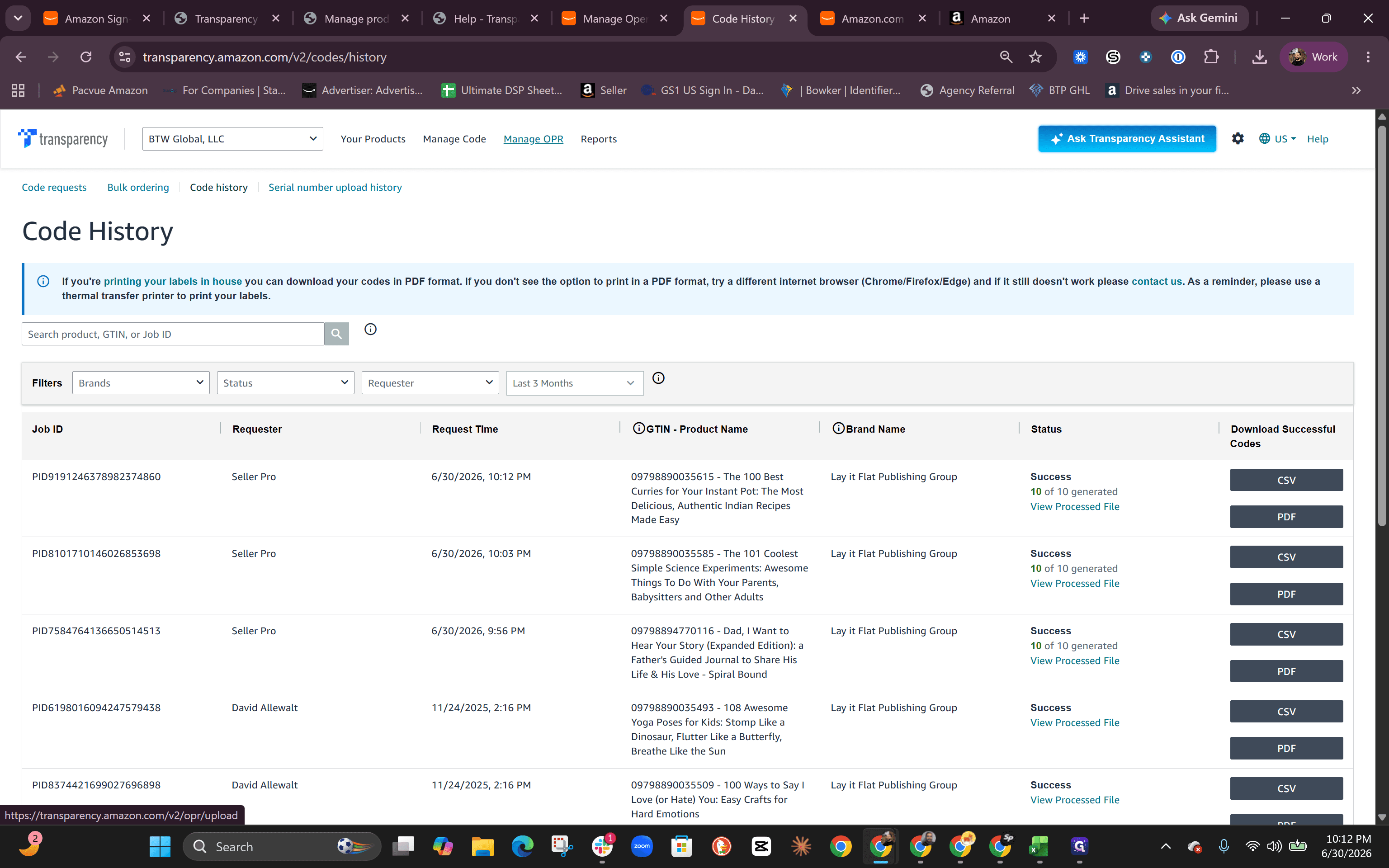
Navigate to Code history to confirm your batch of codes was successfully generated.
Step #8: Navigate to Code history to confirm your batch of codes was successfully generated.

Submitting to OPR

9
Click Manage OPR in the top navigation.
Step #9: Click Manage OPR in the top navigation.
10
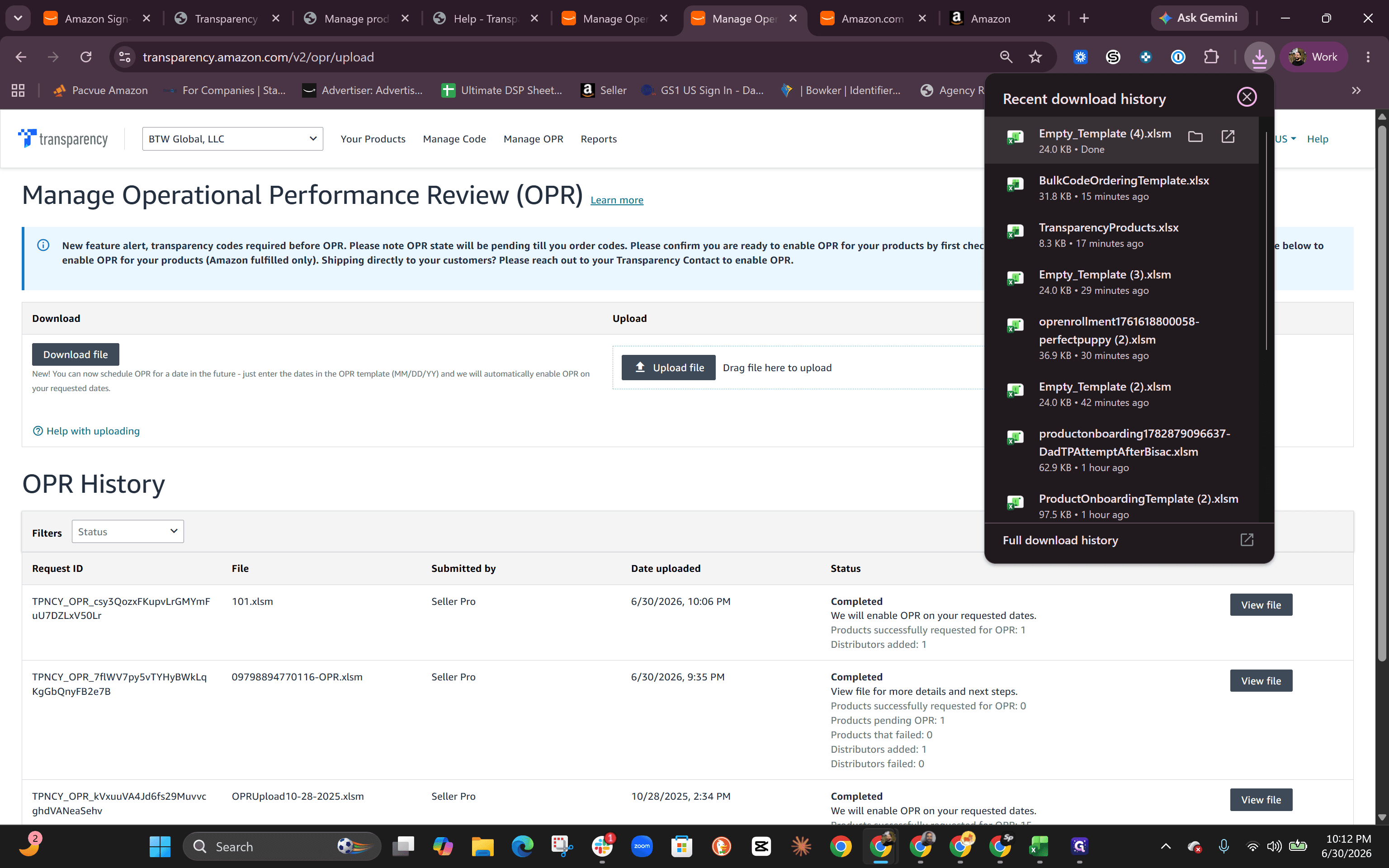
Click Download file to retrieve the blank OPR spreadsheet template.
Step #10: Click Download file to retrieve the blank OPR spreadsheet template.
11
Open the downloaded template on your computer.
Step #11: Open the downloaded template on your computer.
12
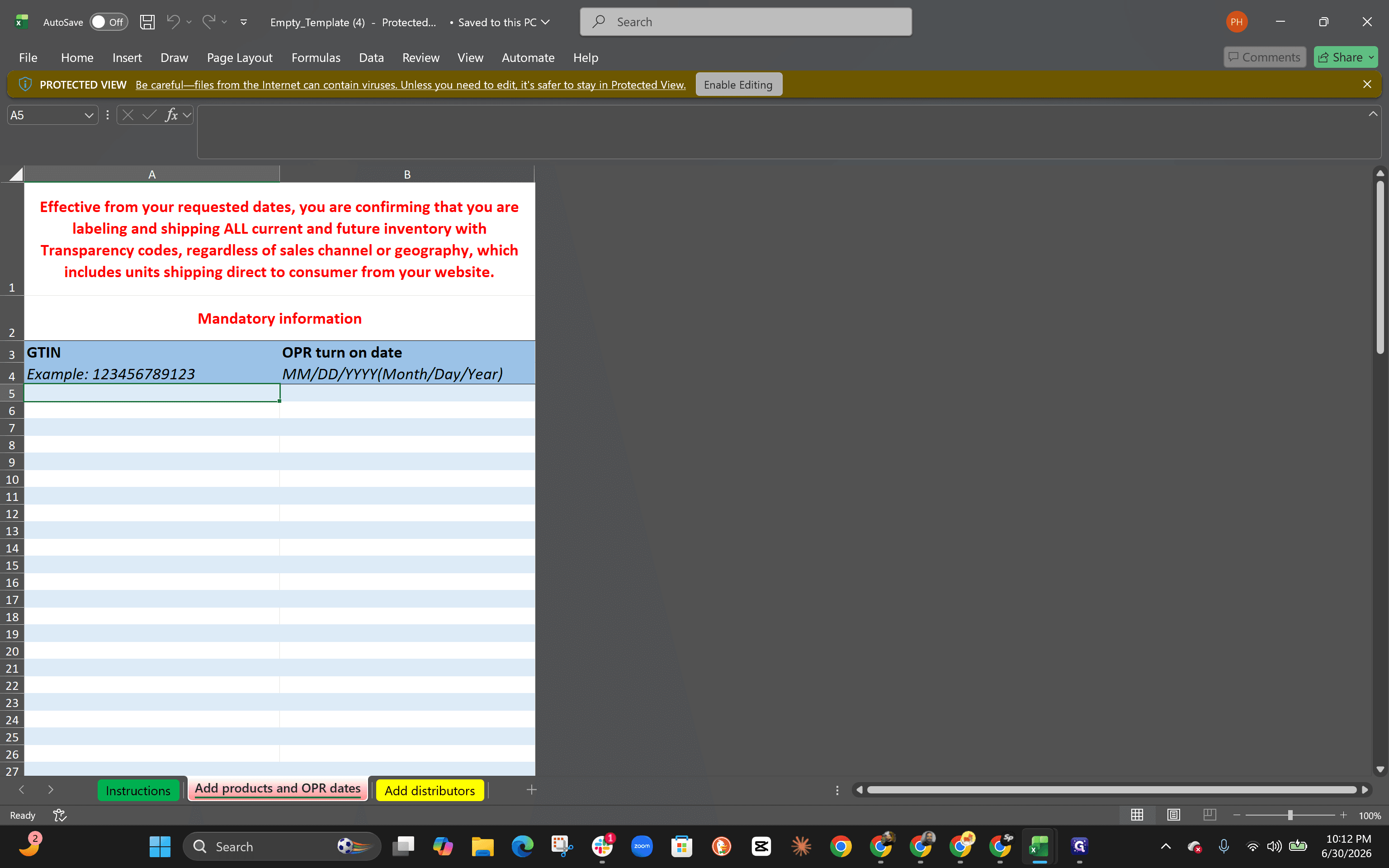
Click Enable Editing if the spreadsheet opens in Protected View.
Step #12: Click Enable Editing if the spreadsheet opens in Protected View.
13
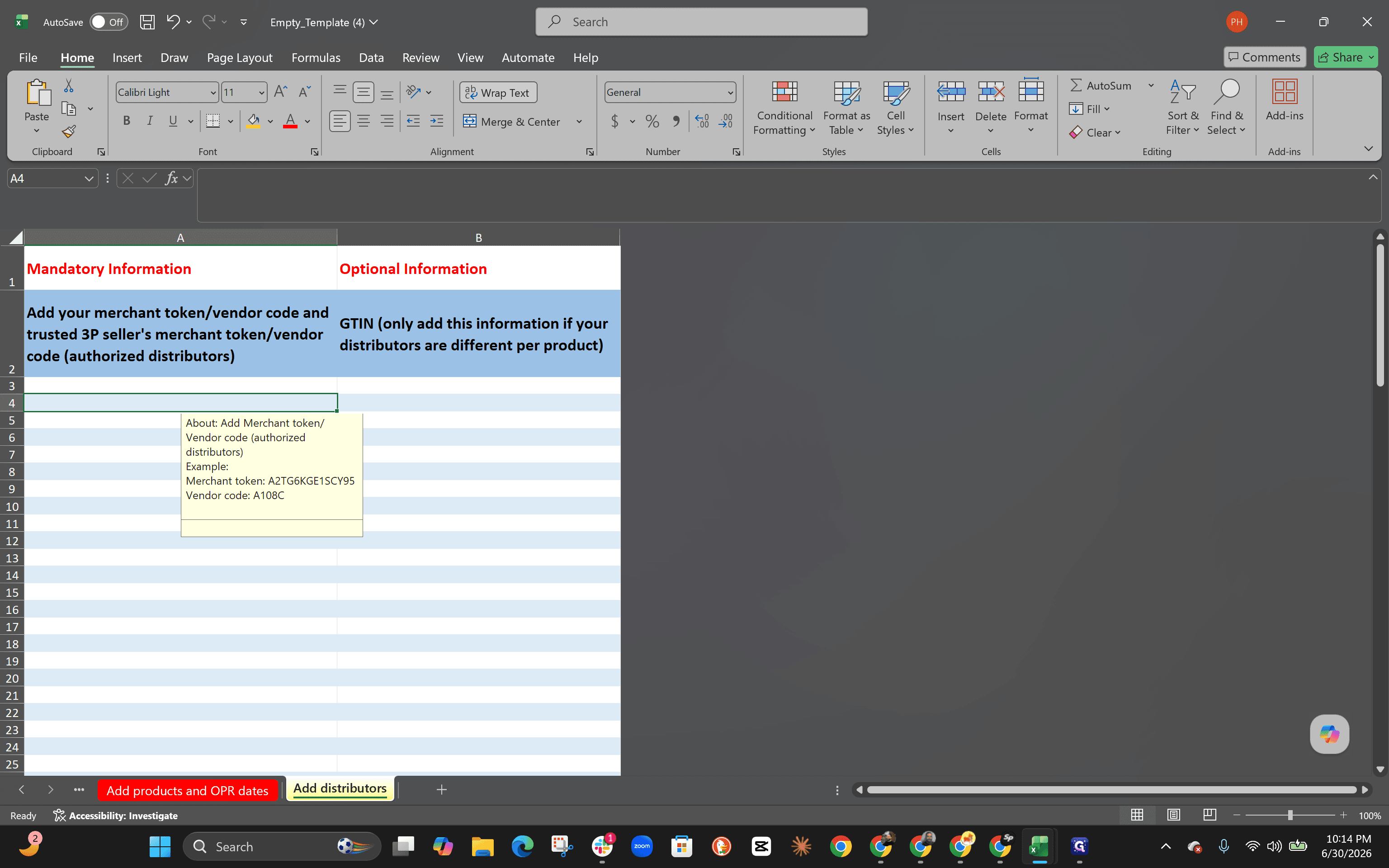
Navigate to the Add products and OPR dates sheet using the bottom tabs.
Step #13: Navigate to the Add products and OPR dates sheet using the bottom tabs.
14
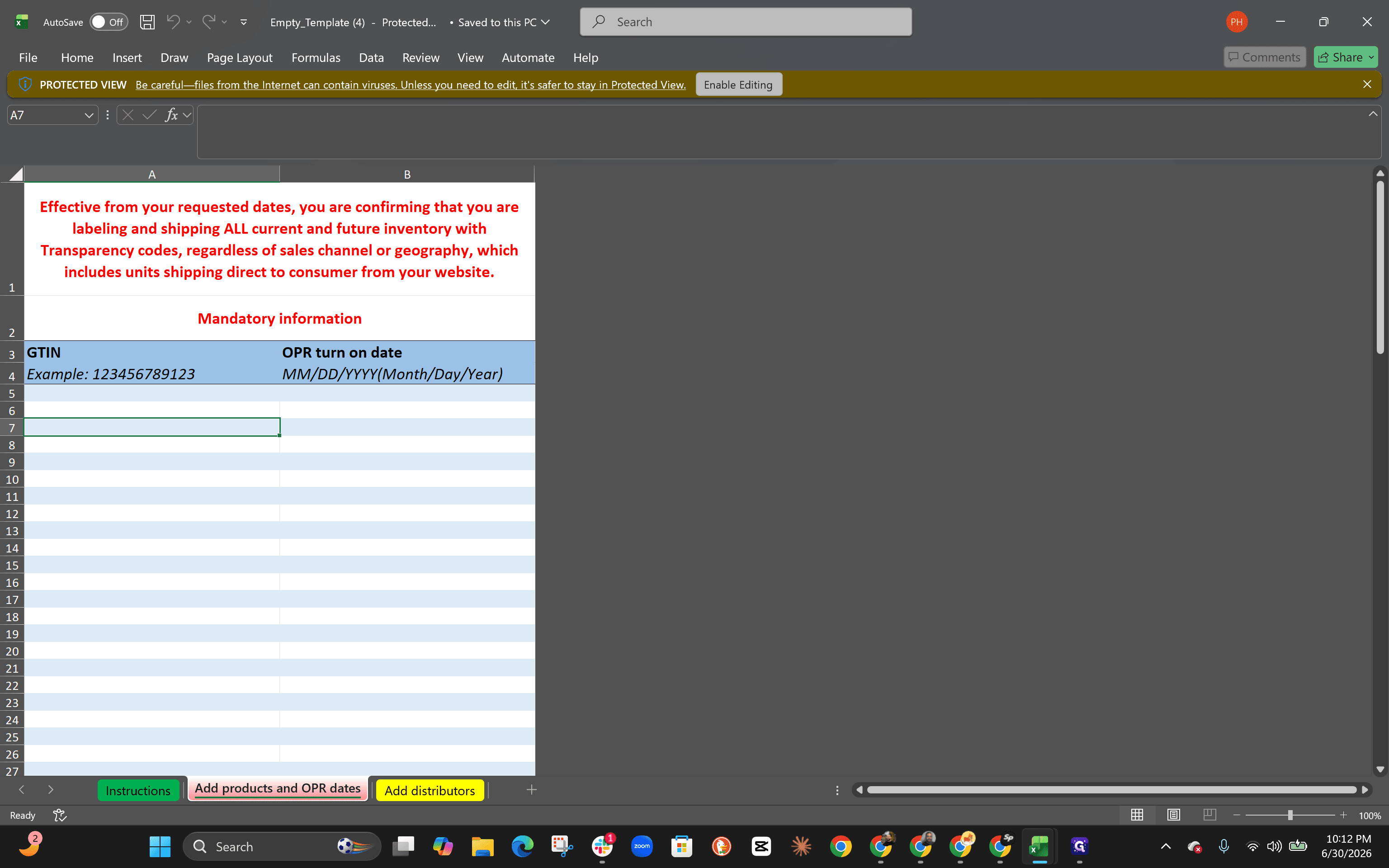
Enter today's date or a future date in the OPR turn-on date column using the MM/DD/YYYY format.
15
Paste your product's GTIN into the appropriate column.
Step #15: Paste your product's GTIN into the appropriate column.
16
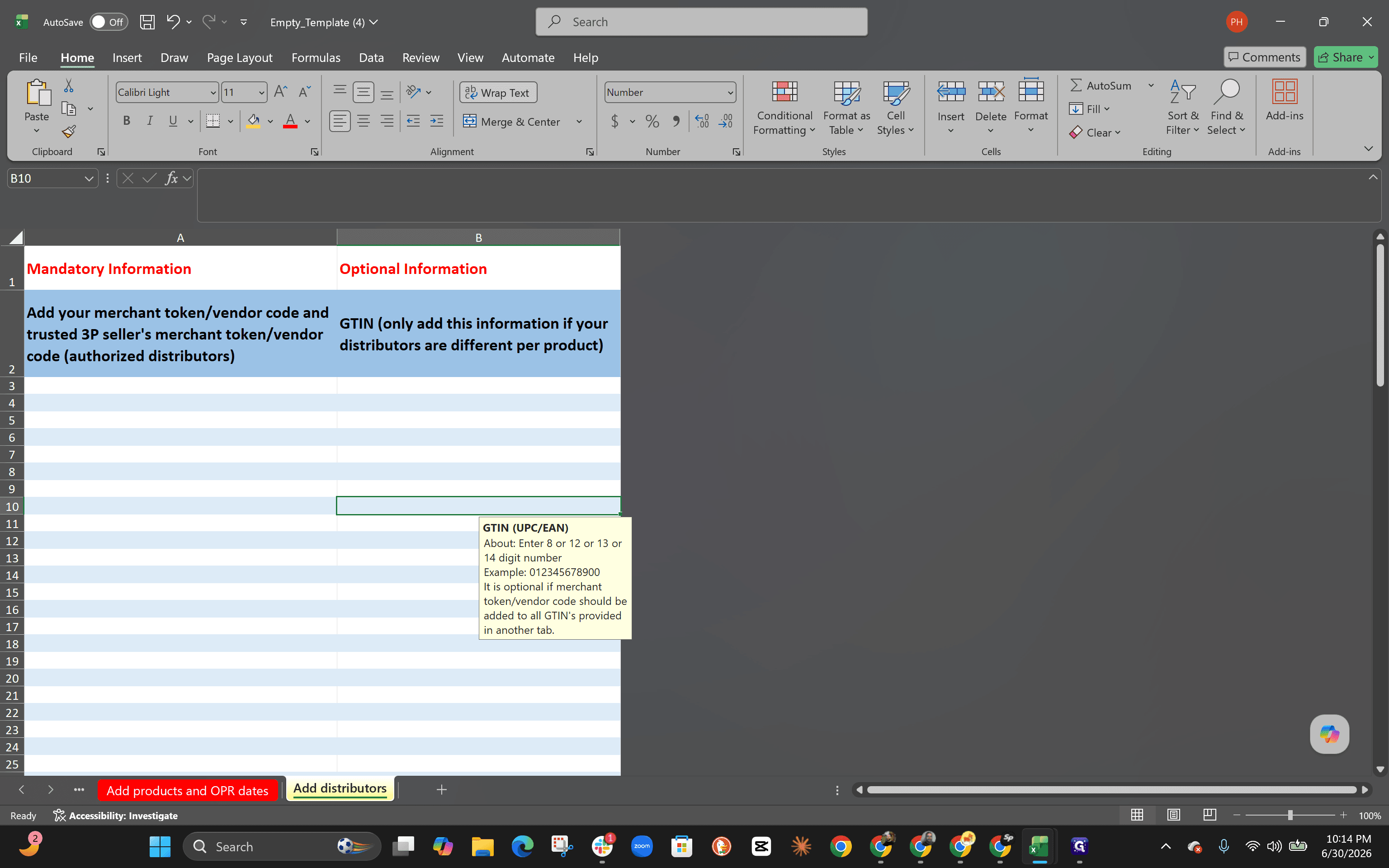
Enter your Merchant ID into the required token field.
Step #16: Enter your Merchant ID into the required token field.

Save your completed spreadsheet locally.
17
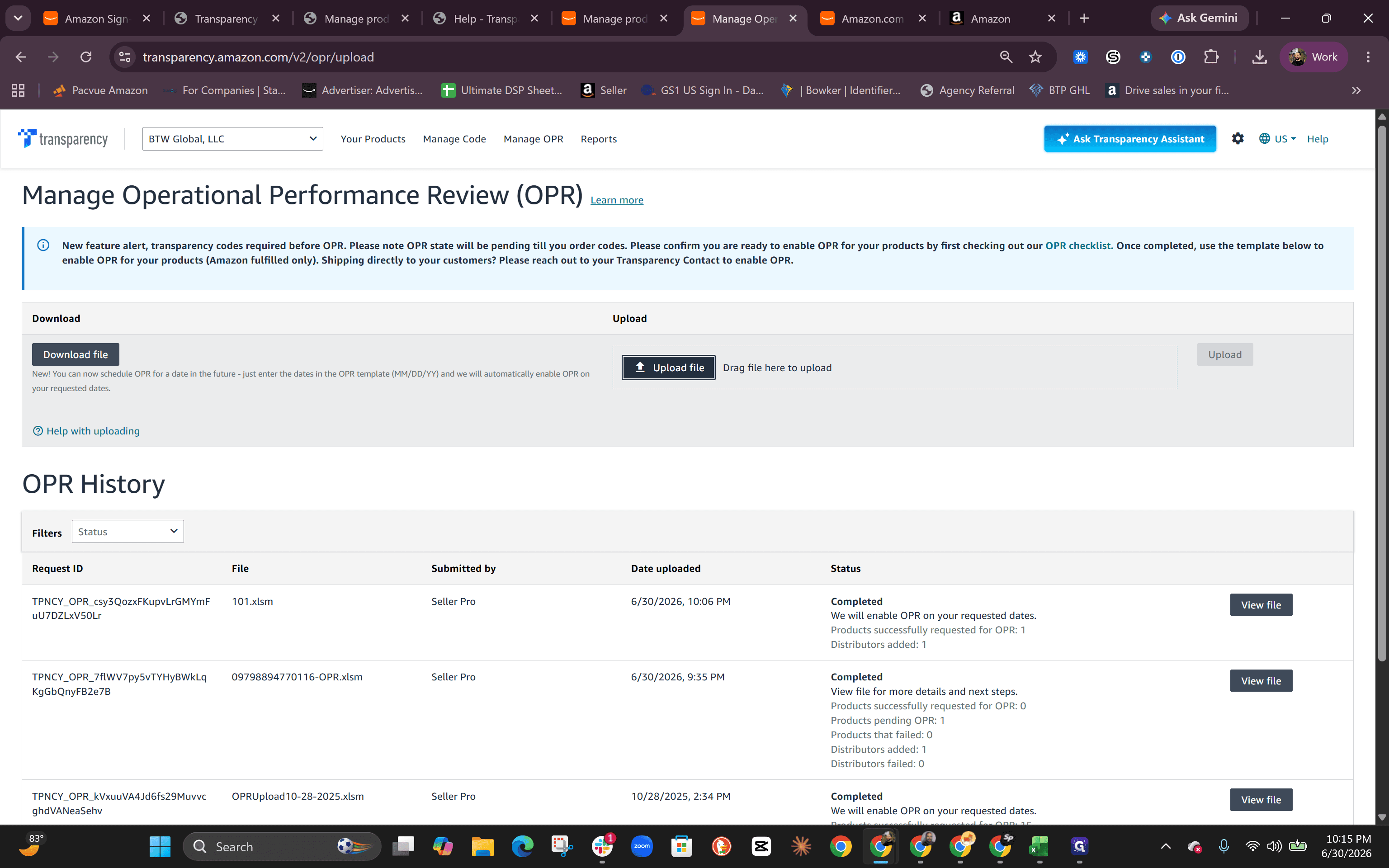
Return to the Manage Operational Performance page in the Transparency portal.
Step #17: Return to the Manage Operational Performance page in the Transparency portal.
18
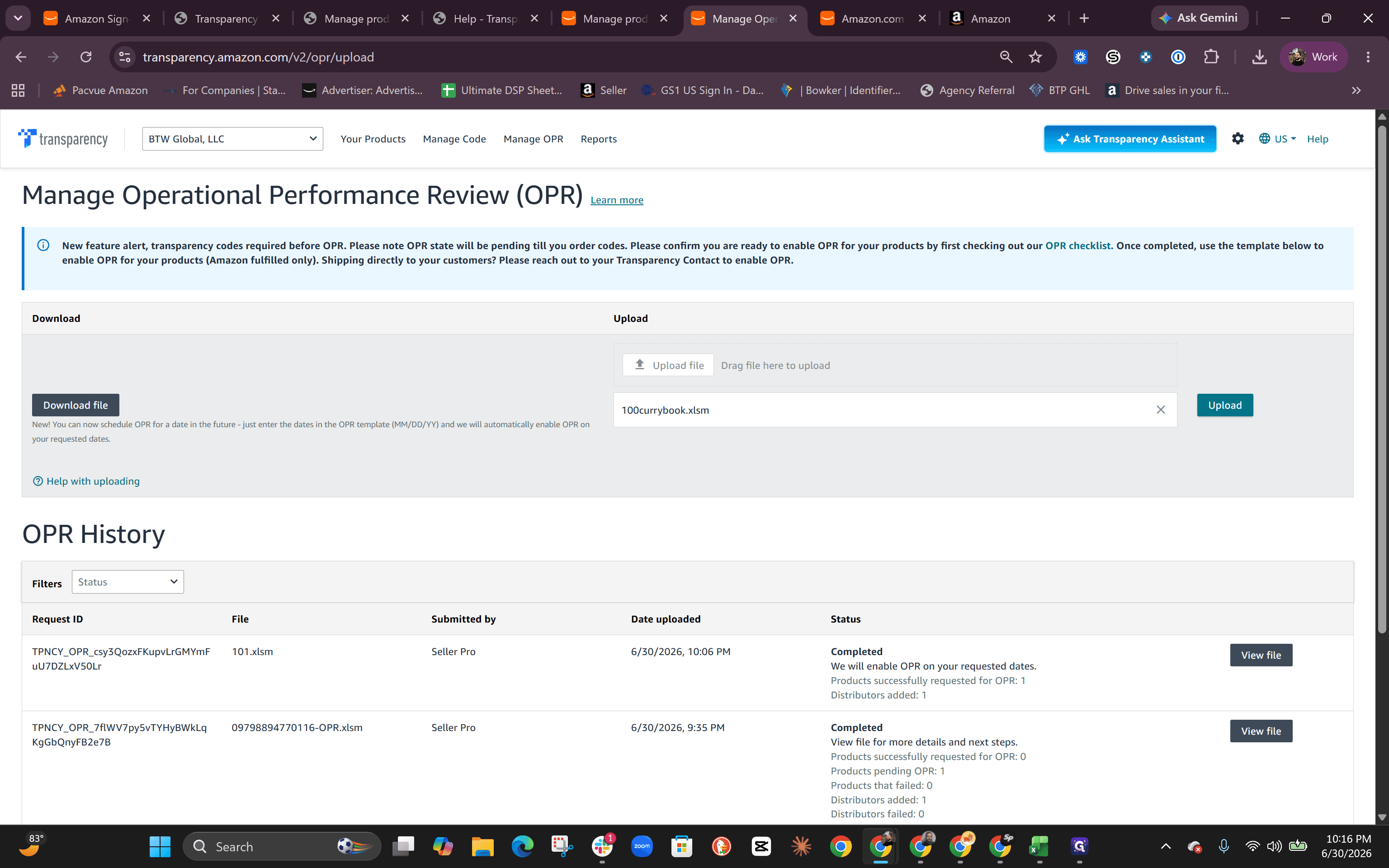
Click Upload to select and submit your completed spreadsheet.
Step #18: Click Upload to select and submit your completed spreadsheet.
19
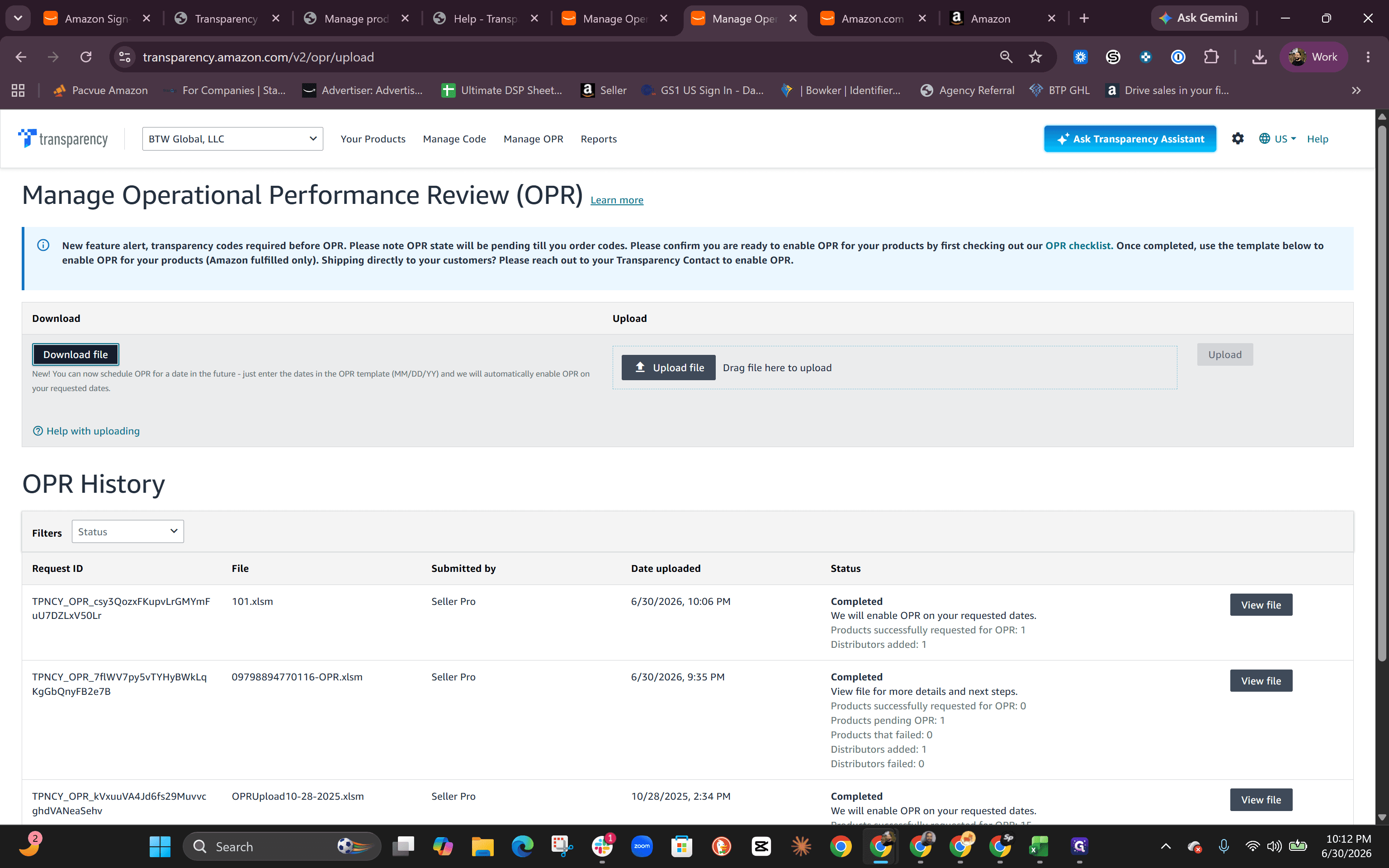
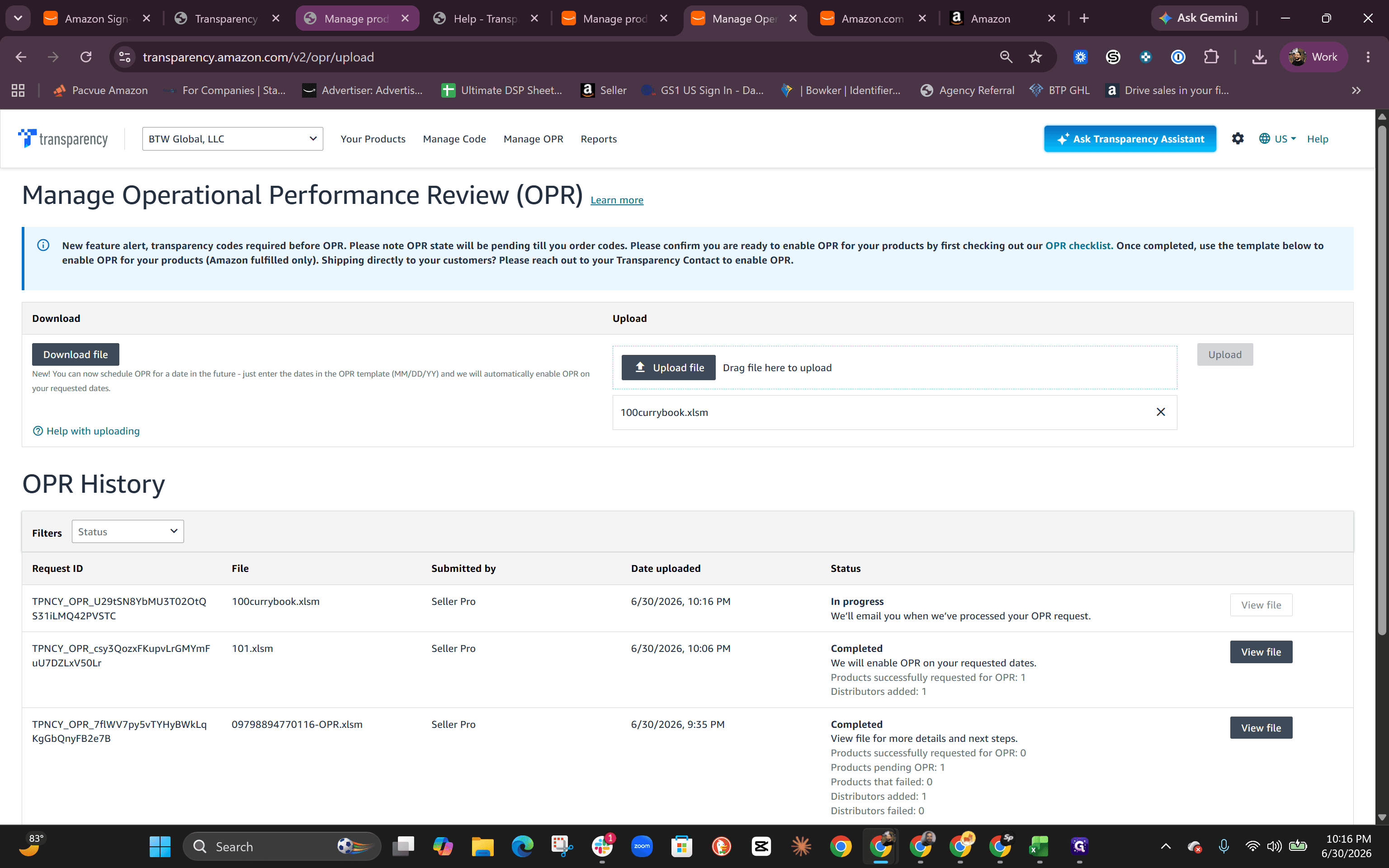
Monitor the OPR History table to track the progress of your upload.
Step #19: Monitor the OPR History table to track the progress of your upload.

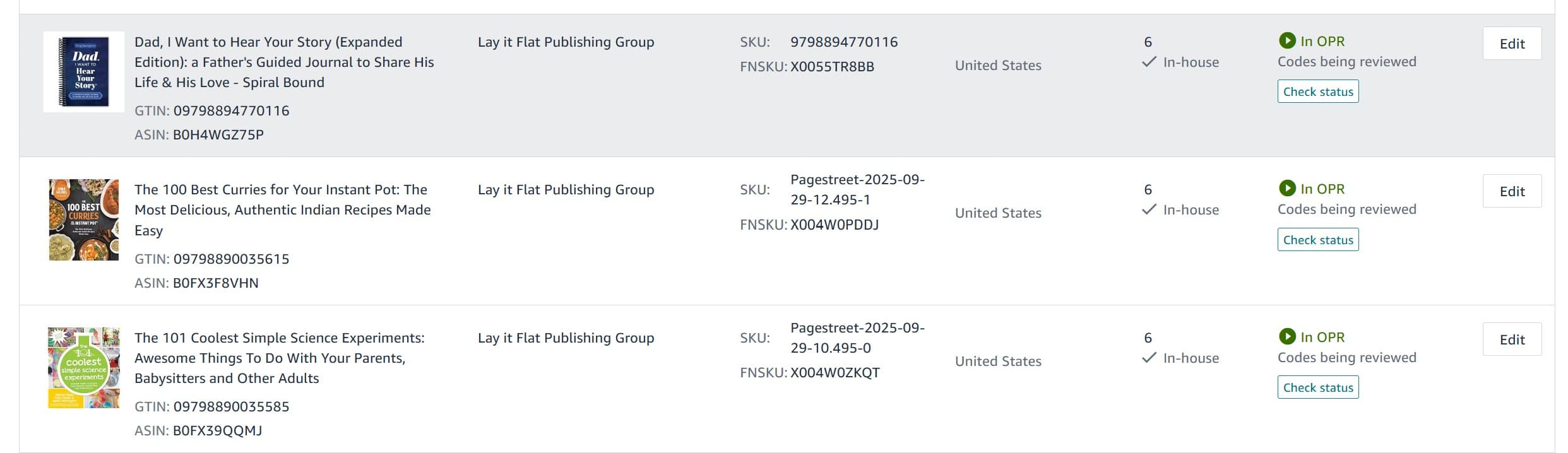
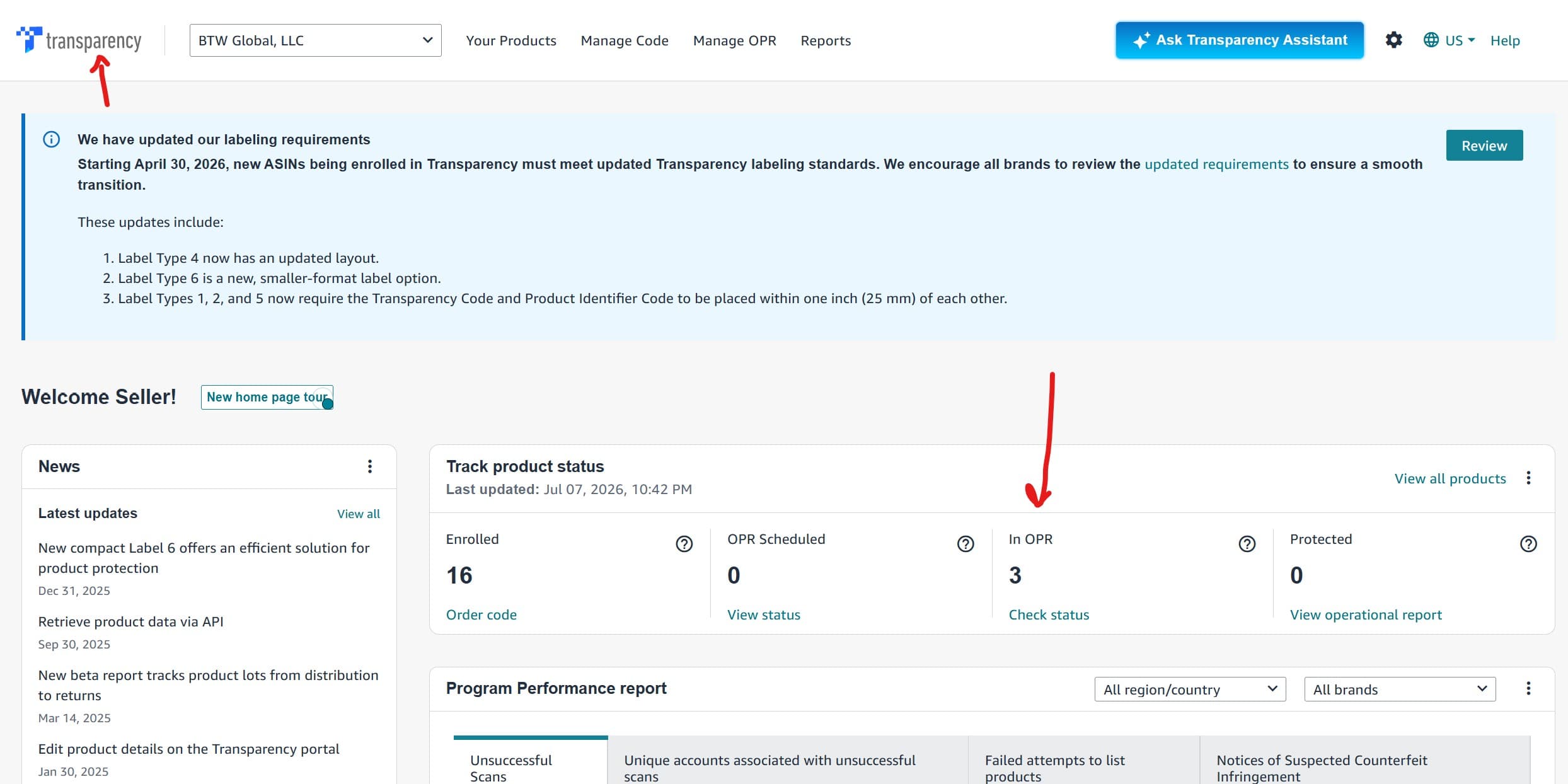
The process typically finishes in a few minutes. You will receive an email confirmation, and your product's enrollment status will update to "In OPR."
Q: Can the OPR turn-on date be set in the past?

A: No, the Operational Performance Review date must be today's date or a future date.

Q: How do I find my Merchant ID?

A: You can find your Merchant ID in Seller Central. Alternatively, you can navigate to an item sold by your storefront on Amazon and locate the string of characters following seller= in the page URL.

Q: How will I know if my OPR spreadsheet uploaded successfully?

A: The upload processes within a couple of minutes. You will receive an email confirmation, and the product's status on the Manage Products page will update to "In OPR."

Term

Definition

Transparency

An Amazon program that issues unique codes to protect brands against counterfeits.

OPR

Operational Performance Review, a validation period ensuring Transparency codes scan correctly before they are fully enforced.

GTIN

Global Trade Item Number, a unique identifier used for trade items, such as a UPC or EAN.

Merchant ID

A unique string of characters assigned to an Amazon seller account to authorize backend actions and identify the storefront.

How to Order Transparency Codes and Upload to OPR