
Overview of Summit
Learn how to filter mortgage transactions, track due diligence progress, drill down into loan-level details, and export portfolio data in the Summit dashboard.
This guide explains how to use the Summit transaction management dashboard to filter mortgage pipelines, monitor due diligence progress, and access loan-level details. Following these steps helps you maintain accurate transaction data and ensure operational alignment prior to funding.
This process is designed for transaction management, operations, and diligence teams who need to track portfolio metrics and loan status. Use these views to review daily progress, verify target closing dates, and export transaction lists for external reporting.
The Summit dashboard provides a unified view of your mortgage pipeline. You can isolate sets of loans using the left-hand navigation filters and interact with summary tables to analyze due diligence progress.
Understand Transaction Stages
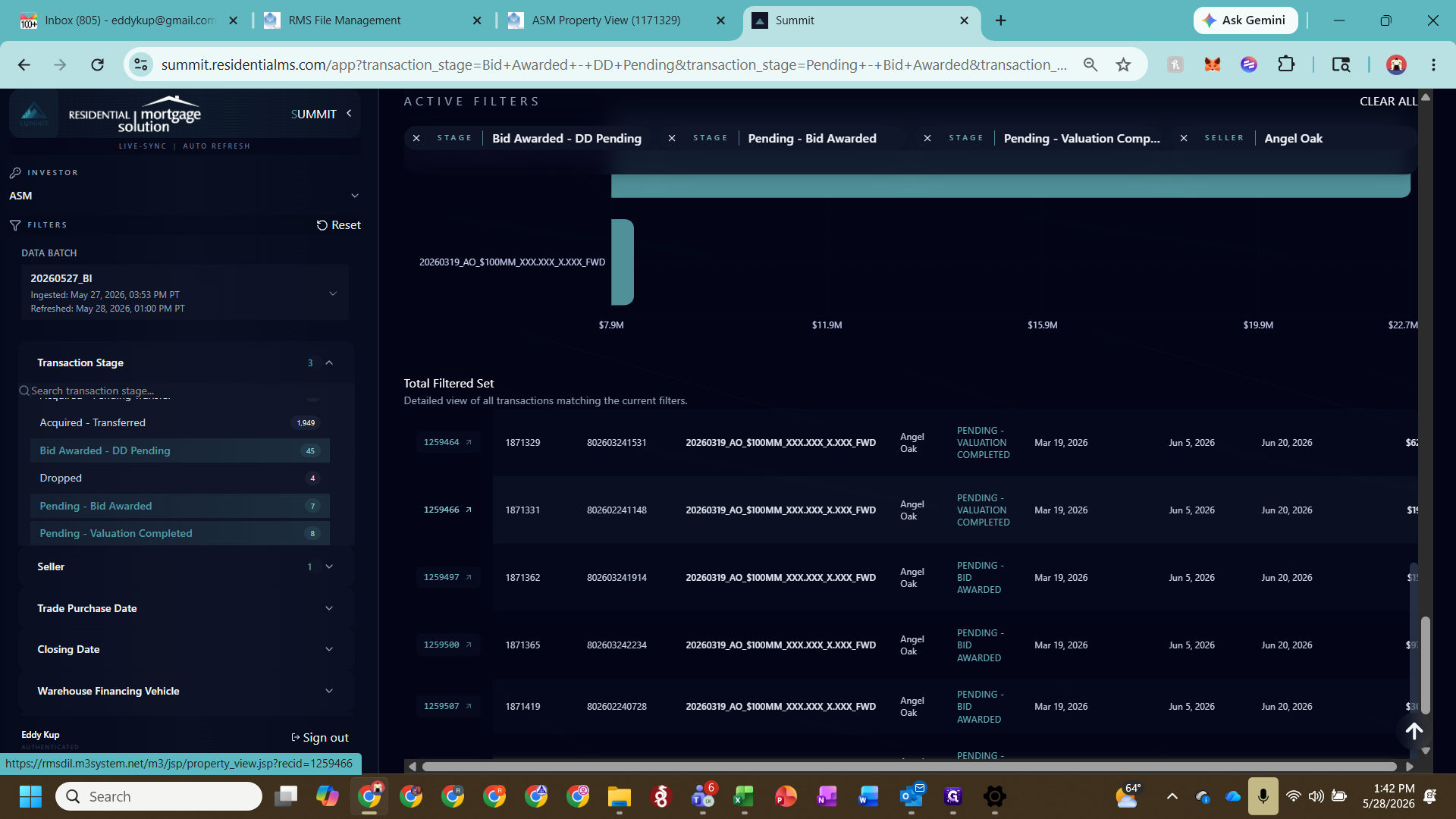
The system categorizes assets to help you track their progression through the diligence lifecycle. You can select specific transaction stages to filter your view based on the current status of the loans.
Transaction Stage | Description |
|---|---|
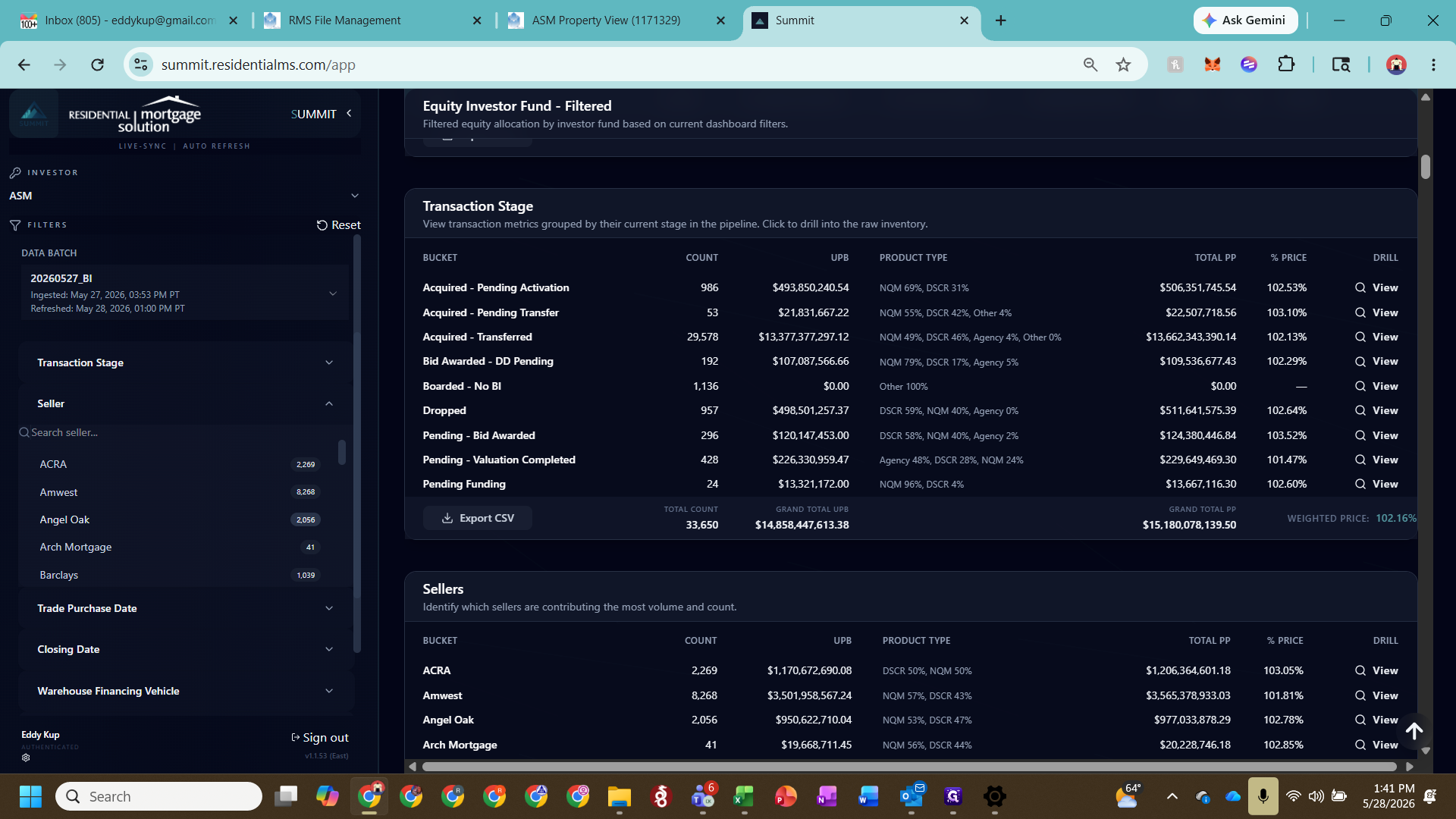
Acquired Pending Activation | Loans acquired but not yet activated or assigned to an investor's vault. These still reside in the RMS diligence vault. |
Acquired Pending Transfer | Acquired loans with a servicer status pending transfer to the final servicer. |
Bid Awarded DD Pending | Loans entering the initial diligence and transaction management phase. |
Boarded No BI | Loans residing in the diligence vault that are missing from the BI data tape and require immediate curing. |
Dropped | Loans that fell out of underwriting guidelines. These are kept in the system for visibility, as they might be cured later if guidelines change. |
Pending Funding | Loans where valuation and diligence are complete and are ready to be funded. |
Apply Dashboard Filters
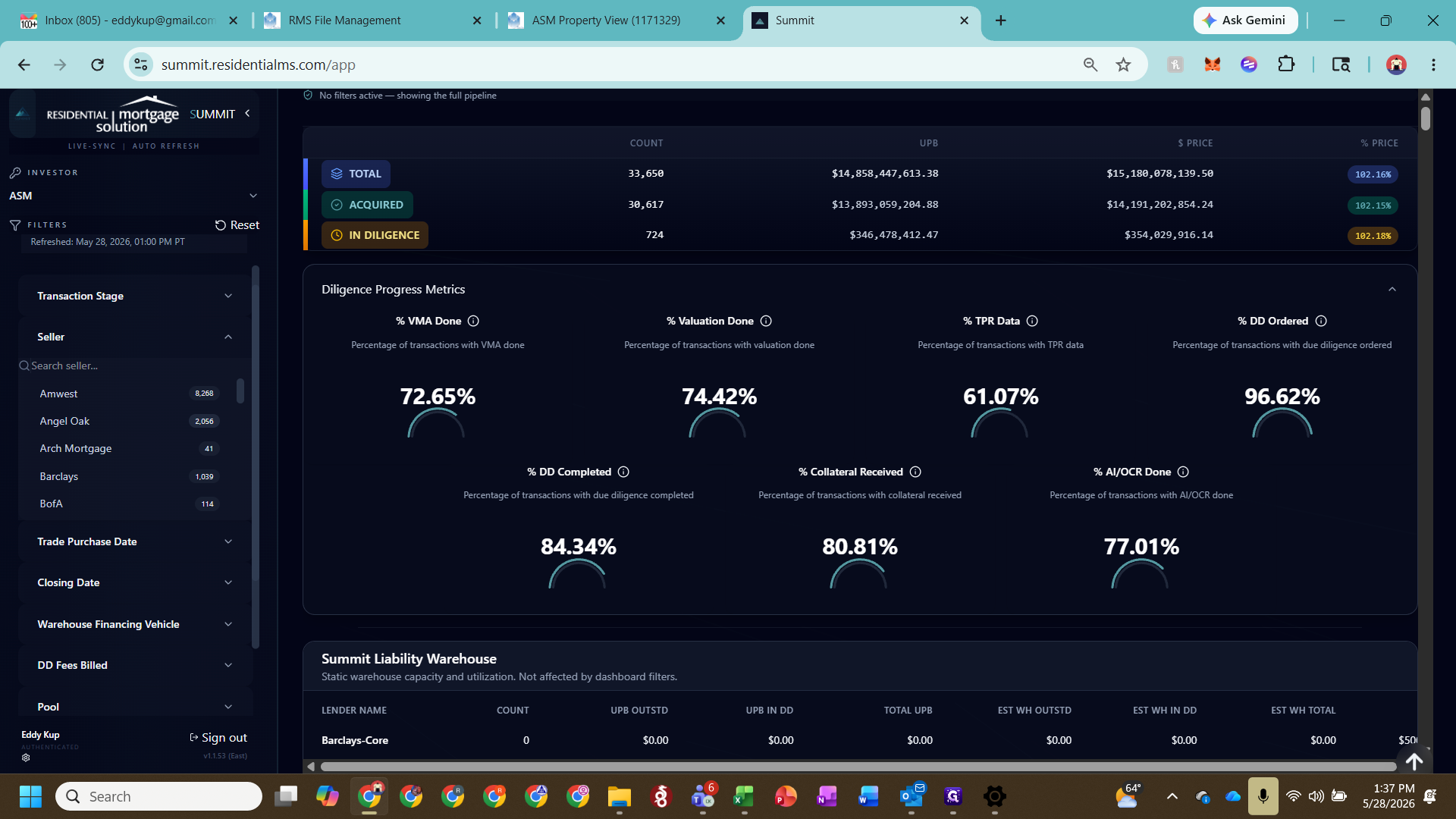
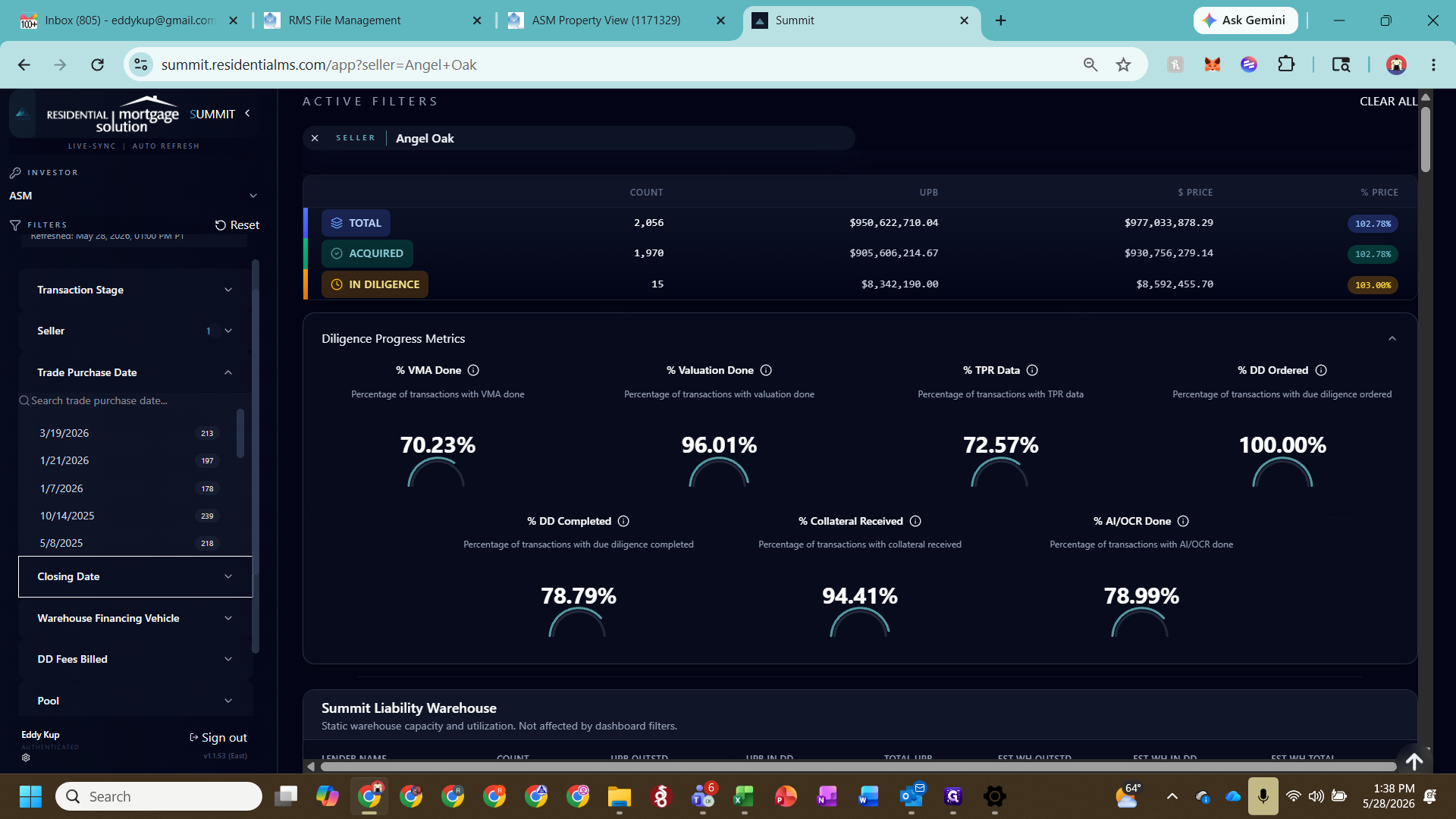
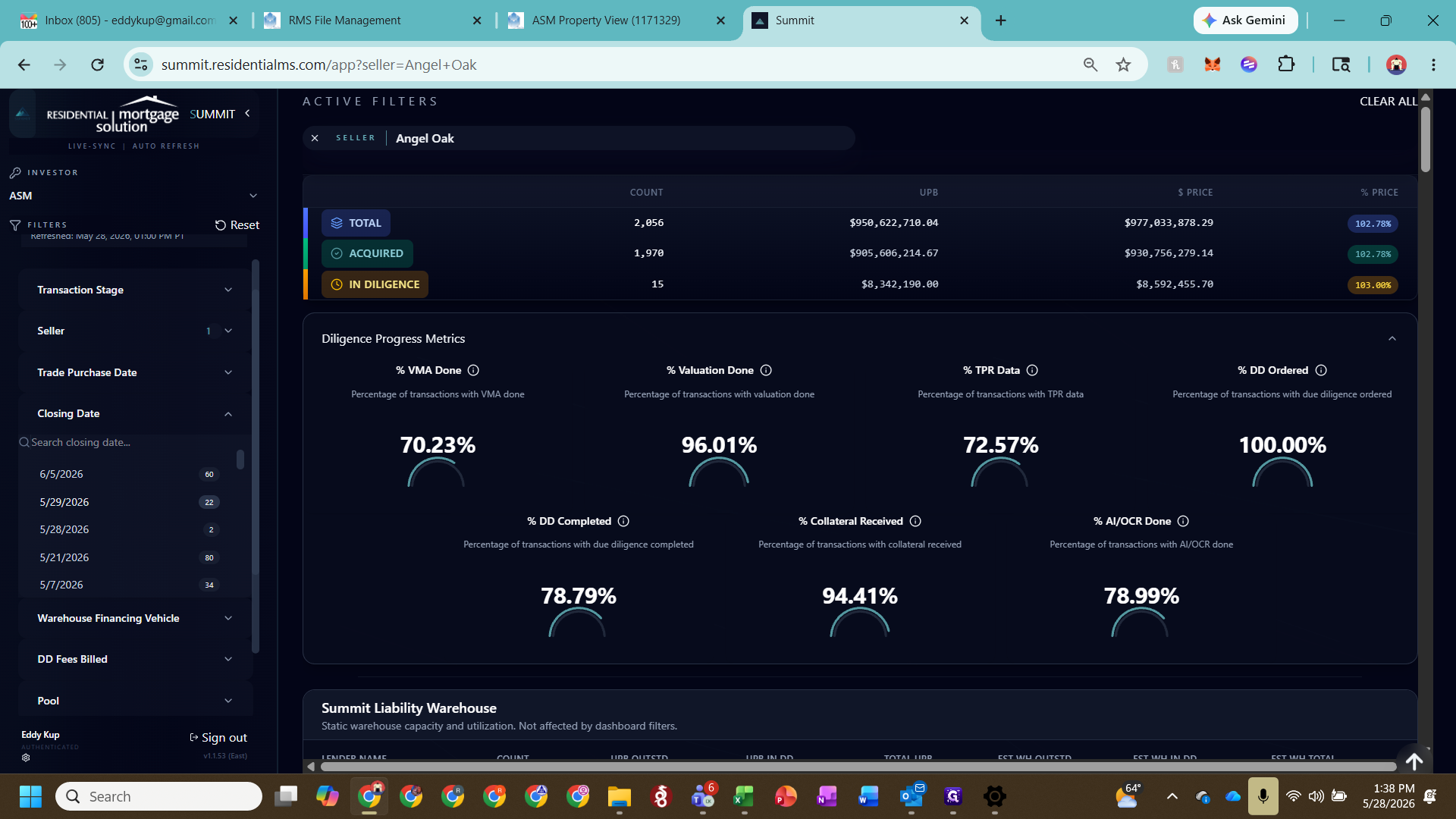
The left panel provides numerous filters to narrow down the data tape. Expand these categories to isolate target loans based on equity, debt, or operational constraints.
Filter Category | Purpose |
|---|---|
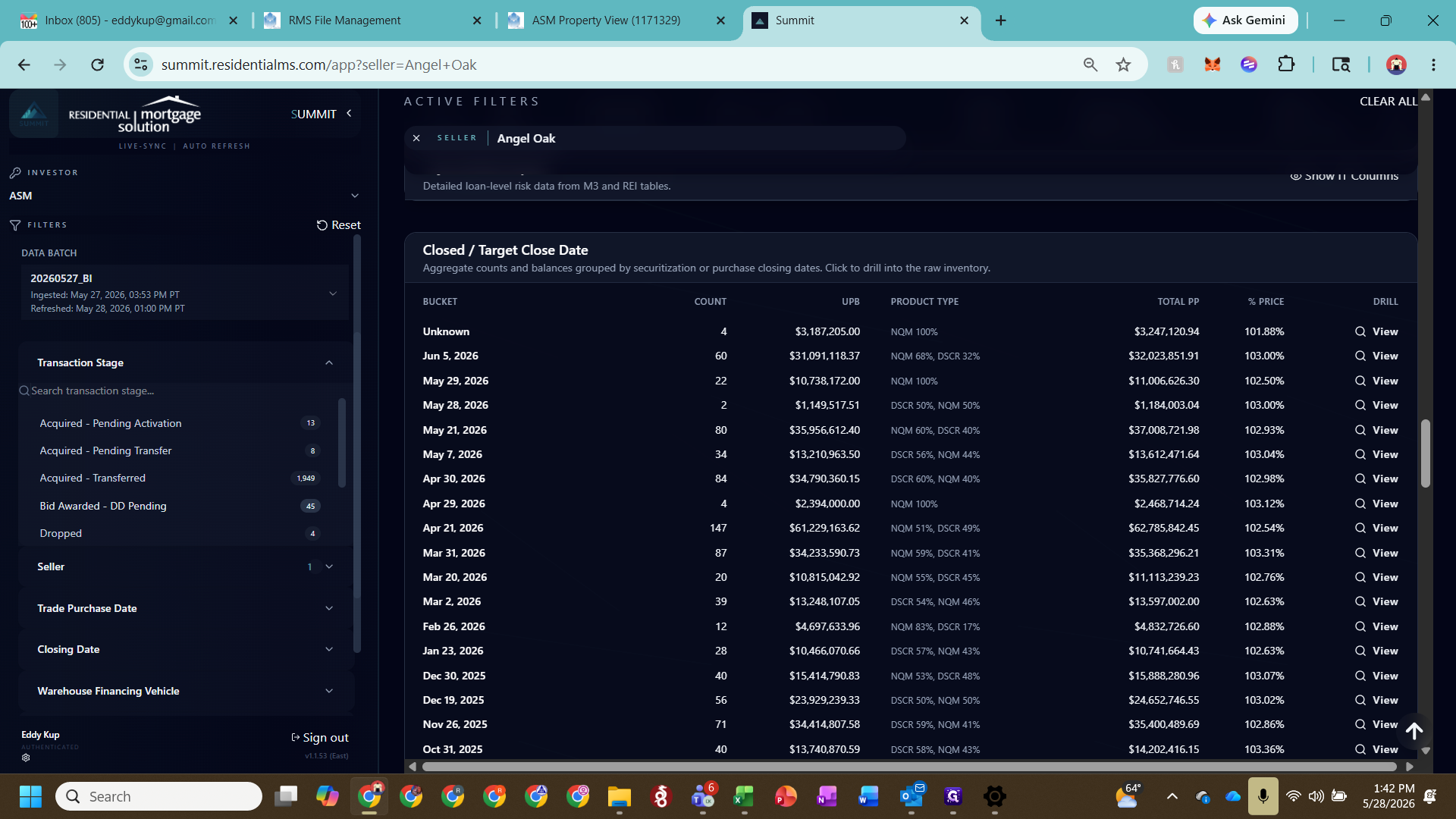
Seller | Filter by the originating seller (e.g., Angel Oak) to view their specific asset pipeline. |
Trade Purchase Date | Filter by the original trade date. Never alter this data manually. |
Closing Date | Filter by target closing dates. Update this field regularly to manage allocation and funding targets. |
Warehouse Financing Vehicle | Filter by the bank or financial institution providing the warehouse debt line (e.g., ASP, Barclays, Goldman, JPM). |
Investor Fund Name | Filter by the specific equity capital raise or investor fund (e.g., Pathfinder1, Pathfinder2). |
Servicer Name | View loans assigned to specific servicing companies. |
Diligence Vendor | Filter by the third-party review firm conducting the diligence. |
Securitization Vehicle | Isolate loans designated for specific asset-backed security funds (e.g., Homes 2023). |
Review Diligence Progress Metrics
The top-level summary metrics provide an overview of process completion for your filtered universe of loans.
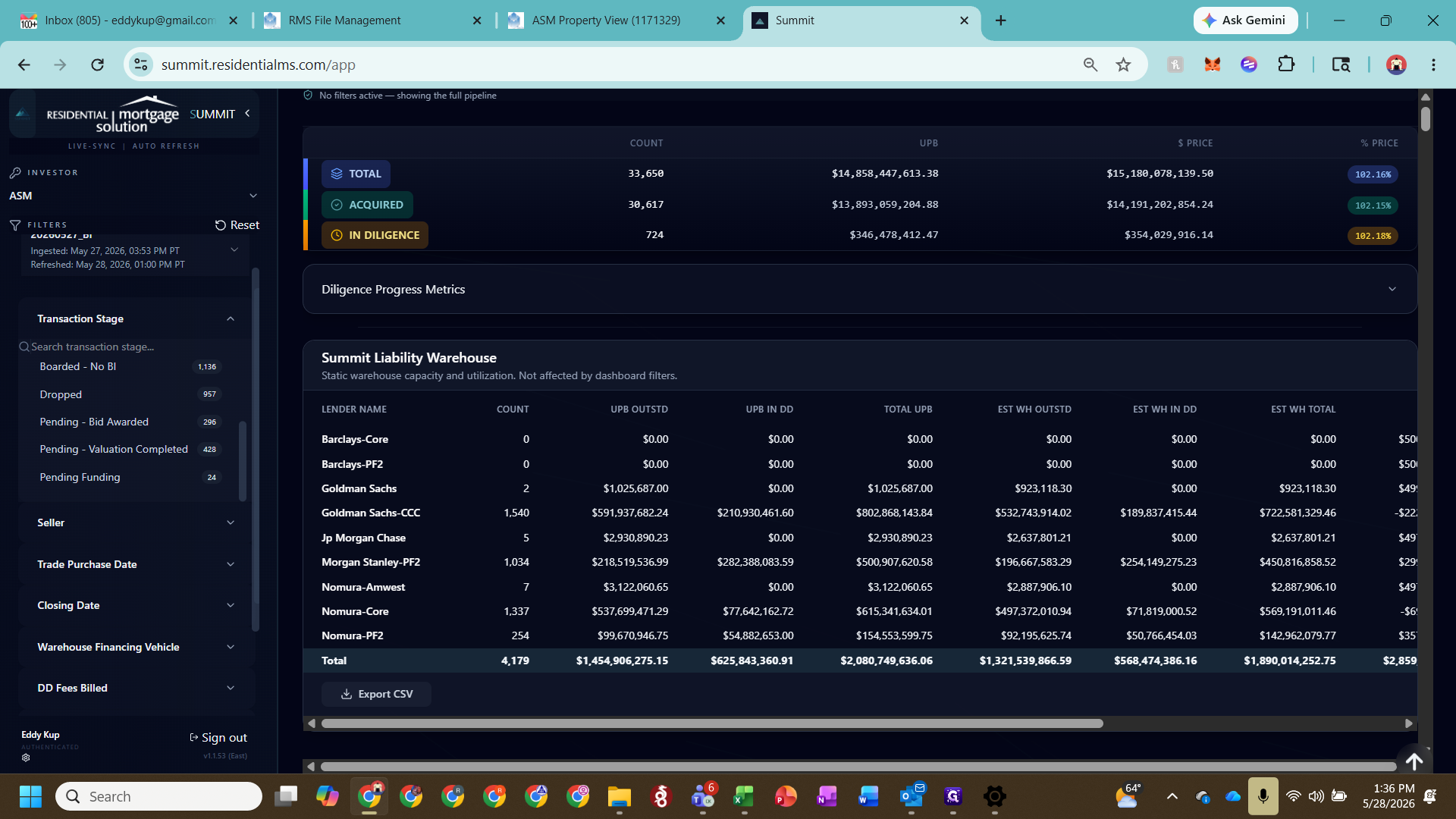
The circular gauges track critical completion percentages, including:
Valuation Done: Percentage of property appraisals and valuations completed.
TPR Data: Percentage of Third-Party Review data loaded.
DD Ordered / Completed: Progress of due diligence from initial order to final clearance.
Collateral Received: Status of physical or digital loan collateral documentation.
Drill Down into Loan-Level Details
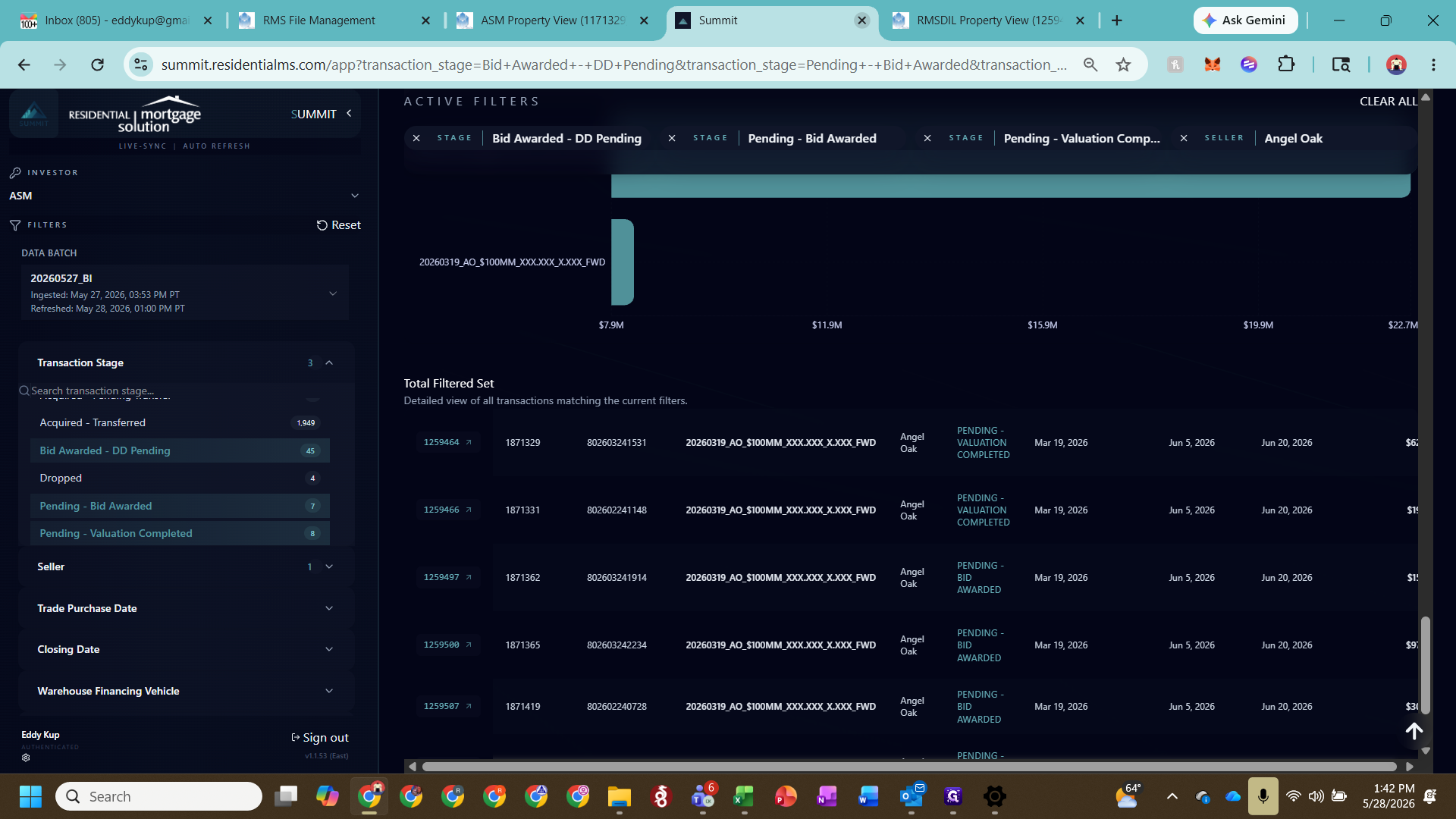
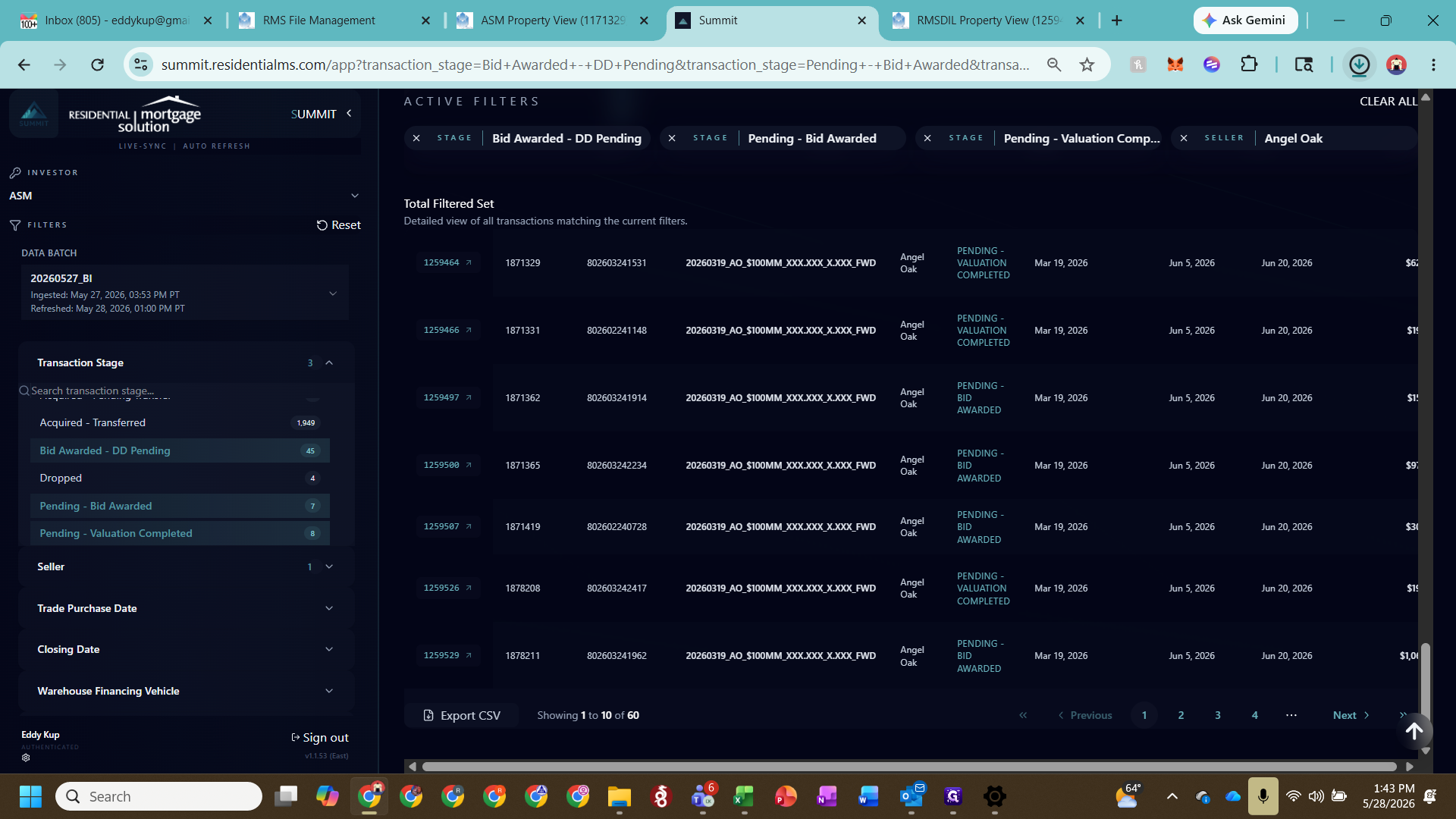
You can use the summary data tables on the right side of the dashboard to drill down into specific transaction pools and access underlying asset records.
Export Transaction Data
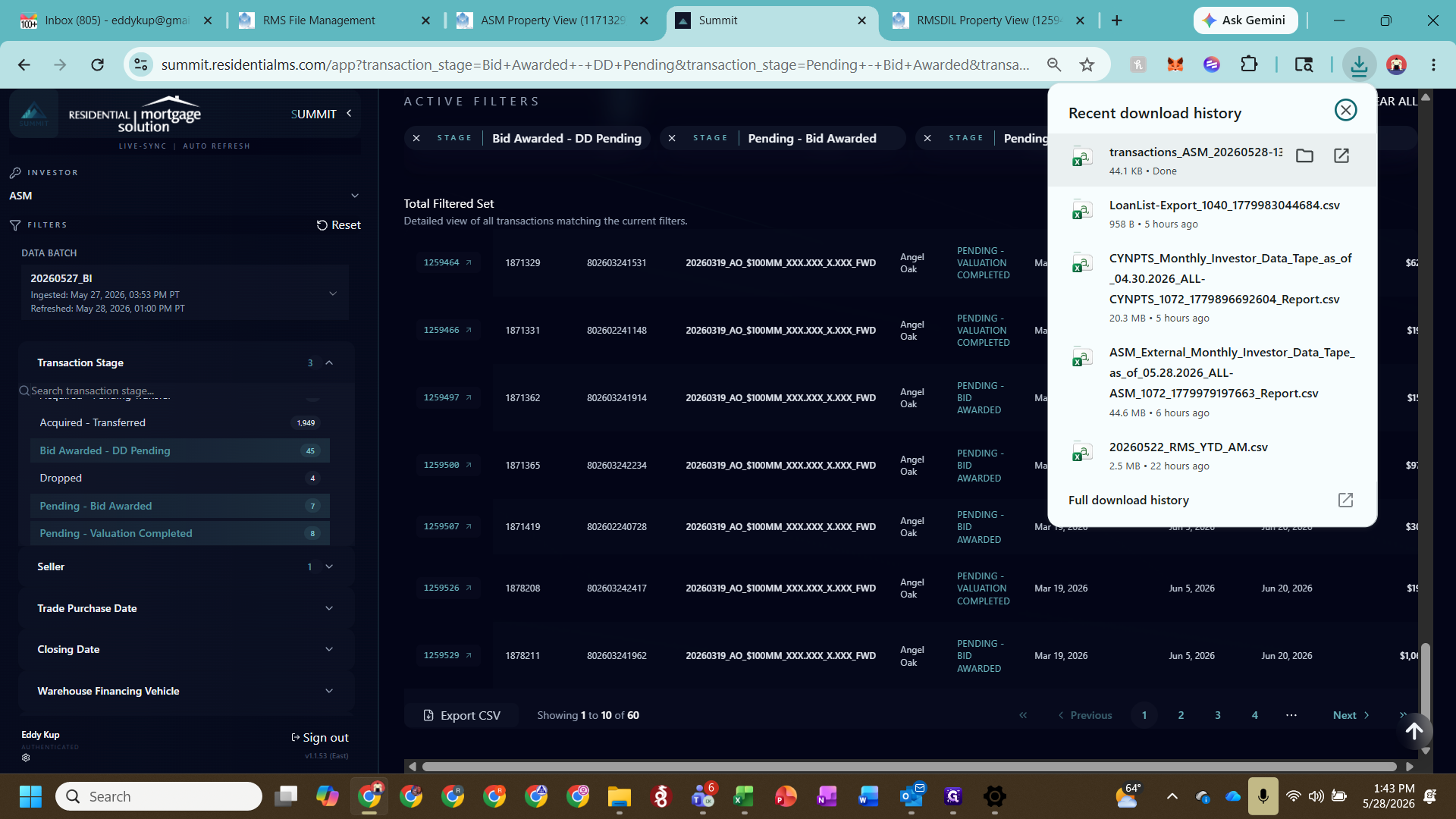
Once you have filtered the dashboard to your desired universe of loans, you can extract the raw data tape for external reporting.
Q: Why are dropped loans kept in the system instead of being removed?
A: We never remove loans from the BI tape. They are kept as "dropped" because sellers often cure the underwriting issues, or underwriting guidelines change later, allowing the loan to pass.
Q: What should I do if a loan is marked "Boarded No BI"?
A: This indicates the loan is in the diligence vault but missing from the BI data tape. You will need to cure this discrepancy by ensuring the data is updated in the underlying BI database.
Q: Can I manually update the Trade Date for a transaction?
A: No, you should never update the Trade Date. This field tracks when the loan was first seen and is critical for identifying whether an asset has been reviewed previously.
Q: How do I track when a deal is ready to fund?
A: Monitor the Diligence Progress Metrics section. A deal is ready to fund when the valuation, credit reviews from TPR data, and collateral checks are all marked as completed.
Term | Definition |
|---|---|
BI tape | The business intelligence data tape that tracks loan-level details and feeds the transaction dashboard. |
TPR | Third Party Review; independent reviews conducted on mortgage loans to verify credit, compliance, and valuation. |
UPB | Unpaid Principal Balance; the remaining amount of principal owed on a mortgage loan. |
Warehouse Financing | A short-term revolving credit line provided by a financial institution to fund mortgage loans before they are securitized. |
M3 Vault | The digital repository used to store and manage diligence documents and asset records. |
AIOCR | Artificial Intelligence Optical Character Recognition used to automatically extract and process data from valuation documents. |