
Package and Deploy ArcGIS Pro 3.5.7 in Configuration Manager
Learn how to package ArcGIS Pro 3.5.7, apply MSP patches, configure ODBC dependencies, and deploy to device collections using Microsoft Configuration Manager.
This guide walks through packaging ArcGIS Pro 3.5.7 alongside its required ODBC drivers and software patches. Completing this ensures you have a fully automated deployment chain ready to be distributed to targeted device collections.
This workflow applies to SCCM Administrators and Packaging Engineers responsible for deploying enterprise software. It is typically used when preparing end-user workstations for a major version upgrade that requires a rigid prerequisite chain.
Part 1: Package the ODBC Drivers
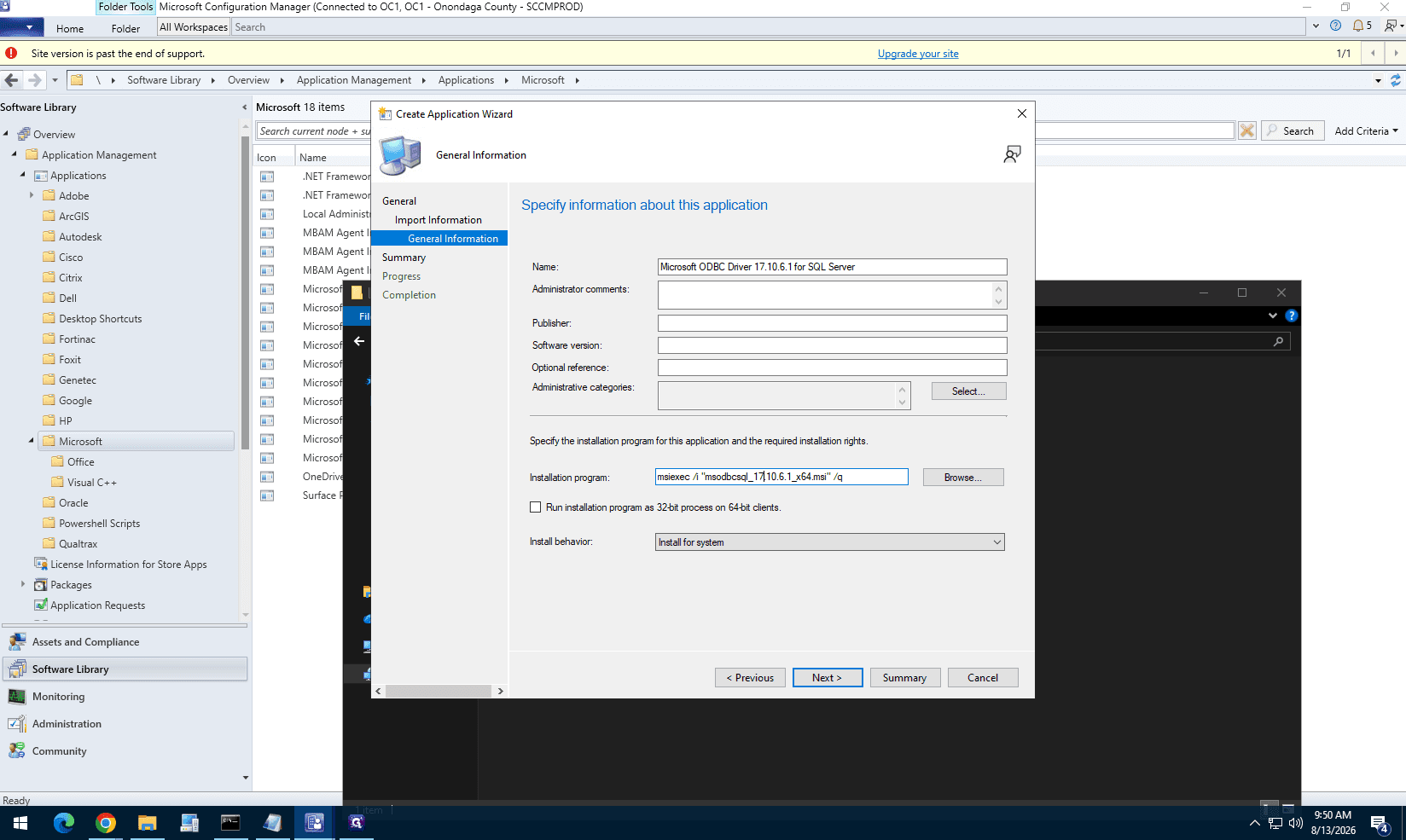
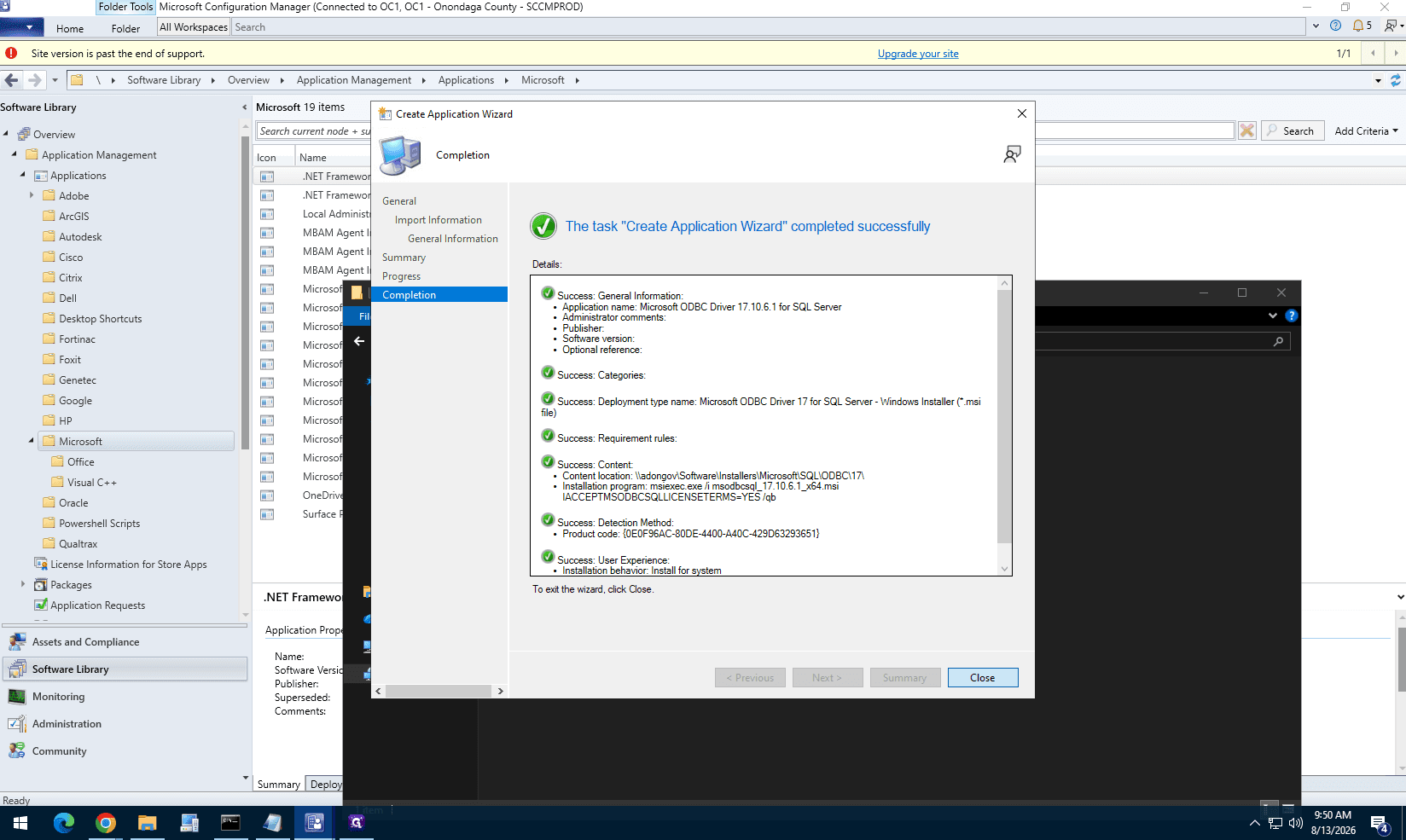
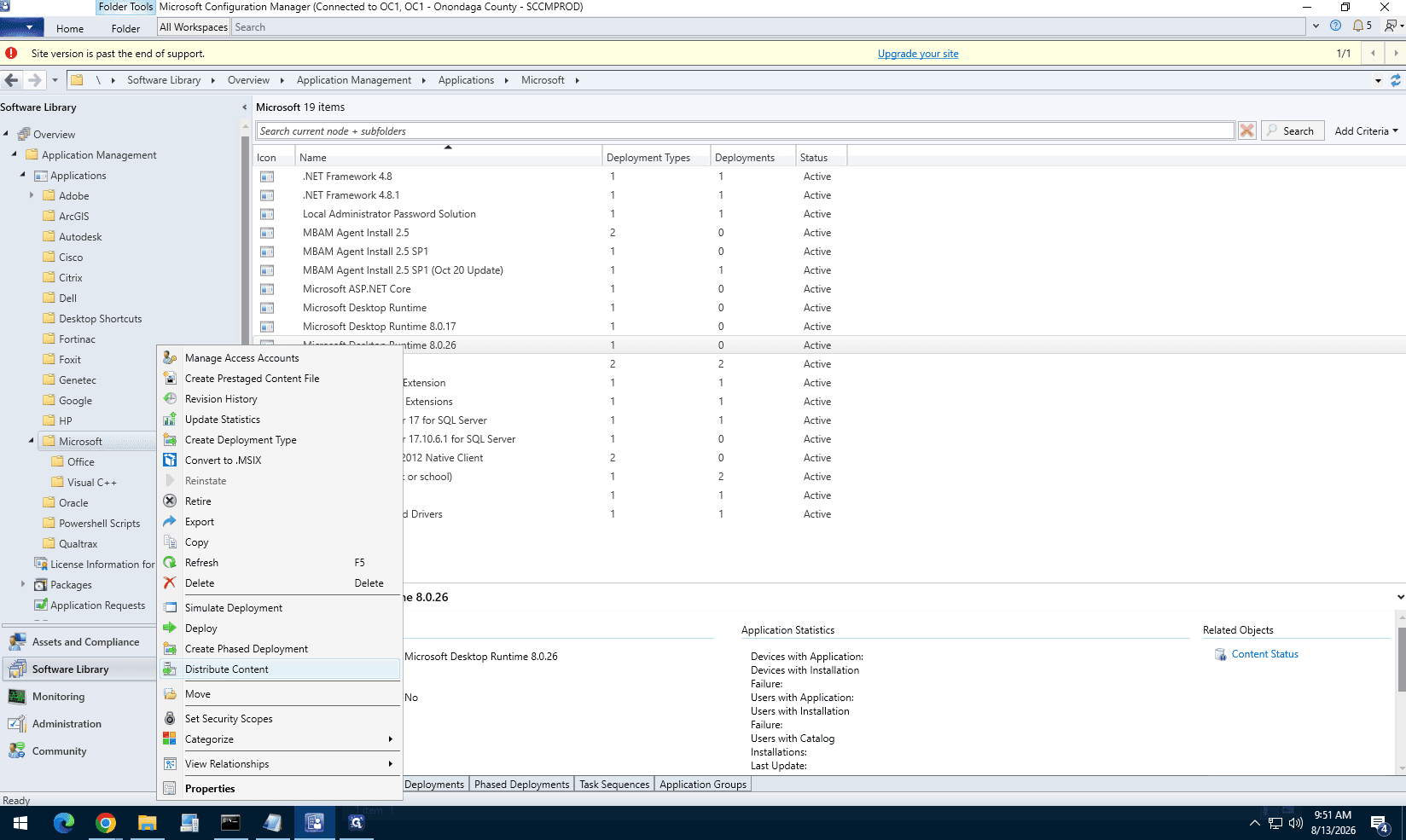
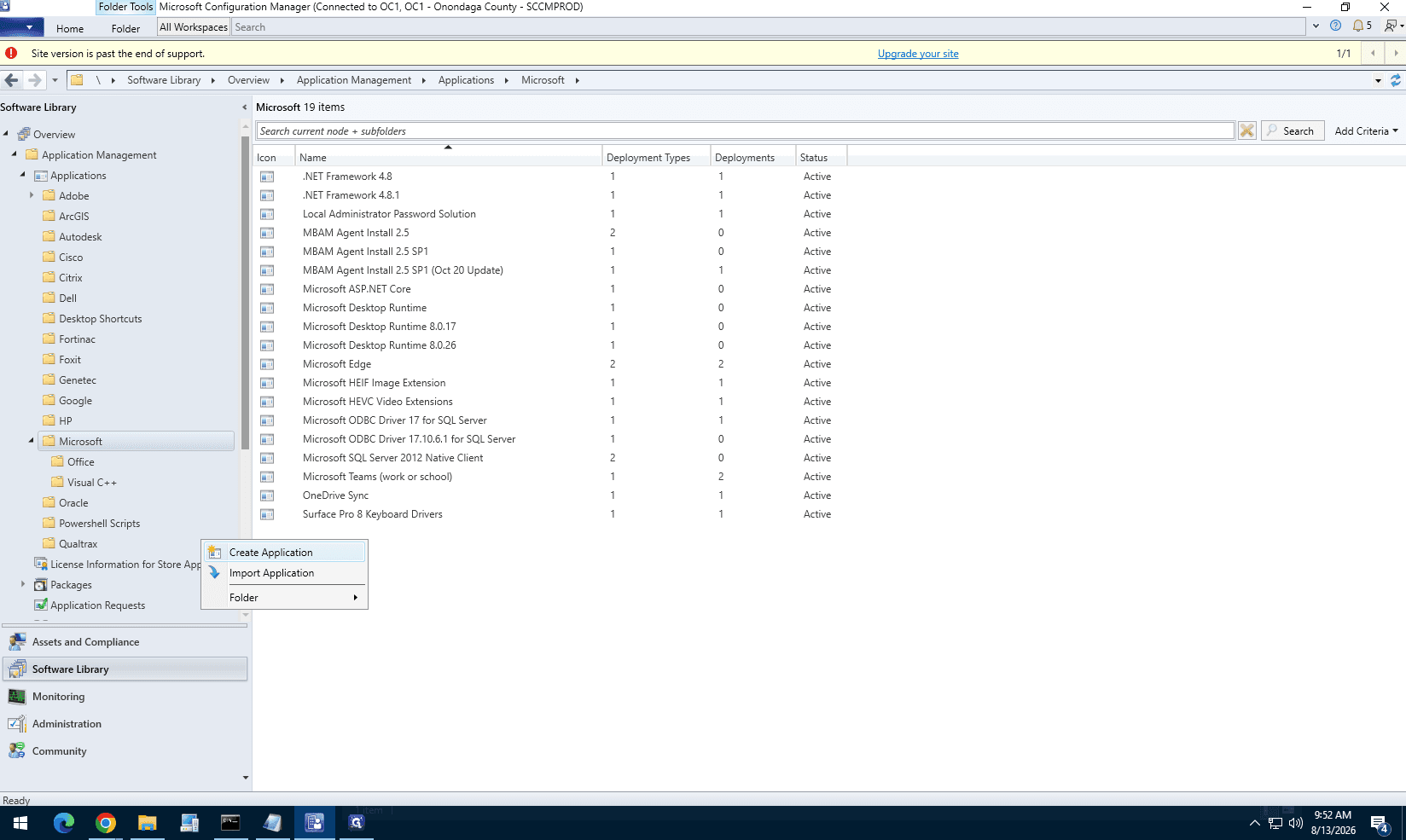
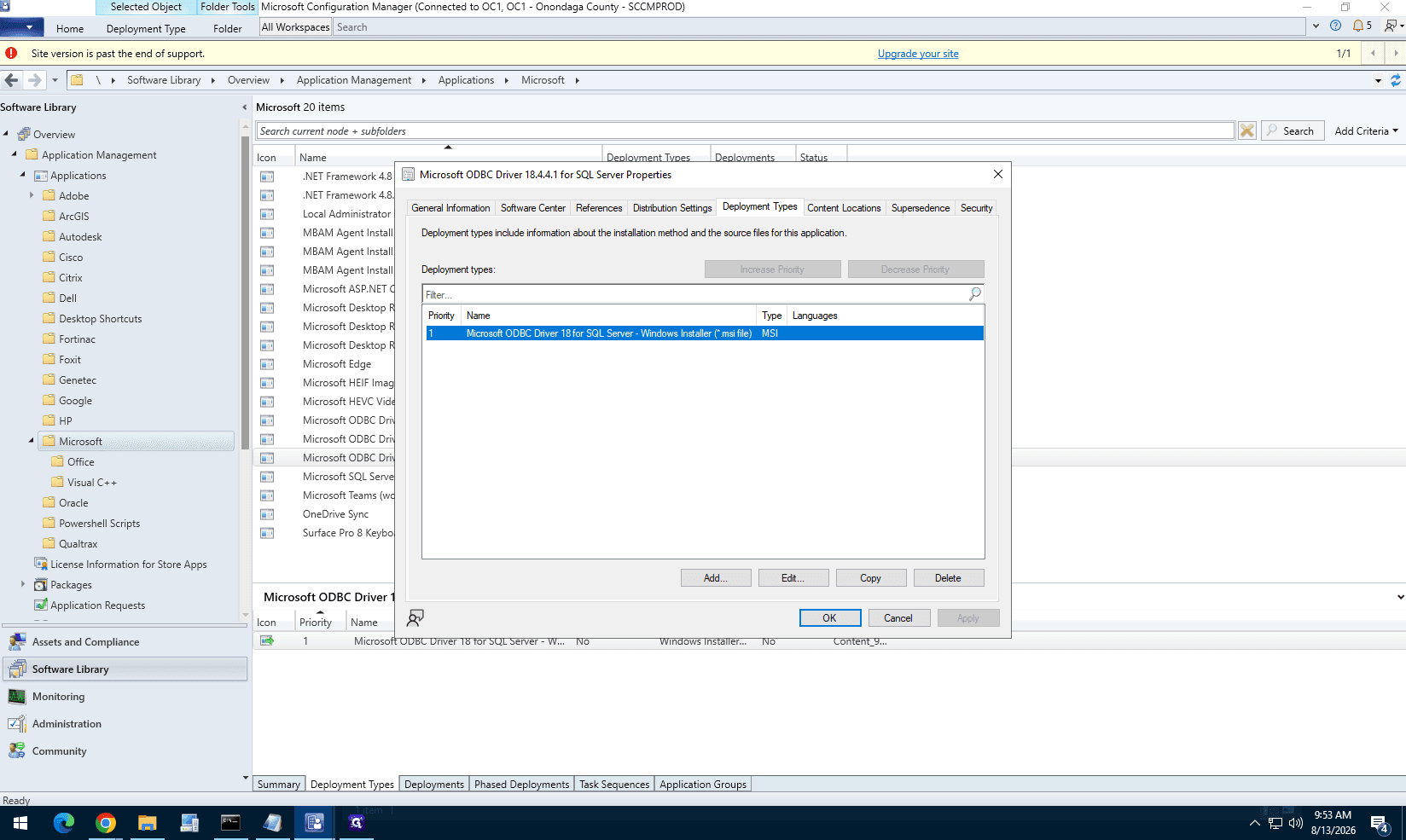
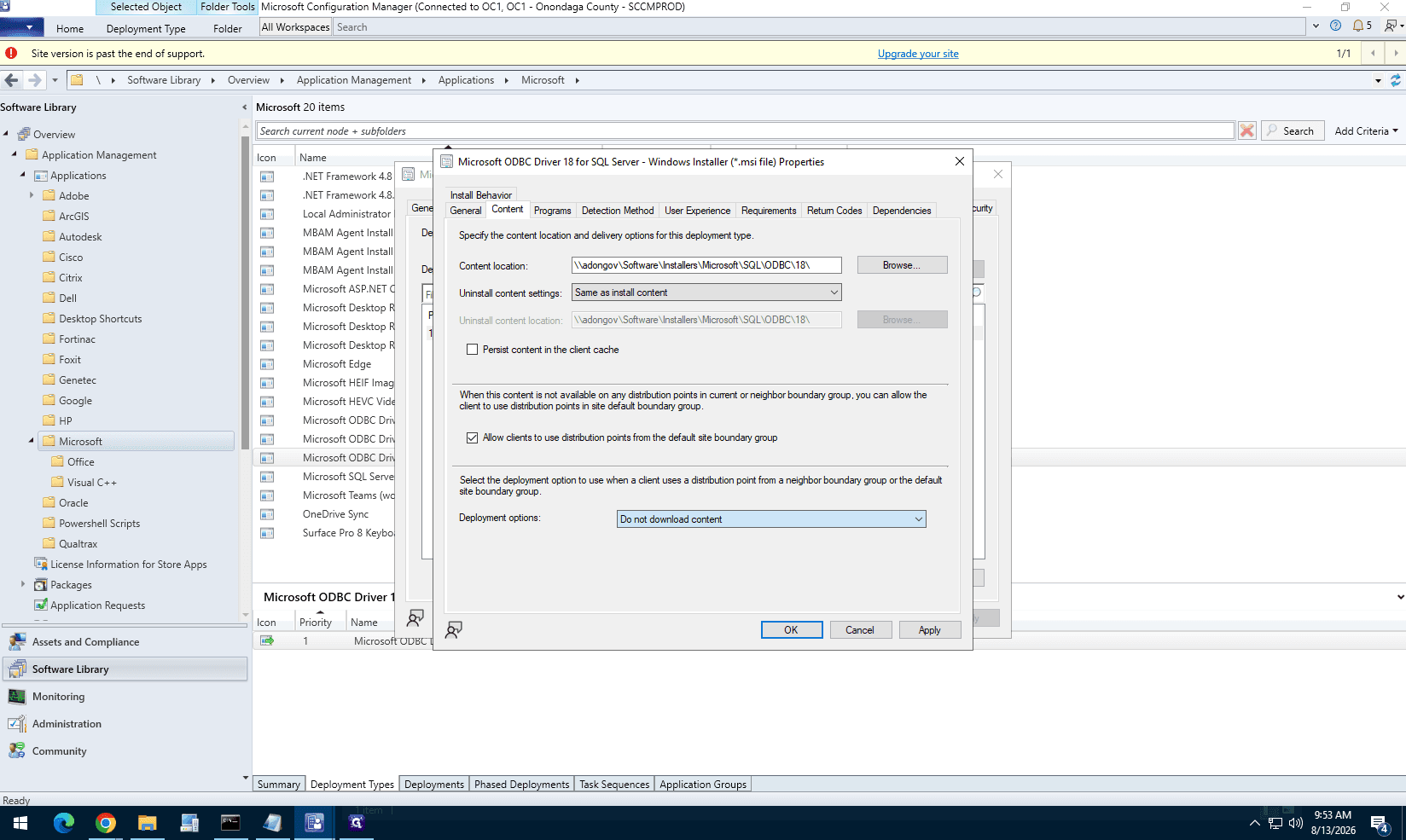
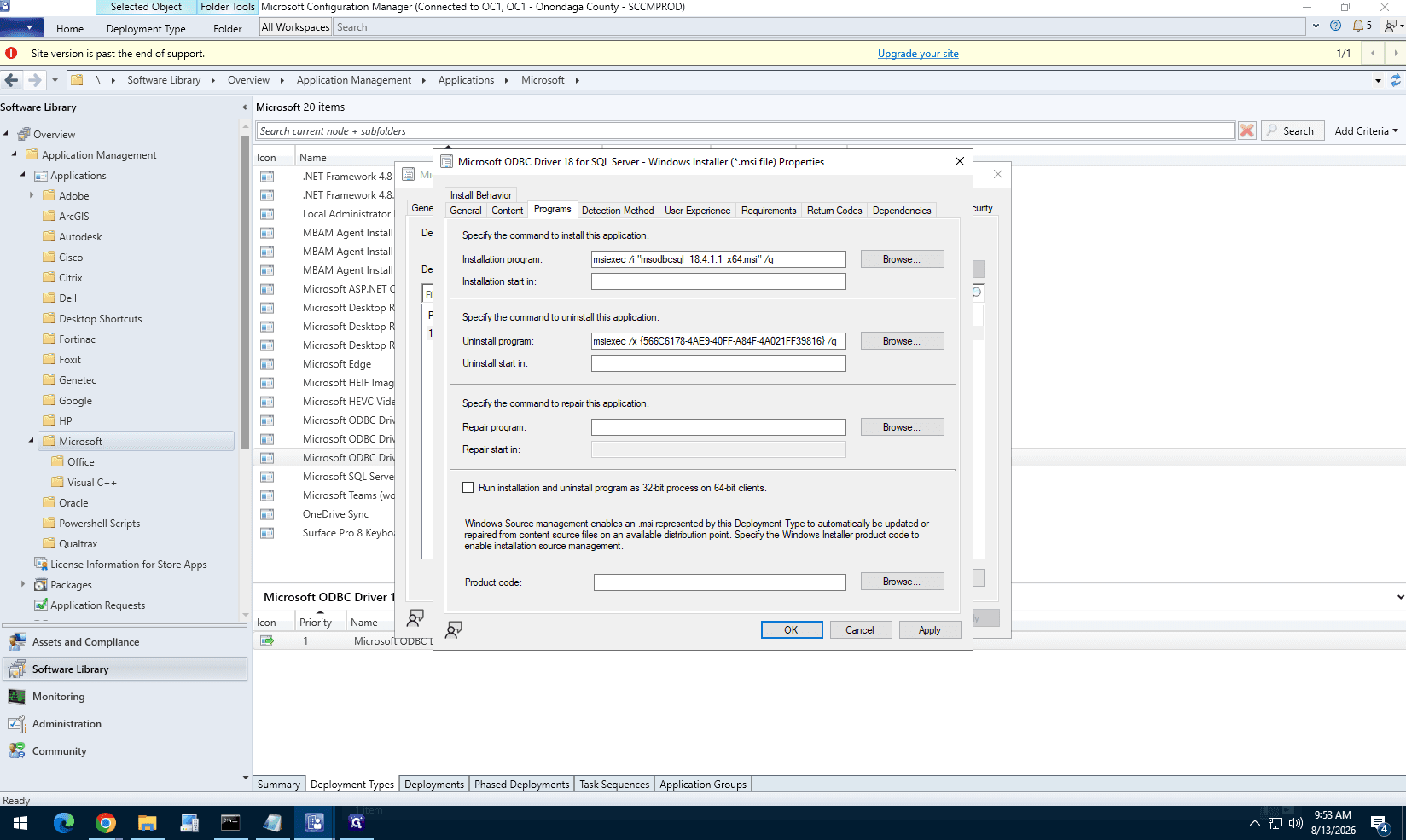
Before deploying ArcGIS Pro, you must prepare its prerequisite ODBC drivers.
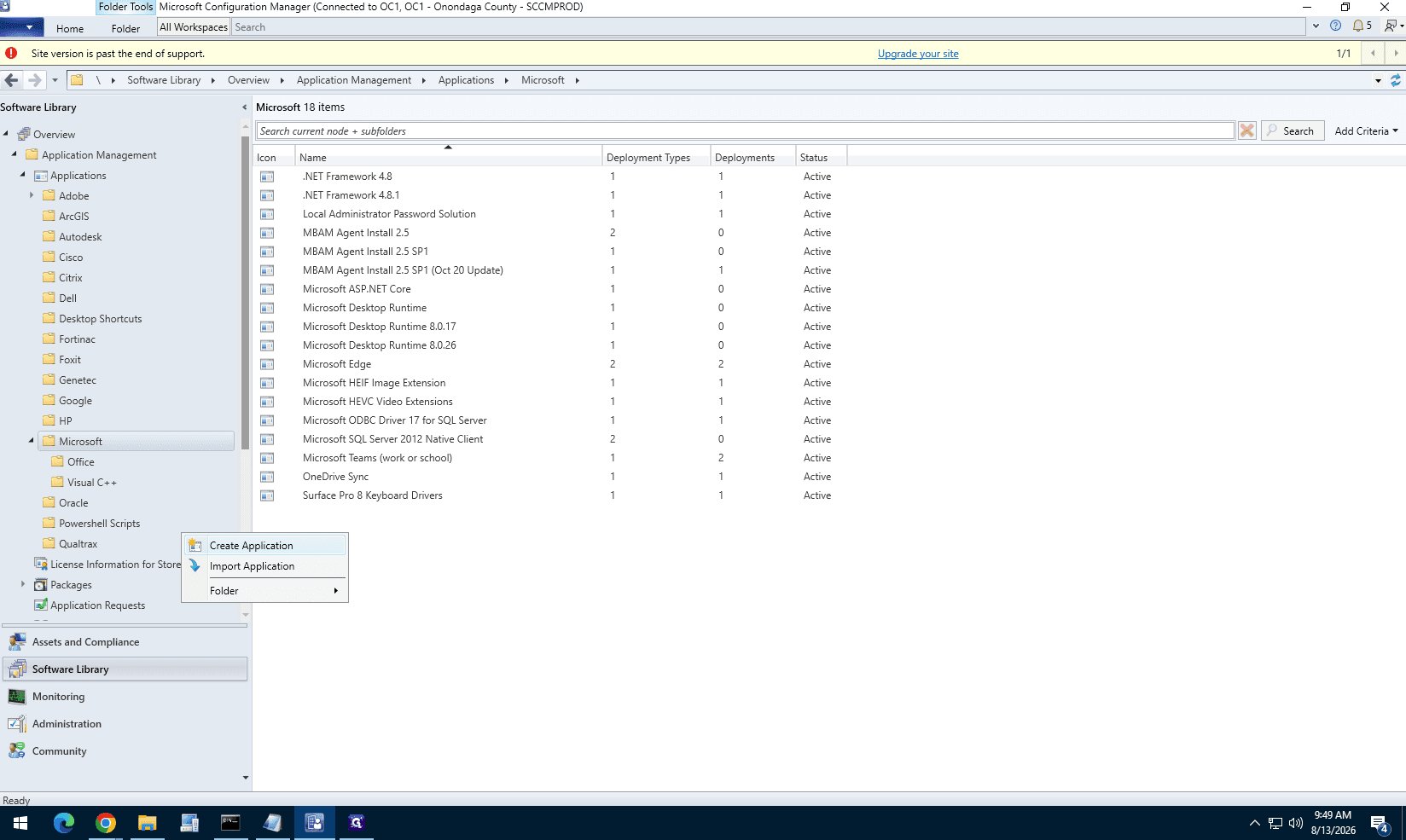
msodbcsql_17.10.6.1_x64.msi installer file.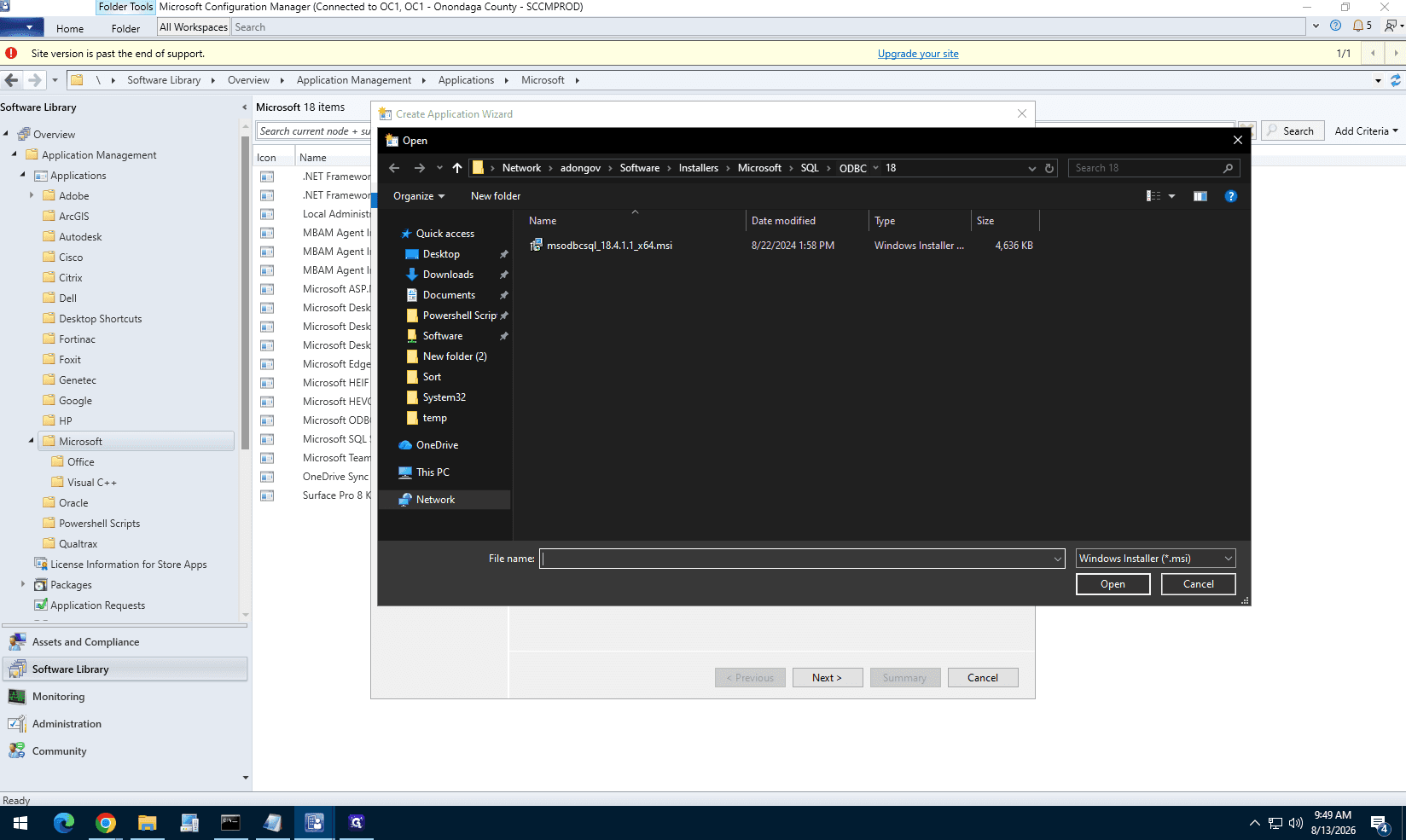
Part 2: Package the Base ArcGIS Pro Application
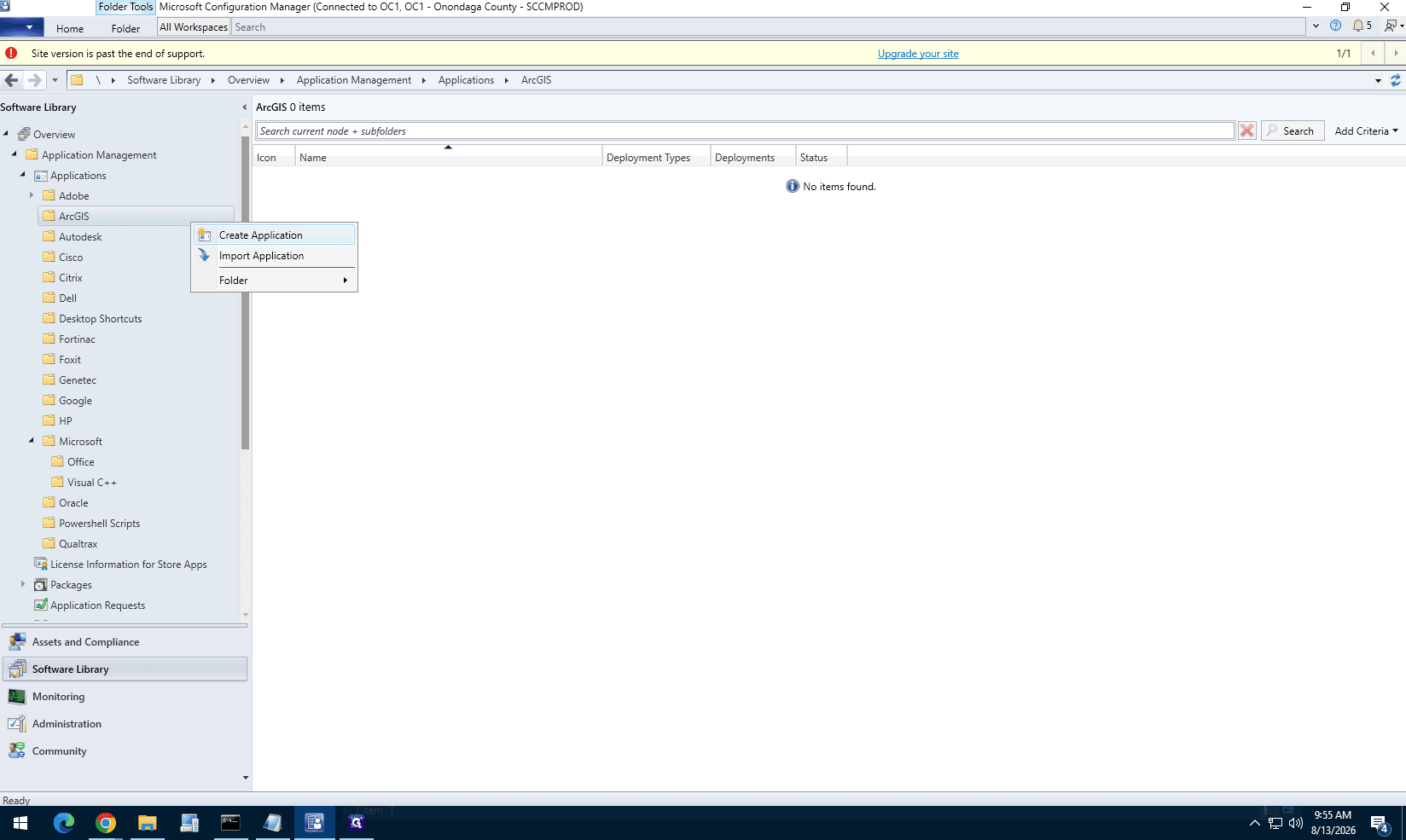
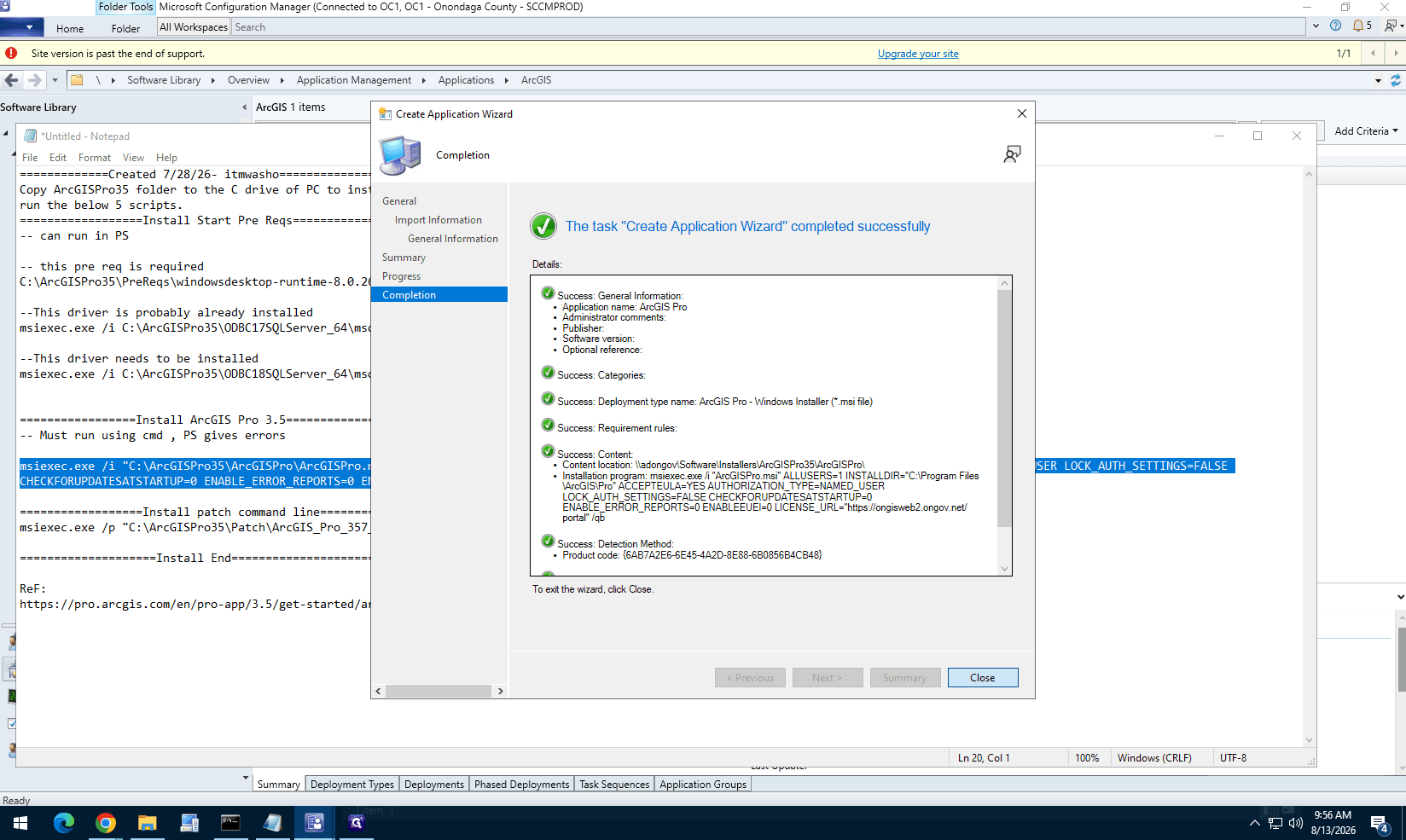
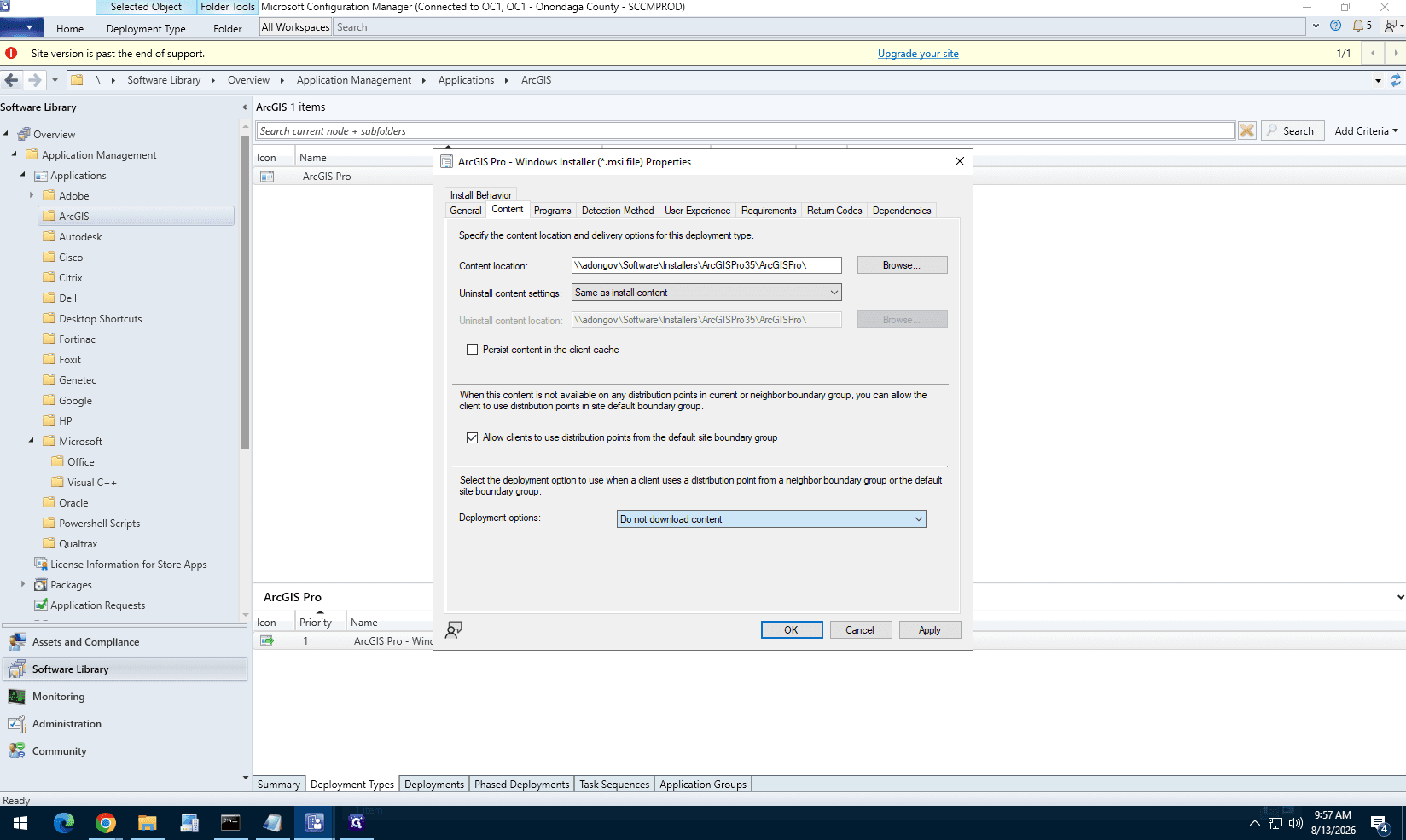
ArcGISPro.msi installer.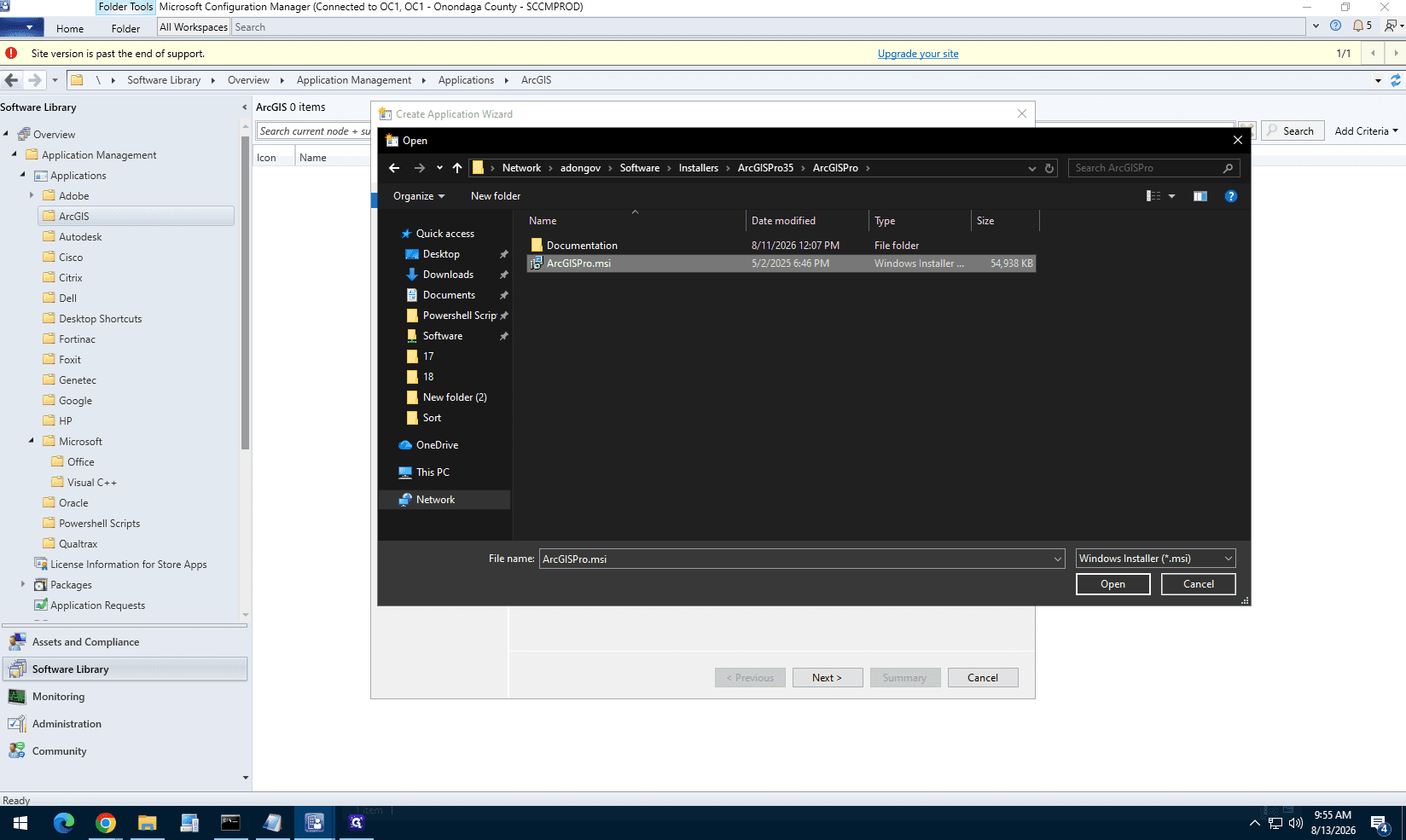
ALLUSERS=1 INSTALLDIR="...").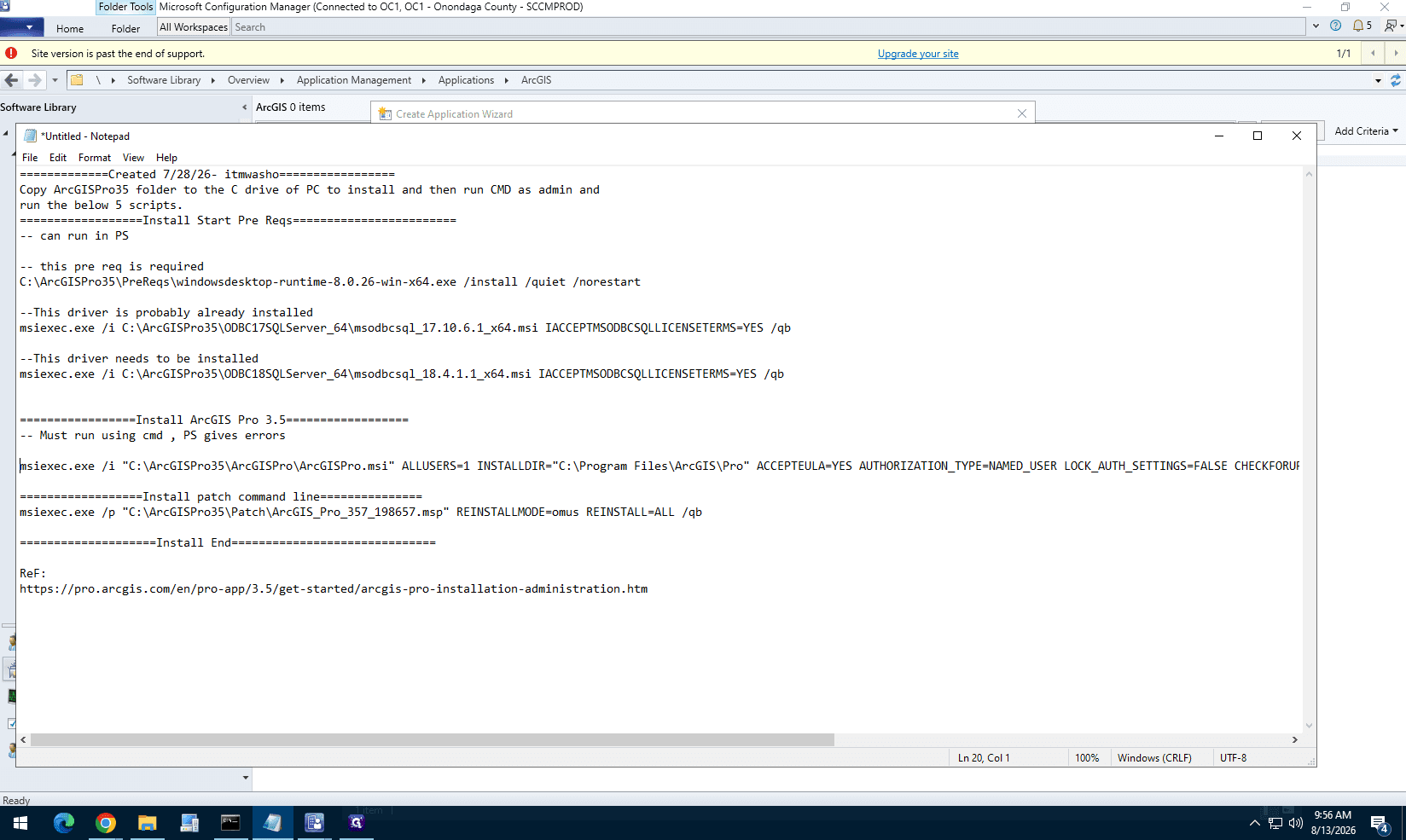
Part 3: Package the ArcGIS Pro 3.57 Patch
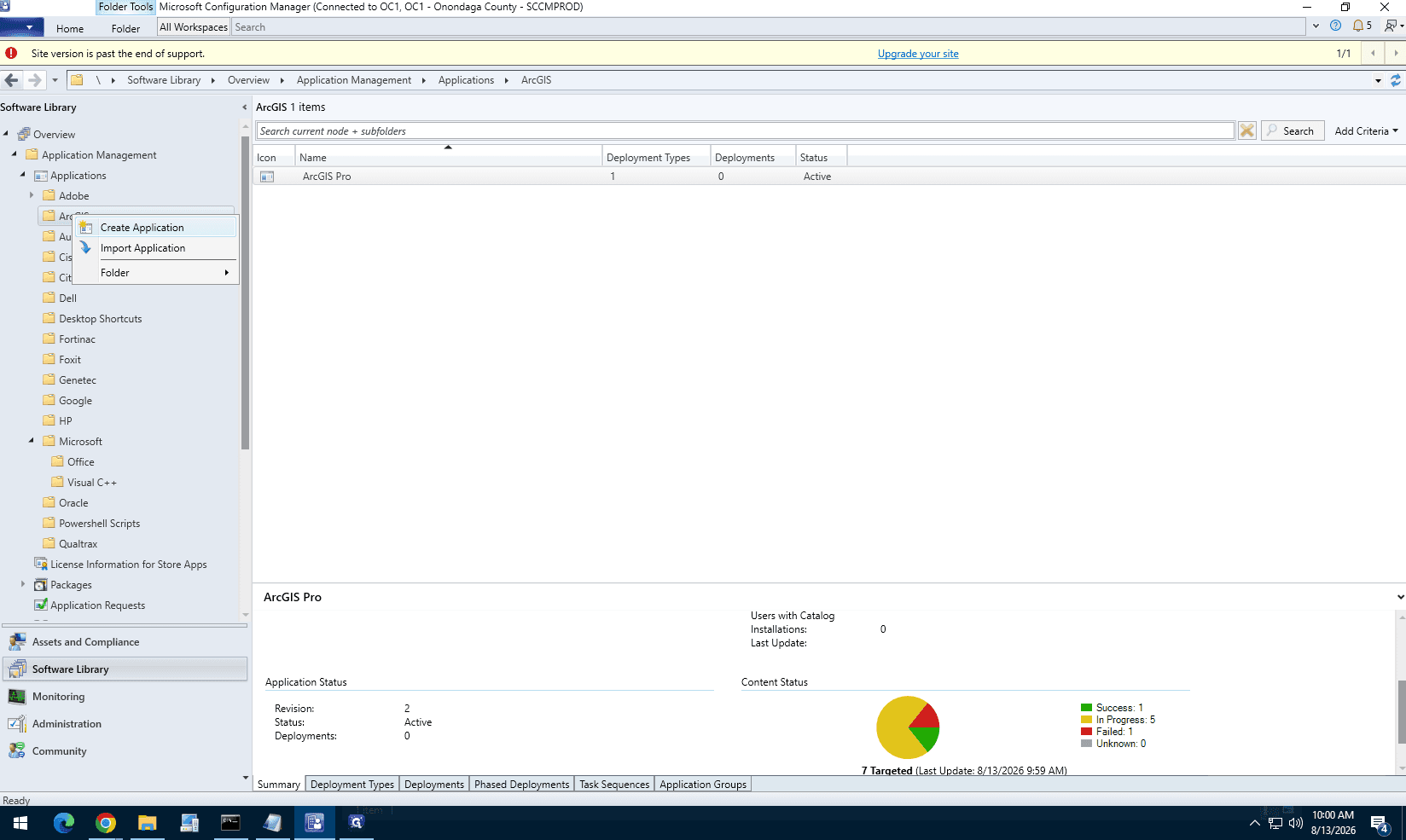
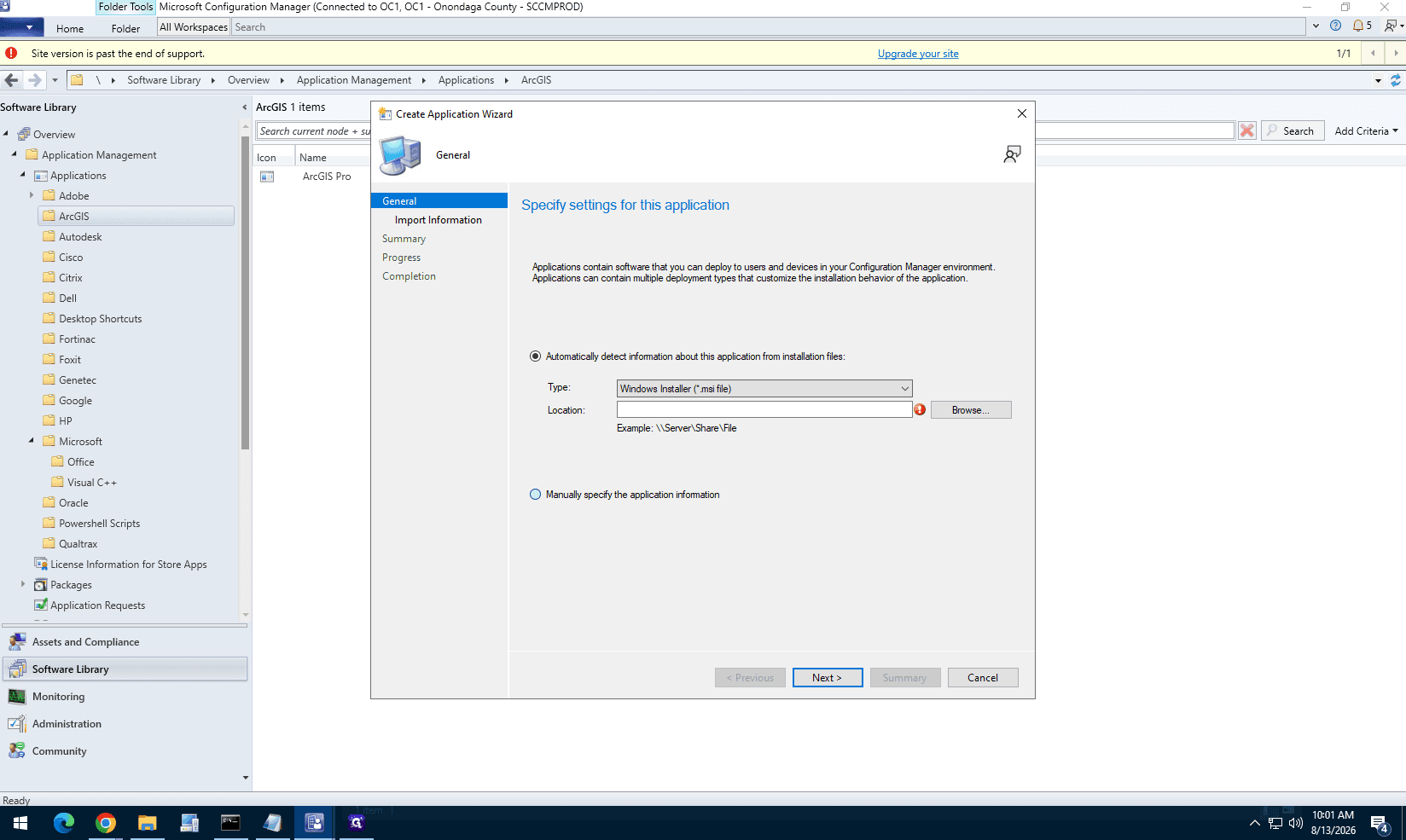
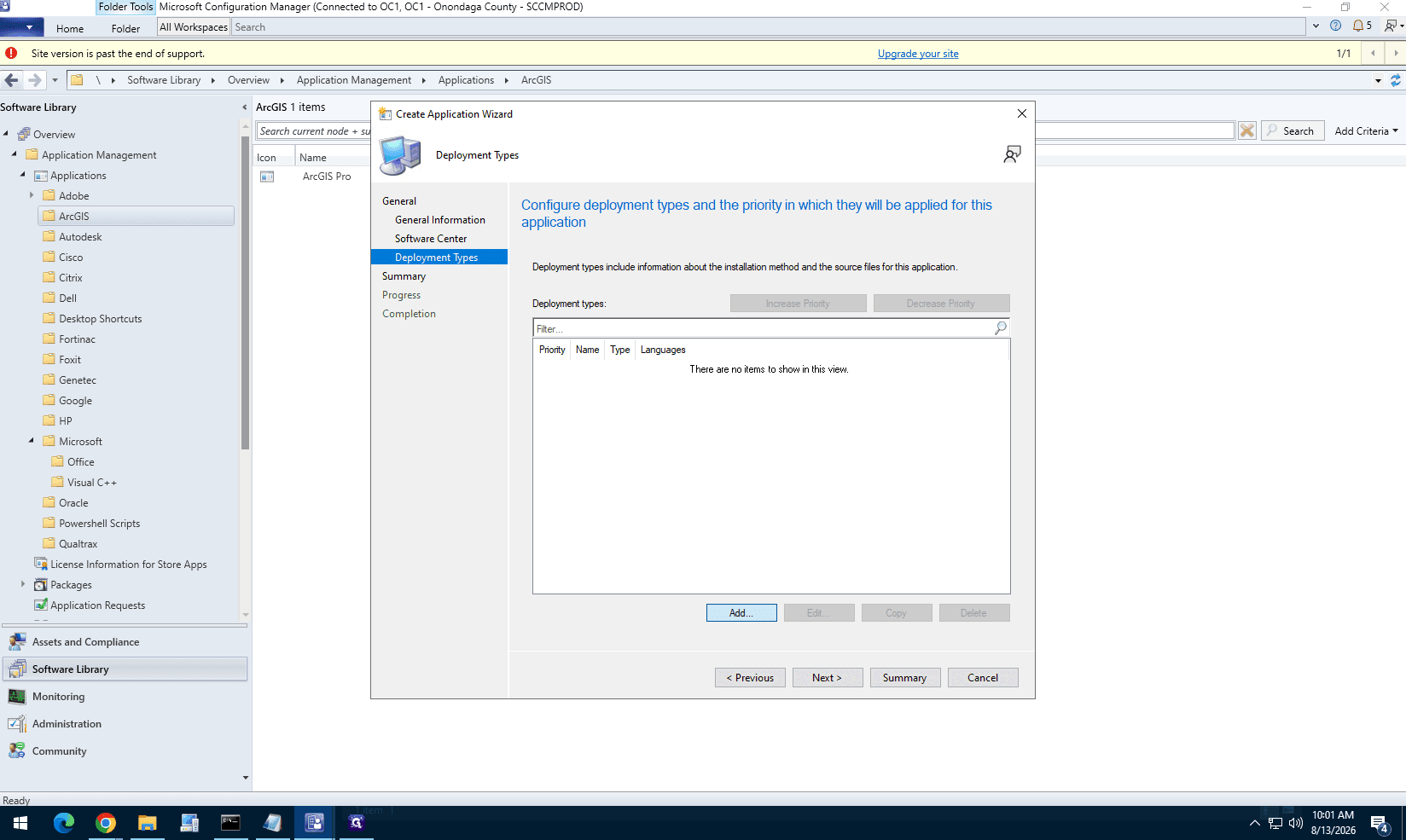
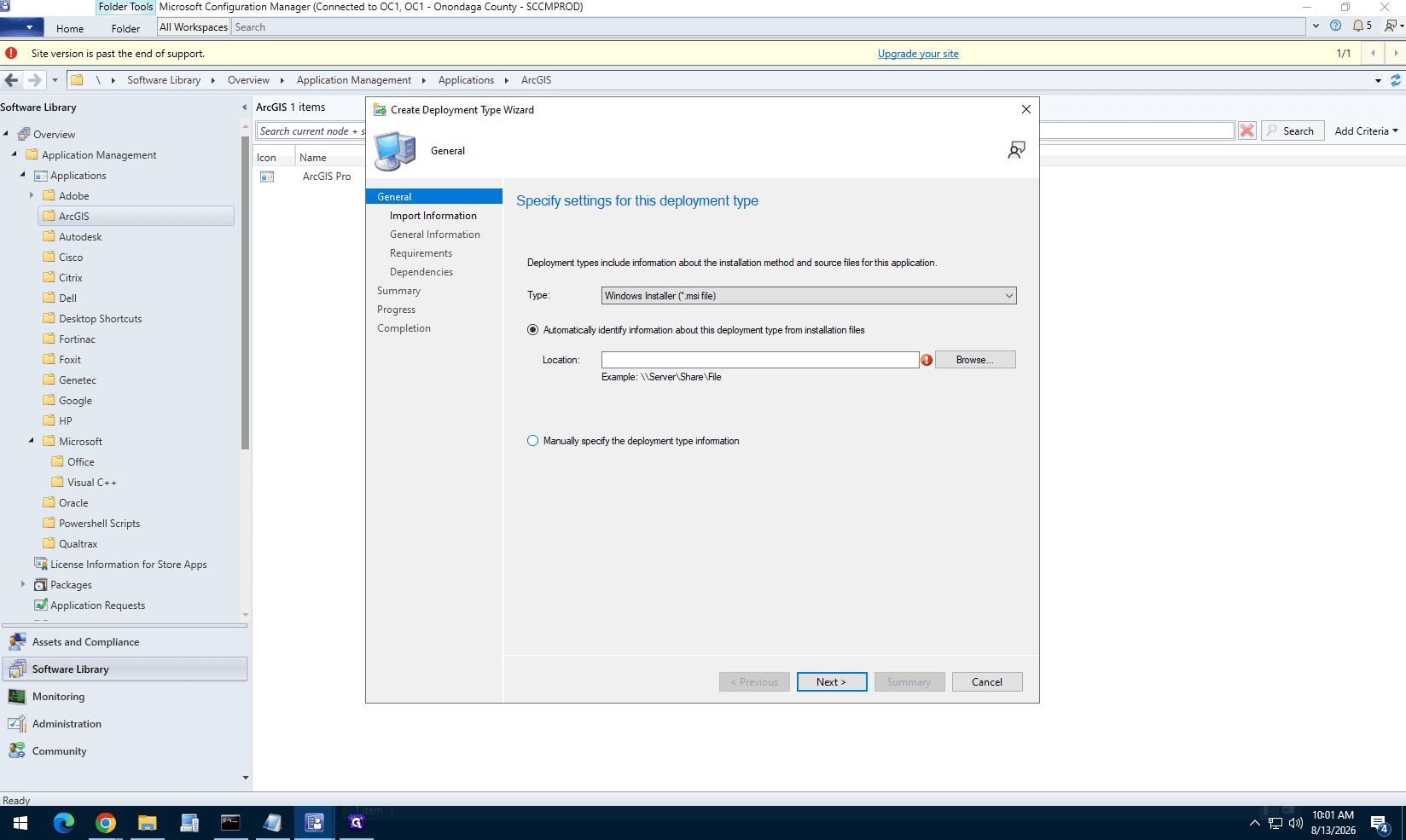
.msp file.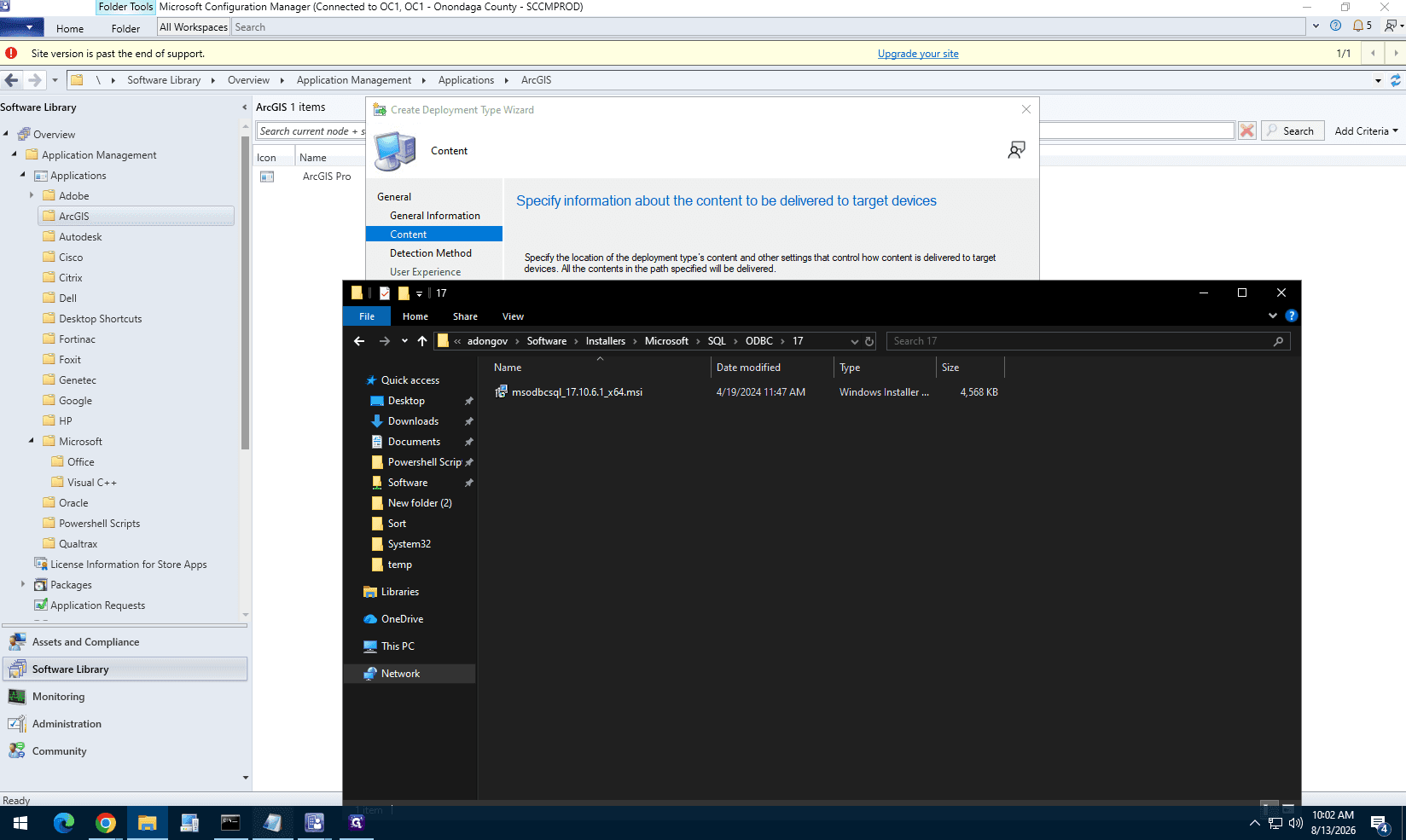
msiexec.exe /p "ArcGIS_Pro_357_198657.msp" REINSTALLMODE=omus REINSTALL=ALL /qb.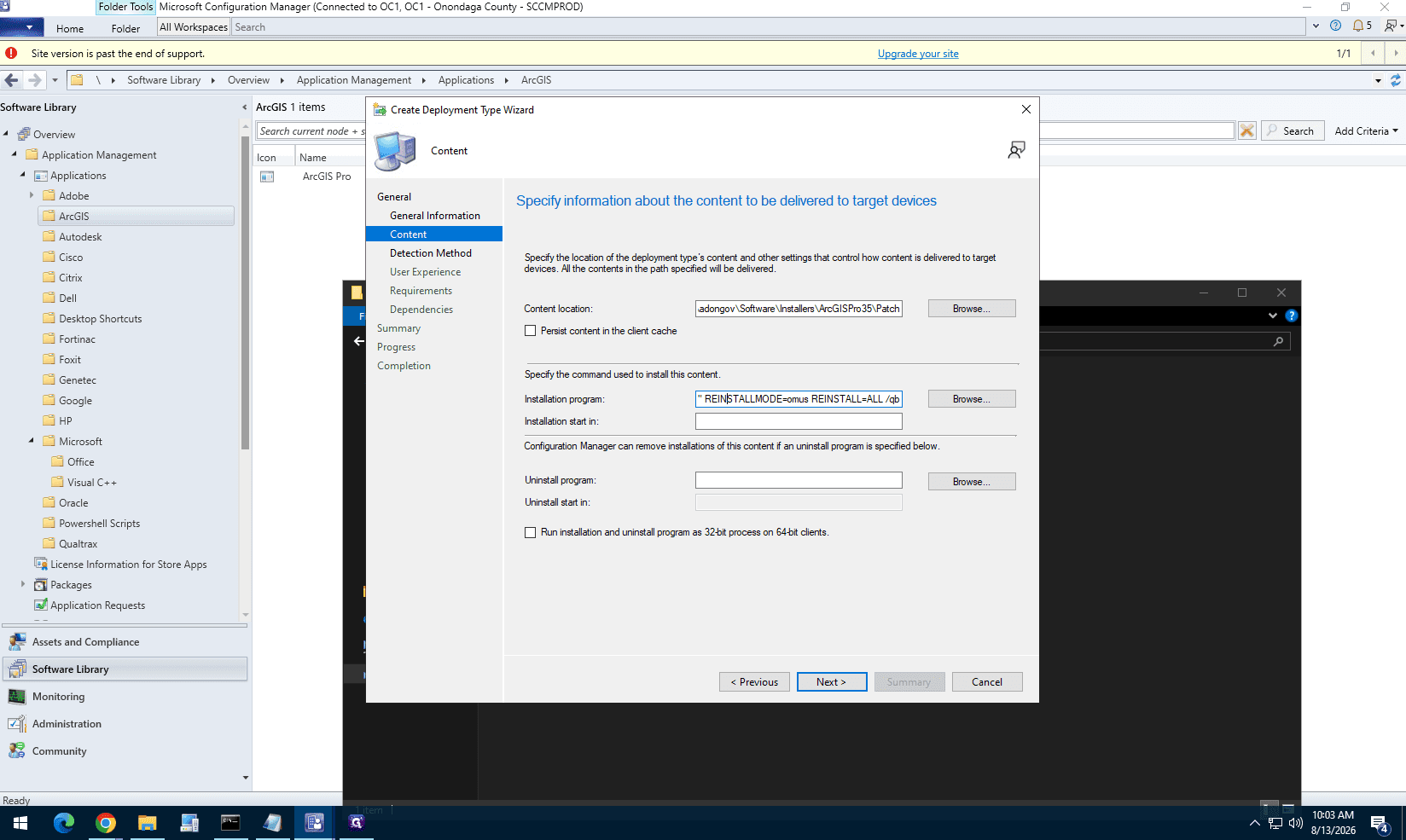
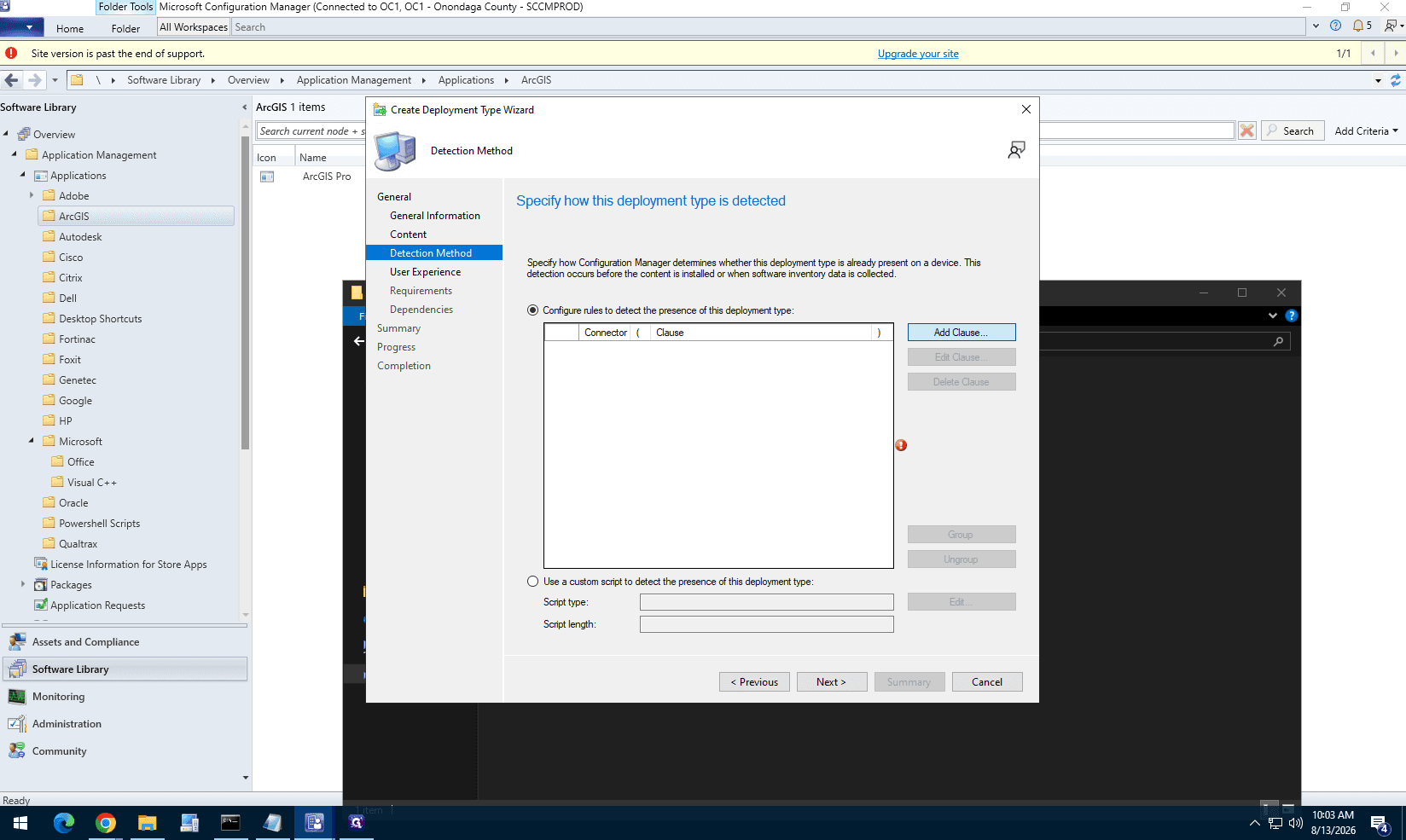
ArcGISPro.exe located at C:\Program Files\ArcGIS\Pro\bin.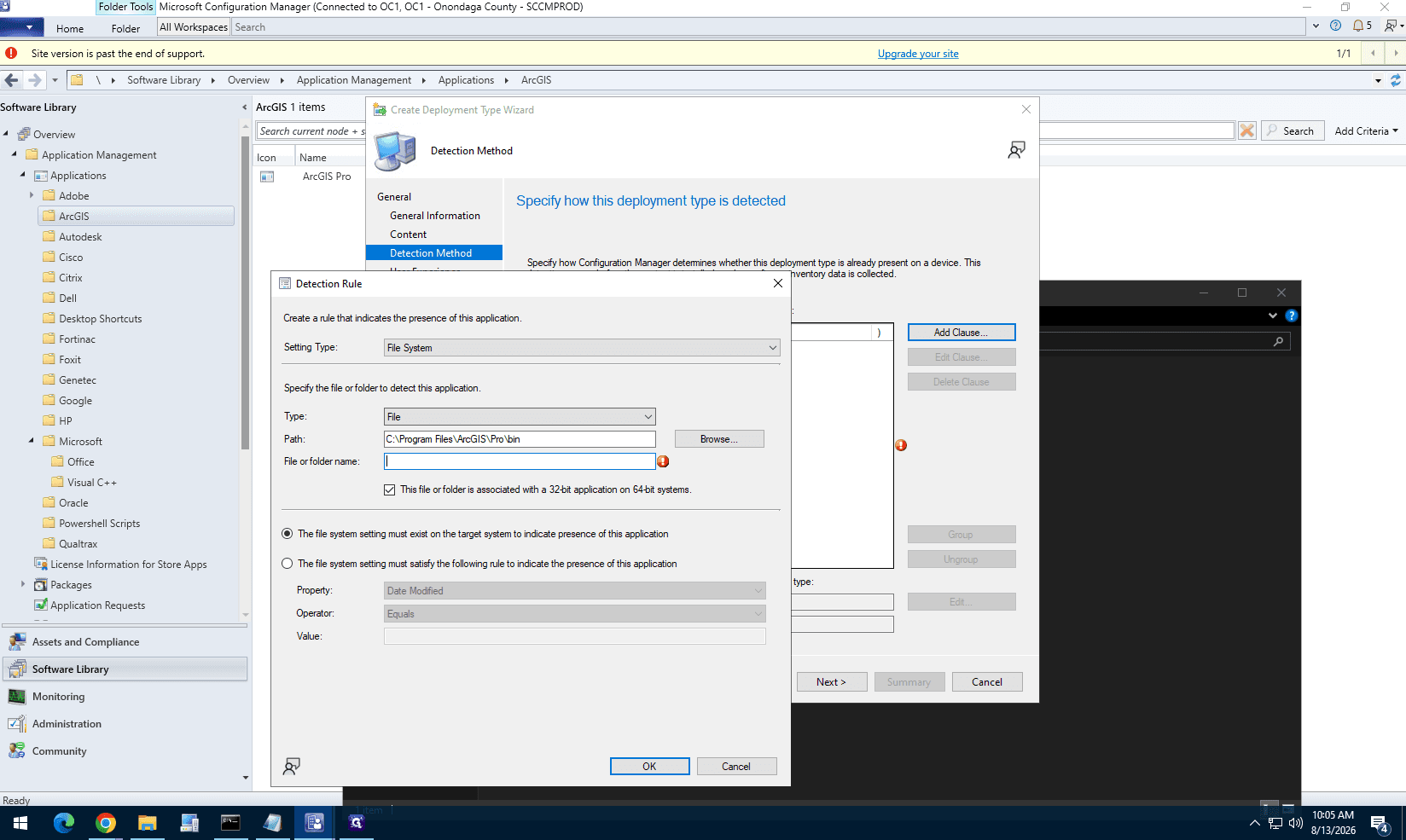
3.5.7.57366 as the value.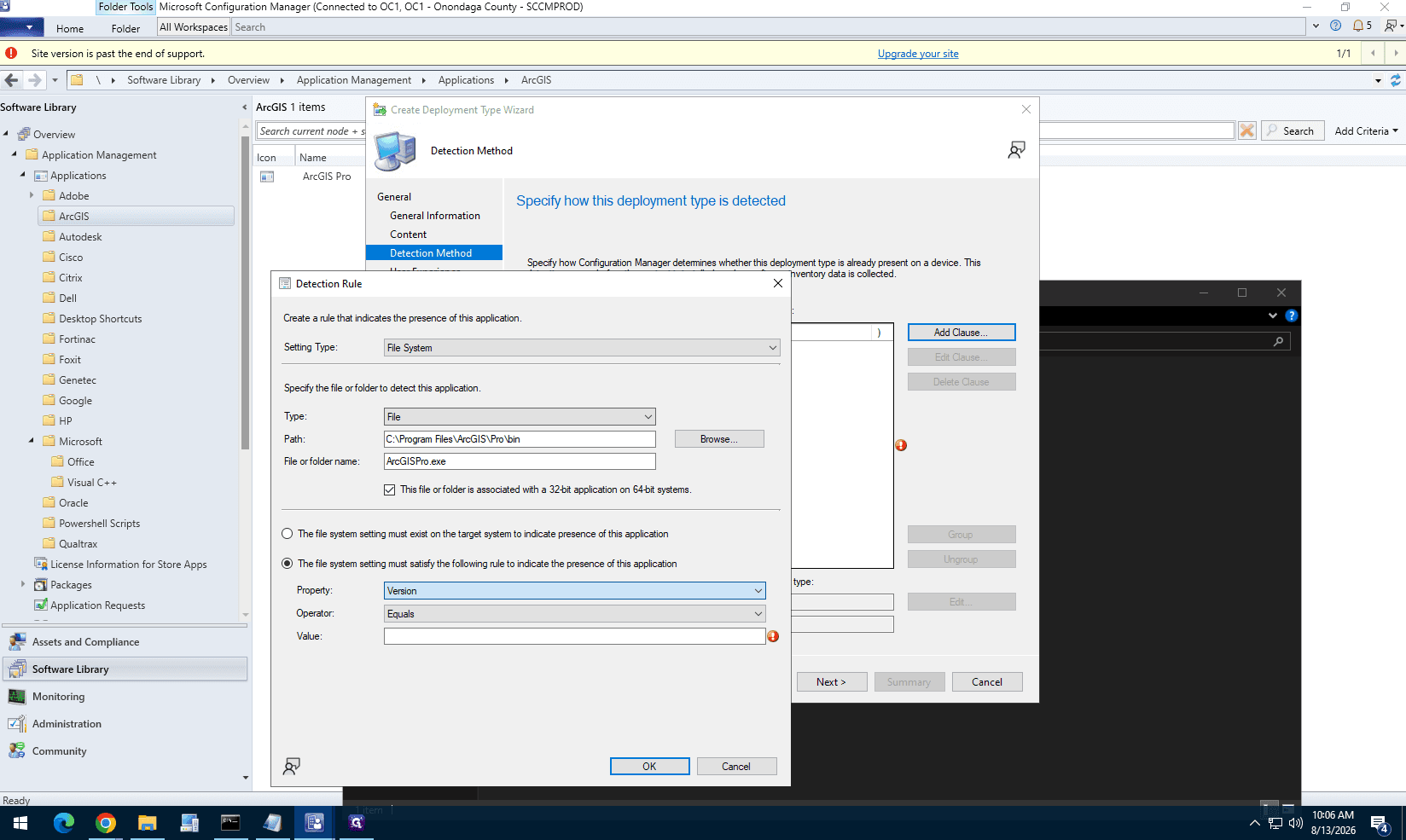
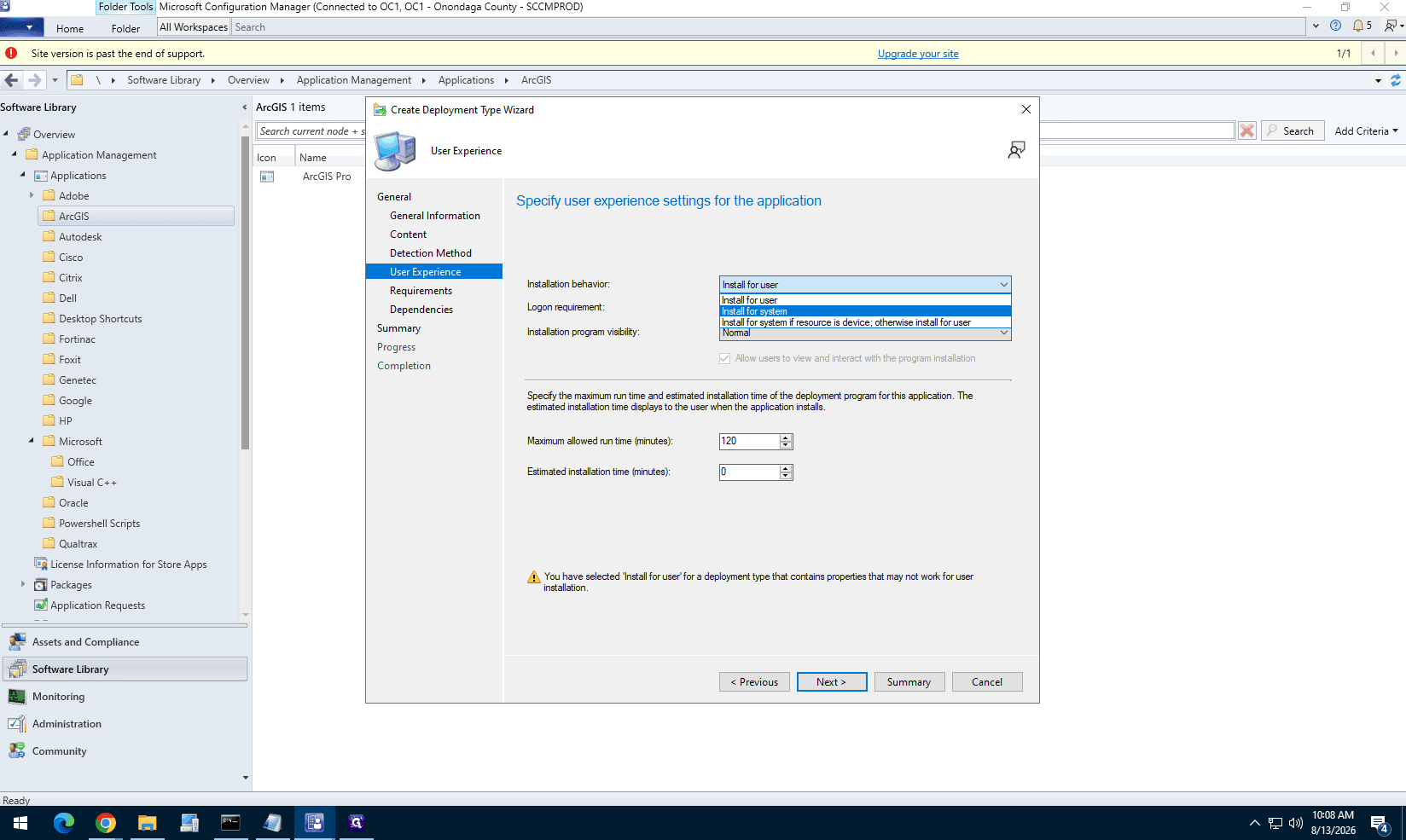
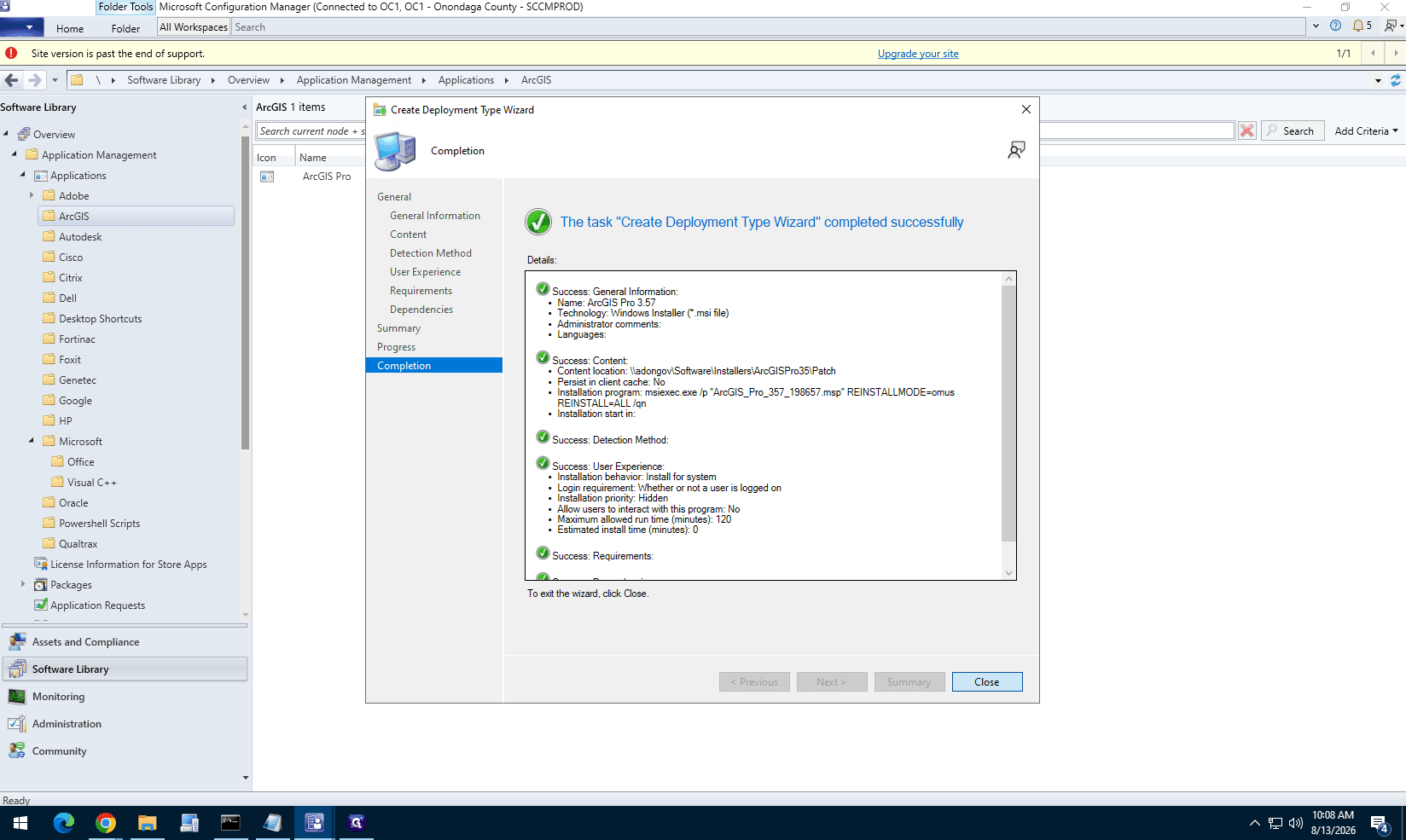
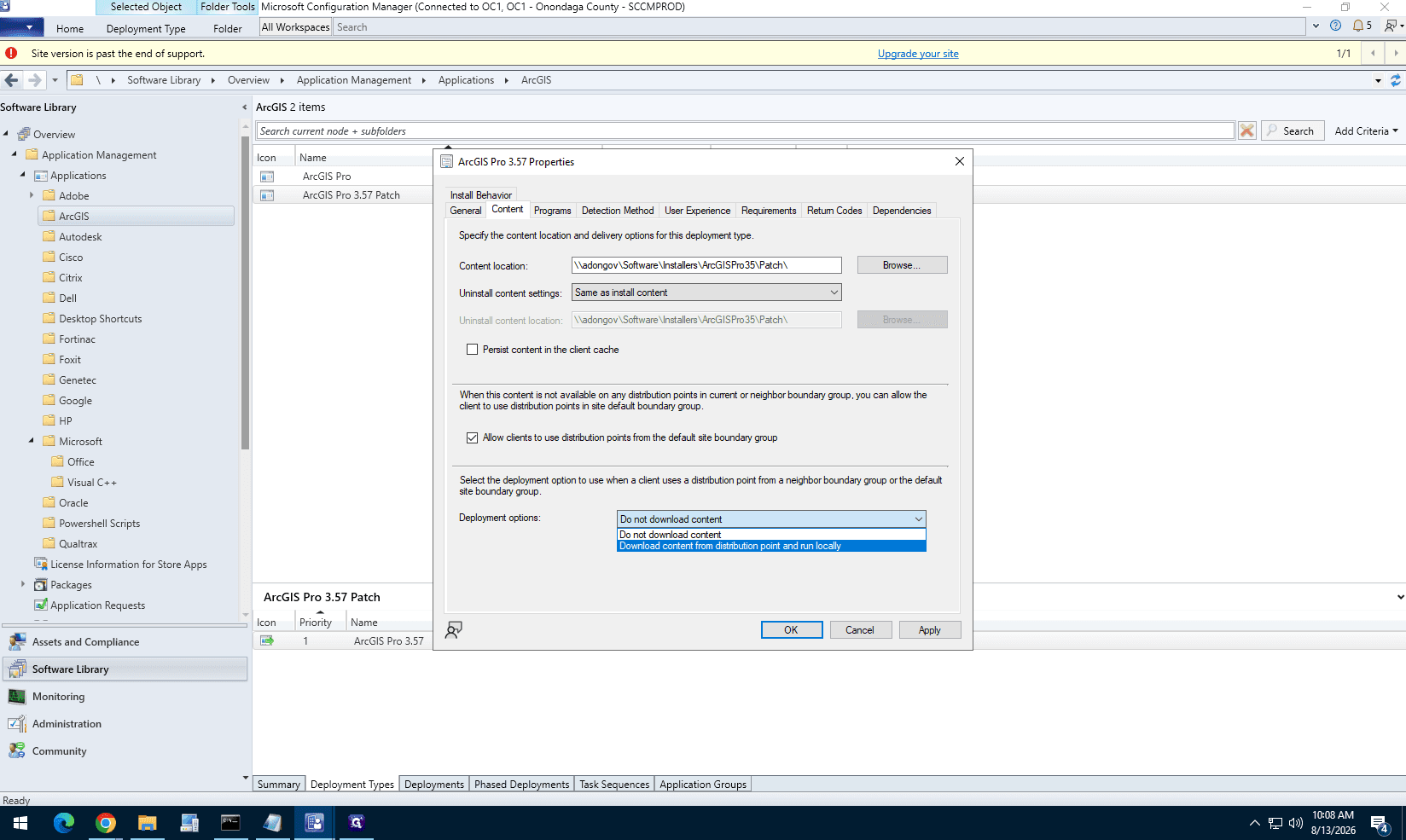
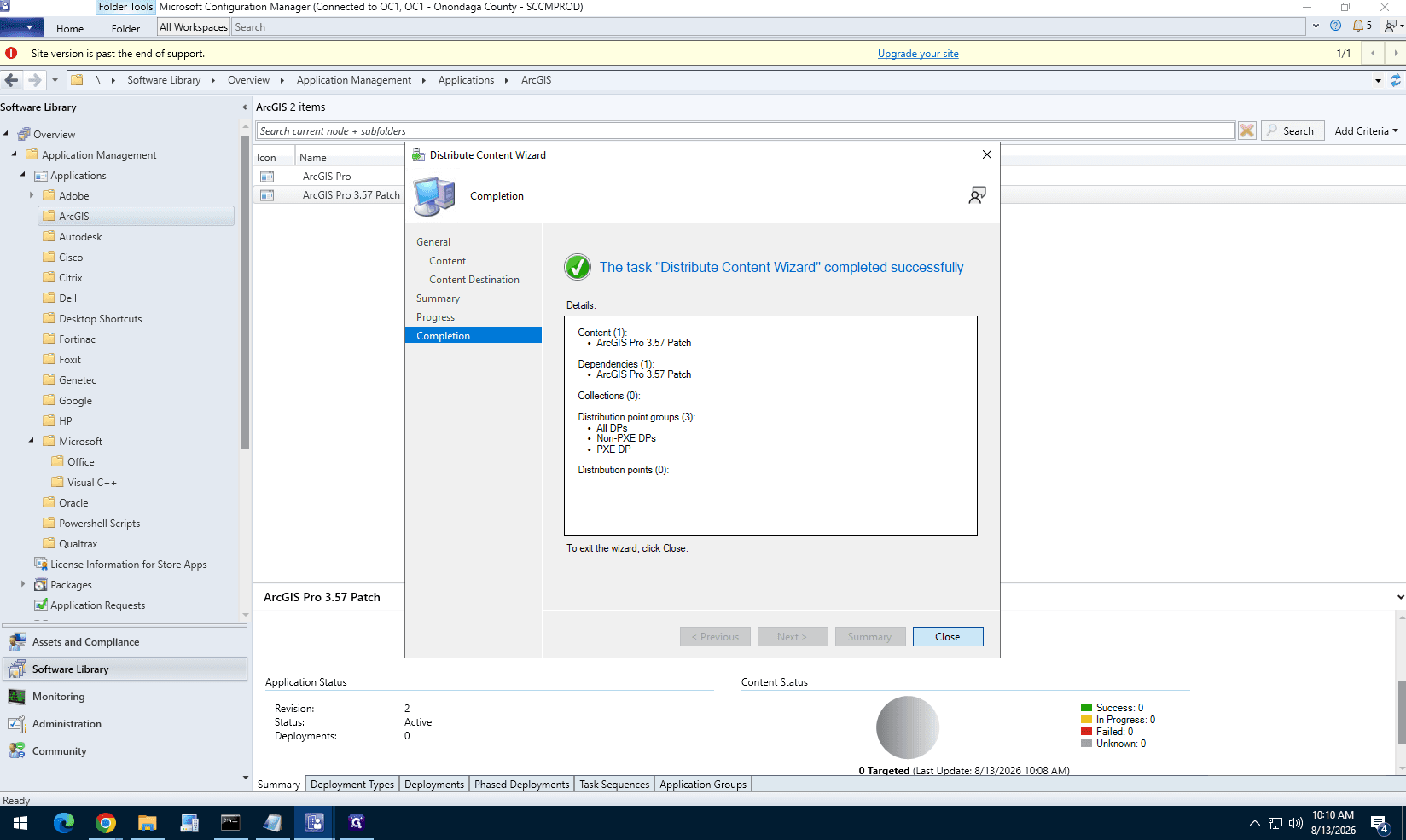
Part 4: Configure the Dependency Chain
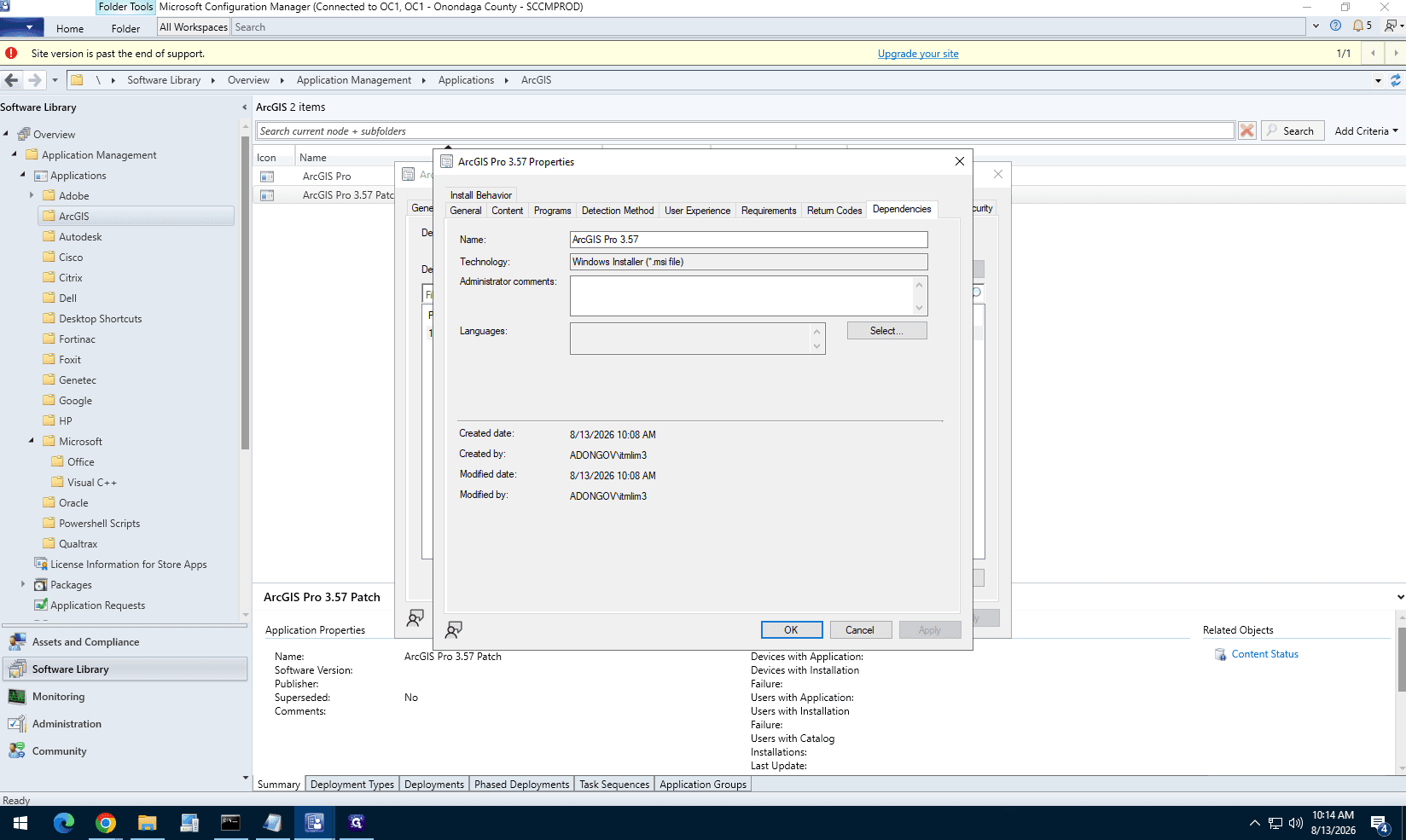
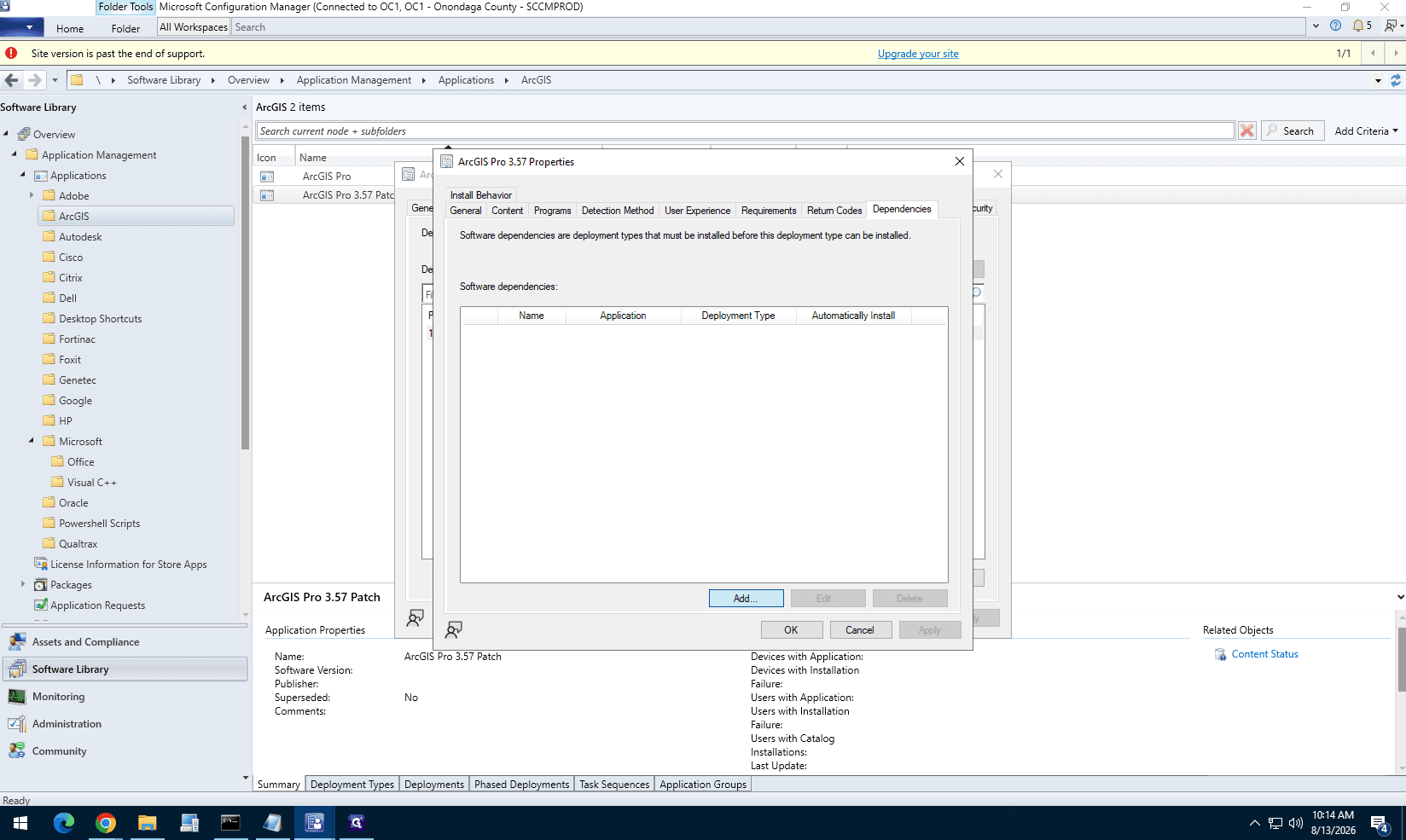
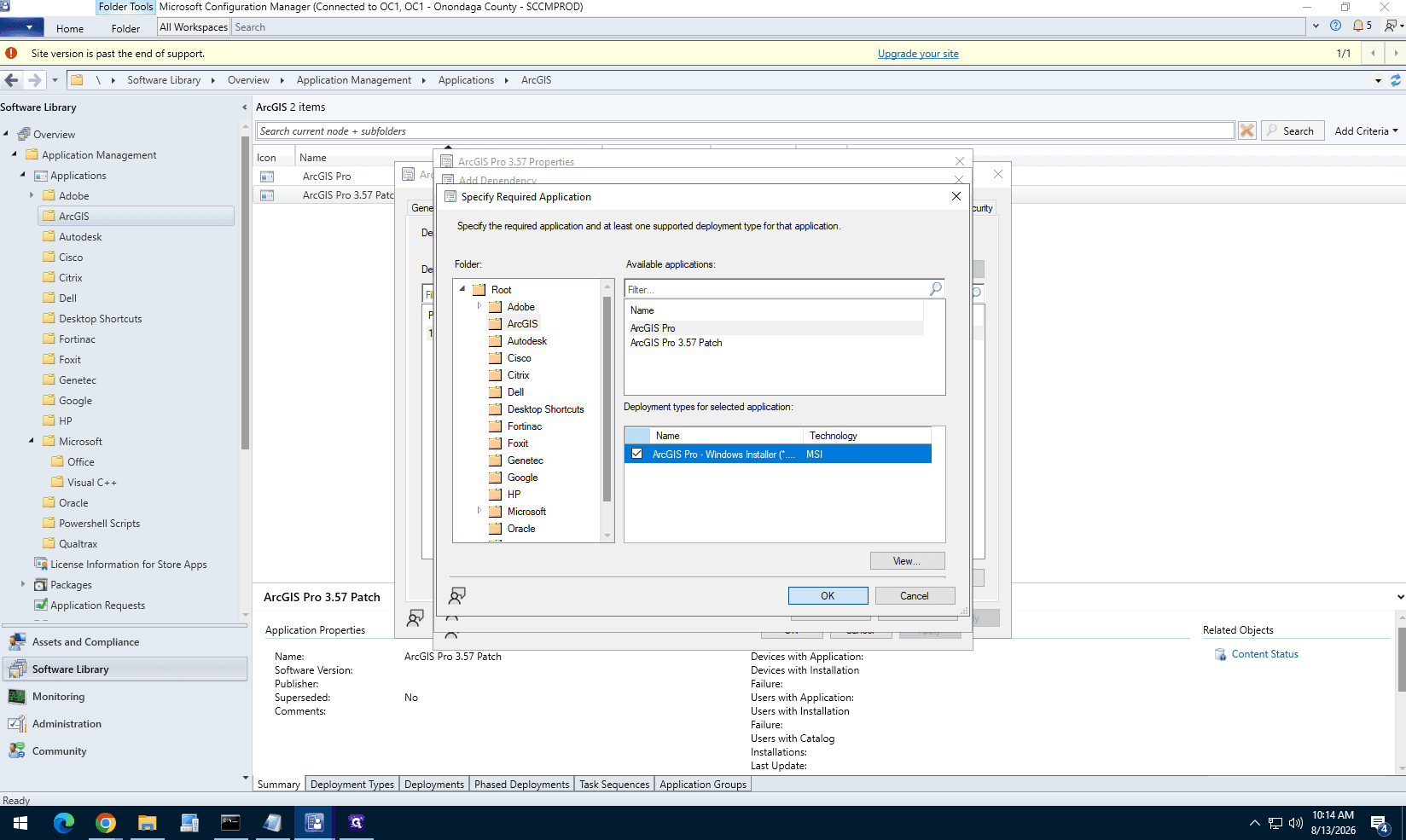
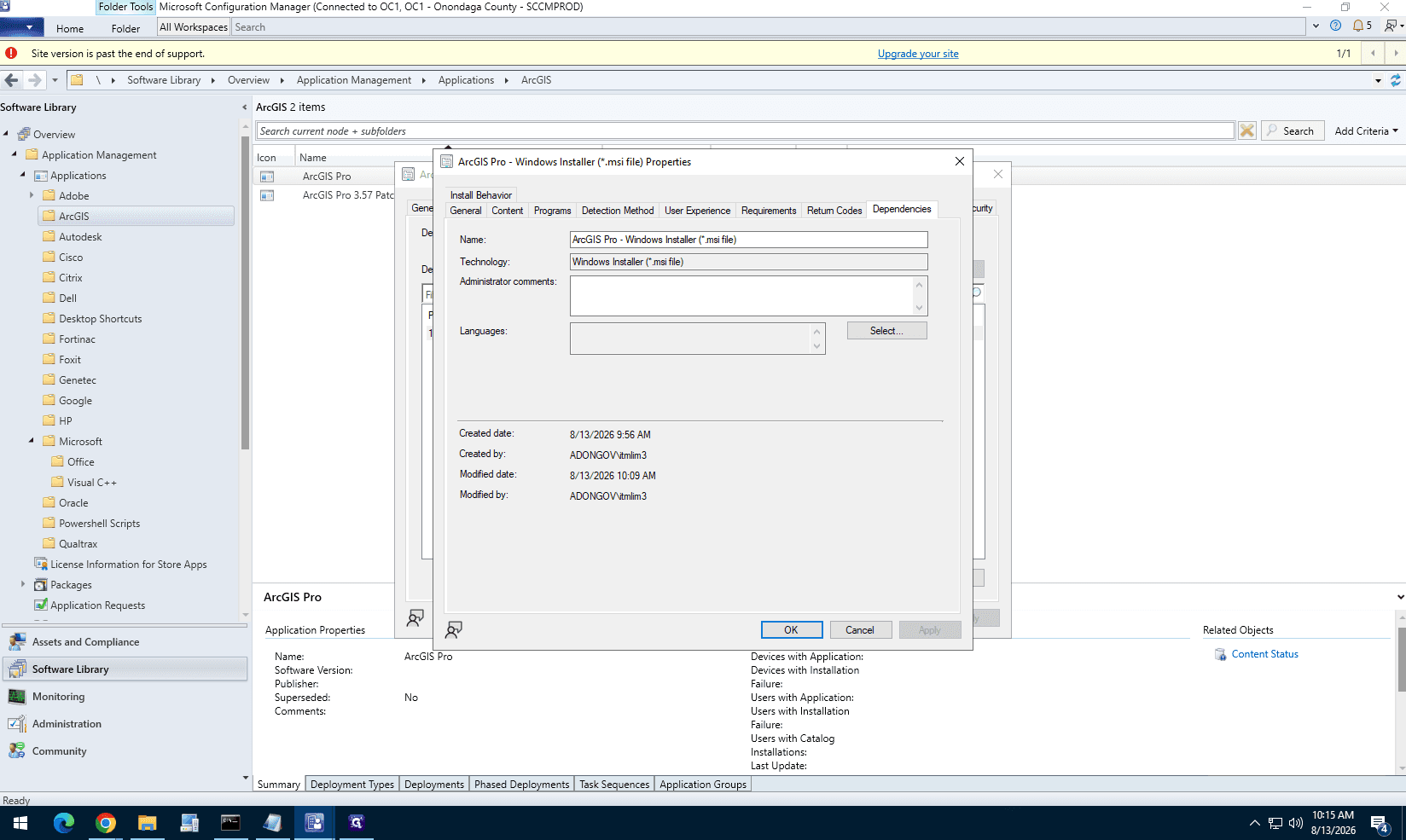
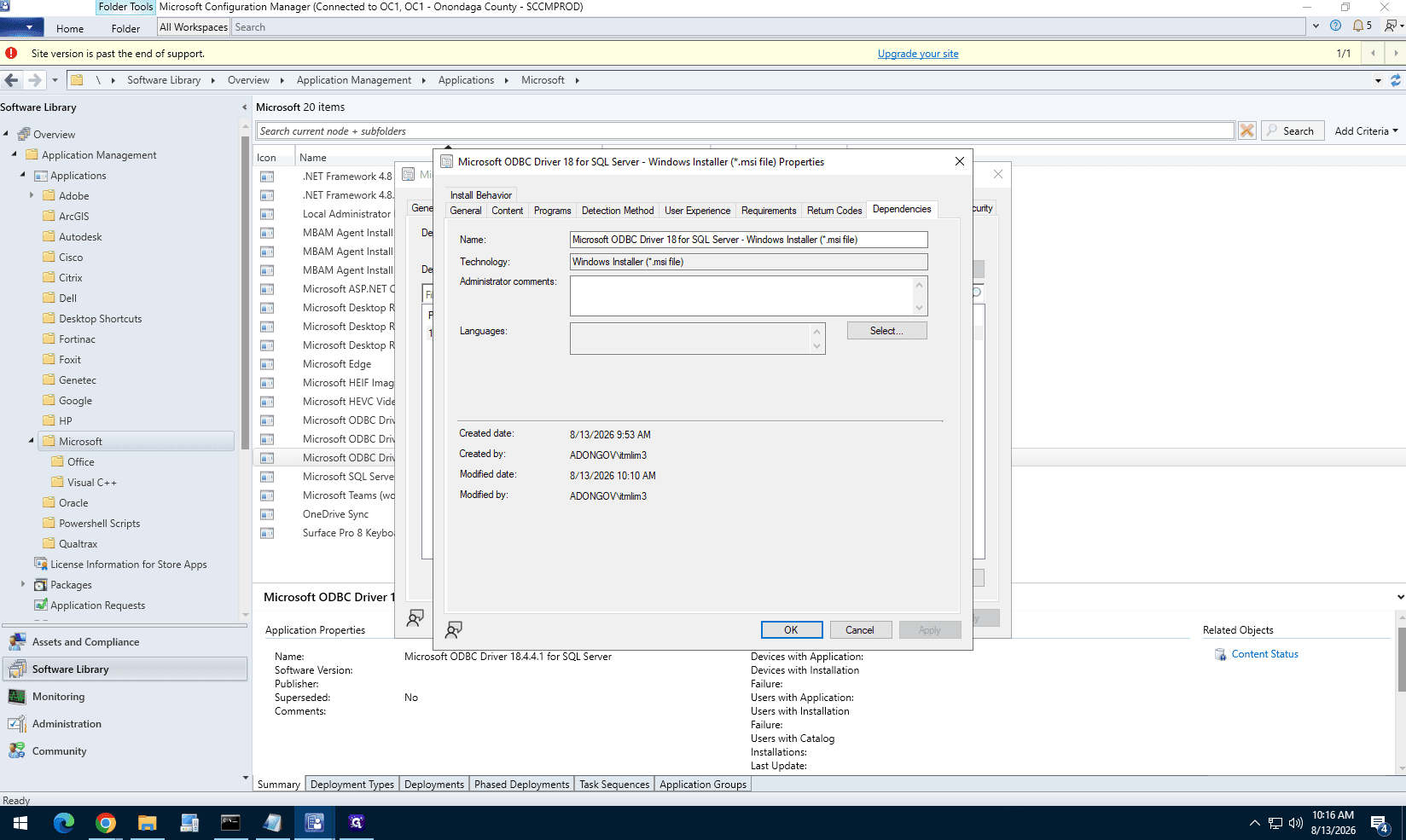
To ensure all components install in the correct sequence, you must nest the application dependencies.
Application | Deployment Format | Required Dependency |
|---|---|---|
ArcGIS Pro 3.5.7 Patch | MSP Patch | ArcGIS Pro Base |
ArcGIS Pro Base | Windows Installer (MSI) | Microsoft ODBC Driver 18 |
Microsoft ODBC Driver 18 | Windows Installer (MSI) | Microsoft ODBC Driver 17 |
Microsoft ODBC Driver 17 | Windows Installer (MSI) | None |
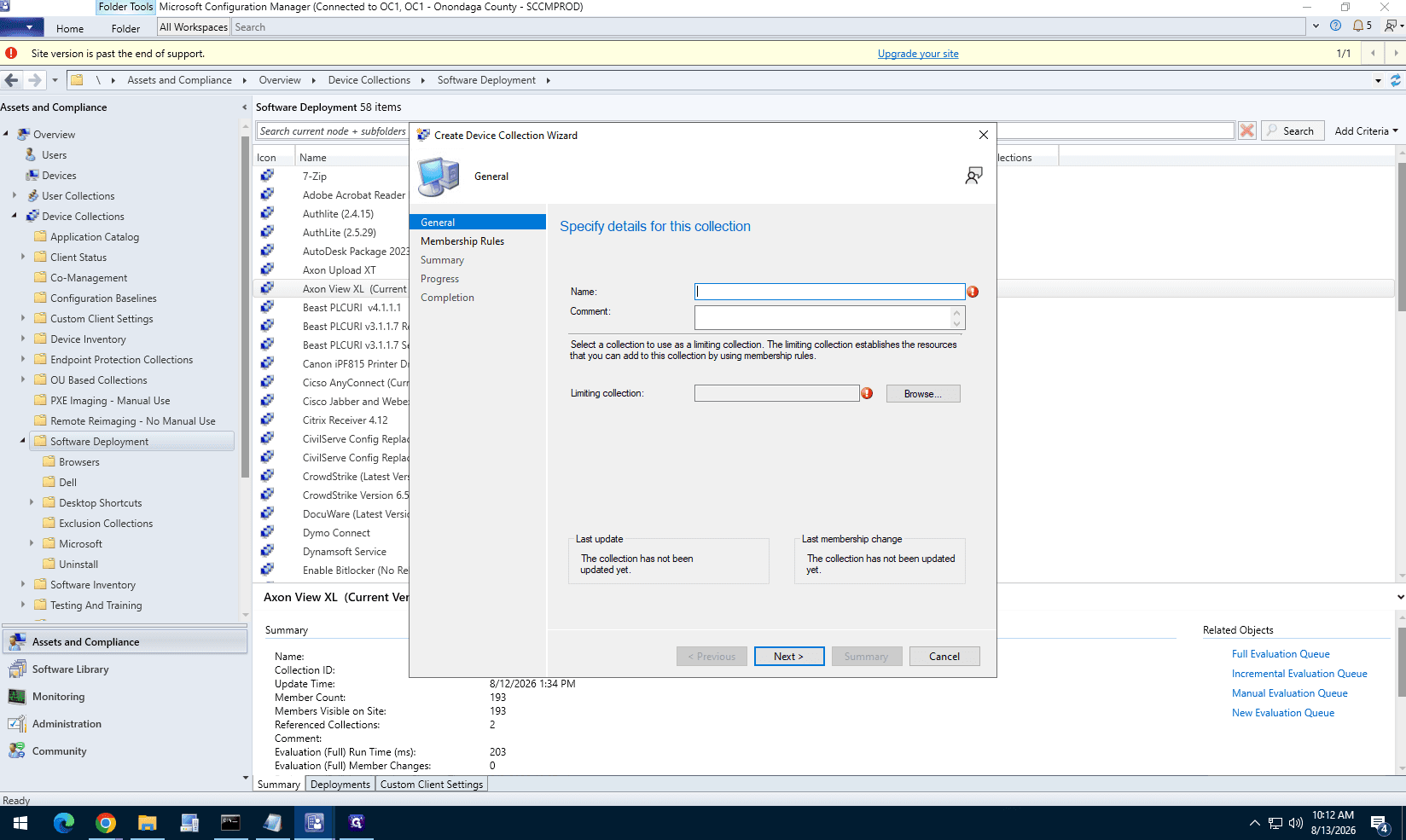
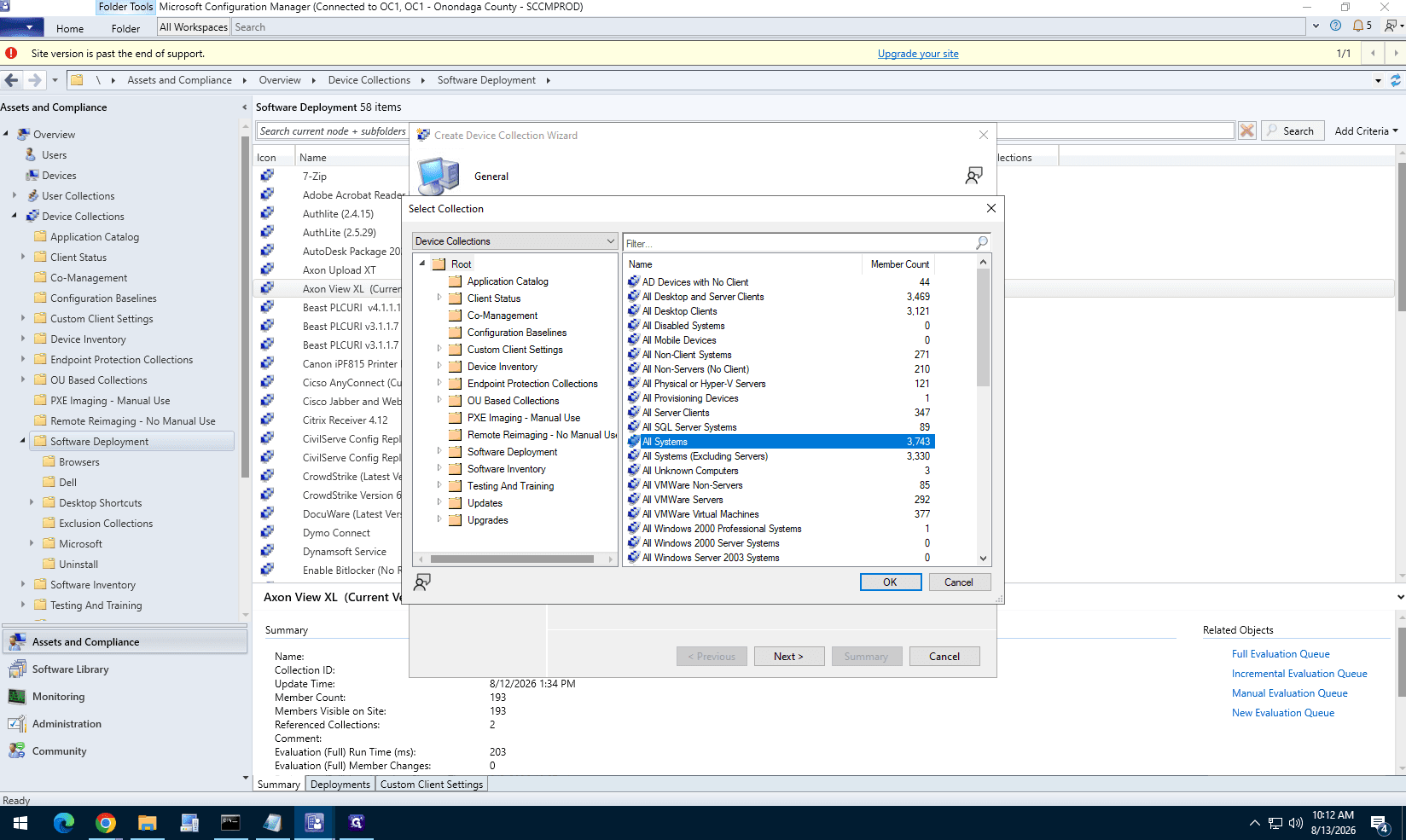
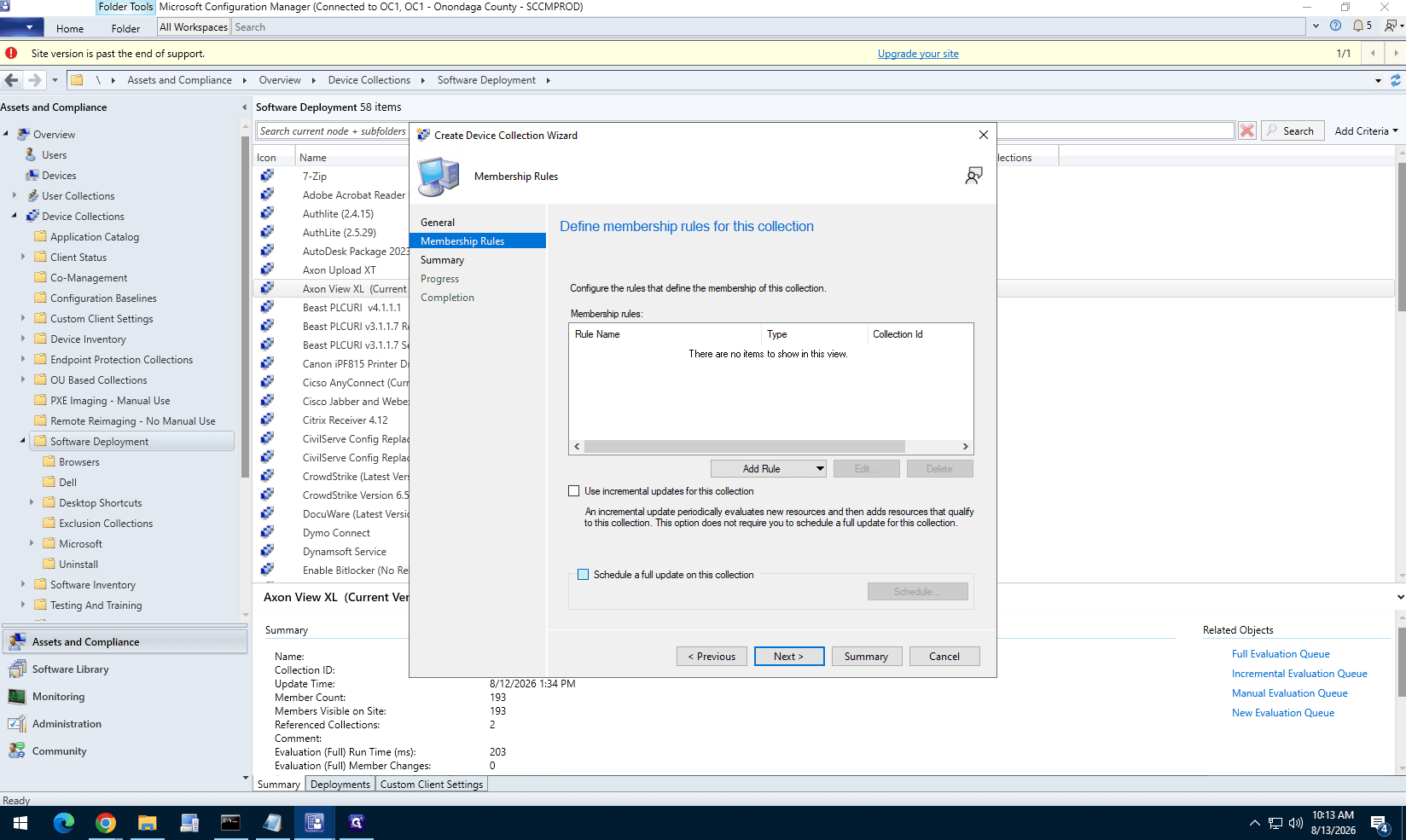
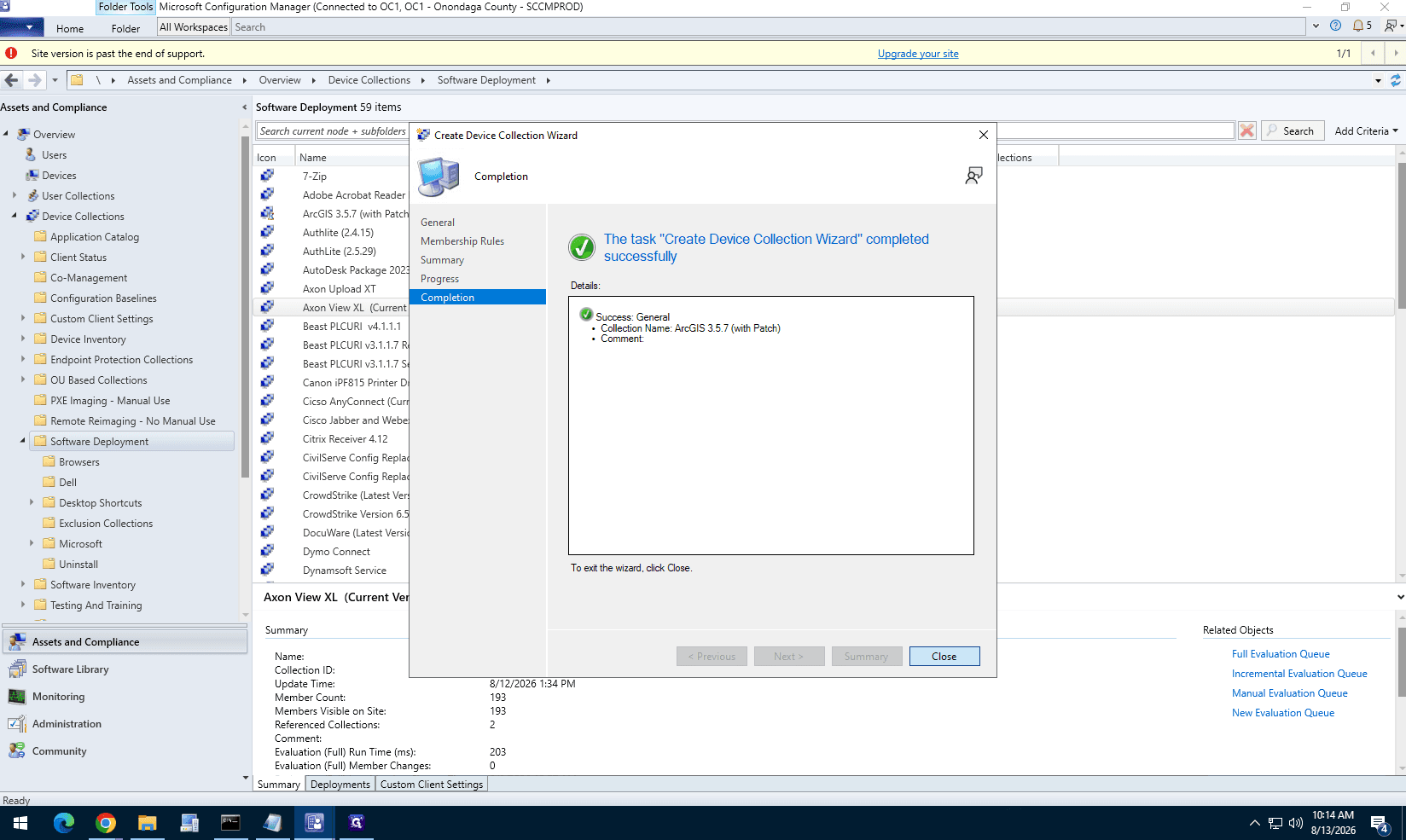
Part 5: Target a Device Collection
Q: How is the ArcGIS Pro patch detected after installation?
A: A file system rule checks the version of ArcGISPro.exe at C:\Program Files\ArcGIS\Pro\bin. If the version is greater than or equal to 3.5.7.57366, the patch is considered successfully installed.
Q: In what order will the applications install?
A: Because dependencies are chained, Configuration Manager installs them recursively: ODBC Driver 17, then ODBC Driver 18, then the base ArcGIS Pro package, and finally the ArcGIS Pro patch.
Q: How do I apply custom settings to the base ArcGIS Pro installation?
A: You can append custom arguments like ALLUSERS=1 and INSTALLDIR to the installation command line on the Programs tab of the application's deployment type.
Term | Definition |
|---|---|
Deployment Type | A set of installation files and command-line parameters in Configuration Manager used to deploy a specific application. |
Distribution Point | A server role in Configuration Manager that hosts the source files for clients to download software. |
Device Collection | A logical grouping of devices in Configuration Manager used as a target for application deployments or policy settings. |
Detection Method | A set of rules in Configuration Manager used to determine whether an application or patch is already installed on a client. |
Dependency | A Configuration Manager feature that forces one or more applications to install before the primary application deployment begins. |
MSI | A Windows Installer package format that contains the instructions and data required to install an application. |
MSP | A Windows Installer patch file used to deliver updates to an application already installed via an MSI package. |
PXE DP | A Distribution Point configured to support Preboot Execution Environment (PXE), typically used for deploying operating systems over a network. |