Learn how to manage orders requiring picking, assign tasks to warehouse staff, handle part shipments, and print pick slips in OrderWise.
By Lee Higgins
This guide demonstrates how to manage warehouse dispatch and assign picking tasks within OrderWise. Completing this workflow ensures customer orders are accurately allocated to warehouse staff and properly prepared for fulfillment.
This process is designed for warehouse managers and dispatch coordinators. It is typically used during daily operations to prioritize pending orders, handle shipment warnings, print pick slips, and manage active picking workflows.
1. Accessing Orders for Picking & Prioritising the picks
1
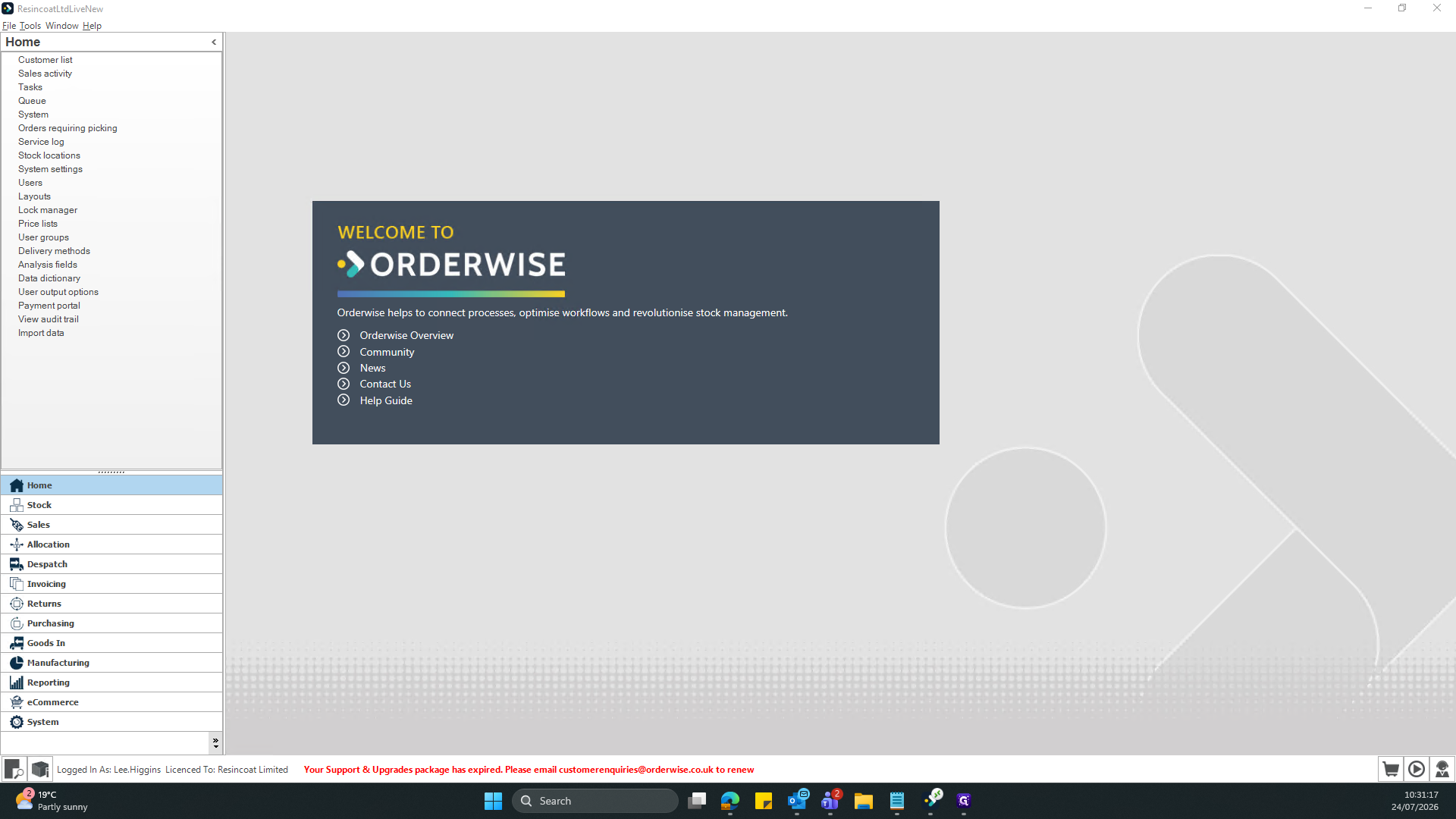
Click Despatch in the left-hand navigation menu to open the module.
2
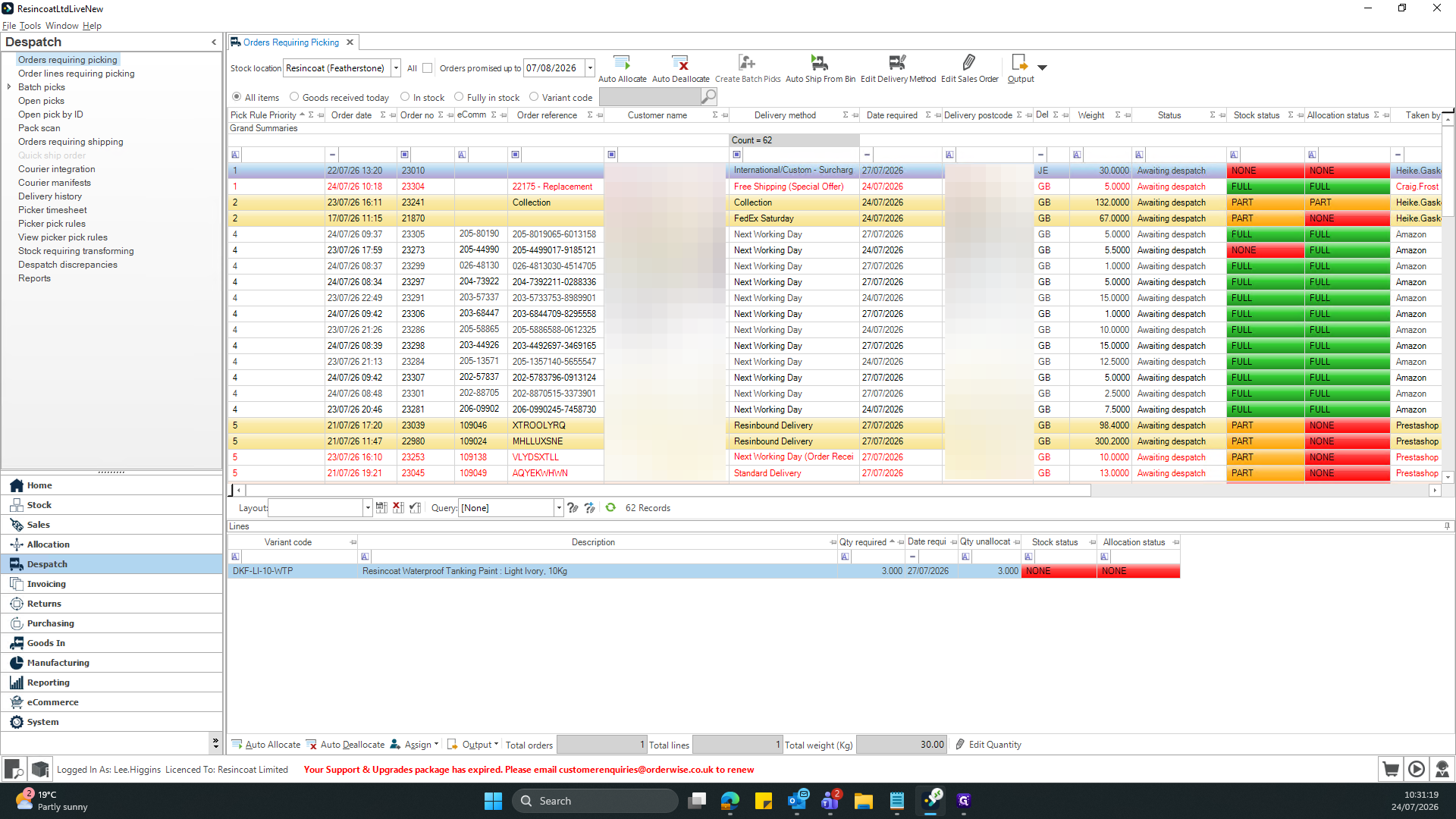
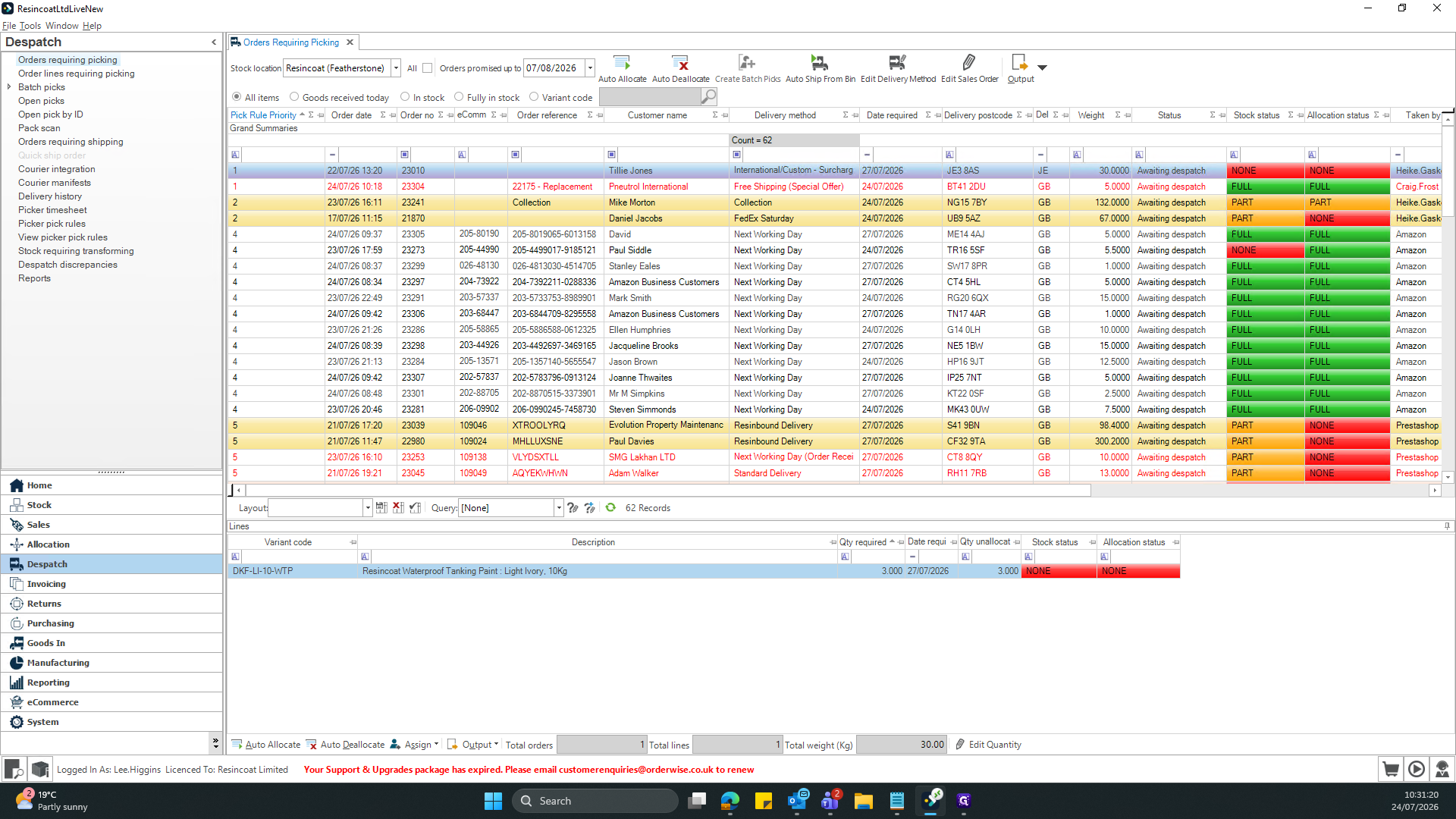
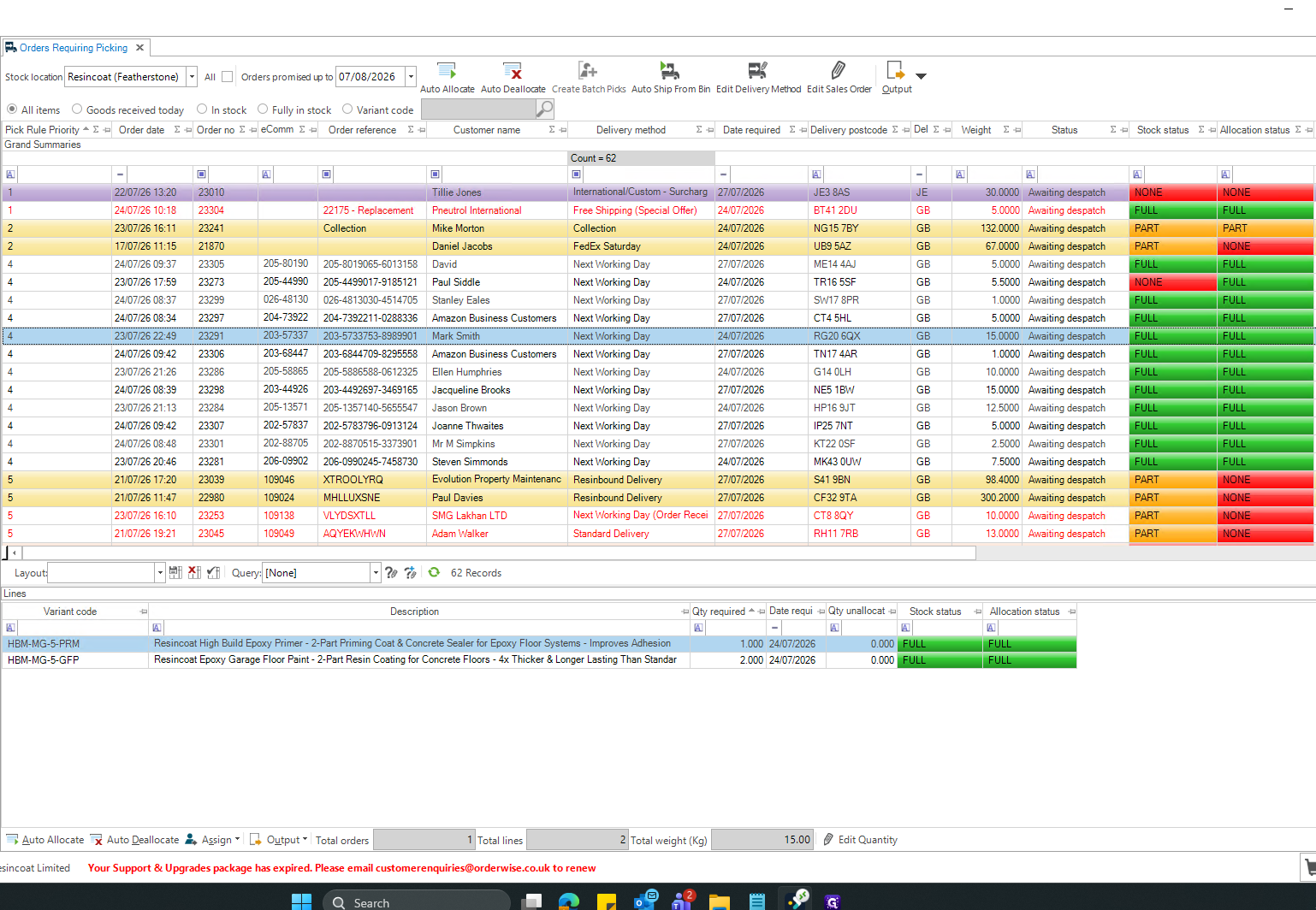
Click Orders requiring picking to view the Orders Requiring Picking dashboard.
3
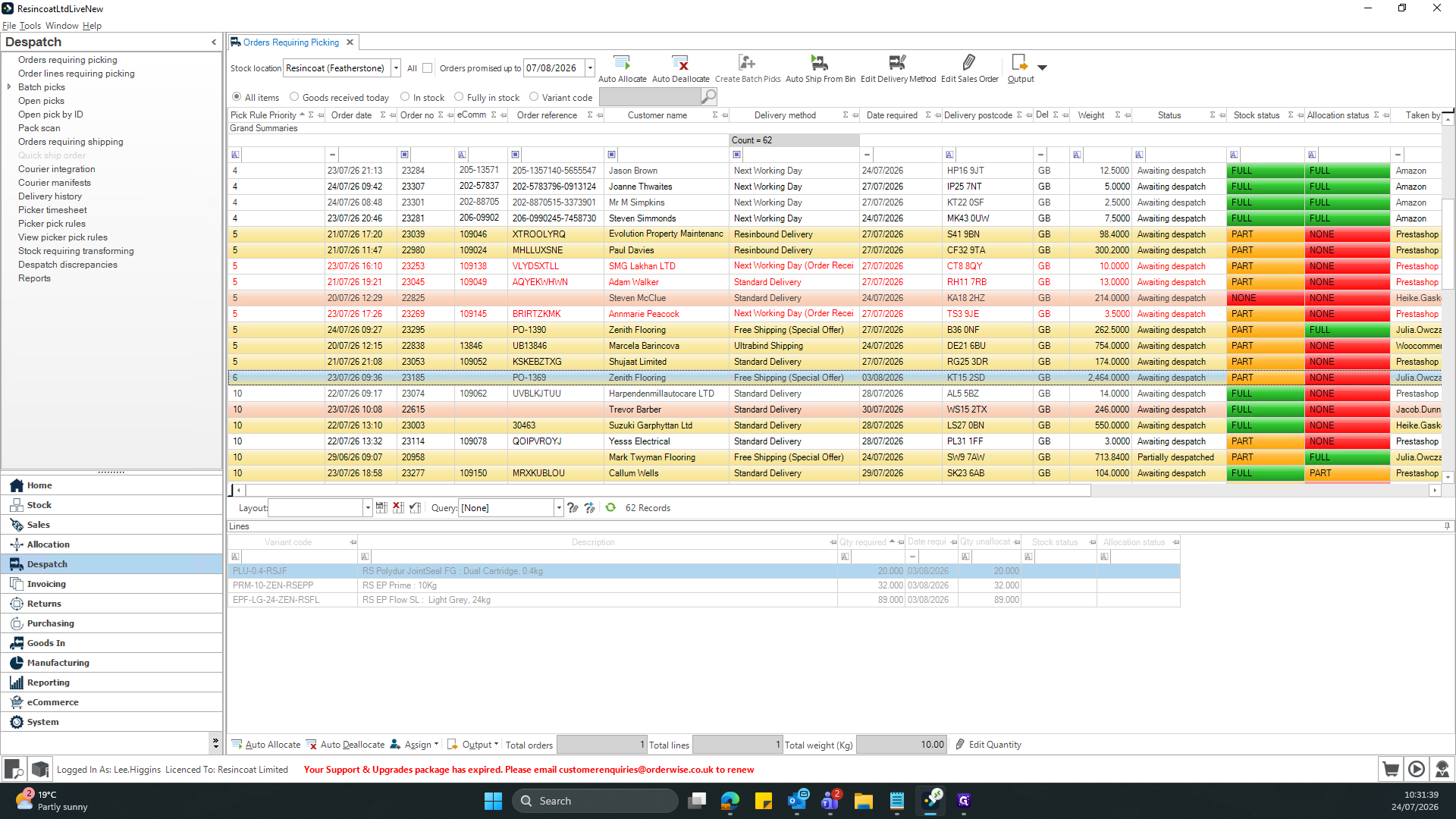
Click Pick Rule Priority to sort the picks by highest priority order (0 being the highest priority 99 being the lowest)
2. Assigning Orders to Pickers
4
Double-click the selected order to assign yourself/someone the order (For pallets, this is the yellow orders, where the weight exceeds 60KG)
5
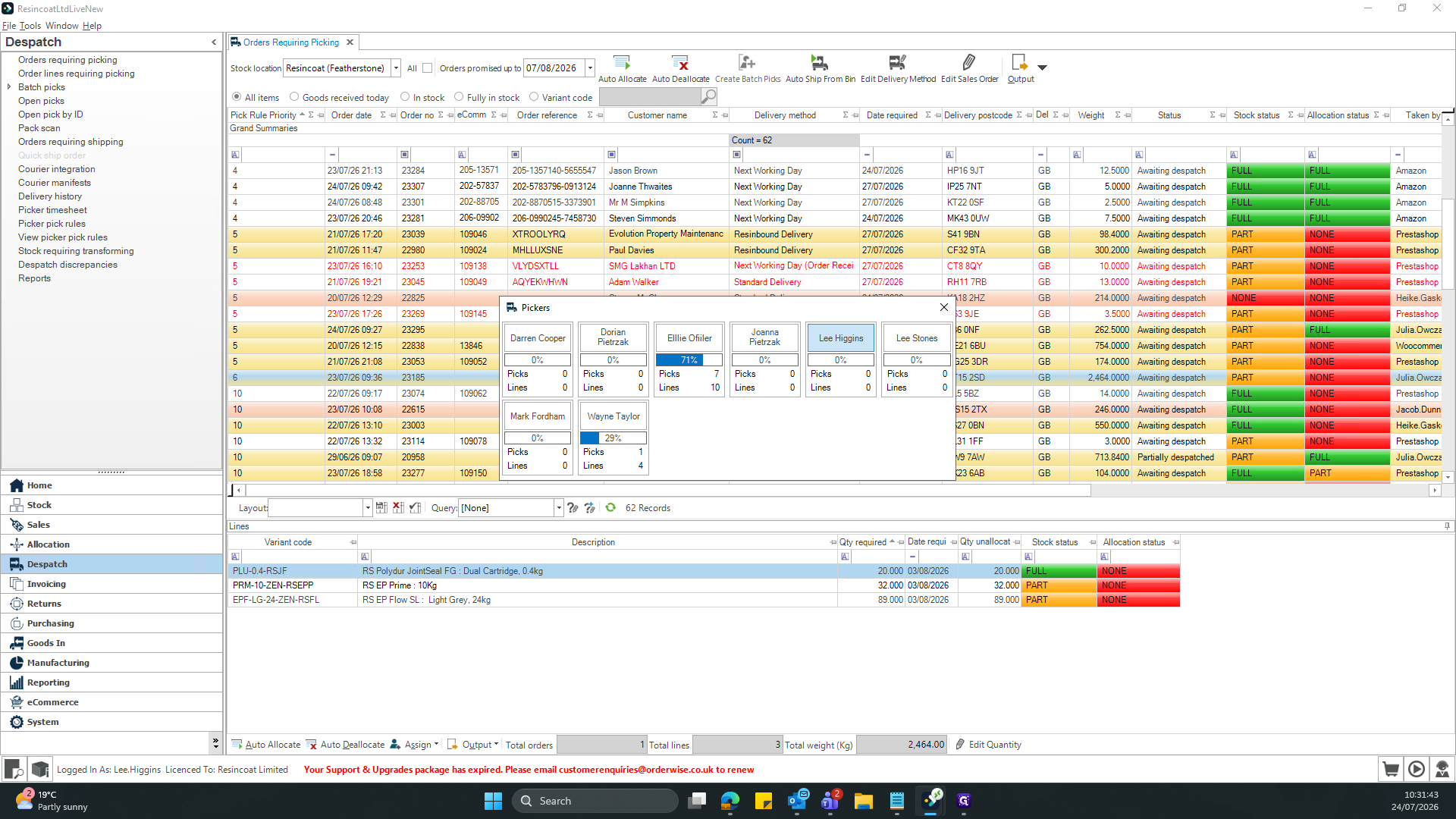
Select a staff member's name to assign it.
6
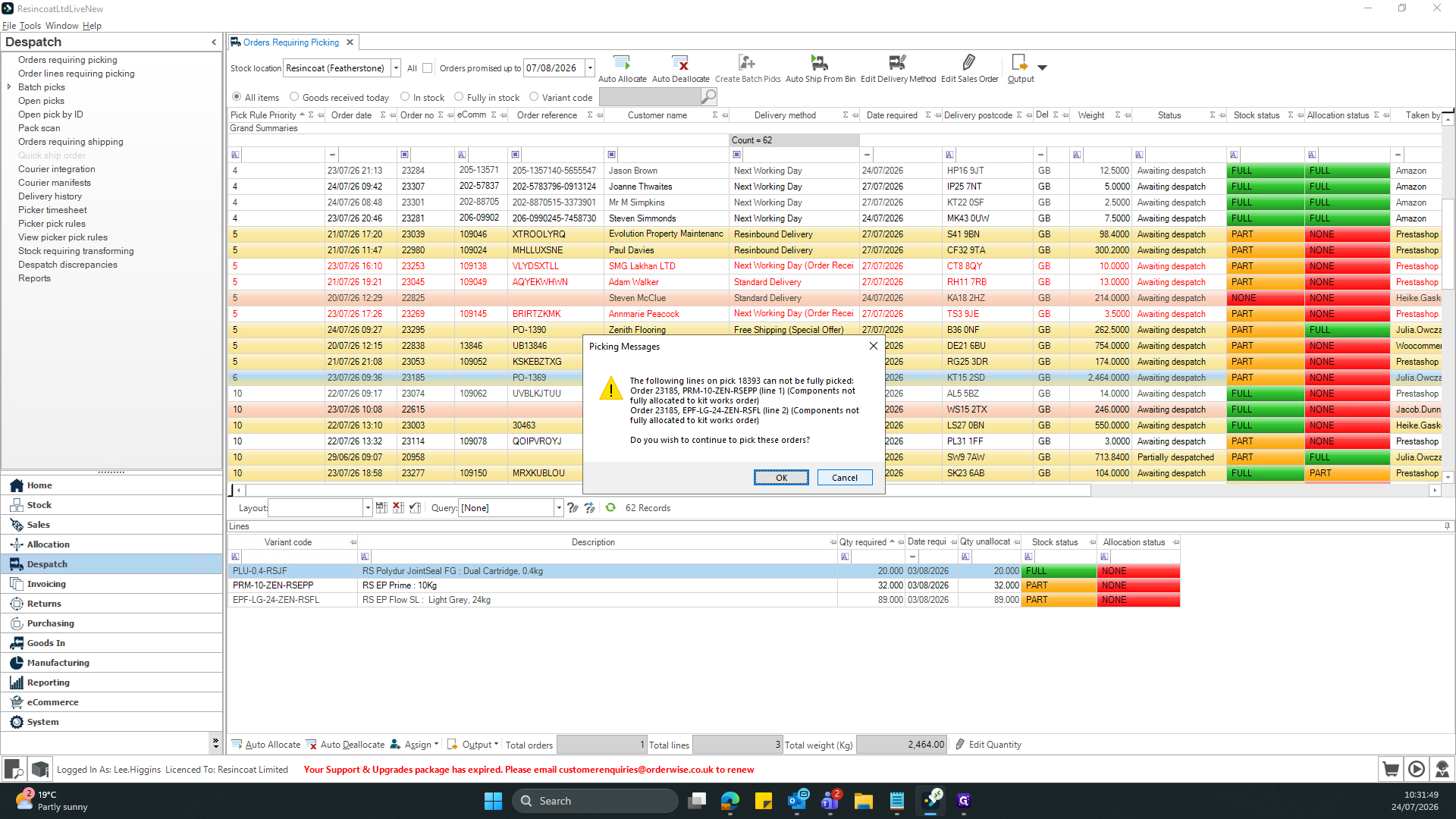
If a dialog box informs you that the lines cannot be fully picked, click Cancel to abort assigning this specific order. This is when Stock Status field is part (Amber) or none (Red).
7
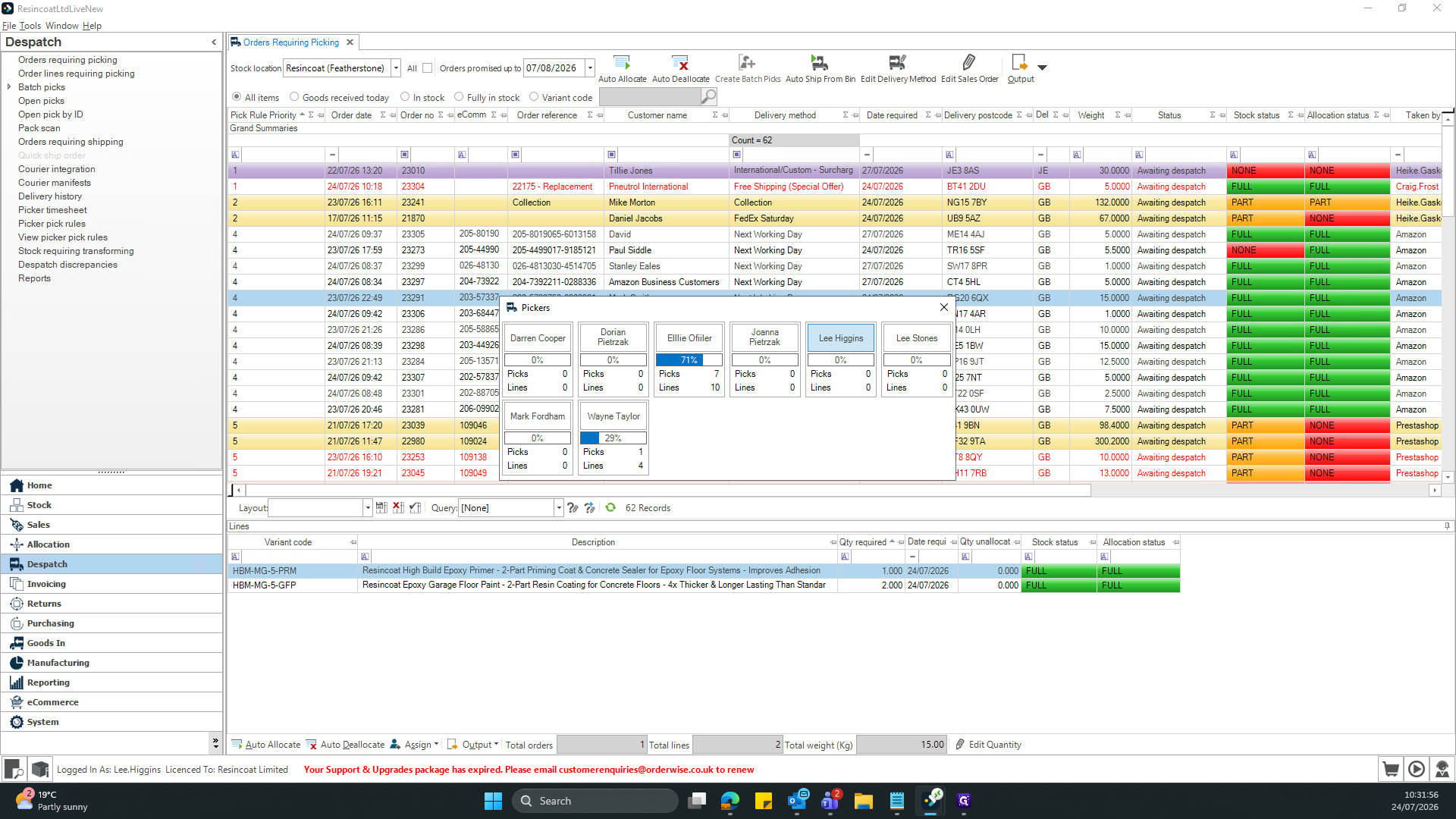
Double-click a valid order (Green stock status) to assign a fulfillable task.
8
Click on the designated picker's name to finalize the assignment.
Handling Part Shipment Alerts - When selecting orders, you may encounter alerts for customers with specific shipping constraints
9
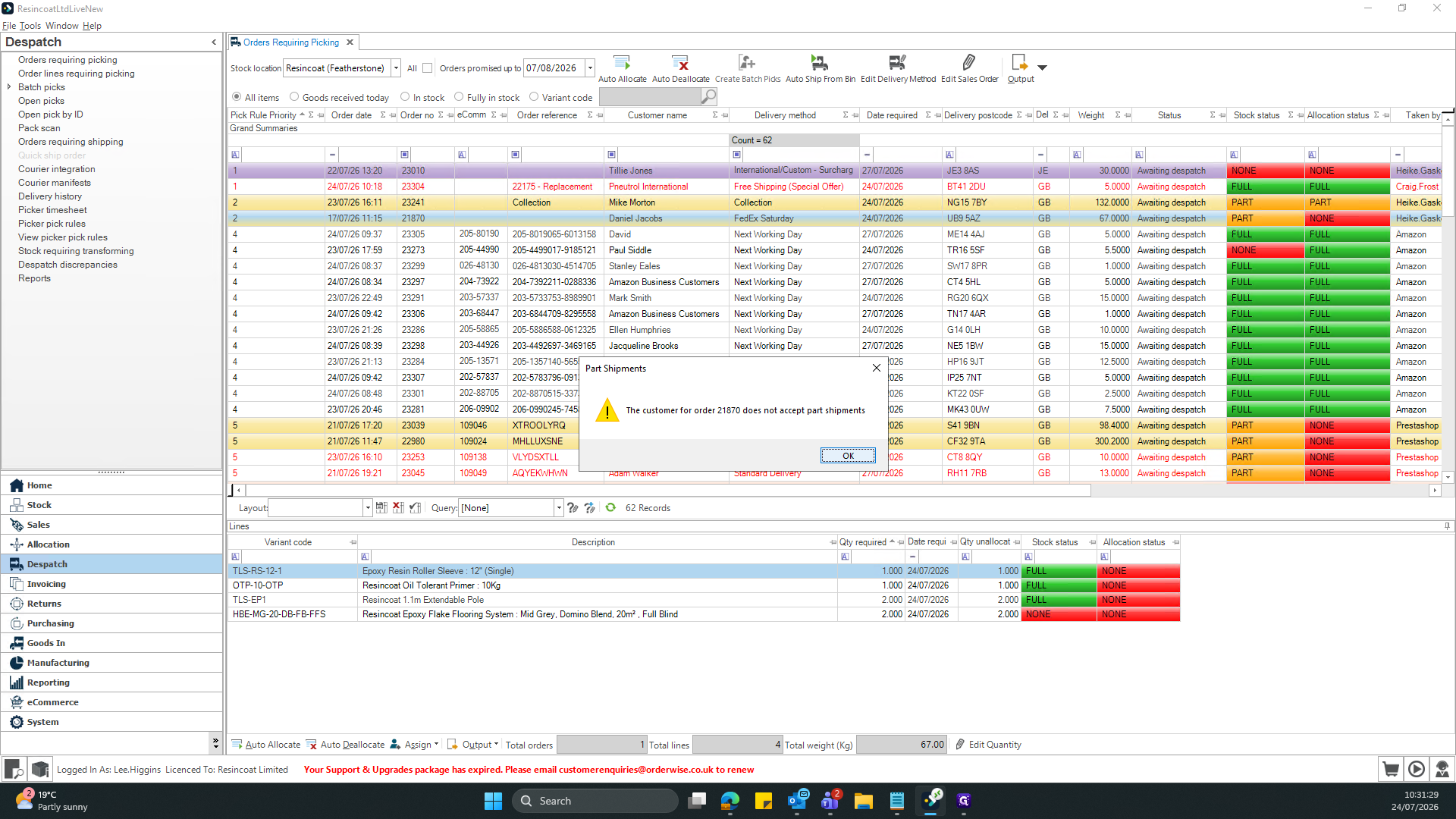
If a pop-up appears warning that the customer does not accept part shipments, click OK to acknowledge it and let Lee/Dorian/Ben know to enable part shipments for this customer before proceeding.
Part shipment alerts ensure you do not partially fulfill orders for customers who require their entire order to be shipped at once. Pay close attention to these prompts before assigning tasks, this may also be due to orders being returned to the pick queue.
3. Printing Pick Slips
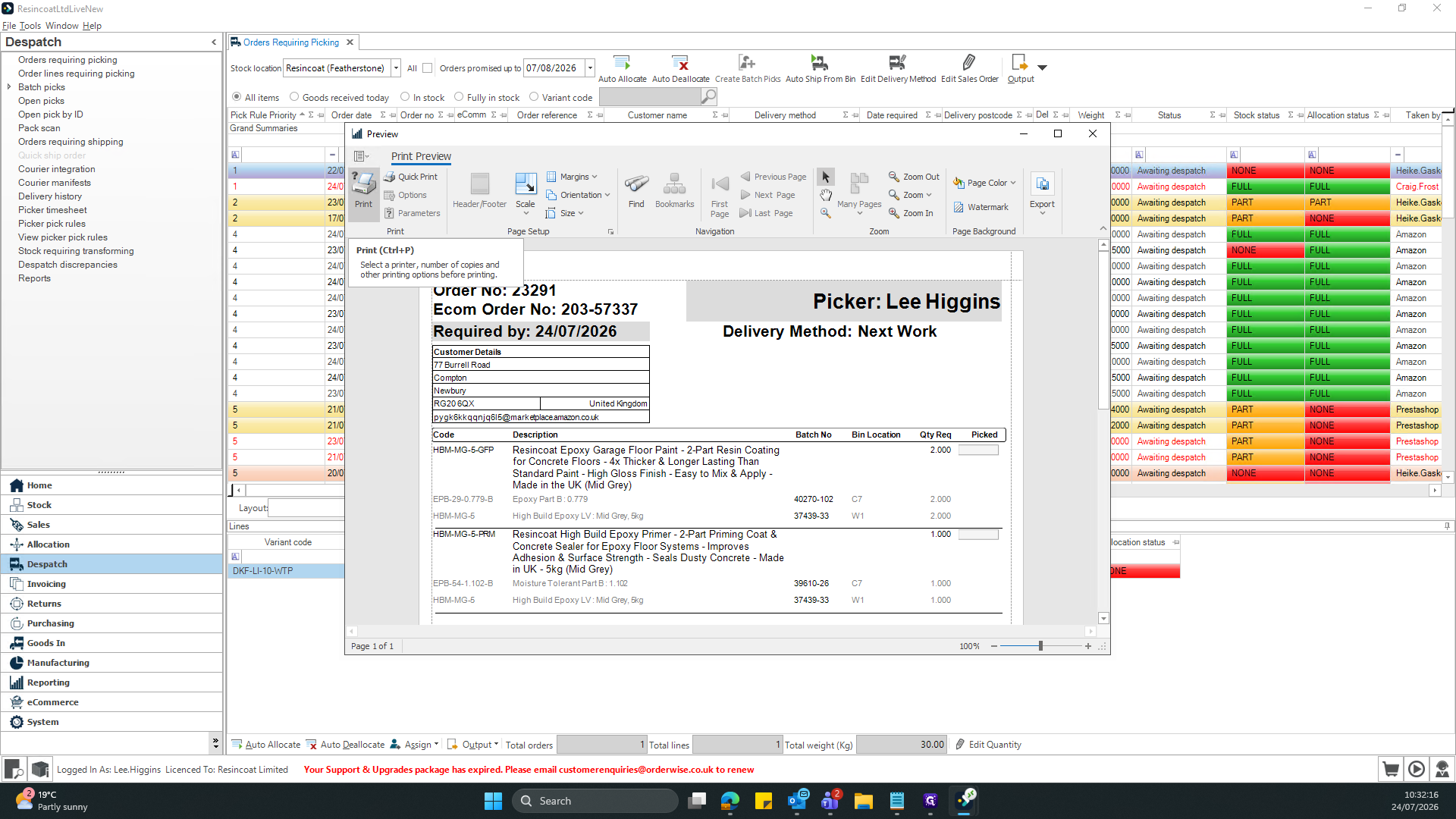
A printout should automatically print out once the order is assigned, you can manually print these however should you need another.
10
Click the Print button within the top ribbon of the Print Preview window.
11
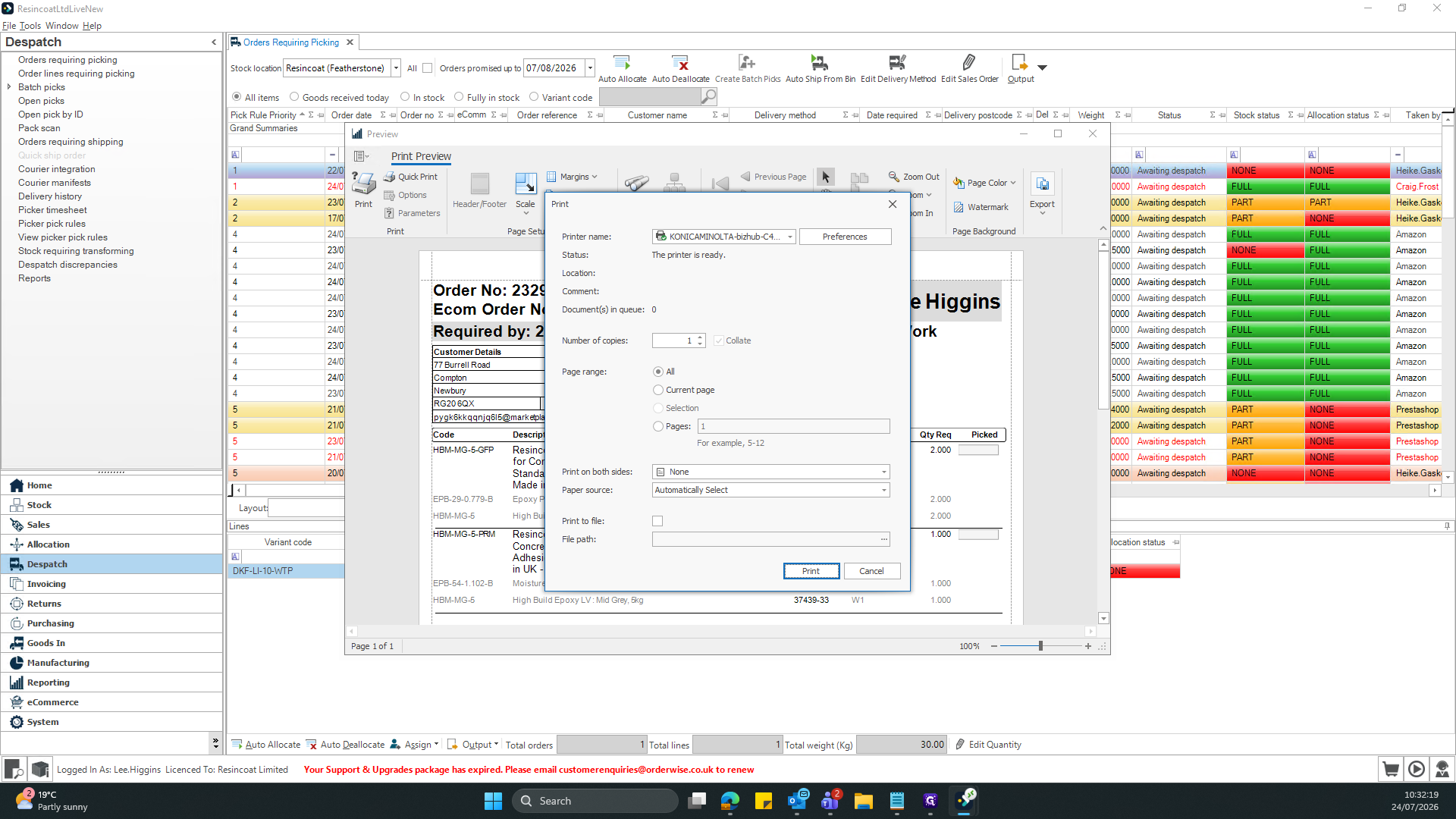
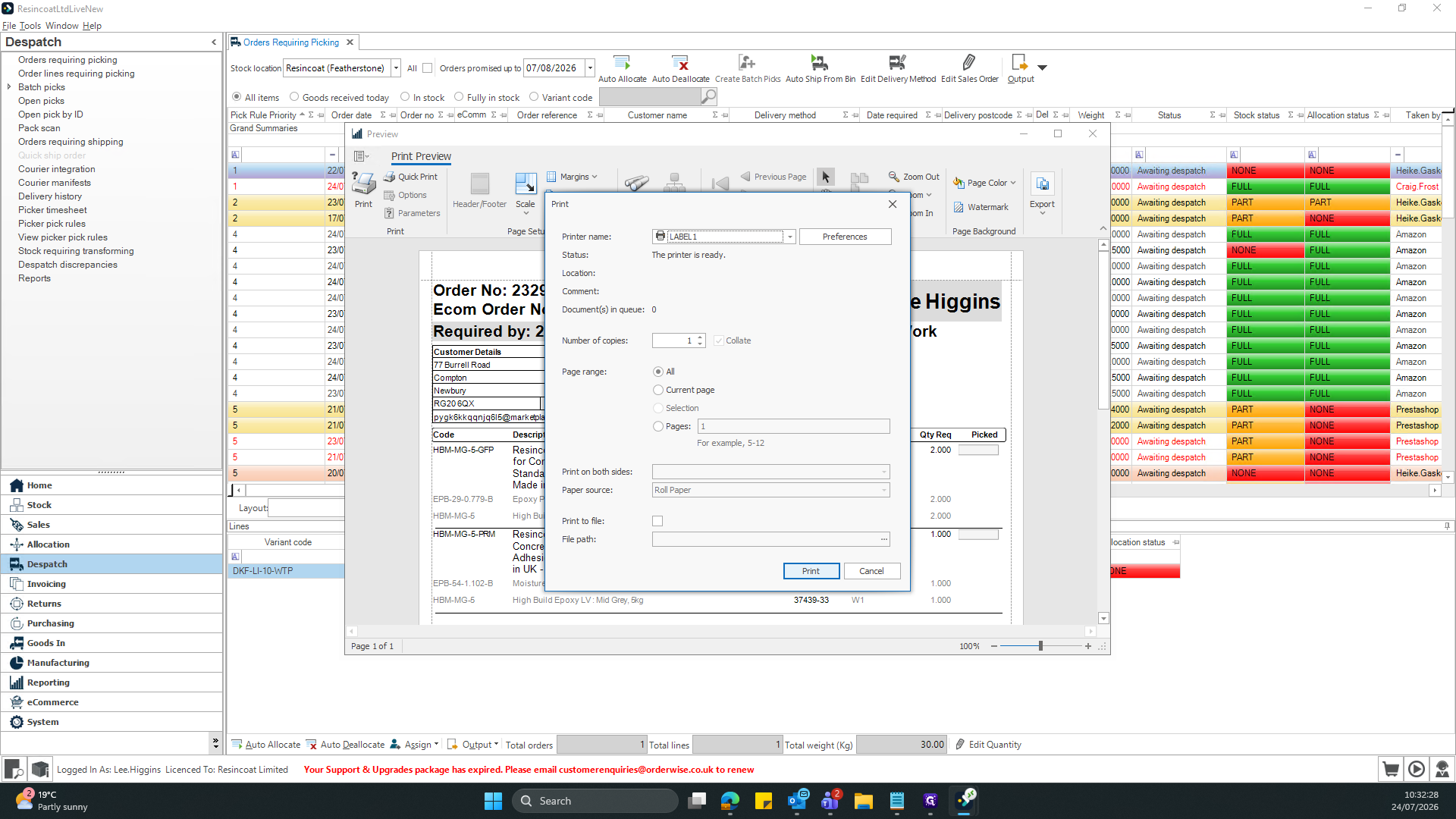
Select the appropriate warehouse printer from the dropdown menu.
12
Click Print to send the document to the printer.
4. Starting the pick on the mobile device.
13
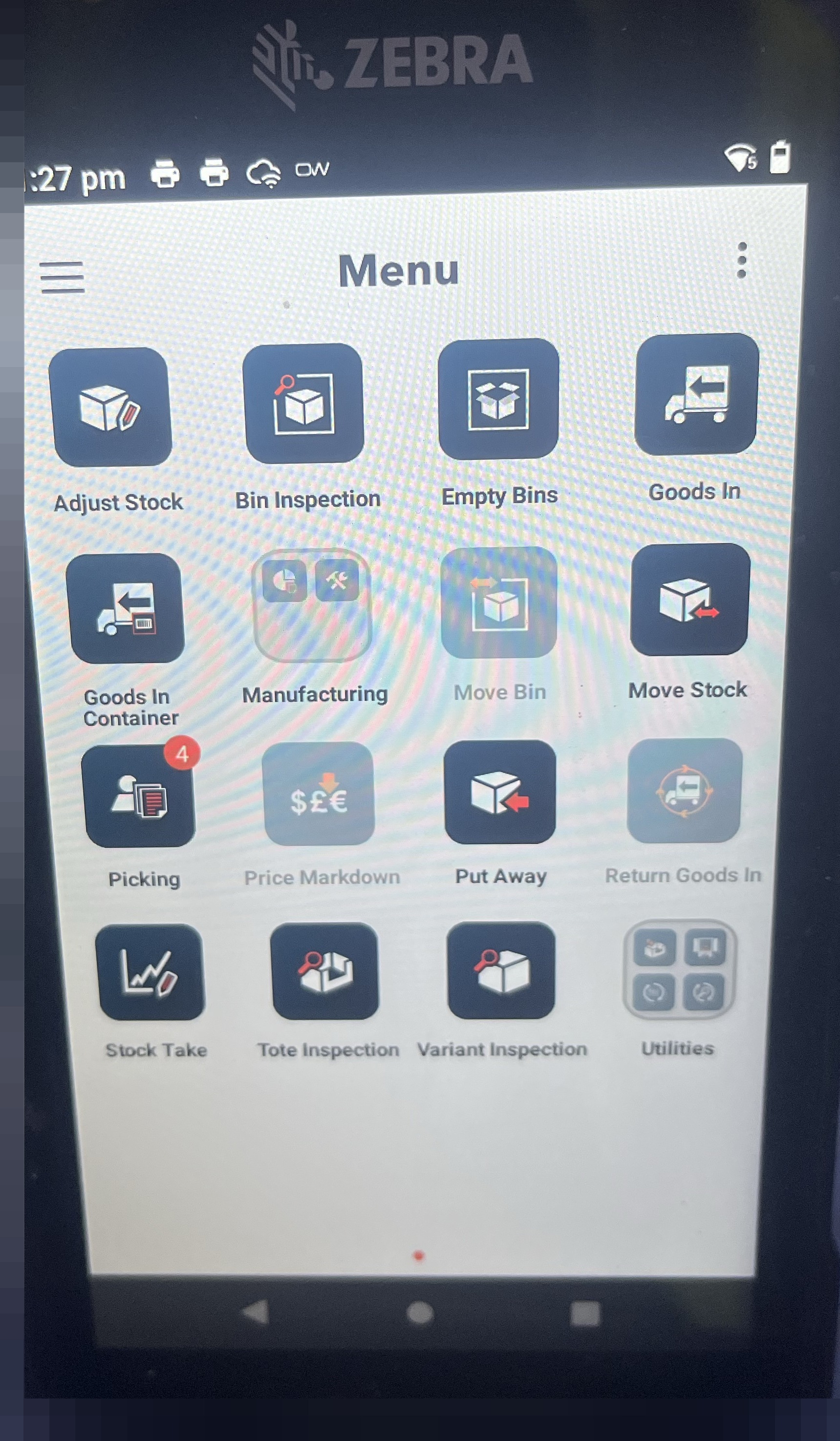
Open the Picking module on the mobile device.
14
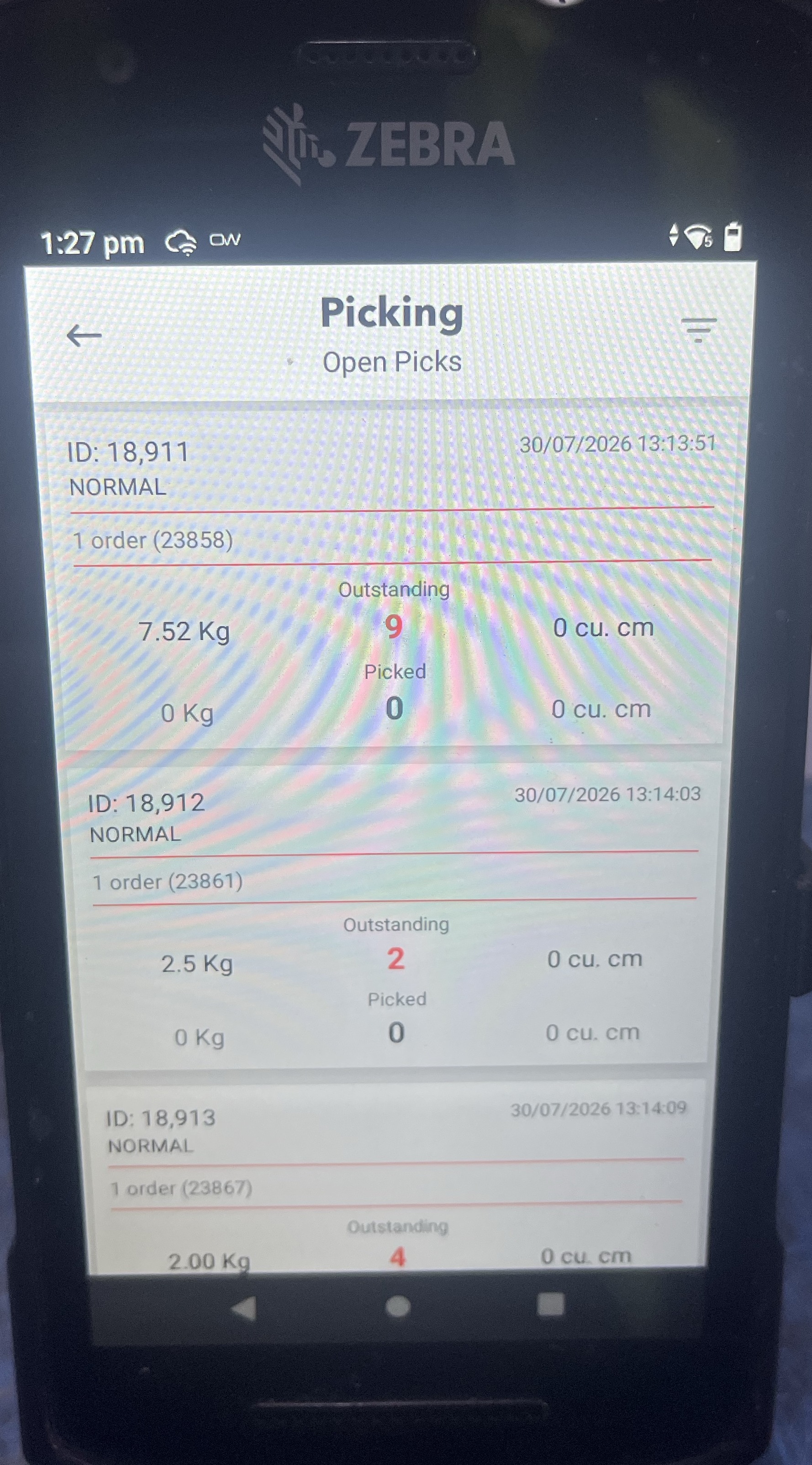
Select the pick you wish to progress with if you have multiple picks on the mobile device.
15
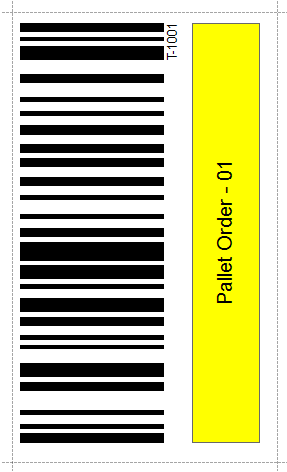
Scan a pallet tote barcode to start the pick off - These are not on a physical box due to no physical tote being used, they are kept in the tray on the bench. (Identifiable by "Pallet Order" on the tote labels.
If you receive a message to start a multi-tote pick, the tote is still in use in the system and should not be used. Pick another tote to continue and flag the other tote in the teams chats.
16
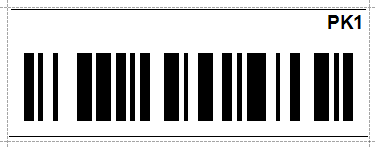
Scan the bin number for the item it's requesting, this is located on the racking or cage dependant upon what you're picking.
17
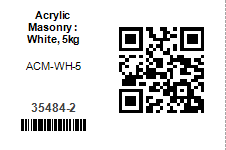
Scan the single scan QR code, which will automatically scan the variant label and the batch label.
NOTE: If this is an old label, you will need to manually scan the variant and the batch separately.
18
Enter the quantity of the item you have picked (Specifically of that batch)
Once the quantity picked is equivalent to the quantity to pick, the scanner will move onto the next variant automatically.
19
You will need to repeat this for each variant until the pick shows as completed. This is when you see the green bubble showing "Picking completed"
TIP: You can view the product labels E.G "High Build Epoxy Garage Floor Paint Bundle" to see what front labels you need by pressing the 3 dots in the top right corner and selecting "Pick Detail"
20
Once the last item on the order has been picked, the pallet will automatically be shipped to Tap Freight - No label will be produced (This is manually printed by Customer Services)
5. Front Labels - Printing and applying.
21
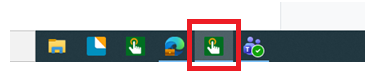
Open the bartender software on the PC if it closed - This should always remain open, sometimes this may be minimised at the bottom of the screen.
22
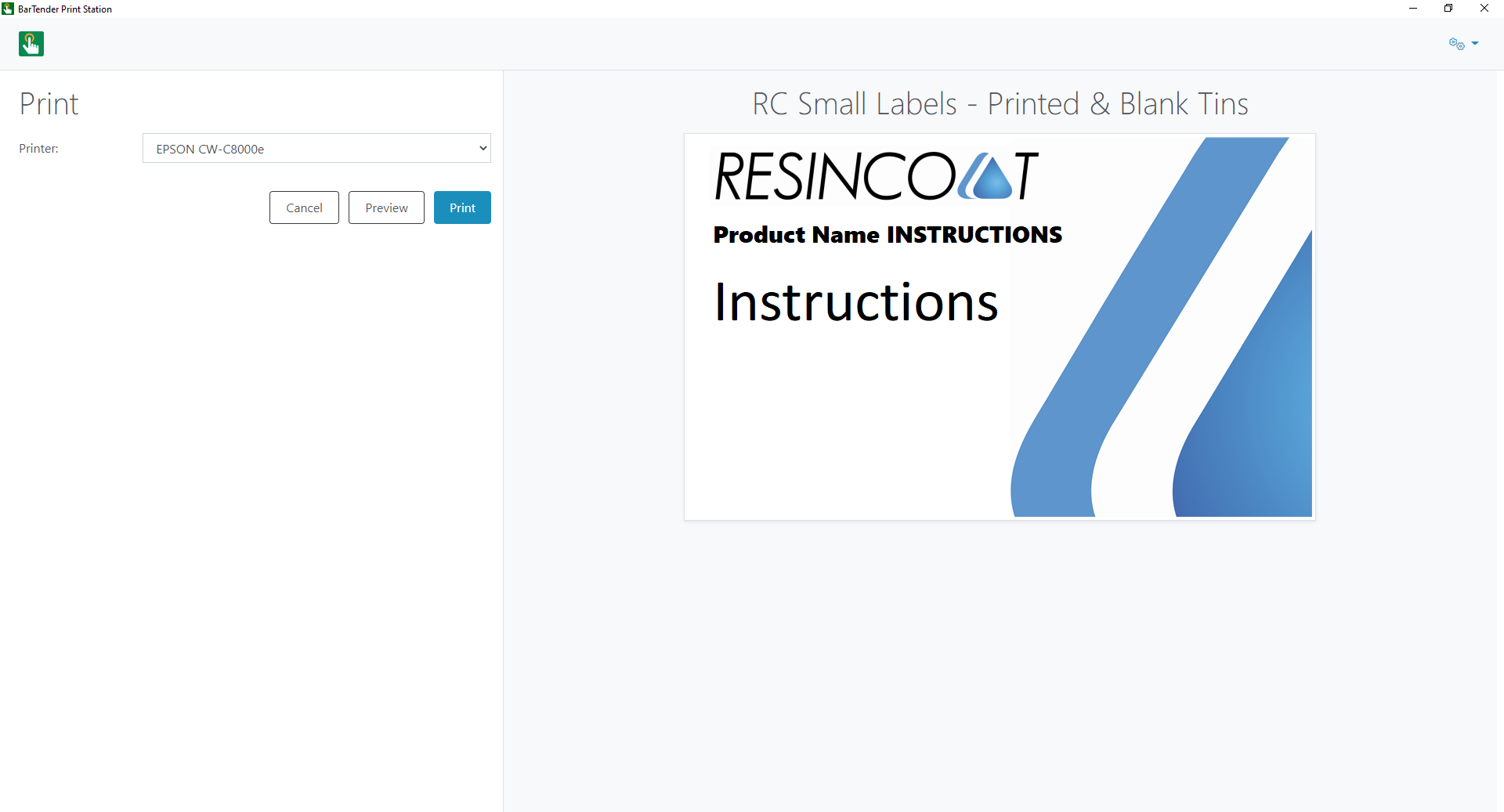
Select the template you wish to use, E.G Small Labels folder hosts Resin technologies & Resincoat small labels within.
23
Select the printer "Epson C8000E" if it isn't already selected and press print. This will open up a pop out window, where you can search for your product you need front labels for.
24
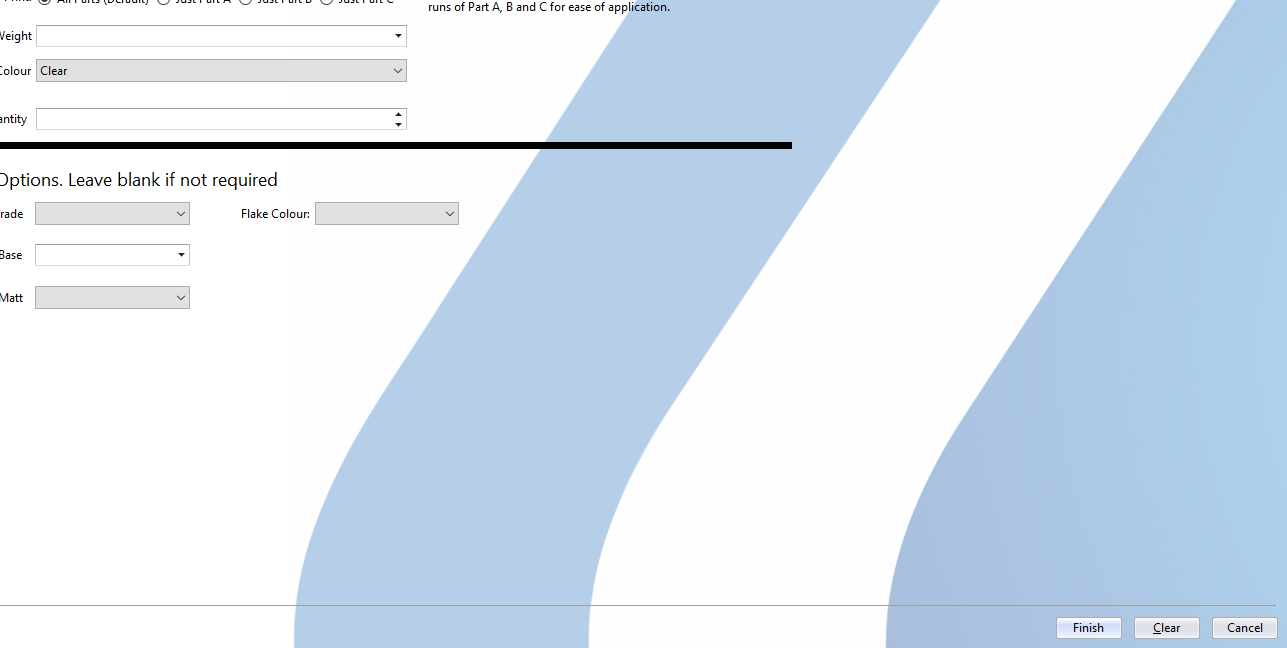
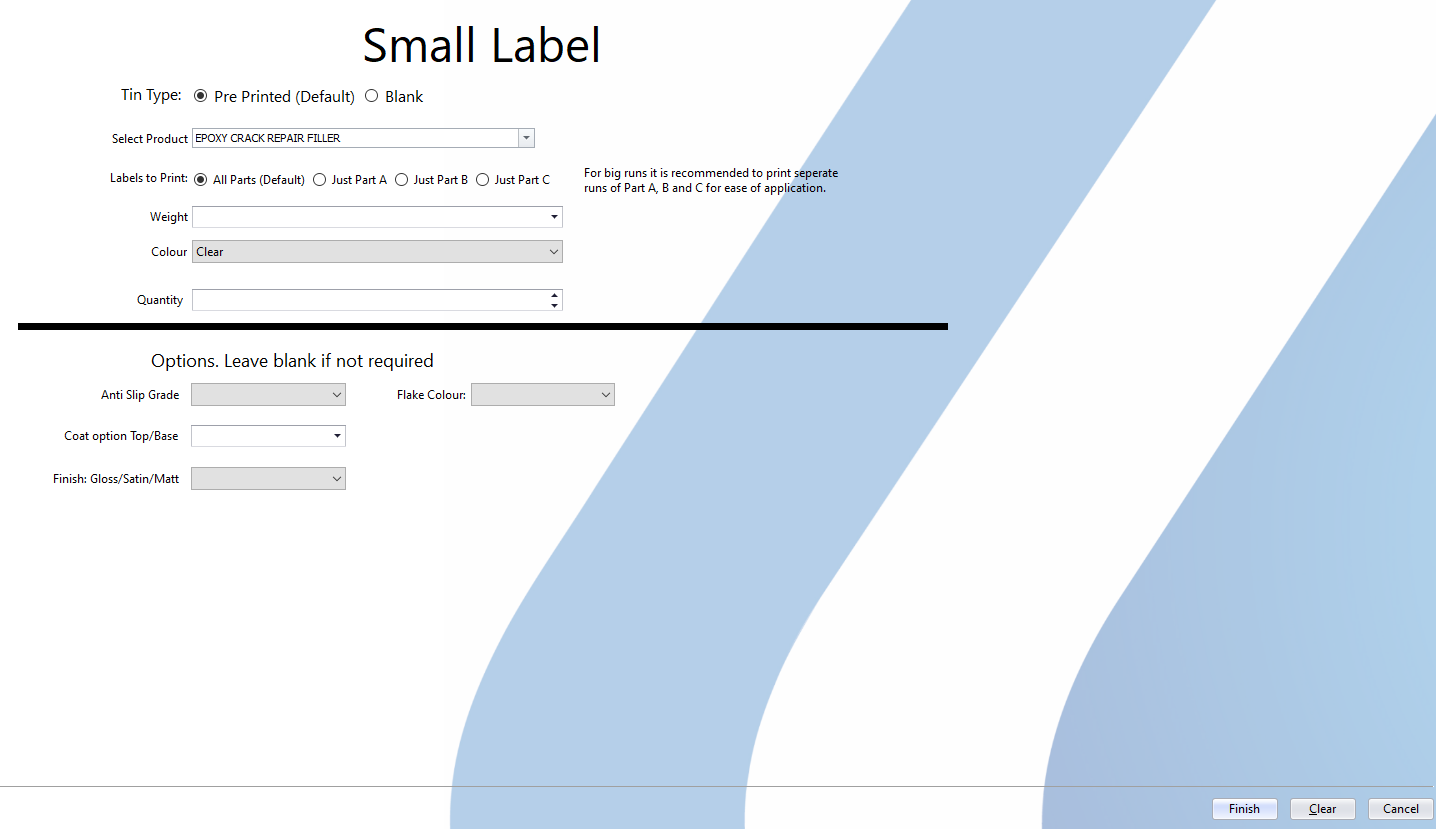
Search for the product and press the word "I.E Polyaspartic floor paint" this will then load the print screen where you must enter the weight, the colour and the quantity.
25
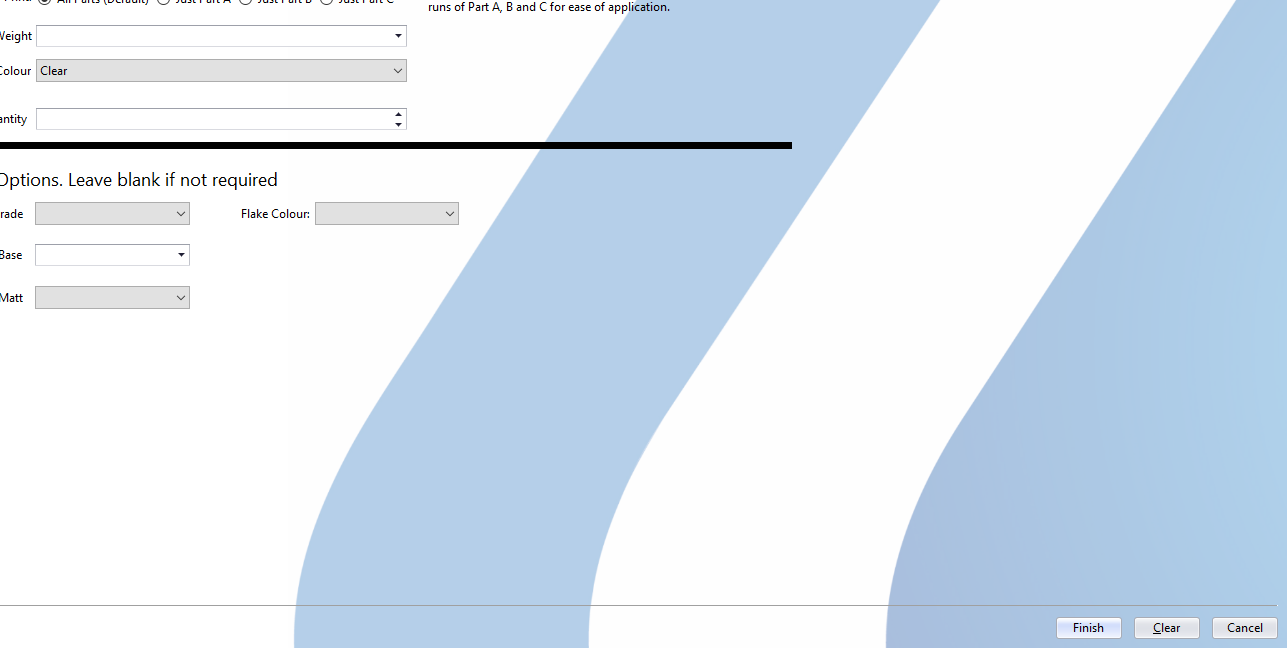
Once all fields have been filled out correctly, press "Finish" in the bottom right corner. The number of labels is equivalent to the "Quantity" field you have filled out.
Additional options may vary such as gloss/matt depending if it's a metallic product in the bottom section.
6. Packing the order
26
Pack the items either into a pallet box or individual boxes dependant upon the order, shrink wrap the pallet and label the pallet up with the order number and a cone on top. This will help identify the pallet later when customer services provide a label.
Q: What happens if a customer does not accept part shipments?
A: The system will display a warning pop-up alert when you attempt to process the order. You must acknowledge the alert and verify that the full order can be fulfilled before assigning it to a picker.
Q: How do I evaluate picker workloads before assigning a task?
A: When you assign an order, the Pickers modal window automatically displays the current picking progress percentages and workloads for each team member.
Q: Can I cancel a picking task after it has been assigned?
A: Yes, you can navigate to the Open picks tab, select the active task, and click the Cancel Pick button to revoke the assignment.
Term
Definition
Despatch
The system module dedicated to managing outbound shipping and order fulfillment operations.
Pick Rule
A configured set of criteria that determines the order or priority in which items should be picked from warehouse locations.
Part Shipment
The process of fulfilling only a portion of an order's items because the remainder is currently out of stock.
Pick Slip
A printed document that guides warehouse staff on which items to gather and their locations for a specific order.