
Part 2: Extract and Upload Trial Balance Data for Adaptive Planning - Part 2
Learn how to properly erase old data, import new actuals from SAP BO into Adaptive Planning, and validate the results against a Consolidated Trial Balance.
This guide walks you through replacing existing trial balance data from SAP BO into Adaptive Planning. You will learn how to erase previous data safely, import updated actuals, and validate the new data against the Consolidated Trial Balance.
Step 1: Erase Previous Data
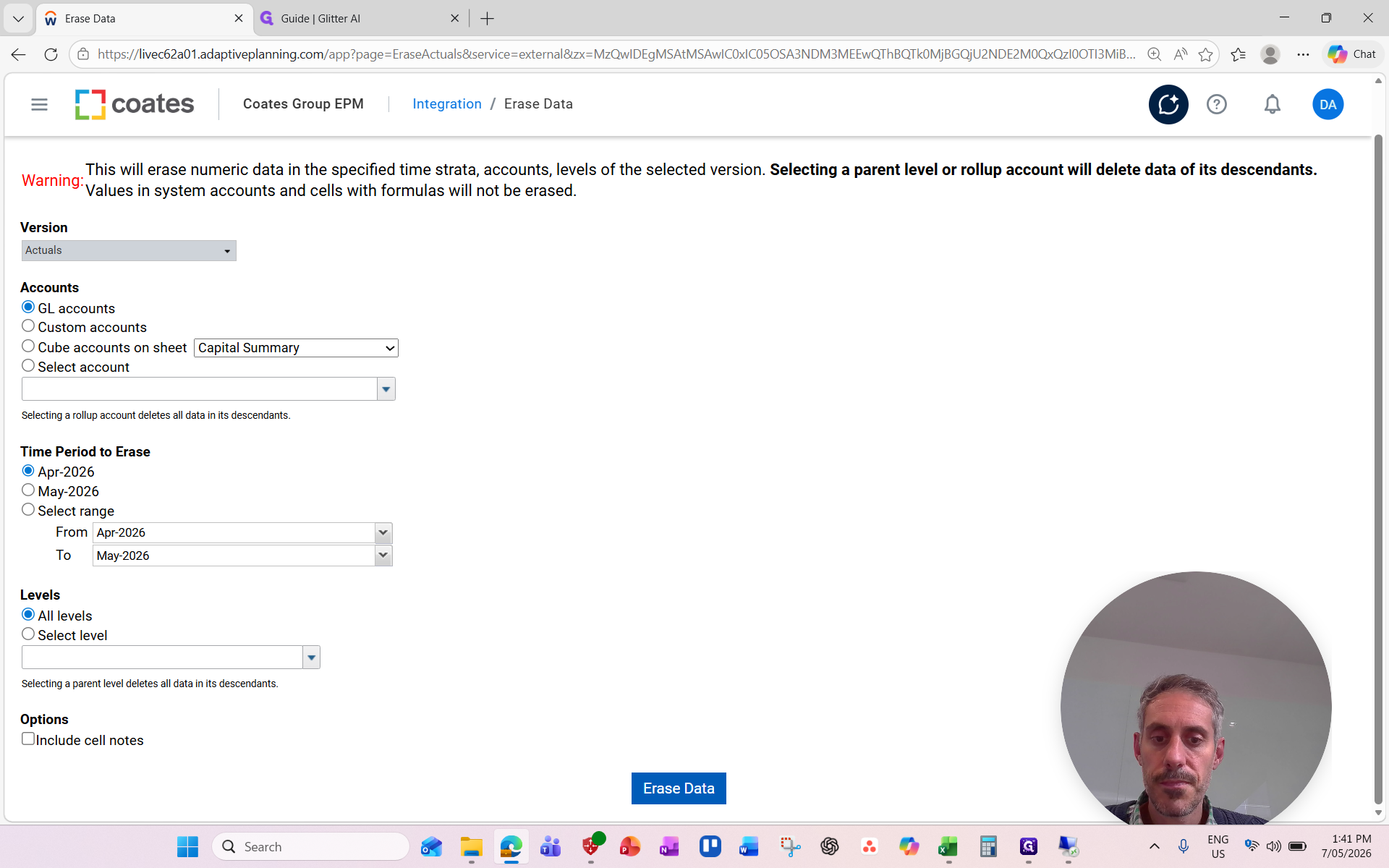
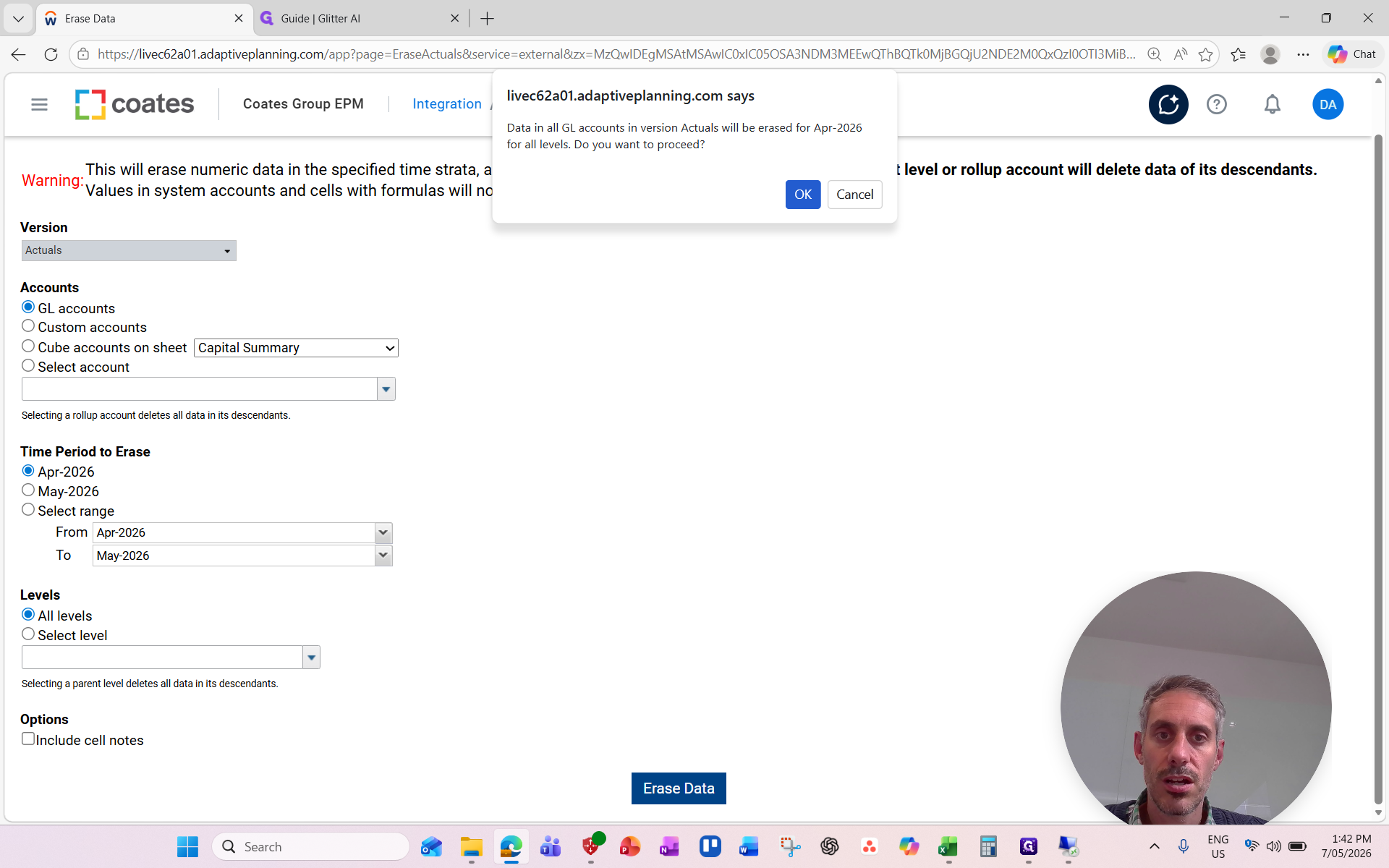
Before loading a new dataset, clear the existing data for the target period.
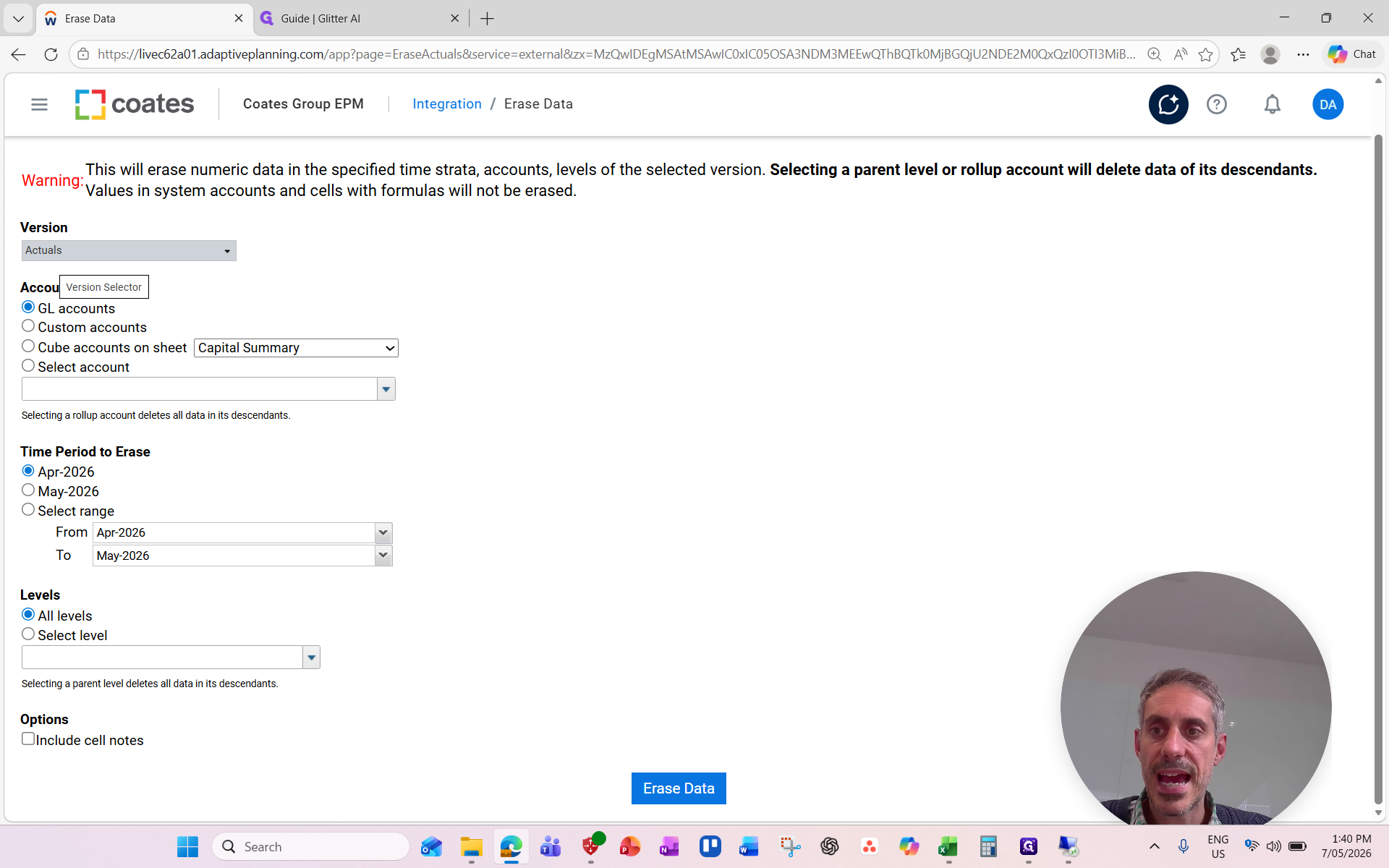
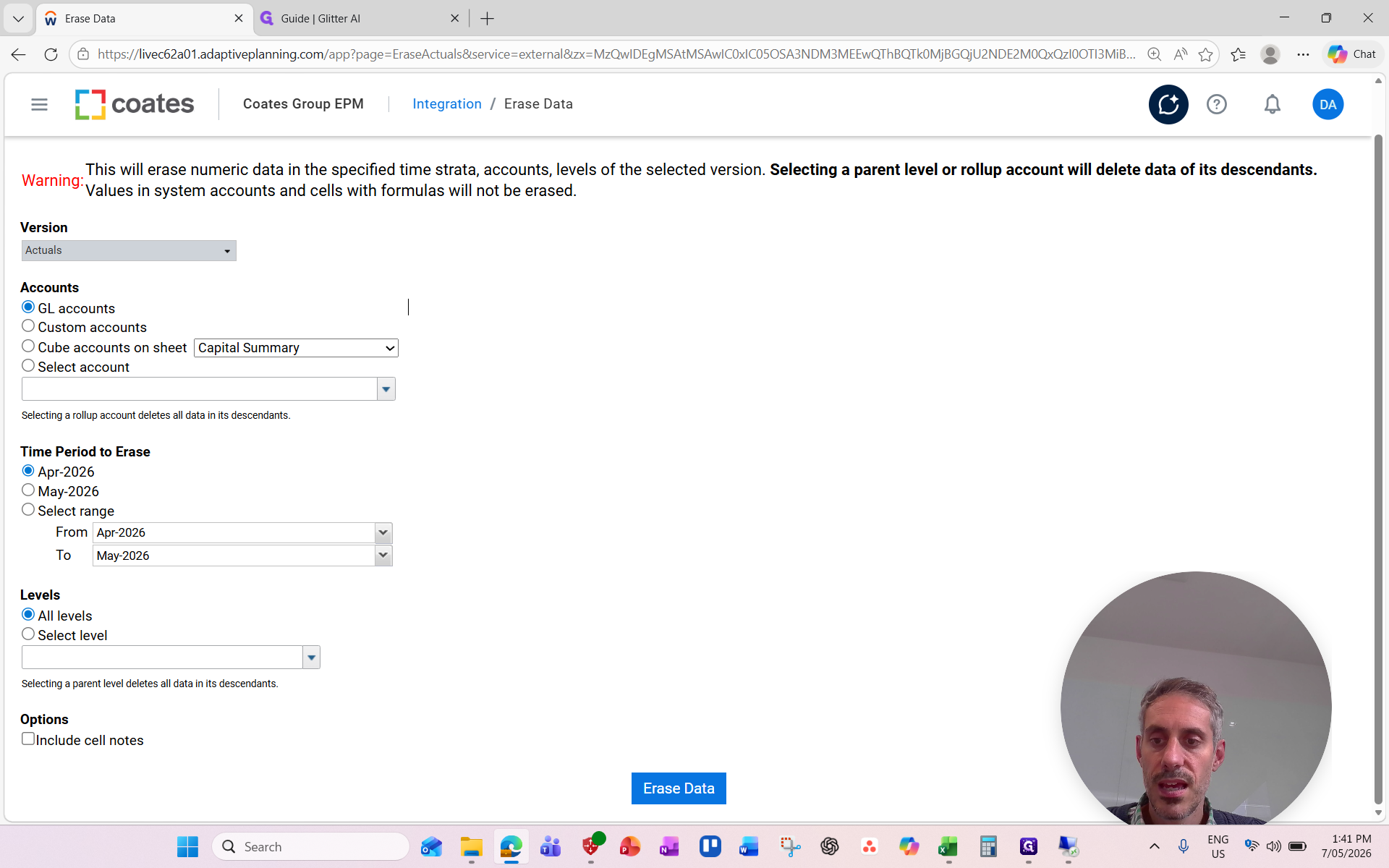
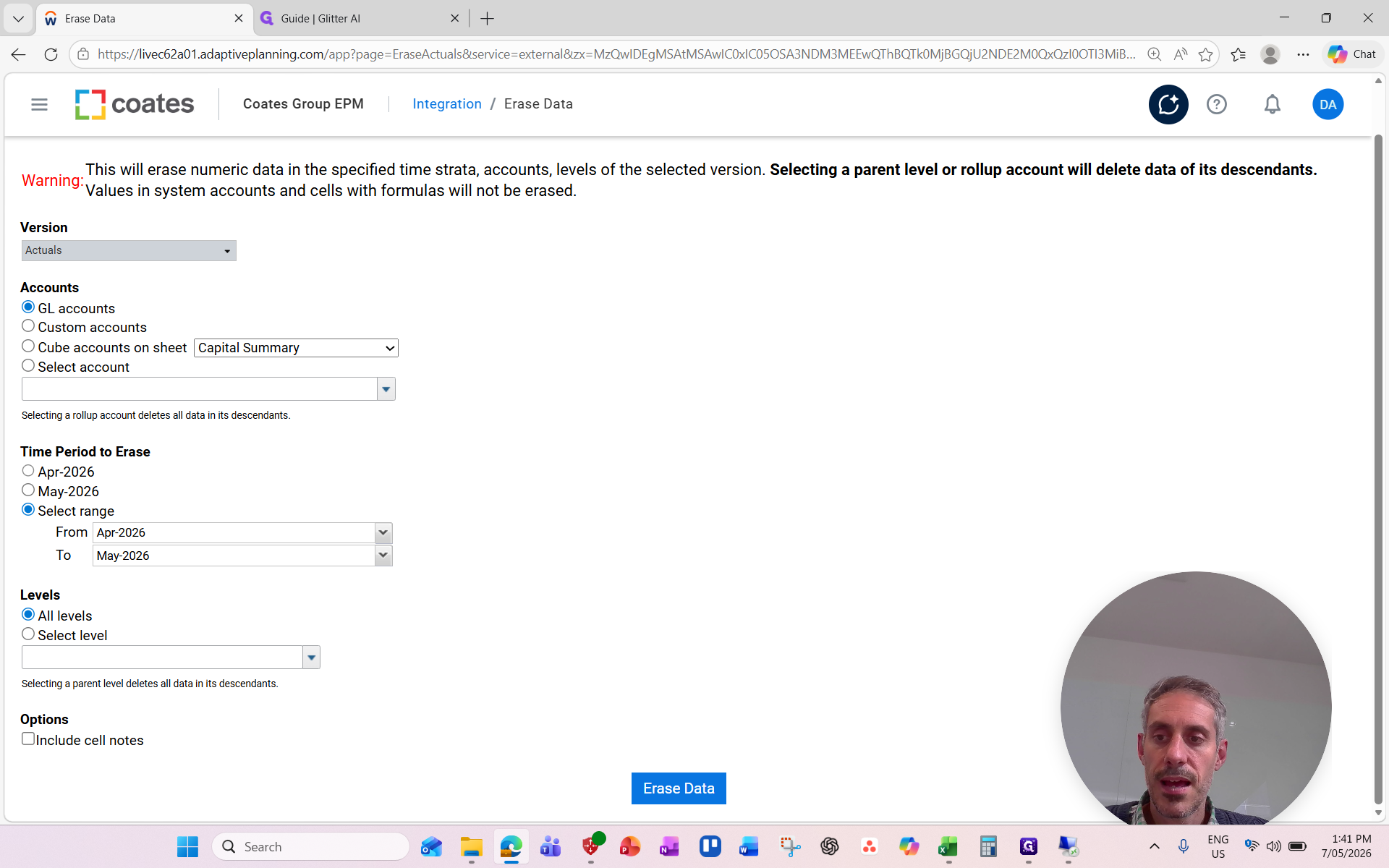
Set the levels to All levels to ensure all appropriate cost centers are cleared.
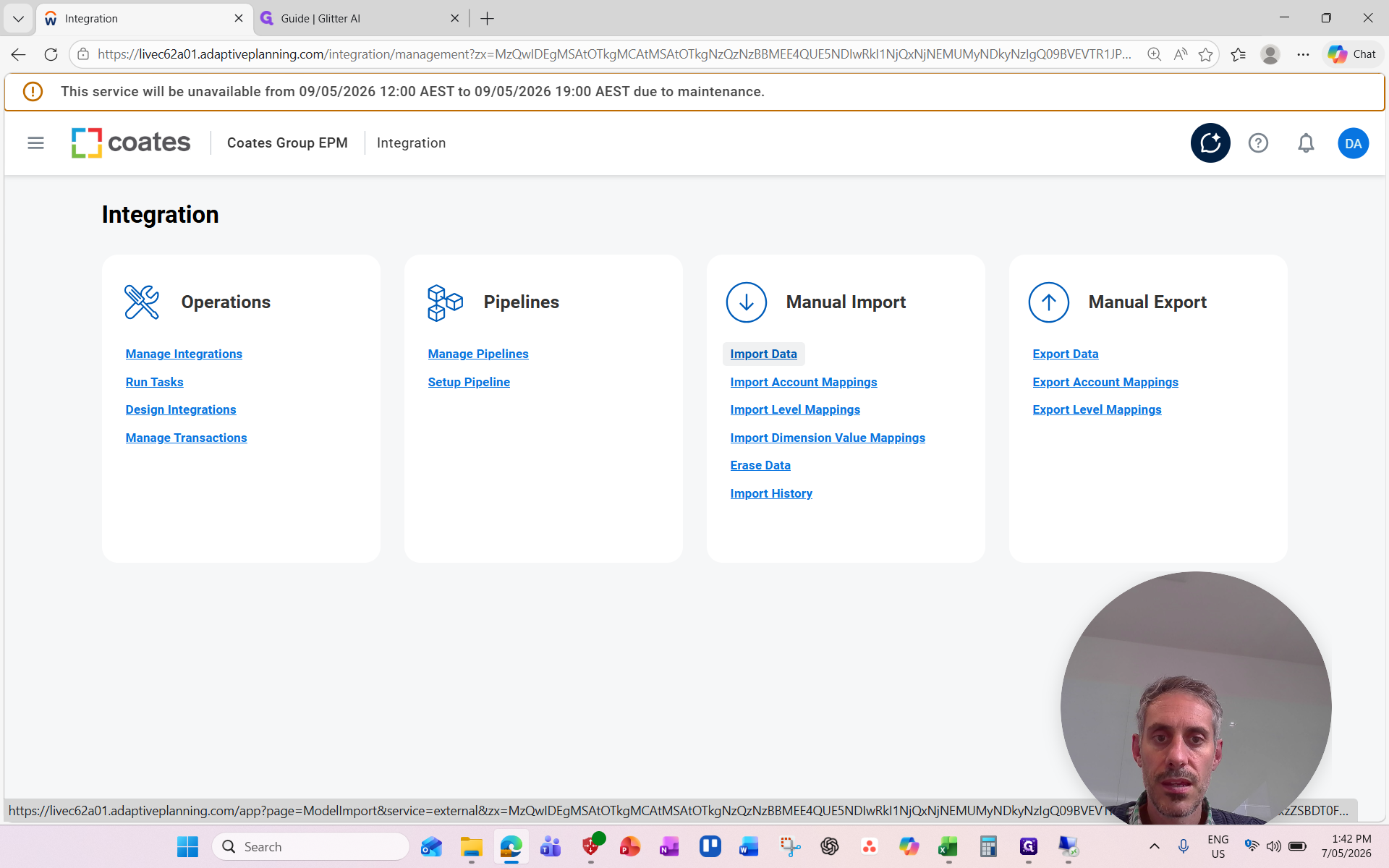
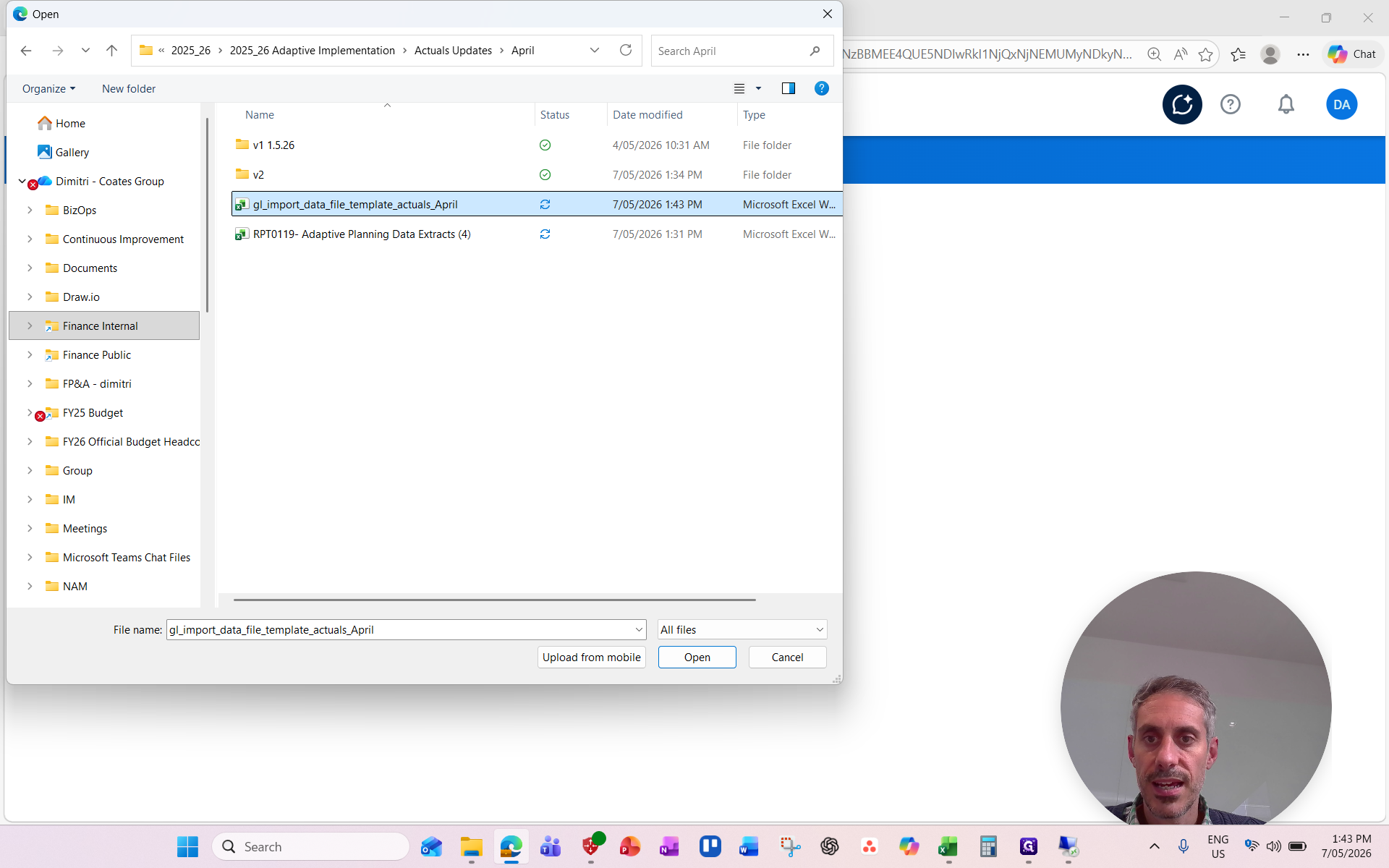
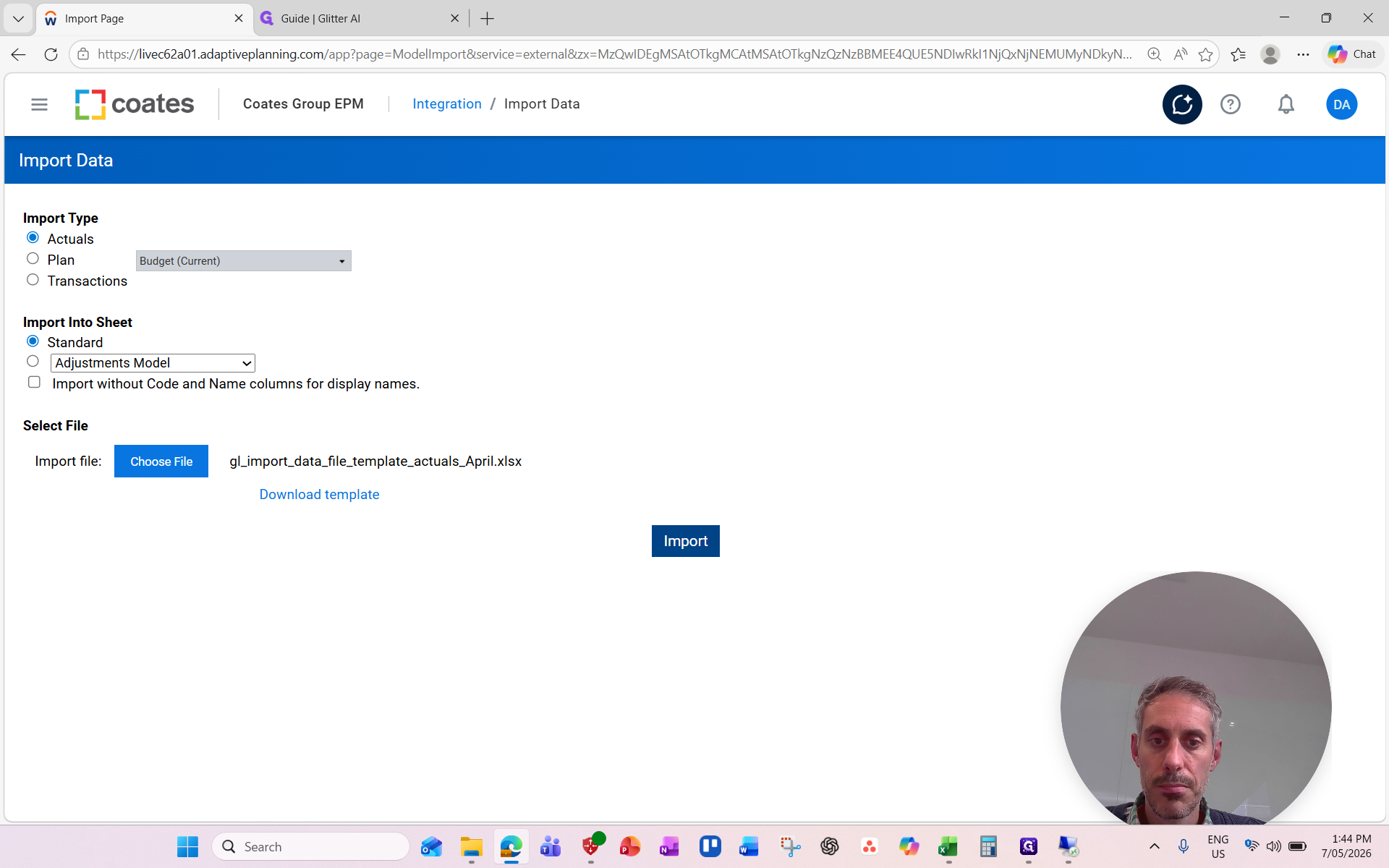
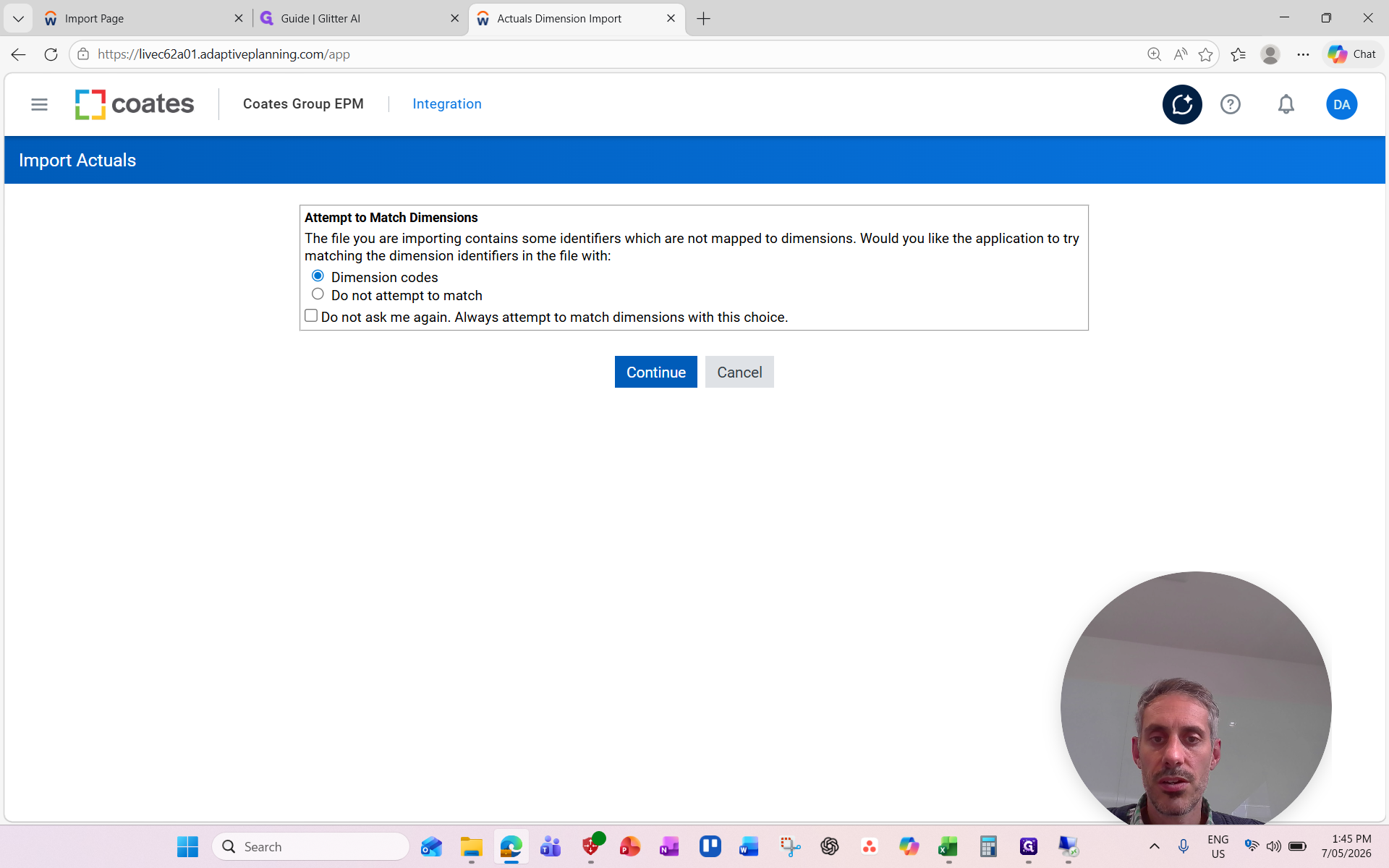
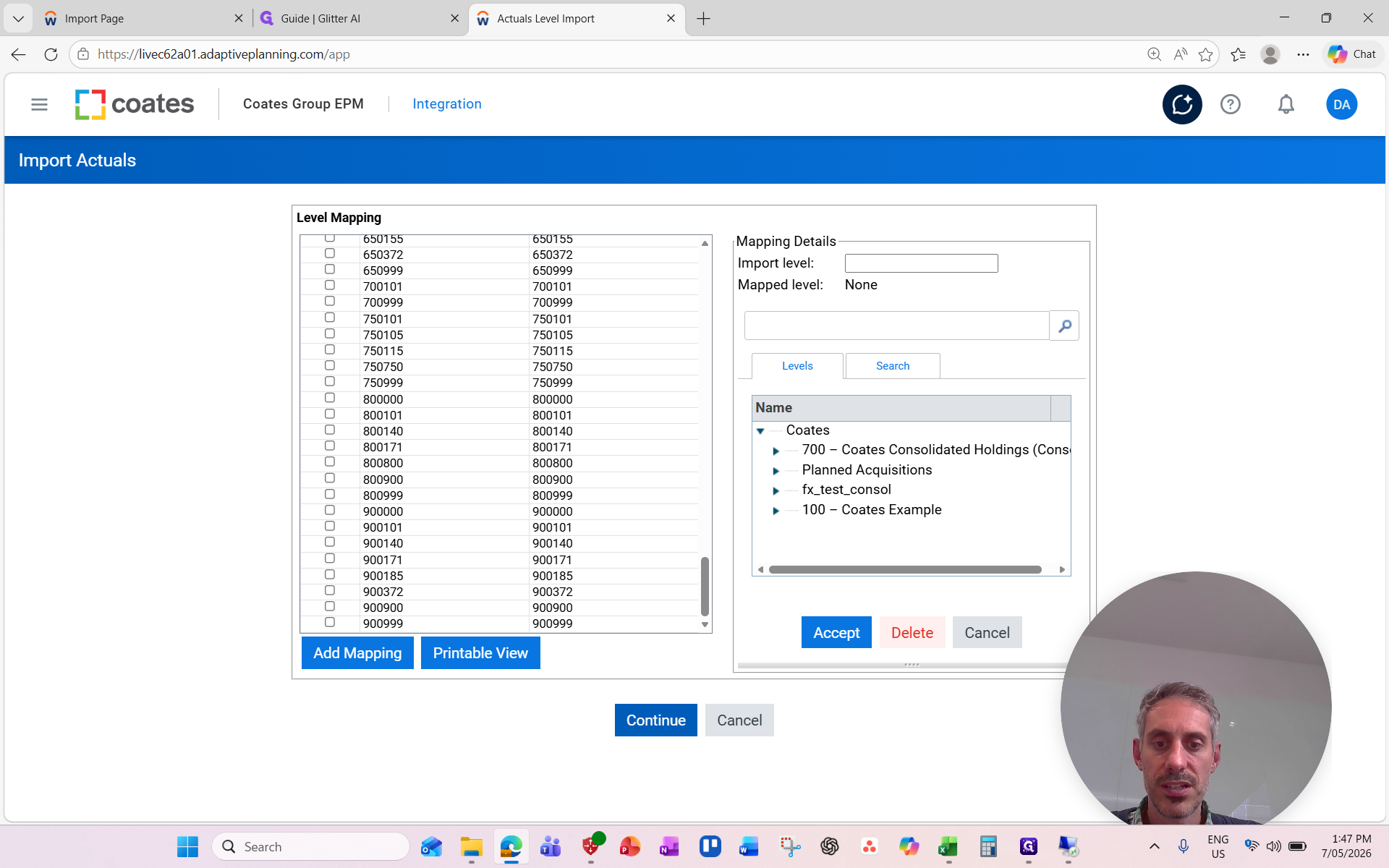
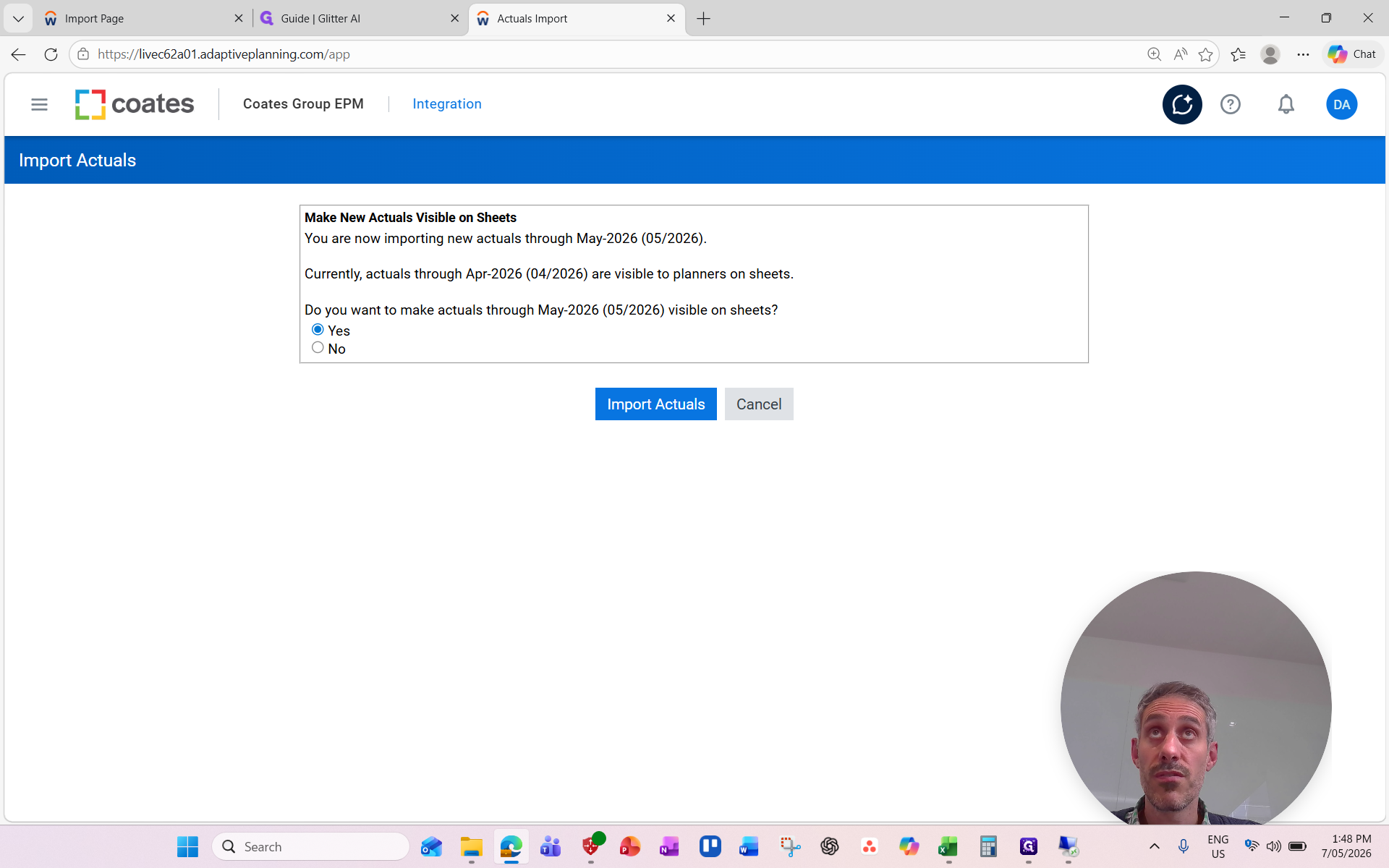
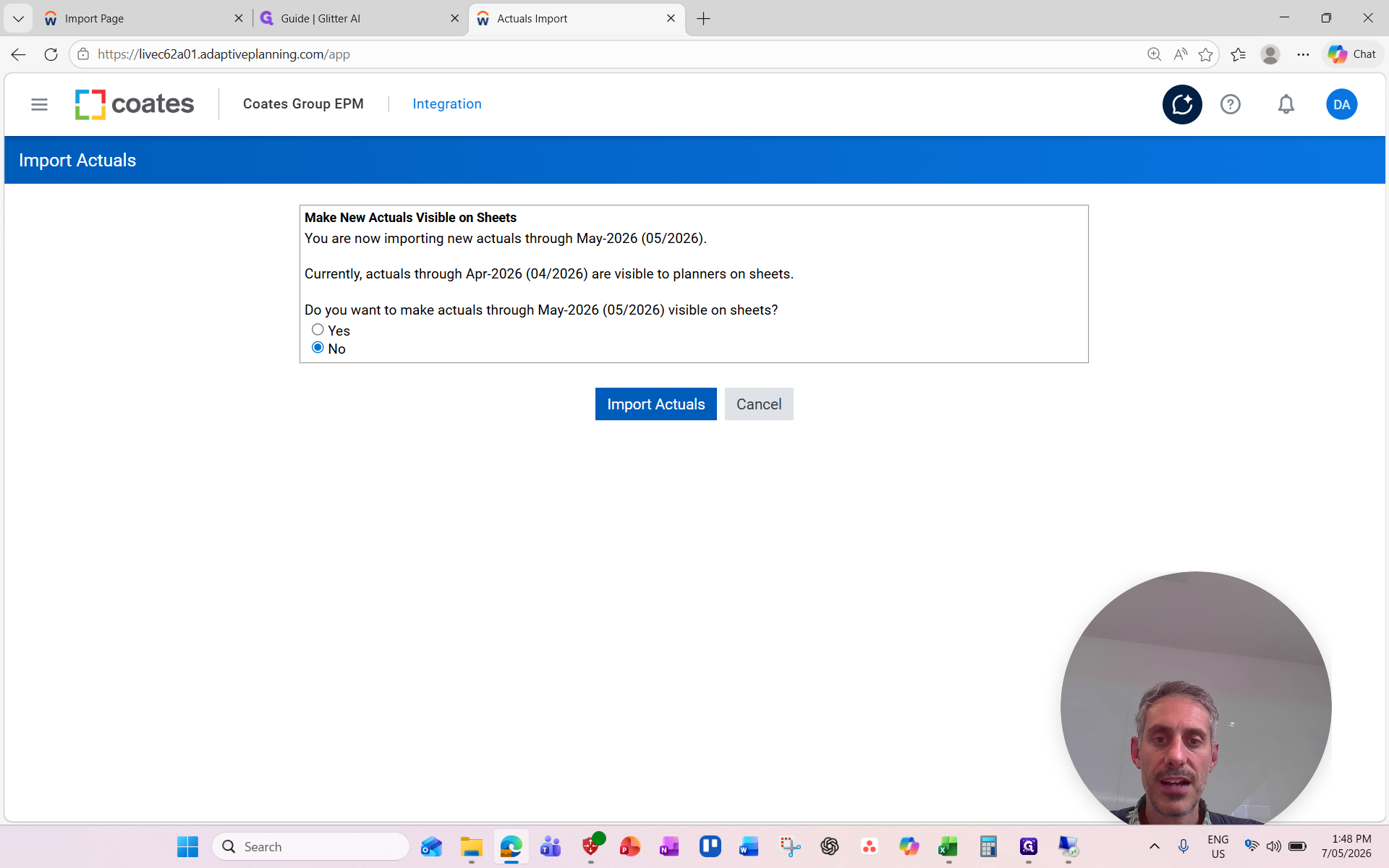
Step 2: Import New Actuals
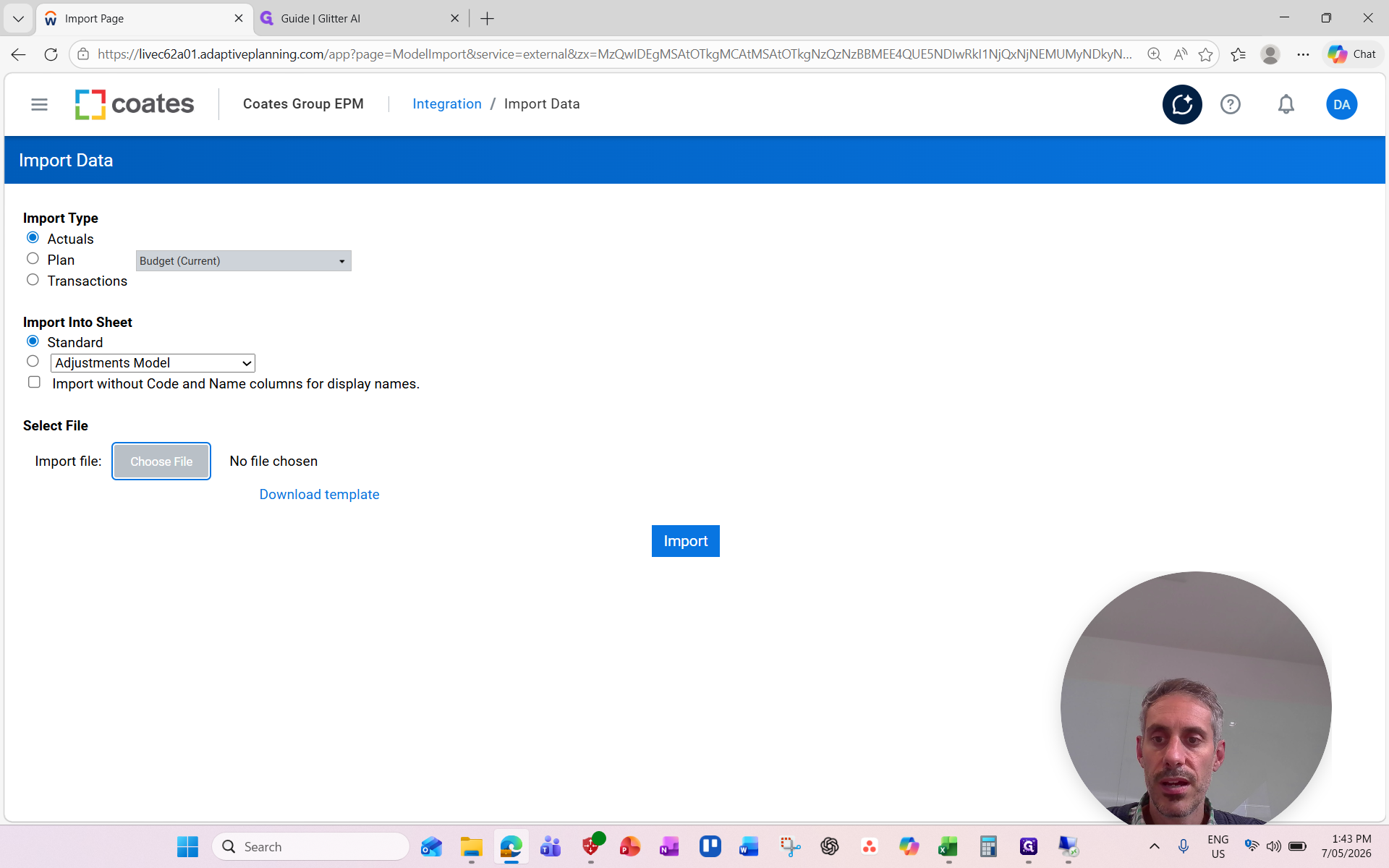
Ensure you are importing into the Actuals version and the Standard sheet.
Step 3: Review the Import Results
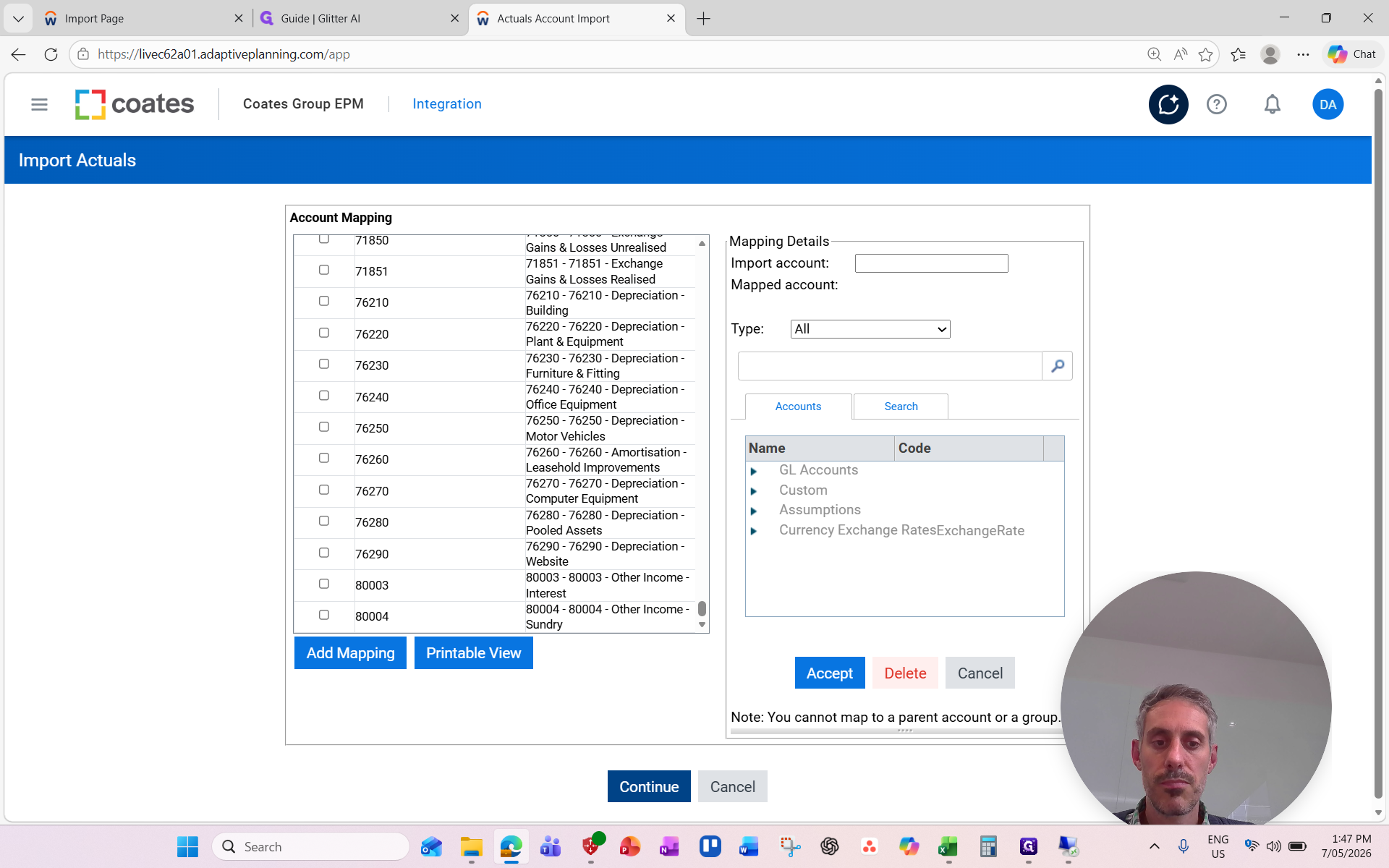
Once the import completes, thoroughly read the results page. You may encounter warning messages regarding dimension values or implied splits on balance sheet accounts. Often, these data splits are ignored for balance sheet imports without significantly impacting P&L forecasting.
You can verify the data was successfully loaded by navigating to your Sheets and reviewing the Income Statement for the imported month.
Step 4: Validate Data Against SAP BO
To ensure the import was successful, compare the imported Adaptive Planning data against the Consolidated Trial Balance exported from SAP BO.
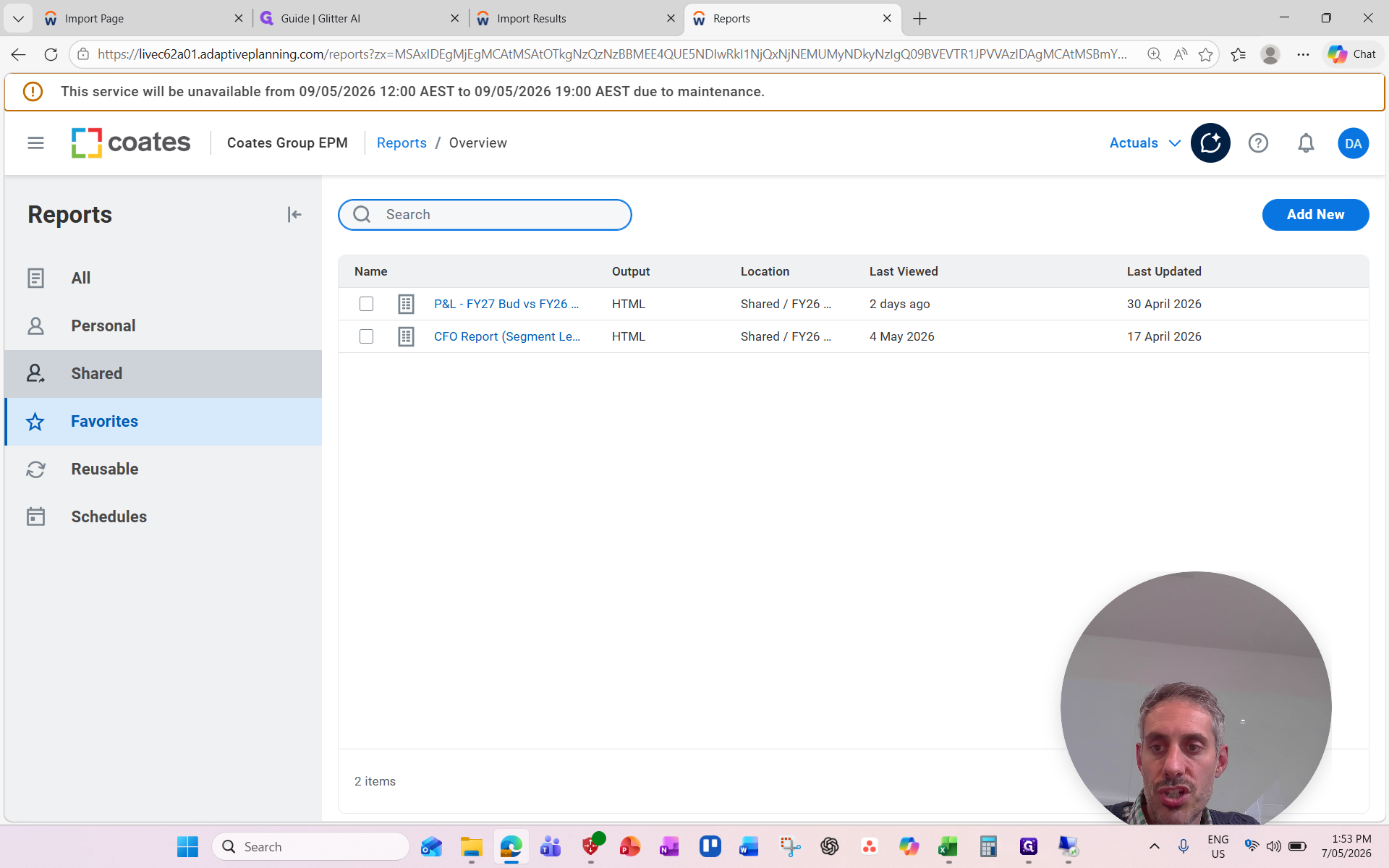
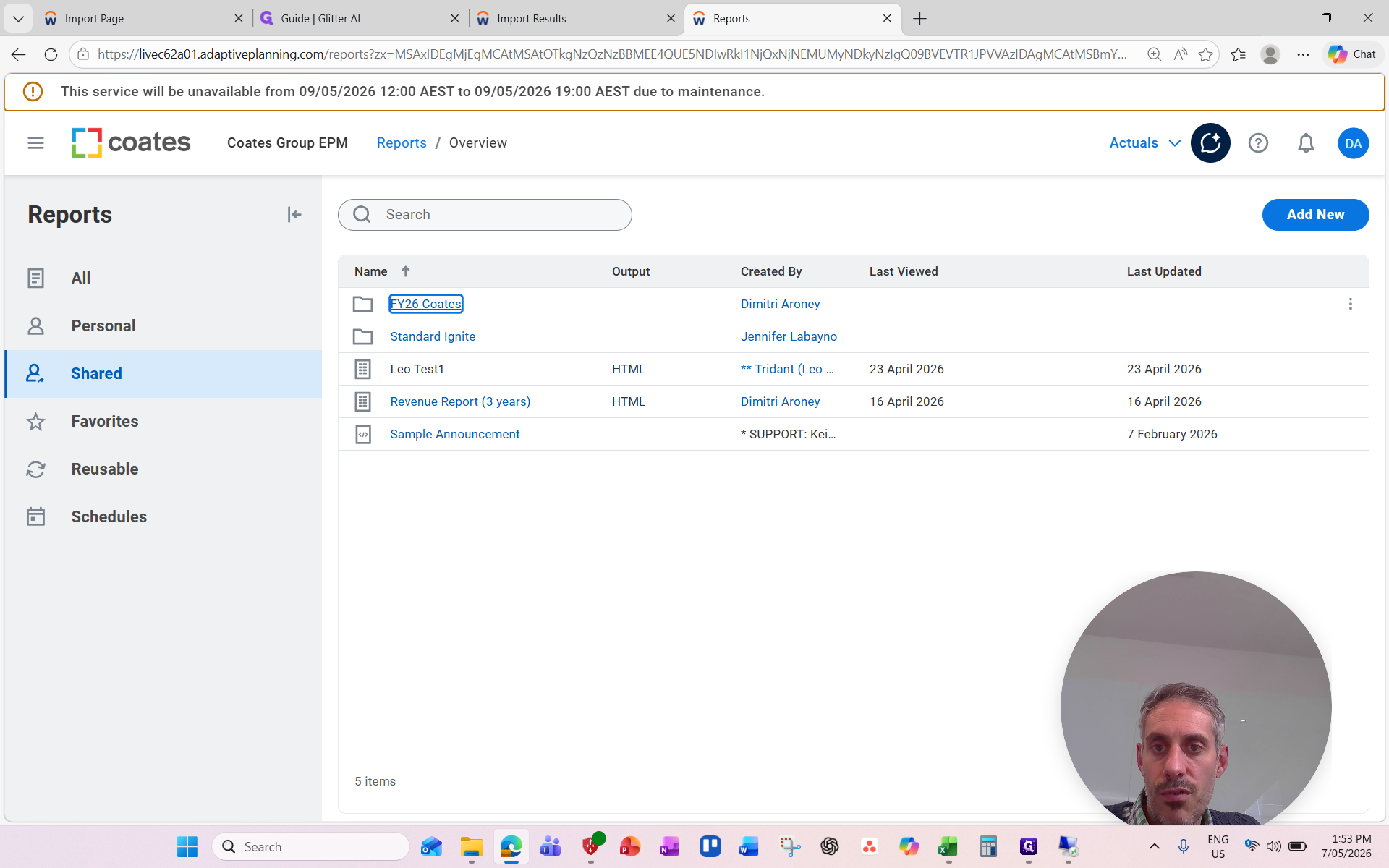
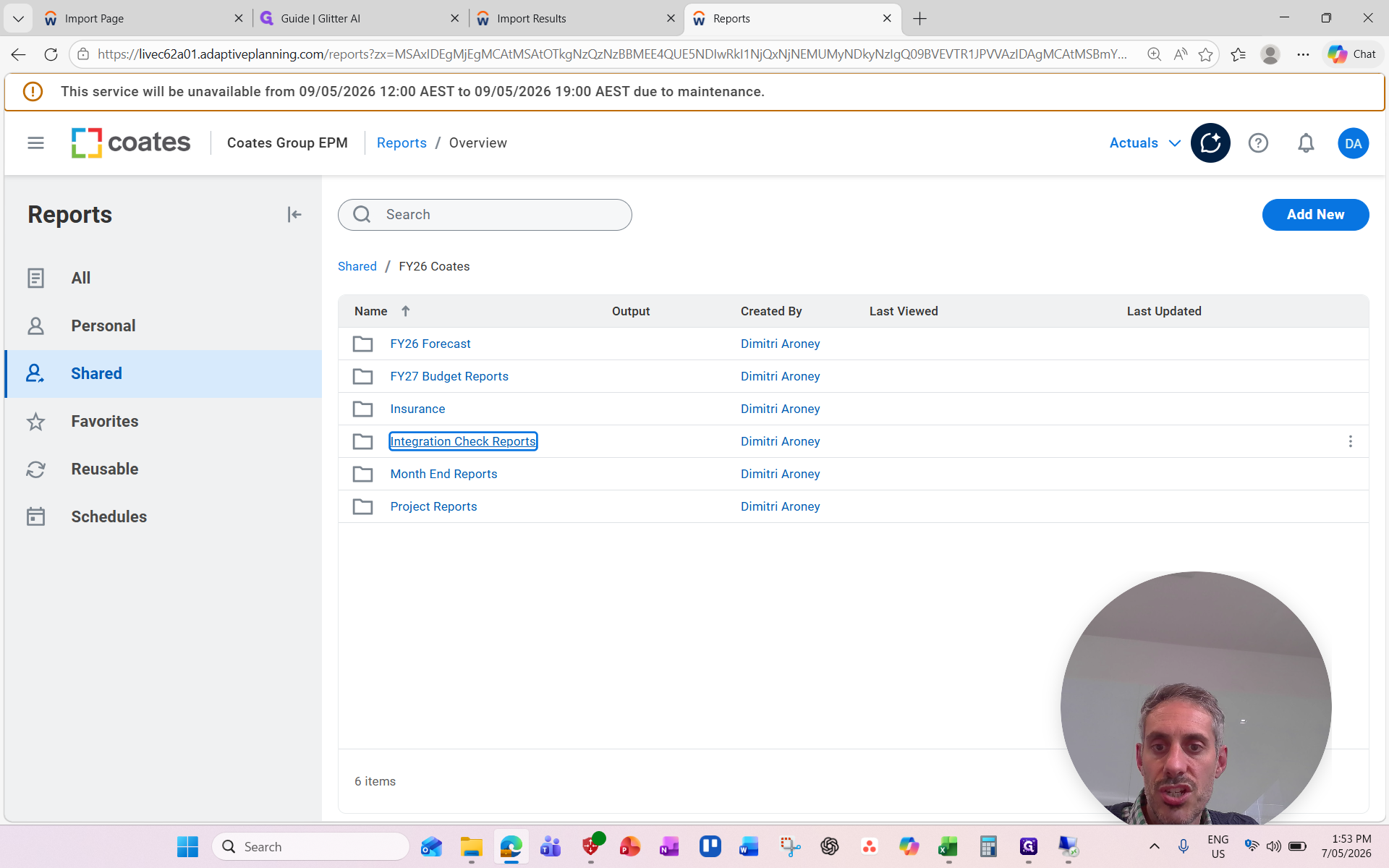
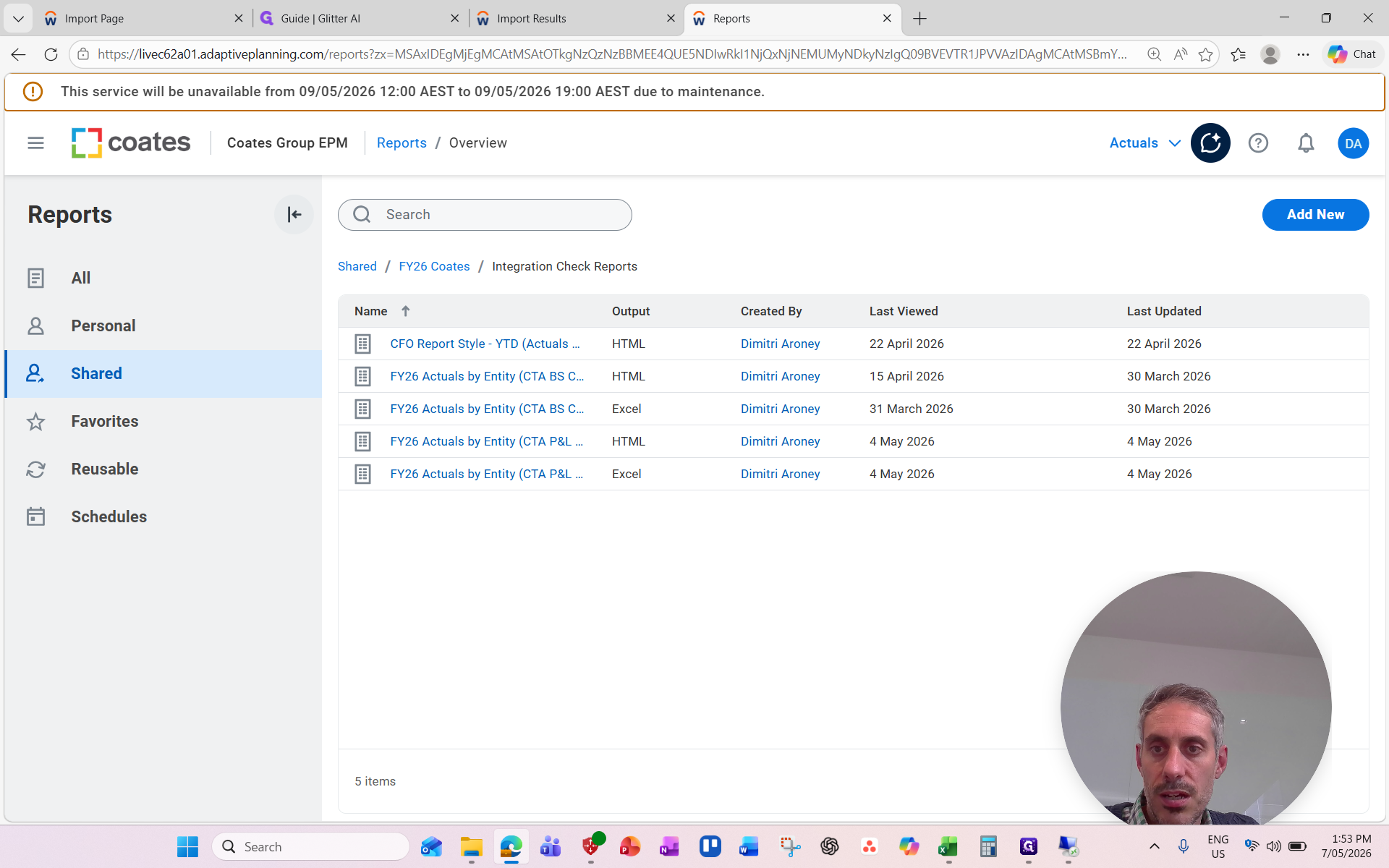
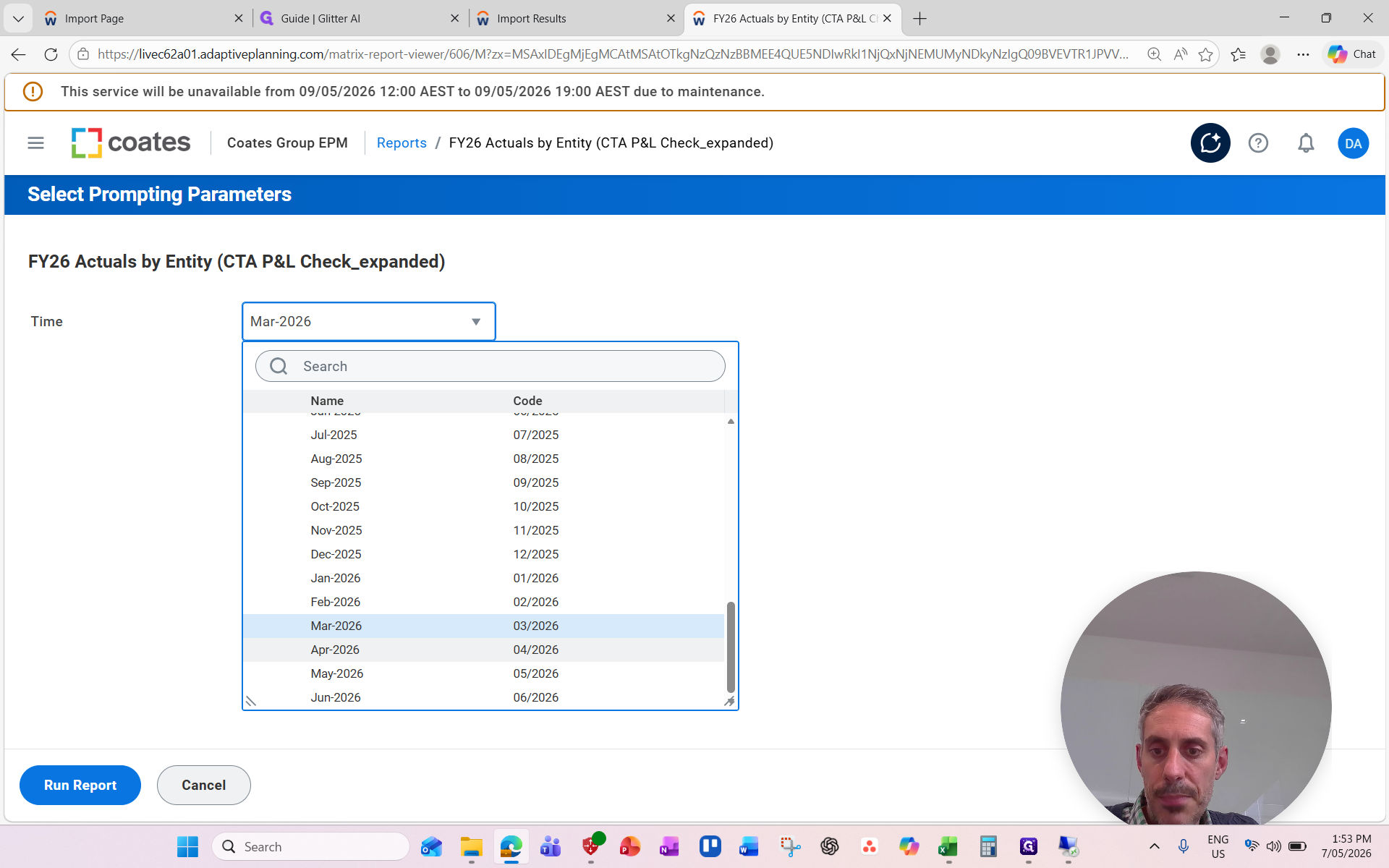
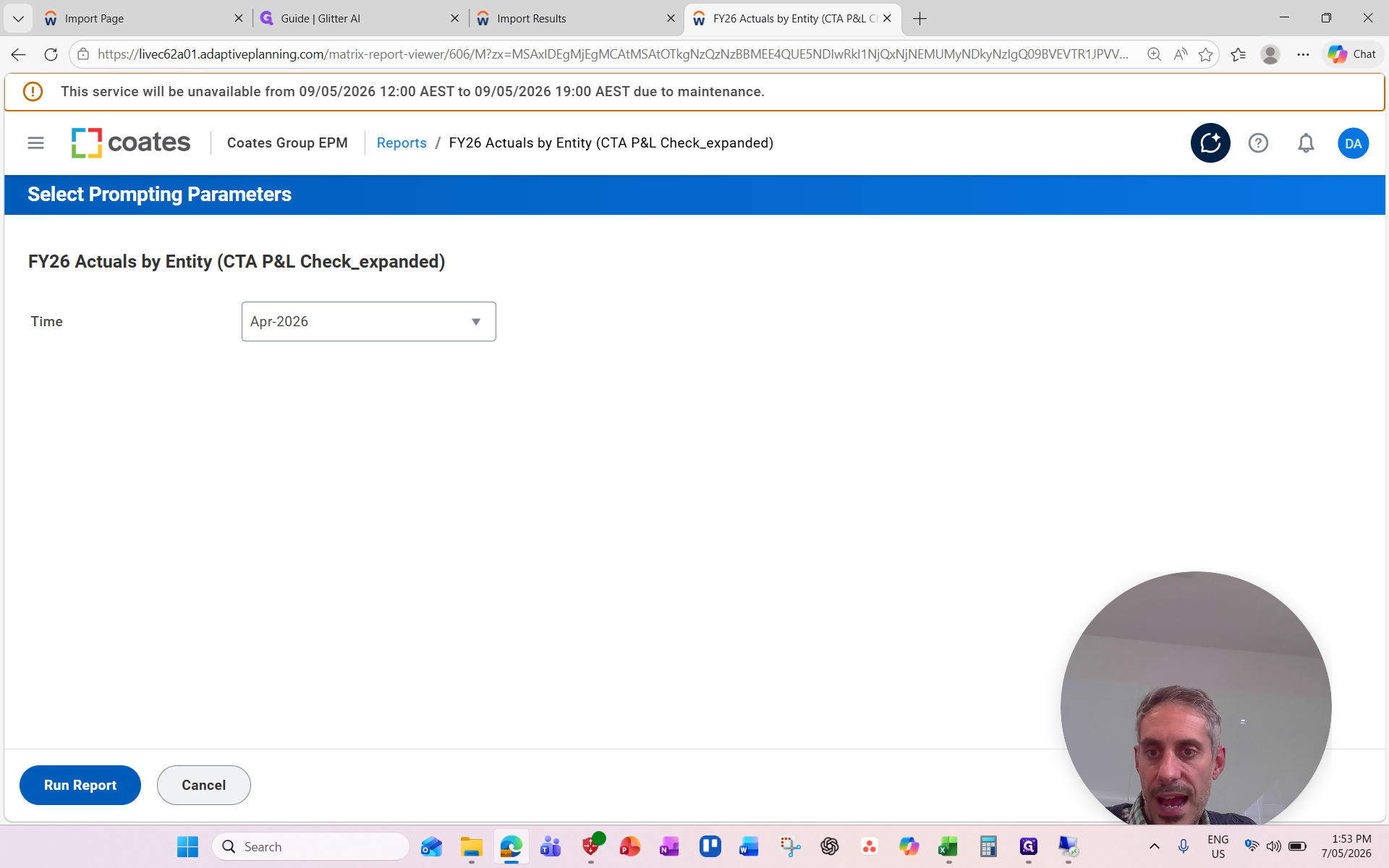
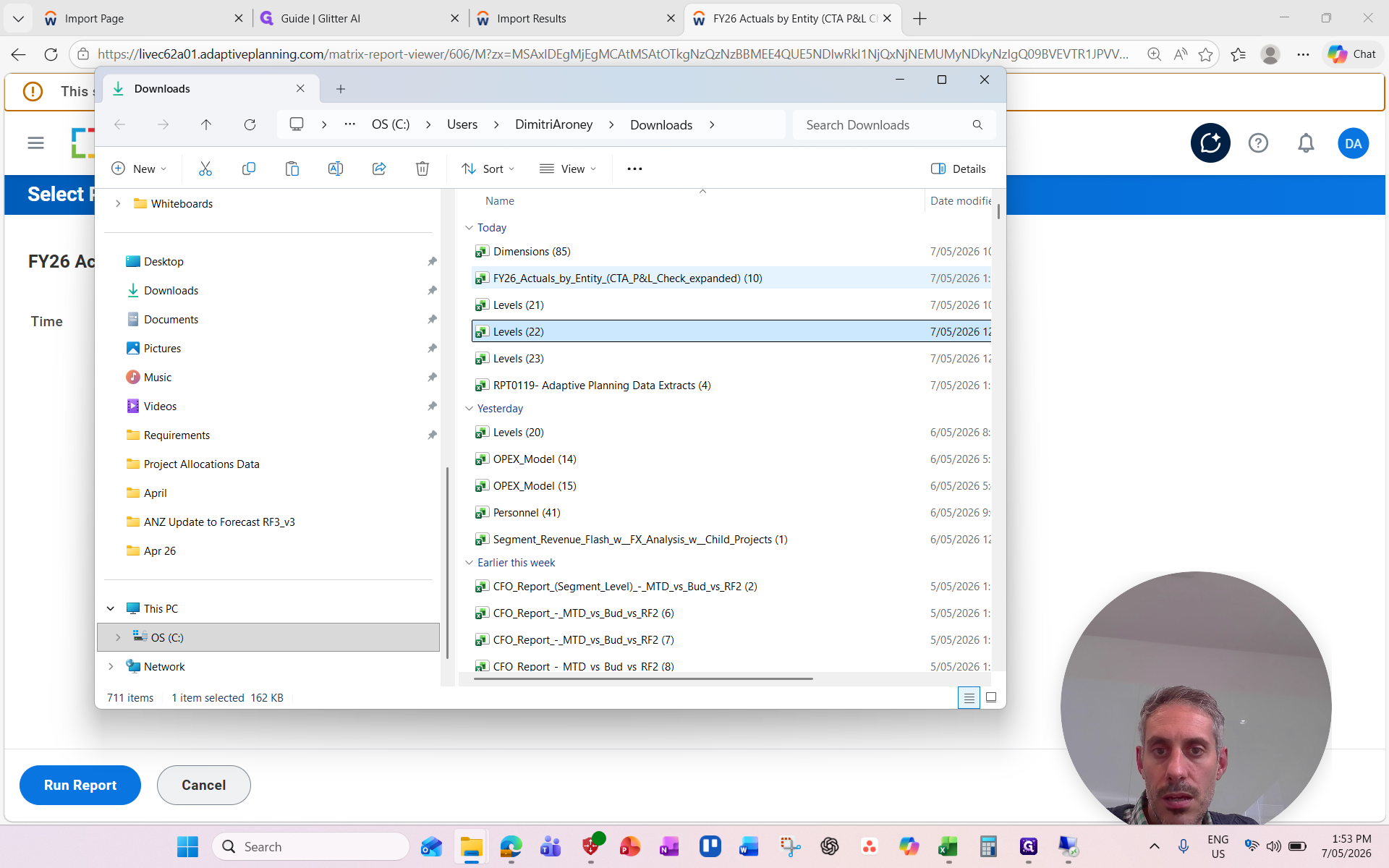
Compare the Net Income for each entity in its local currency against the SAP BO Consolidated Trial Balance. Tying off amounts in local currency ensures differences in FX rates between the two systems do not cause reconciliation discrepancies.