Passion Camp Portal Overview: Guides, Forms & Requests and Attendees
See how to navigate the Passion Camp Portal, including the Guides, Forms & Requests section and the Attendees section. Learn about important deadlines and how to manage your group’s information efficiently.
In this guide, we'll show you how to navigate the Passion Camp Portal. You'll learn how to view our Passion Camp guides, how to access and complete the required forms for your group, and how to request changes to your group's registration. You'll also see how to add, review, and edit details for all the attendees in your group.
Let's get started!
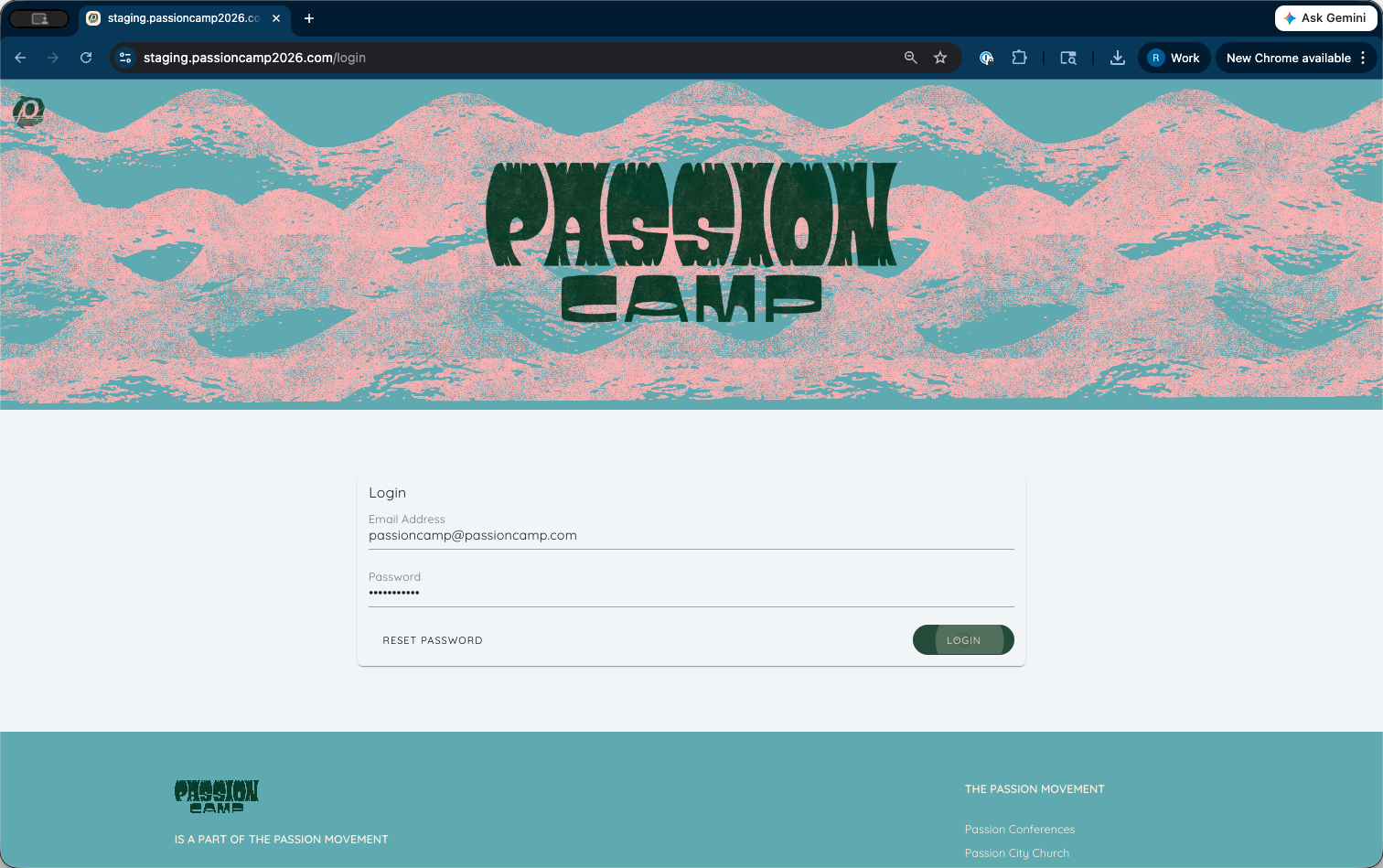
Hello, everyone. We are excited to show you the Passion Camp Portal. By now, you should have logged into the portal and become familiar with your main account page.
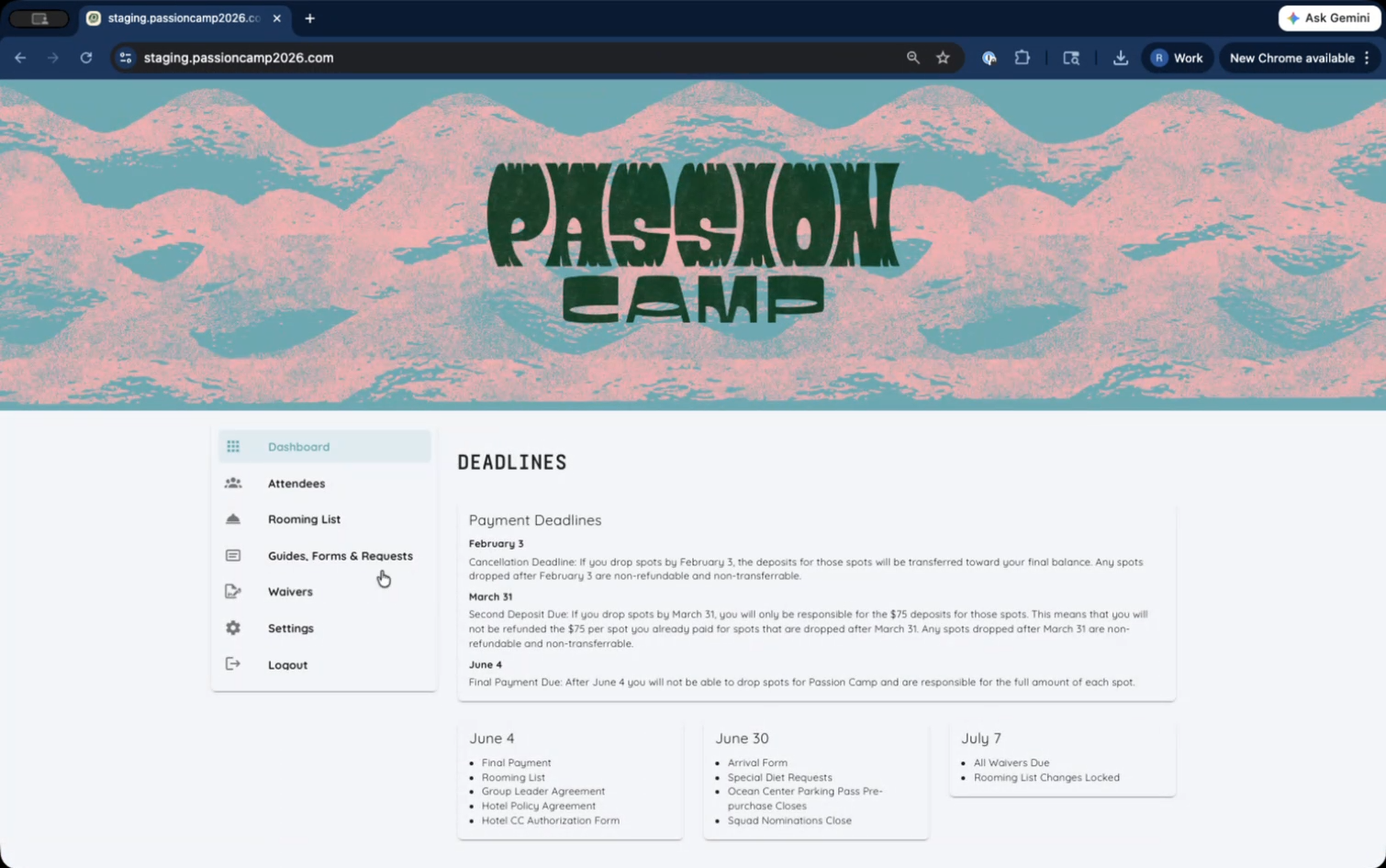
GUIDES, FORMS & REQUESTS
The first section we want to show you is the Guides, Forms & Requests
All forms are digital and available right here in your camp portal.
Currently, the Group Leader Agreement, Hotel Policy Agreement, and Hotel Credit Card Authorization forms are available in your account and are due by June 4th.
The Leader Lowdown emails will communicate when the remaining forms will be available in the Portal and their due dates.
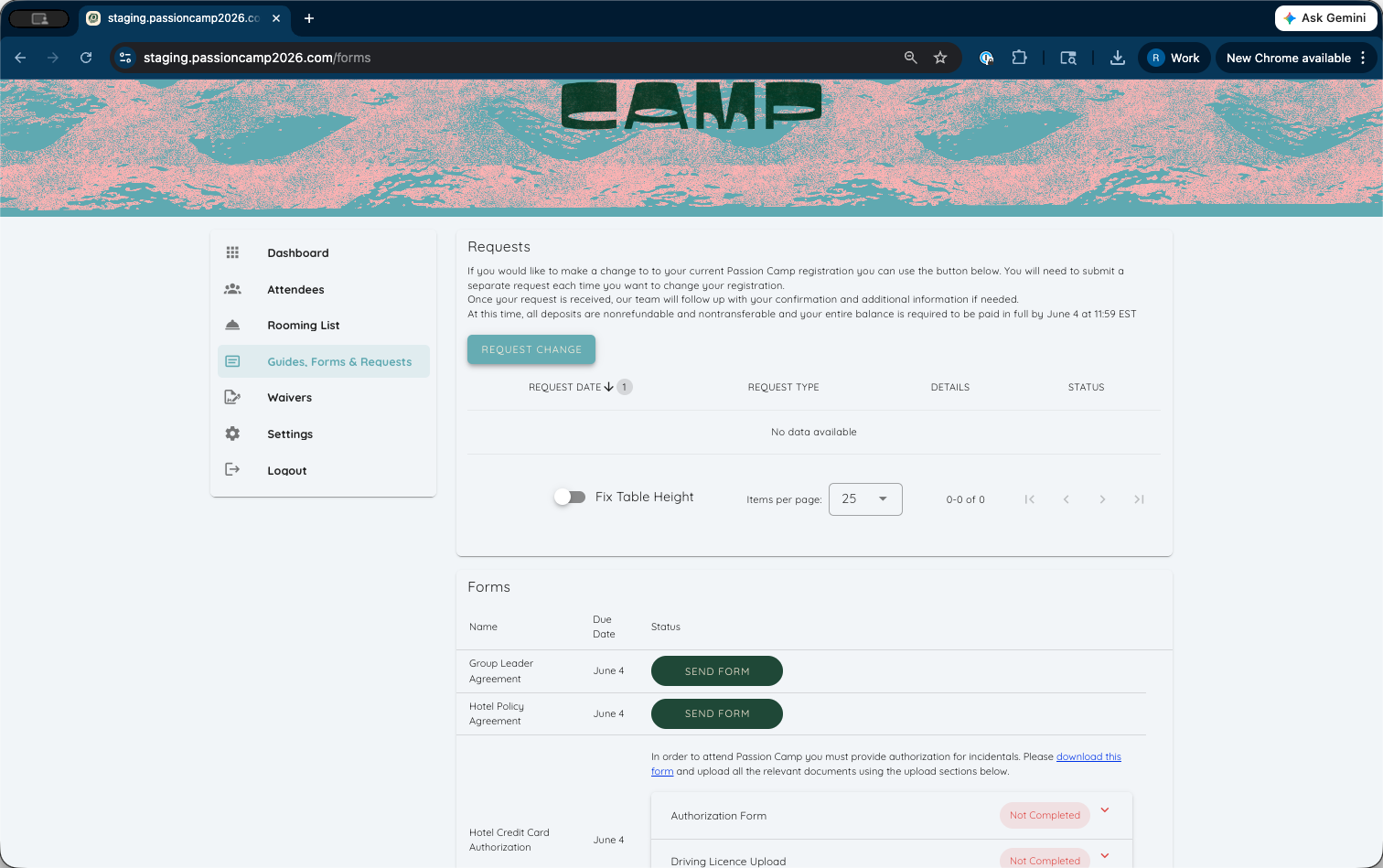
If you need to request changes to your group's registration—including additions, drops, contact updates, and any hotel requests—use this REQUEST CHANGE button here.
After you complete this form, our team will process your request and notify you of its status by email. The next section we want to show you is the Attendees section.
ATTENDEES
The next section we want to show you is the Attendees section.