Payroll - Bi weekly
A guide explaining a topic
By Imby Daniel
1
Start with a Current Active Staff Schedule Report (STA-3) from iclass and insert into a google sheet
2
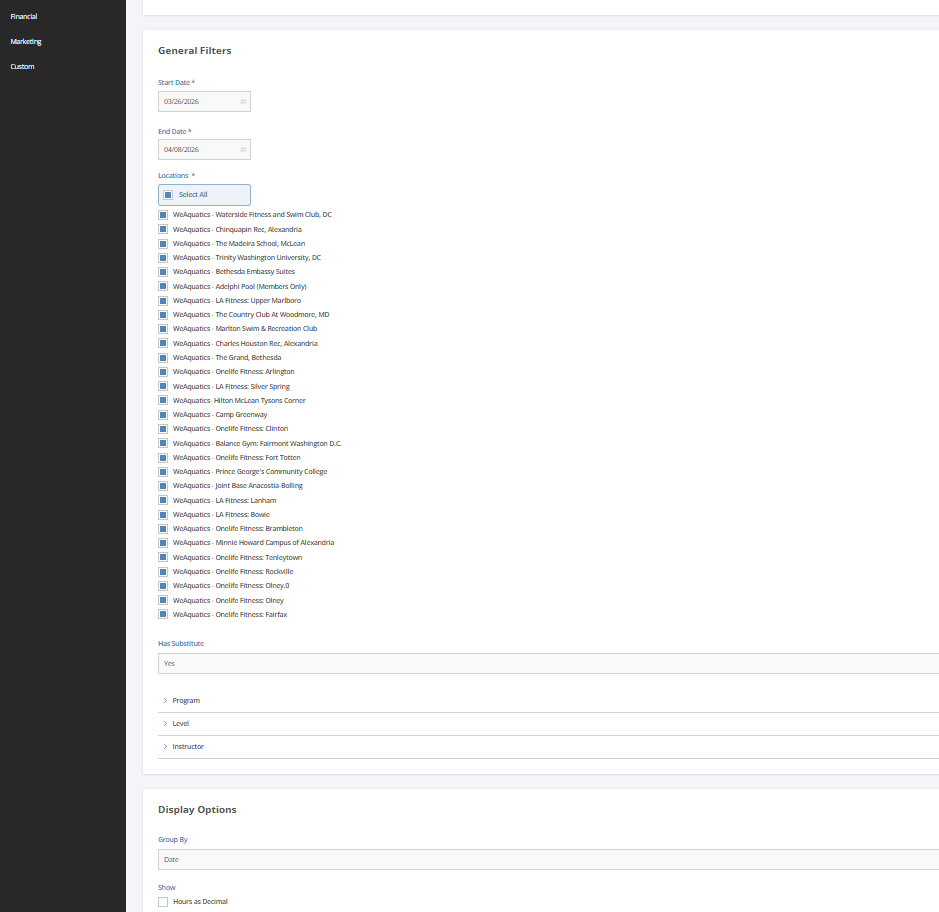
Next Pull Instructor Absences And Substitutions Report with all Locations checked with the current Payroll Date Range and insert into a google sheet
3
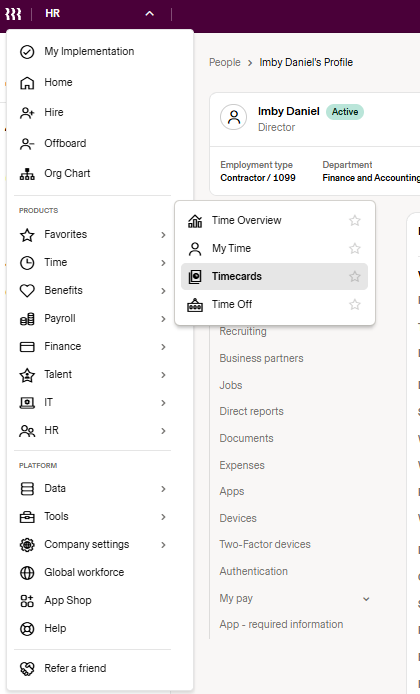
Next Select the Timecards on Rippling to list all our Swim Instructors in Ascending Order
4
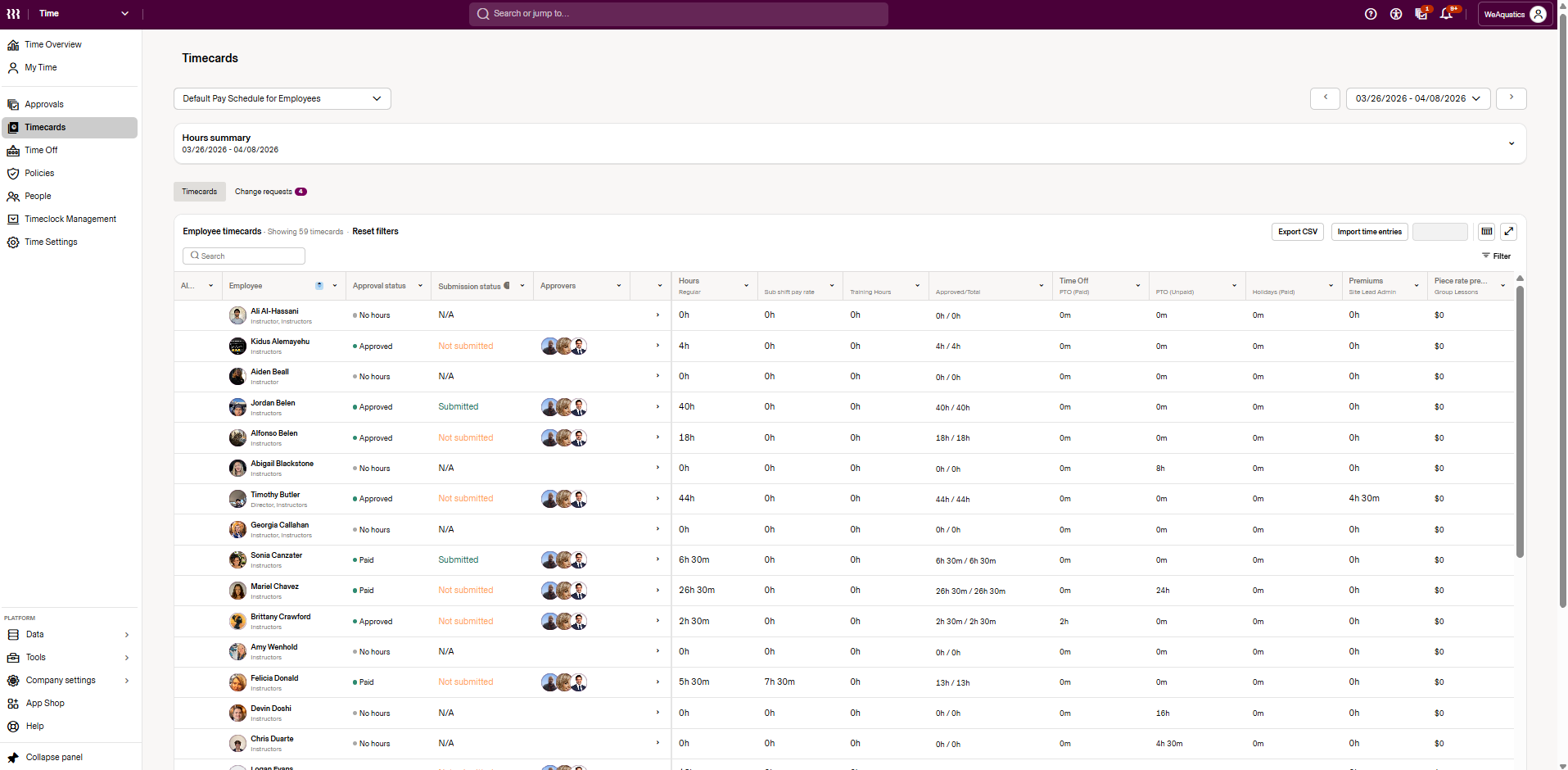
Continuing in Rippling, start with the first instructor in ascending order, matching the iClass staff schedule.
5
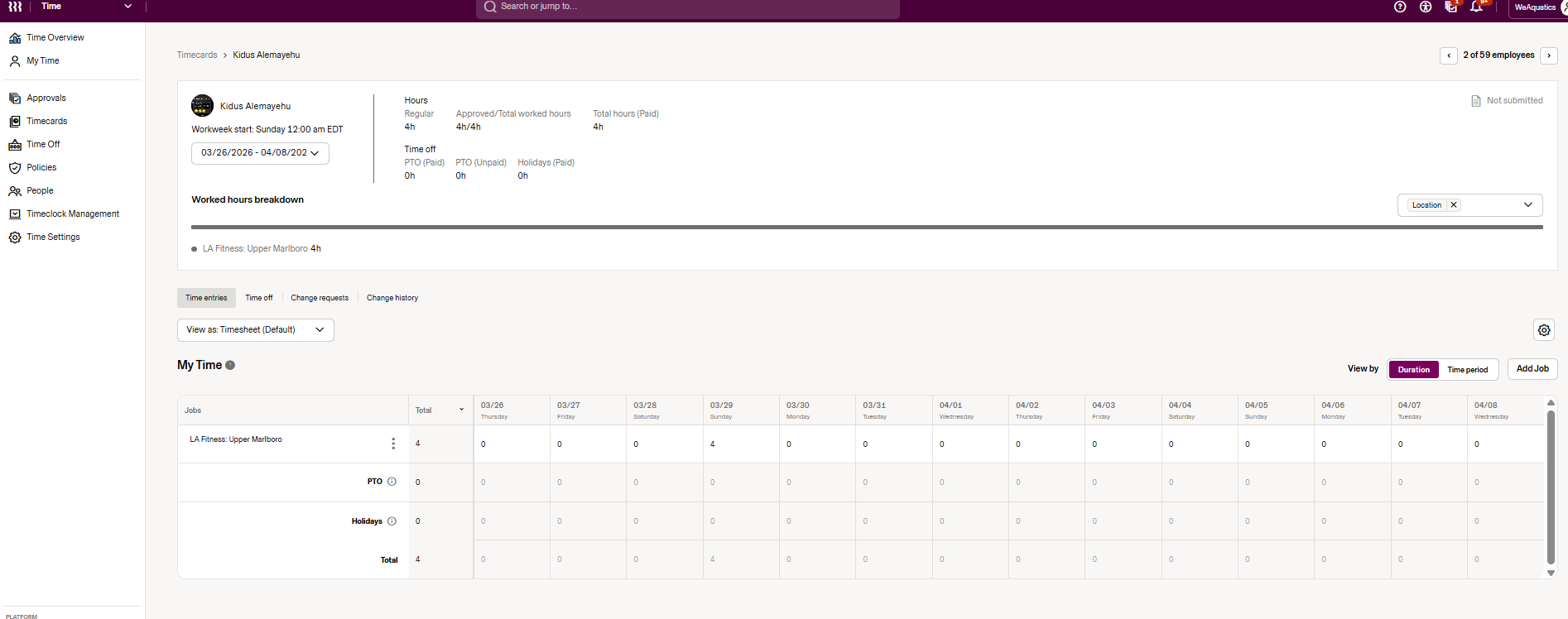
On Rippling, select the instructor and review the dates for possible edits to the hours.
6
Next, review the Substitute Report that was previously pulled to double-check whether the instructor subbed in case they didn’t enter any hours in Rippling or did not categorize them correctly. Also, verify the location of the substitute sessions.
7
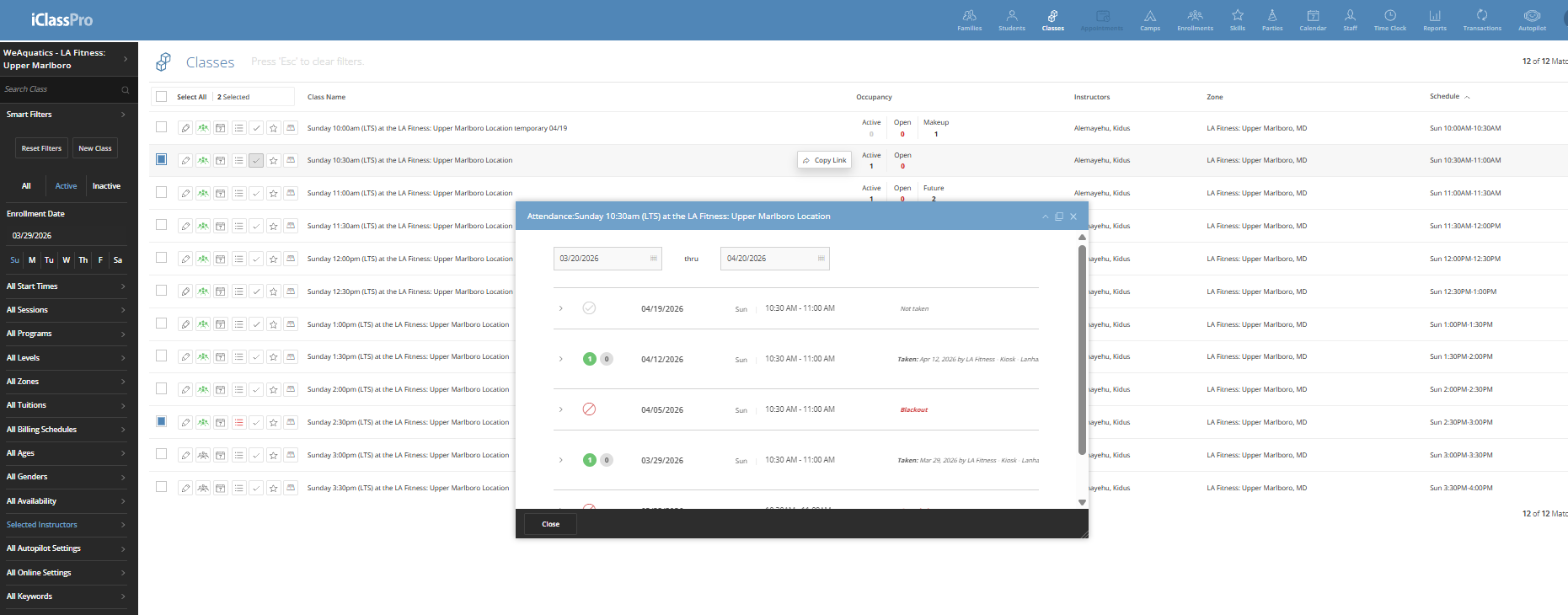
In the iClass “Classes” tab, select the appropriate filters including location, date, day, and the respective instructor and review the first and last active student enrollments for the specified date.
8
We view the Class Attendance tab for the class slot to verify whether the student attended, was a no-show, had an excused absence, or if the class slot was canceled.
9
If the class was canceled, verify the exact time of cancellation through the iClass audit log and the closure Google Sheet to determine whether the instructor should be paid, based on when they were informed or became aware.
10
Once the substitute hours have been entered or verified, review the respective instructor from the Staff Schedule Report which displays all their current shifts on iclass. Then, use the same steps from 7, 8, and 9 to calculate each instructor’s regular hours in iClass, starting from the first attendance or no-show to the last attendance or no-show within that shift for the specified date.
11
Compare the hours calculated from iClass with the hours the instructor entered in Rippling. If there are any differences, adjust the hours in Rippling accordingly.