Icon

Post-Diligence Update with TPR Data

Learn how to update post-diligence tapes with TPR data prior to settlement using Morgan Stanley supplemental tapes and Eddy Tools comparison macros.

By Eddy Kup

This guide explains how to update post-diligence tapes with Third-Party Review (TPR) data prior to settlement. Following these steps ensures your internal master databases are accurately synced with the supplemental tapes provided for funding.

This workflow is intended for operations and post-closing analysts who manage data reconciliation prior to loan settlement.

1. Cross-Reference the Target Population
1
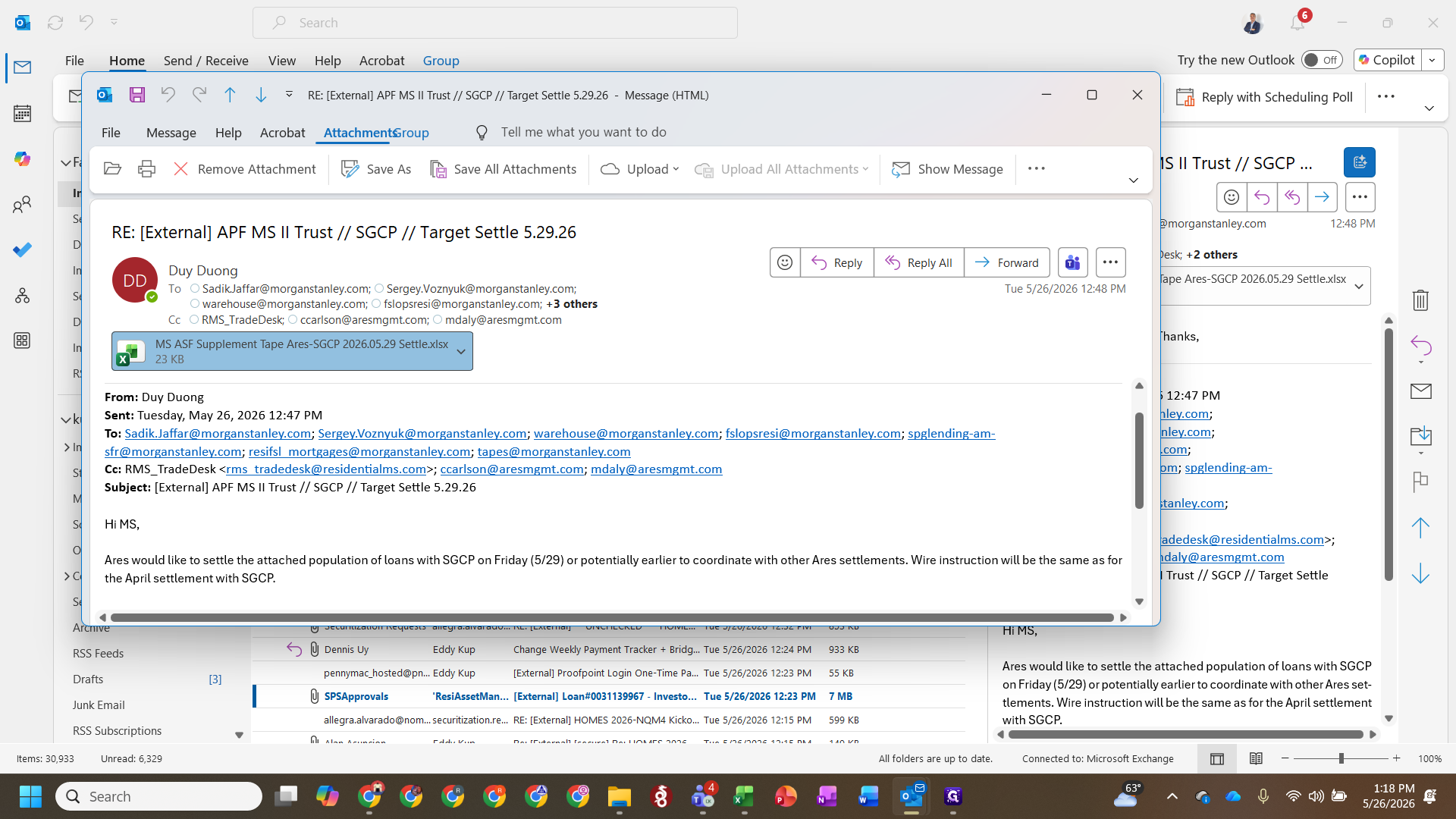
Open the email containing the target settlement population and double-click to open the attached Excel file.
Step #1: Open the email containing the target settlement population and double-click to open the attached Excel file.
2
In your master BI Tape, enter an XLOOKUP formula to cross-reference the seller loans from the supplemental tape.
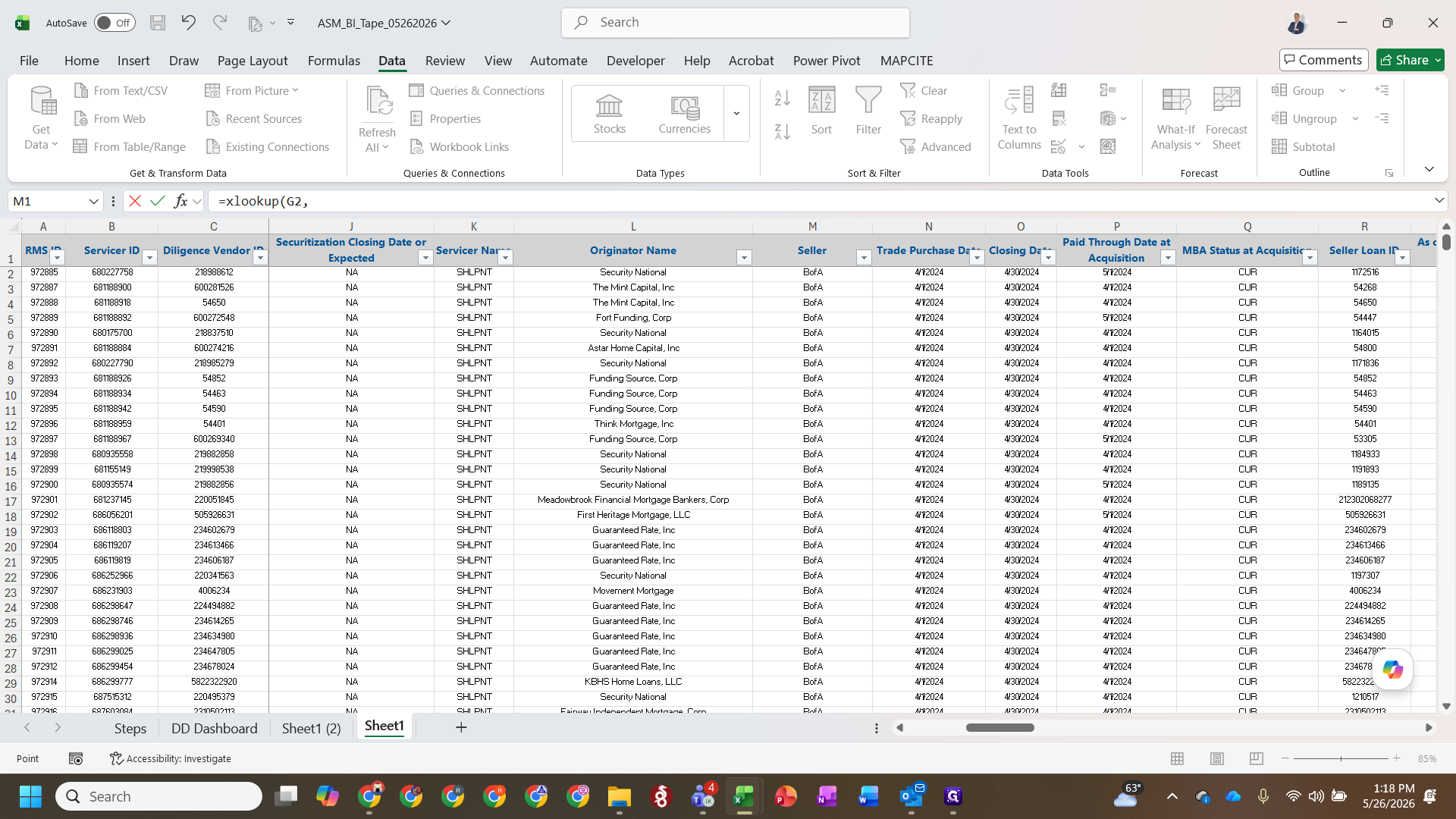
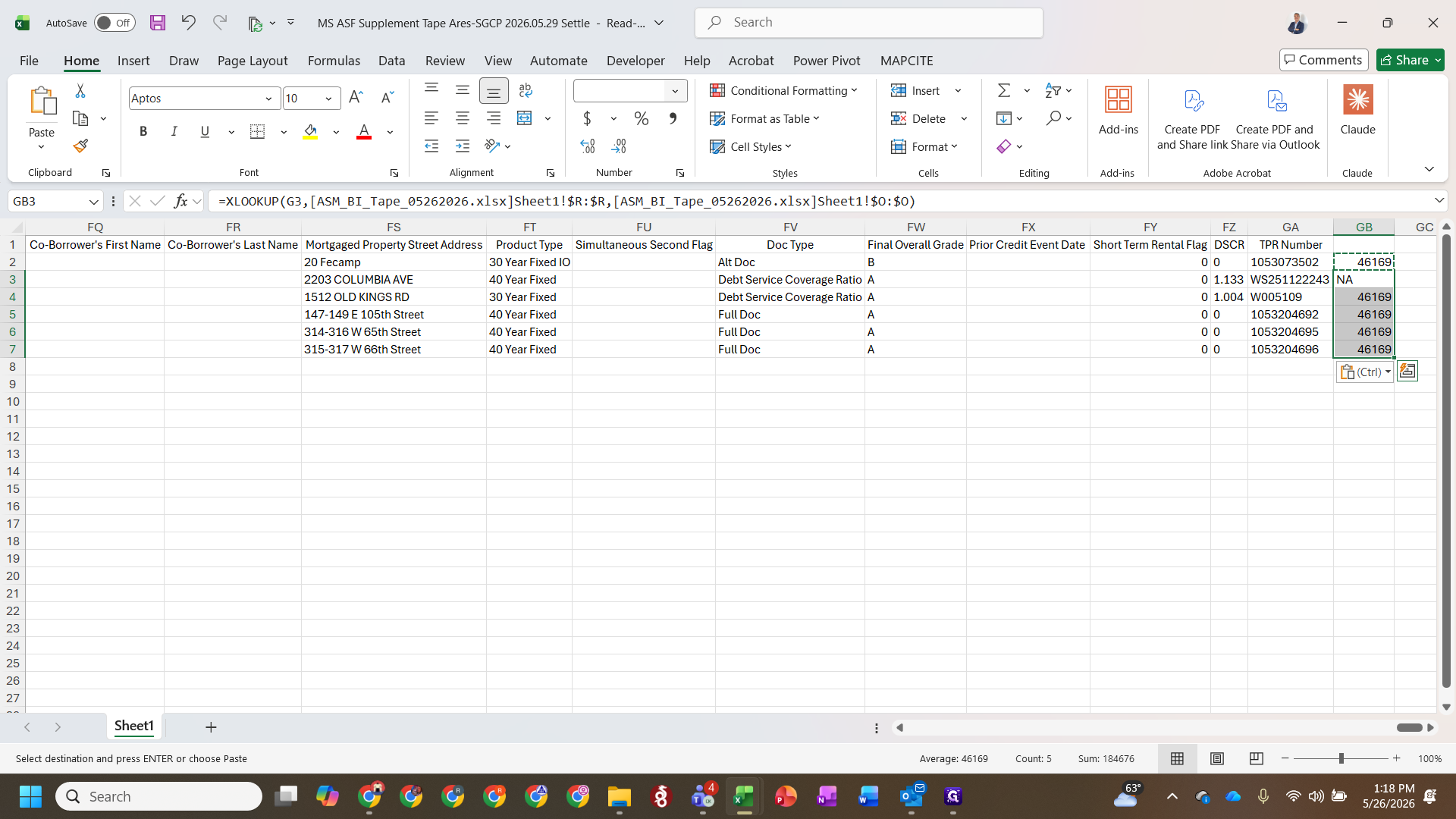
Step #2: In your master BI Tape, enter an XLOOKUP formula to cross-reference the seller loans from the supplemental tape.
3
Copy the formula results and paste them as values to lock in the matched data.
Step #3: Copy the formula results and paste them as values to lock in the matched data.
4
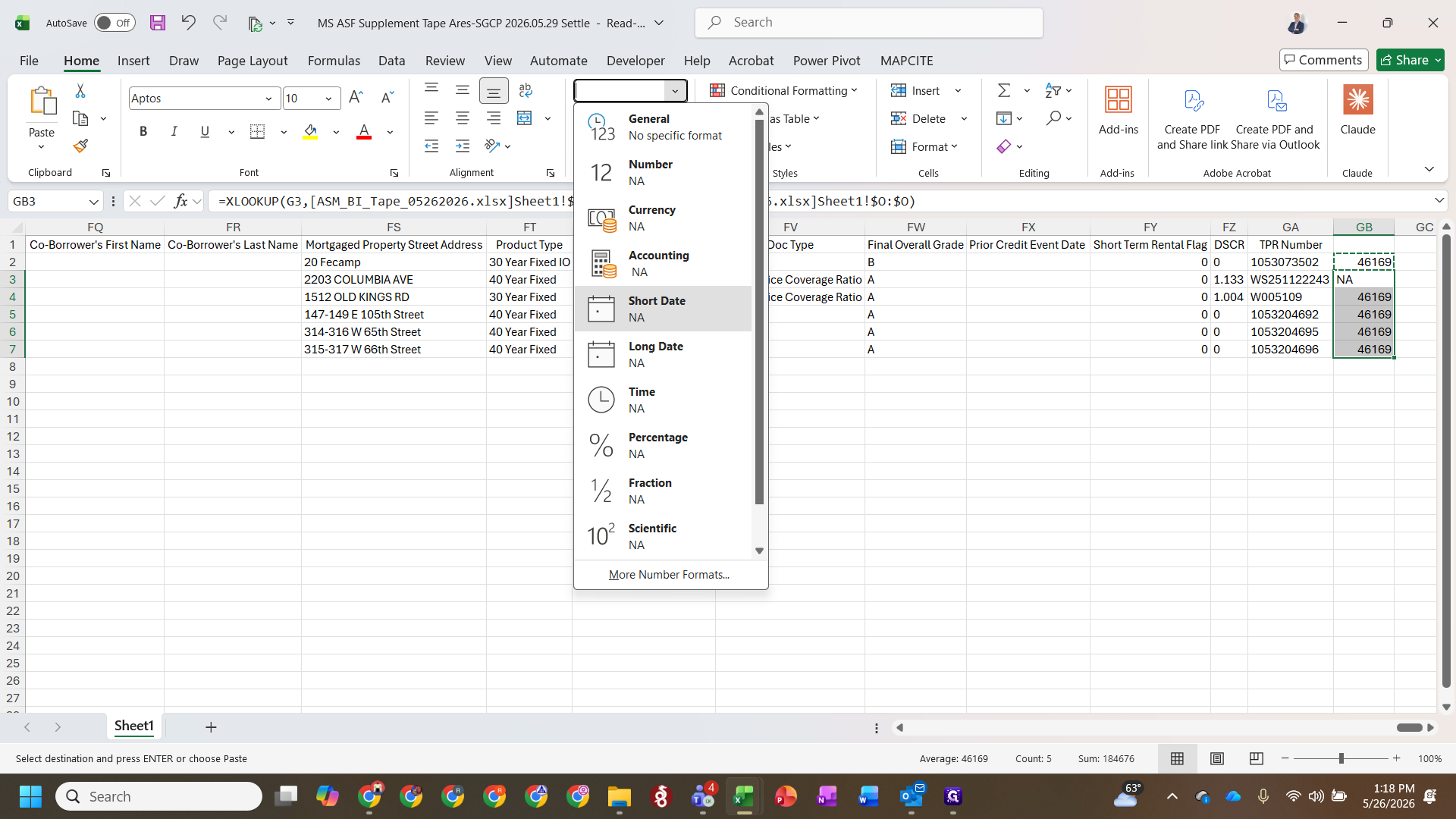
Click the number formatting dropdown and select Short Date.
Step #4: Click the number formatting dropdown and select Short Date.

2. Isolate the Target Funding Population

Column

Filter Value

Purpose

Seller

Target seller (e.g., "Shelter Growth")

Narrows the tape down to the specific client.

Paid Through Date at Acquisition

(Blanks)

Identifies loans that do not currently have a closing date.

Closing Date

Target funding date (e.g., 5/27/2026)

Isolates loans specifically submitted for the target settlement.

MBA Status at Acquisition

99

Filters out inactive loans to only show active target records.

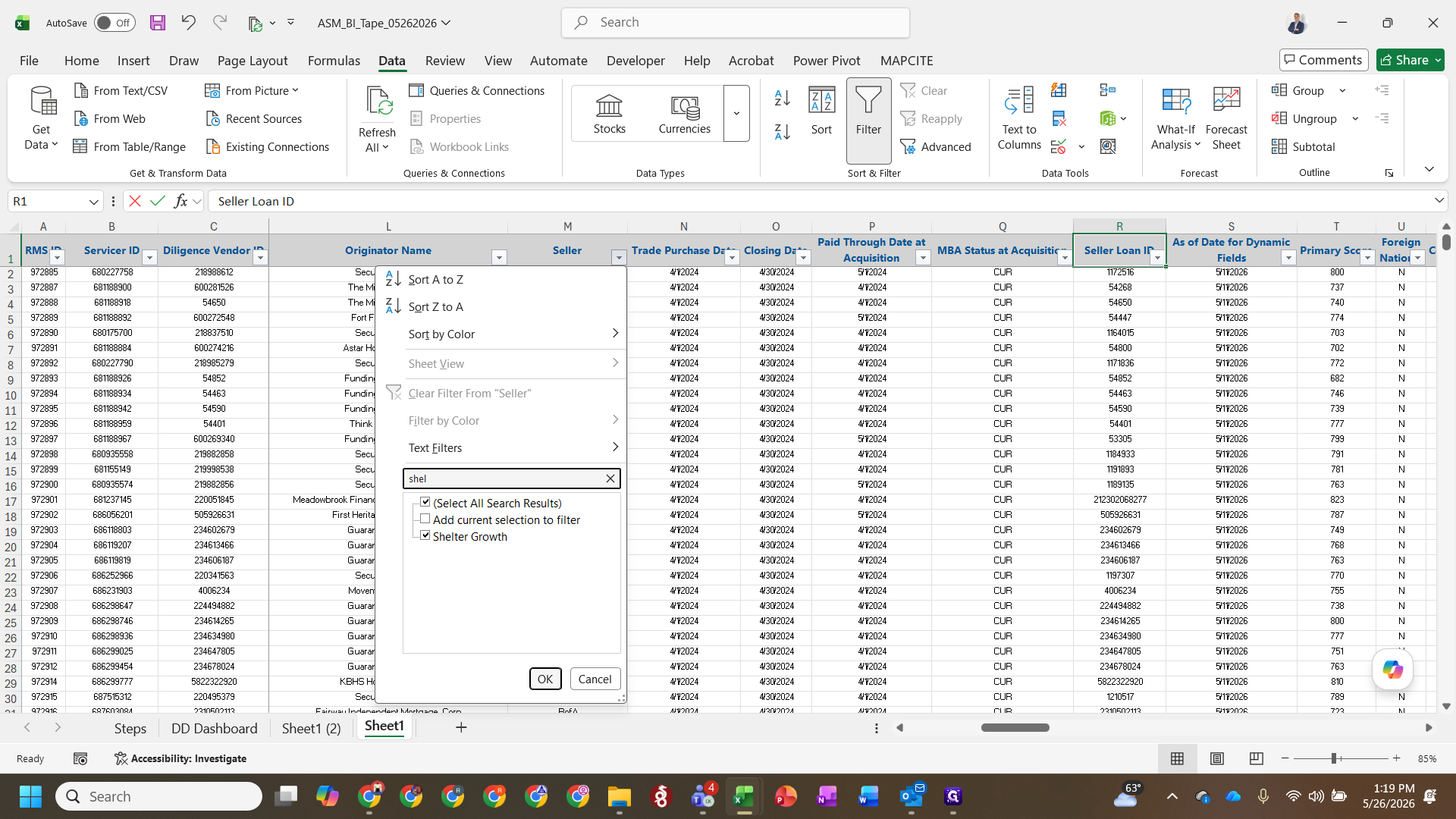
5
Apply the filters to the BI tape based on the criteria above.
Step #5: Apply the filters to the BI tape based on the criteria above.
6
Update any missing or incorrect closing dates to the target funding date.

3. Prepare the Bid Tape Template
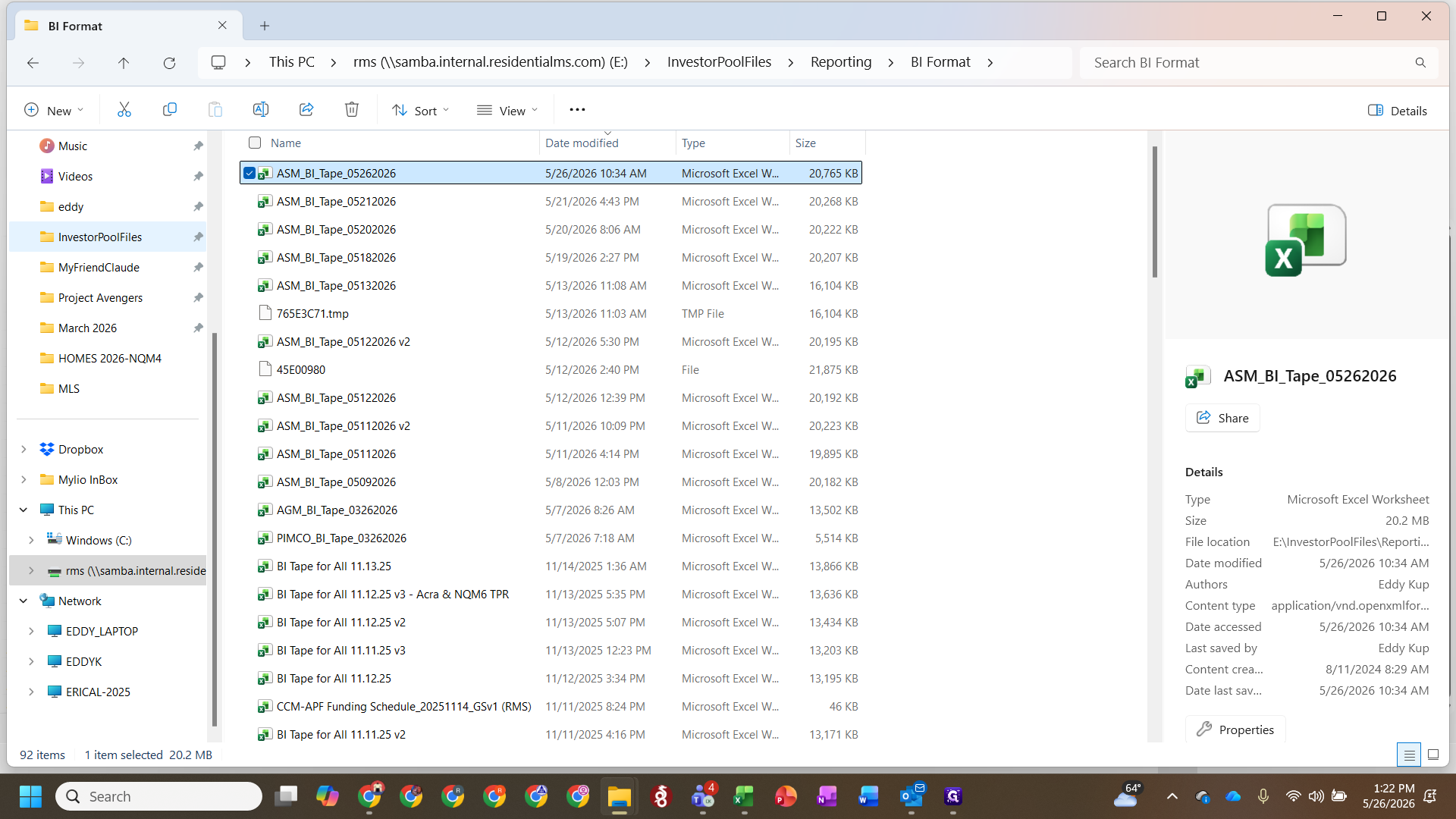
7
Open your file explorer and navigate to InvestorPoolFiles.
Step #7: Open your file explorer and navigate to InvestorPoolFiles.
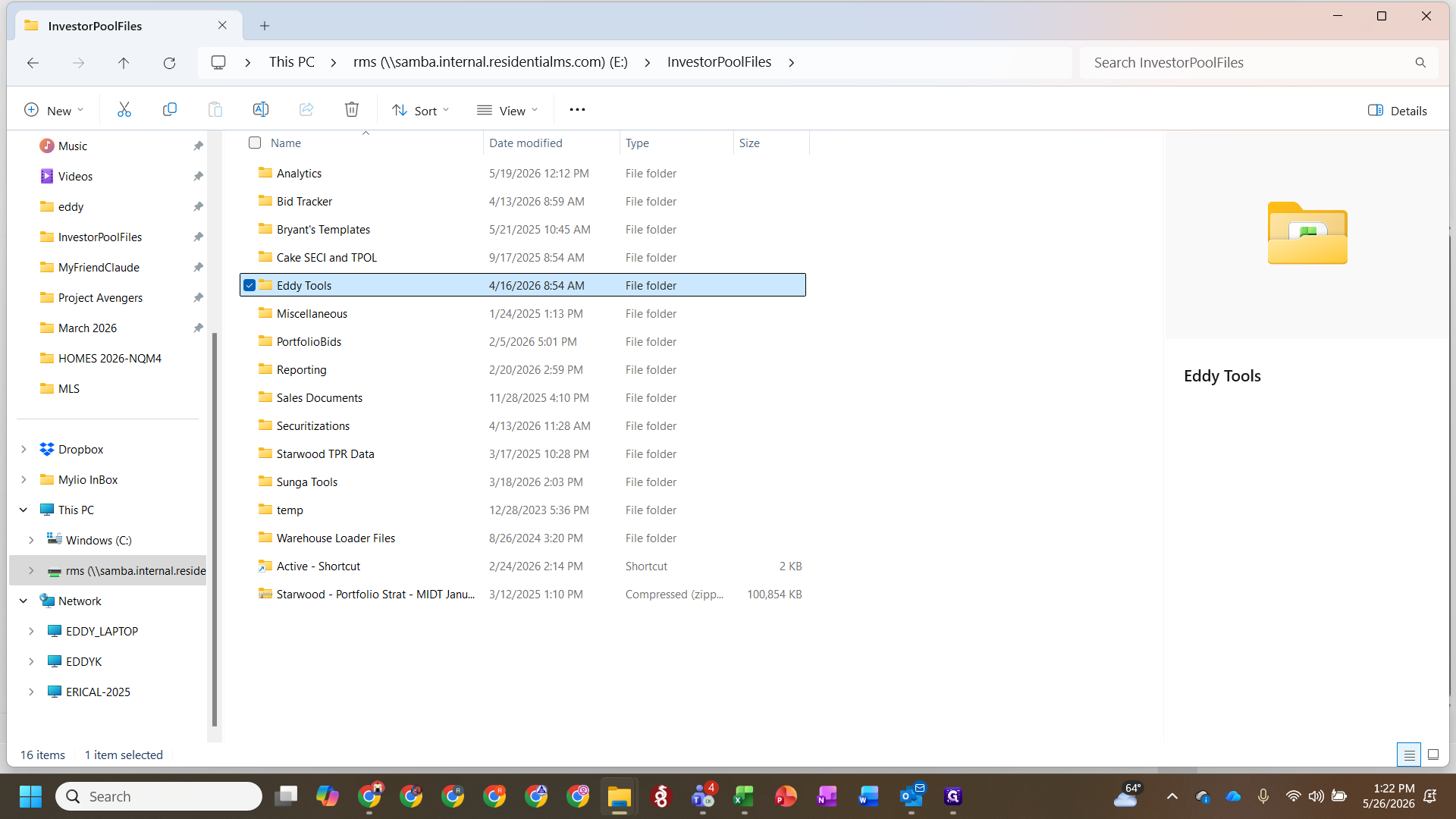
8
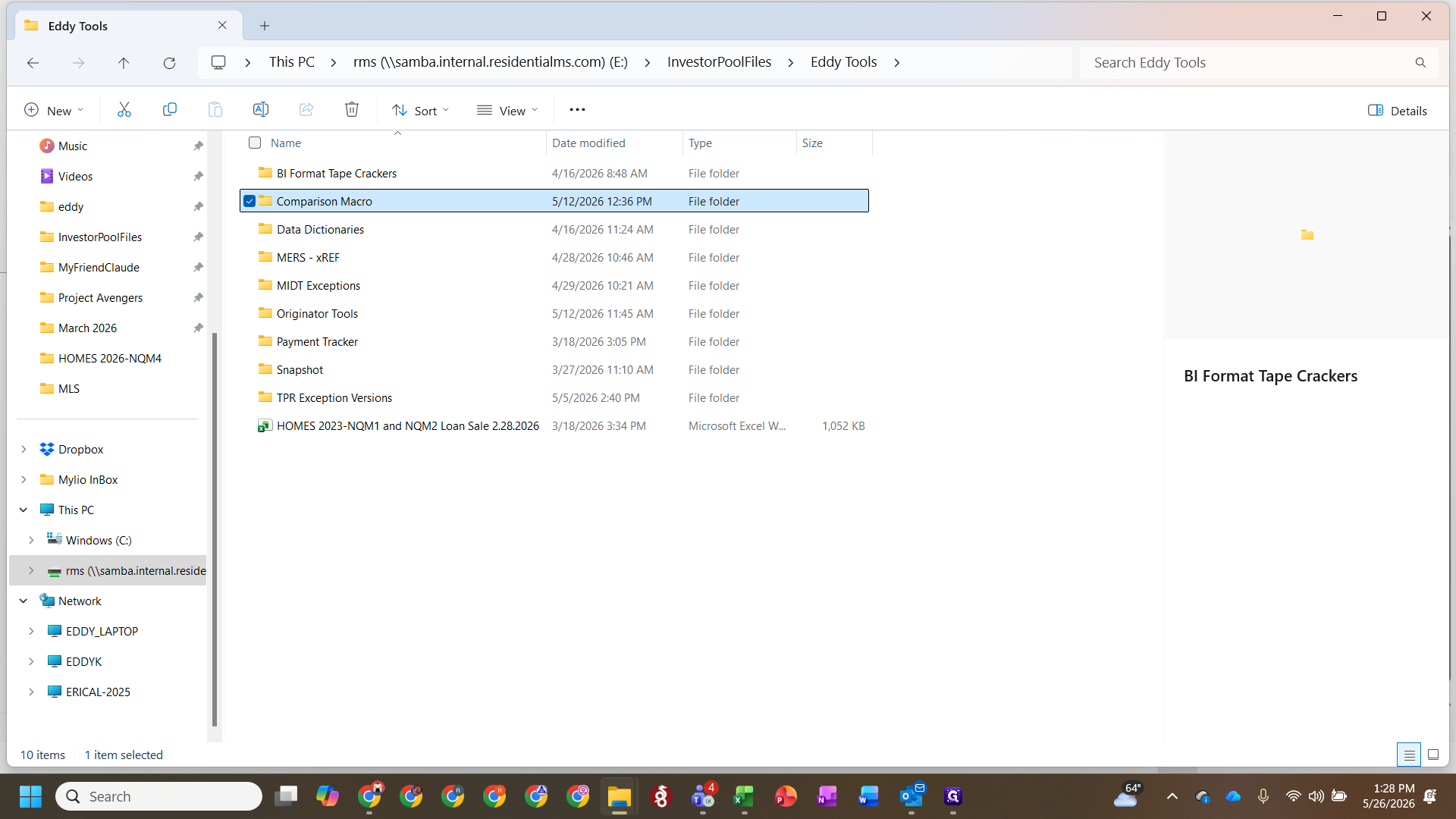
Open the Eddy Tools folder.
Step #8: Open the Eddy Tools folder.
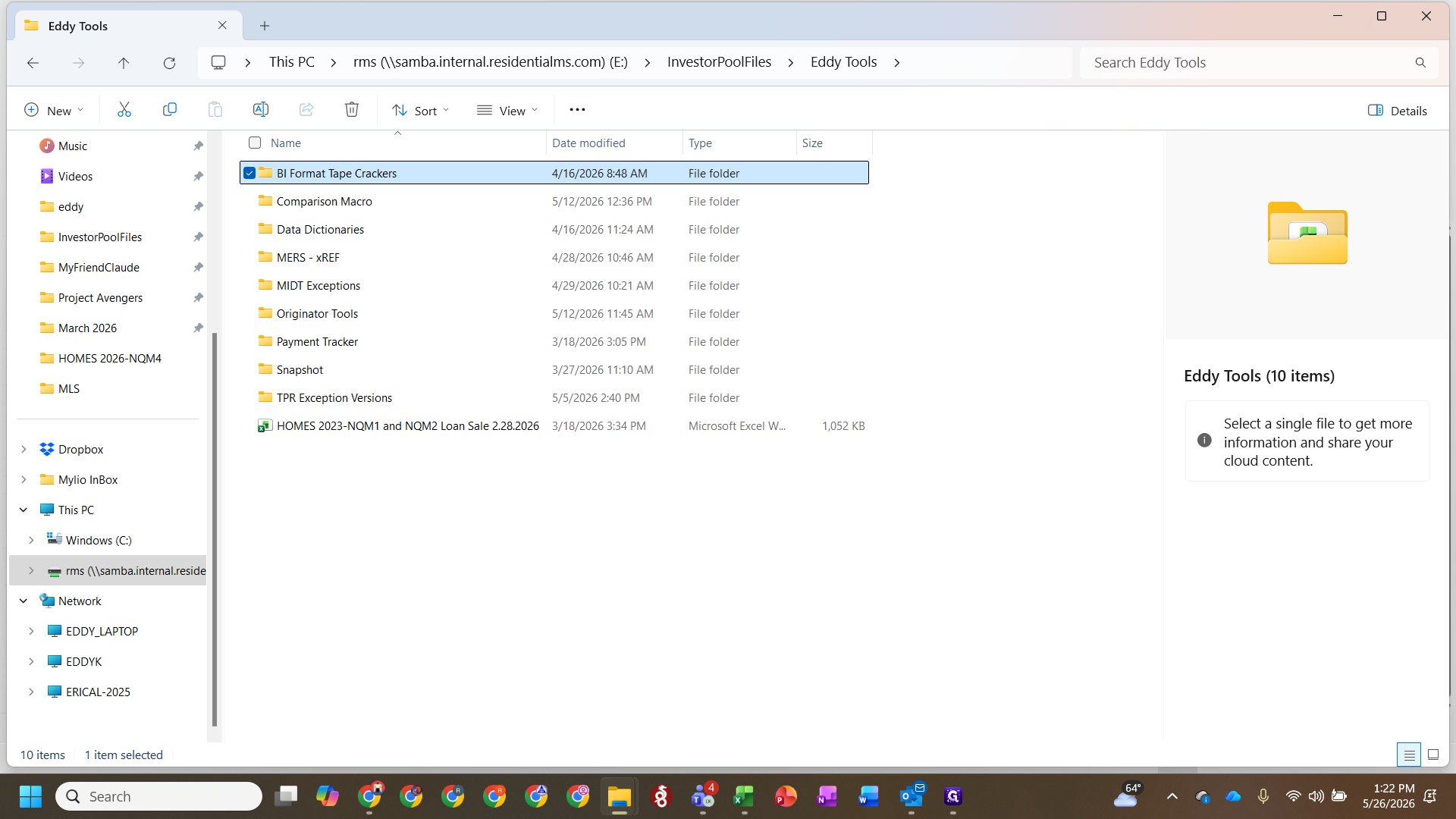
9
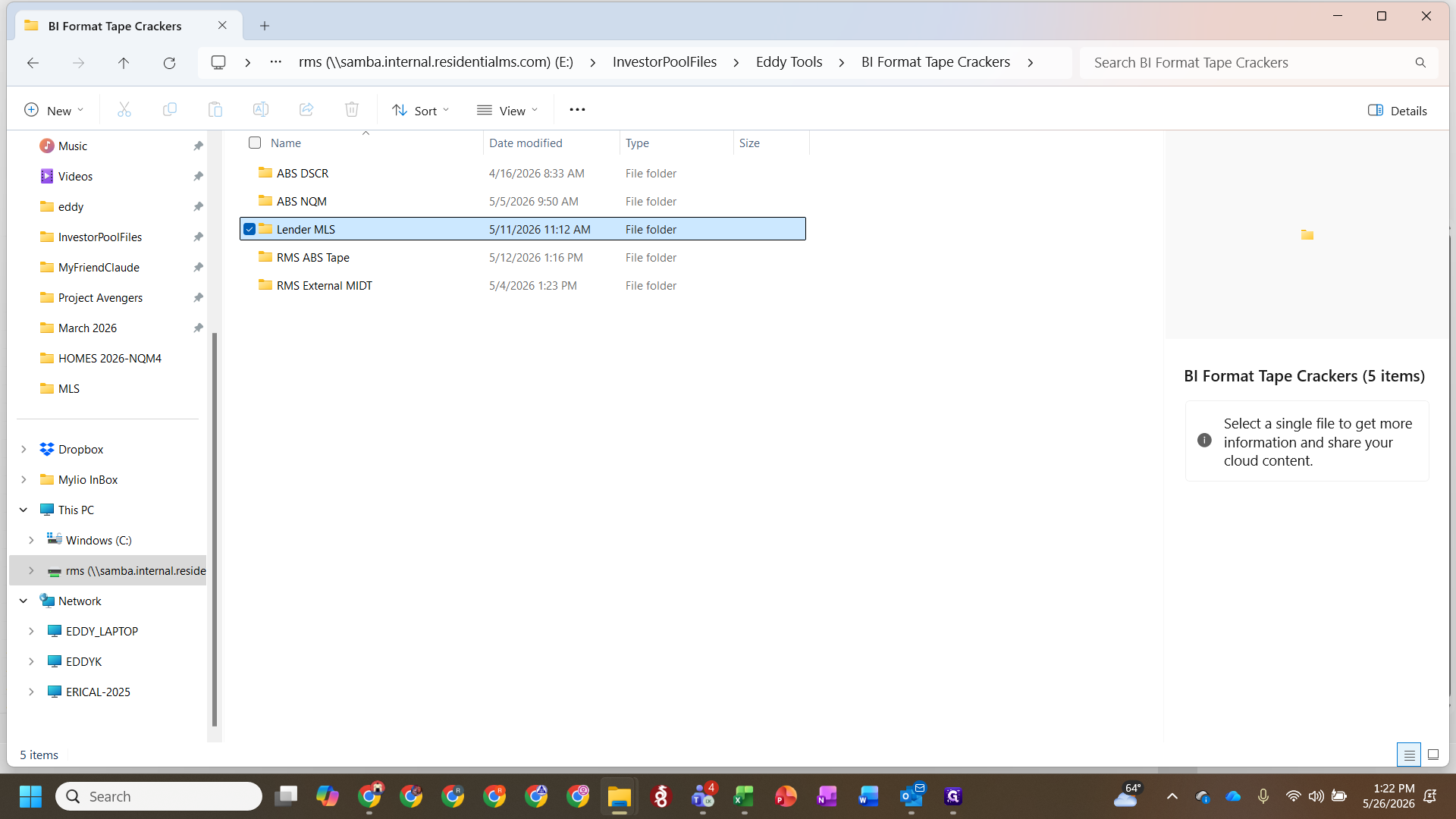
Double-click on BI Format Tape Crackers.
Step #9: Double-click on BI Format Tape Crackers.
10
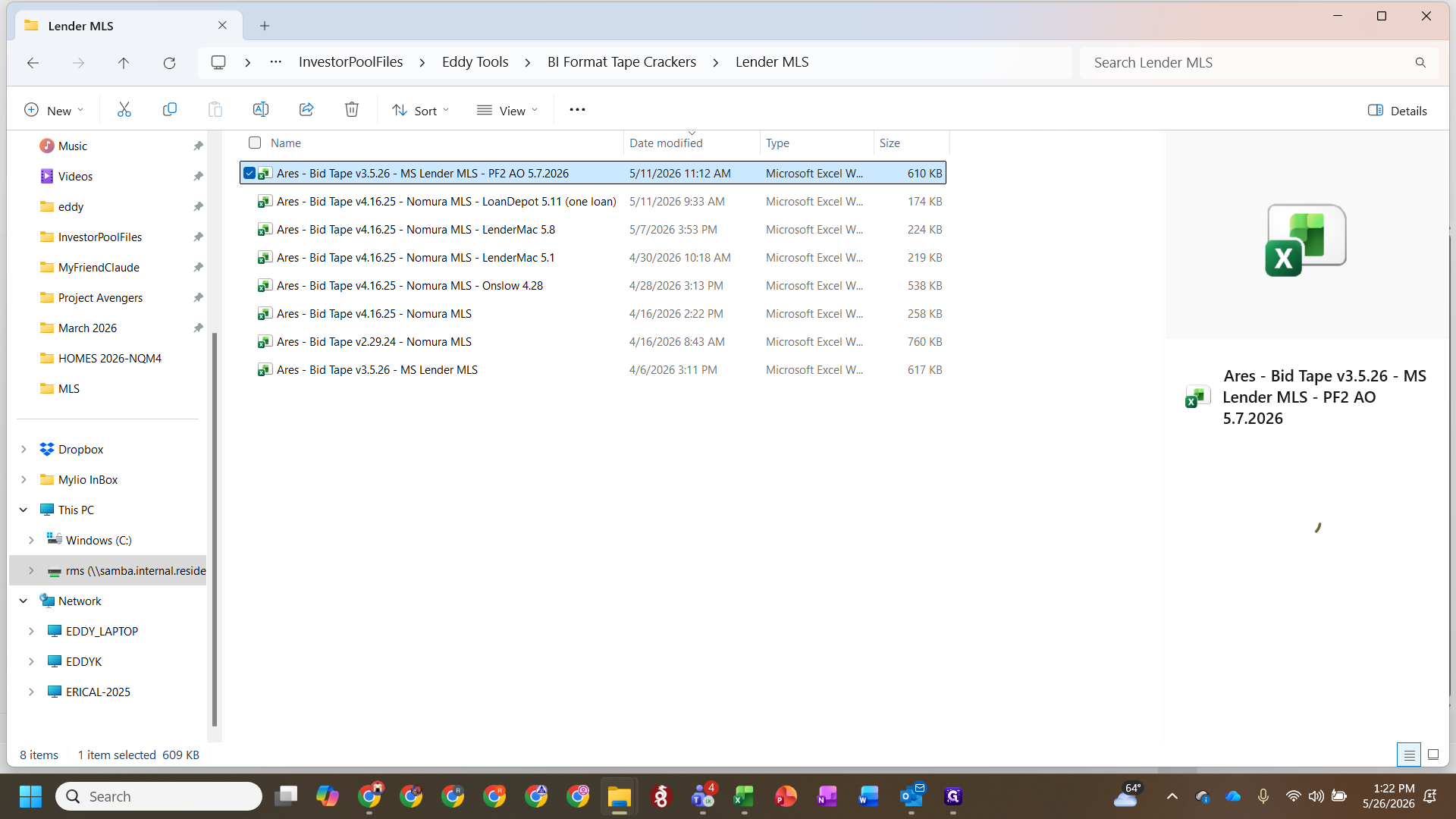
Double-click to open the Lender MLS folder.
Step #10: Double-click to open the Lender MLS folder.
11
Copy the most recent iteration of the Bid Tape template.
Step #11: Copy the most recent iteration of the Bid Tape template.
12
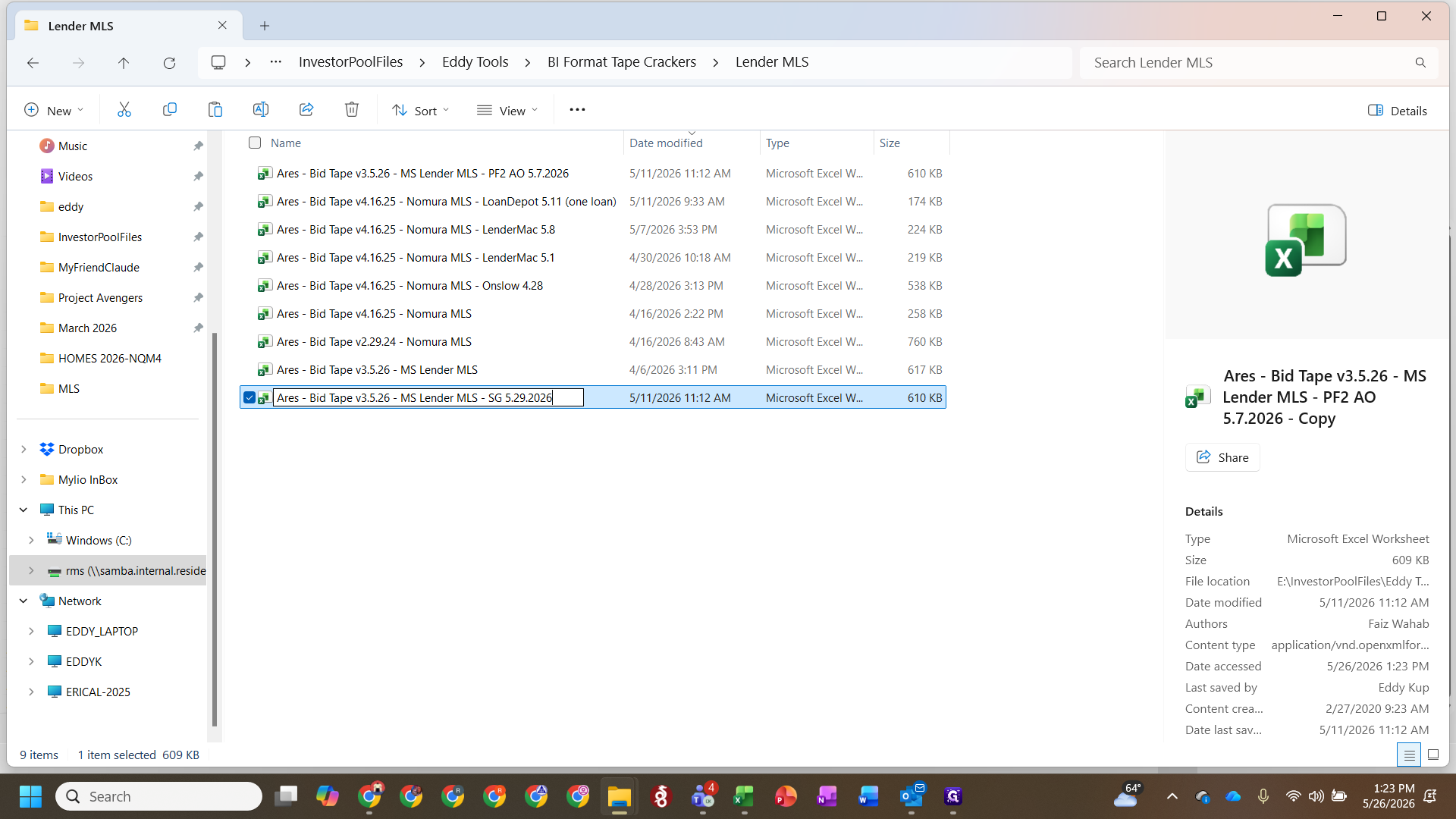
Rename the copied file to include your target seller and funding date.
Step #12: Rename the copied file to include your target seller and funding date.
13
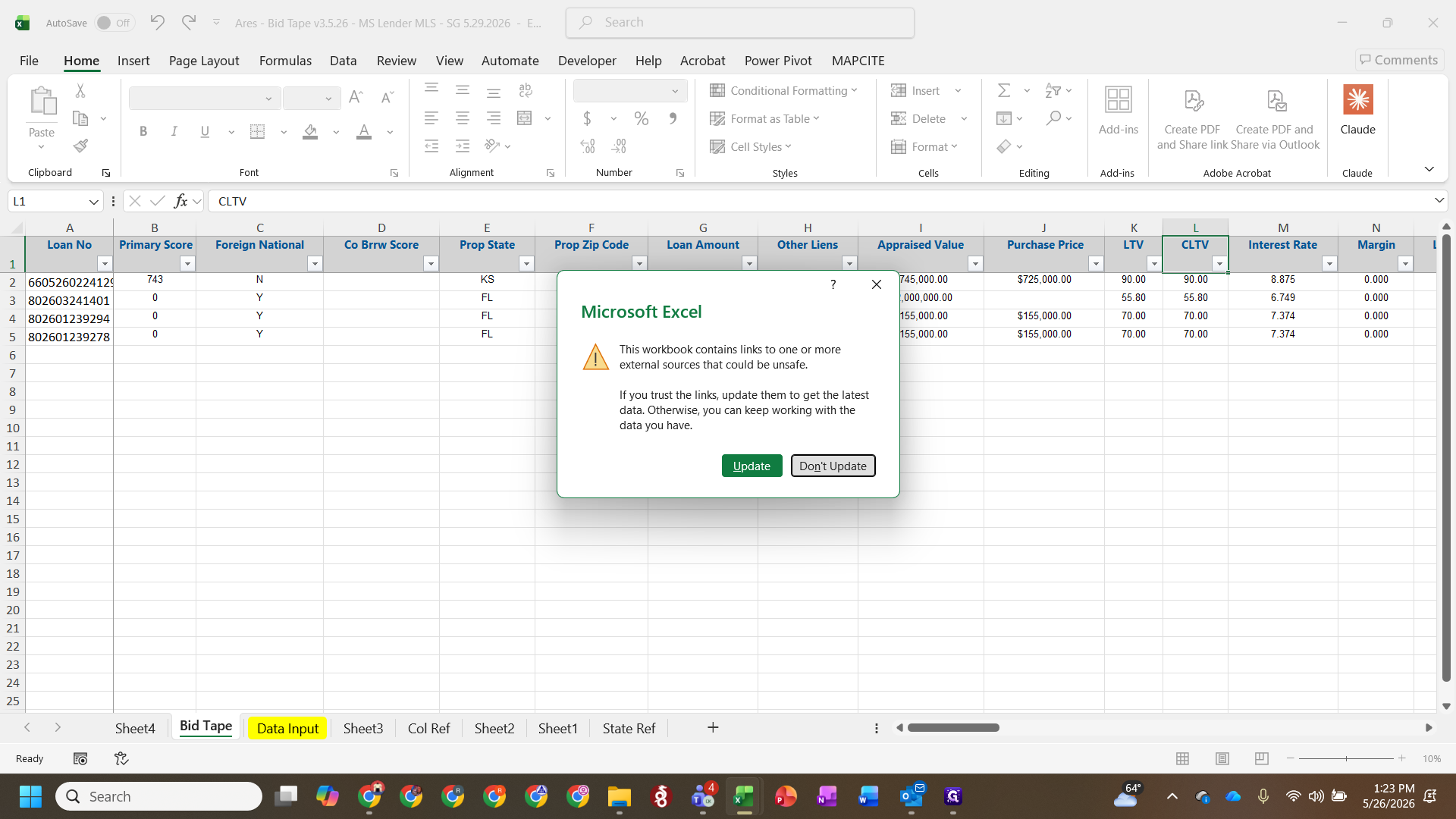
Open the newly renamed file and click Don't Update when prompted about external links.
Step #13: Open the newly renamed file and click Don't Update when prompted about external links.

4. Map Values and Run Comparison Macro

14
Use an IF statement (e.g., =IF(A9=A1,0,1)) to ensure the column headers in the template align with the supplemental tape.
15
Clear any residual template data, then copy and paste the correct values from the supplemental tape.
16
Search for specific data mappings, like primary citizen status, to align them with the correct reference codes.
17
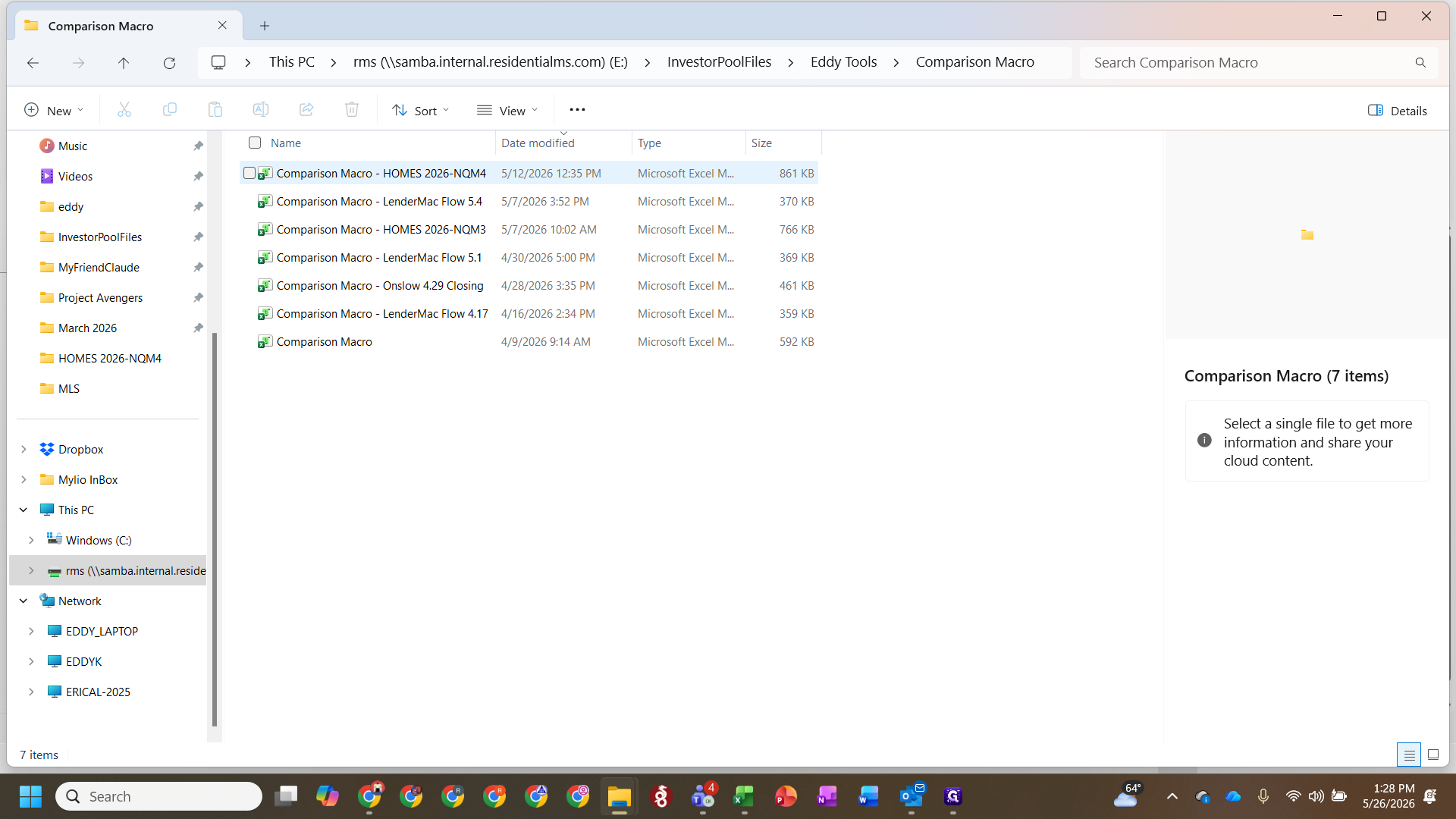
Navigate back to Eddy Tools and open the Comparison Macro folder.
Step #17: Navigate back to Eddy Tools and open the Comparison Macro folder.
18
Copy the latest Master Summary Comparison Macro and rename it for your current funding.
Step #18: Copy the latest Master Summary Comparison Macro and rename it for your current funding.
19
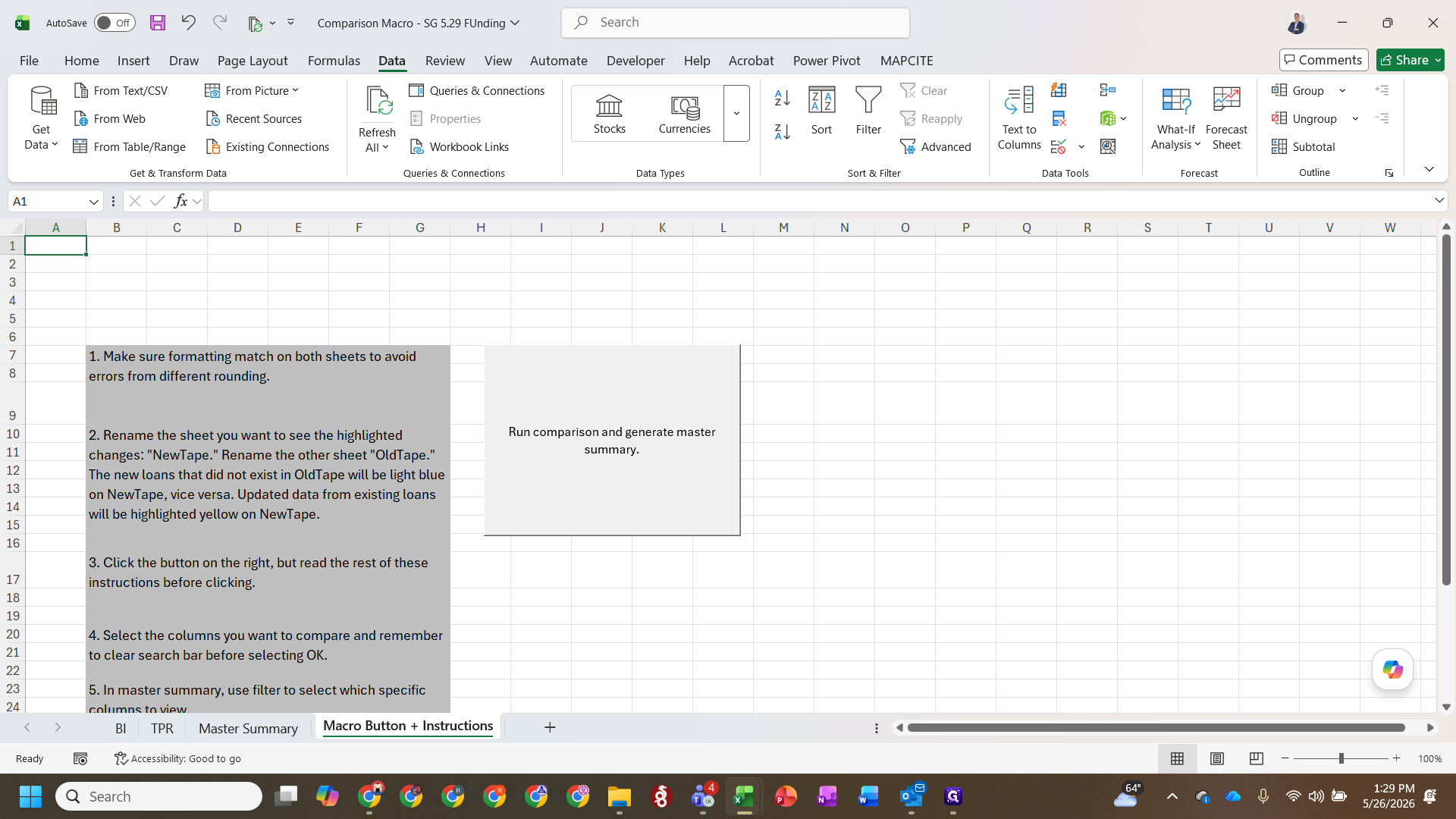
Open the macro file and click Run comparison and generate master summary.
Step #19: Open the macro file and click Run comparison and generate master summary.
20
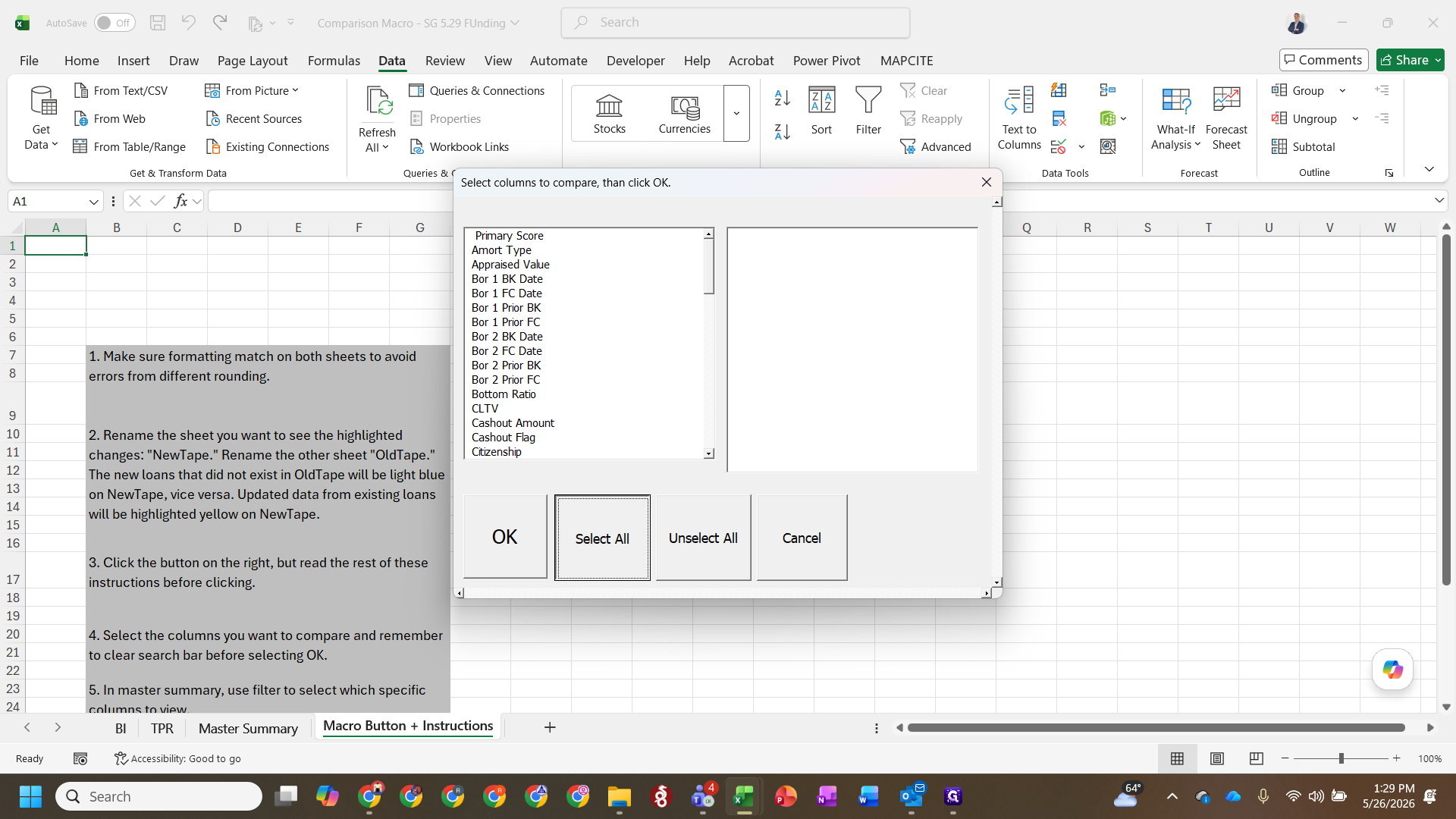
Click Select All to compare all data fields.
Step #20: Click Select All to compare all data fields.
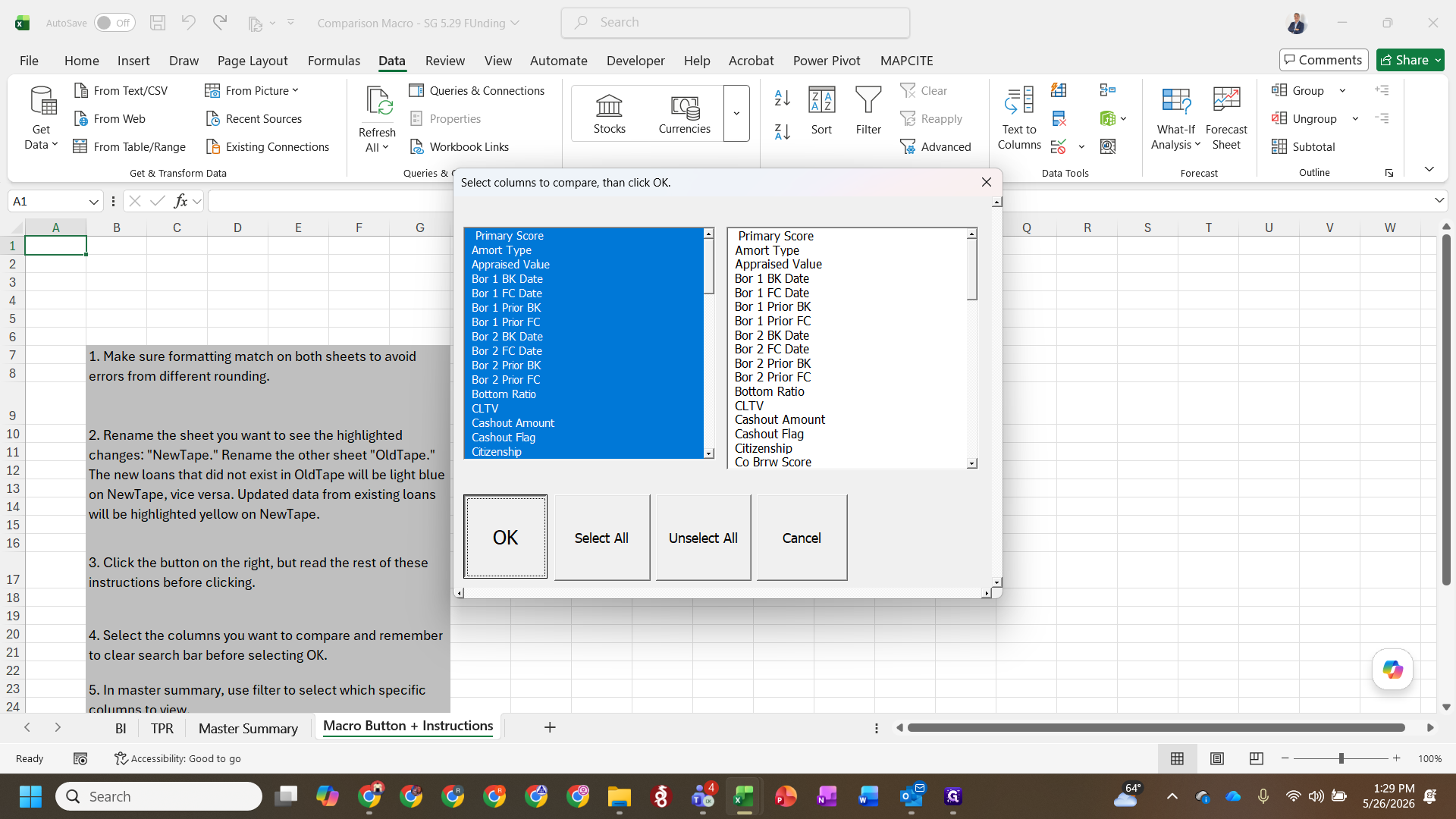
21
Click OK to execute the macro.
Step #21: Click OK to execute the macro.
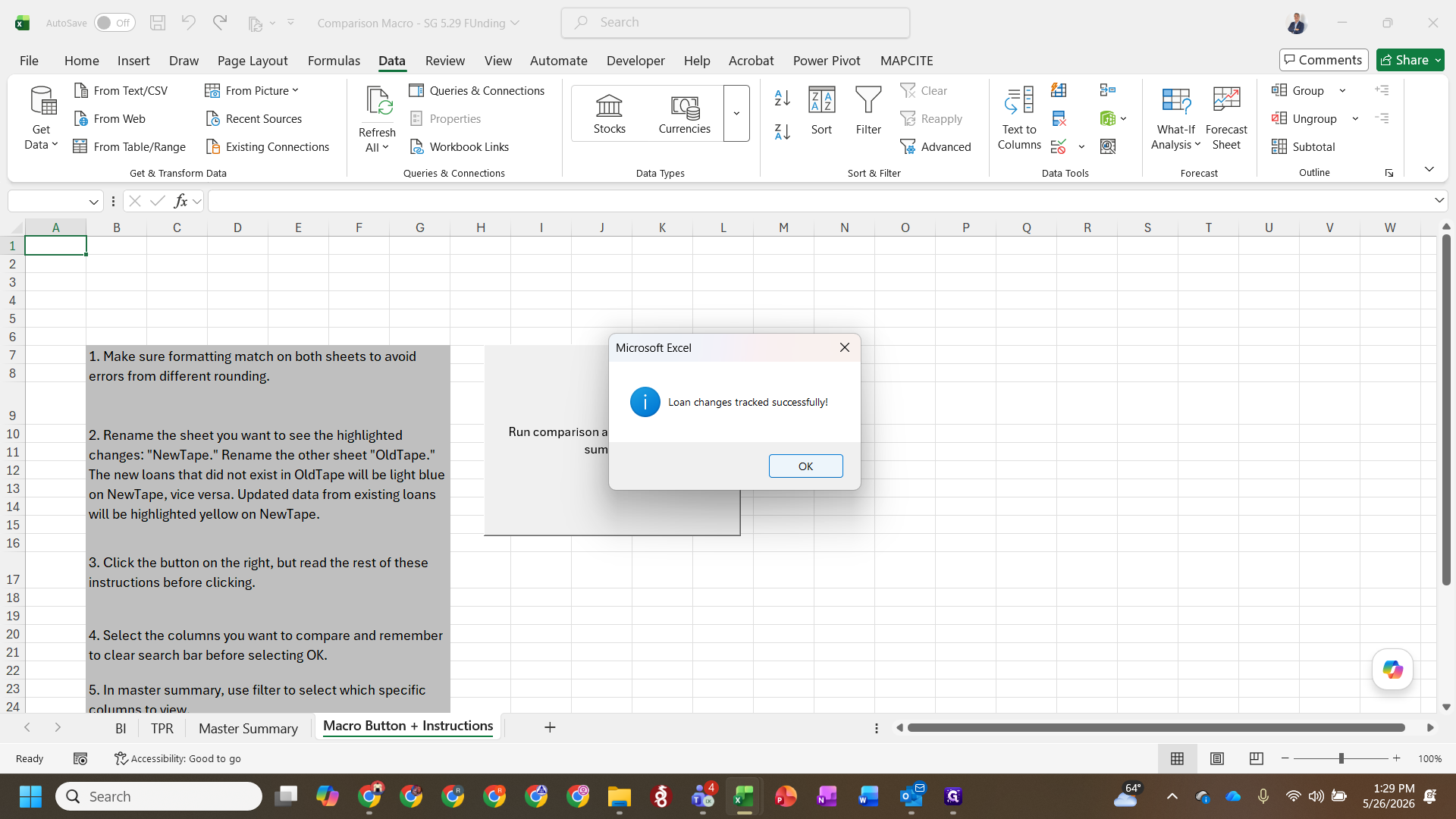
22
Click OK when the success prompt appears.
Step #22: Click OK when the success prompt appears.

5. Review Exceptions and Notify Operations
23
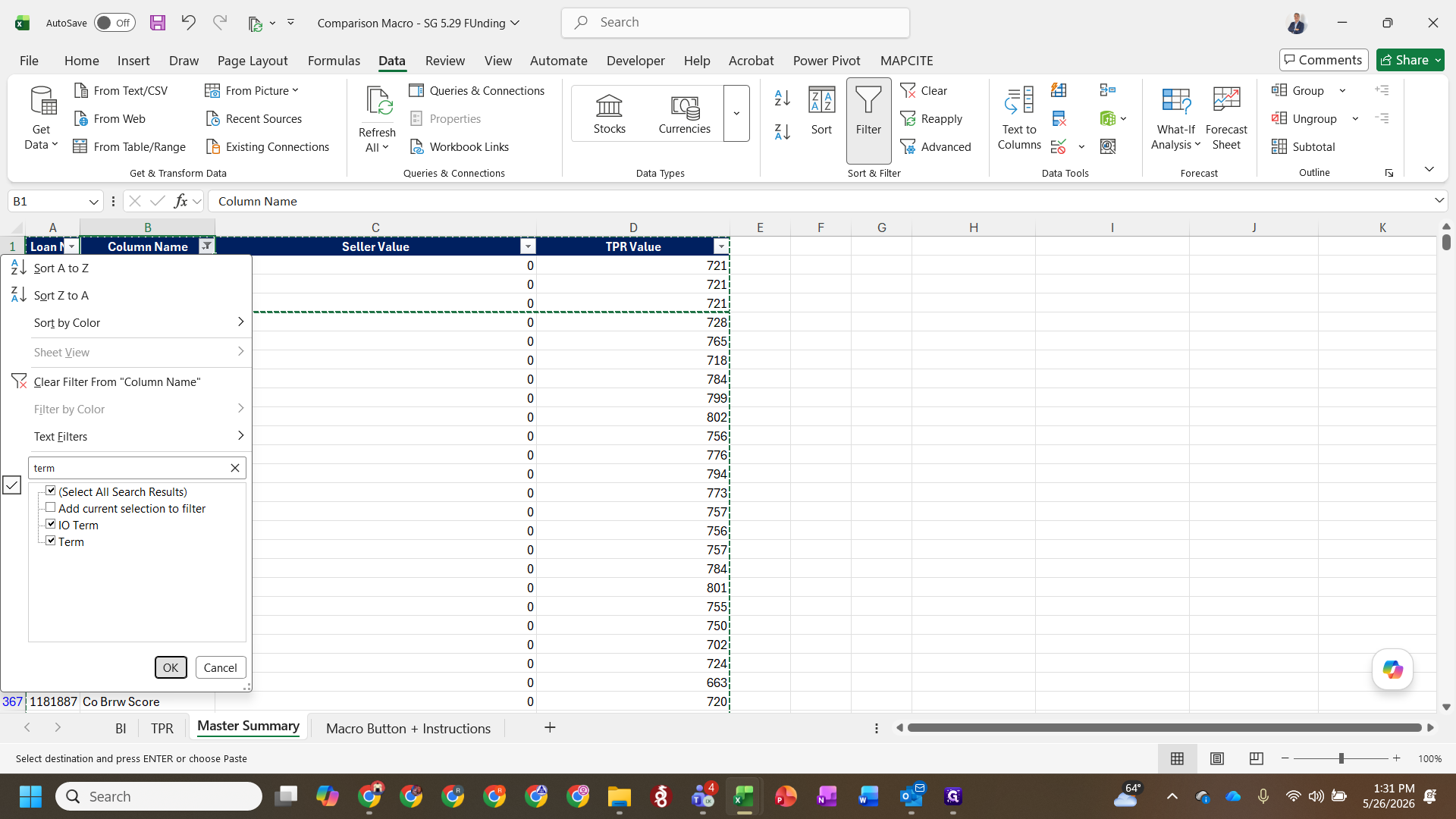
Review the generated Master Summary and filter the Column Name field to isolate key discrepancies like DSCR, Term, or Zip Code.
Step #23: Review the generated Master Summary and filter the Column Name field to isolate key discrepancies like DSCR, Term, or Zip Code.
24
Highlight and copy any material exceptions that need to be addressed.
25
Draft an email to the operations team detailing the exceptions, noting if any TPR values are showing as 0.
26
Send the email.

Q: What does an "NA" closing date signify?

A: An "NA" closing date usually signifies a loan that was previously dropped and not slated for a closing date. You will need to go back and manually input the target closing date if it is now scheduled for funding.

Q: Do the files in the comparison macro need to have the exact same column order?

A: No, the comparison template will automatically detect and highlight the entire row if loans are missing or ordered differently.

Q: Why might the loan amount change in the comparison macro?

A: Loan amount changes are typically not a major issue, as they are mostly updated automatically from the original bid tape.

Term

Definition

TPR

Third-Party Review, an independent evaluation of loan data and documentation prior to settlement.

BI Tape

The centralized bid format database or "crack tape" that records target population loans and their details.

Eddy Tools

A shared network directory containing proprietary macros and tape cracker templates used for formatting and comparing loan data.

Master Summary

A report generated by the comparison macro that highlights specific discrepancies between TPR data and seller data.

DSCR

Debt Service Coverage Ratio, a financial metric used to evaluate a property's ability to cover its debt obligations.