How to Prepare a Master Setlist from a Wedding Info Sheet
How to Prepare a Master Setlist from a Wedding Info Sheet
Learn how to prepare a master band setlist by duplicating templates, adding special dances, marking top requests, and applying a do-not-play list.
By Matt Rappaport
Preparing a song list for C6 gig requires pulling details from the Google Calendar event and the client's Wedding Info Sheet, then formatting those details into a master block list for the band.
Follow these steps to build out a custom setlist.
1. Determine Band Size and Duplicate the Template
The first step is figuring out which master block template to use (e.g., 8-piece, 9-piece, 11-piece, or 12-piece). The 8-piece is the core band. Adding a singer makes it 9; adding horns makes it 11; adding both makes it 12.
1
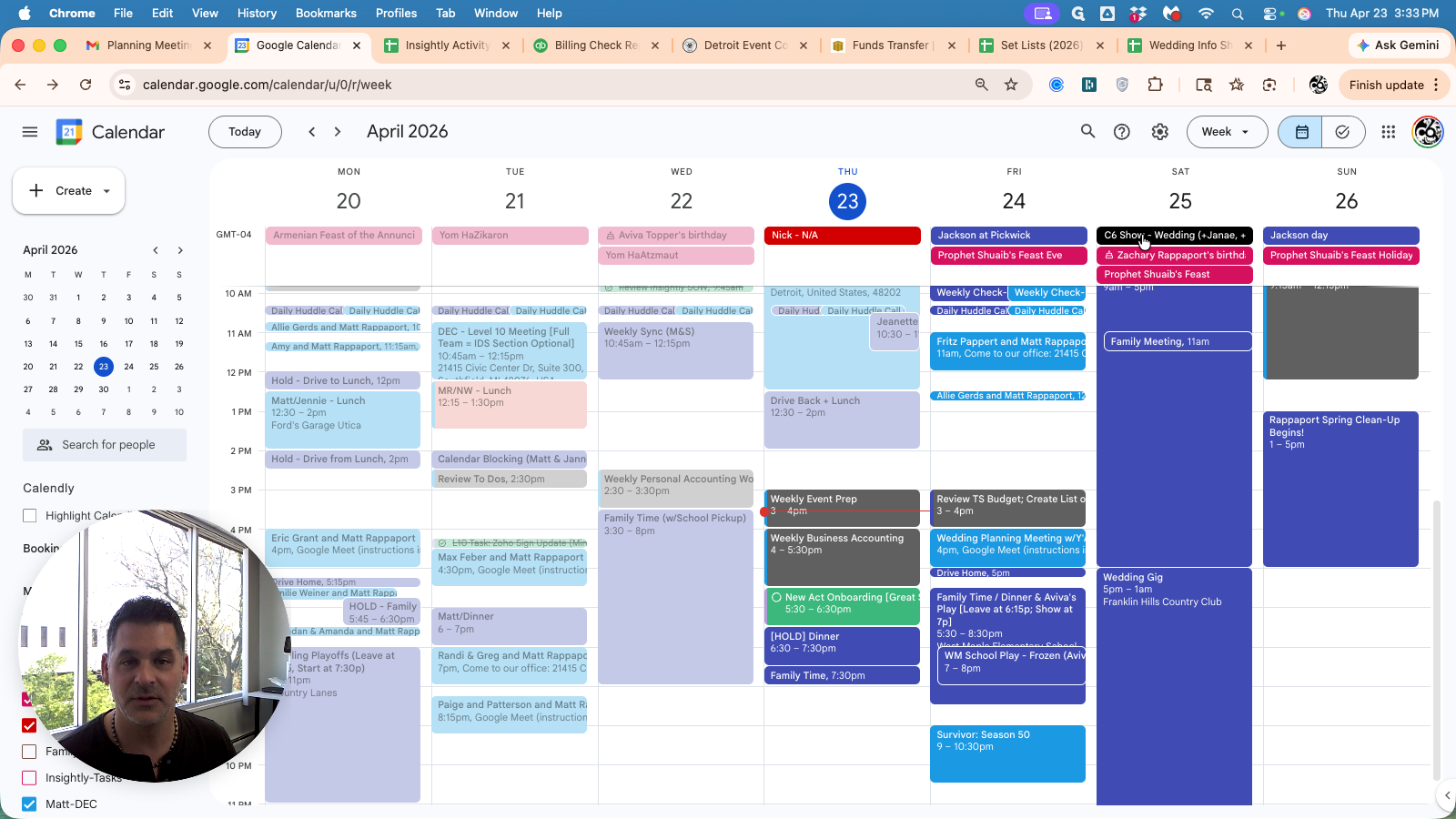
Check the calendar event to determine the required band configuration
Open your Set Lists spreadsheet and navigate to the tab that matches the band size.
2
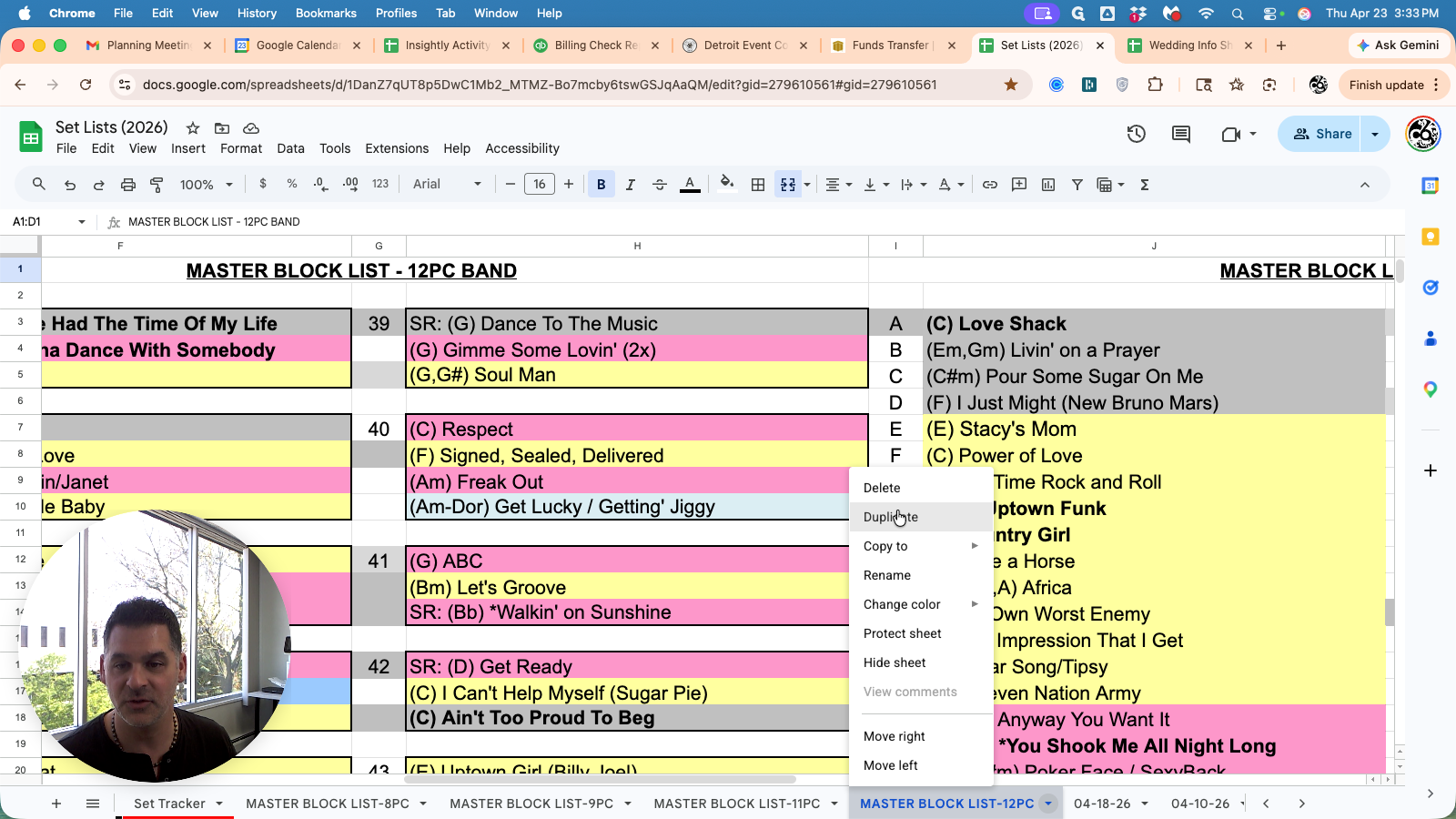
Click the tab's dropdown arrow and select Duplicate
3
Double-click the duplicated tab and rename it with the event date (e.g., 04-25-26)
.
2. Set Up the Header
4
Use the couple's names from the Wedding Info Sheet = "Guests of Honor" section (e.g., Jason & Emilie Katz)
. 2.
5
Paste into cell A1 on the worksheet created for this event (i.e. 04-25-26).
6
Type the fully spelled-out date on the right side of the dash (i.e. April 25, 2026).
7
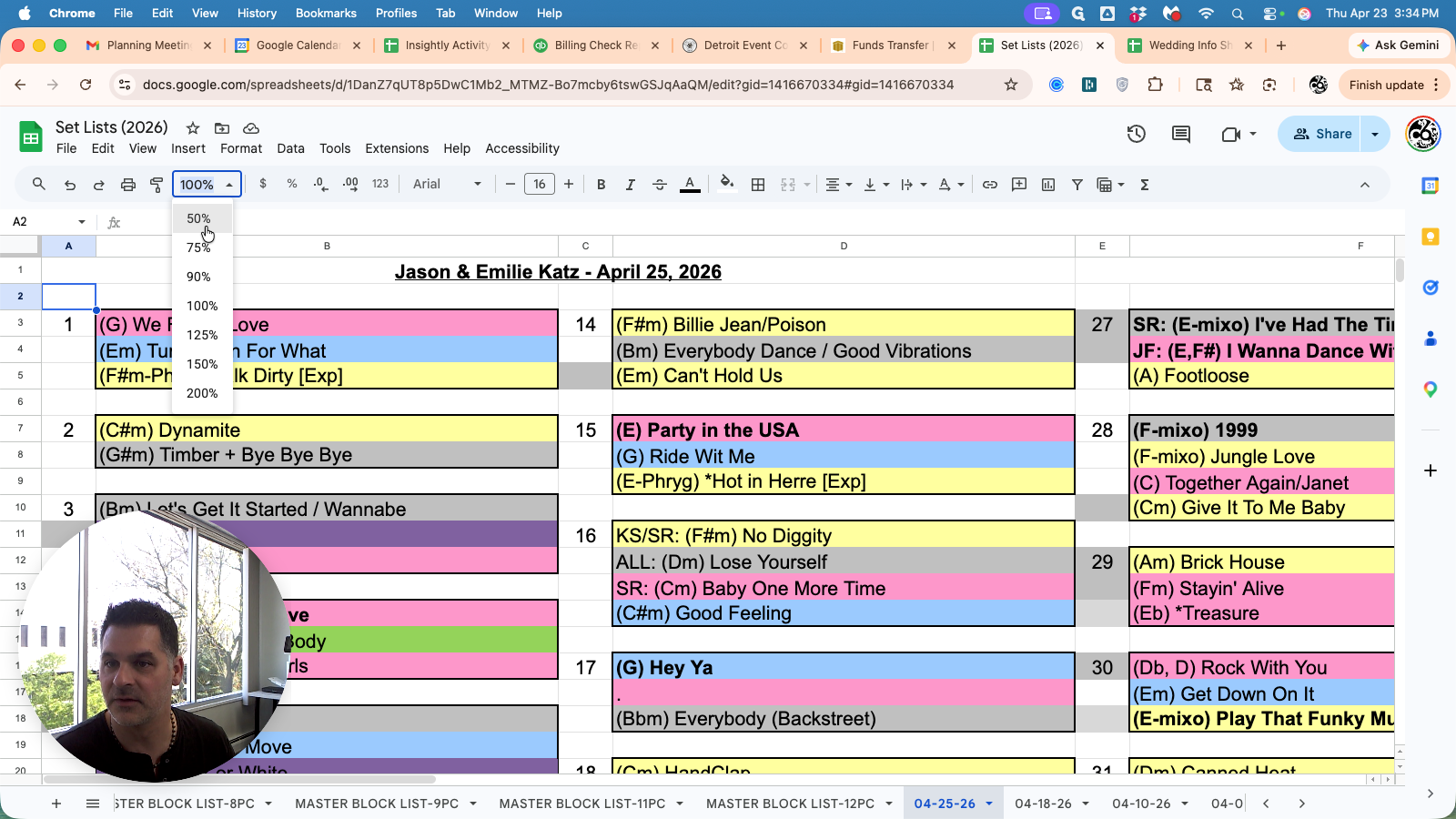
Recommend: Zoom out to 50% so you can easily view the entire list at once.
.
3. Add the Special Dances
Next, transfer the formal dances into their specific slots.
Check the Info Sheet to confirm special dances are marked Play it live!. If they are labeled as DJ'd, do not put them on the band's setlist. You will prepare them in Spotify instead.
8
Copy the First Dance song title from the Wedding Info Sheet
9
Paste the song into the First Dance slot on the setlist
10
Copy the first parent dance song
11
Paste the song and type the person's name next to it (e.g., EMILIE)
12
Copy the second parent dance song
13
Paste the song into the final parent dance slot and type the person's name (e.g., JASON)
14
If there is a Hora, add a note next to the appropriate block (e.g., Then, Hora #49). If the hora is earlier in the night (i.e. not after the special dances, skip this step.
.
4. Remove Special Dances from the General List
If the special dance songs happen to be part of the band's standard repertoire, you must remove them from the general block list. This ensures we do not accidentally call the song twice in one night.
15
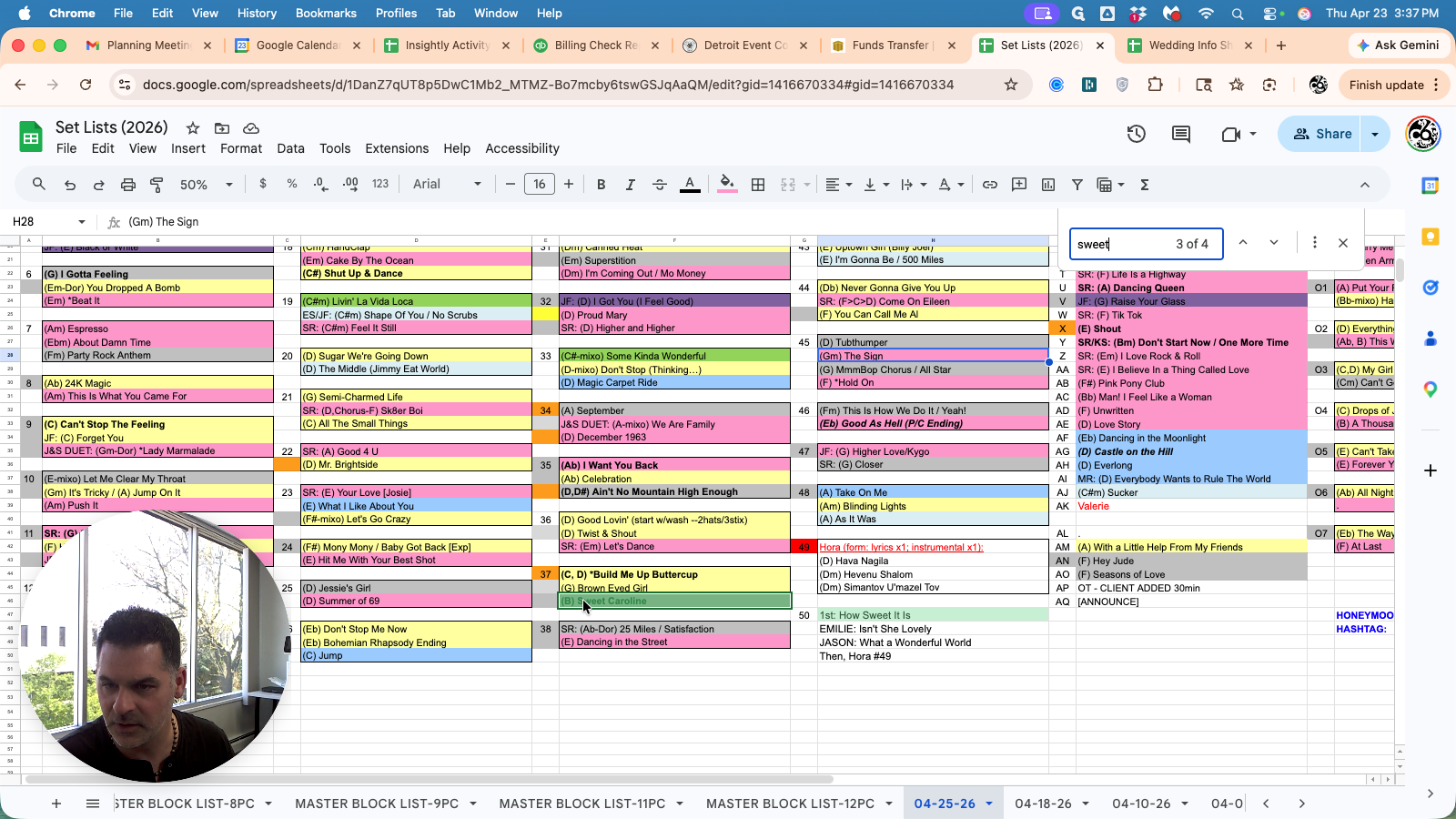
Search for the special dance song title. Locate the song (if applicable) and type a period ( . ) to remove it from the list for that event. Repeat this process for all special dance songs.
5. Mark Song Requests
The band needs to quickly see which songs the client has requested. You'll accomplish this by highlighting the cells directly to the left of requested songs.
Top 15 Requests - Noted in Orange
16
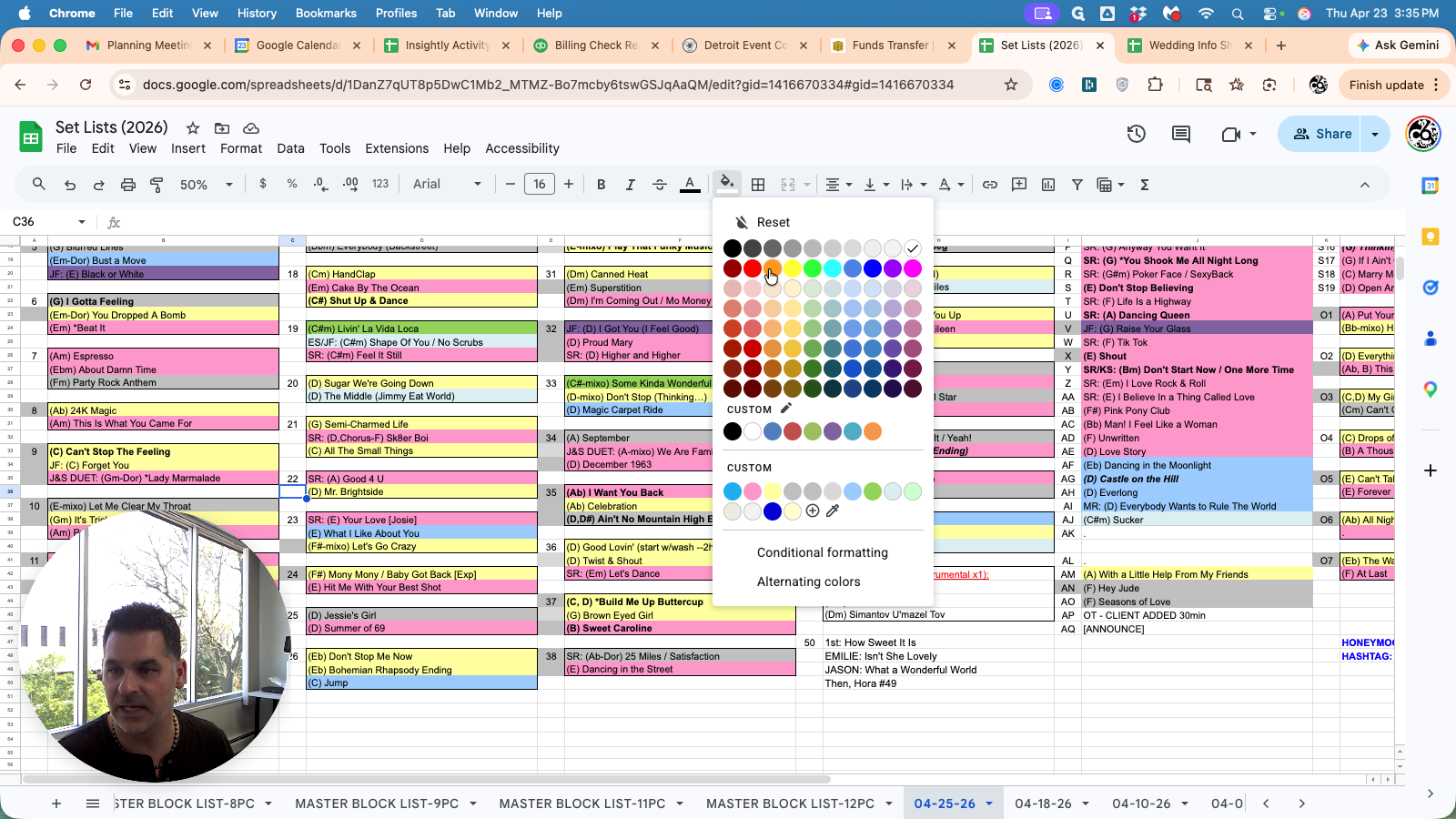
Locate the Top 15 Song Requests on the master list. Then, the empty cell directly to the left of the song and open the Fill Color menu. Choose Orange to signify a Top 15 Song Request or a Slow Songs / Ballads Request.
.
Tier 2 Requests and Other Favorites
Locate Tier 2 Requests on the master list. Then, the empty cell directly to the left of the song and open the Fill Color menu. Choose Yellow to signify a Tier 2 Request.
Special Requests and Song Shout-outs
If a client requests a song that isn't on the general set list block, you need to manually type it in so it stands out.
17
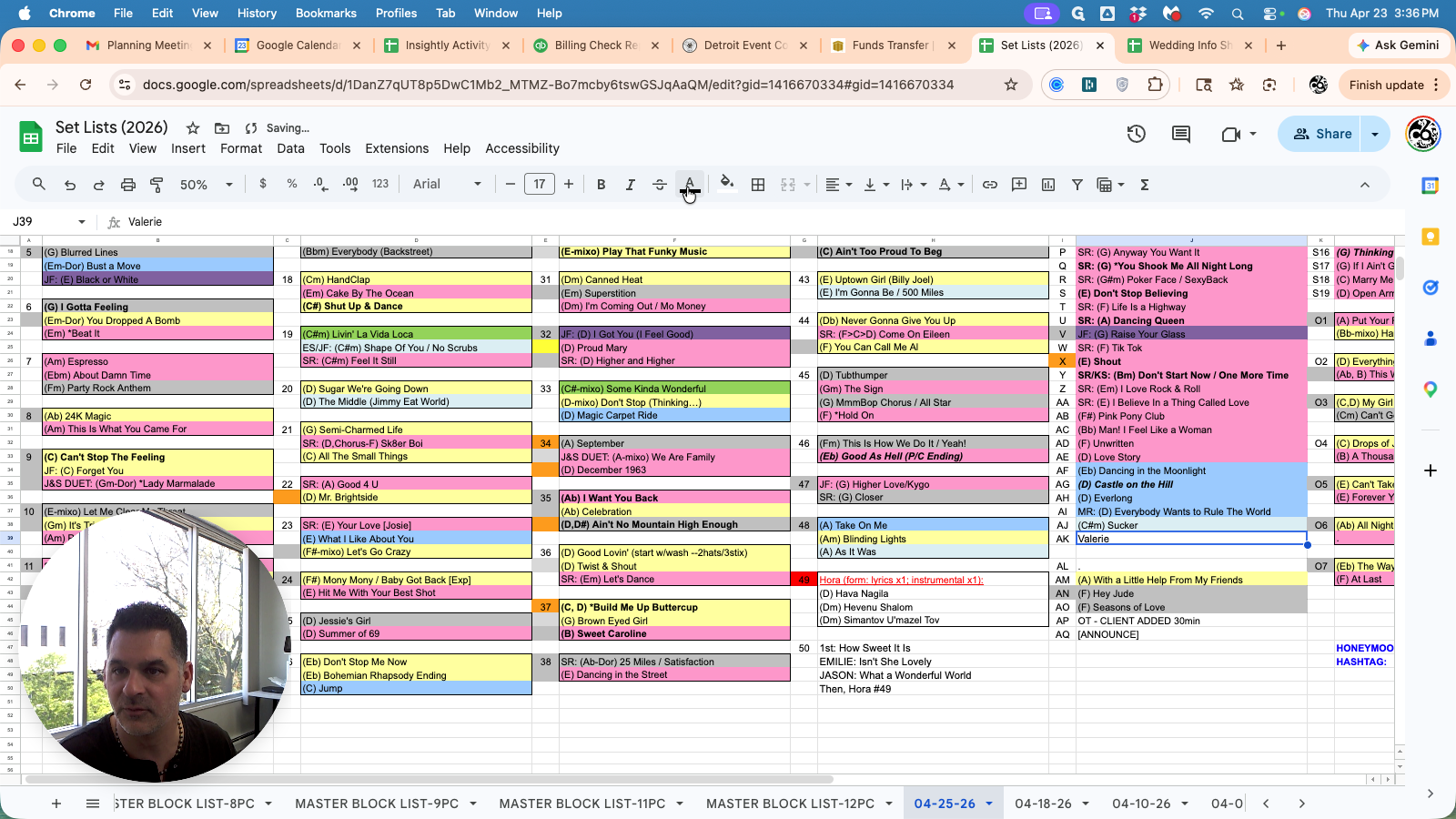
Type the special request into an available empty slot near the relevant block. You can add it below the special dances or as song "AK". Change the text color to bright red so Matt sees it standing our during his review process.
.
6. Apply the Do-Not-Play List
18
Finally, ensure that you remove any Do Not Play songs from the master list entirely. Search for the song title and replace with a ( . ) over the top of the cell to wipe out the song.
Your setlist is now completely prepped! The band has clear visibility into special dances, prioritized song requests, and do-not-play restrictions.