Process Company Payments in Principal Group Benefits
Learn how to manually process individual company payments in the Principal Group Benefits portal using your invoice totals spreadsheet.
By Jessica Esslinger
Processing payments for multiple companies in the Principal Group Benefits portal requires initiating individual manual transactions for each entity. Follow this guide to ensure correct amounts are pulled from the correct bank accounts using your provided invoice spreadsheets.
Log In to Principal
1
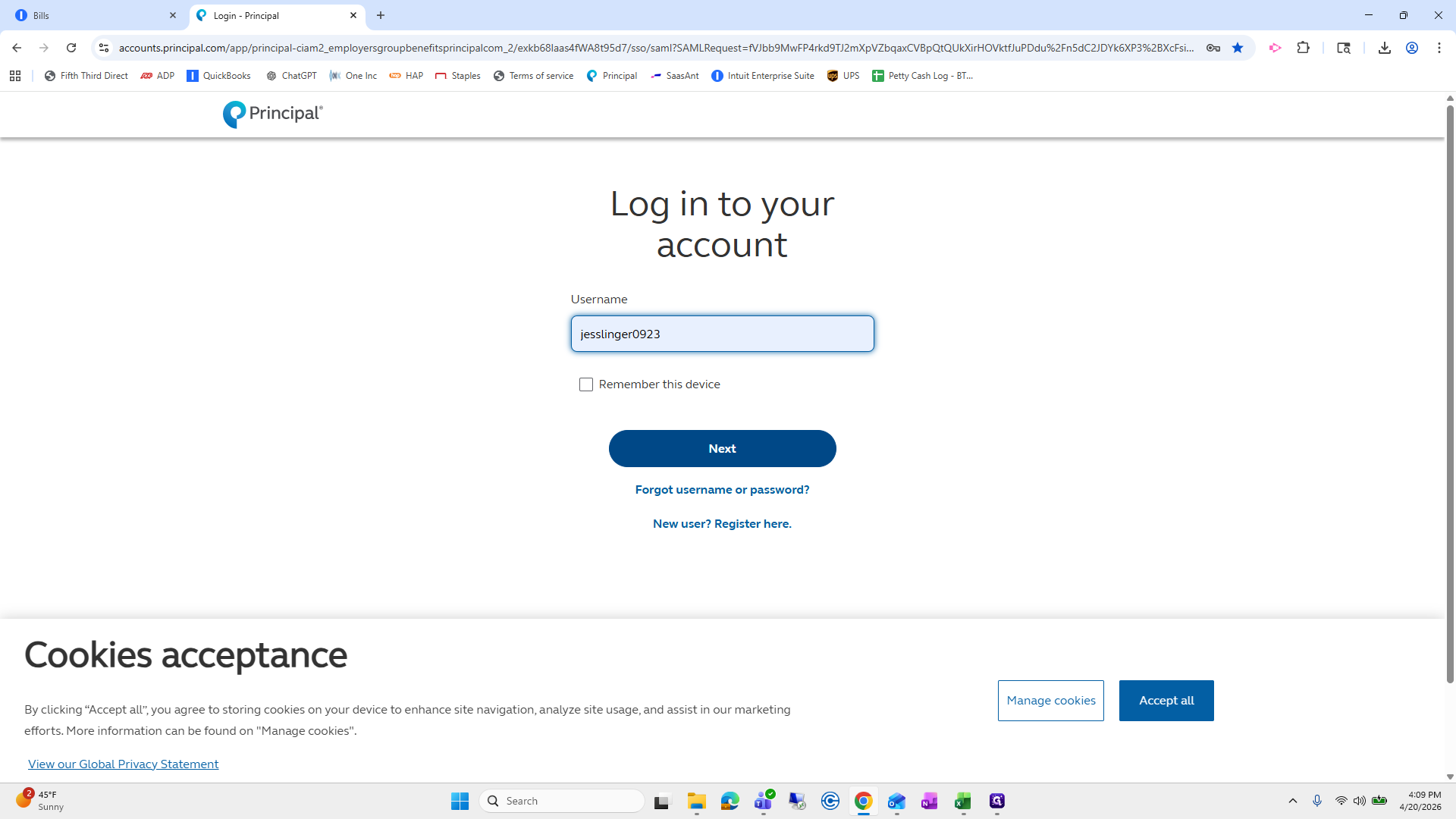
Navigate to the Principal login page, enter your username, and click Next.
2
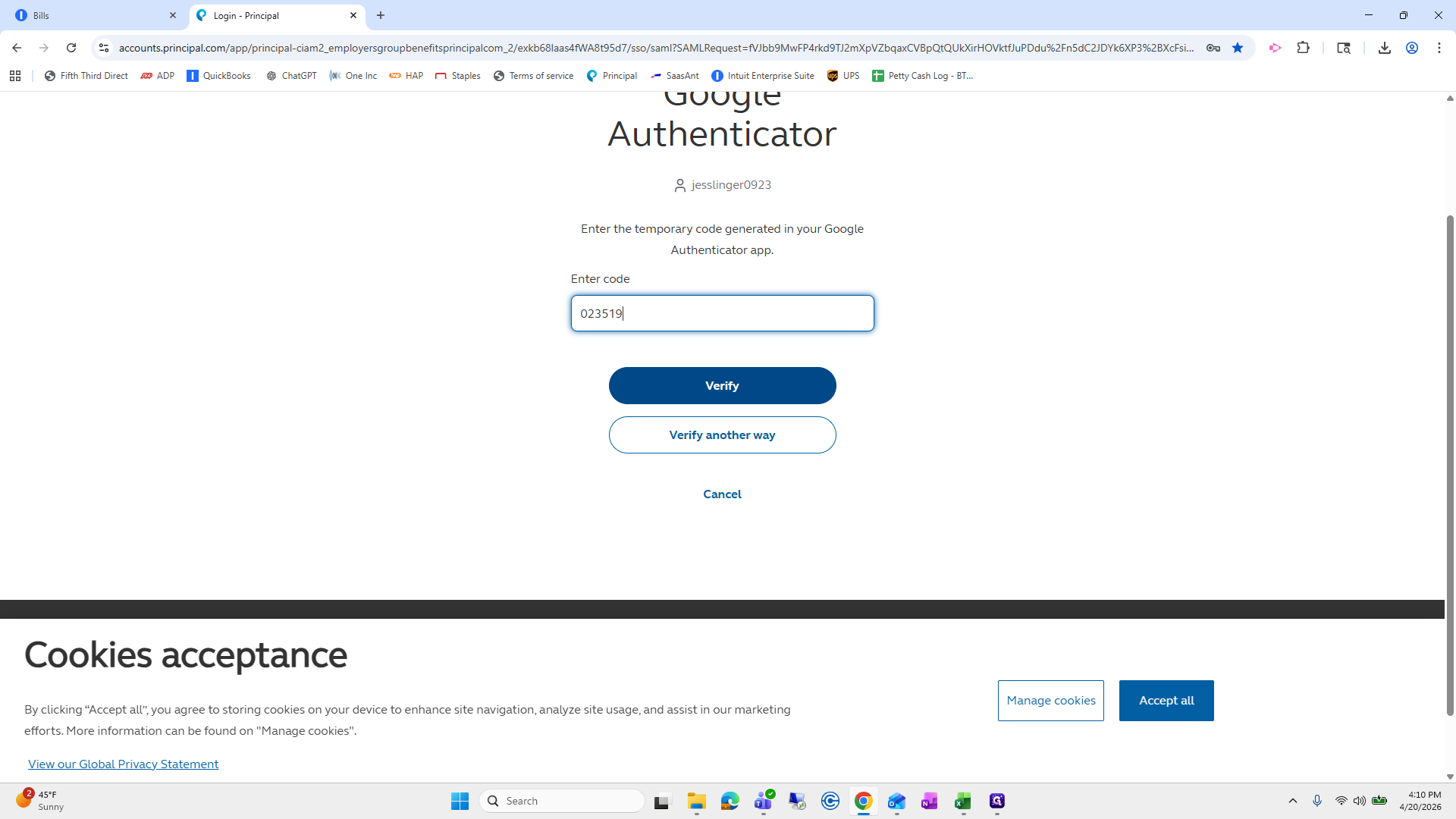
Enter your password, complete the two-factor authentication process (such as Google Authenticator), and click Verify.
Prepare Your Payment Data
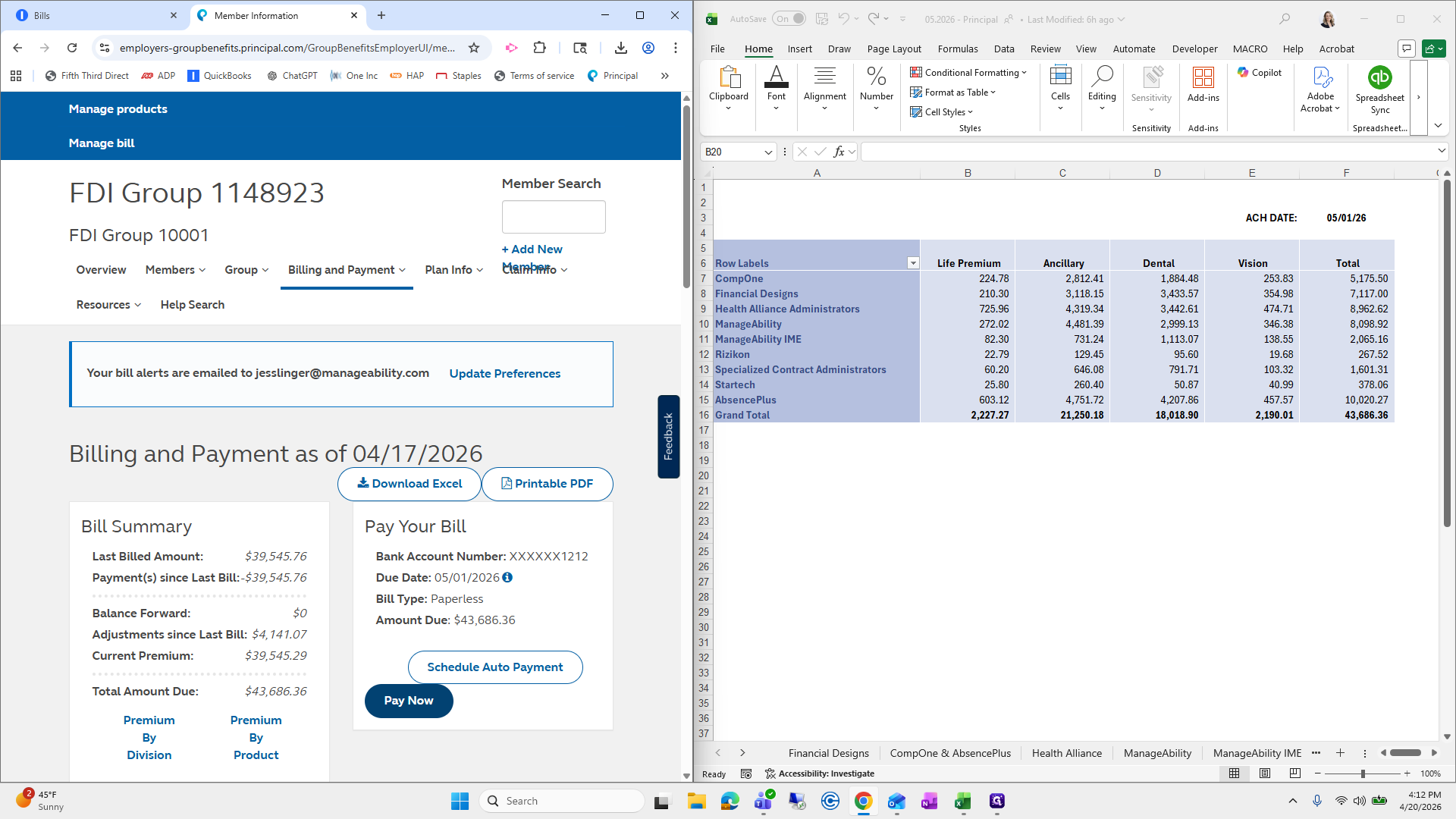
Before processing payments, open the spreadsheet detailing the account payables for each company.
Process the Payments
3
From the Billing and Payment dashboard on the Principal portal, click Pay Now.
4
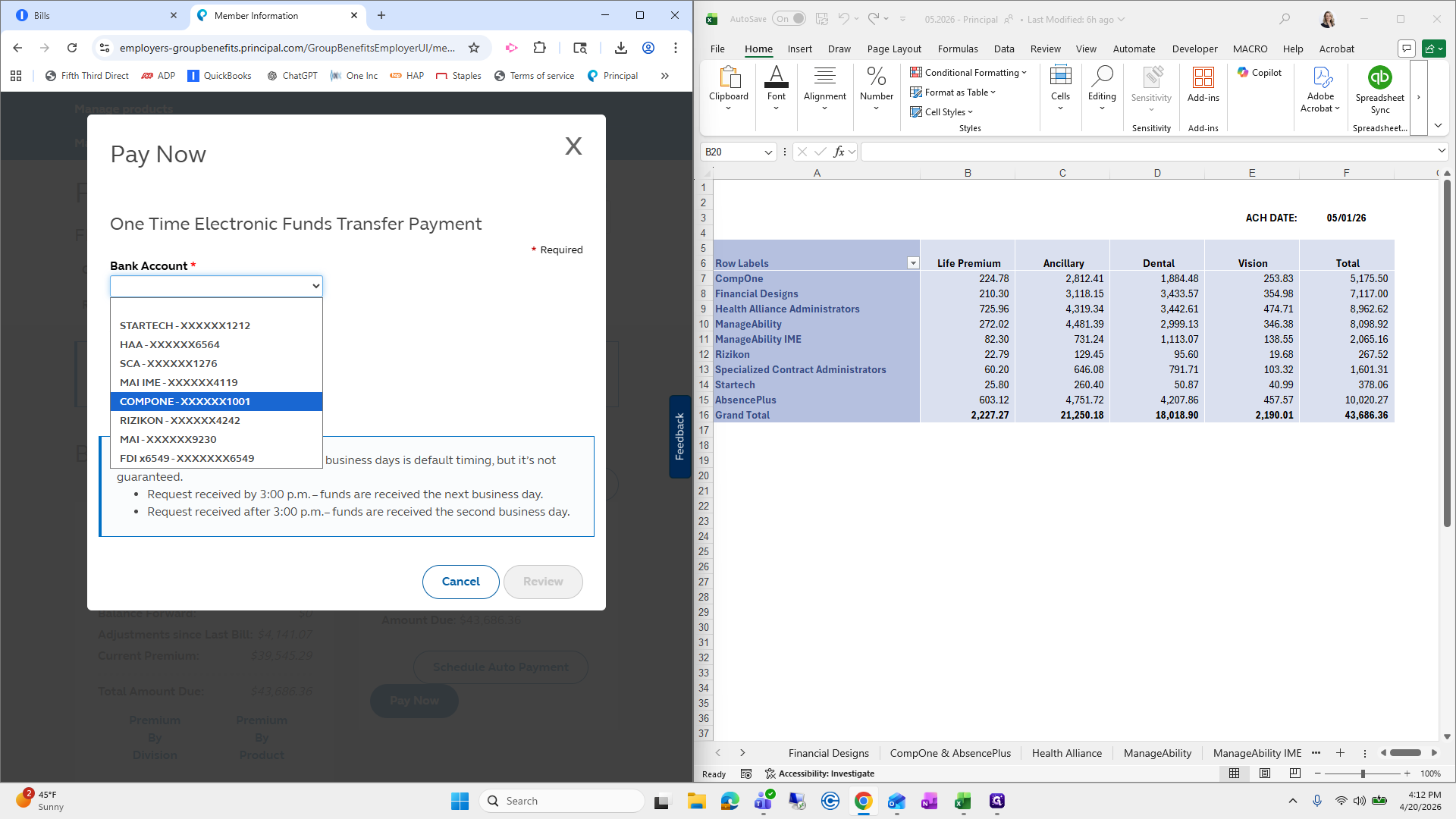
Open the bank account dropdown menu and select the specific company's bank account (e.g., COMPONE).
5
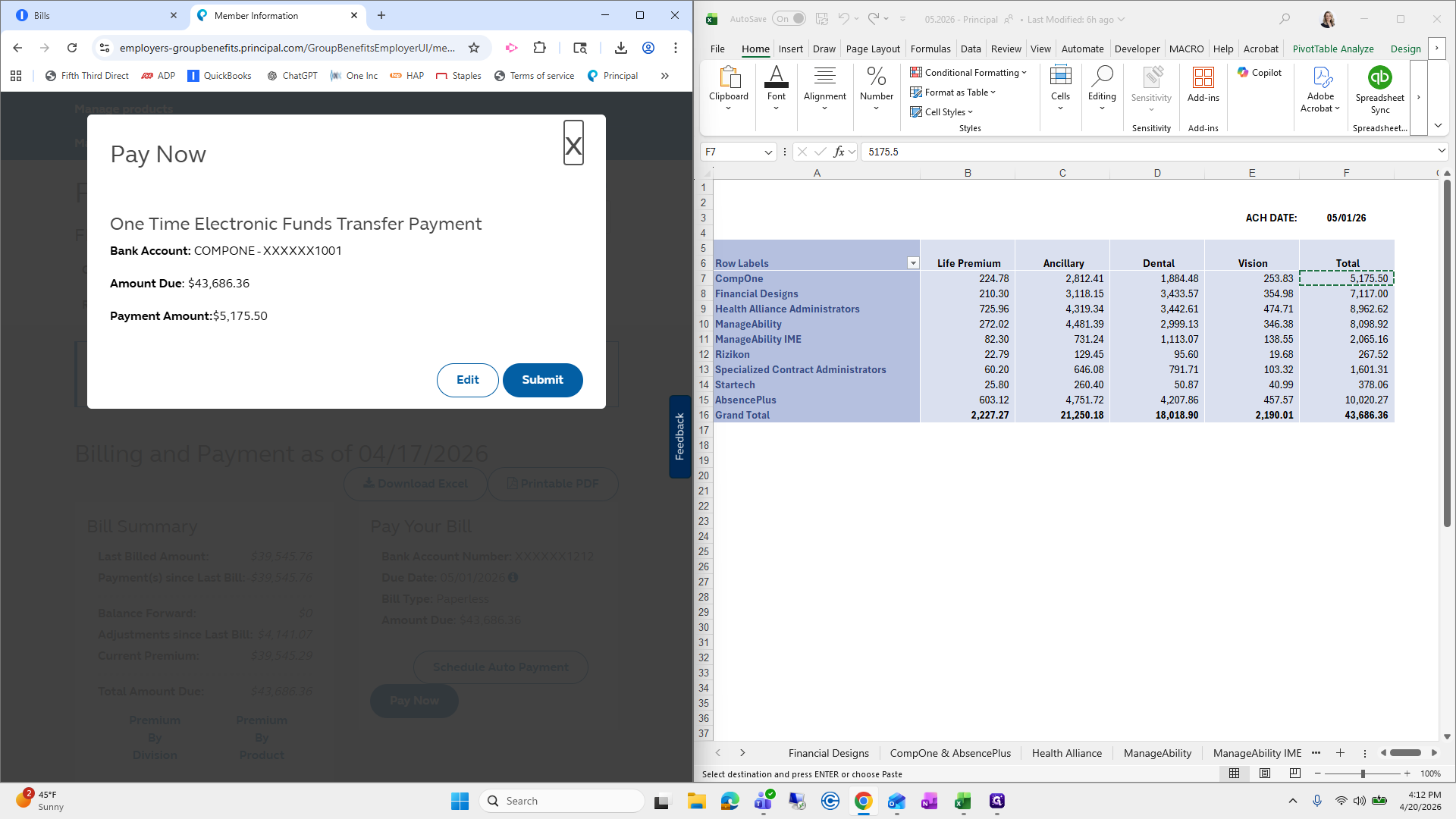
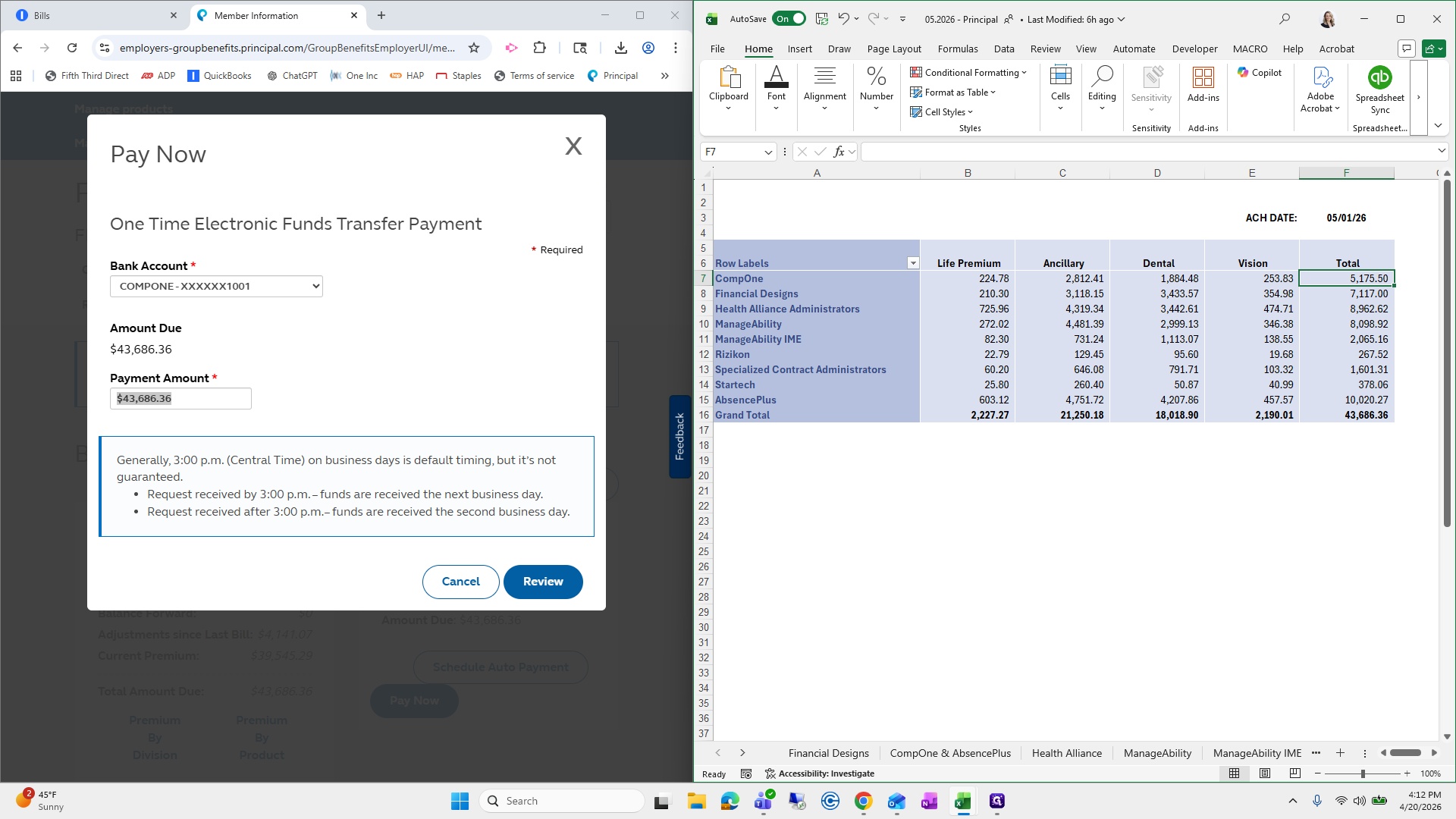
In your spreadsheet, copy the corresponding total payment amount for that company.
6
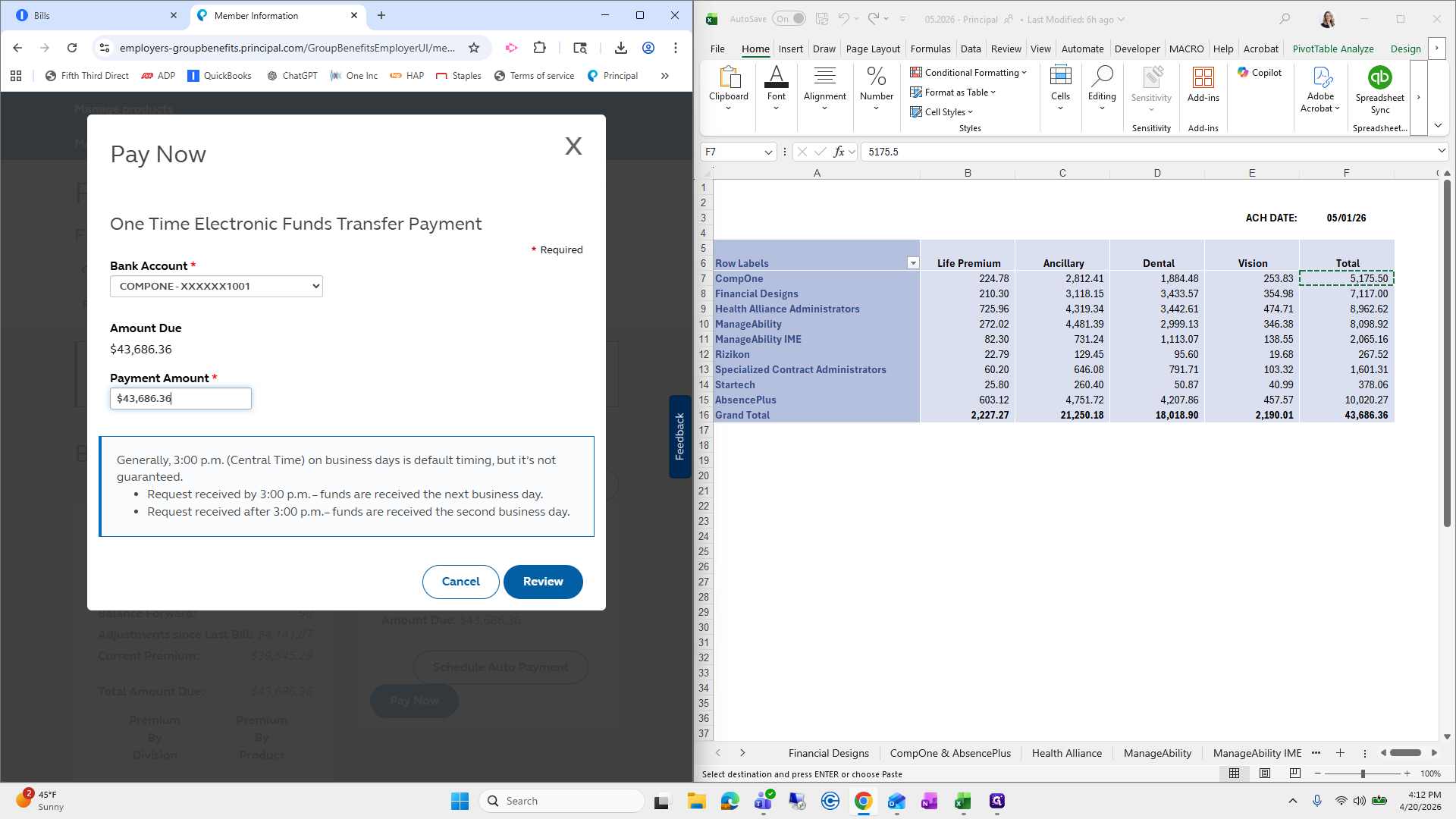
Return to the Principal portal and paste the copied amount into the Payment Amount field.
7
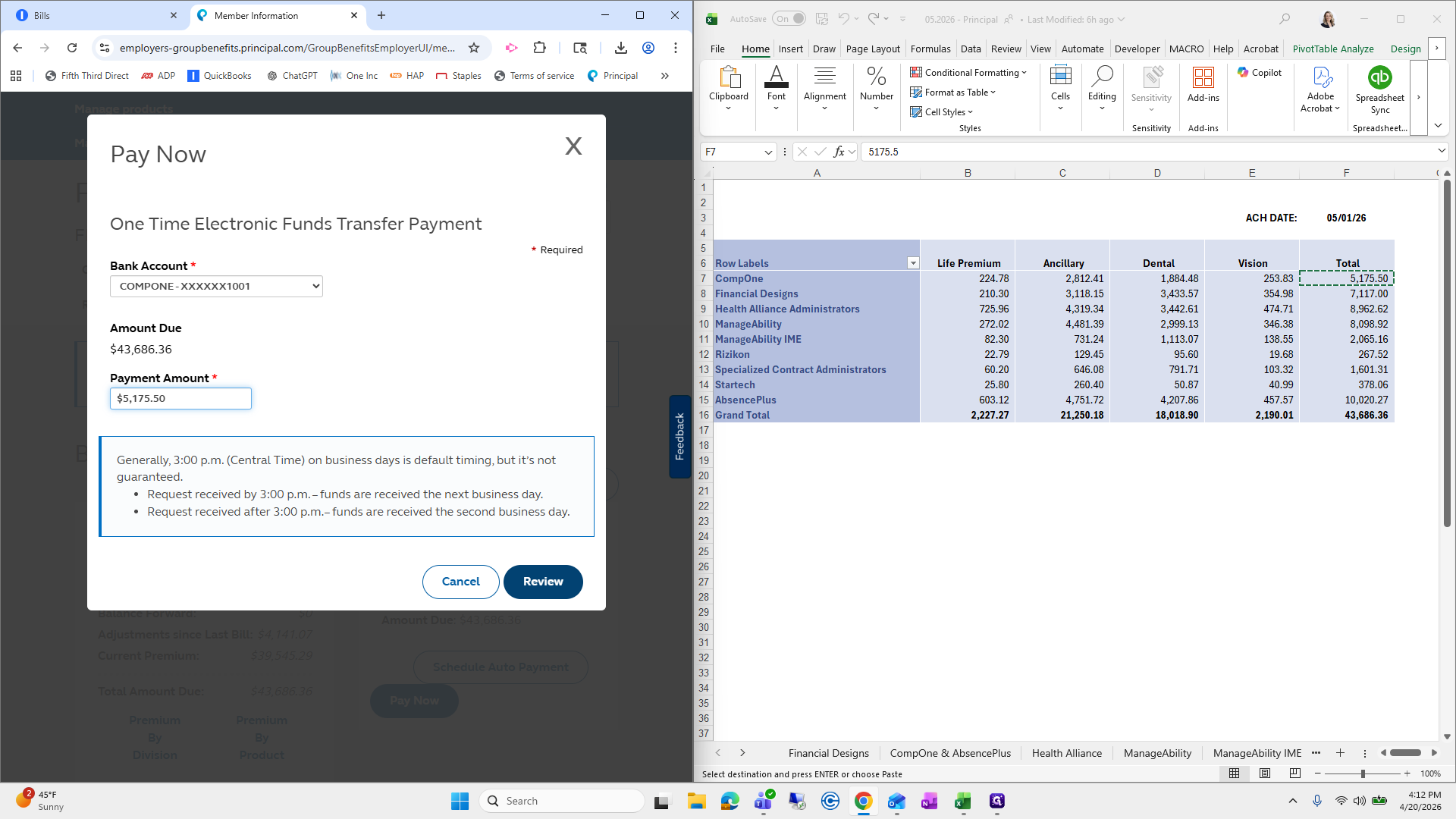
Click Review to verify the transaction details.
8
Confirm the information is correct, then click Submit to finalize the payment.