Icon

How to Process and Contact OptinMonster Leads

Learn how to process OptinMonster leads, verify contractor map listings, search recent orders, and send SMS messages to contractors.

By Princess Ceballos

This guide explains how to process incoming OptinMonster lead notifications, cross-reference them with the certified installers map, and initiate contractor communications. Following these steps ensures new leads are routed to the appropriate contractors efficiently and accurately.

This process is designed for customer support and lead management teams handling incoming form submissions. Use it whenever a new OptinMonster lead notification arrives in the inbox.

Review the Lead in HubSpot
1
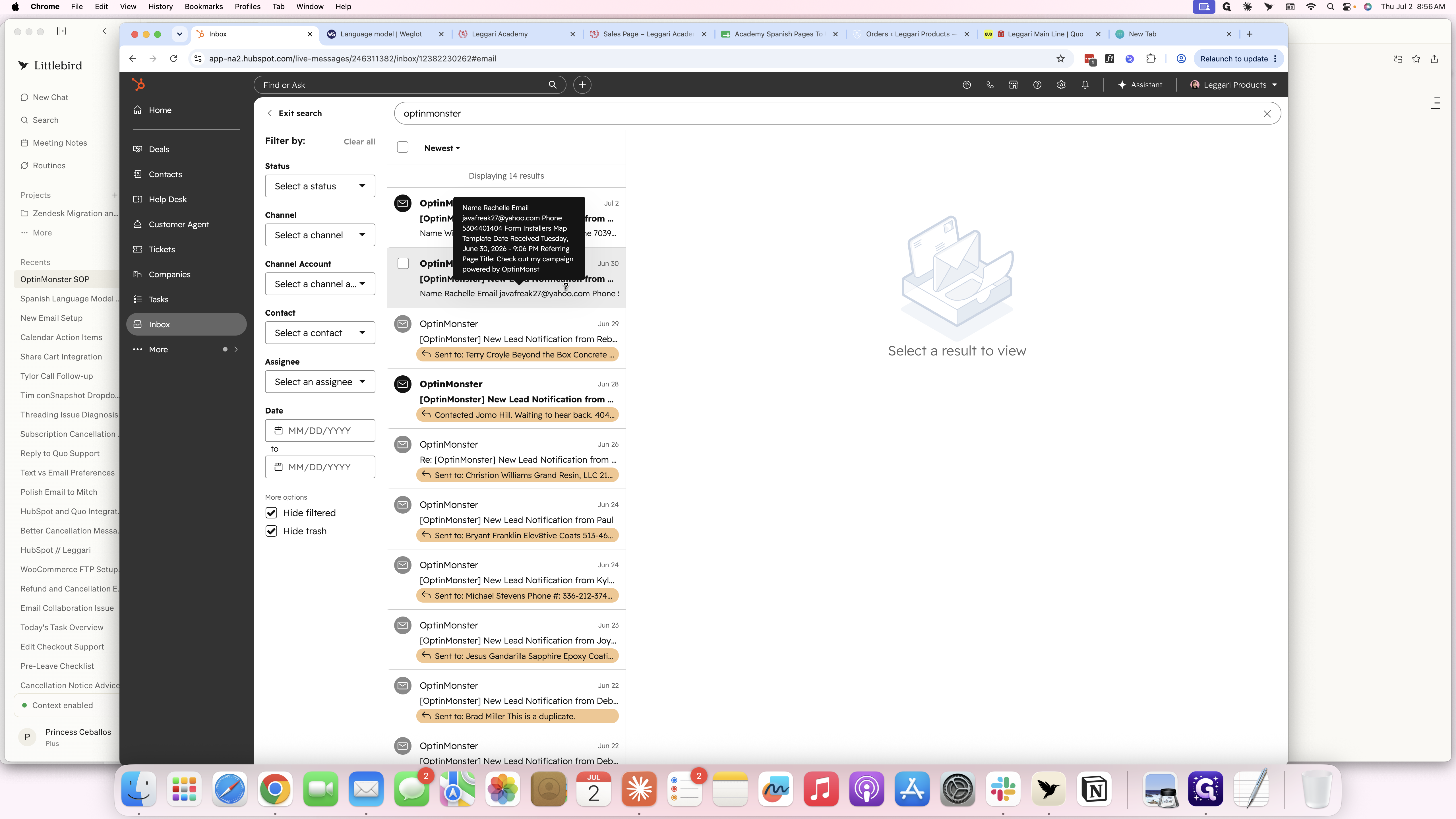
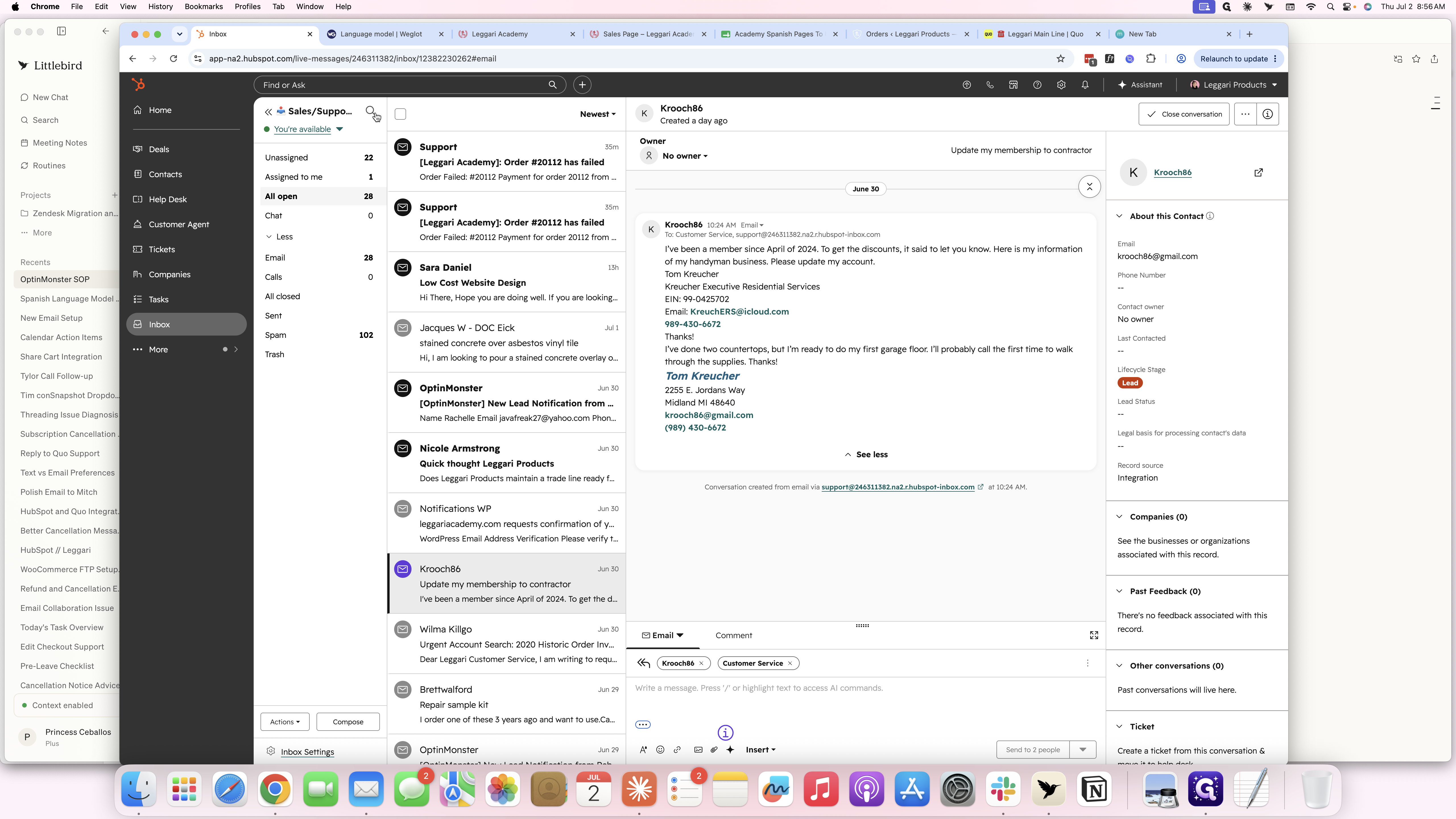
In your HubSpot inbox, click the search icon in the left-hand navigation sidebar.
Step #1: In your HubSpot inbox, click the search icon in the left-hand navigation sidebar.
2
Type optinmonster and press Enter to filter your emails.
3
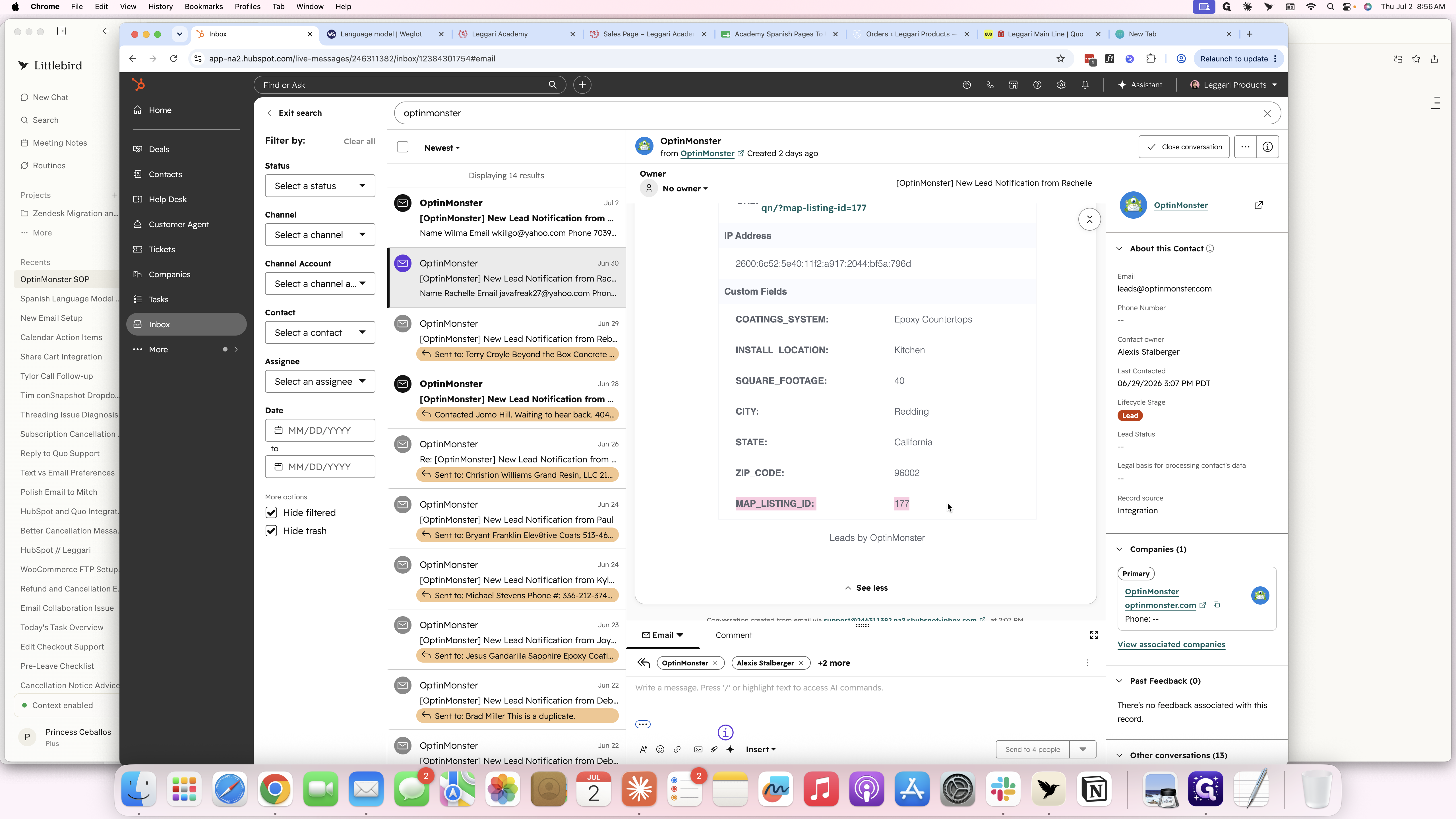
Click on the incoming lead email from OptinMonster in the search results.
Step #3: Click on the incoming lead email from OptinMonster in the search results.
4
Review the email body and locate the MAP_LISTING_ID value.
Step #4: Review the email body and locate the MAP_LISTING_ID value.

Verify Installer Details

5
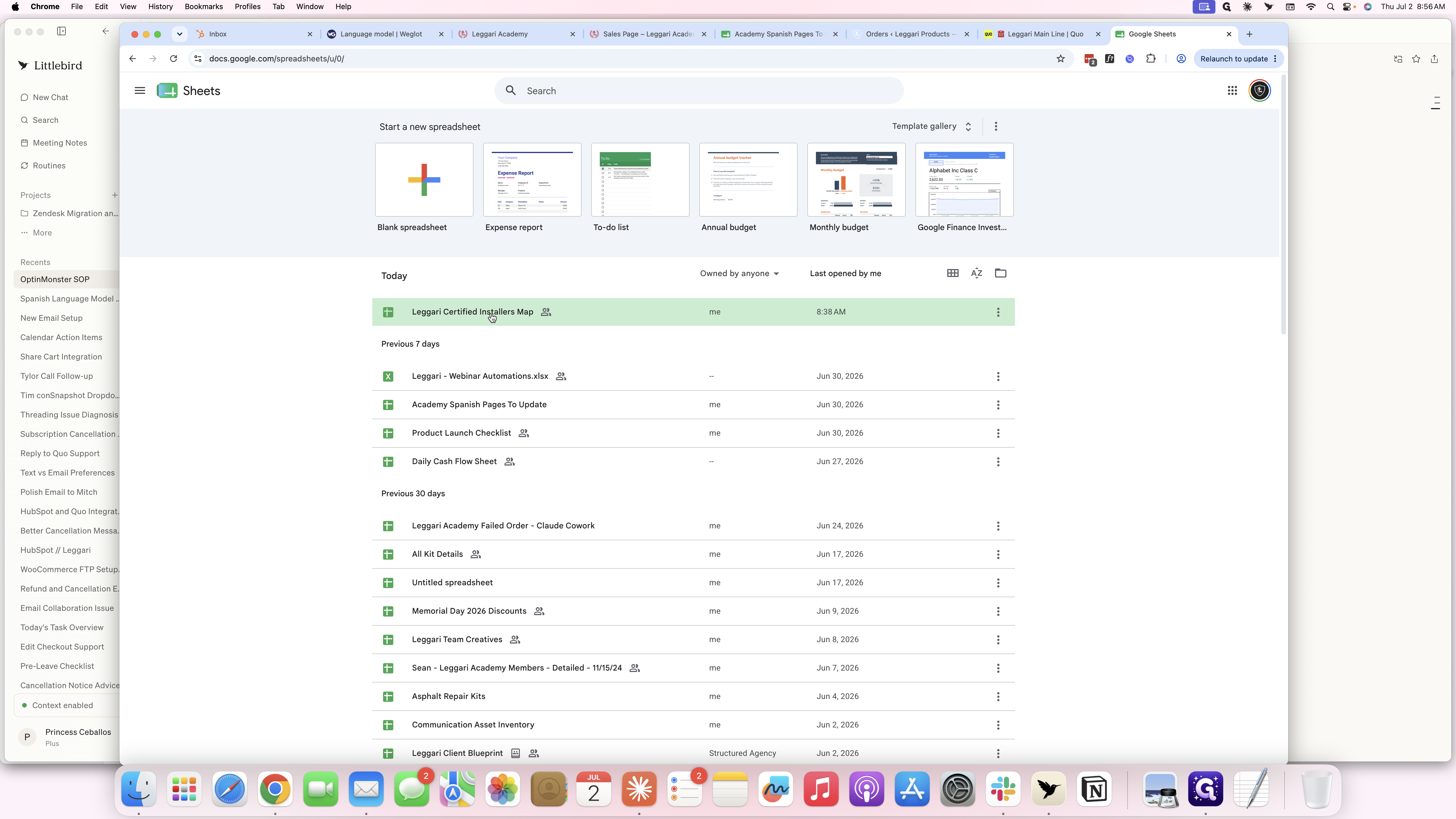
Open the Leggari Certified Installers Map in Google Sheets.
Step #5: Open the Leggari Certified Installers Map in Google Sheets.
6
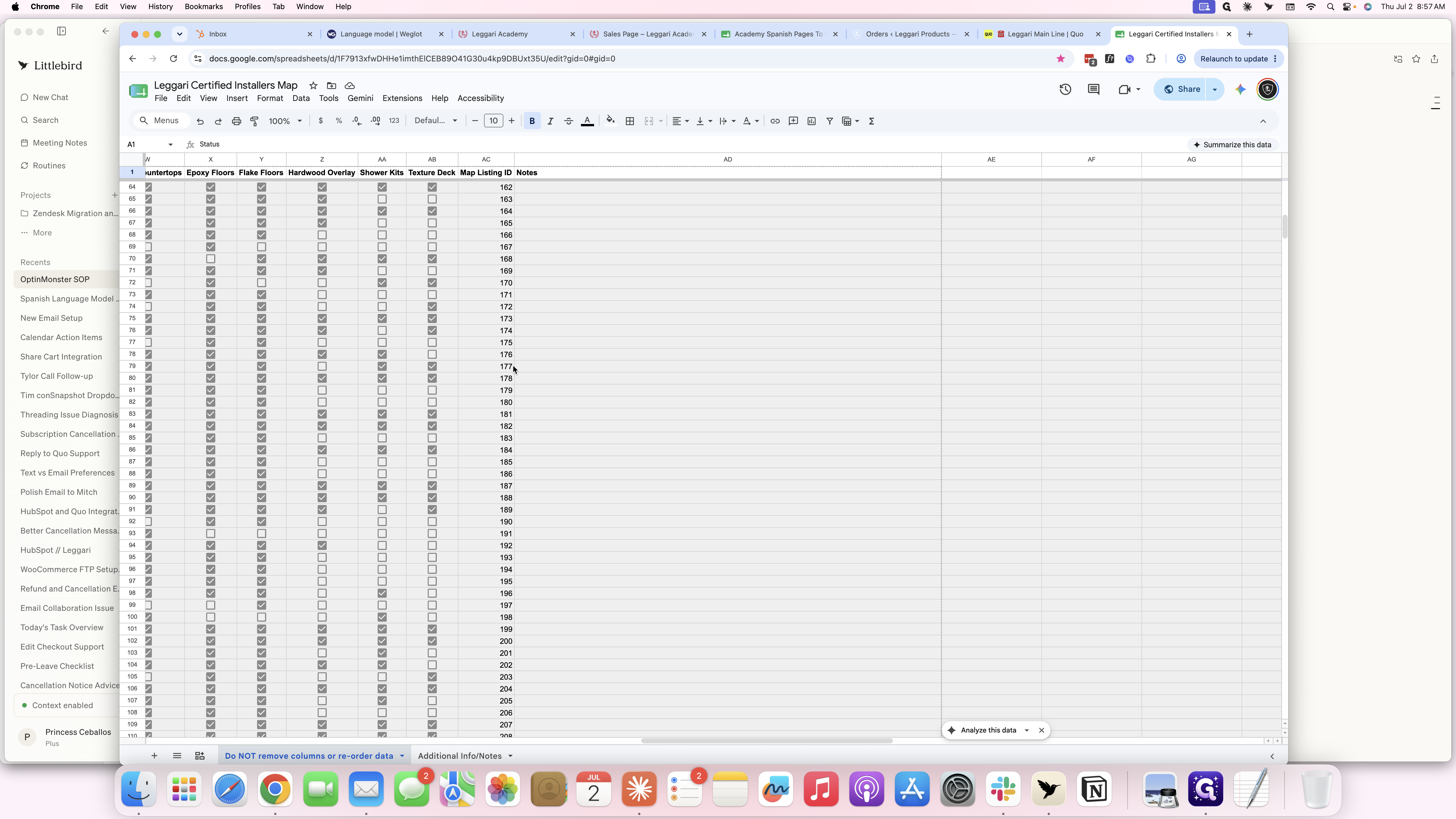
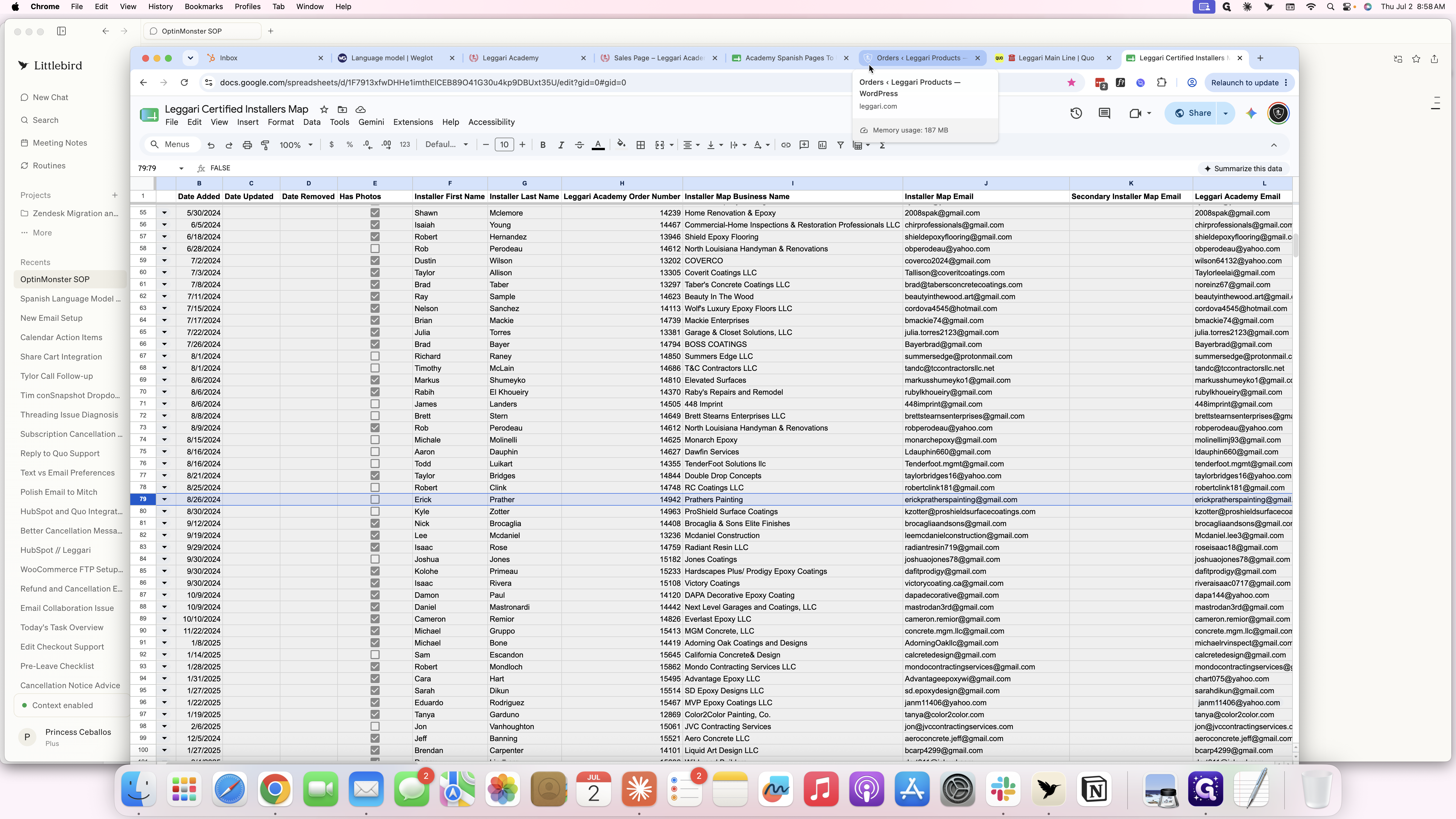
Locate the row corresponding to the Map Listing ID from the email.
Step #6: Locate the row corresponding to the Map Listing ID from the email.
7
Open your Leggari.com/admin dashboard and navigate to Orders.
Step #7: Open your Leggari.com/admin dashboard and navigate to Orders.
8
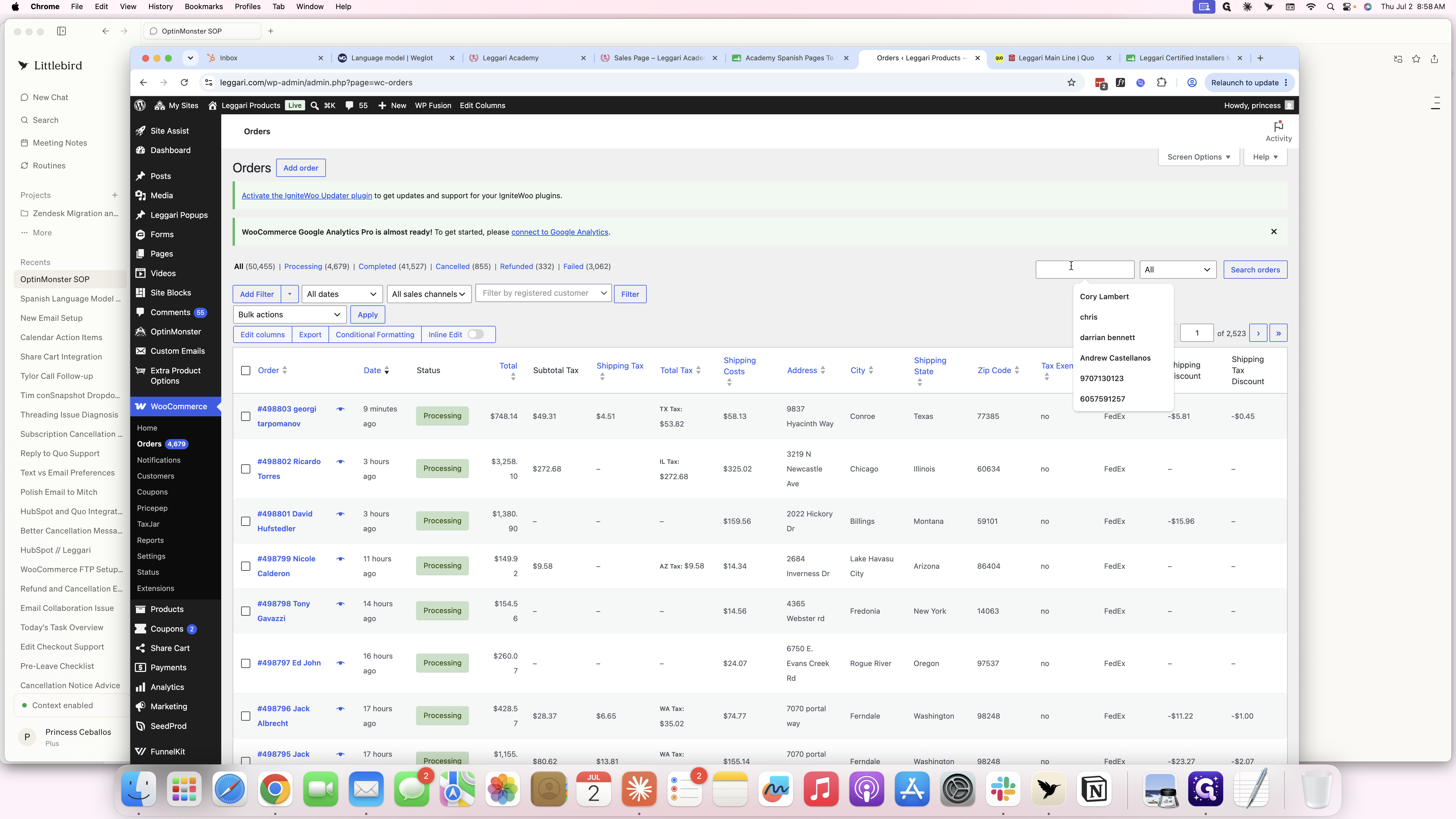
Click the search bar to look up the installer's name and see if he's been active ordering.
Step #8: Click the search bar to look up the installer's name and see if he's been active ordering.
9
Type the installer's name and search to verify their order history.
10
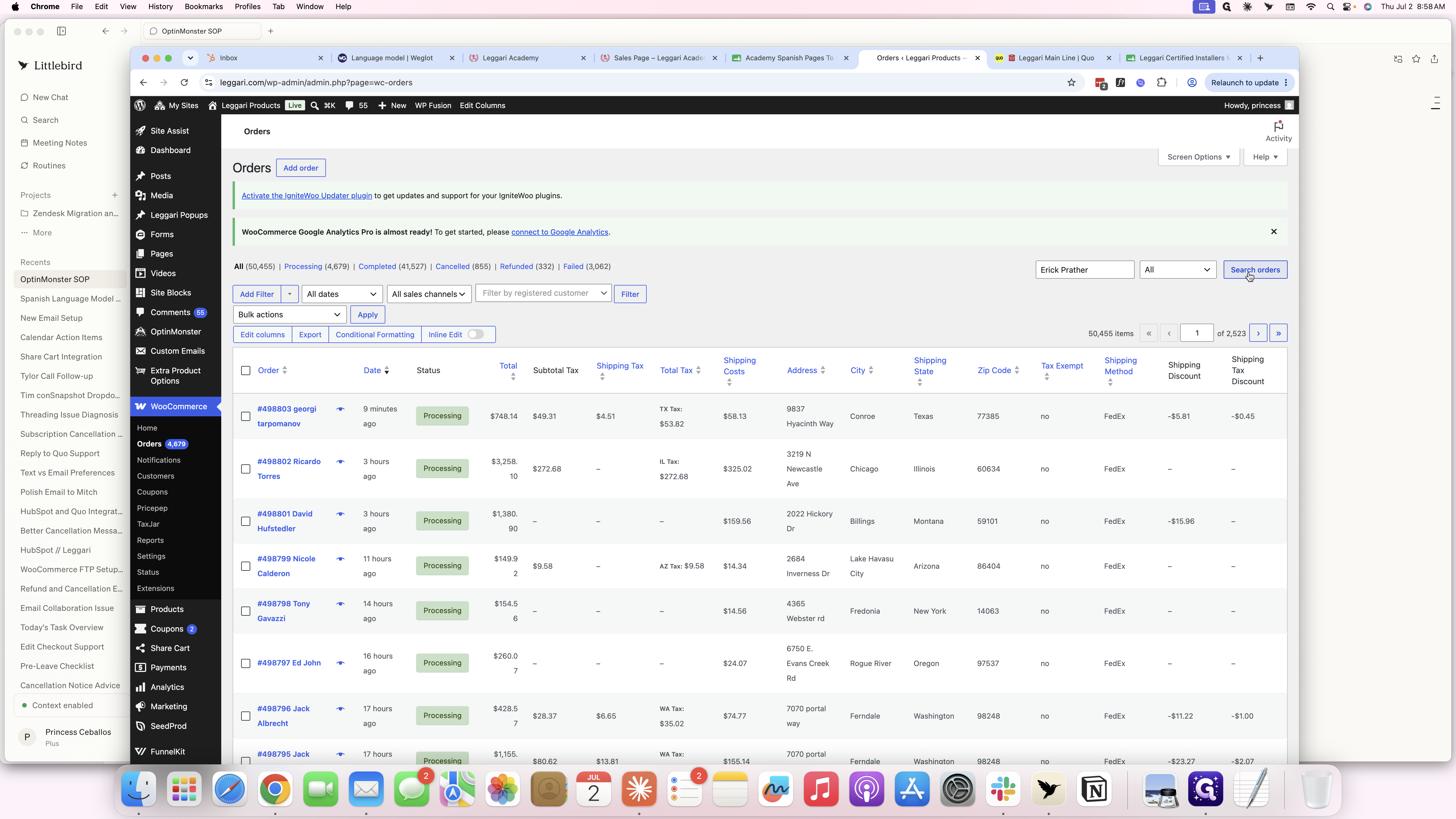
Click Search orders to view the results.
Step #10: Click Search orders to view the results.

Contact the Installer

11
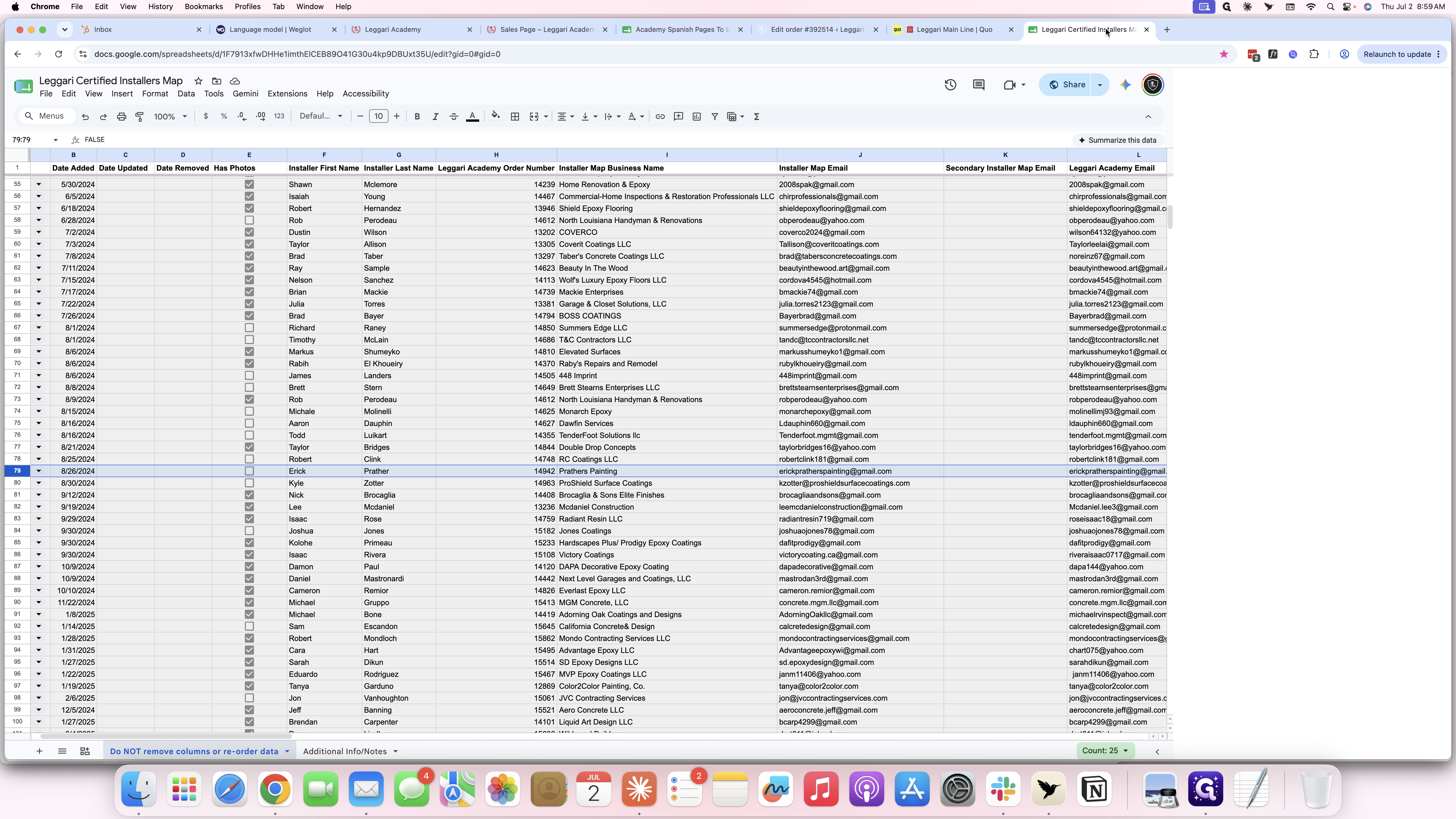
Switch back to the Leggari Certified Installers Map spreadsheet.
Step #11: Switch back to the Leggari Certified Installers Map spreadsheet.
12
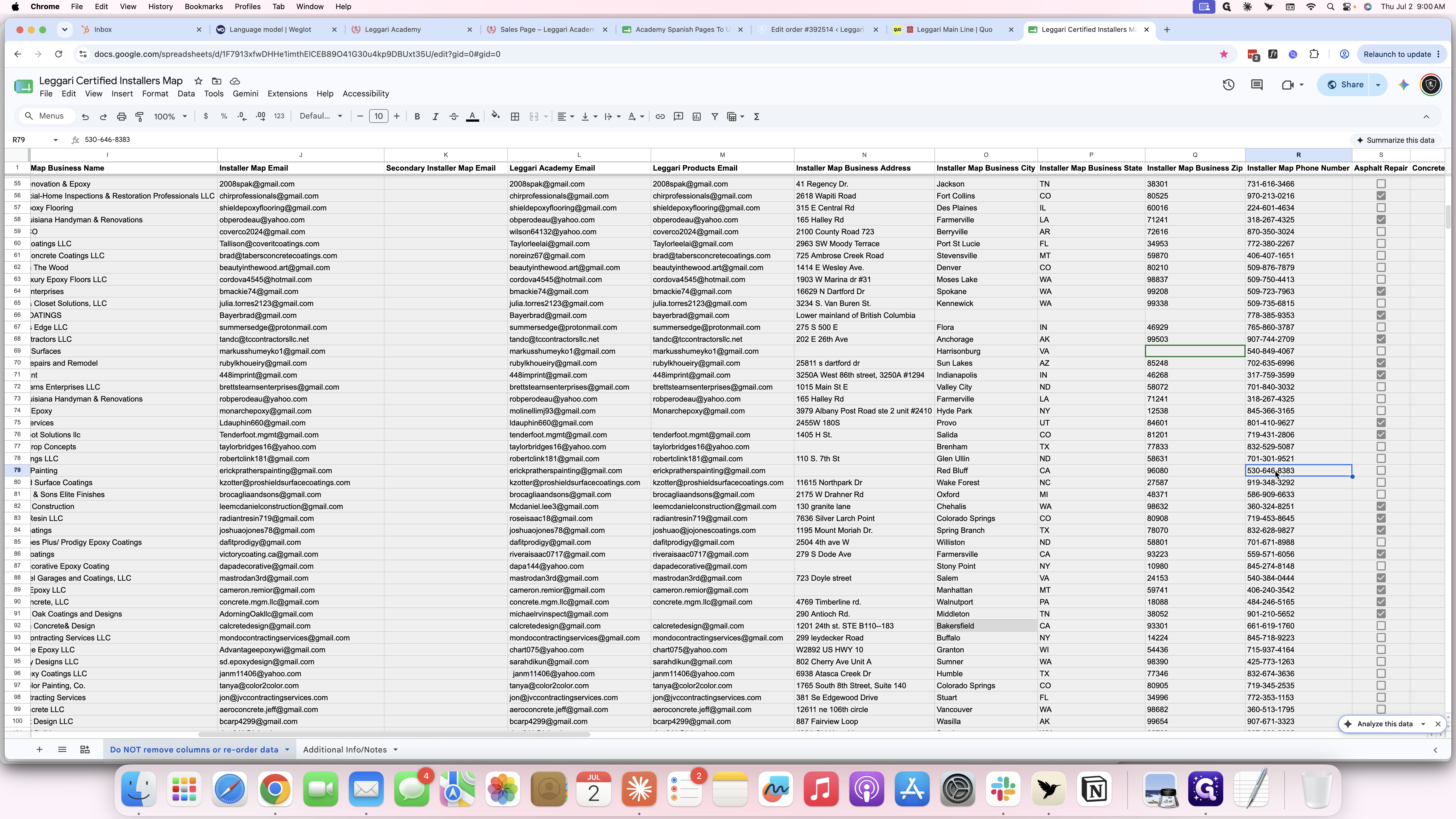
Double-click on the installer's phone number.
Step #12: Double-click on the installer's phone number.
13
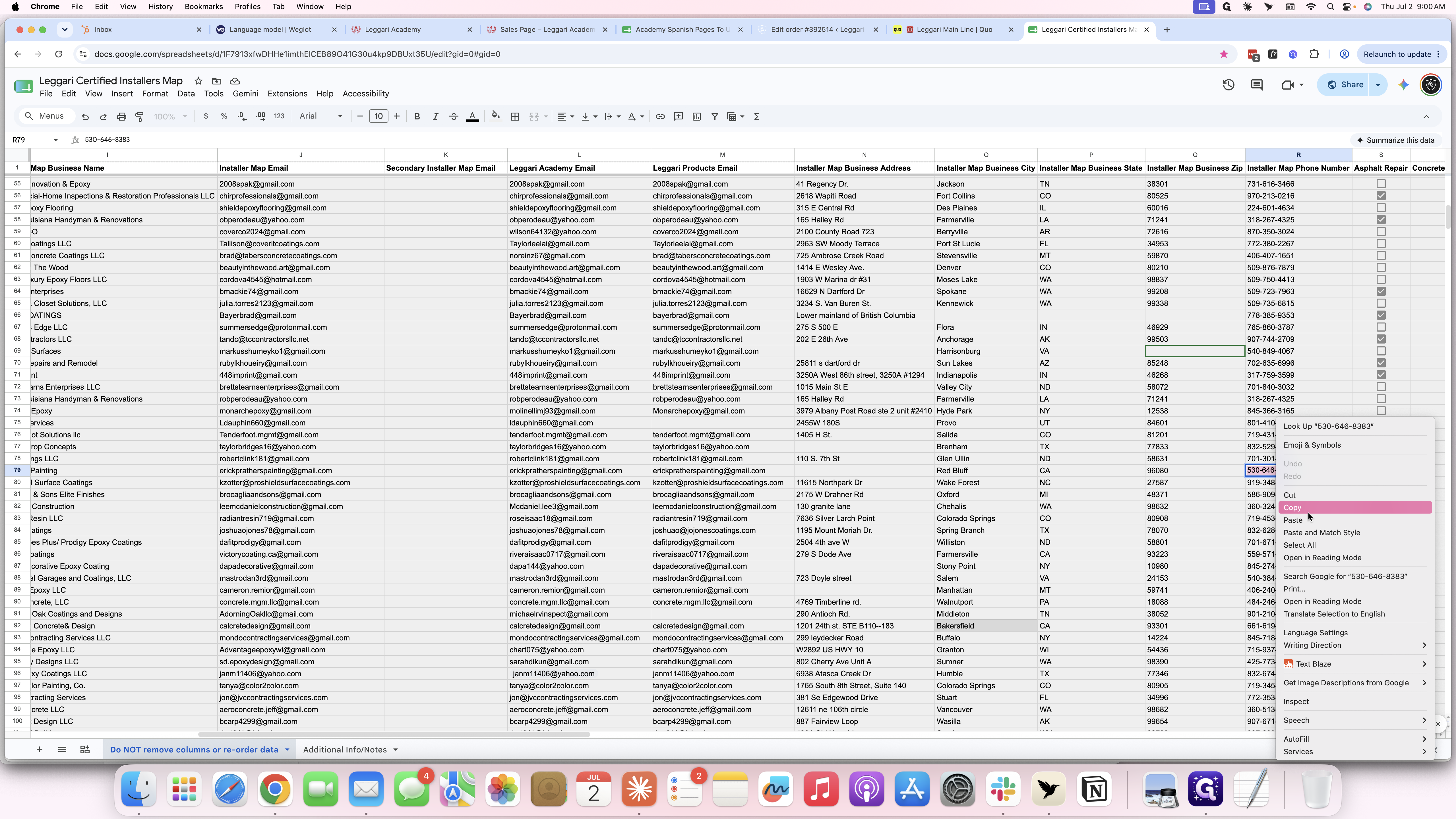
Right-click and select Copy to save the phone number.
Step #13: Right-click and select Copy to save the phone number.
14
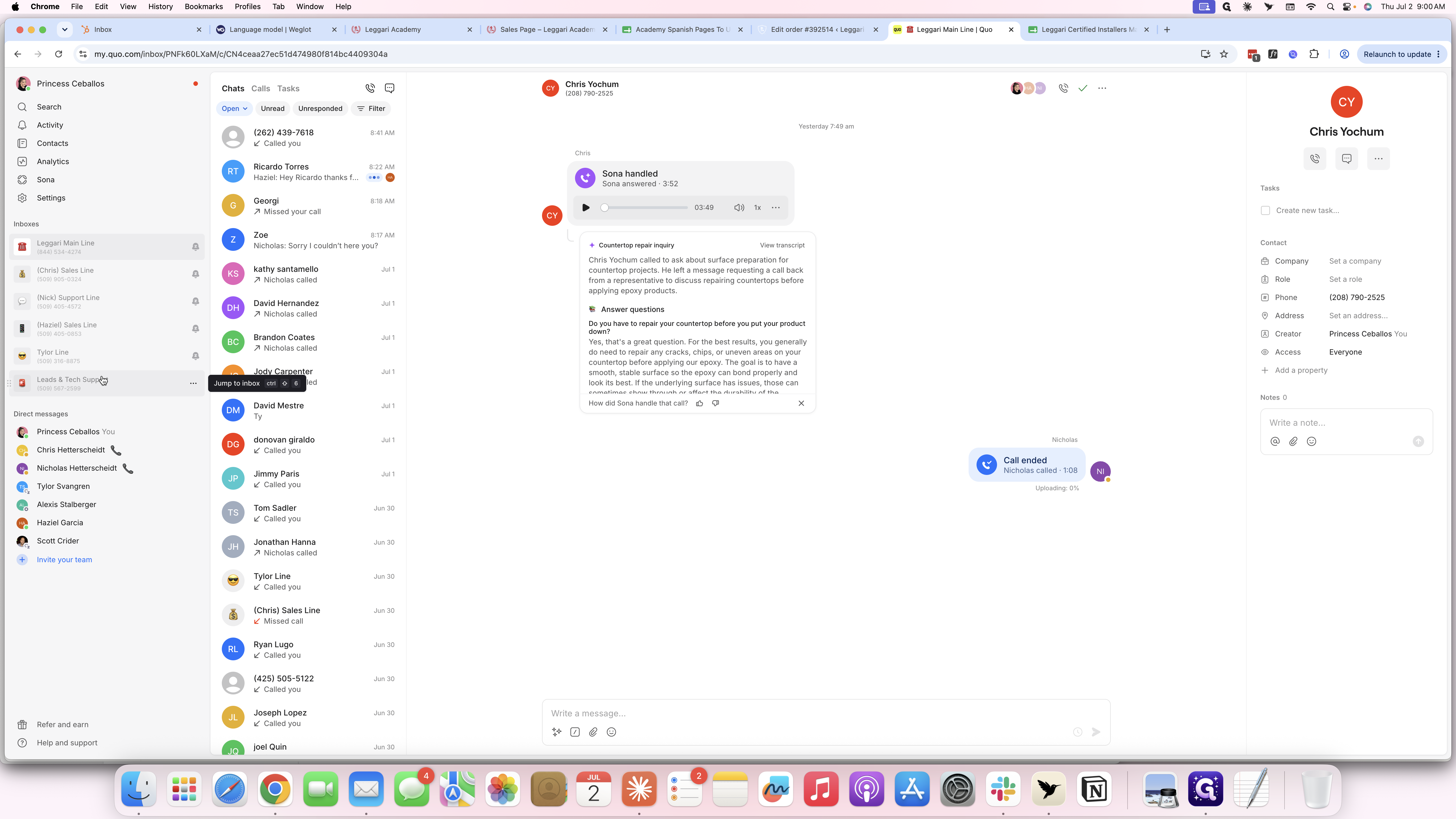
Open the Quo communication dashboard and navigate to the Leads & Tech Support inbox.
Step #14: Open the Quo communication dashboard and navigate to the Leads & Tech Support inbox.
15
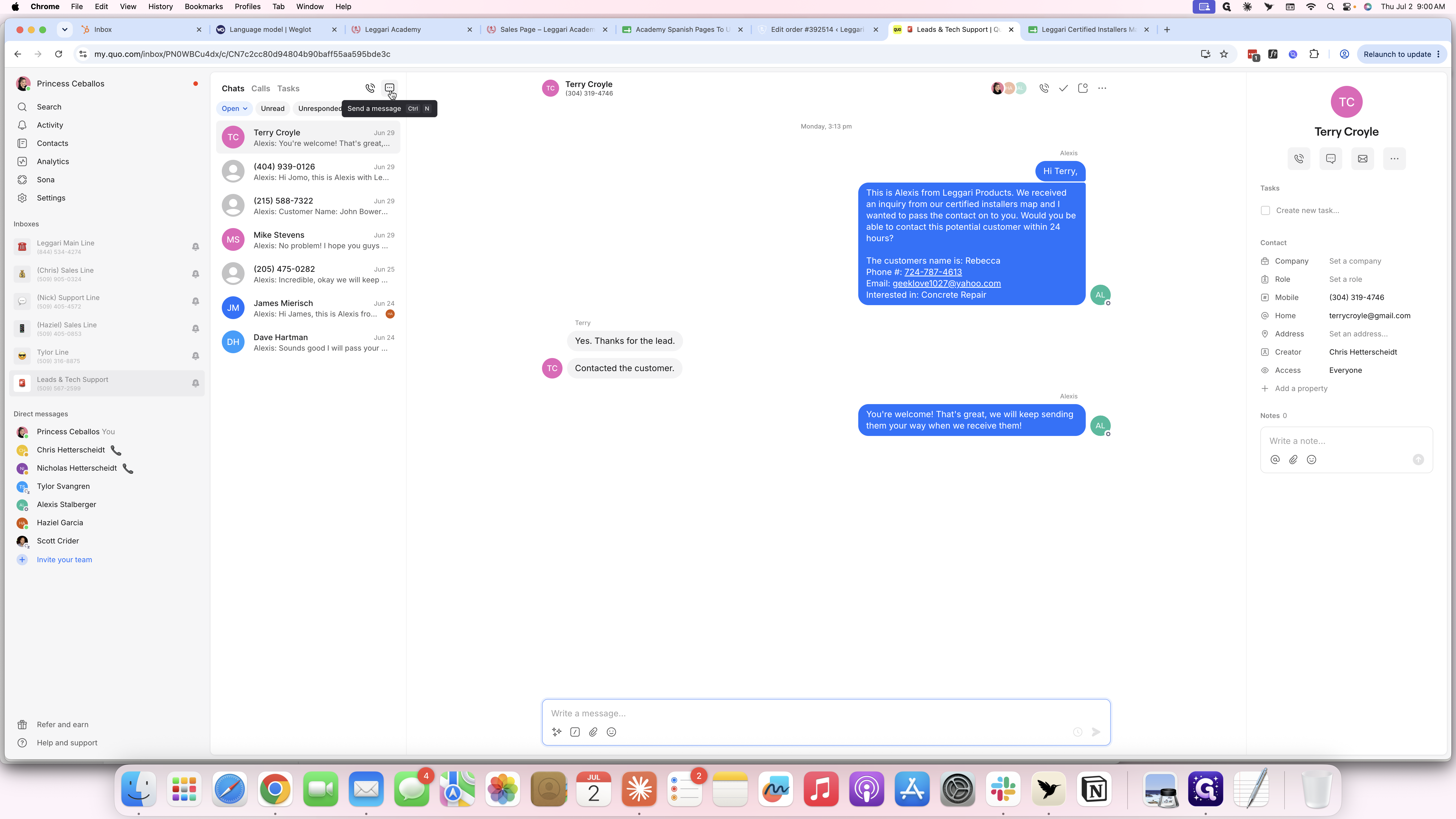
Click the Send a message button.
Step #15: Click the Send a message button.
16
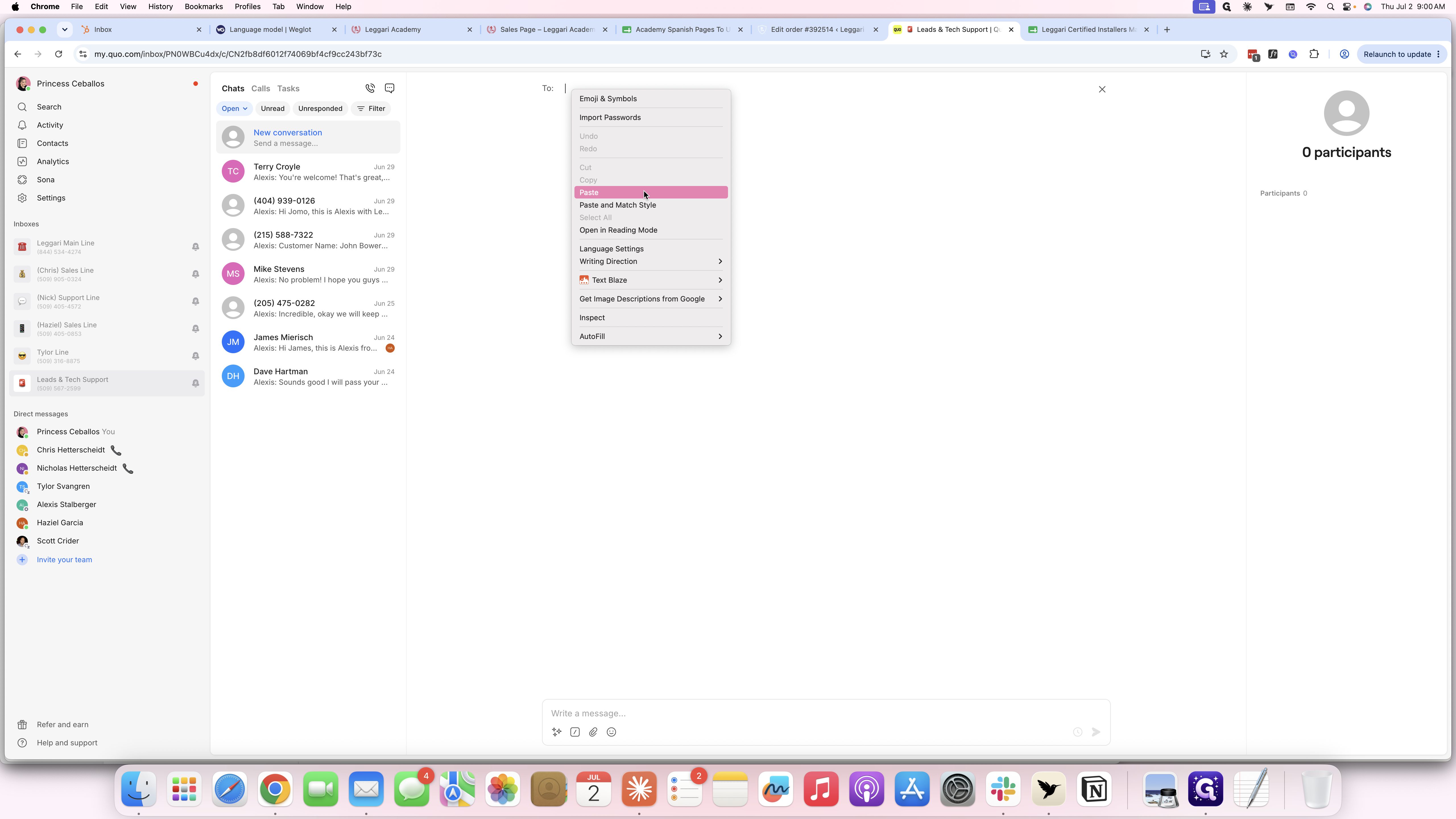
Paste the copied phone number to start a new conversation.
Step #16: Paste the copied phone number to start a new conversation.
17
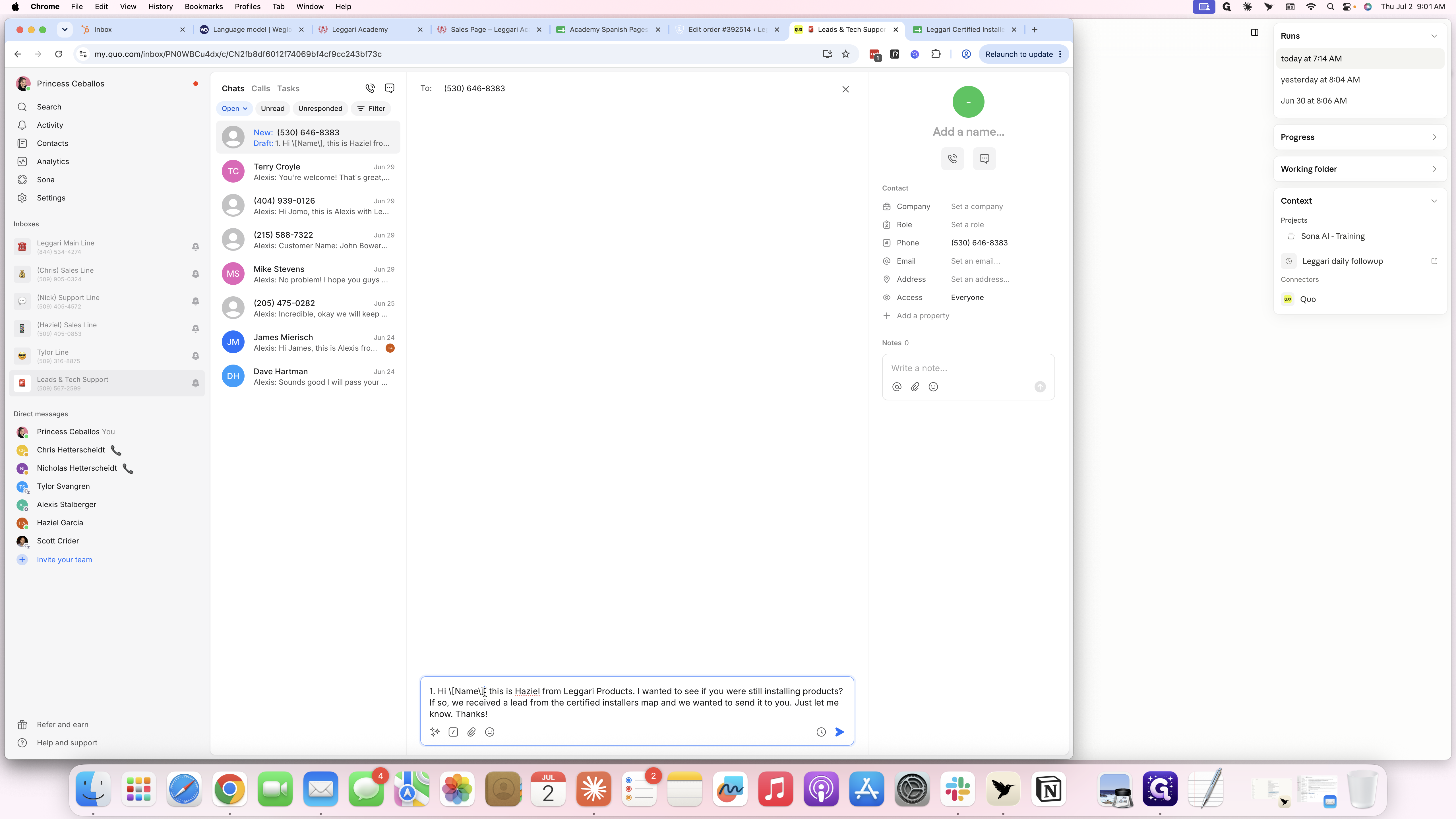
Copy this template "Hi [Name], this is Haziel from Leggari Products. I wanted to see if you were still installing products? If so, we received a lead from the certified installers map and we wanted to send it to you. Just let me know. Thanks!" the paste.
18
Customize the message draft with the specific lead and installer details.
Step #18: Customize the message draft with the specific lead and installer details.
19
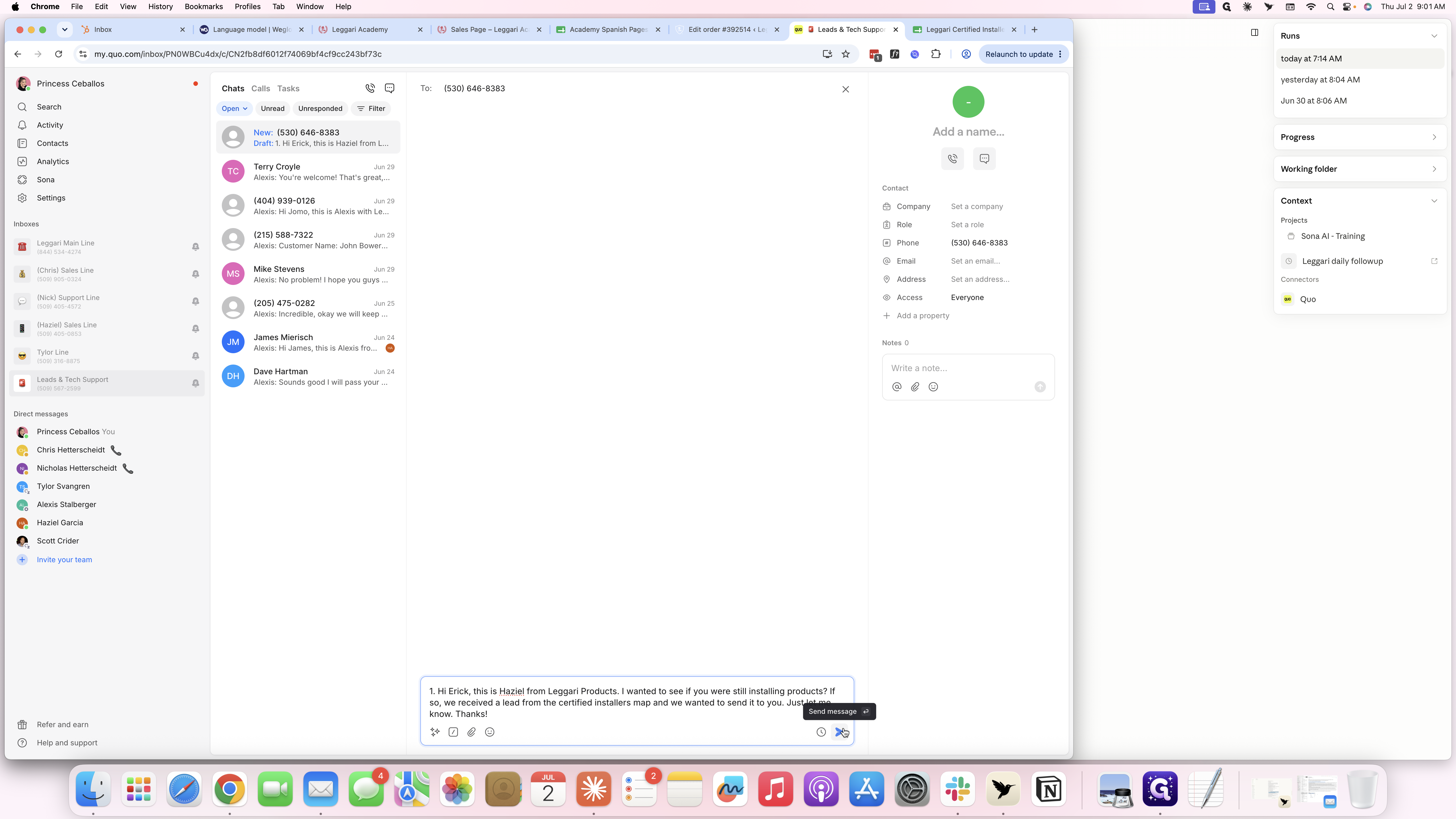
Click the Send message button to dispatch the text to the installer.
Step #19: Click the Send message button to dispatch the text to the installer.

Update Tracking Spreadsheet

20
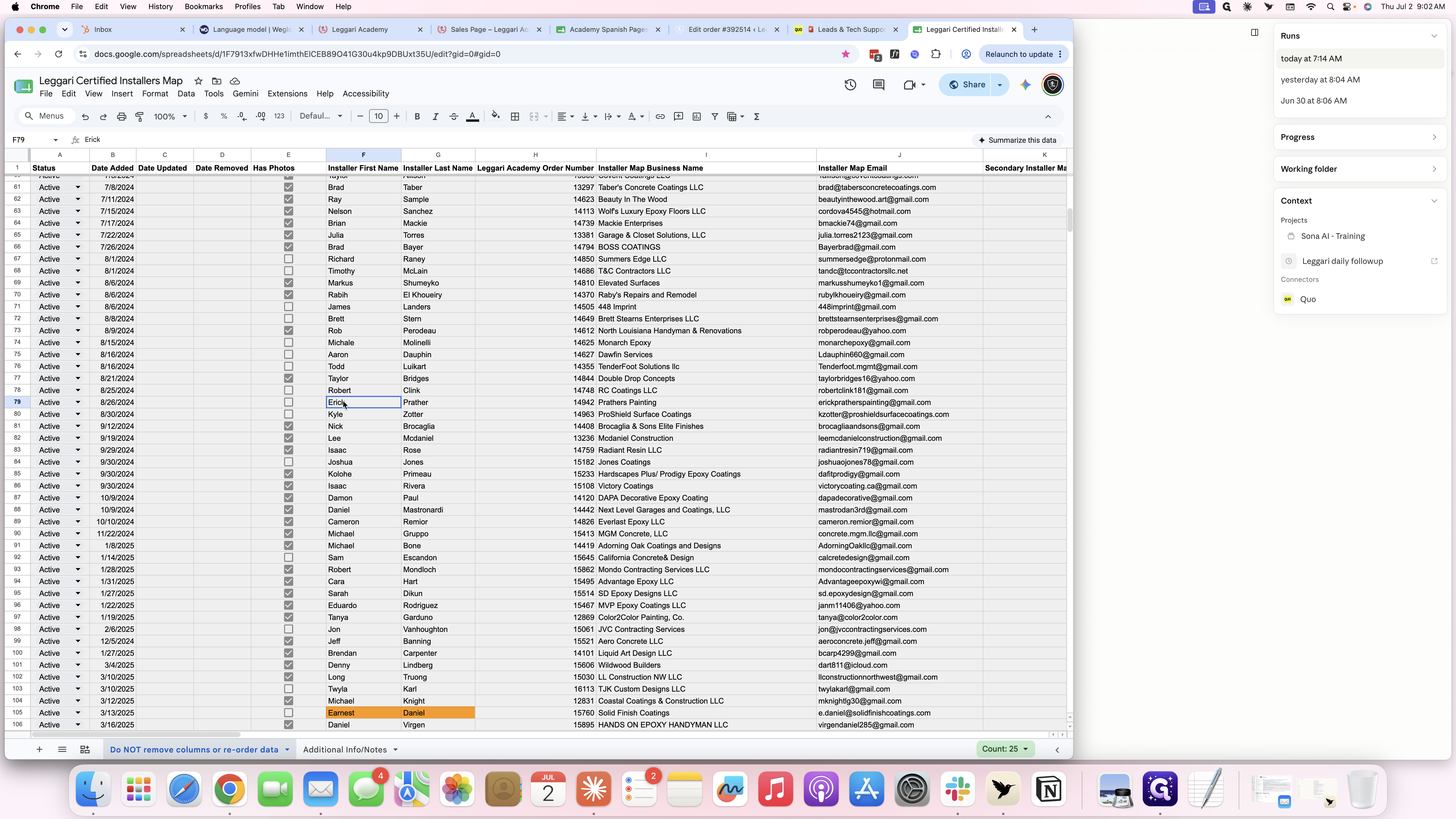
In the Installers Map spreadsheet, select the cell containing the installer's name.
Step #20: In the Installers Map spreadsheet, select the cell containing the installer's name.
21
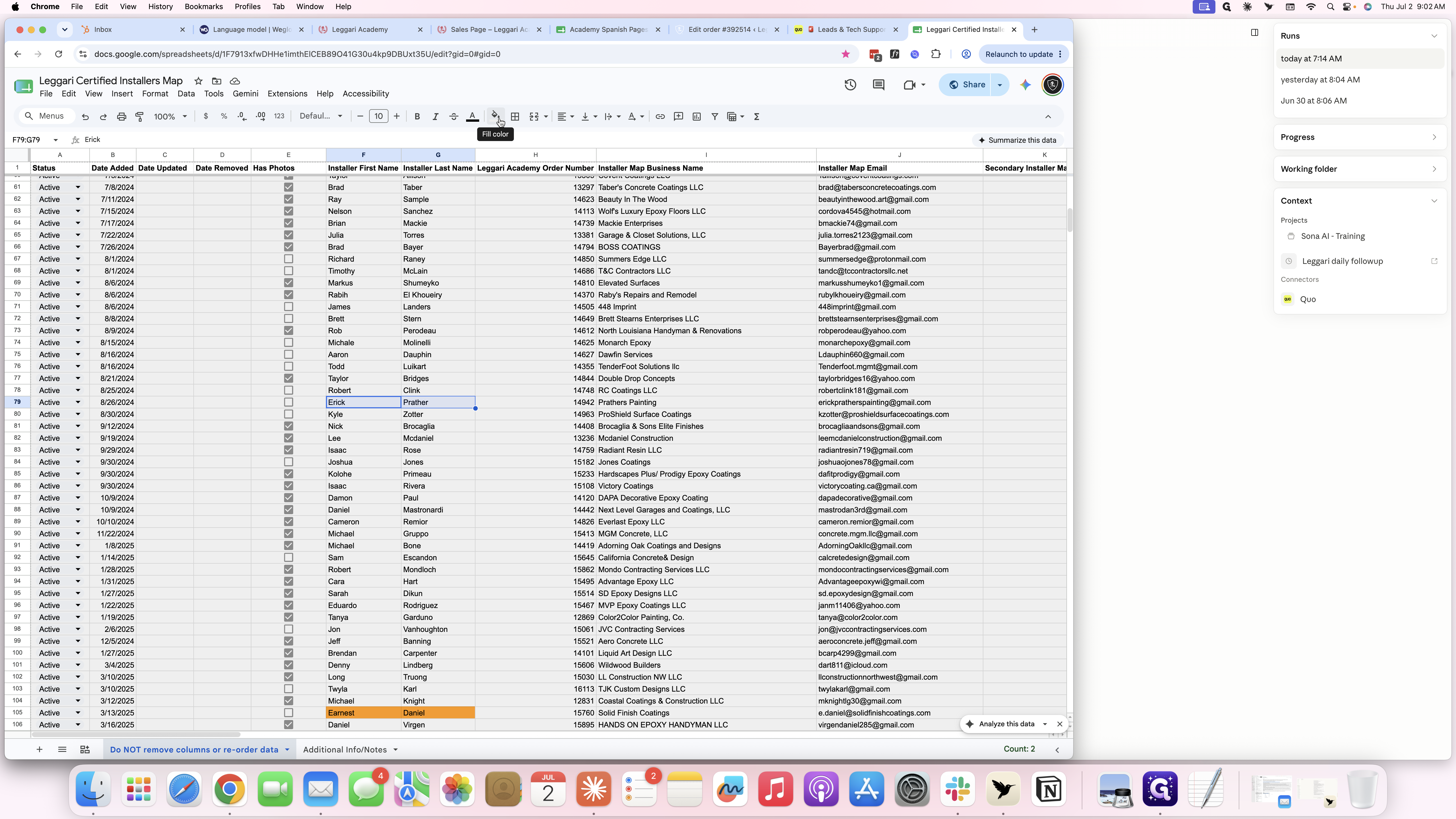
Click the Fill color icon in the formatting toolbar.
Step #21: Click the Fill color icon in the formatting toolbar.
22
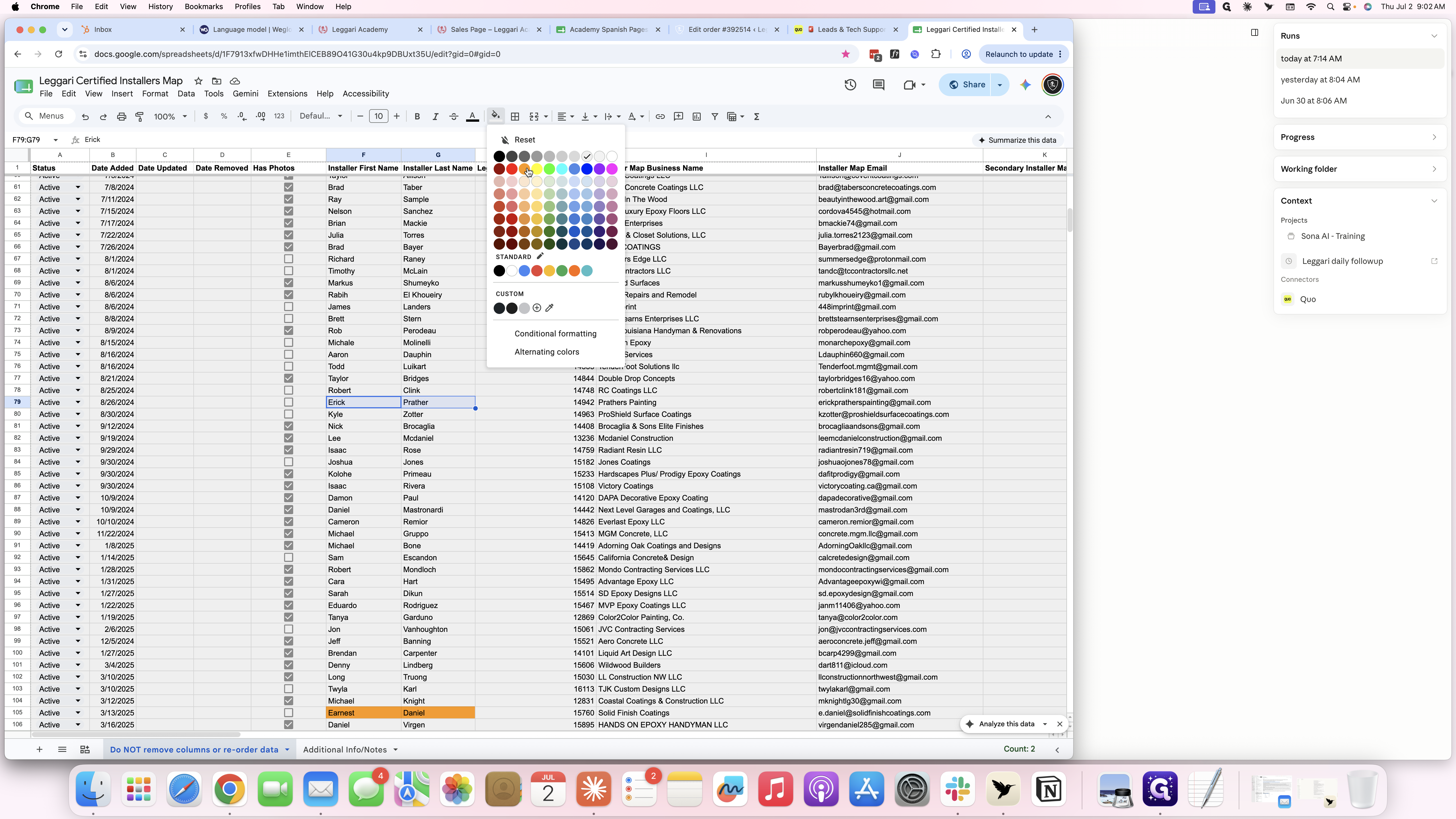
Select the red color option to indicate that the installer has been active.
Step #22: Select the red color option to indicate that the installer has been active.

Term

Definition

OptinMonster

A lead generation platform used to capture customer inquiries and form submissions.

HubSpot

A customer relationship management (CRM) tool used to track and manage inbound communications.

WooCommerce

An e-commerce plugin for WordPress used to manage and process customer orders.

Quo

A messaging platform used to communicate with leads and contractors via SMS.