
Process Invoices and Change Orders in Sage 300 CRE
Learn how to create quick bill invoices, process contract-based invoices, and manage change requests and change orders in Sage 300 Construction and Real Estate.
By Chloe
Generate Quick Bill Invoices
1
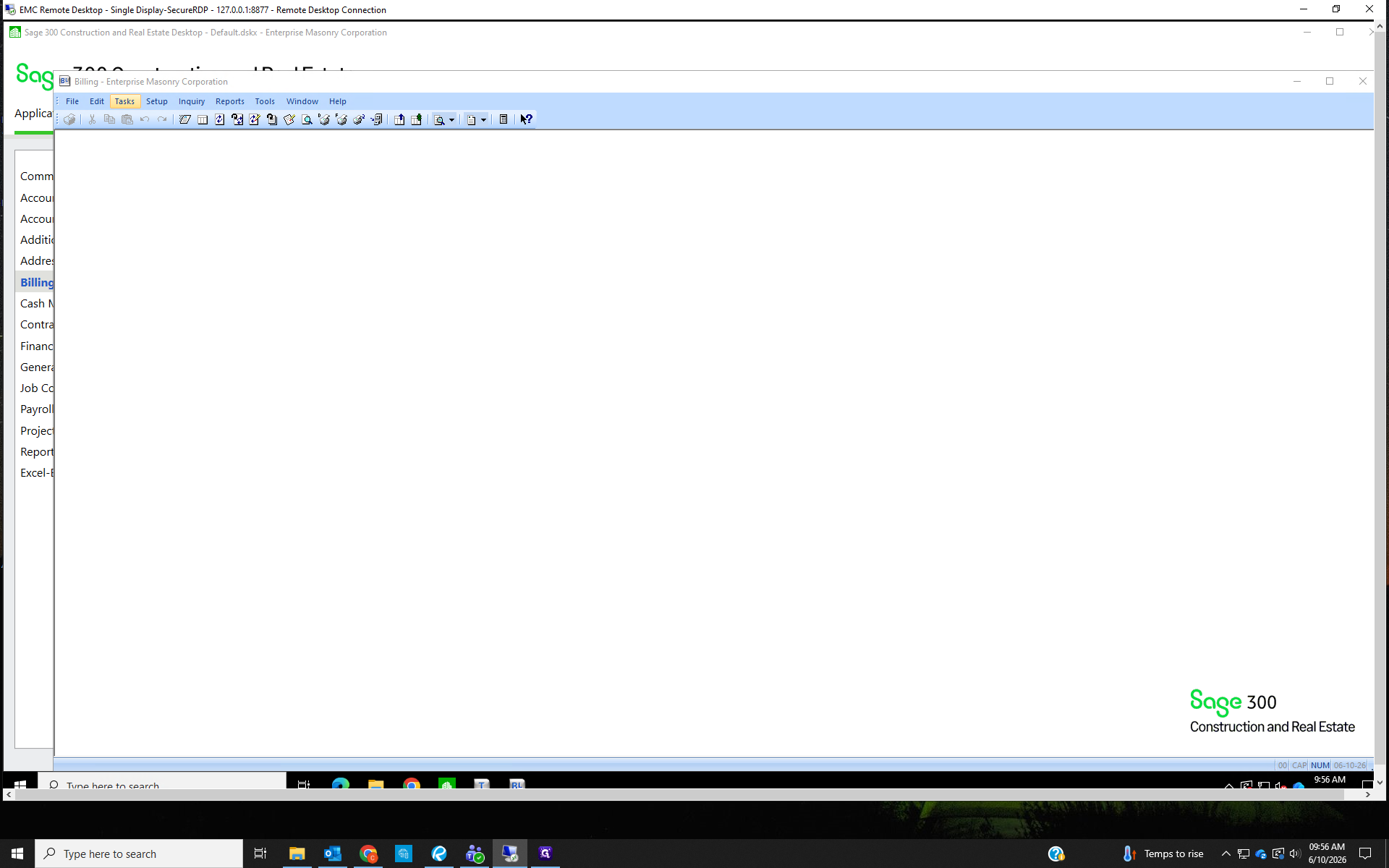
Open the Billing module and Navigate to Tasks in the top toolbar.
2
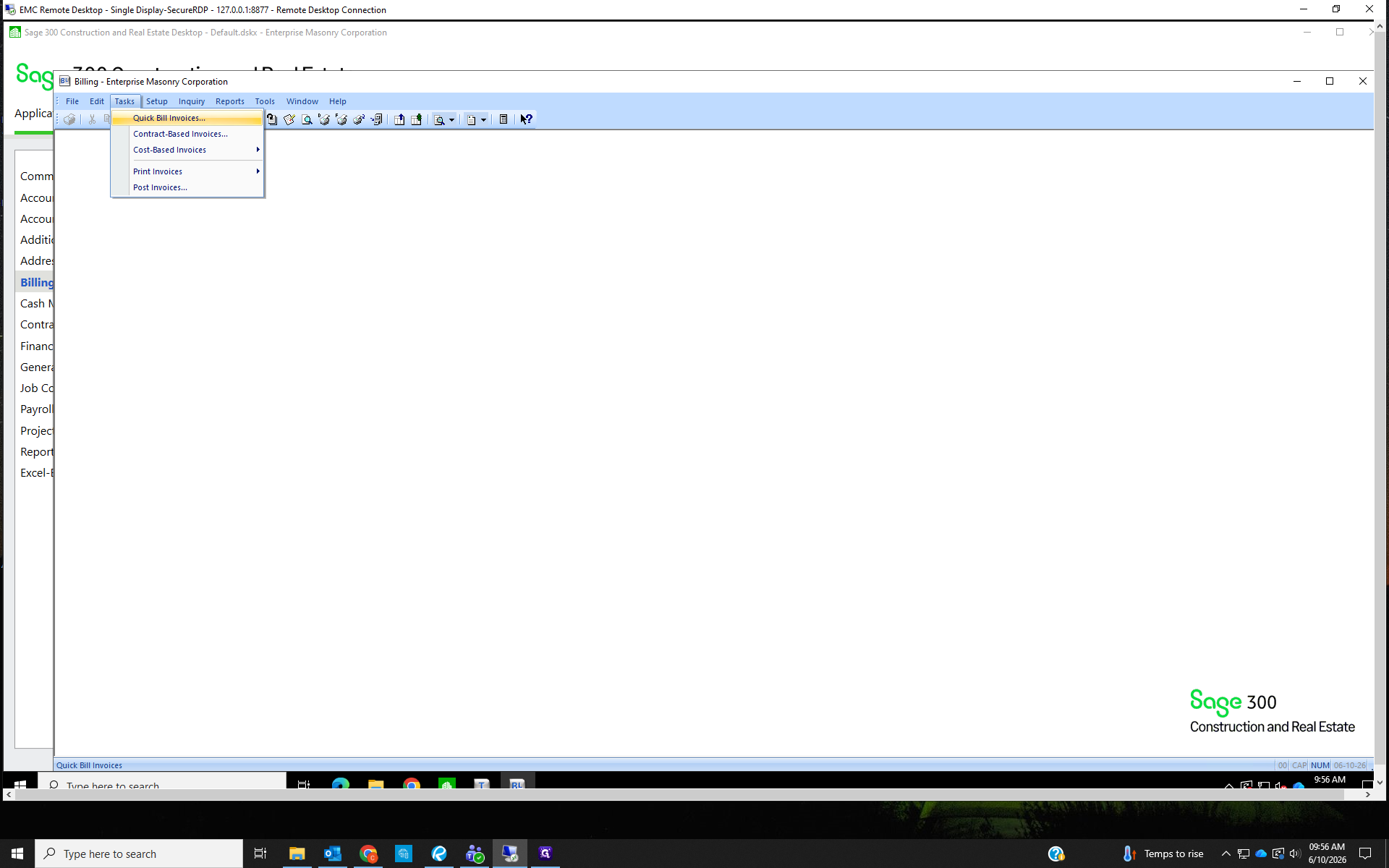
If you are billing a quick bill, select Quick Bill Invoices... from the menu.
3
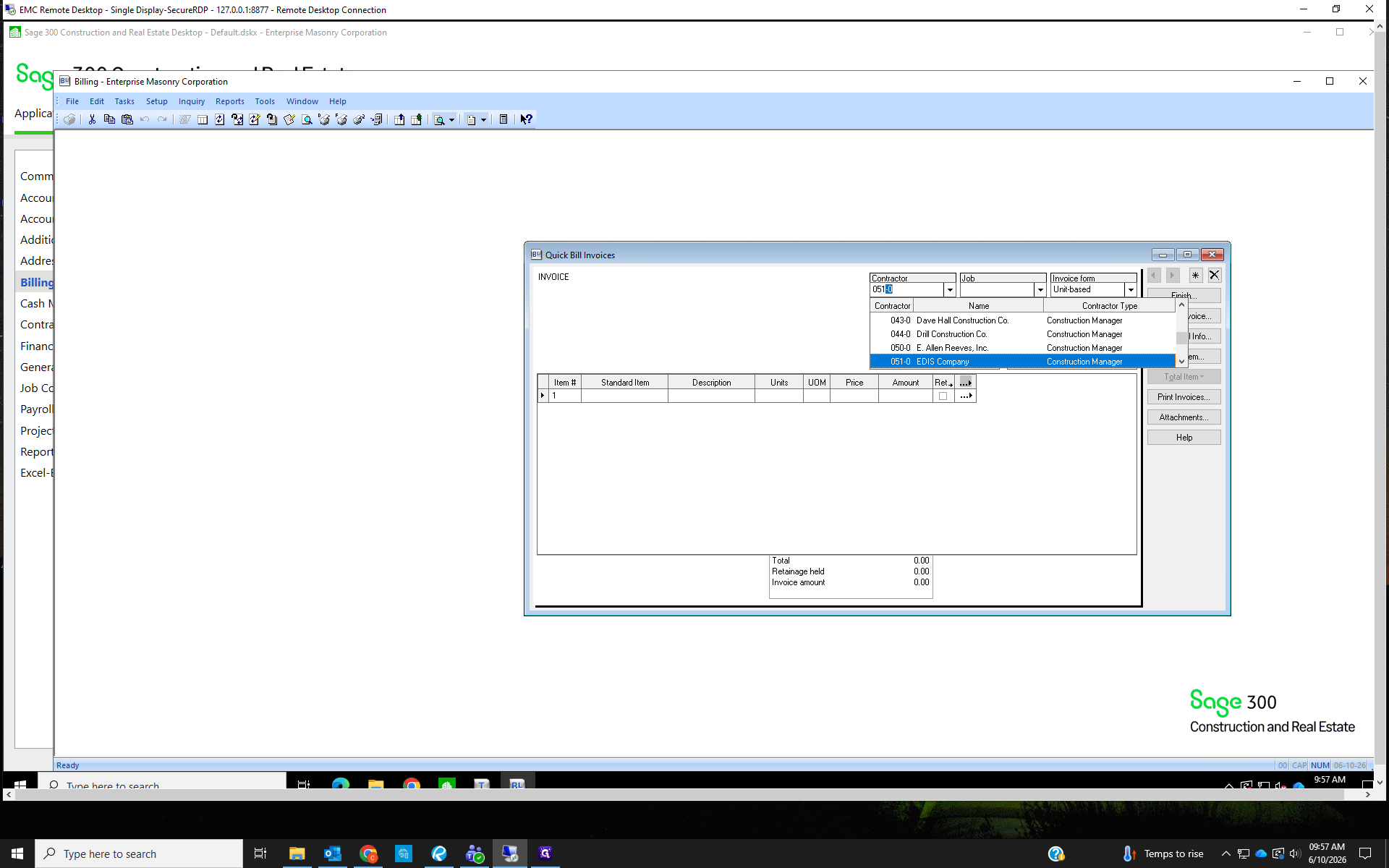
The Quickbill window will open. To create a new invoice, click the asterisk in the top right corner.
Select the General Contractor we are billing to from the dropdown Contractor list.
Select the General Contractor we are billing to from the dropdown Contractor list.
4
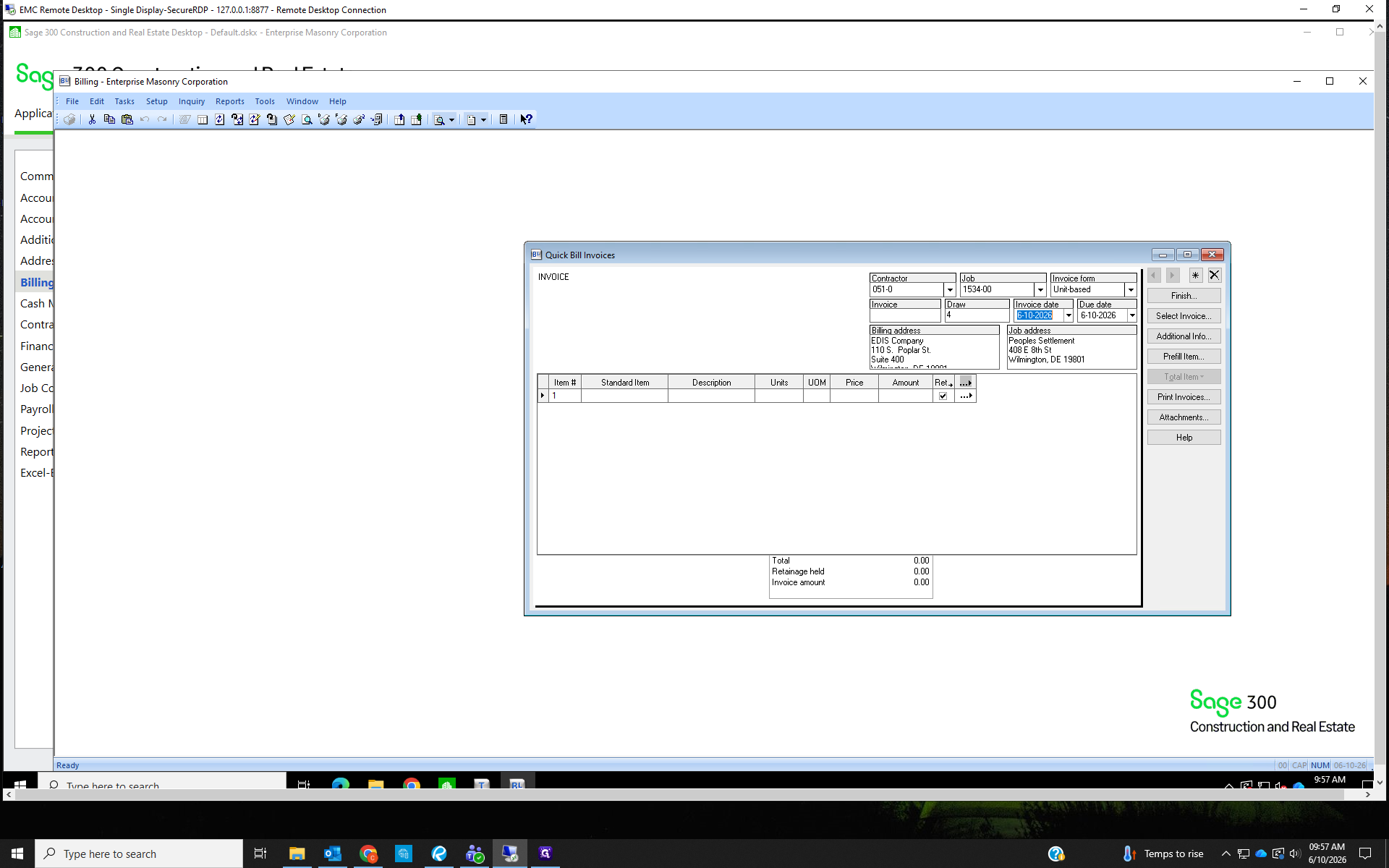
Use the Tab key to cycle through the fields:
Enter the job number.
The invoice form is 'Non unit-based' unless you are billing retainage from previous invoices; then the Invoice form is 'Bill retainage'.
Leave the Invoice field blank. The invoice number will auto-fill when you print the final invoice.
The Draw number, Invoice date, Due date, Billing address, and Job address will fill based on the Contractor and job number.
Enter the job number.
The invoice form is 'Non unit-based' unless you are billing retainage from previous invoices; then the Invoice form is 'Bill retainage'.
Leave the Invoice field blank. The invoice number will auto-fill when you print the final invoice.
The Draw number, Invoice date, Due date, Billing address, and Job address will fill based on the Contractor and job number.
5
Tab into the first line item. The Standard Item is always 1001 Time & Material.
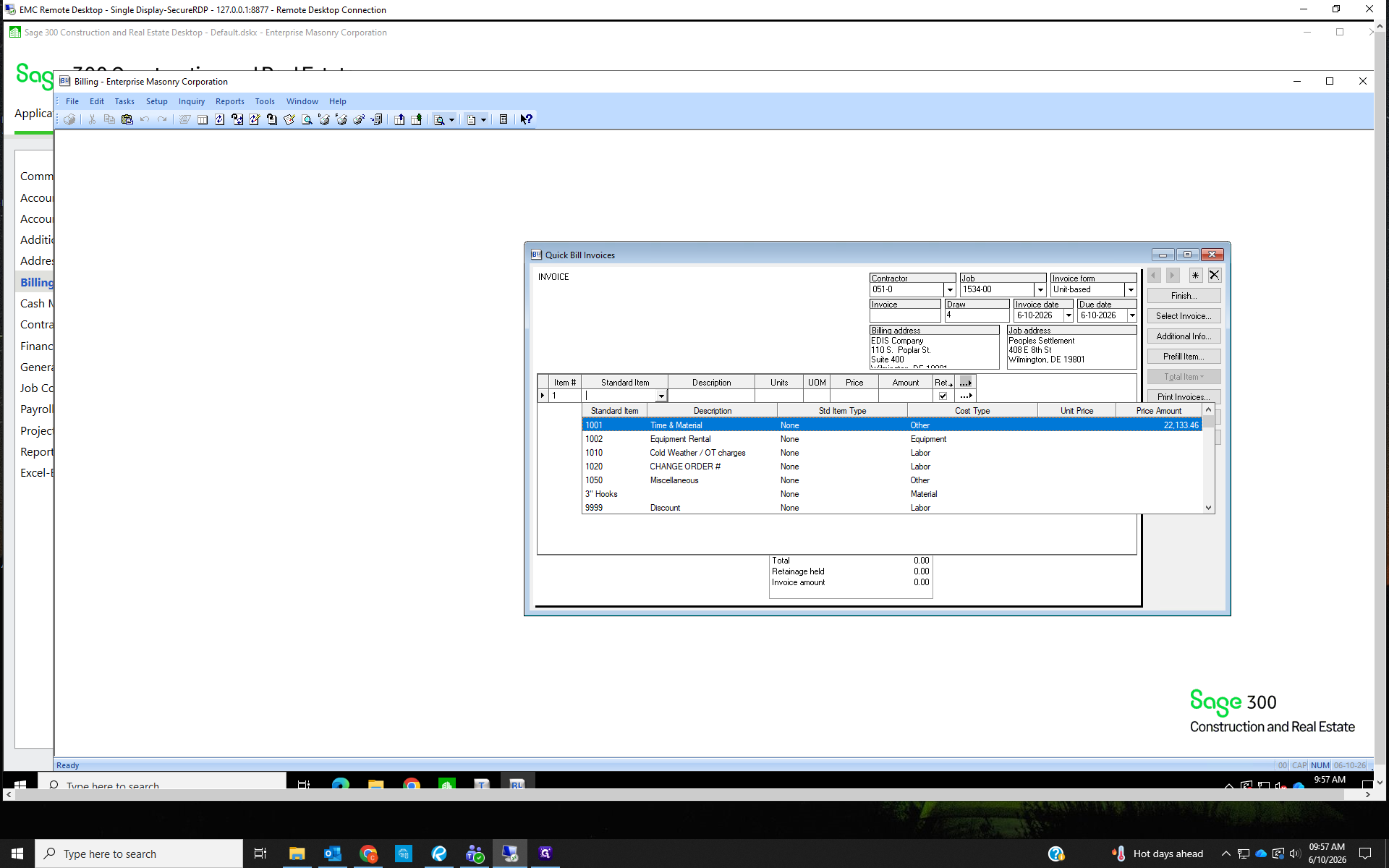
6
The description will autofill with Time & Material. This should be changed to describe the actual work performed.
7
Input the amount being billed in the Amount field.
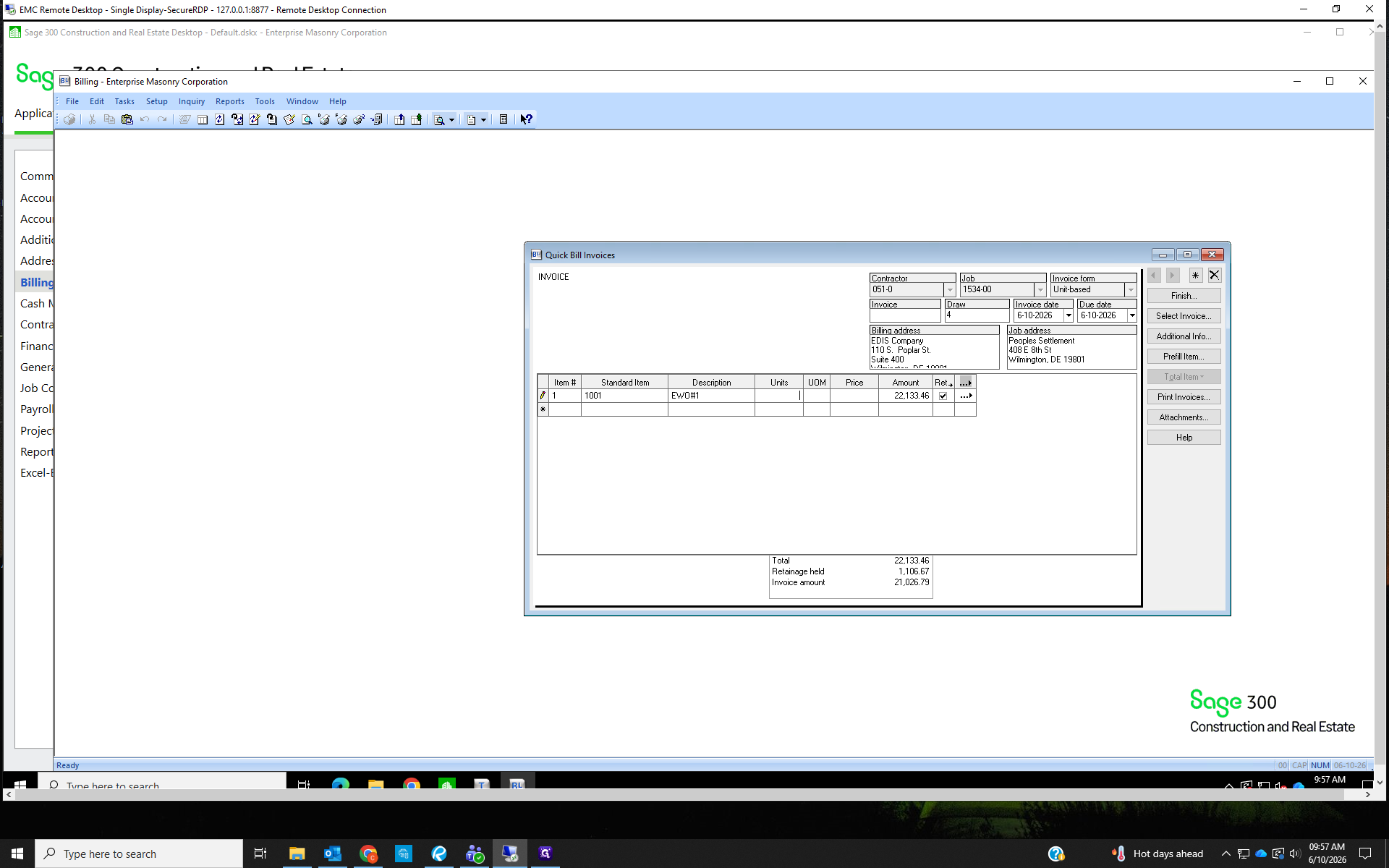
8
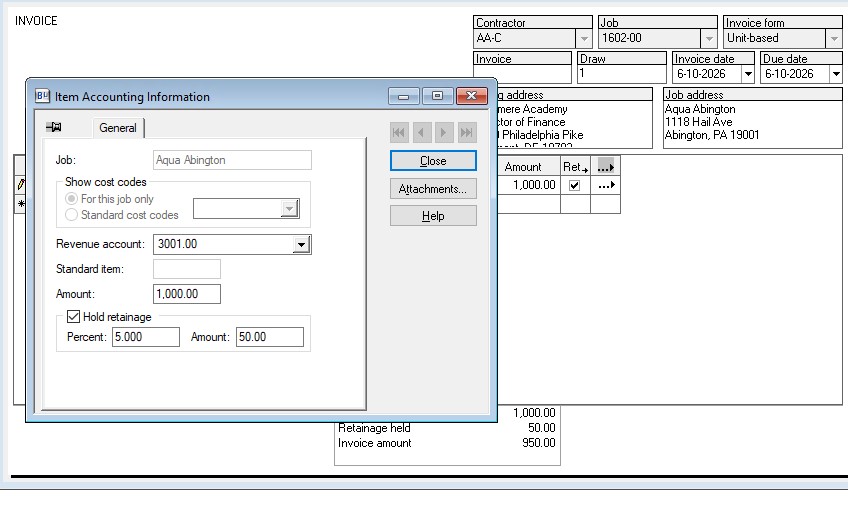
To edit the retainage, click the button with three dots at the right end of the line item.
If there is NO retainage (most common), uncheck the Hold Retainage box.
If there is retainage, you can enter the percent being retained, or the amount.
Click Close
If there is NO retainage (most common), uncheck the Hold Retainage box.
If there is retainage, you can enter the percent being retained, or the amount.
Click Close
9
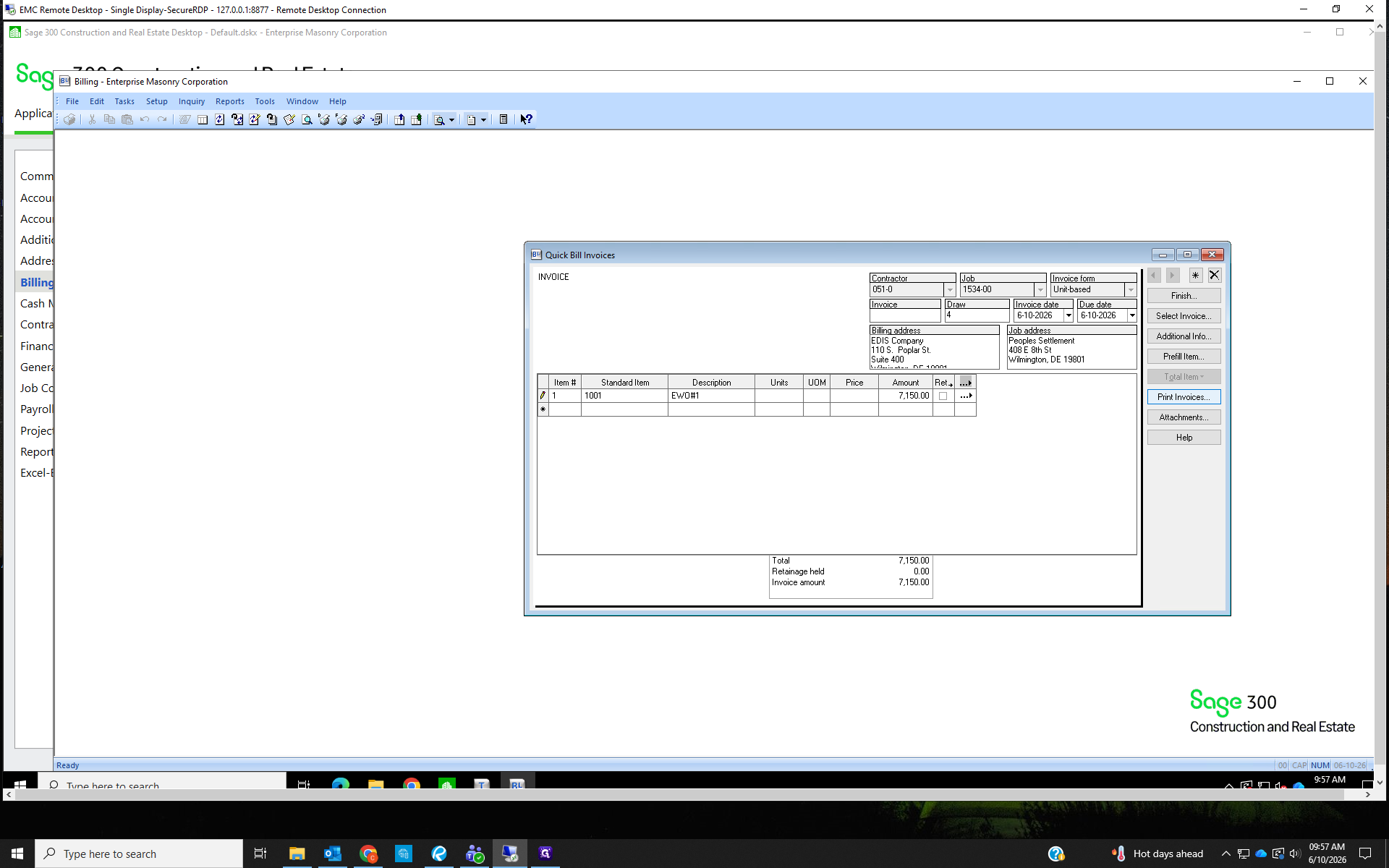
Once everything is entered, click Print Invoices from the right-hand sidebar to finalize the entry.
The Print Invoice window will open and the invoice number will autogenerate based on the last printed invoice. Do not change anything on the Print Invoice window. Click 'Print'.
The Print Invoice window will open and the invoice number will autogenerate based on the last printed invoice. Do not change anything on the Print Invoice window. Click 'Print'.
10
Once the invoice prints, scan and save it into the job's Billing folder, under APPS FOR PAYMENT. The bill should be titled [Job Name] QB#[invoice #]. e.x. West Goshen QB#3.
11
Email the invoice to the billing contact, who can be found on the job setup, the monthly billing spreadsheet, or in the contract. CC the EMC Project manager on the email(except Gregg).
Unless the GC requests otherwise, the subject of the email is the same as the bill's title.
The body of the email should say,
Please see the attached invoice for work completed through [billing month].
Unless the GC requests otherwise, the subject of the email is the same as the bill's title.
The body of the email should say,
Please see the attached invoice for work completed through [billing month].
12
Print one copy of the invoice for the EMC PM. If the EMC PM is NOT Gregg, print one copy for Gregg too. Gregg gets a copy of EVERY INVOICE. Write the job number- EMC PM first inital in the top right corner of the printed bills.
e.x. 1496-K <this would be a Kyle job, so print two copies as well; one for Gregg, one for Kyle.
e.x. 1496-K <this would be a Kyle job, so print two copies as well; one for Gregg, one for Kyle.
13
Fill out the Monthly Billing Spreadsheet to show the bill was sent. Include the date the invoice was sent, QB/APP #, amount of the bill, and initial once the final notarized bill is submitted.
The monthly billing sheet can be found on the Shared Drive under - MONTHLY INVOICING\ Select the folder for the current Fiscal Year\ Find the sheet for the current month.
The monthly billing sheet can be found on the Shared Drive under - MONTHLY INVOICING\ Select the folder for the current Fiscal Year\ Find the sheet for the current month.

Process Contract-Based Invoices
14
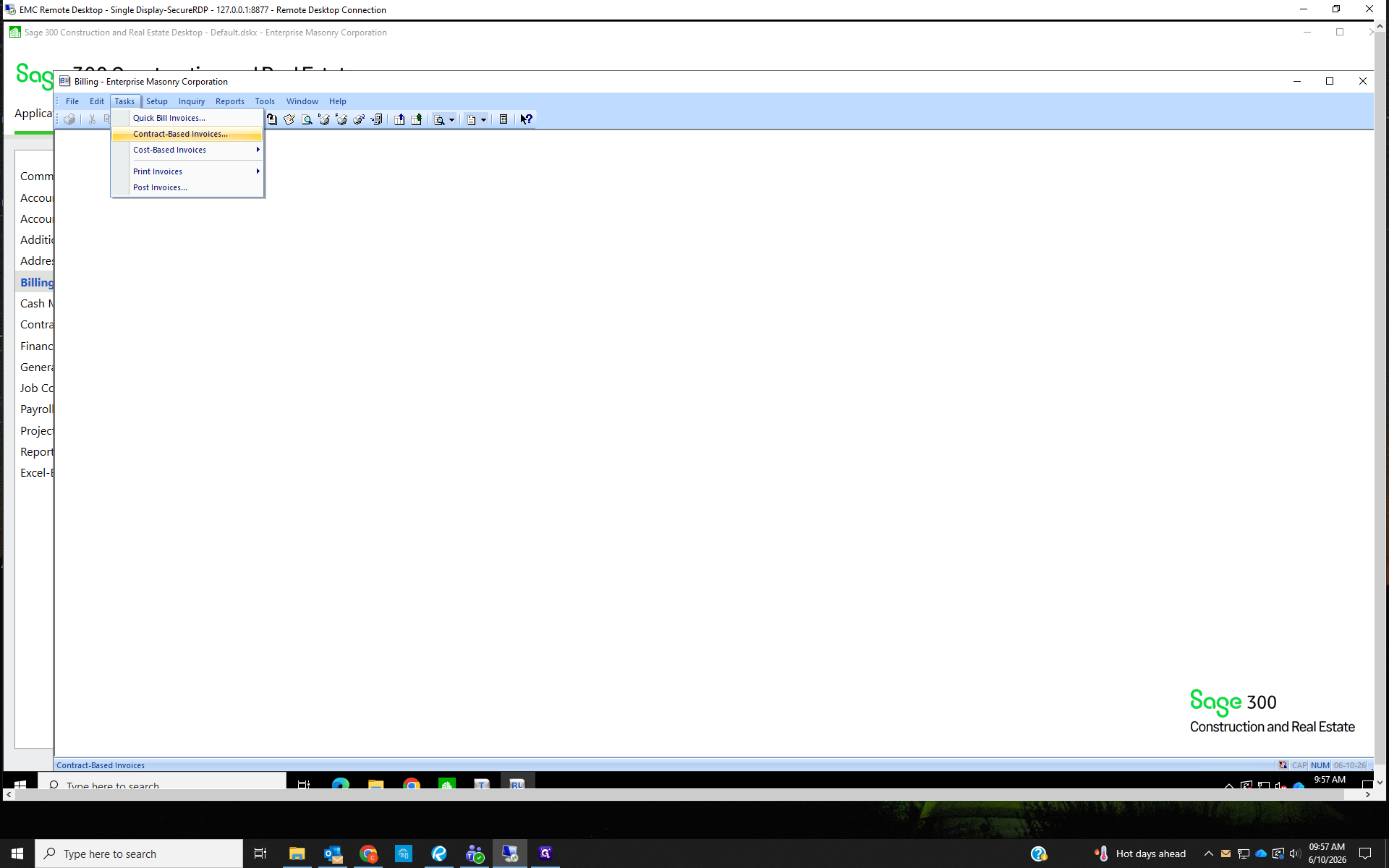
From the Tasks menu, select Contract - Based Invoices...
15
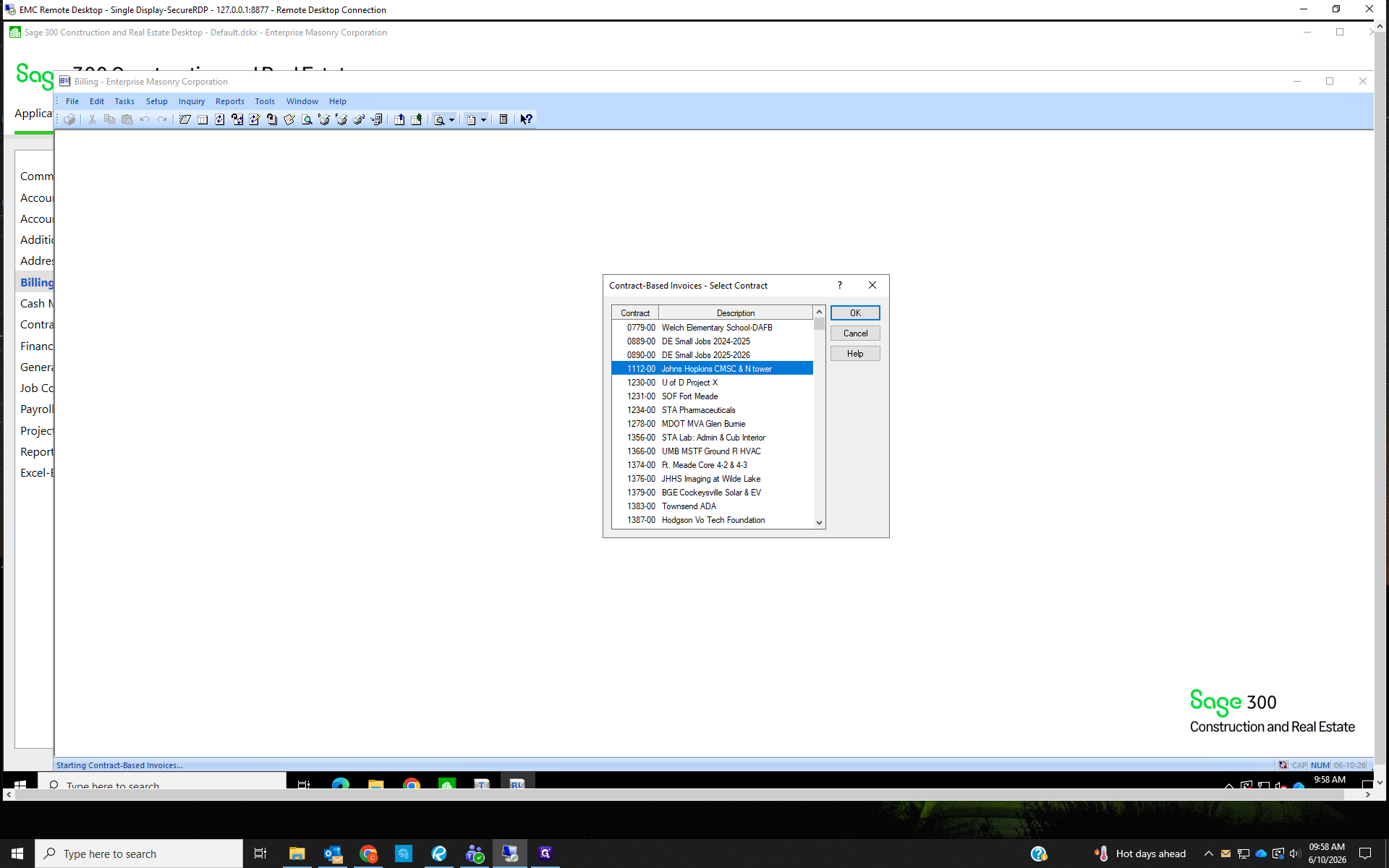
Find the job you're looking to bill from the Select Contract window. Double-click the desired contract to open the detailed billing form.
16
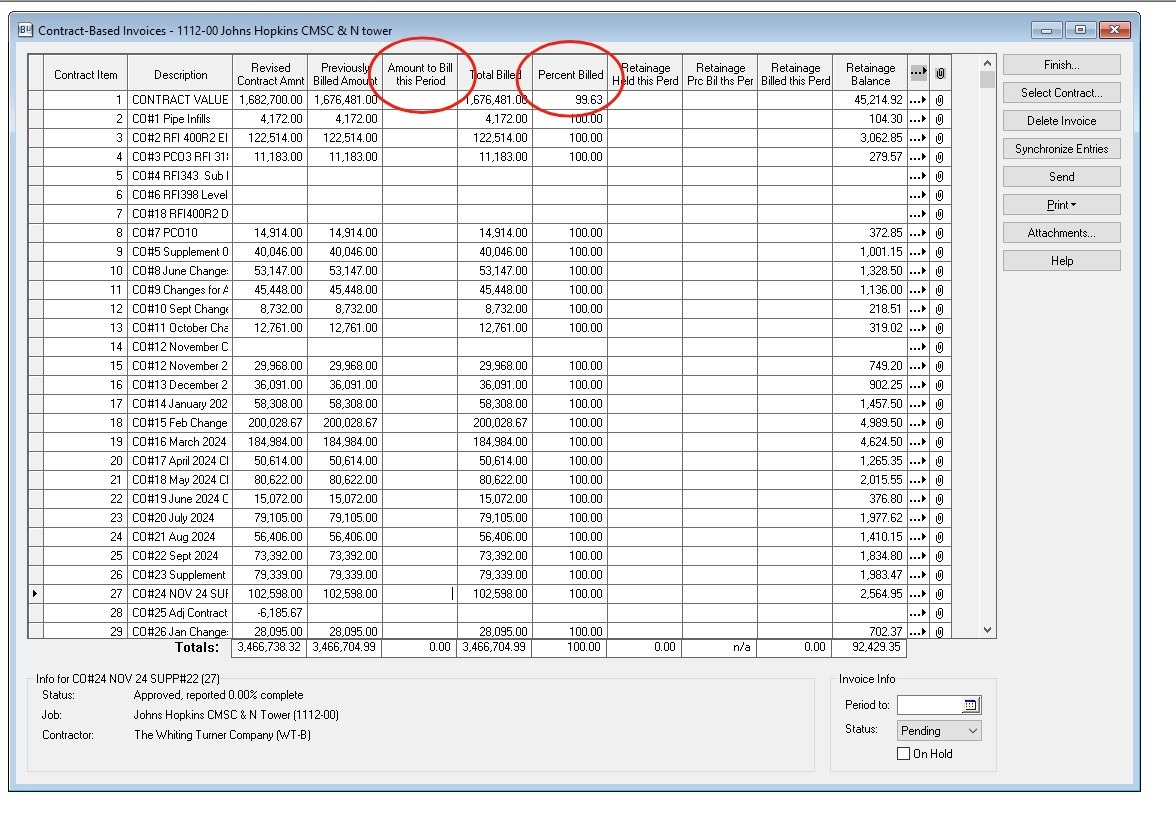
The Contract-based Invoice window will open. Using the marked-up invoice from the PM, enter the Amount to Bill This Period for each line.
Sometimes the PM will circle a line and write the total percentage complete. You can change the amount in the Percent Billed column to match this instead of typing in the exact Amount to Bill. Sage will update the Amount to Bill this Period based on the percent you enter and the Previously Billed Amount.
Sometimes the PM will circle a line and write the total percentage complete. You can change the amount in the Percent Billed column to match this instead of typing in the exact Amount to Bill. Sage will update the Amount to Bill this Period based on the percent you enter and the Previously Billed Amount.
17
Retainage is set at a specific percentage when the job is set up. You can find the retainage percentage in the contract. Not every job holds retainage, especially federally funded projects.
Retainage for the current bill goes in the Retainage Held this Period column. Check that the retainage is calculating properly on all lines being billed this period and that the total retainage balance is correct before sending the bill.
Retainage for the current bill goes in the Retainage Held this Period column. Check that the retainage is calculating properly on all lines being billed this period and that the total retainage balance is correct before sending the bill.
18
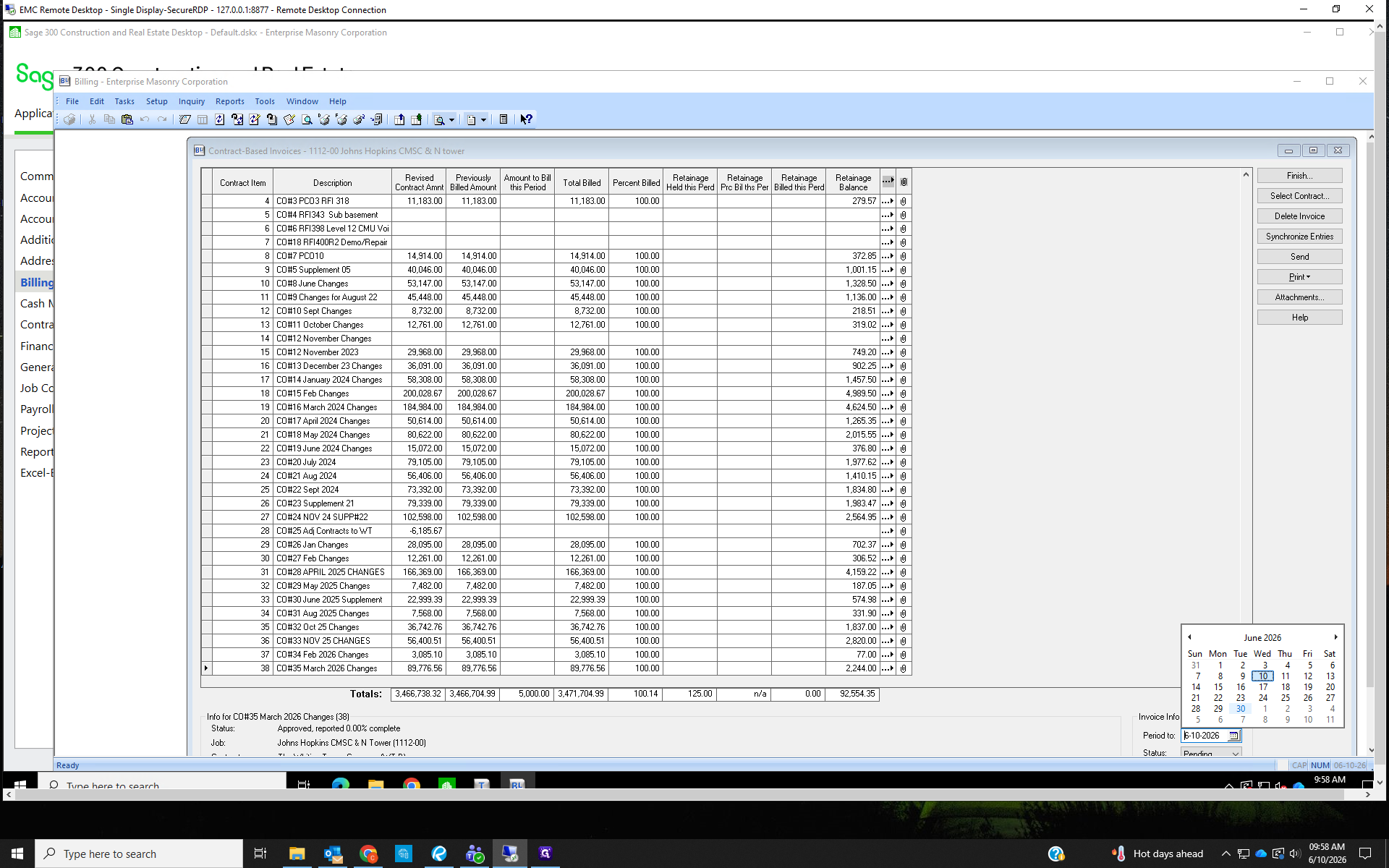
In the bottom right corner, change the Period to: date. The date should be the last day of the billing month. E.X. For a June 2026 invoice, the billing period is 06/30/2026. You can also use the calendar pop-up to select the period end date.
The status will update automatically once the invoice is printed. Do not change the Status.
The status will update automatically once the invoice is printed. Do not change the Status.
19
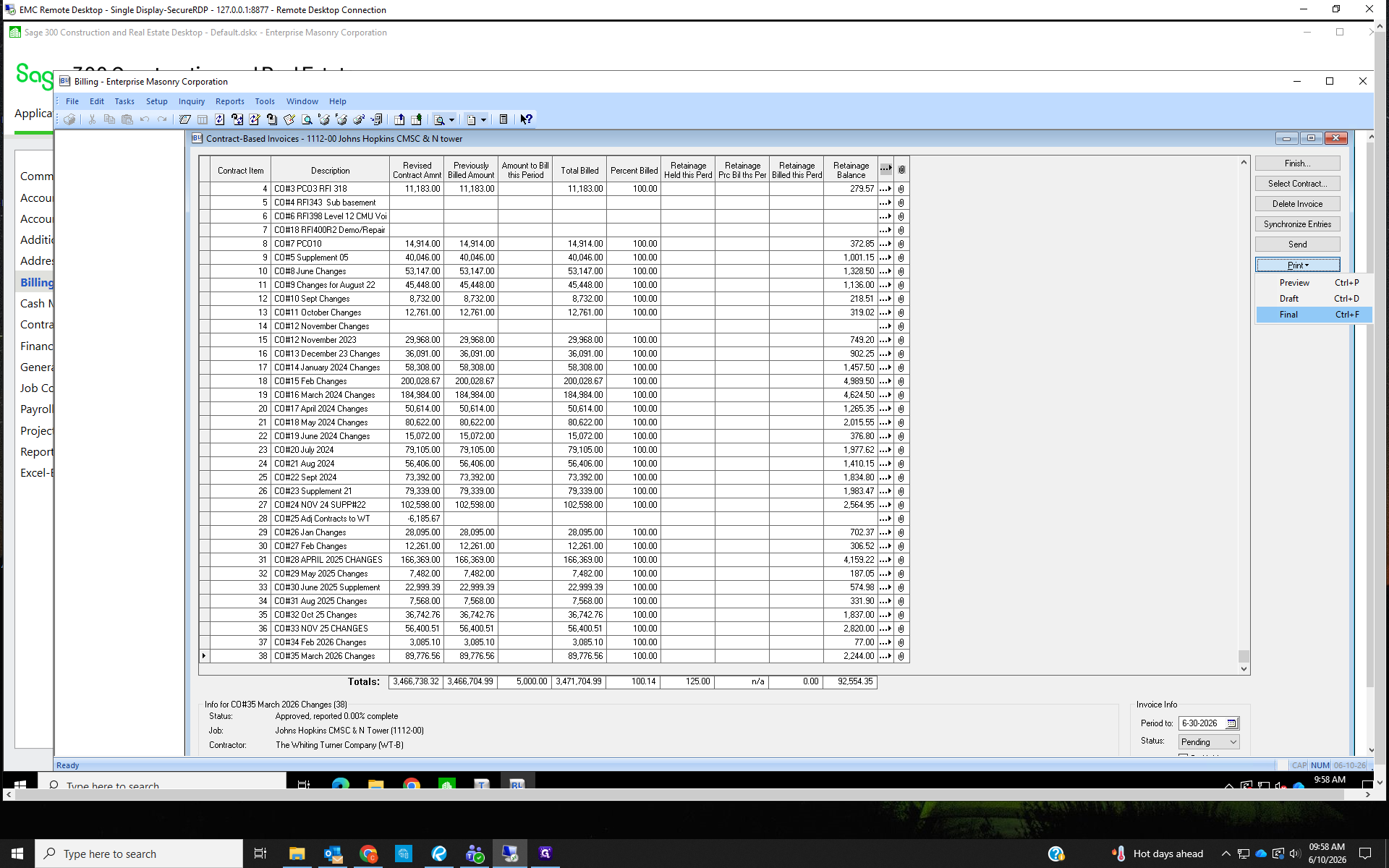
Click Print then select Final print from the dropdown menu.
20
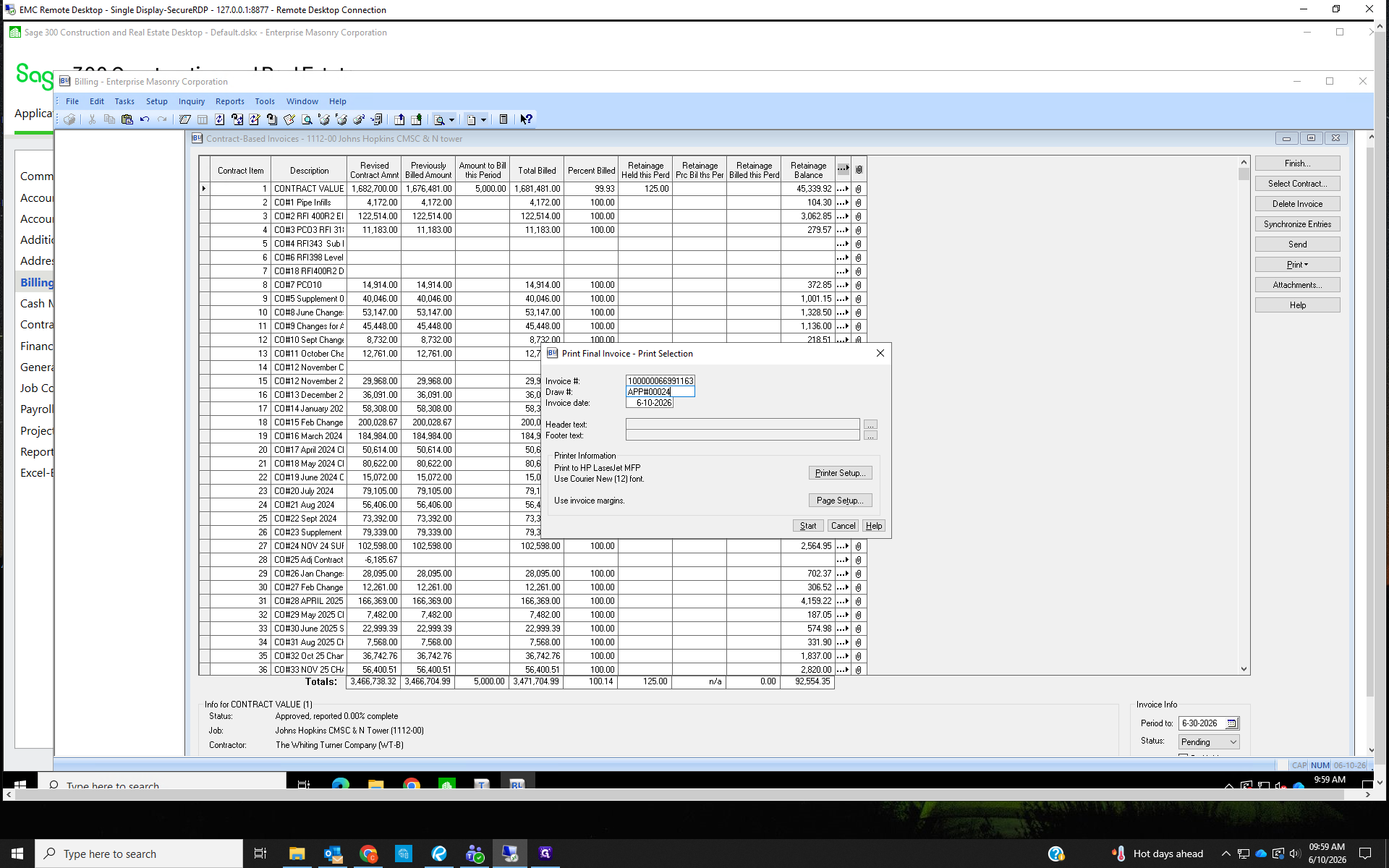
The Invoice # autogenerates and should be left as is.
Change the Draw # to the correct application number. E.X. if the last bill was App#00013, change the current bill's draw number to App#00014.
Click Start to print the invoice.
Change the Draw # to the correct application number. E.X. if the last bill was App#00013, change the current bill's draw number to App#00014.
Click Start to print the invoice.
21
Once printed, check if the job requires a monthly release of liens, second tier releases, or any other billing backup. Complete and print these forms too.
Releases may be found in the job's Billing folder under RELEASE OF LIENS. If not, check the contract for a release.
Releases may be found in the job's Billing folder under RELEASE OF LIENS. If not, check the contract for a release.
22
The printed invoice and releases must be signed and notarized then scanned into the job's Billing folder under APPS FOR PAYMENT.
Unless the GC requests otherwise, save the bill as [Job Name] Pay App#[app#]. e.x. West Goshen Pay App#1
Unless the GC requests otherwise, save the bill as [Job Name] Pay App#[app#]. e.x. West Goshen Pay App#1
23
Email the bills and any releases to the billing contact, which can be found on the job set up in the contract, or on the monthly billing spreadsheet.. The subject email, unless the GC says otherwise, should be the same as the title of the bill.
The body of the email should read:
Please see the attached invoice for work completed through [billing month].
The body of the email should read:
Please see the attached invoice for work completed through [billing month].
24
Instead of emailing bills that are done on an online platform (Building Blok, GC Pay, Procore, etc.), upload the notarized invoice to the website to be considered completed.
25
Print one copy of the invoice for the EMC PM. If the EMC PM is NOT Gregg, print a copy for Gregg too. Gregg gets a copy of EVERY INVOICE. Write the job number- EMC PM first initial in the top right corner of the printed bills.
e.x. 1496-K <this would be a Kyle job, so print two copies; one for Gregg, one for Kyle.
e.x. 1496-K <this would be a Kyle job, so print two copies; one for Gregg, one for Kyle.
26
Fill out the Monthly Billing Spreadsheet to show the bill was sent.
Shared - Documents\MONTHLY INVOICING\ Folder for the current Fiscal Year\ Find the sheet for the current month.
Shared - Documents\MONTHLY INVOICING\ Folder for the current Fiscal Year\ Find the sheet for the current month.
Create a Change Request
27
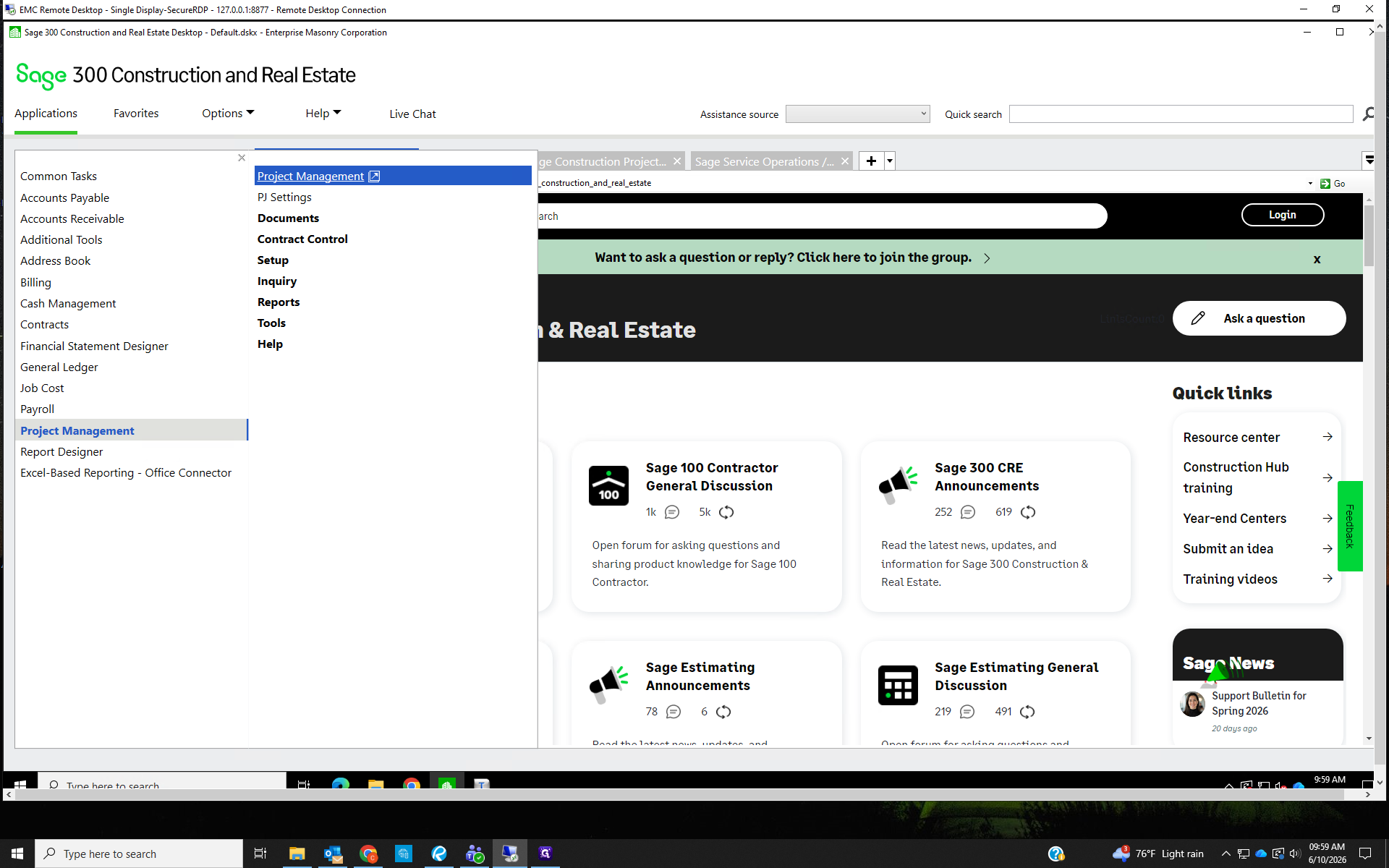
Open the Project Management module
28
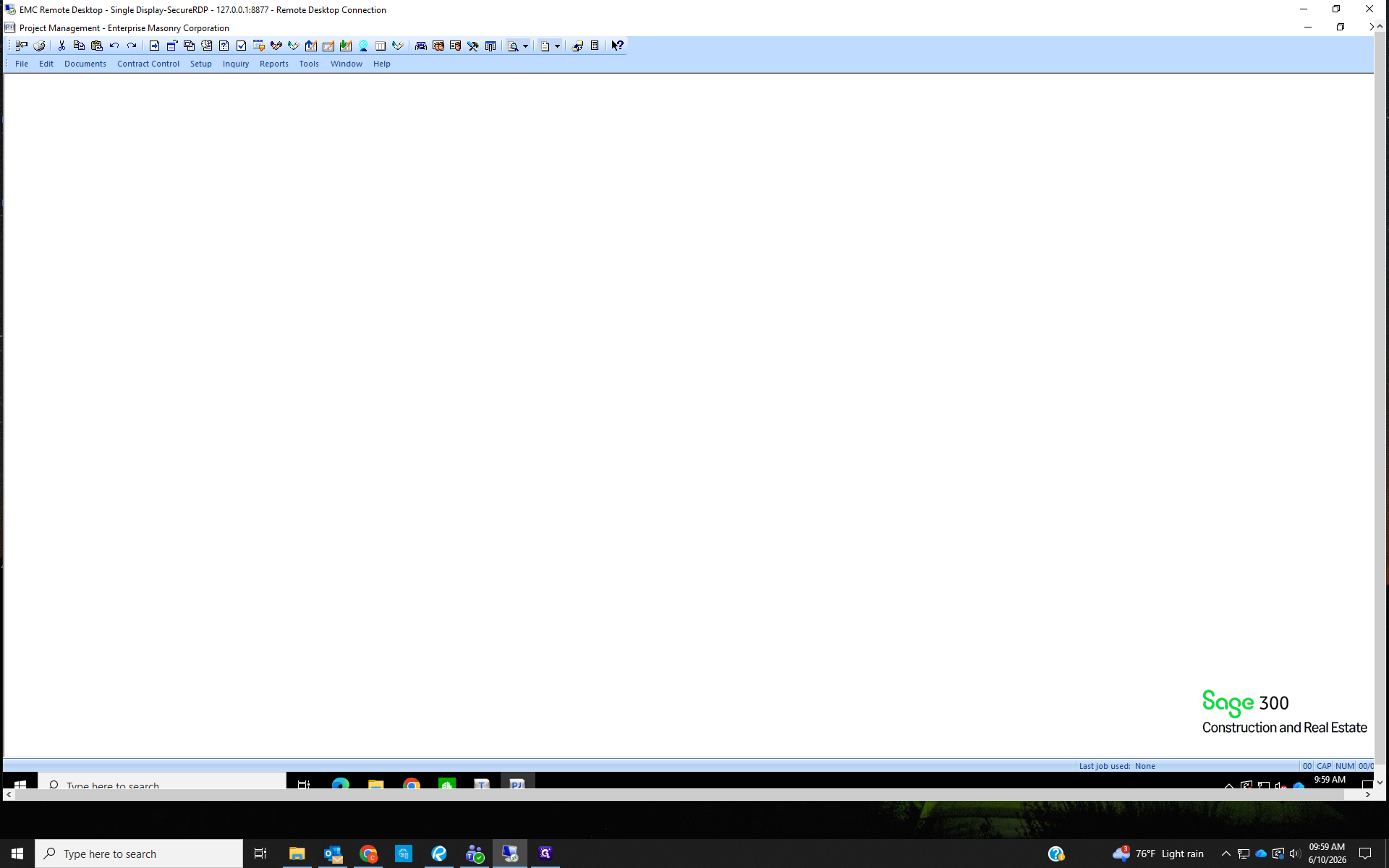
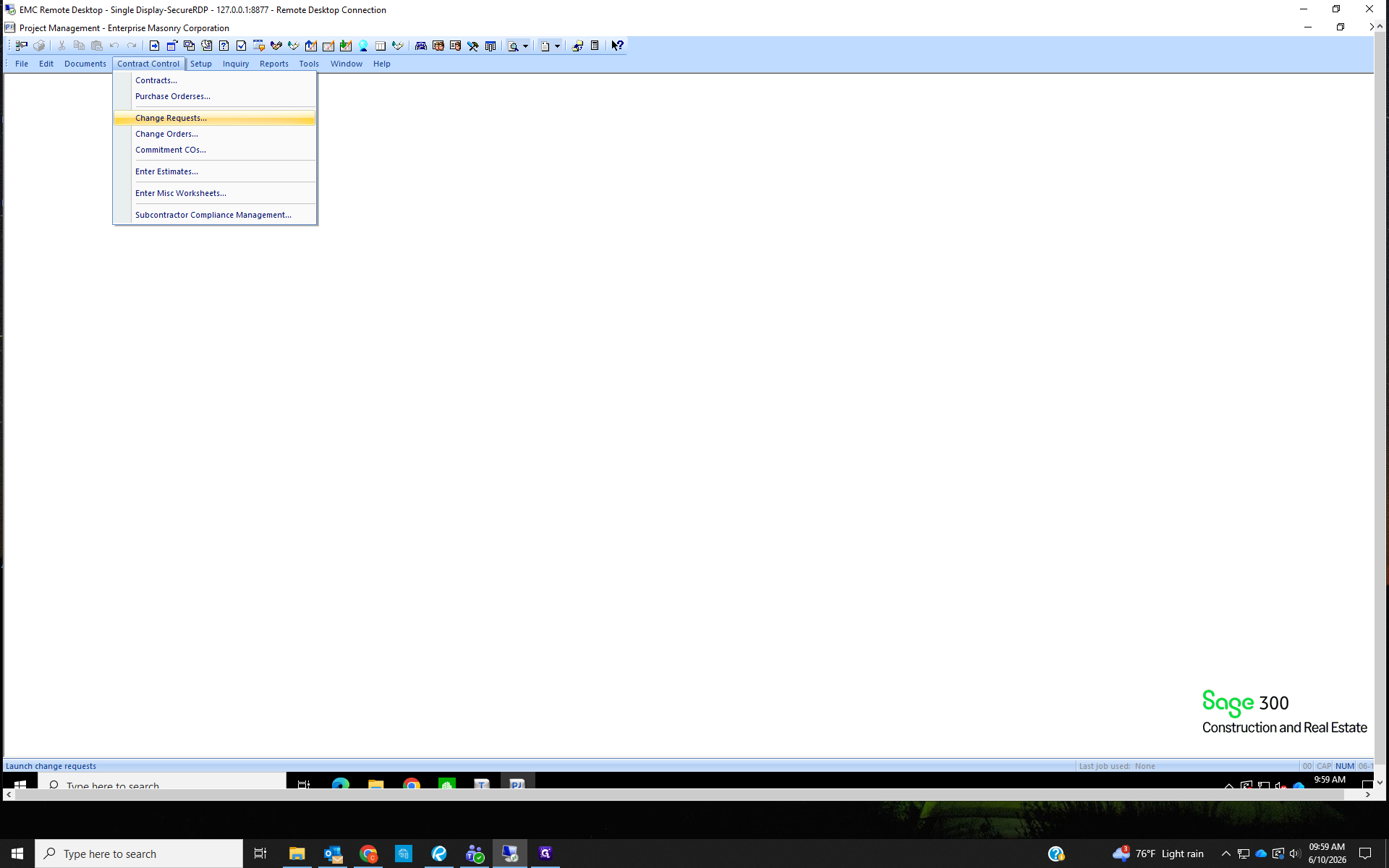
Click on Contract Control.
29
Select Change Requests.
You must enter the change request before you can approve the change order.
You must enter the change request before you can approve the change order.
30
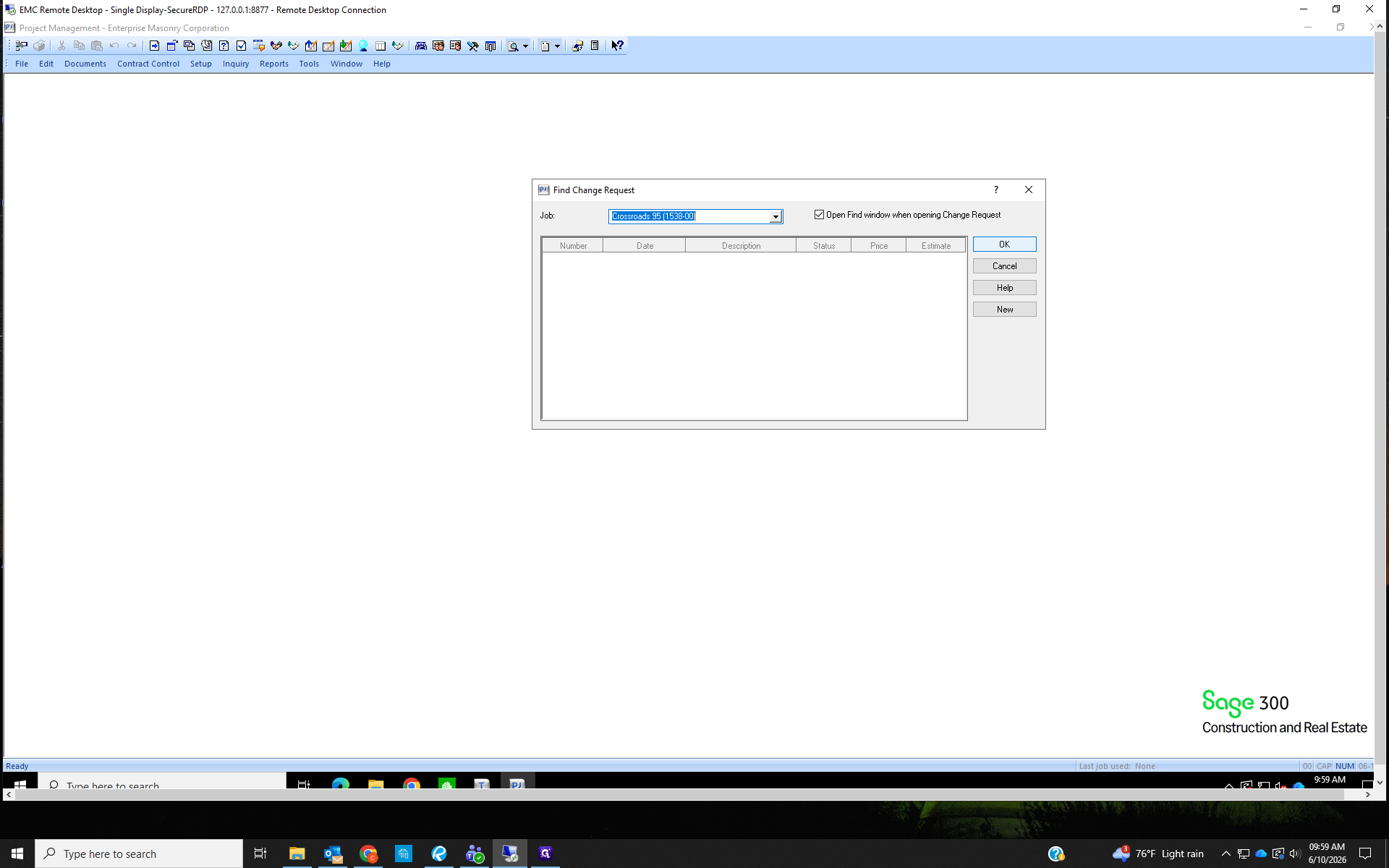
Type your project name into the Job field and press Enter. If there were previously approved change orders, they would appear in the Find Change Request window, and we would know that the change request we're entering is for the next change order number.
Click New to open the Change Request form.
Click New to open the Change Request form.
31
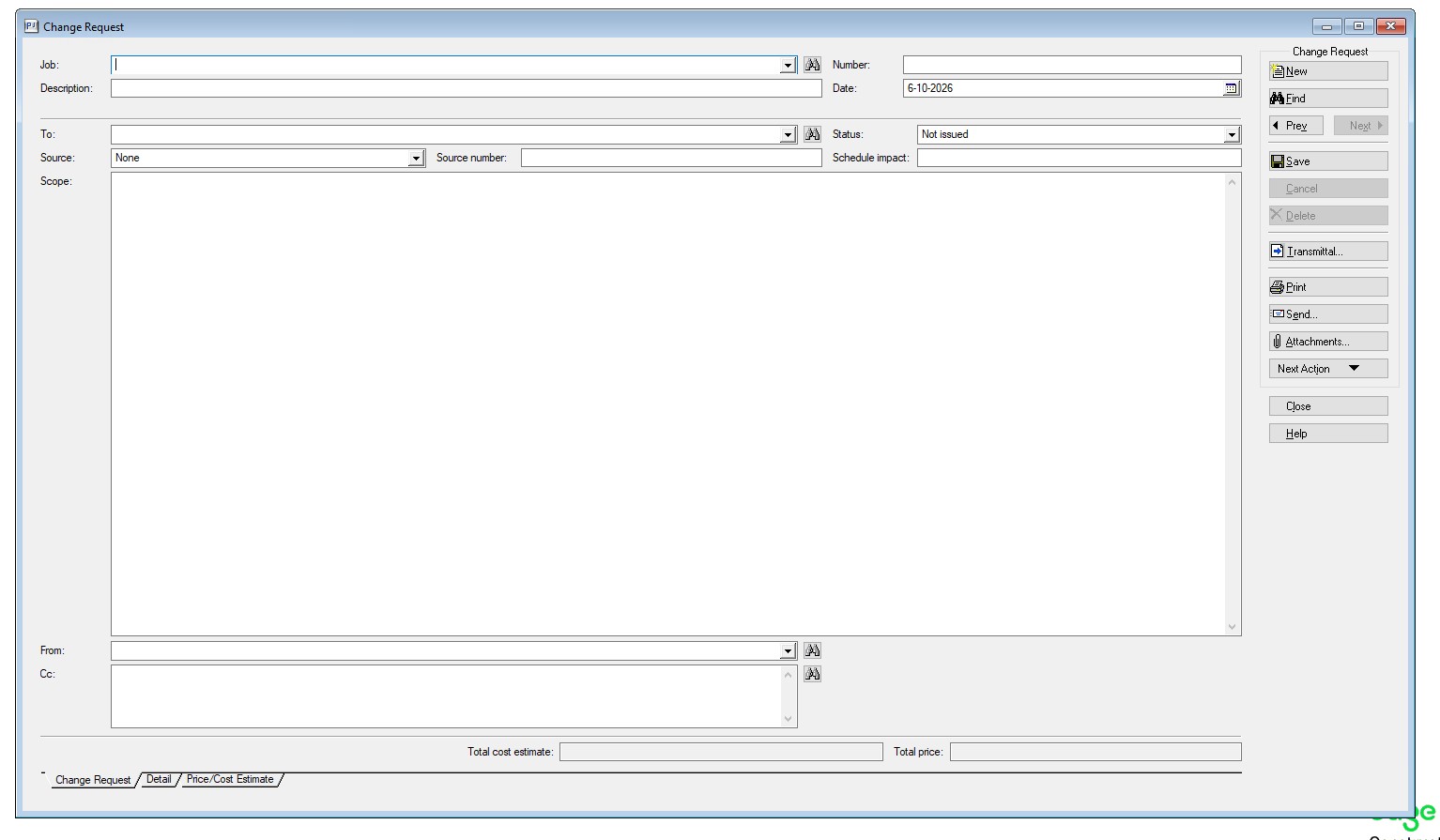
Once the Change Request Window opens, enter the Job Number.
The Number of the change request will autofill with the next number in order of previously entered change orders.
Enter the Description- What you want the line item to be called on the bill
Date- Use the current date or the date the CO was issued
Status- Change to Submitted
The Number of the change request will autofill with the next number in order of previously entered change orders.
Enter the Description- What you want the line item to be called on the bill
Date- Use the current date or the date the CO was issued
Status- Change to Submitted
32
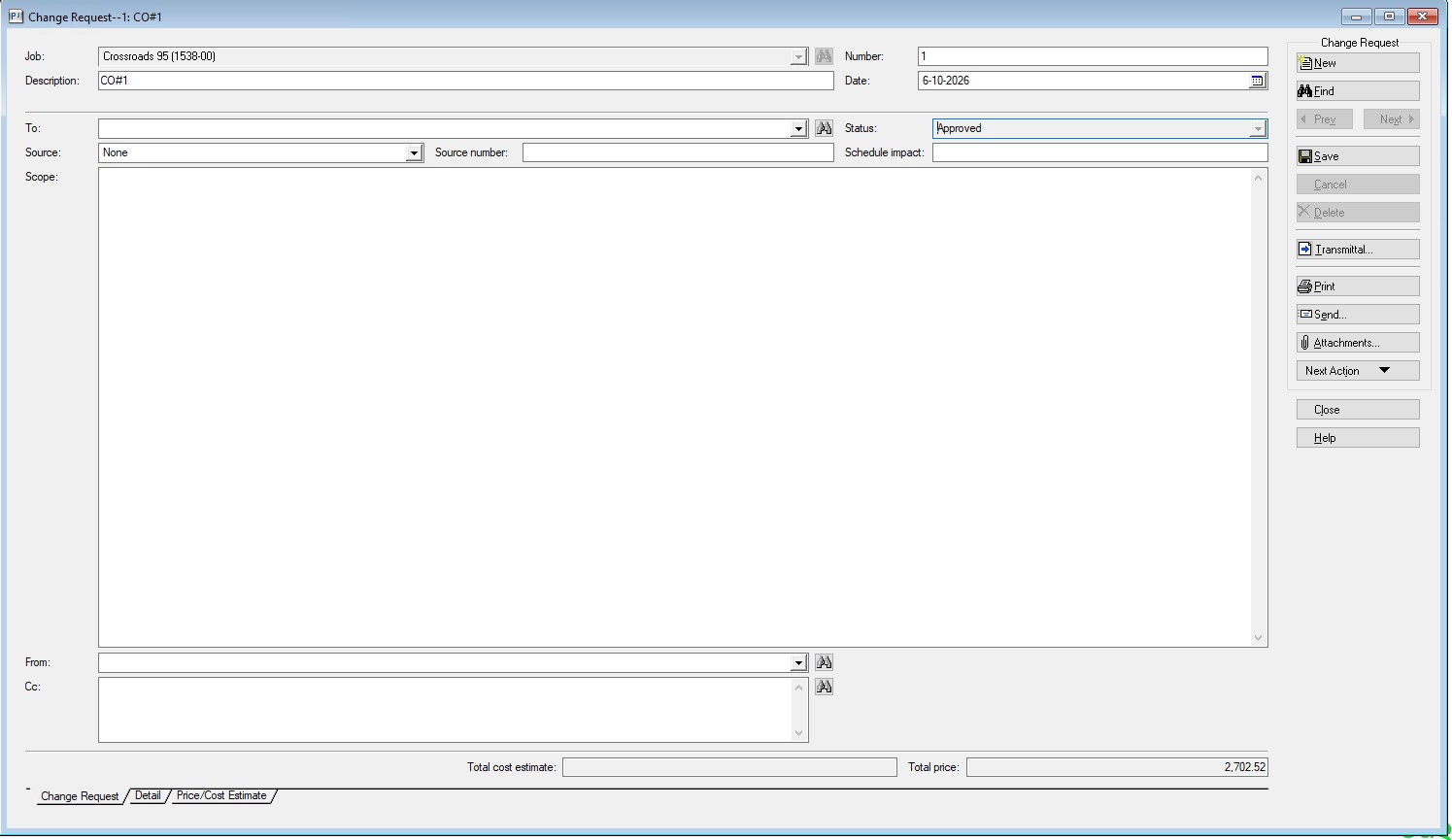
Once all of these items are entered, click the Detail tab in the bottom left of the window.
33
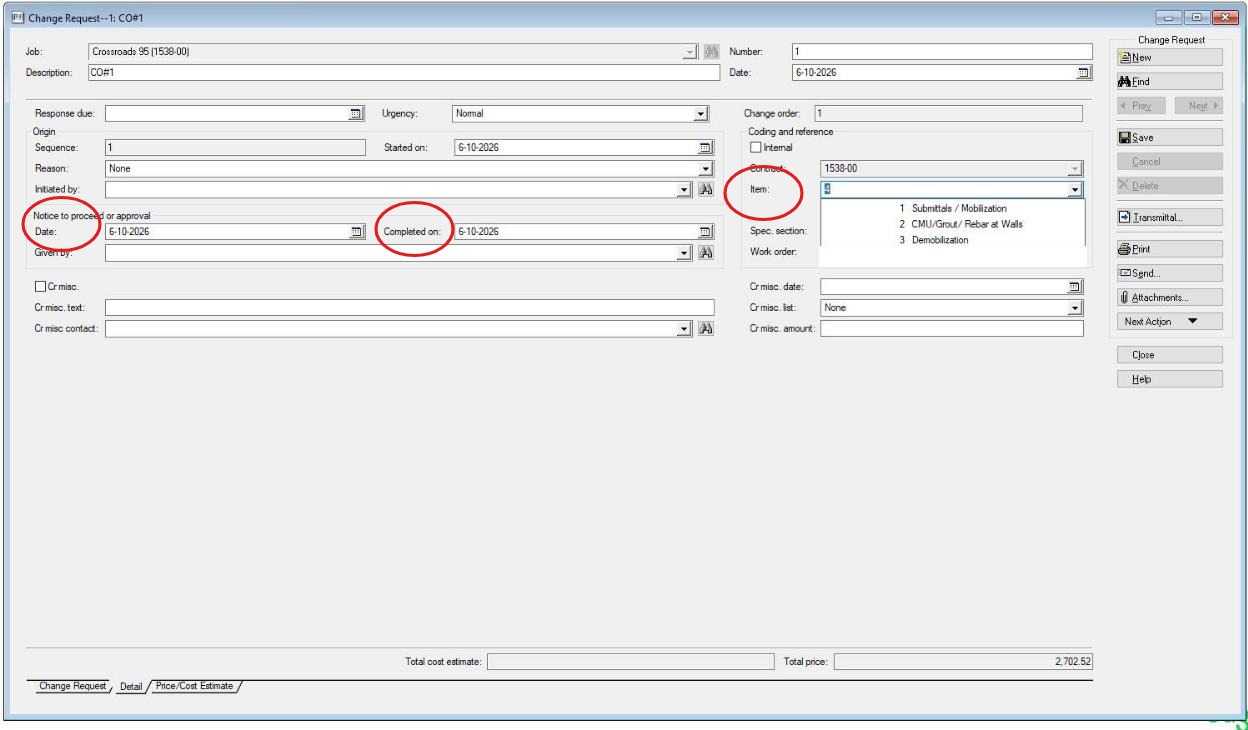
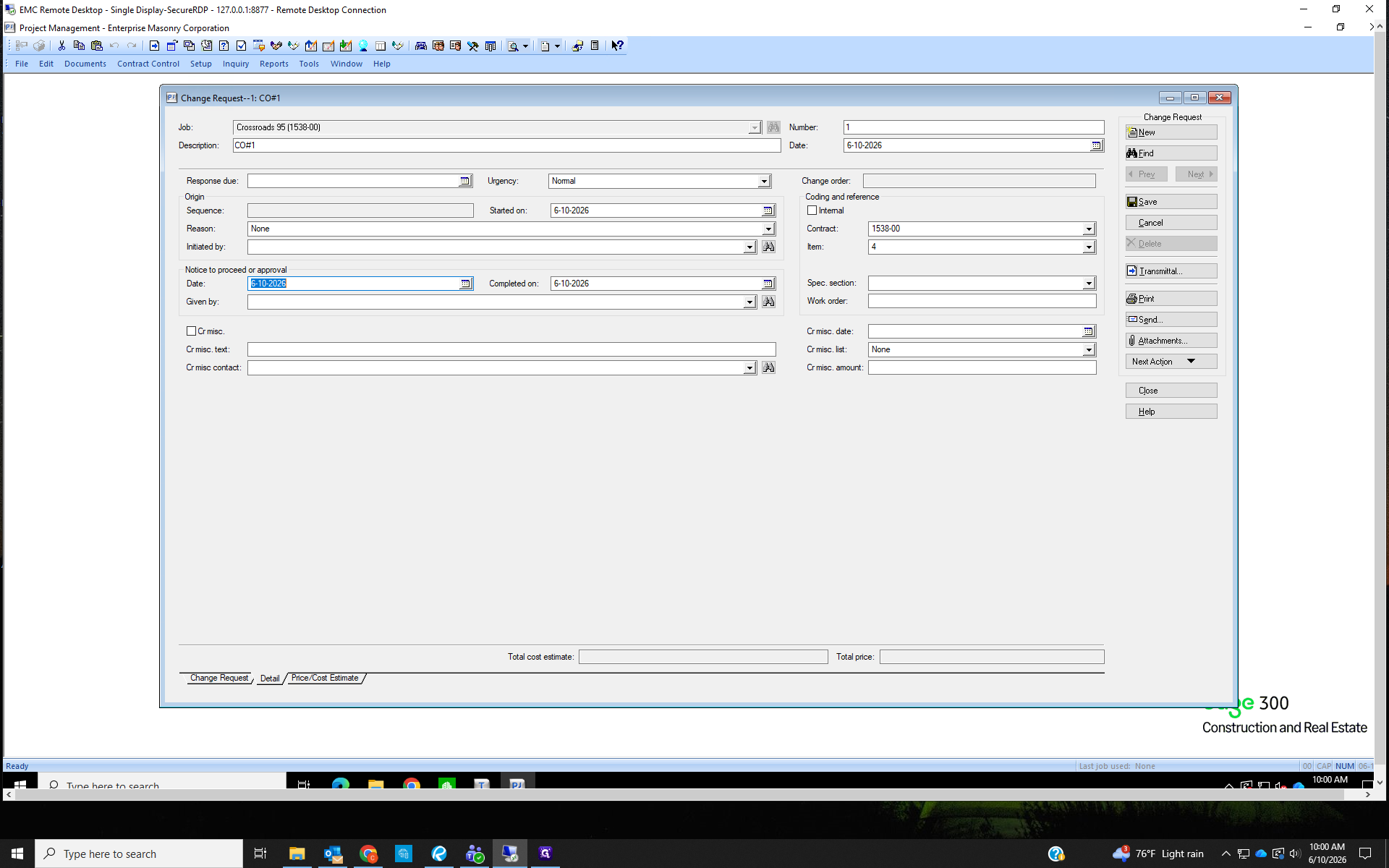
On the Detail tab, enter today's date for the Notice to proceed or approval Date: and the Completed on: date.
This change order must be added to the schedule of values, so we must create a new item. Click the Item drop-down to view the current items. The Item number for the current change order request will be the next consecutive number in the item list.
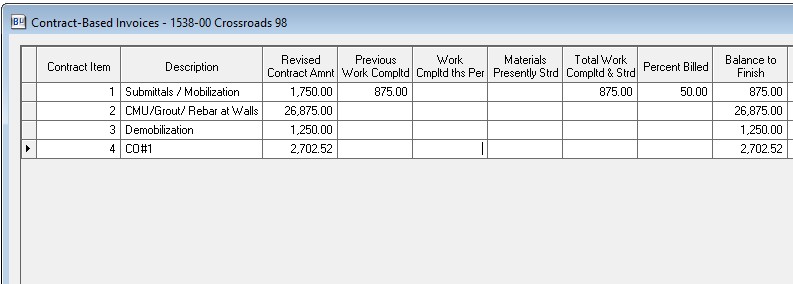
E.X. In the item list below, the last existing item is #3 Demobilization, so the change order currently being added would be item number 4.
This change order must be added to the schedule of values, so we must create a new item. Click the Item drop-down to view the current items. The Item number for the current change order request will be the next consecutive number in the item list.
E.X. In the item list below, the last existing item is #3 Demobilization, so the change order currently being added would be item number 4.
34
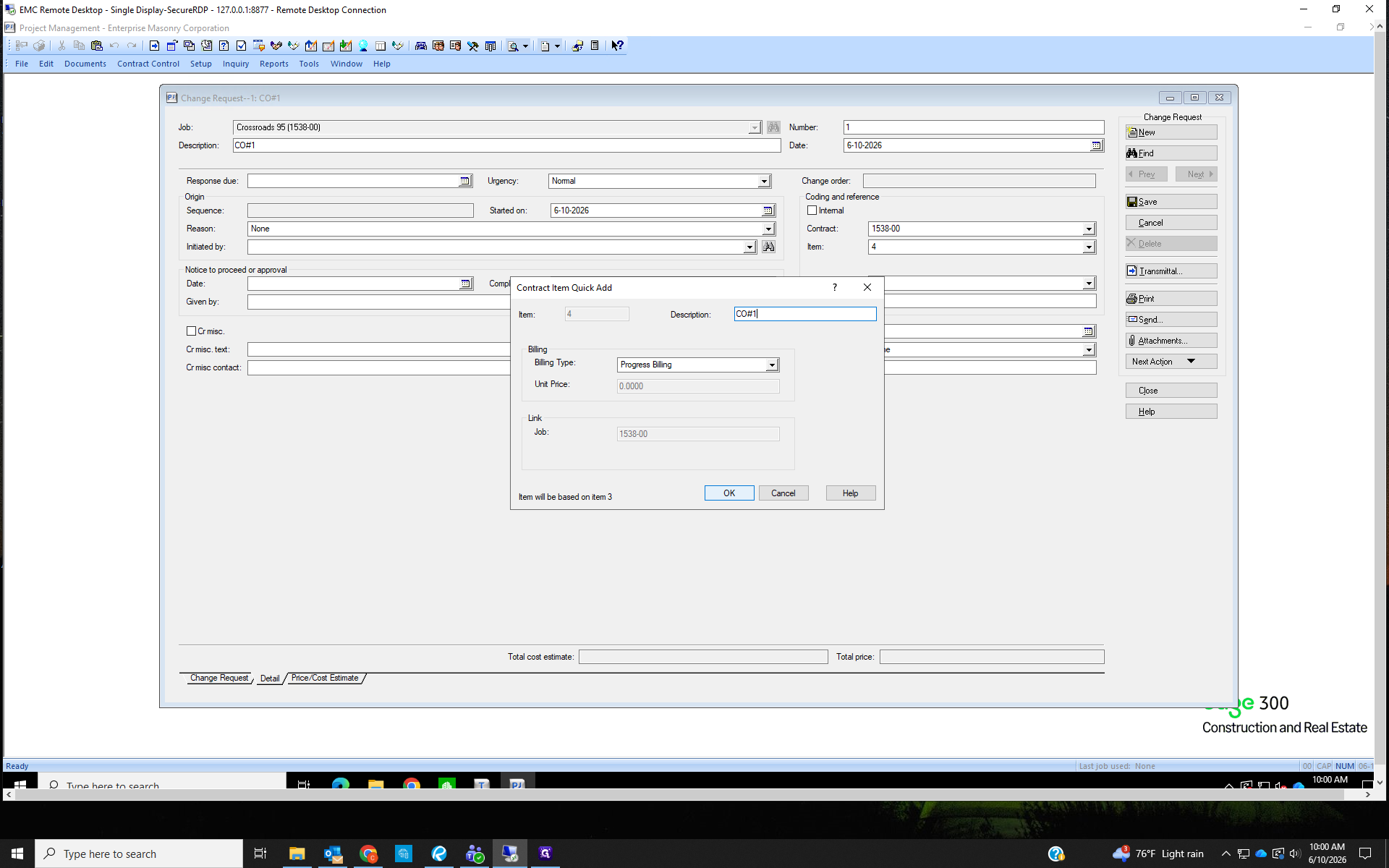
Add the Description for the new contract item; this should be the same description used for the initial change request and will be used again. Click OK on the Quick Add dialog box.
35
Move to the Price/Cost Estimate tab.
36
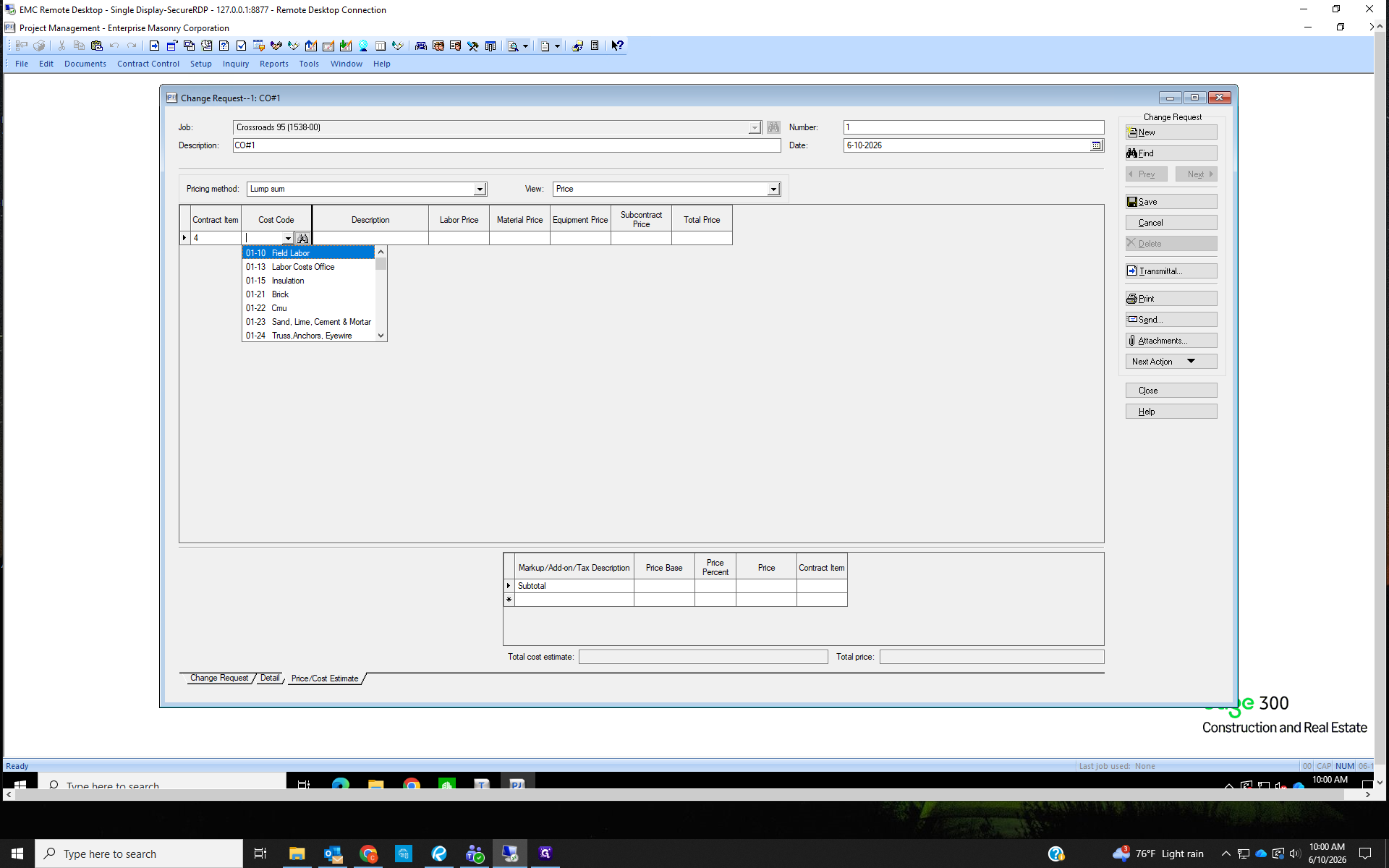
The contract item will appear in the grid. Select the Cost Code 01-10 Field Labor. The description will autofill with Field Labor, leave as is.
Tab into the Labor Price field and enter the amount of the change order.
Tab into the Labor Price field and enter the amount of the change order.
37
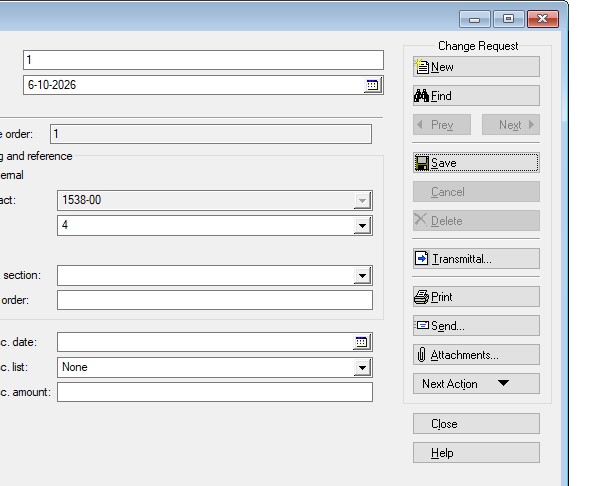
Save and close the Change Request window.
38
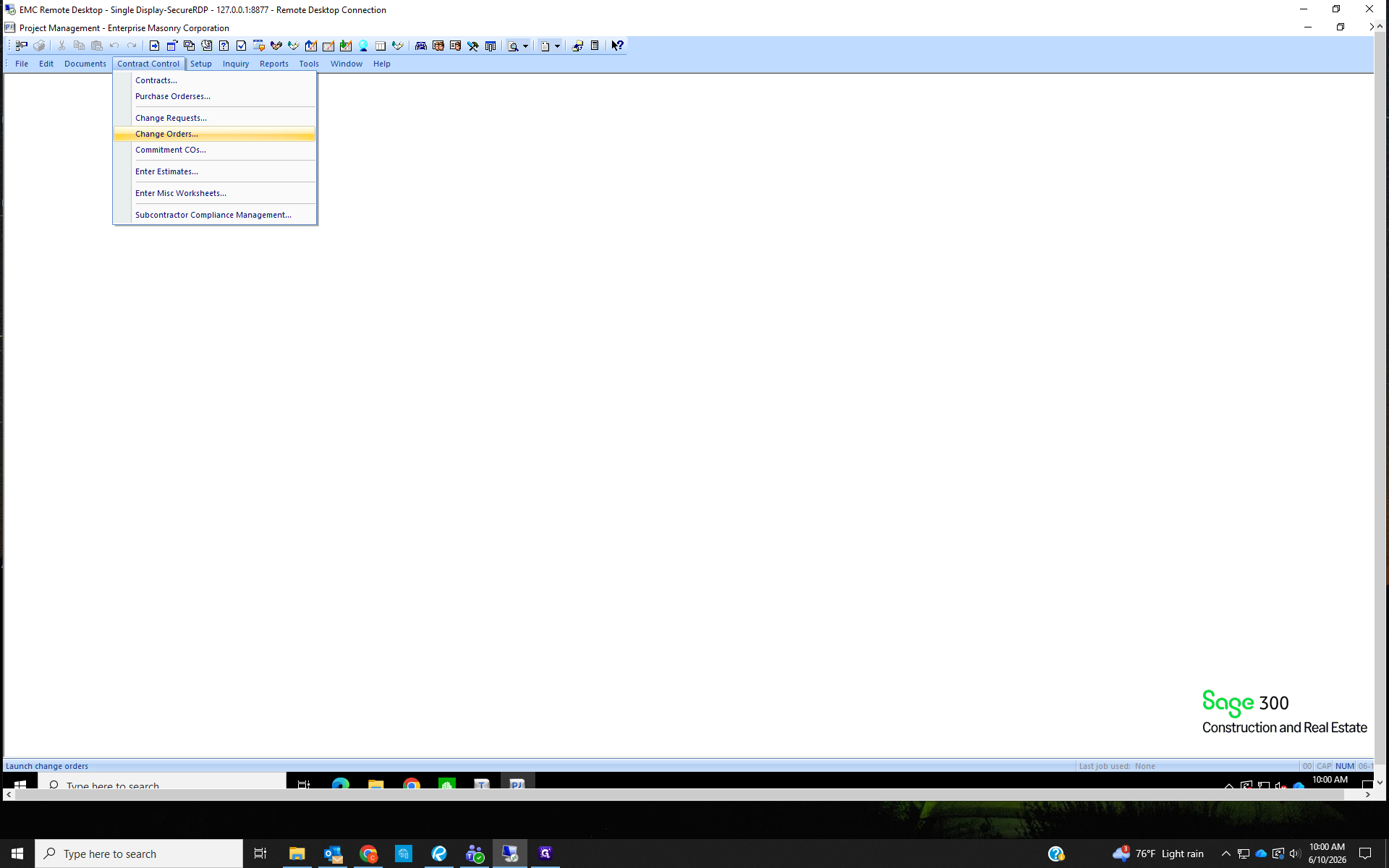
From the Contract Control menu, select Change Orders...
39
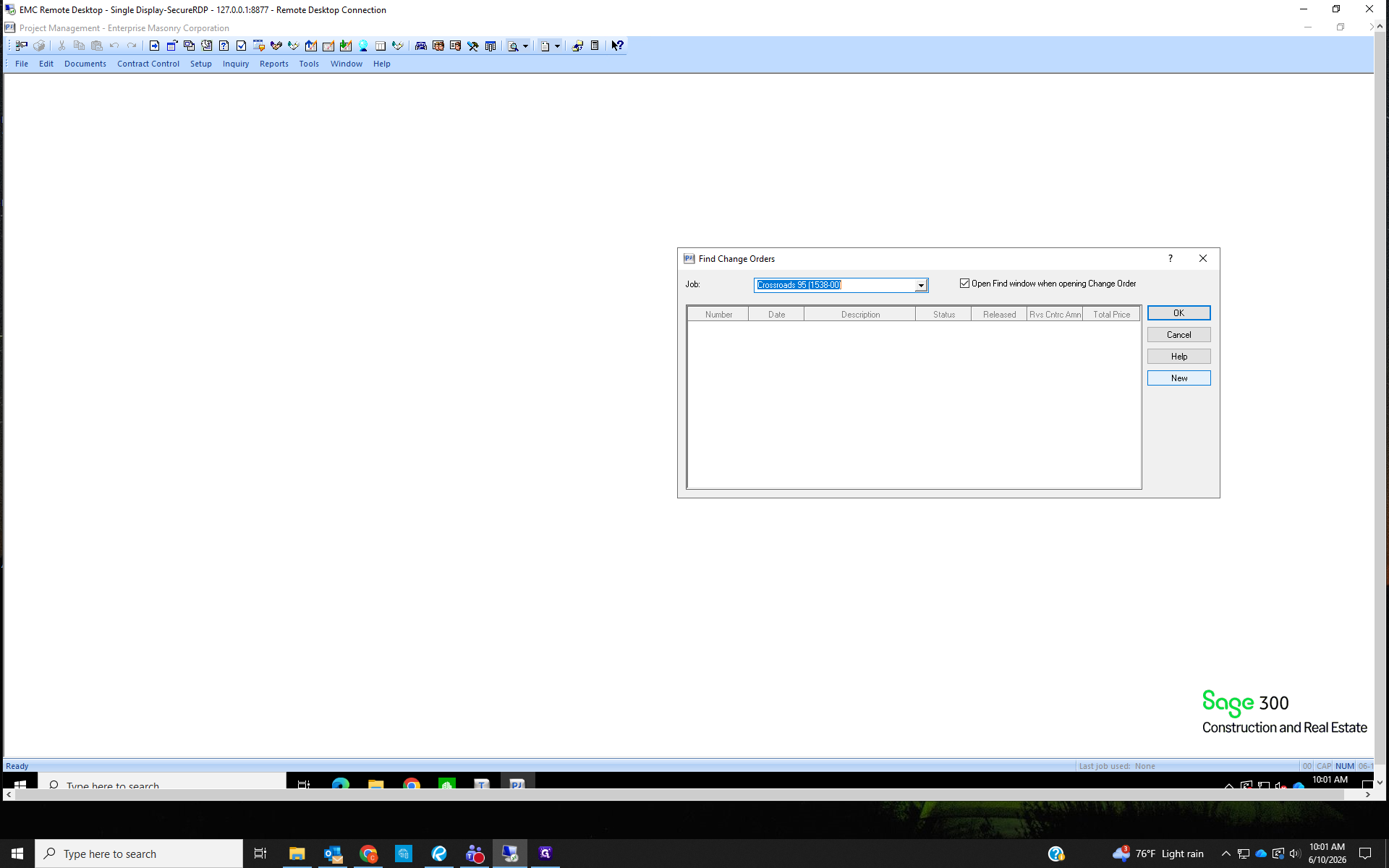
In the Find Change Orders window, search for the project and press Enter. Click New to start a new change order entry.
This may seem similar to the change request, but remember, we did not create the change order yet. We created the change request and are now going to approve that request and create the new change order.
This may seem similar to the change request, but remember, we did not create the change order yet. We created the change request and are now going to approve that request and create the new change order.
40
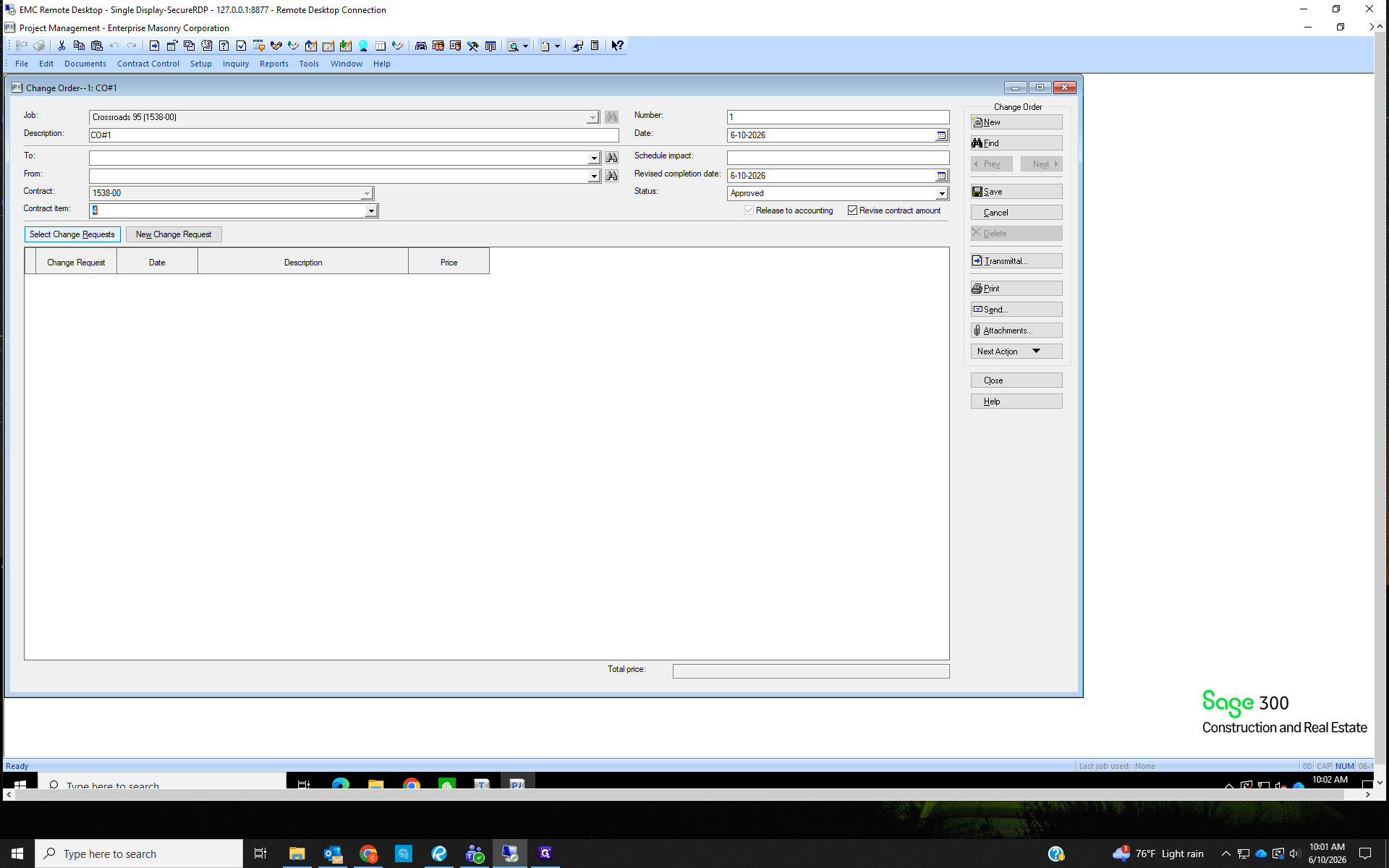
Enter the name of the change order in the Description field (should be the same description used in previous steps). The Revised Completion date is today's date. Change the Status to Approved. Select the Contract Item set up during the change request.
Make sure the box to Revise contract amount is checked.
Make sure the box to Revise contract amount is checked.

41
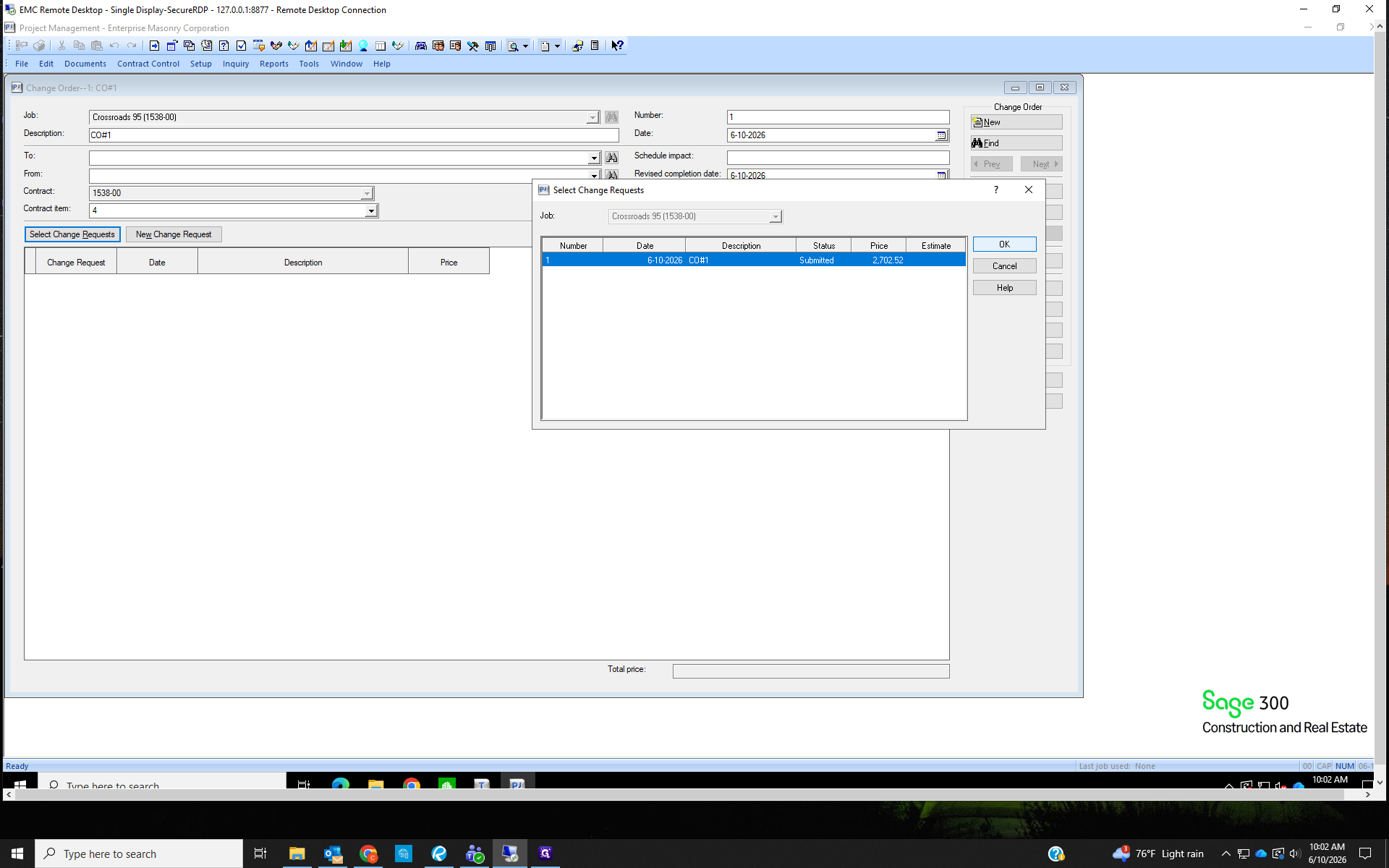
Click Select Change Requests to view change order requests
42
Highlight the request and click OK.
43
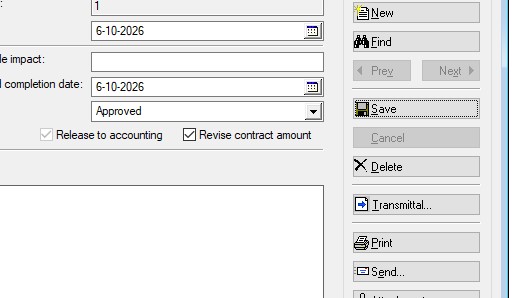
Save the Change Order
44
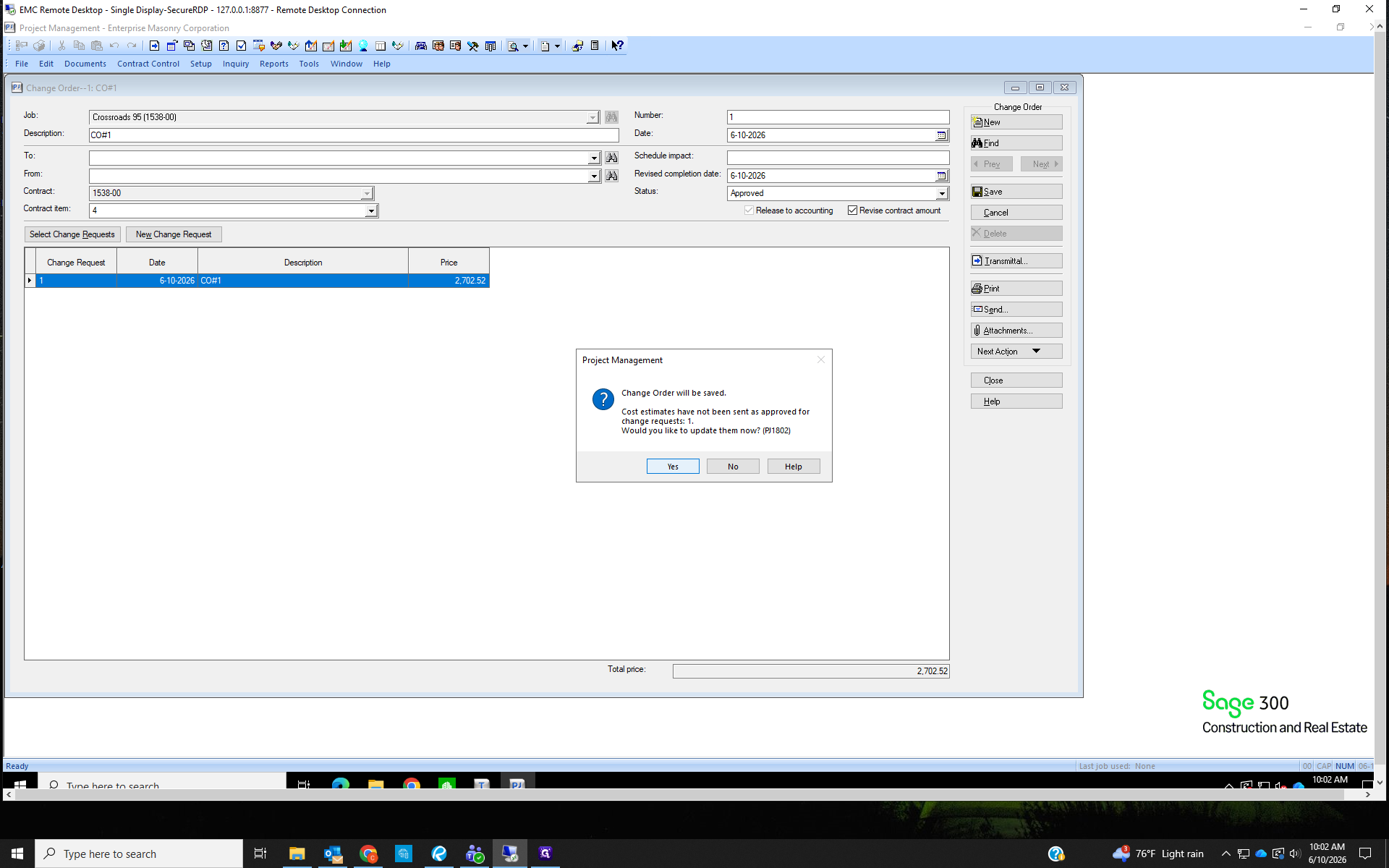
Click Yes when prompted to update the job estimate.
45
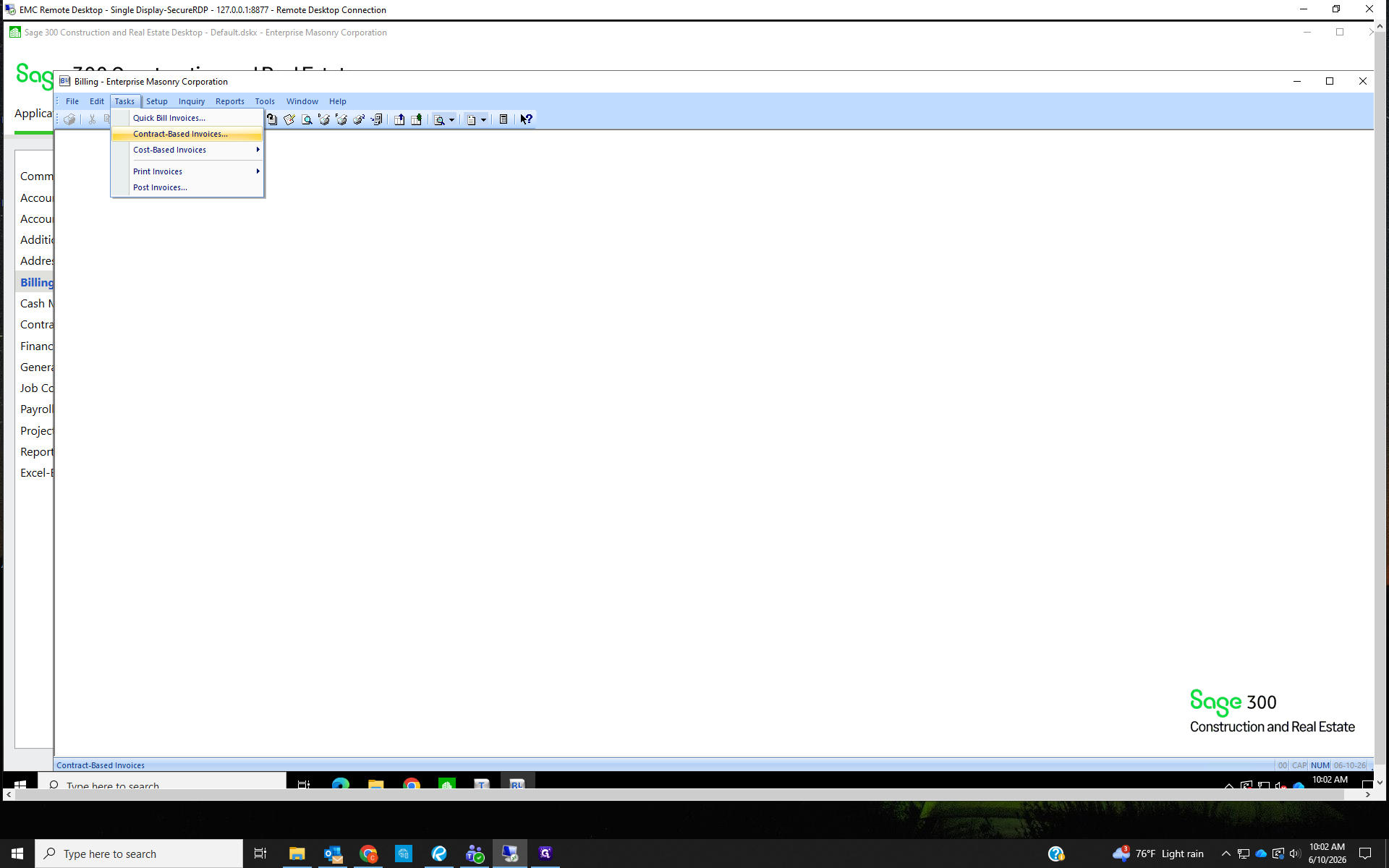
To bill the new change order, return to the Billing module, click Tasks and select Contract-Based Invoices....
46
You should now see the new change order, available to bill, at the end of the contract item list.
VOIDING A BILL IN SAGE (Accounts Receivable)
47
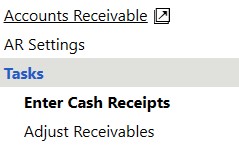
Open the Accounts Receivable module. Click Tasks, then select Adjust Receivables.
48
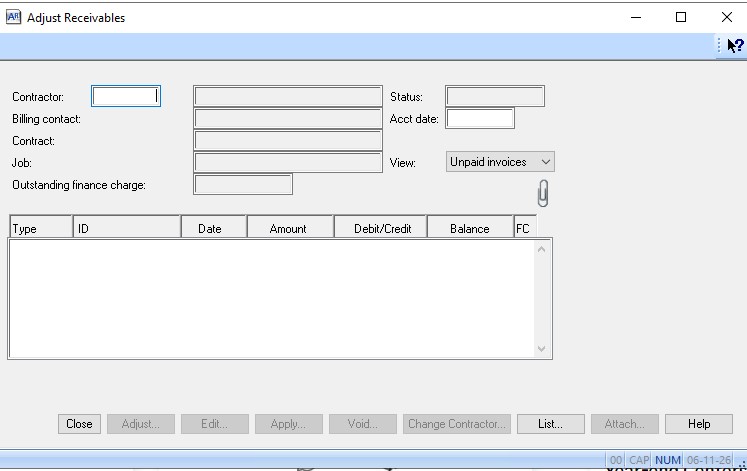
The Adjust Receivables window will open. Use the List... option, or Alt+L to find the Contractor whose bill you are voiding.
The bill being voided will have the Contractor's name and address on it.
The bill being voided will have the Contractor's name and address on it.
49
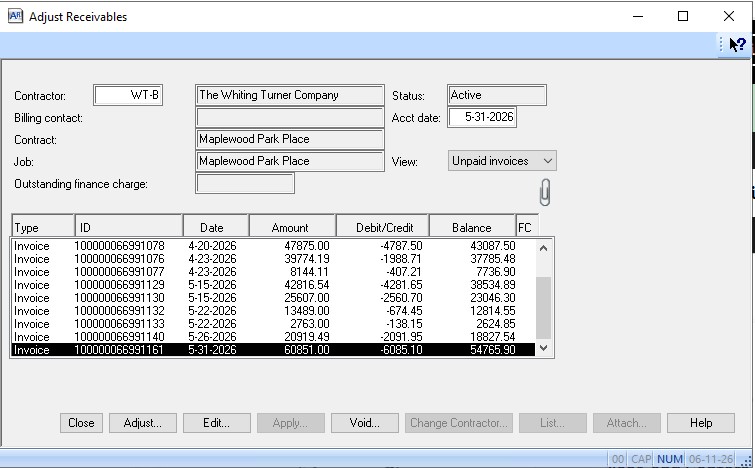
Once the Contractor is selected, a list of all Unpaid Invoices will appear. You can use the View: menu to filter the invoices by contract number or to include Paid Invoices too.
Once you find the invoice you want to void, click on it so it's highlighted. Then enter the accounting date in the top right box. Use the same date as the Invoice Date.
Once you find the invoice you want to void, click on it so it's highlighted. Then enter the accounting date in the top right box. Use the same date as the Invoice Date.
50
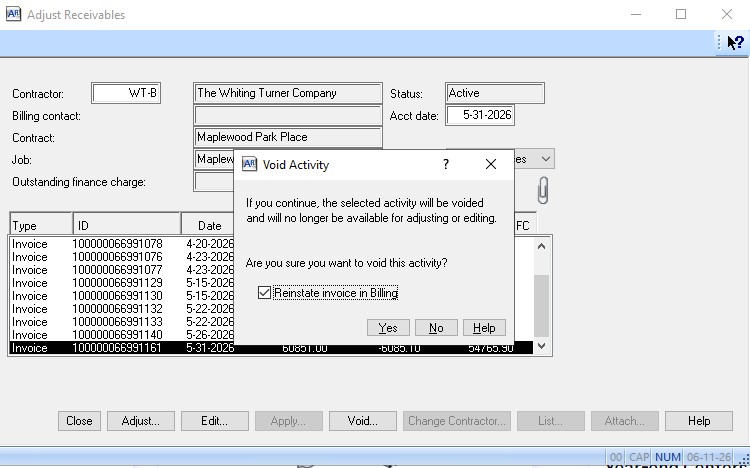
Click Void... at the bottom of the window. Another window will open to confirm you want to void the invoice.
Sage gives the option to reinstate the invoice in the Billing module.
If you're voiding the bill to revise it, reinstating is helpful.
Click Yes to confirm the void, then Post in AR.
Sage gives the option to reinstate the invoice in the Billing module.
If you're voiding the bill to revise it, reinstating is helpful.
Click Yes to confirm the void, then Post in AR.
Term | Definition |
|---|---|
Retainage | A portion of the agreed-upon contract price deliberately withheld until the work is substantially complete. |
Change Order | A formal modification to the original project contract that alters the scope of work, price, or timeline. |
Change Request | A documented proposal to modify the project's scope, timeline, or cost before it is formally approved. |
Quick Bill | A simplified, immediate invoicing method used for straightforward time, material, or miscellaneous charges. |