Learn how to process a QSL replacement device by managing data across Google Sheets, Freshdesk, and Unleashed inventory software.
By Hugo Mackay
This guide explains how to process a replacement device claim using the QSL Assessment Sheet, Freshdesk, and Unleashed. Completing this ensures the customer receives their tracking information promptly and inventory records remain perfectly aligned.
This workflow is designed for customer support and inventory management teams handling warranty claims and device replacements. Use this process immediately after QSL provides a tracking number for a completed device assessment.
Communicating with the Customer via Freshdesk
Begin by notifying the customer that their replacement device is on the way, using data from the QSL Assessment Sheet.
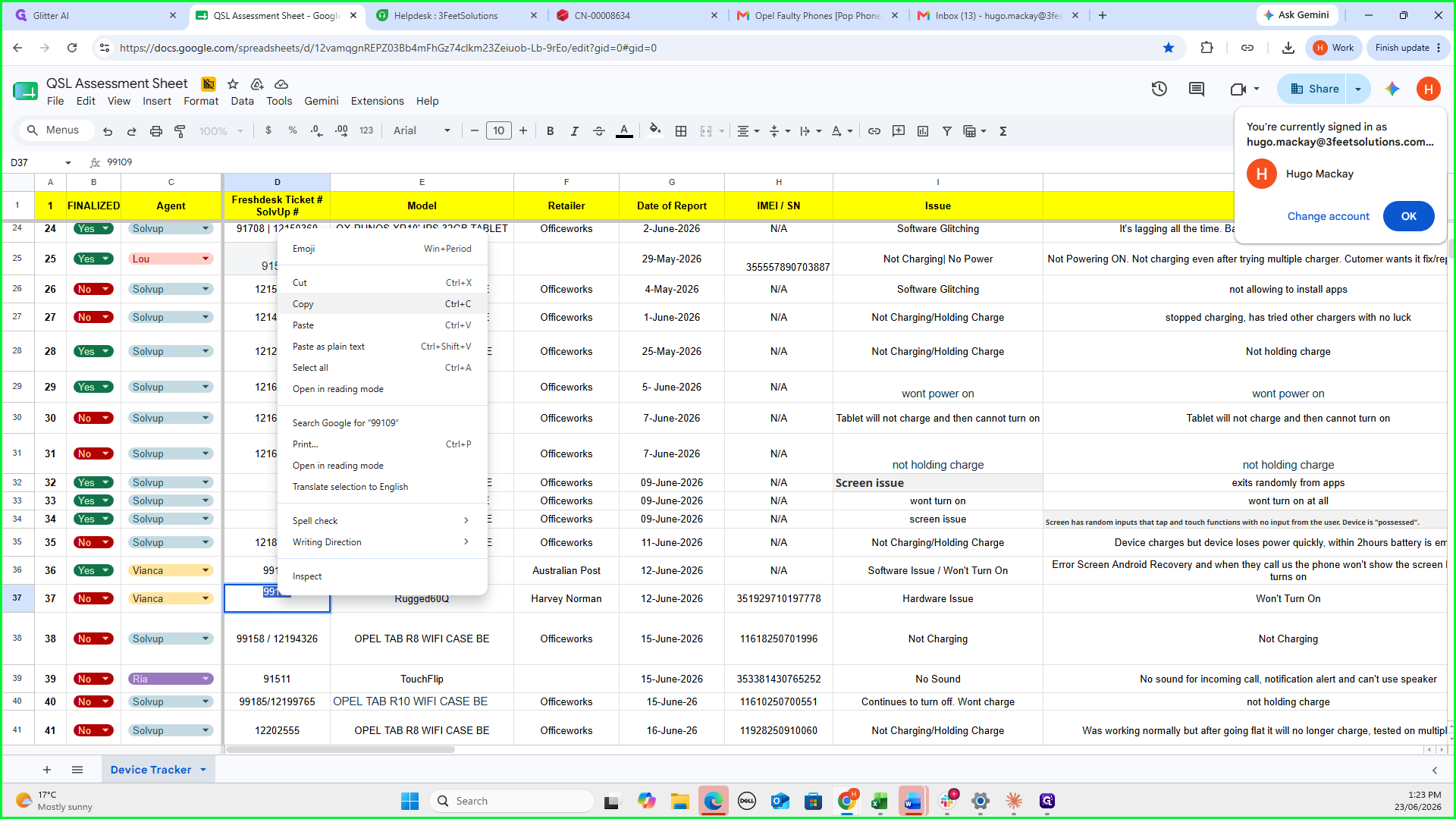
1
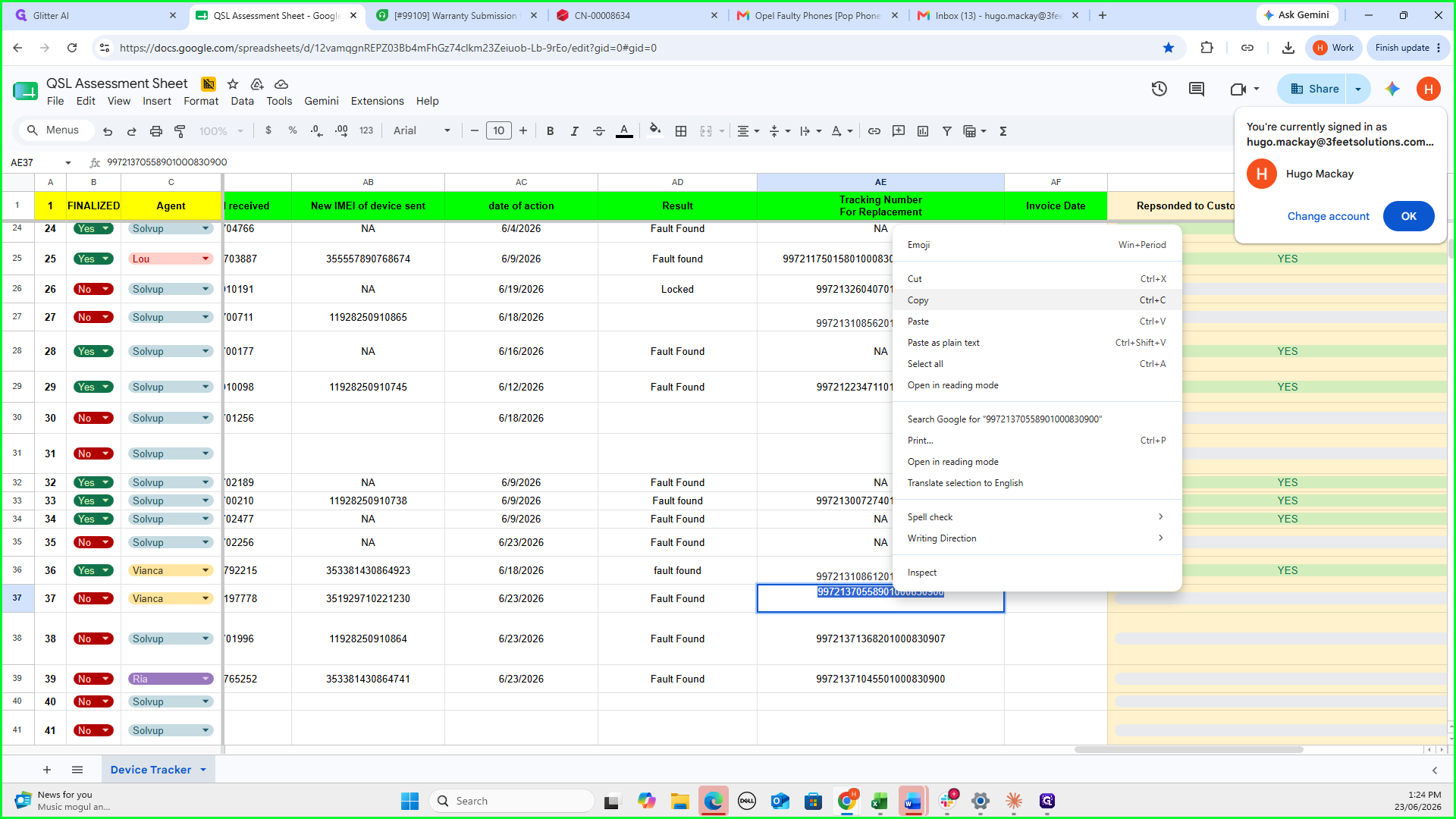
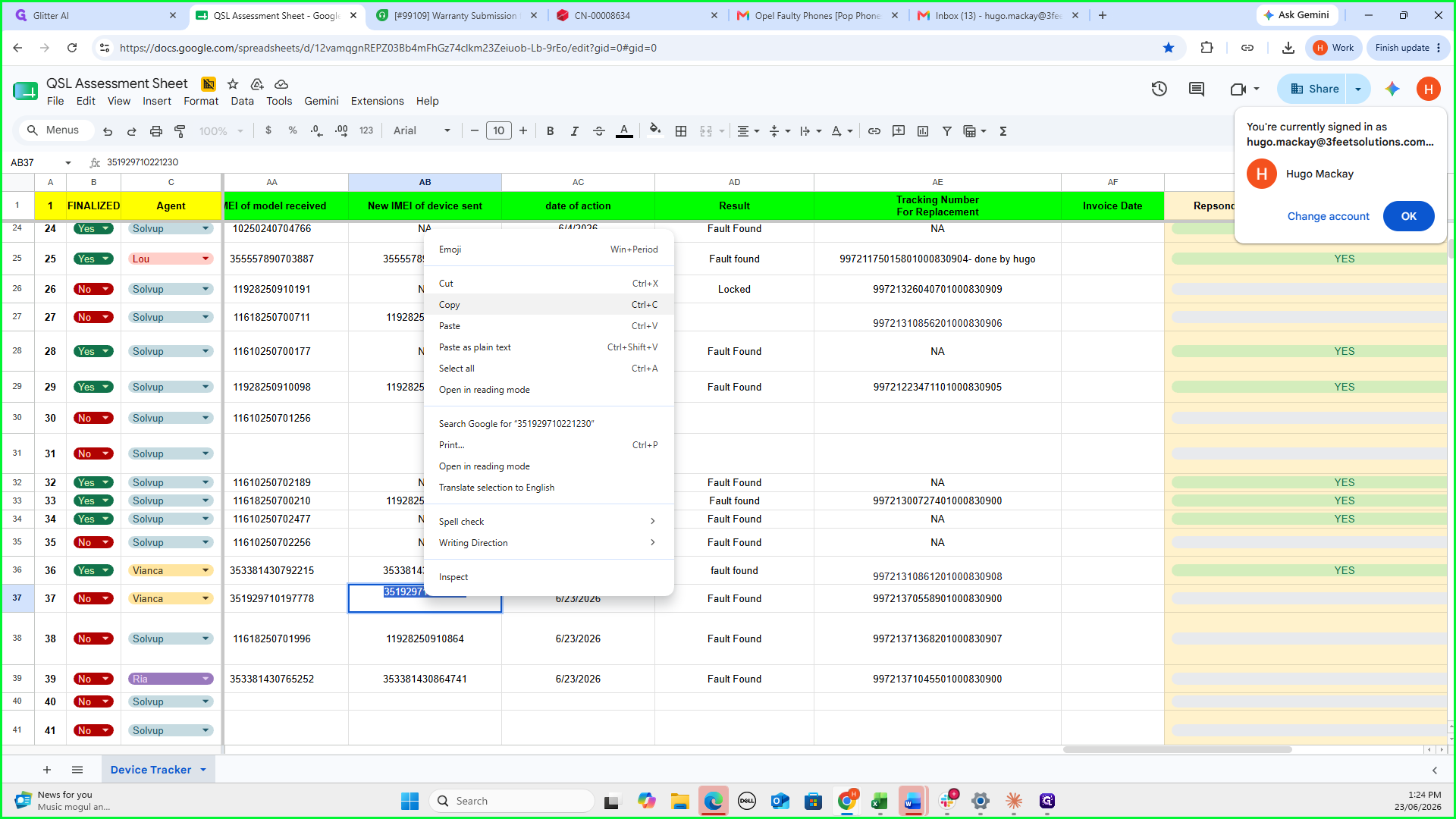
Copy the ticket number from the QSL Assessment Sheet.
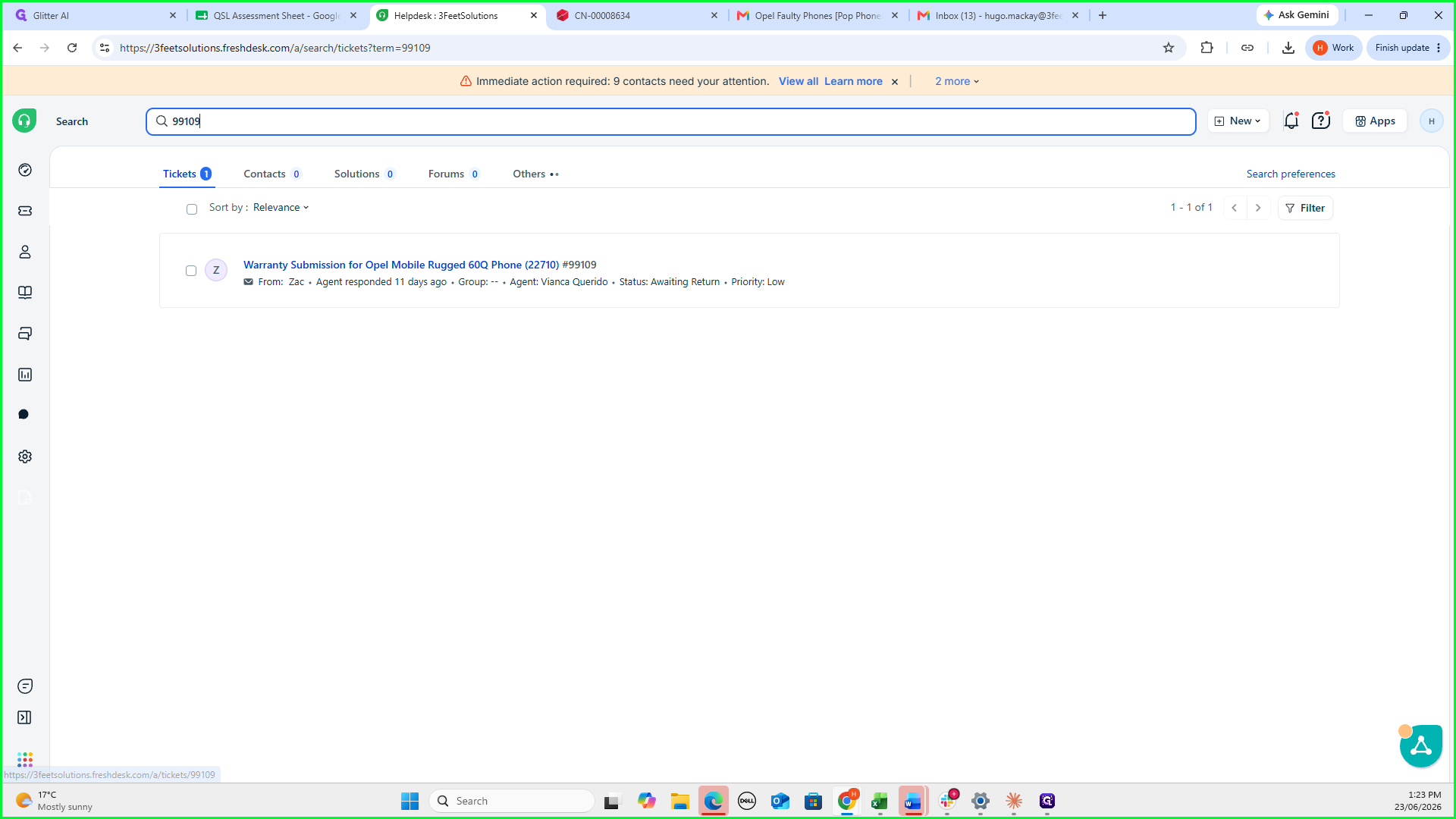
2
In Freshdesk, search for the copied ticket number and open the corresponding warranty submission ticket.
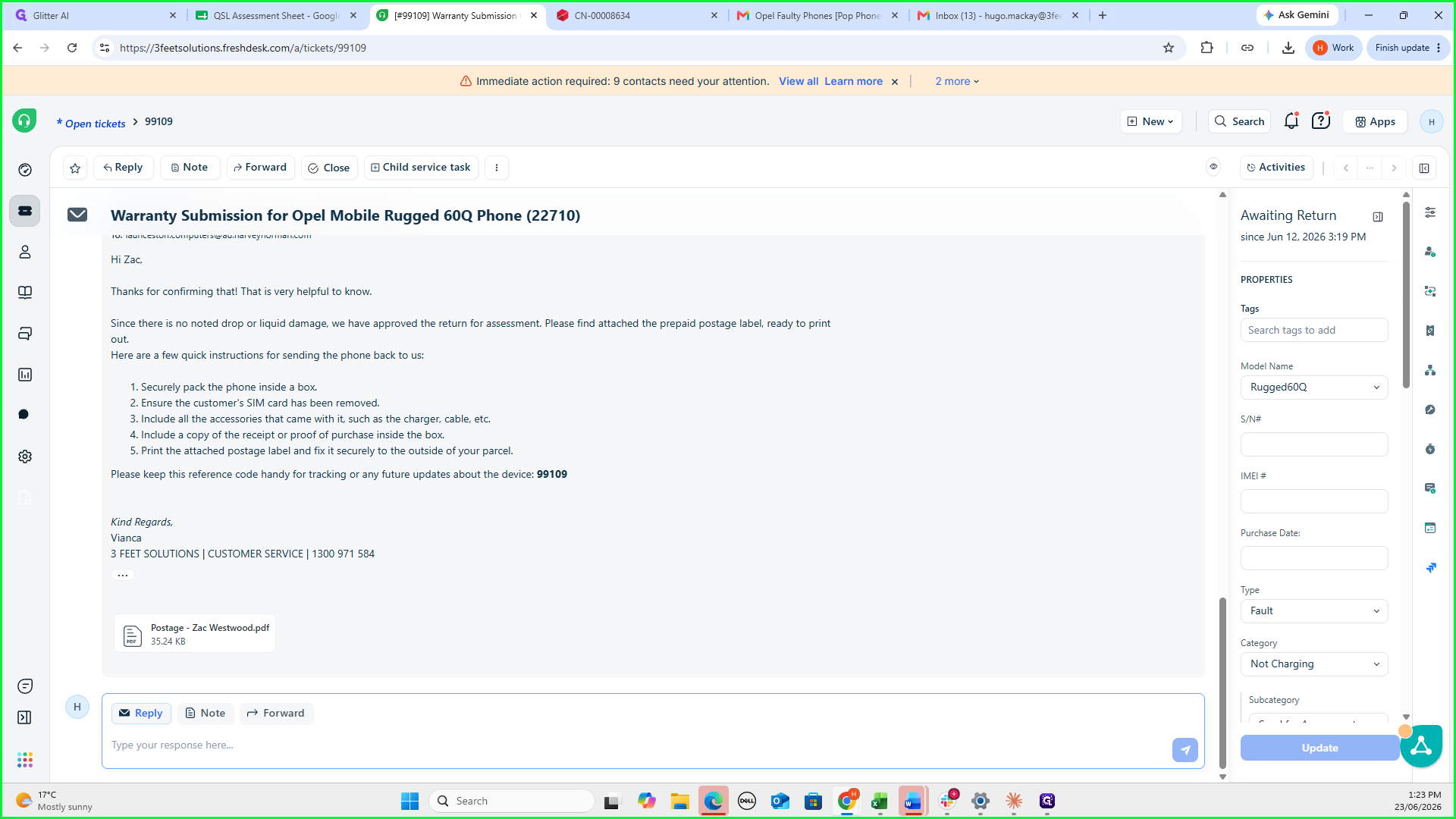
3
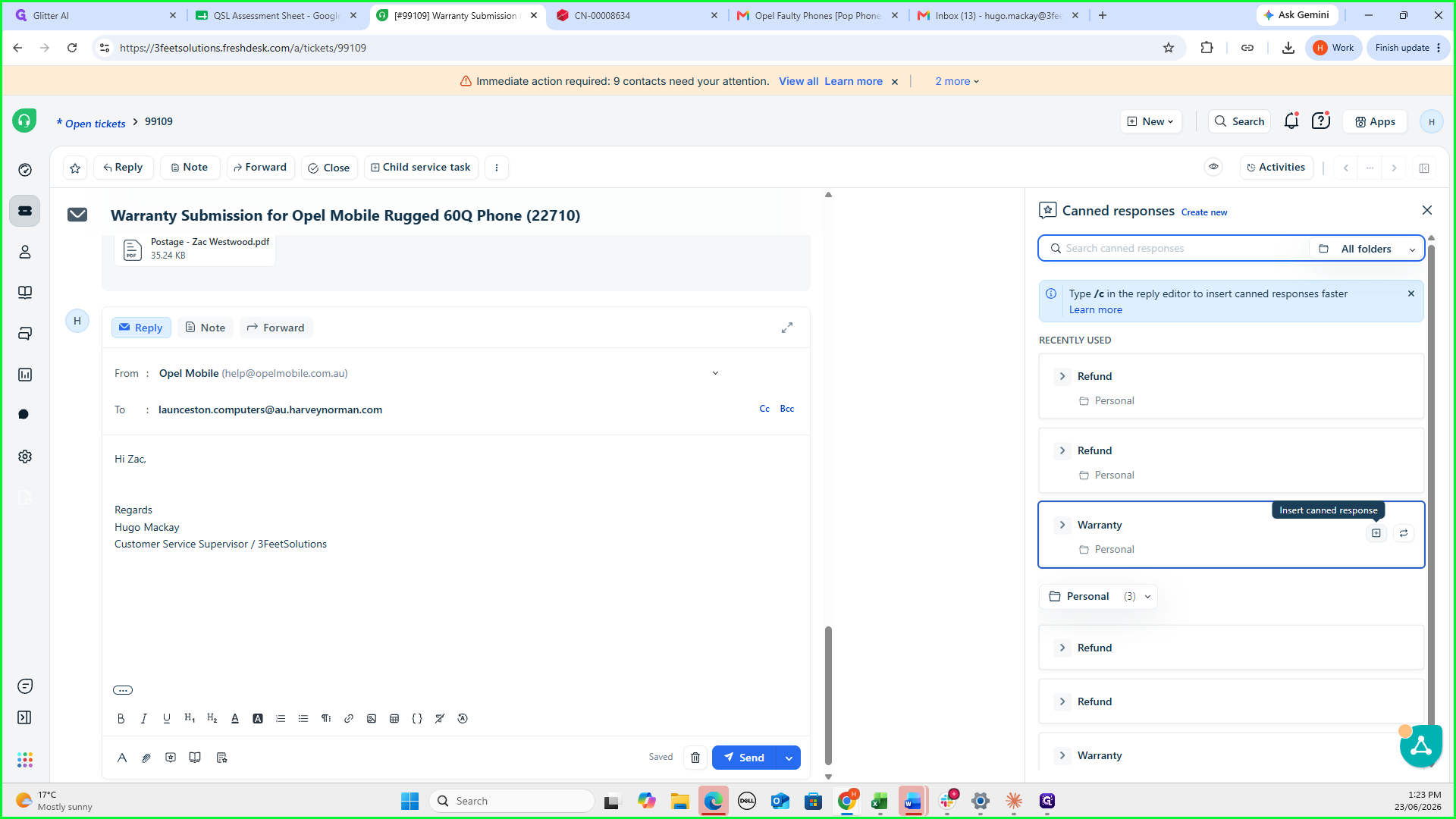
Click Reply at the bottom of the ticket conversation view.
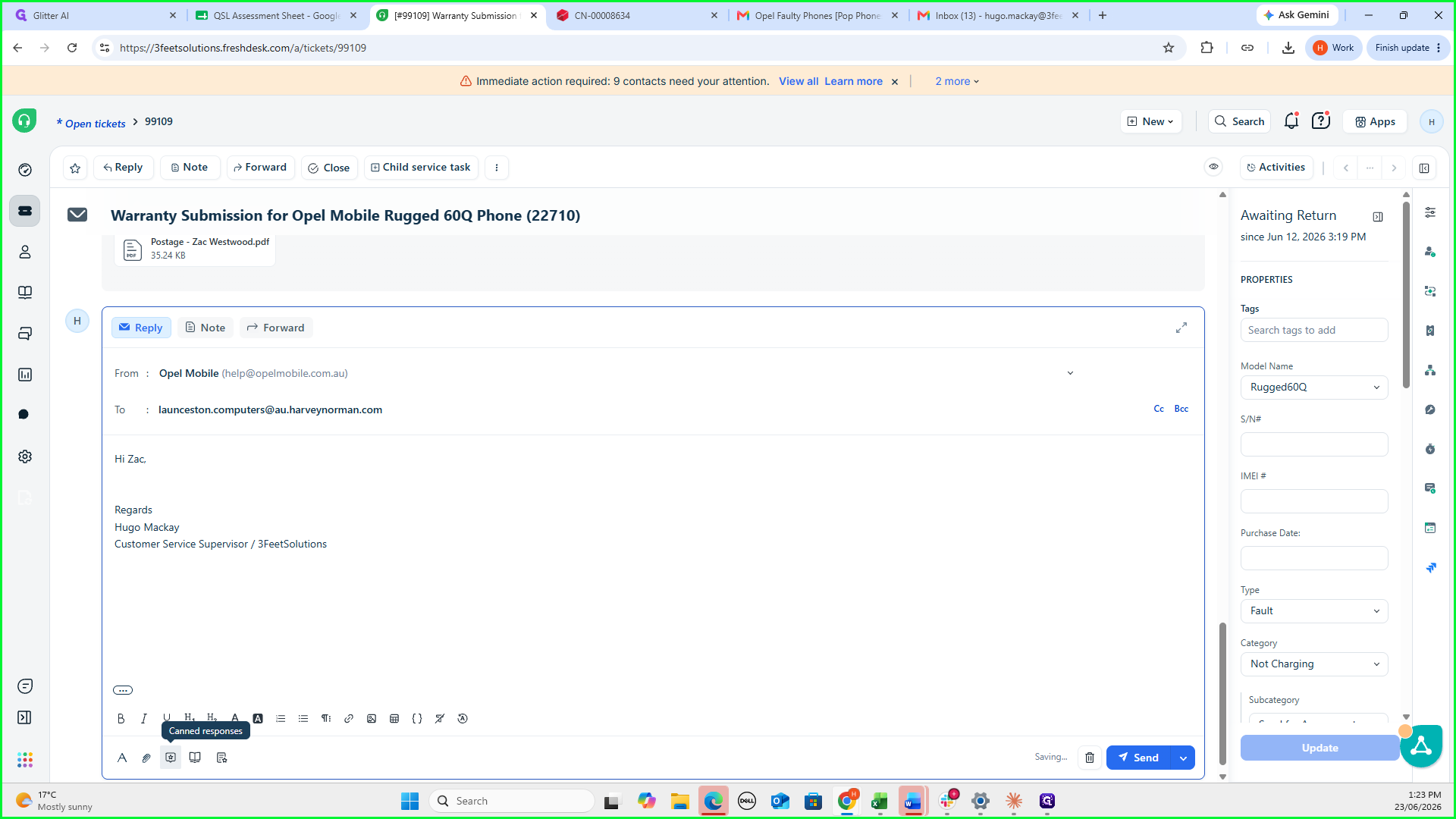
4
Click the Canned responses icon in the email toolbar.
5
Select the Warranty canned response to populate your reply.
6
Return to the QSL Assessment Sheet and copy the new tracking number provided by QSL.
7
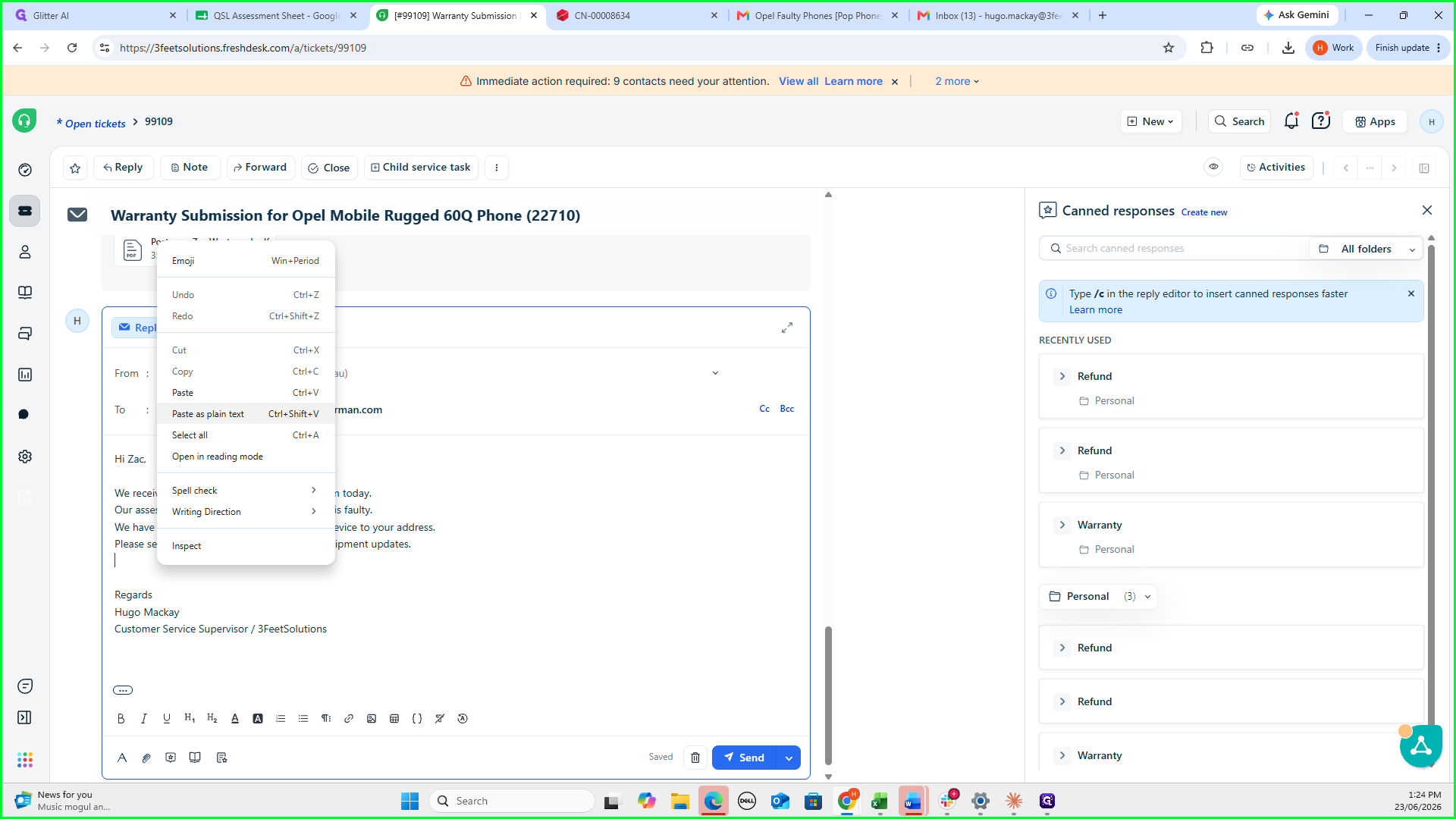
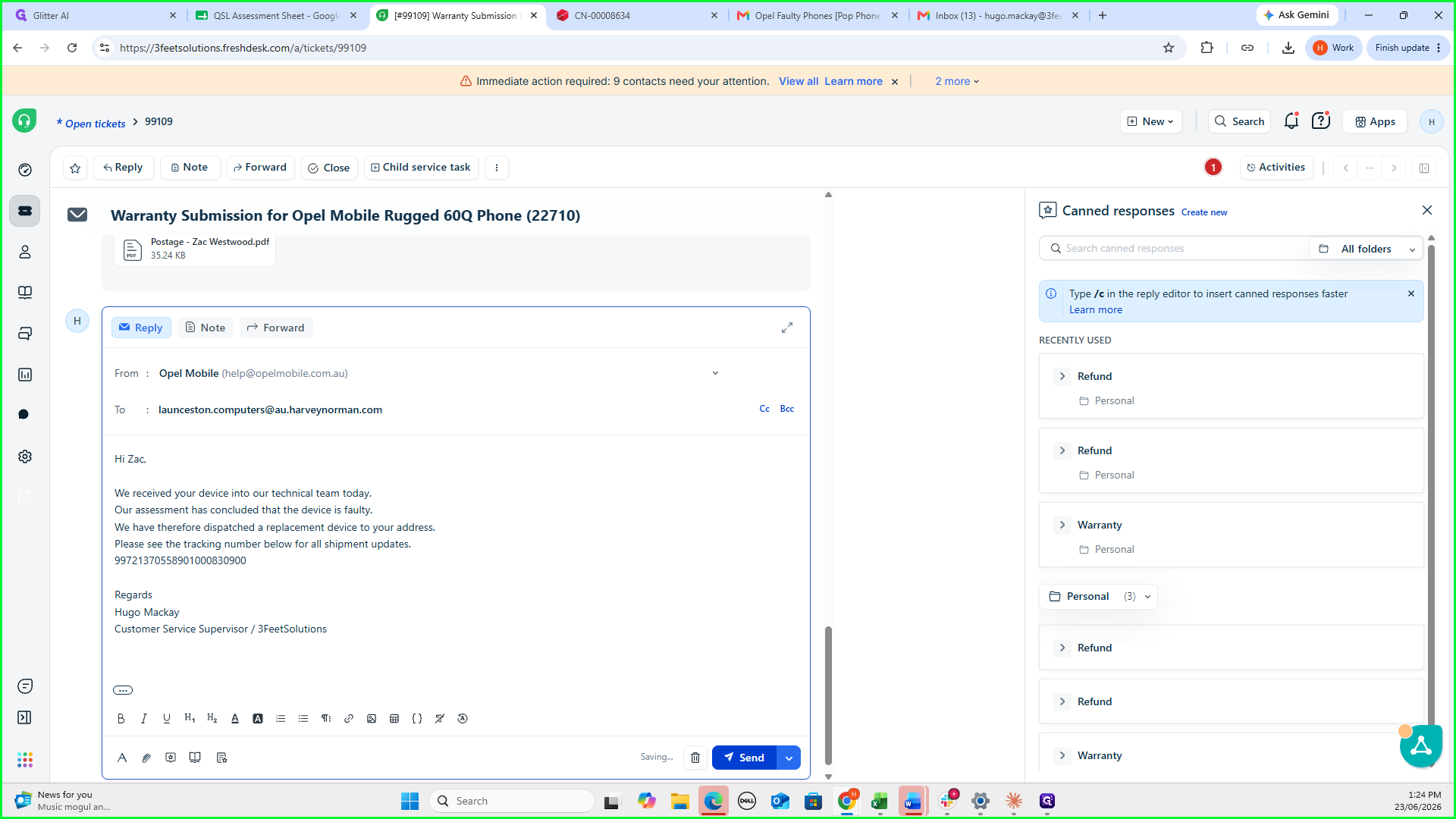
Paste the tracking number as plain text into your Freshdesk reply.
8
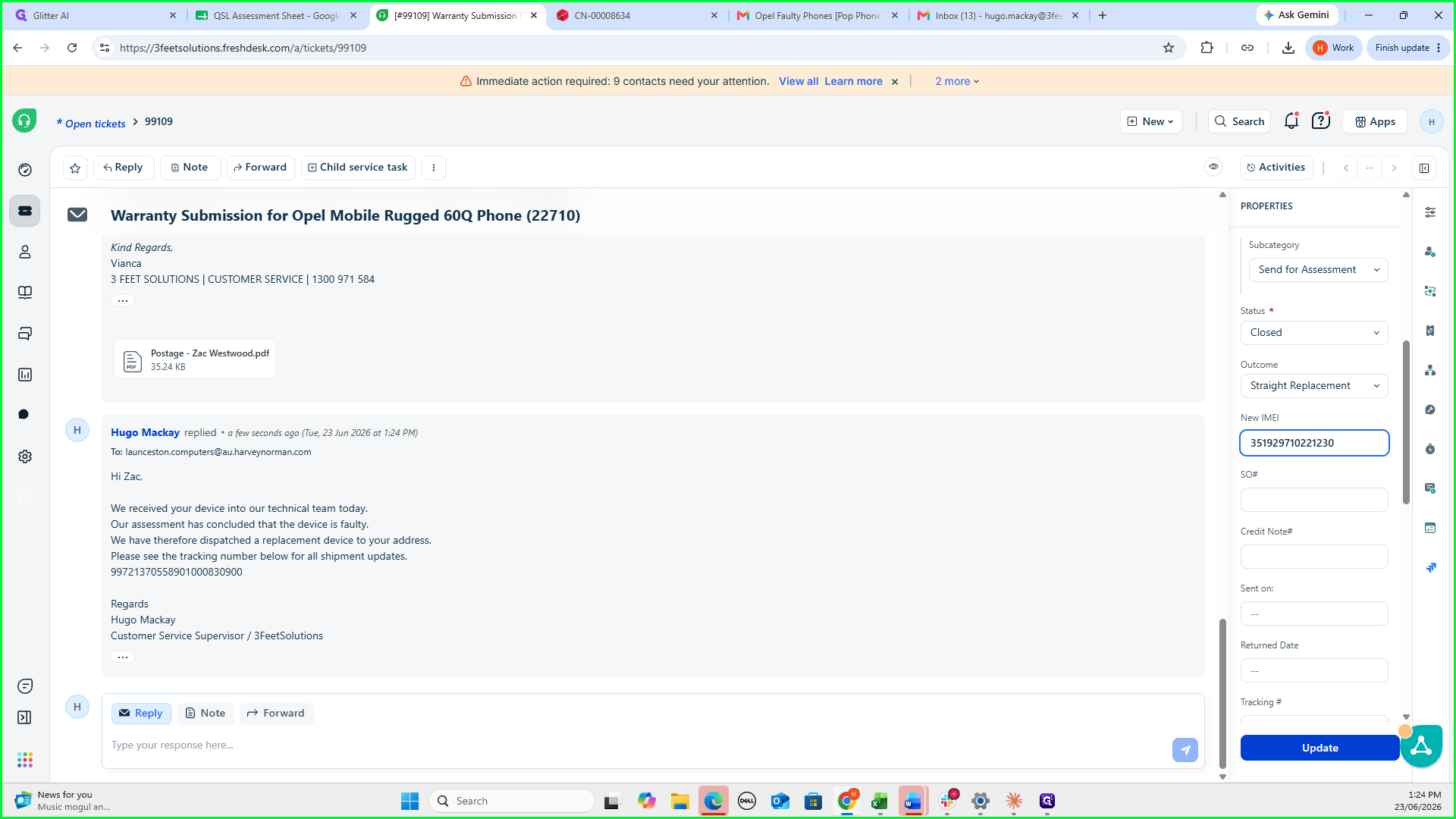
Click Send to dispatch the message to the customer.
Updating Freshdesk Ticket Properties
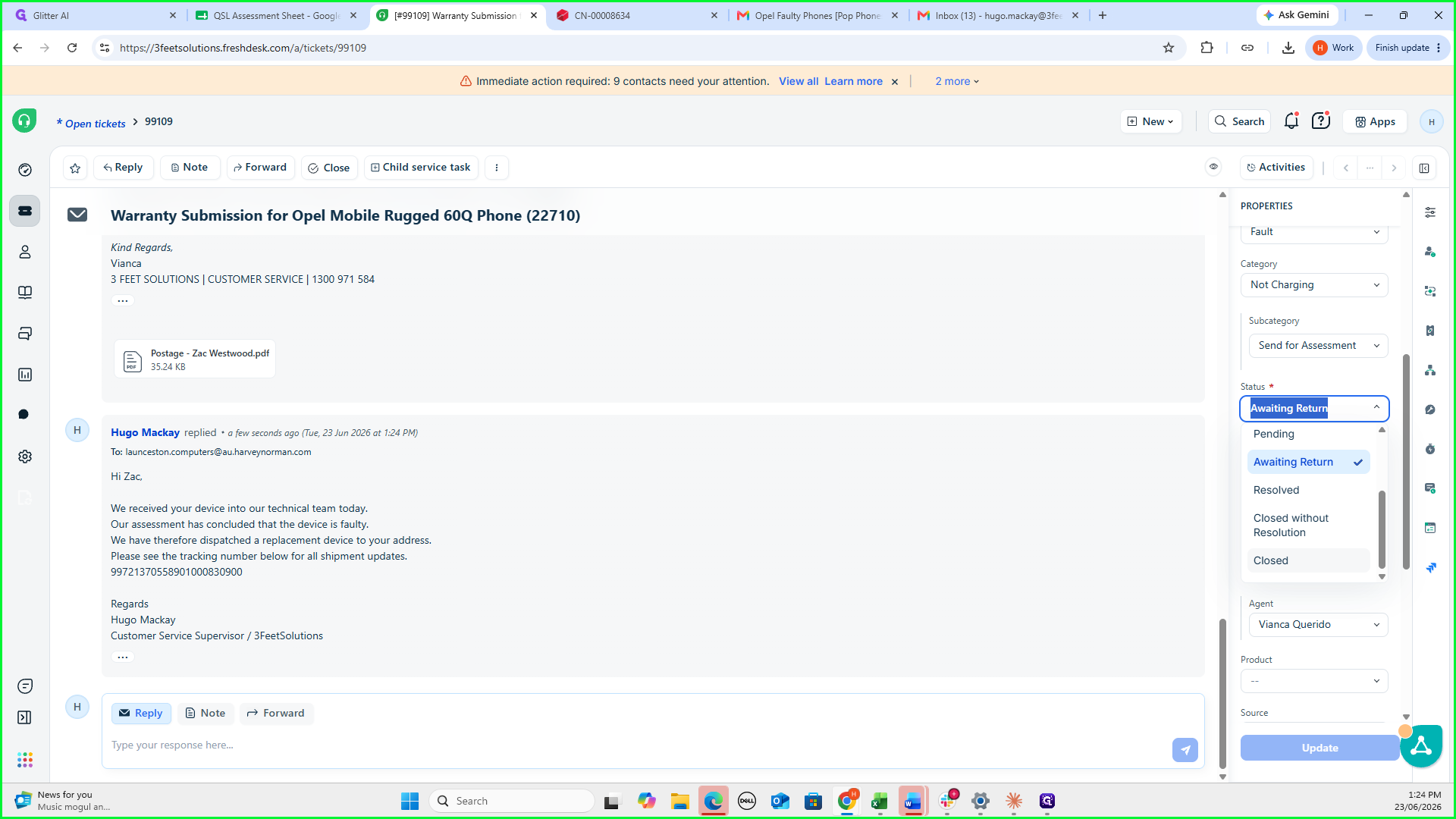
While managing the ticket, ensure the properties correctly reflect that the case is resolved with a straight replacement.
9
In the right-hand properties sidebar, update the ticket status to Closed.
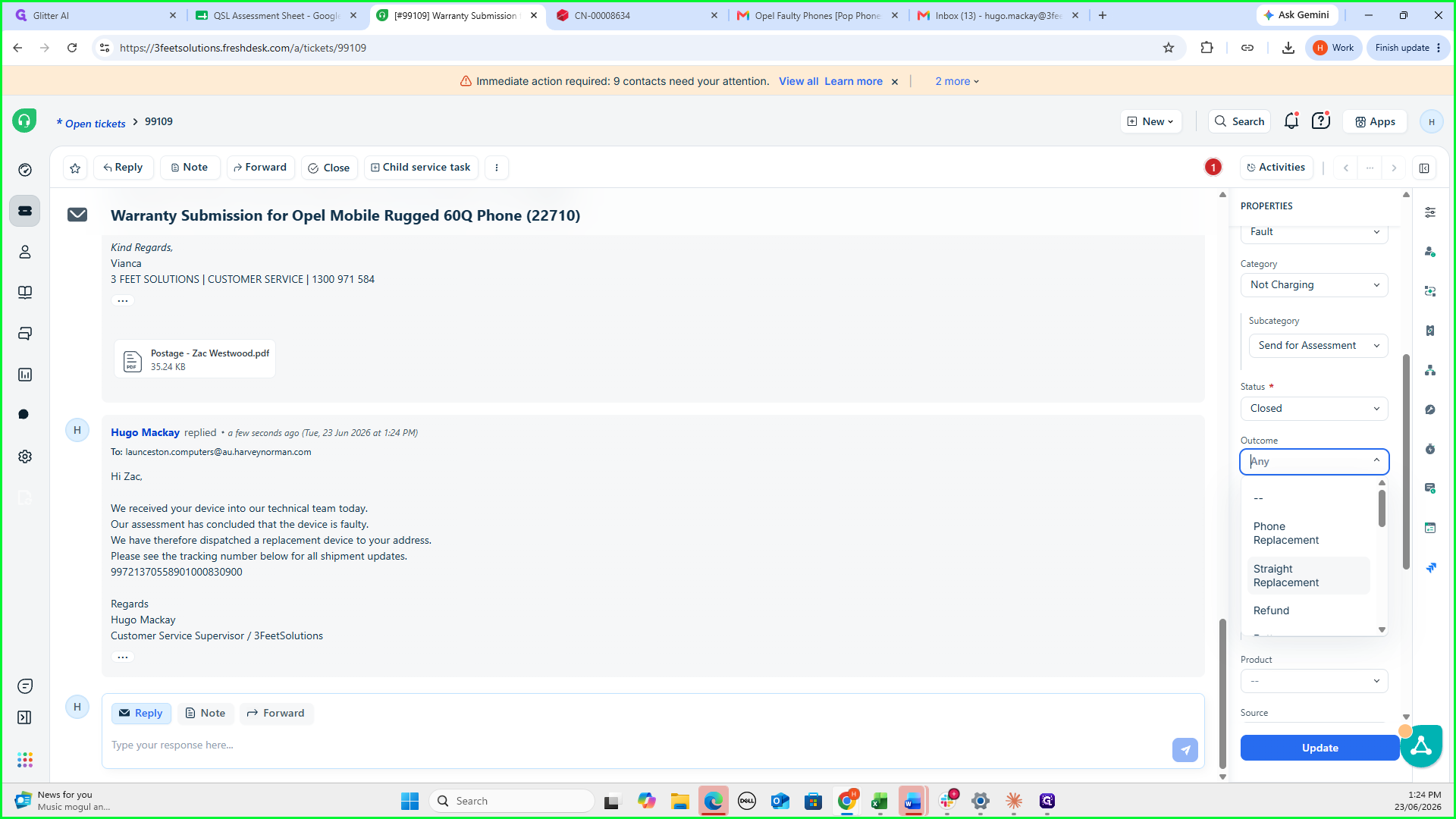
10
Set the ticket outcome to Straight Replacement.
11
Copy the new IMEI number from the QSL Assessment Sheet.
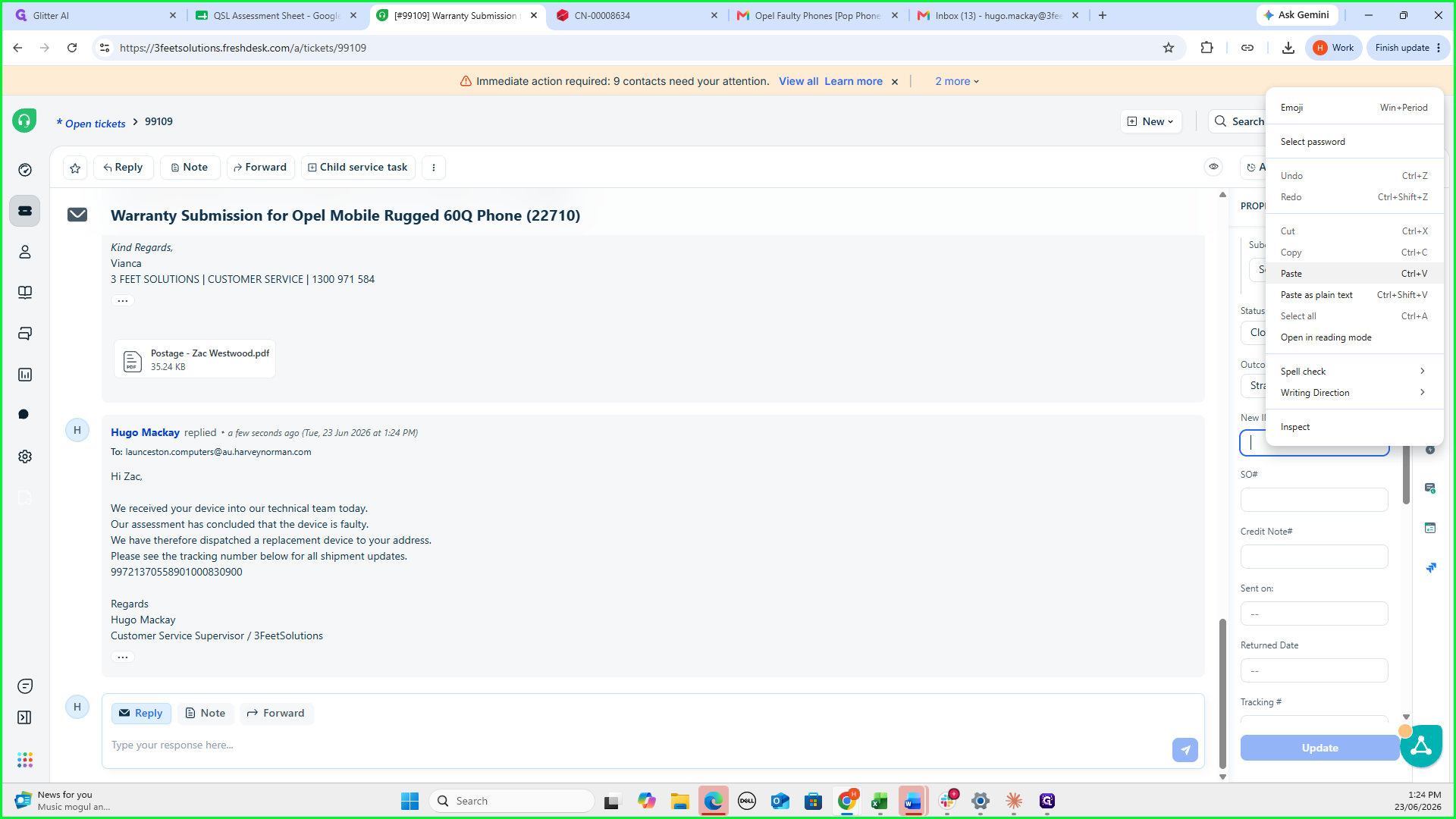
12
Paste the IMEI into the New IMEI property field in Freshdesk.
13
Click Update to save the new ticket properties.
Dispatching the Replacement in Unleashed
Log a new sales order to represent the dispatch of the brand-new replacement device.
14
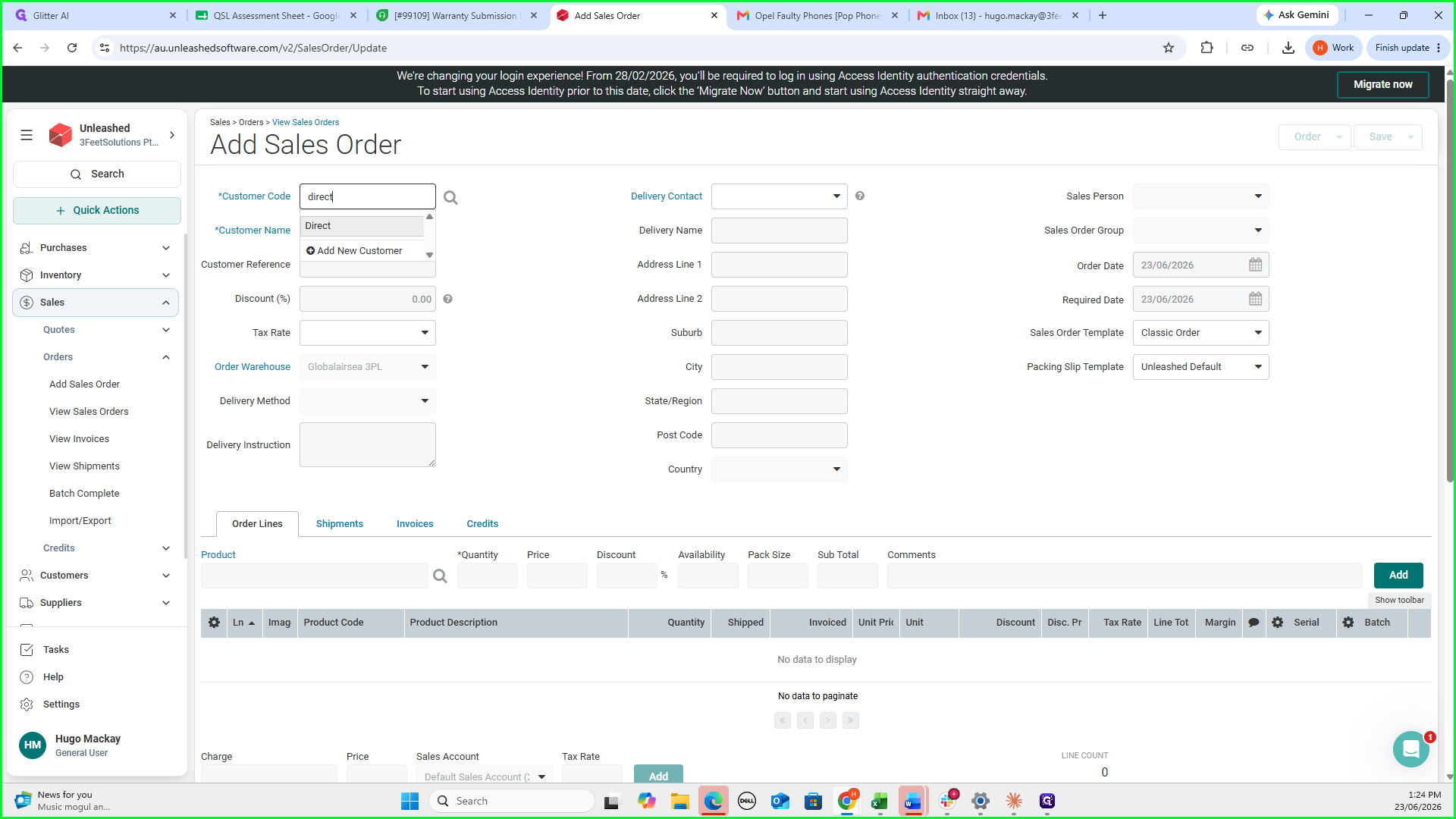
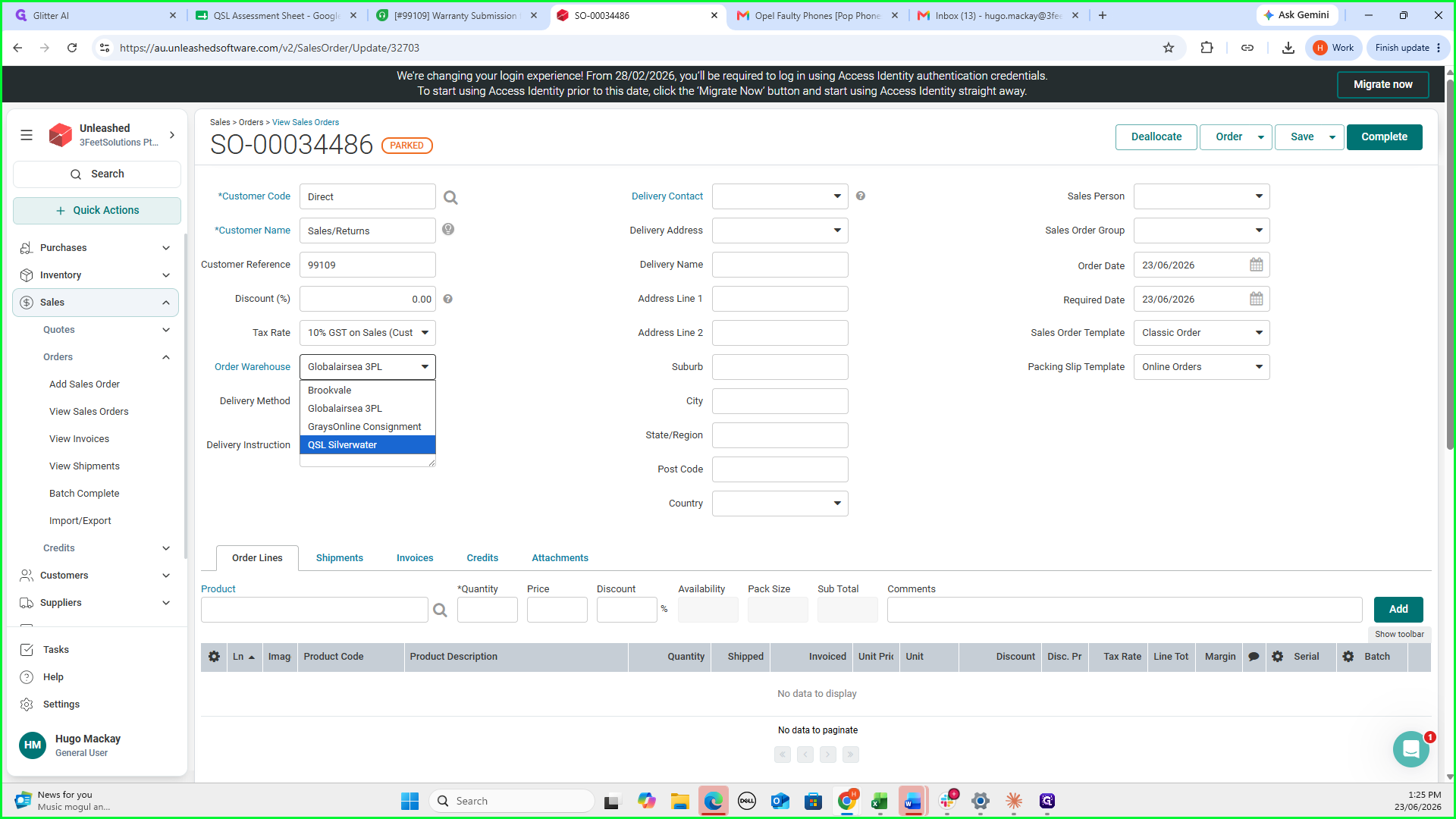
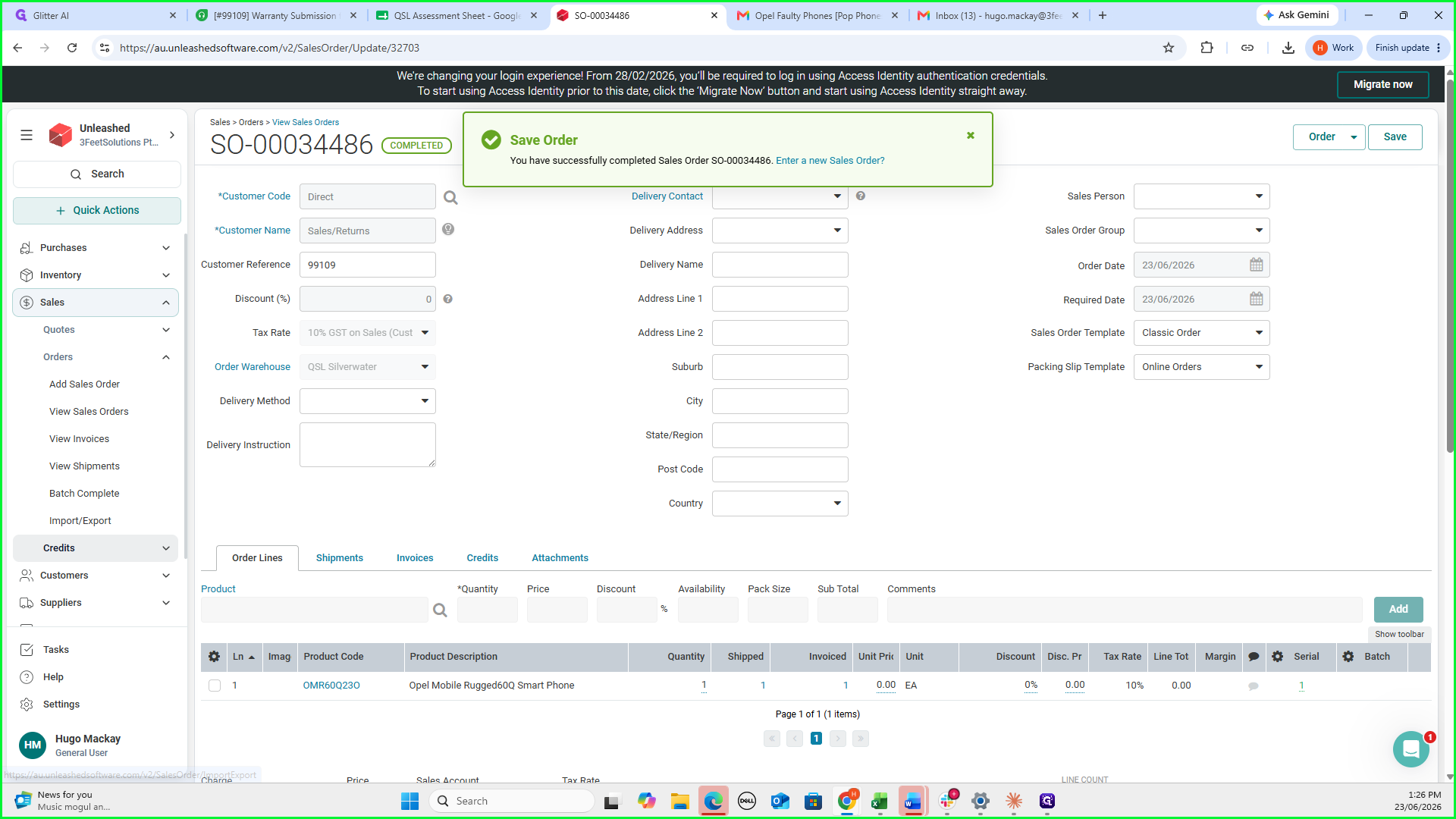
In Unleashed, click Add Sales Order.
15
Type and select direct in the Customer Code field.
16
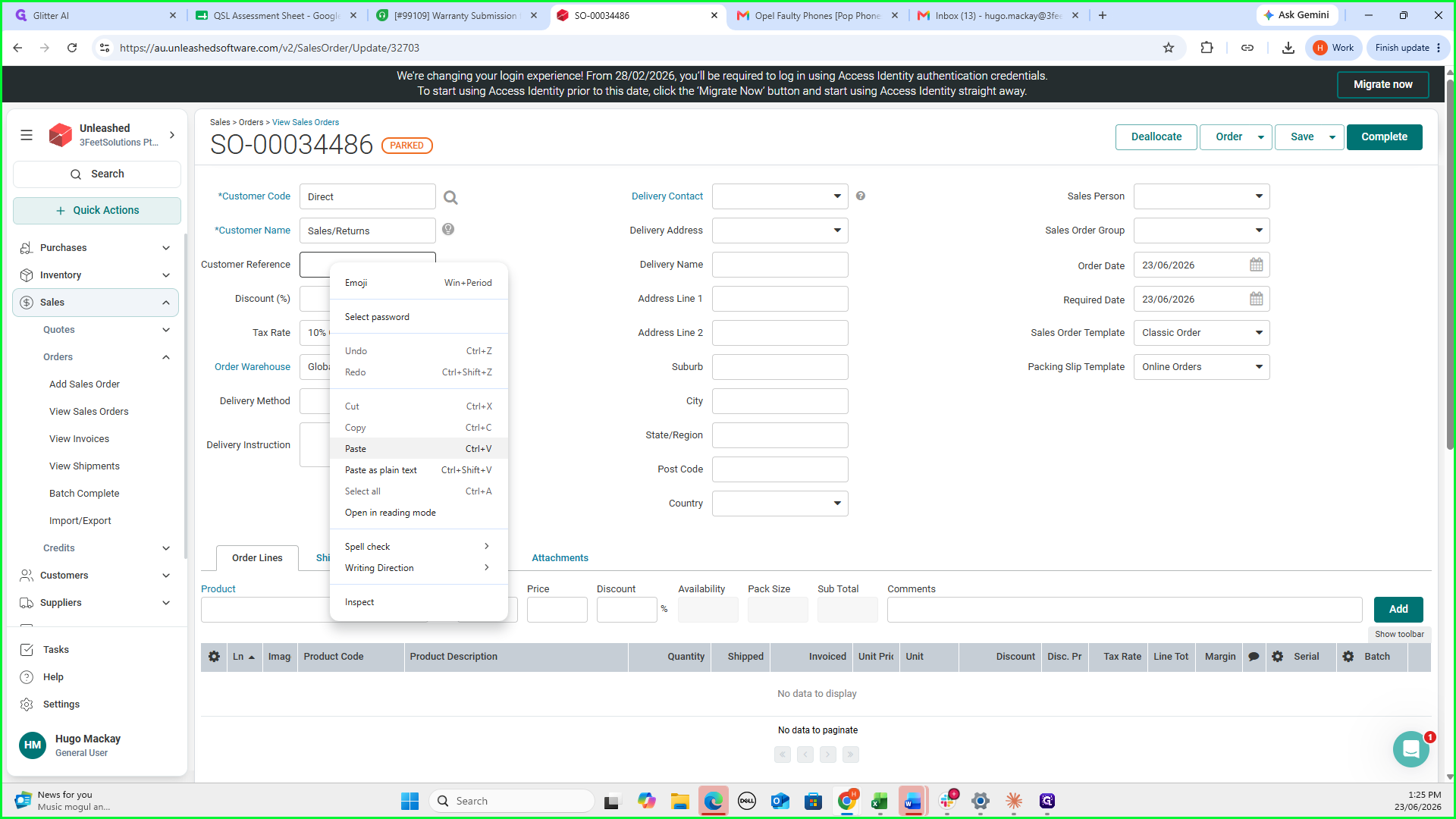
Paste the Freshdesk ticket number into the Customer Reference field.
17
Select QSL Silverwater from the Order Warehouse dropdown menu.
18
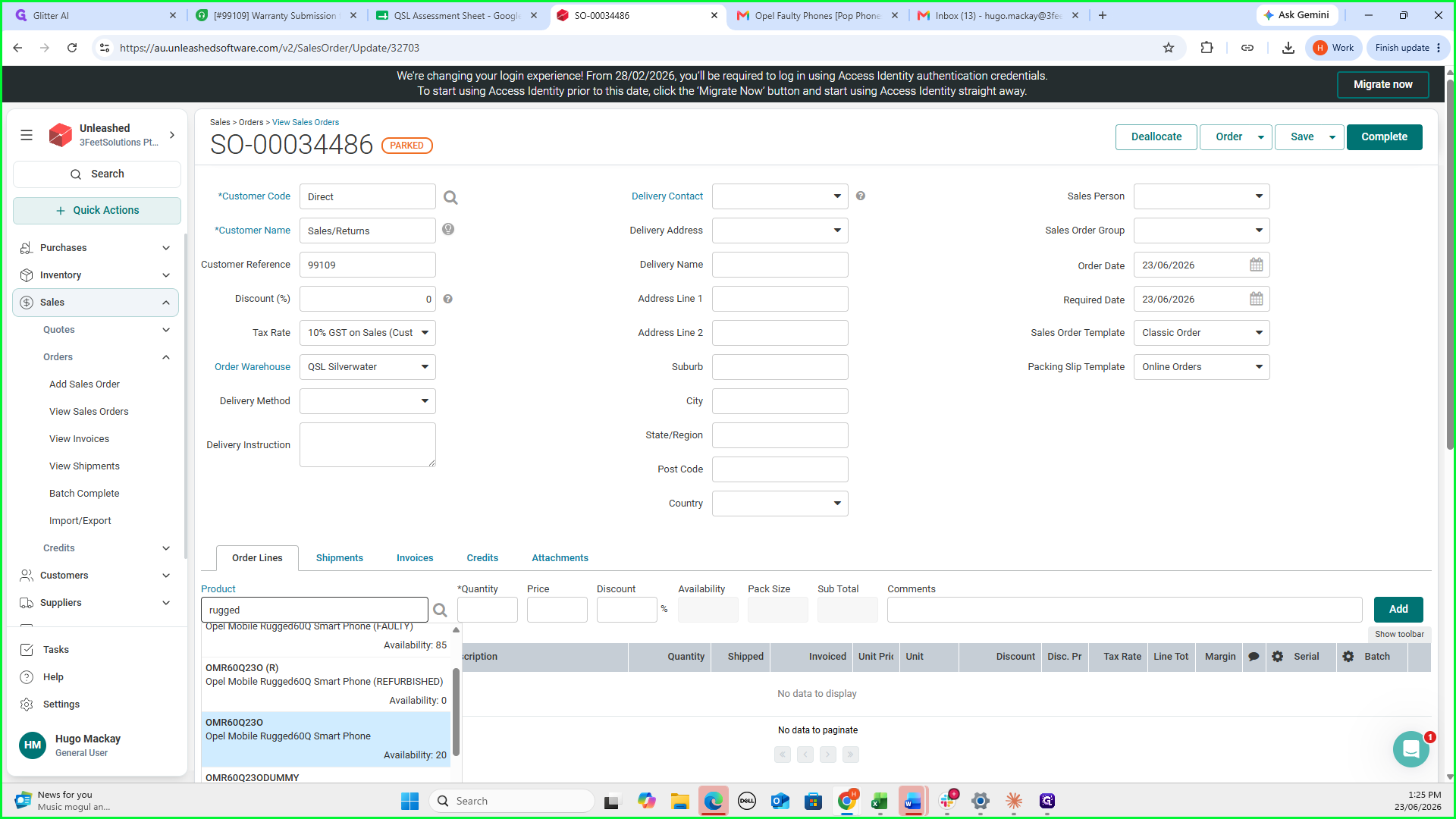
Search for the replacement device (e.g., "rugged") and select the correct brand-new model from the Product list.
19
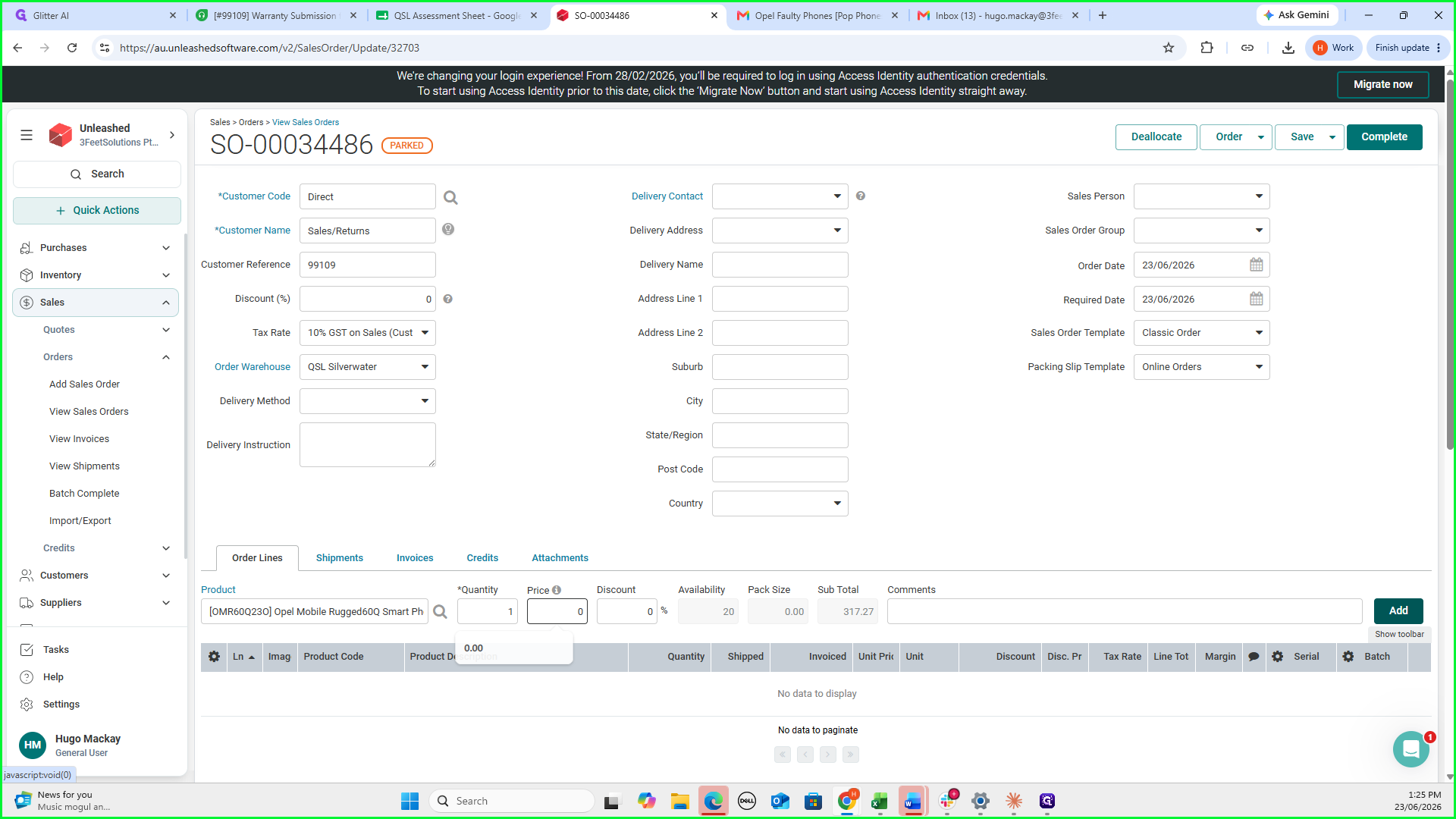
Set the quantity to 1, update the price to 0, and click Add to include the product line item.
20
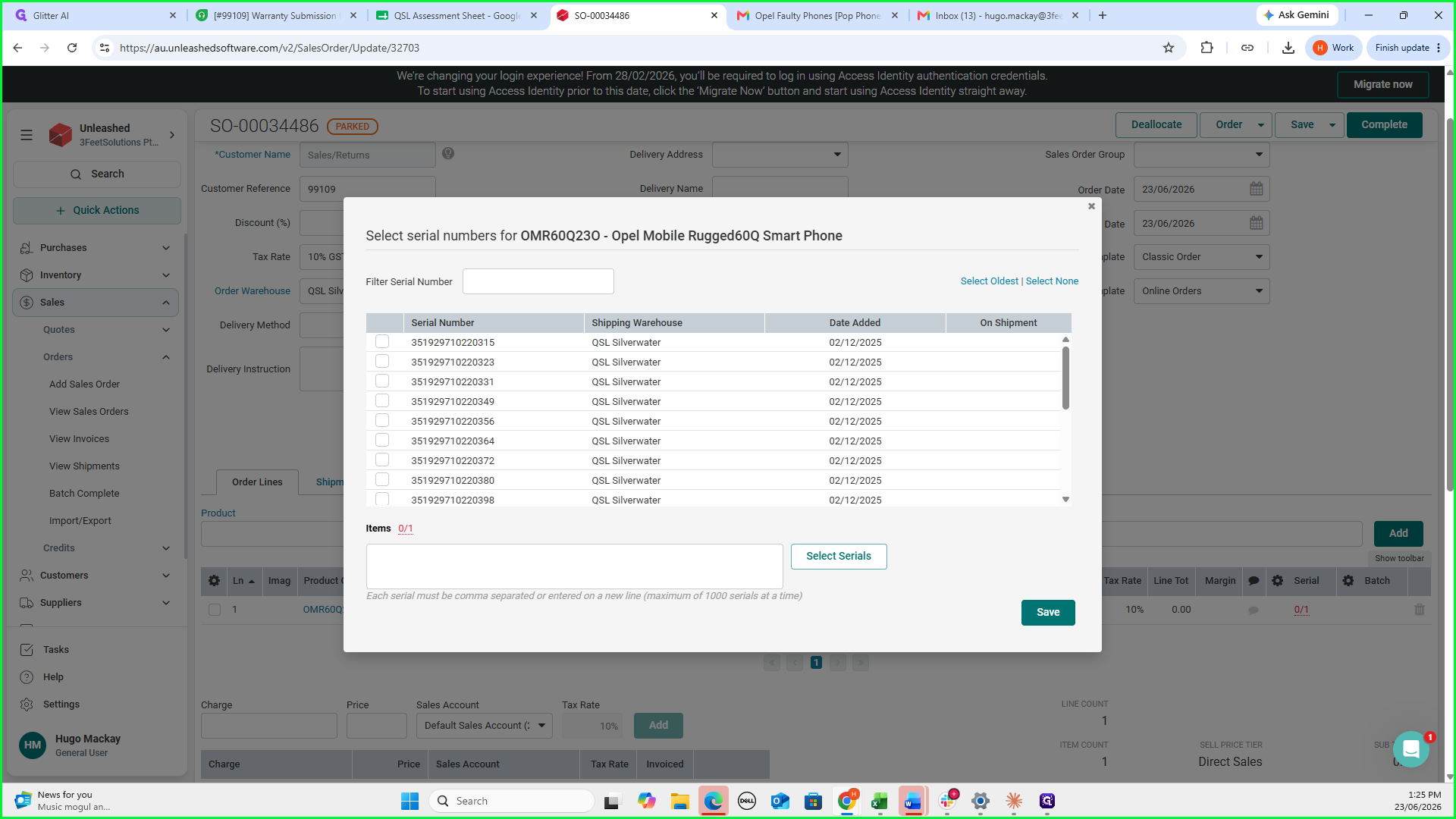
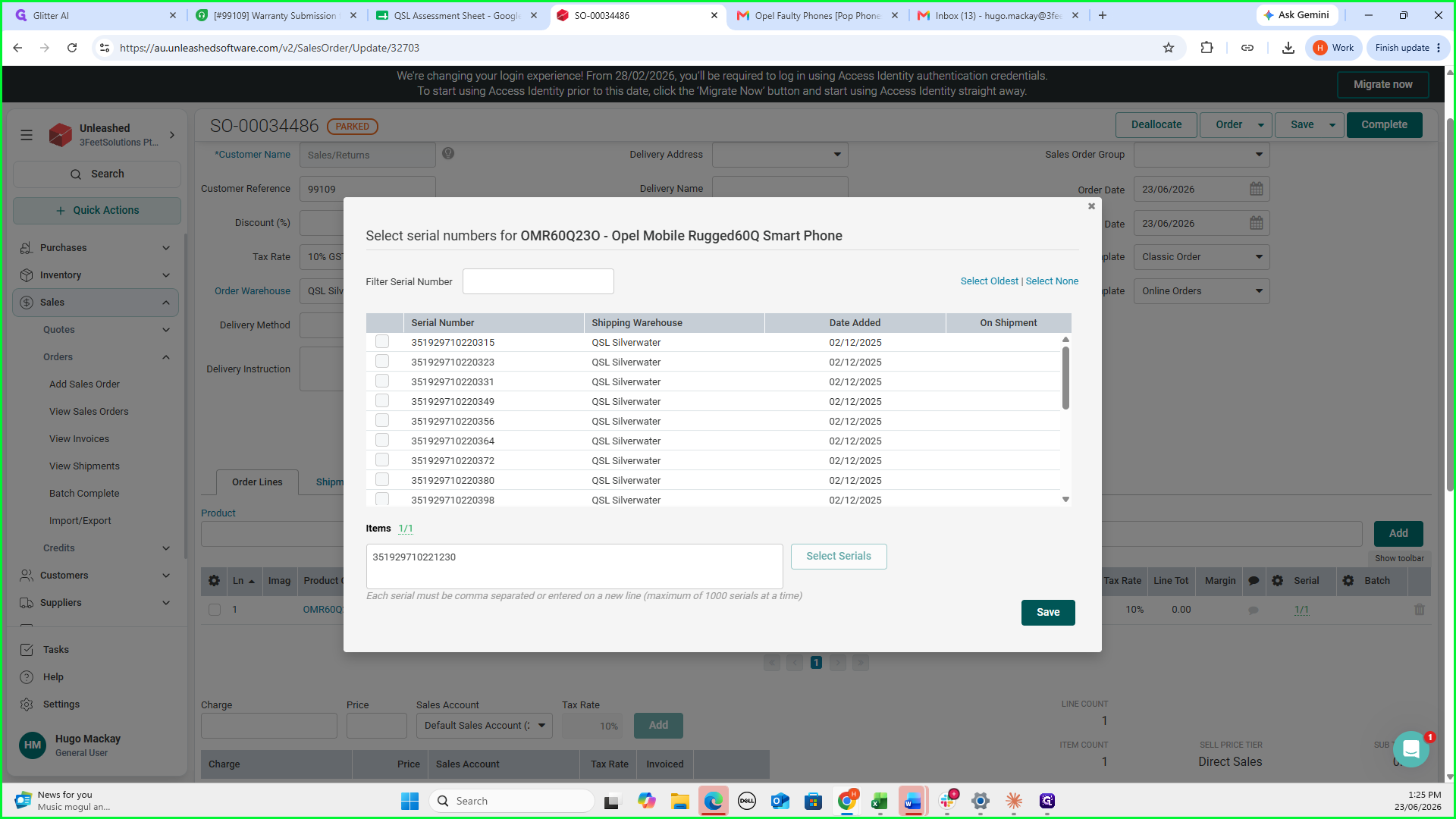
Click the Serial field on the product line item.
21
Paste the new IMEI number copied from the QSL sheet into the modal, and click Save.
22
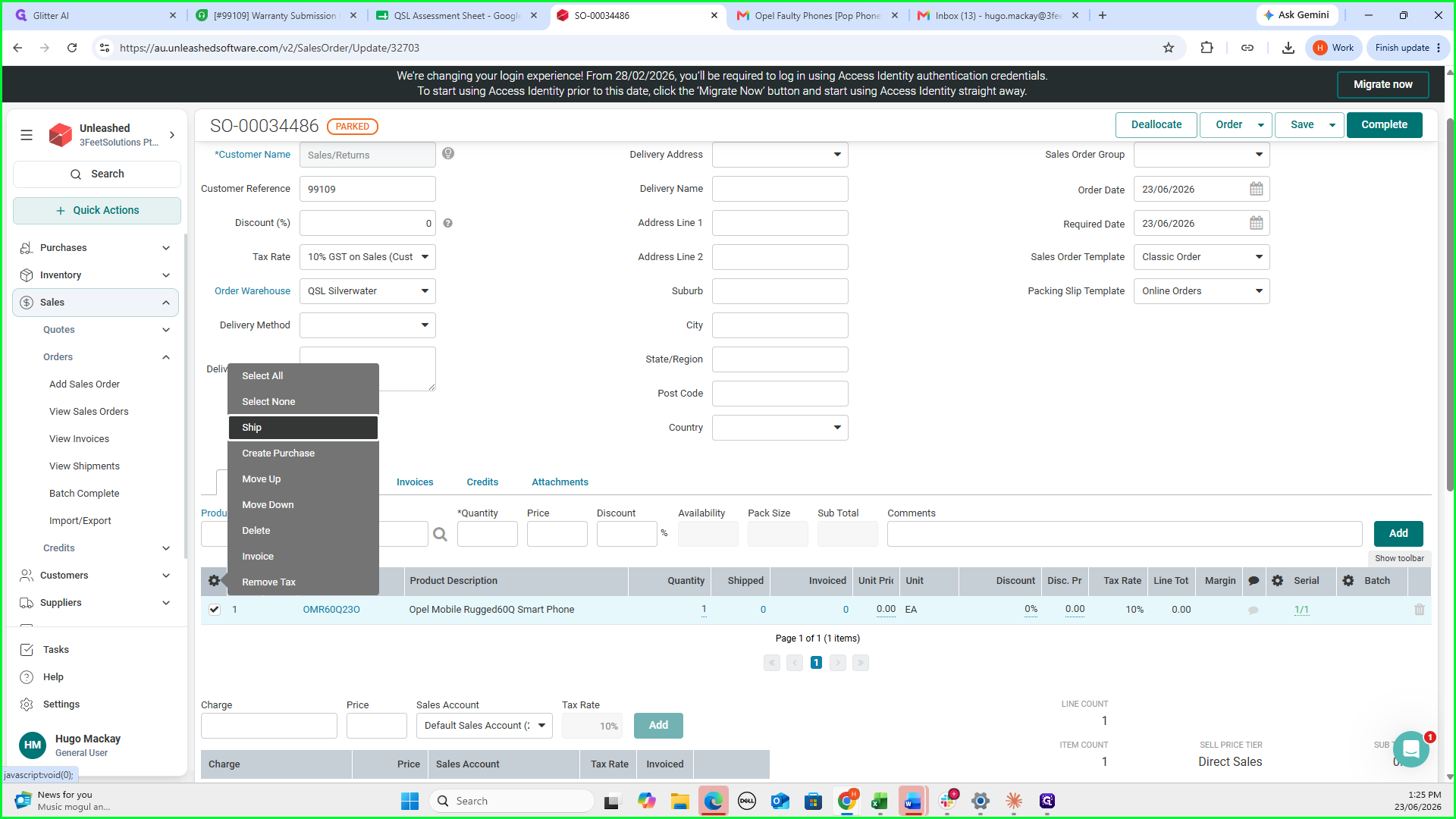
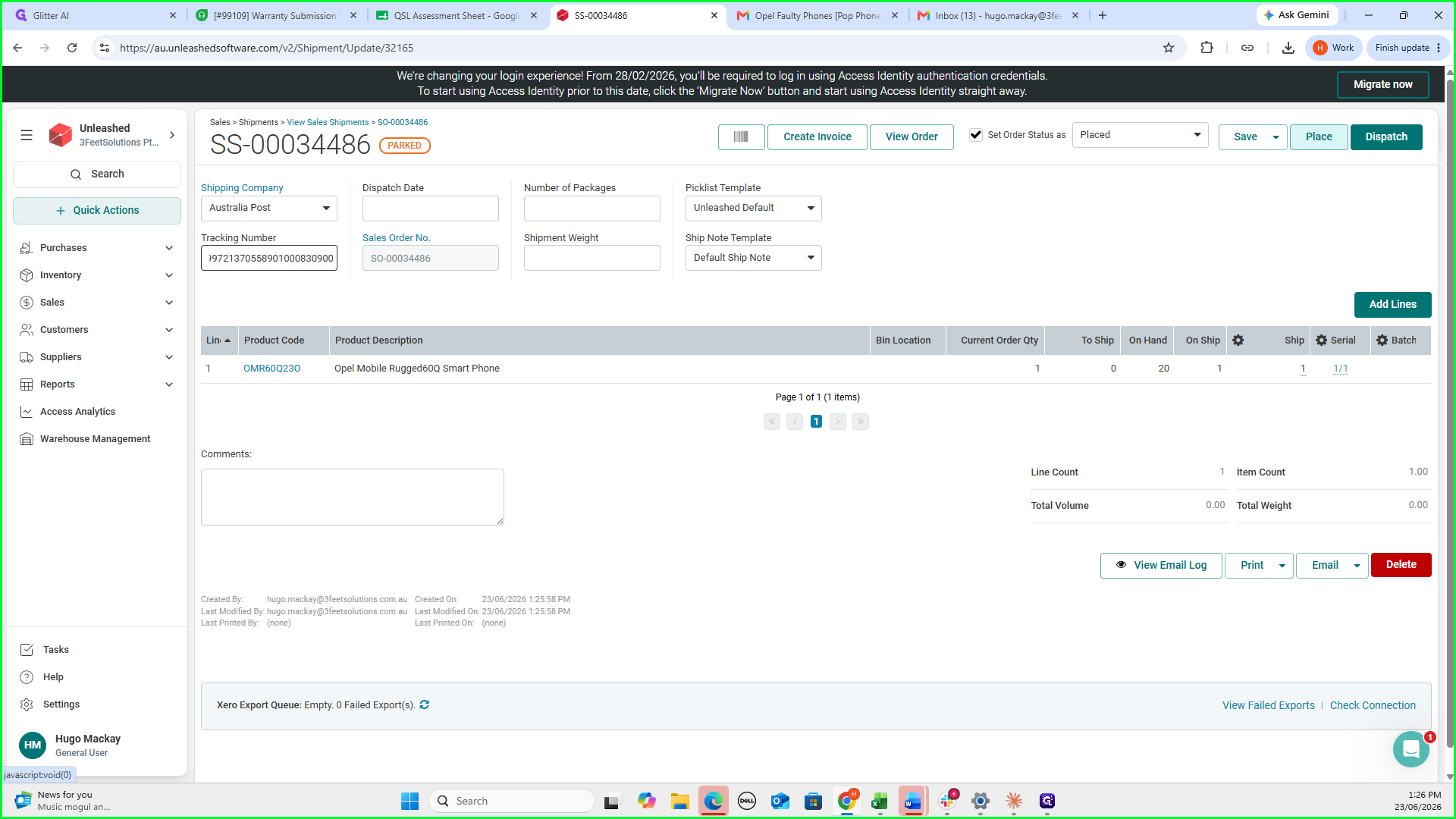
Click the action cog next to the product line and select Ship.
23
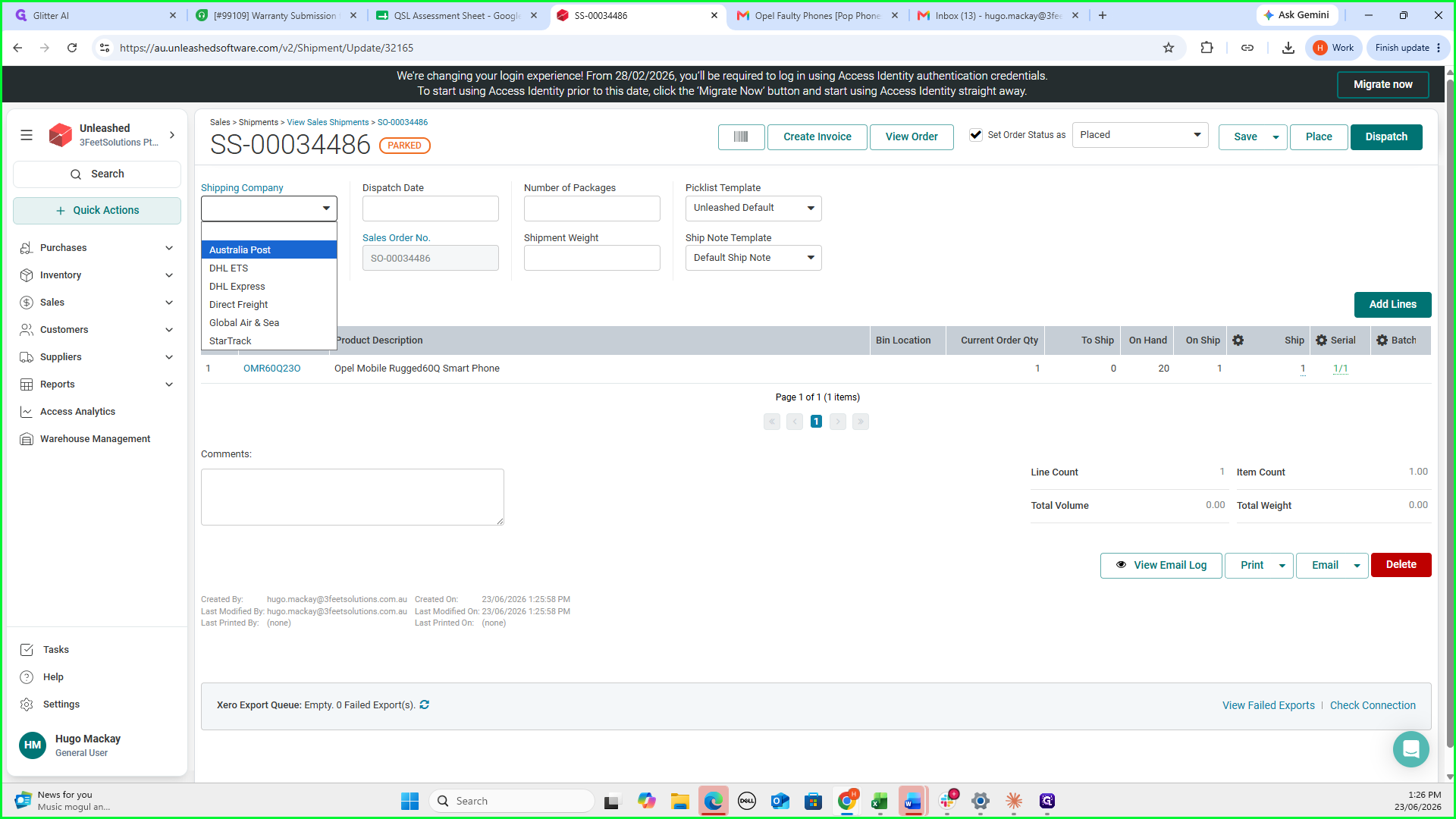
Set the Shipping Company to Australia Post.
24
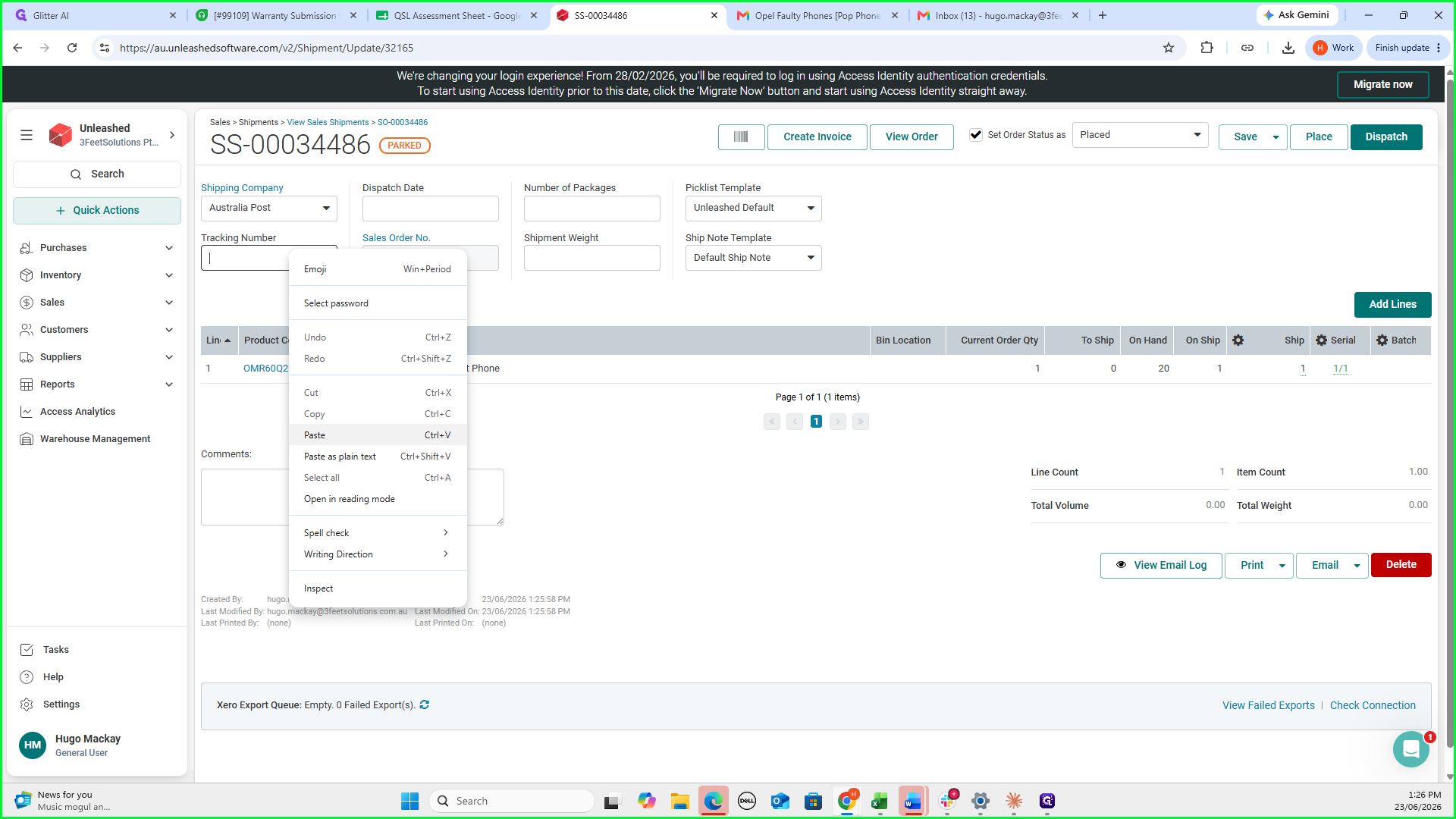
Copy the tracking number from the QSL sheet and paste it into the shipment tracking field.
25
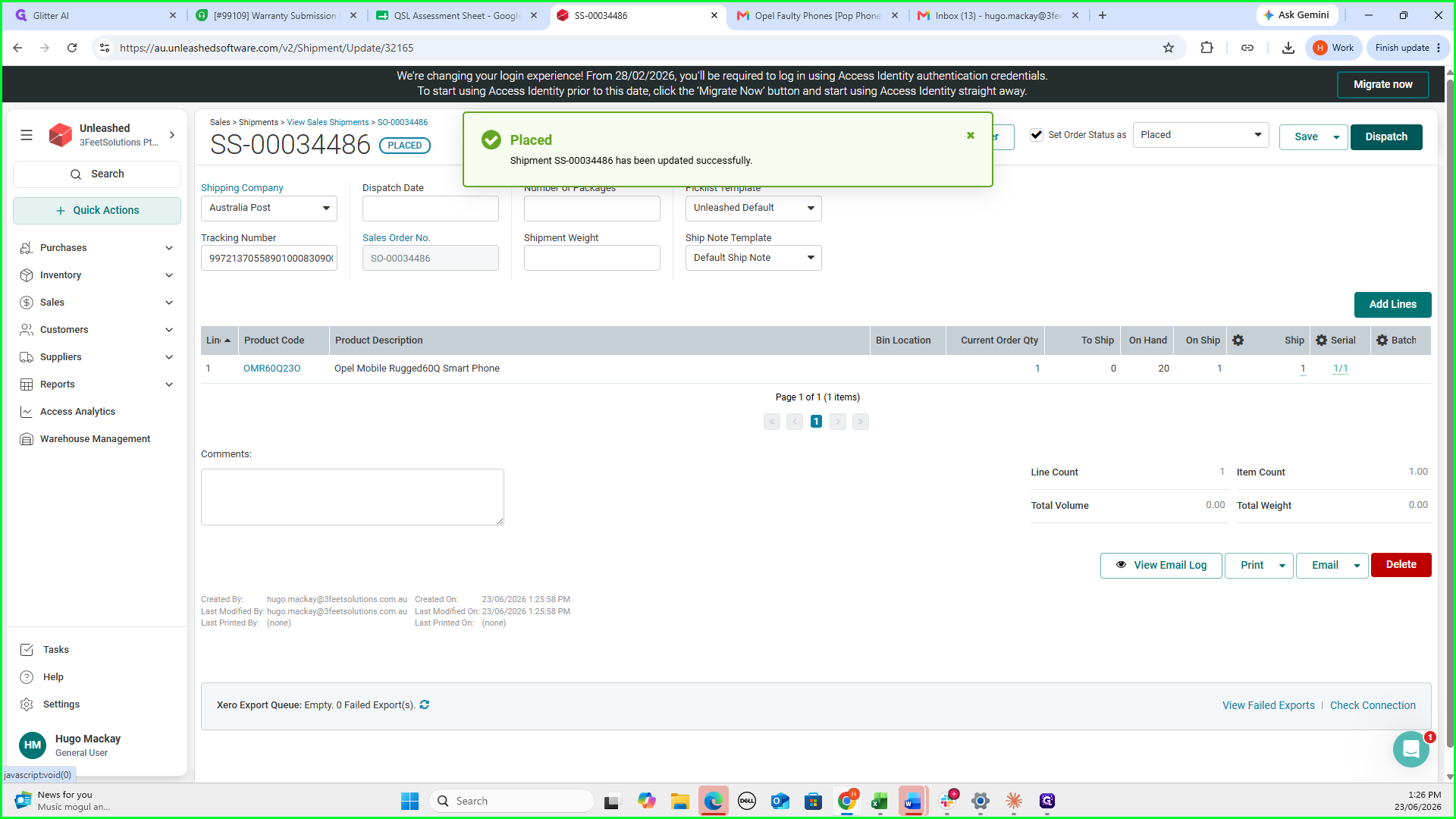
Click Place to secure the shipment.
26
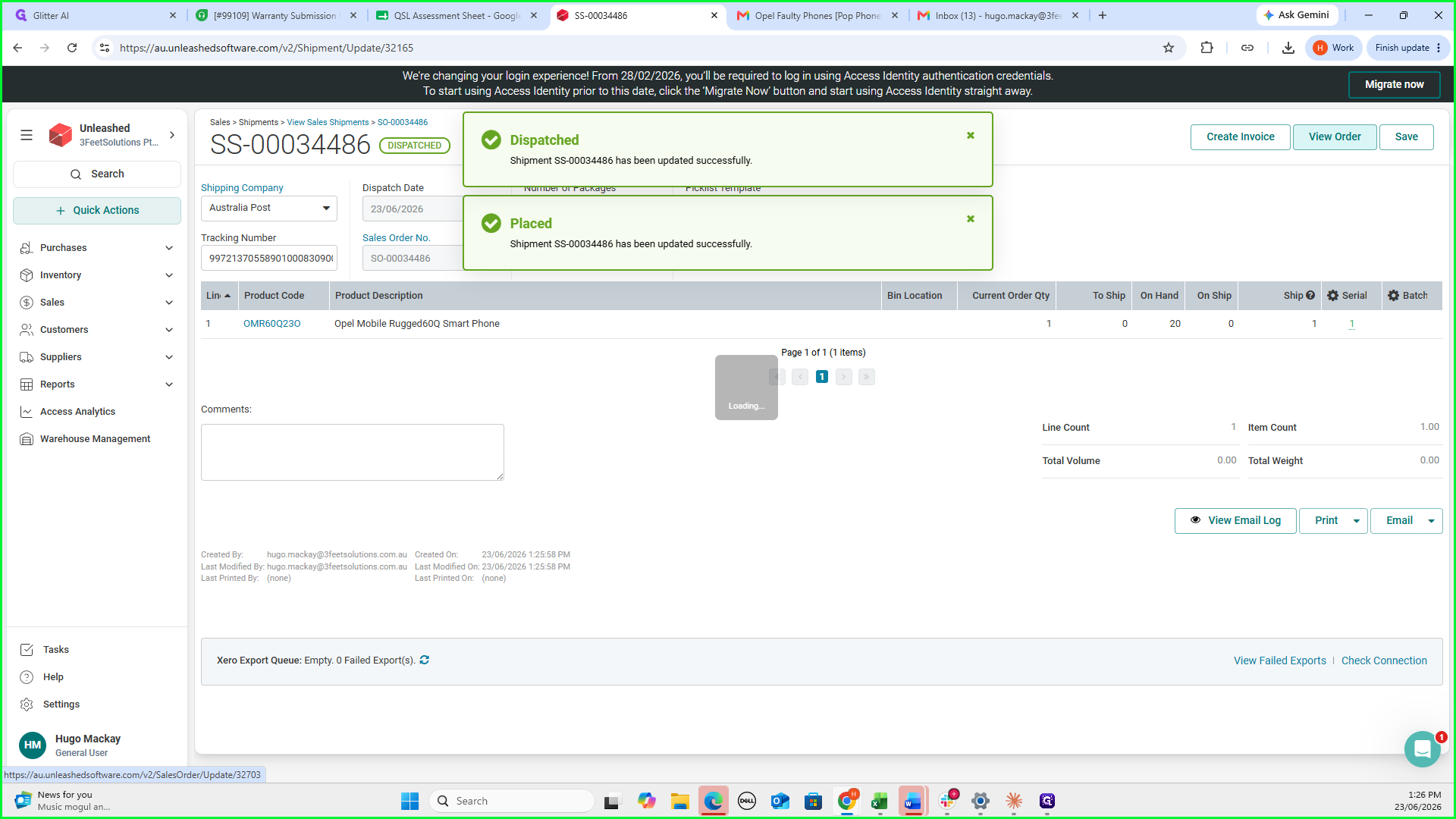
Click Dispatch to mark the shipment as sent.
27
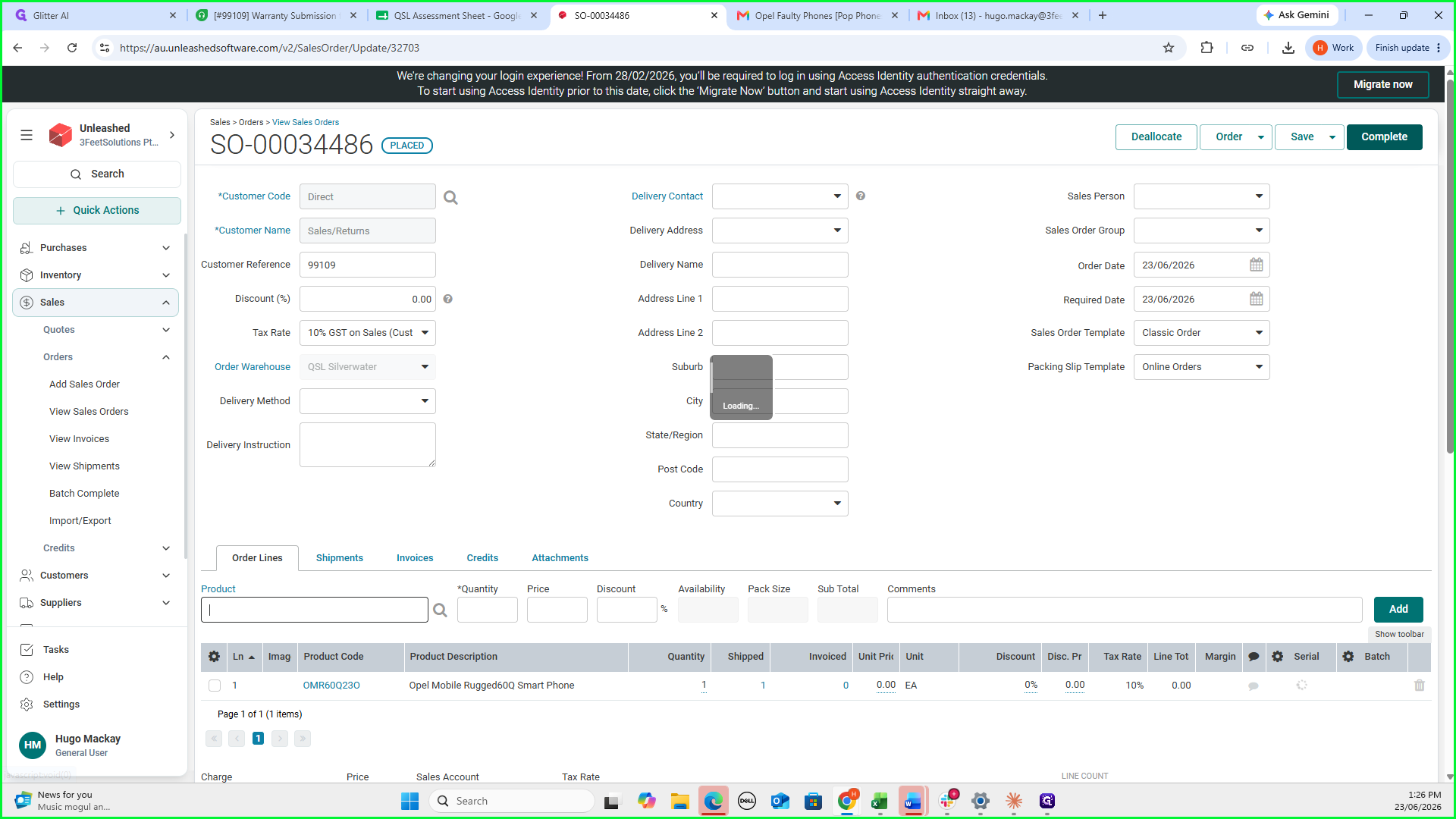
Click View Order to return to the main sales order screen.
28
Click Complete to finalize the sales order.
Logging the Faulty Return in Unleashed
Account for the returned faulty device by adding a corresponding Free Credit note. Note the required pricing distinctions for inventory management:
Device State
Order Type
Price Setting
Brand New
Sales Order
$0.00
Faulty
Free Credit
$0.01
29
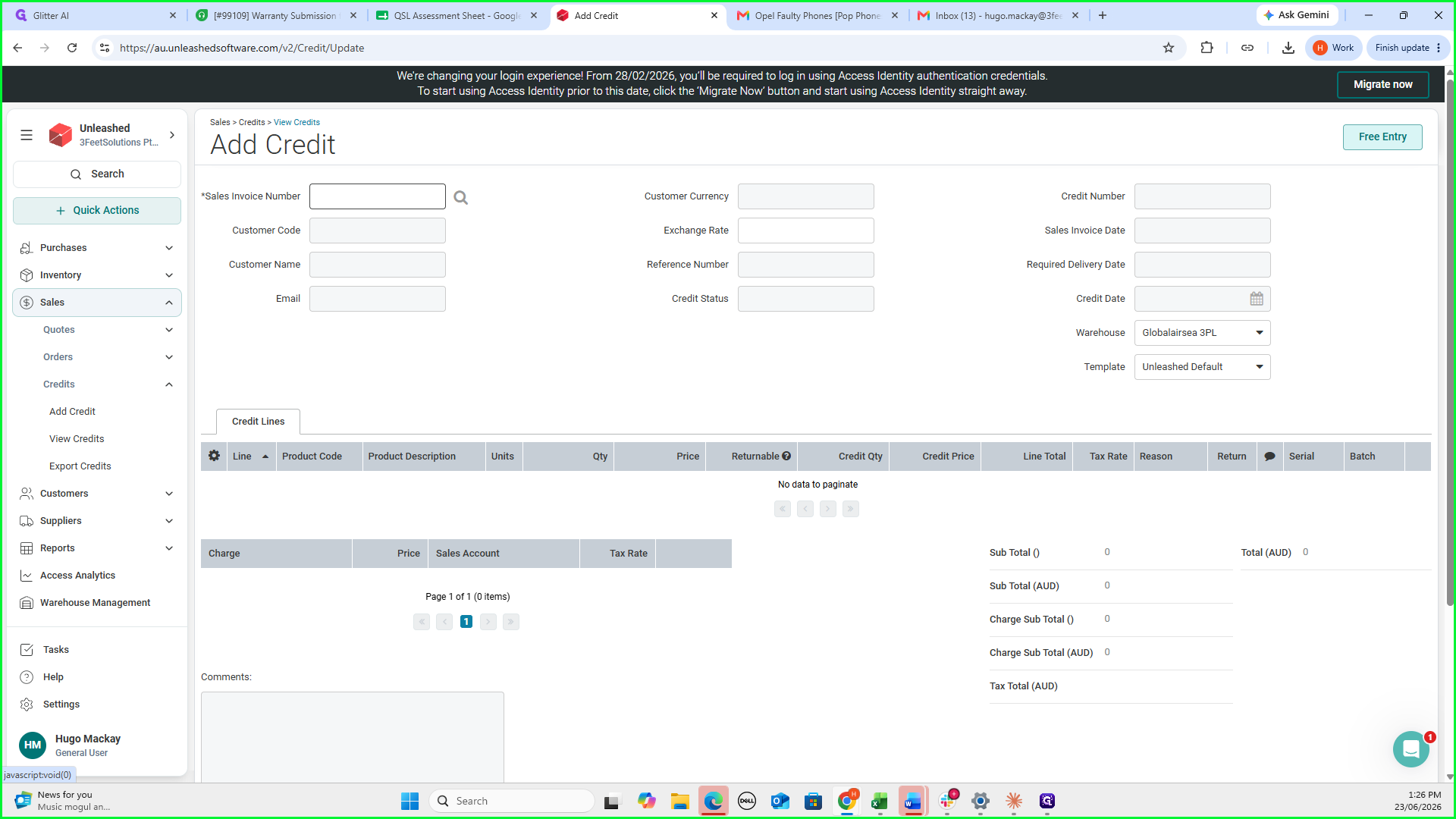
Navigate to the Credits section.
30
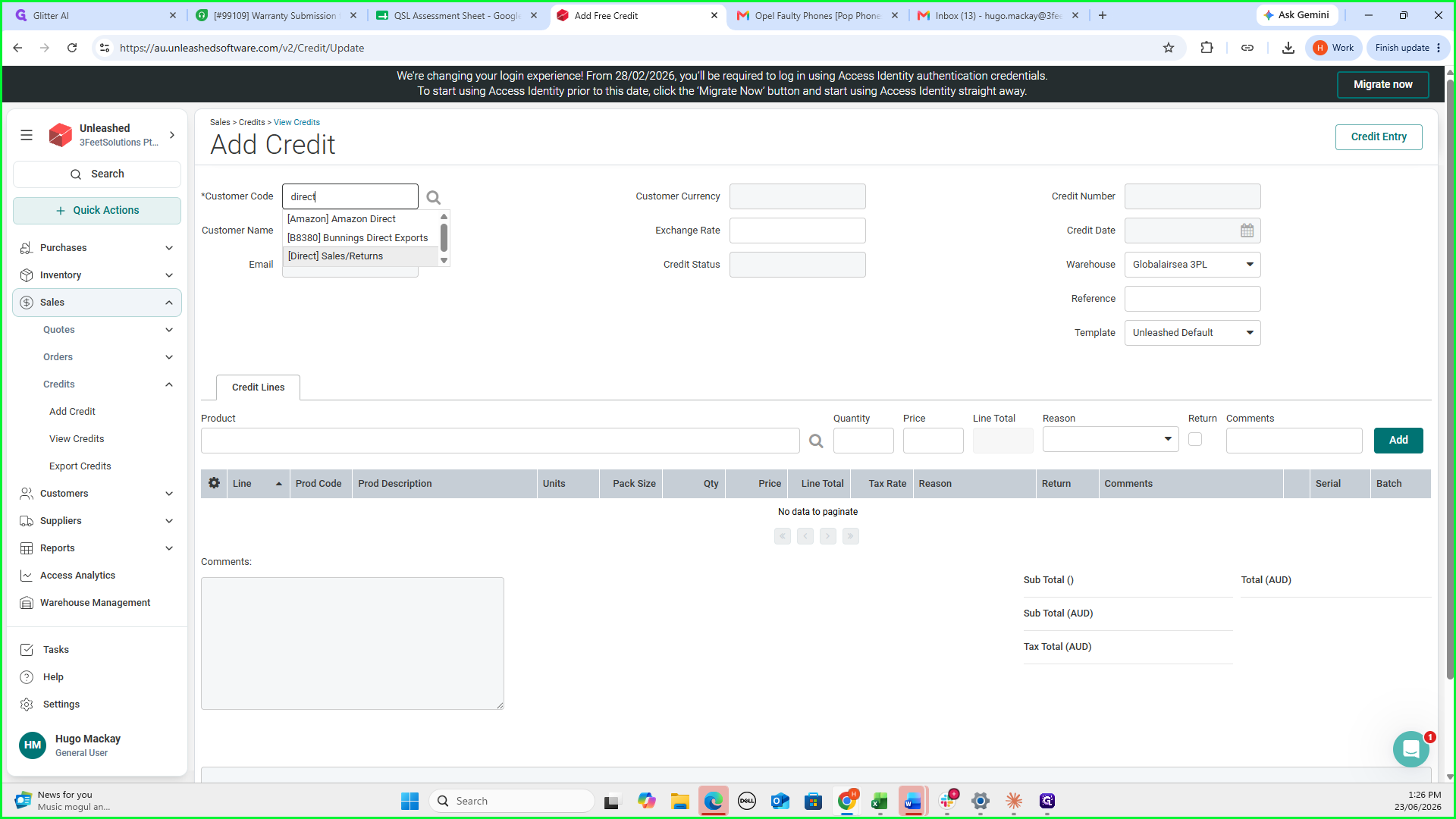
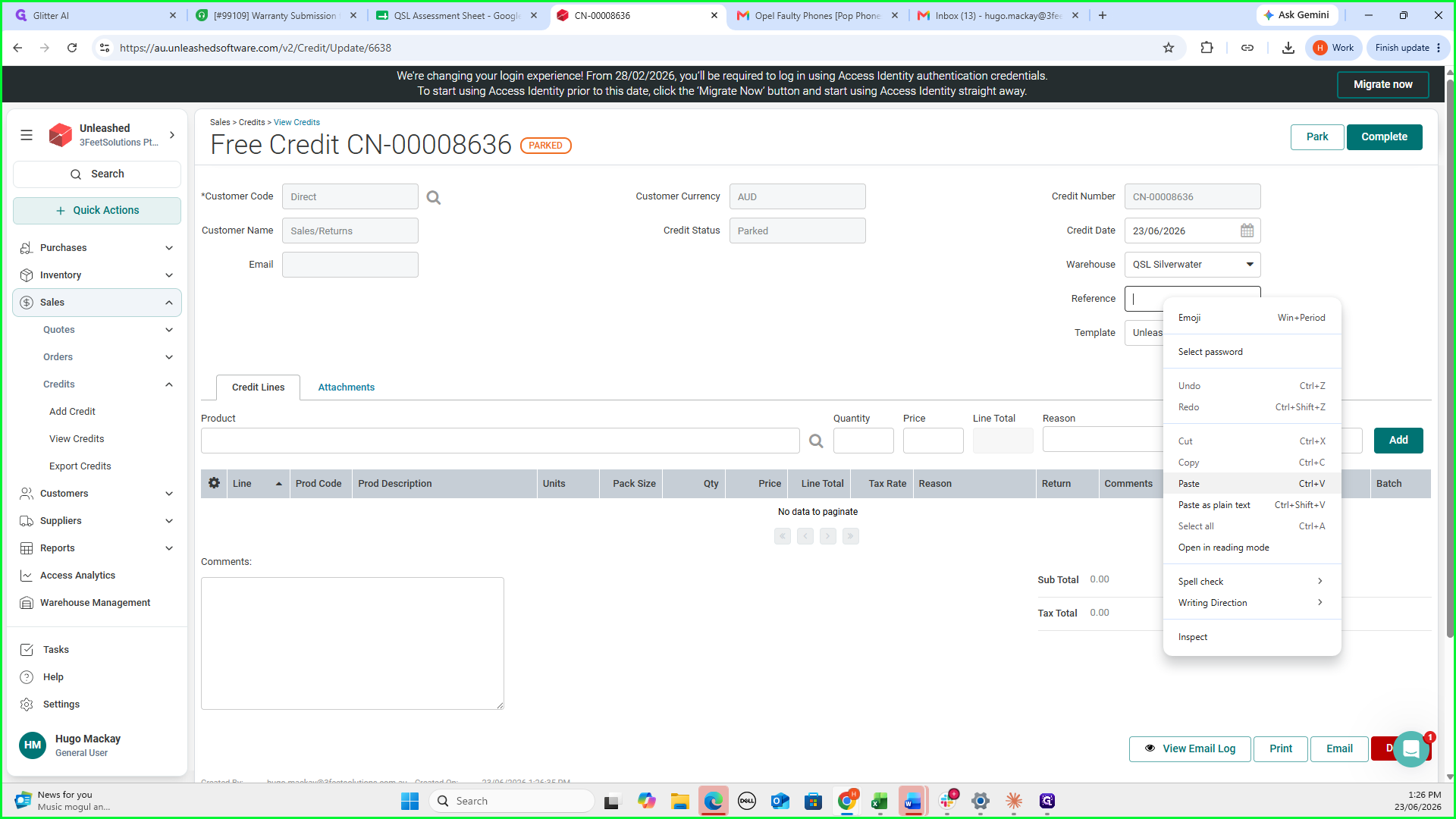
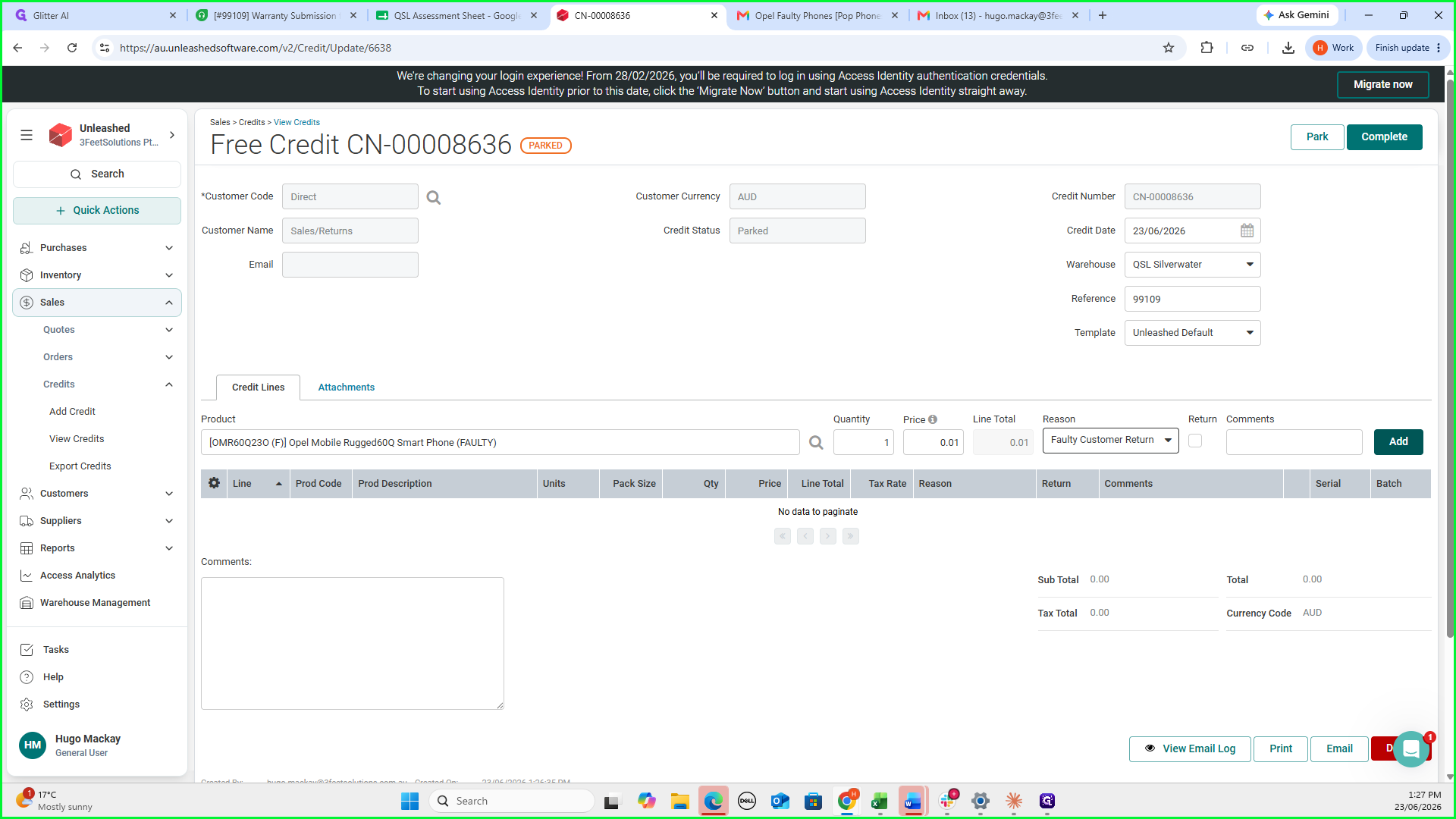
Click Free Entry to begin a new credit note.
31
Type and select direct in the customer field.
32
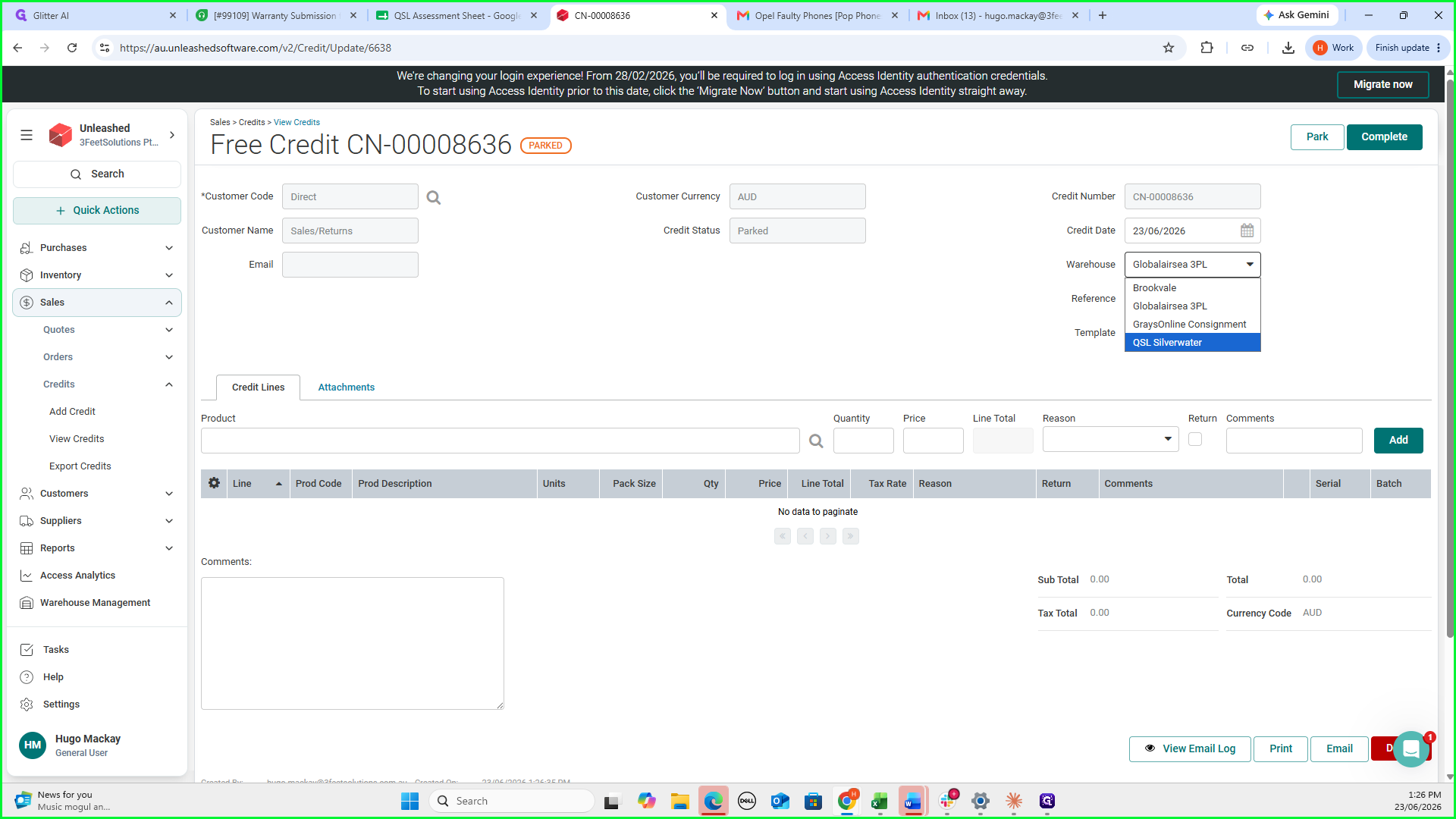
Select QSL Silverwater as the warehouse.
33
Paste the Freshdesk ticket number into the Reference field.
34
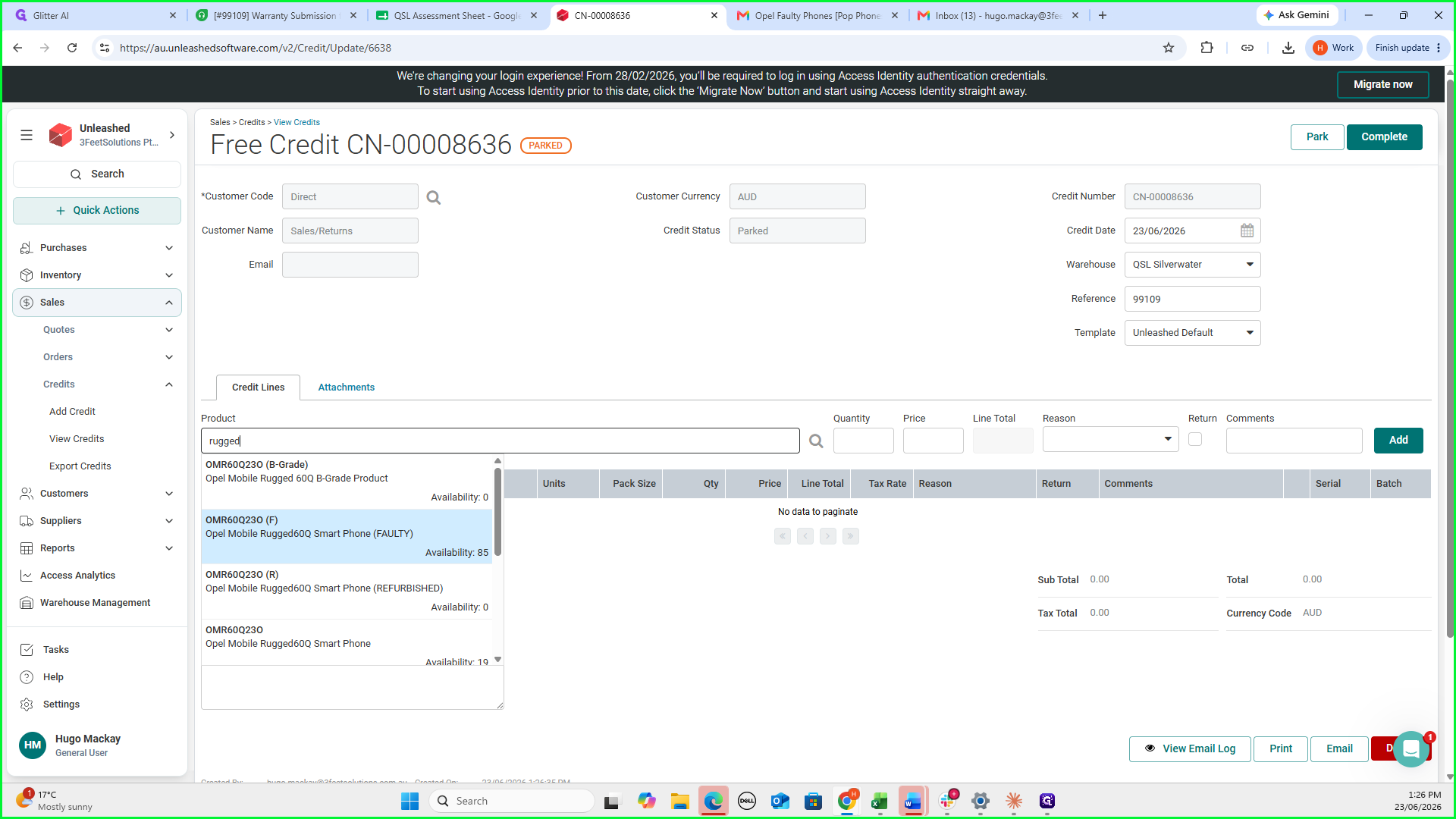
Search for and select the original device model (e.g., "Opel Mobile Rugged 60Q") to credit the faulty item.
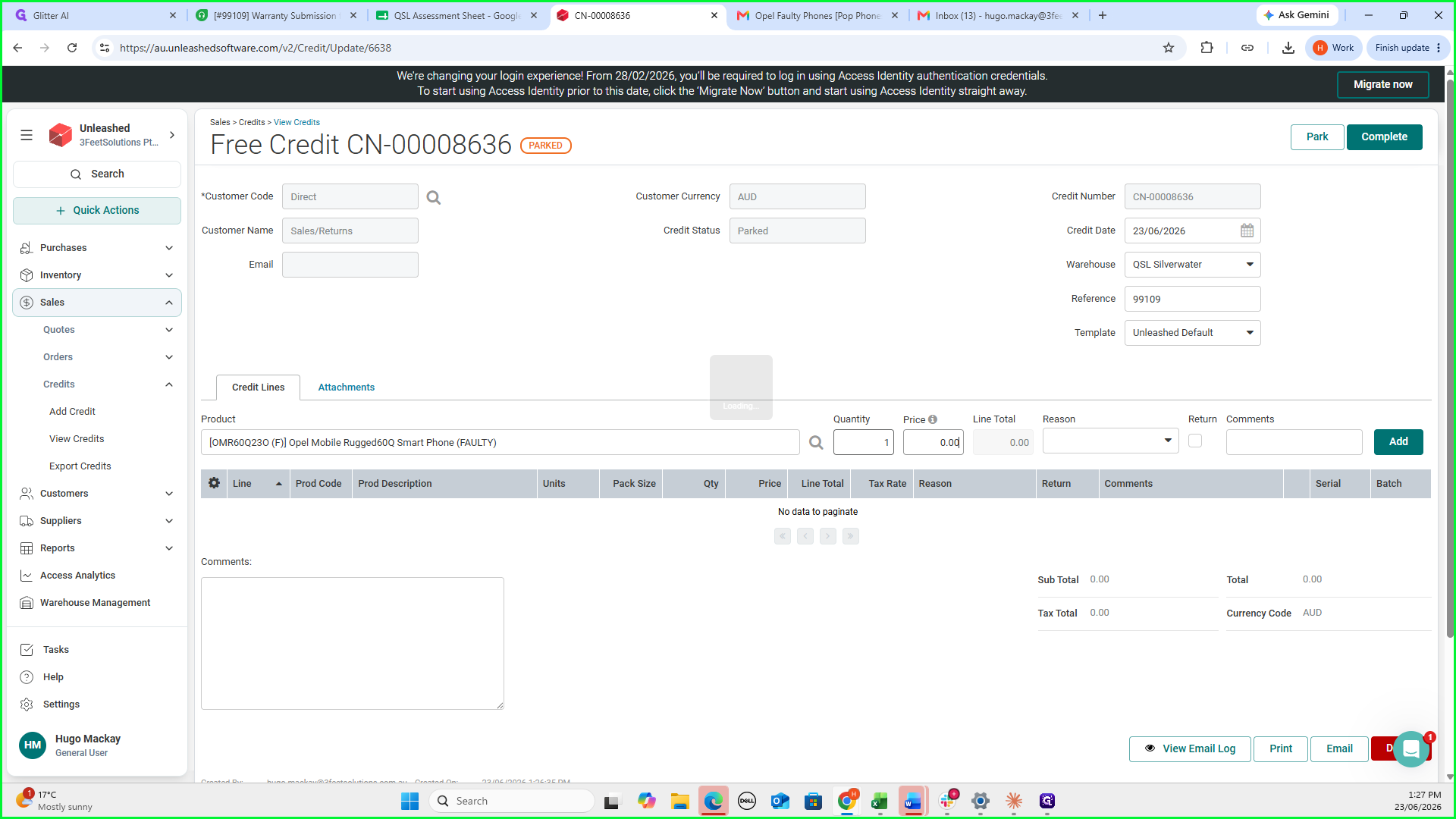
The price for a faulty return credit must be set to 0.01. If you leave it at 0.00, Unleashed will not allow you to complete the credit note.
35
Set the quantity to 1 and ensure the price is updated to 0.01.
36
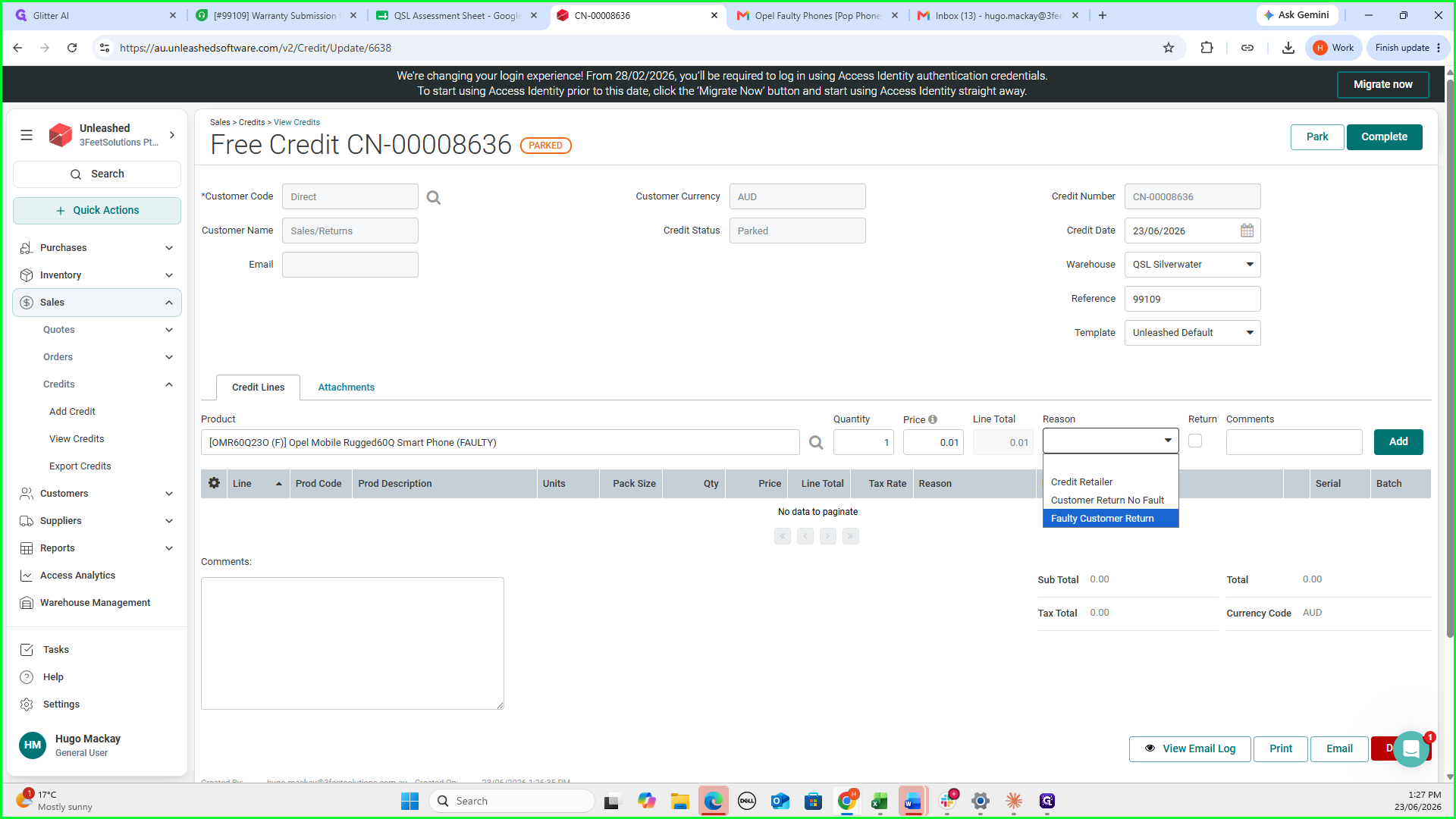
Select Faulty Customer Return from the drop-down options.
37
Click Add to append the line item to the credit note.
38
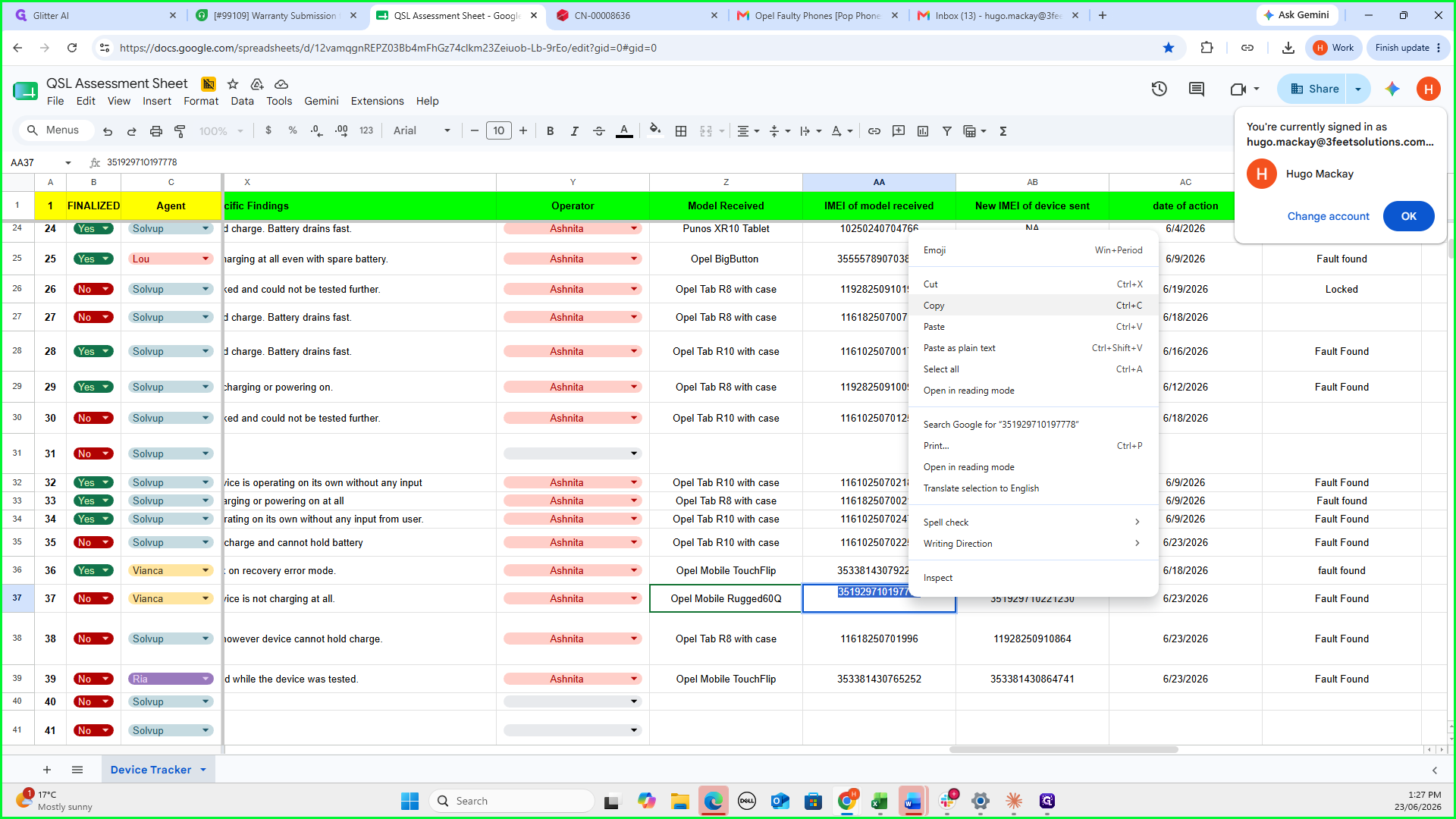
In the QSL Assessment Sheet, copy the old IMEI number belonging to the faulty device.
39
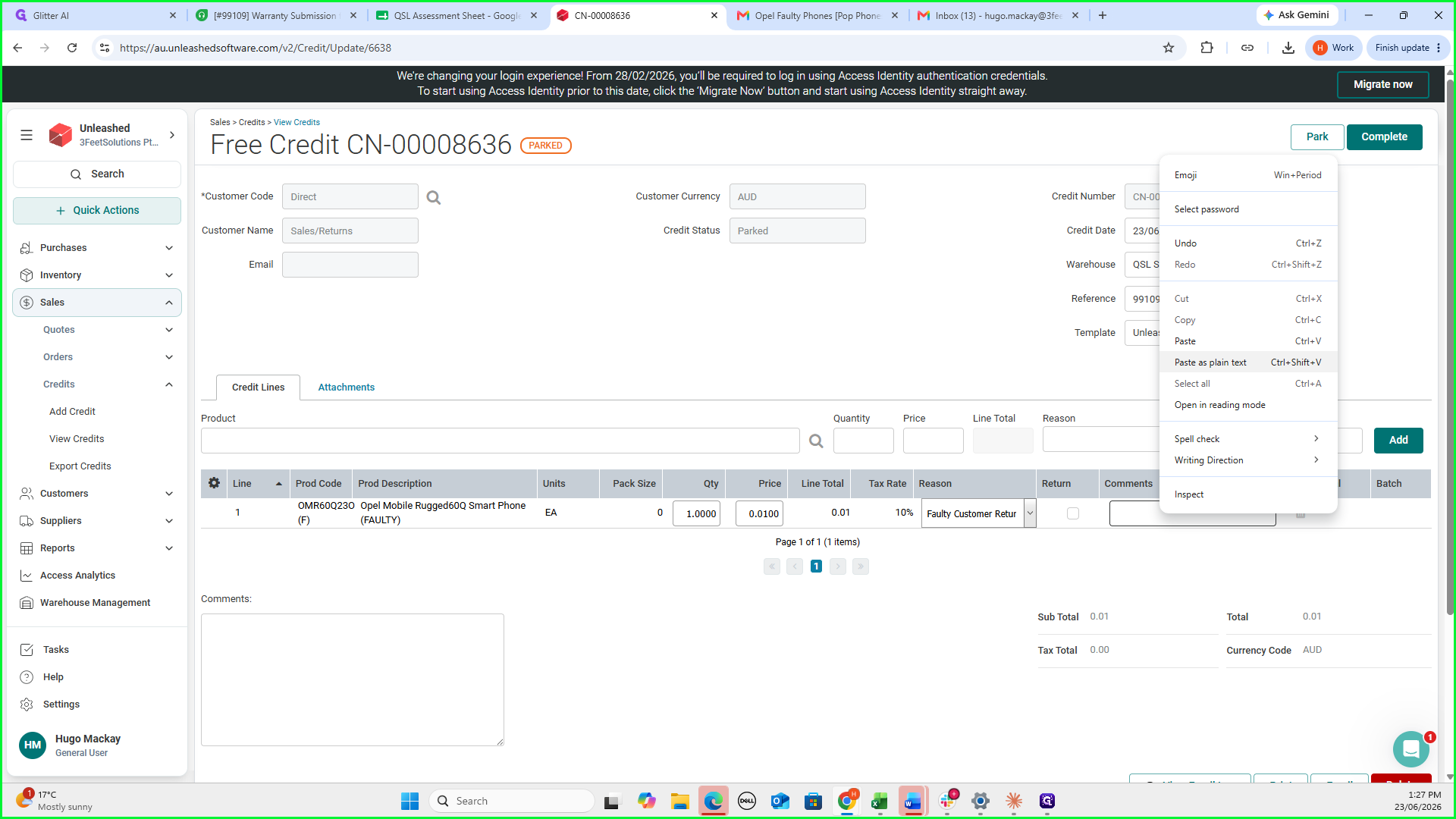
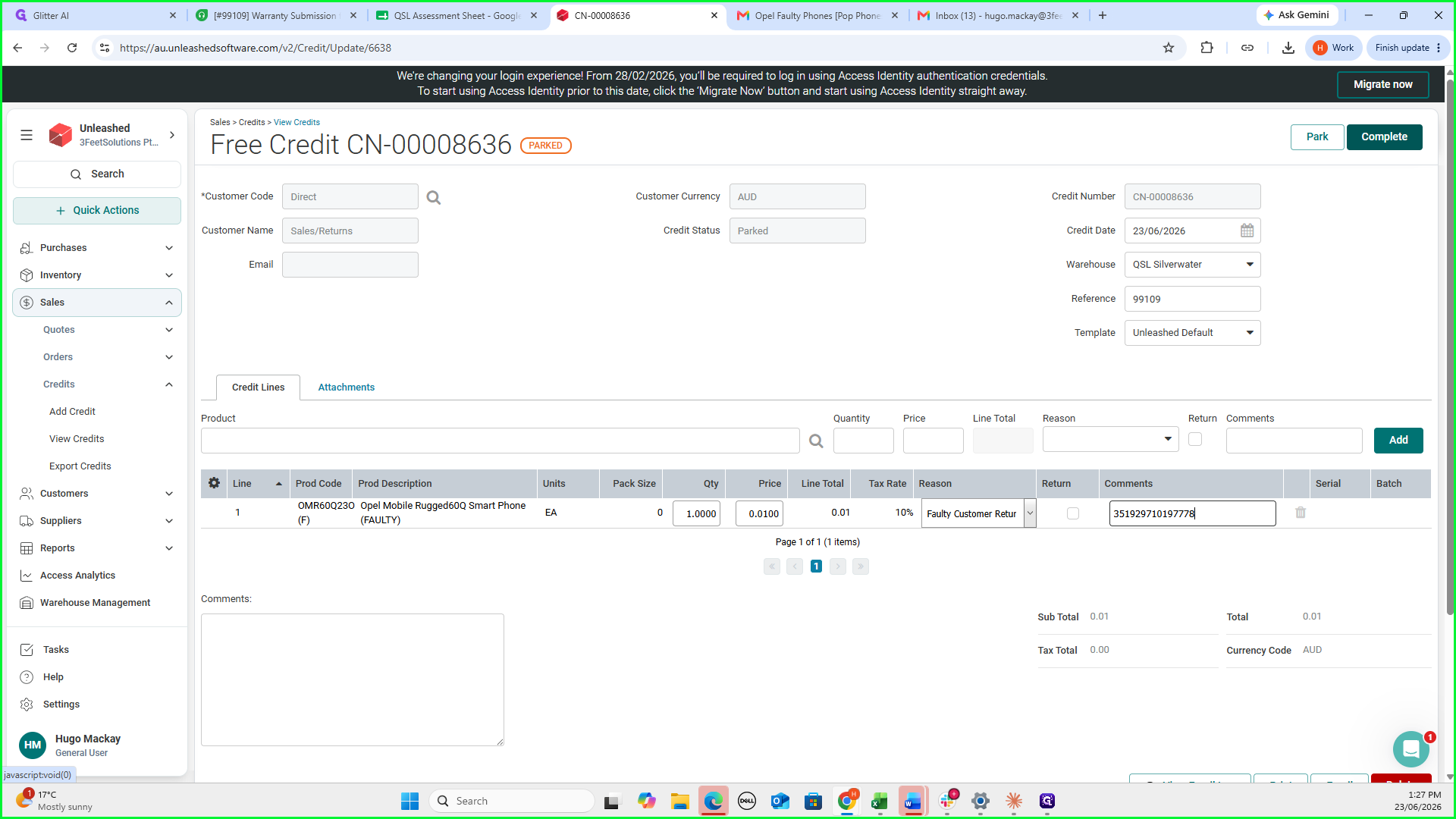
Return to Unleashed and paste the old IMEI number into the Comments field of the credit line item.
40
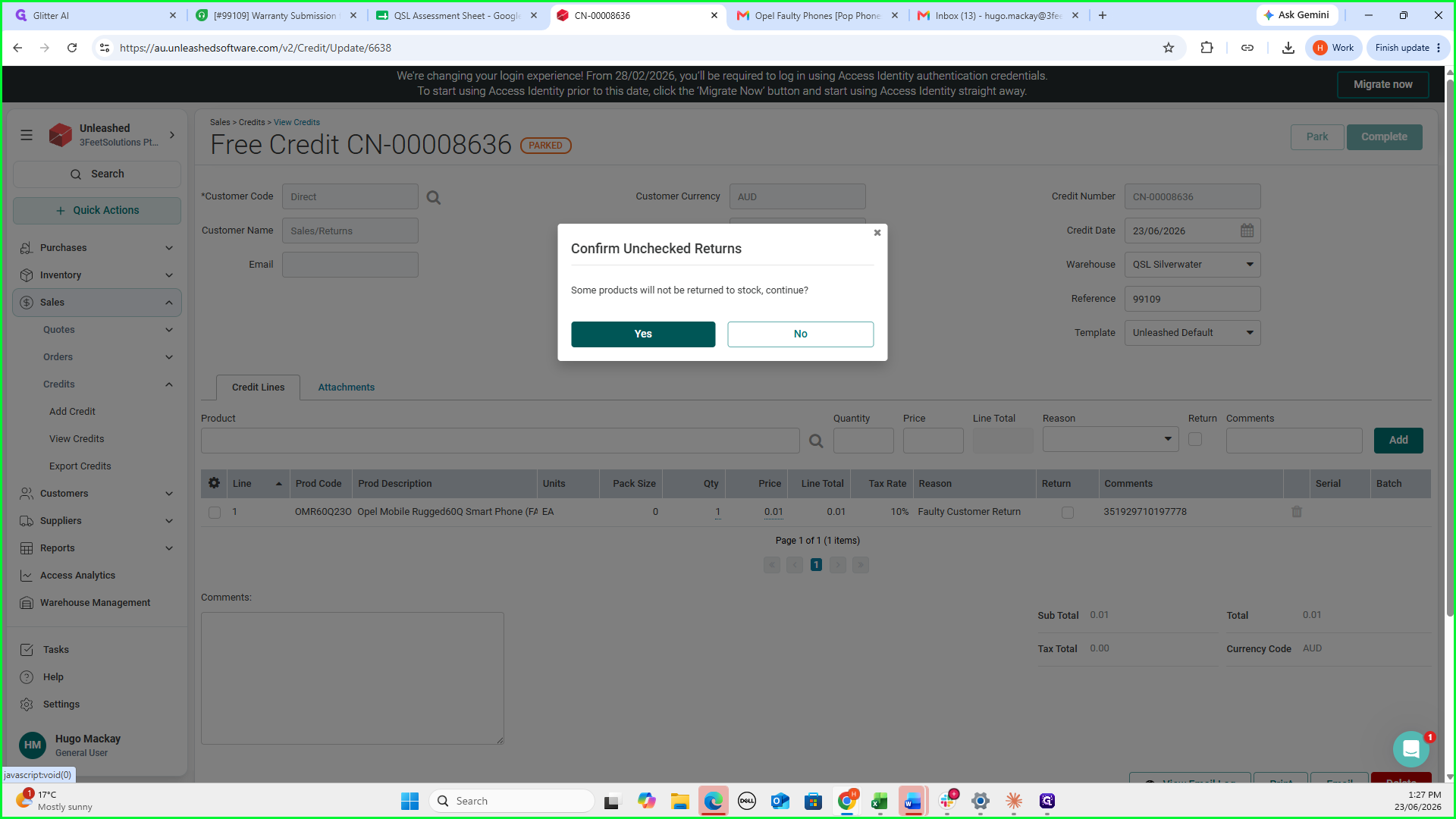
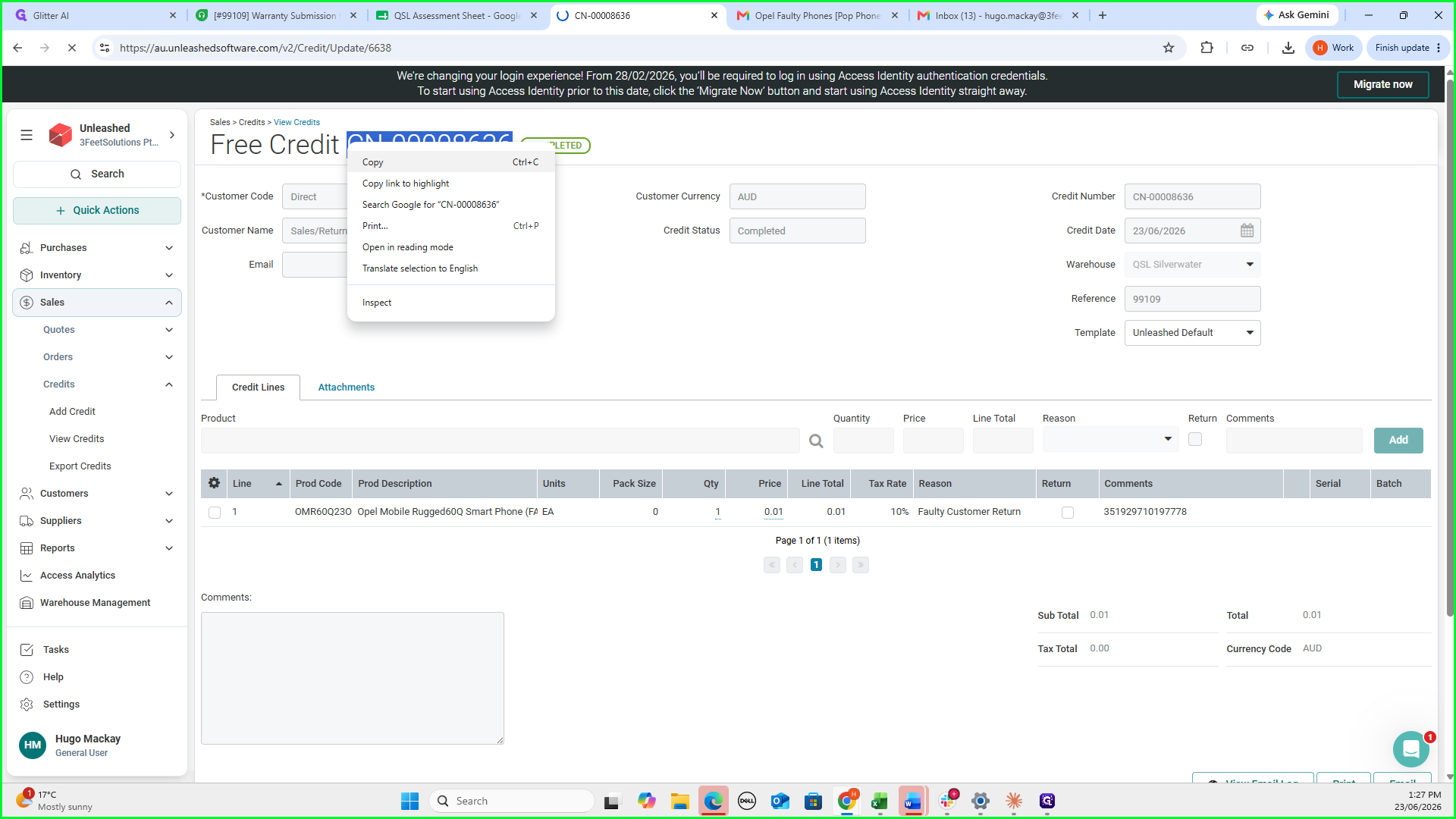
Click Complete at the top right of the credit note screen.
41
Click Yes in the confirmation modal to finalize the credit.
Finalizing Freshdesk Data
Keep the sales order and credit note pages open until you record their reference numbers back into Freshdesk.
42
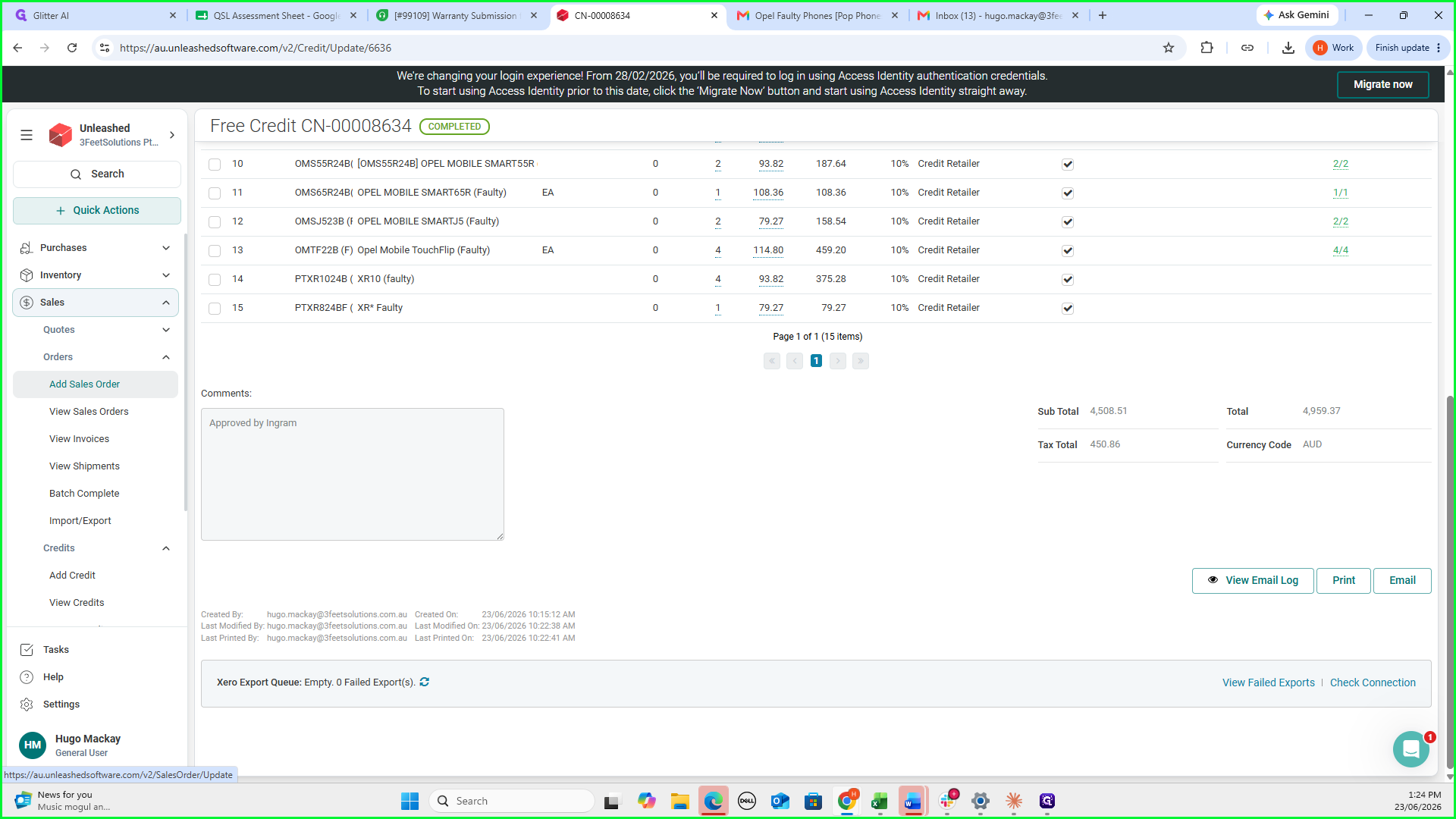
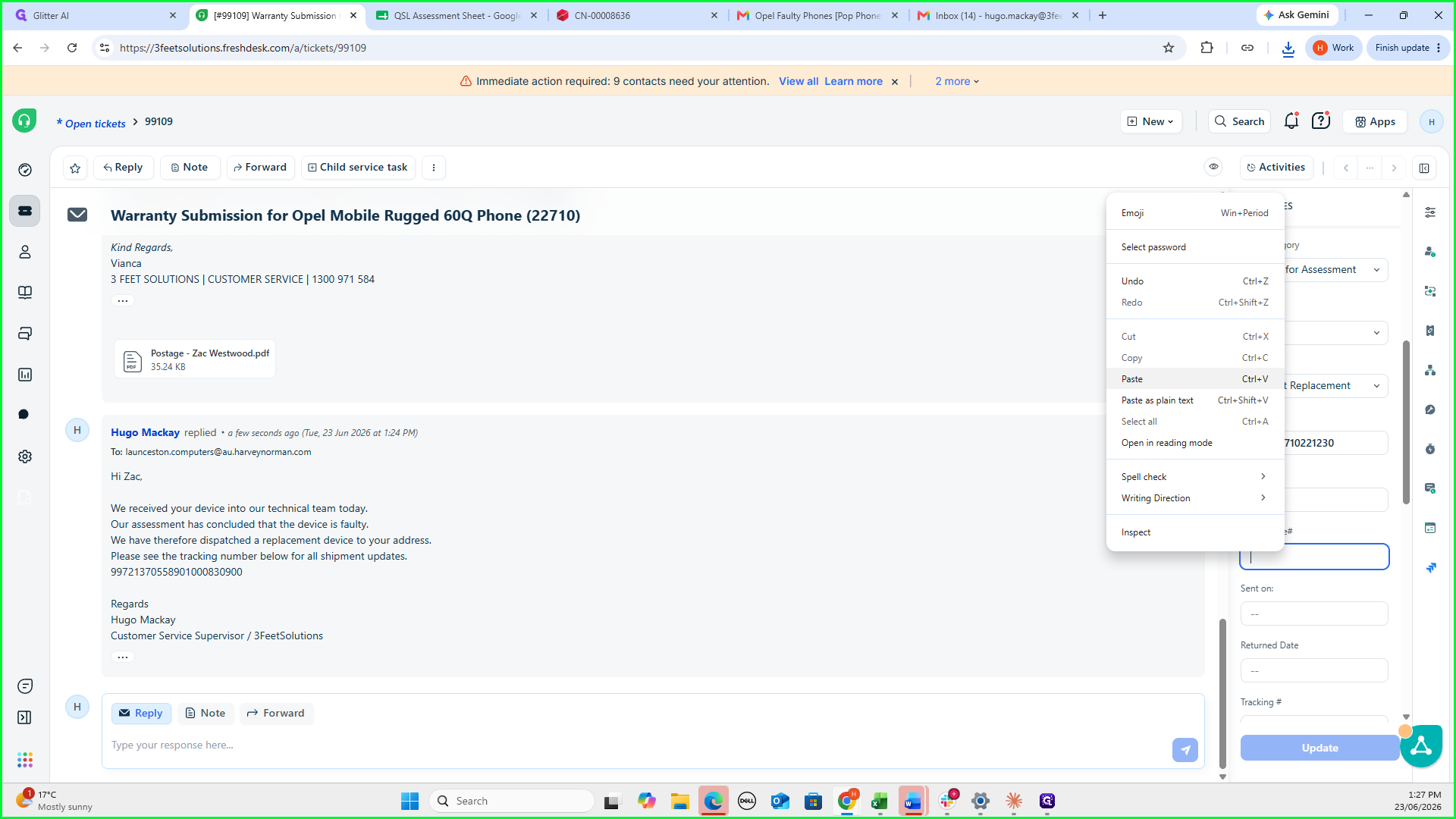
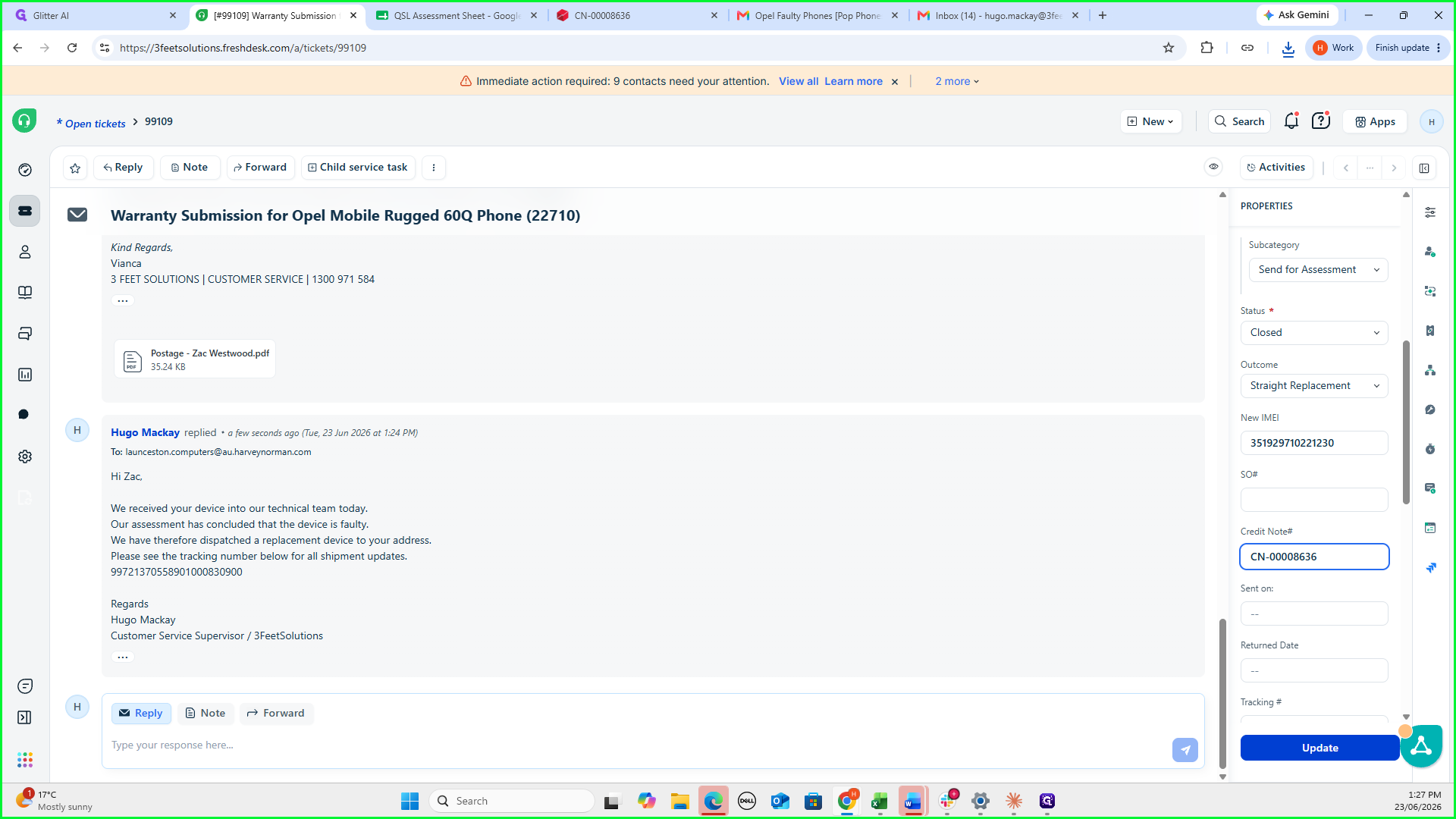
Copy the finalized Credit Note number (e.g., CN-00008636).
43
In Freshdesk, paste the Credit Note number into the appropriate tracking or internal notes property.
44
Click Update to save the final detail to the customer ticket.
Q: Why do I need to set the price to $0.01 for the faulty replacement credit?
A: Unleashed requires a non-zero value to process and complete a faulty return credit note. Using $0.00 will result in an error and prevent you from successfully saving the record.
Q: Should I close the Freshdesk ticket before completing the Unleashed steps?
A: You can update the ticket status to Closed early in the process, but keep the ticket open in a browser tab. You will need to refer back to it to log the Unleashed Sales Order and Credit Note numbers at the end.
Term
Definition
QSL Assessment Sheet
A shared tracking spreadsheet used to monitor warranty submissions, device assessments, and incoming/outgoing shipping data.
IMEI
A unique 15-digit serial number used to identify individual mobile phone devices.
Canned Response
Pre-written email templates in Freshdesk used to quickly reply to common customer scenarios, like warranty replacements.
Sales Order
A record created in Unleashed to authorize the dispatch of a brand-new replacement device from inventory.
Credit Note
A financial and inventory record used to account for the return of a faulty device and remove its initial sales value.