Icon

How to Provide Website Feedback and Request Design Changes

Learn how to review your website, toggle between browse and comment modes, suggest text changes, and attach files for the development team.

By Des Byrne

This guide walks you through the process of providing actionable feedback and requesting design changes directly on your website. Completing this ensures the web development team understands your exact requirements for text, images, and layout before making live updates.

Use these steps during the review and QA phases to annotate pages and approve changes efficiently.

Enabling Feedback Mode

The review tool acts like tracing paper over your website. It doesn't permanently change the live site immediately, but it allows you to communicate exactly how you want the website modified.
1
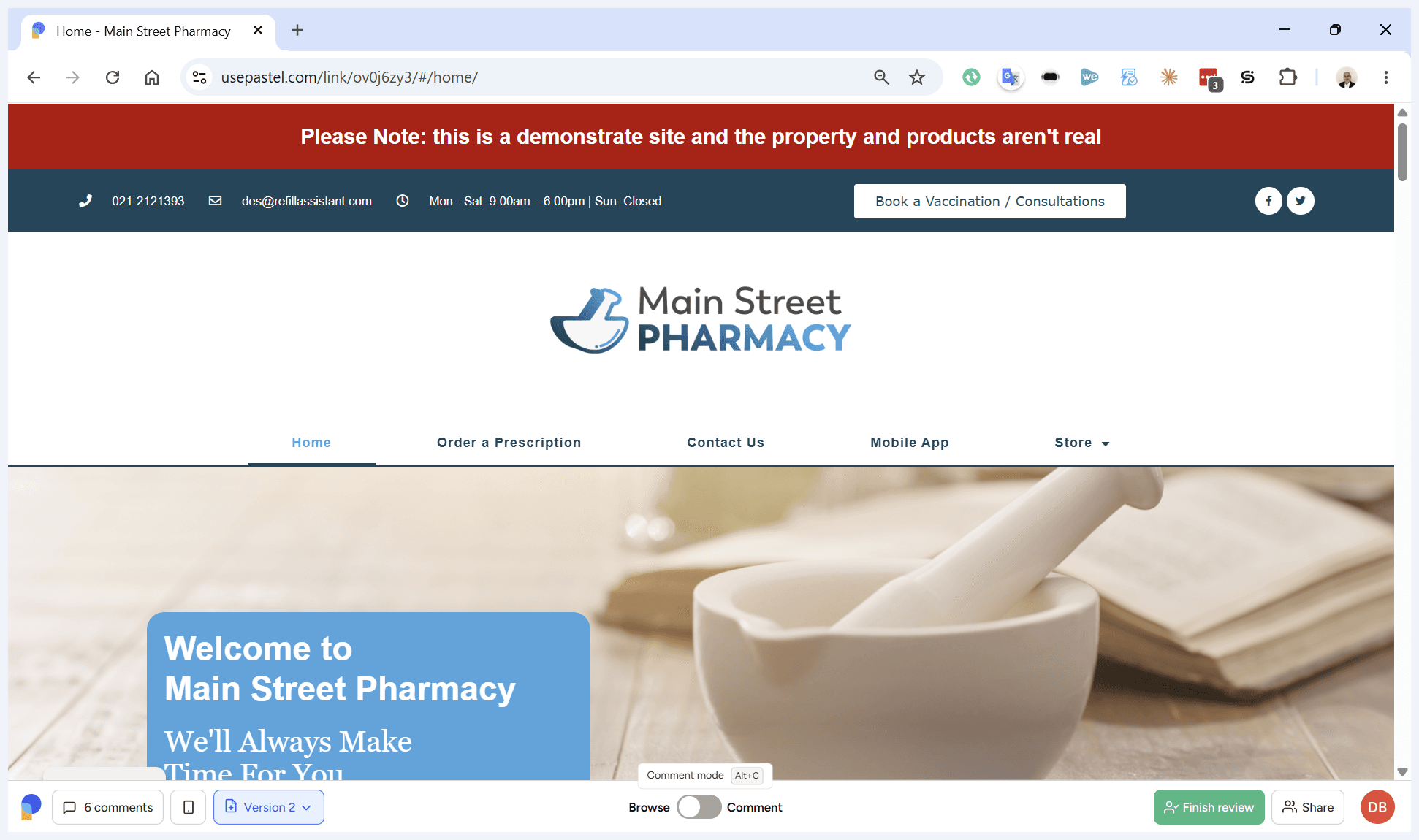
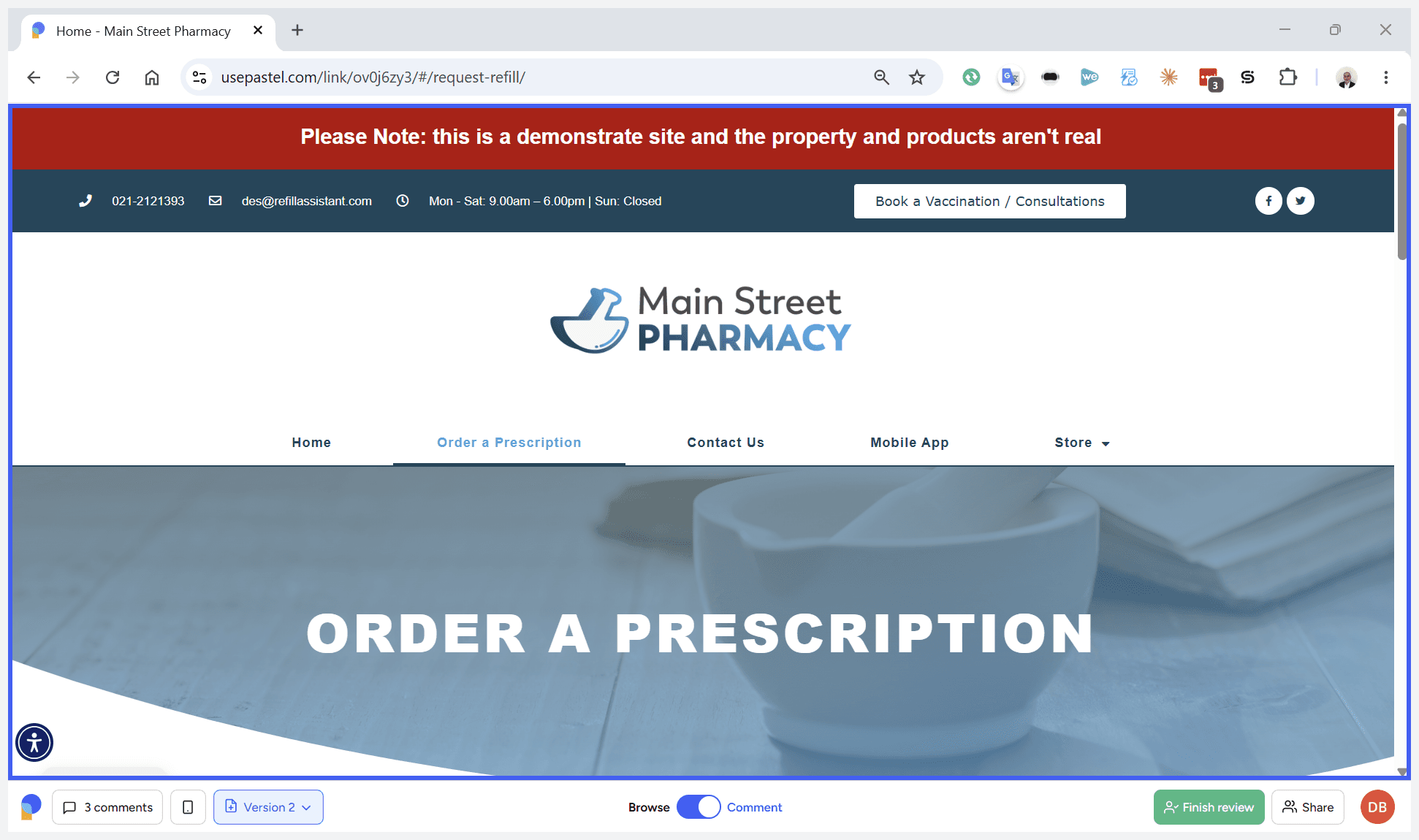
Locate the toolbar at the bottom of the screen to switch between browsing and commenting modes.
Step #1: Locate the toolbar at the bottom of the screen to switch between browsing and commenting modes.
2
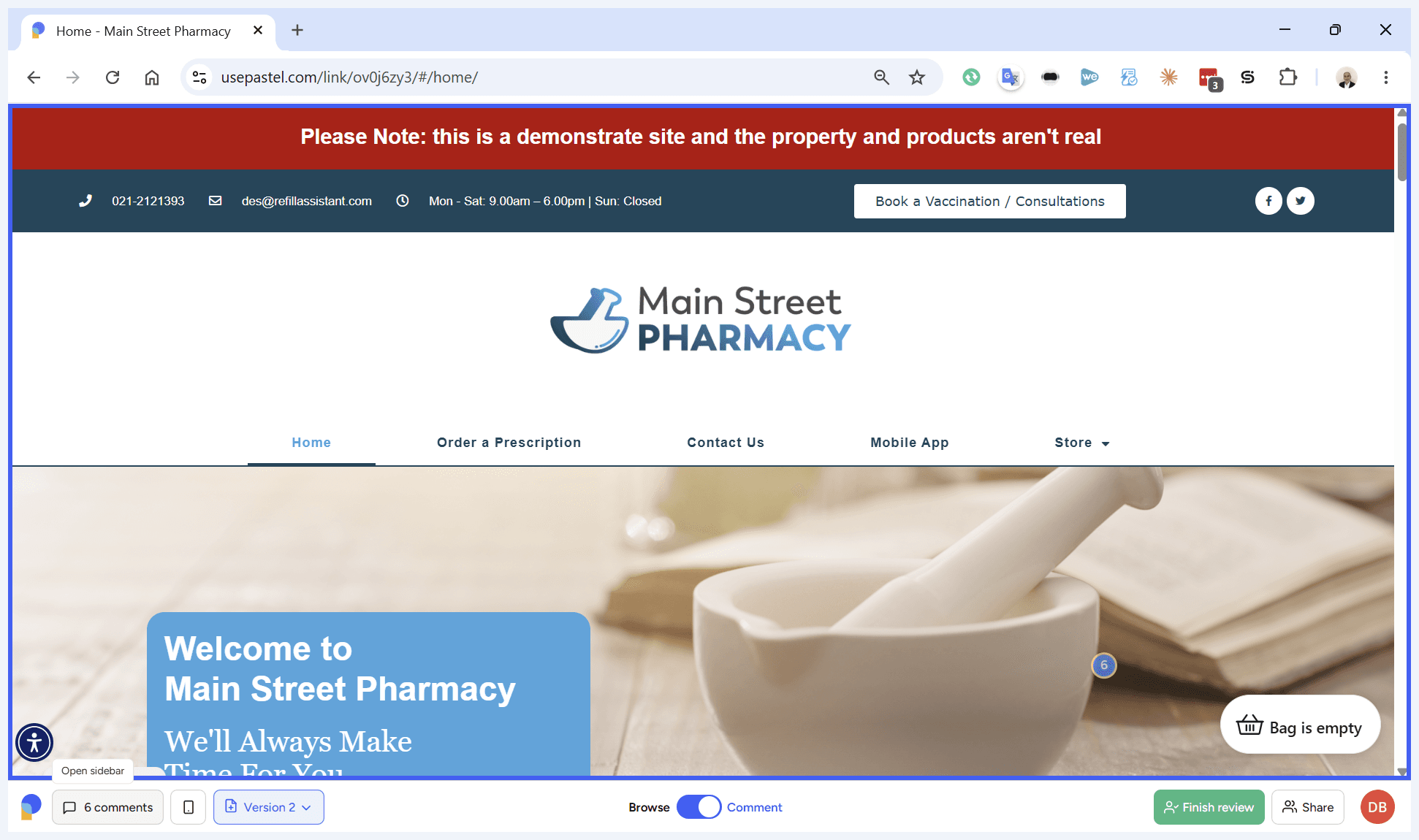
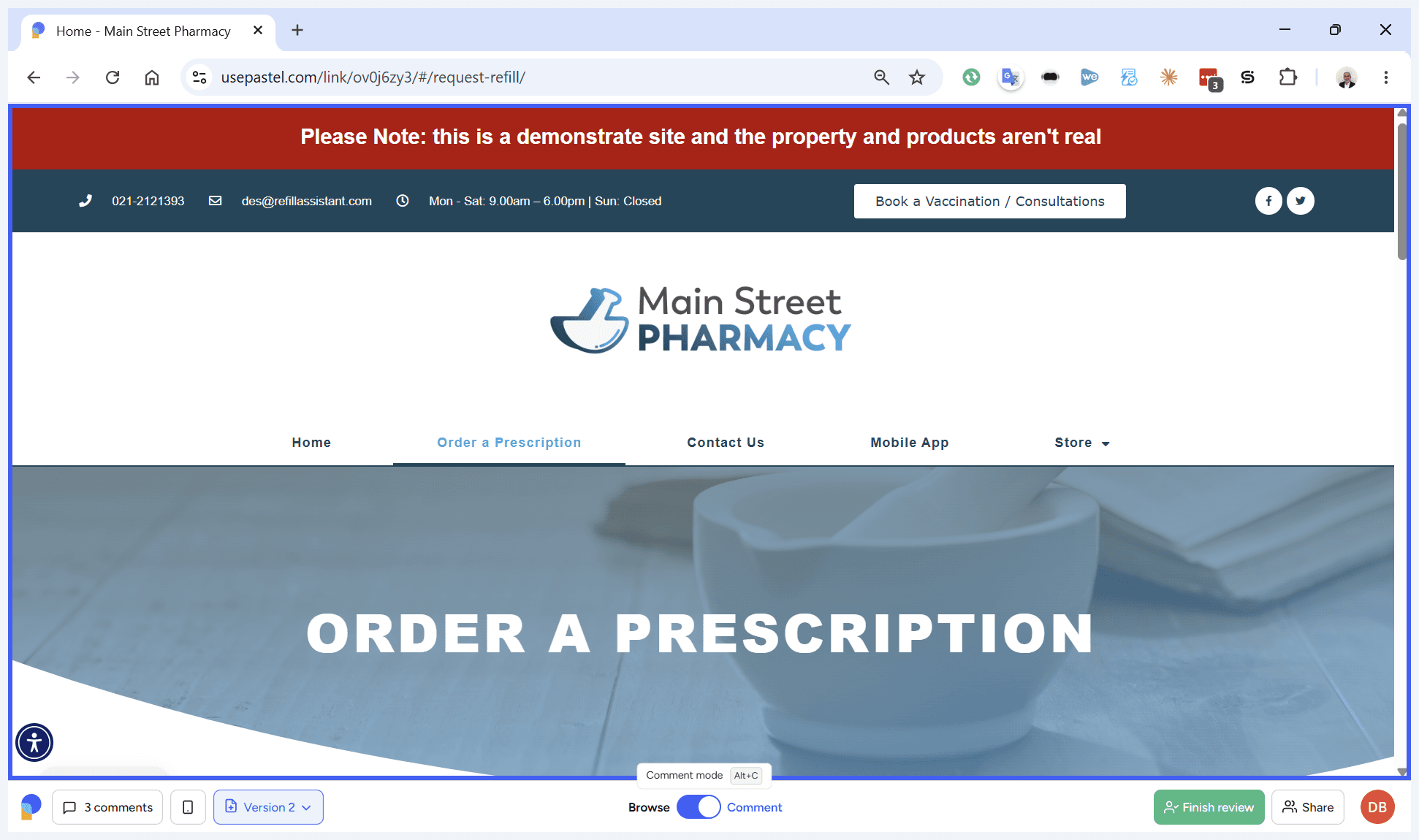
Click Comment to enable annotation mode. The button will turn blue when active.
Step #2: Click Comment to enable annotation mode. The button will turn blue when active.

Feedback Methods

Depending on what you need to change, you have multiple ways to leave feedback. Review the options below to choose the best method for your needs:

Feedback Method

Action

Best For

Standard Comment

Click on any element (image/text) to leave a note.

Requesting image replacements, adding files, or general notes.

Suggest Text Changes

Click on text and select the suggestion tool.

Rewriting copy inline to immediately preview how it fits the design.

Mobile View Adjustments

Toggle the device icon in the toolbar.

Reviewing and commenting on the mobile or tablet layout.

Leaving a Standard Comment

3
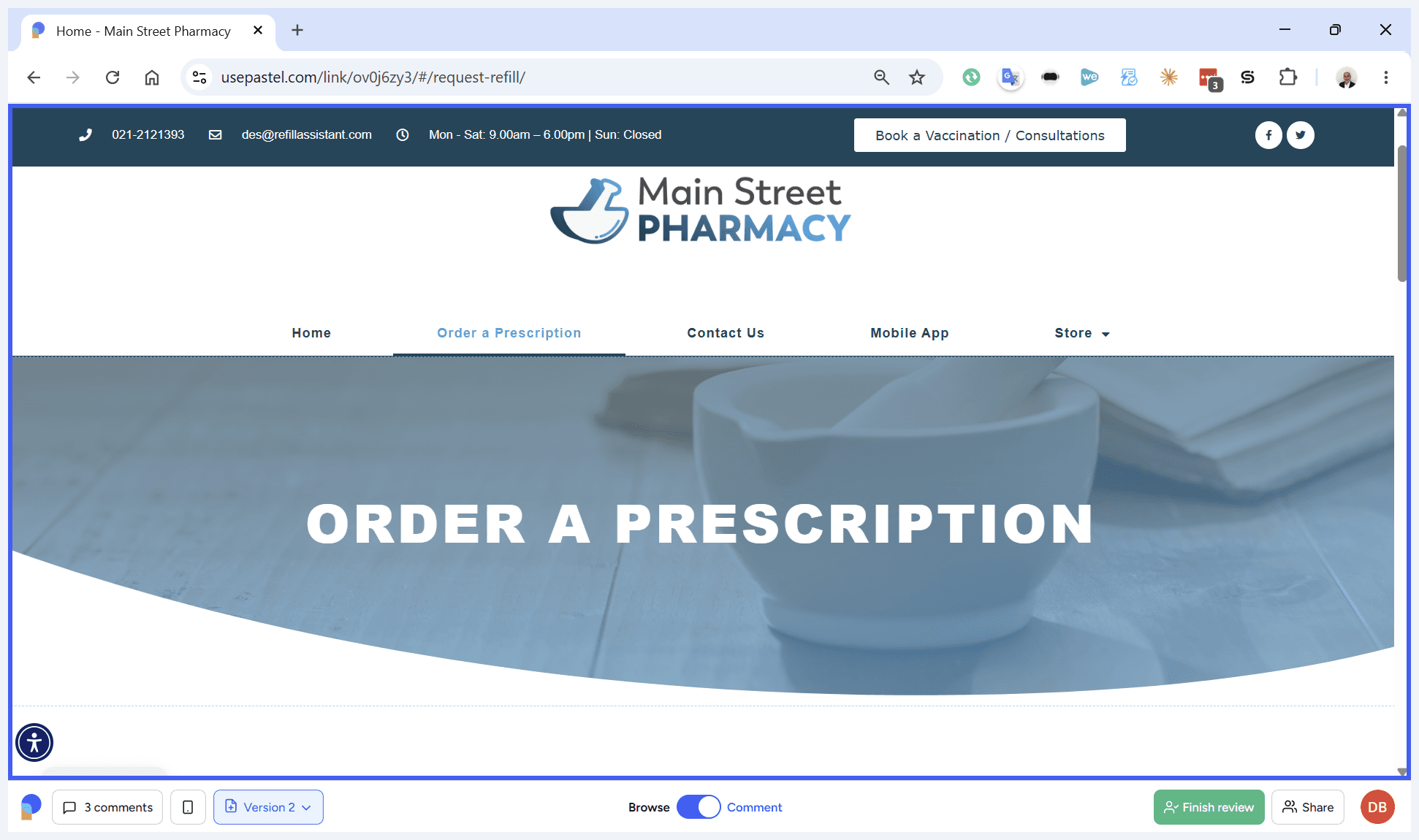
Click on the image or element you want to change to open a comment box.
Step #3: Click on the image or element you want to change to open a comment box.
4
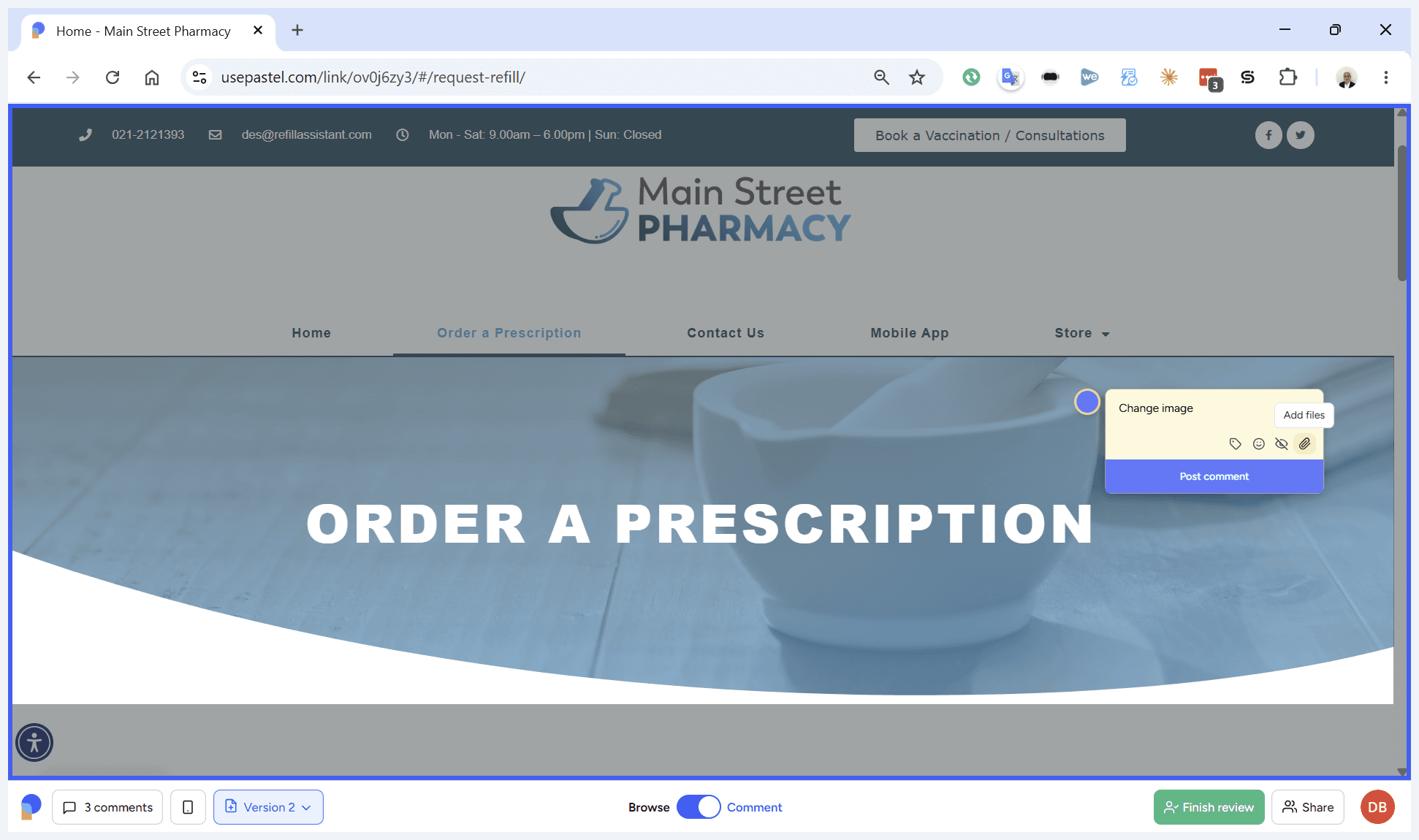
Type your instructions (e.g., "Change image") and upload a replacement file if available.
Step #4: Type your instructions (e.g., "Change image") and upload a replacement file if available.
5
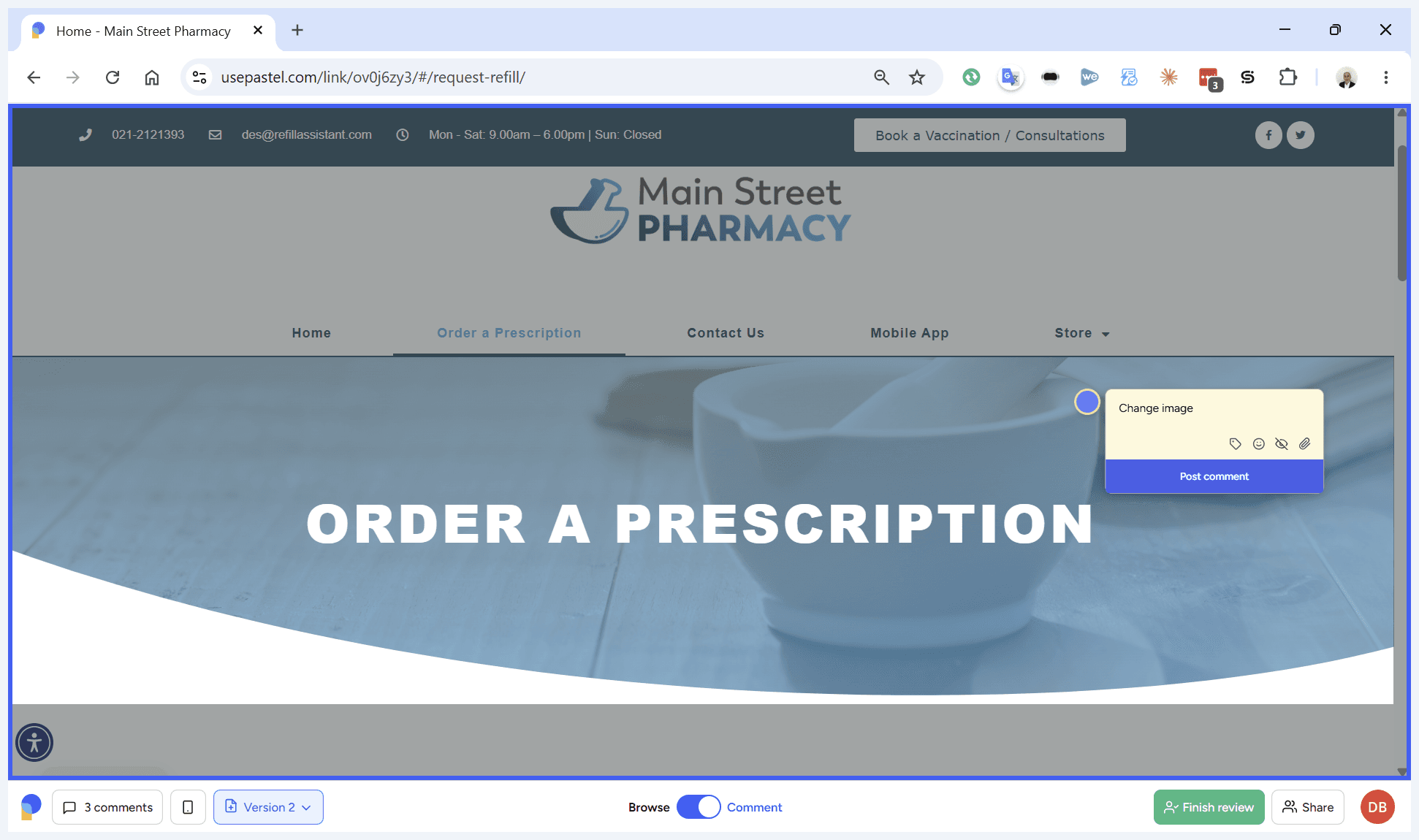
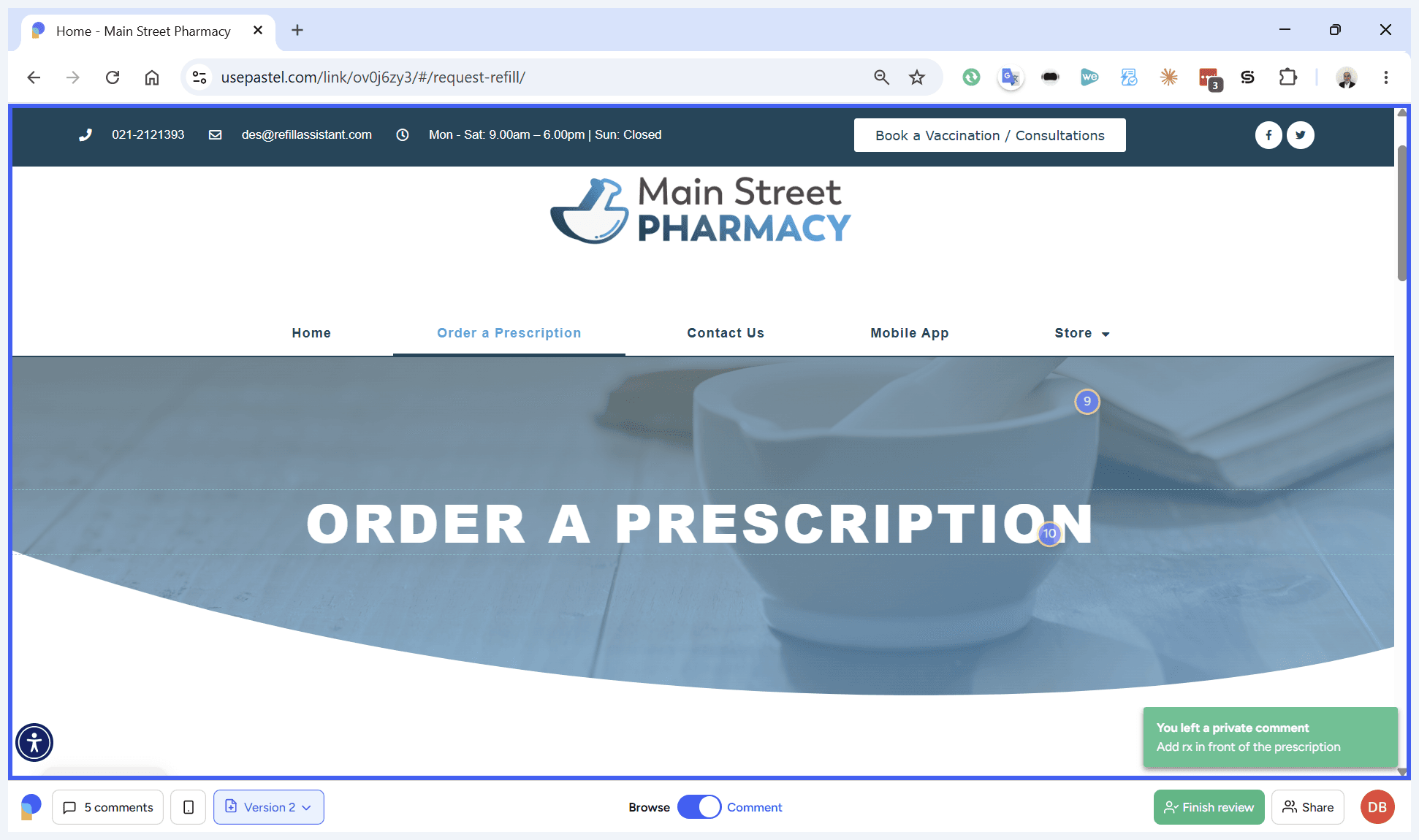
Click Post comment to submit your feedback.
Step #5: Click Post comment to submit your feedback.
6
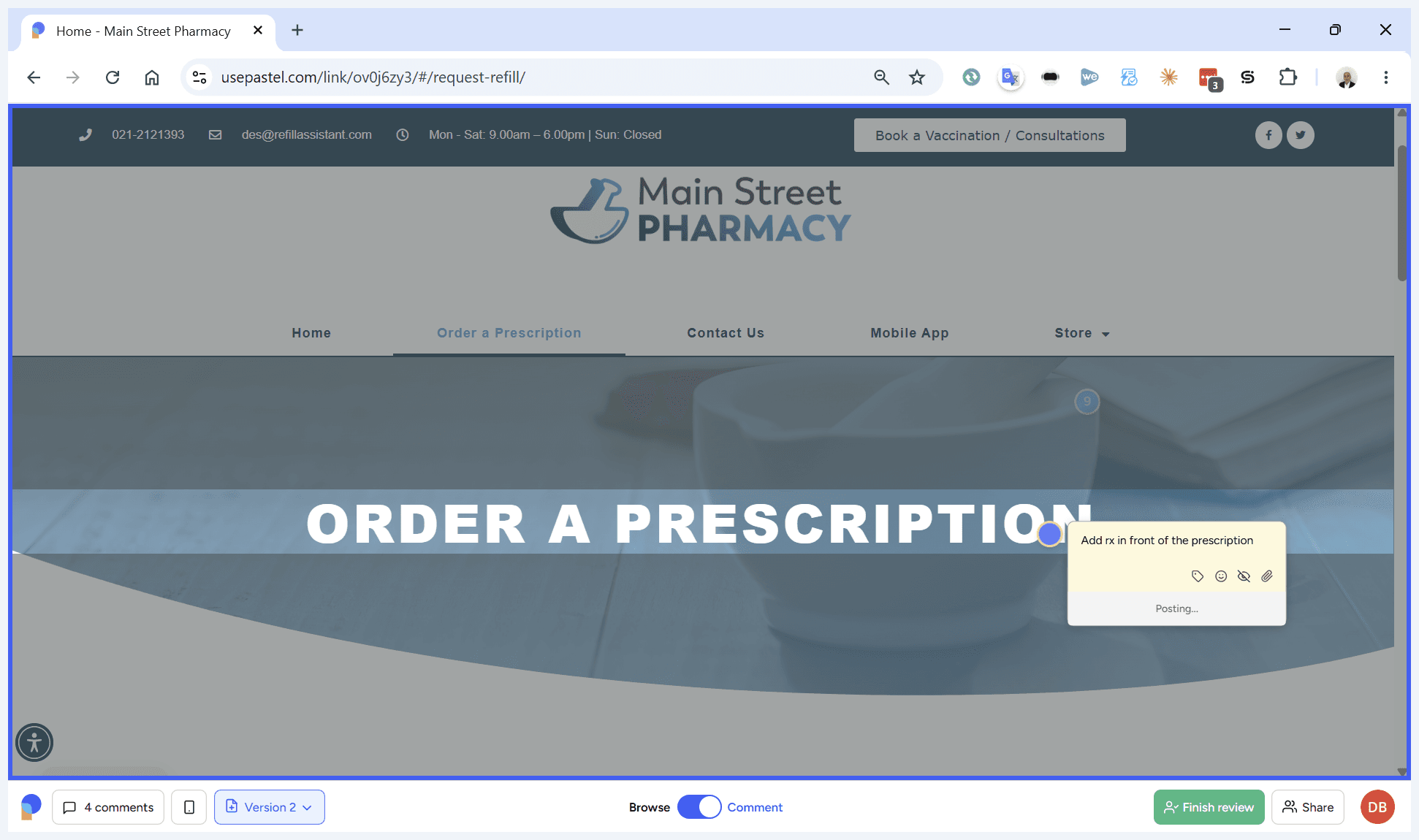
To comment on copy, click on a specific block of text.
Step #6: To comment on copy, click on a specific block of text.
7
Type your feedback, such as "Add Rx in front of the prescription," and post the comment.
Step #7: Type your feedback, such as "Add Rx in front of the prescription," and post the comment.

Suggesting Inline Text Changes
8
Click on the text you want to rewrite completely.
Step #8: Click on the text you want to rewrite completely.
9
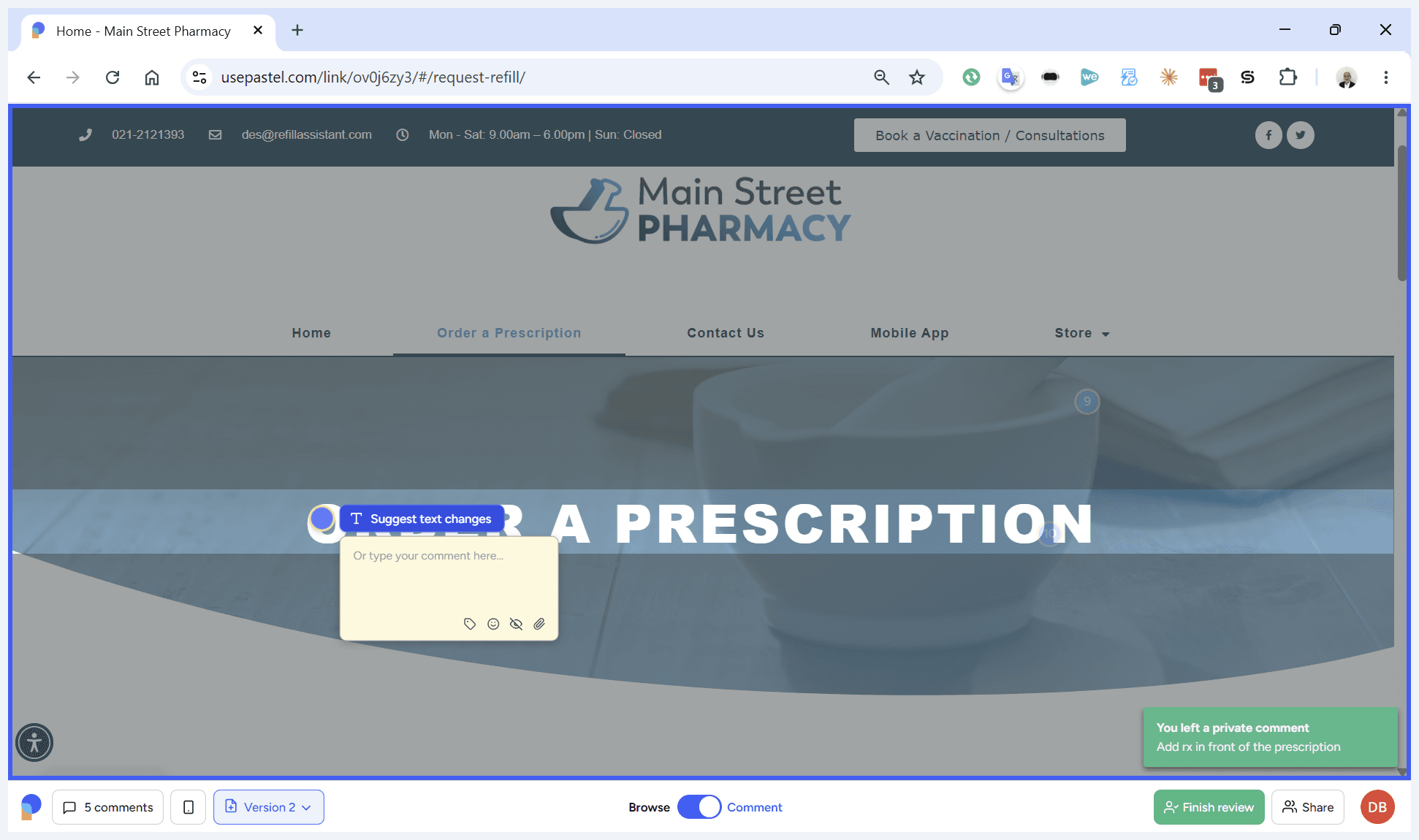
Click Suggest text changes from the comment box options.
Step #9: Click Suggest text changes from the comment box options.
10
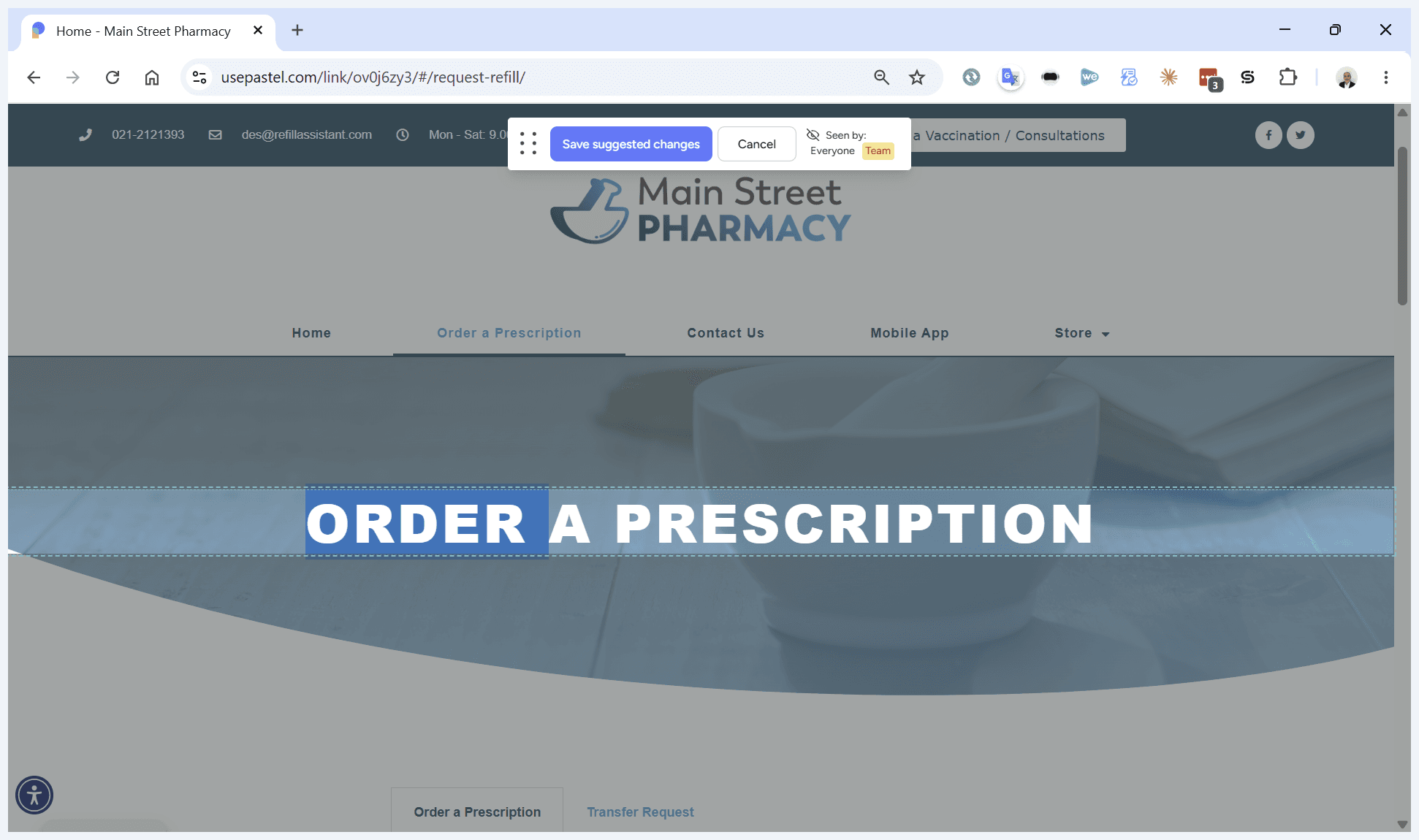
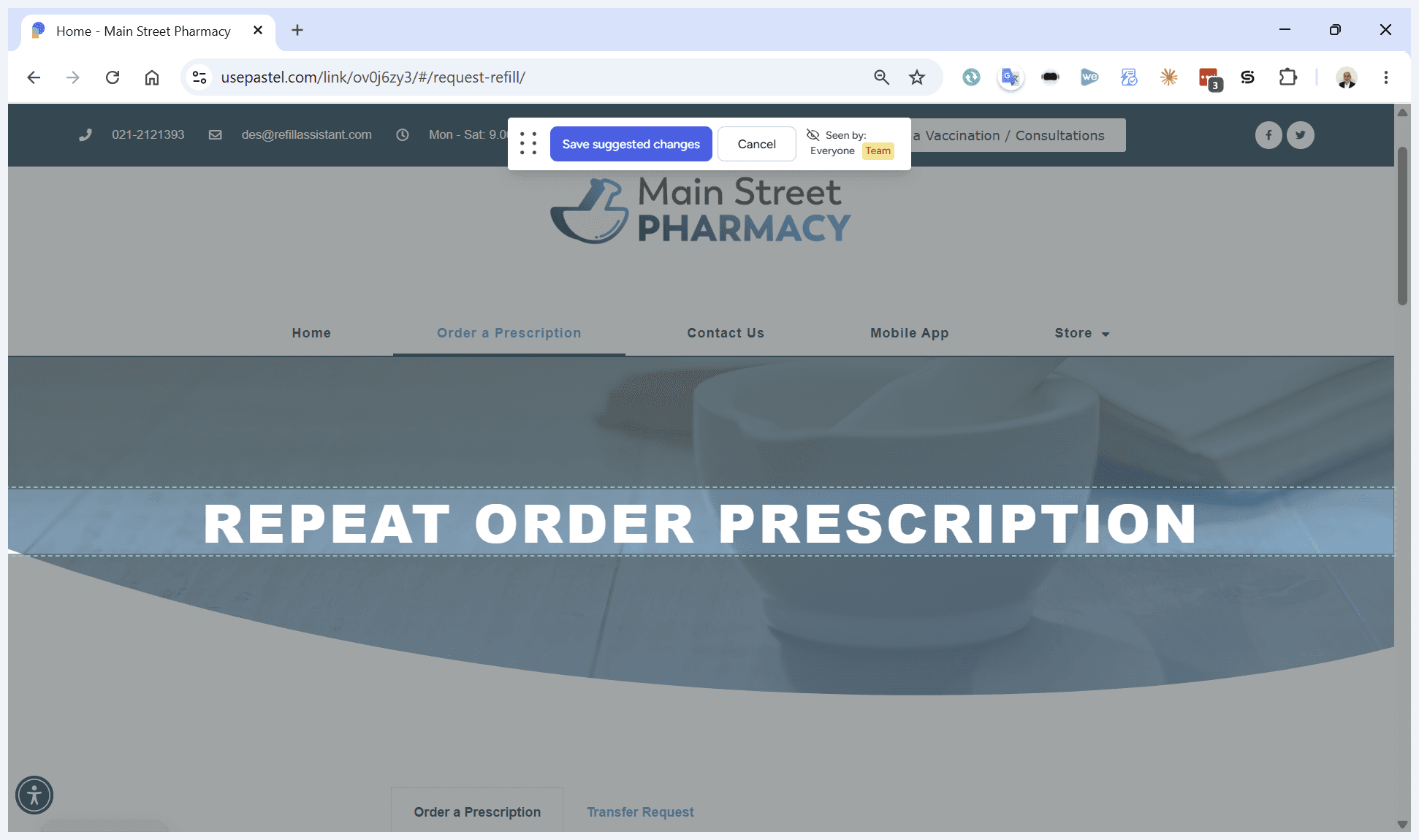
Double-click the text and type your new content directly onto the page.
Step #10: Double-click the text and type your new content directly onto the page.
11
Click Save suggested changes in the floating top toolbar to record your edits.
Step #11: Click Save suggested changes in the floating top toolbar to record your edits.

Navigating the Website

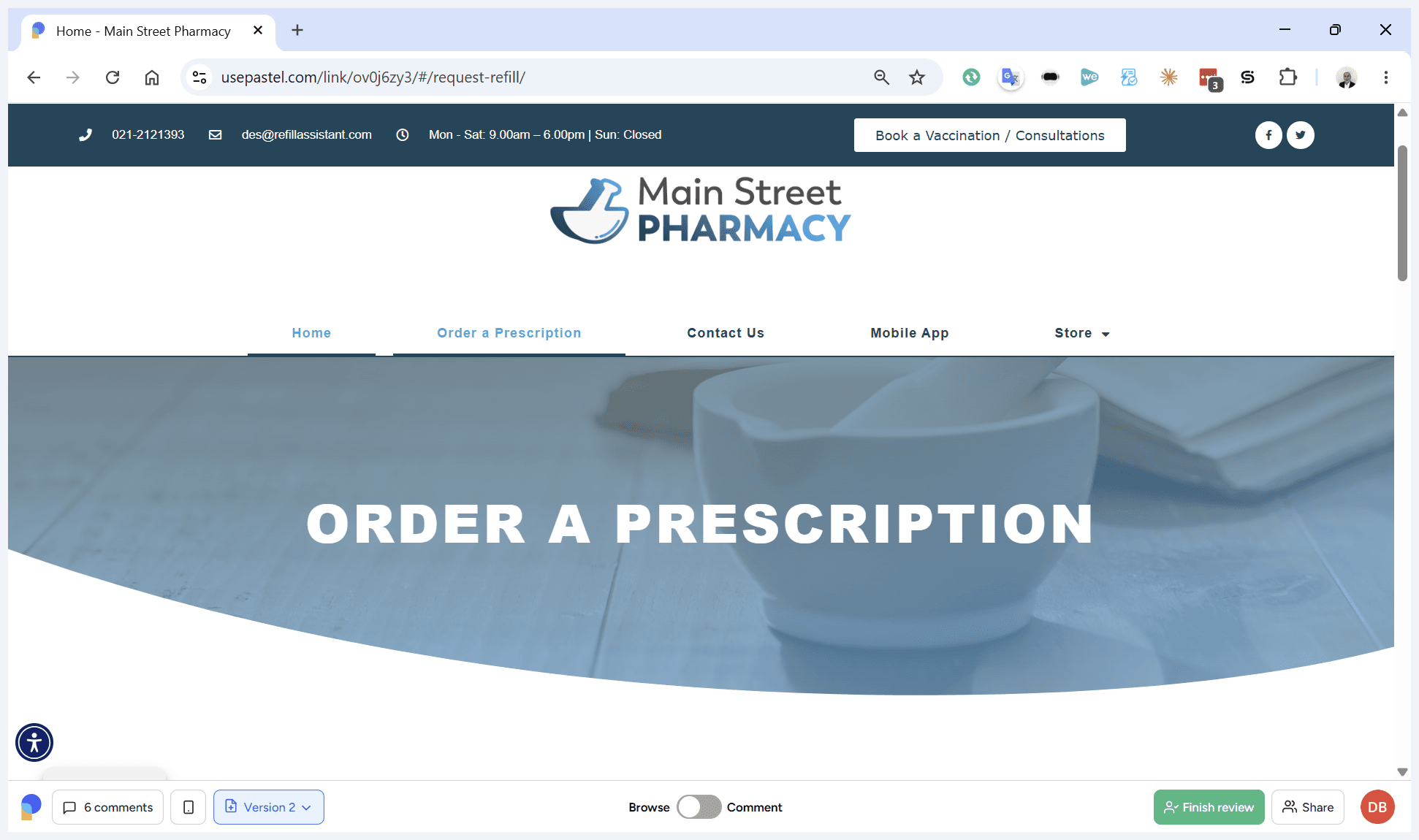
When you need to review a different page, you must switch out of Comment mode to Browse mode to navigate the website.
12
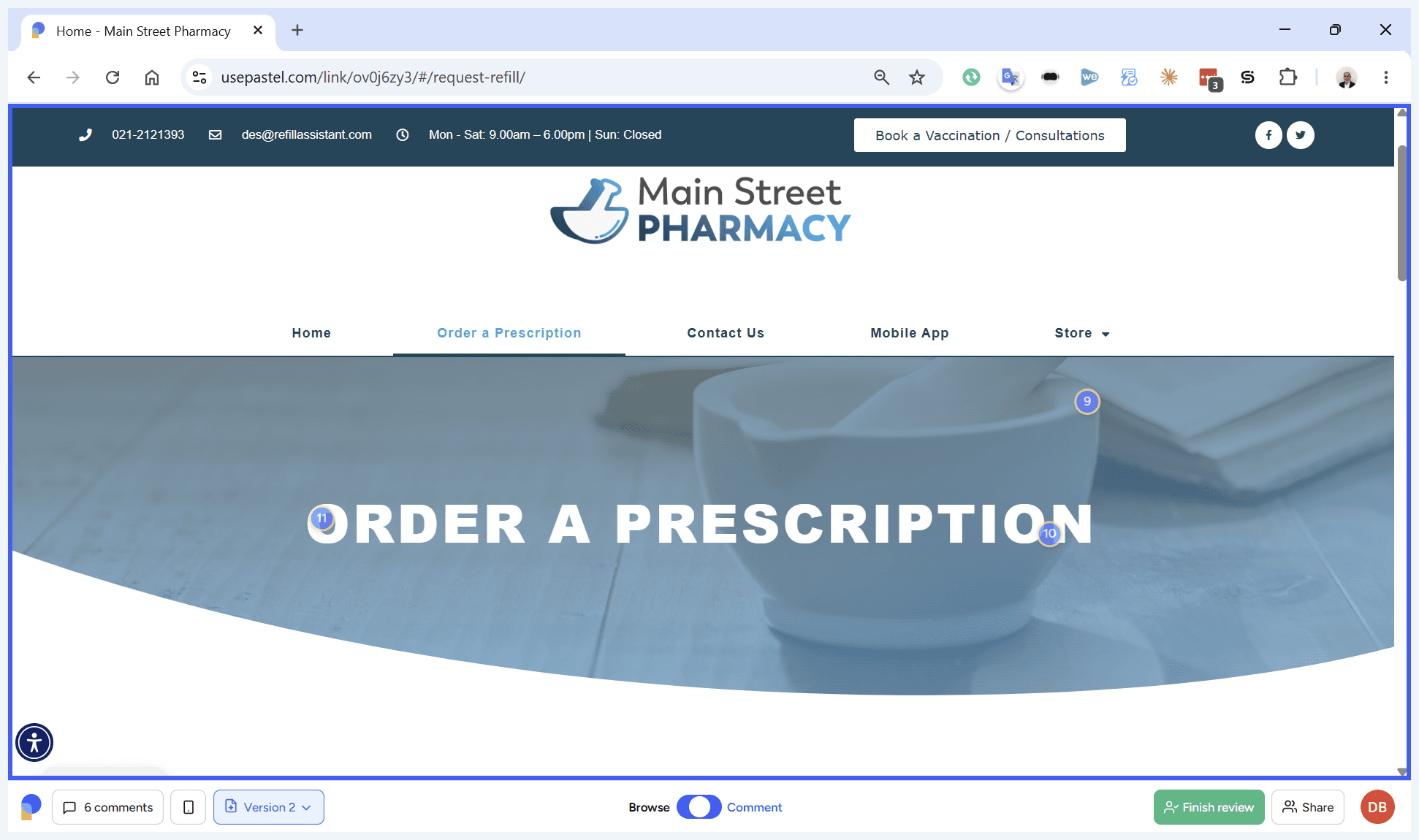
Click Browse in the bottom toolbar to view different pages on the website.
Step #12: Click Browse in the bottom toolbar to view different pages on the website.
13
Click on any standard website navigation menu item (like Home) to move to a new page.
Step #13: Click on any standard website navigation menu item (like Home) to move to a new page.
14
Click Comment again in the bottom toolbar to resume leaving feedback on the new page.
Step #14: Click Comment again in the bottom toolbar to resume leaving feedback on the new page.

Reviewing and Finishing

15
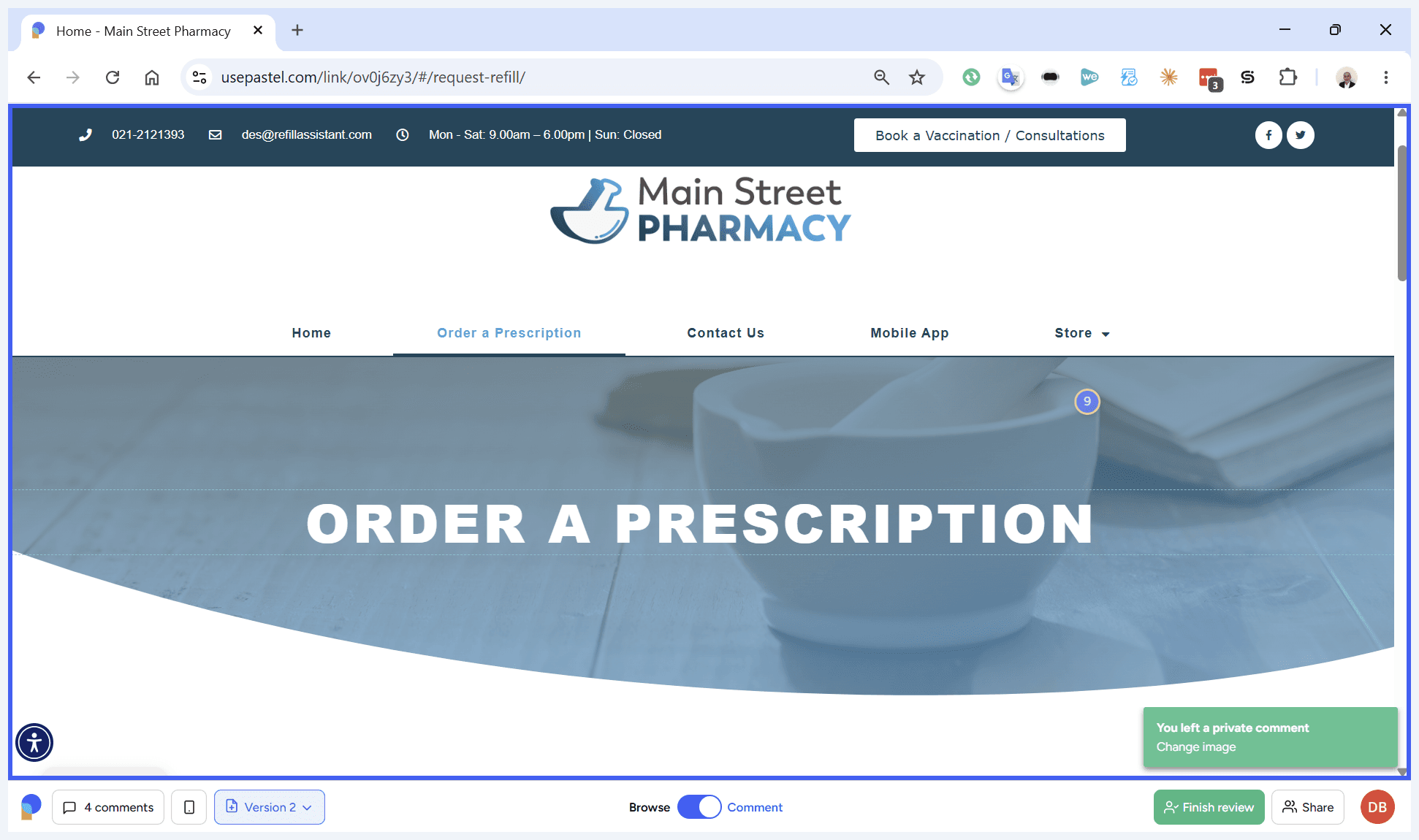
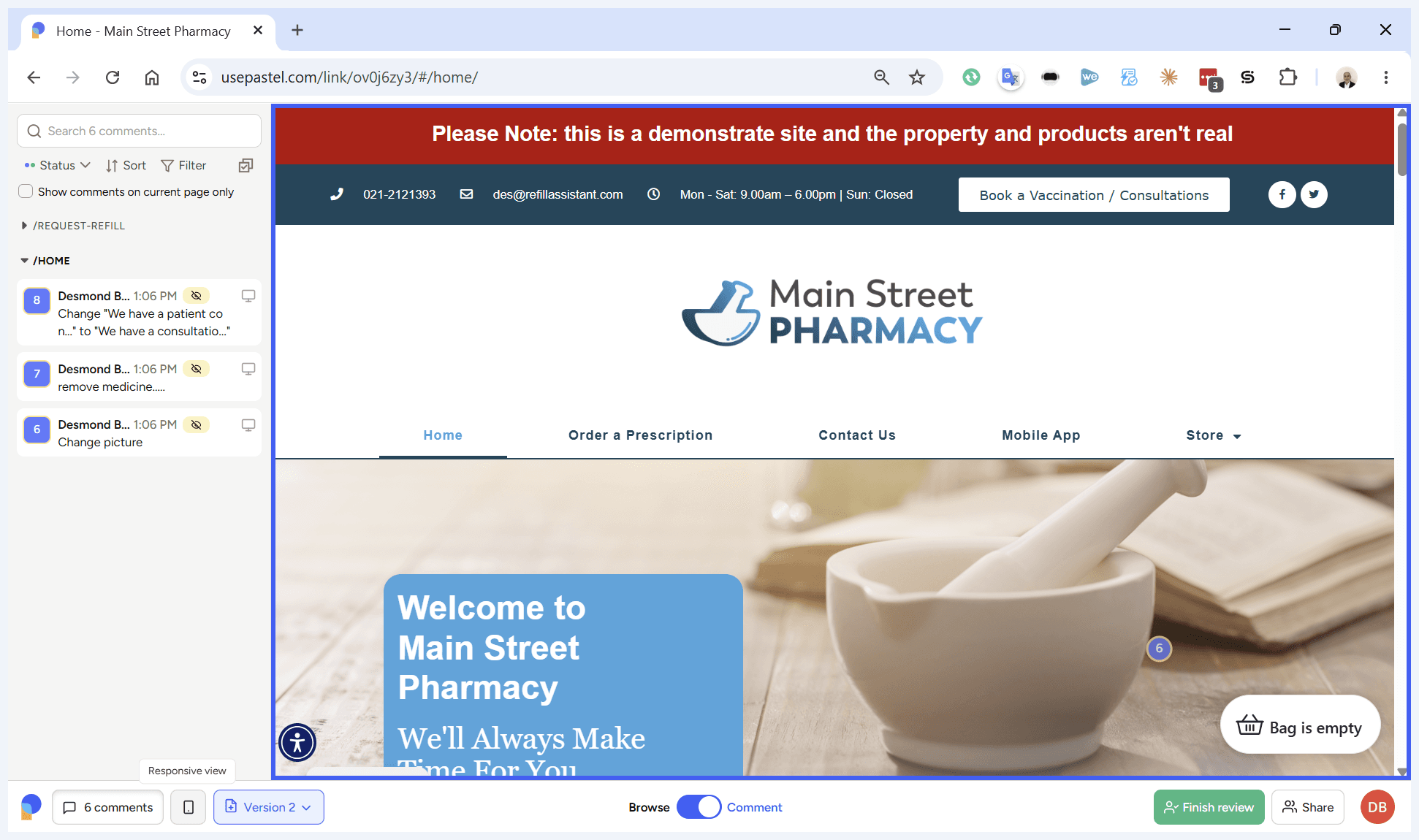
Click the Comments icon in the left-hand sidebar to view a comprehensive list of all the feedback you have left.
Step #15: Click the Comments icon in the left-hand sidebar to view a comprehensive list of all the feedback you have left.
16
To preview how the website looks on different devices, click the mobile device icon in the bottom left.
Step #16: To preview how the website looks on different devices, click the mobile device icon in the bottom left.
17
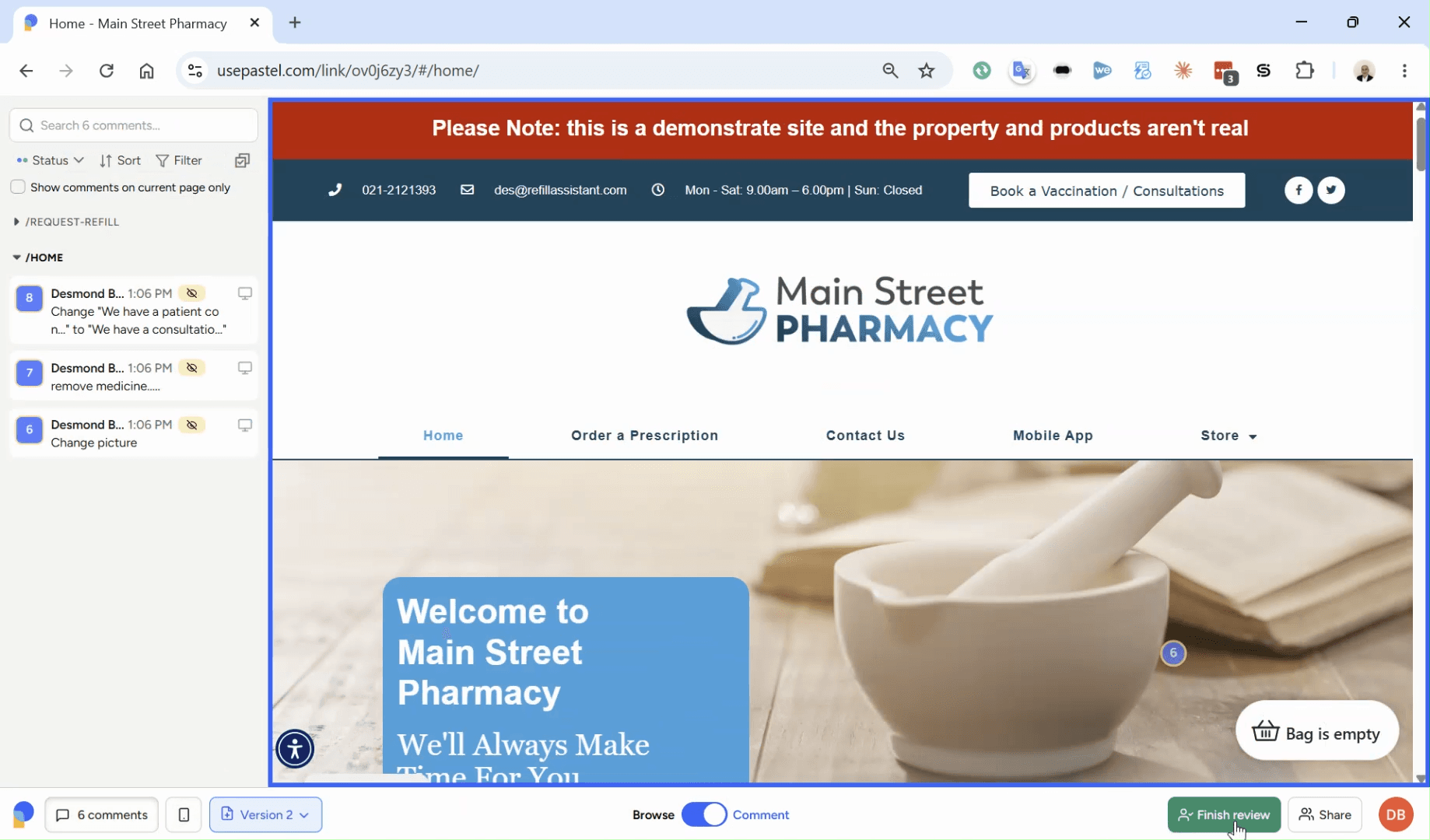
When you have completed all your updates on the site, click Finish Review.
Step #17: When you have completed all your updates on the site, click Finish Review.

Q: Does leaving a comment automatically change the live website?

A: No, the feedback tool acts as an overlay. It communicates your requested changes to the web development team without altering the actual live site.

Q: How do I navigate to another page to leave comments there?

A: Switch to "Browse" mode in the bottom toolbar. This disables the comment overlay and allows you to click links naturally. Once on the new page, switch back to "Comment" mode.

Q: Can I attach a file to my comment?

A: Yes, when leaving a comment on an element, you can upload and attach a file (such as a replacement image) directly within the comment box.

Term

Definition

Browse Mode

A setting that allows you to navigate the website normally by clicking links and menus without triggering annotations.

Comment Mode

An interactive overlay setting that lets you click on any element on the page to leave feedback or attach files.

Suggest Text Changes

A feature that lets you directly edit the text on the page to preview and communicate copy changes.