Quick Troubleshooting Guide for Sound Board Issues During Practice
Learn how to quickly troubleshoot common sound board problems during practice. Step-by-step instructions to resolve audio issues and ensure smooth rehearsals.
In this guide, we'll learn how to troubleshoot a sound board when instruments and microphones are not producing sound during practice. We will focus on checking the mute settings, especially the "mute all" button in the amp room, and what steps to take if unmuting does not resolve the issue.
Let's get started
Okay. Quick troubleshooting for the sound board. If it's during practice and the keyboard player says, "I can't hear myself," and you also notice you can't hear the keys, They have the keyboard on.
Your guitar player is playing. There's no sound.
You have a singer on stage, but the microphone isn't working, and you're unsure what's happening. Everything is loaded. You are scanning through.
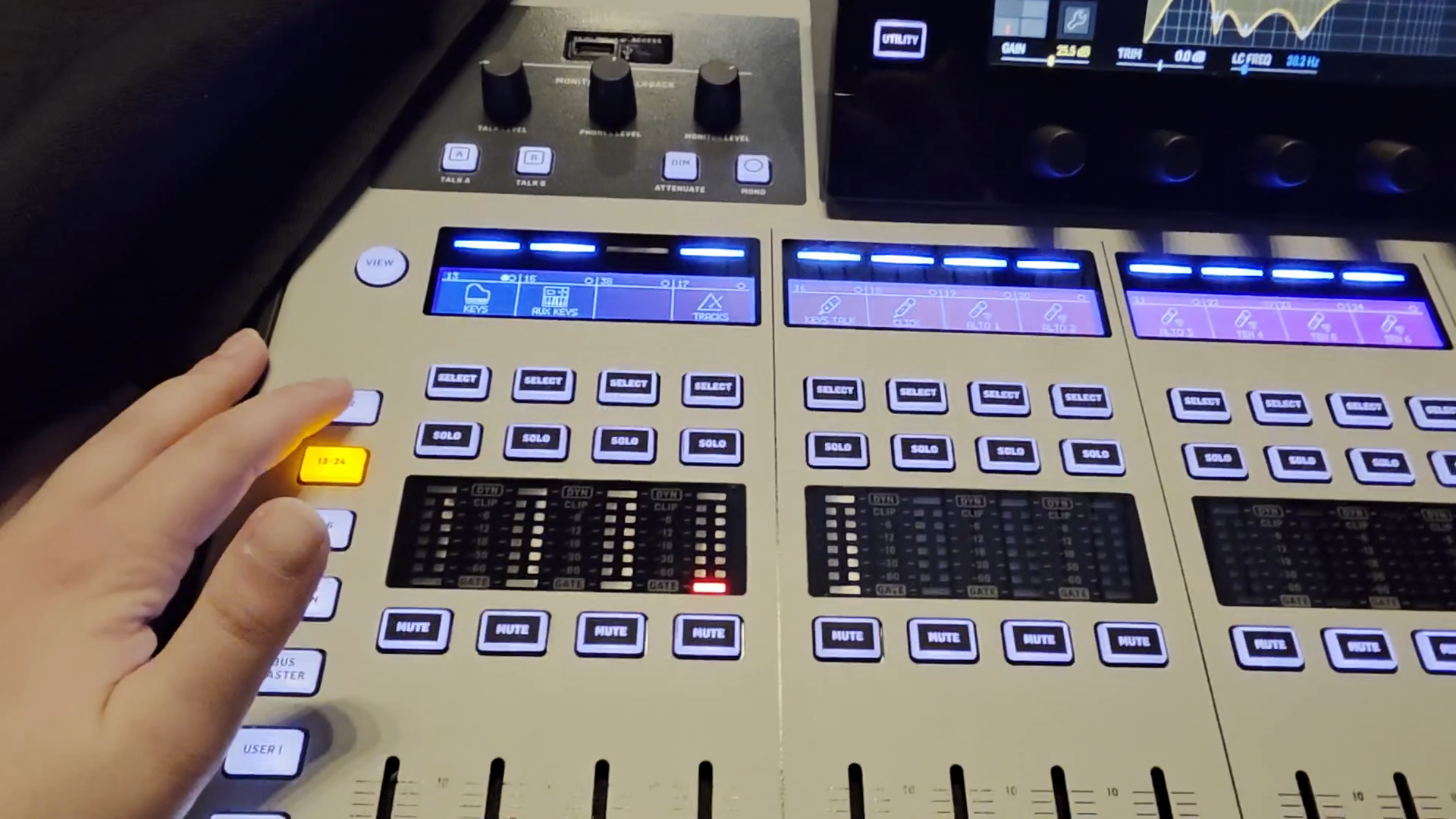
Keys aren't muted.
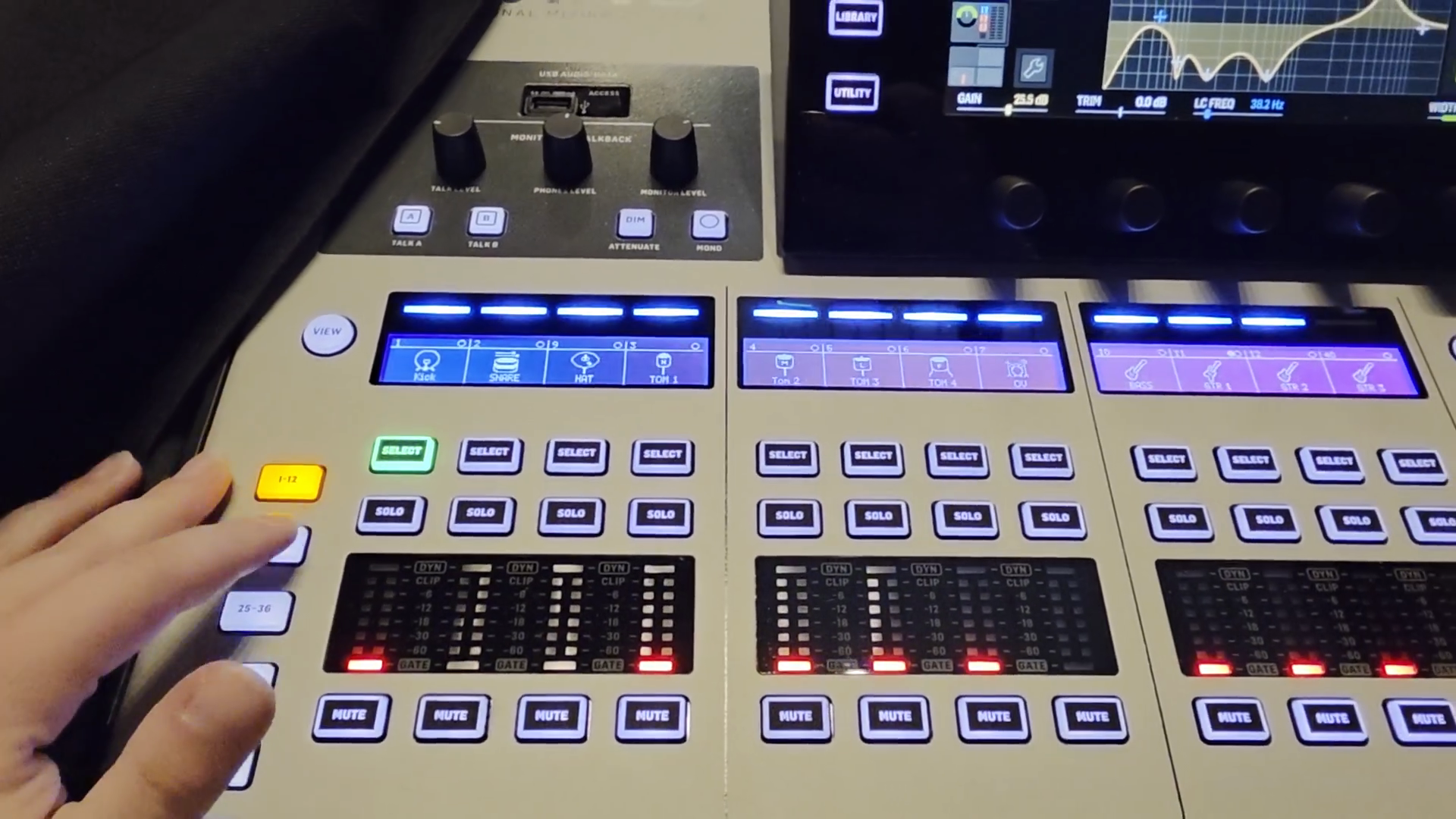
The guitar is not muted. Mics are not muted.
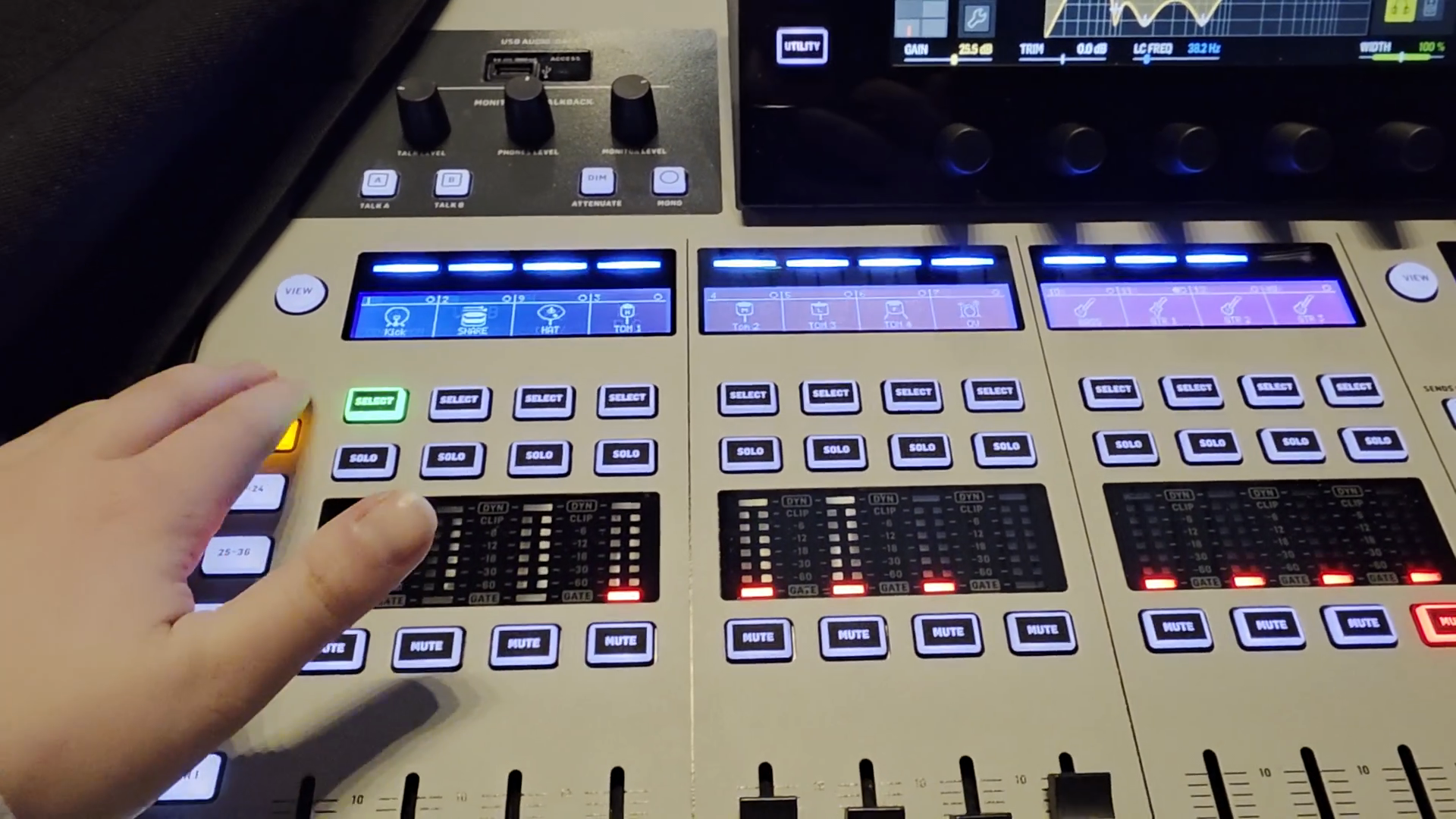
You might wonder, "What is going on?" Occasionally, there is a small button in the back room that we need to check that.
We need to go back to the amp room.
Normally, the lights are off in the amp room because there's no reason to keep them on. I always turn them on whenever I come back here because I don't like the dark.
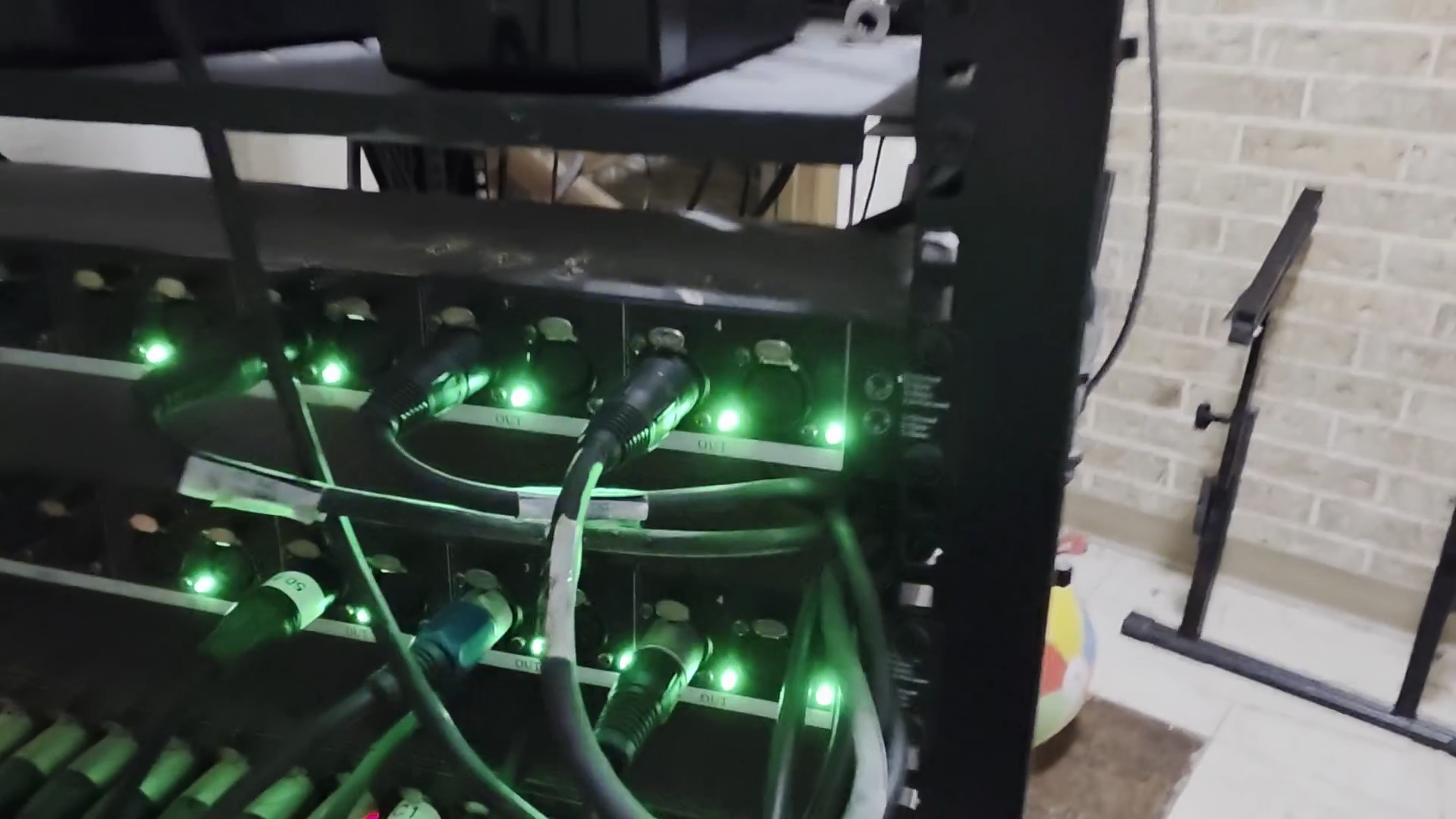
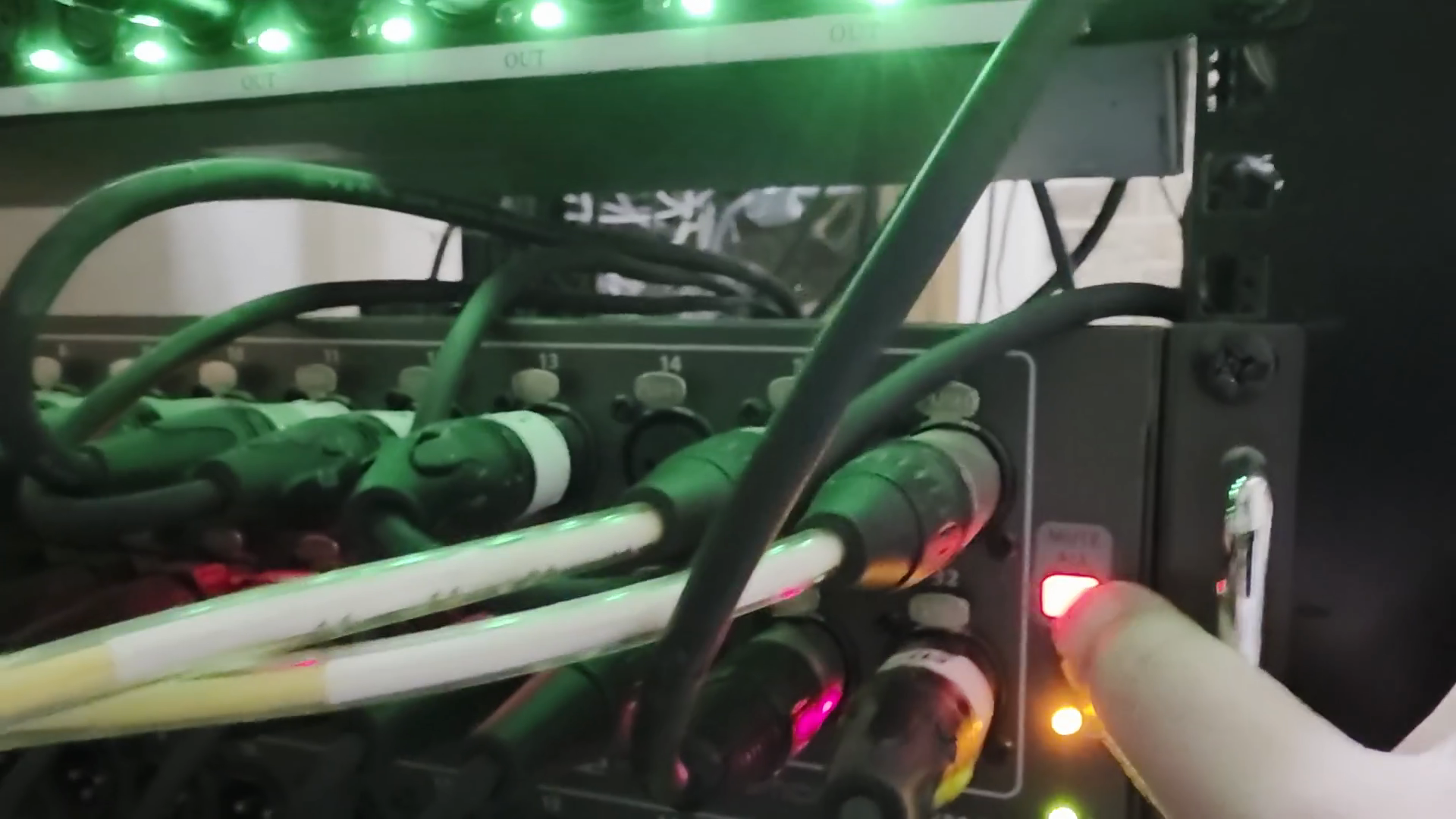
If that does not work and it is not unmuting, talk to Kevin or I. We will instruct you on what to do next.
If we can avoid turning off the entire tower, that is best. That's our last resort.