How to Rebook and Process Partial Refunds in FareHarbor
Learn how to rebook a customer to a new tour, apply a promo code, and process a partial refund for the price difference using the FareHarbor dashboard.
By Jessica Herford
This guide explains how to rebook a customer to a different tour, apply a new promo code, and process a partial refund for any resulting overpayment using the FareHarbor dashboard.
This process is useful for front desk staff, reservation agents, and customer service teams who manage booking modifications, schedule changes, and price adjustments.
Select the New Tour
1
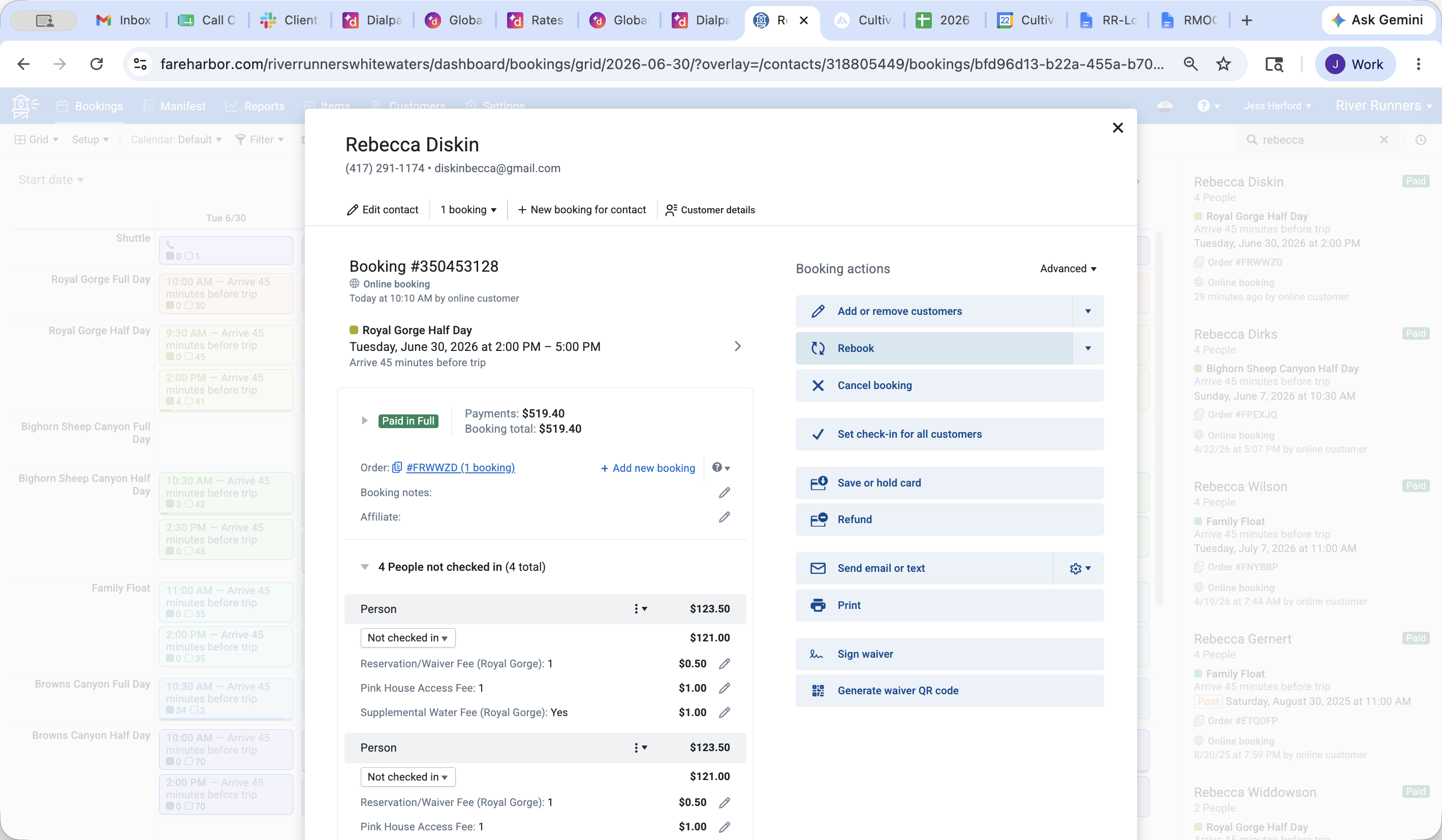
Click Rebook in the booking actions menu of the customer's current reservation.
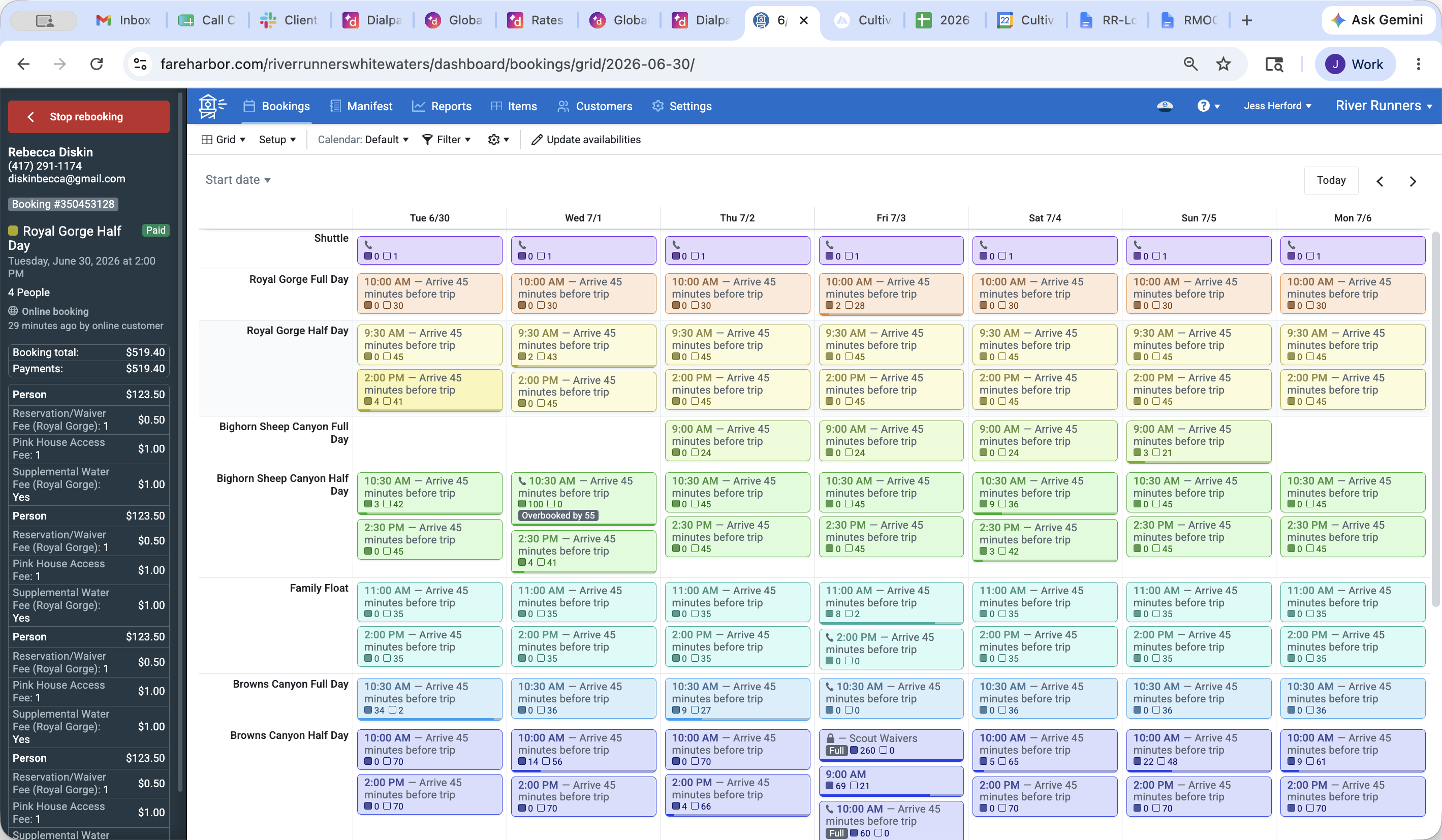
Navigate the tour availability calendar to find the requested new date and activity.
2
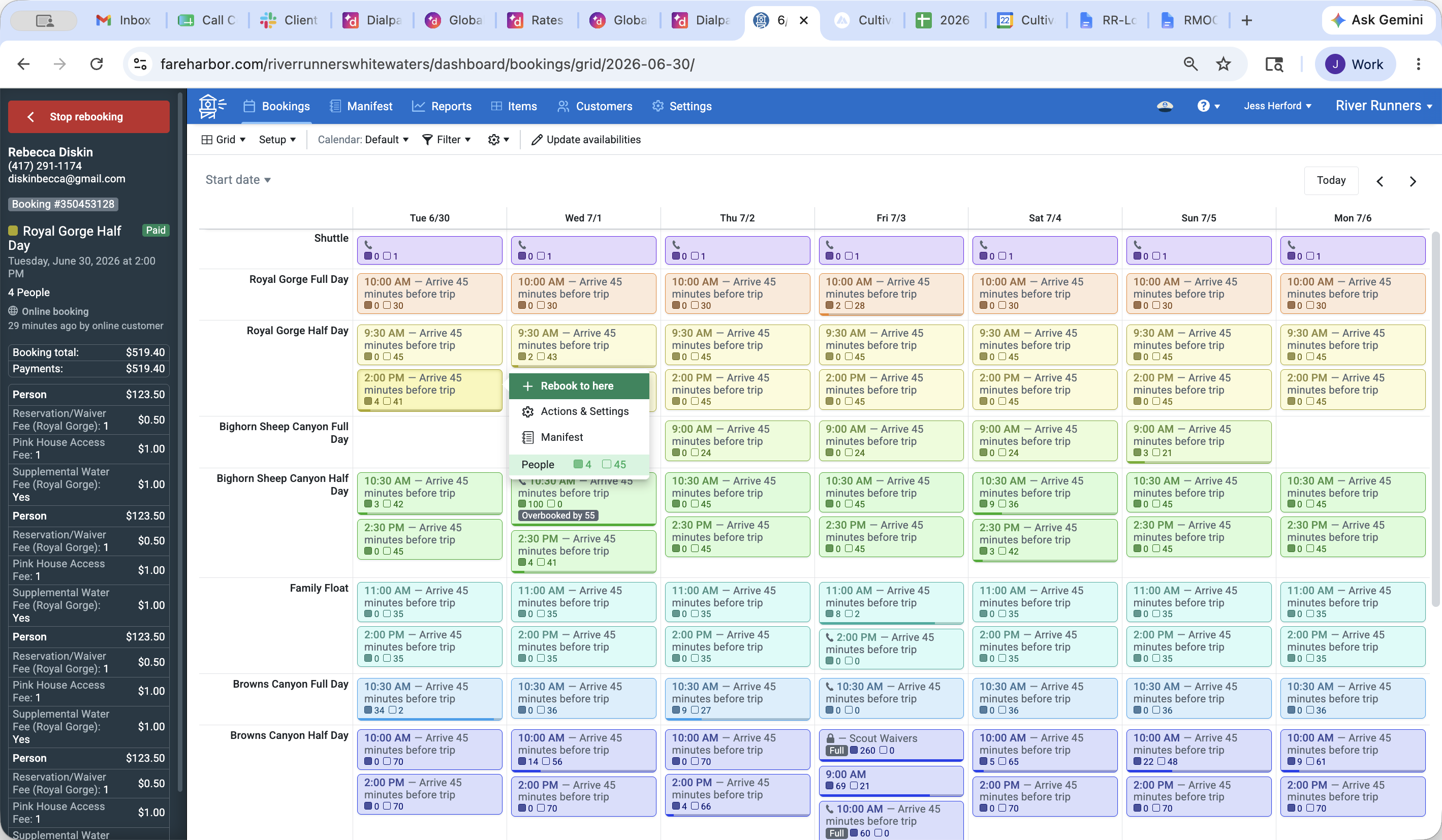
Select the desired tour and time slot on the grid.
3
Click + Rebook to here in the pop-up menu.
Finalize Rebooking and Apply Promotions
4
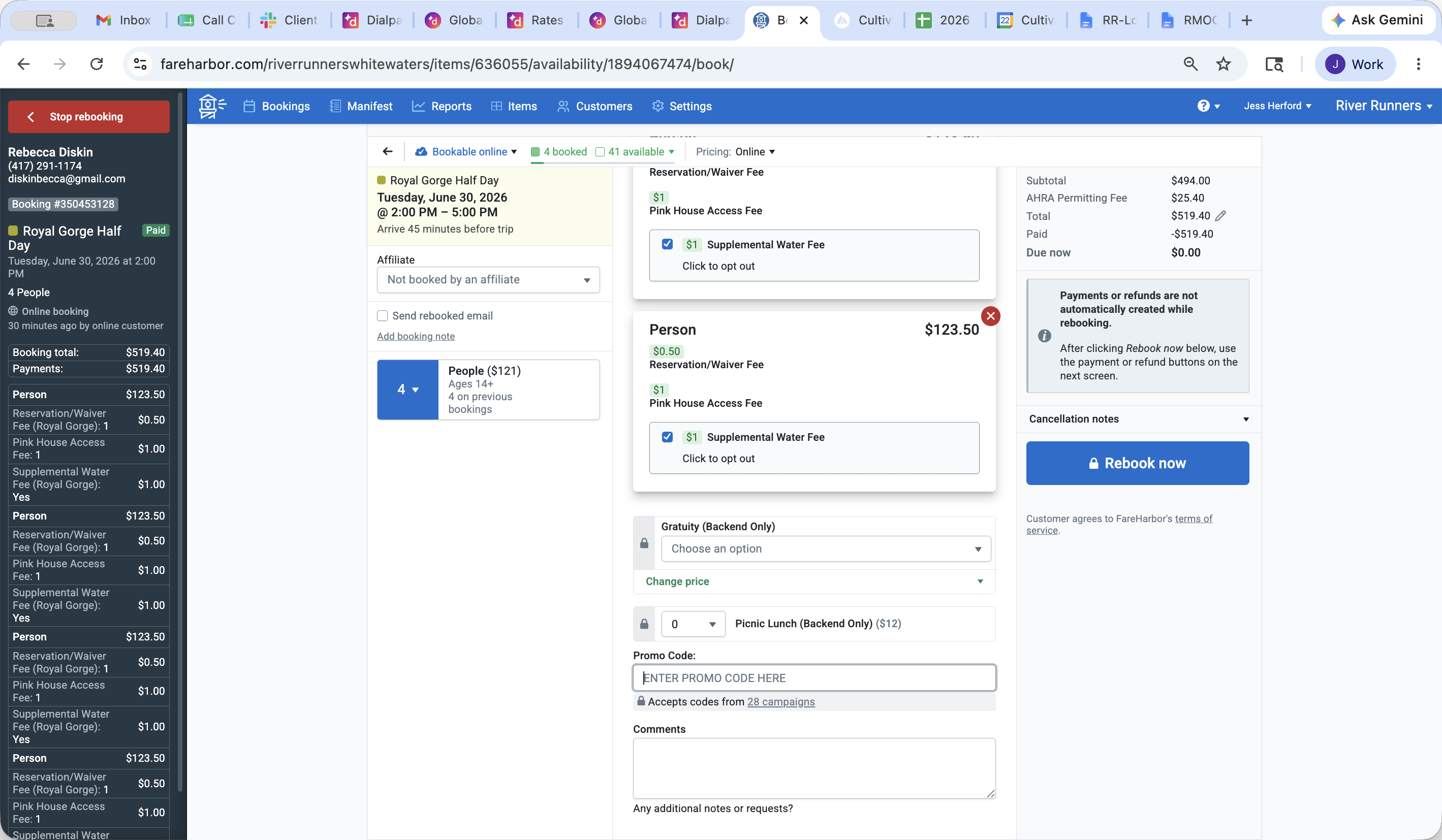
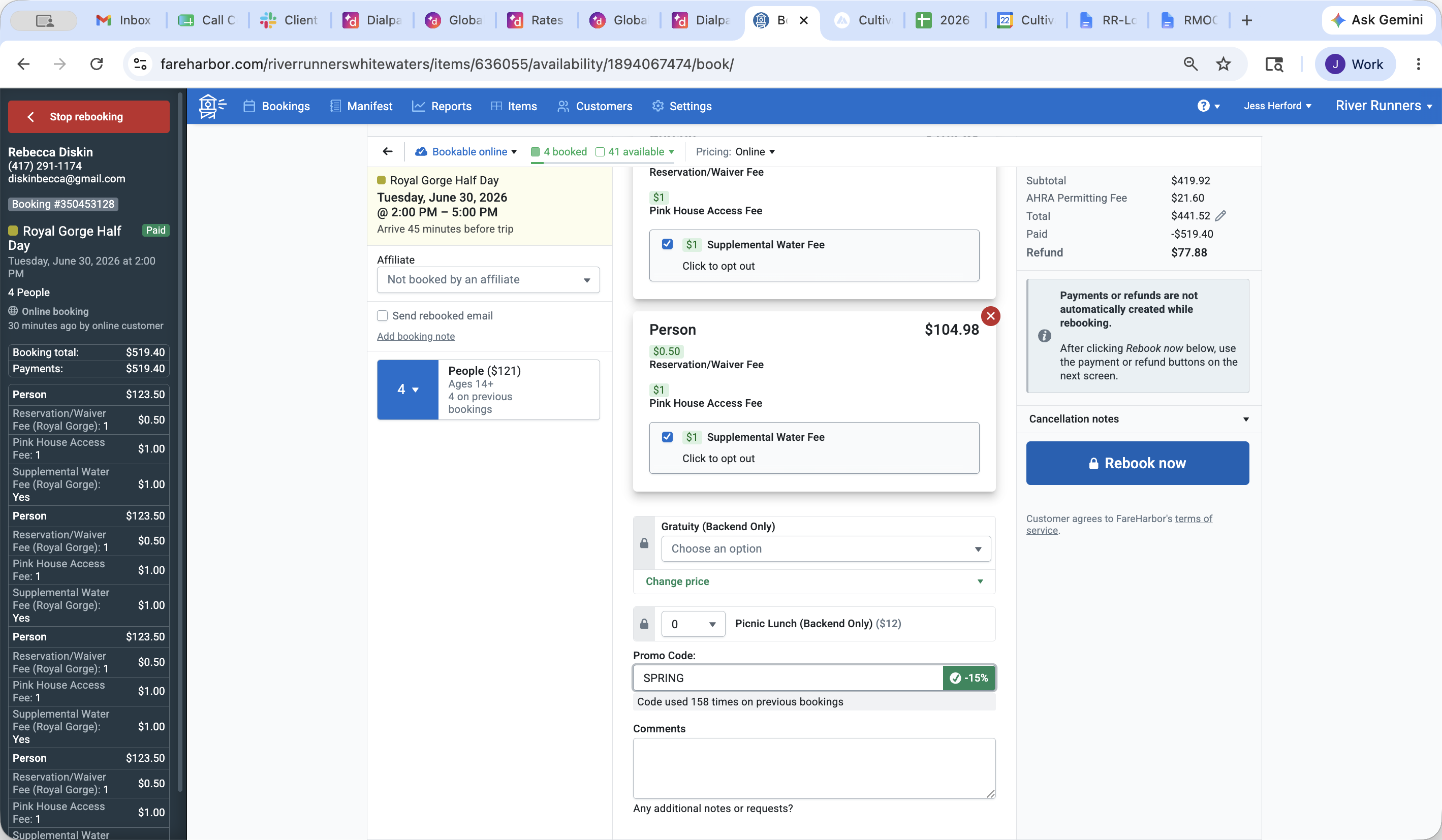
Click the Promo Code field to enter any applicable discount codes.
5
Click Rebook now to confirm and save the reservation changes.
Process the Partial Refund
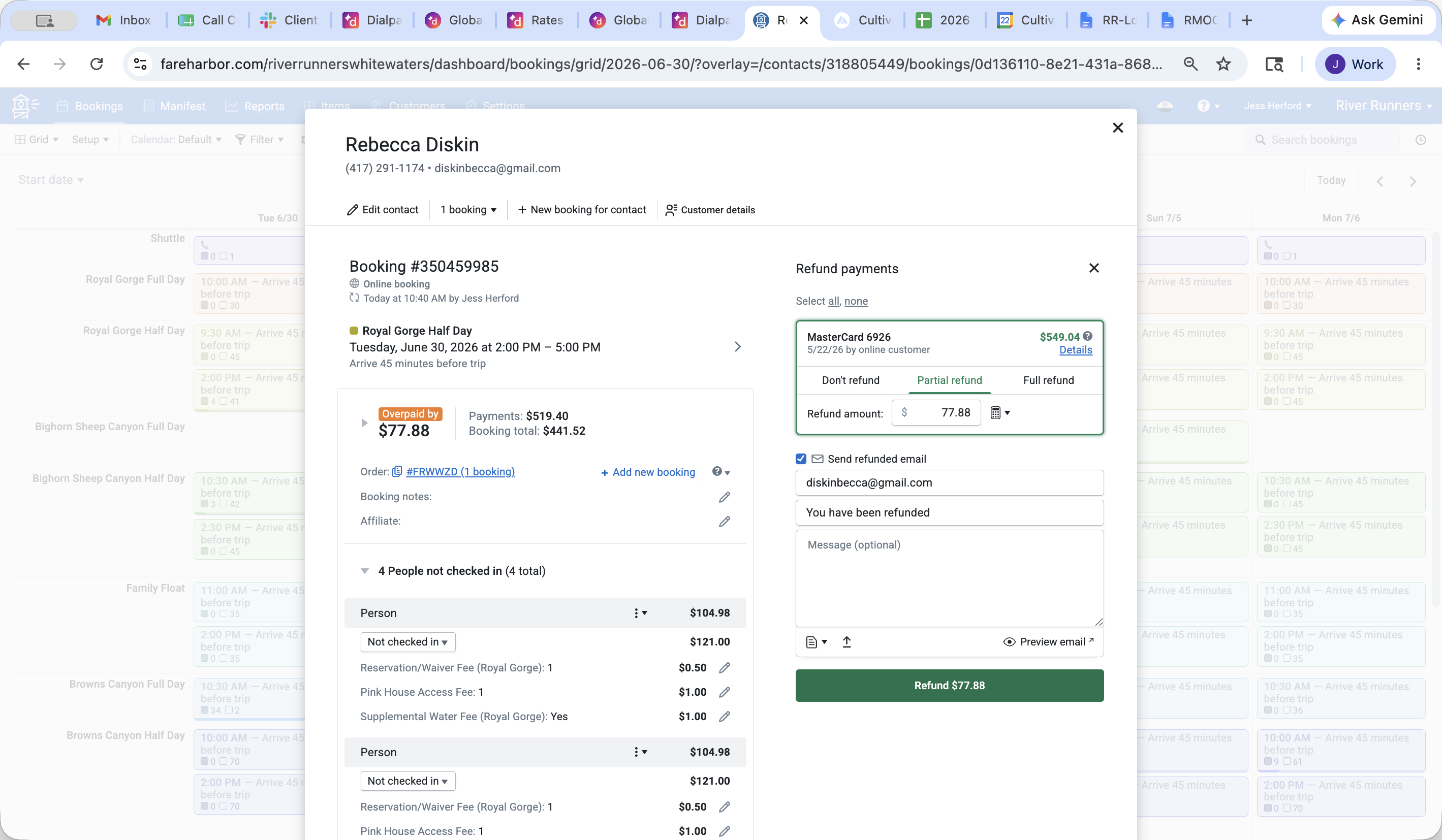
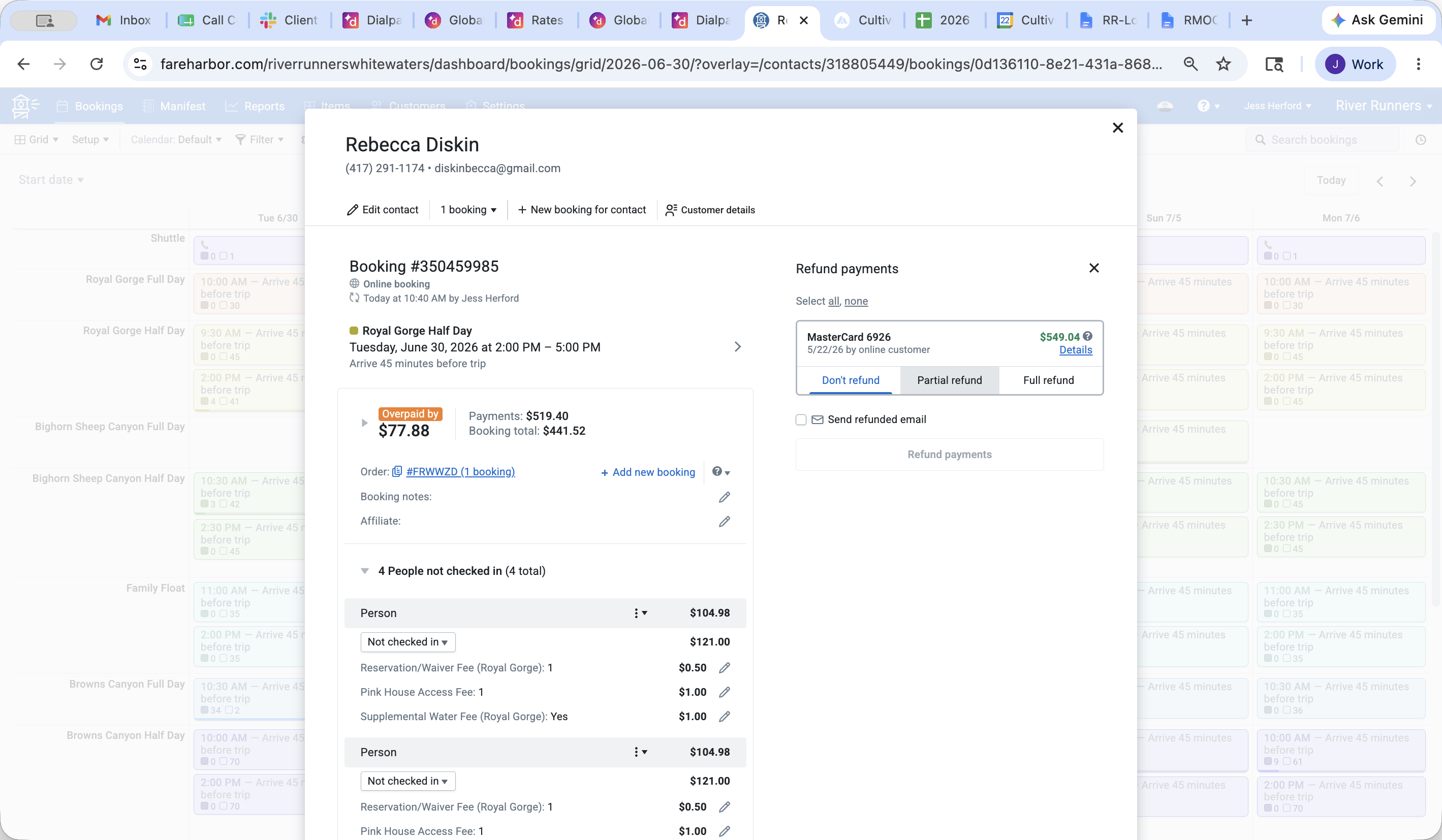
Once the rebooking is complete, open the payment section of the updated booking modal to handle the overpayment.
6
Click Partial refund in the refund payments panel.
7
Verify the amount of the overpayment and click the Refund button to return the funds to the customer's original payment method.