Icon

Reconcile Monthly Membership Renewals for Lake Bronson

Learn how to process monthly membership payments by exporting Shopify POS data and cross-referencing it with the AANR Lake Bronson tracking spreadsheet.

By Michael Coon

Reconcile monthly membership renewals by exporting recent Point-of-Sale (POS) transactions from Shopify and cross-referencing them against the master tracker. Completing this process ensures that members who paid are accurately credited and outstanding balances effectively roll over to the next billing cycle.

This guide applies to administrative staff and board members responsible for monthly invoicing, payment validation, and tracking AANR membership statuses. You perform this reconciliation at the end of each month before generating new invoices for the upcoming billing period.

Prerequisites

Before you begin, ensure you have access to:

  • The AANR website (as a certified officer).

  • The Lake Bronson Shopify admin dashboard.

  • The Lake Bronson office Gmail account.

  • The AANR LB Member Tracking and POS All Time Excel spreadsheets (typically maintained on an office thumb drive).

Determine the last recorded transaction

You need to identify the exact date your tracking records last left off so you only pull new orders from Shopify.
1
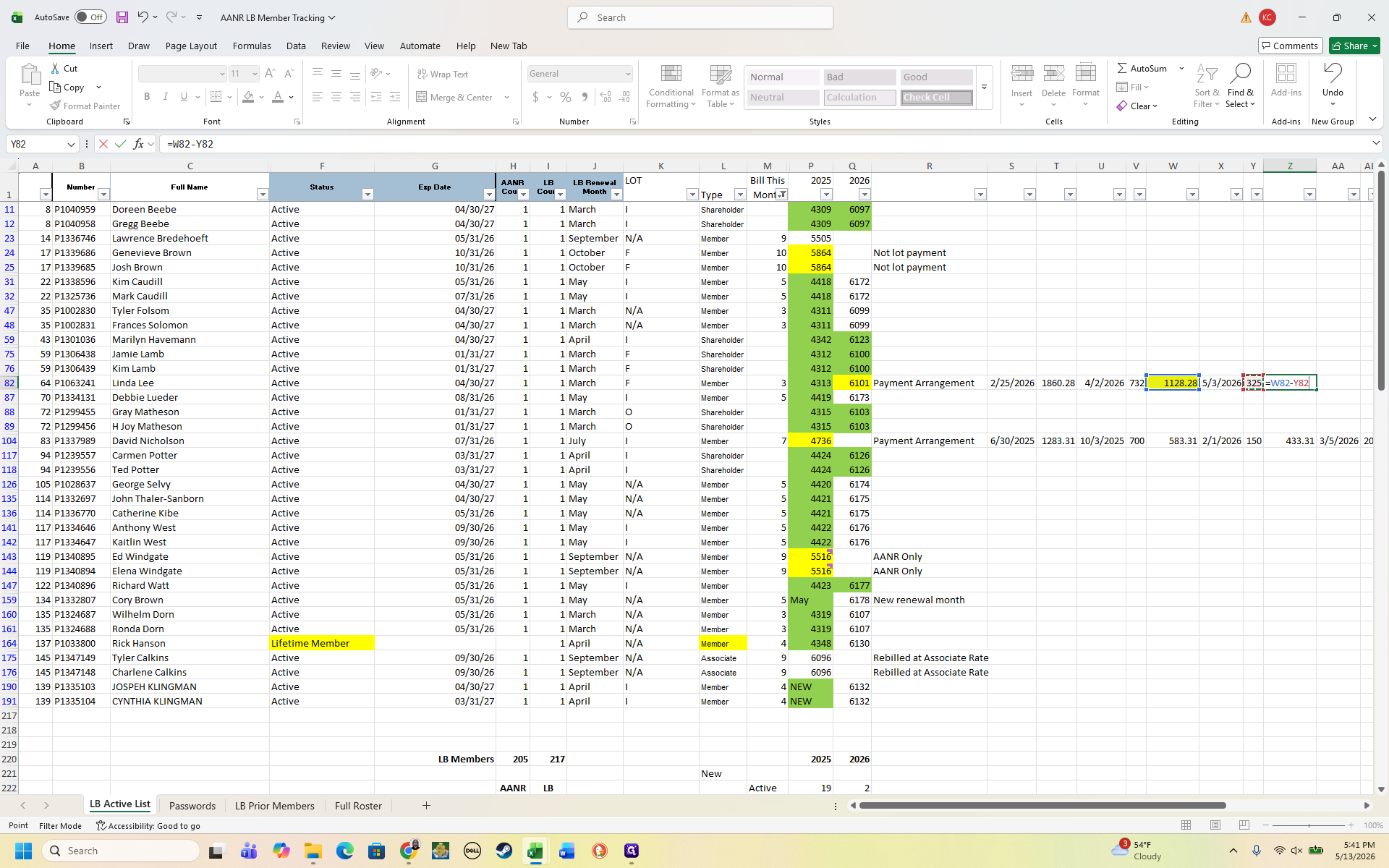
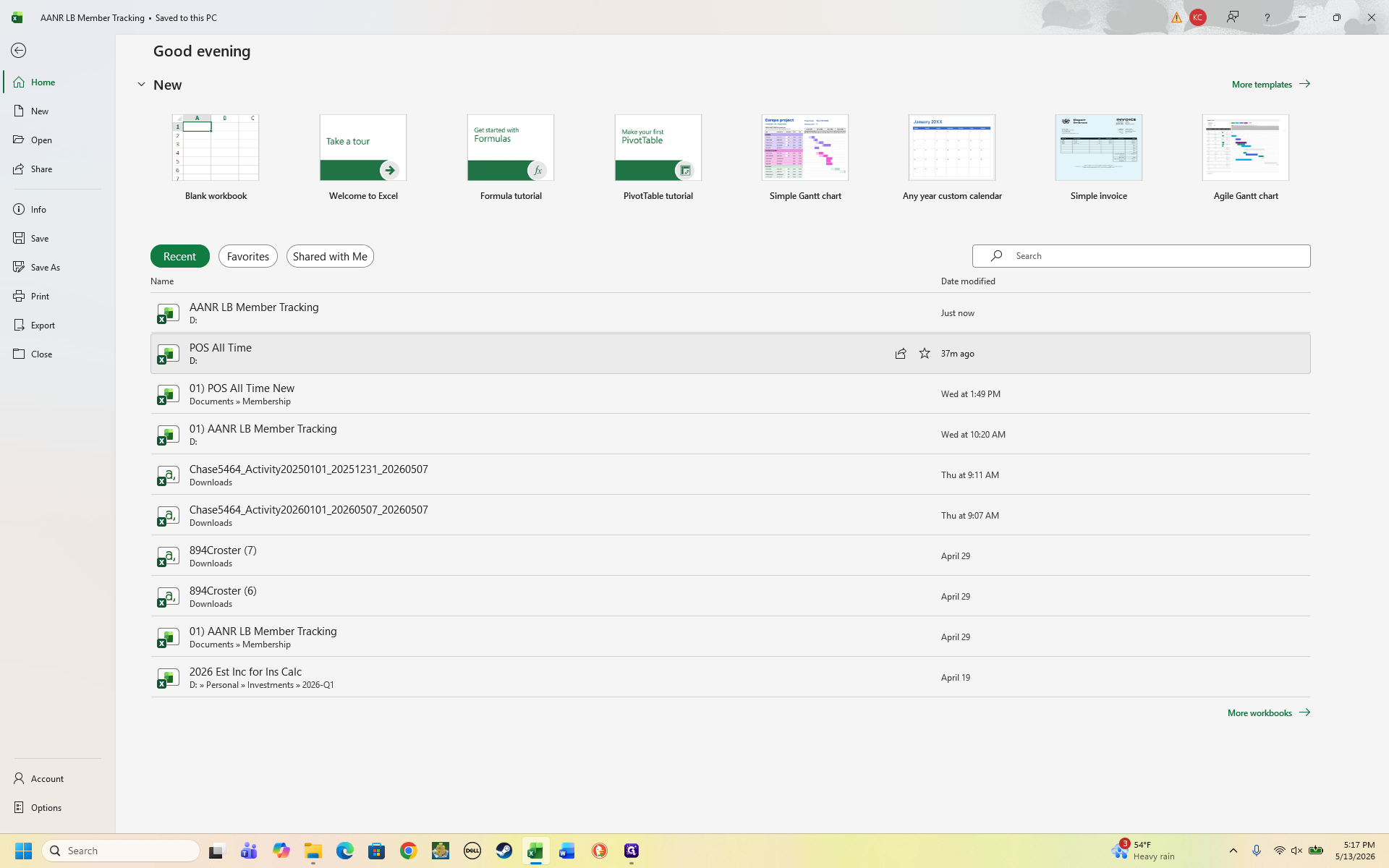
Open the AANR LB Member Tracking spreadsheet.
Step #1: Open the AANR LB Member Tracking spreadsheet.
2
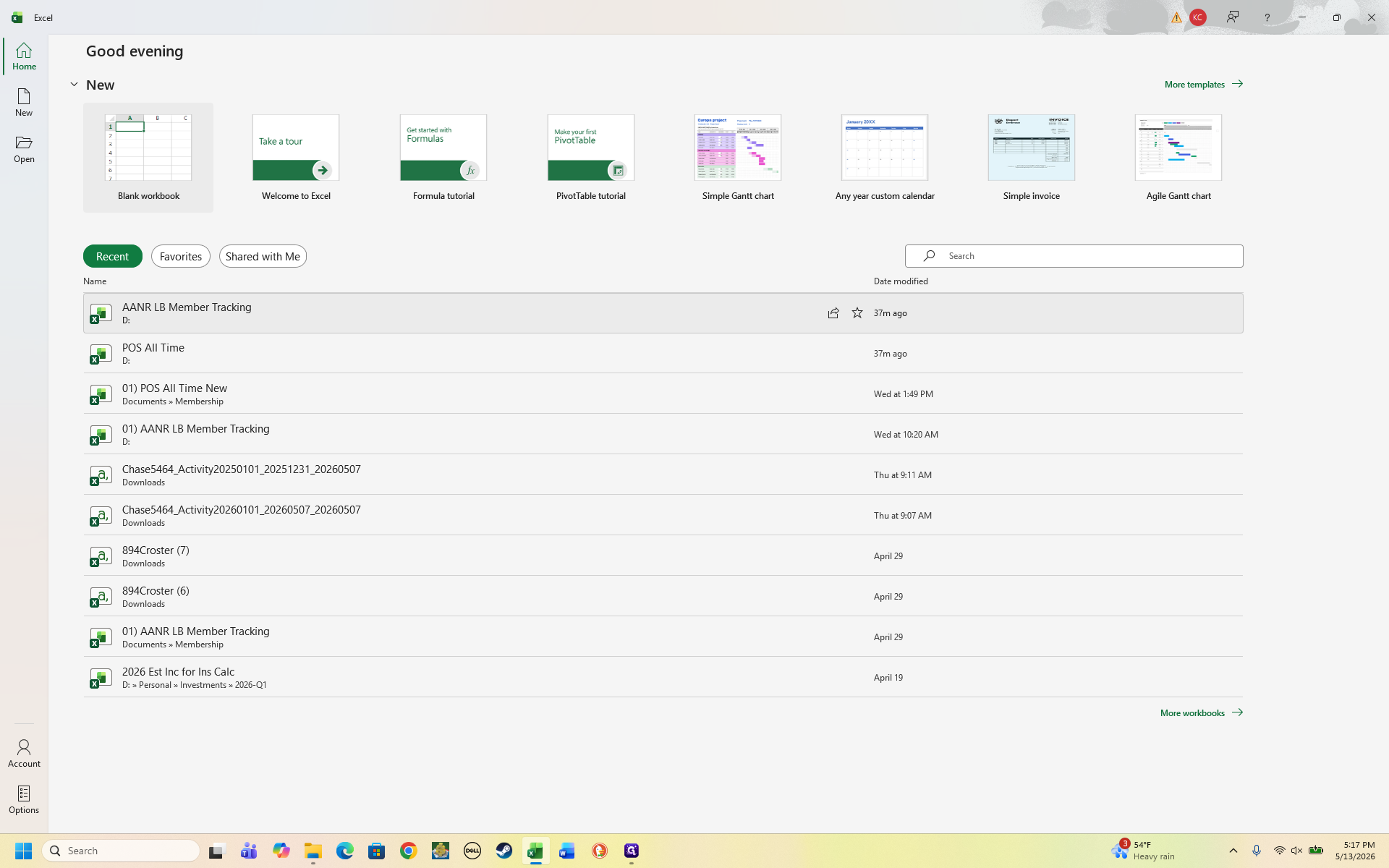
Open the POS All Time spreadsheet.
Step #2: Open the POS All Time spreadsheet.
3
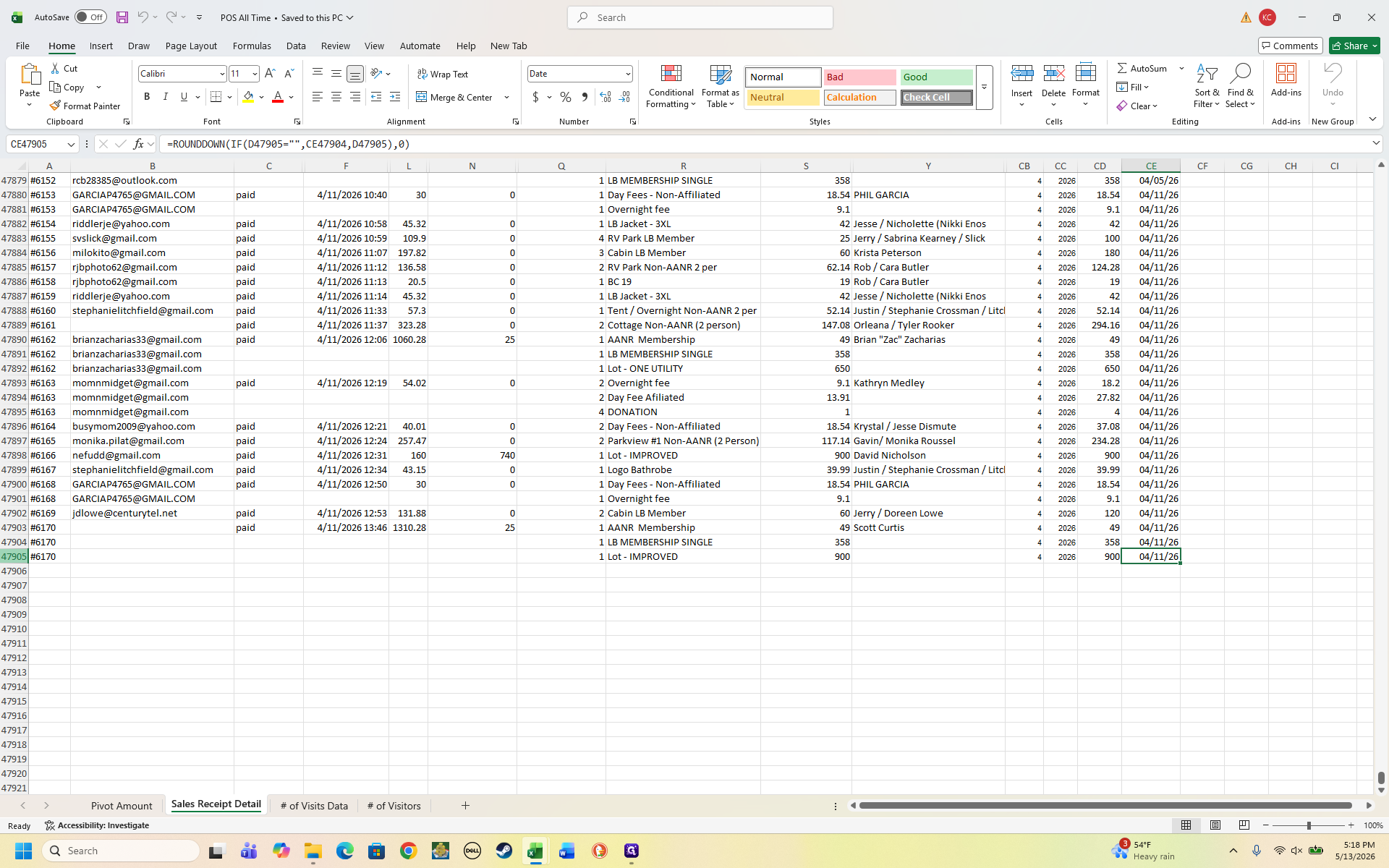
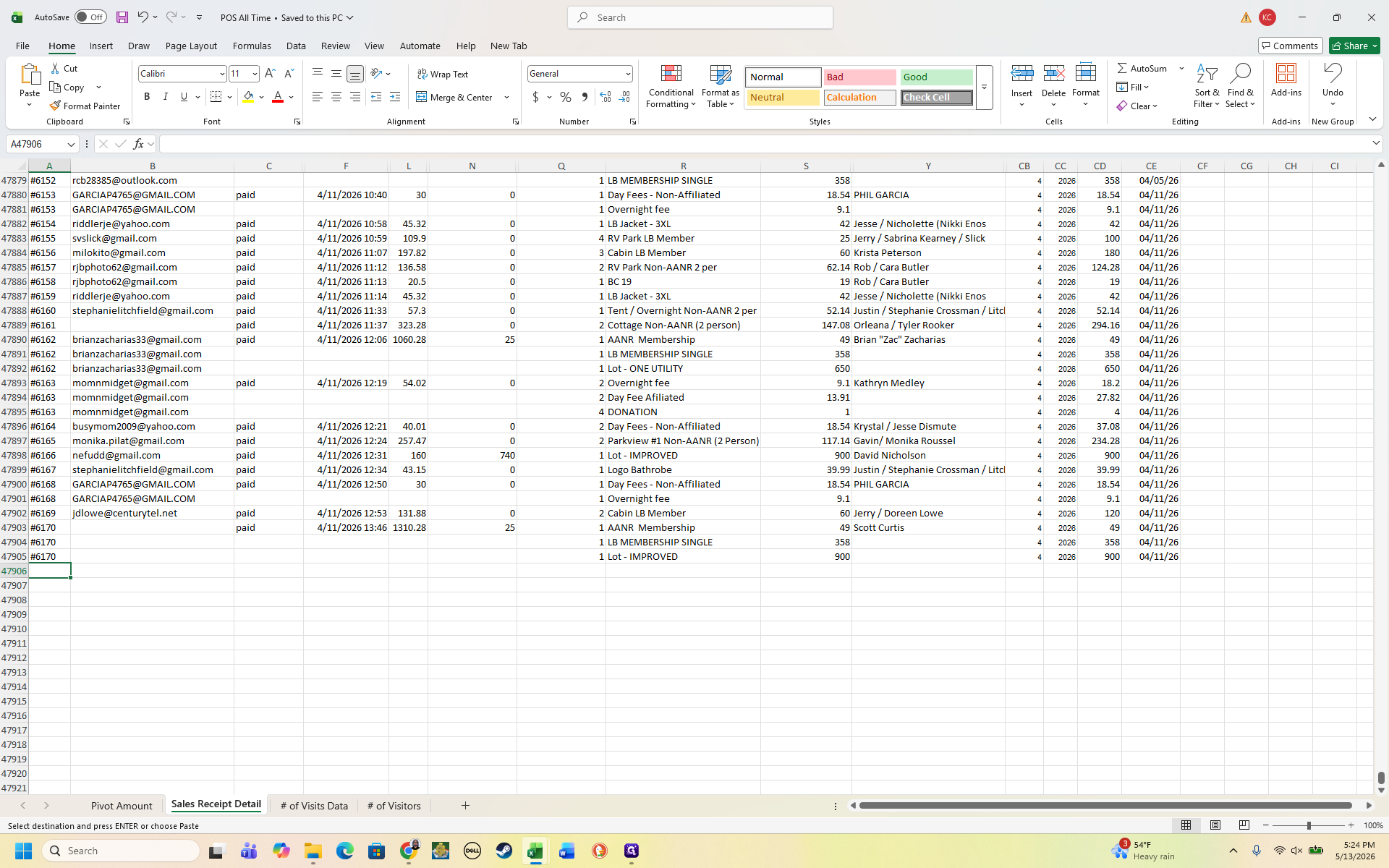
Navigate to the Sales Receipt Detail tab within the POS All Time spreadsheet and scroll to the bottom of the list to locate the date and order number of the last recorded transaction.
Step #3: Navigate to the Sales Receipt Detail tab within the POS All Time spreadsheet and scroll to the bottom of the list to locate the date and order number of the last recorded transaction.

Export orders from Shopify

Pull a clean list of all transactions made since your last reconciliation.
4
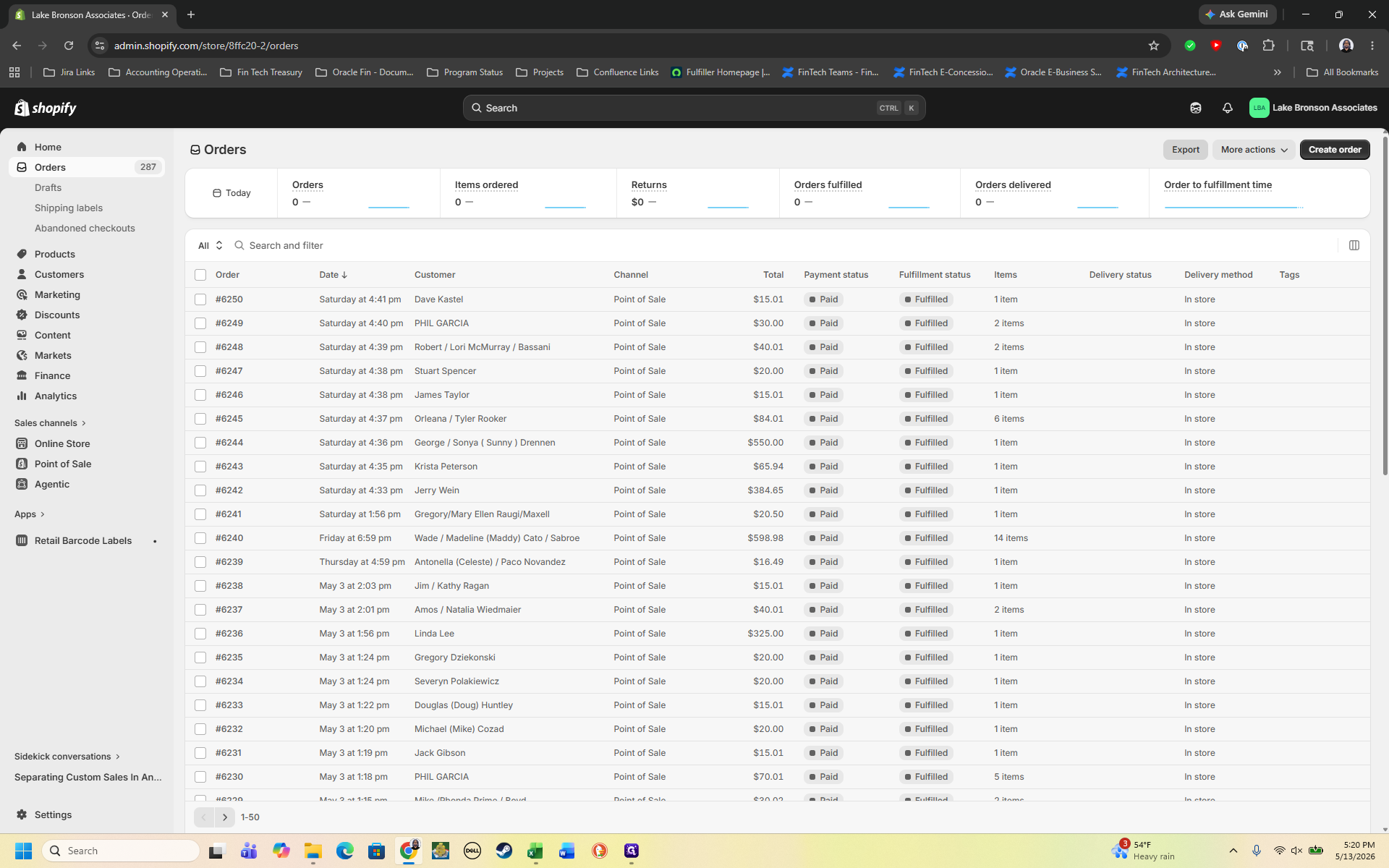
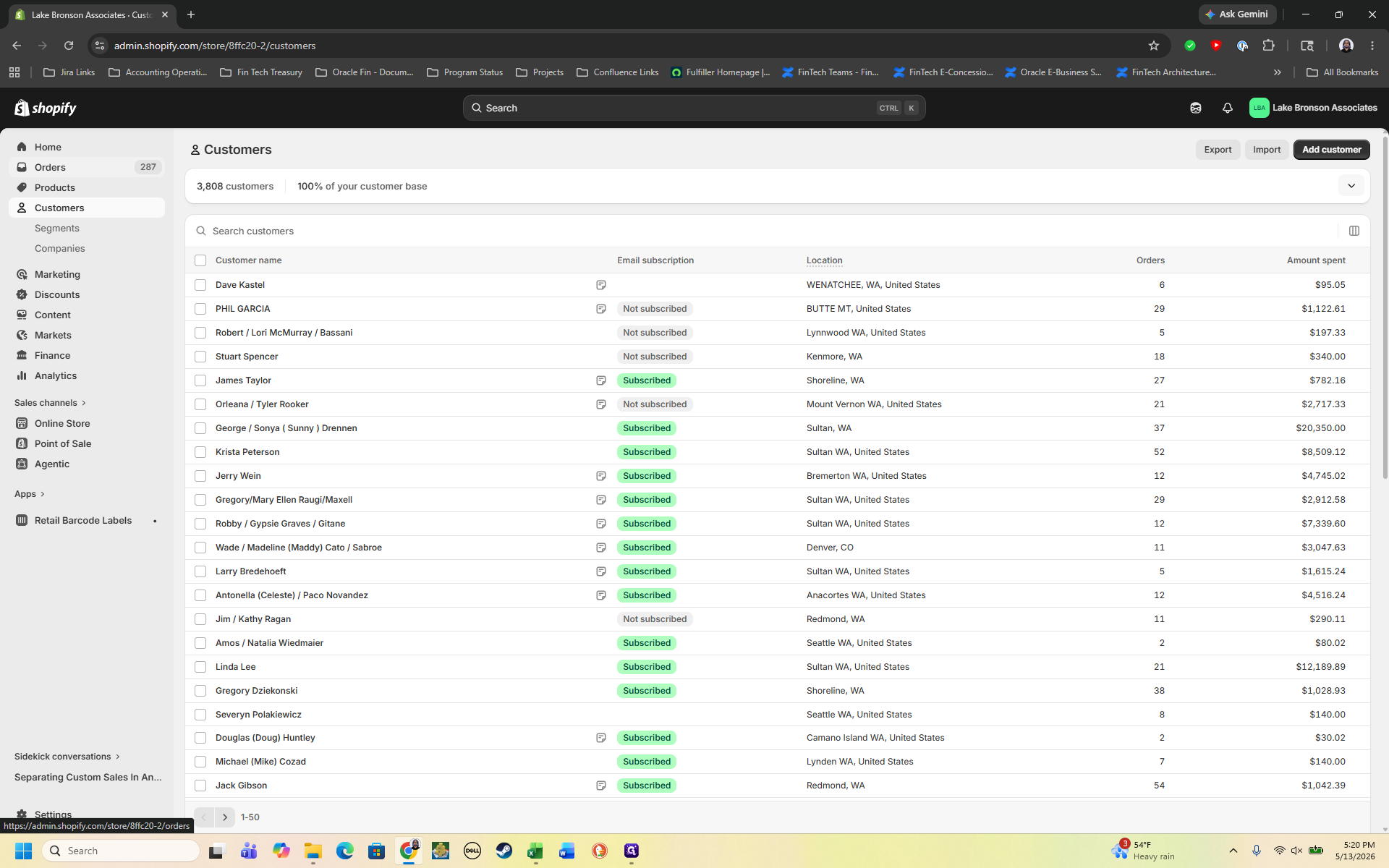
Log in to Shopify and click Orders in the left navigation menu.
Step #4: Log in to Shopify and click Orders in the left navigation menu.
5
Click Export in the top right corner of the dashboard.
Step #5: Click Export in the top right corner of the dashboard.
6
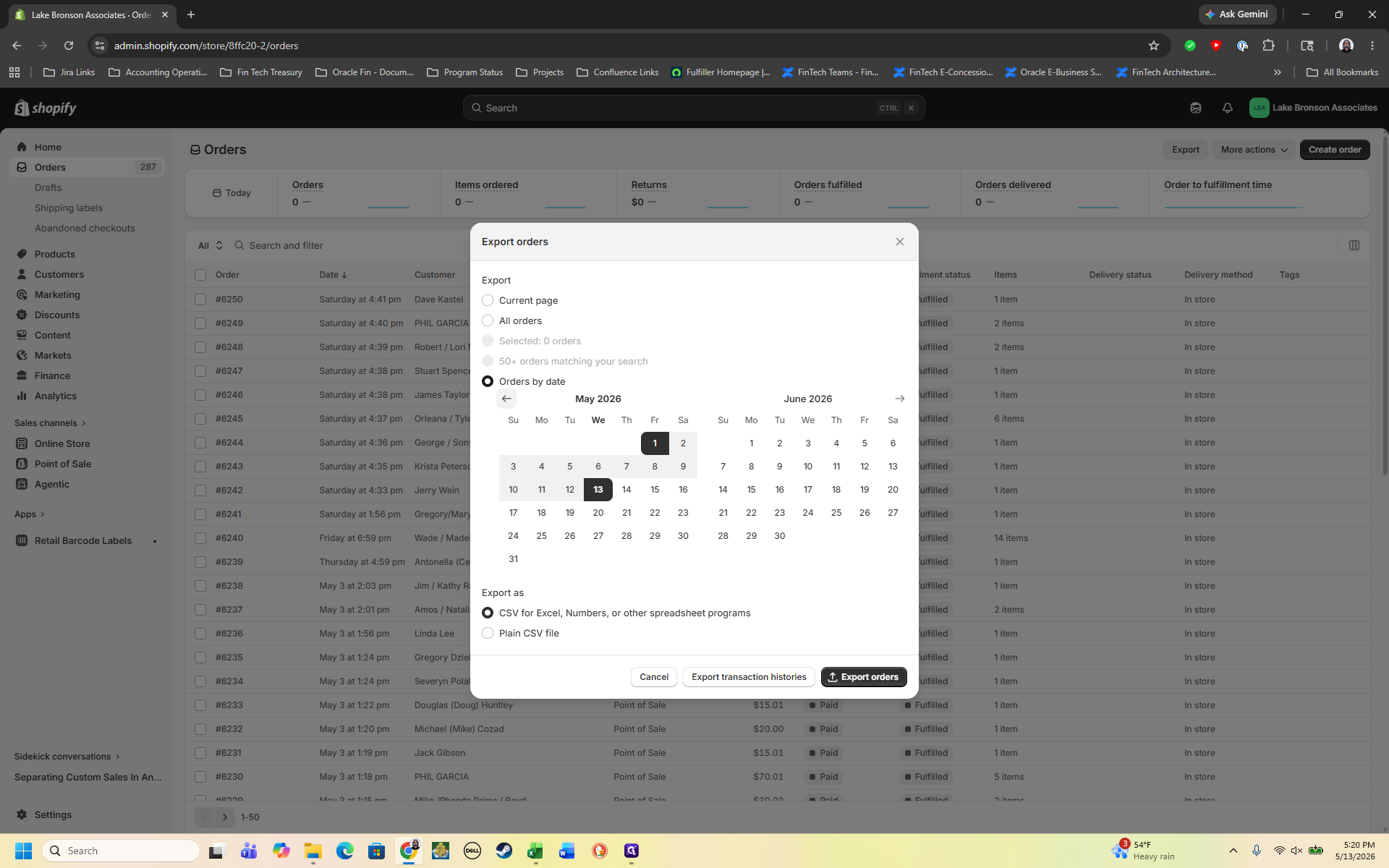
Select Orders by date in the export window to define a custom scope.
Step #6: Select Orders by date in the export window to define a custom scope.
7
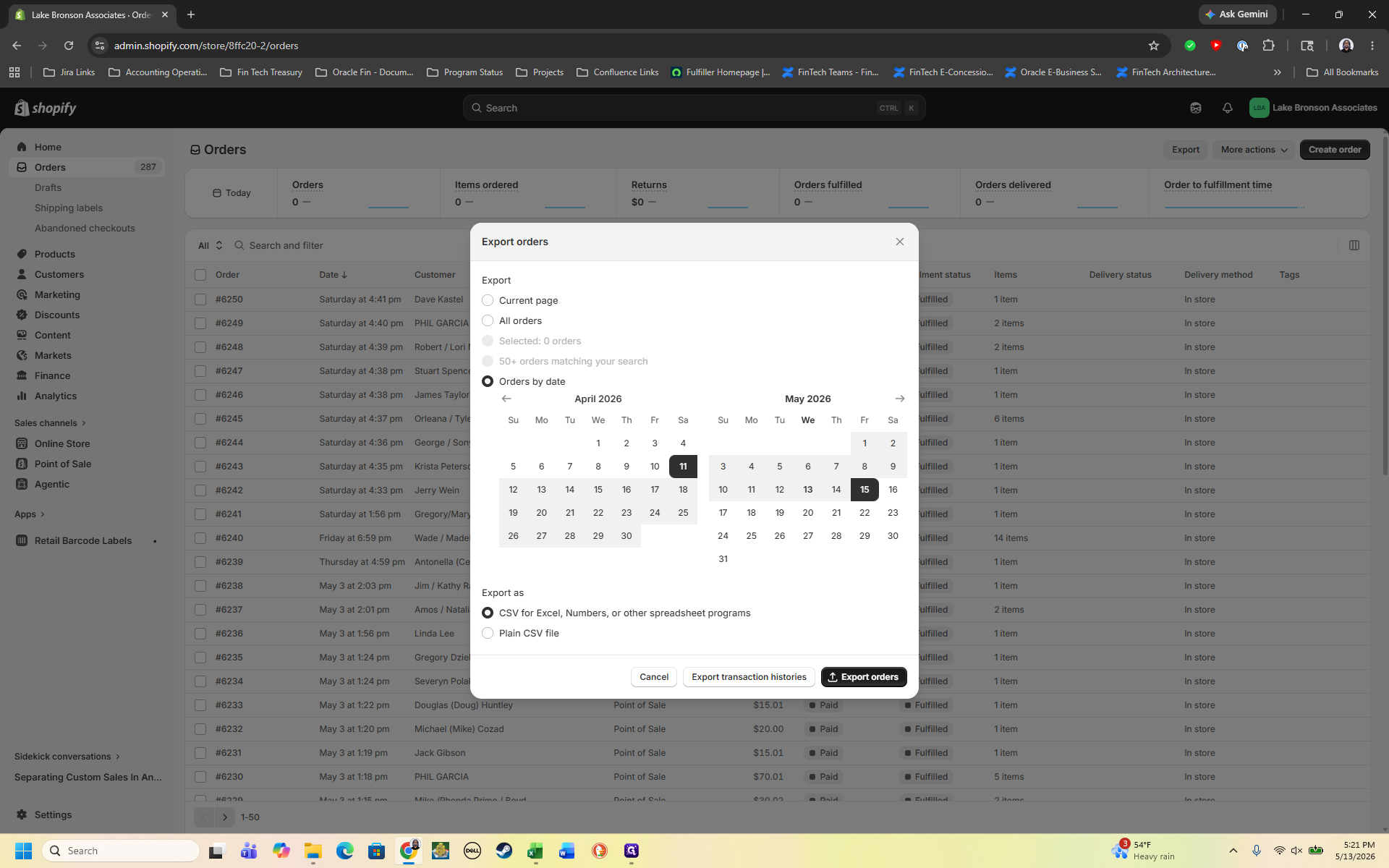
Set the start date to match your last recorded transaction date, set the format to CSV, and click Export orders.
Step #7: Set the start date to match your last recorded transaction date, set the format to CSV, and click Export orders.

Shopify processes the export and emails the file to the designated office inbox.
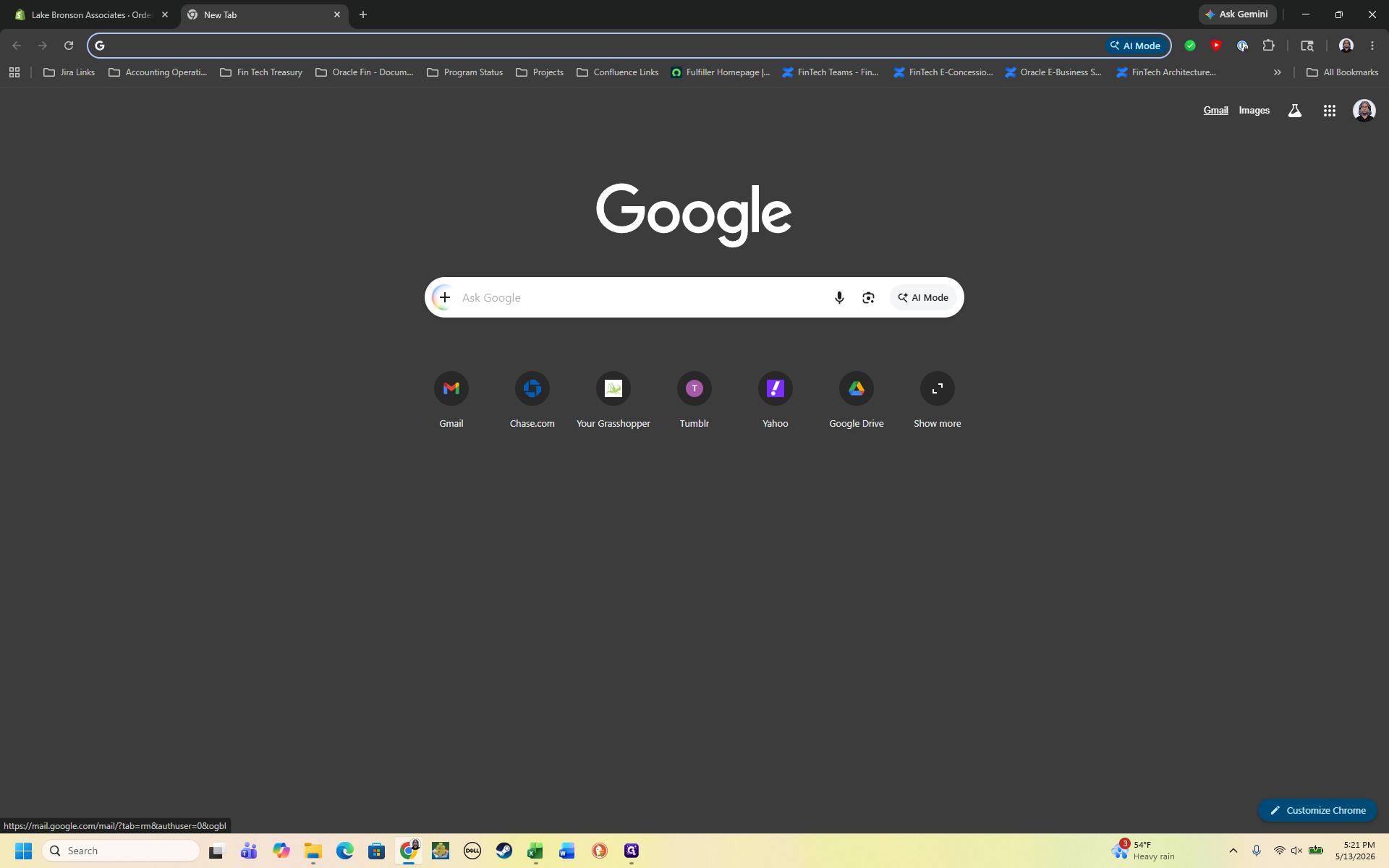
8
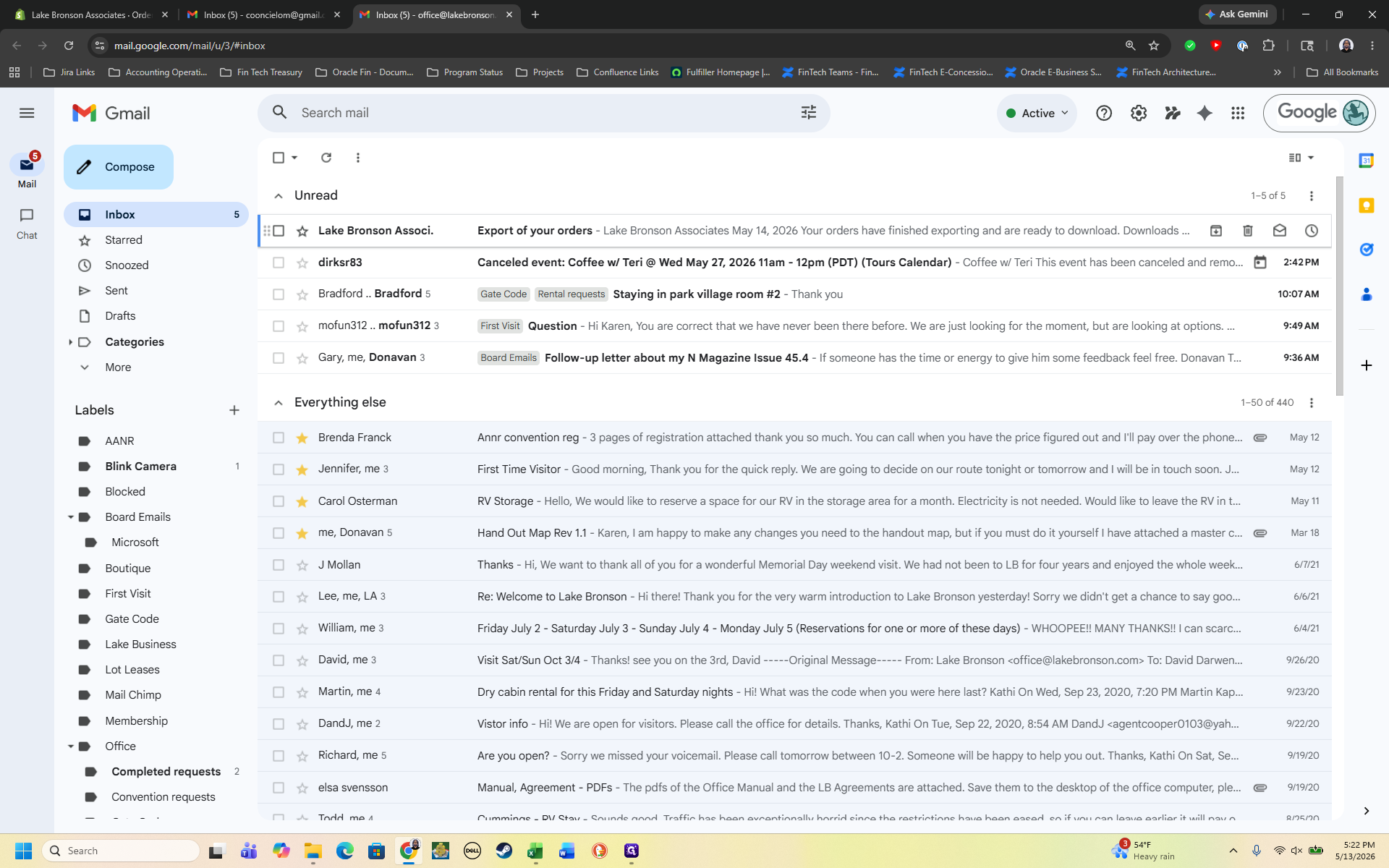
Open the Lake Bronson Office Gmail account.
Step #8: Open the Lake Bronson Office Gmail account.
9
Locate the automated email from Shopify and click to open it.
Step #9: Locate the automated email from Shopify and click to open it.
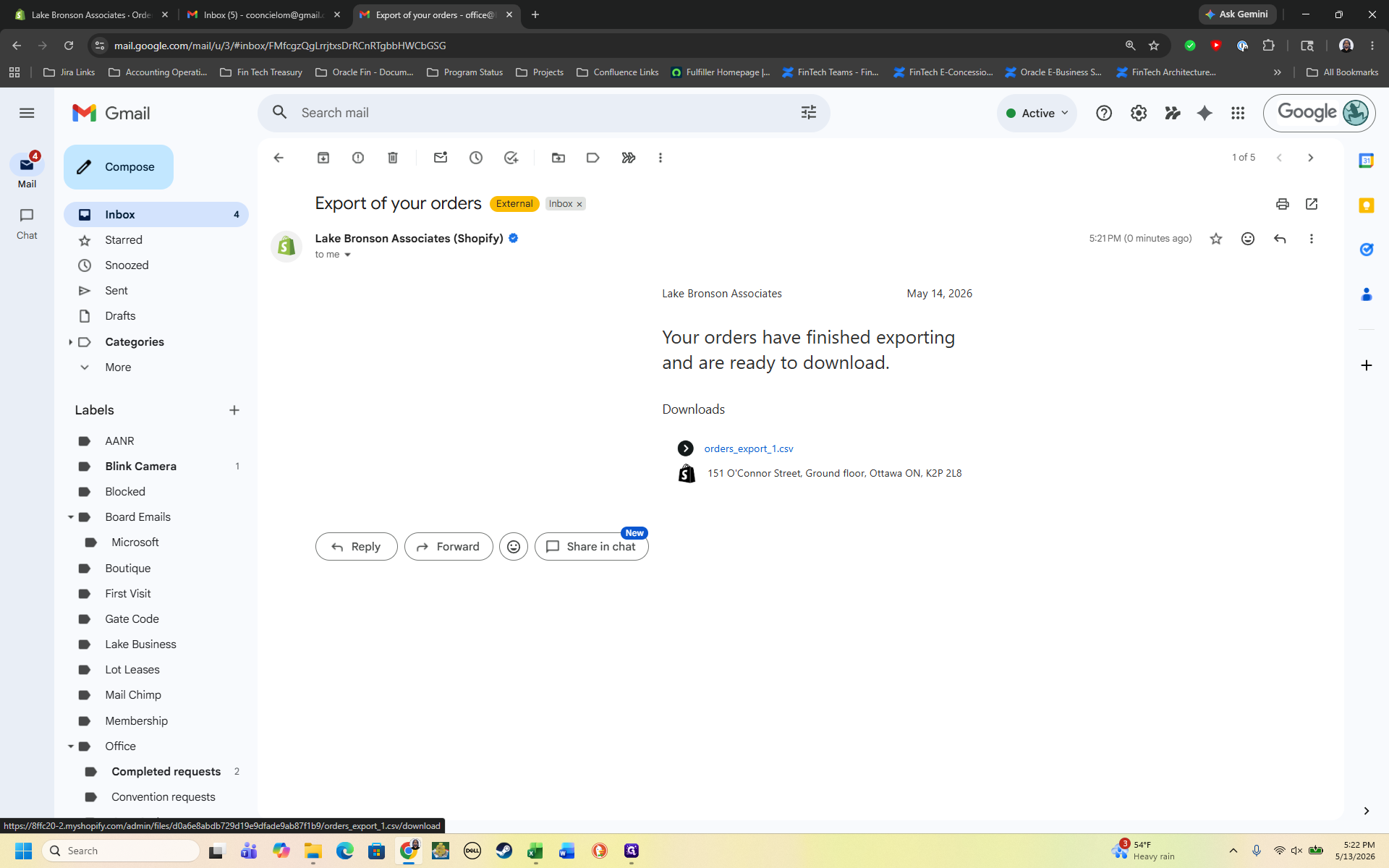
10
Click the orders_export_1.csv link to download the dataset to your computer.
Step #10: Click the orders_export_1.csv link to download the dataset to your computer.

Prepare and filter the exported data

Sort the raw Shopify data into chronological order so you can seamlessly append it to your existing tracking logs.
11
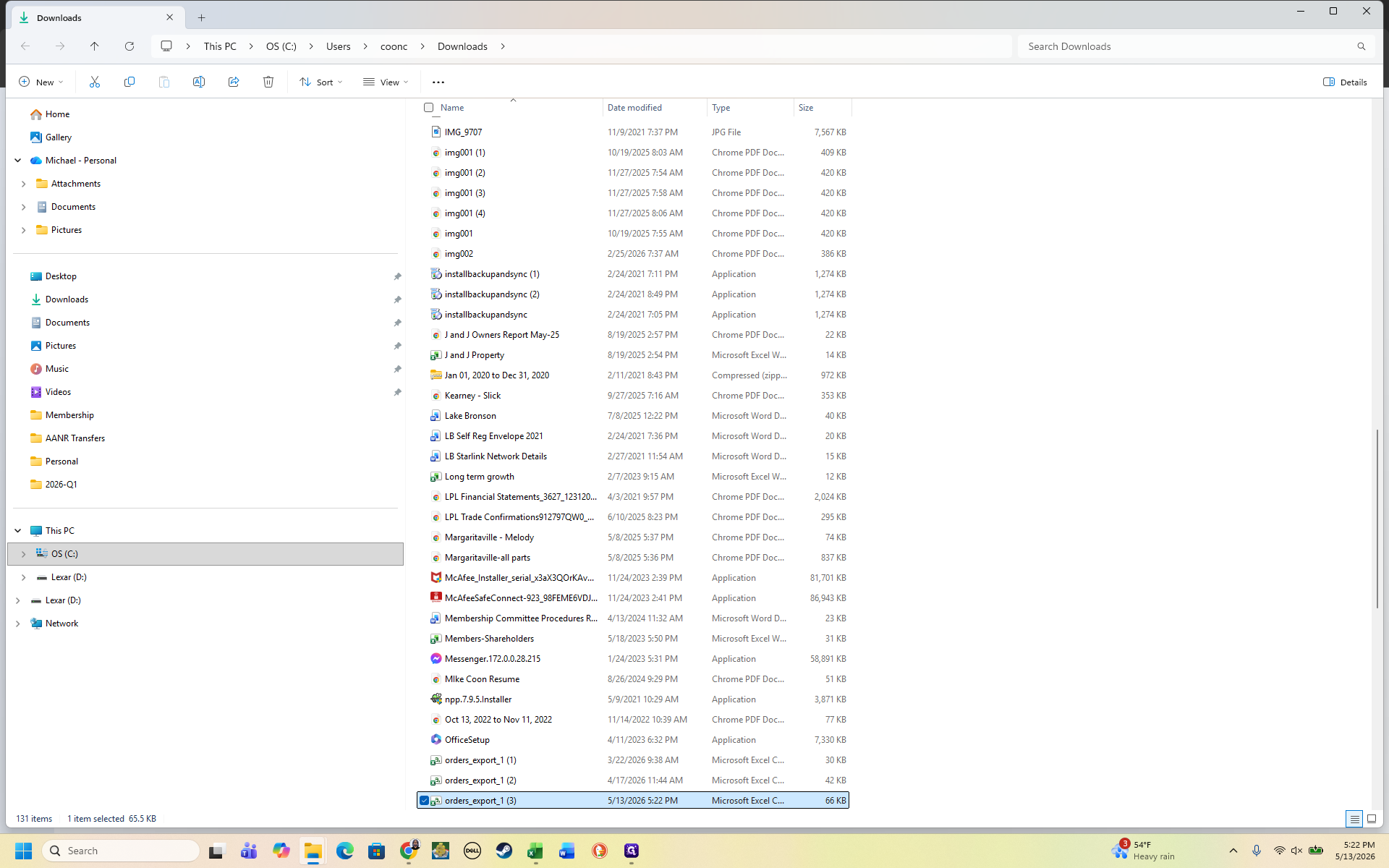
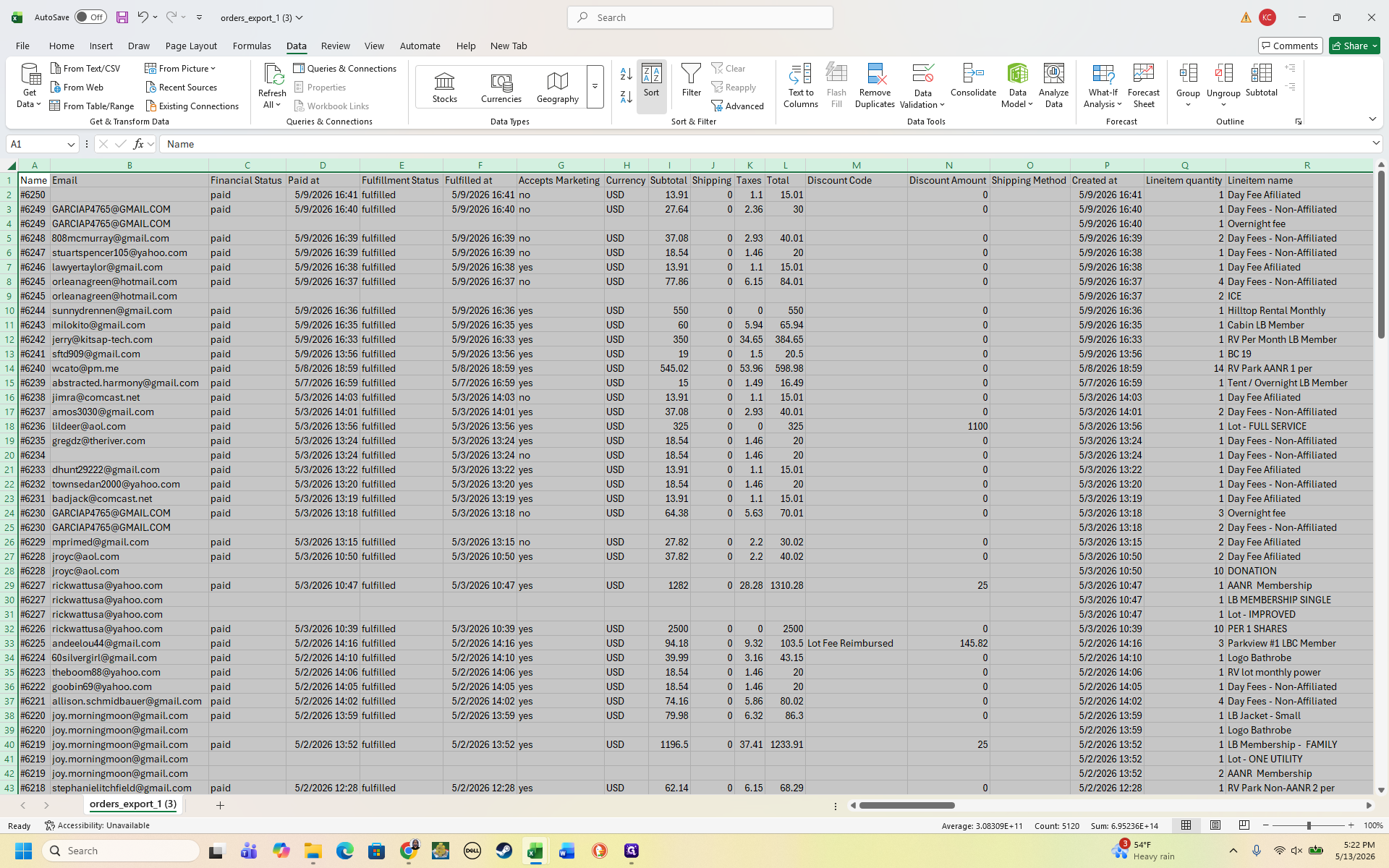
Open the downloaded orders_export_1.csv file in Microsoft Excel.
Step #11: Open the downloaded orders_export_1.csv file in Microsoft Excel.
12
Navigate to the Data tab in the ribbon and click Sort.
Step #12: Navigate to the Data tab in the ribbon and click Sort.
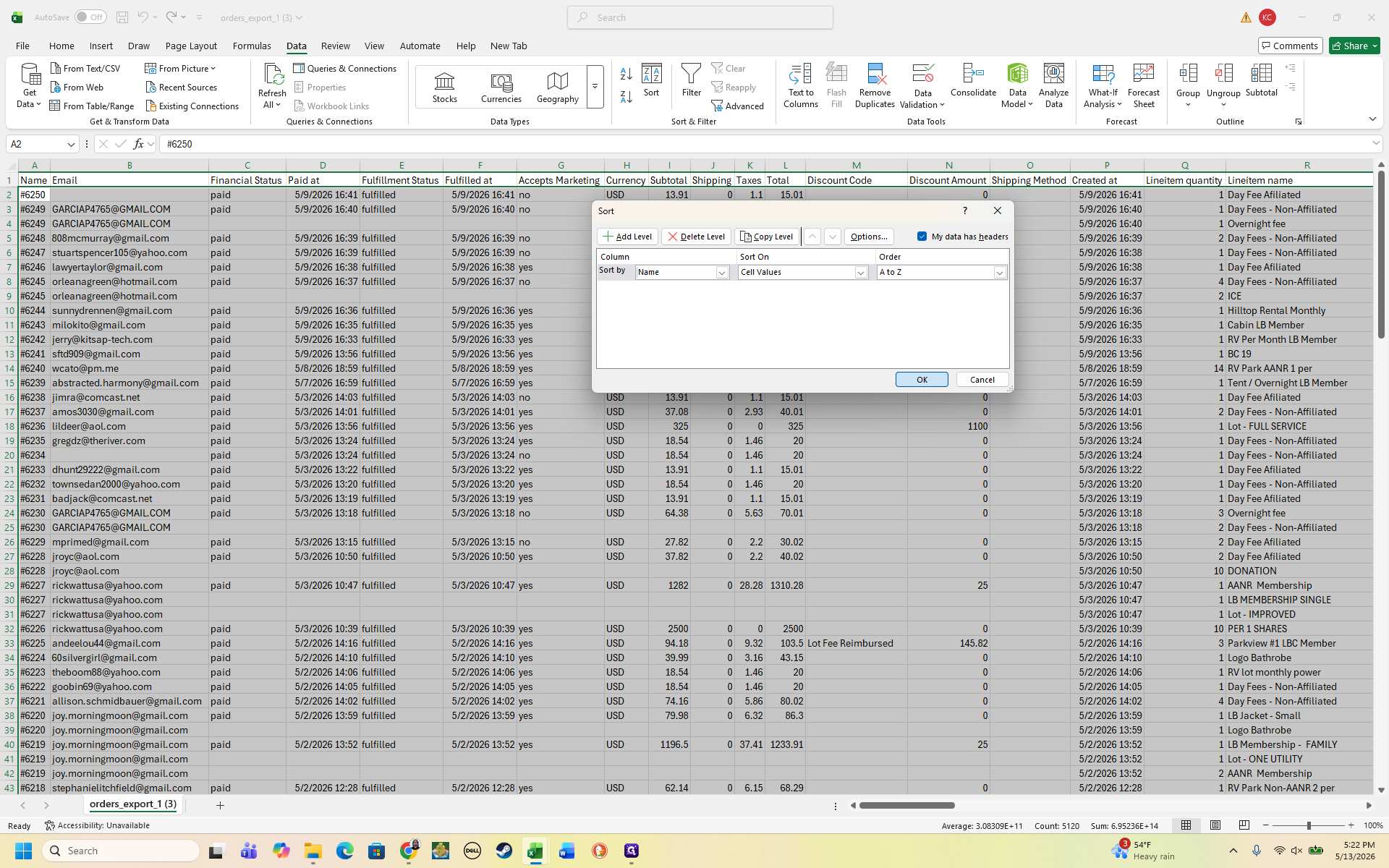
13
Sort the data by the Name column from smallest to largest to arrange the order numbers sequentially.
Step #13: Sort the data by the Name column from smallest to largest to arrange the order numbers sequentially.
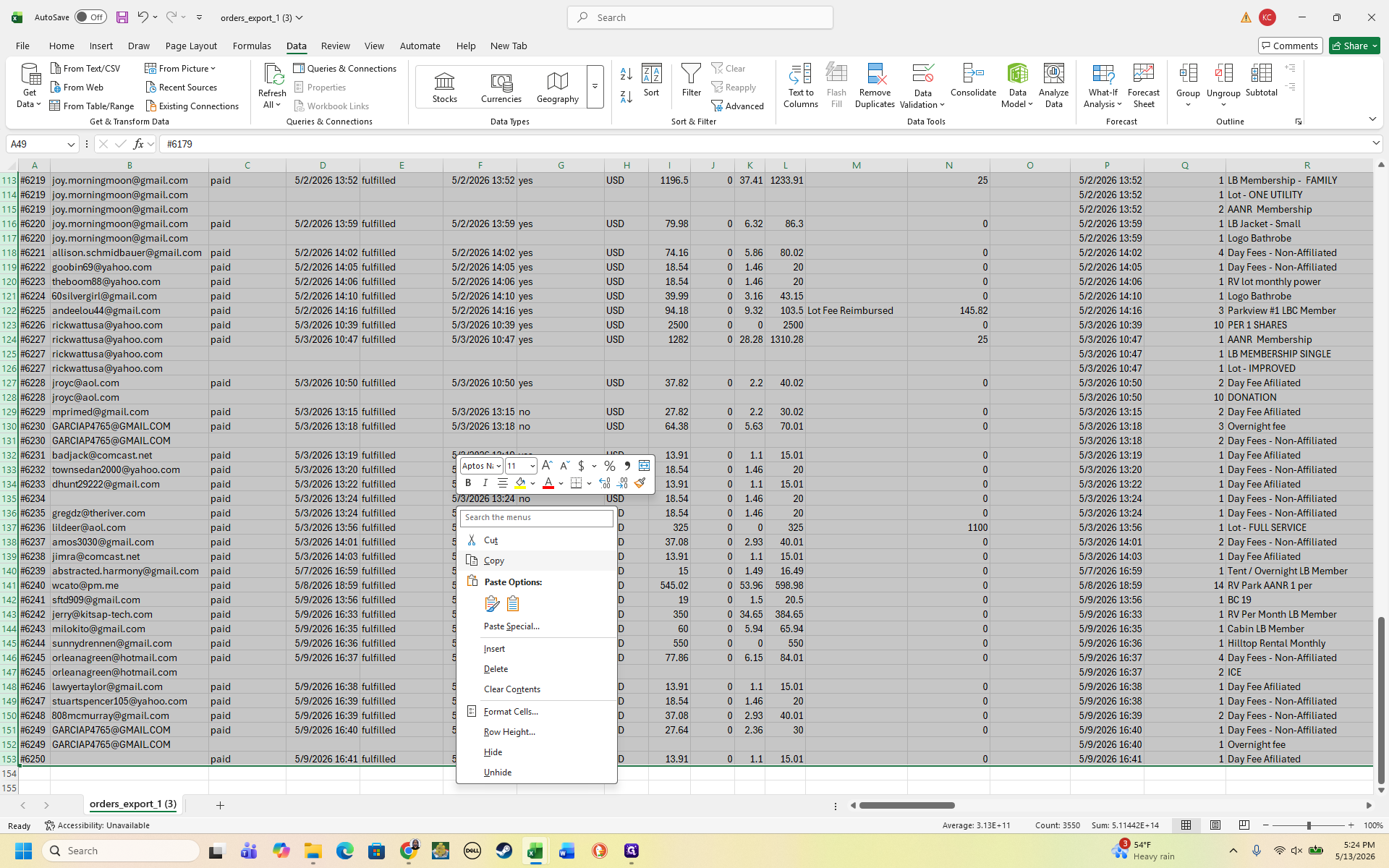
14
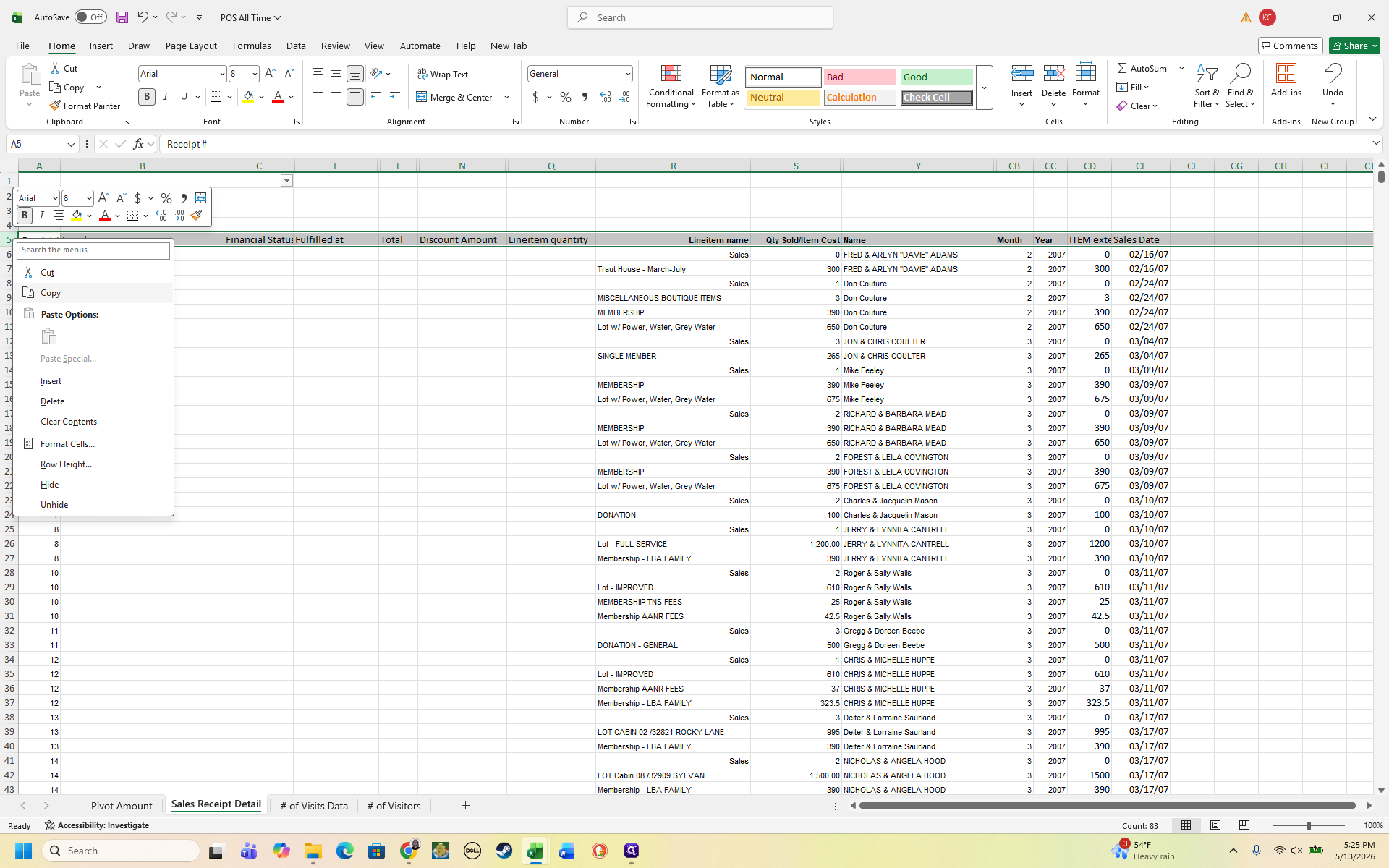
Highlight all new transaction rows that occur sequentially after your last recorded order number, right-click, and select Copy.
Step #14: Highlight all new transaction rows that occur sequentially after your last recorded order number, right-click, and select Copy.
15
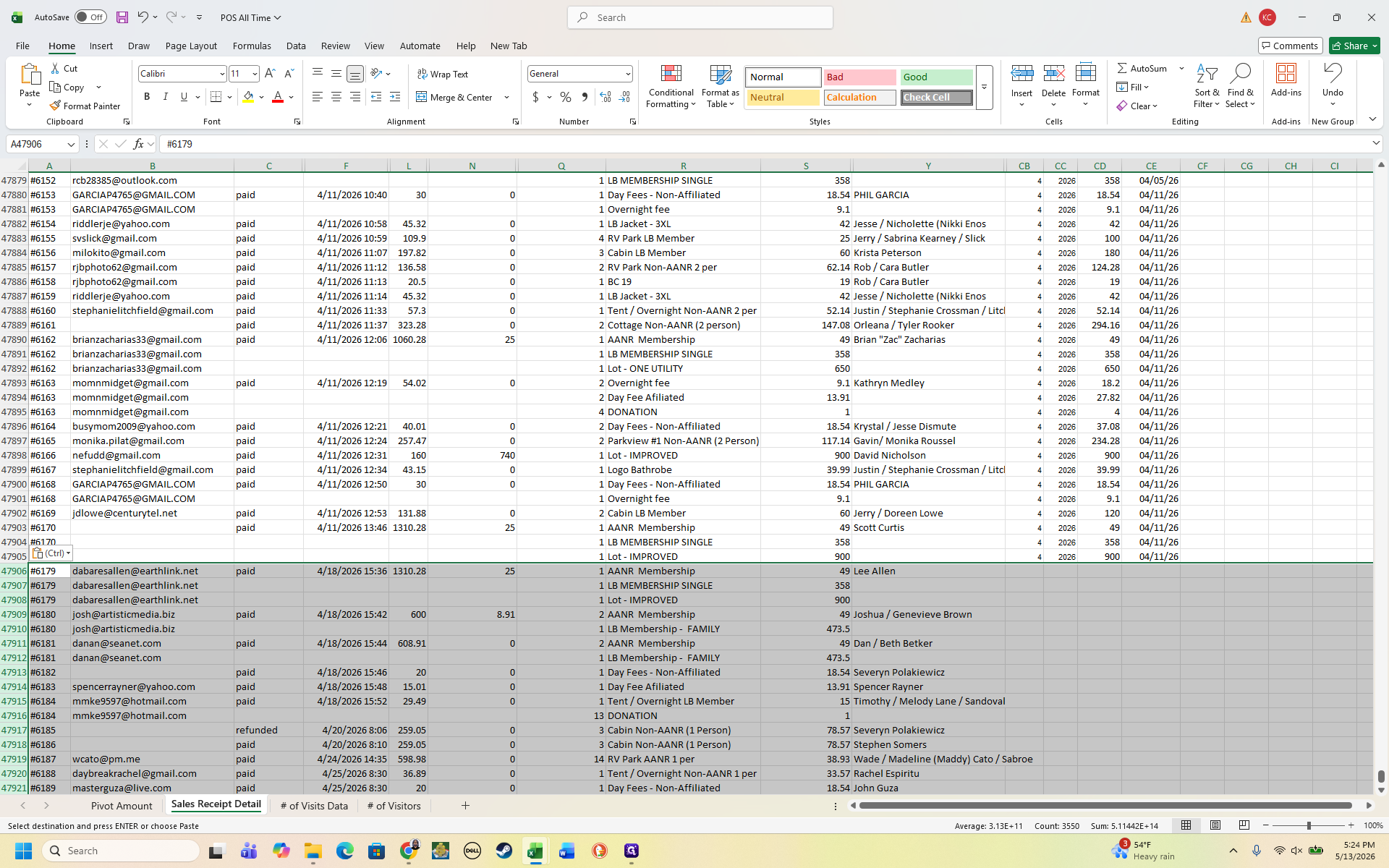
Return to the POS All Time spreadsheet, scroll to the first empty row at the bottom, right-click, and select Paste.
Step #15: Return to the POS All Time spreadsheet, scroll to the first empty row at the bottom, right-click, and select Paste.
16
Drag down the formula cells from the preceding rows (such as the pivot table month calculations) so they apply to the newly pasted data.
Step #16: Drag down the formula cells from the preceding rows (such as the pivot table month calculations) so they apply to the newly pasted data.

Next, filter the new rows so you only see billable memberships and lot fees.
17
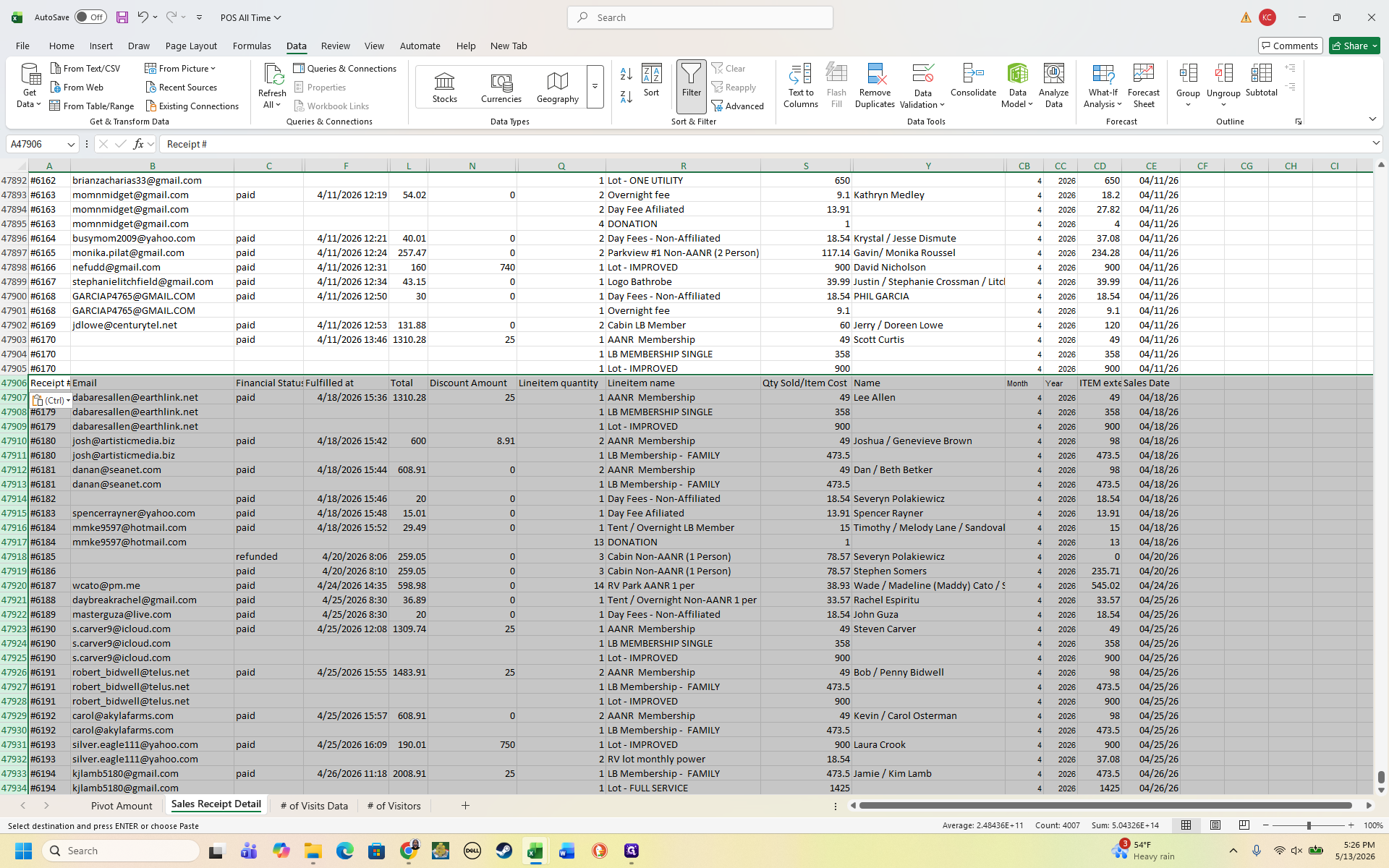
Copy the main column header row from the top of the spreadsheet and paste it directly above your newly added rows.
Step #17: Copy the main column header row from the top of the spreadsheet and paste it directly above your newly added rows.
18
Highlight this newly pasted header row, navigate to the Data tab, and click Filter.
Step #18: Highlight this newly pasted header row, navigate to the Data tab, and click Filter.
19
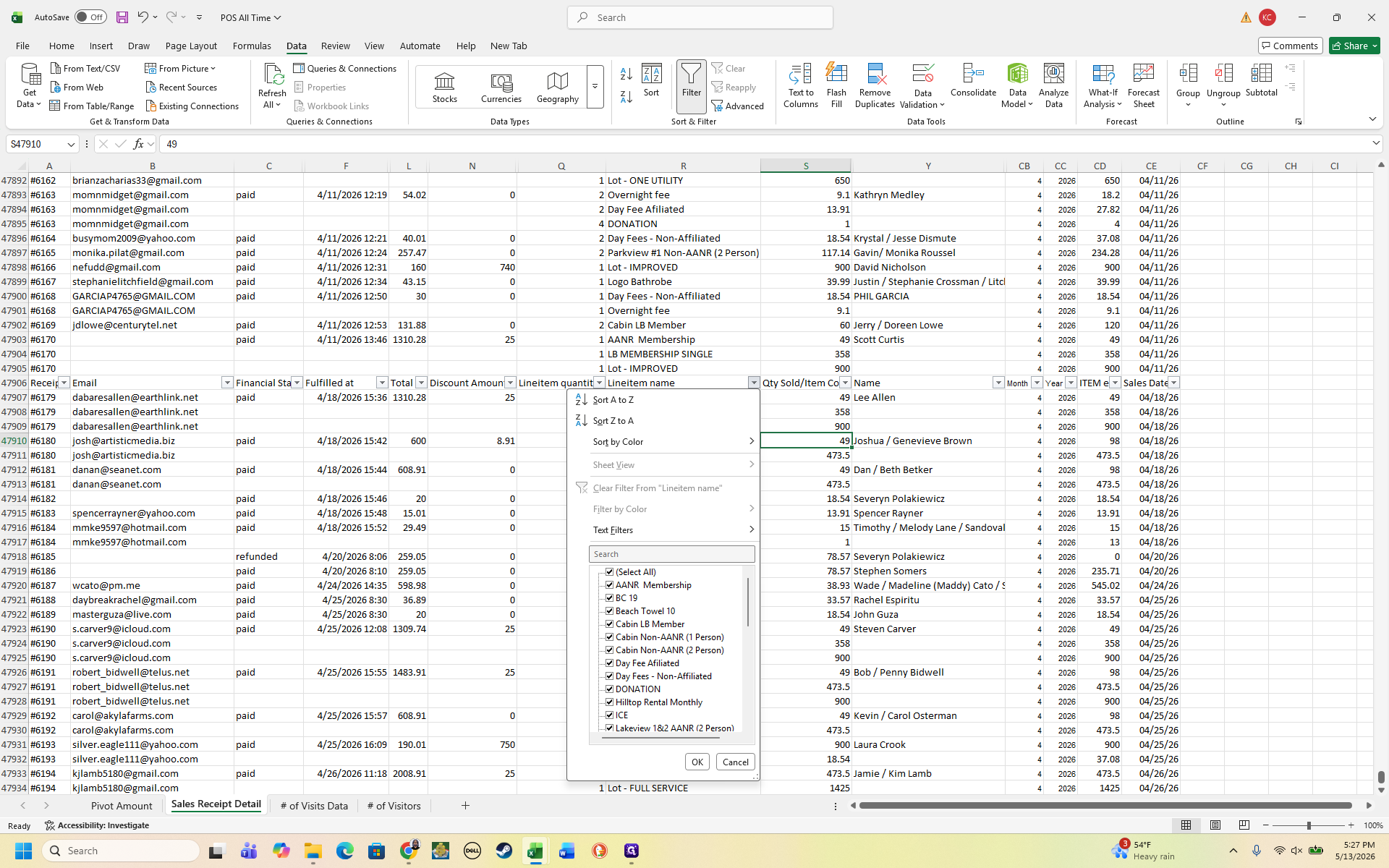
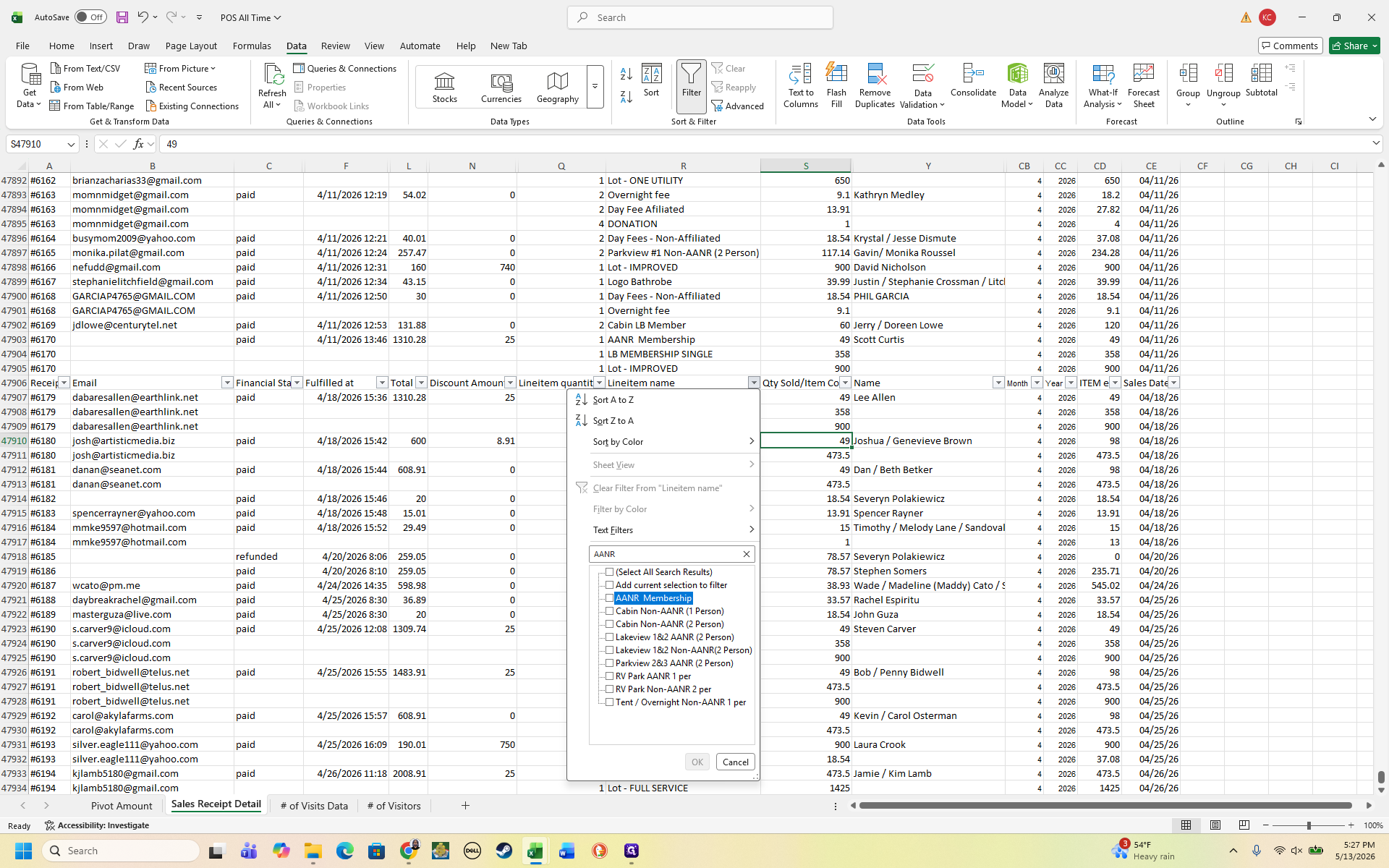
Click the filter dropdown arrow on the Lineitem name column.
Step #19: Click the filter dropdown arrow on the Lineitem name column.
20
Search for AANR, check the box for AANR Membership, and click OK.
Step #20: Search for AANR, check the box for AANR Membership, and click OK.
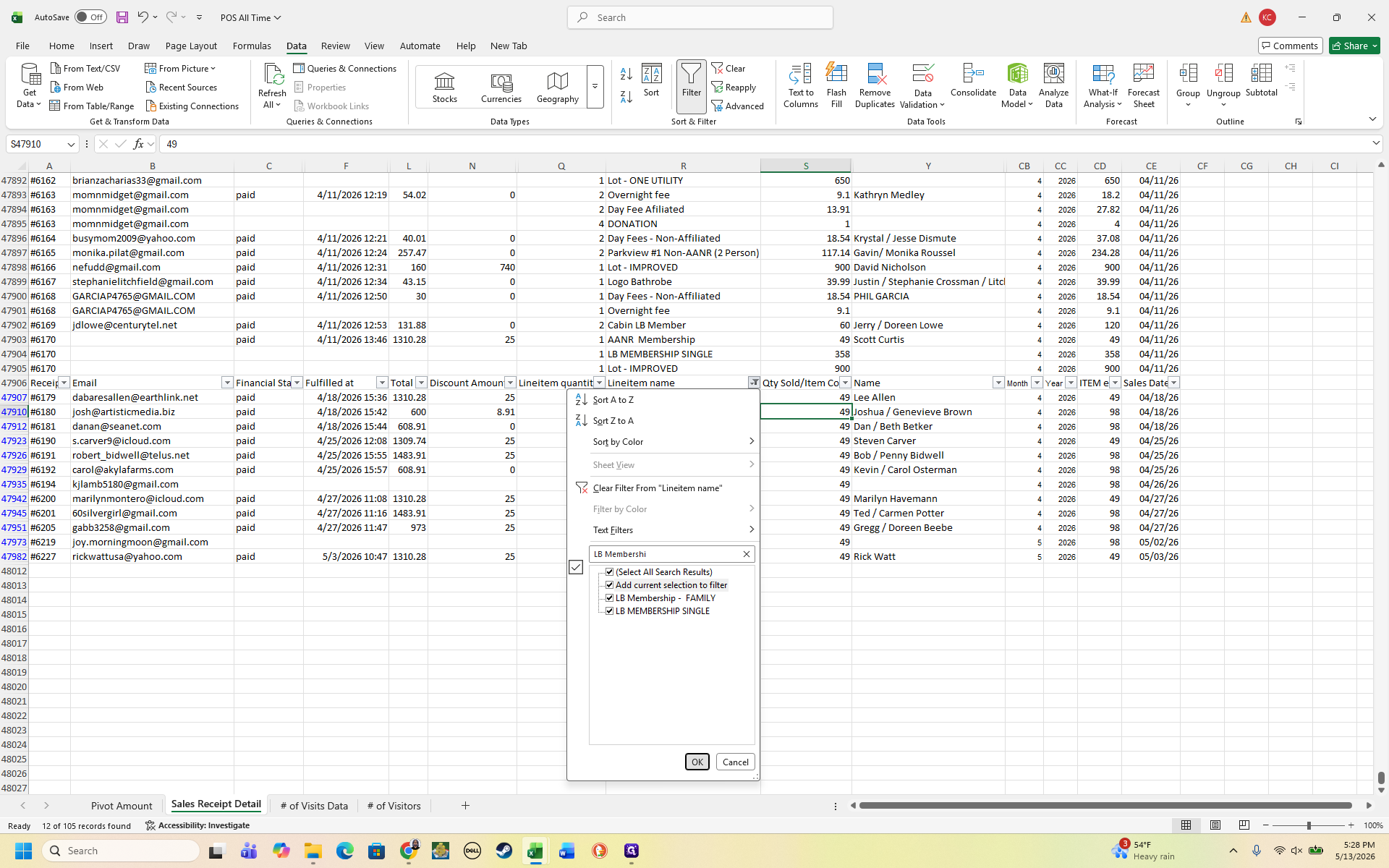
21
Re-open the filter, search for LB Membershi, check the options for Family and Single memberships, select the Add current selection to filter checkbox, and click OK.
Step #21: Re-open the filter, search for LB Membershi, check the options for Family and Single memberships, select the Add current selection to filter checkbox, and click OK.
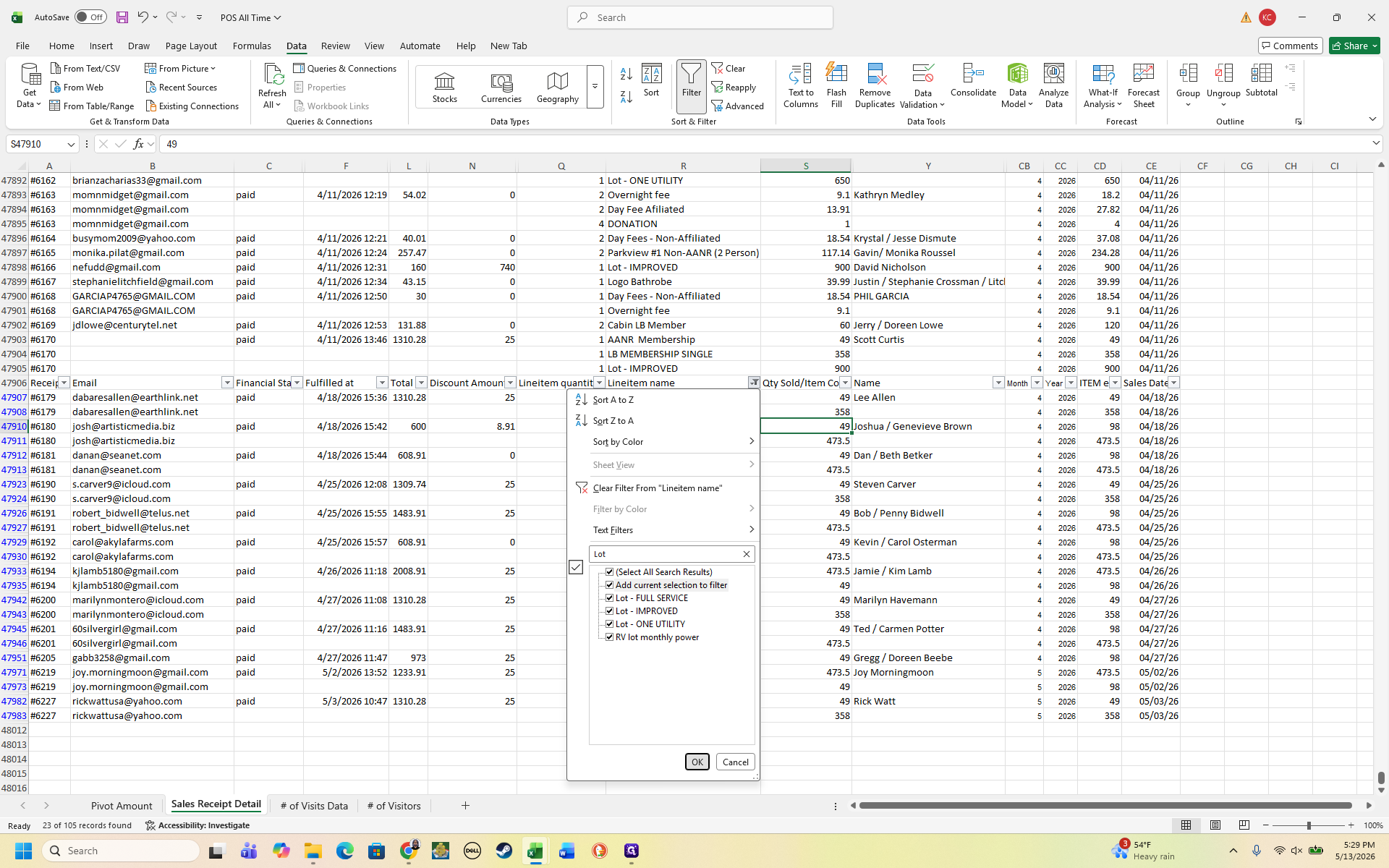
22
Re-open the filter one more time, search for Lot, check all applicable lot types, select the Add current selection to filter checkbox, and click OK.
Step #22: Re-open the filter one more time, search for Lot, check all applicable lot types, select the Add current selection to filter checkbox, and click OK.

Reconcile member payments

Cross-reference the filtered POS data with your master tracking list to mark off completed payments.
23
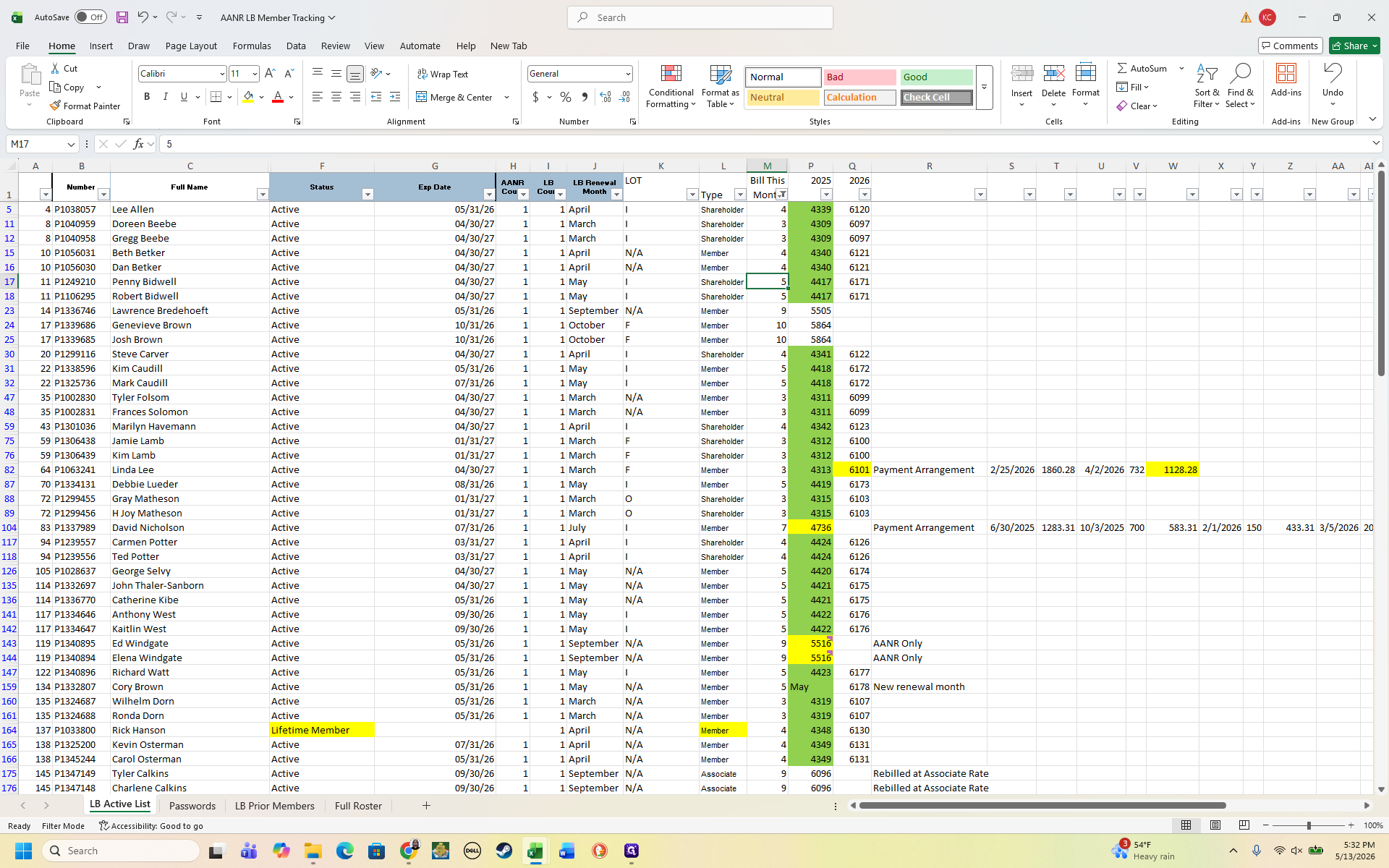
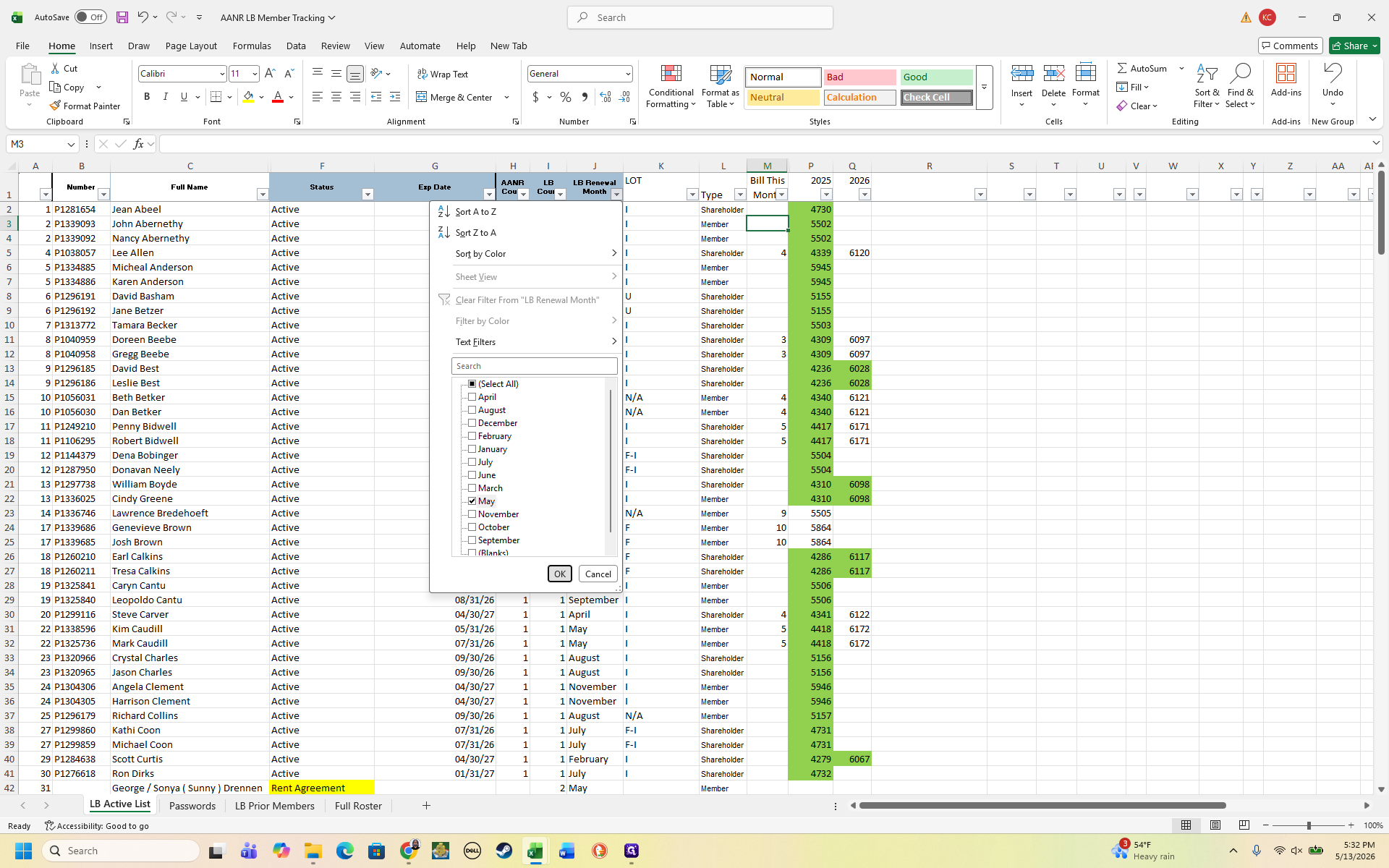
Switch to the AANR LB Member Tracking spreadsheet and open the LB Active List tab.
Step #23: Switch to the AANR LB Member Tracking spreadsheet and open the LB Active List tab.
24
Filter the LB Renewal Month column to match the current billing month (e.g., "May") to view the roster of expected renewals.
Step #24: Filter the LB Renewal Month column to match the current billing month (e.g., "May") to view the roster of expected renewals.
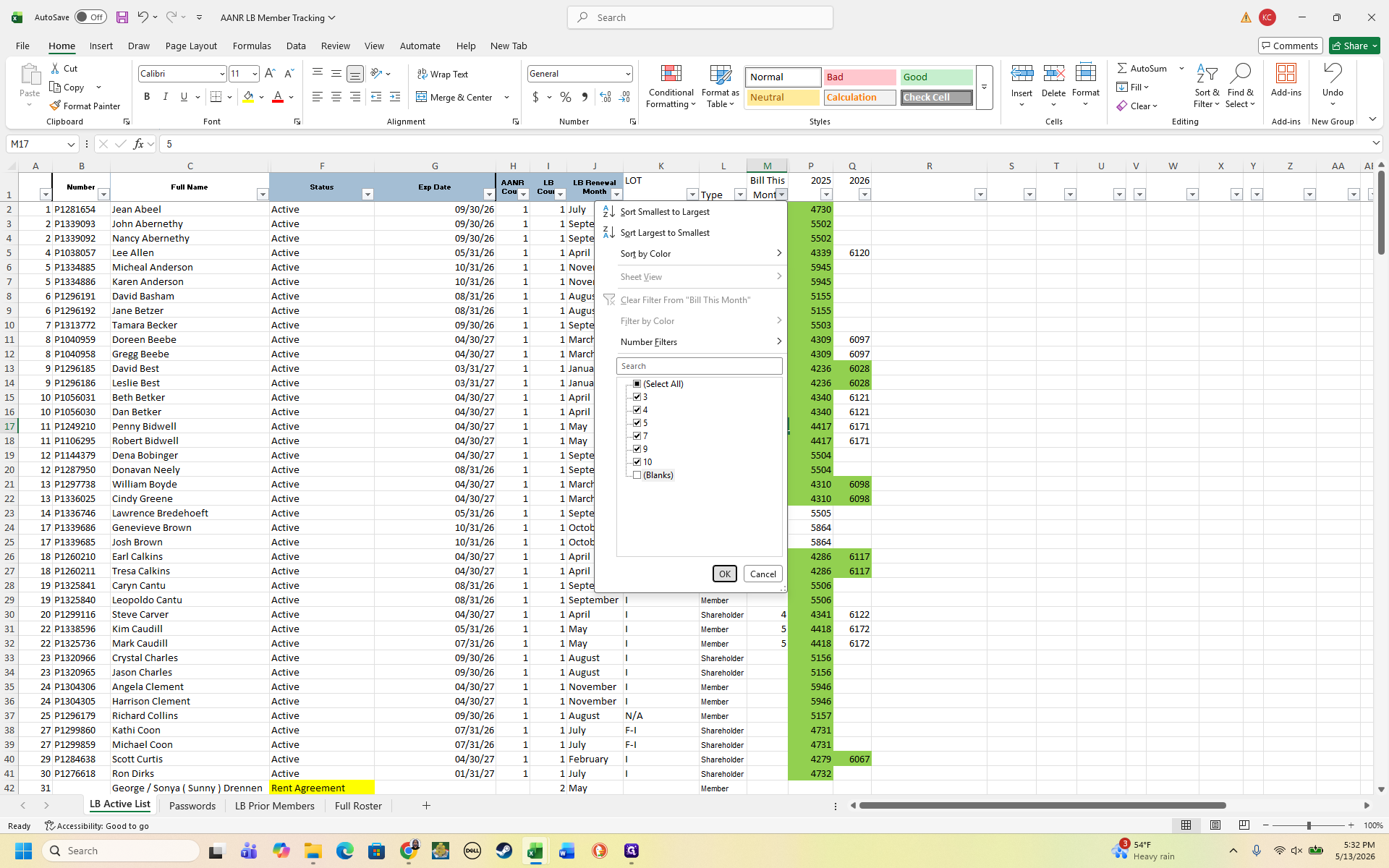
25
Filter the Bill This Month column to show records with active numerical billing values (exclude blanks) to identify members with outstanding invoices.
Step #25: Filter the Bill This Month column to show records with active numerical billing values (exclude blanks) to identify members with outstanding invoices.
26
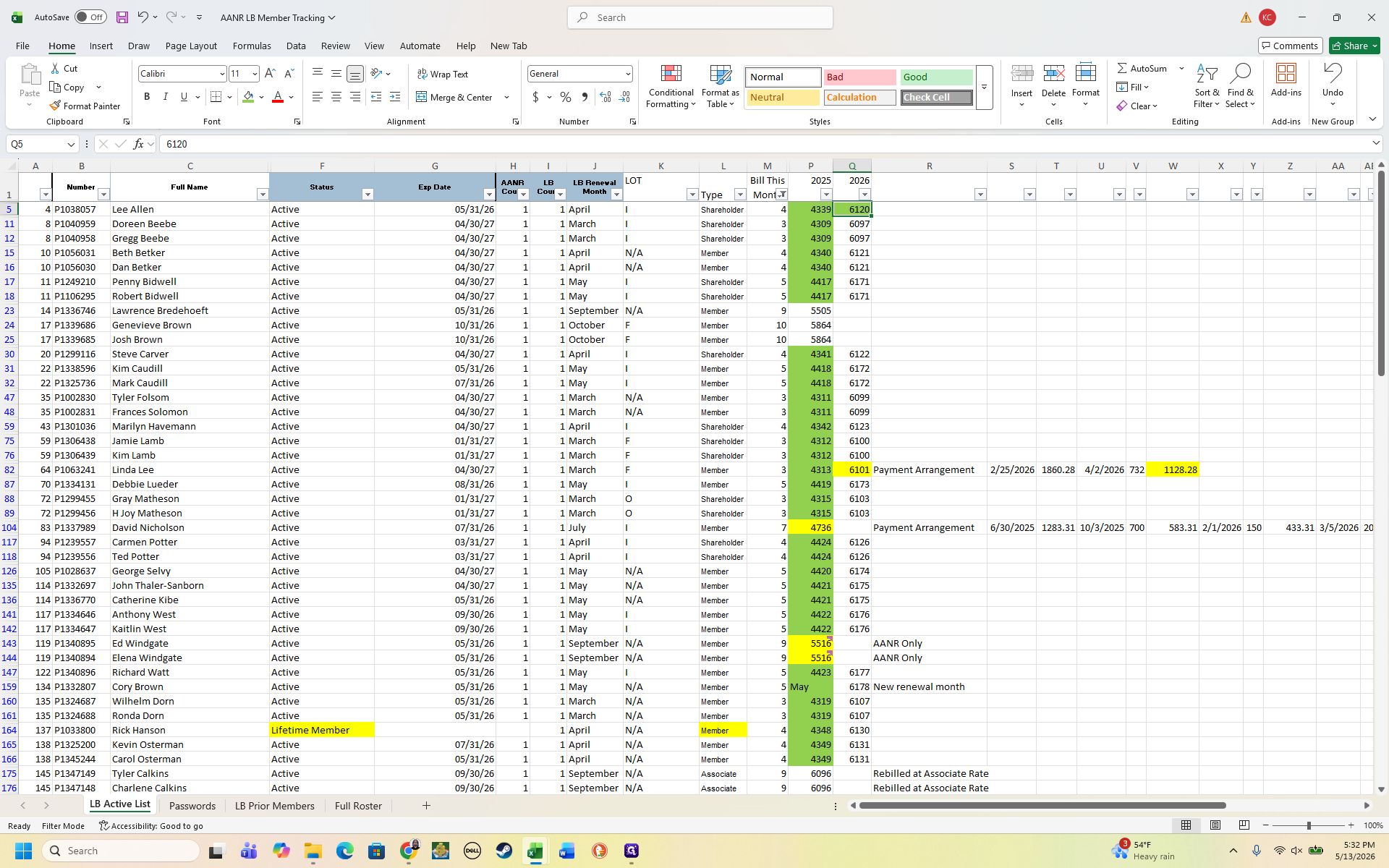
For each member who paid in full on the POS export, locate their row in the Tracking spreadsheet and clear their numerical value in the Bill This Month column.
Step #26: For each member who paid in full on the POS export, locate their row in the Tracking spreadsheet and clear their numerical value in the Bill This Month column.
27
Change the text or cell highlight color to green to visually mark the invoice as fully paid.
Step #27: Change the text or cell highlight color to green to visually mark the invoice as fully paid.

Managing payment exceptions

During reconciliation, you occasionally encounter accounts that deviate from standard billing. Handle these specific scenarios carefully to maintain accurate records.

Exception Type

When to use

How it works

Partial Payments

A member pays their membership dues but misses their lot fees.

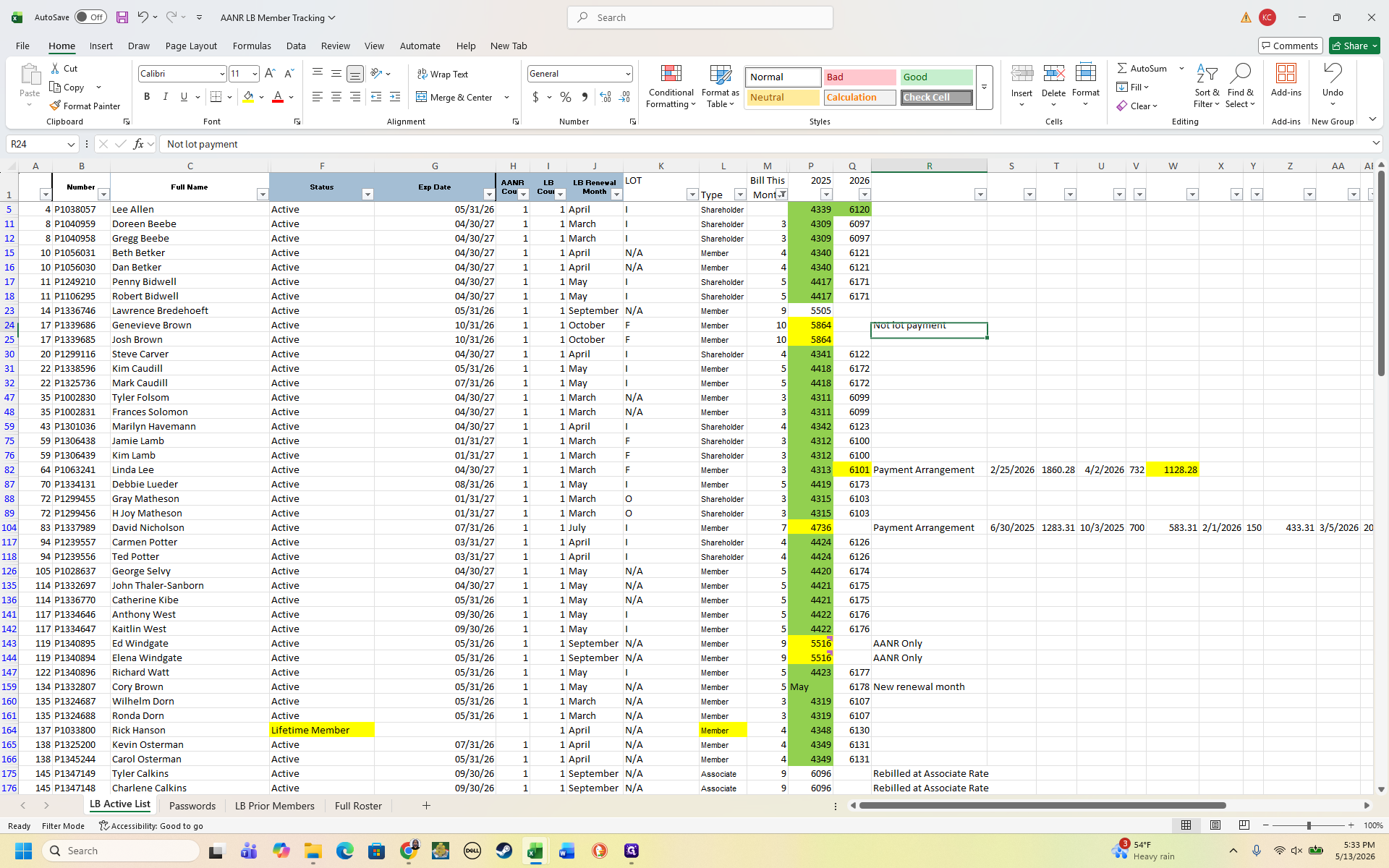
Leave the member's tracking row highlighted yellow. Add a text note (e.g., "Not lot payment") in their record column and escalate the missing balance to the office.

Lot Status Changes

A member physically relocates (e.g., moves into an RV space).

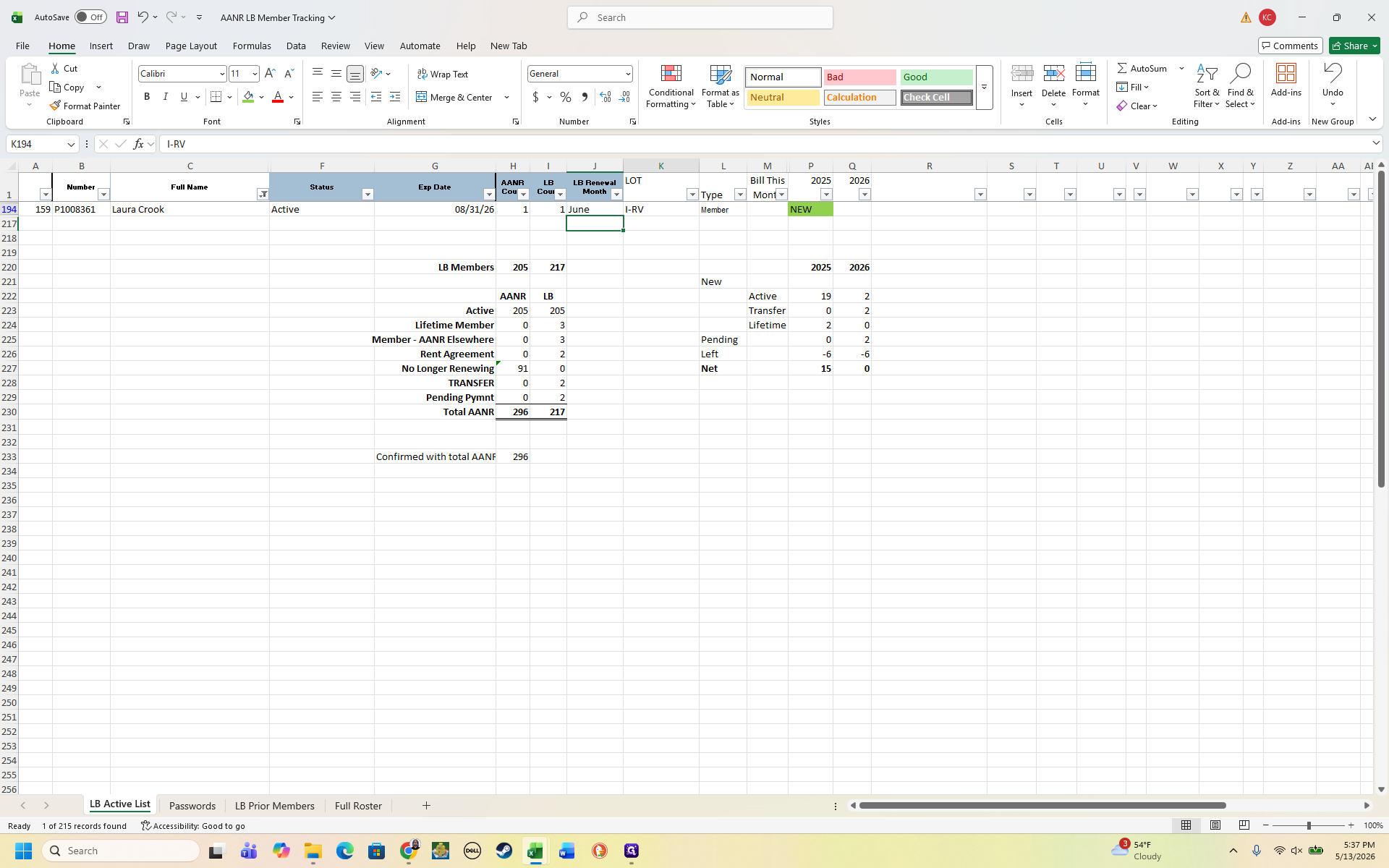
Update their lot descriptor column (e.g., from "N/A" to "I-RV"). This clarifies why their expected payment amounts have shifted for future billing.

Payment Arrangements

A member pays a custom flat rate directly toward an outstanding balance.

Edit the formula in their tracking cell to subtract their recent custom payment from their running total, applying the updated balance.

28
If a member makes a partial payment, manually type a note like "Not lot payment" into their tracking row to flag the discrepancy.
Step #28: If a member makes a partial payment, manually type a note like "Not lot payment" into their tracking row to flag the discrepancy.
29
If a member's lot classification changes, update their lot column status to correctly log their new standard rate.
Step #29: If a member's lot classification changes, update their lot column status to correctly log their new standard rate.
30
For active payment arrangements, edit the remaining balance cell formula to subtract the recent payment amount and press Enter to secure the new total.
Step #30: For active payment arrangements, edit the remaining balance cell formula to subtract the recent payment amount and press Enter to secure the new total.

FAQ

Q: Why do I need to delete "pending unfulfilled" orders from the POS export?

A: Members frequently abandon pending online orders and opt to create and pay new invoices directly in the office. Keeping unfulfilled duplicate orders in your tracker artificially inflates pending revenue and skews payment histories.

Q: Do associate memberships need to pay gate fees?

A: Yes. Associate memberships pay gate fees but maintain an active affiliation with Lake Bronson as their home club. This tier allows them to bypass the standard membership application pathway if they decide to return to full membership status later.

Q: Do shareholders get discounted lot rates?

A: Yes. Shareholders receive a designated discount (e.g., $25 off) on their lot payments. Always cross-check a member's shareholder status if their paid lot total appears lower than the standard rate.

Glossary

Term

Definition

AANR

American Association of Nude Recreation, the overarching organization linked to Lake Bronson memberships.

Associate Membership

A lower-tier membership that requires gate fee payments but maintains club affiliation without levying full annual dues.

Shareholder

A member holding an equity stake who qualifies for standard, pre-approved discounts on lot rentals and utilities.