
How to Record and Document Standard Operating Procedures
Learn how to use Glitter AI to record task workflows, organize downloaded assets locally, and import finalized SOP documents into a Notion knowledge base.
This guide explains how to record a task workflow and properly document the resulting assets. By following these steps, you will create a structured knowledge base that captures institutional knowledge and ensures seamless role handovers.
This applies to any team member responsible for documenting standard operating procedures (SOPs) or creating handover materials for their specific role and daily tasks.
Record the Guide
When recording a process, it is critical that you narrate the necessary context aloud so the transcript captures it. Answer the following questions as you go:
What is this task?
Is it a campaign or an evergreen task?
What kicks it off or triggers it?
Where do things live (tools, logins, environments)?
Who depends on you to complete it?
What commonly goes wrong?
What mistakes would a new person likely make?
Are there any unwritten rules or workarounds?
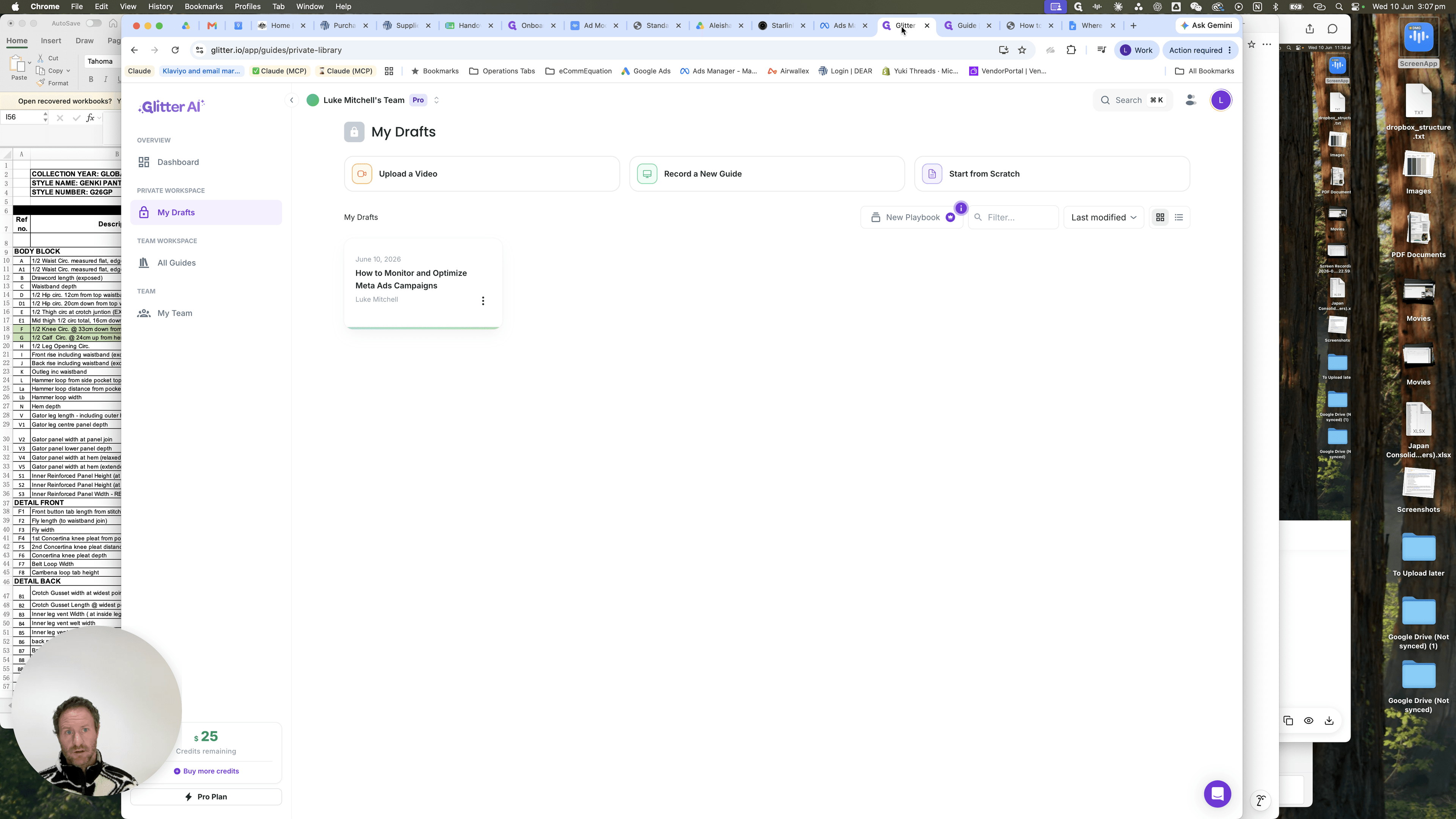
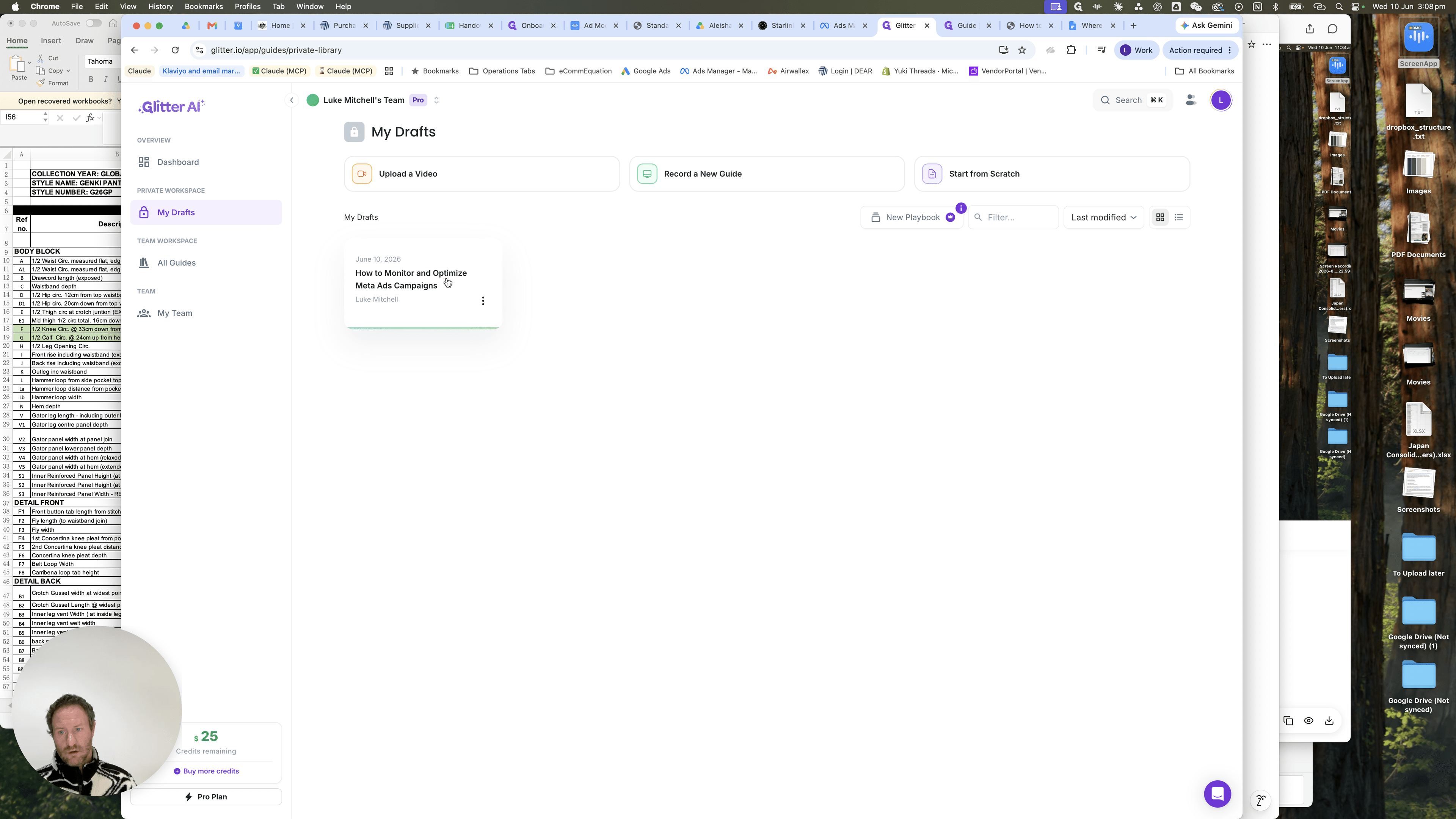
Ensure all necessary action items are documented, check the steps off, and verify the overall flow.
Download the Assets
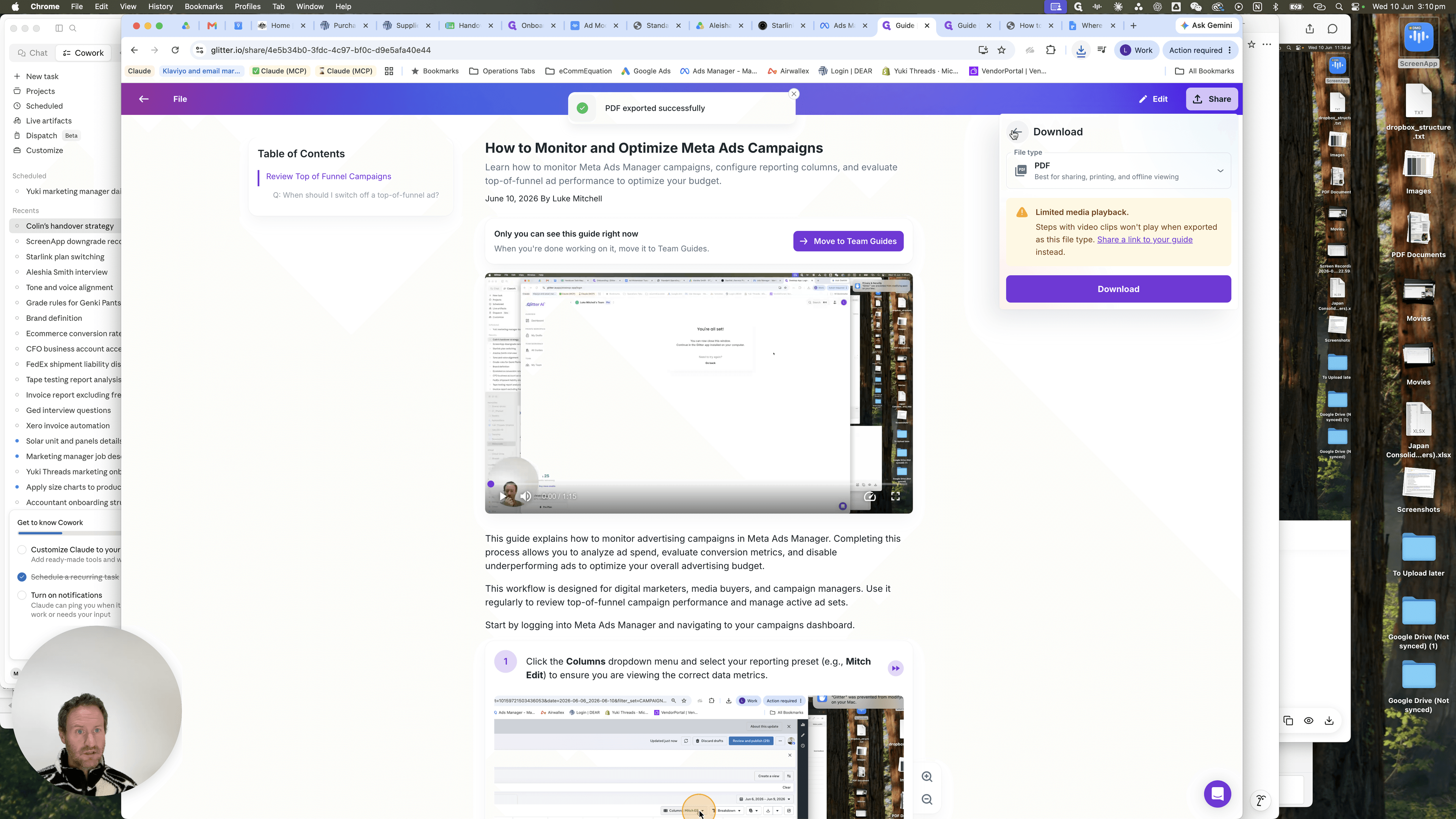
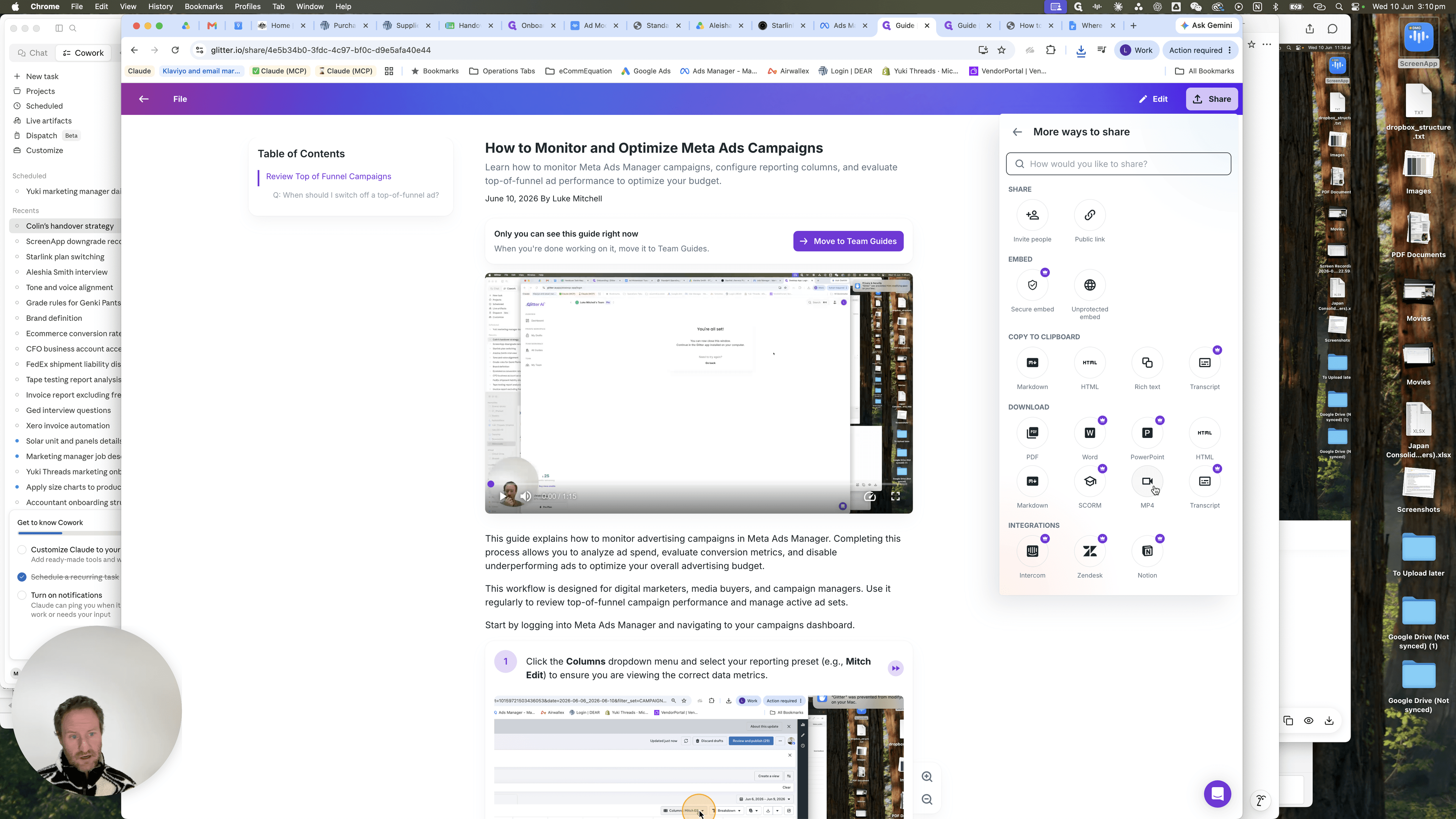
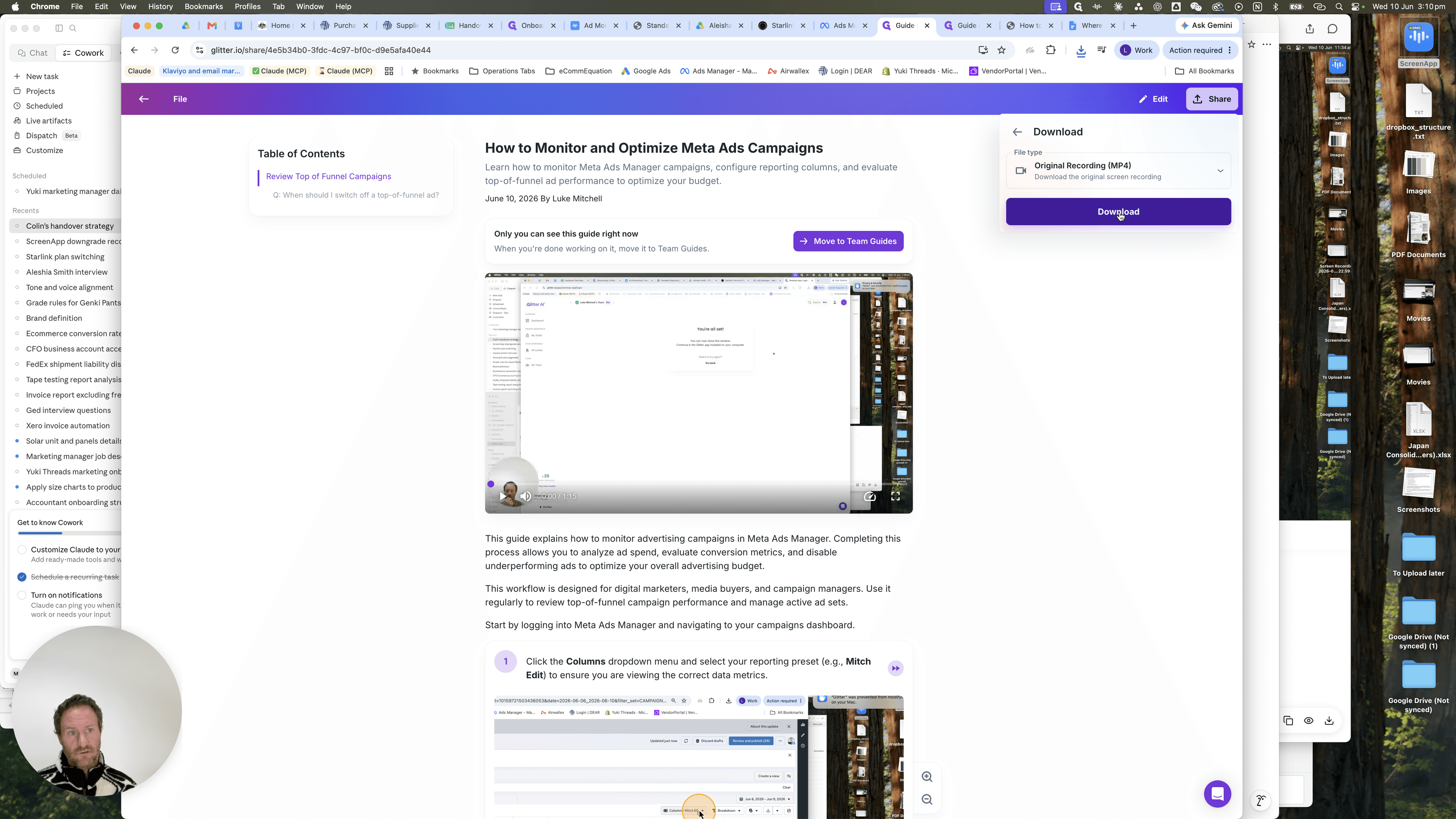
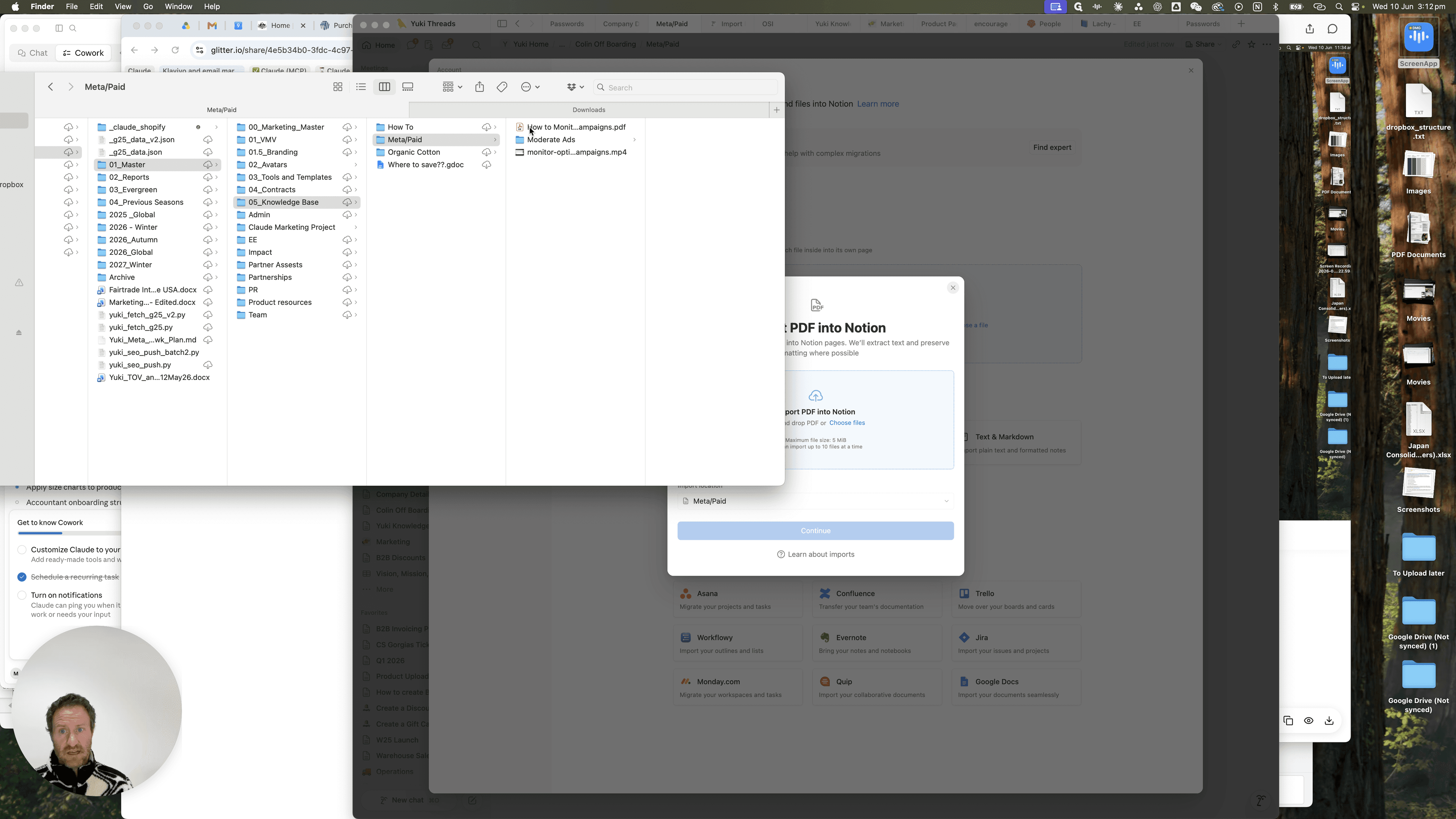
You must export both a PDF document and an MP4 video of the workflow.
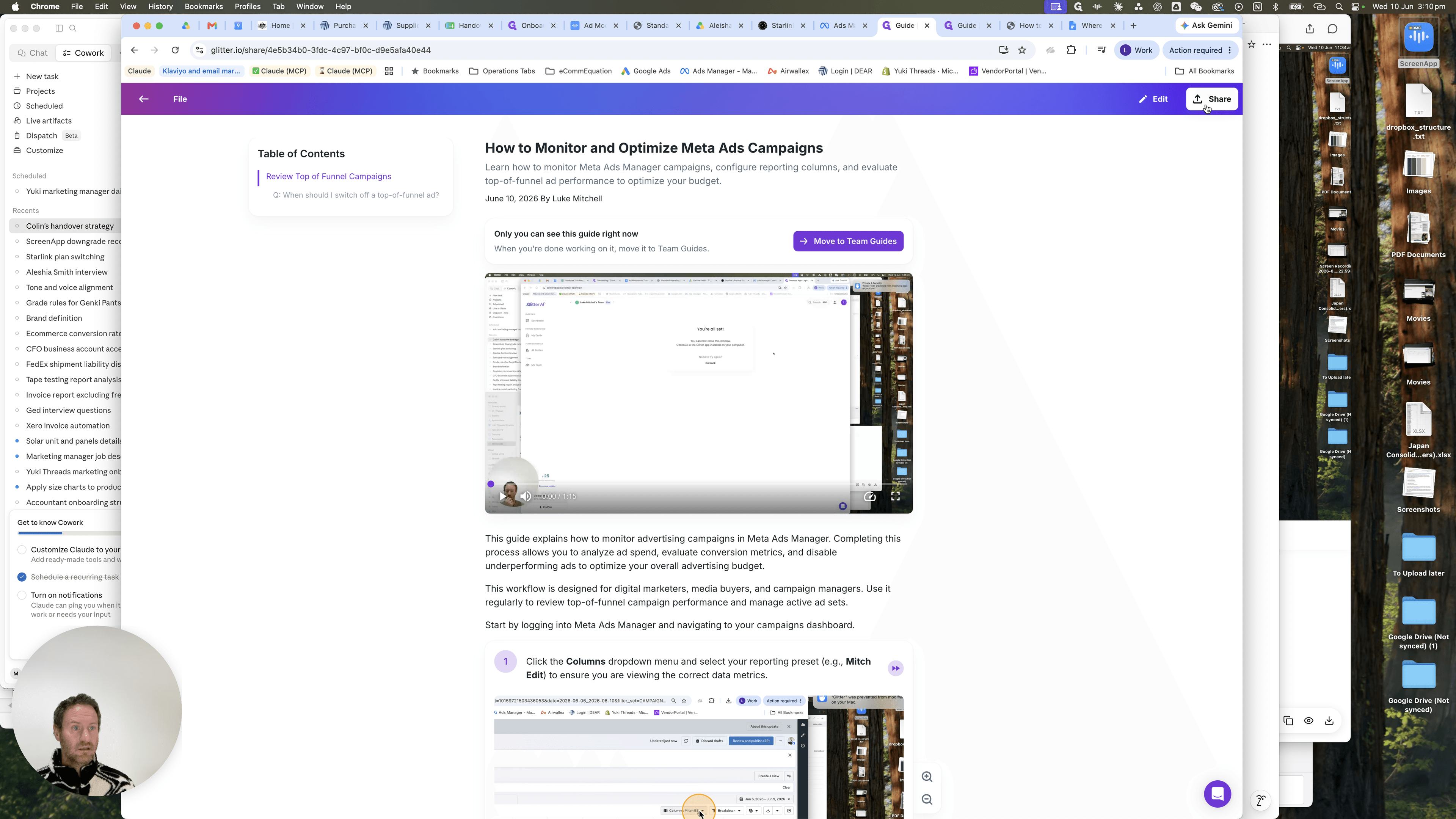
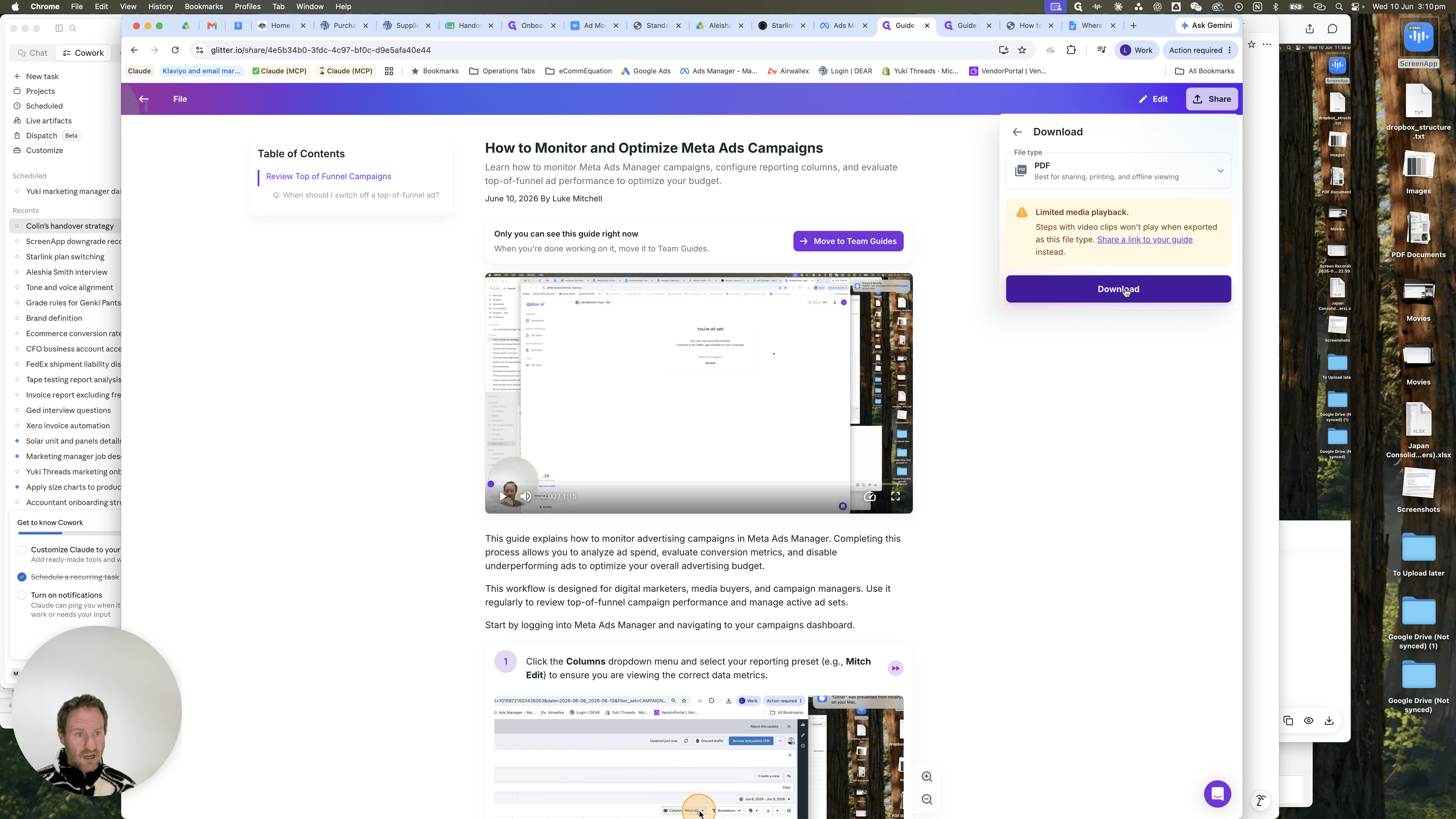
Save and Organize Files Locally
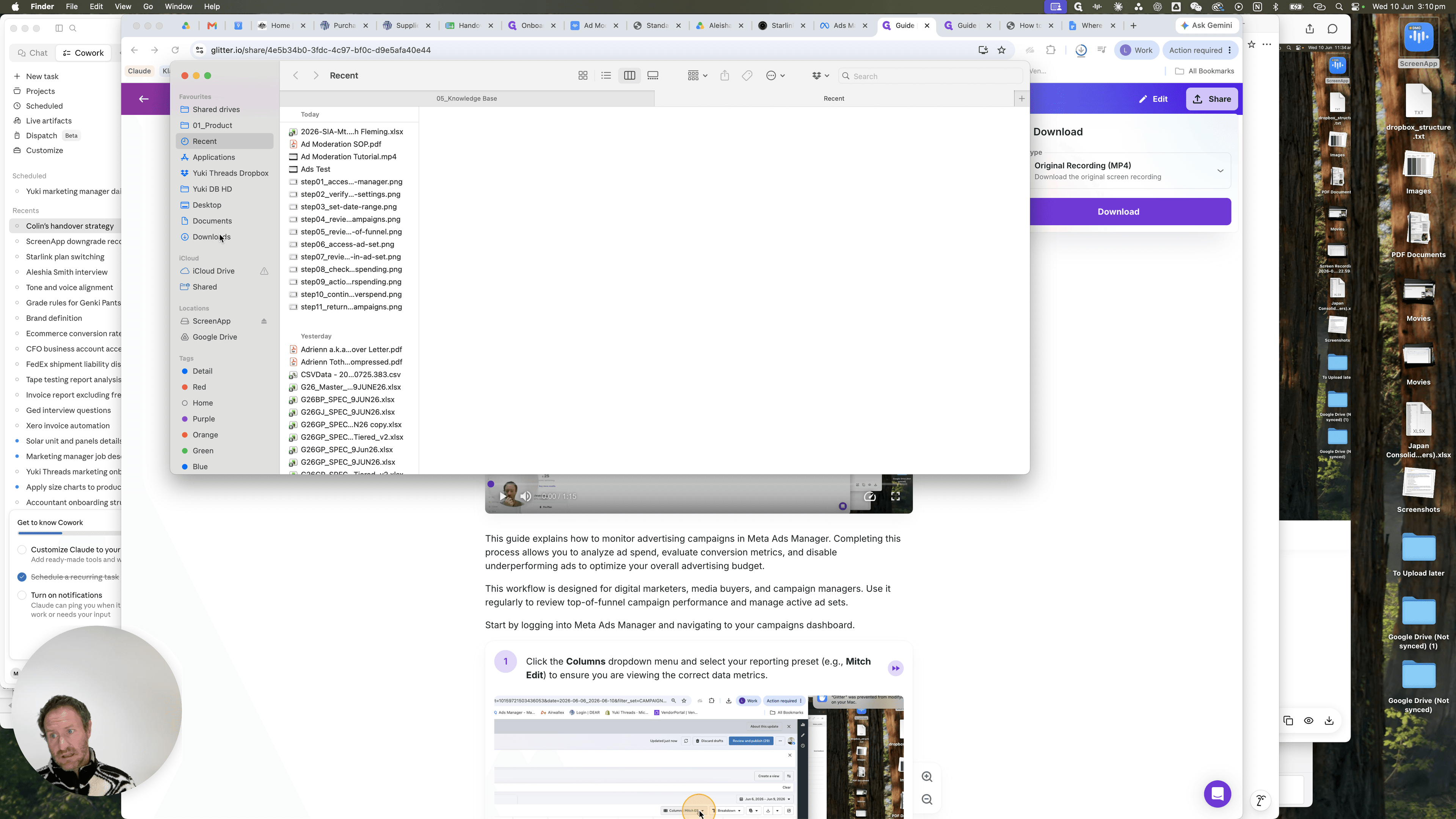
Save everything into the team's designated local folder hierarchy. Maintain one folder per channel, and a dedicated subfolder per task.
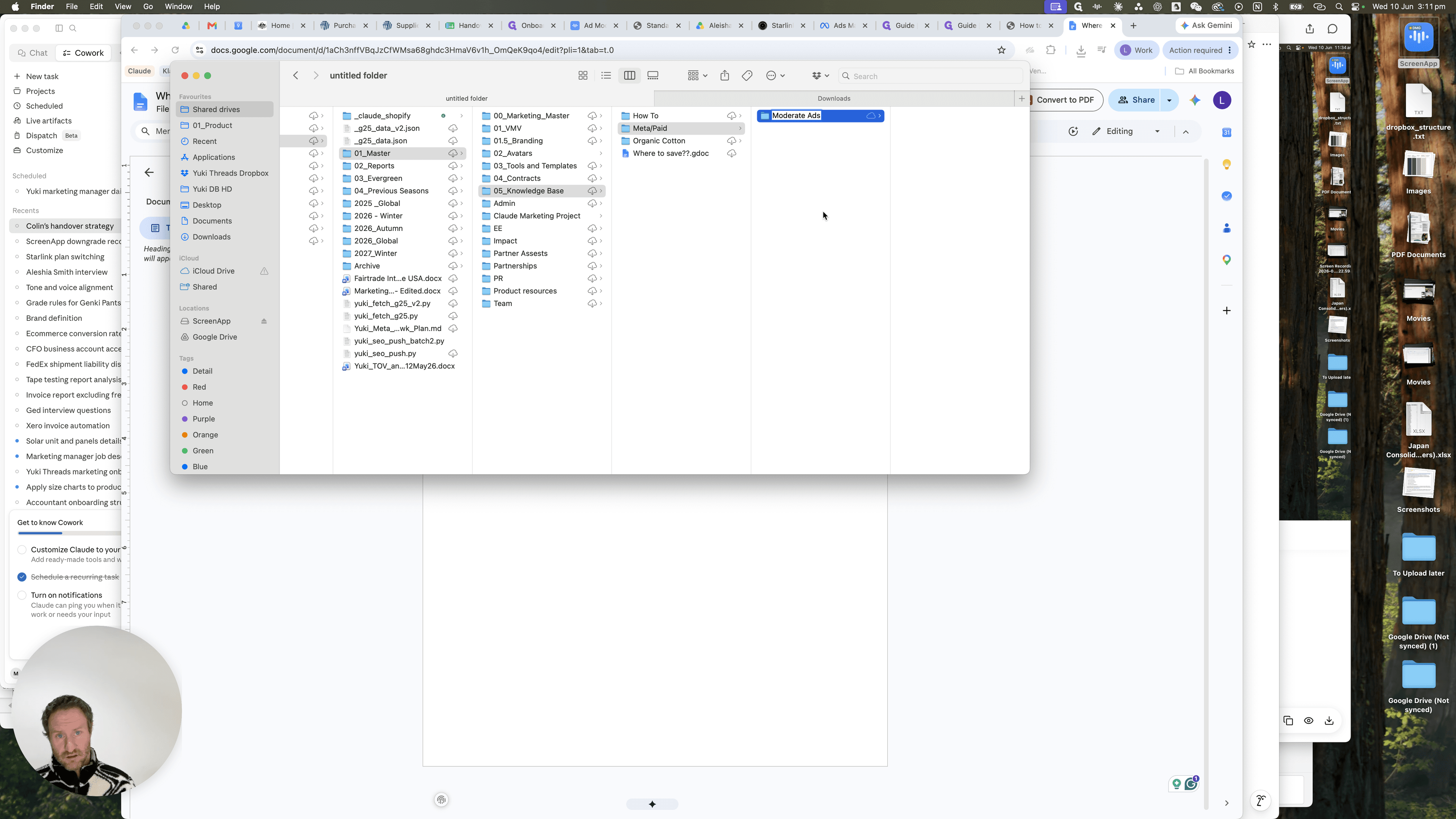
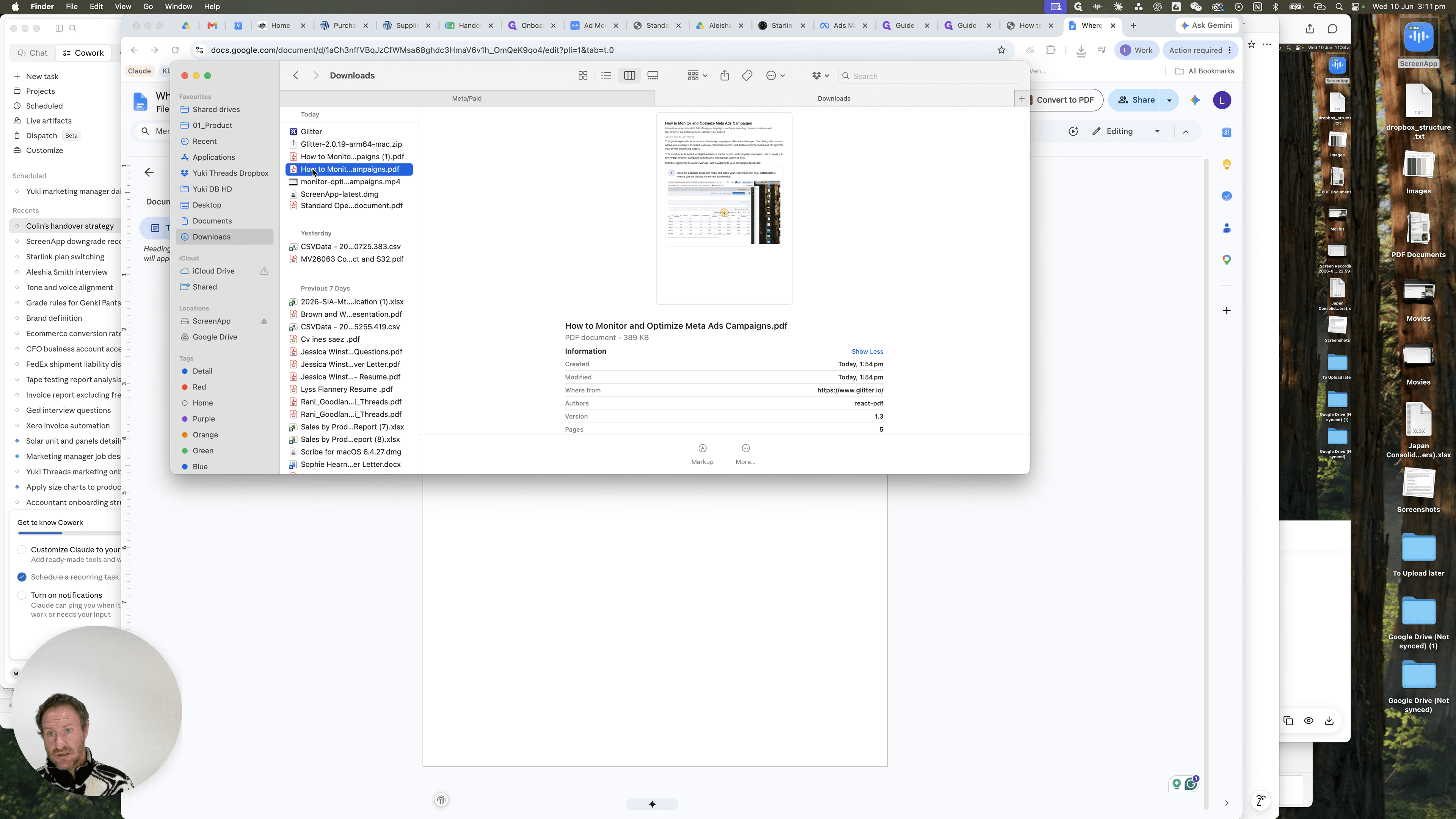
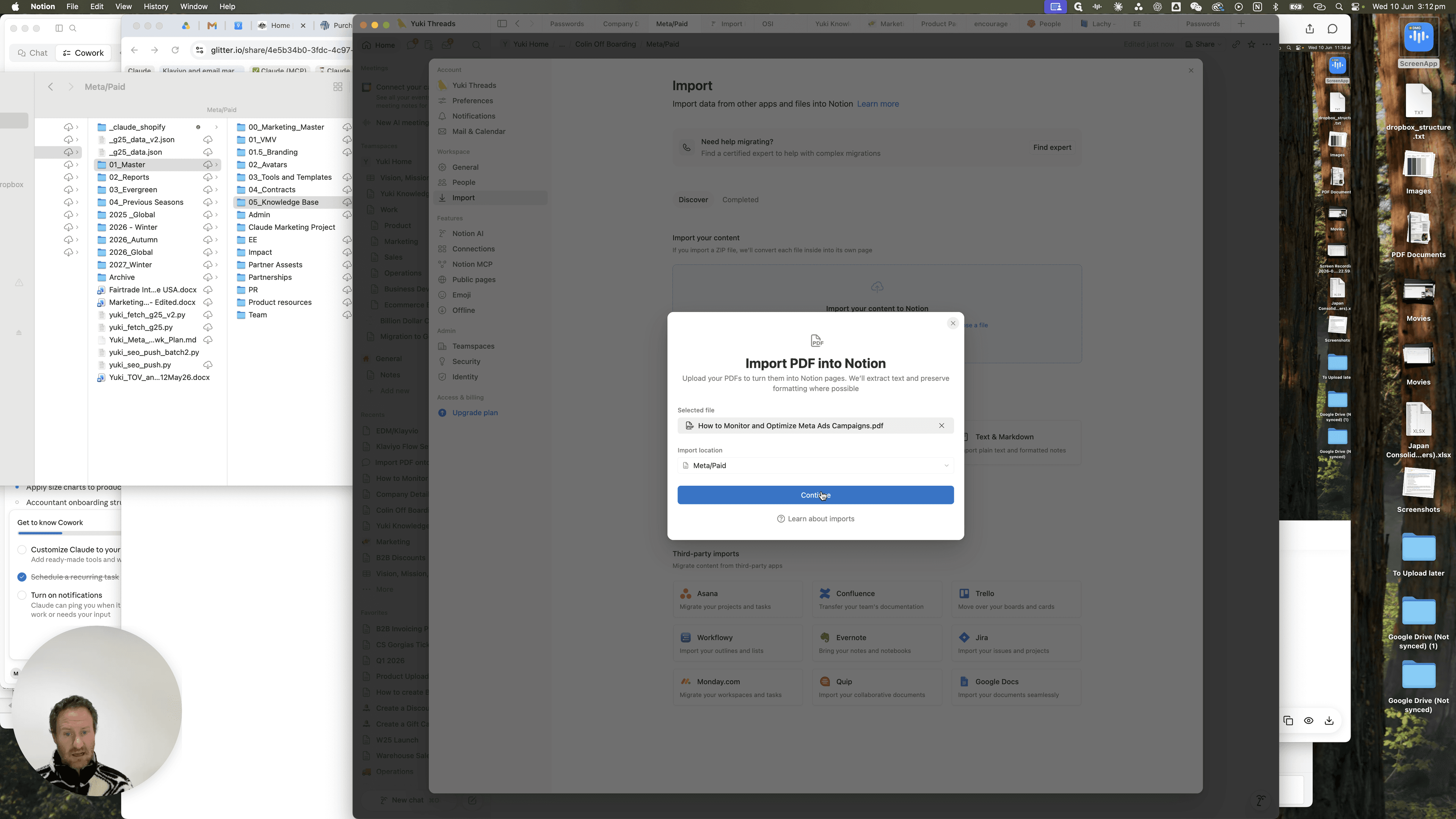
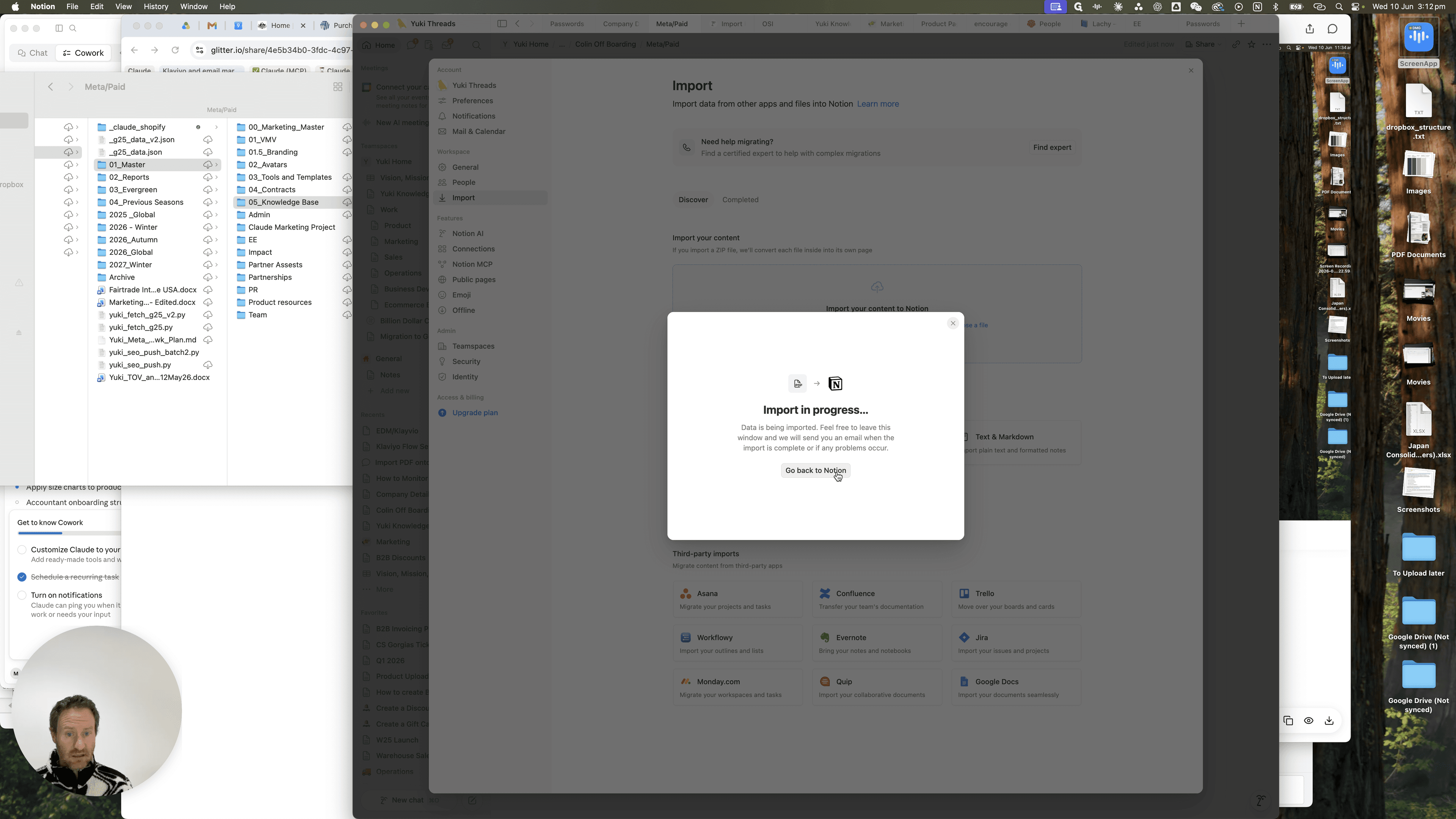
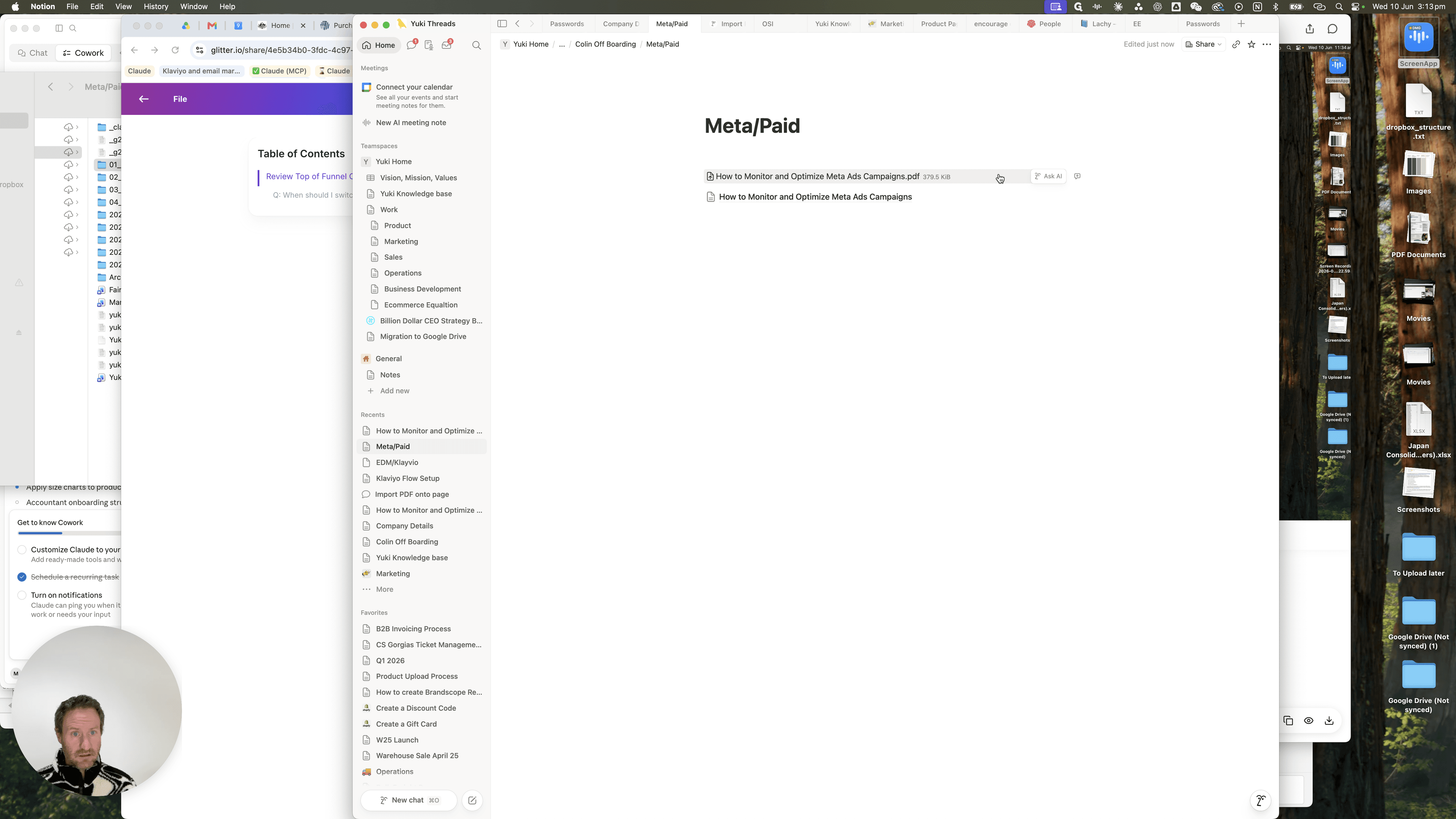
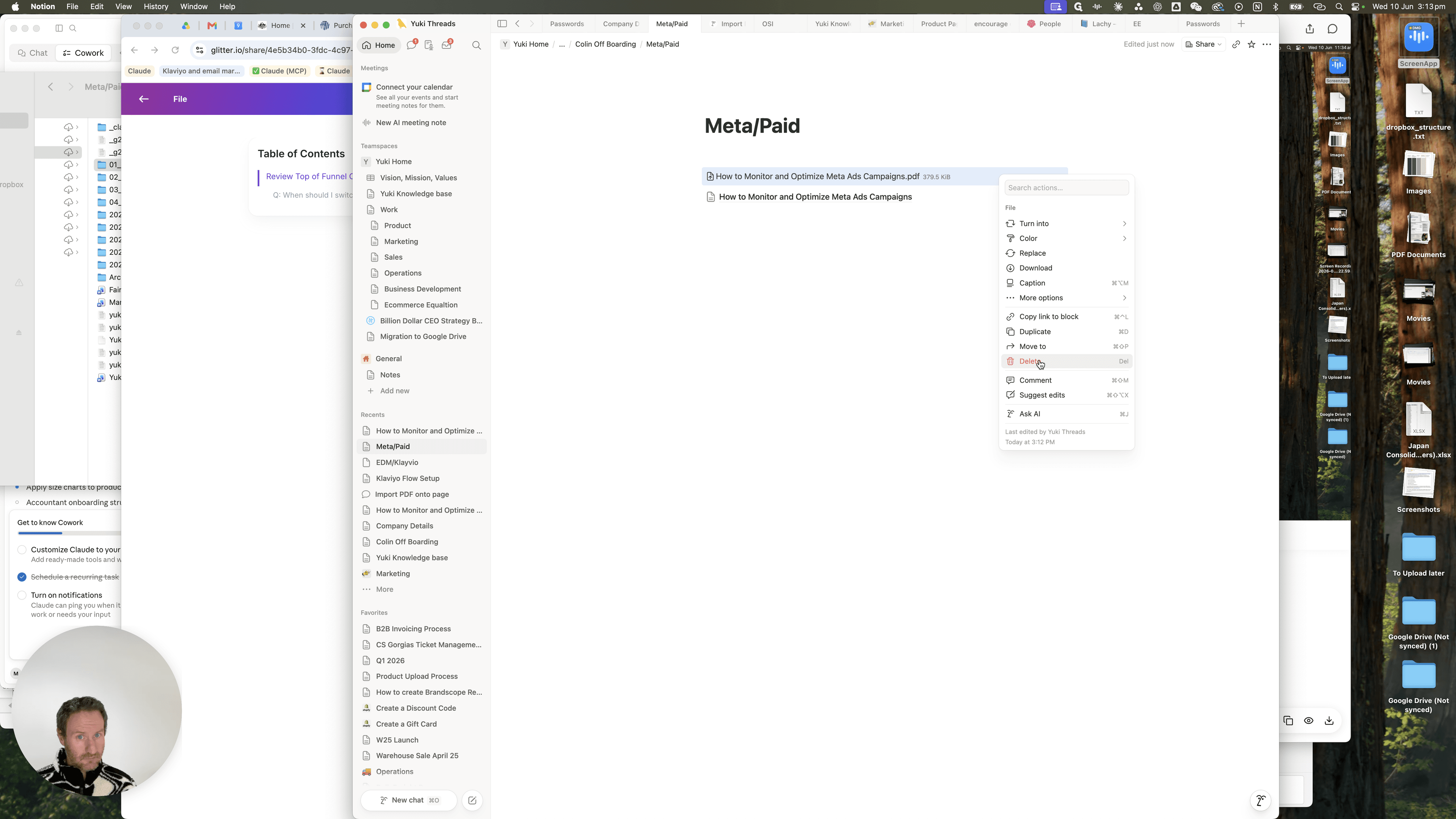
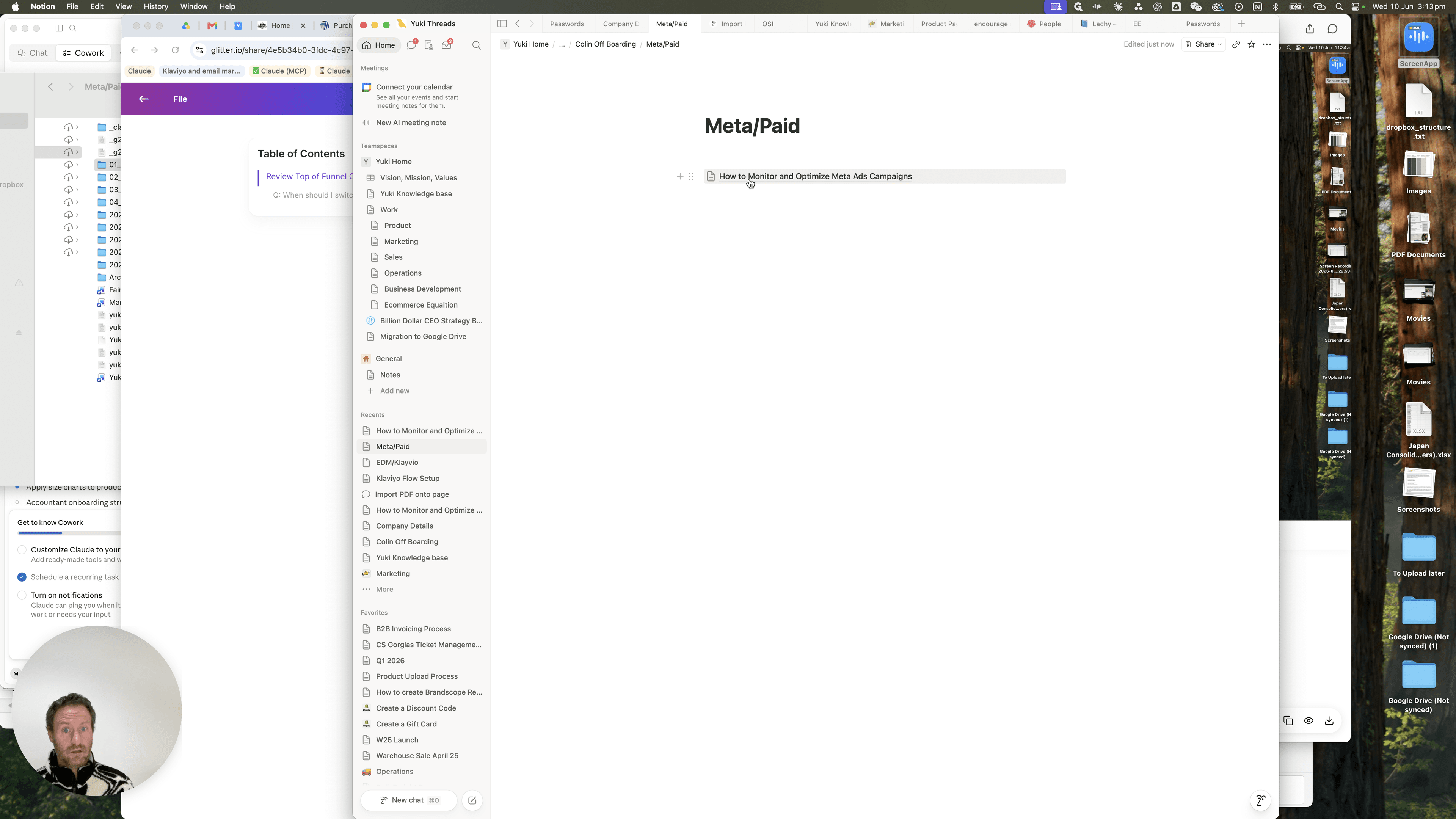
Import the SOP into Notion
While the video serves as a backup, the PDF should be imported directly into the team's Notion workspace for immediate access.
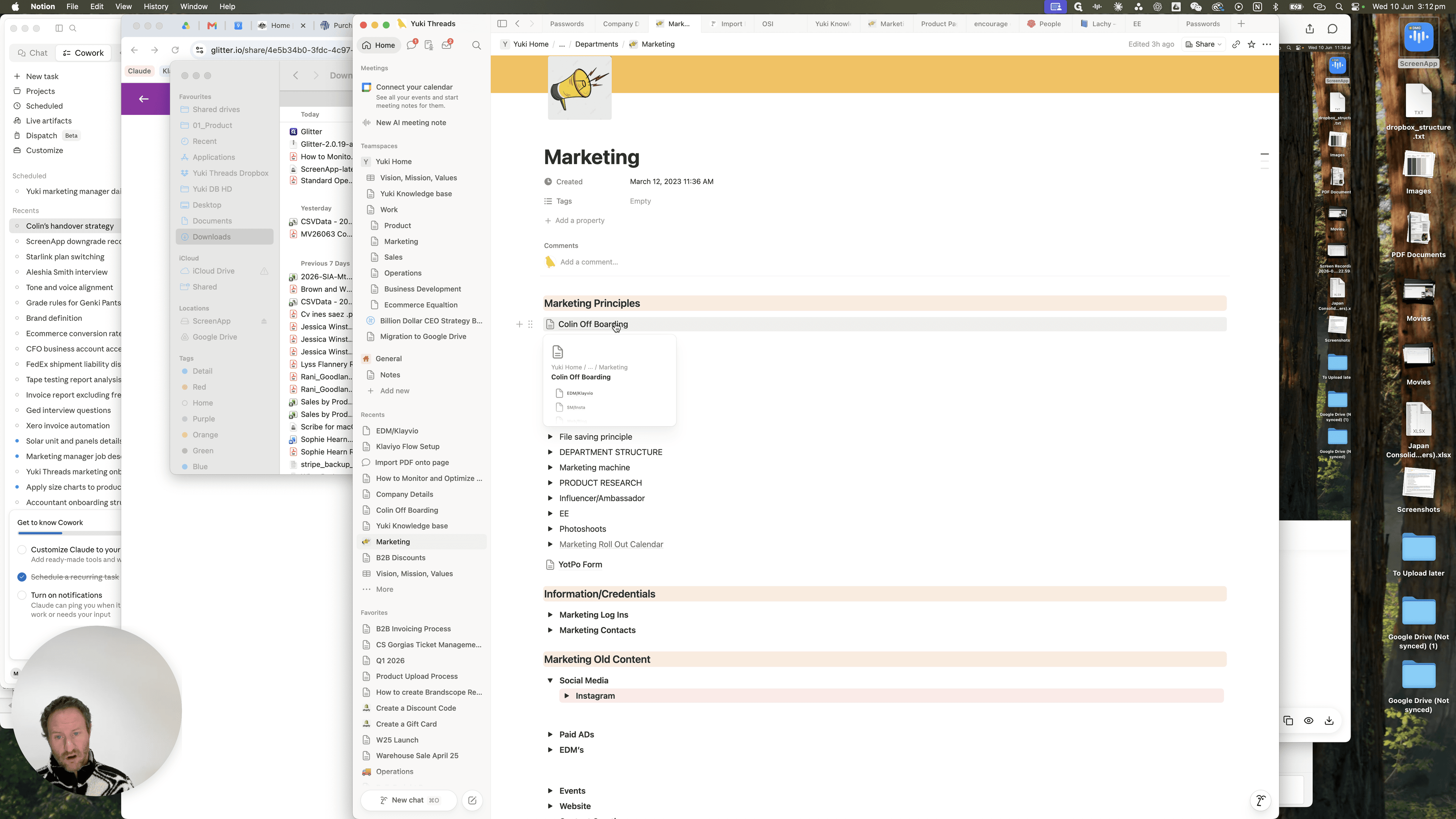
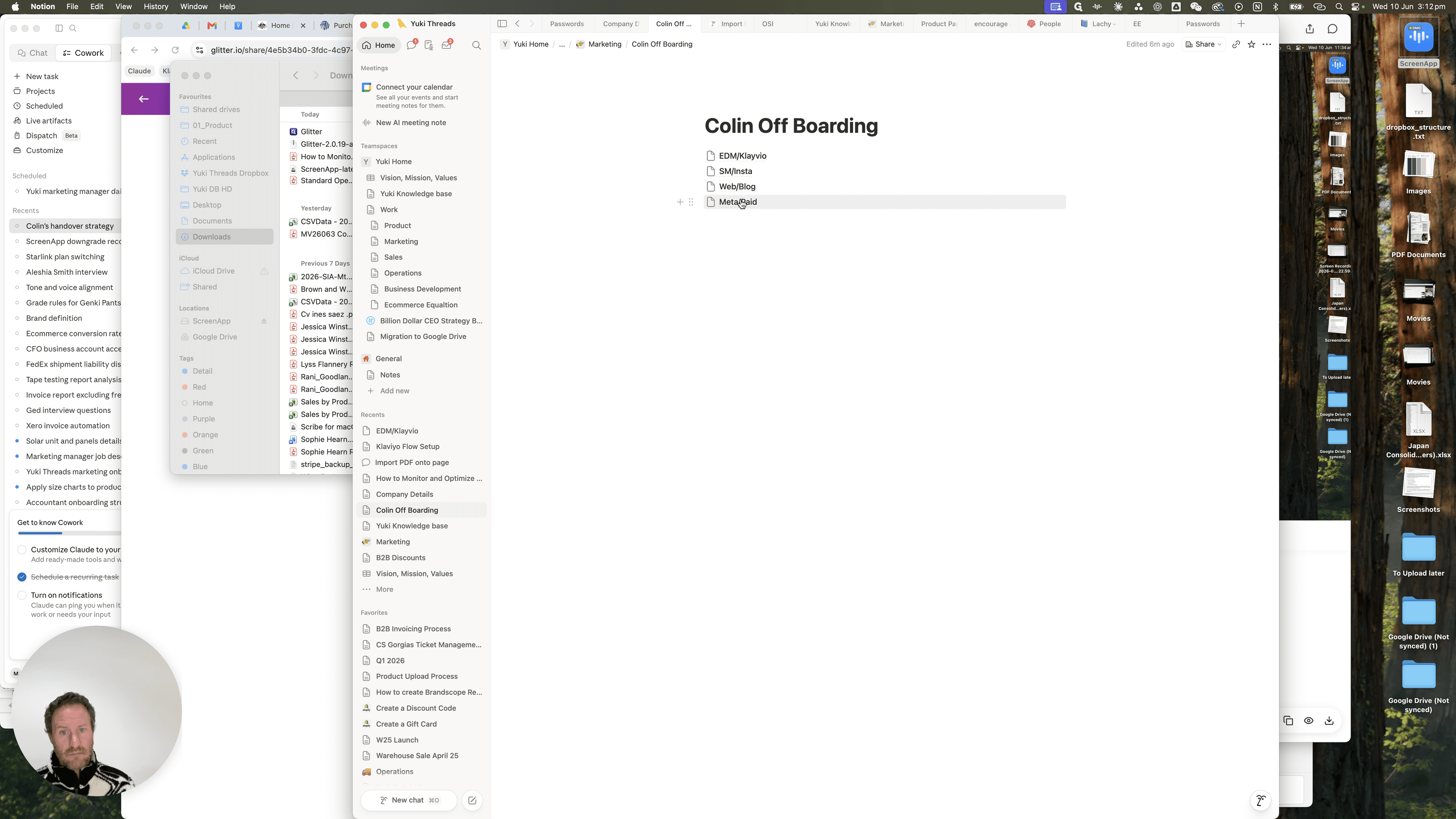
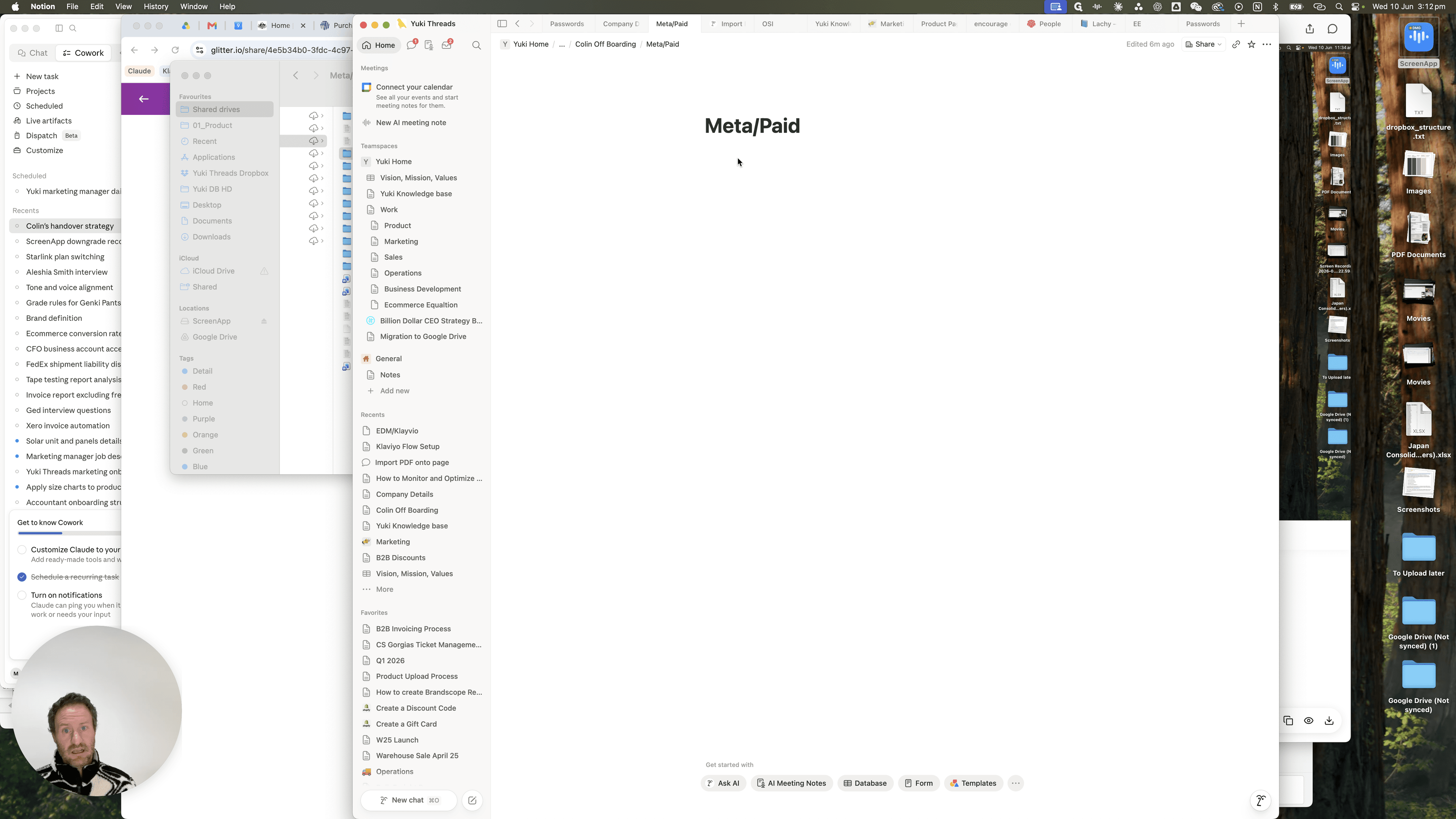
/import to trigger the block menu.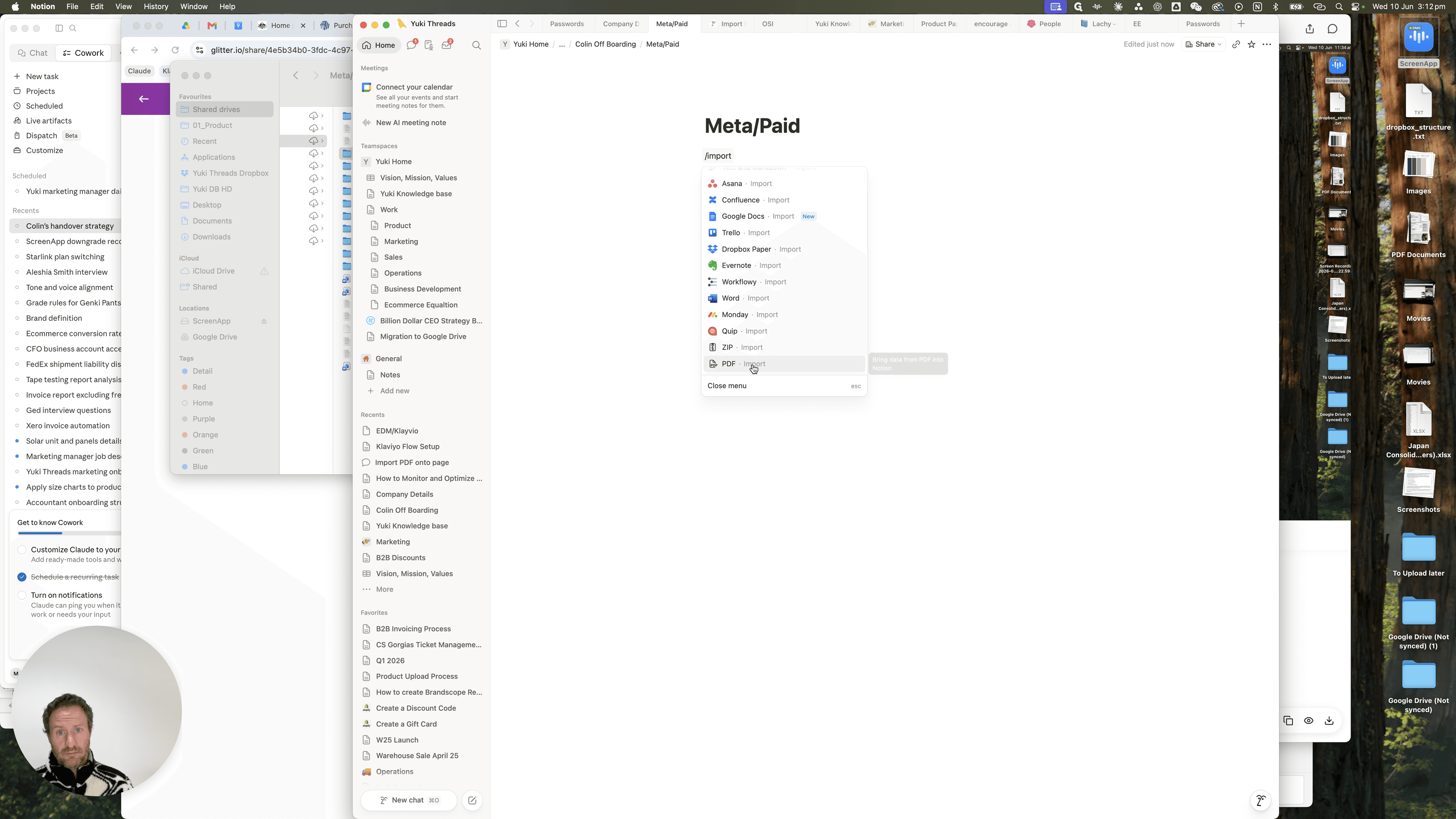
Q: How much time do I have to record a single guide?
A: You have a maximum of 15 minutes per recording. If a task takes longer, pause the recording during repetitive actions and resume it when you move to the next key step.
Q: Why do I need to download the MP4 file if we are uploading the PDF to Notion?
A: The MP4 file serves as an archival backup. We save everything into the master local folder structure for complete records, even though Notion acts as the primary accessible knowledge base.
Q: What should I narrate while recording the guide?
A: Ensure you explain the task's purpose, what triggers it, where to find necessary tools and logins, who depends on the task, and common pitfalls a new person might encounter.
Term | Definition |
|---|---|
Evergreen Task | A task or process that remains relevant and consistent over a long period, rather than being tied to a temporary campaign. |
Knowledge Base | A centralized repository for information, documentation, and standard operating procedures used by an organization. |
SOP | Standard Operating Procedure; a set of step-by-step instructions compiled to help workers carry out routine operations. |