
How to Record Guides and Use Voice Commands in Glitter AI
Learn how to capture your screen, record voiceovers, and use voice commands to seamlessly edit your guides in real-time with the Glitter AI desktop app.
This guide demonstrates how to capture screen activity and use real-time voice commands to edit your recordings using Glitter AI. By the end of this process, you will be able to dictate instructions, navigate through your required applications, and instruct the AI to backtrack or crop specific segments of your recording without manual video editing.
This process is ideal for technical support teams, onboarding specialists, and client-facing roles who need to generate quick software tutorials. It is especially useful when you want to simultaneously walk a client through a process on a live call while generating documentation in the background.
To begin creating documentation, you must choose how you want to capture your process.
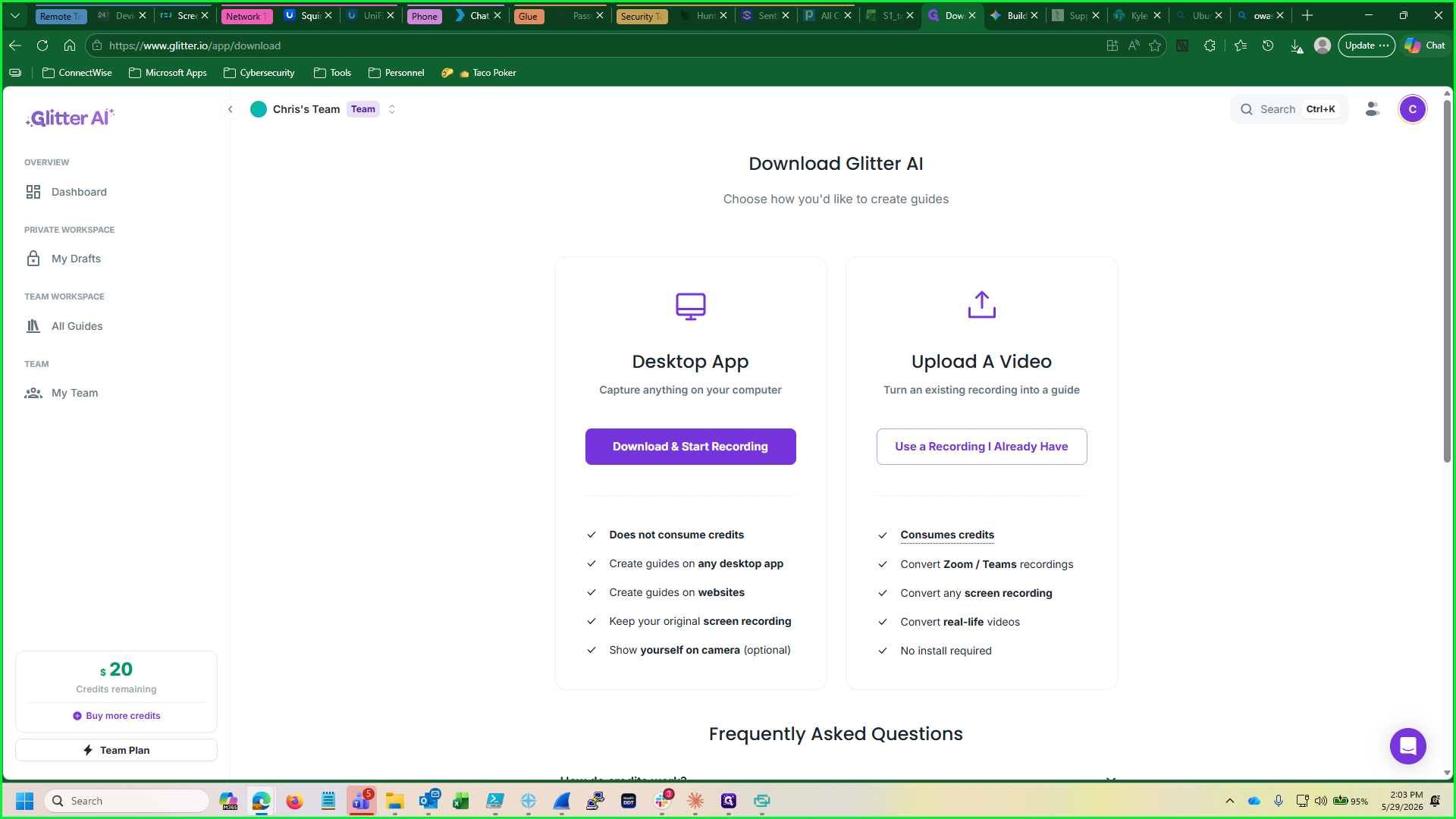
Recording Your Workflow
Once the recording begins, simply click through your standard workflow. The desktop application will quietly capture your actions while listening to your voice.

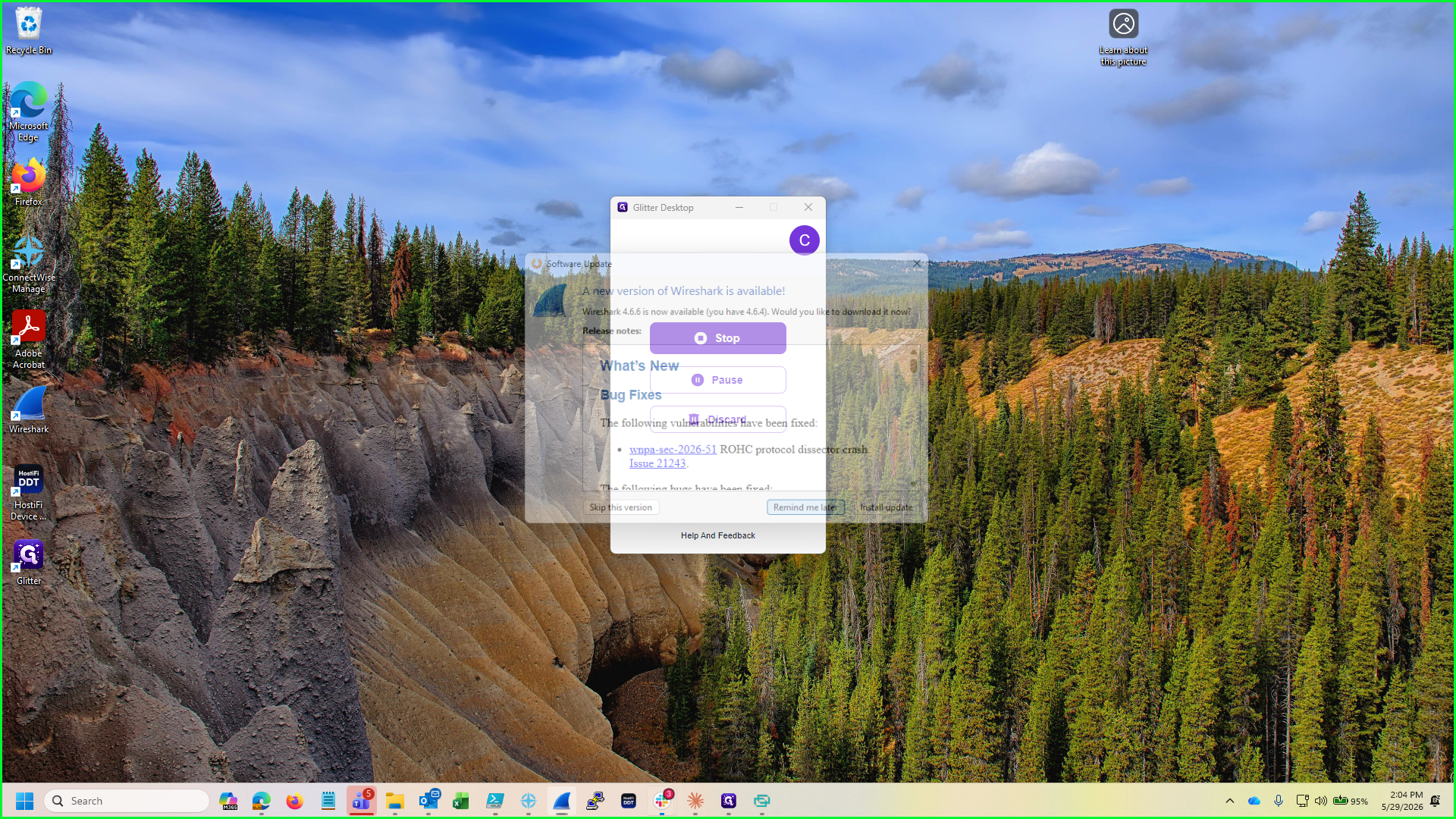
Using Voice Commands
Glitter AI interprets your natural speech to format the guide. You can actively issue voice commands to edit the recording in real time.
Managing the Recording
When you are ready to conclude or pause your guide, use the desktop widget overlay.
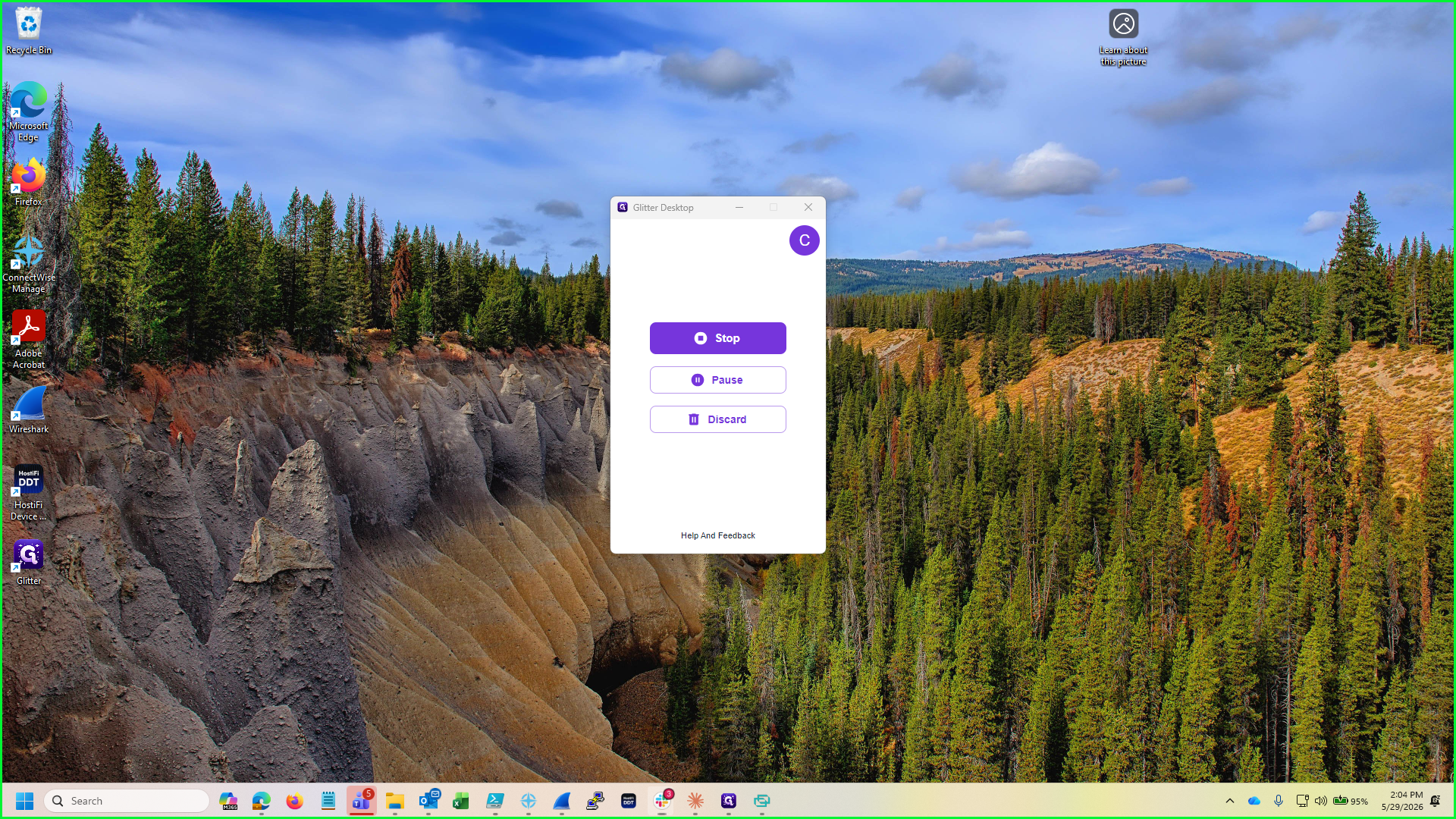
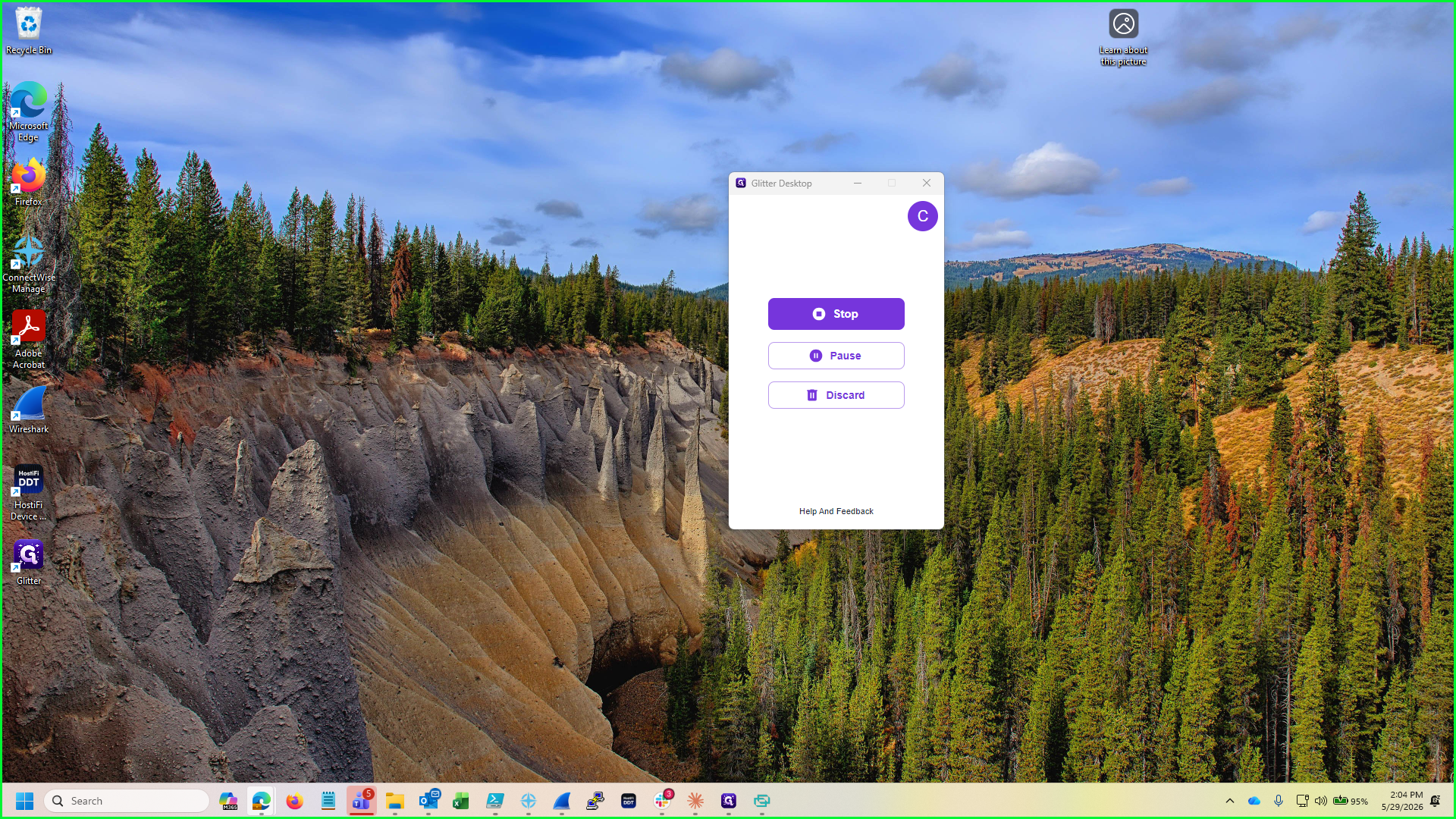
Control | Action |
|---|---|
Stop | Ends the capture process and begins generating the final written guide. |
Pause | Temporarily suspends the recording so you can prepare the next step. |
Discard | Cancels the current session and permanently deletes the captured data without saving. |
Q: Can I use this software while on a phone call with a client?
A: Yes, the tool can run in the background and record your steps while you talk the client through a process.
Q: Does the tool convert my speech to text?
A: Yes, it actively listens to your voice and transcribes it into coherent written instructions.
Q: How does the AI handle slang or unstructured speech?
A: The AI interprets and coordinates your language to create professional steps, ignoring conversational filler and translating slang into standard instructions.
Q: How do I fix a mistake made during the recording?
A: You can use natural voice commands, such as explicitly telling the app to "backtrack," to instruct the AI to ignore the last few seconds or minutes of your recording.
Term | Definition |
|---|---|
SentinelOne | An endpoint security platform used for threat detection and response. |
Huntress | A managed security platform focused on detecting hidden threats and vulnerabilities. |
Wireshark | A network protocol analyzer used for capturing and examining data traffic. |