How to Register a New Client and Pet
Learn how to register a new client profile and add pet details in the veterinary practice management system.
By Rogin Roi Reillo
This guide walks you through the process of registering a new client and adding their pet's details in the system. Completing this task ensures you have accurate contact and patient information on file for future appointments and billing.
This workflow is primarily used by front desk staff, receptionists, and veterinary technicians when onboarding a new client and their animals into the clinic's management system.
Registering a new client in the veterinary practice management system allows you to maintain up-to-date records for both owners and their pets.
Client Information
1
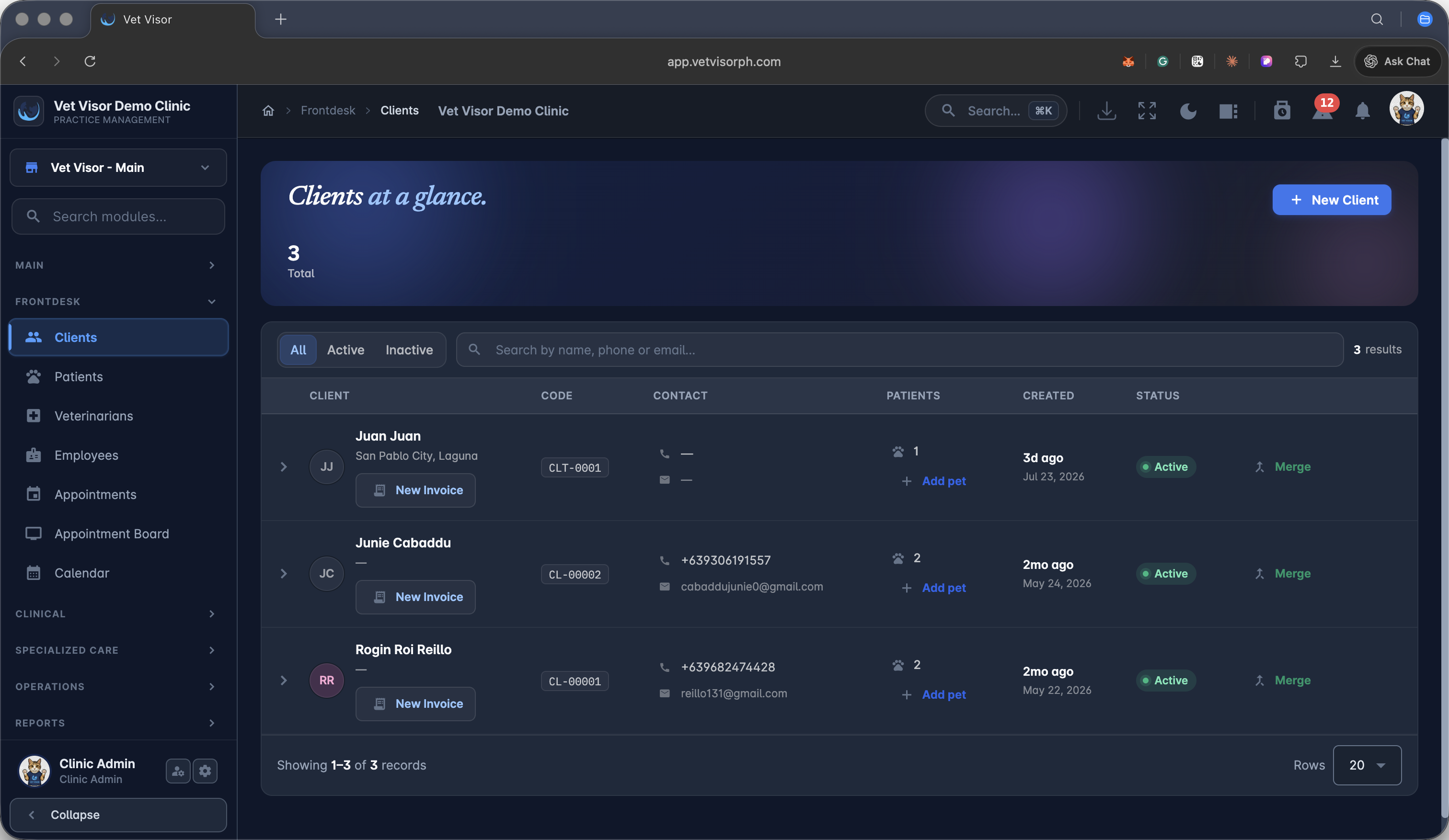
Click + New Client in the upper-right corner to open the registration form.
2
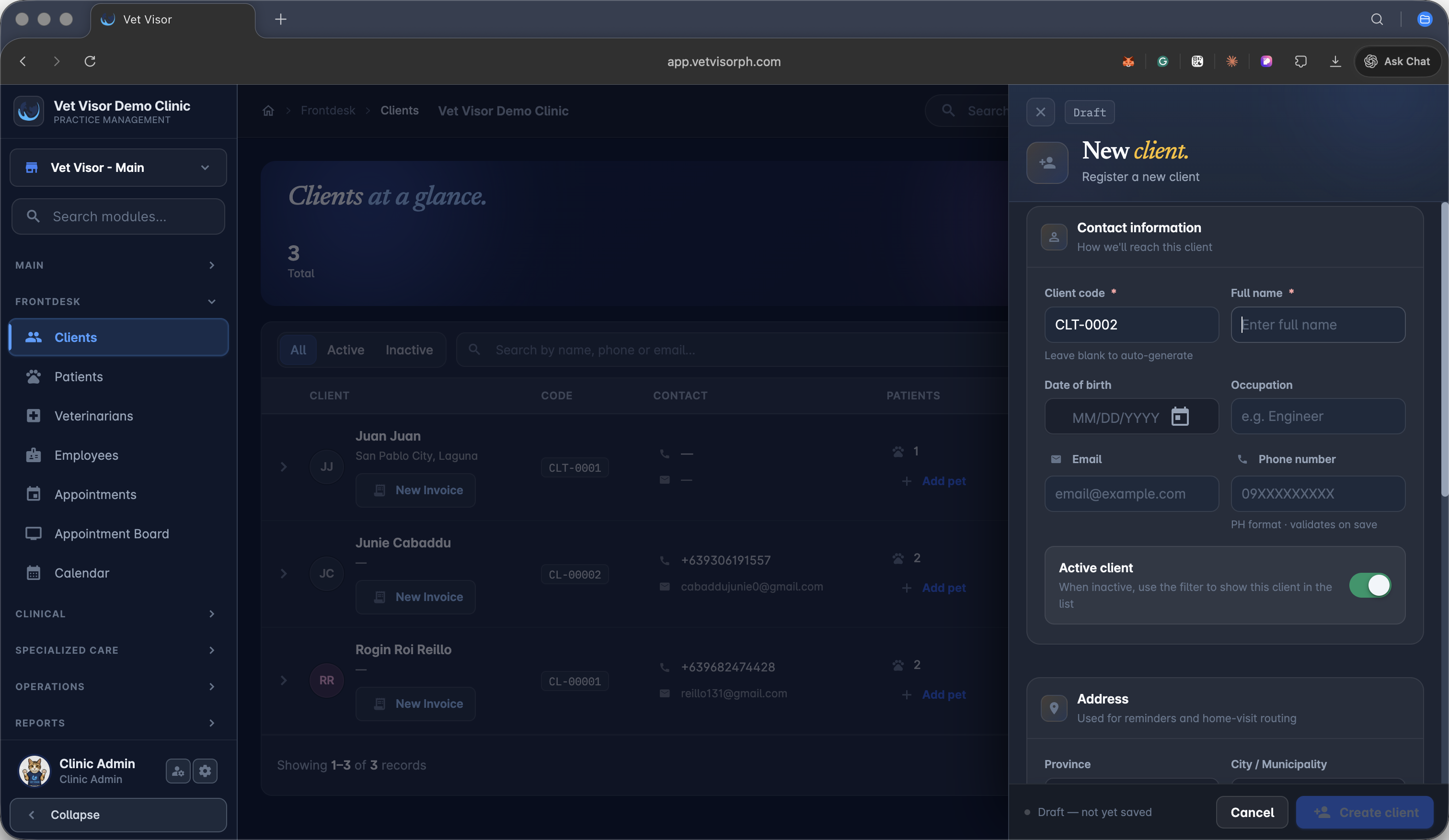
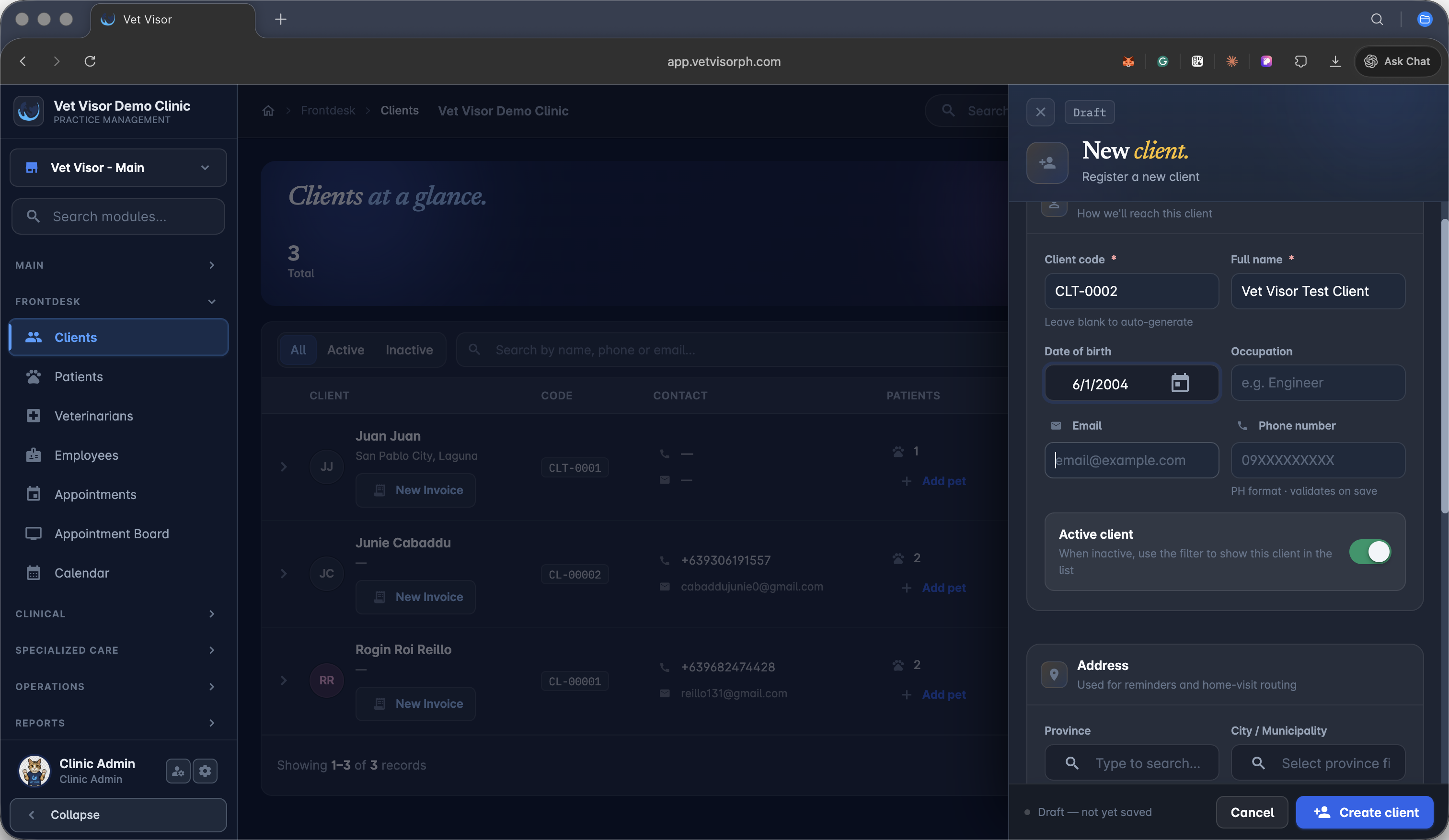
Enter the client's full name in the provided field.
3
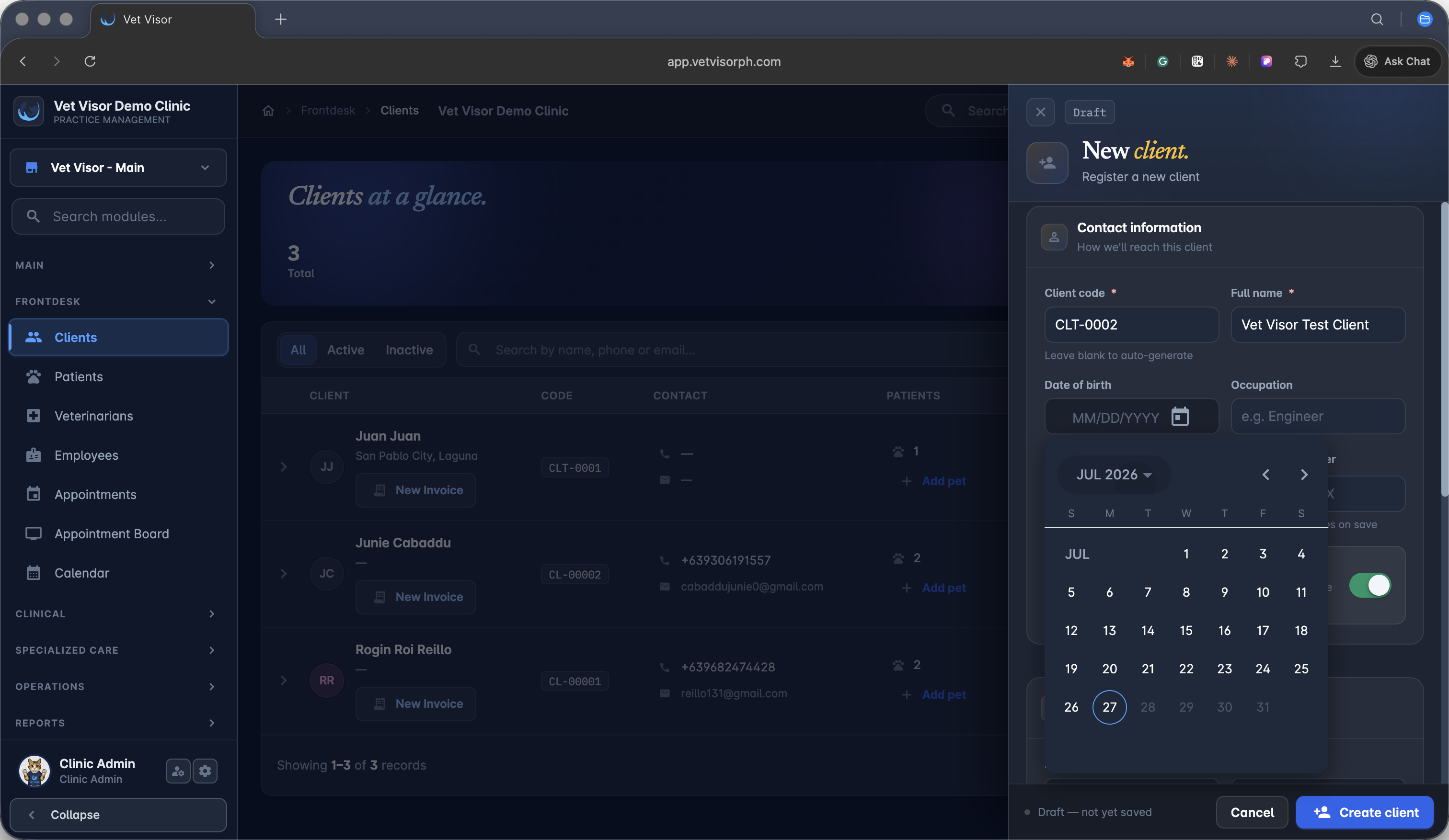
Use the calendar picker to select the client's date of birth.
4
Enter the client's email address and other relevant contact details.
5
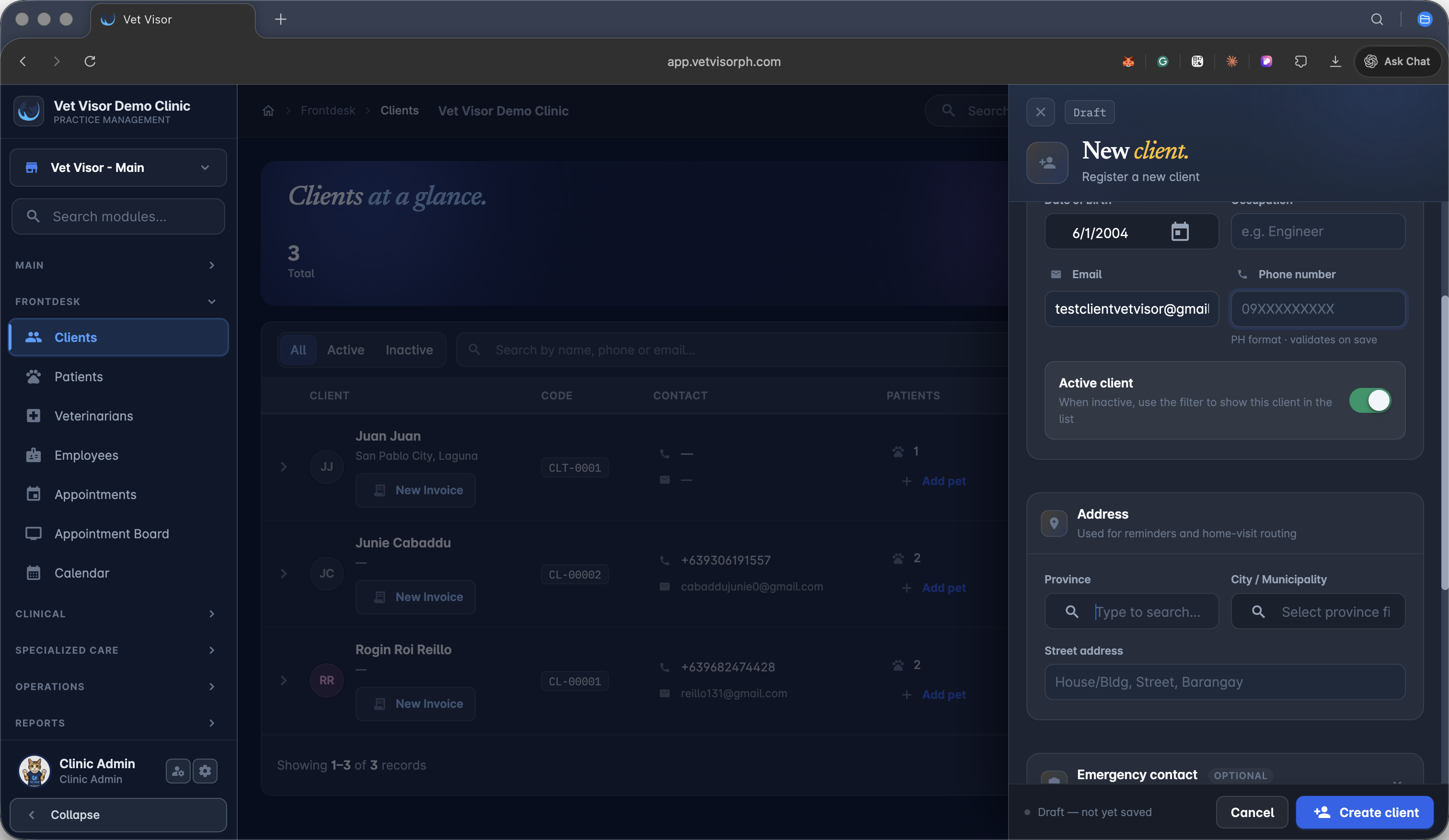
Search for and select the client's province from the dropdown menu.
6
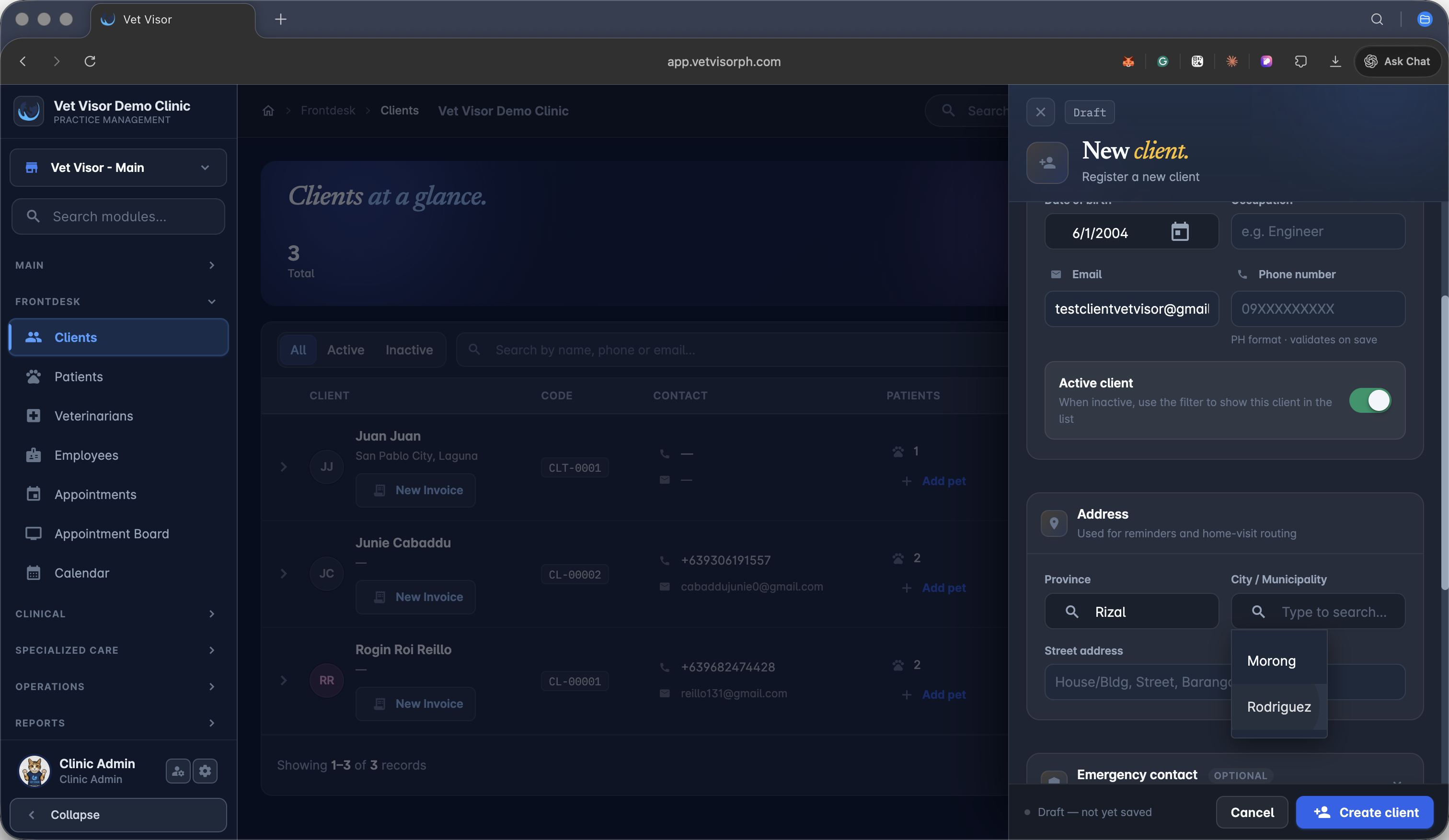
Select the corresponding city or municipality.
7
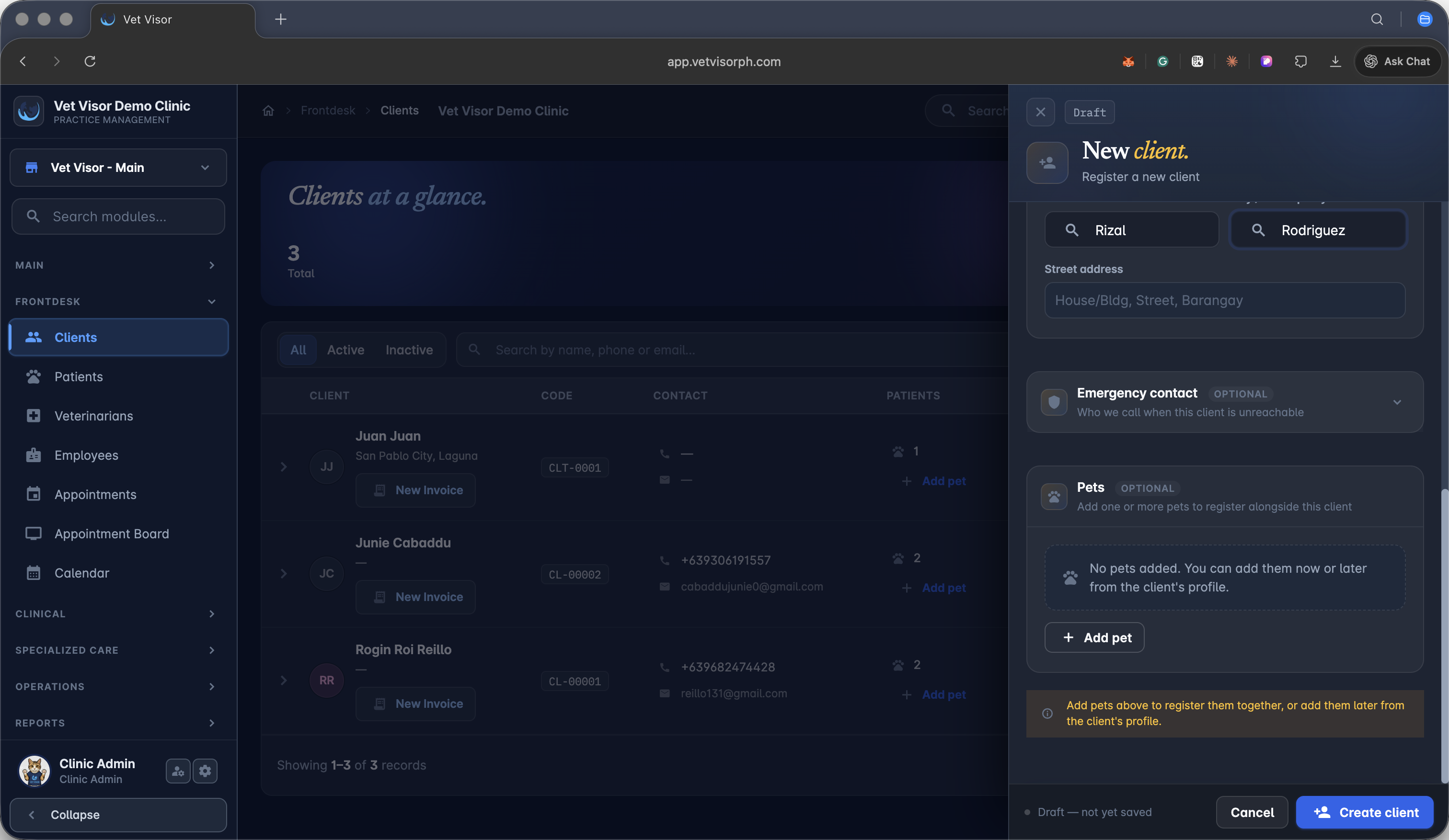
Provide an emergency contact number for when the client is unreachable.
Pet Registration (Optional)
You can register the client's pets directly during the client creation process.
8
Click + Add pet to begin entering a new patient's information.
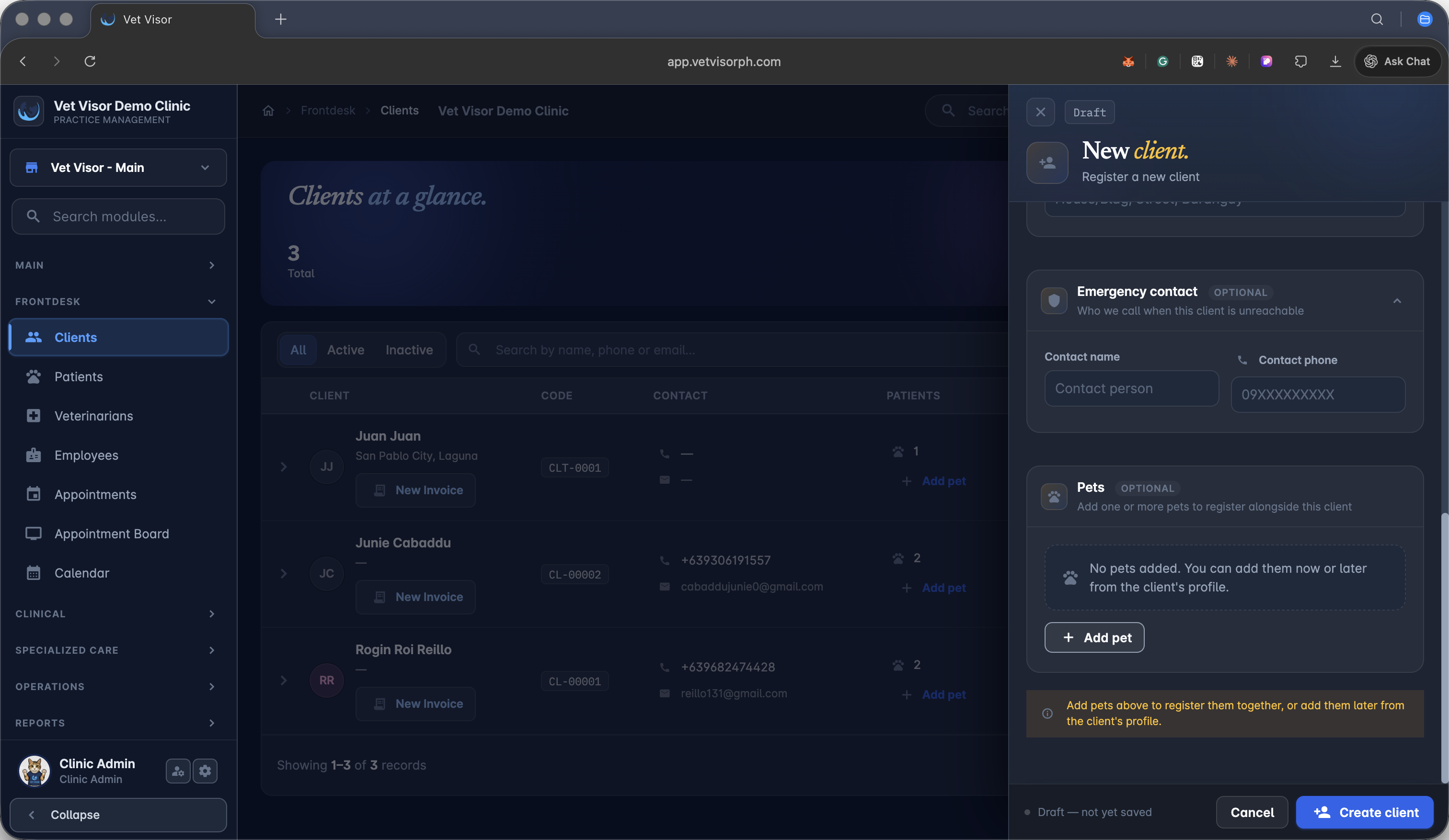
9
Enter the pet's name.
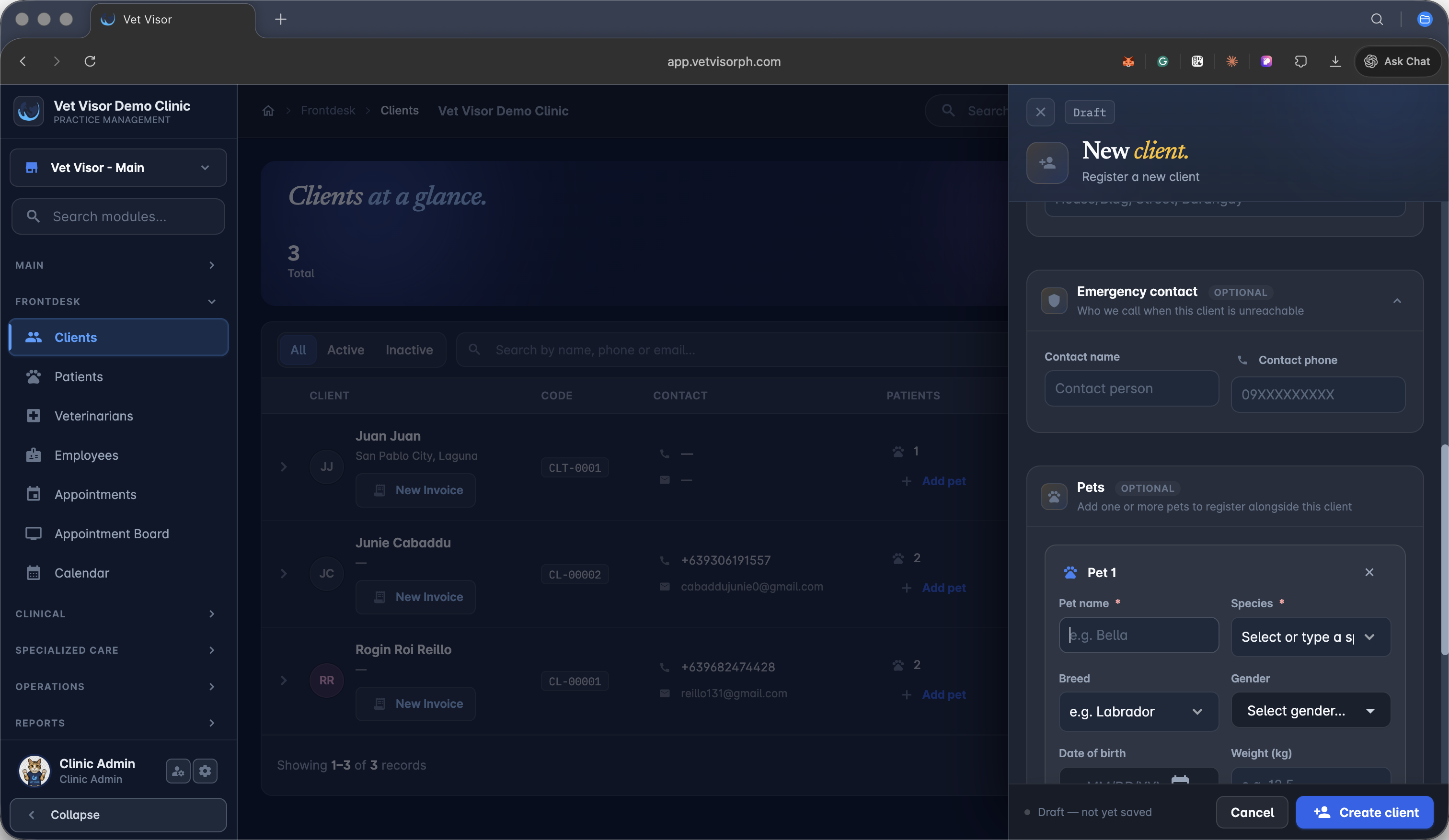
10
Select the pet's species from the dropdown list.
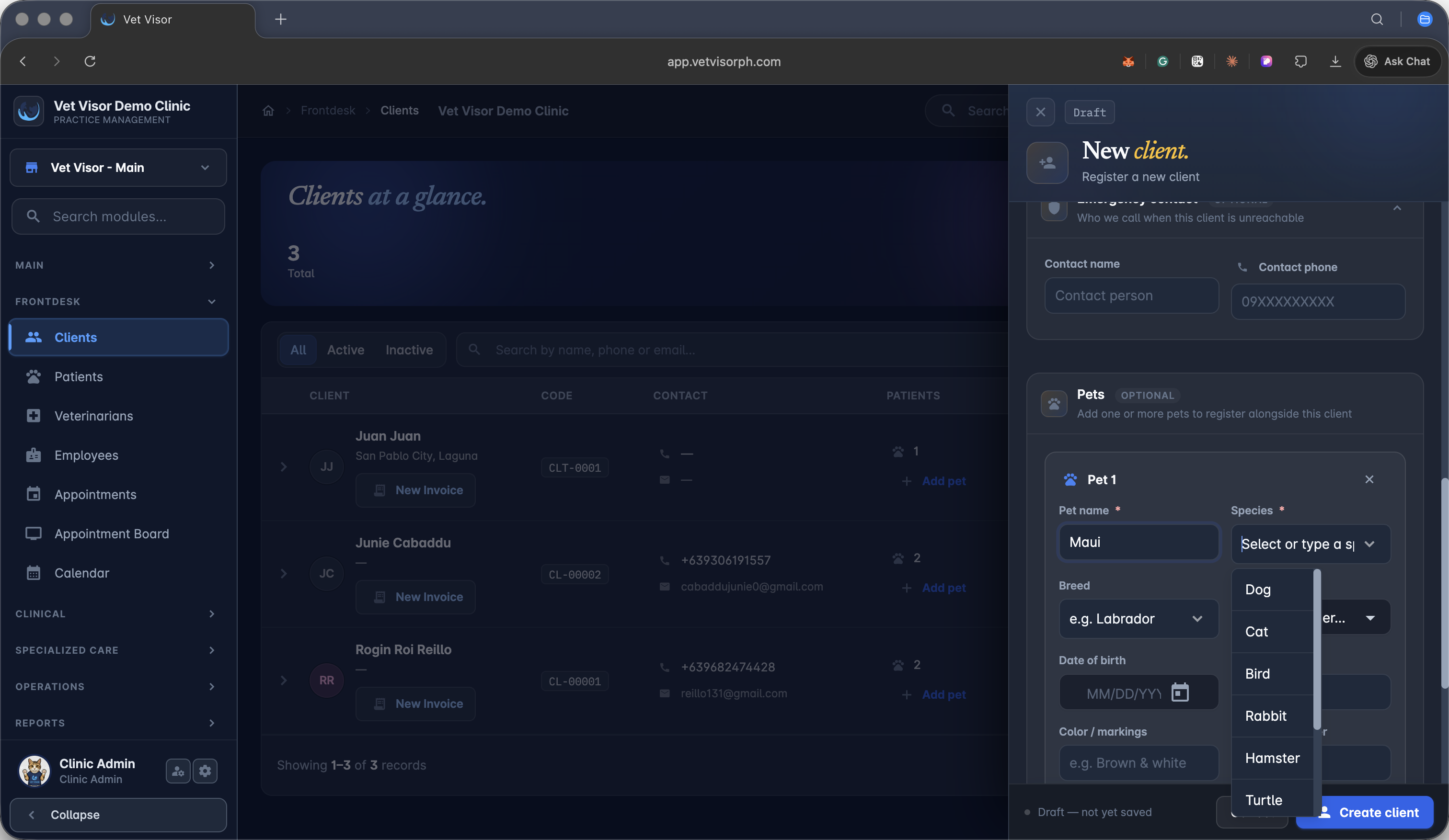
11
Type in the pet's specific breed.
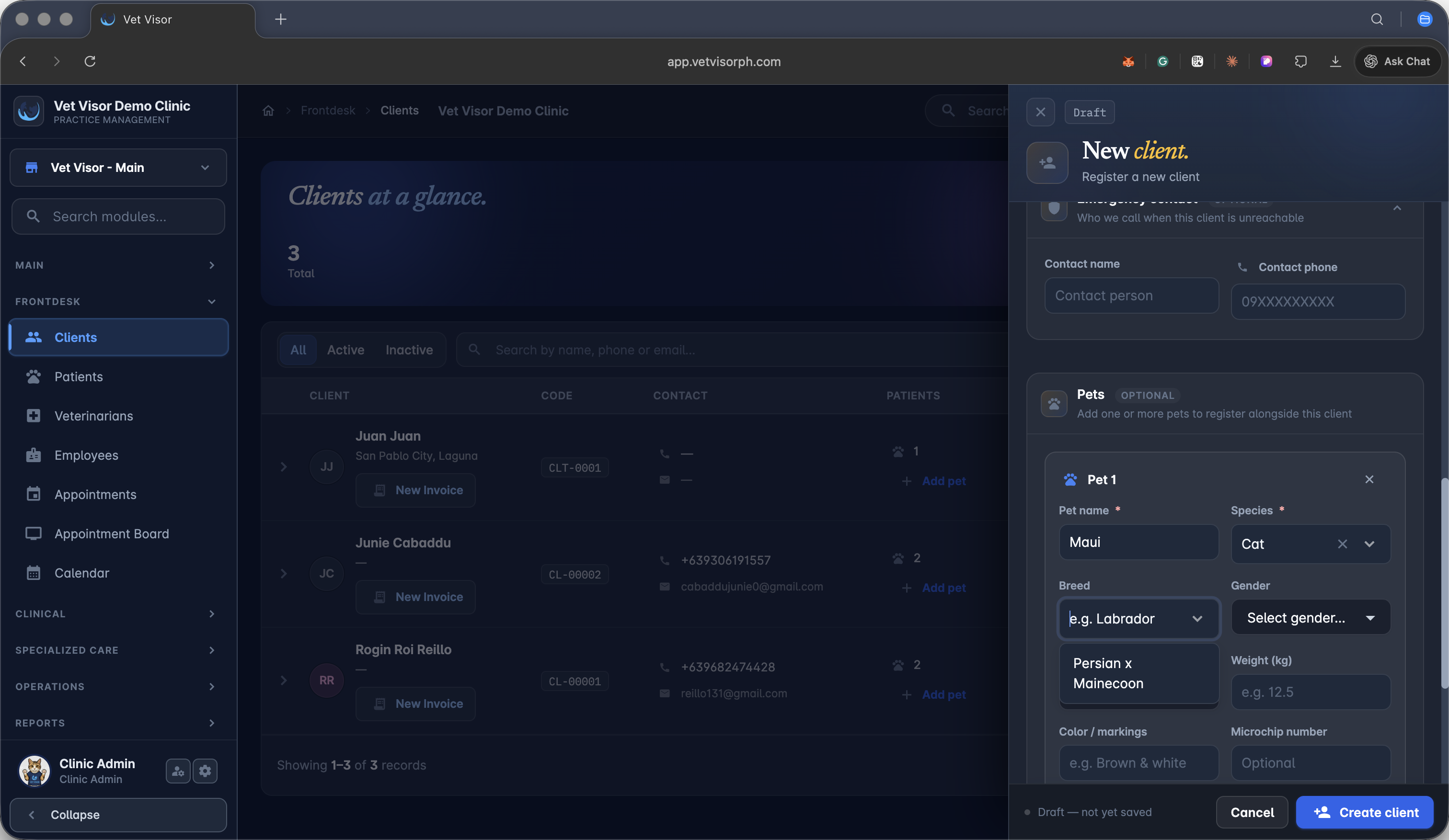
12
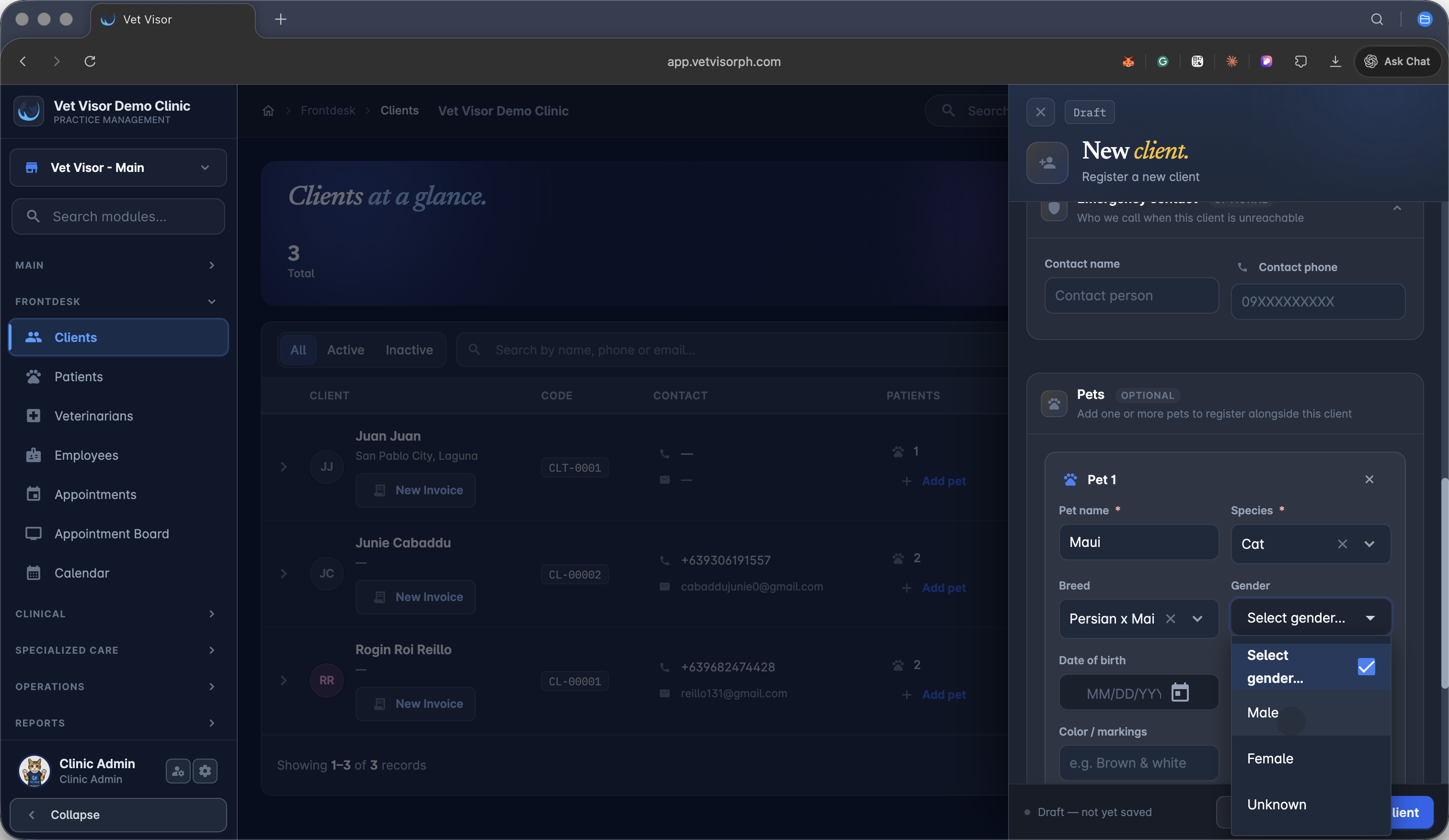
Choose the pet's gender from the dropdown menu.
13
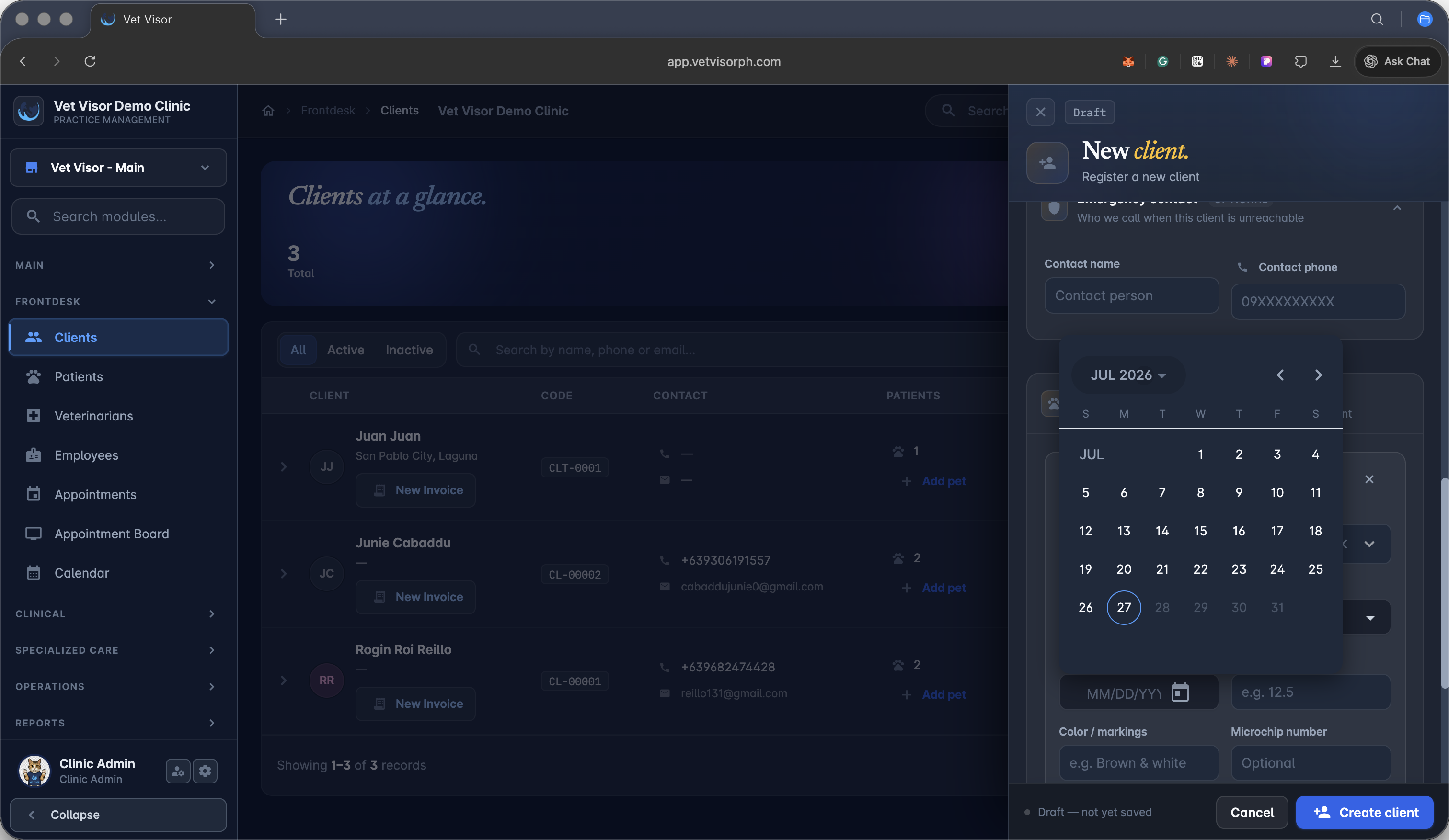
Use the calendar picker to set the pet's date of birth.
Finalize Registration
14
Click Create client at the bottom of the form to save the new profile into the system.