
Register a School and Add Staff in Edusua SMS
Learn how to complete initial school onboarding, set up administrator and kiosk credentials, and add your first staff member in Edusua SMS.
Purpose
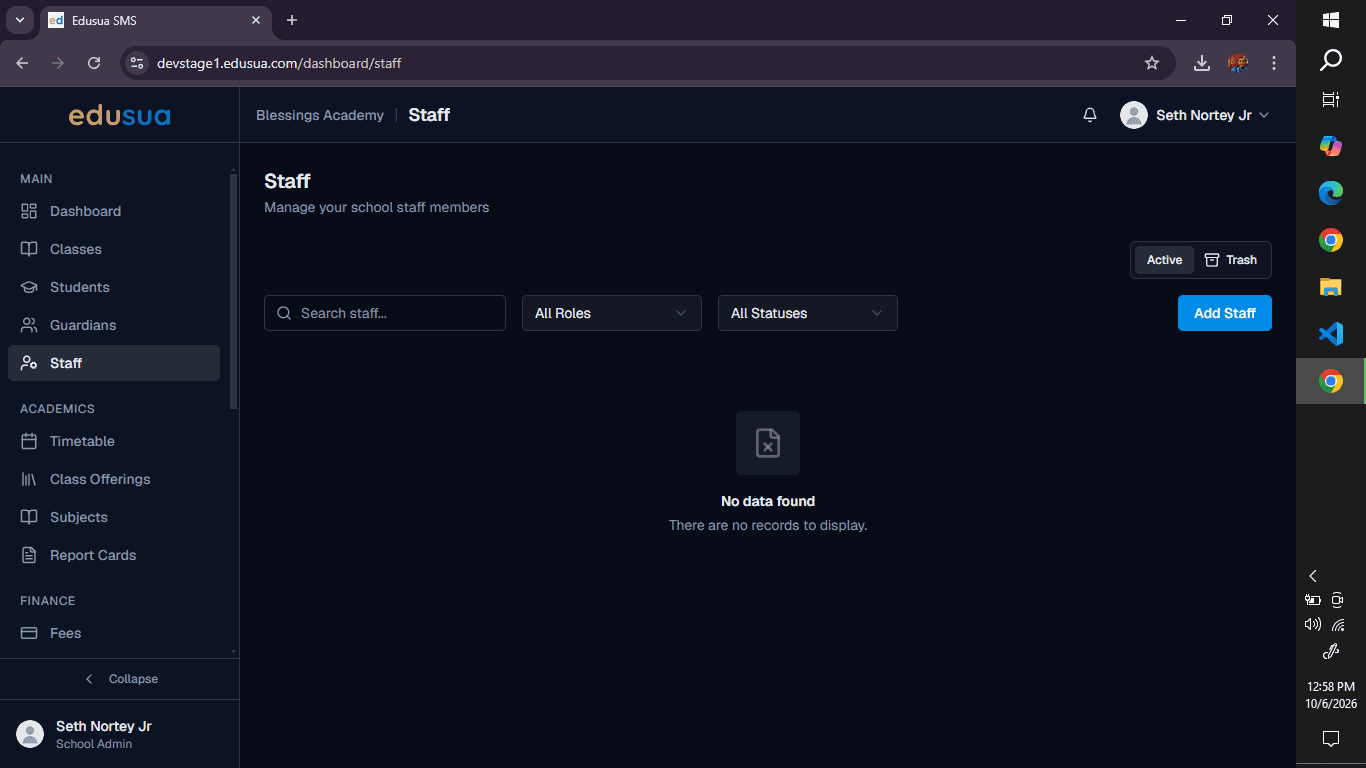
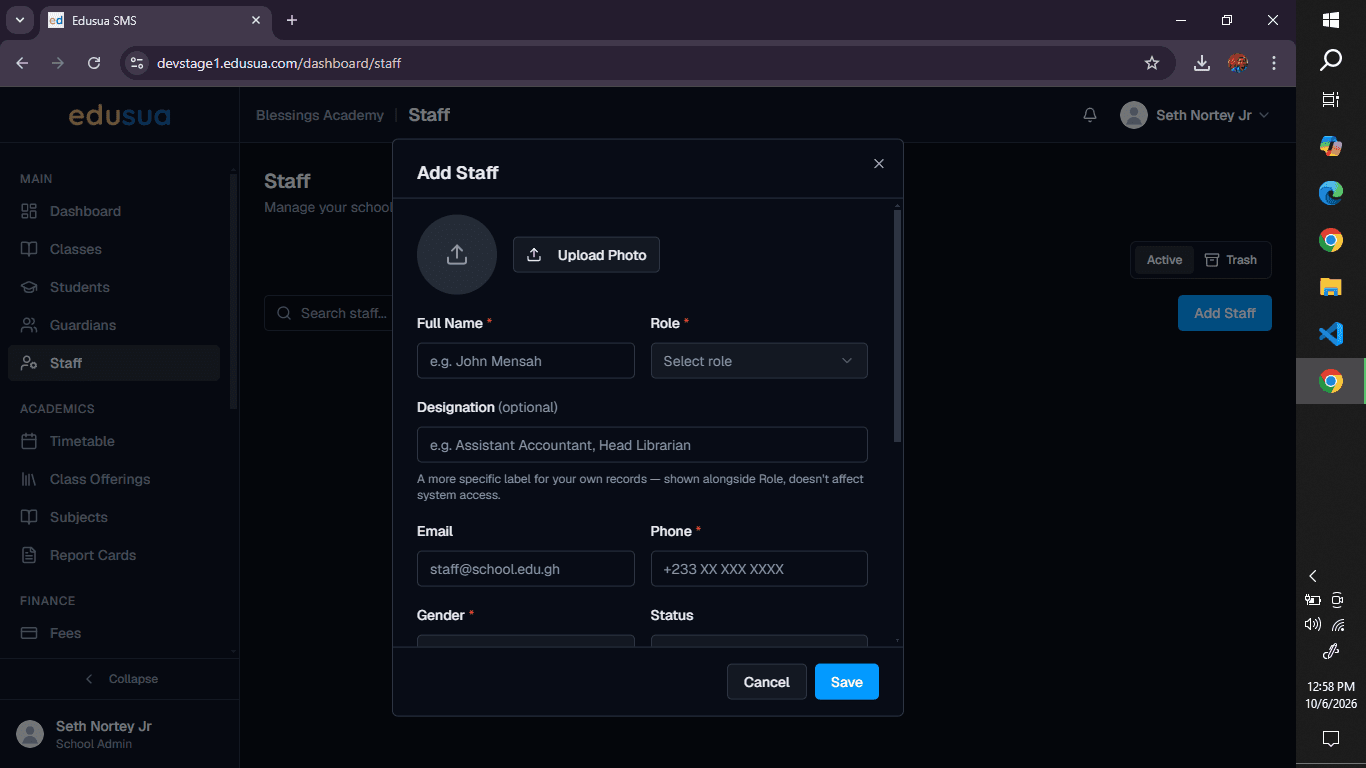
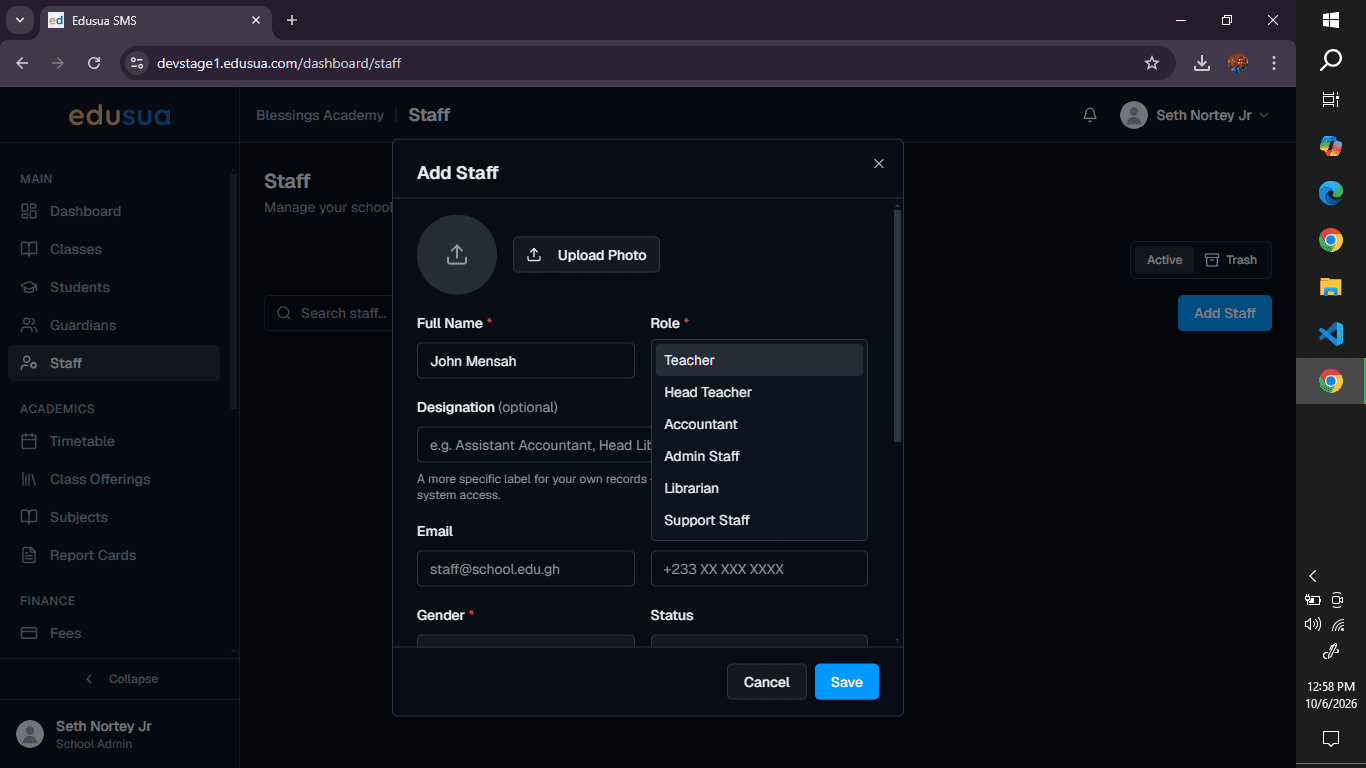
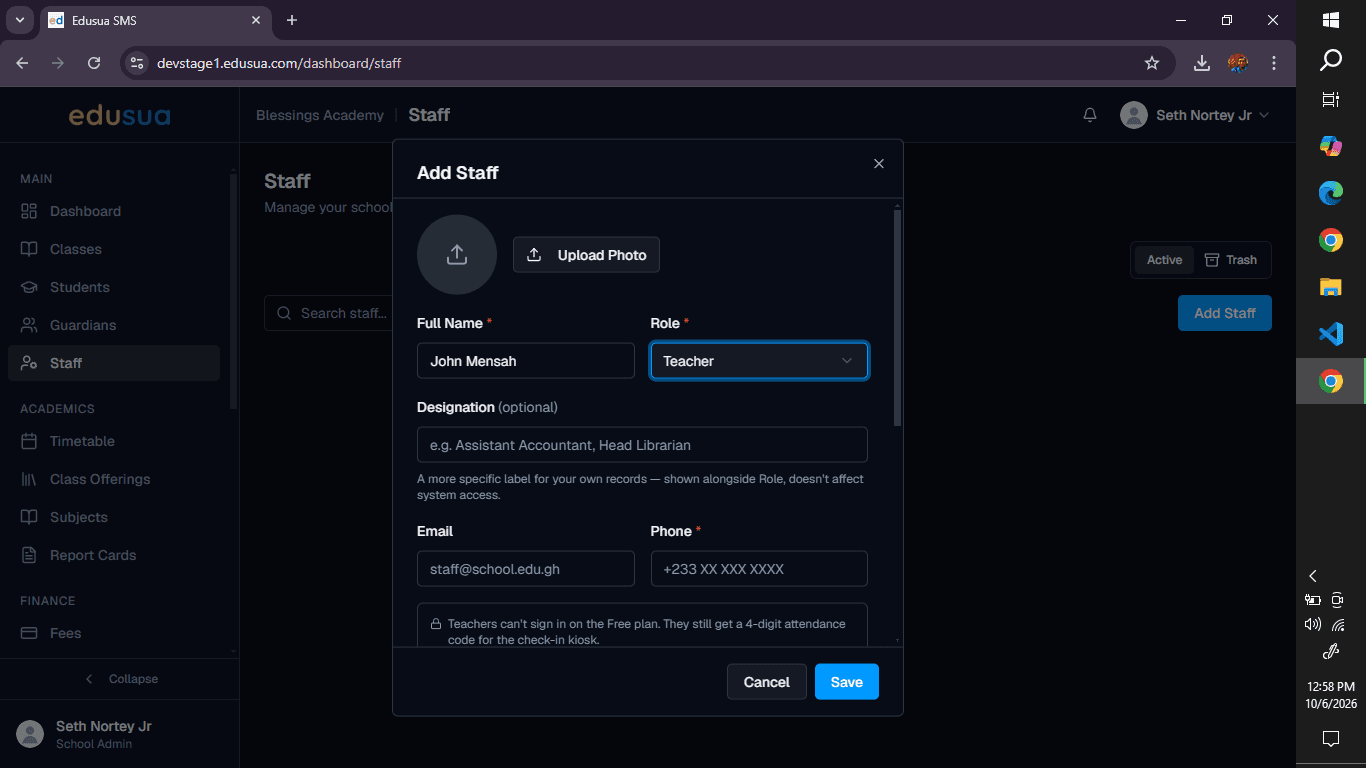
This guide details how to register a new educational institution in the Edusua SMS web application and onboard its initial personnel. Following these steps enables administrators to configure school details, establish admin and kiosk credentials, and successfully add staff members to the dashboard roster.
Scope
This procedure applies to school proprietors, head administrators, and authorized administrative staff initiating new institution accounts on Edusua SMS. It covers the full initial registration workflow, kiosk credential generation, dashboard navigation, and manual staff creation. Ongoing student enrollment, batch staff imports, and academic grading configurations are out of scope.
Register the School Account
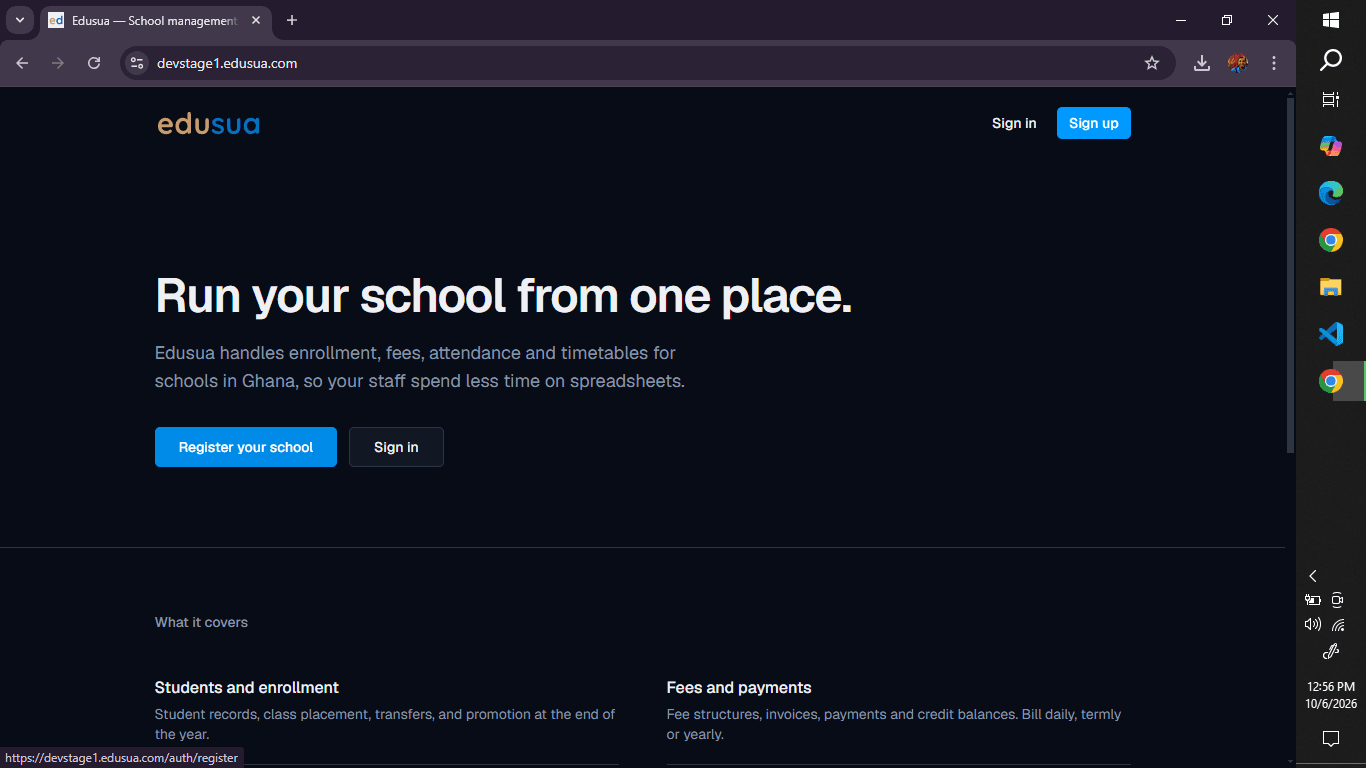
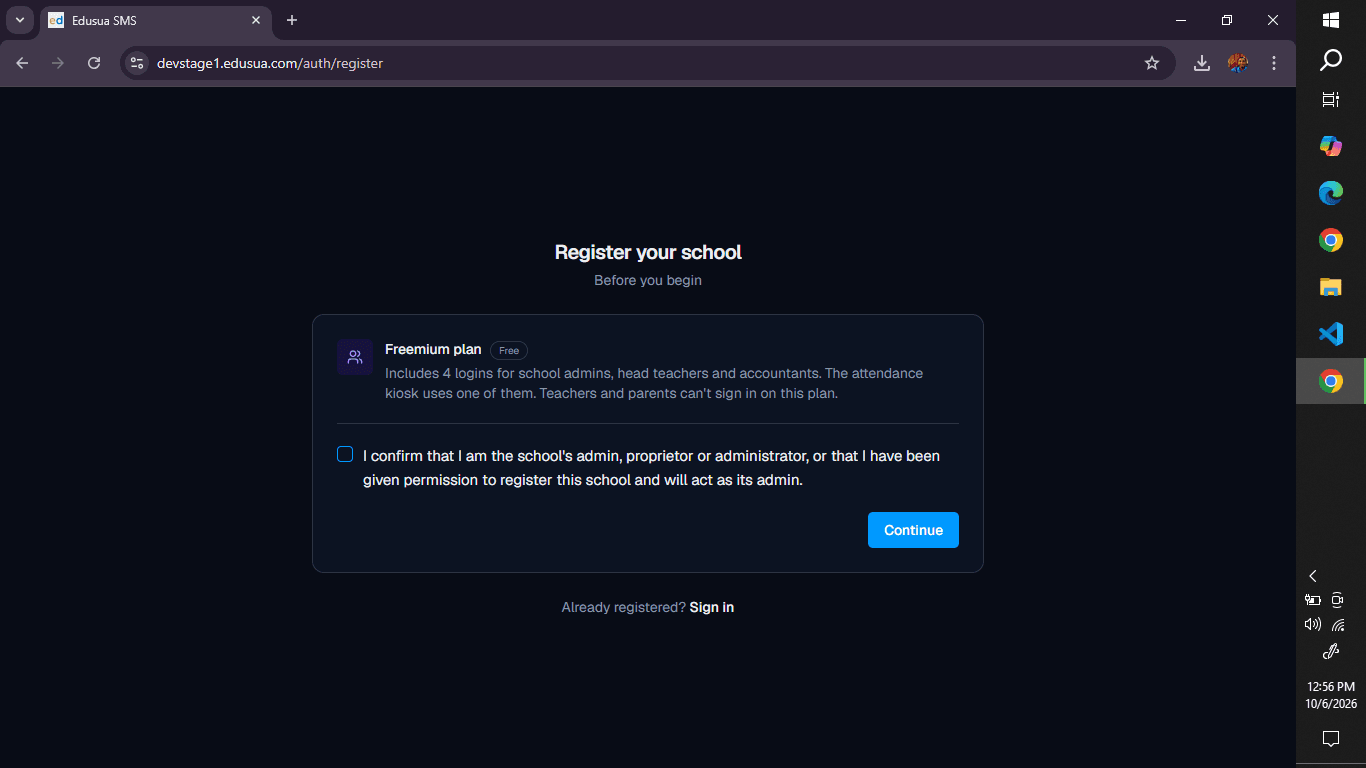
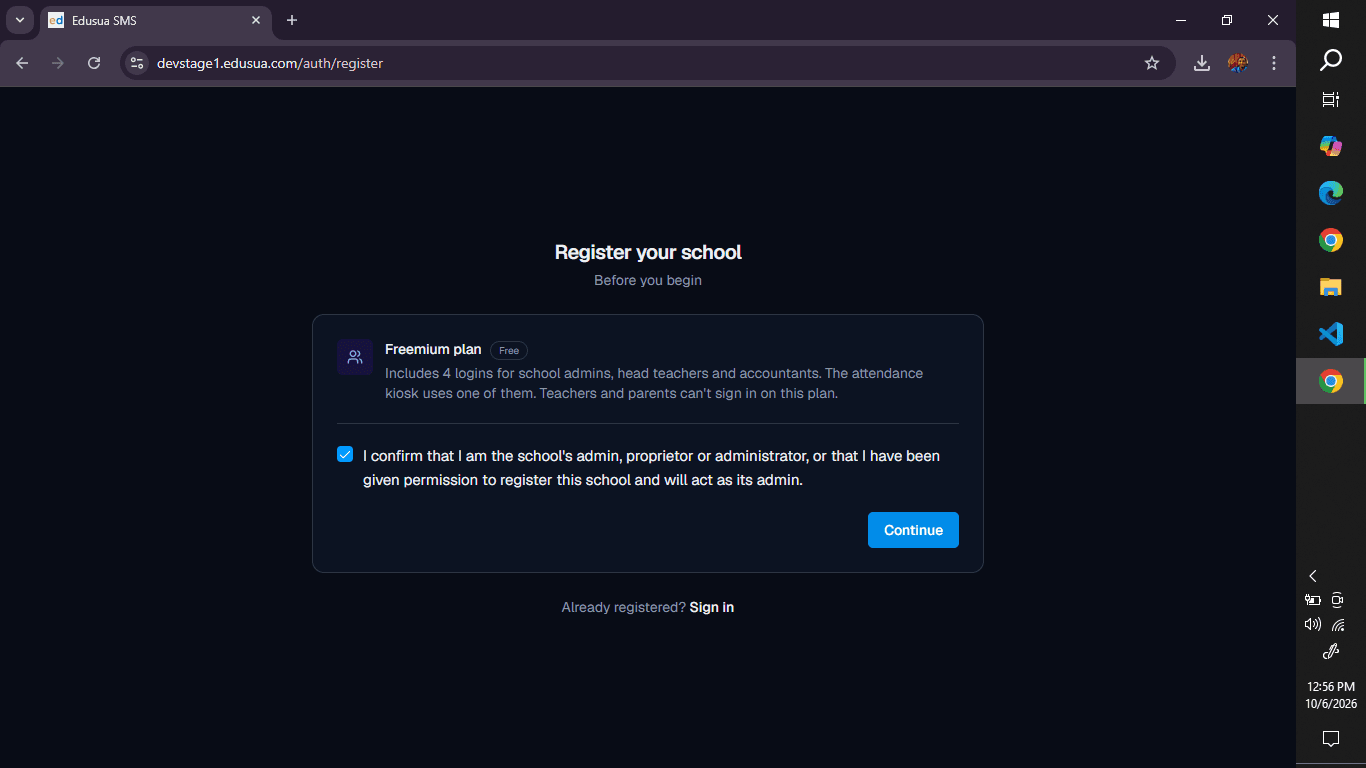
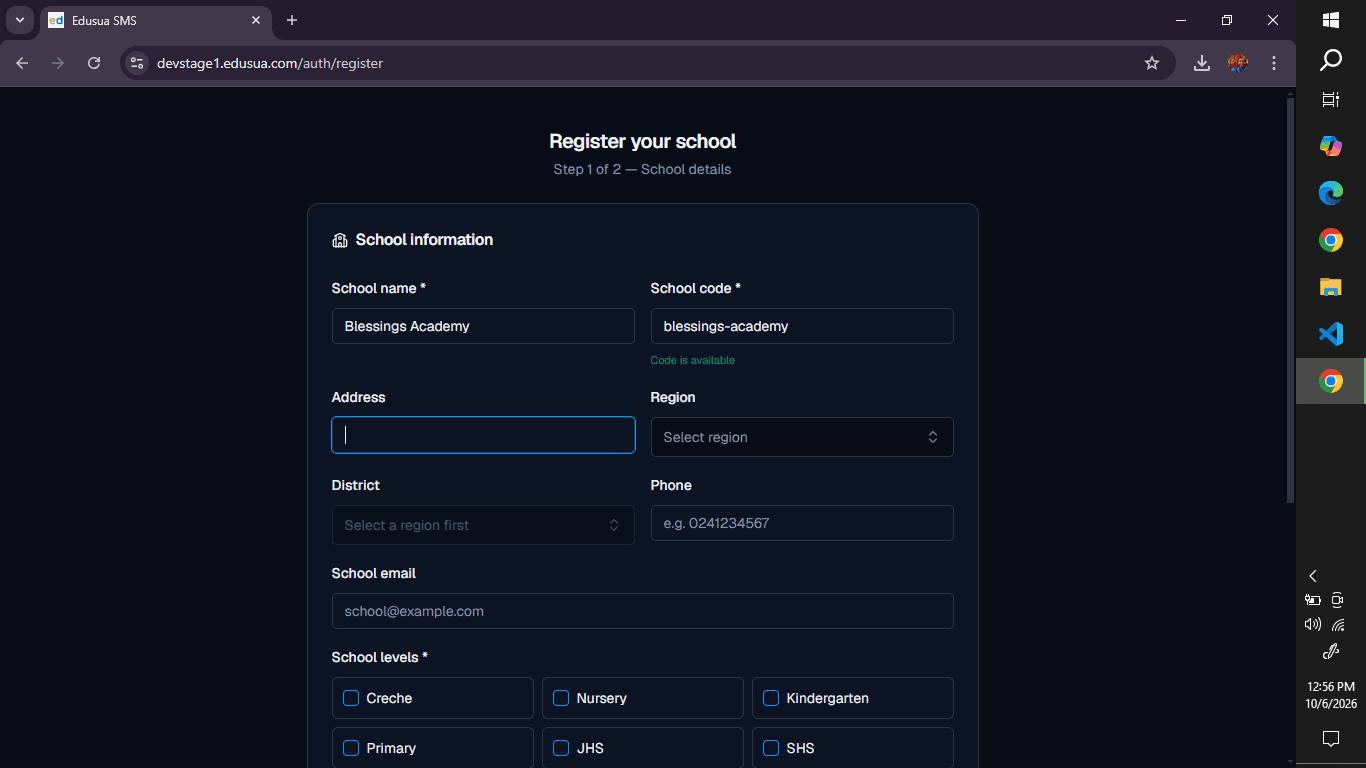
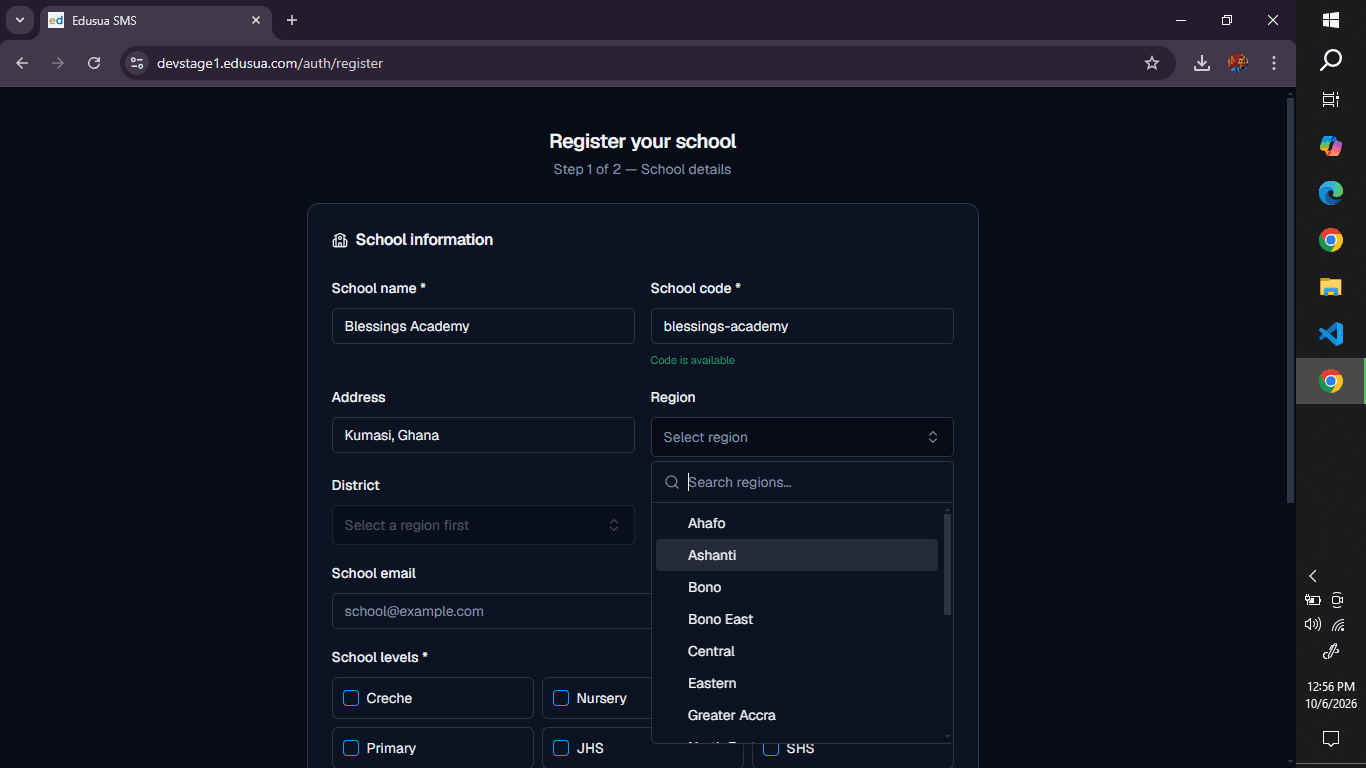
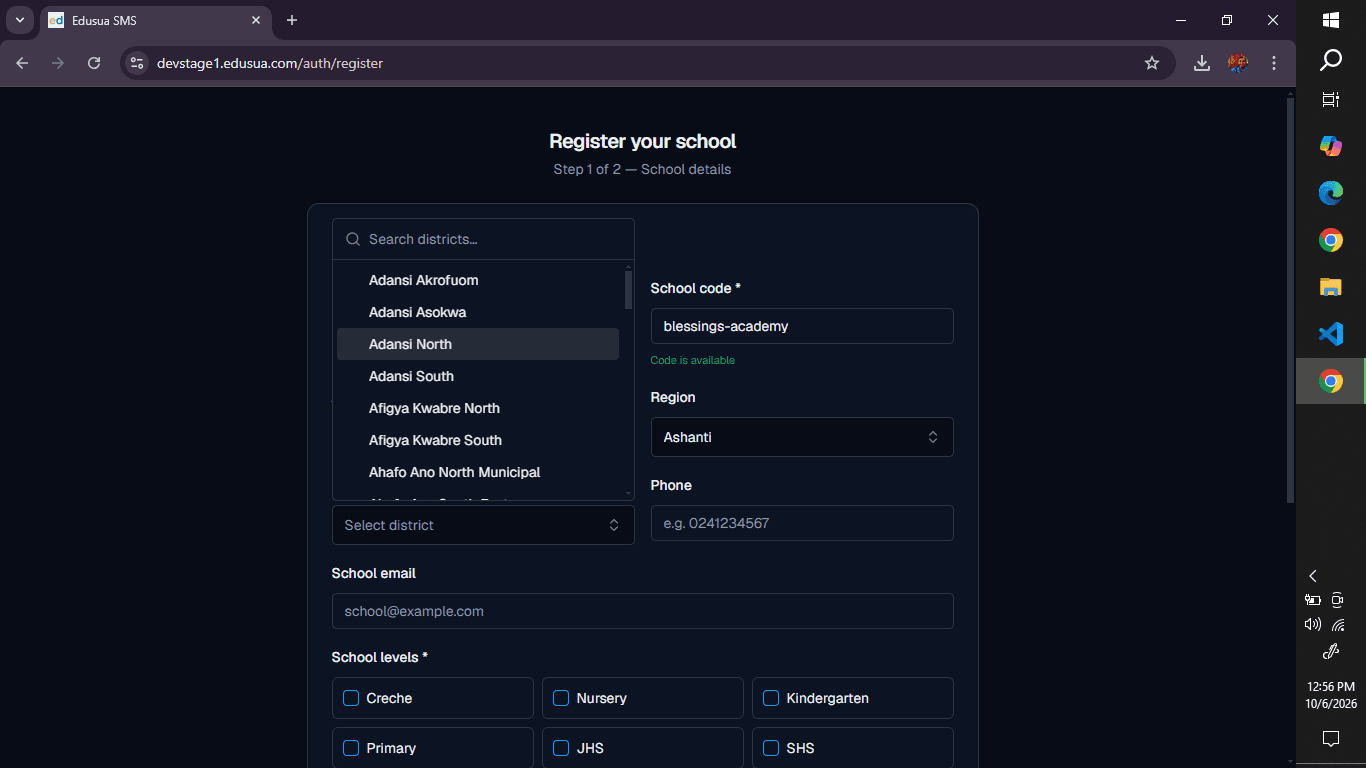
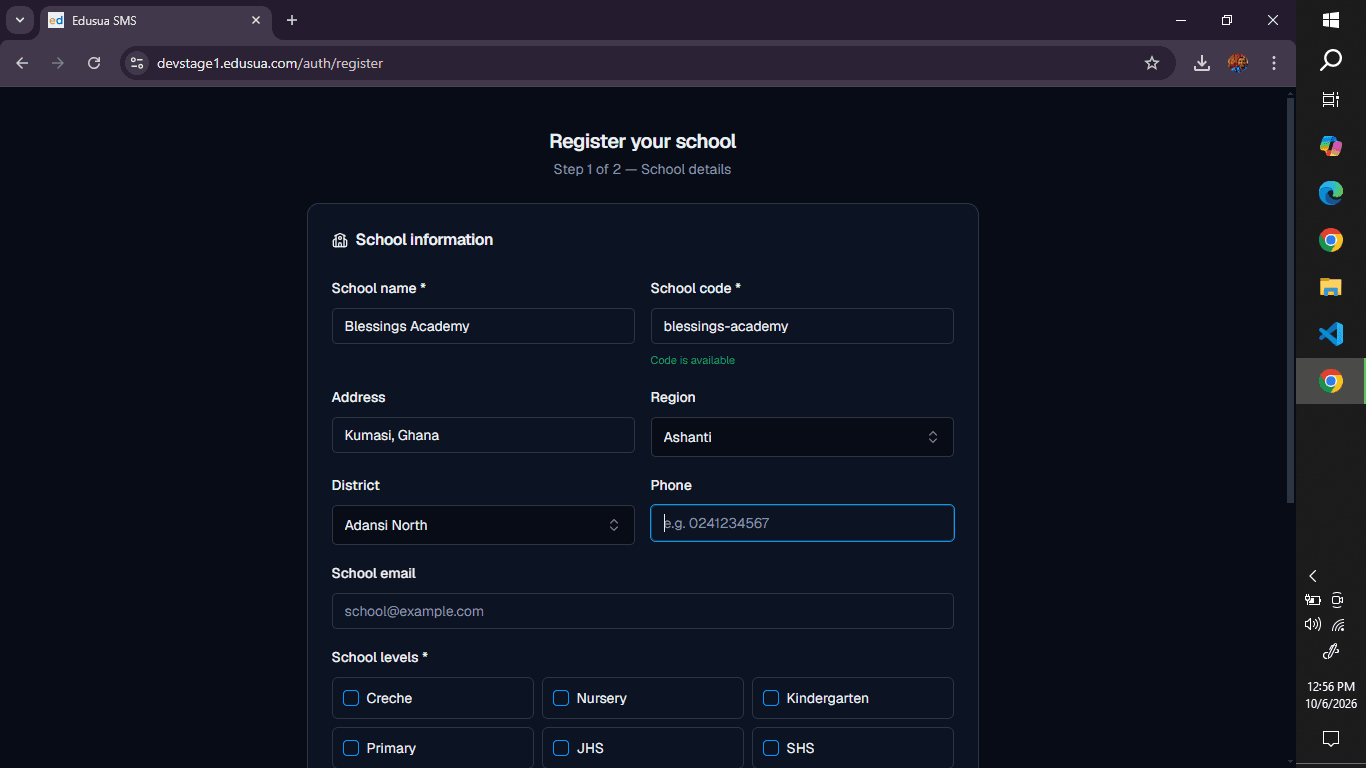
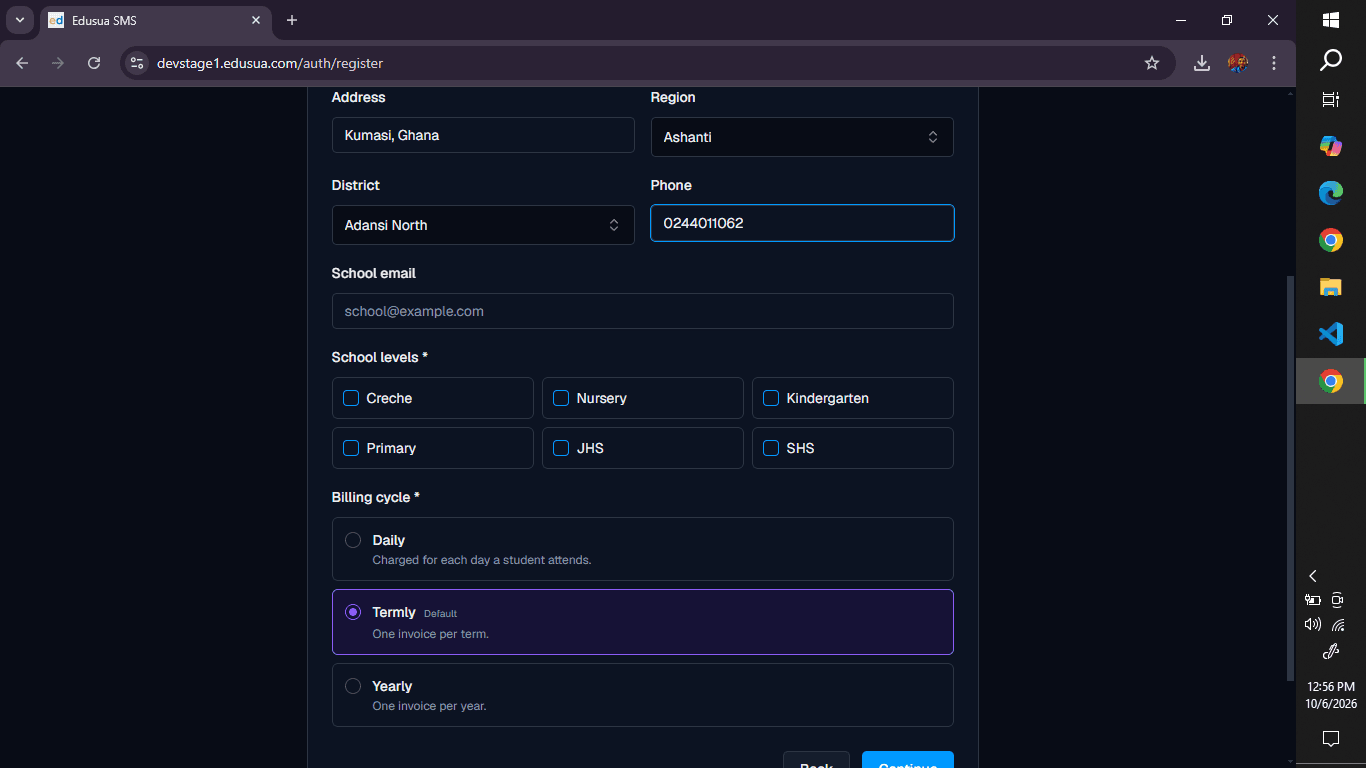
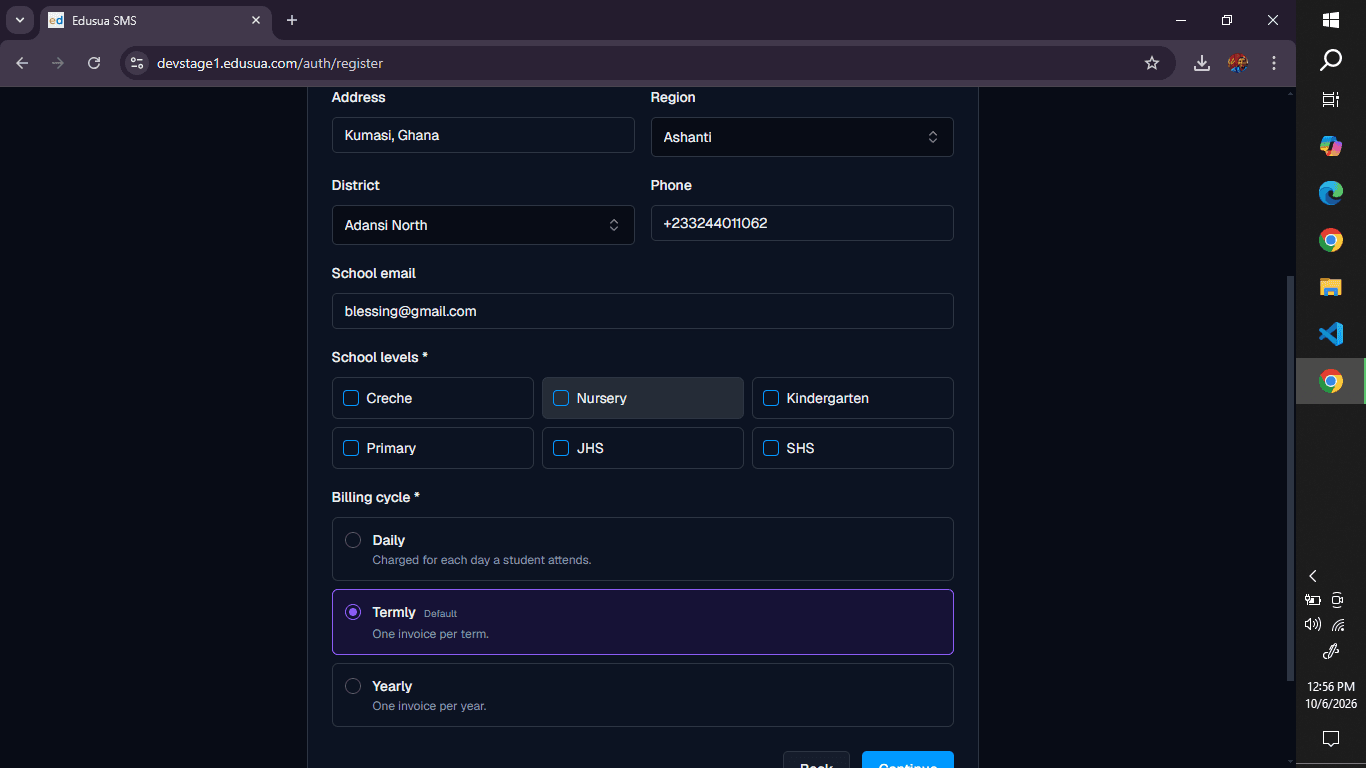
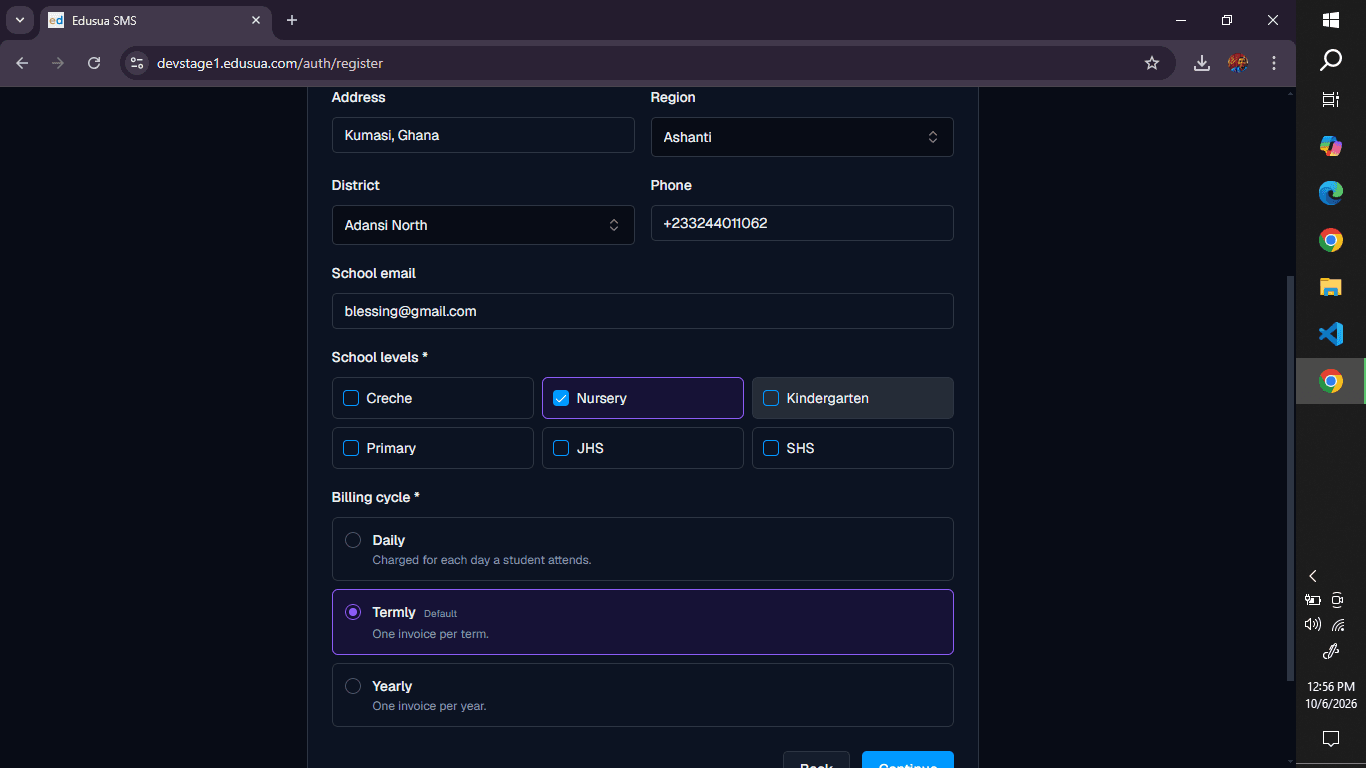
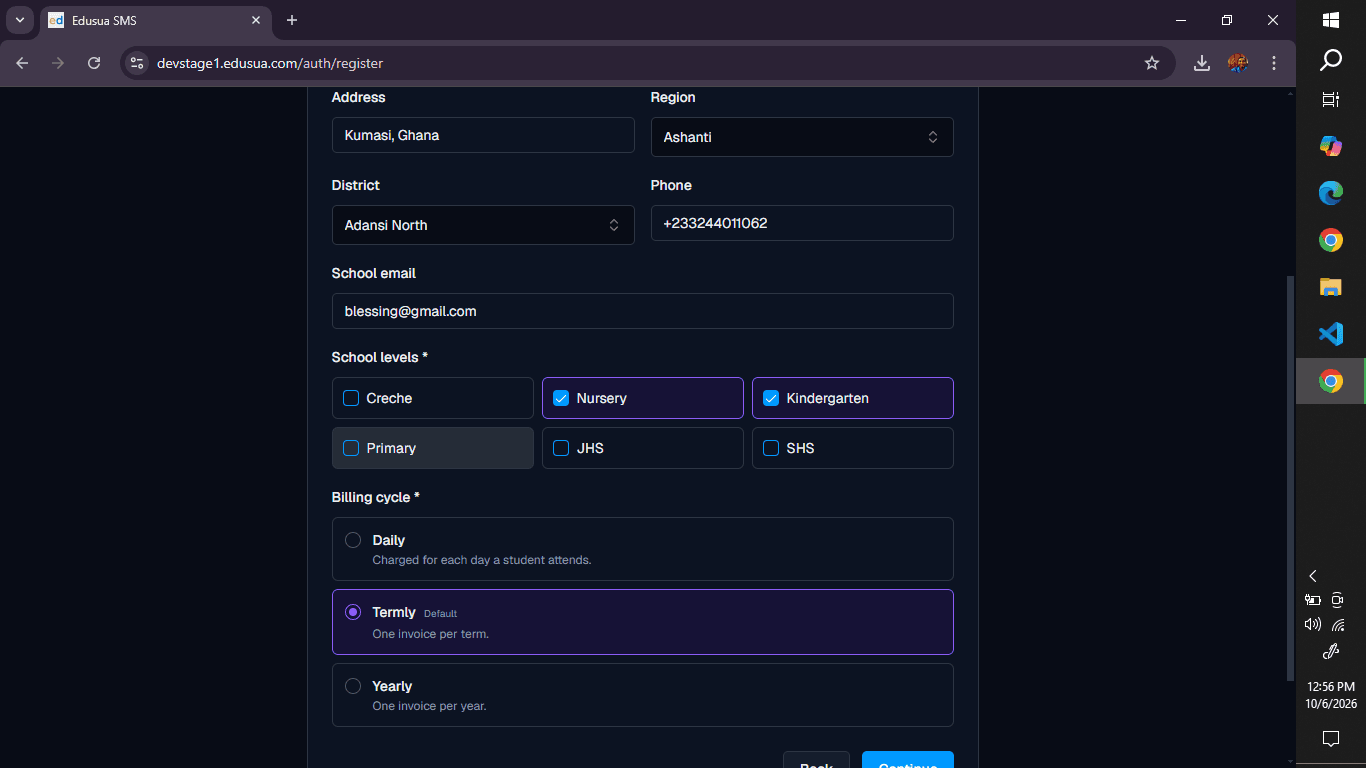
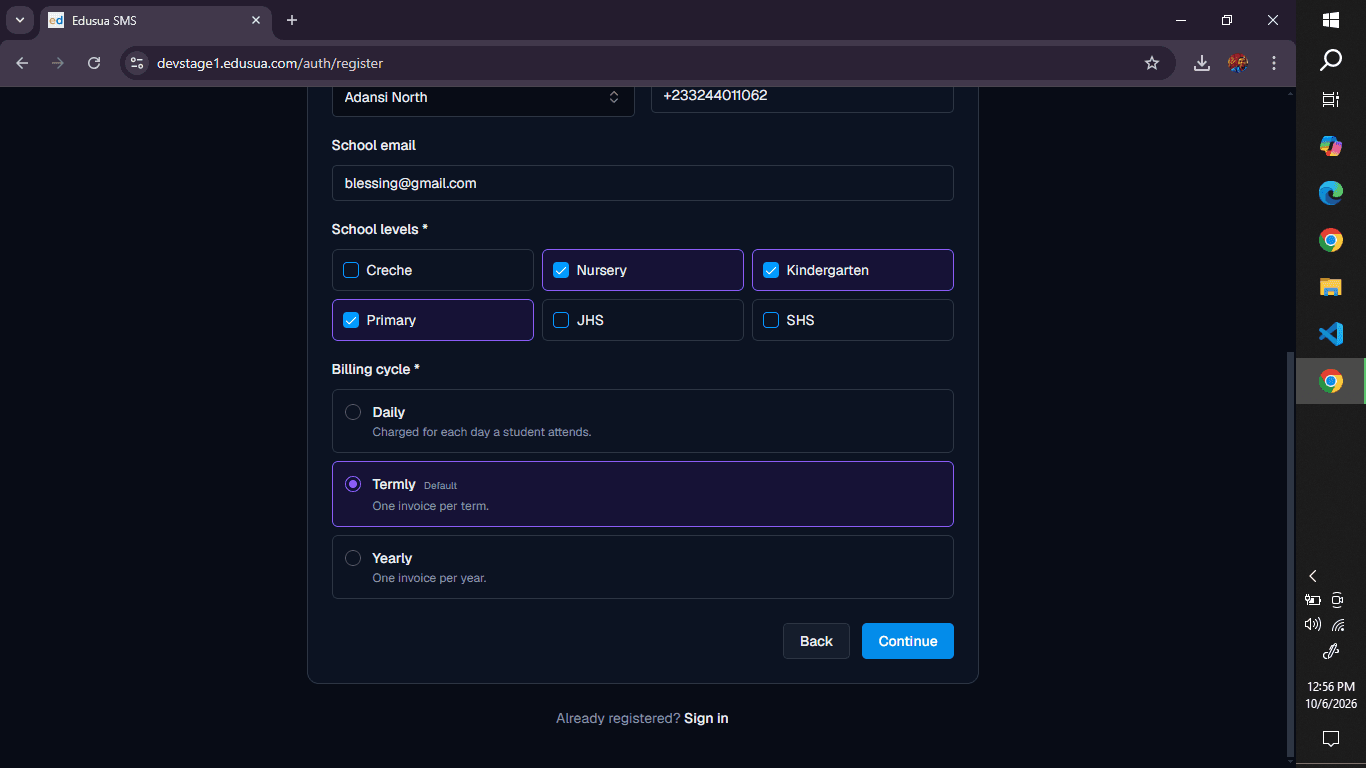
Enter School Profile and Contact Details
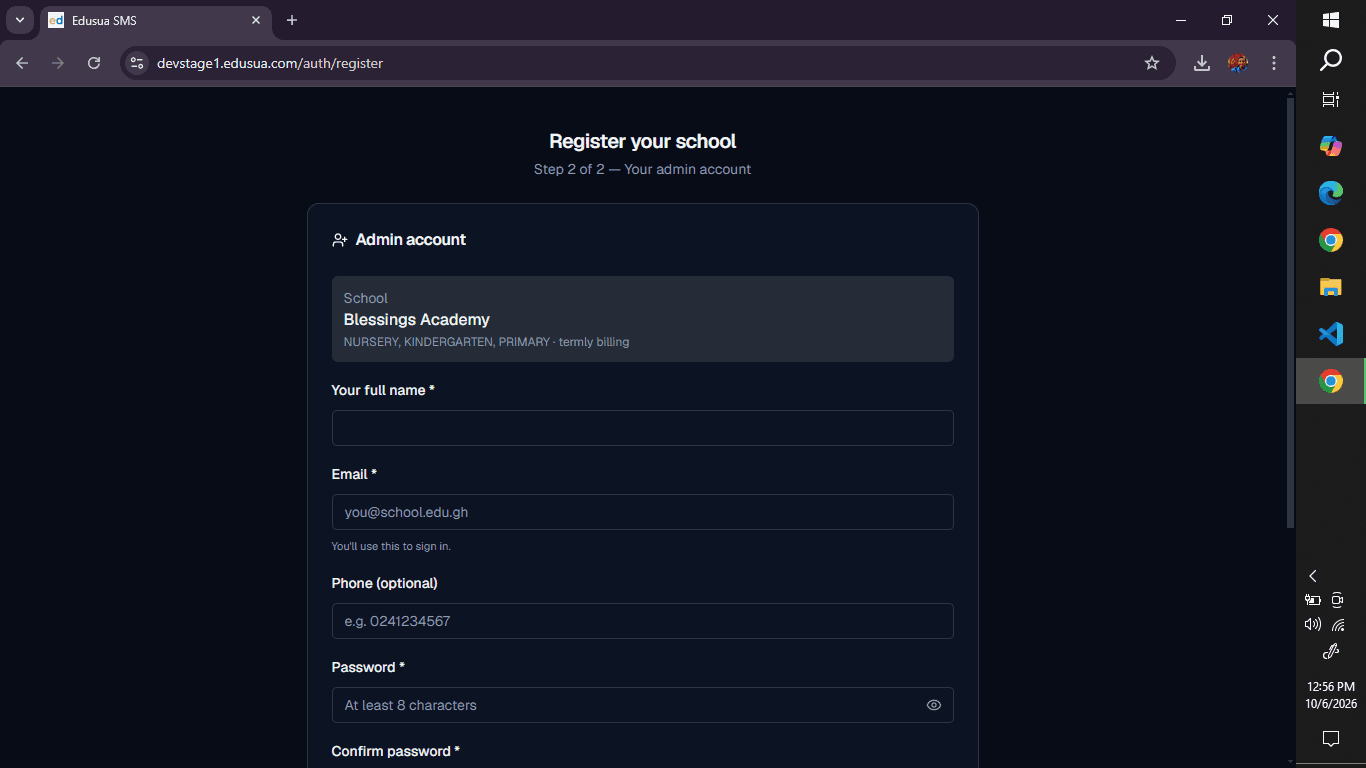
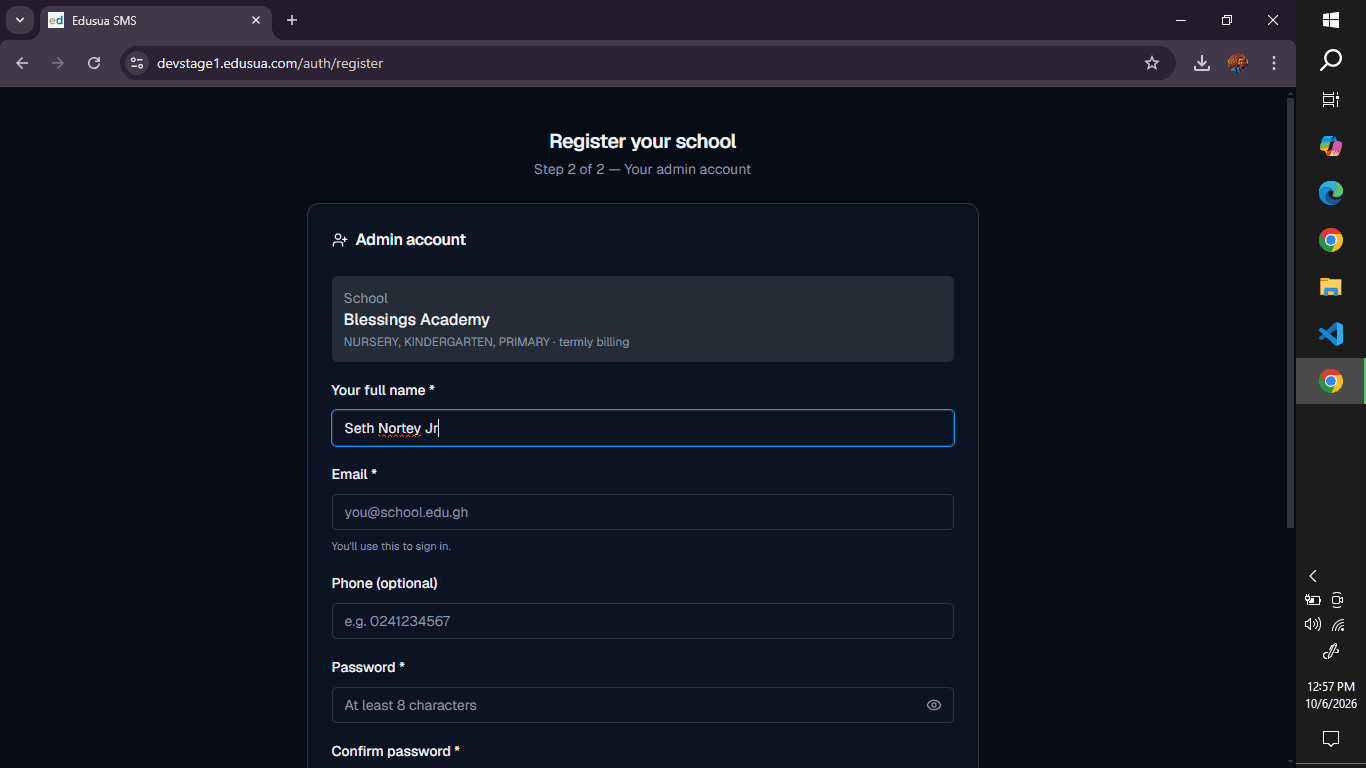
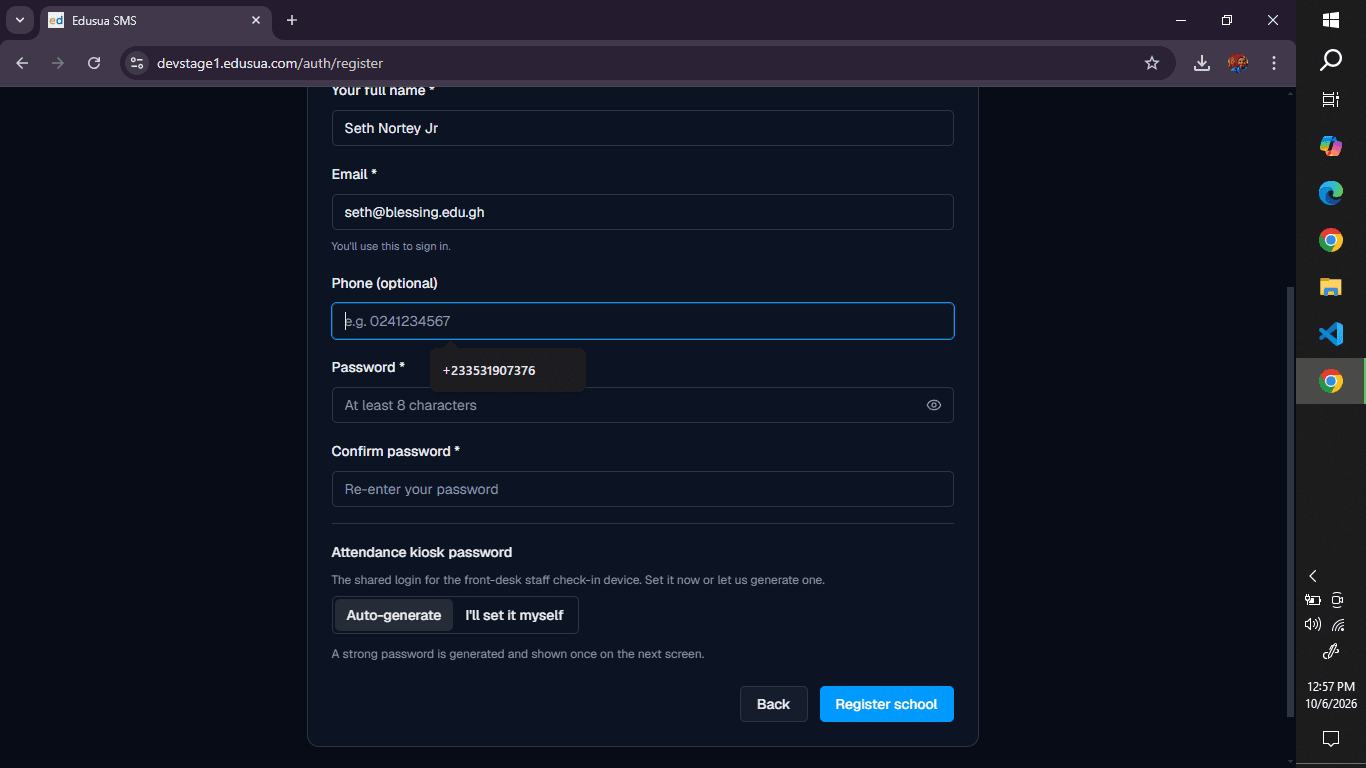
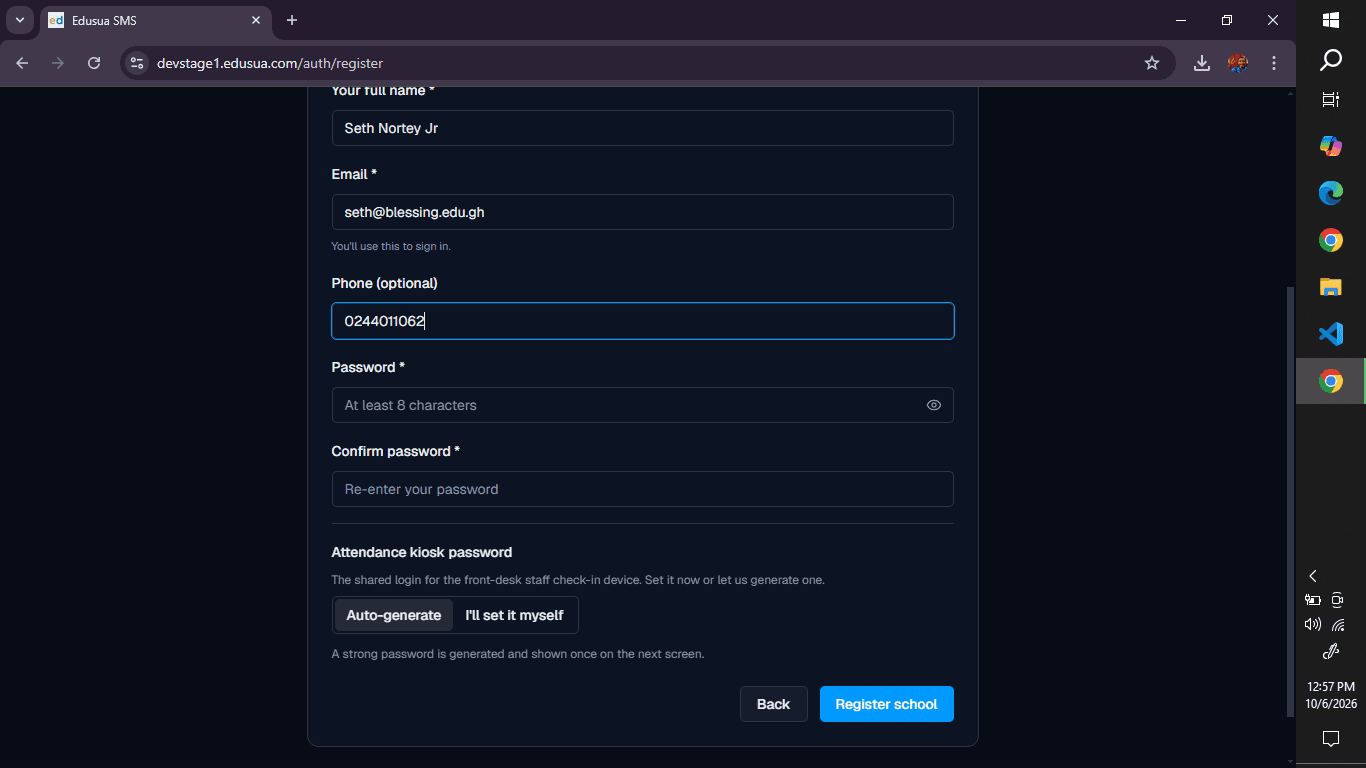
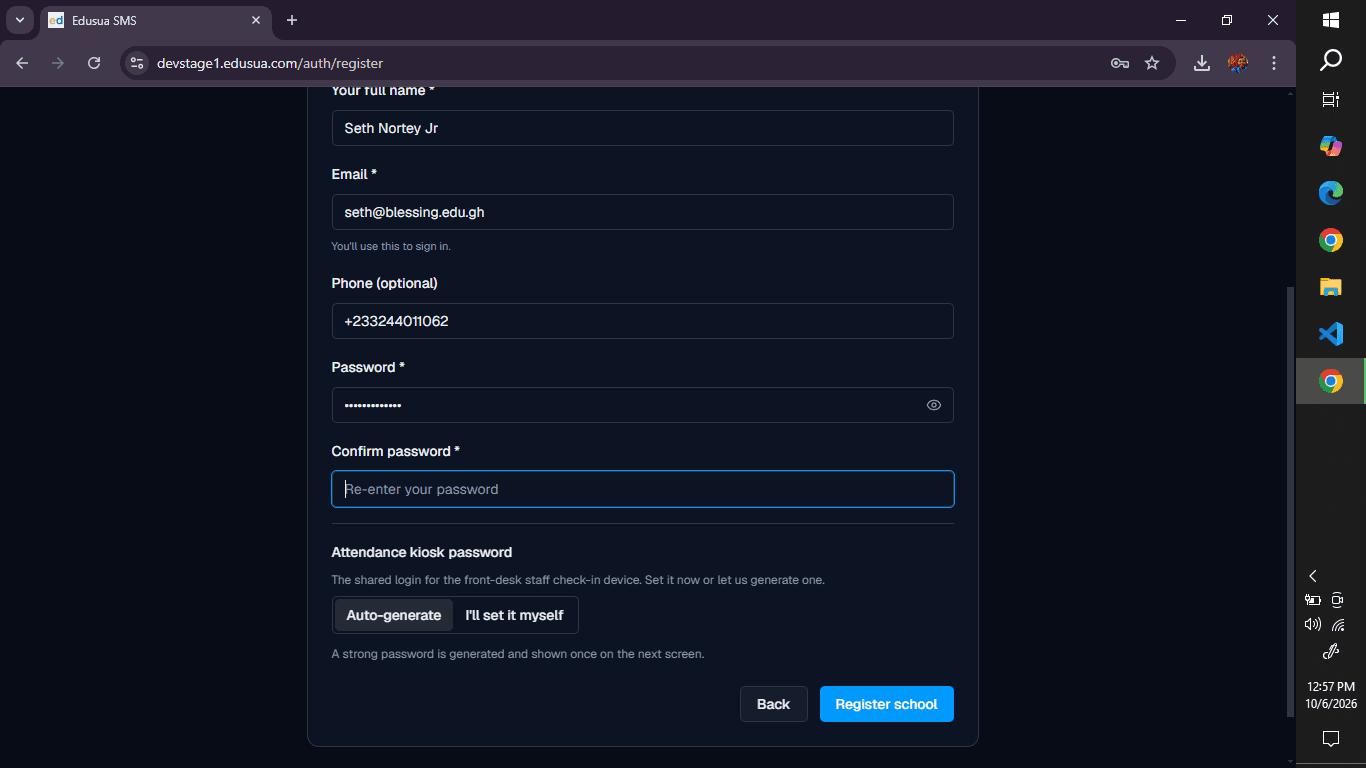
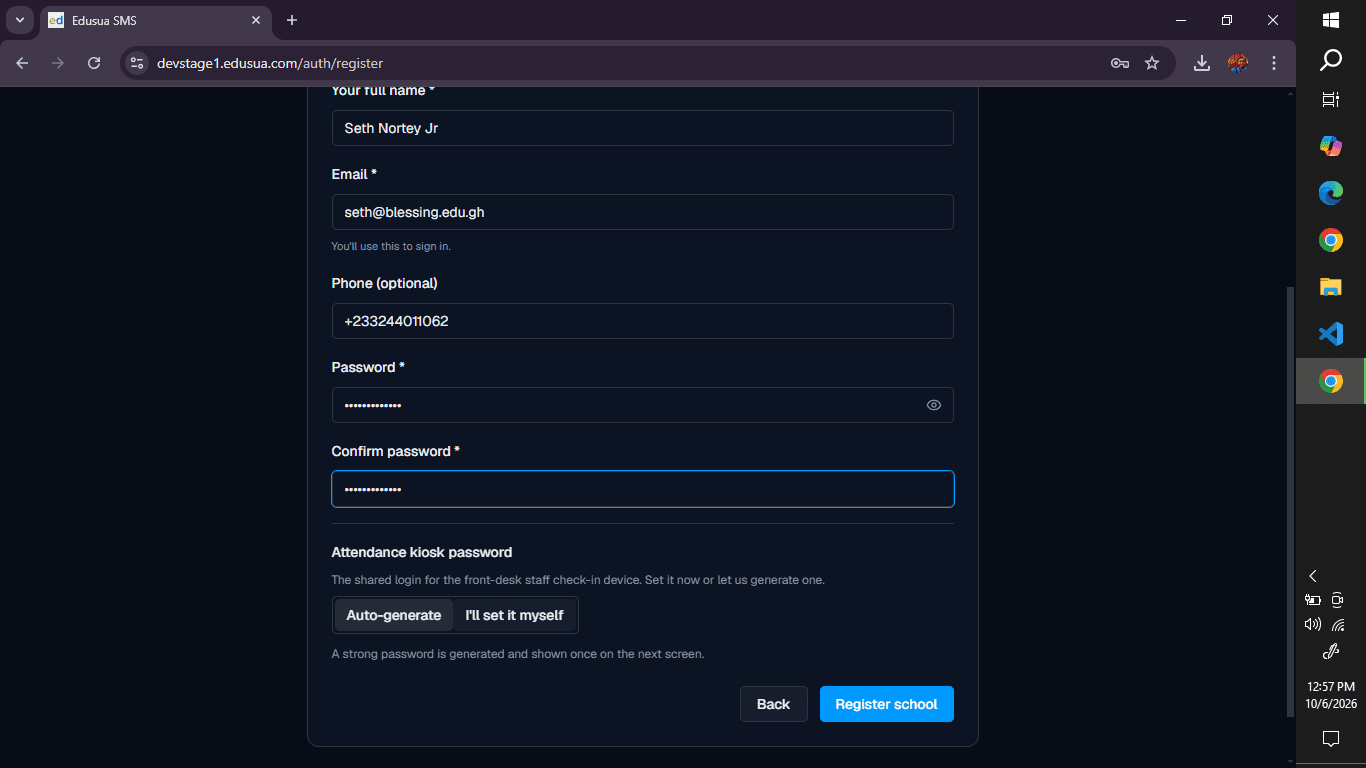
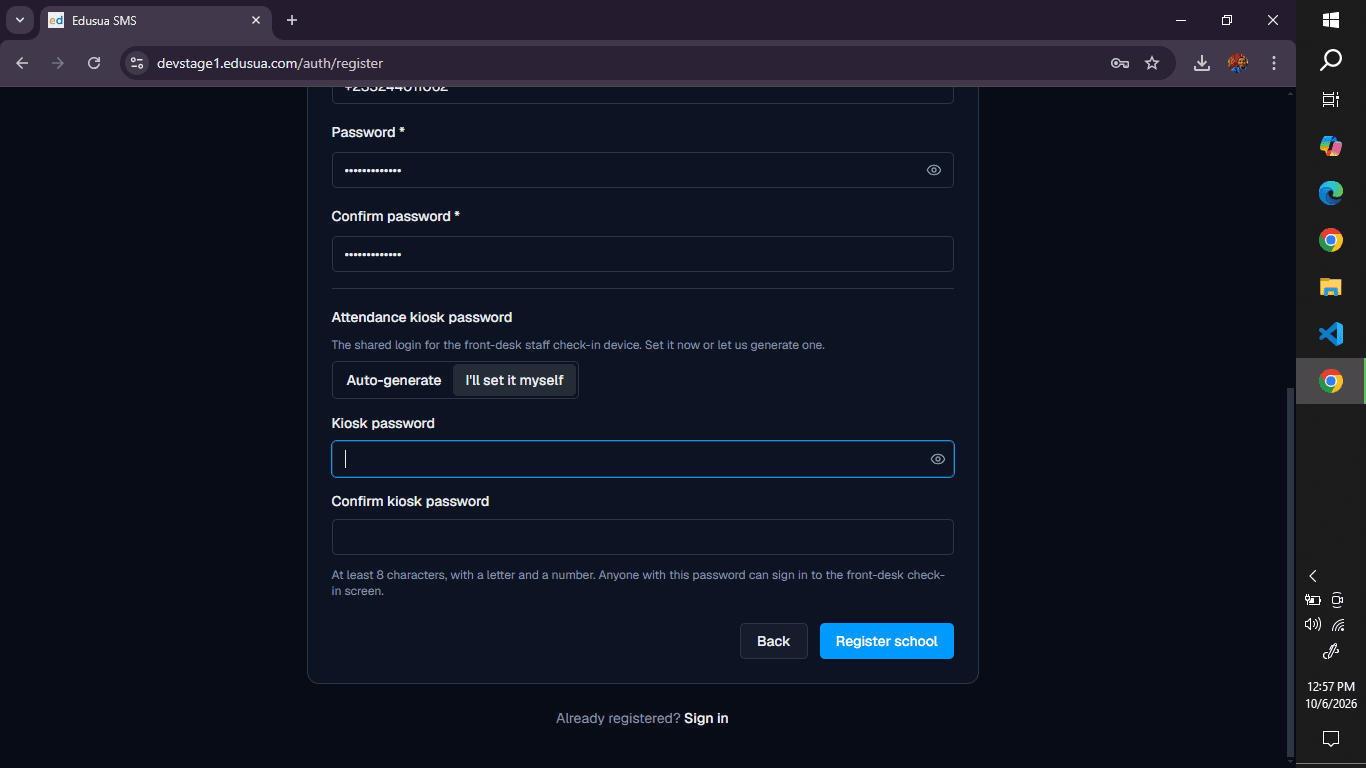
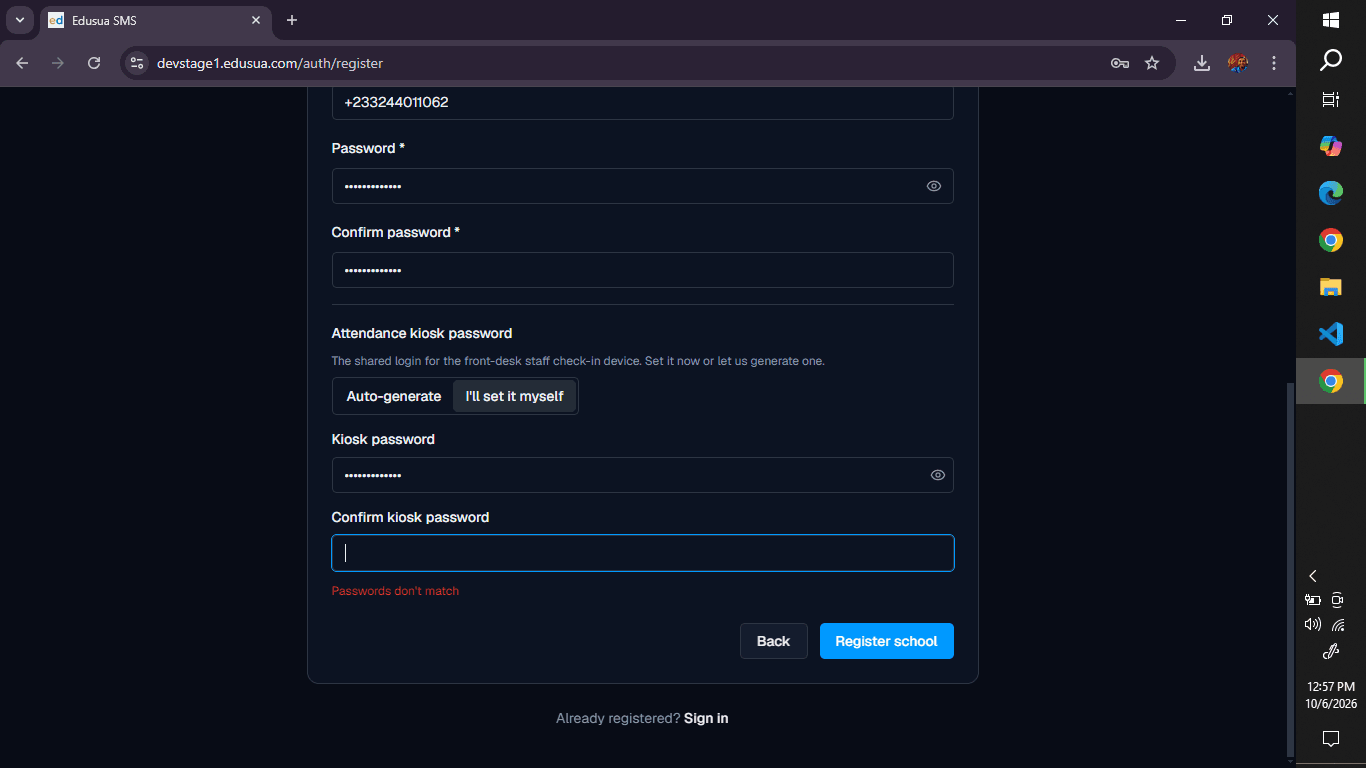
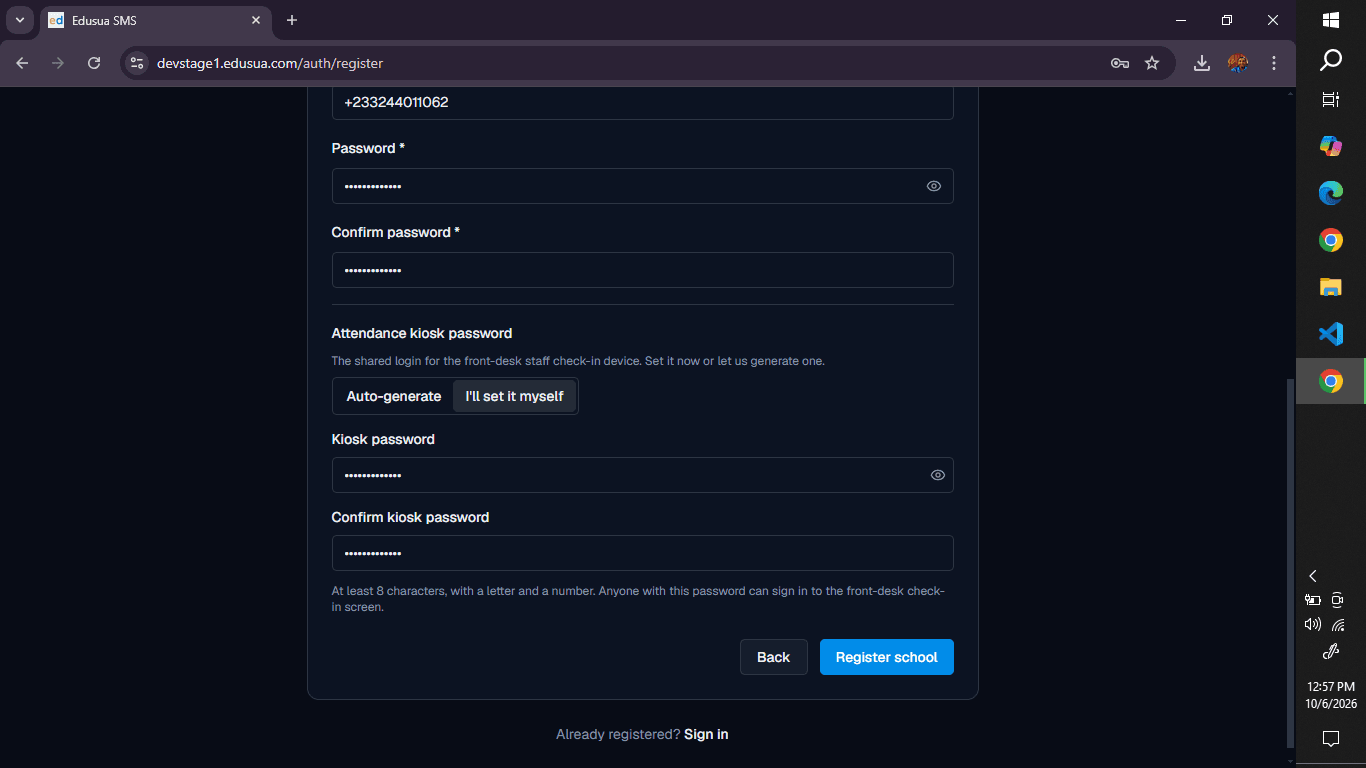
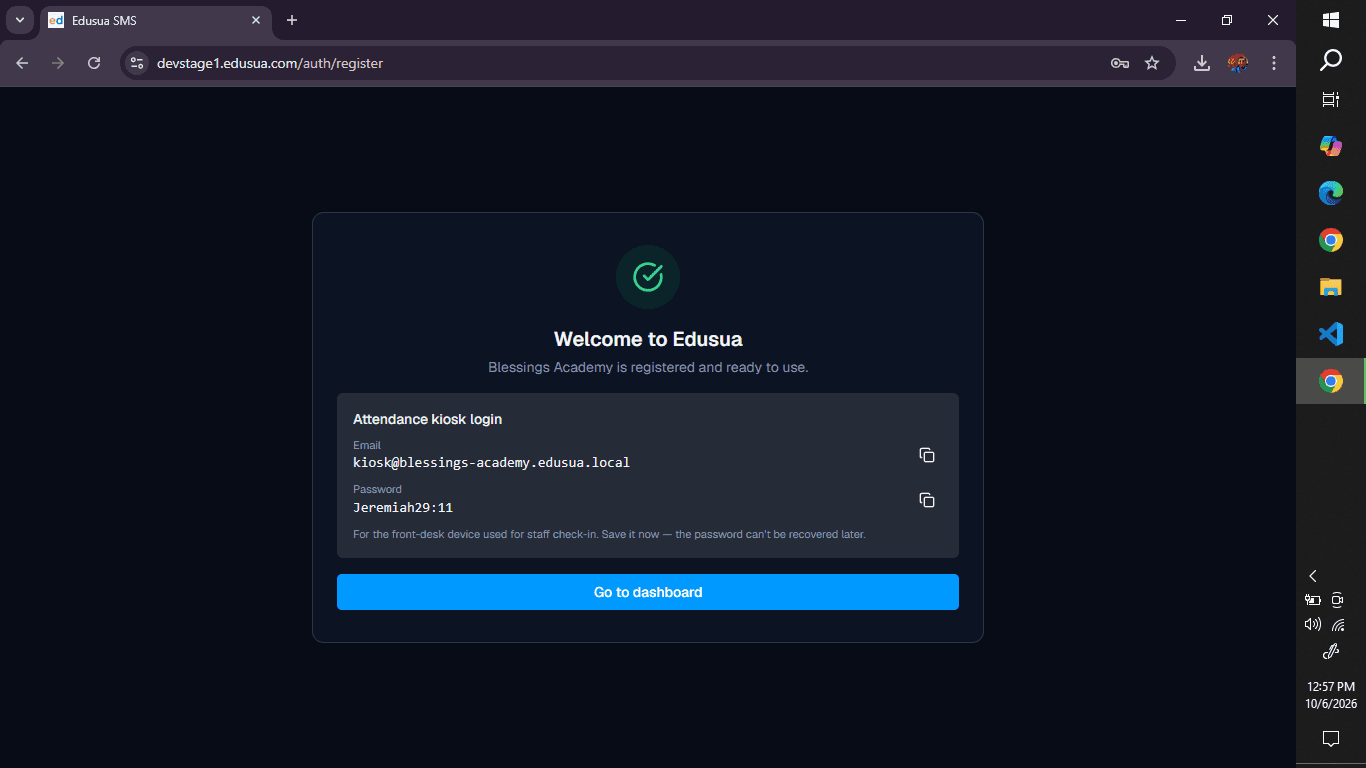
Configure Administrator and Kiosk Credentials
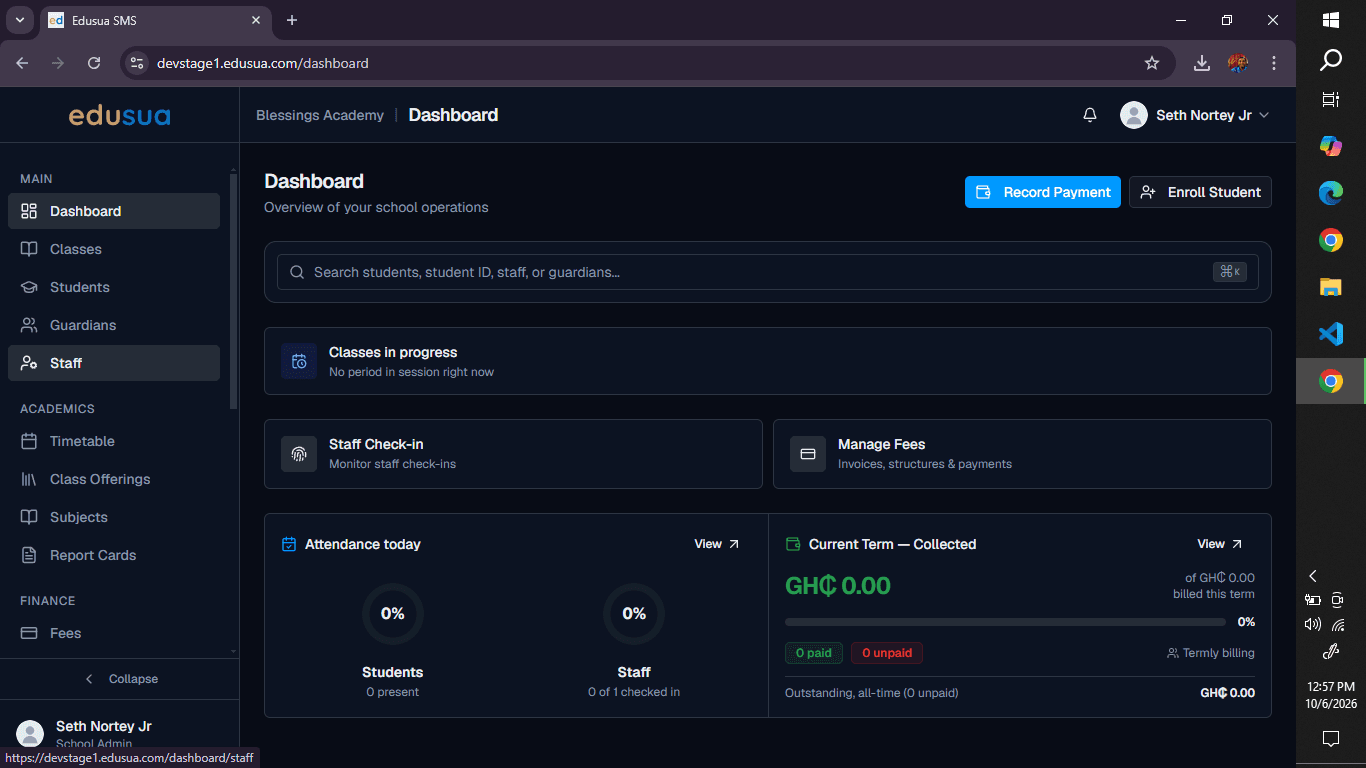
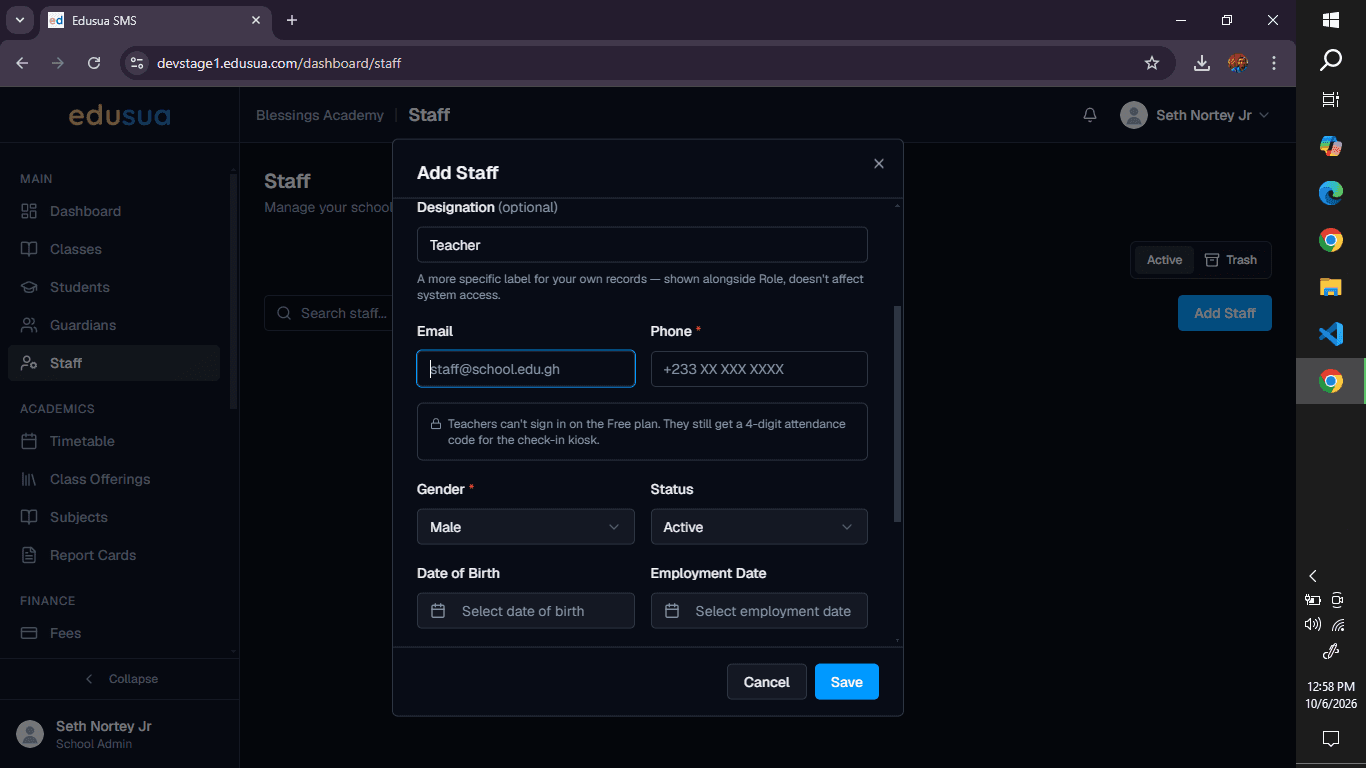
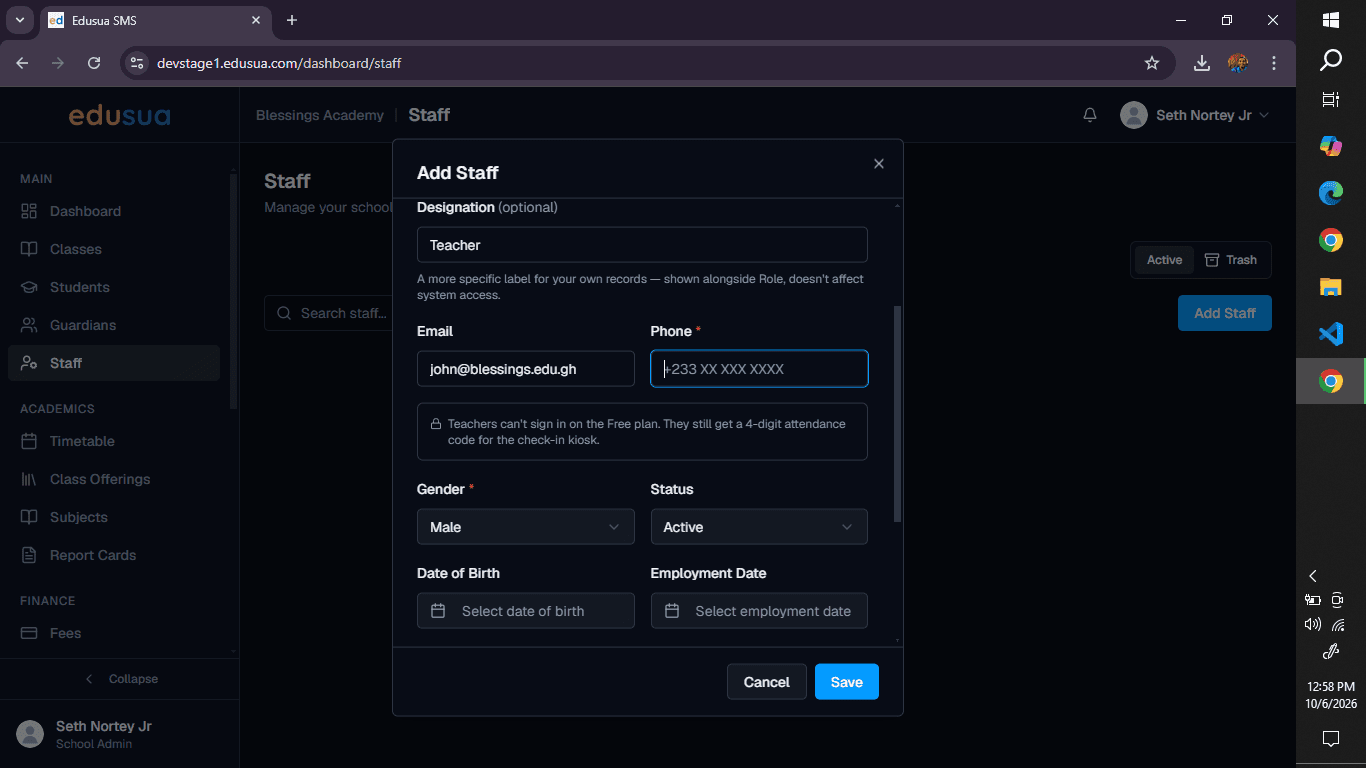
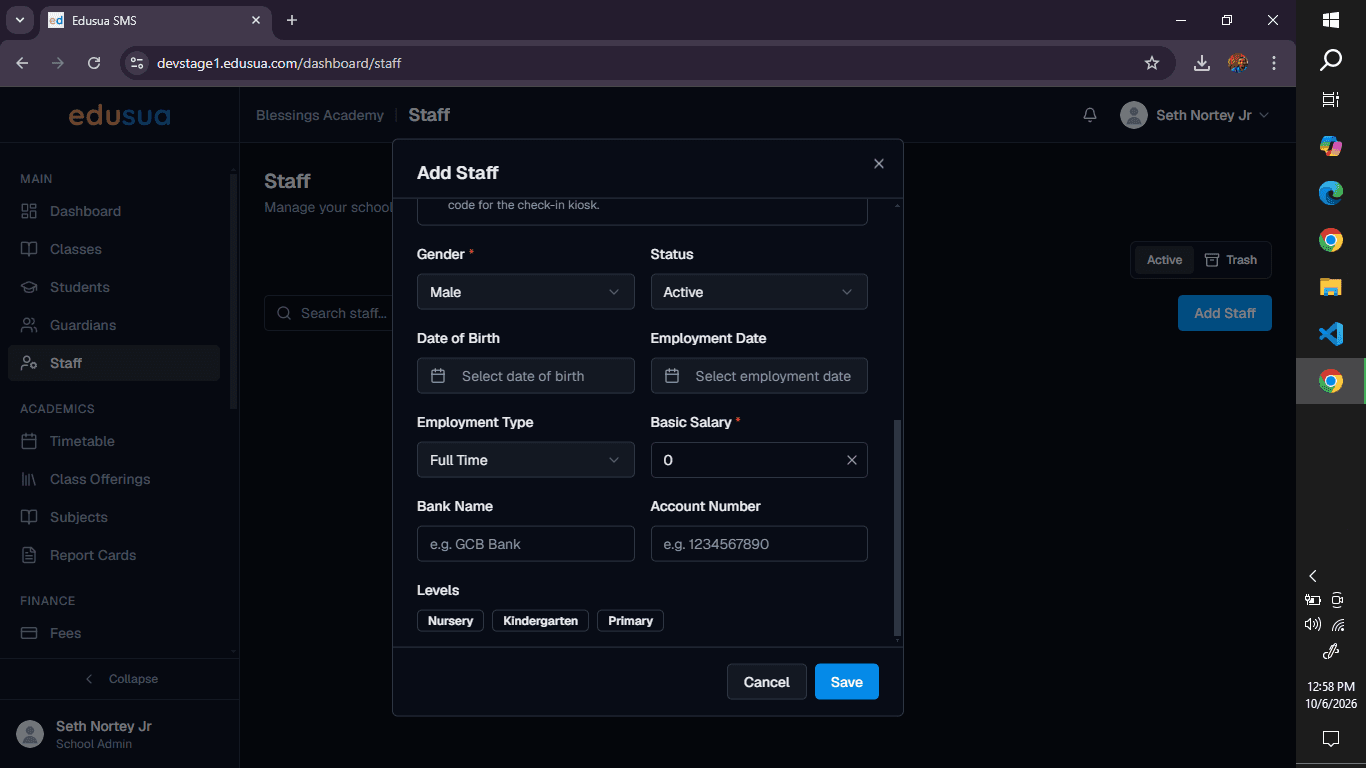
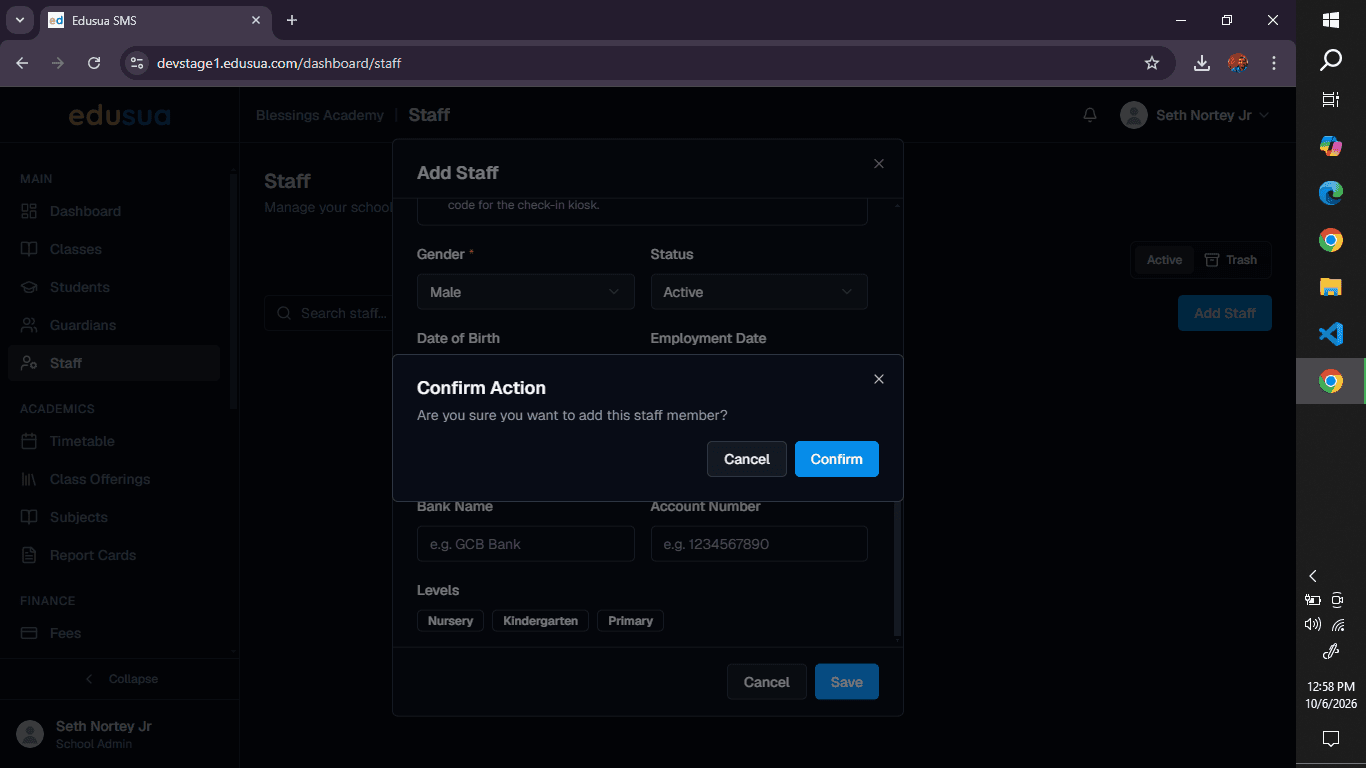
Add Staff Members
FAQ
Q: Can multiple school levels be selected during registration?
A: Yes. Under the School levels section, you can select multiple checkboxes such as Nursery, Kindergarten, and Primary according to what your institution offers.
Q: Where do I find the attendance kiosk login details after registration?
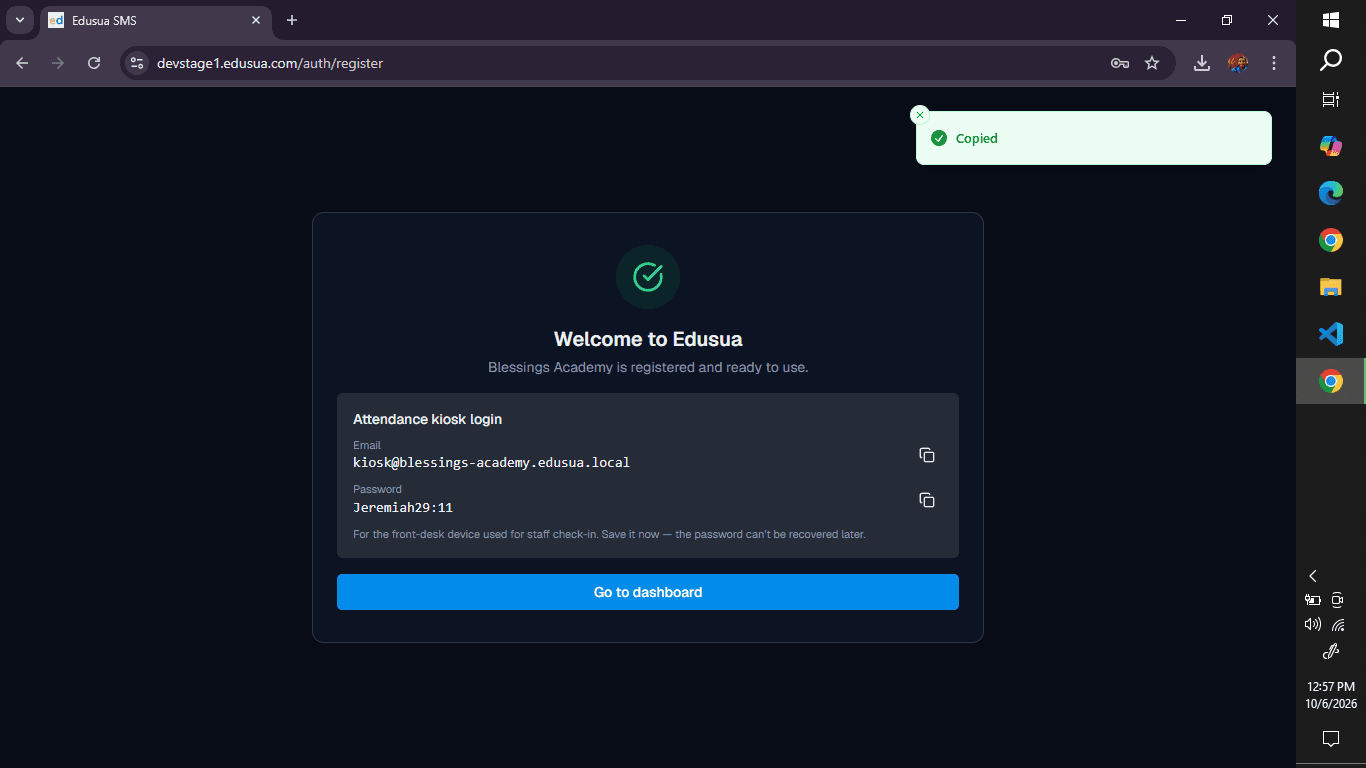
A: After submitting the registration form, the confirmation screen displays the Attendance kiosk login section where you can view and copy the generated credentials before proceeding to the dashboard.
Glossary
Term | Definition |
|---|---|
Attendance Kiosk | A dedicated subsystem within Edusua SMS designed for recording daily physical attendance check-ins using separate credentials. |
Designation | The specific functional title assigned to a school employee, such as Teacher or Assistant Accountant, distinct from system permission roles. |
School Levels | The institutional educational tiers (e.g., Nursery, Kindergarten, Primary) managed under a single Edusua SMS account. |