
How to Reorder Photos on Your Media Delivery Page
Learn how to easily reorder your property photos on the media delivery page to perfectly showcase your real estate listing.
This guide explains how to reorganize the sequence of your property photos directly on your media delivery page. Rearranging the images ensures they are downloaded in the exact order you need to effectively market your real estate listing.
This workflow is intended for real estate agents and listing managers who have just received a media delivery link and need to curate the gallery flow prior to downloading their assets.
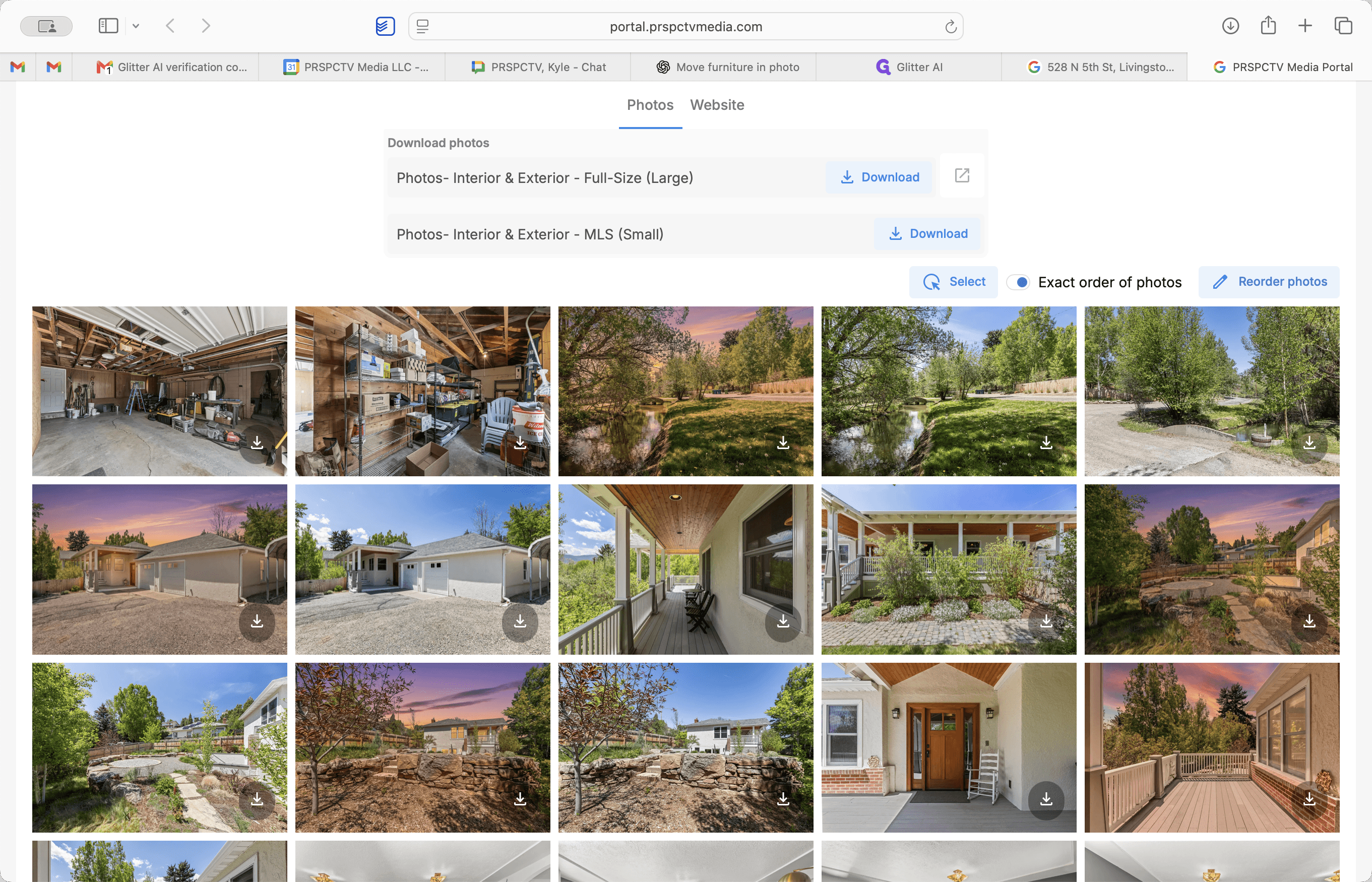
After opening the link provided by your media delivery team, you will be taken to your listing's delivery page, displaying the full gallery of images.
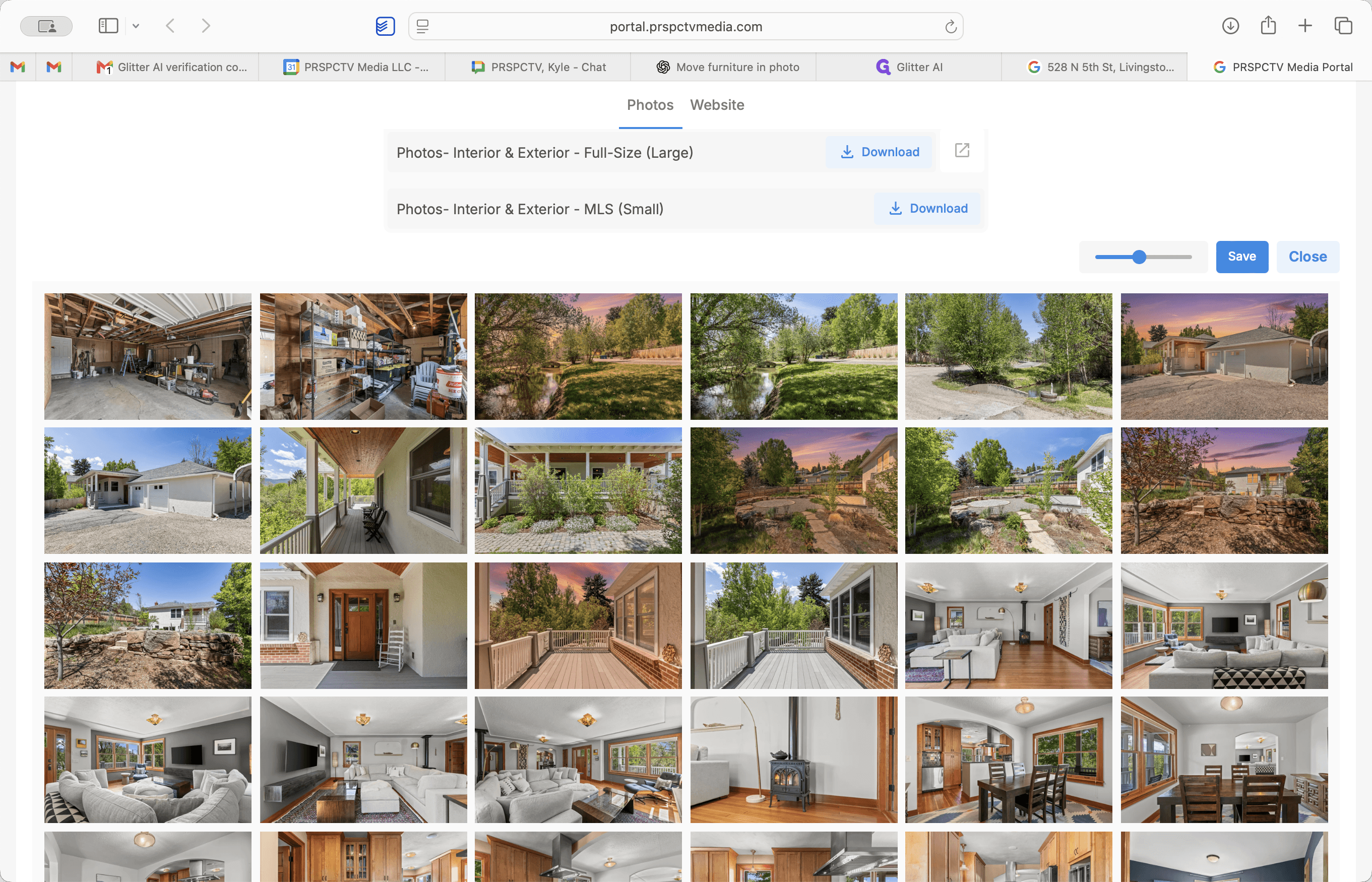
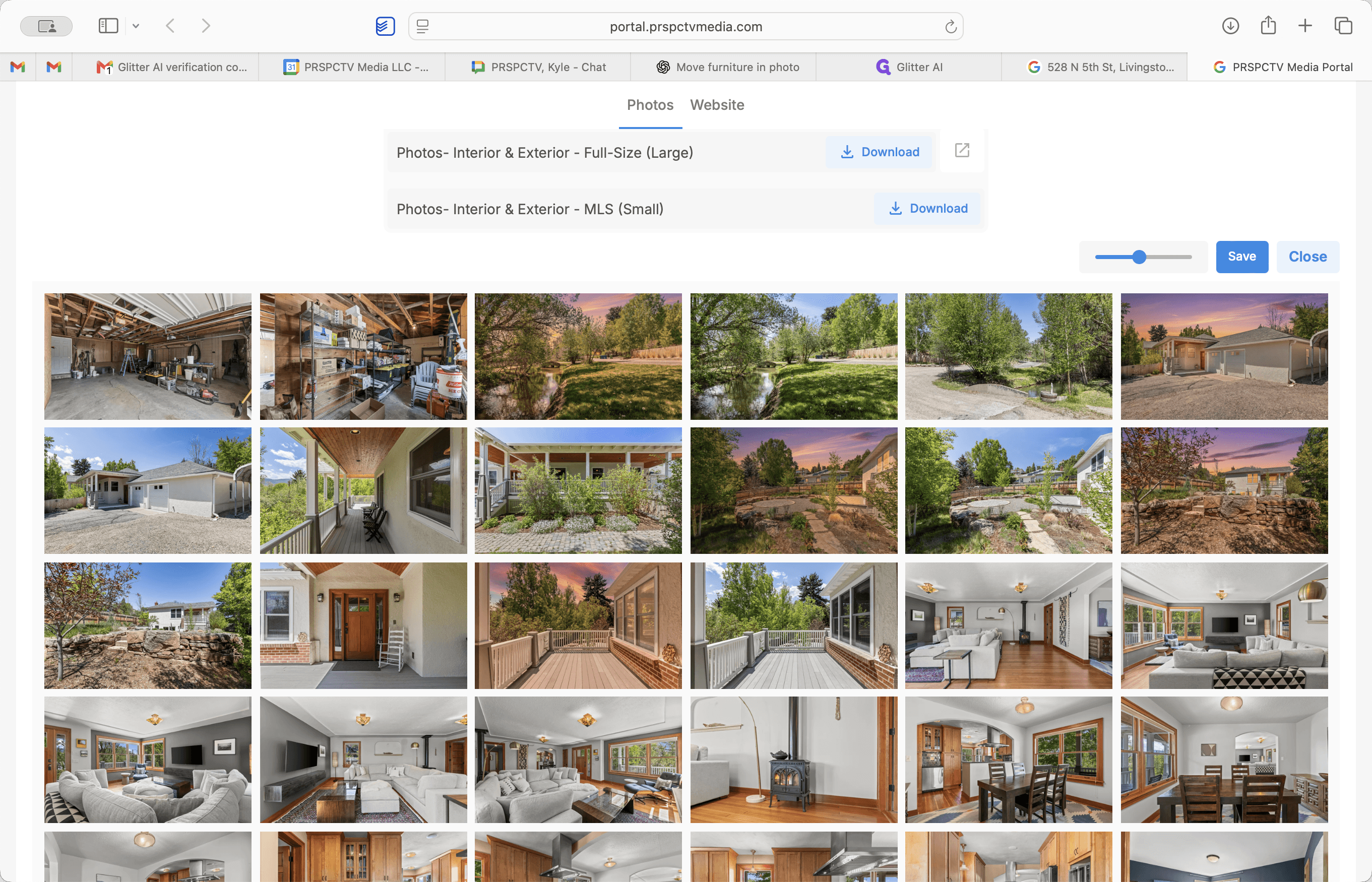
Repeat this selection and drag process for any other photos you wish to reposition.
Q: Why isn't the photo moving when I try to drag it?
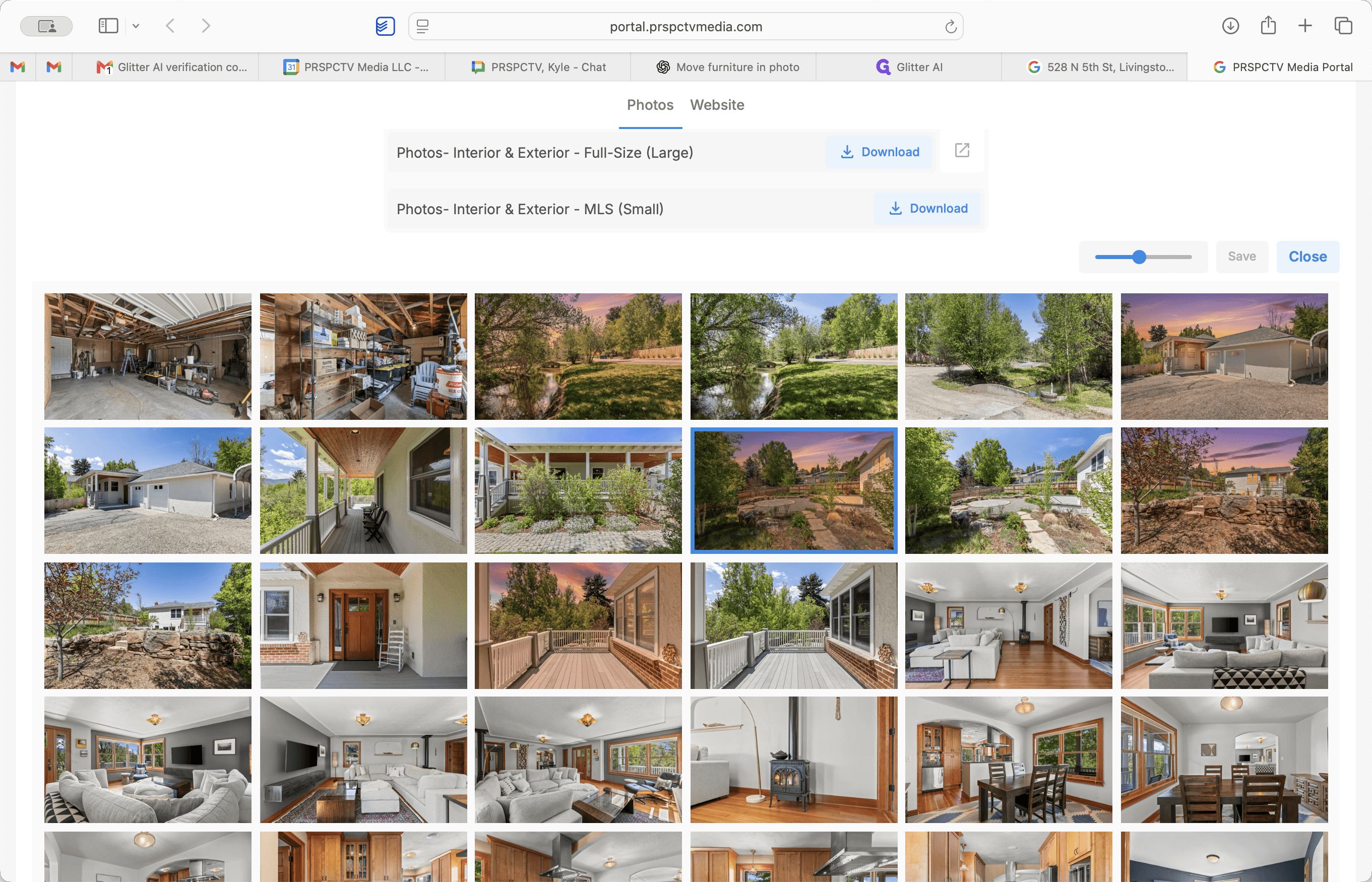
A: You cannot grab and drag an image in one fluid motion. You must first click on the photo to select it (look for the blue highlight border), and then you can drag it to its new location.