Icon

How to Request and Configure a Legal Data Source

Learn how to submit a request for a new legal data source, fill out essential details, and configure technical scraping instructions.

By Obama

This guide explains how to request a new legal data source and configure its automated scraping parameters. By following these steps, you will route the new source for legal expert approval and ensure the system accurately pulls in legislation, case law, or administrative decisions.

This workflow is primarily used by Country Admins when a new source of legal documentation needs to be integrated into the platform for automated tracking.

Initiate a New Source Request
1
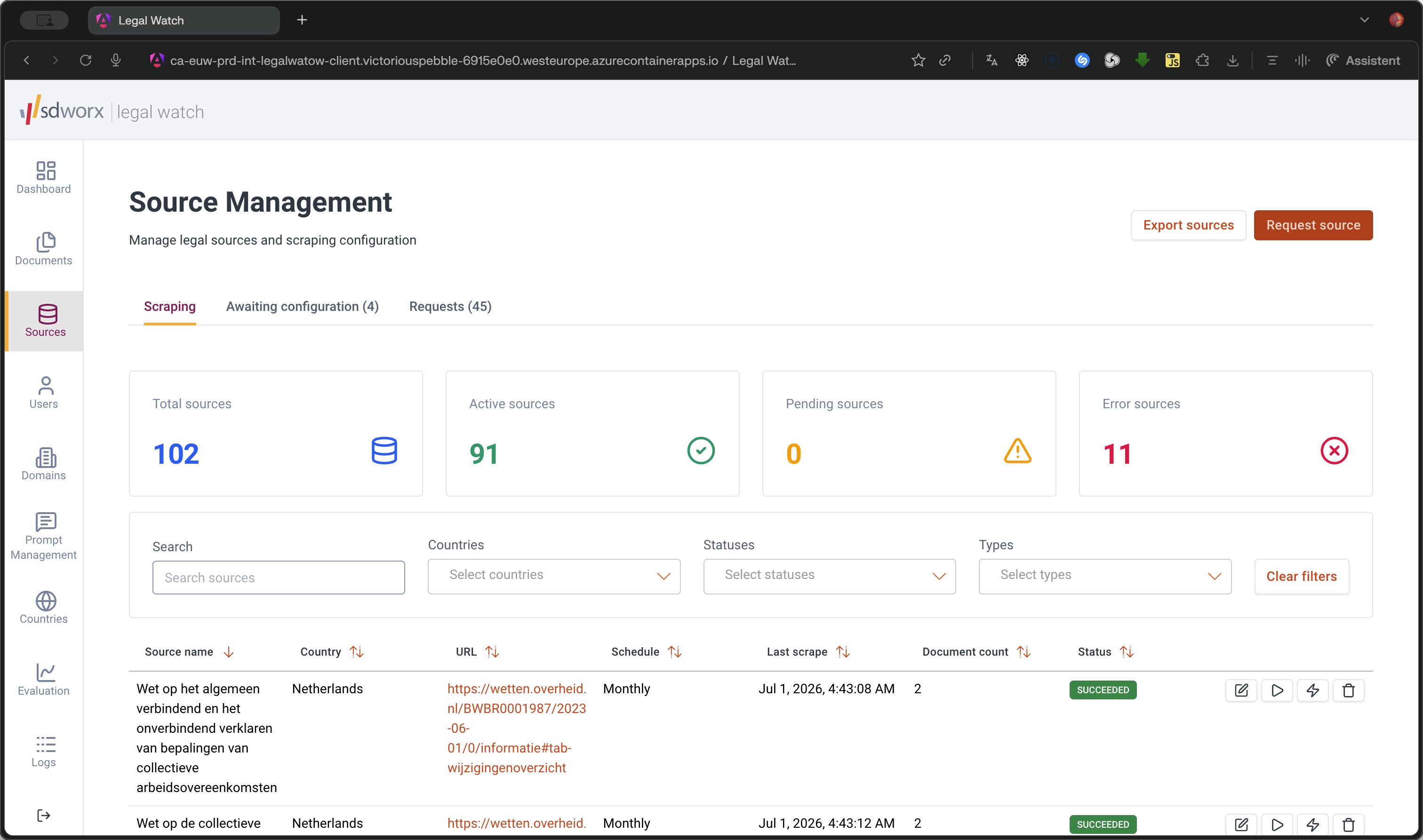
Click Request source to open the creation modal.
Step #1: Click Request source to open the creation modal.

Provide Basic Source Details

2
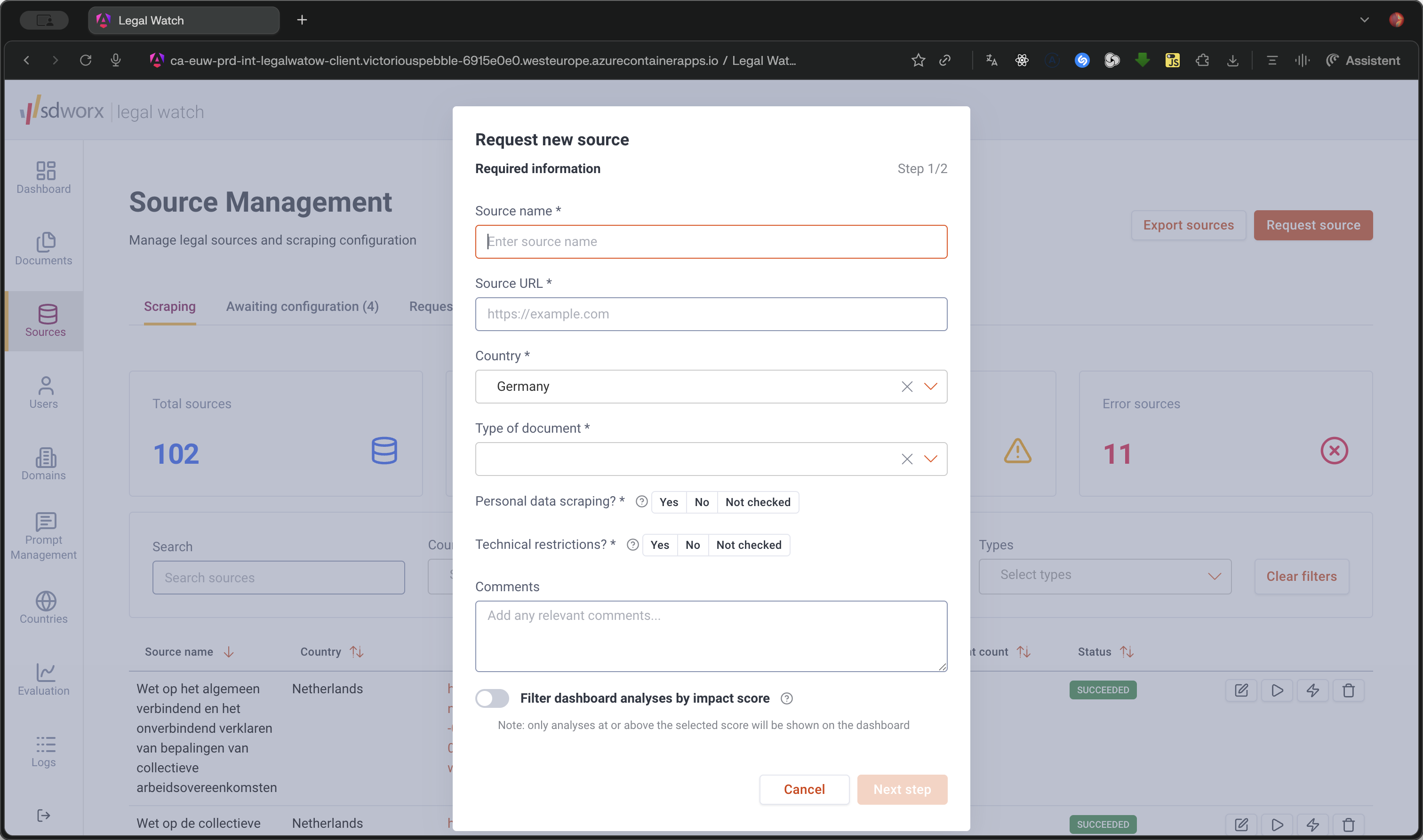
Enter the Source name.
Step #2: Enter the Source name.
3
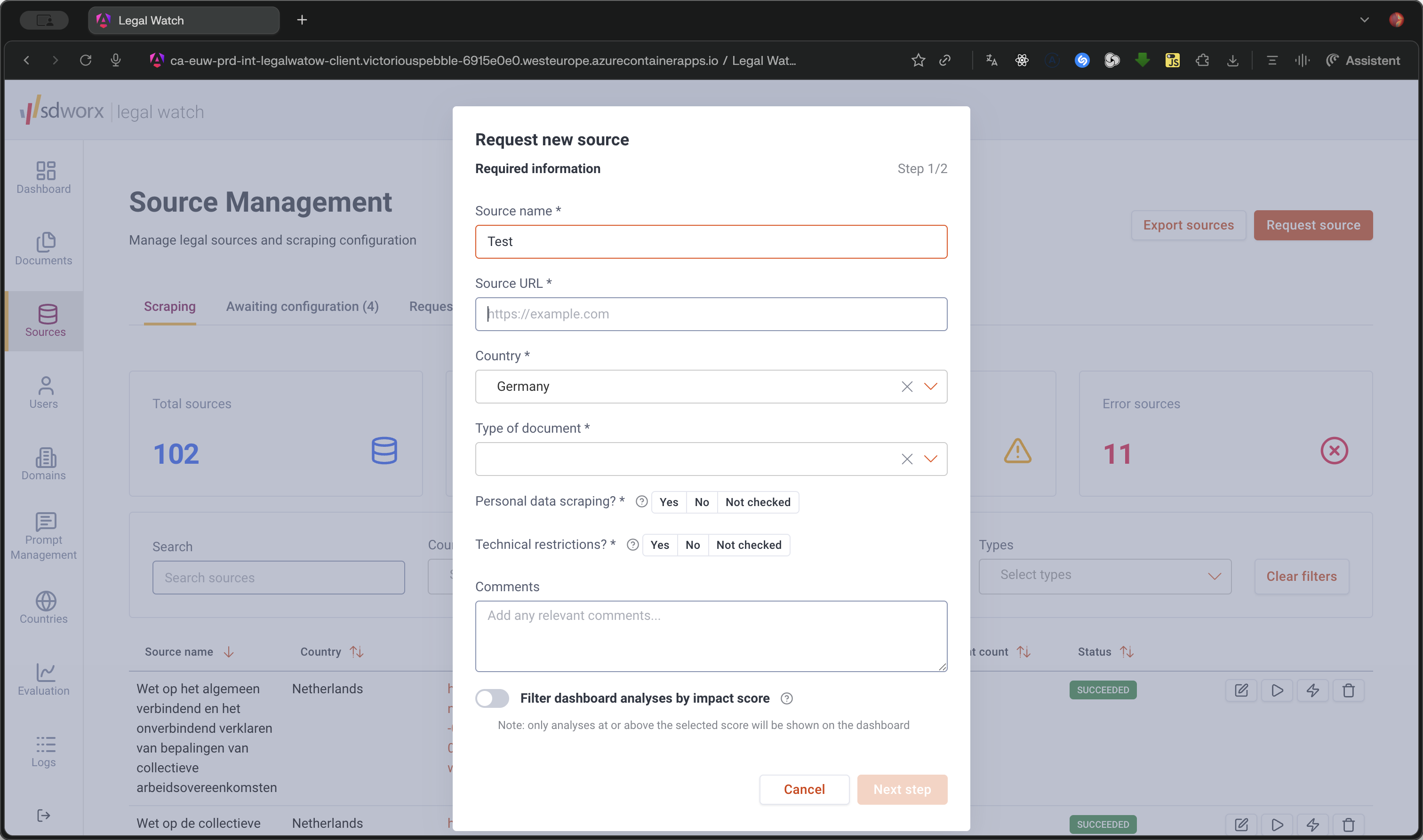
Enter the Source URL.
Step #3: Enter the Source URL.
4
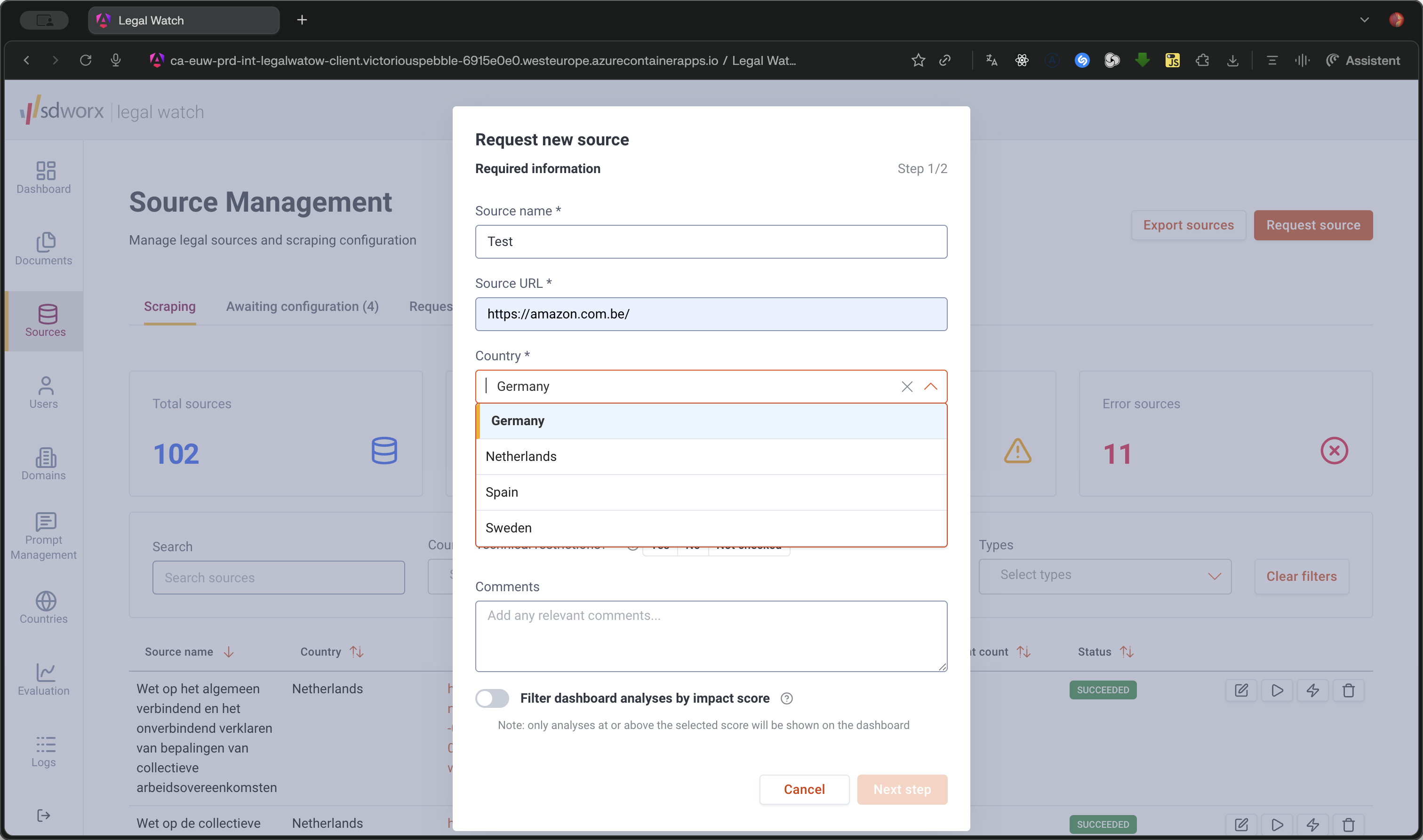
Select the Country from the dropdown menu.
Step #4: Select the Country from the dropdown menu.
5
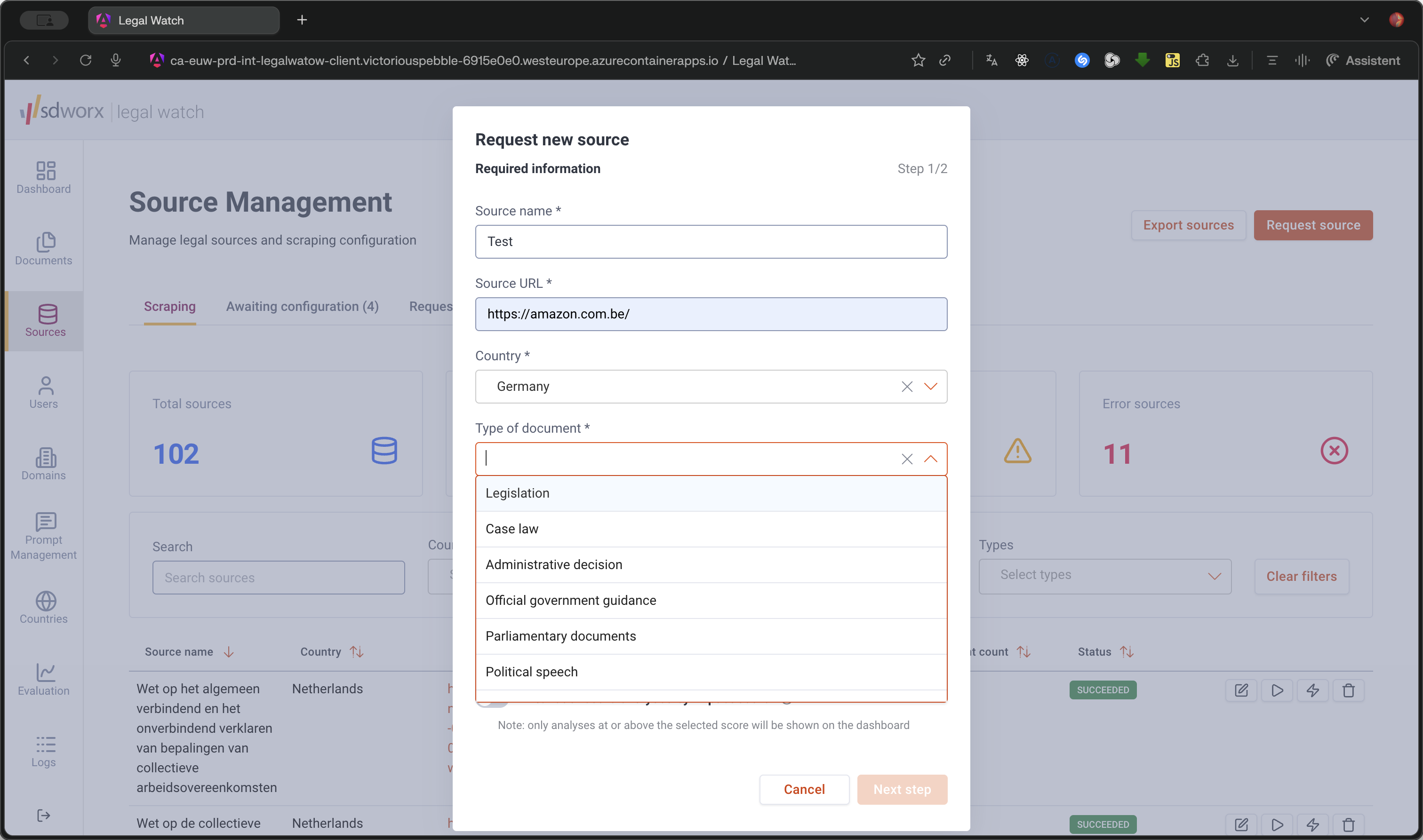
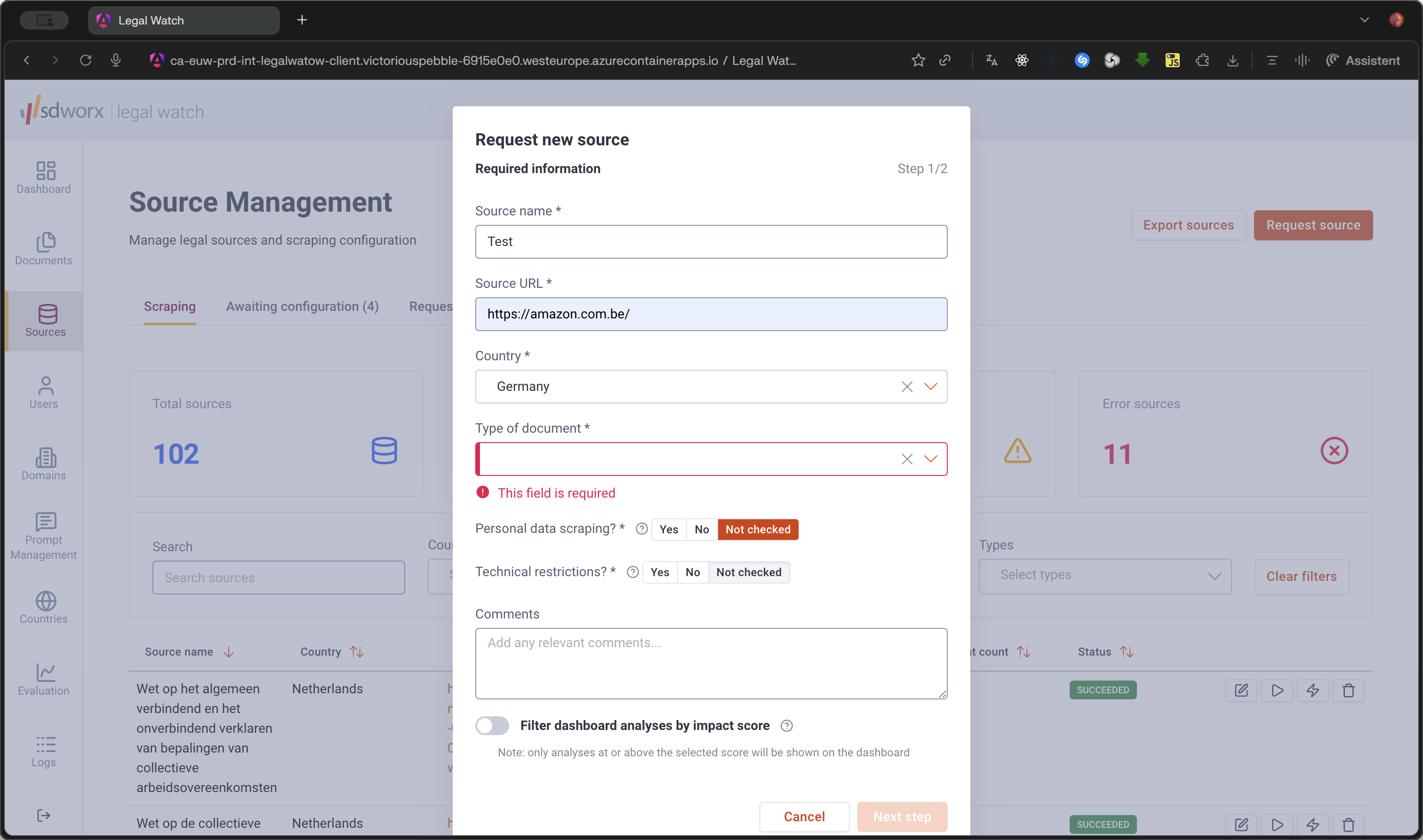
Select the Type of document (e.g., Legislation, Case law, Administrative decision).
Step #5: Select the Type of document (e.g., Legislation, Case law, Administrative decision).
6
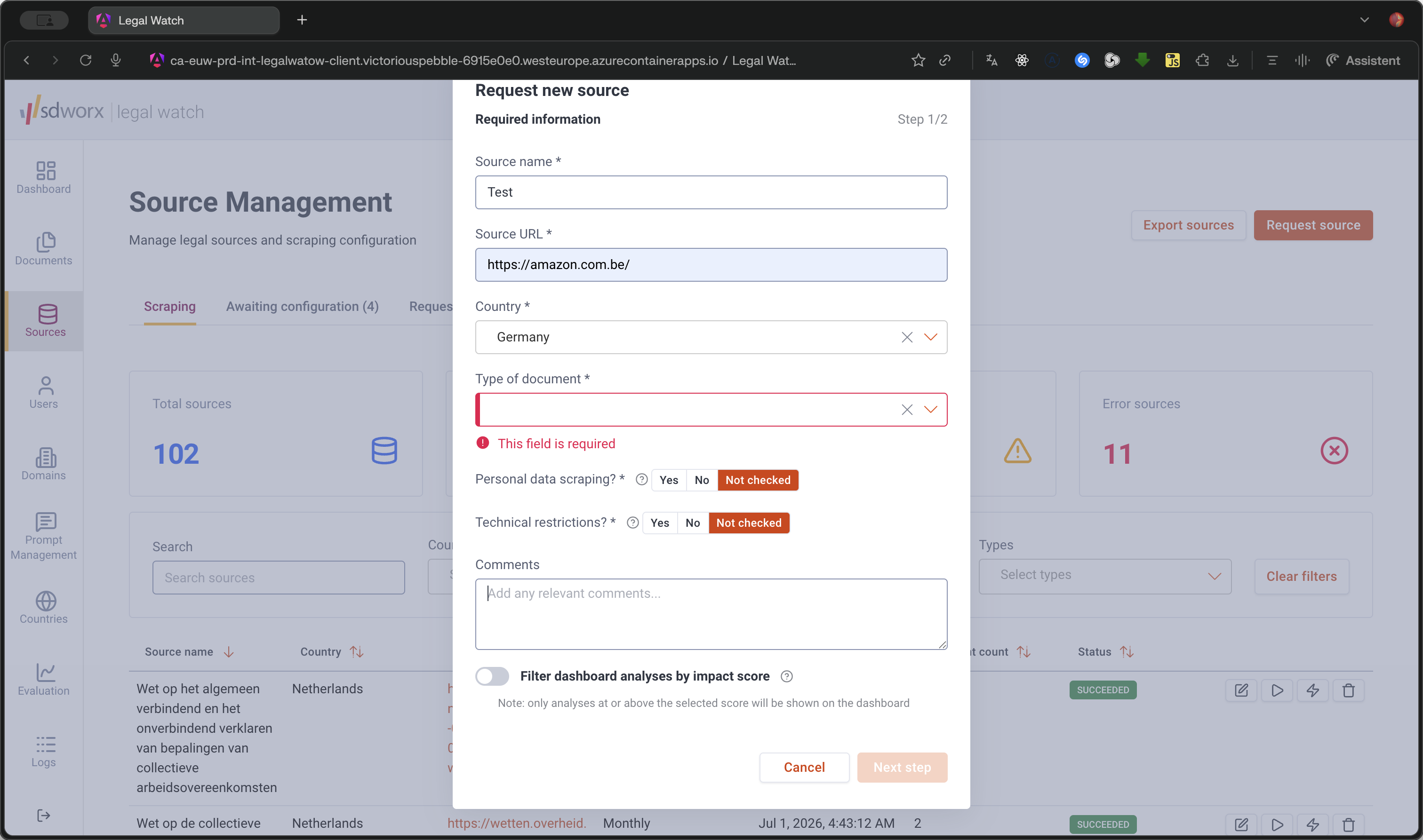
Specify if the source involves Personal data scraping. If unsure, choose Not checked to have a legal expert review it.
Step #6: Specify if the source involves Personal data scraping. If unsure, choose Not checked to have a legal expert review it.
7
Add any relevant comments about the source for the legal expert.
Step #7: Add any relevant comments about the source for the legal expert.
8
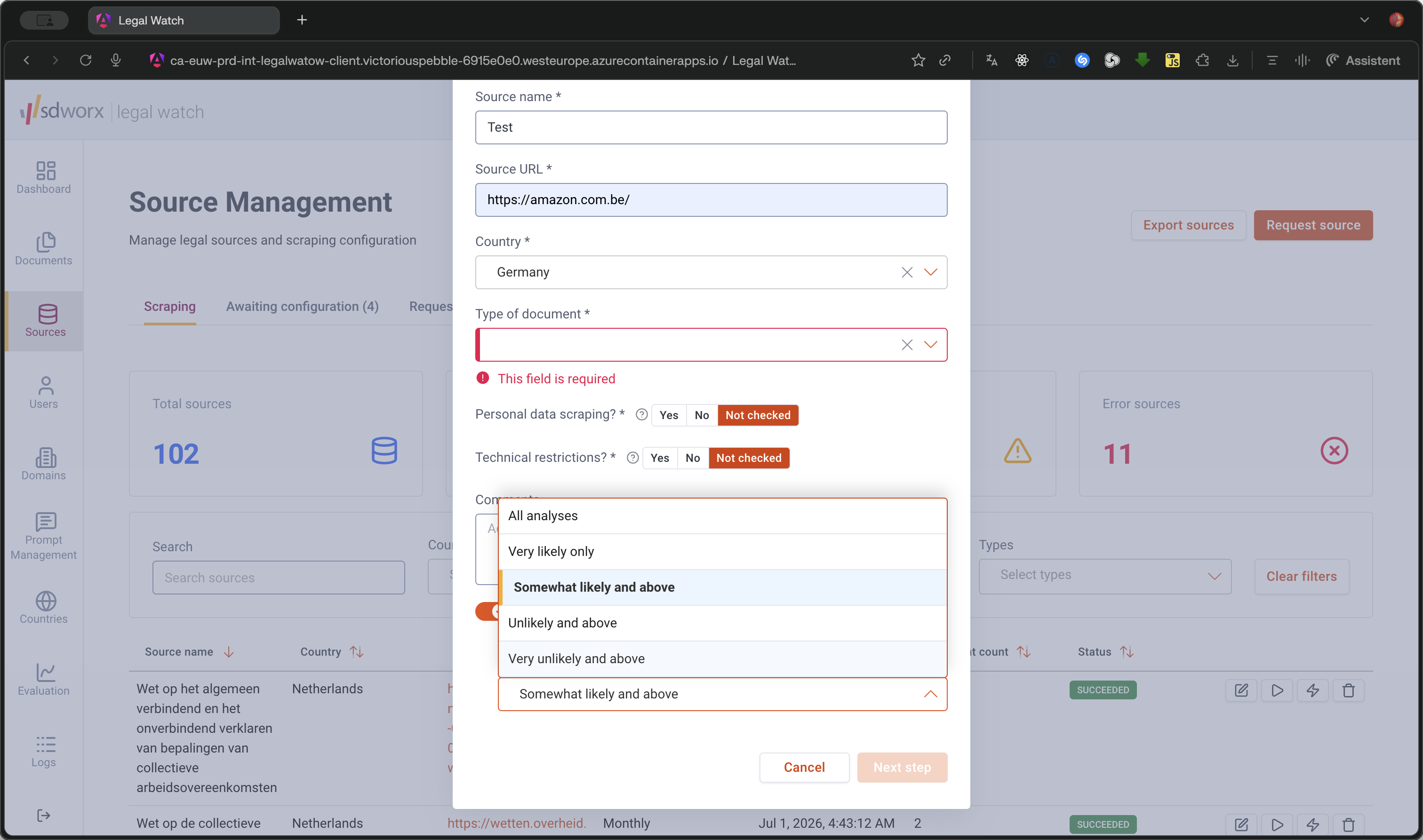
Optionally, select a minimum threshold to filter dashboard analyses by impact score (e.g., Somewhat likely and above).
Step #8: Optionally, select a minimum threshold to filter dashboard analyses by impact score (e.g., Somewhat likely and above).
9
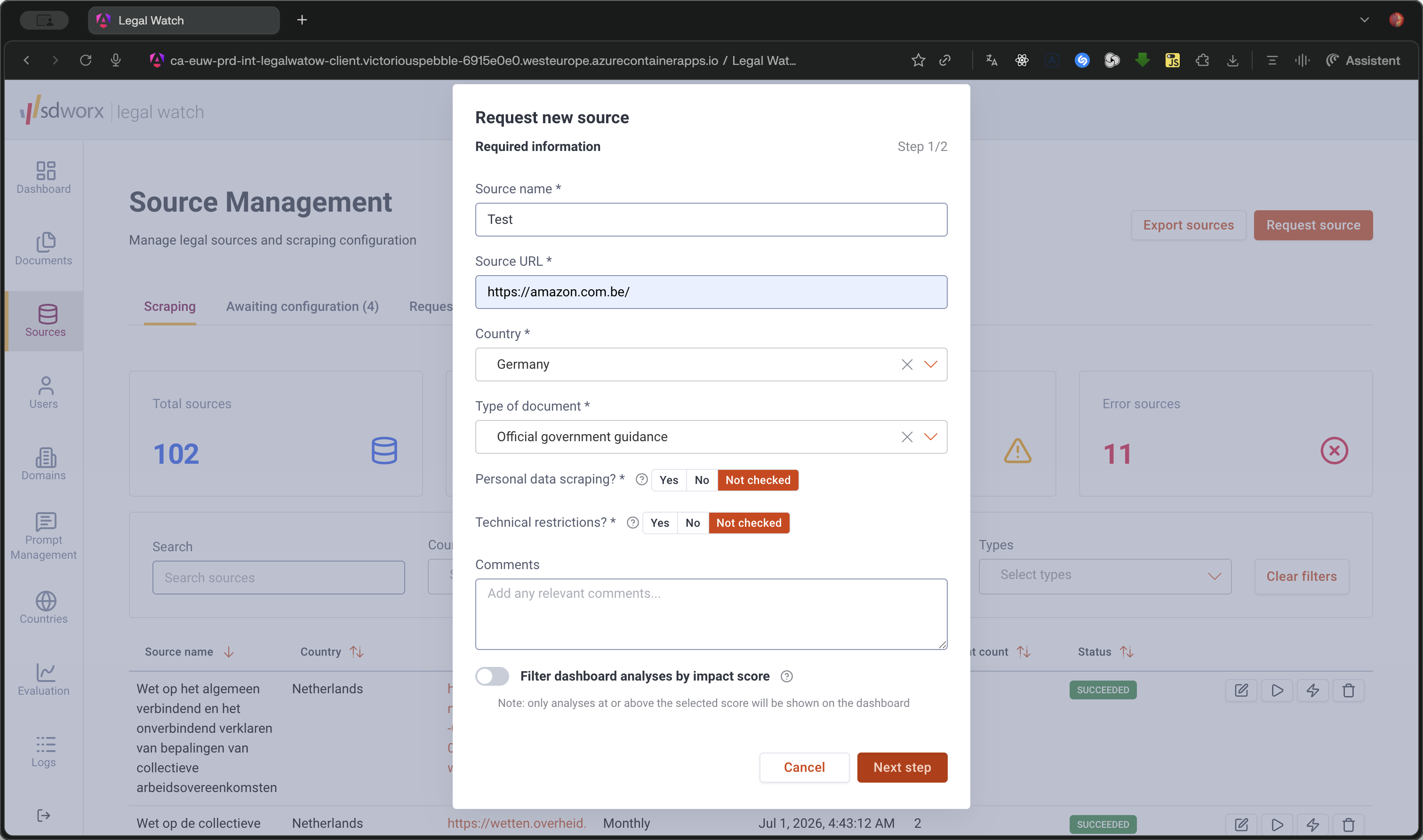
Click Next step to proceed to the configuration settings.
Step #9: Click Next step to proceed to the configuration settings.

Configure Scraping Settings

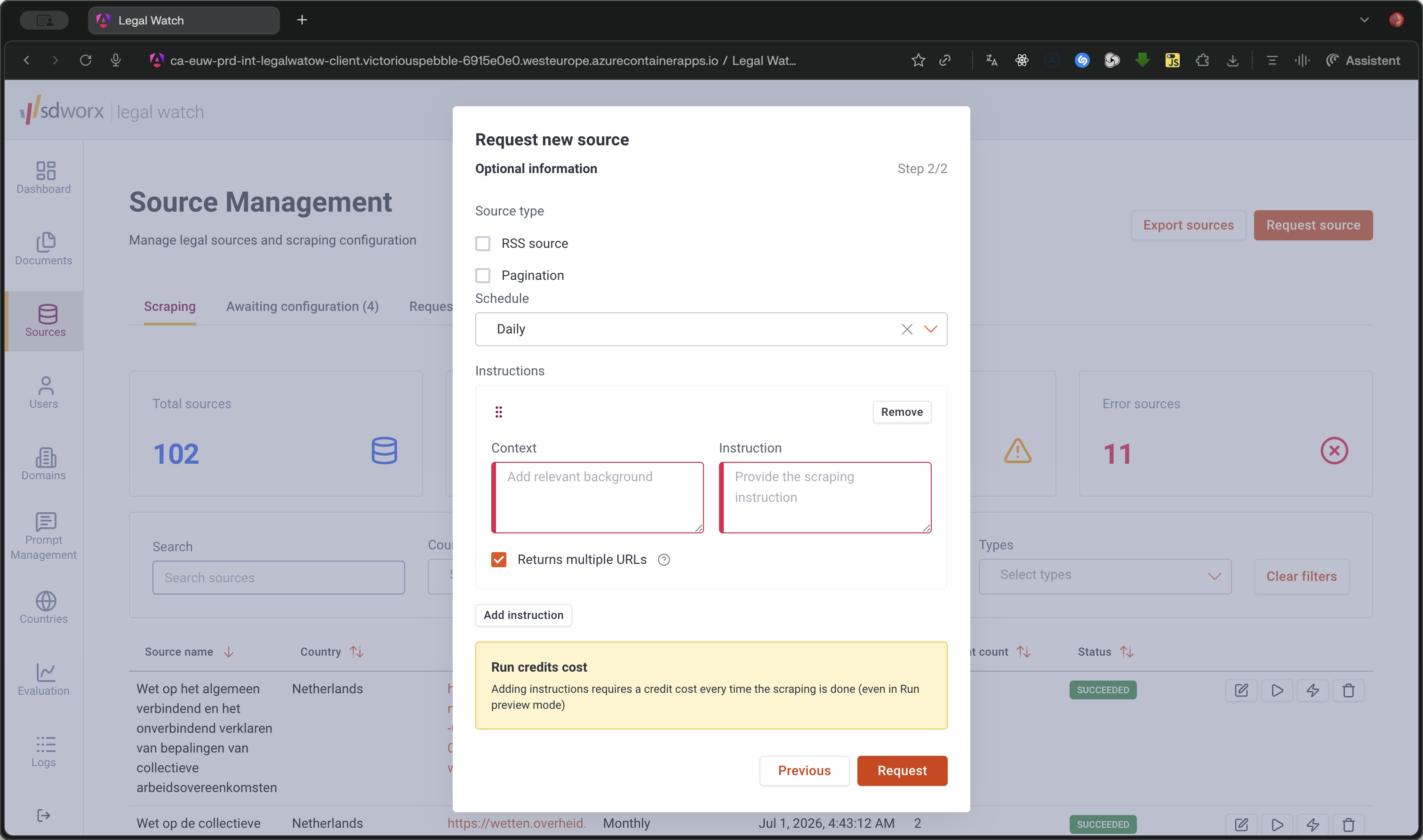
Choose the appropriate source type for scraping:

Source Type

Description

RSS source

Check this if the source provides data via an RSS feed.

Pagination

Check this if the source spans multiple pages and requires navigation instructions.

10
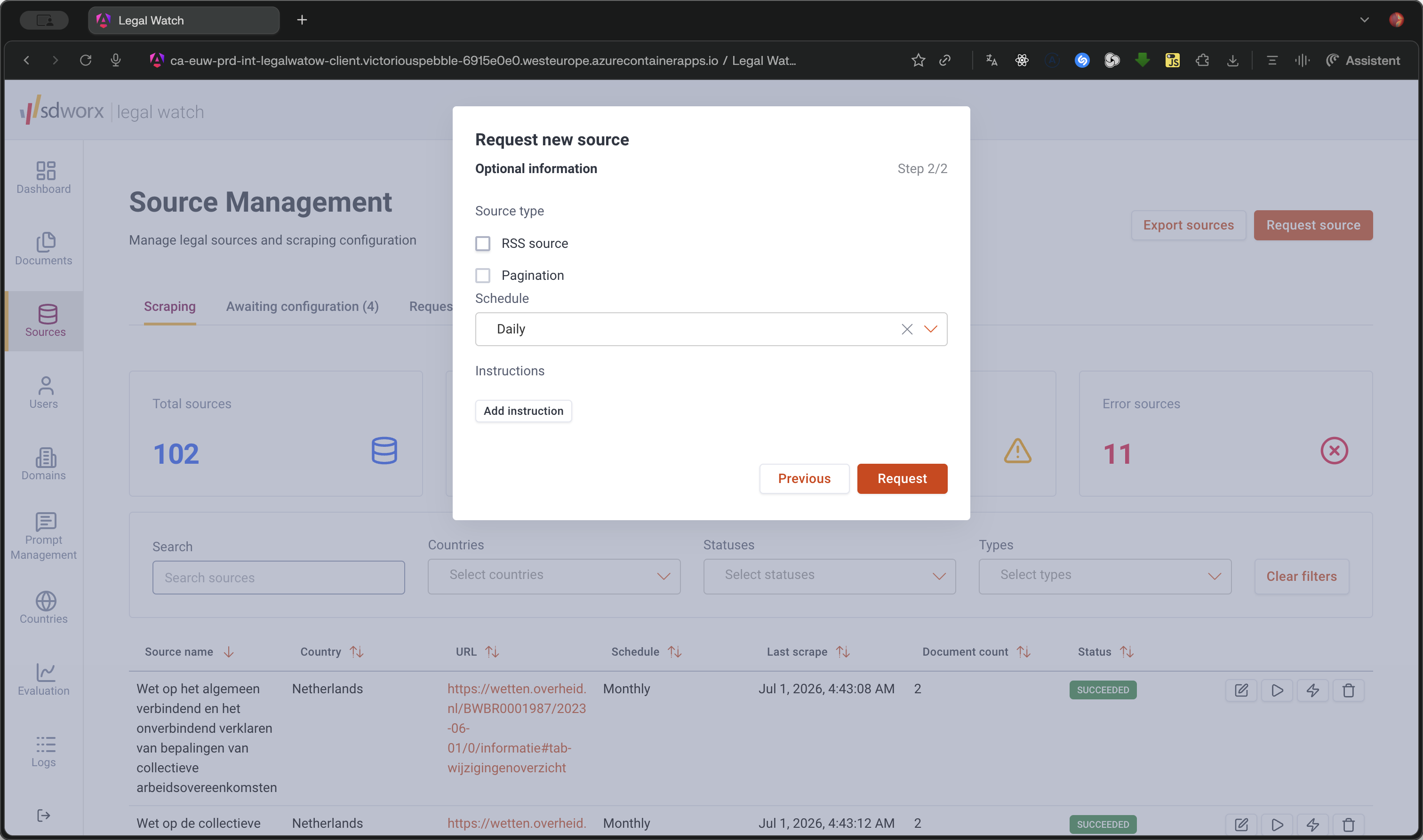
Check RSS source if applicable.
Step #10: Check RSS source if applicable.
11
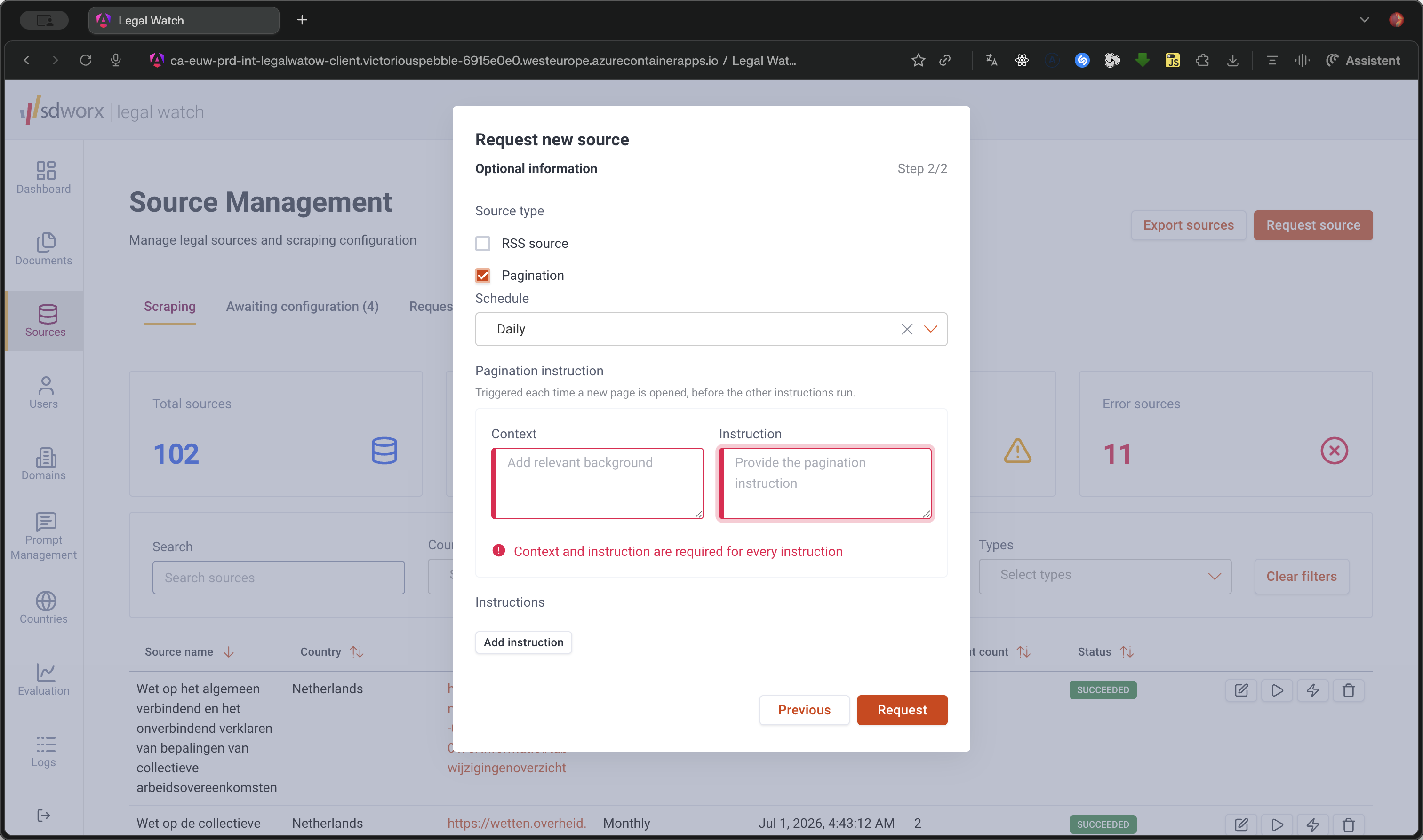
Check Pagination if applicable.
Step #11: Check Pagination if applicable.
12
If using pagination, fill out the required Context and Instruction for navigating the pages.
Step #12: If using pagination, fill out the required Context and Instruction for navigating the pages.
13
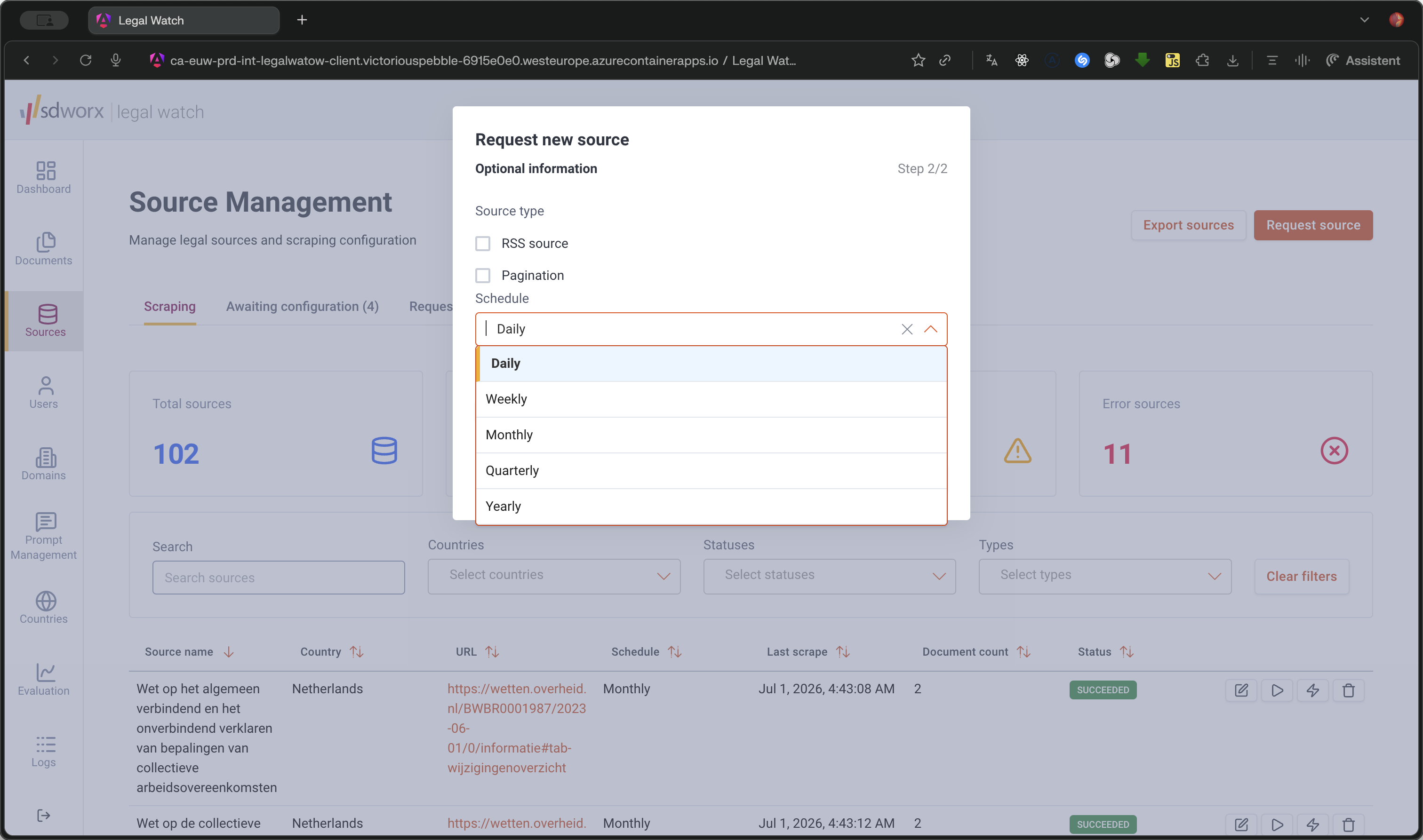
Select a scraping Schedule from the dropdown menu (e.g., Daily, Weekly, Monthly).
Step #13: Select a scraping Schedule from the dropdown menu (e.g., Daily, Weekly, Monthly).
14
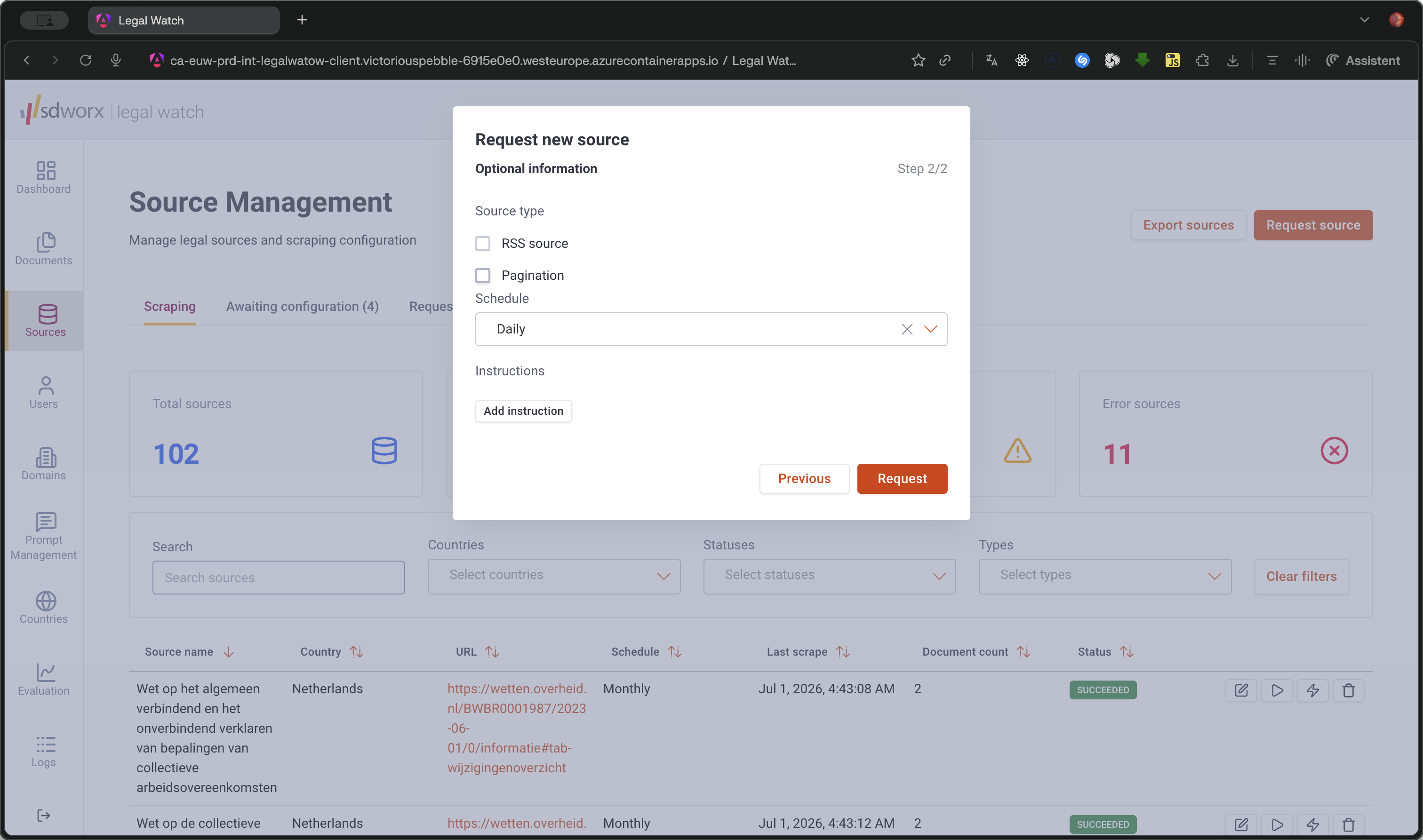
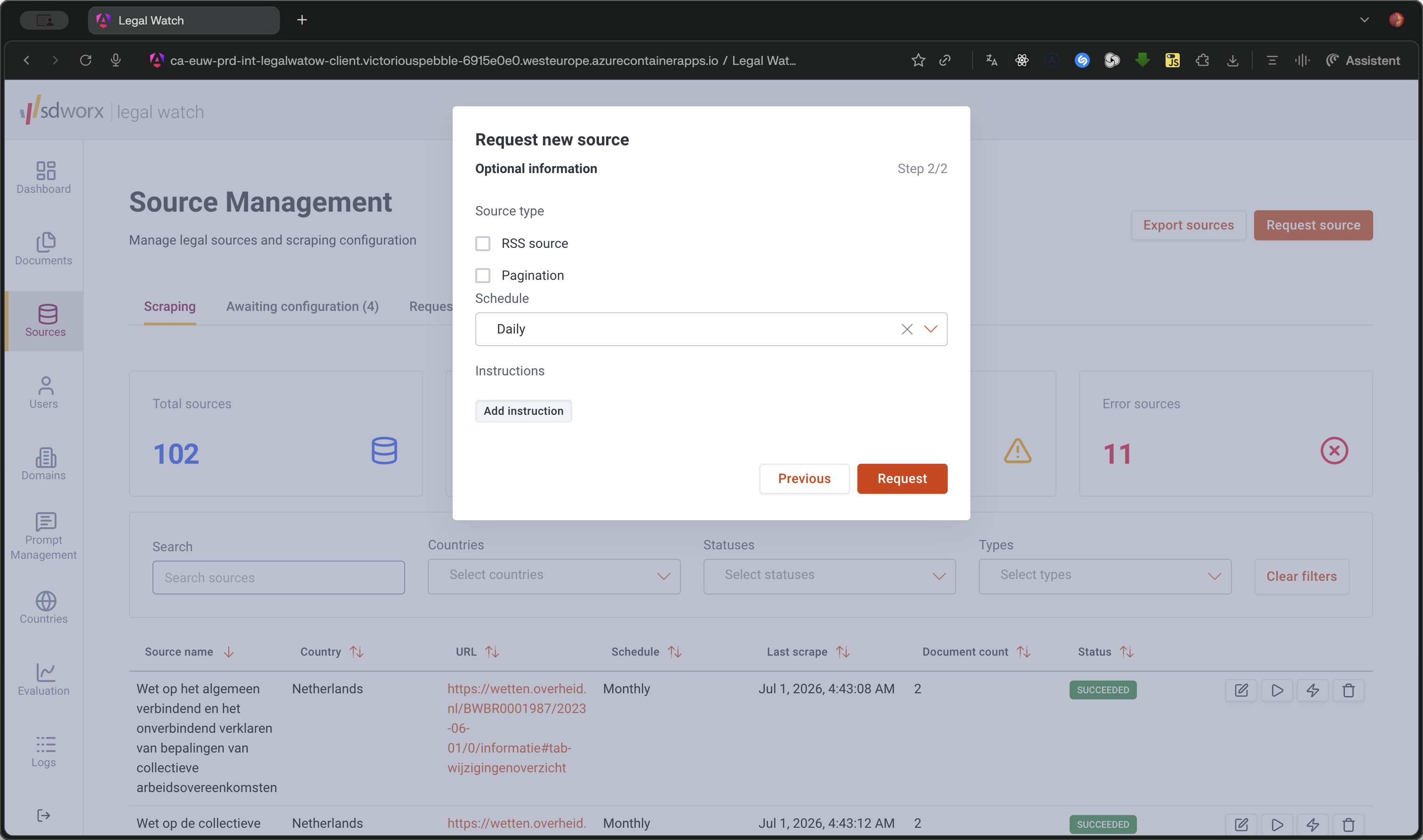
Click Add instruction to define how data should be extracted.
Step #14: Click Add instruction to define how data should be extracted.
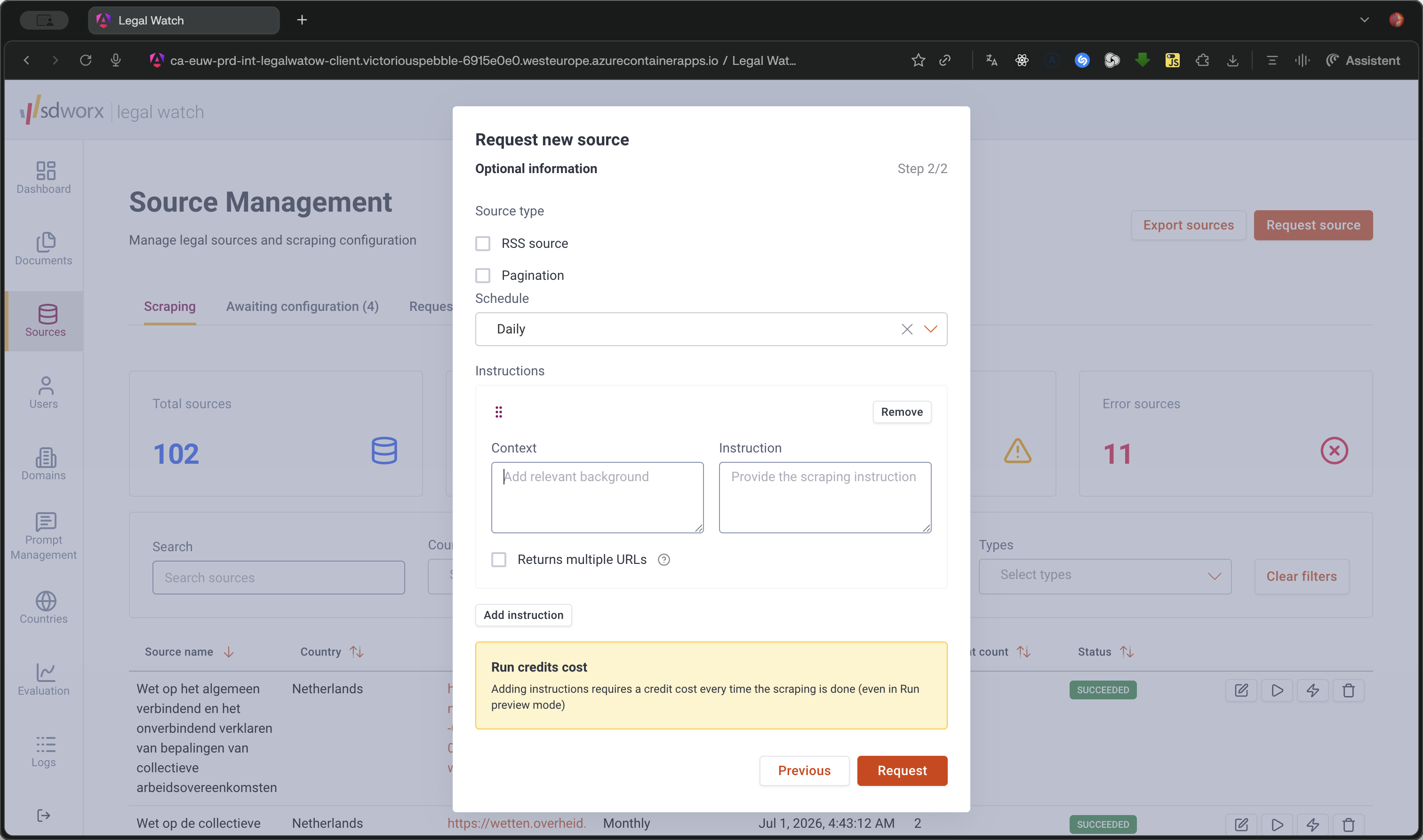
15
Enter the relevant background context for the instruction.
Step #15: Enter the relevant background context for the instruction.
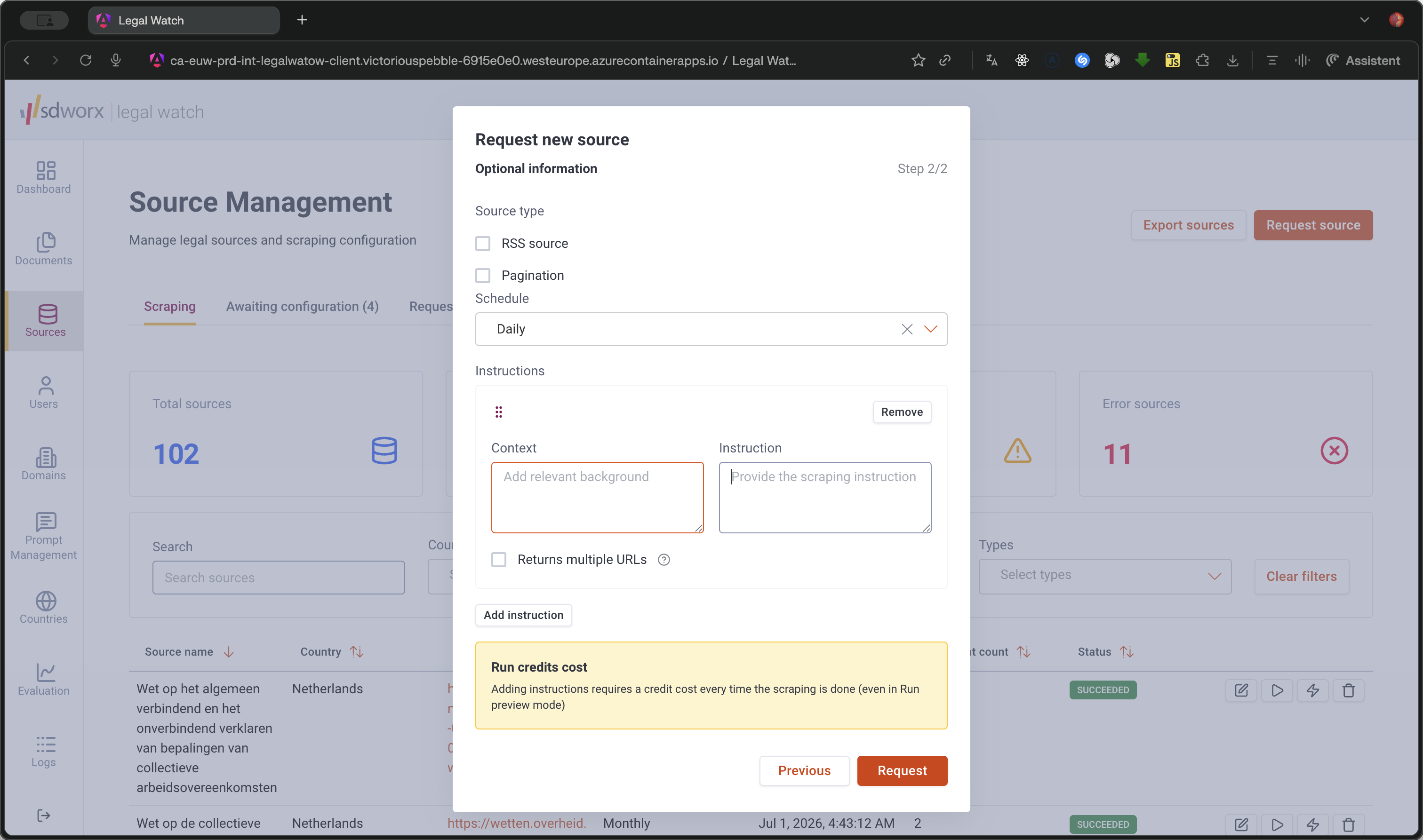
16
Provide the specific scraping instruction details.
Step #16: Provide the specific scraping instruction details.
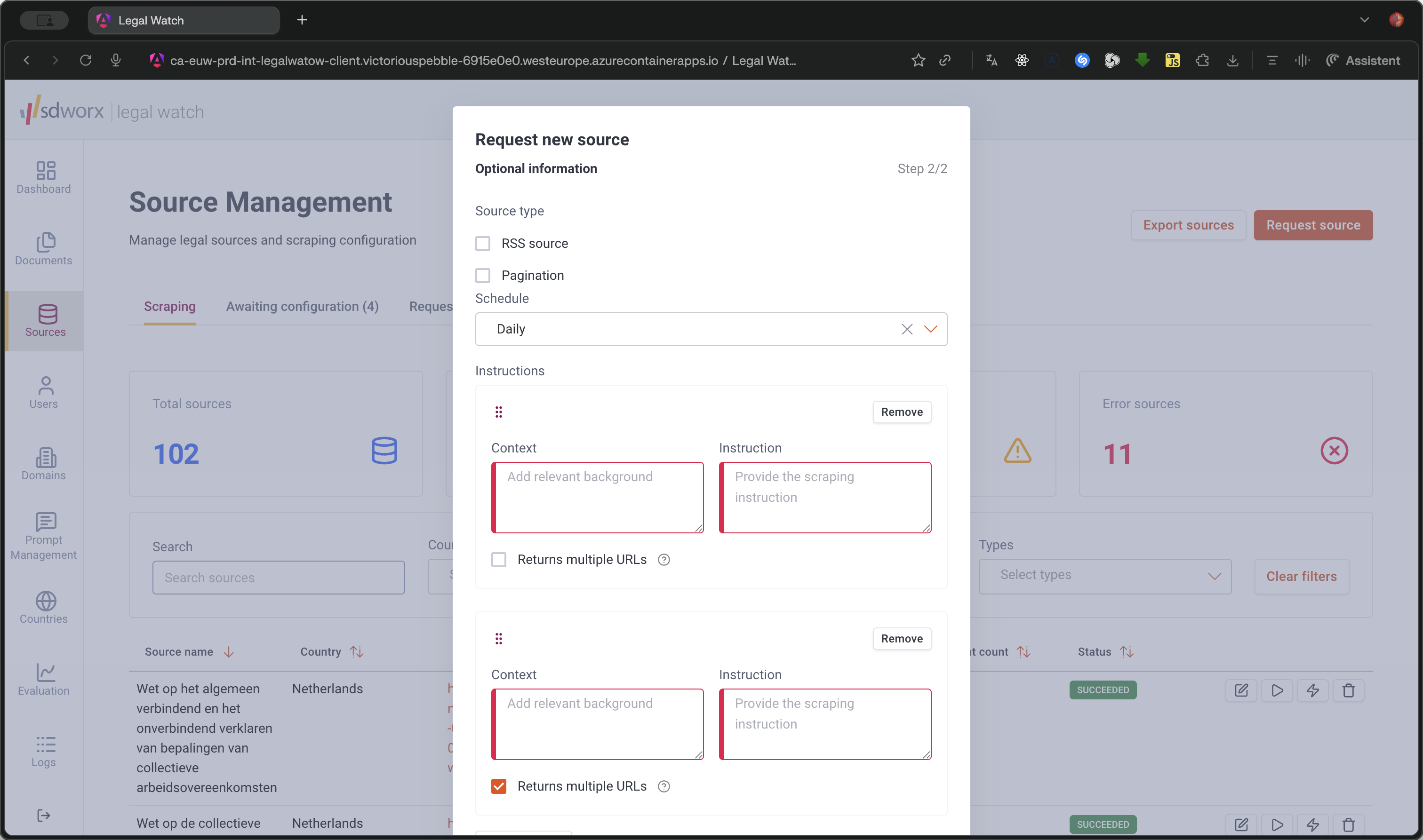
17
If you add multiple instructions, you can reorder them by clicking and dragging the items.
Step #17: If you add multiple instructions, you can reorder them by clicking and dragging the items.
18
Click Request to submit the new source for legal expert review.
Step #18: Click Request to submit the new source for legal expert review.

Q: What if I don't know whether a source involves personal data scraping?

A: You can select "Not checked" during the request process, and the assigned legal expert will evaluate it for you.

Q: What does the impact score filter do?

A: It sets a minimum likelihood threshold (e.g., "Somewhat likely and above") for documents to appear on your main dashboard. Documents scoring below this threshold will still be accessible on the dedicated documents page.

Q: How do I configure scraping for a source with multiple pages?

A: Check the "Pagination" option in the configuration step and provide the specific context and instructions required for the scraper to navigate through the pages.

Term

Definition

Scraping

The automated process of extracting data or documents from a targeted legal source.

Legal Expert

A designated user role responsible for reviewing new source requests and validating personal data constraints.

Impact Score

A calculated metric used to filter dashboard analysis results based on the likelihood or relevance of the document.

RSS Source

A standardized web feed format used by sites to publish frequently updated content, such as new legal decisions.

Pagination

A technical configuration required when a data source distributes its content across multiple sequential web pages.