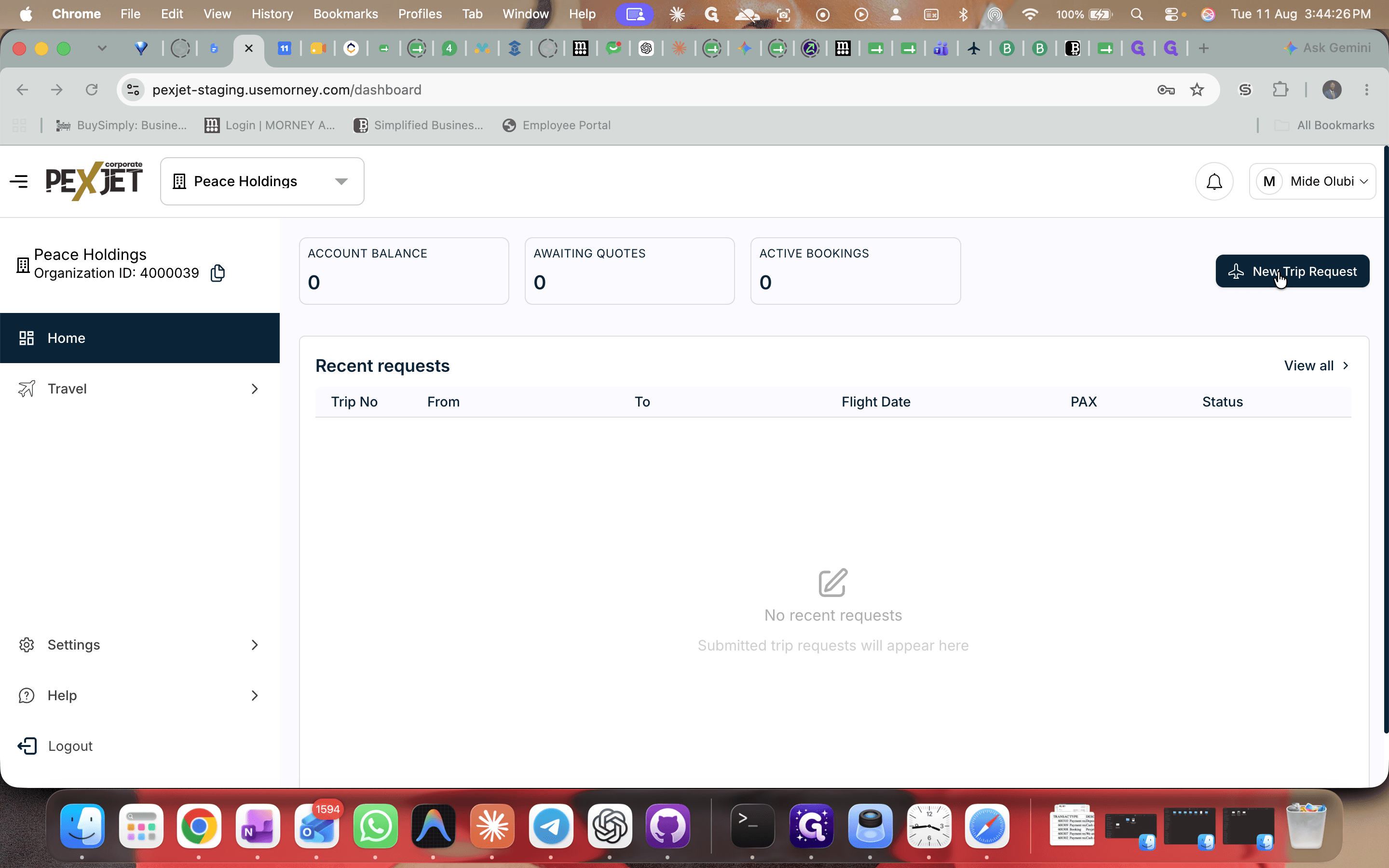
How to Request a New Trip Quote
Learn how to easily create a new roundtrip corporate flight request, input travel details, and submit a quote on the travel dashboard.
This guide demonstrates how to create and submit a new corporate flight request. Completing these steps ensures your travel details and preferences are sent directly to the aviation team for an accurate quote.
This process applies to corporate travelers or travel managers who need to book upcoming business flights. You will use this workflow whenever you need to initiate a new travel booking to receive a flight quote.

Select Your Trip Type
Before picking dates and locations, determine the type of trip you are taking:
Trip Type | Description |
|---|---|
One-way | Select this for a single flight from your origin to a destination with no return. |
Roundtrip | Select this for a typical out-and-back journey. Return fields automatically populate. |
Multi-Leg | Select this if your travel involves multiple distinct destinations and flights. |

Enter Routes and Dates


Add Passenger Details and Preferences


Q: Why did the return destination fill automatically?
A: When you select a roundtrip, the system automatically populates the return trip details based on your outbound origin and destination to save you time.
Q: What happens after I request a quote?
A: Once you click Request Quote, your trip details are sent directly to the corporate team to begin processing your travel request and pricing.
Term | Definition |
|---|---|
Multi-Leg | A trip itinerary that involves multiple flights to different destinations before returning. |
Roundtrip | A standard travel itinerary where you fly to a destination and return to your original departure point. |
Quote Request | A formal submission of your desired travel dates, routes, and preferences to receive pricing options. |