
How to Request Peer Feedback for Direct Reports
Learn how people leaders can request, review, and manage peer feedback for their direct reports during the performance review cycle.
This guide explains how to request peer feedback for your direct reports during the end-of-year performance review cycle. Gathering peer feedback provides a more comprehensive and balanced view of your team members' performance to inform your manager review.
This process applies to all people leaders. You should complete these steps before beginning your formal manager review of a direct report so that peer feedback is available for your consideration.
Navigate to Your Team's Reviews
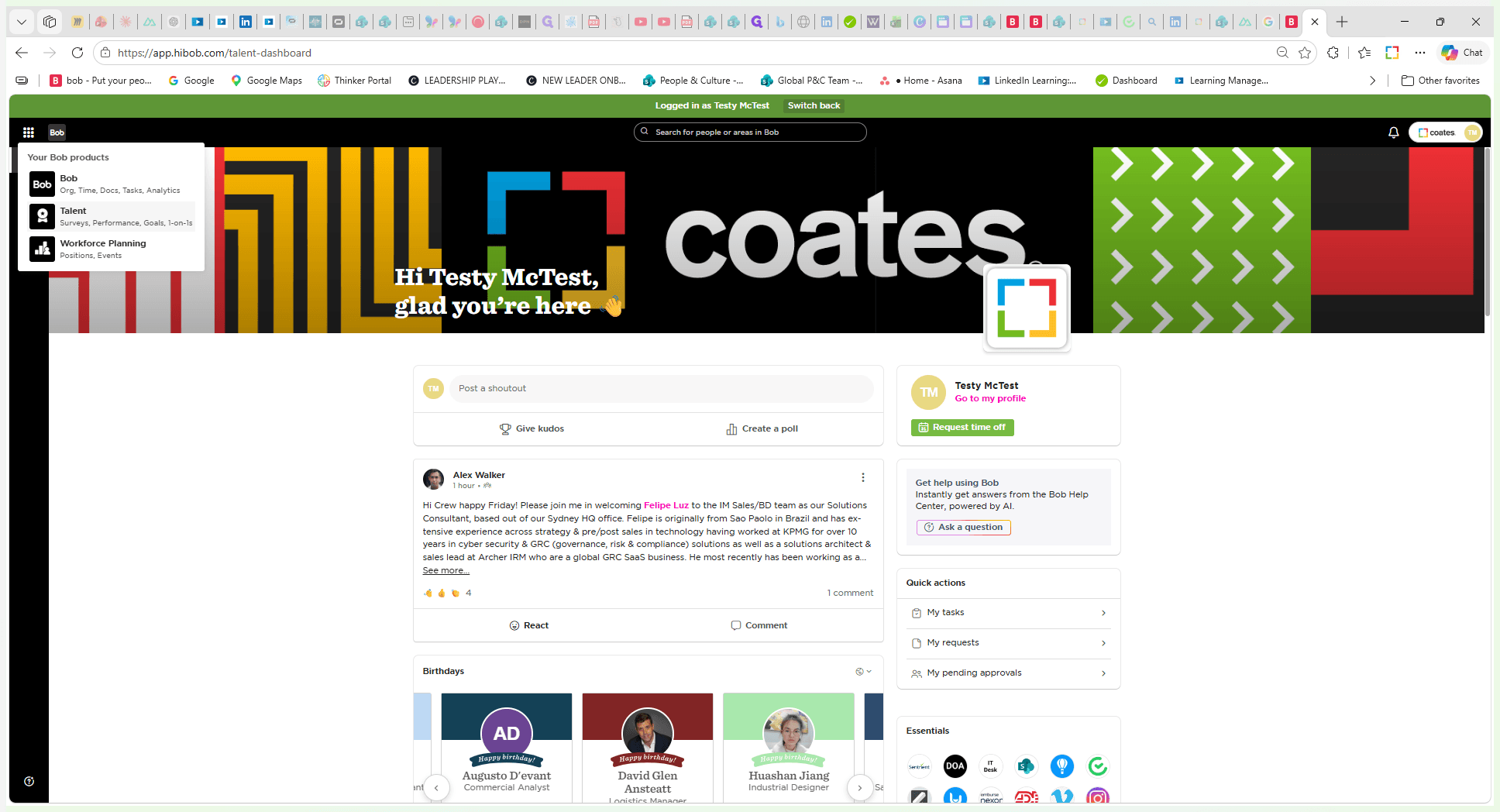
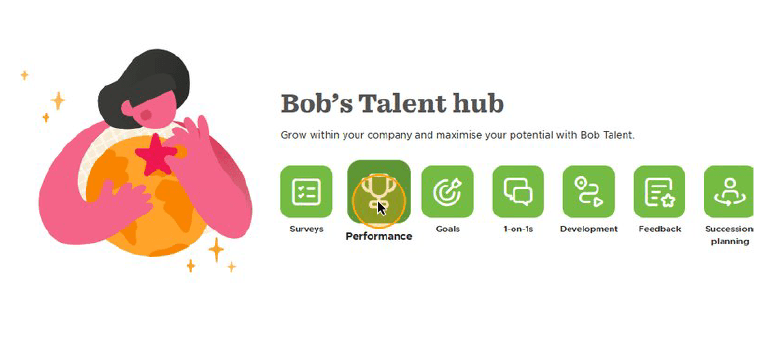
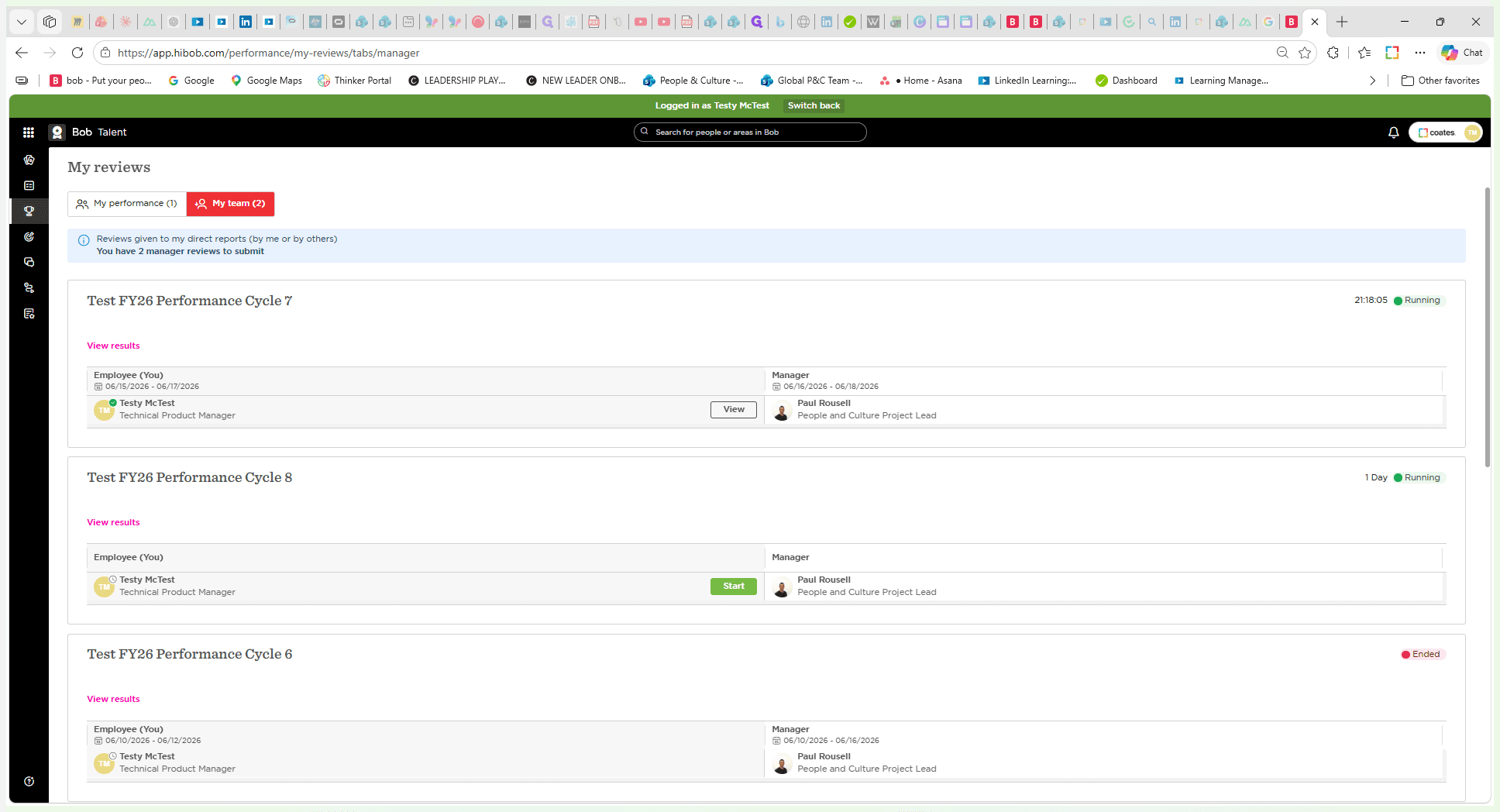
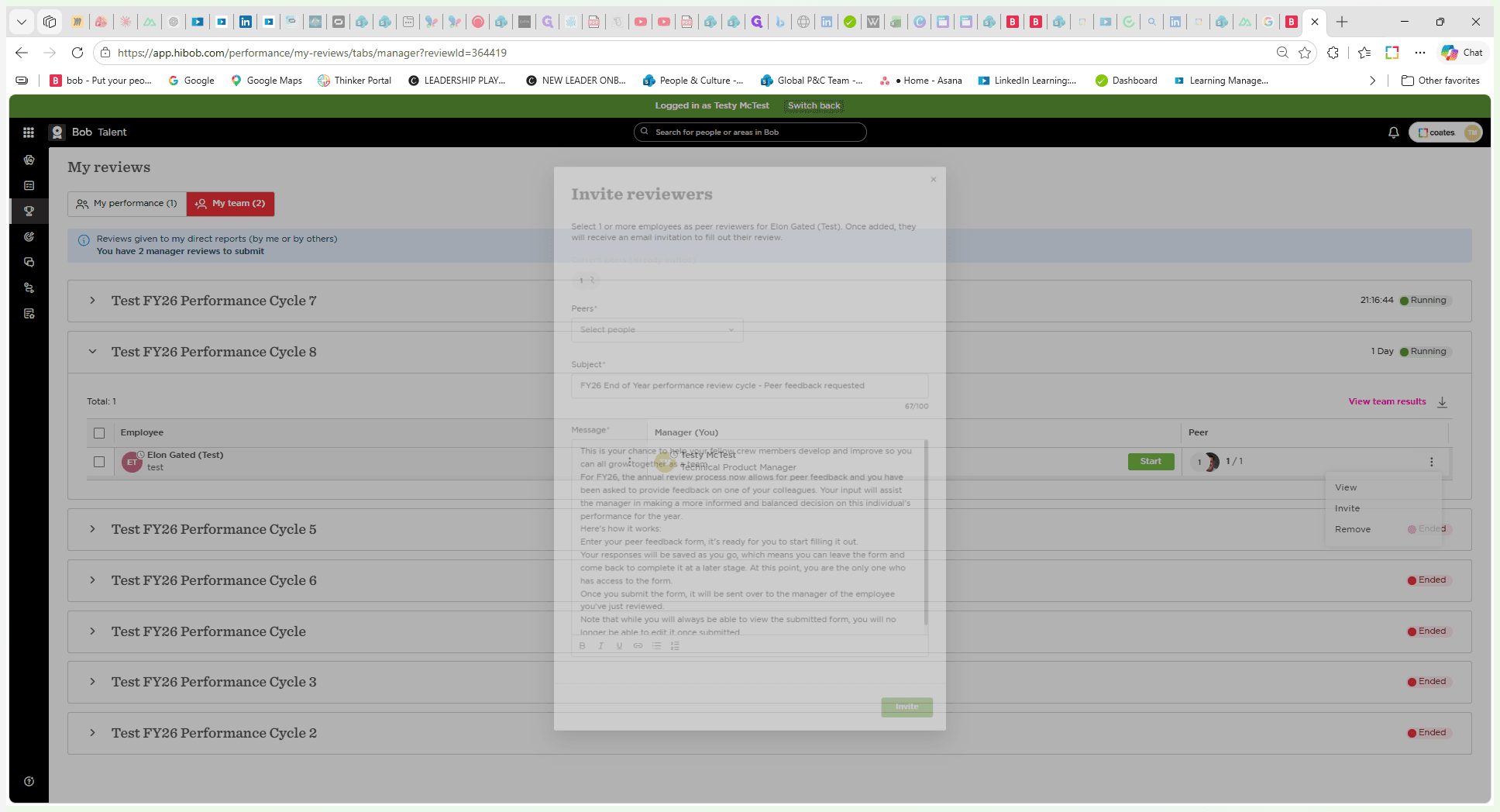
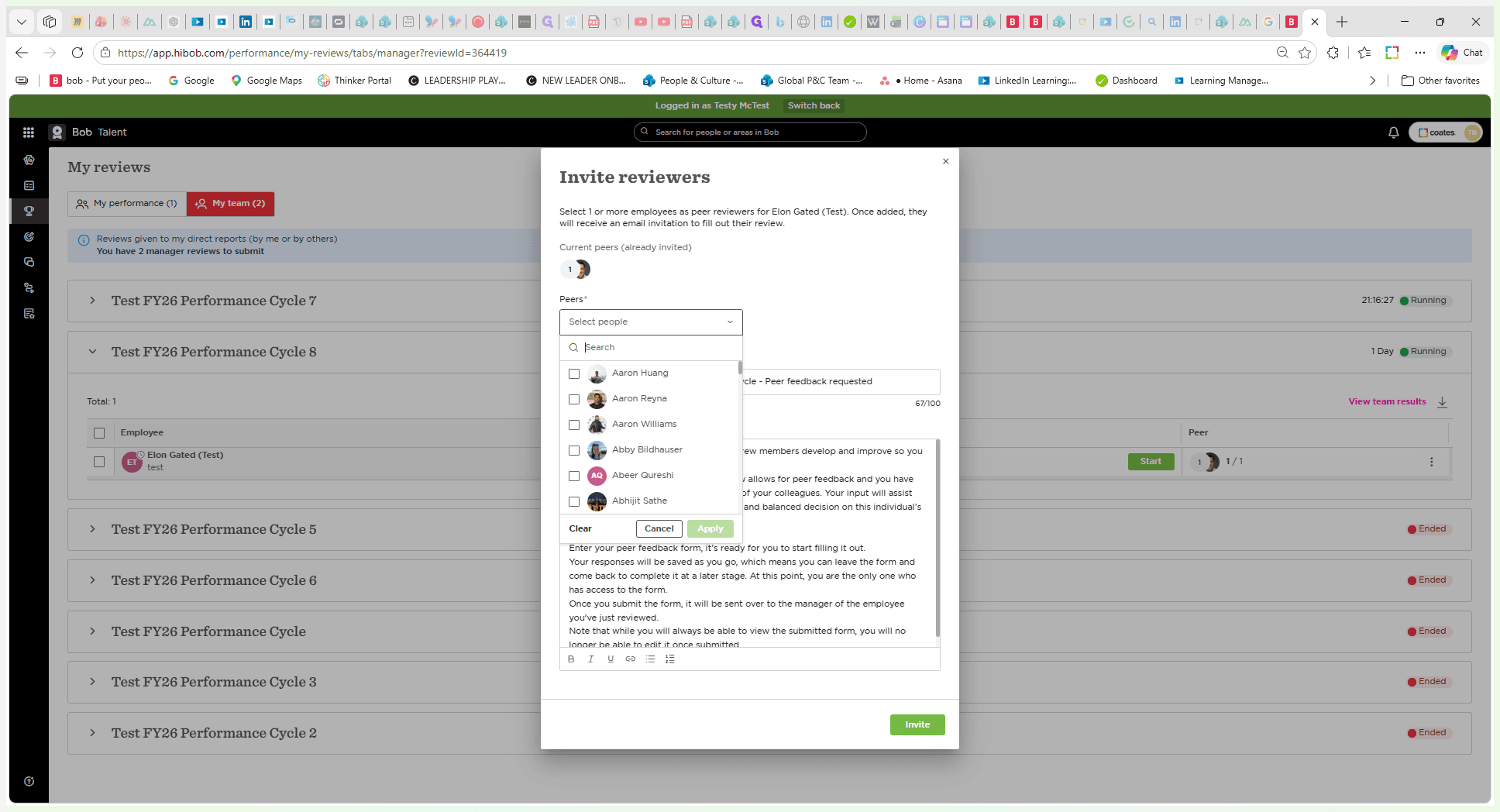
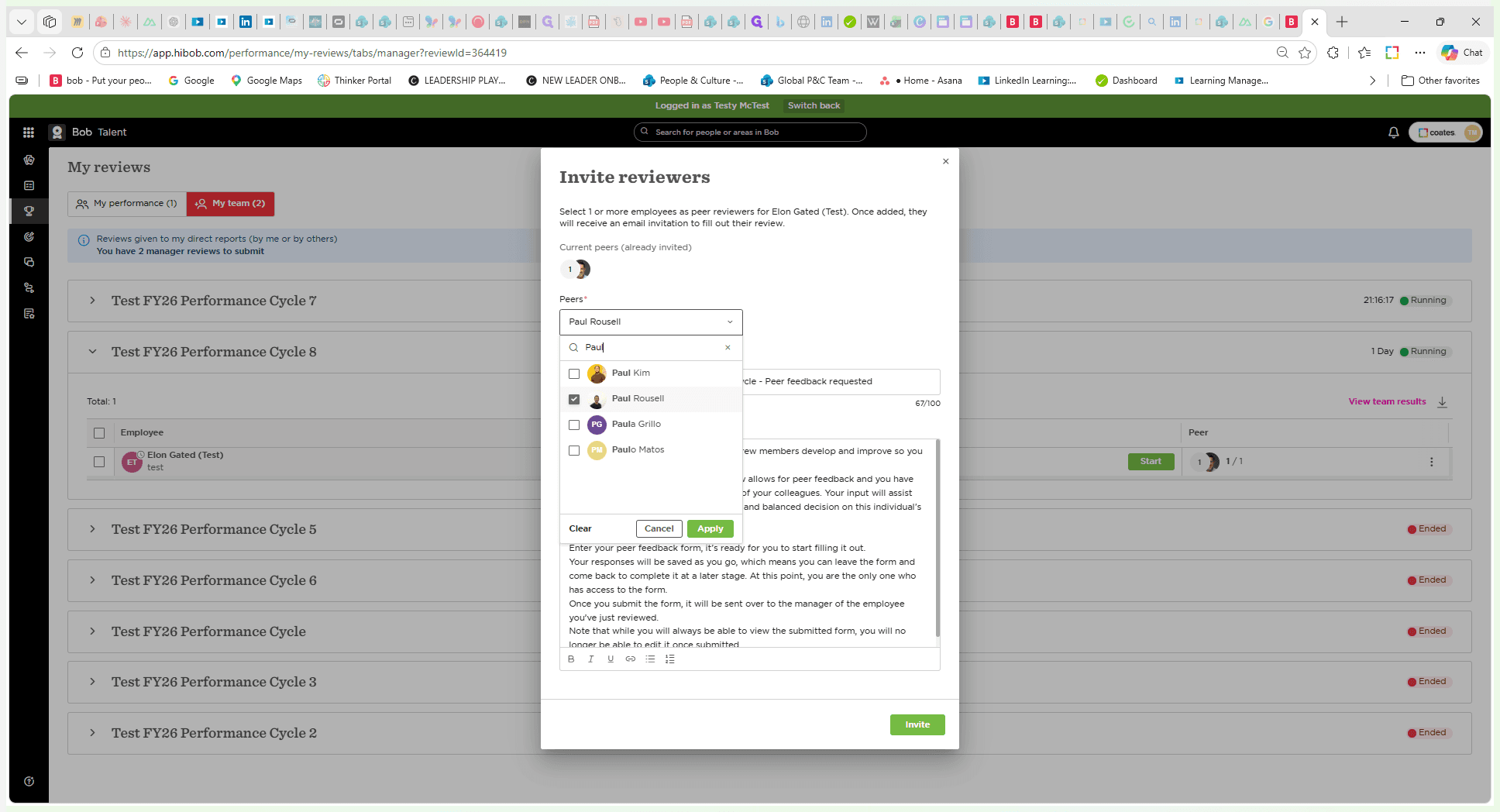
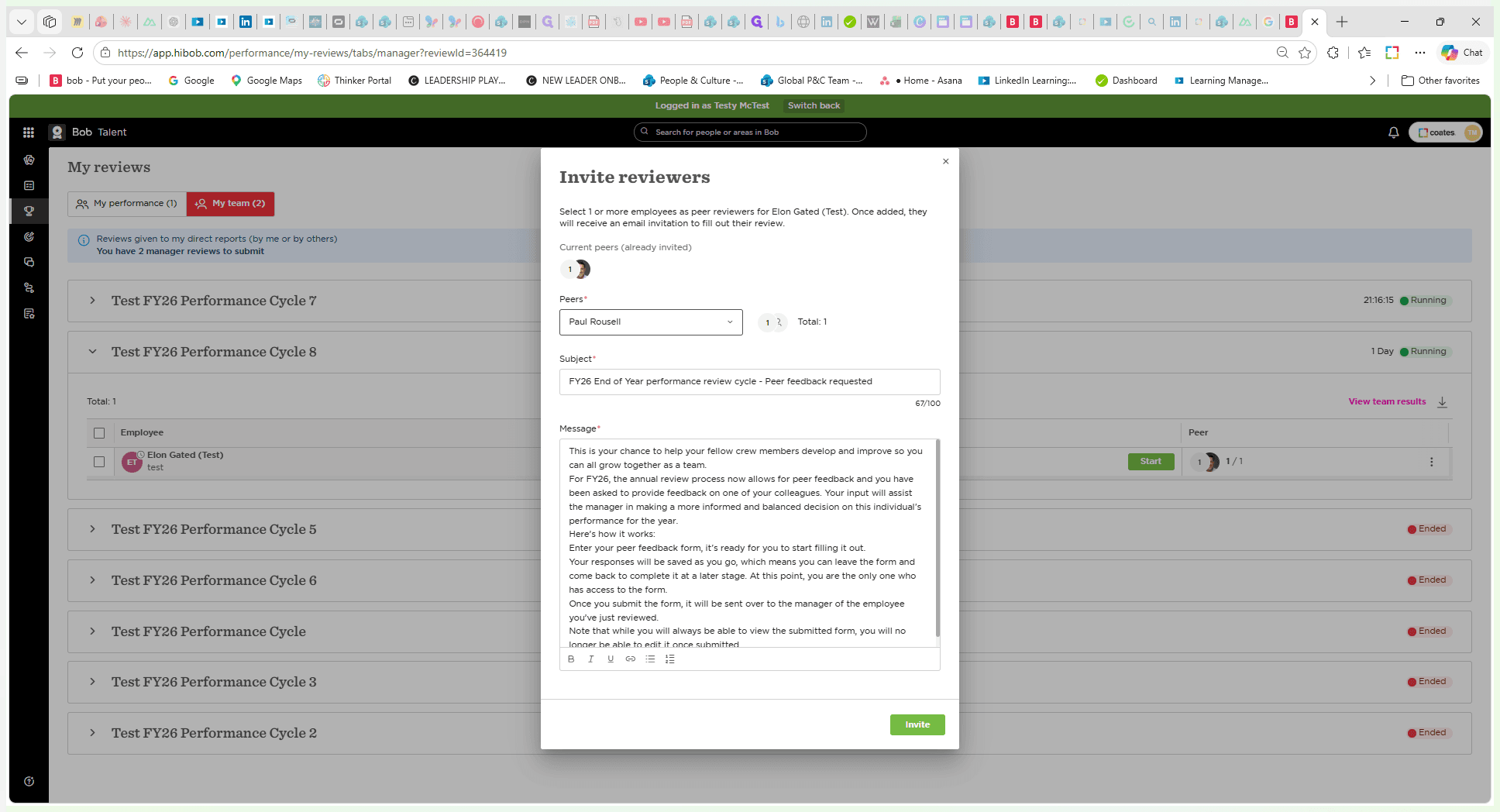
Request Peer Feedback
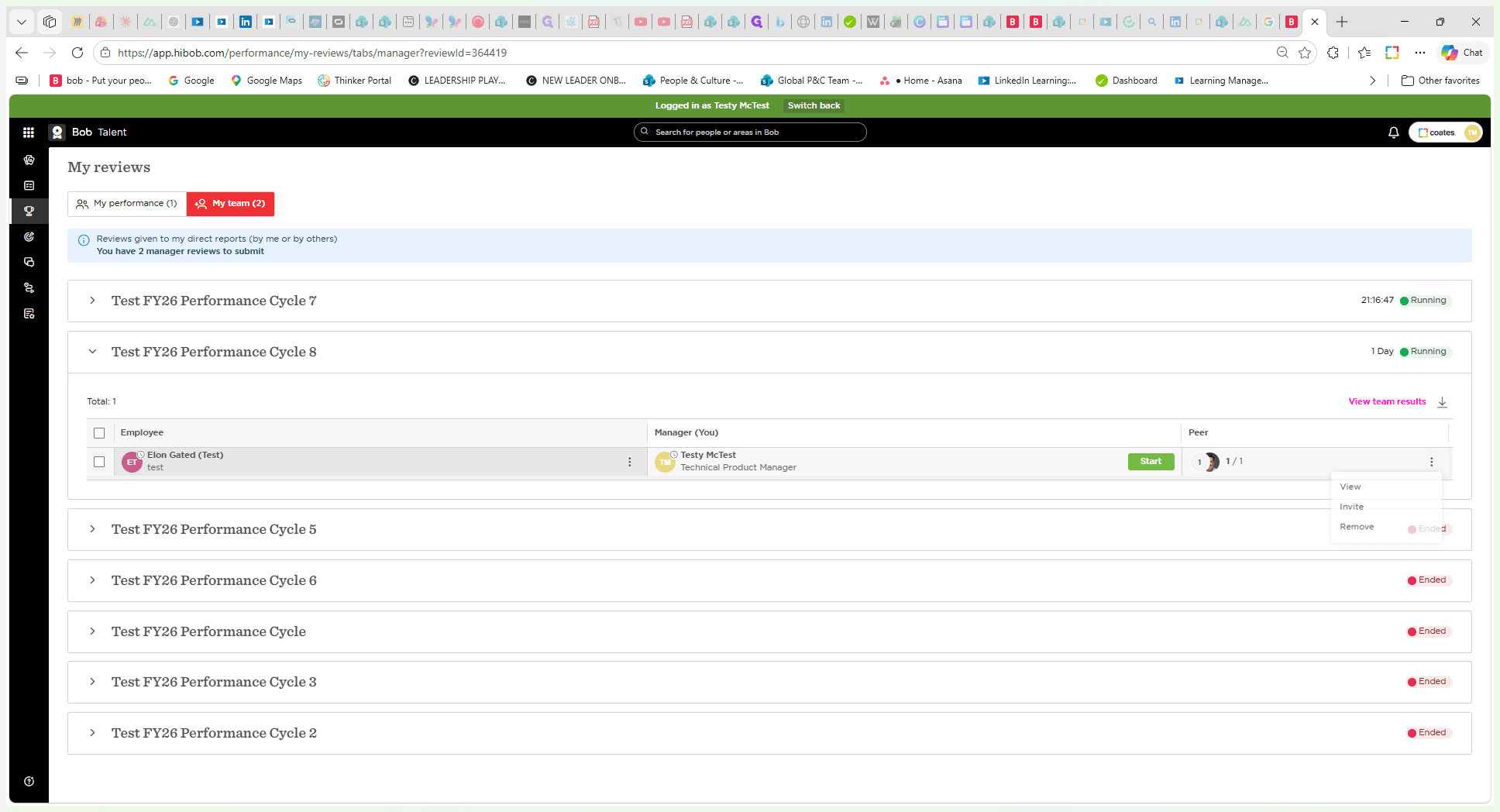
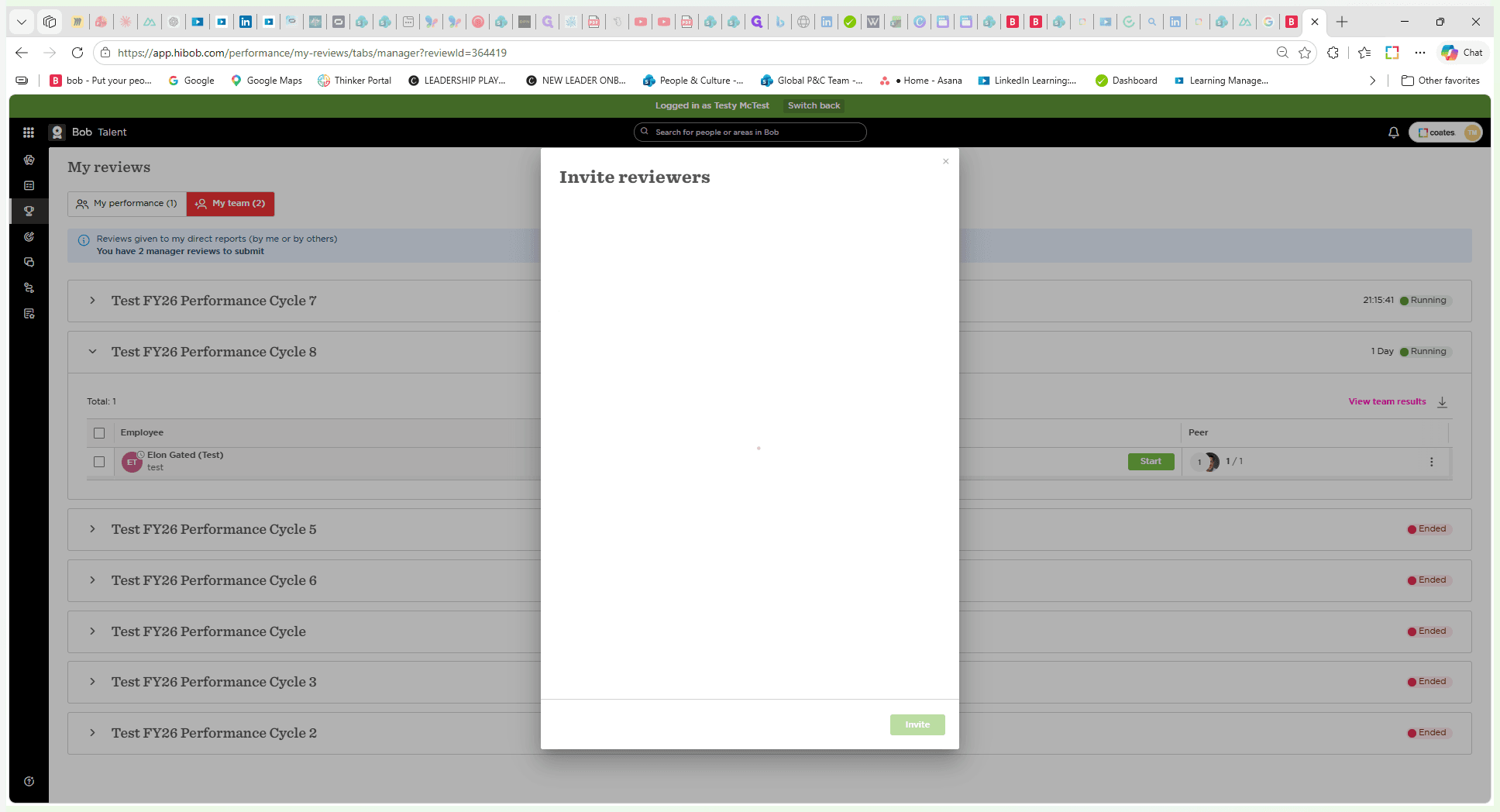
Manage Peer Feedback Requests
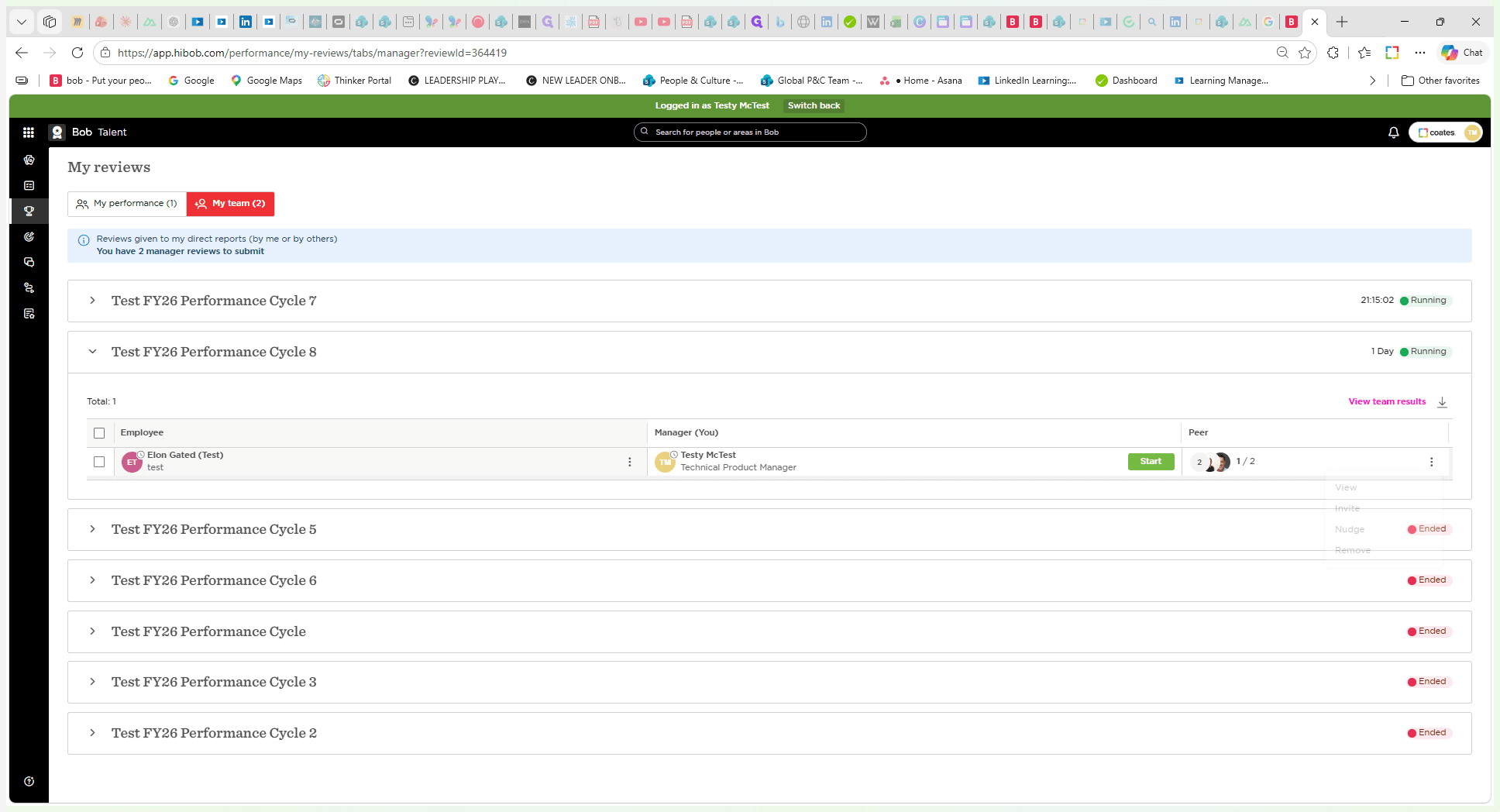
Once you have requested feedback, you can manage pending requests or view submitted feedback from the same peer review context menu.
Option | Description |
|---|---|
View | Read peer feedback that has already been submitted. This view also includes an AI-generated summary of the feedback. |
Invite | Send a new feedback request to an additional peer. |
Nudge | Send a gentle reminder notification to a peer who has not yet completed their requested feedback. |
Remove | Cancel a pending peer feedback request. |
Q: Can I customize the peer feedback form?
A: No, you can edit the invitation message and subject line, but the peer feedback form itself is standardized and cannot be changed.
Q: How many peers should I invite to provide feedback?
A: We recommend inviting no more than three or four people per team member to avoid overloading your colleagues with requests.
Q: Can I invite multiple peers at the same time?
A: Yes, you can select multiple people from the dropdown menu and send the invitations in a single batch.
Q: What should I do if an invited peer hasn't submitted their feedback?
A: You can use the "Nudge" feature from the peer options menu to send them a gentle reminder.
Term | Definition |
|---|---|
Talent Hub | The section within the HR platform where performance and employee development tools are located. |
Performance Cycle | The designated time period during which employee reviews, self-assessments, and peer feedback are collected. |
Nudge | A feature used to send a reminder notification to a peer who has not yet submitted their requested feedback. |
AI Summary | An automatically generated overview of the submitted peer feedback designed to highlight key points for the manager. |