
Resolve Duplicate User Invites and Accounts
Learn how to manually resolve duplicate user accounts by assigning teams to the active user and revoking redundant pending invites.
This guide explains how to manually resolve conflicts when a user has both a pending invite and an active account. Completing this process ensures users have the correct team access and keeps your organization's member list clean.
This guide is for administrators or team managers responsible for managing workspace access. Use this workflow to clean up existing duplicate user records caused by users signing in independently of their original email invitations.
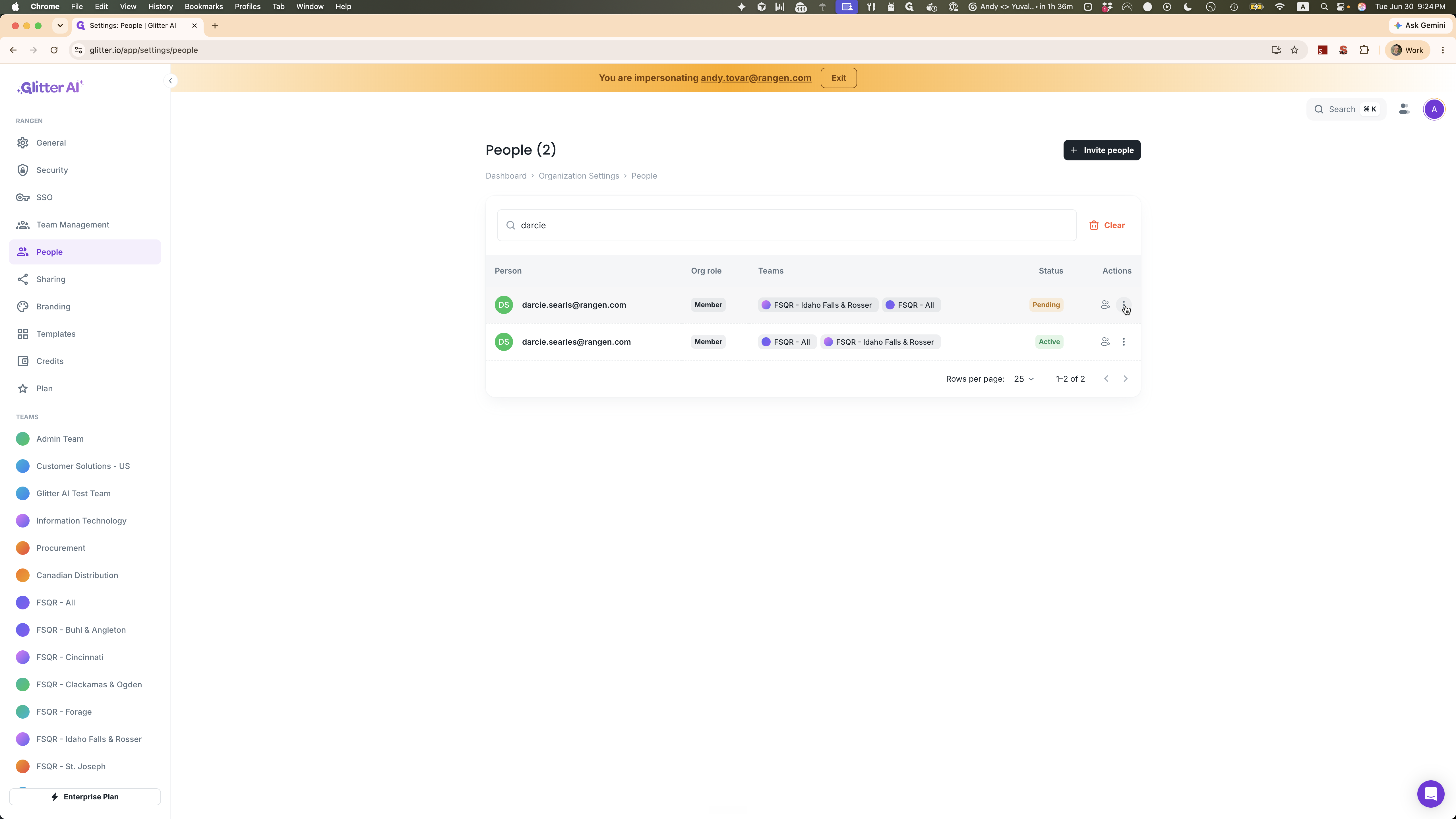
Previously, due to a bug, if a user signed in to the platform independently of their original invite, you would have seen both a "Pending" invite and an "Active" user record for the same person in your People settings. Here is how to fix existing duplicates.
This will not be happening in the future, but to the extent you run into this issue, here's how you fix it:
Locate the row for the Active user.
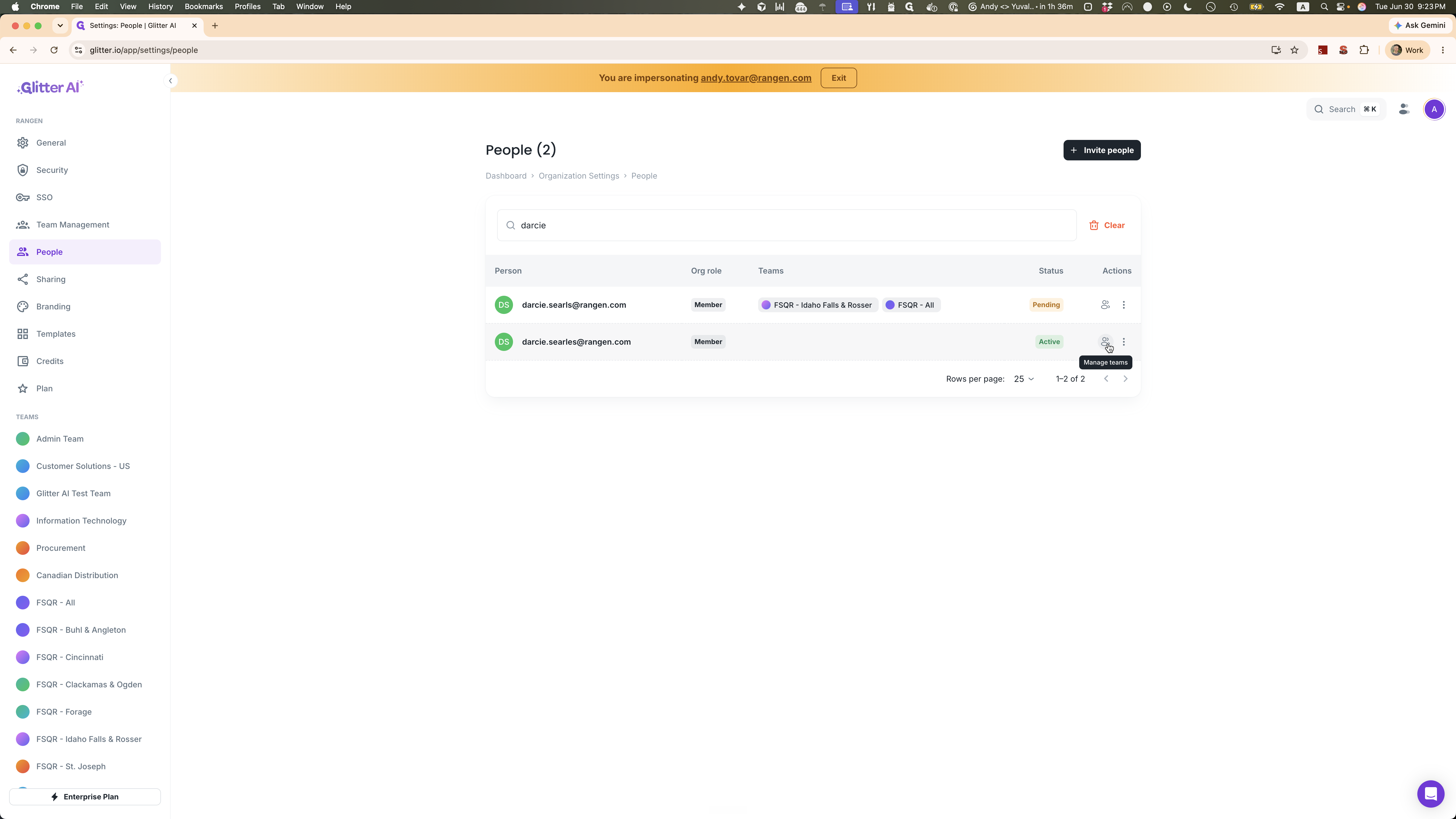
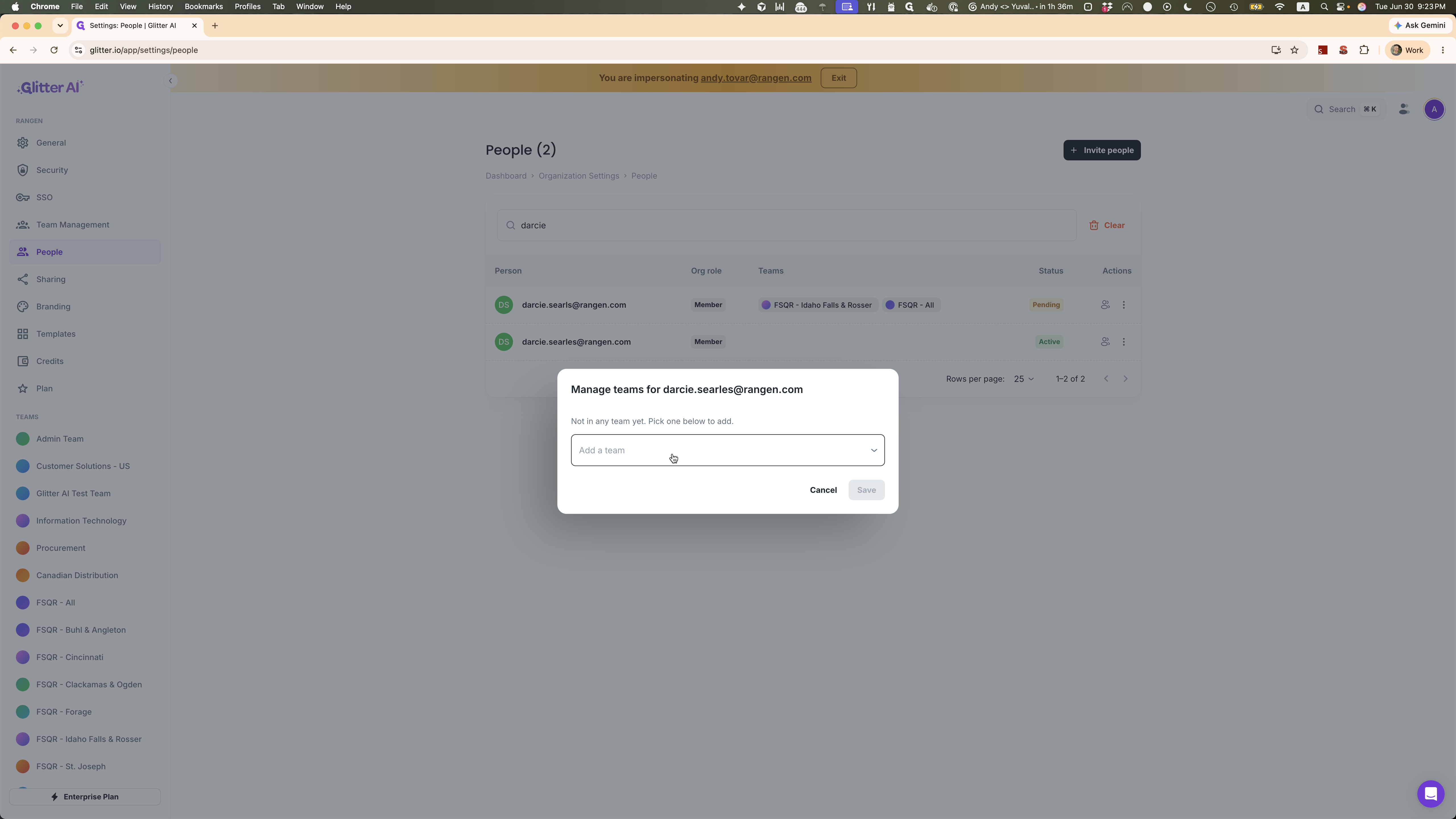
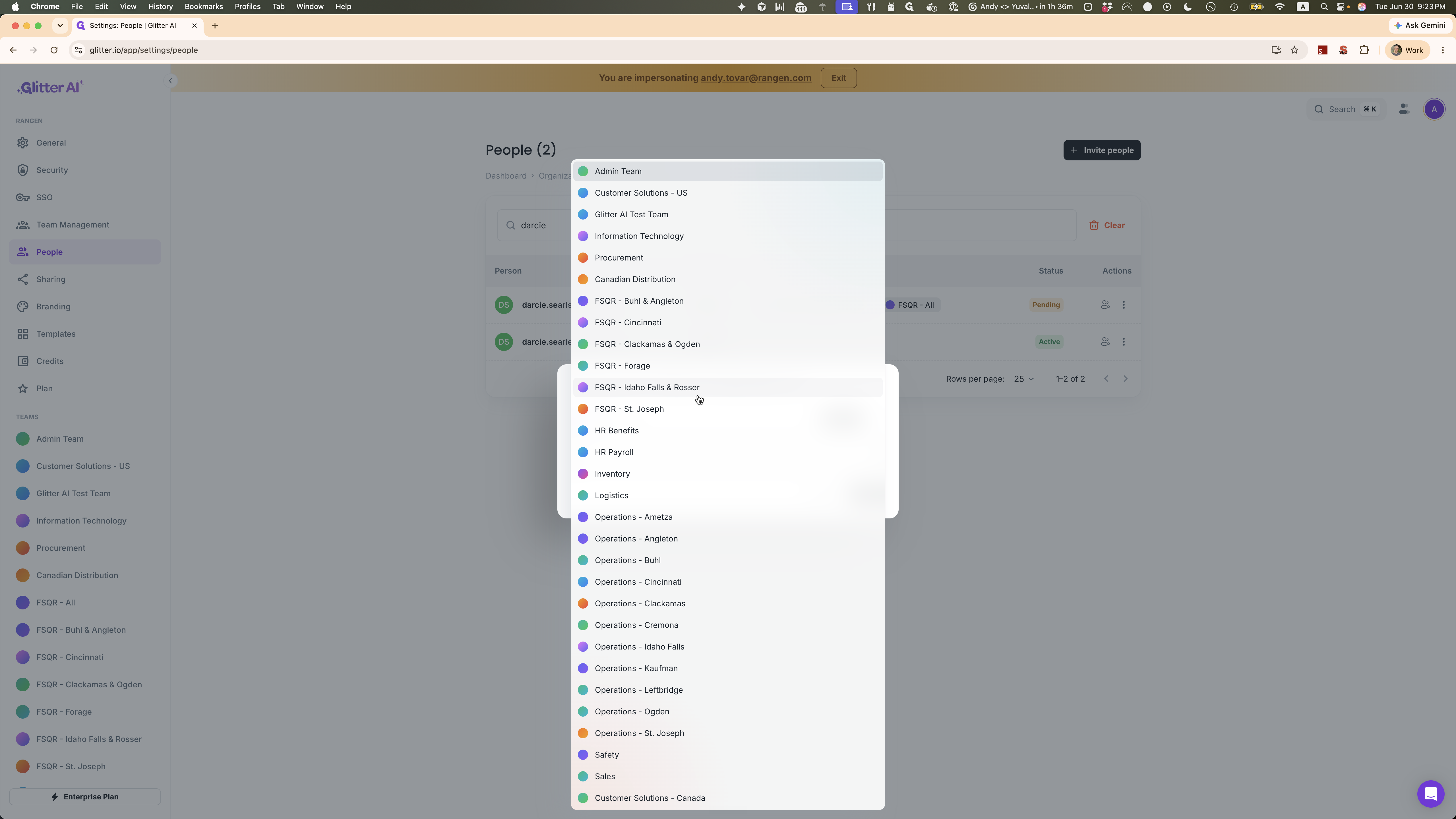
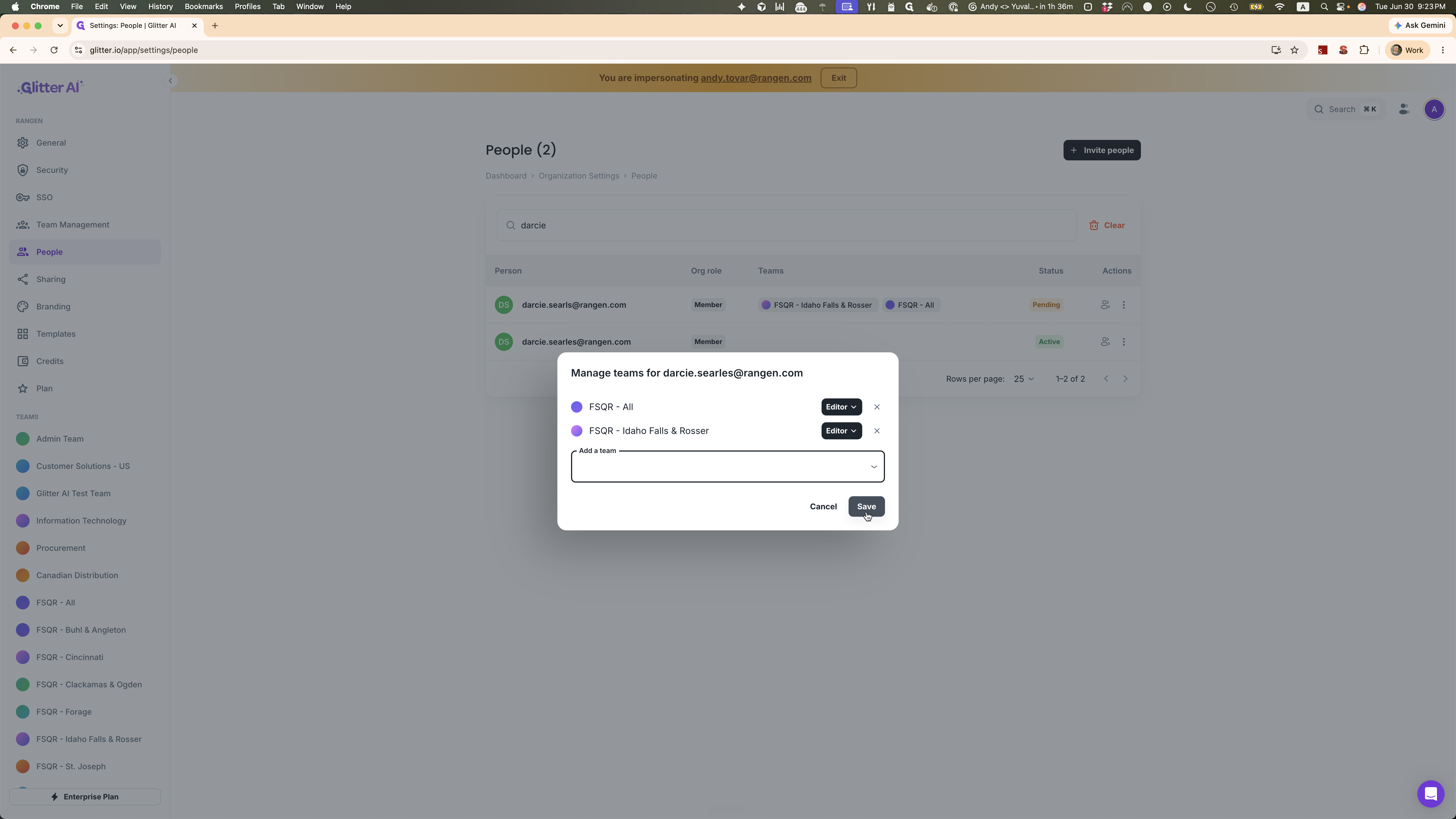
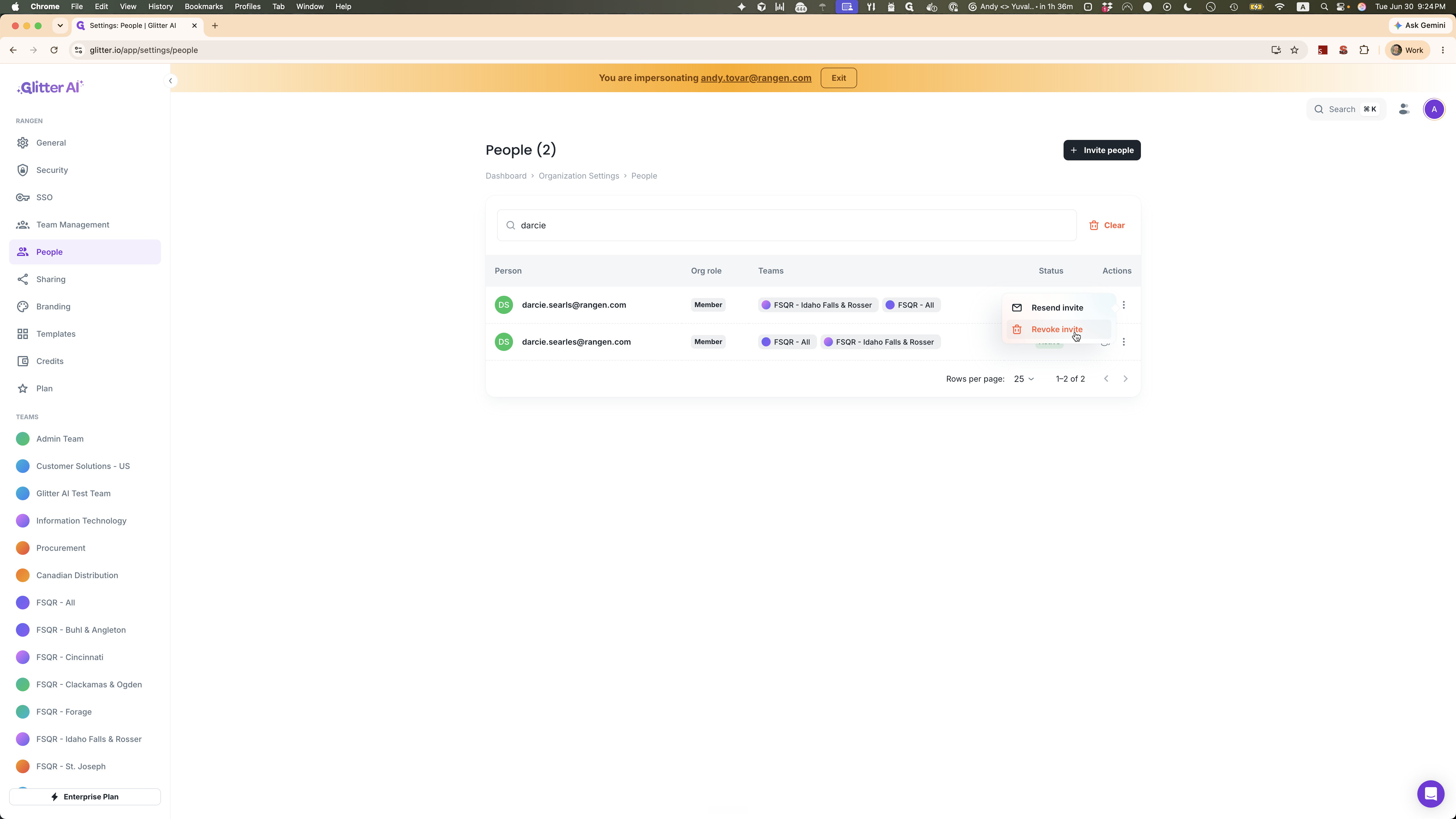
Now that the active user has the correct permissions, you can delete the duplicate pending invite.
Q: Will I have to manually resolve duplicates for all new users?
A: No, this issue is now automatically resolved. If a user signs in independently going forward, their account will automatically merge with the invite, inherit the assigned teams, and delete the pending invite automatically.
Term | Definition |
|---|---|
Pending Invite | An invitation sent to a user to join an organization that has not yet been accepted. |
Active User | A user account that has successfully signed in and has active access to the platform. |
Manage teams | A settings interface used to assign or remove organizational members from specific functional groups or locations. |