
Resolving the Failed to Fetch Error in Business Manager Cloud
Learn how to quickly resolve the Failed to fetch error in Business Manager Cloud by clearing your active session and re-authenticating.
This guide explains how to quickly resolve the "Failed to fetch" error when accessing Business Manager Cloud. By refreshing your session, you will restore normal dashboard functionality and visibility into your records.
This workflow applies to any users who experience connectivity or loading issues immediately after opening the application.
Refreshing your Session
When the "Failed to fetch" error appears on your dashboard, do not try to refresh the page. Instead, force a new session.
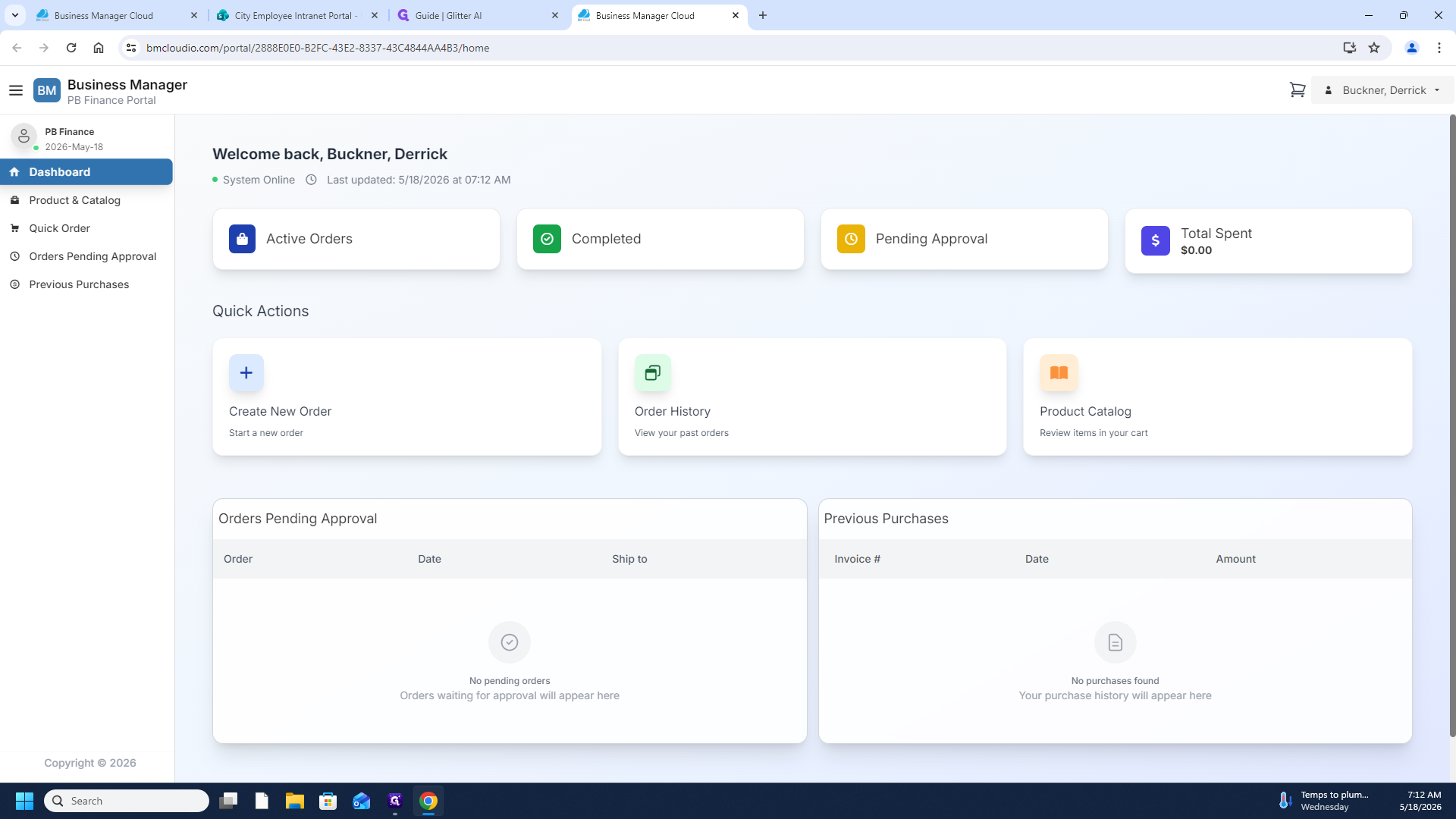
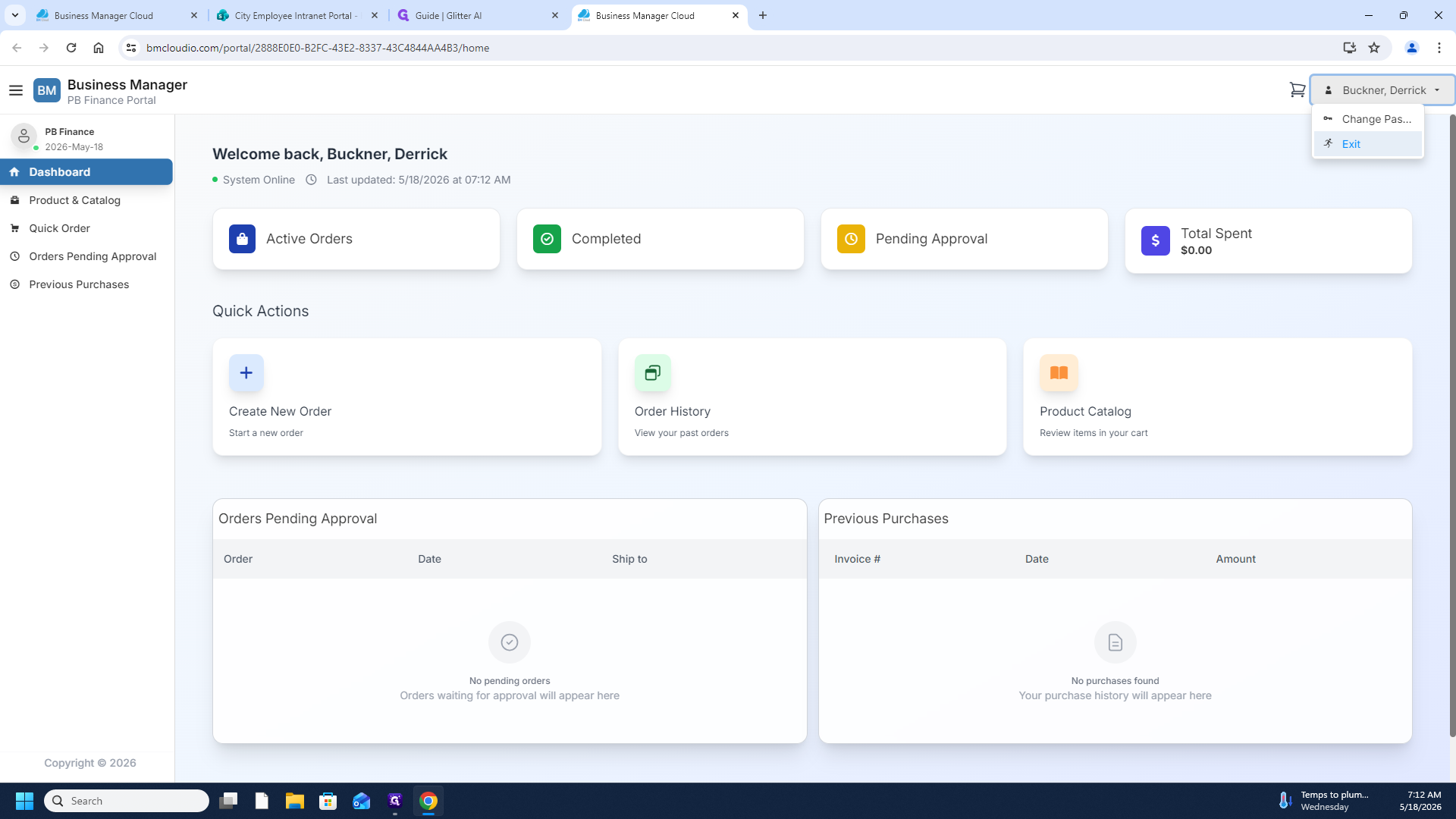
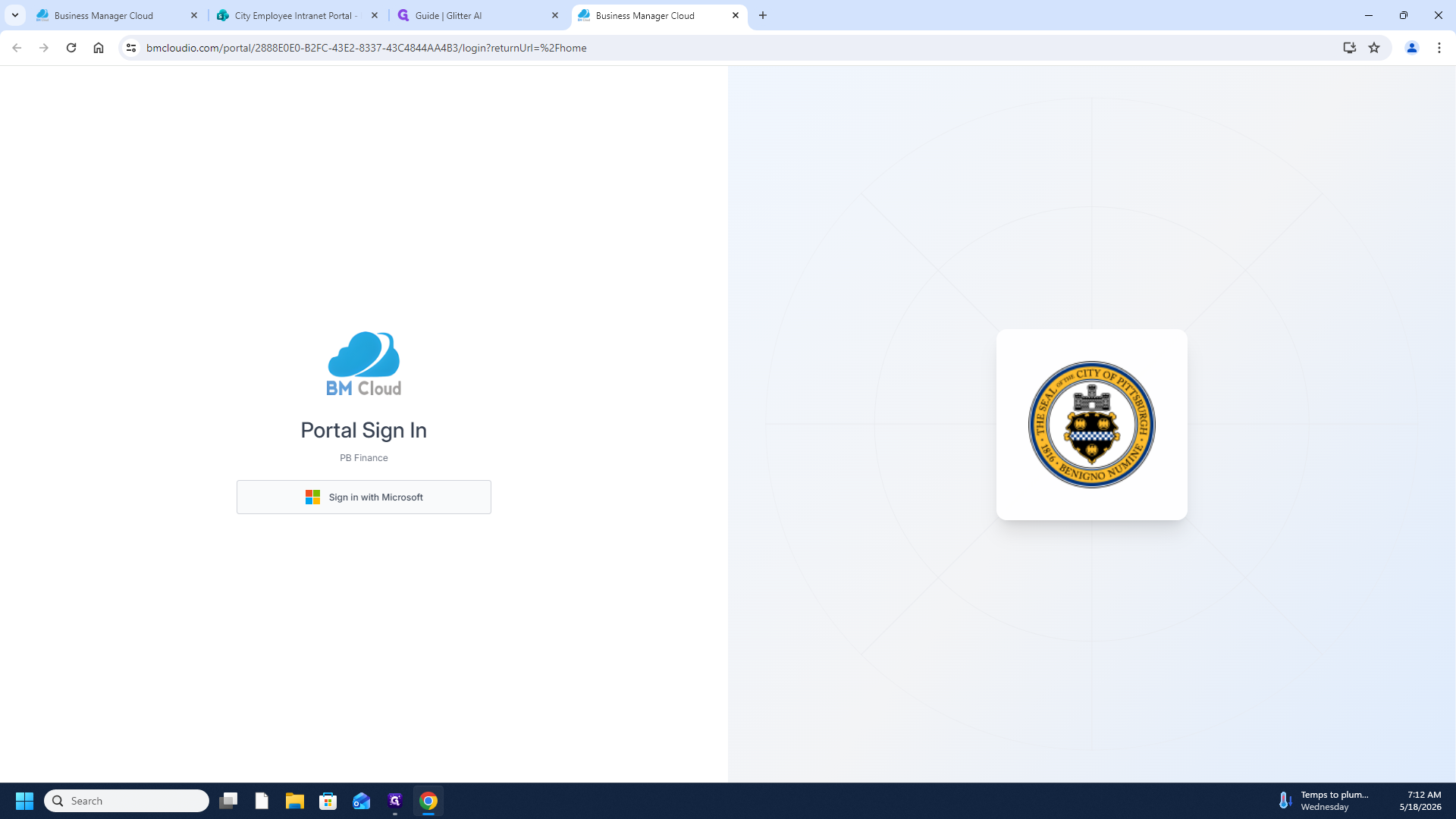
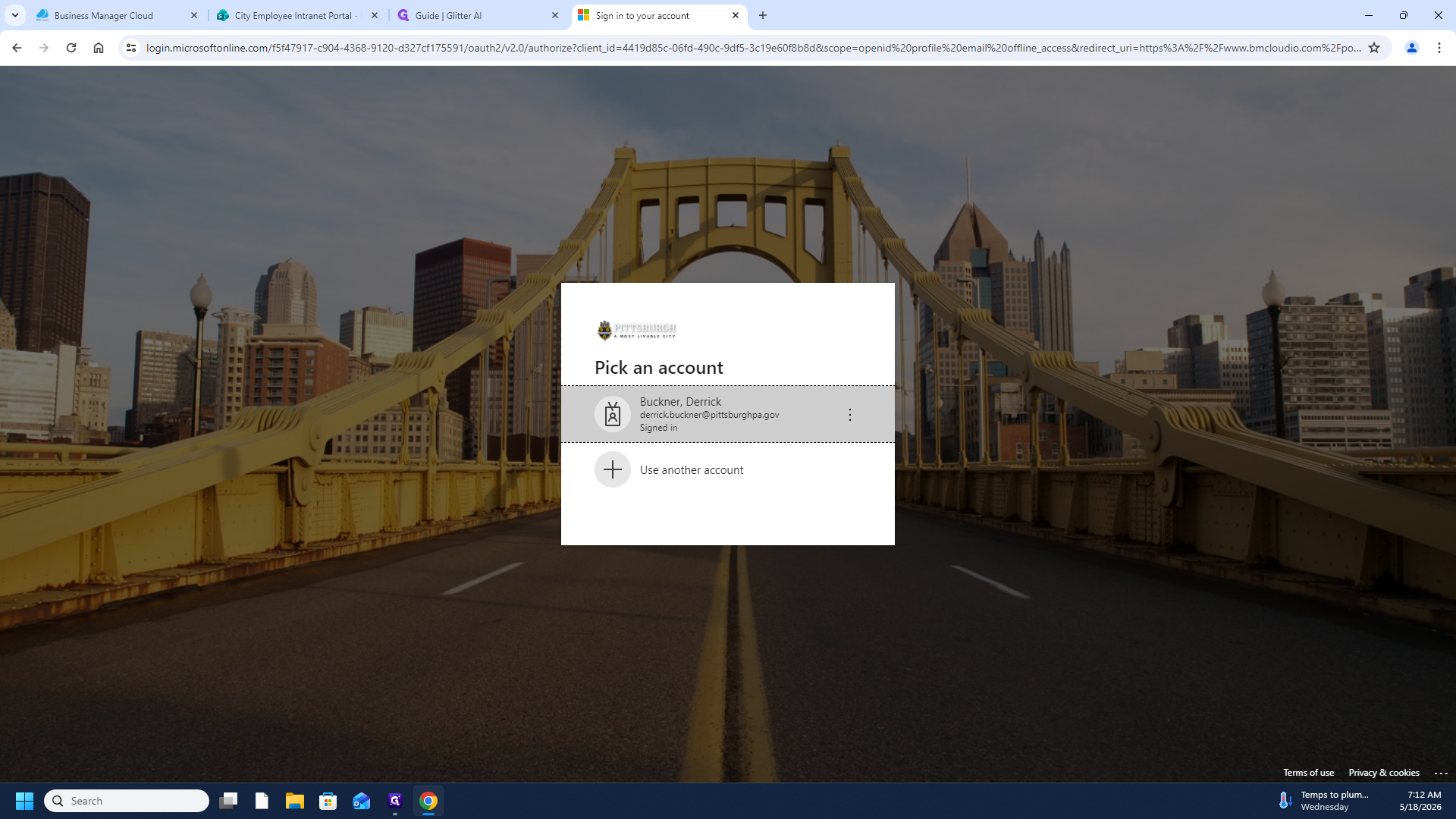
Once you are signed back in, the dashboard should load your metrics and records successfully without triggering the error.
FAQ
Q: Why does the "Failed to fetch" error happen?
A: It generally occurs when your browser session token expires while the application is still open in the background. Re-authenticating issues a fresh, valid token.
Q: What should I do if the error persists after logging out?
A: If logging out and back in does not resolve the issue, clear your browser cache and cookies, then try signing in again. If the problem continues, contact IT support.