
How to Retrieve and Share Your Zillow 3D Tour Link
Learn how to access your property media in the PRSPCTV portal and copy your Zillow 3D tour link to add to your MLS listing.
This guide explains how to retrieve and share your real estate 3D tour link from the PRSPCTV Media Portal. Adding this link to your MLS listing ensures prospective buyers can virtually walk through the property, while also giving your listing a visibility boost on Zillow.
This process applies to real estate agents and listing coordinators preparing property media for syndication to the MLS and Zillow.
Accessing Your Property Media
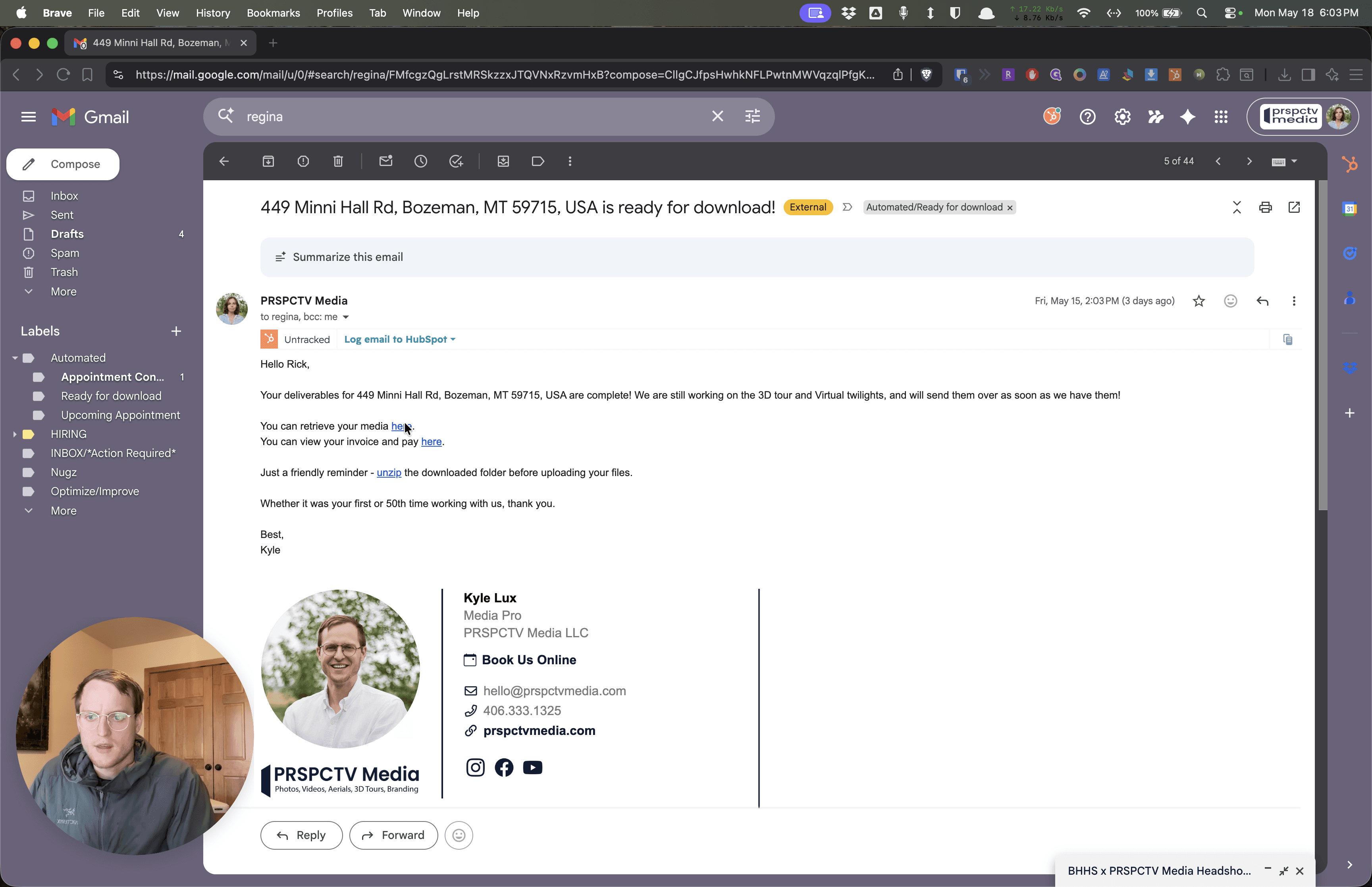
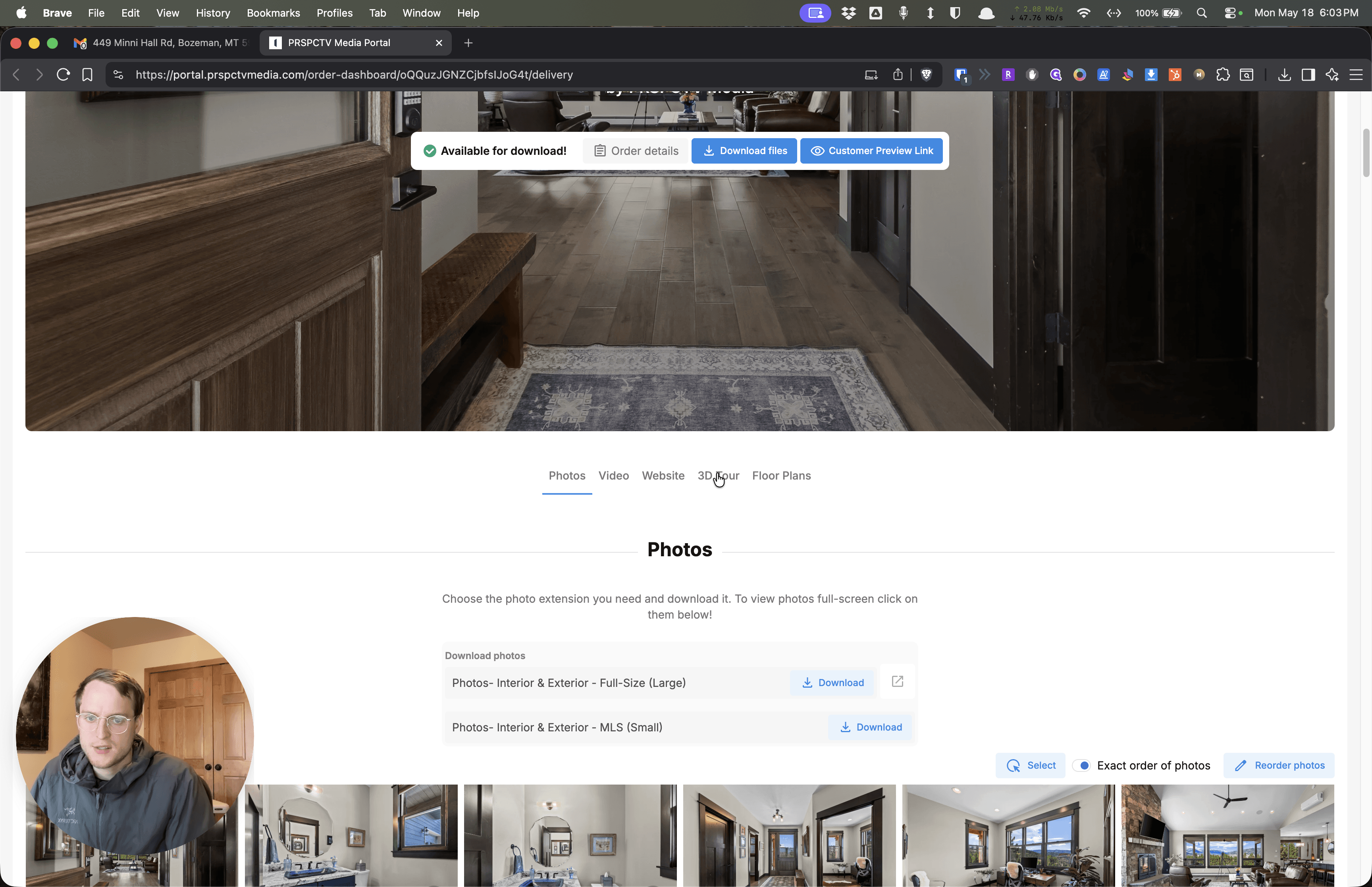
Once the portal opens, you will see sections for Photos, Video, Website, 3D Tour, and Floor Plans.
Copying the Link for MLS
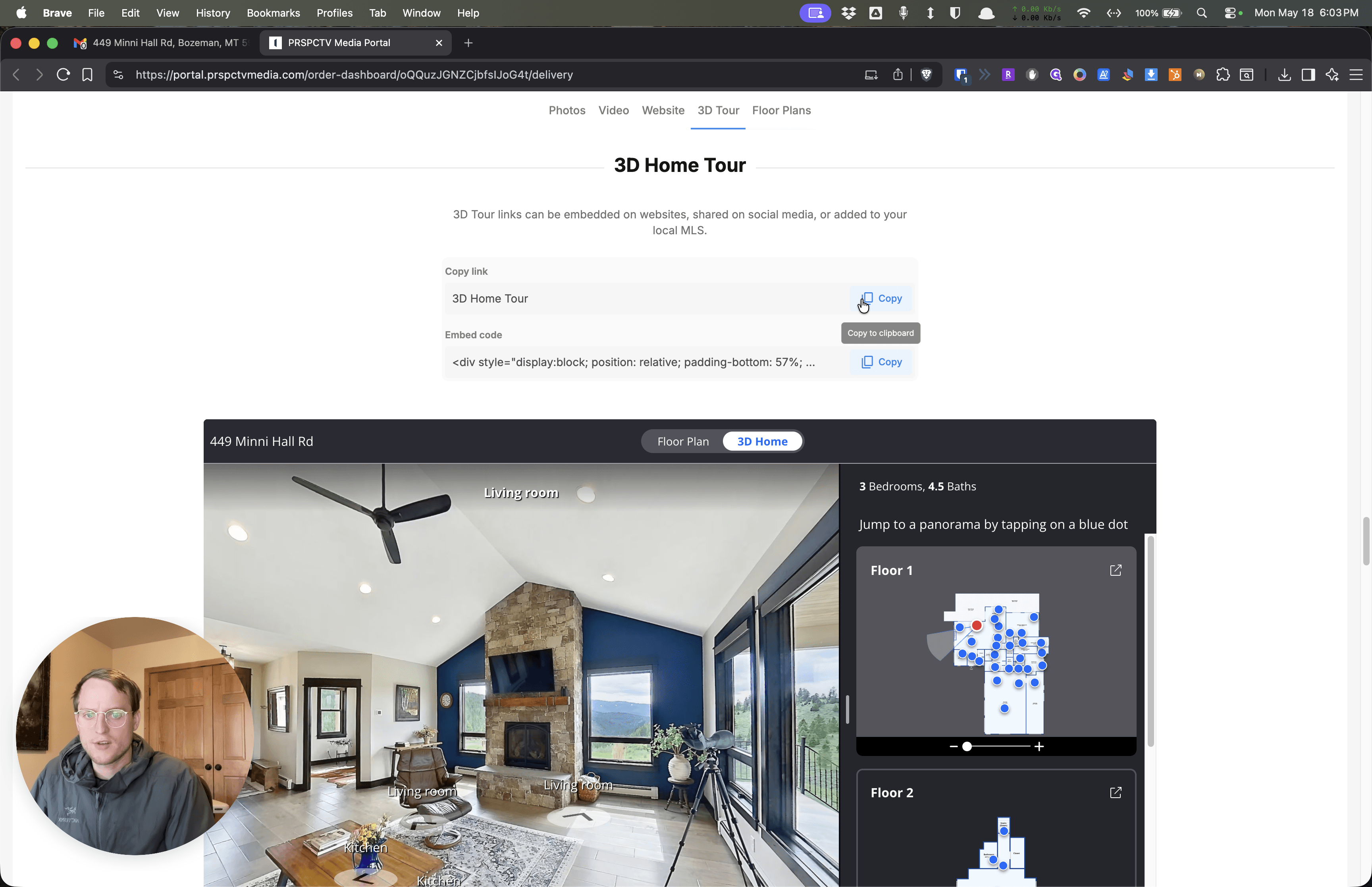
To post the tour to your MLS listing, you need the direct share URL.
FAQ
Q: Which link should I use for my MLS listing?
A: Use the direct URL provided by the Copy button in the 3D Tour tab. While the portal also offers an embed code, the direct link is the standard format required for MLS virtual tour fields.
Q: Why should I include a Zillow 3D Home Tour?
A: Adding a Zillow 3D tour to your listing provides a direct visibility boost in Zillow's search algorithm, helping your property reach more potential buyers.