
How to Review and Approve Work in ChuteFlow
Learn how to review installer timesheets, verify completed works, check inspection media, and approve inventory usage in ChuteFlow.
This guide explains how to review daily project submissions to ensure accurate timesheets and verify that site installations are fully documented before approval. By completing this process, you confirm accurate costing and inventory deductions for billing.
This guide is intended for Works Managers and project administrators who oversee daily site operations. You will use this workflow daily to reconcile installer hours, review submitted media, and process completed works for invoicing.
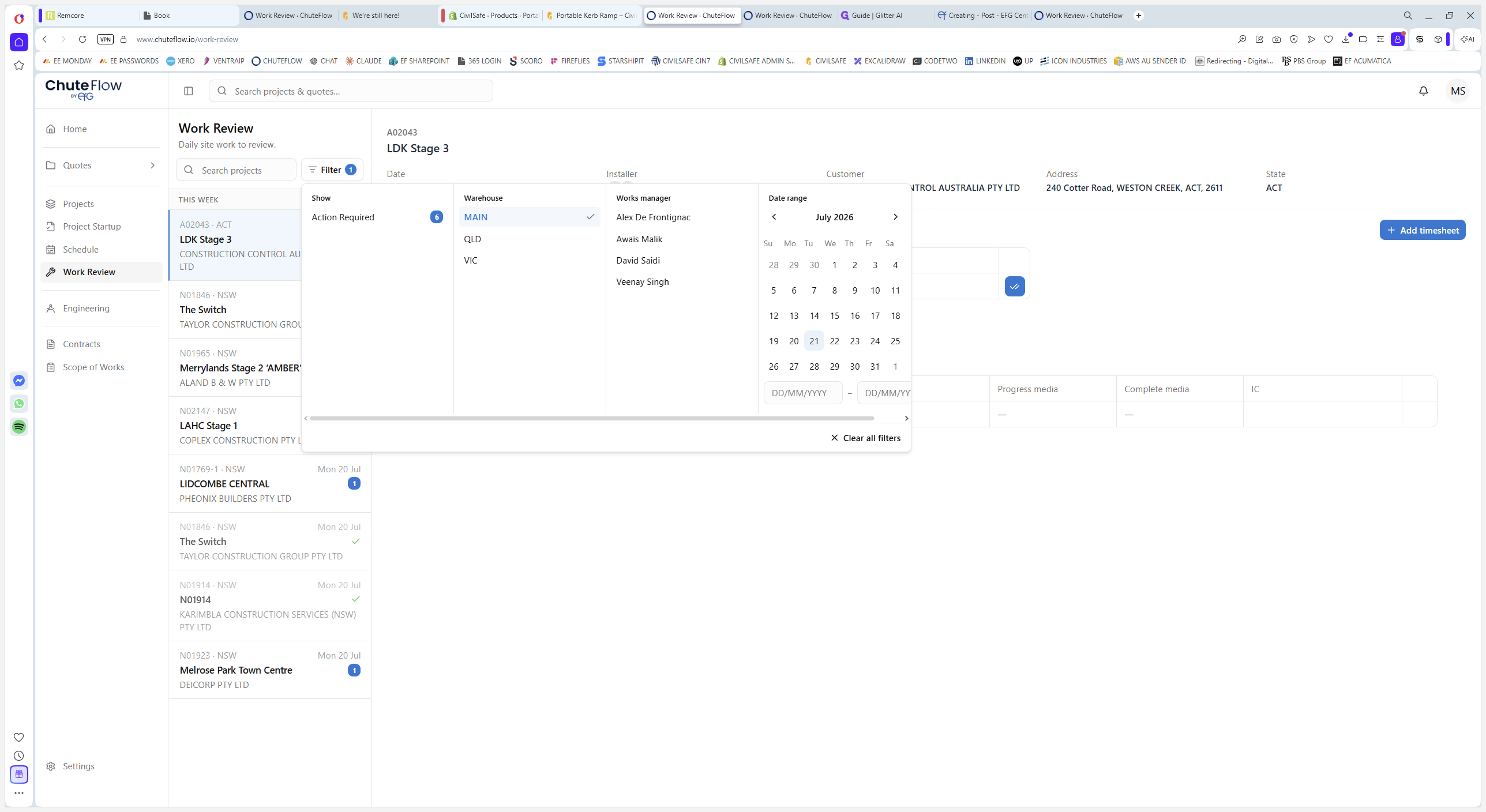
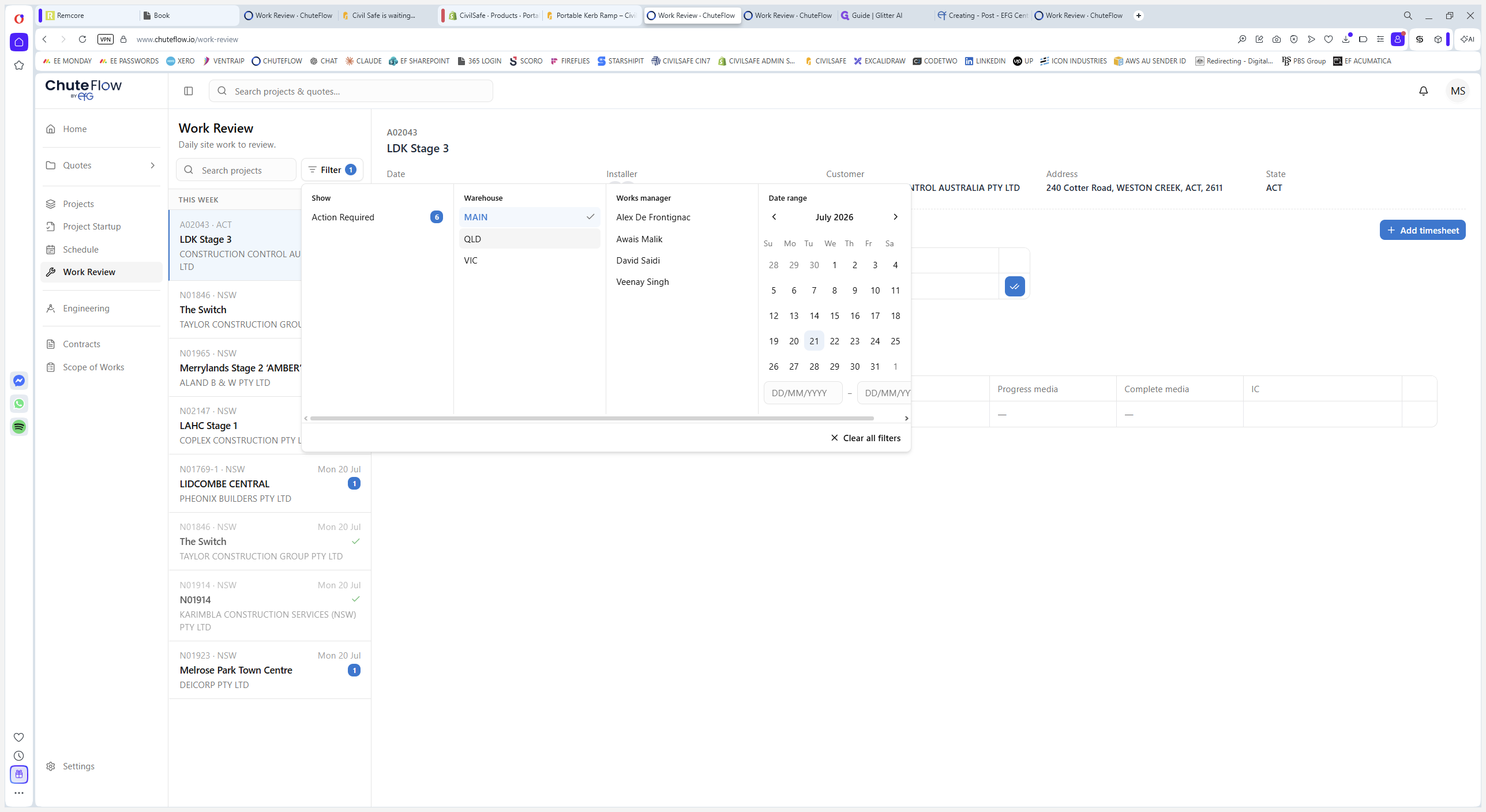
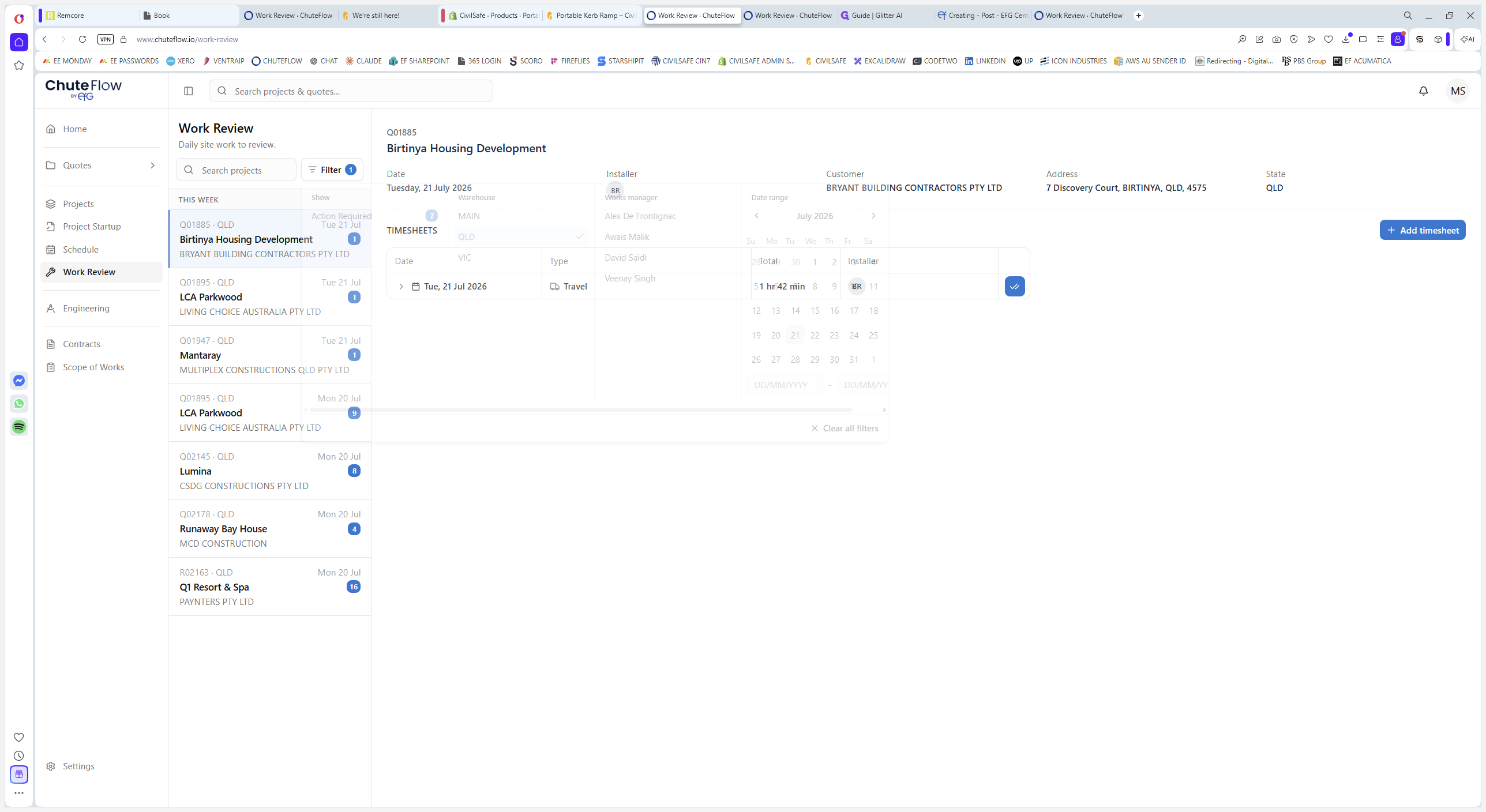
Filtering and Accessing the Work Review
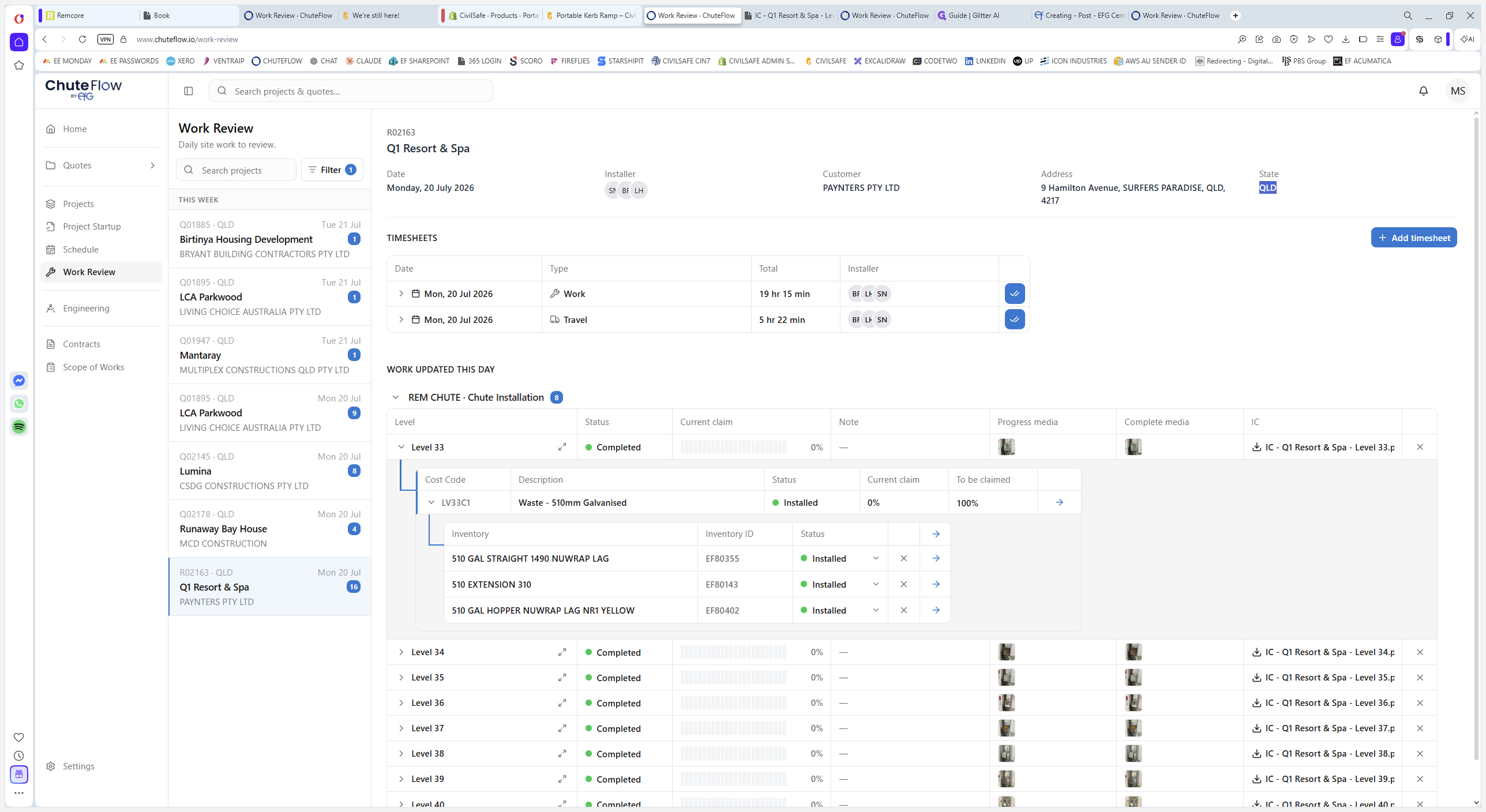
Navigate to the Work Review page. This acts as a live inbox of completed works, ordered from oldest to newest.
Reviewing and Managing Timesheets
At the top of the project view, verify the job number, project name, date, assigned installers, and location.
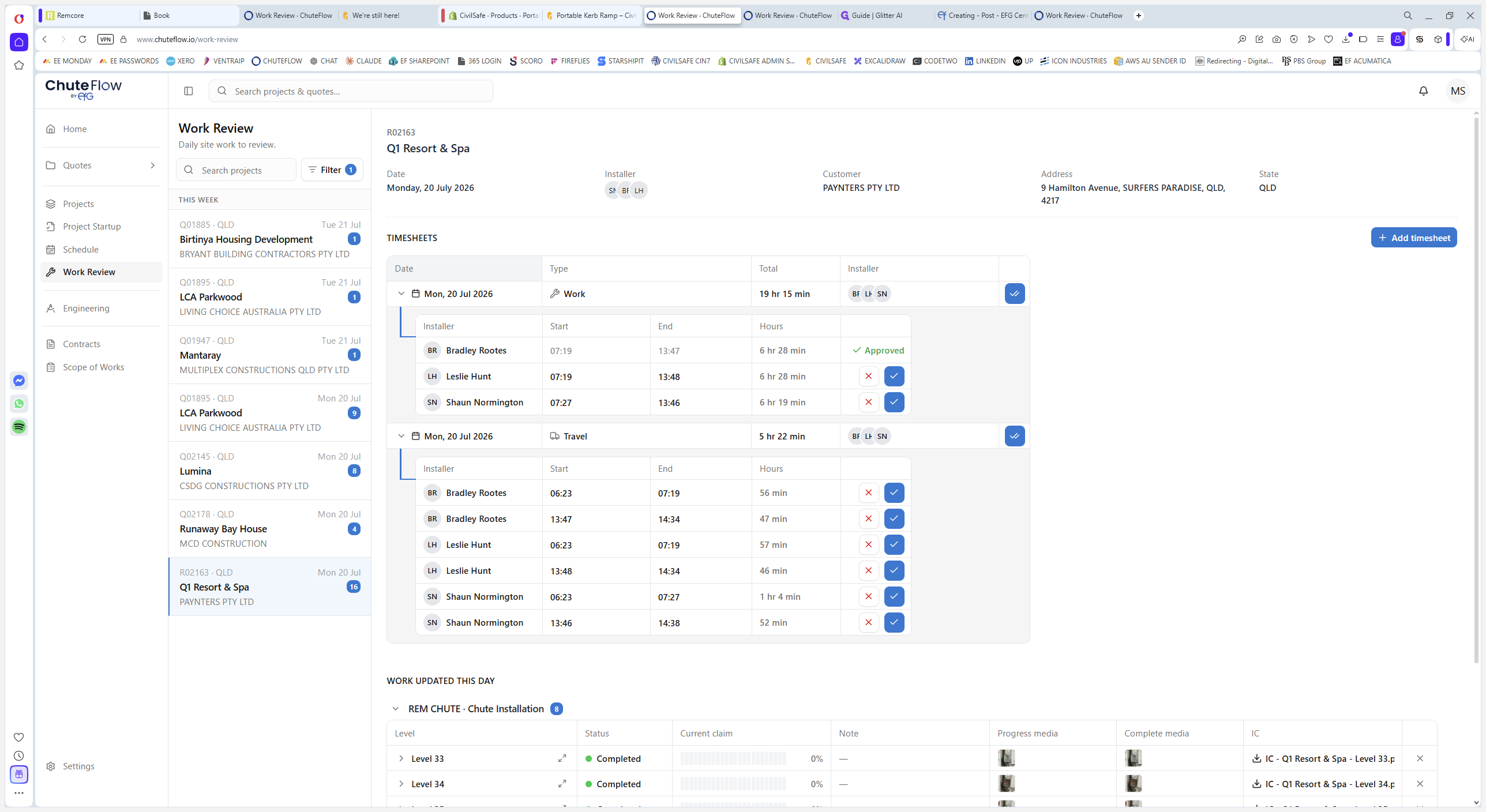
Whenever timesheet discrepancies arise, you have multiple ways to manage and correct the records:
Action | How to do it | When to use it |
|---|---|---|
Adjust existing time | Click directly into the start or end time fields on the timesheet row to edit the values. | When an installer forgets to clock out or logs incorrect travel/work hours. |
Add new timesheet | Click the + Add timesheet button at the top right of the section. | When an installer completely fails to log their shift in the app. |
Approve timesheets | Click the Approve button on individual rows or use the bulk approve option. | When all timesheet entries for the day have been reviewed and verified as accurate. |
Verifying Completed Works and Documentation
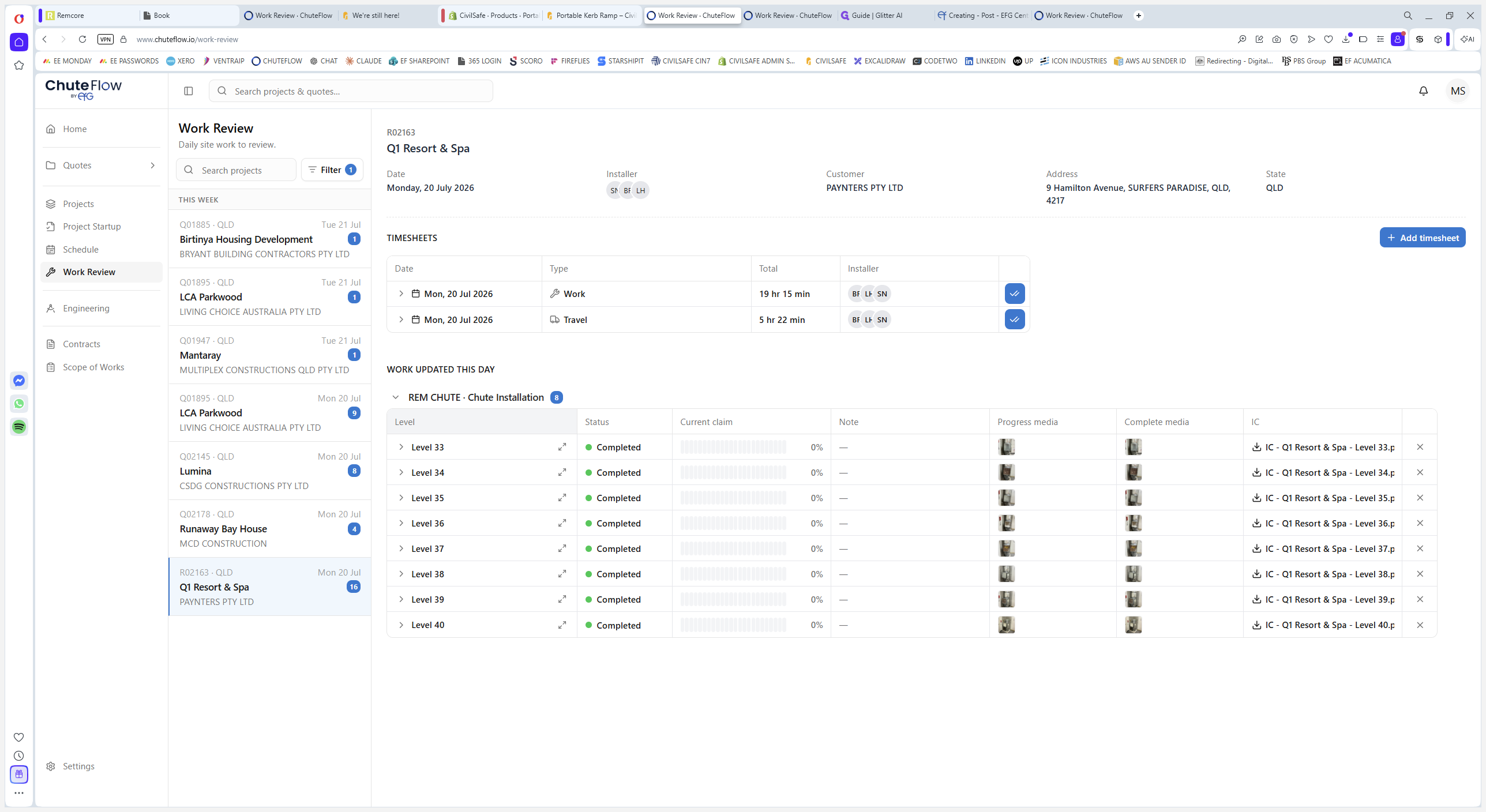
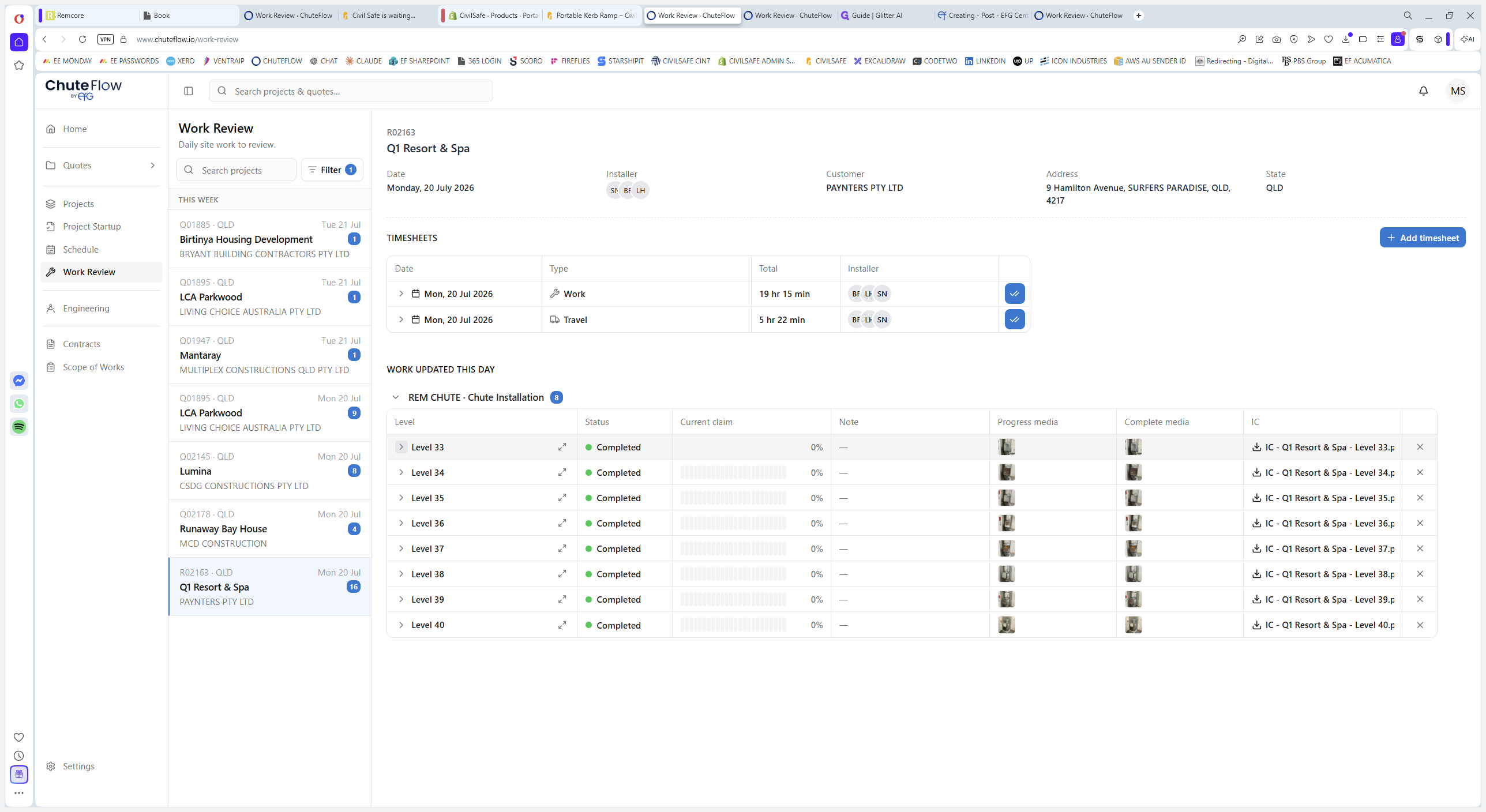
Approving Inventory and Finalizing Claims
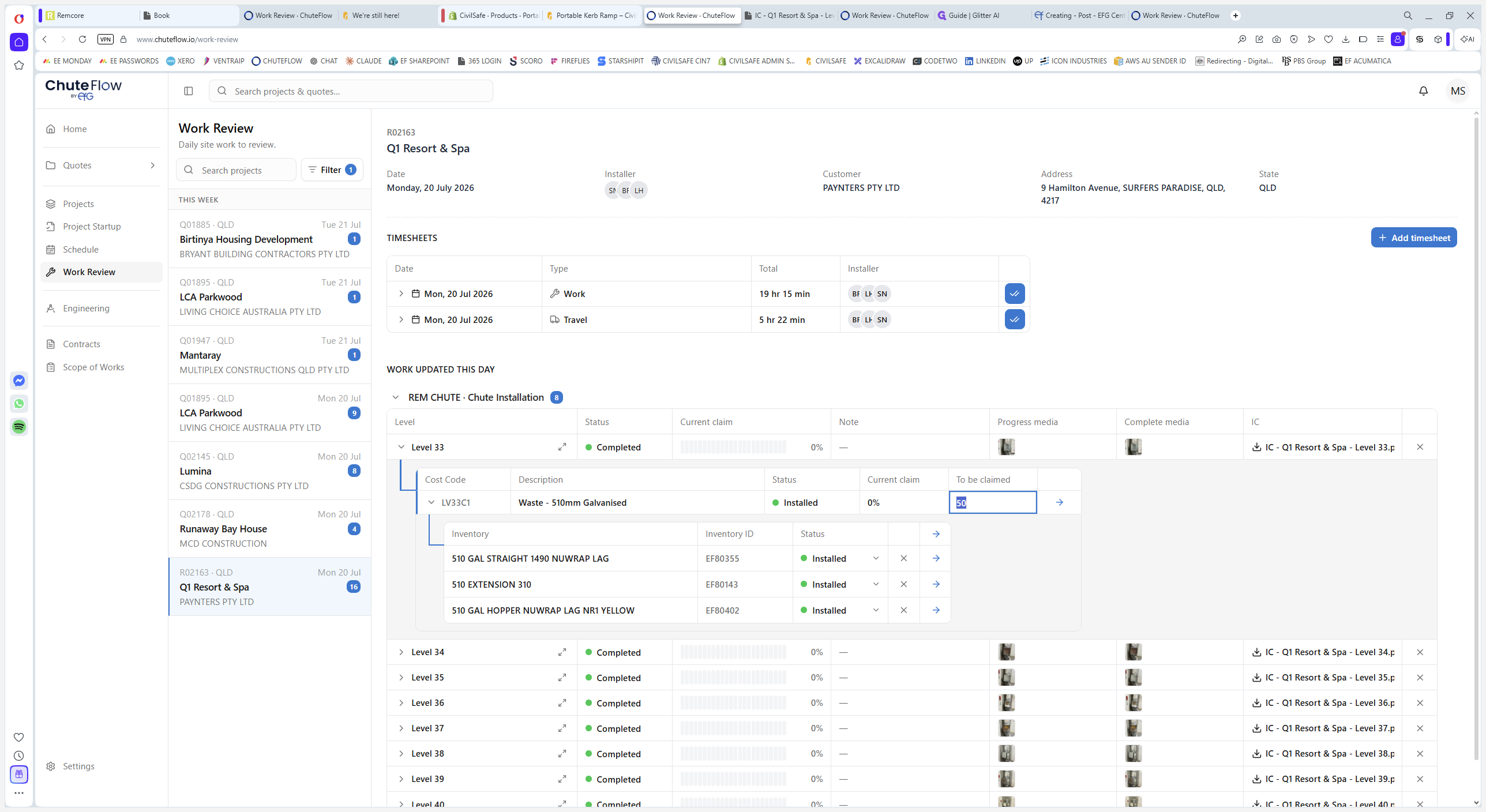
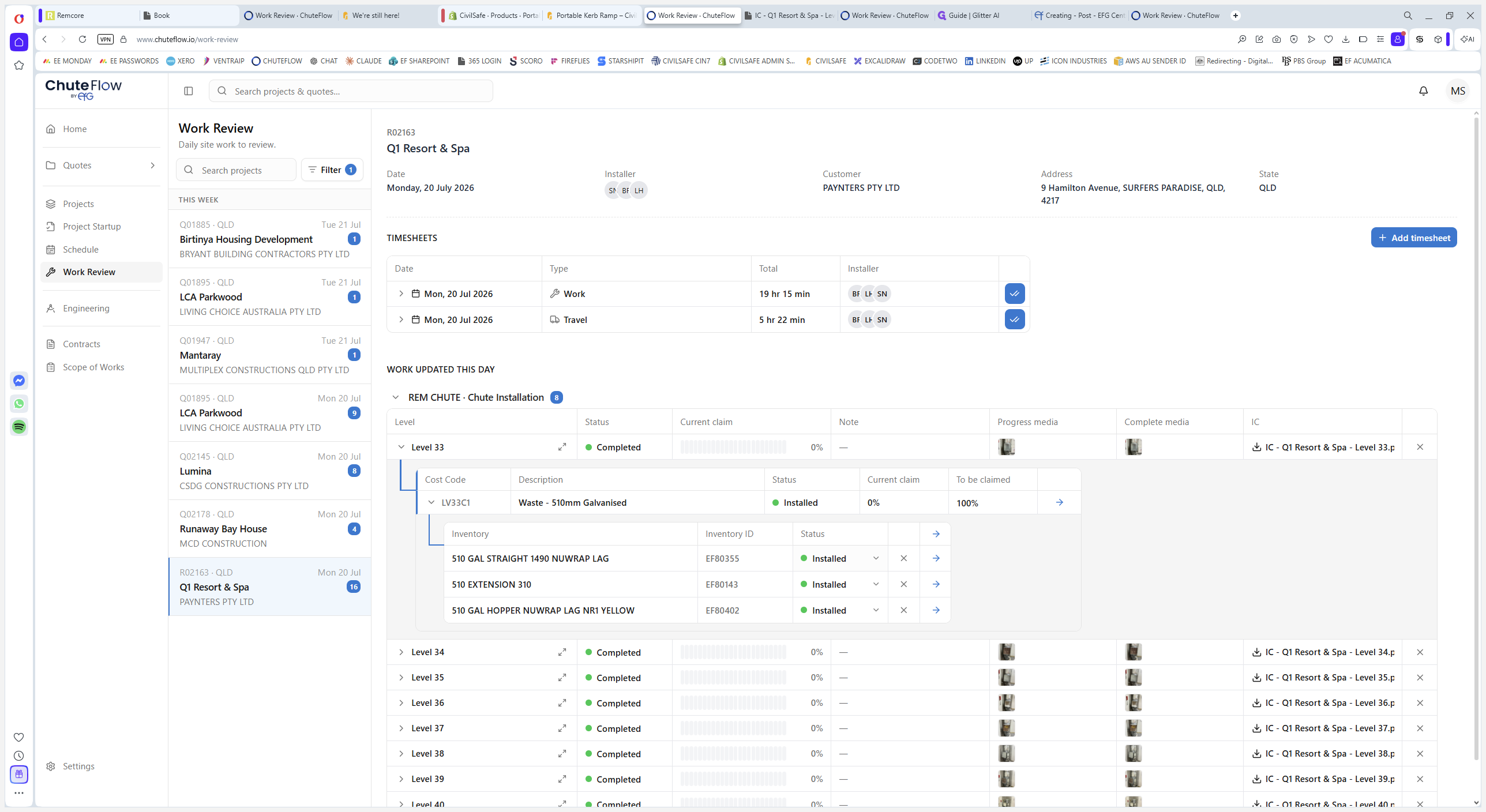
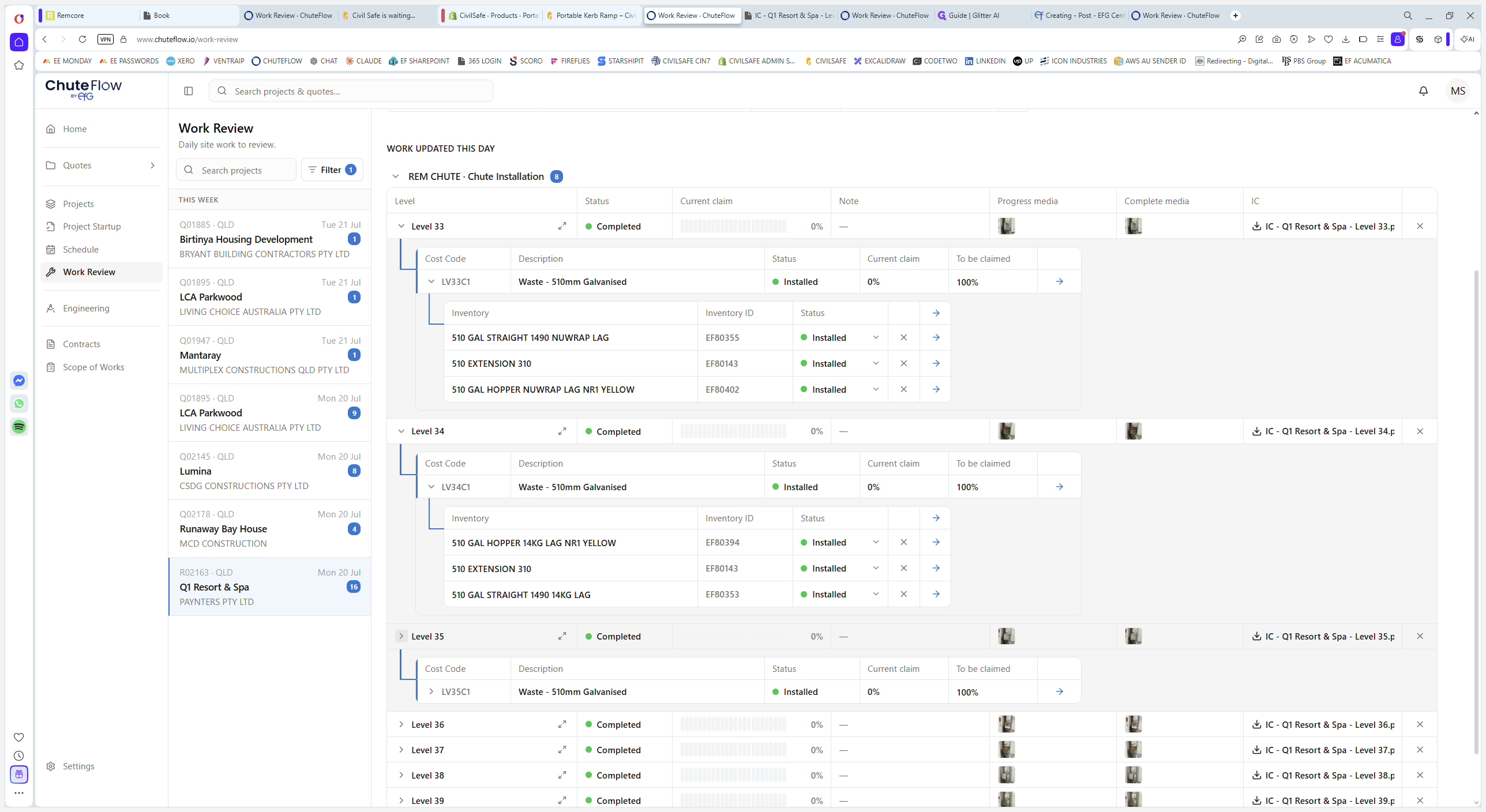
Below the claiming line, you will see the exact inventory items used, as logged by the installer.
Q: Why aren't completed works showing up on the review page?
A: The review page only displays works that have an update associated with them. If an installer completes a task but fails to log the update via the mobile app, it will not appear here.
Q: What happens when I approve a timesheet?
A: Once approved, the logged timesheet hours are sent directly to MYOB and recorded as a cost against the project.
Q: What happens to inventory when I approve it?
A: Approving inventory automatically deducts those items from the warehouse stock in the respective state where the schedule is located.
Q: Can I change an inventory claim if the installer made a mistake?
A: Yes. Before approving, you can manually adjust the values in the claim fields if the installer entered incorrect quantities.
Term | Definition |
|---|---|
Work Review | A live, inbox-like dashboard where submitted timesheets, media, and installation updates are gathered for manager approval. |
Claiming Line | A specific milestone or line item in a project quote (e.g., a waste chute on a specific level) that can be billed once completed. |
MYOB | The accounting software integrated with ChuteFlow that tracks project costs and handles pending invoices. |
Cost Code | An identifier linking specific work tasks or inventory items to the project's financial budget. |