Icon

How to Review and Filter Legal Documents

Learn how to filter regulatory documents, review AI business impact assessments, and provide feedback in the Legal Watch application.

By Obama

This guide explains how to filter processed legal documents, review their details, and validate AI-generated business impact assessments. By completing this, you will ensure that regulatory updates are accurately tracked and correctly categorized for your domains.

This guide is for legal analysts and compliance teams who monitor regulatory changes. Use this workflow when reviewing incoming documents to assess their operational impact and improve the system's automated analysis.

Filtering Documents

The Documents dashboard displays all processed documents across your sources. Use the filters to narrow the list.

Filter

Description

Search

Filter by document name.

Countries

Select specific source countries.

Domains

Filter by relevant domains (e.g., Payroll: DE, NL, ES, SE).

Statuses

Filter by document status (Discarded, Kept, To process).

Impact

Filter by AI-assessed impact score (Very likely, Somewhat likely, Unlikely, Very unlikely).

1
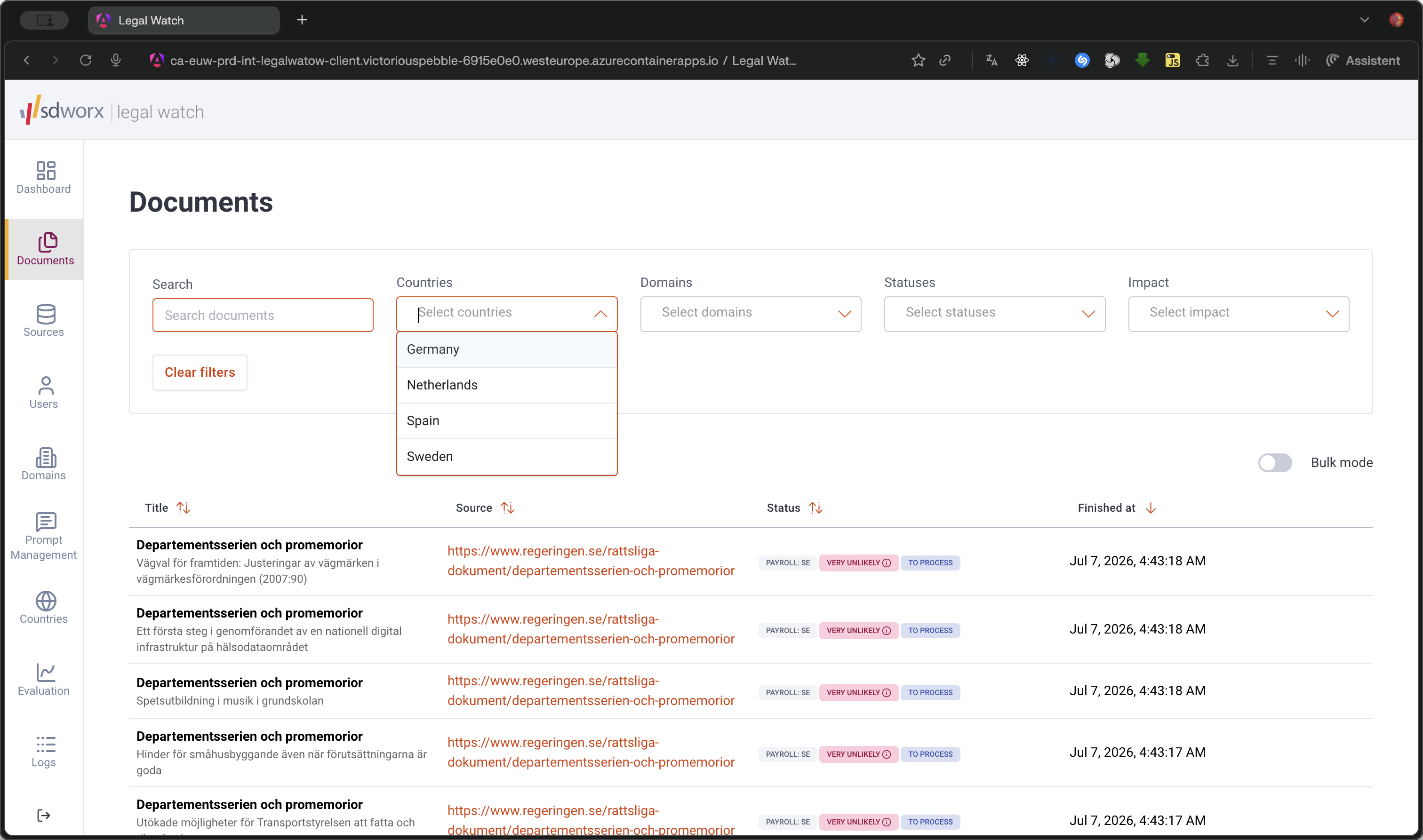
Click the Countries dropdown to select target countries.
Step #1: Click the Countries dropdown to select target countries.
2
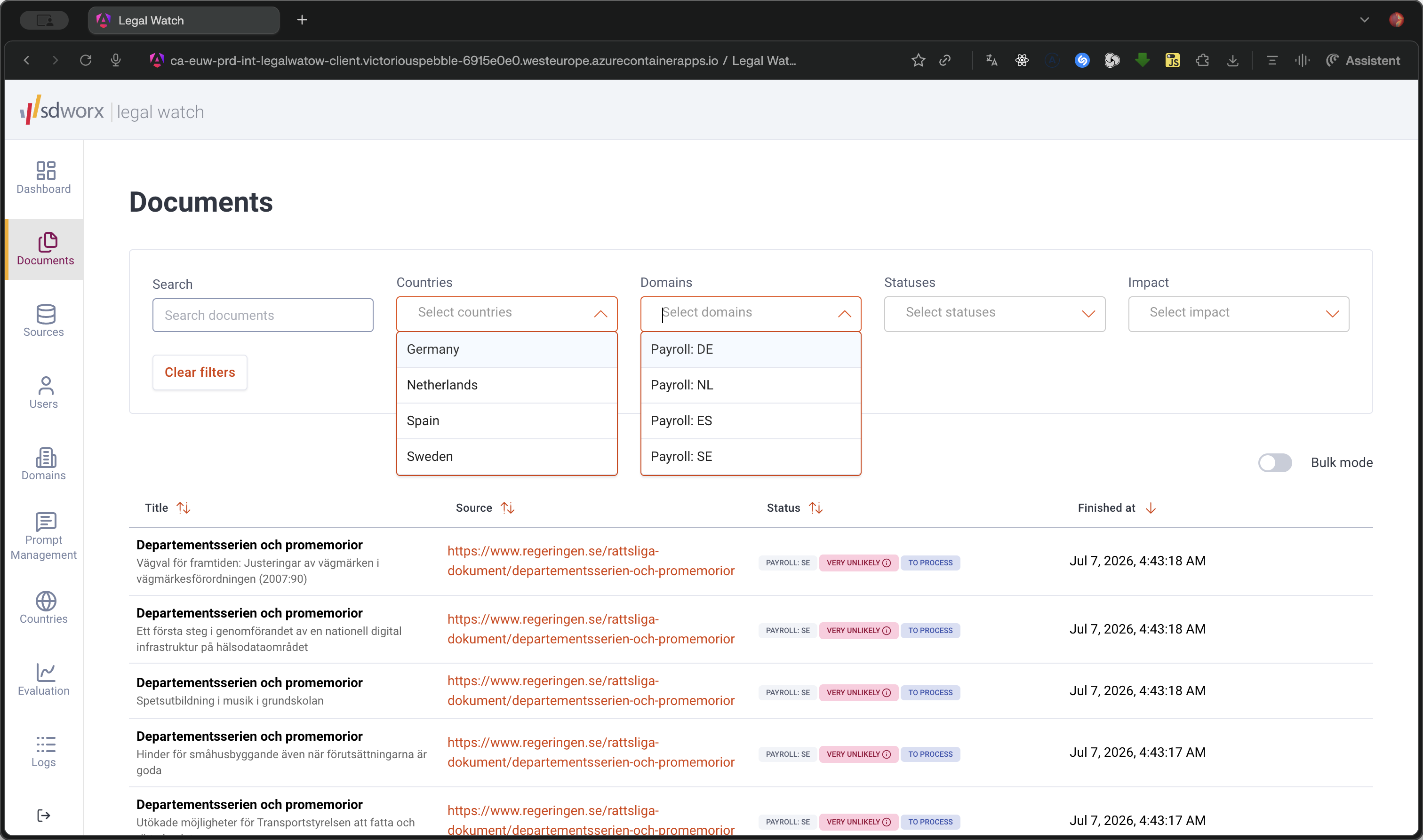
Click the Domains dropdown to narrow by domain.
Step #2: Click the Domains dropdown to narrow by domain.
3
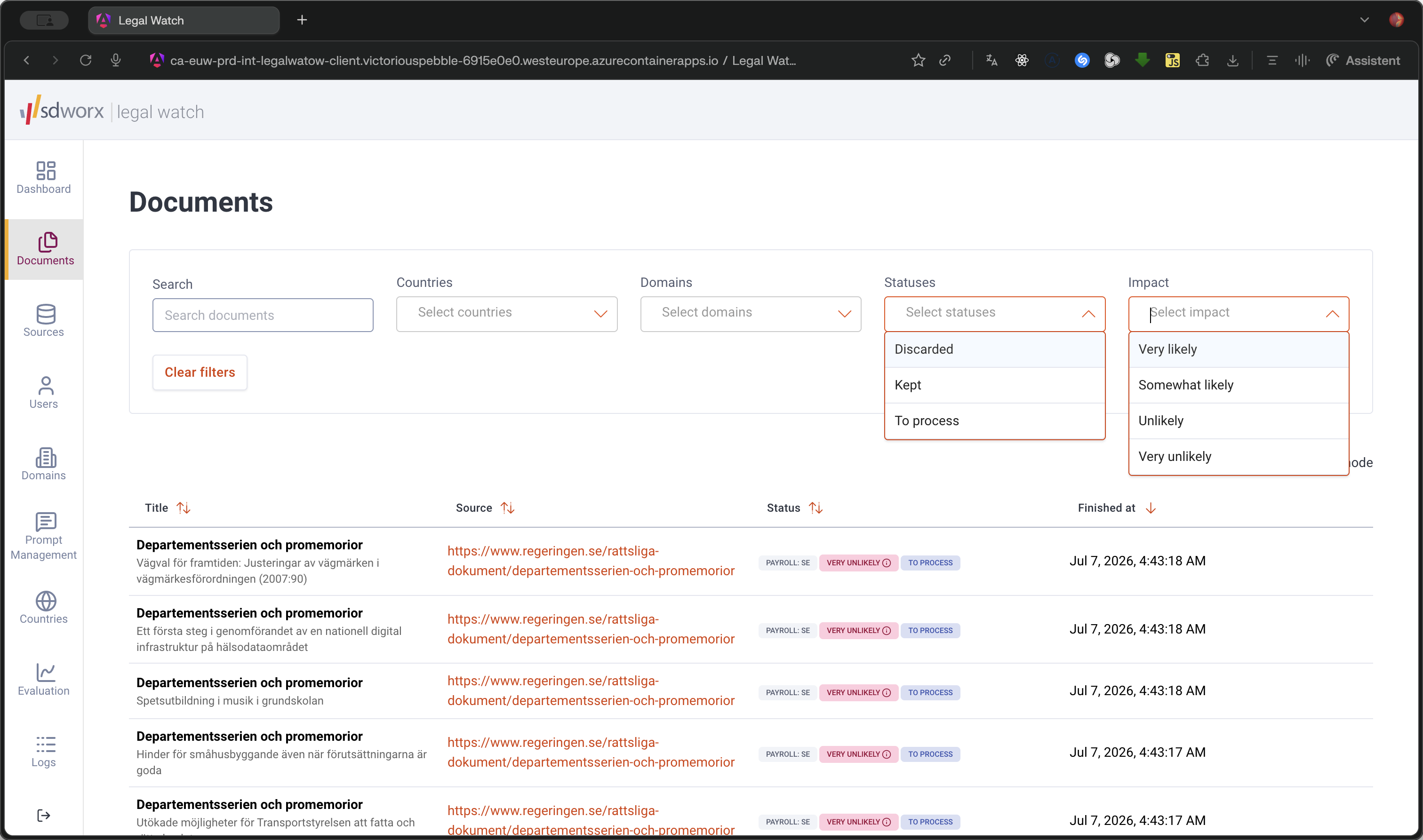
Click the Impact dropdown to filter by expected business impact.
Step #3: Click the Impact dropdown to filter by expected business impact.
4
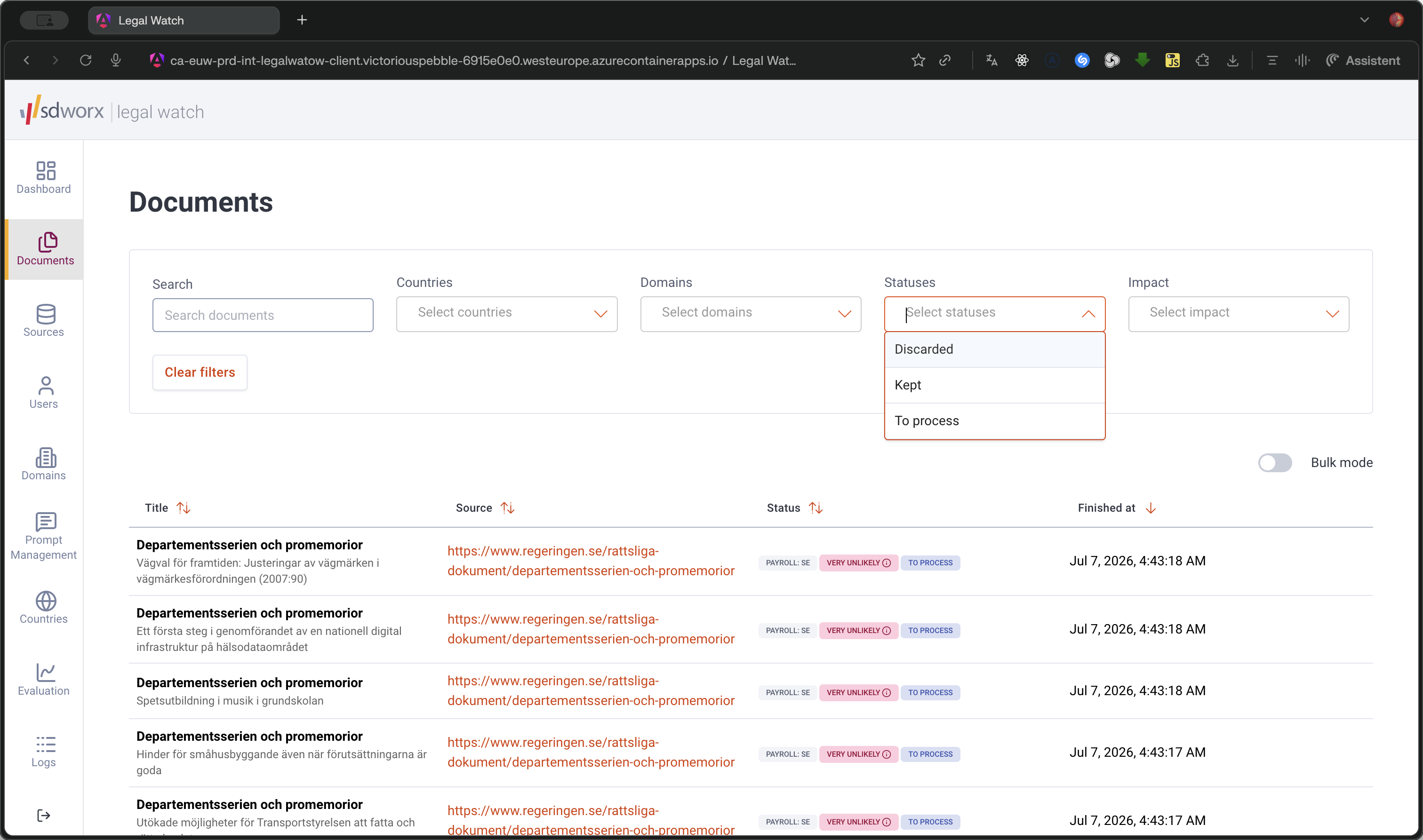
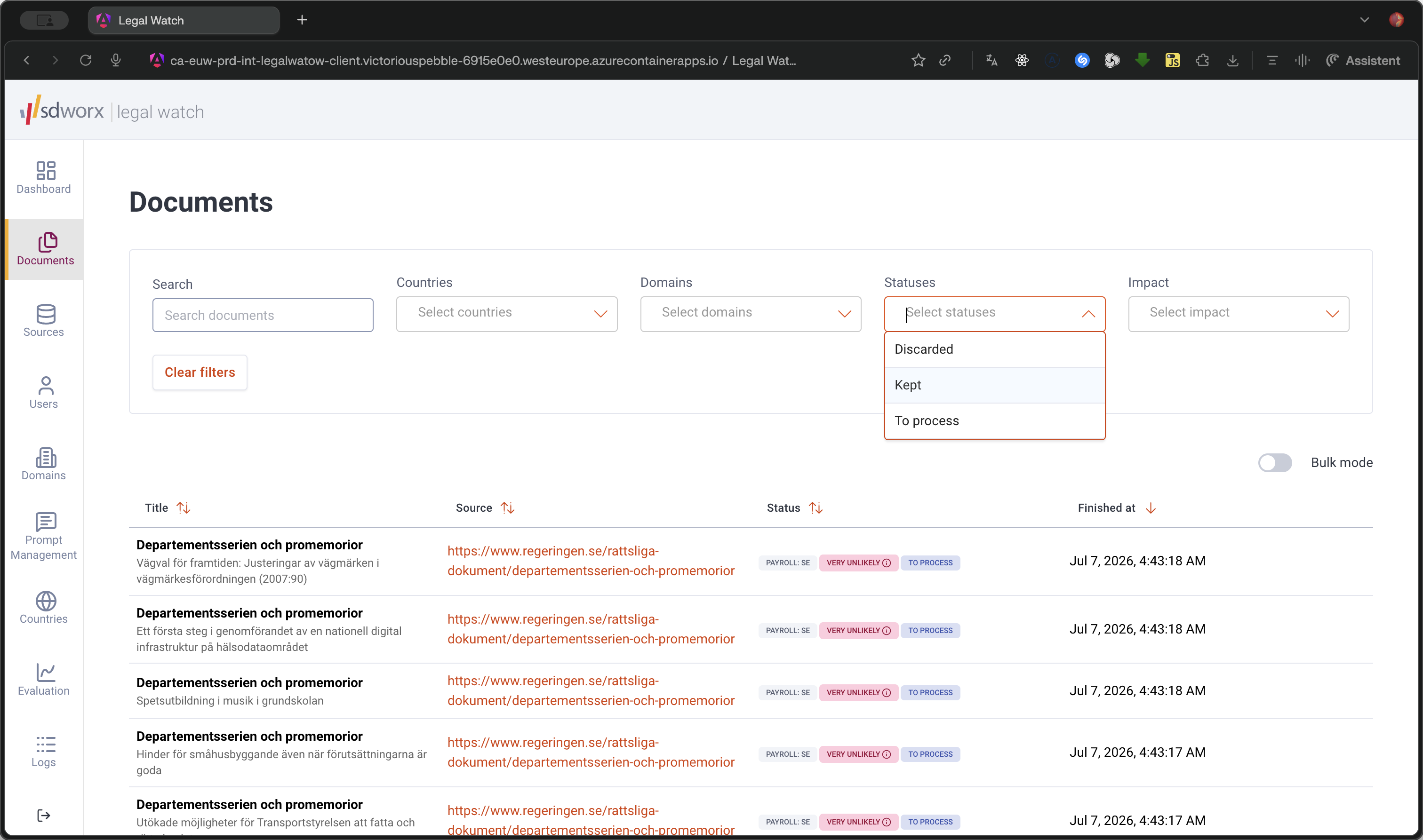
Open the Statuses dropdown to filter by document status.
Step #4: Open the Statuses dropdown to filter by document status.
5
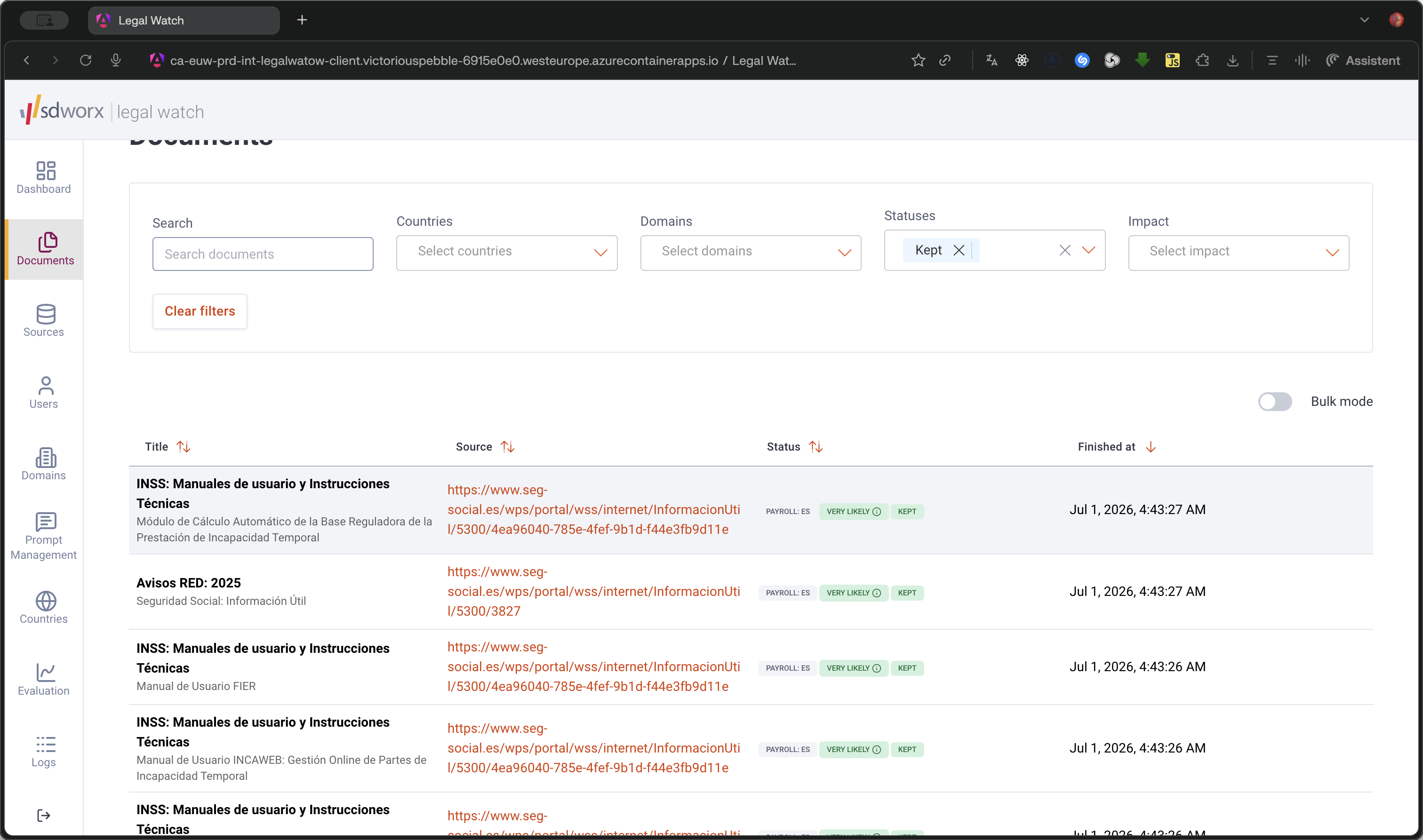
Select a status, such as Kept, to update the list.
Step #5: Select a status, such as Kept, to update the list.

Reviewing a Document

6
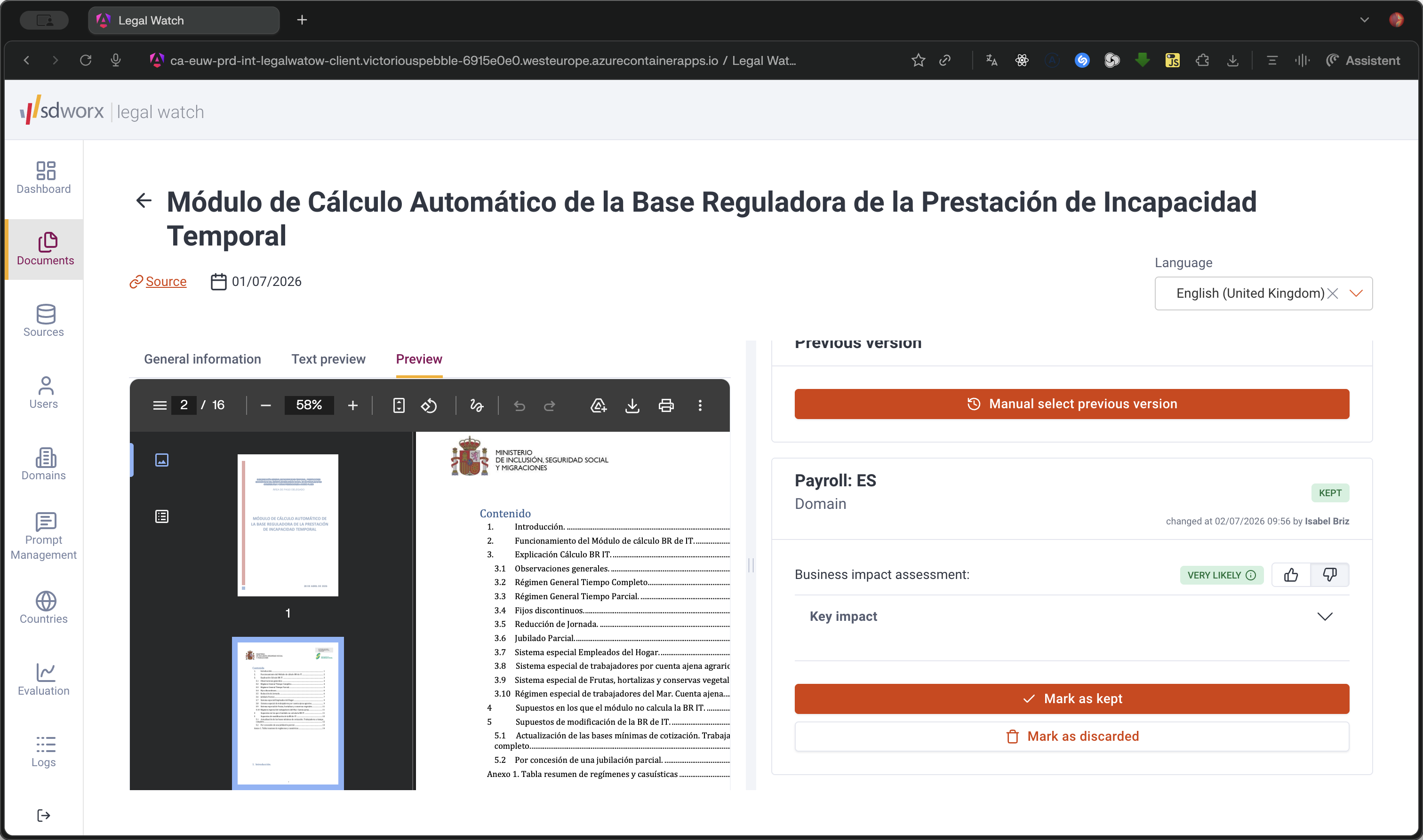
Click any row in the filtered table to open the document details view.
Step #6: Click any row in the filtered table to open the document details view.
7
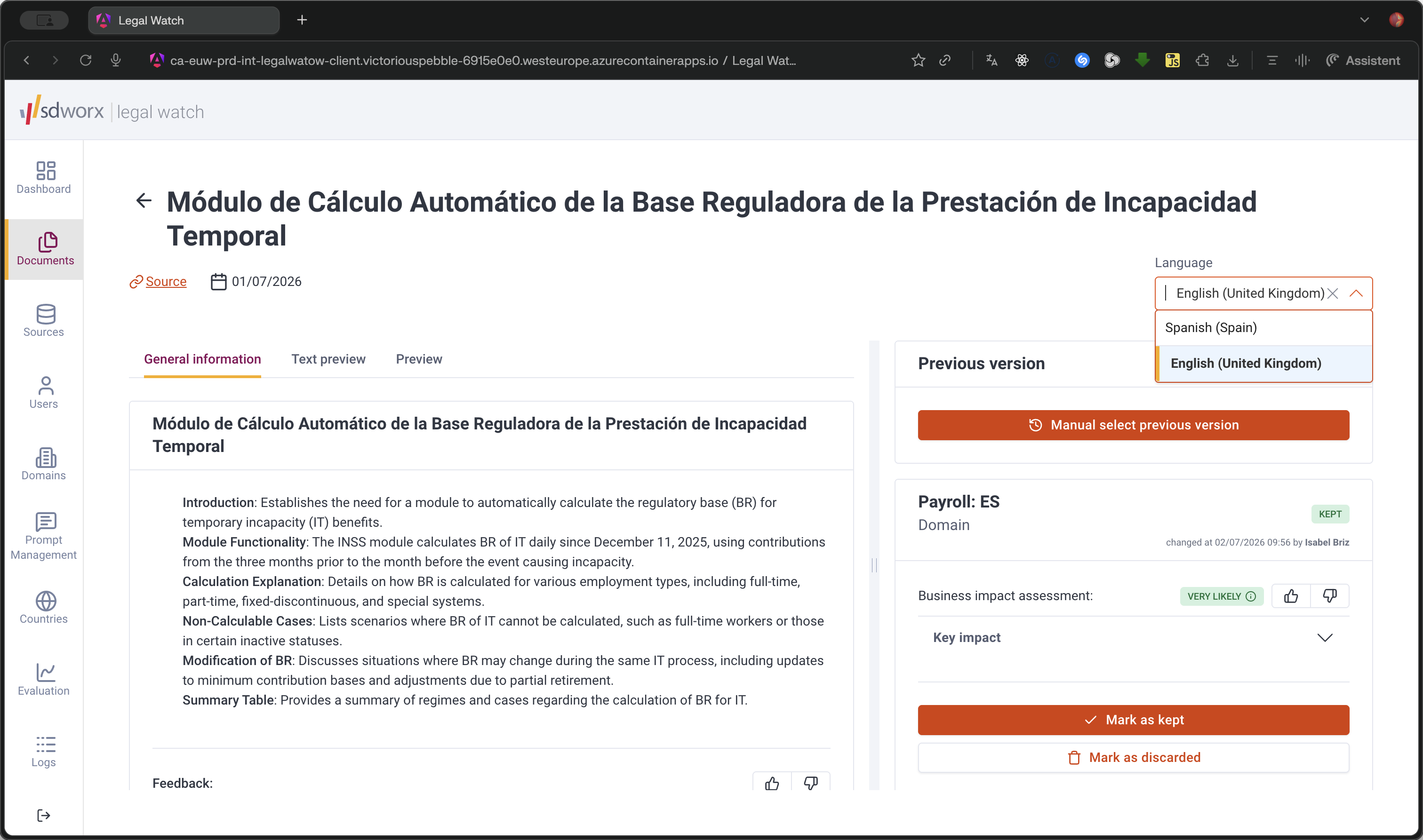
Use the language dropdown in the upper right to select the source language.
Step #7: Use the language dropdown in the upper right to select the source language.

Document Preview

You can switch between text and actual document previews:
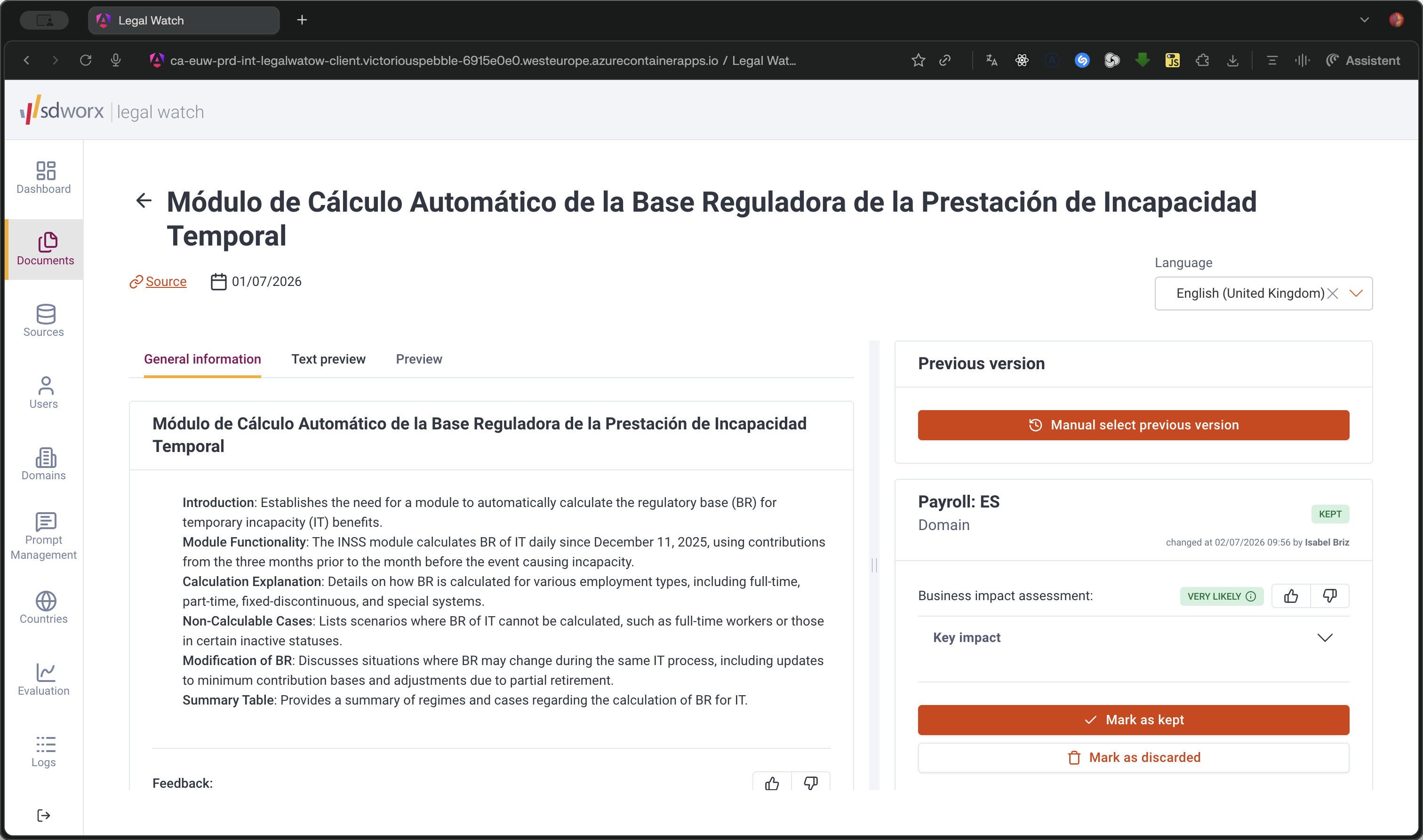
8
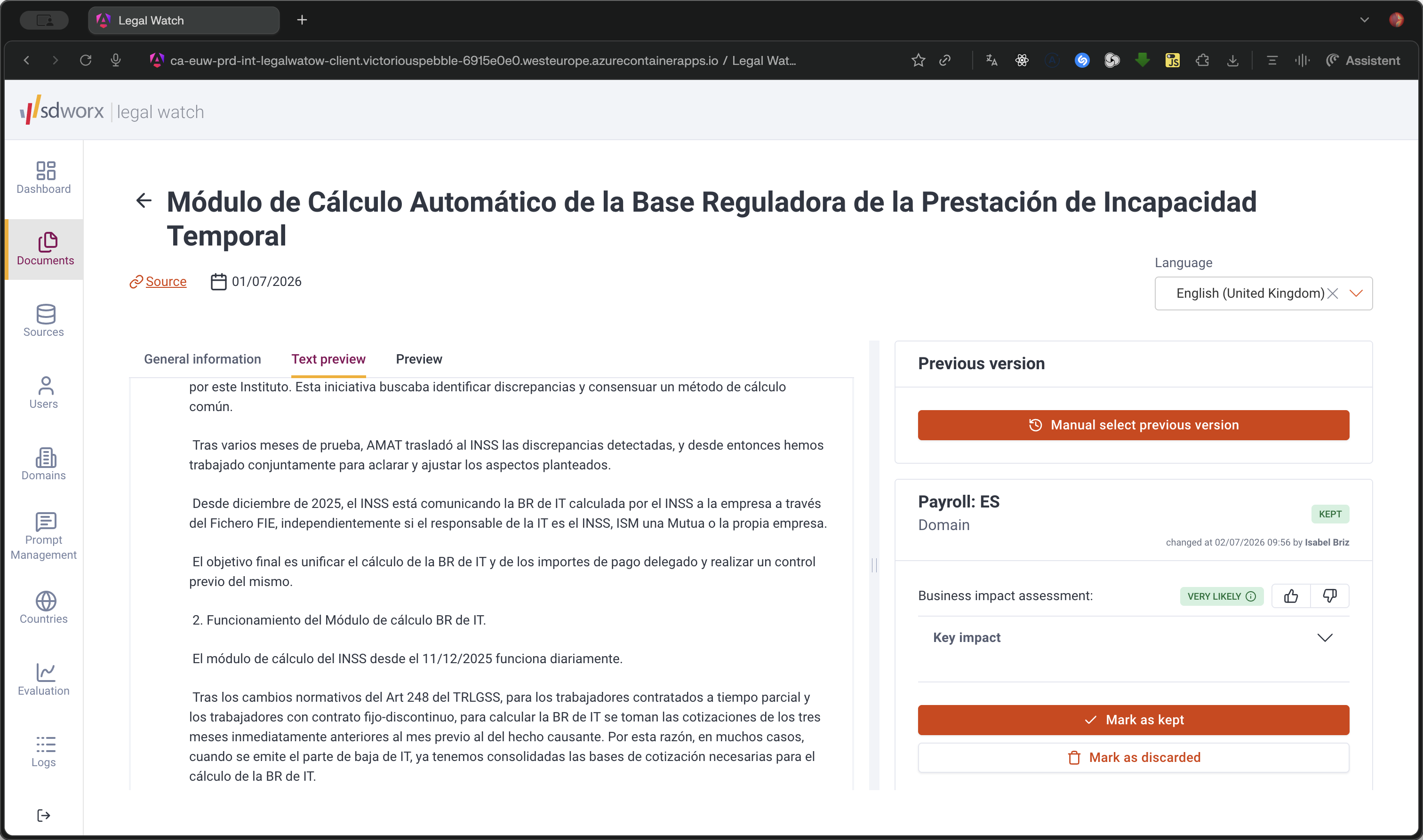
Click Text preview to see a raw text extraction of the document.
Step #8: Click Text preview to see a raw text extraction of the document.
9
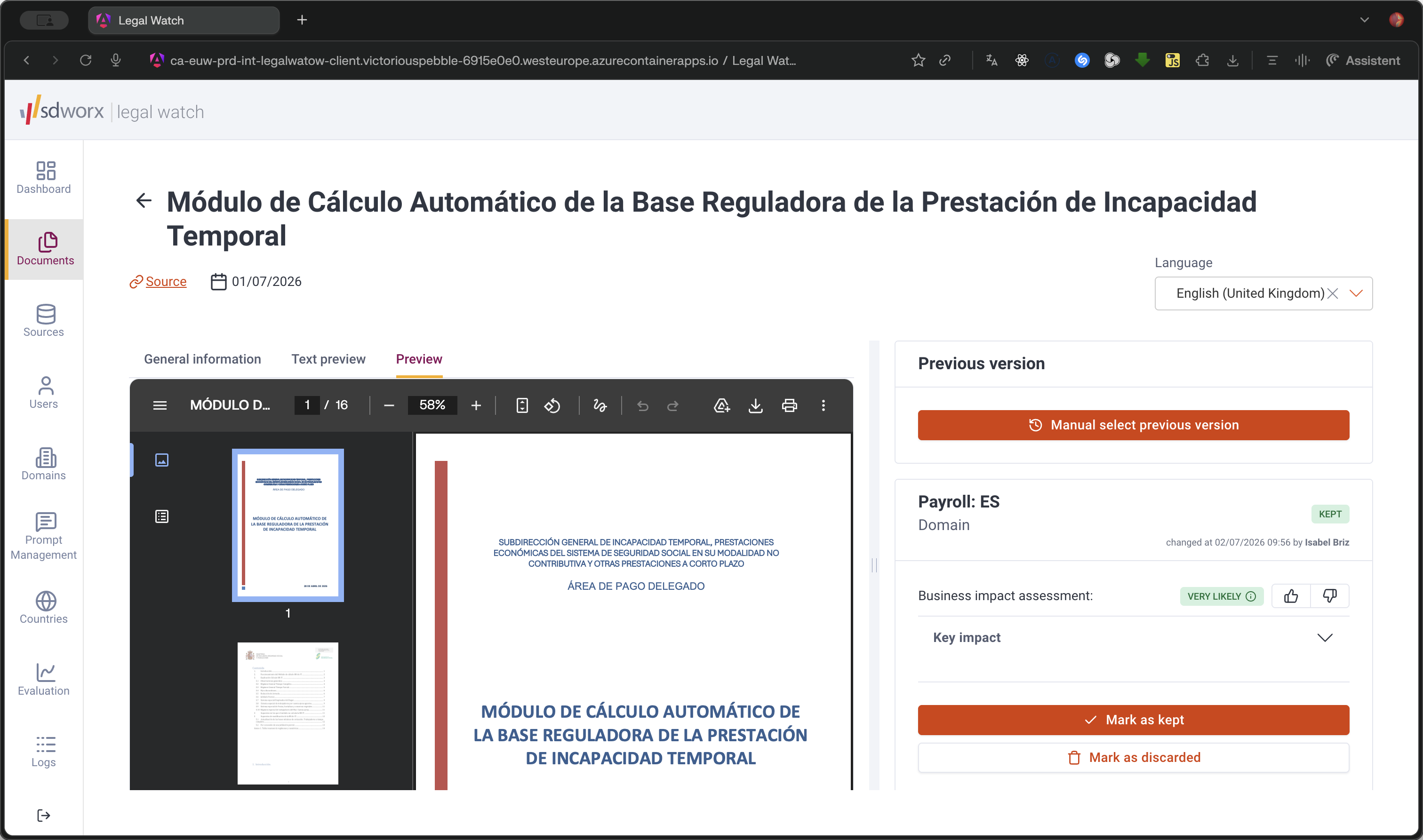
Click Preview to load the original PDF viewer or HTML rendering.
Step #9: Click Preview to load the original PDF viewer or HTML rendering.
10
Drag the boundary between the preview and the information panel to adjust the panel width.
Step #10: Drag the boundary between the preview and the information panel to adjust the panel width.

Managing Previous Versions

If the AI did not automatically detect a previous version, you can define it manually.
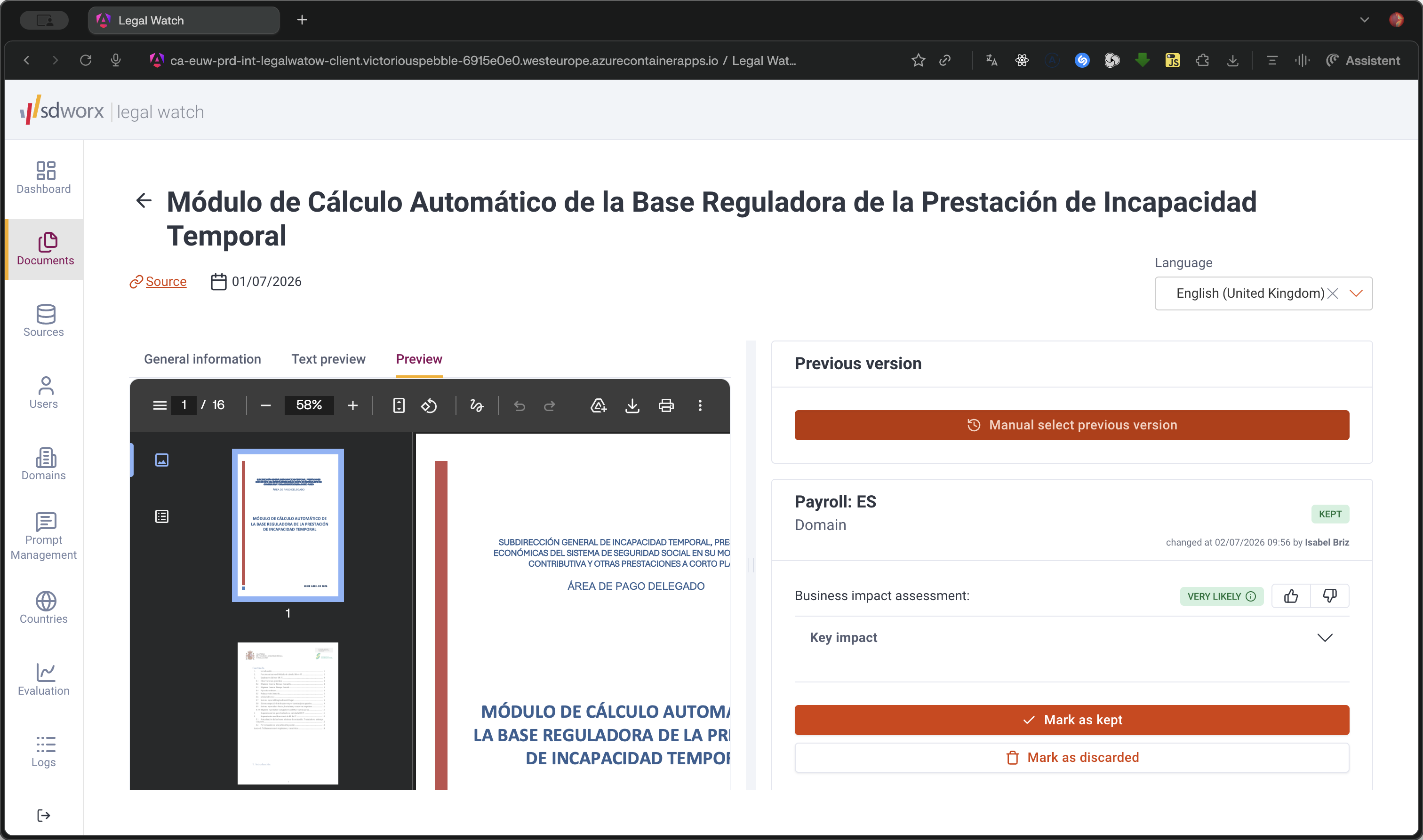
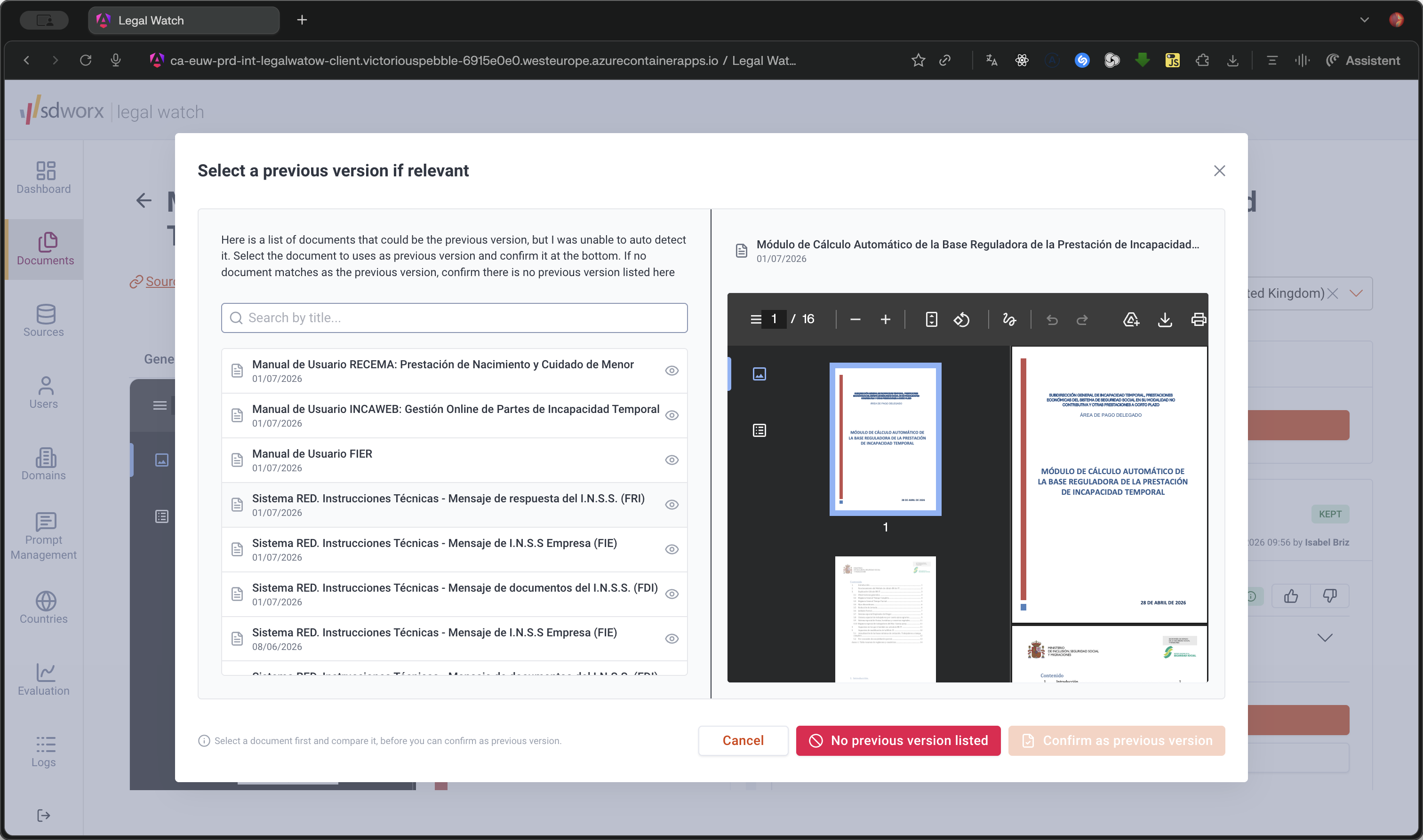
11
Click Manual select previous version to open the version selector.
Step #11: Click Manual select previous version to open the version selector.
12
Select a potential match from the list on the left to preview it.
Step #12: Select a potential match from the list on the left to preview it.
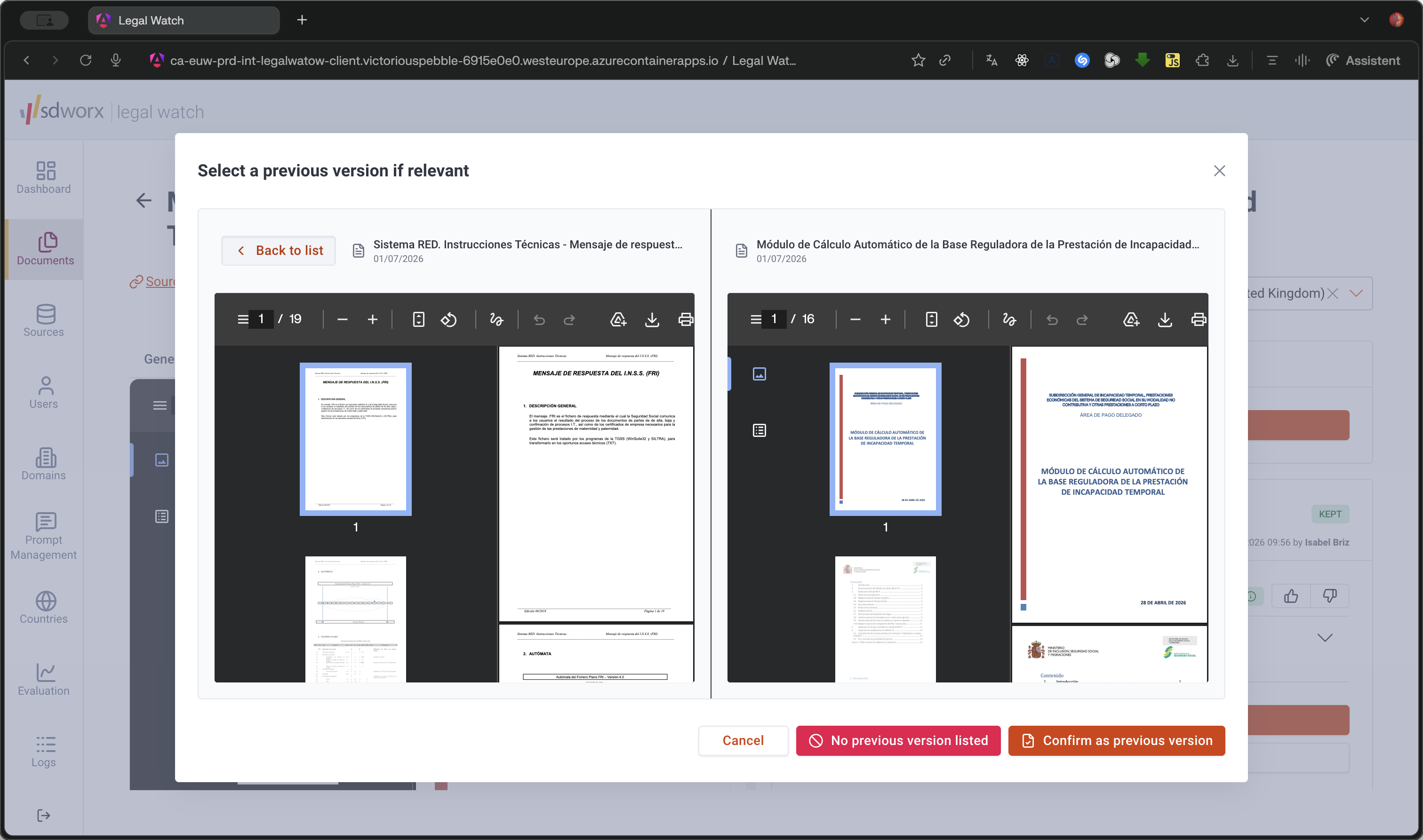
13
If the document does not match, click Back to list to choose another.
Step #13: If the document does not match, click Back to list to choose another.
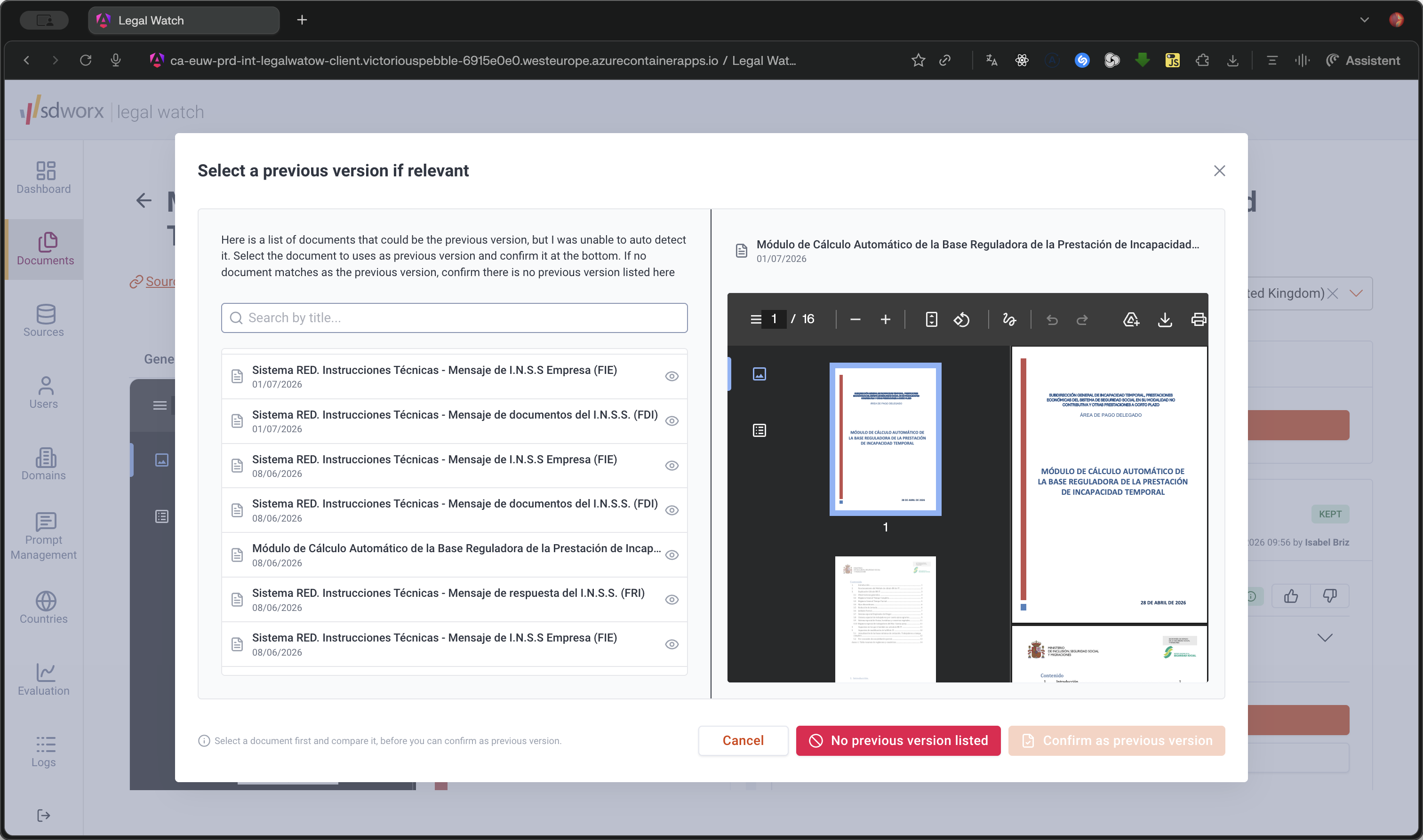
14
If there is no prior version, click No previous version listed at the bottom of the modal.
Step #14: If there is no prior version, click No previous version listed at the bottom of the modal.

Evaluating AI Assessments and Providing Feedback

The right-hand panel displays the business impact assessment and key impacts per domain.
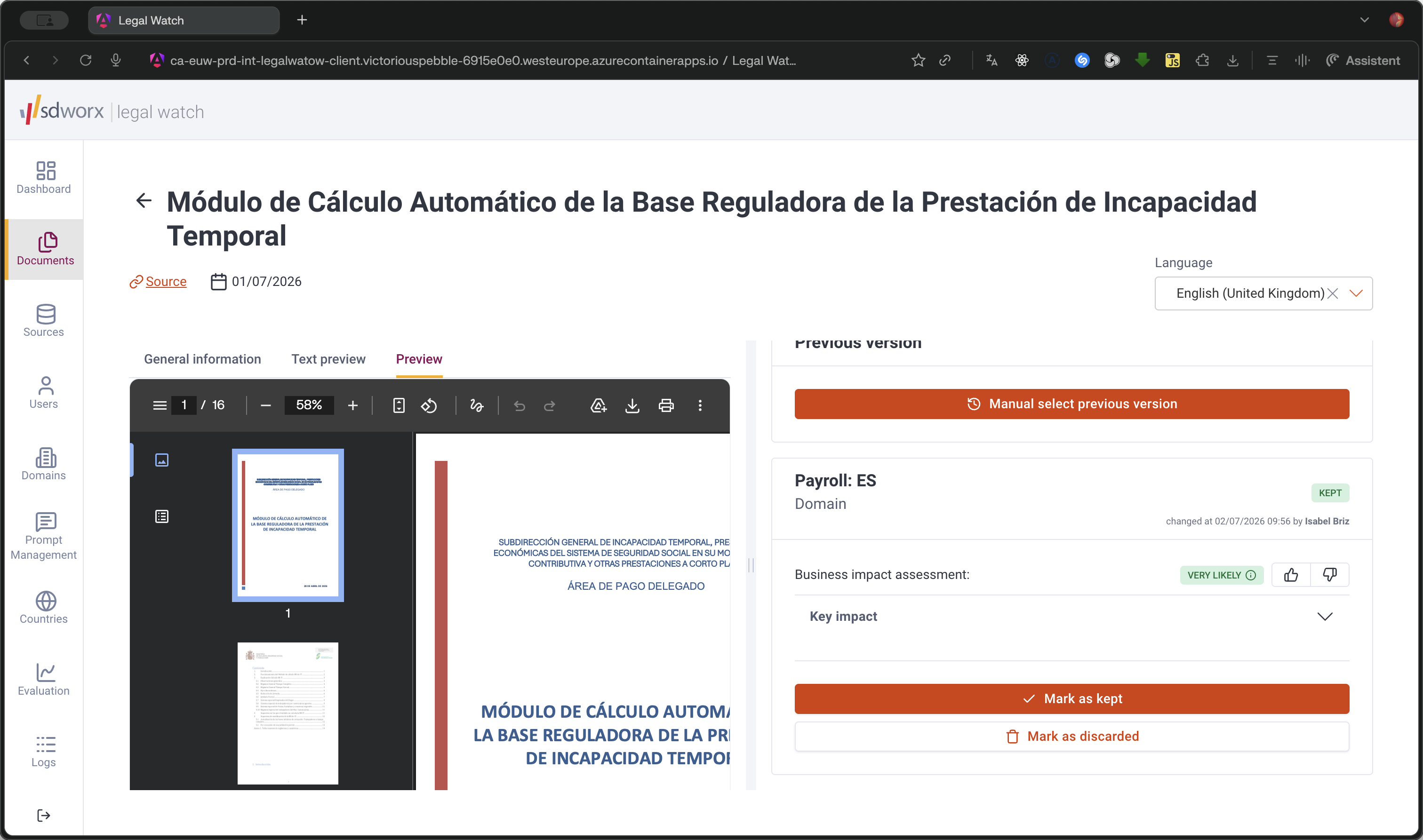
15
Review the Business impact assessment to see the AI's reasoning for the assigned impact level.
Step #15: Review the Business impact assessment to see the AI's reasoning for the assigned impact level.

You can submit feedback on both the overall business impact assessment and individual key impact points to improve the AI's future accuracy:
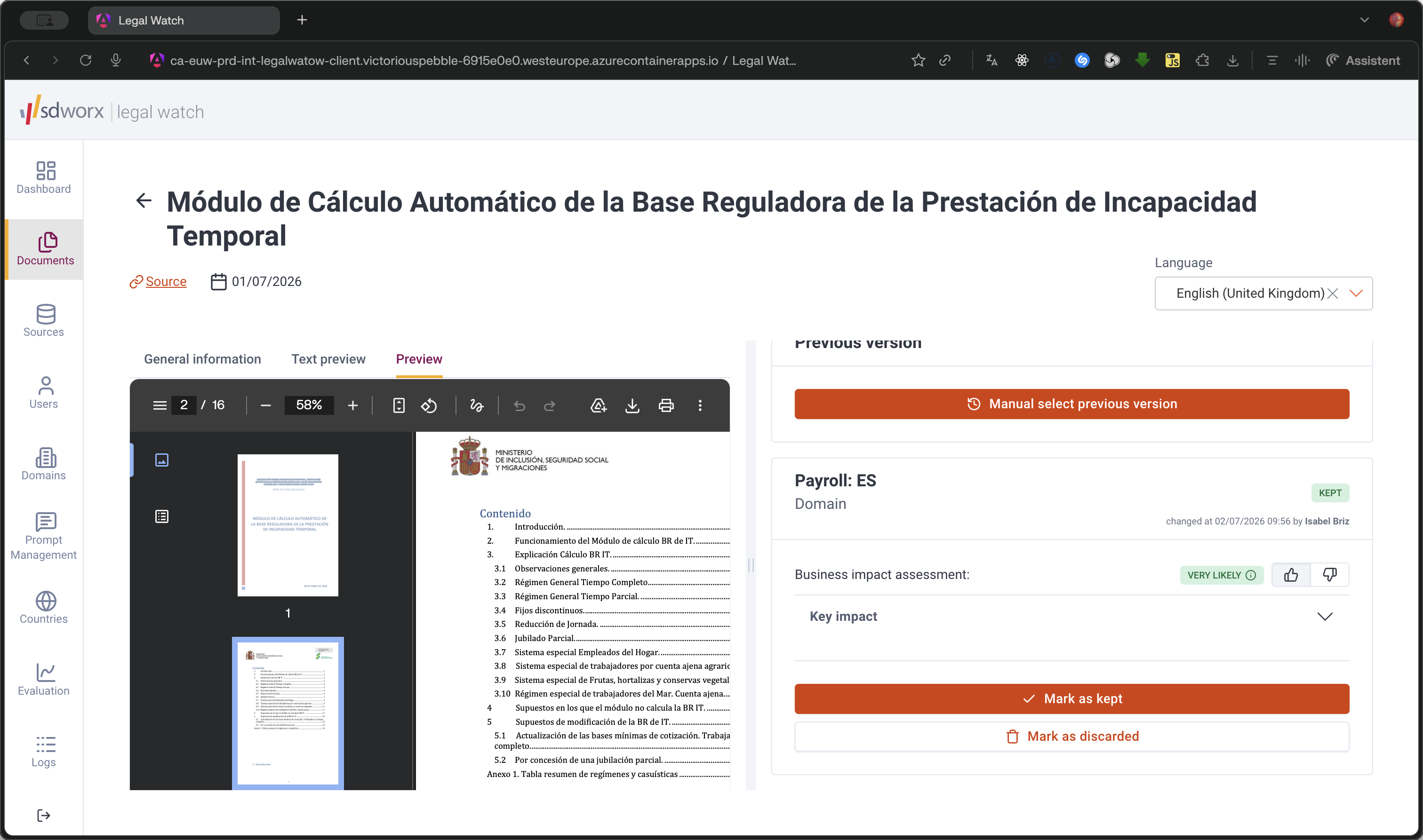
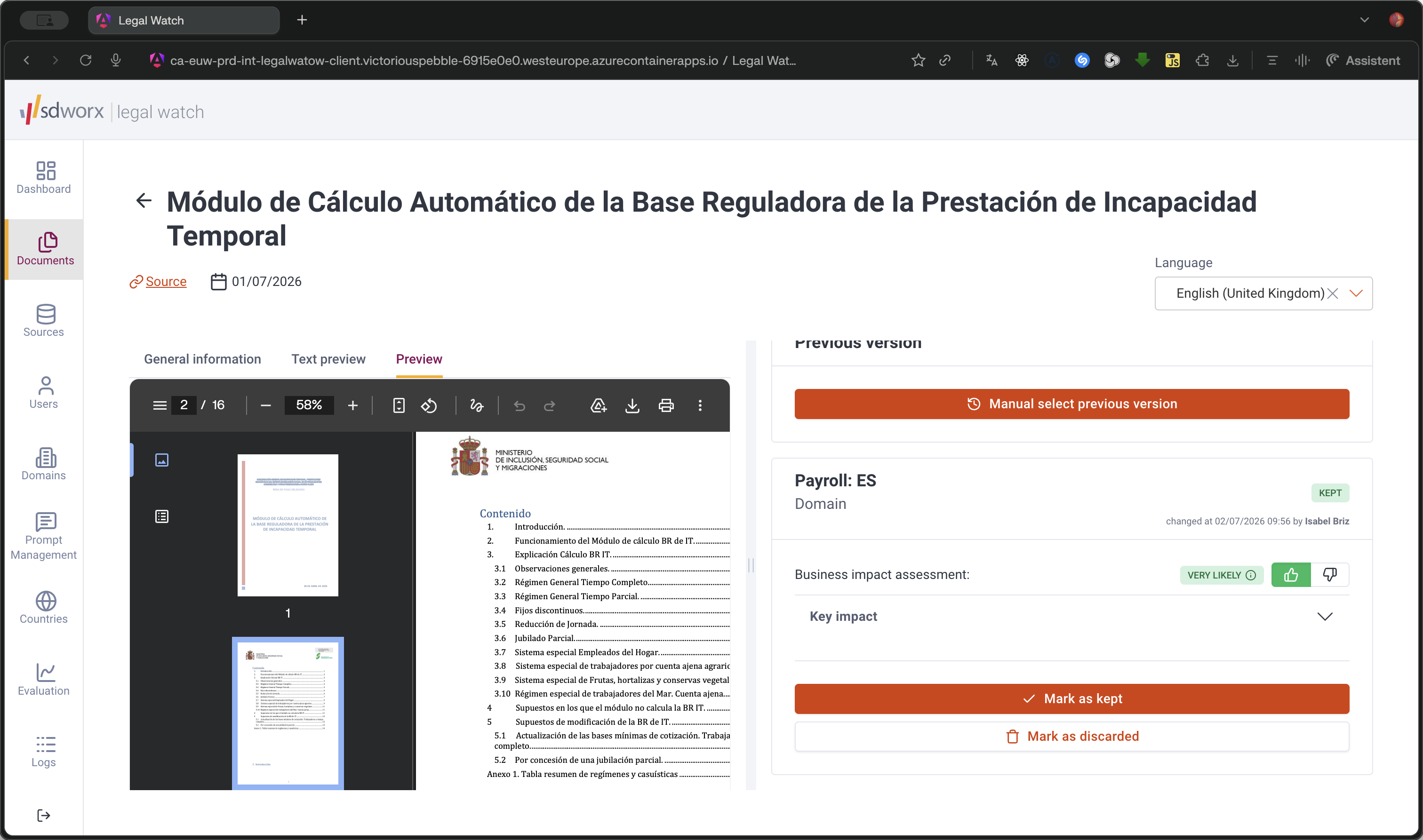
16
Click the positive feedback icon (thumbs up) if the assessment is correct.
Step #16: Click the positive feedback icon (thumbs up) if the assessment is correct.
17
Click the same icon to undo the feedback if clicked by mistake.
Step #17: Click the same icon to undo the feedback if clicked by mistake.
18
Click the negative feedback icon if the assessment is inaccurate.
Step #18: Click the negative feedback icon if the assessment is inaccurate.
19
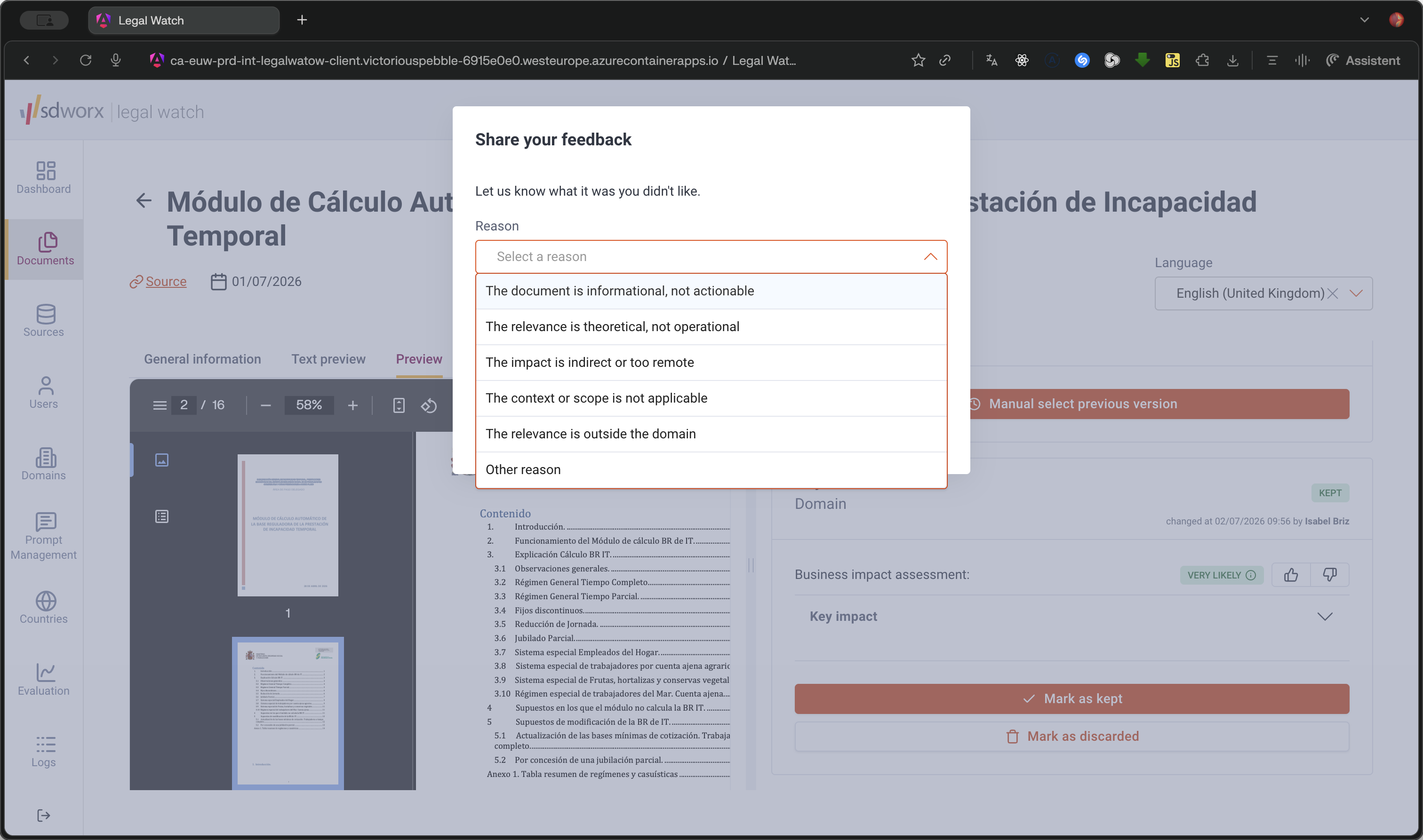
When providing negative feedback, open the reason dropdown.
Step #19: When providing negative feedback, open the reason dropdown.
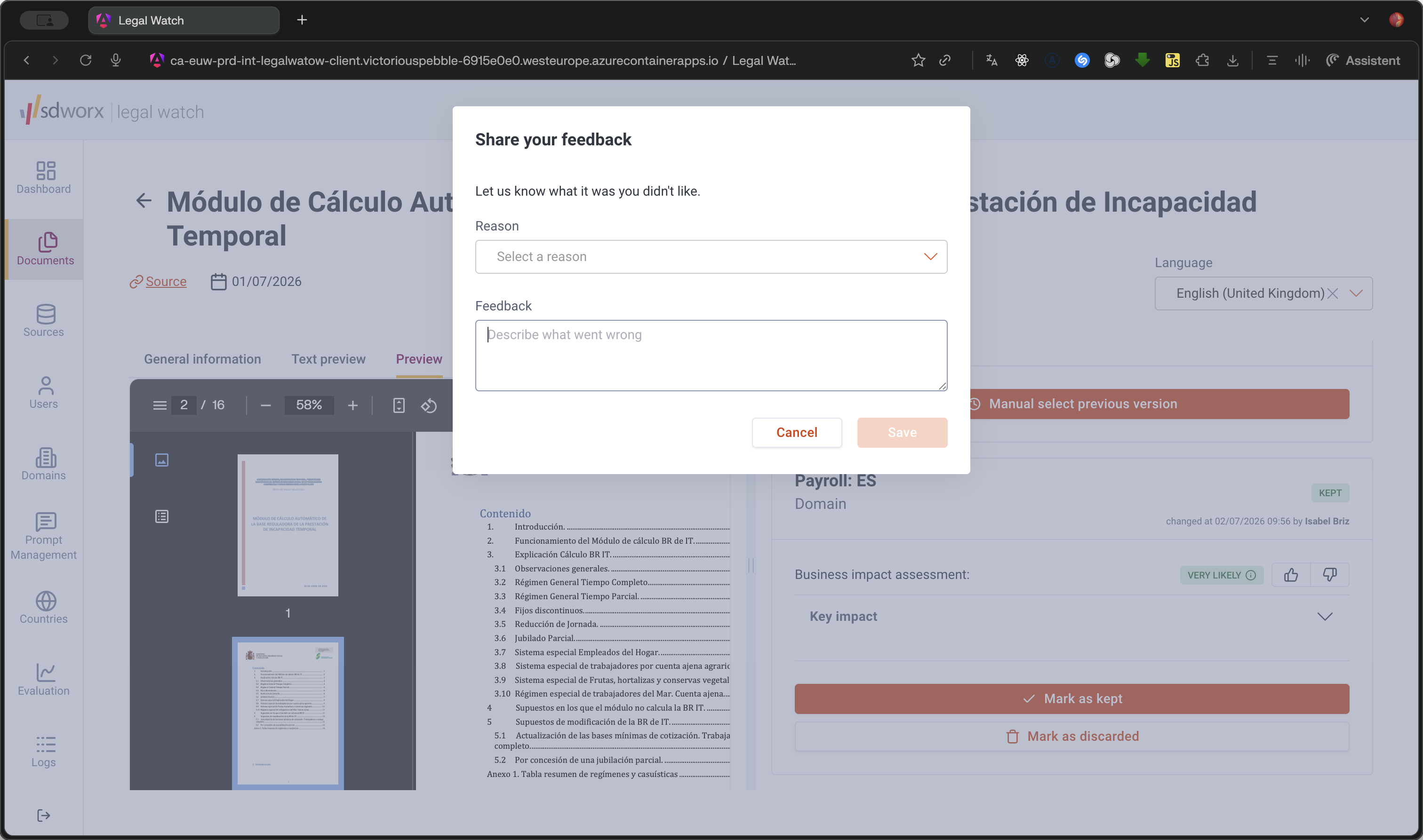
20
Select a predefined reason (e.g., "The document is informational, not actionable"), provide additional context, and click Save.
Step #20: Select a predefined reason (e.g., "The document is informational, not actionable"), provide additional context, and click Save.
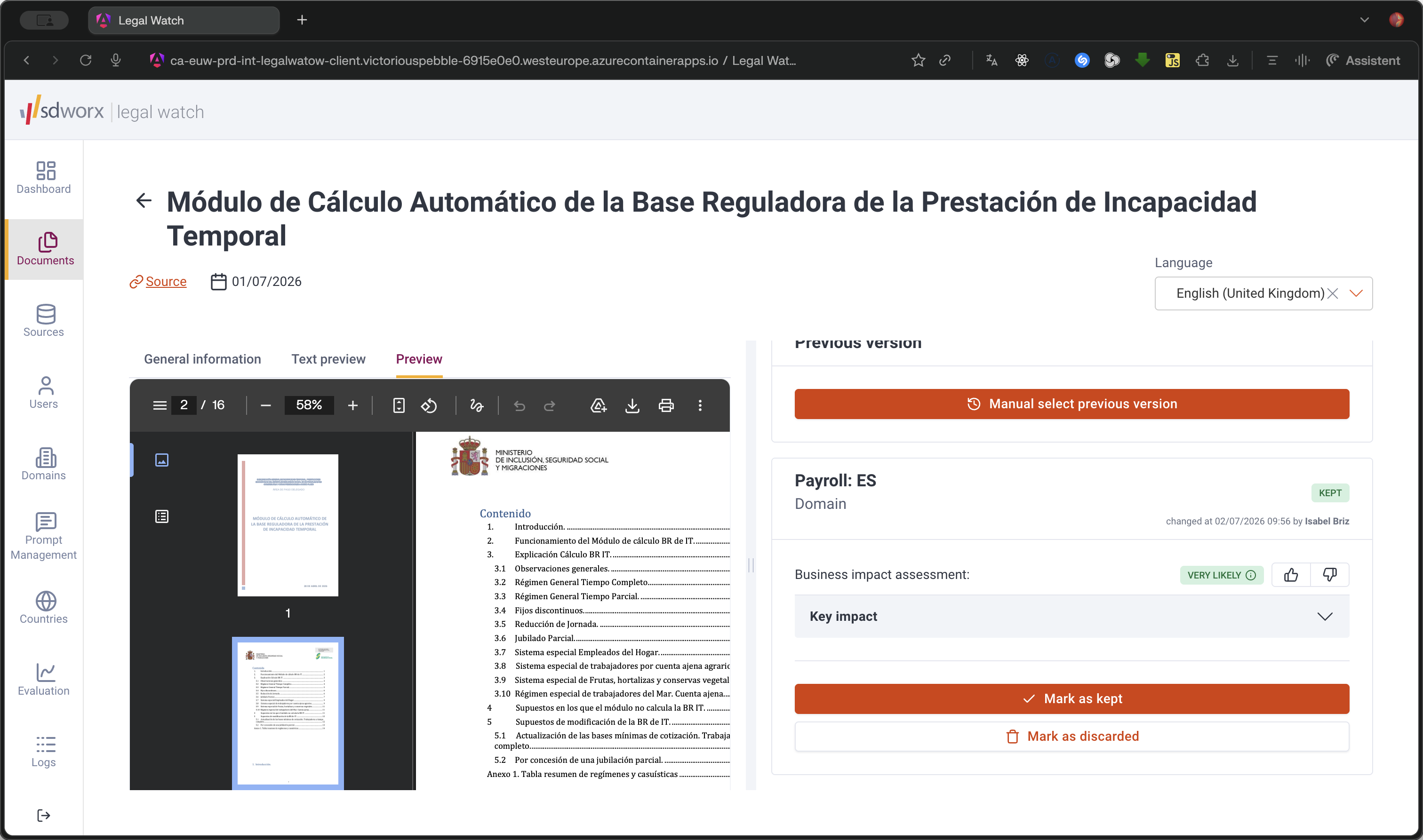
21
Expand the Key impacts section to review and provide identical feedback on specific impact highlights.
Step #21: Expand the Key impacts section to review and provide identical feedback on specific impact highlights.

Q: What happens if the AI incorrectly identifies the business impact?

A: You can provide negative feedback directly on the impact assessment. By specifying a reason and giving context, you help refine the AI's system prompts and improve future accuracy.

Q: What should I do if the document has no previous version but the system prompts me for one?

A: Click "Manual select previous version," then click "No previous version listed" at the bottom of the modal to confirm it is an original document.

Q: Can I undo feedback I accidentally submitted?

A: Yes. If you accidentally click a feedback button, you can click the exact same button again to remove your submission.

Q: How can I read the full original document?

A: In the document details, click "Preview" to load the original PDF viewer or rendered HTML directly in the web application.

Term

Definition

Business Impact Assessment

An AI-generated summary that evaluates how likely a document is to affect operations within a specific domain.

Key Impacts

Specific sections or highlights from a document identified by the AI as highly relevant to a given domain.