
How to Review and Manage Event Submissions in OSRS Event Board
Learn how to access your OSRS Event Board dashboard, review player submission proofs, and approve or reject pending tasks.
By Zachary Heil
This guide explains how to review, approve, and reject player task submissions in the OSRS Event Board. Completing these steps ensures your clan's event standings remain accurate and up-to-date.
This guide is intended for clan administrators and event managers responsible for moderating active events and verifying player submissions.
Access Your Event Dashboard
1
Click SIGN IN WITH DISCORD to authenticate your account.
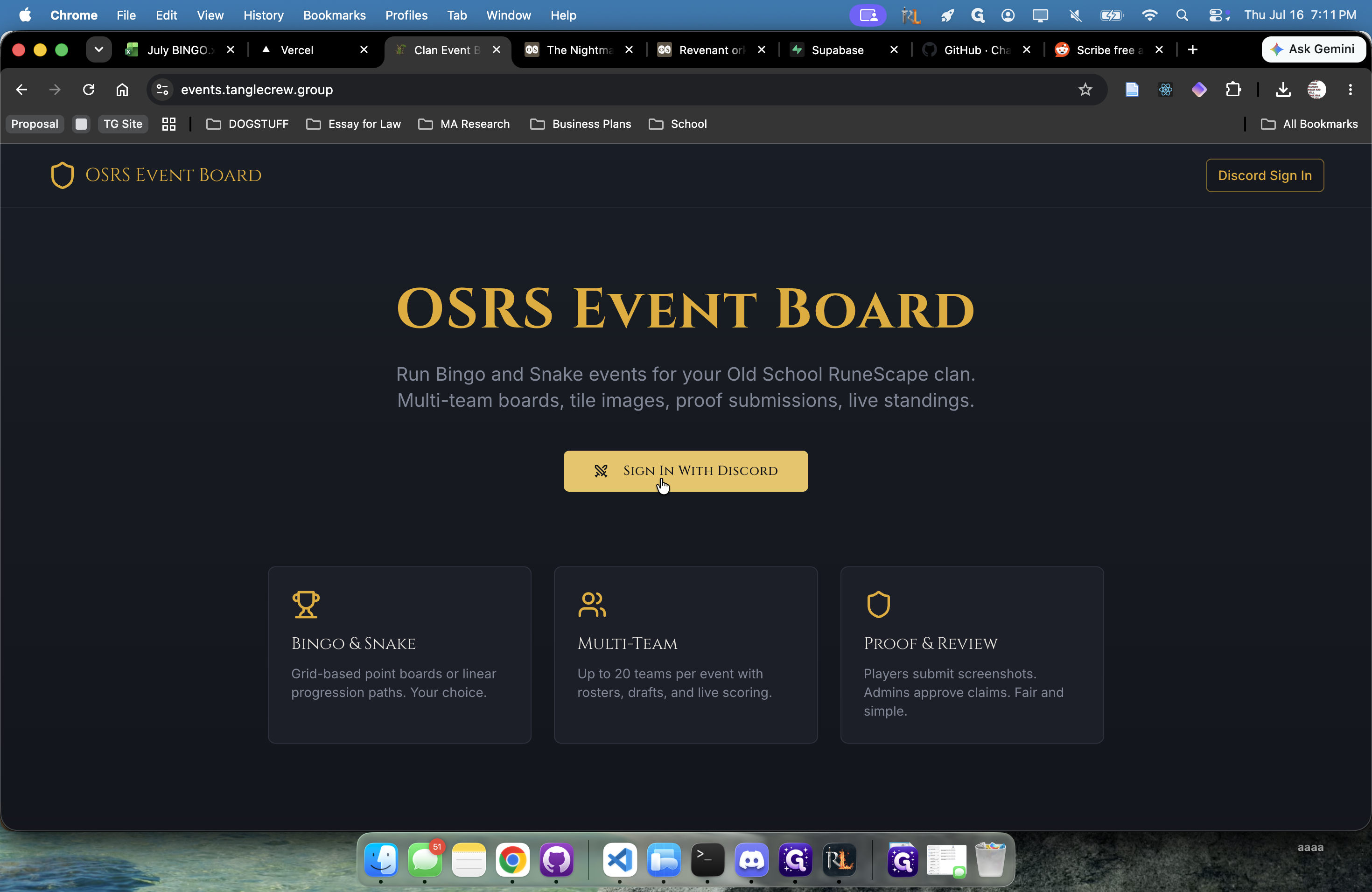
2
Click Authorize to grant the application access to your details.
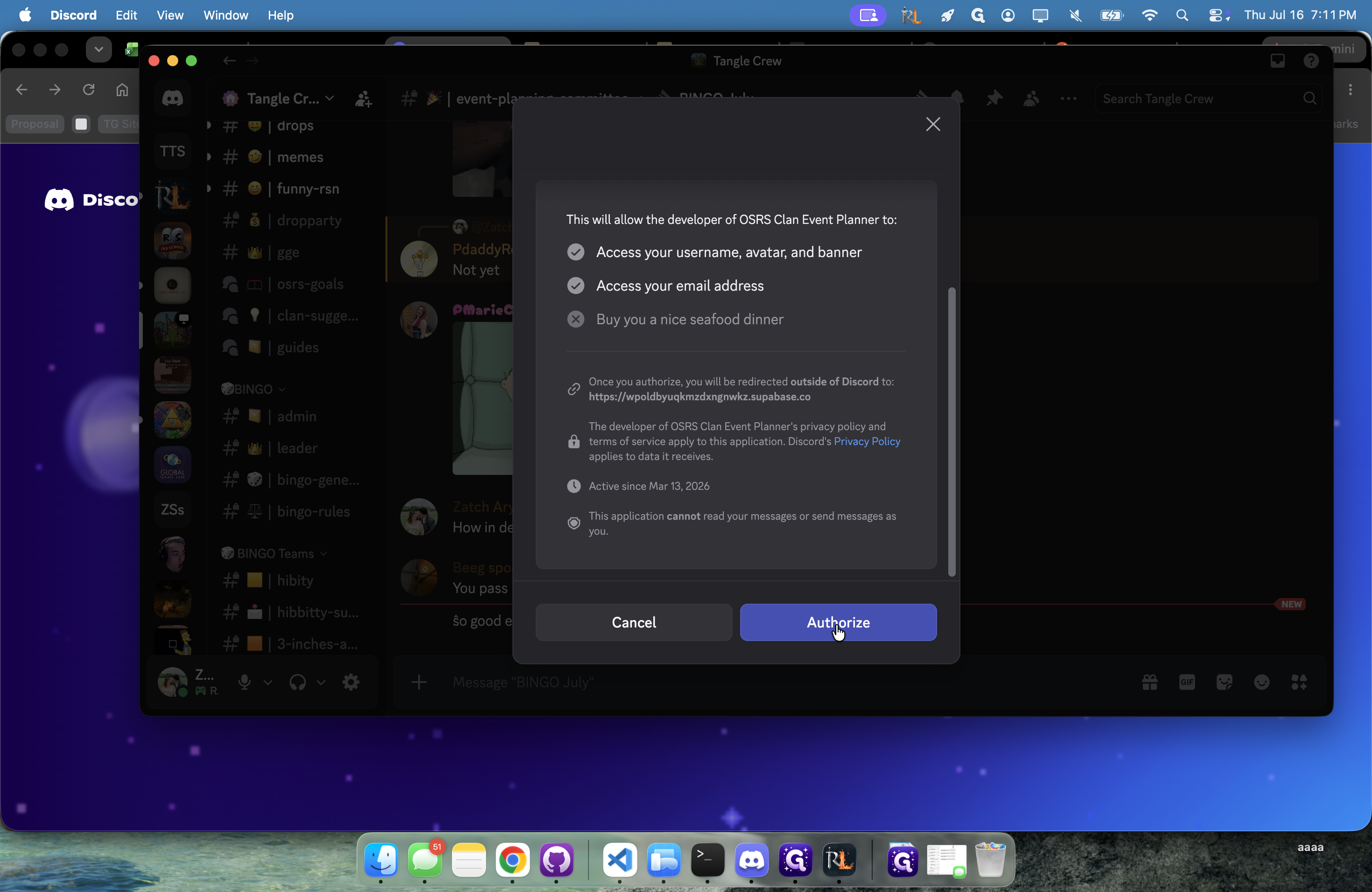
3
Select your specific event card (e.g., Admin Only Test Event) to open its dashboard.
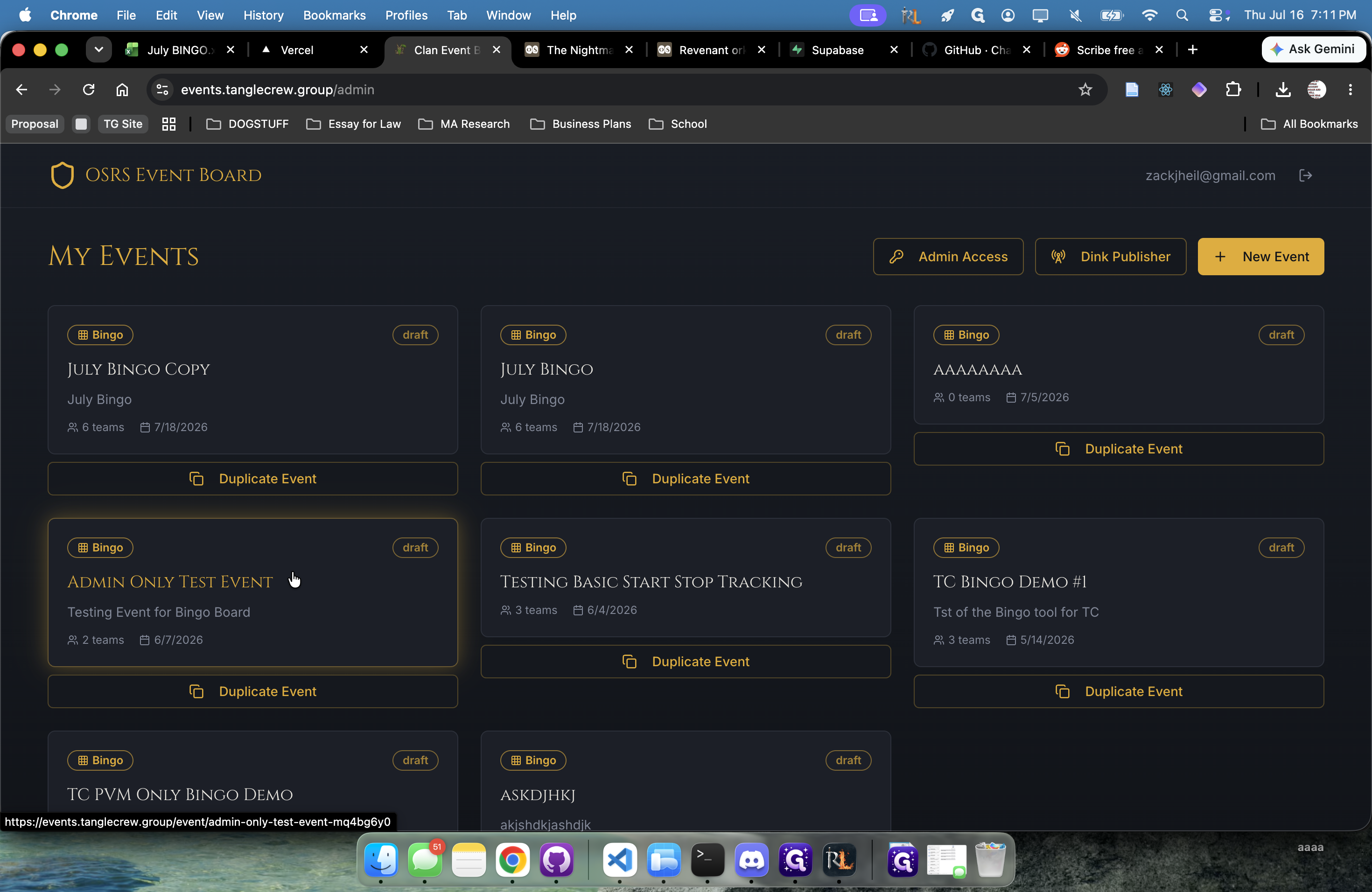
4
Click Submissions in the top navigation menu to view all pending tasks.
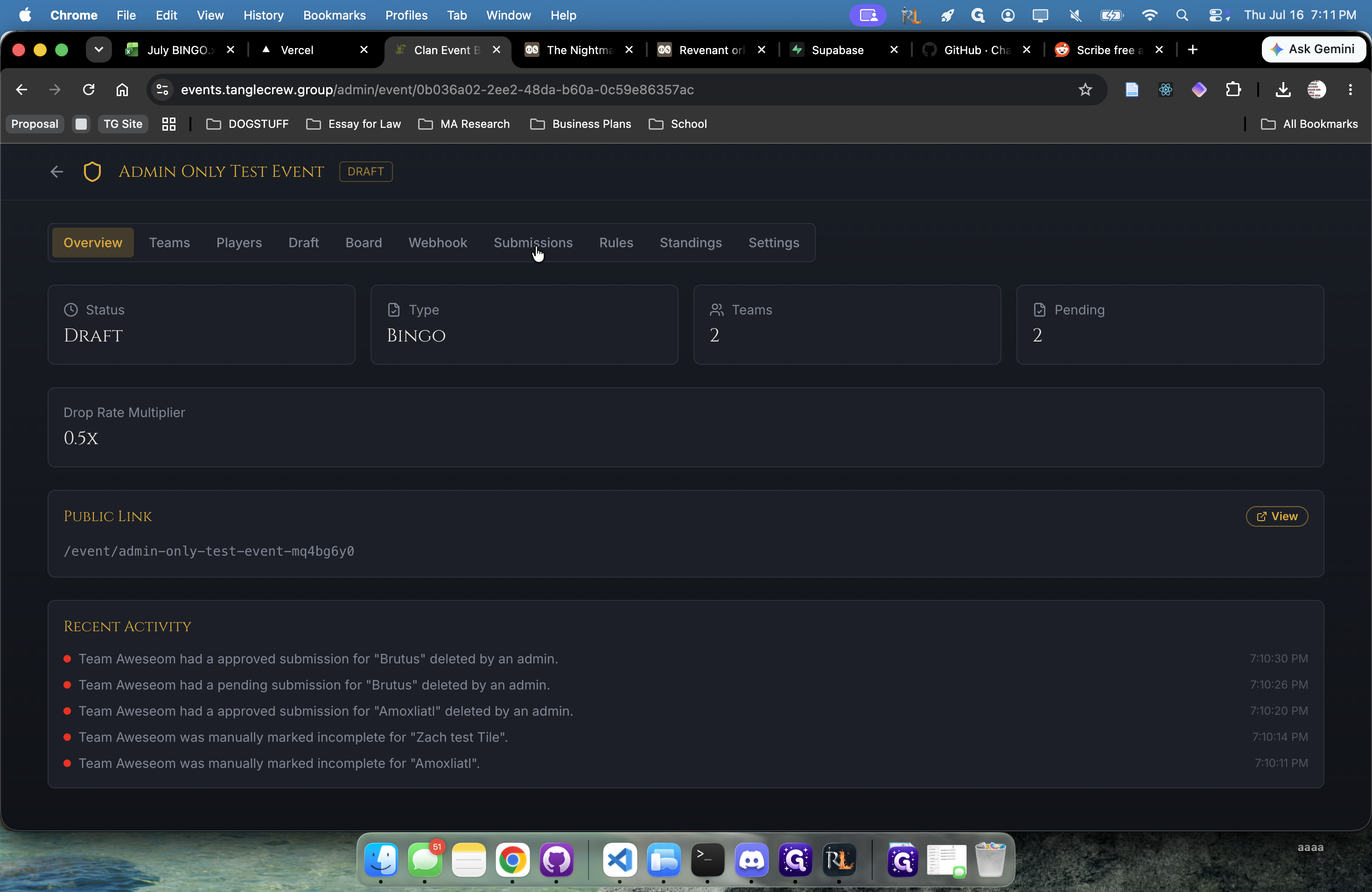
Approve a Submission
5
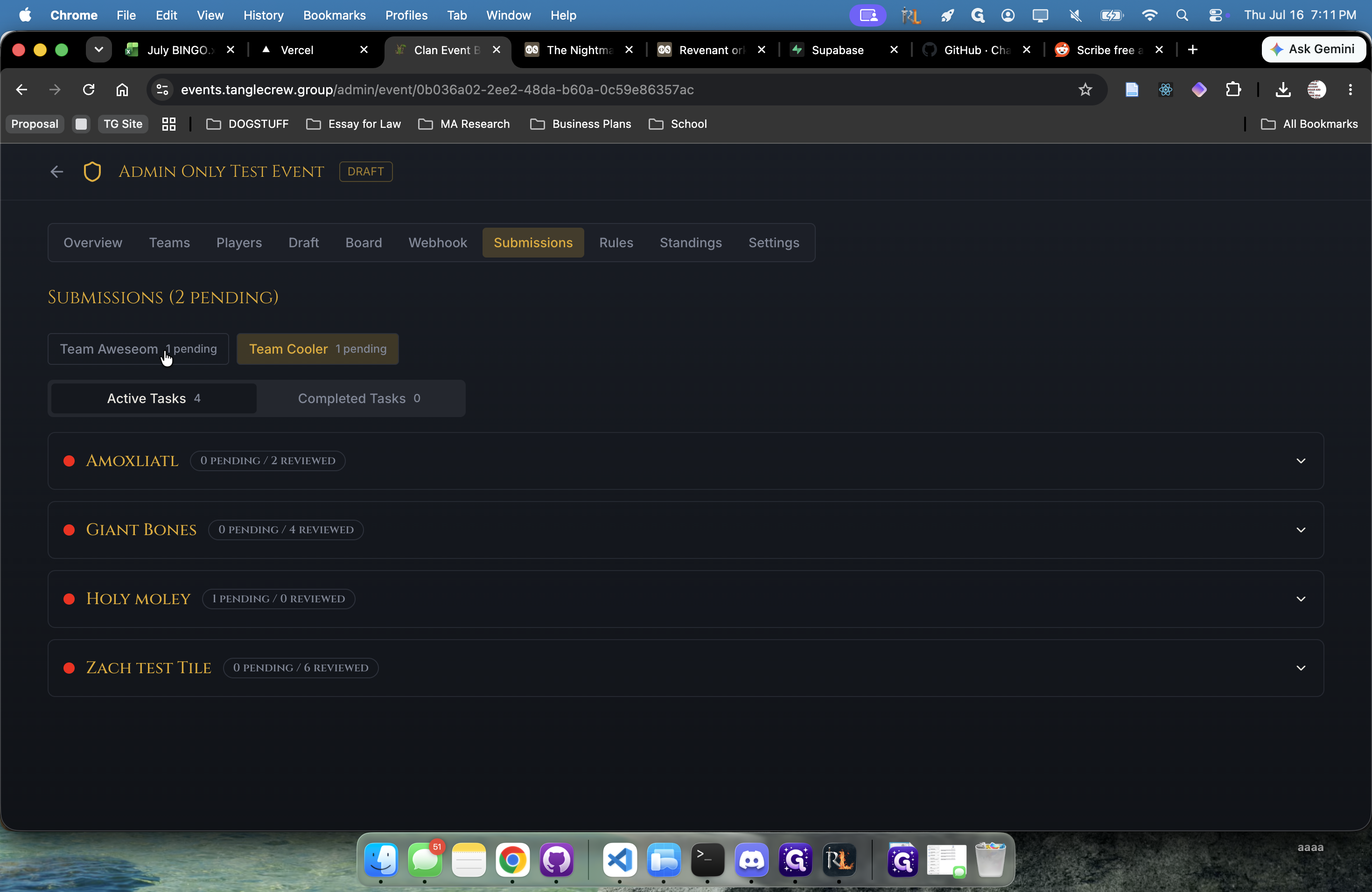
Click on a team that has a pending review, such as Team Aweseom.
6
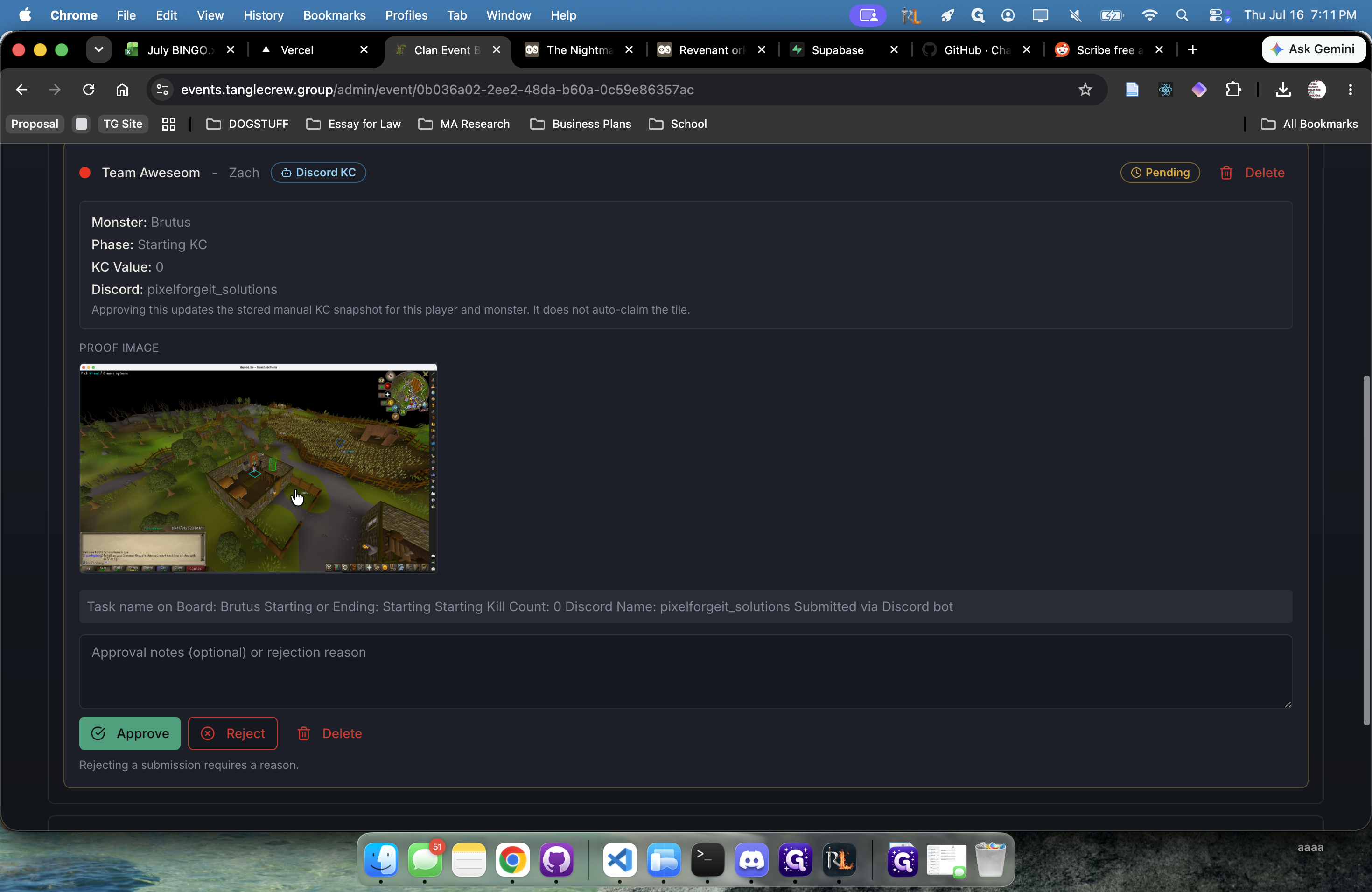
Click the screenshot image to open and verify the player's visual proof.
7
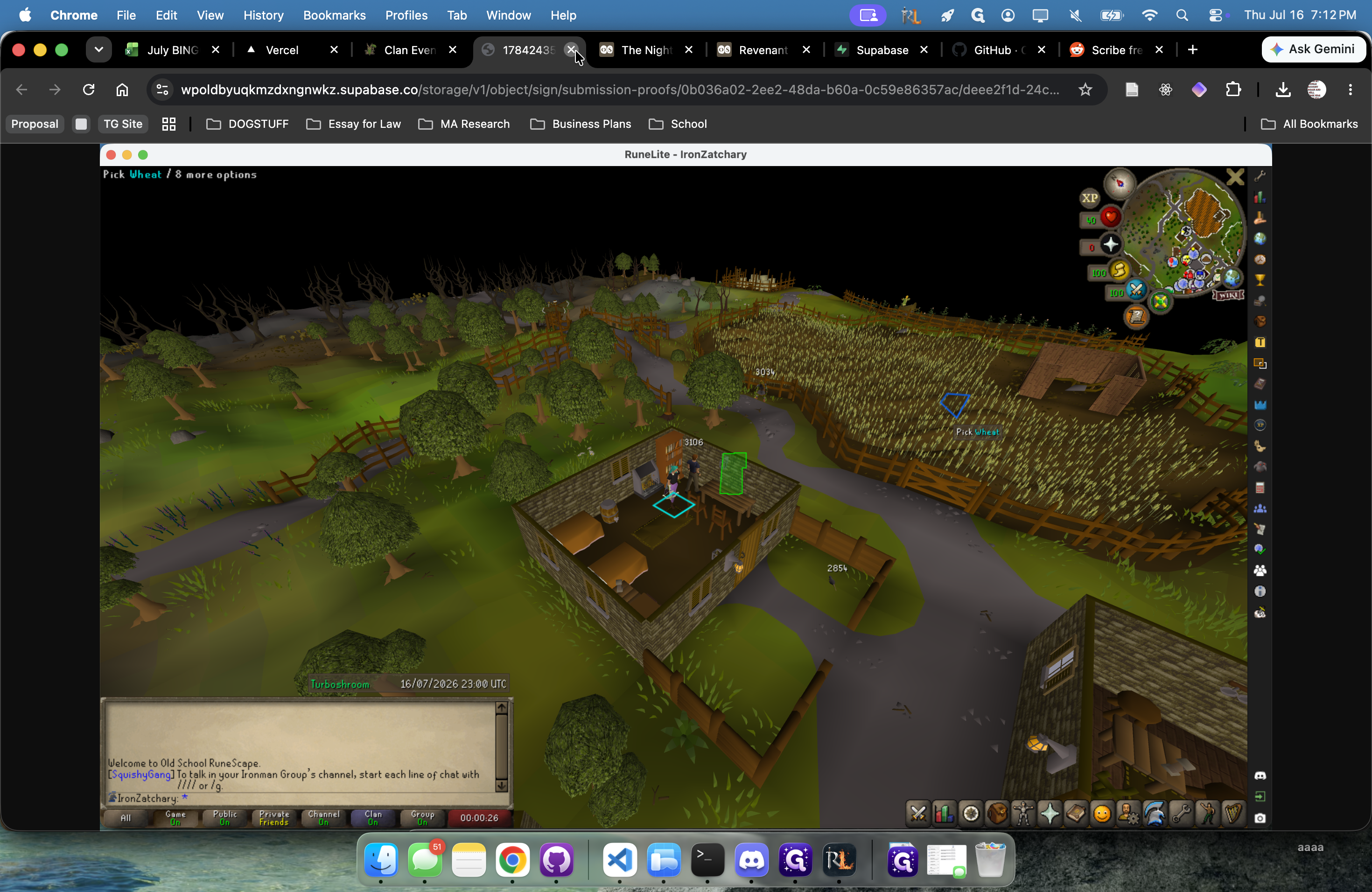
Once you have verified the task, close the browser tab containing the screenshot to return to the dashboard.
8
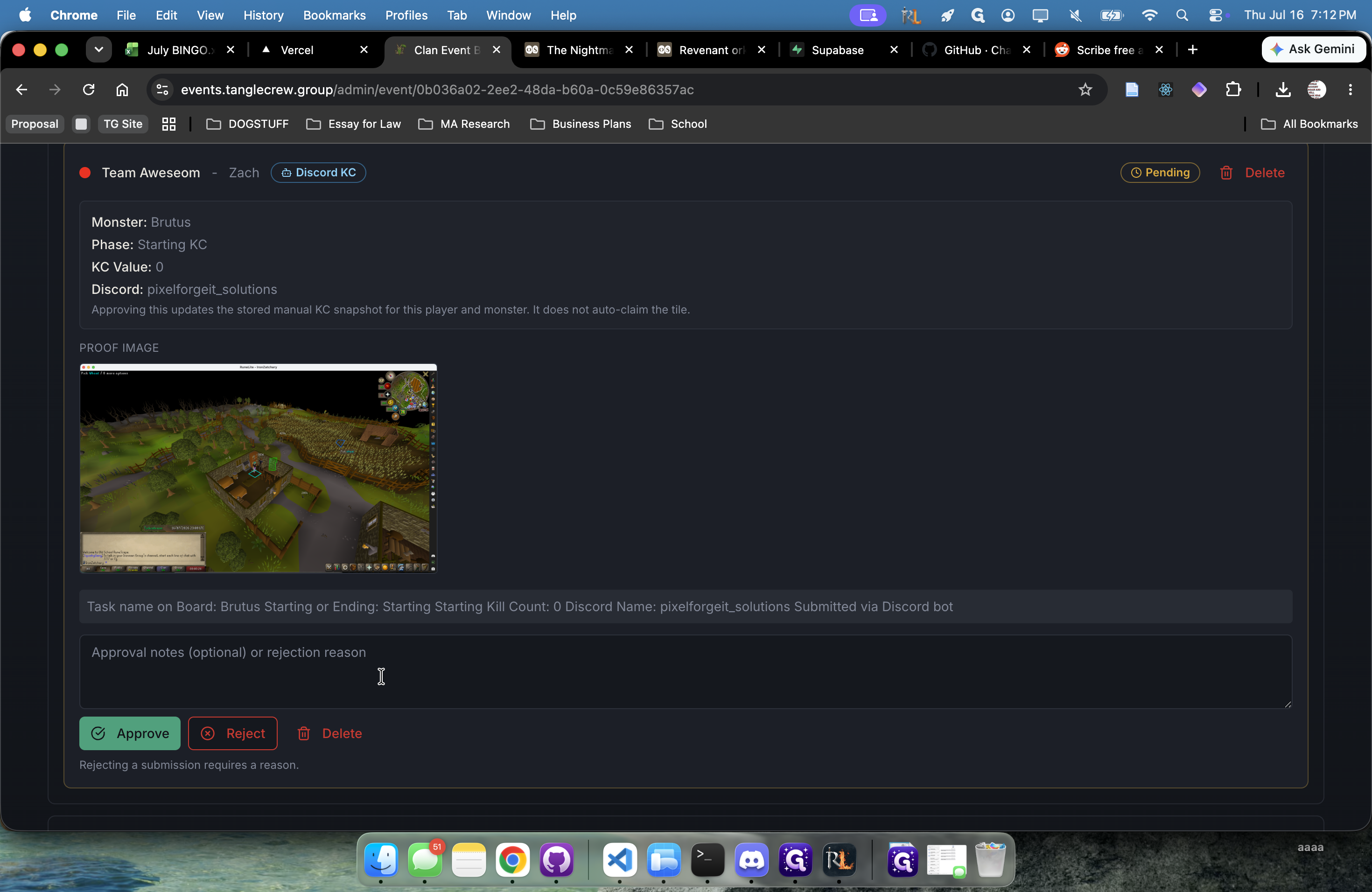
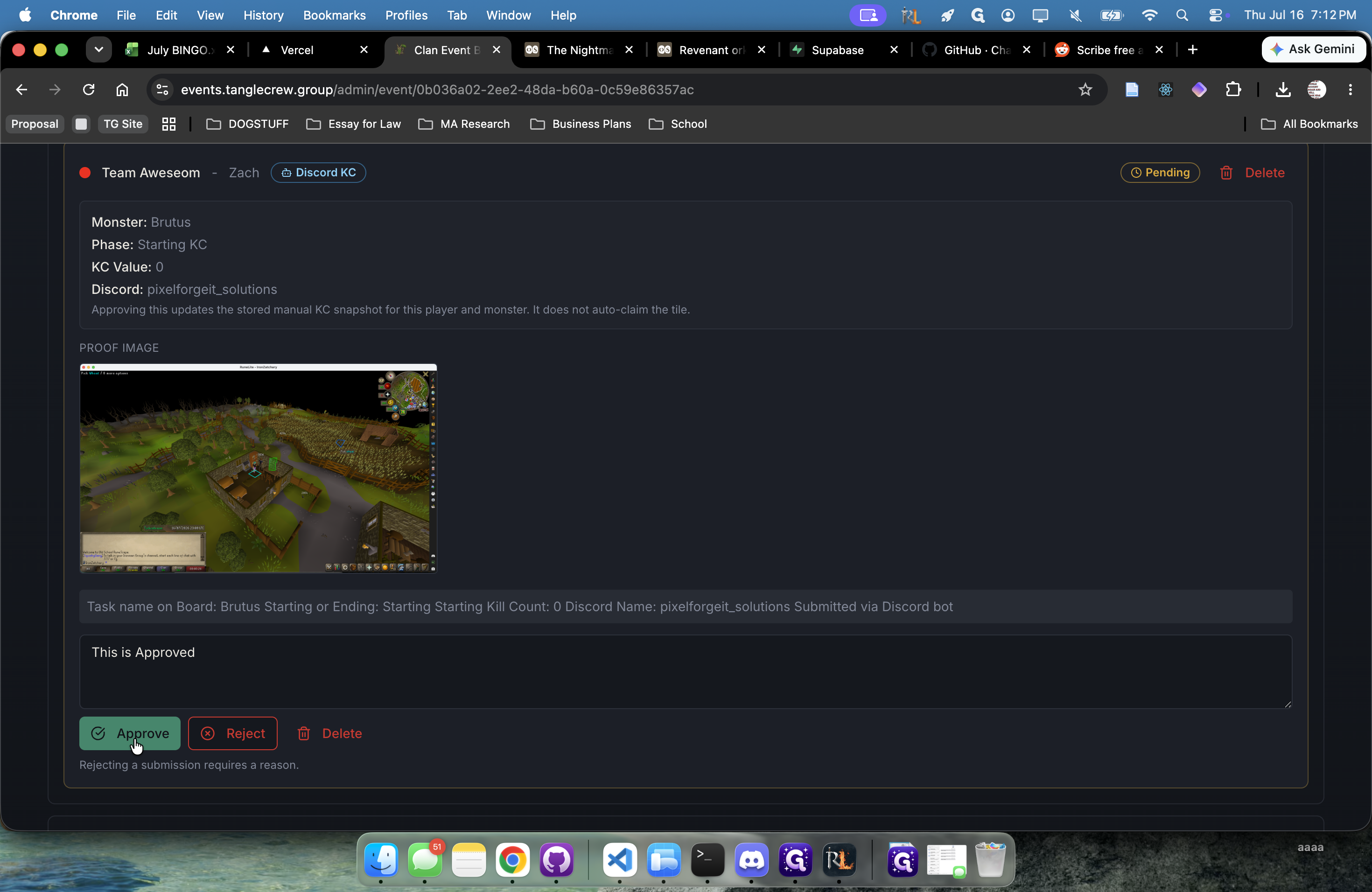
Click the Approval notes (optional) or rejection reason text field.
9
Type your approval notes (e.g., "This is Approved").
10
Click Approve to validate the submission.
Reject a Submission
11
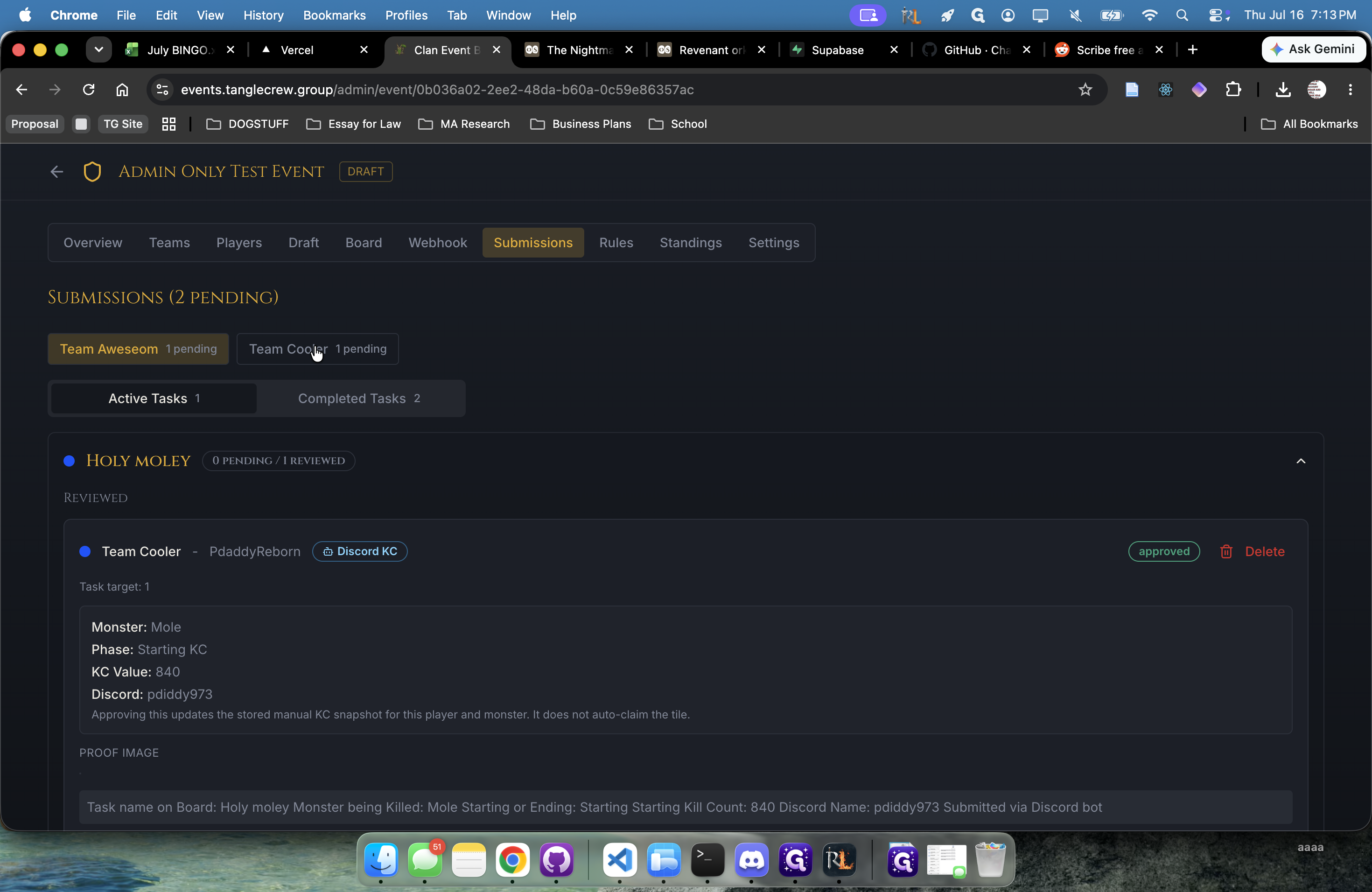
Select another team's pending submission tab.
12
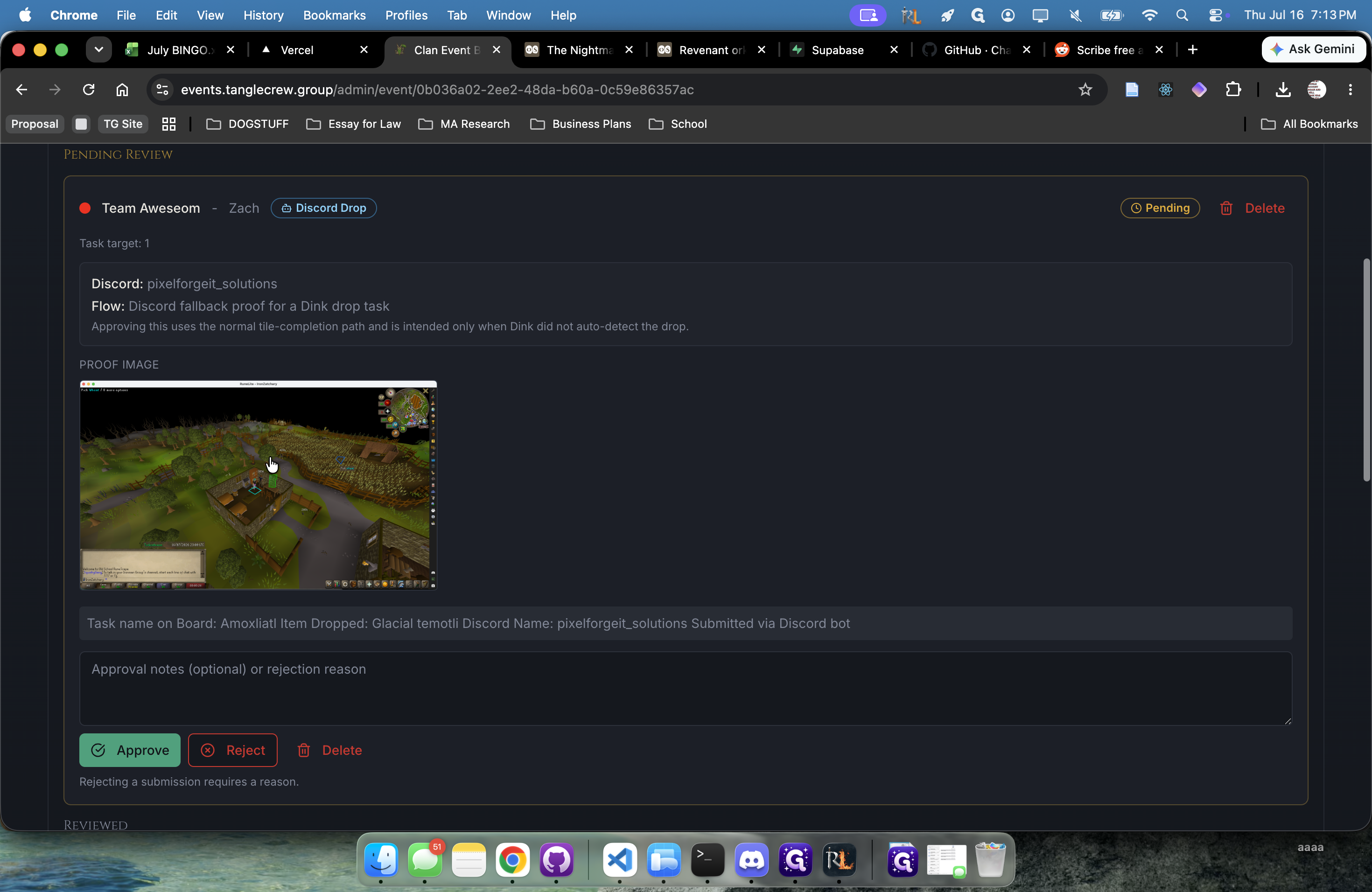
Click the screenshot proof to review the submitted image.
13
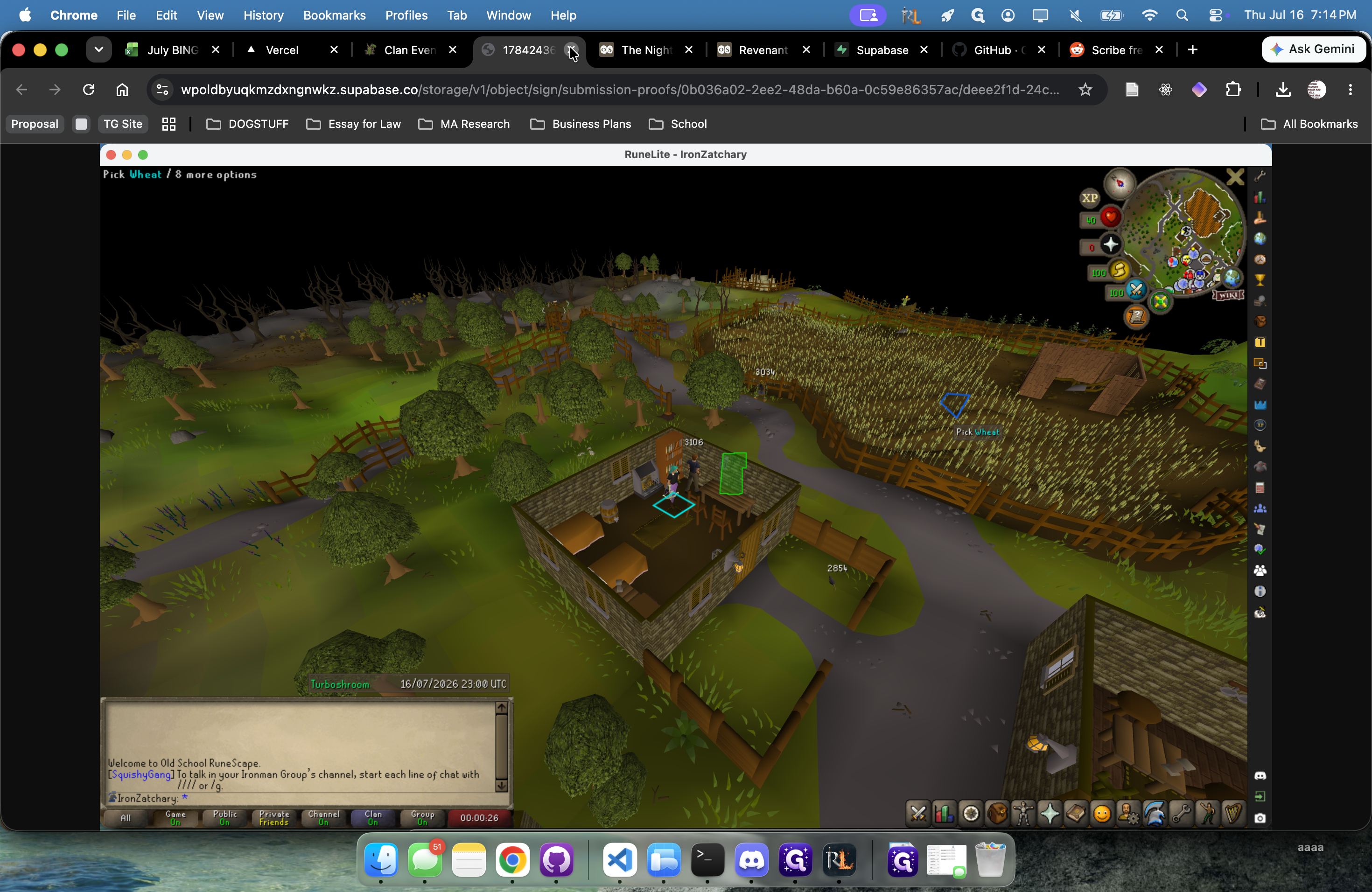
Close the screenshot browser tab once you determine the proof is invalid.
14
Click the Approval notes (optional) or rejection reason text field.
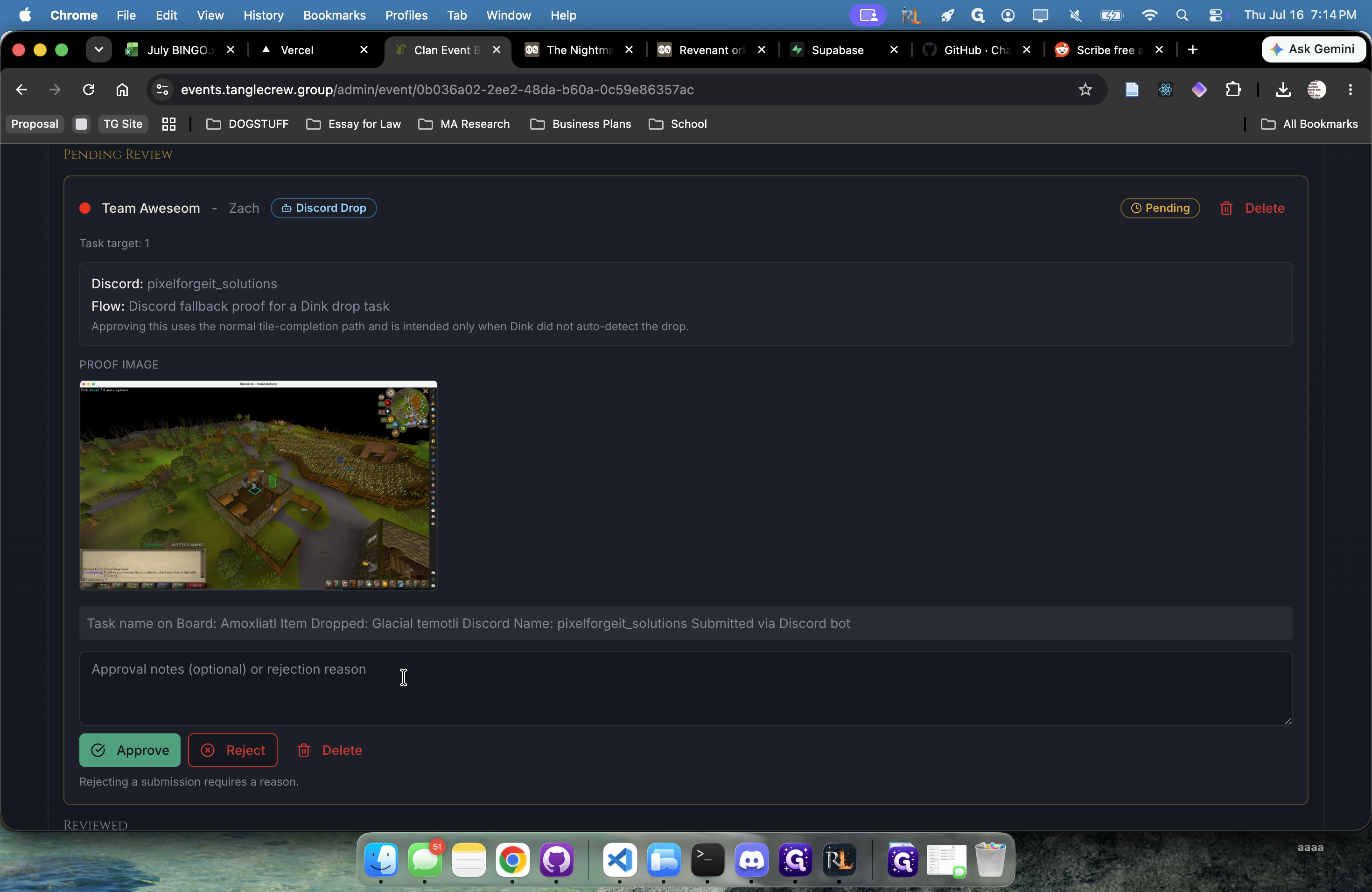
15
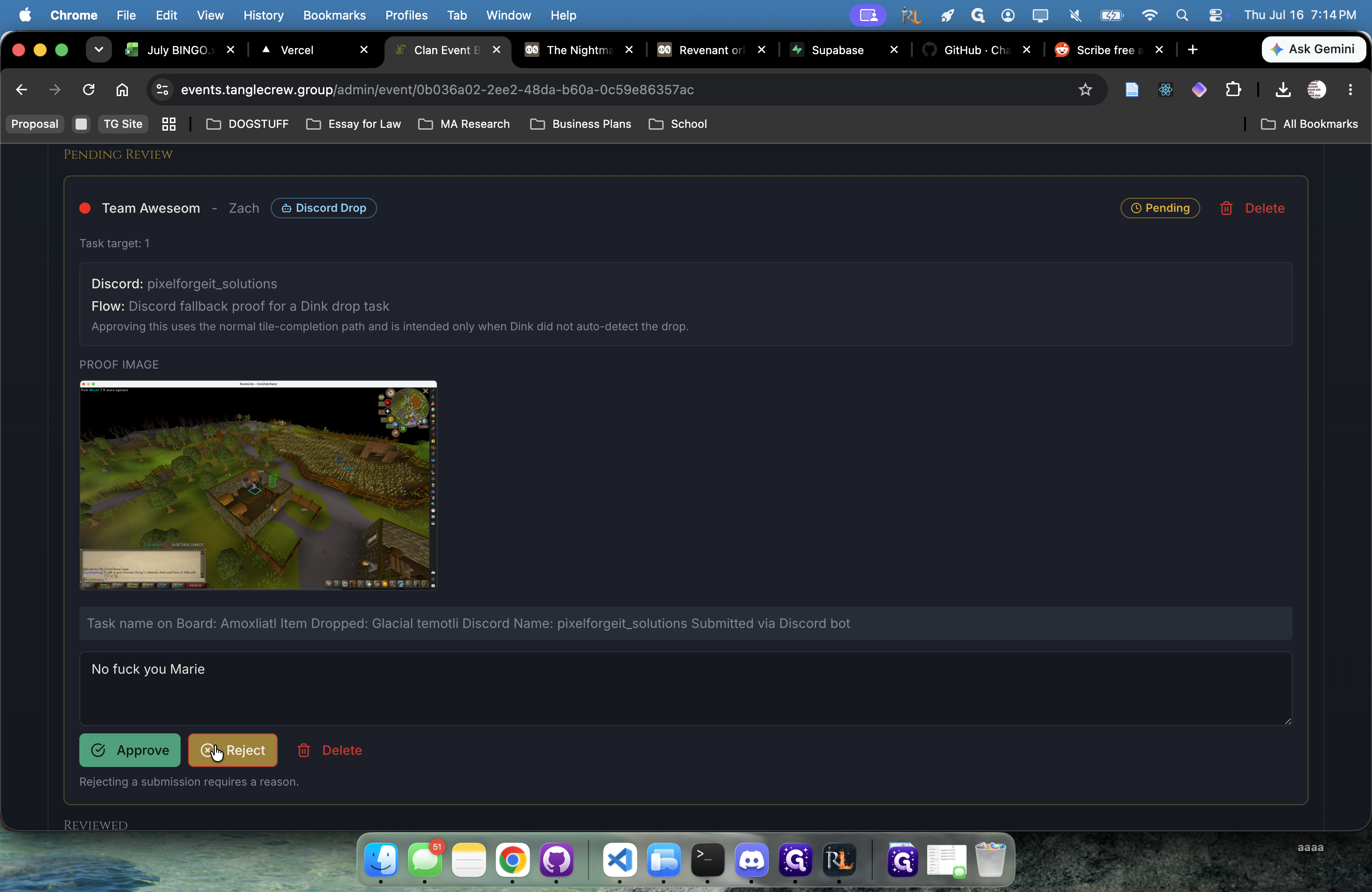
Type the reason why the submission is being rejected.
16
Click Reject to return the task to the player.
Term | Definition |
|---|---|
OSRS | Acronym for Old School RuneScape, the MMORPG where the clan events take place. |
RuneLite | A popular open-source client for Old School RuneScape used by players to capture submission screenshots. |
Submission | A task or achievement completed by a player, awaiting administrative verification. |